
IoT Manufacturing
by Viindoo
| Lines of Code | 1713 |
| Technical name | viin_iot_mrp |
| License | OPL-1 |
| Website | https://viindoo.com/apps/modules/18.0/viin_iot_mrp |
| Read description for | v 17.0 |
| Required Apps | Manufacturing (mrp) Discuss (mail) Inventory (stock) |
| Included Dependencies | Internet Of Things |
| Extensions | Quality Control IoT for Manufacturing IoT Shop Floor |
Label every finished unit at the station that made it
For manufacturers running work orders on the shop floor
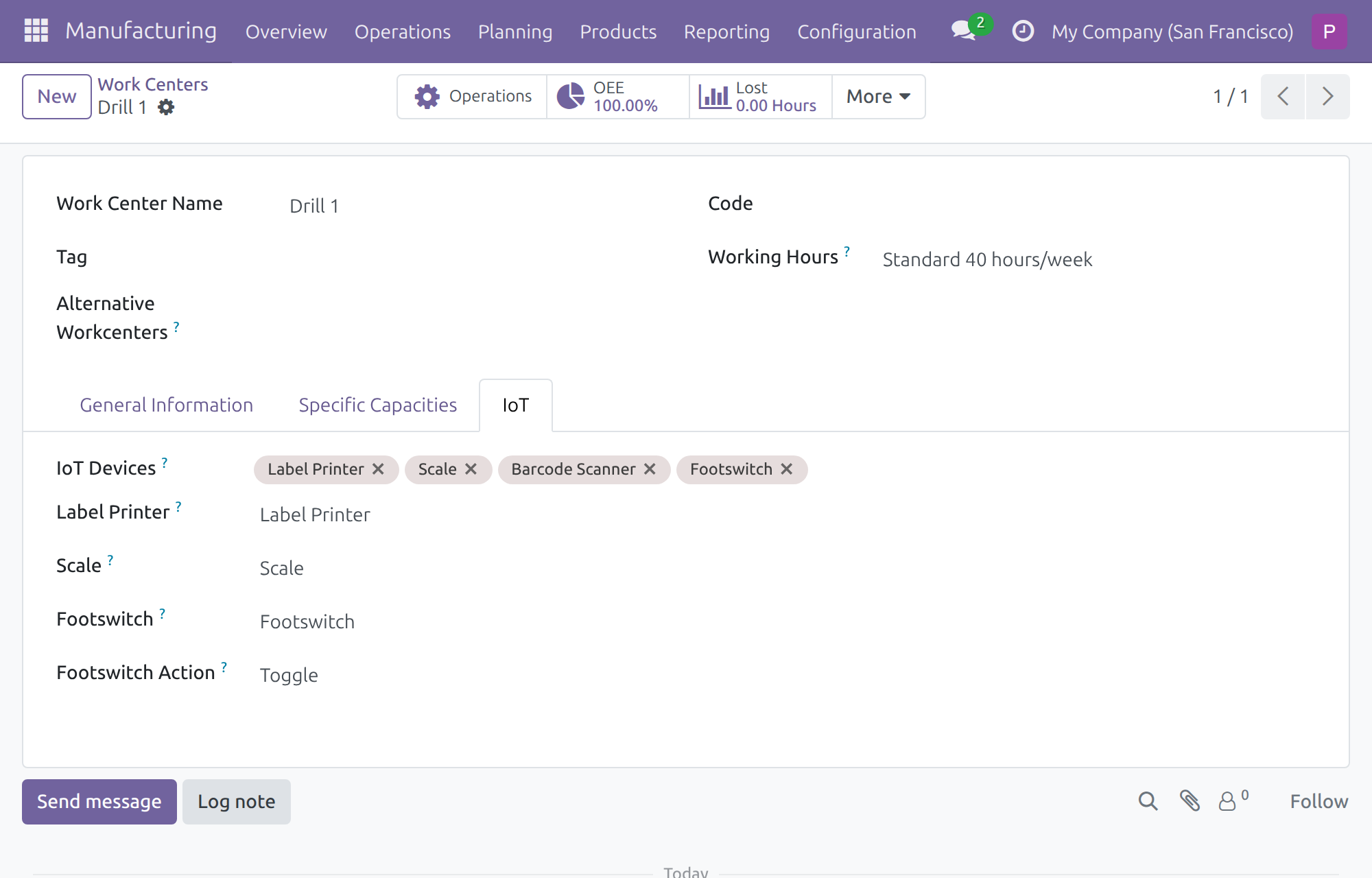
Give each work center its own label printer, scale and footswitch.
Extends viin_iot - see its documentation.
Is this you?
“Our operators walk to a shared printer, or type the label by hand.”
“The weight is read off a display and keyed into the order.”
“After a jam, nobody is sure what was labelled and what was not.”
“Hands are busy on the line, yet every start, pause and finish needs a click.”
“The plant owns the devices, but the work center does not know which ones belong to it.”
What changes
Shared hardware becomes station hardware.
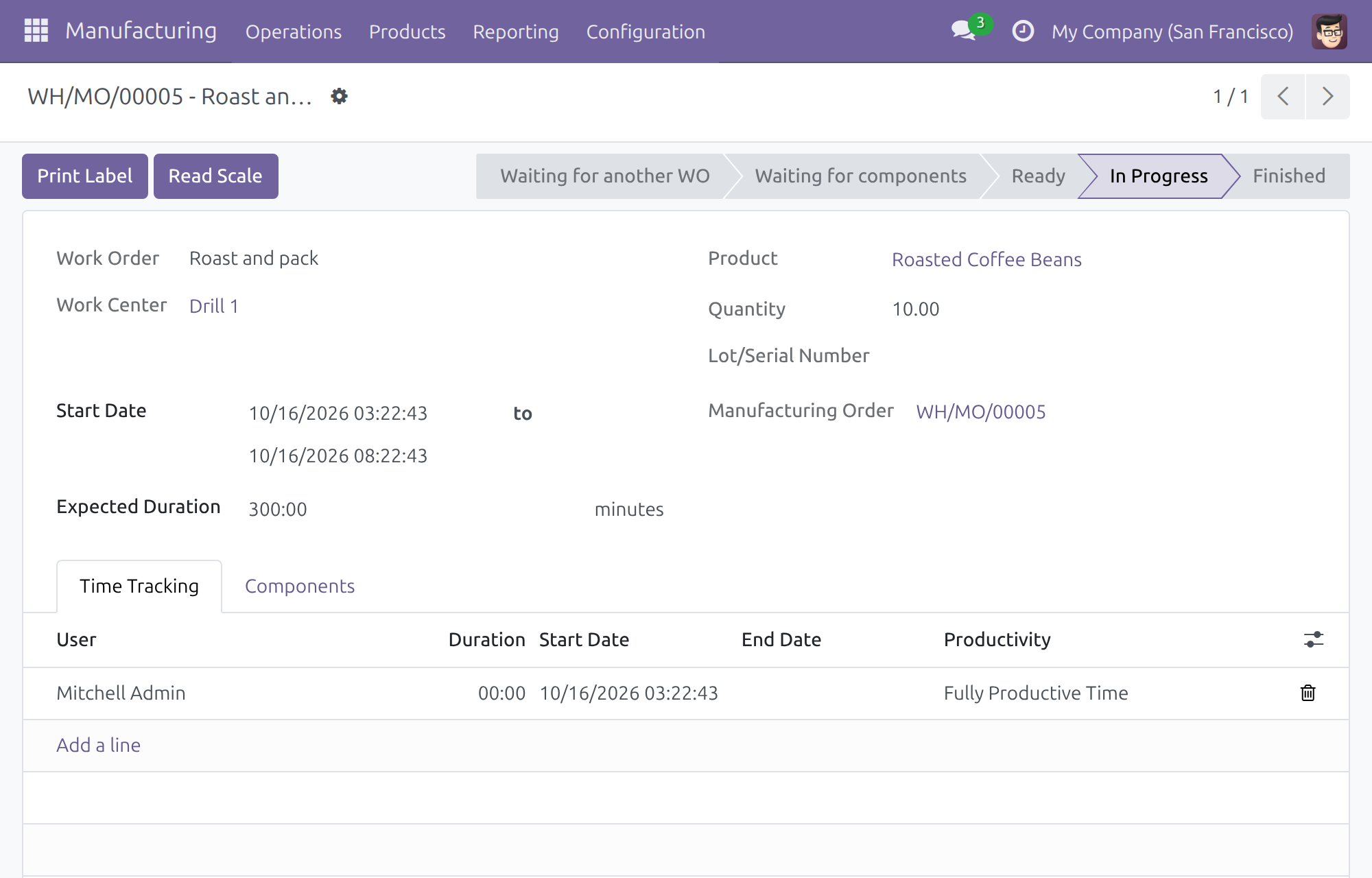
Attach registered IoT devices to a work center and name its label printer, scale and footswitch. Labels come out on that station’s own printer.
Keyed weights become one tap.
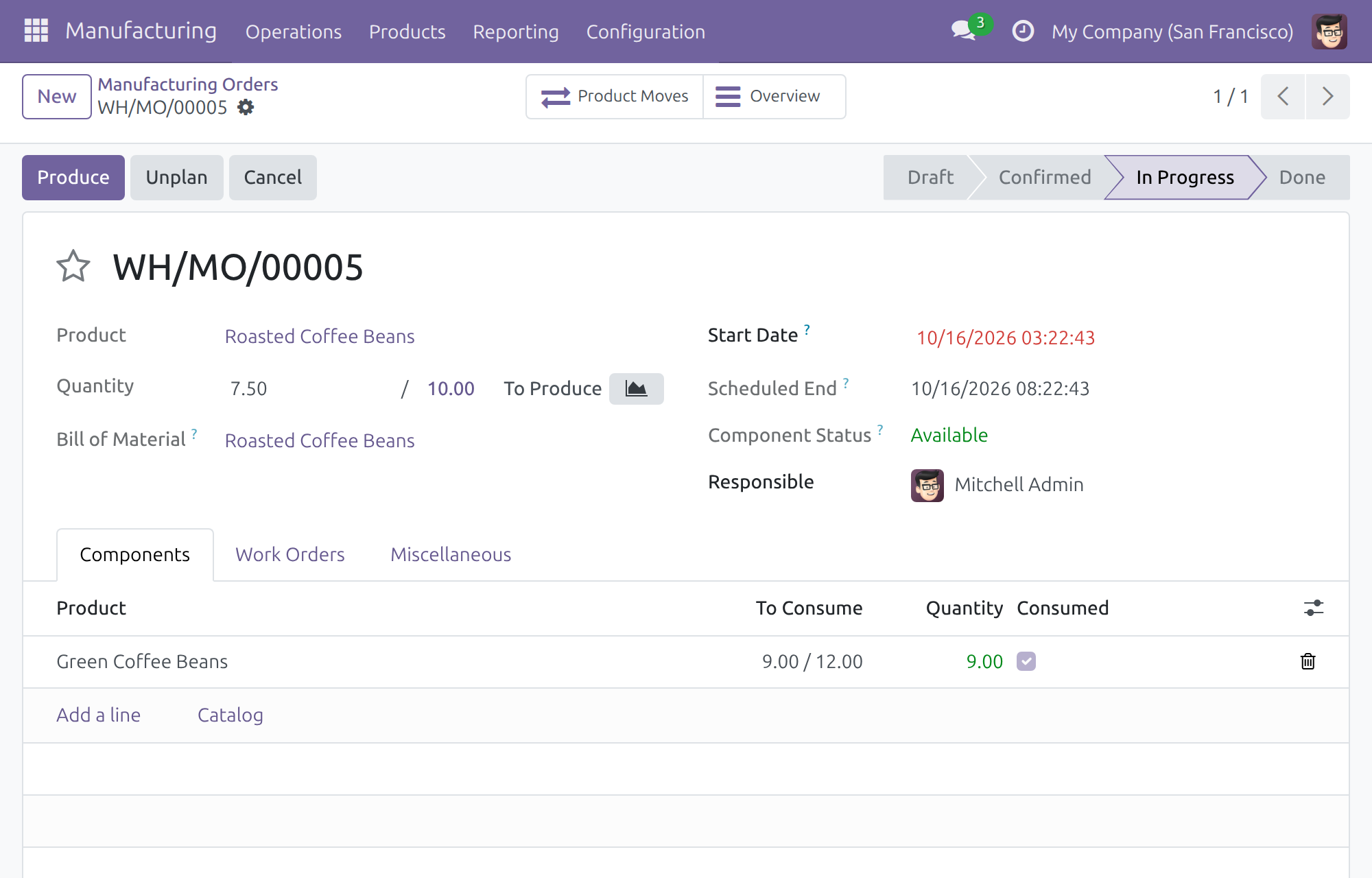
Read Scale takes one fresh reading into the produced quantity.
Duplicate labels stop.
Print Label prints only the output recorded and not yet labelled, by-products included.
A jam is no longer a guess.
A team leader can reprint the last label without changing what counts as labelled.
Hands stay on the work.
A footswitch starts, pauses, toggles or finishes the work order.
How a shift runs
Production operator, work order in progress
Tap Read Scale to take a fresh weight into the produced quantity.
Production operator, output recorded
Tap Print Label. Only what has not been labelled yet is printed, on the station’s printer. The team leader is the person to call if the label does not come out.
Production manager or team leader, after a jam
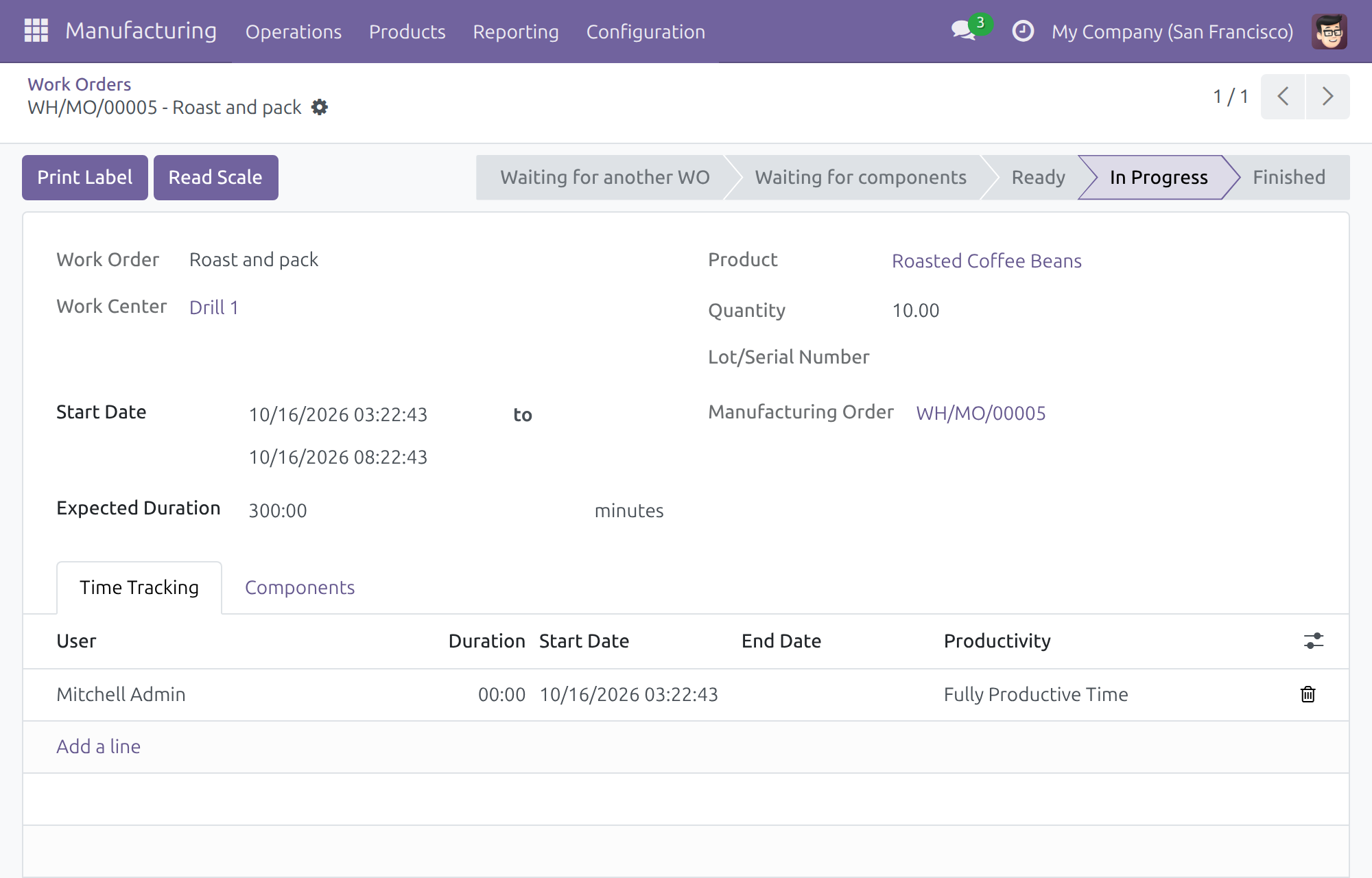
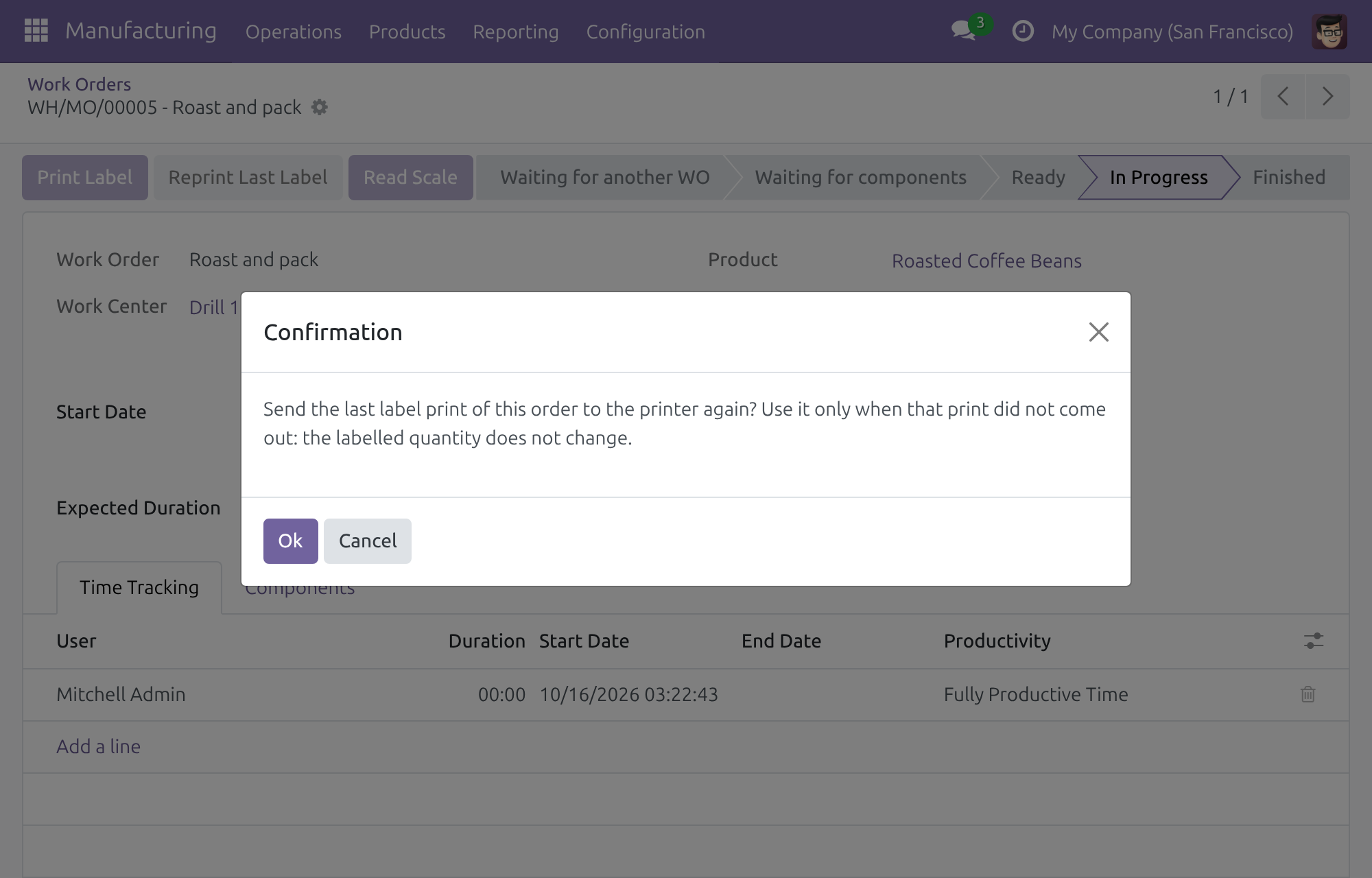
Use Reprint Last Label to resend the last accepted label. The labelled quantity stays unchanged.
Behind the scenes, the IT administrator pairs the box as the chapter Setting up an IoT box of the IoT documentation describes, the production manager attaches the devices to the work center once, and an administrator switches on IoT Manufacturing in Settings.
Key Features
Work Center IoT page
Attach registered IoT devices to a work center and nominate its label printer, scale and footswitch
Print Label
Print only the output recorded but not yet labelled on the station’s own nominated printer, never twice
Reprint Last Label
Let a team leader resend the last accepted label after a jam or empty roll without changing the labelled quantity
Read Scale
One tap takes one fresh weight reading, converted to the order’s unit, into the produced quantity
Footswitch hands-free control
Start, pause, toggle or finish the running work order with a foot press; a badge shows when the footswitch moved to another screen or its box is unreachable
Production label layout for recorded quantities
Labels carry exactly the quantities being labelled: one per whole unit for unit products, one label with the recorded quantity otherwise
Who it is for
Plant manager or operations director
Wants every station to use its own devices and every unit labelled once.
Production manager or team leader
Wants to attach each station’s devices once, with the Manufacturing administrator right alone, and to recover from a jam without guessing what was labelled.
Production operator
Wants a tap for the weight, a control for the label and a foot press for the work order.
IT administrator
Wants a light add-on that needs only the IoT platform and Manufacturing.
Best for: manufacturers that want each work center to use its own label printer, scale and footswitch, with a clear handoff between operator and team leader.
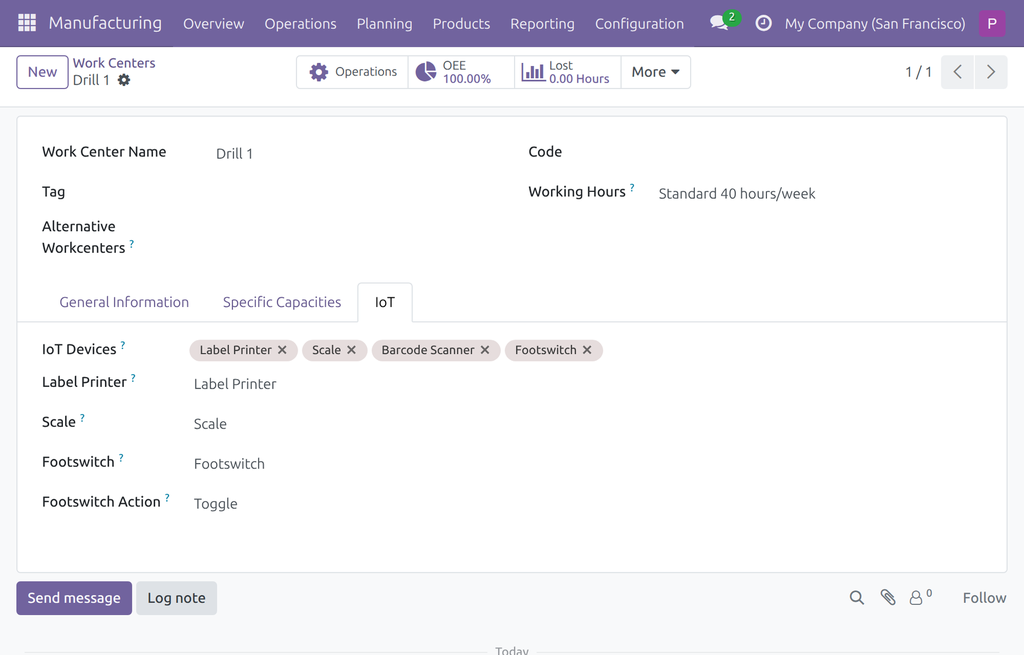
Give each station its own devices
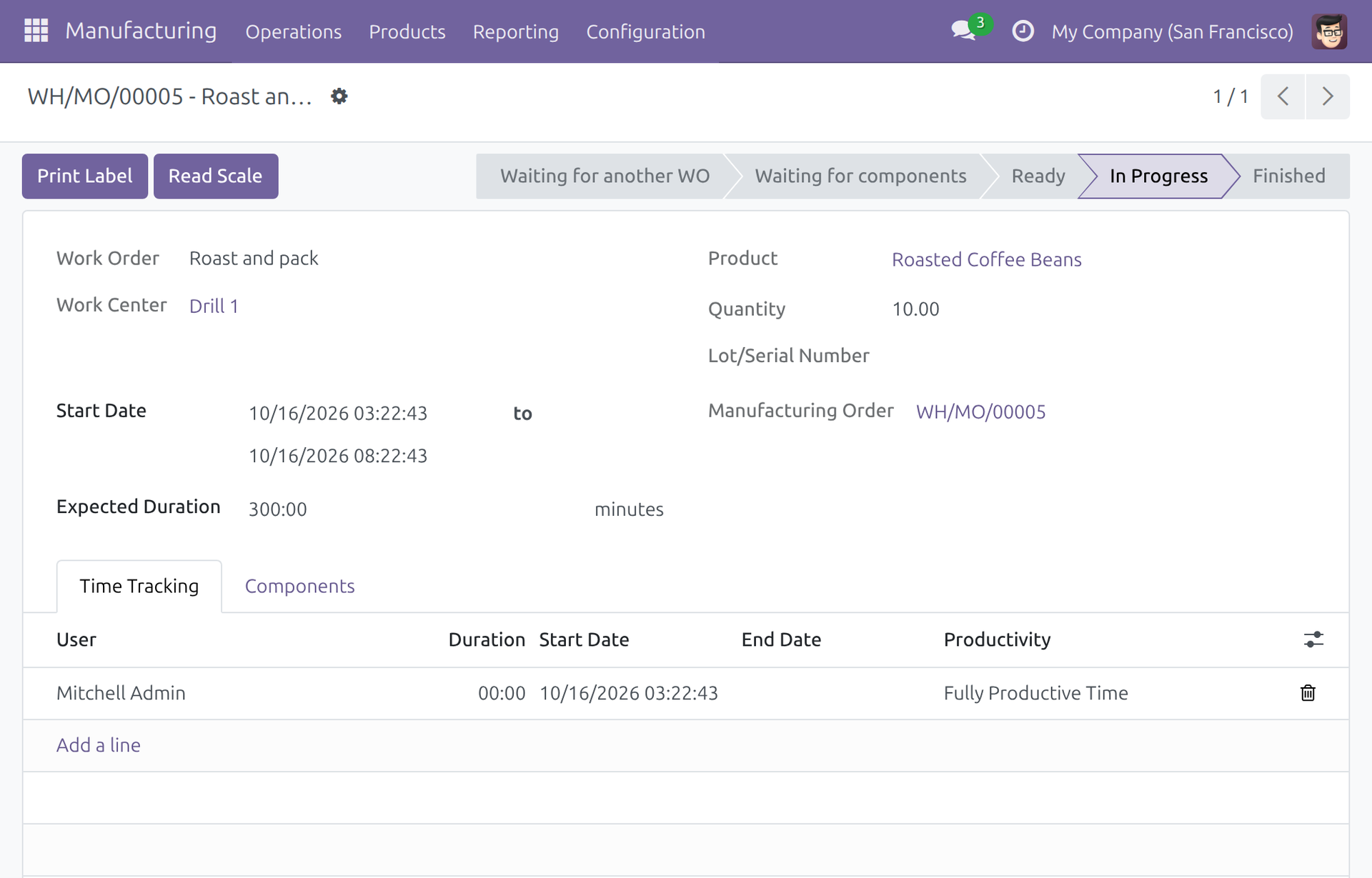
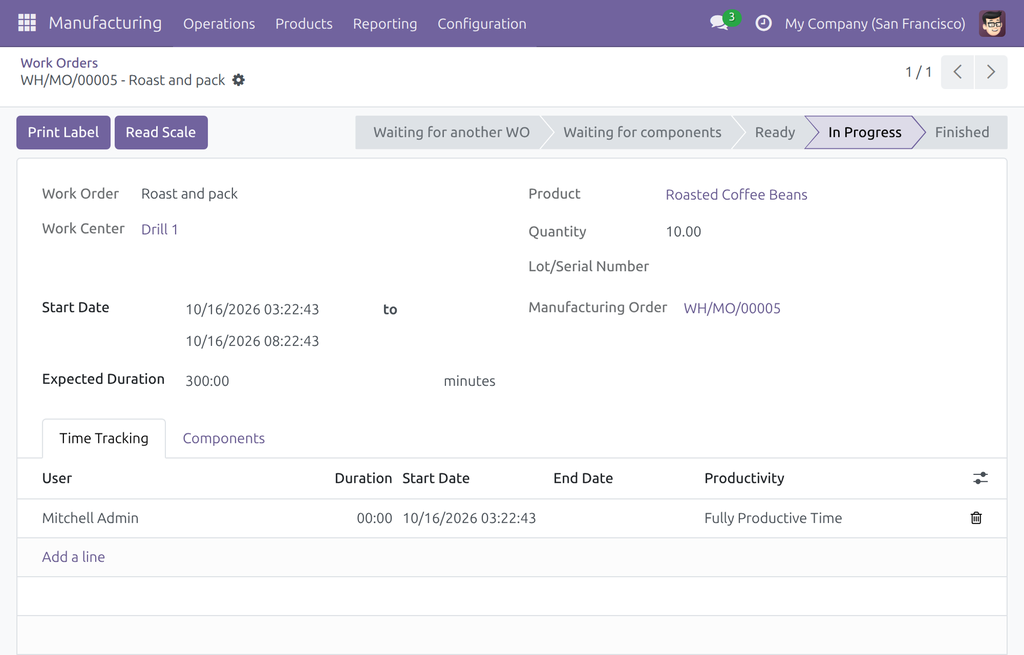
Print the label and read the scale from the work order
See the weighed quantity in the manufacturing order
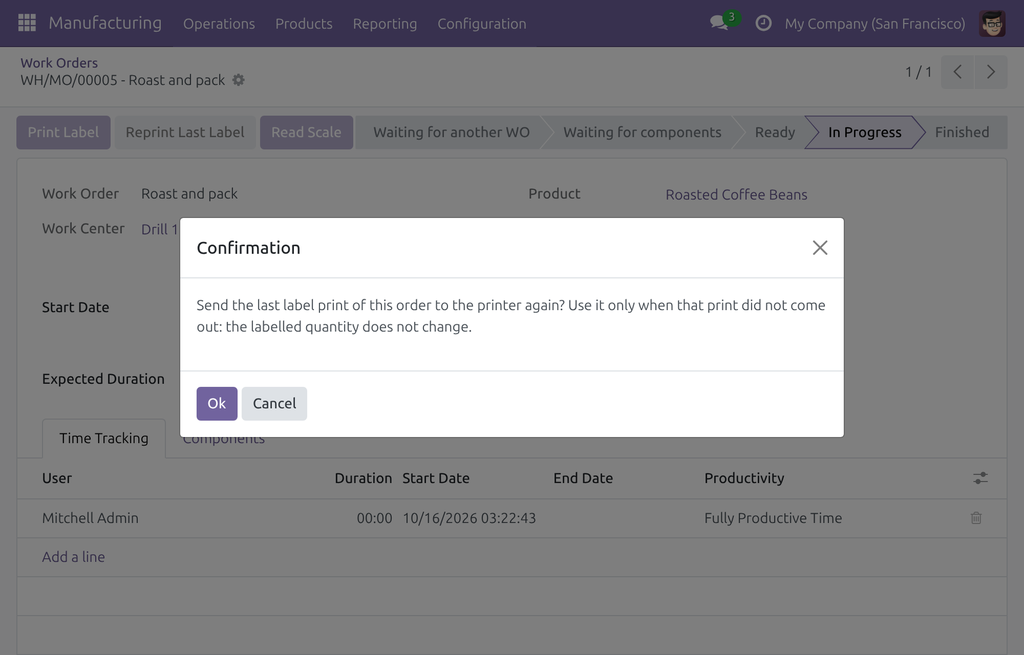
Reprint the last label after a jam
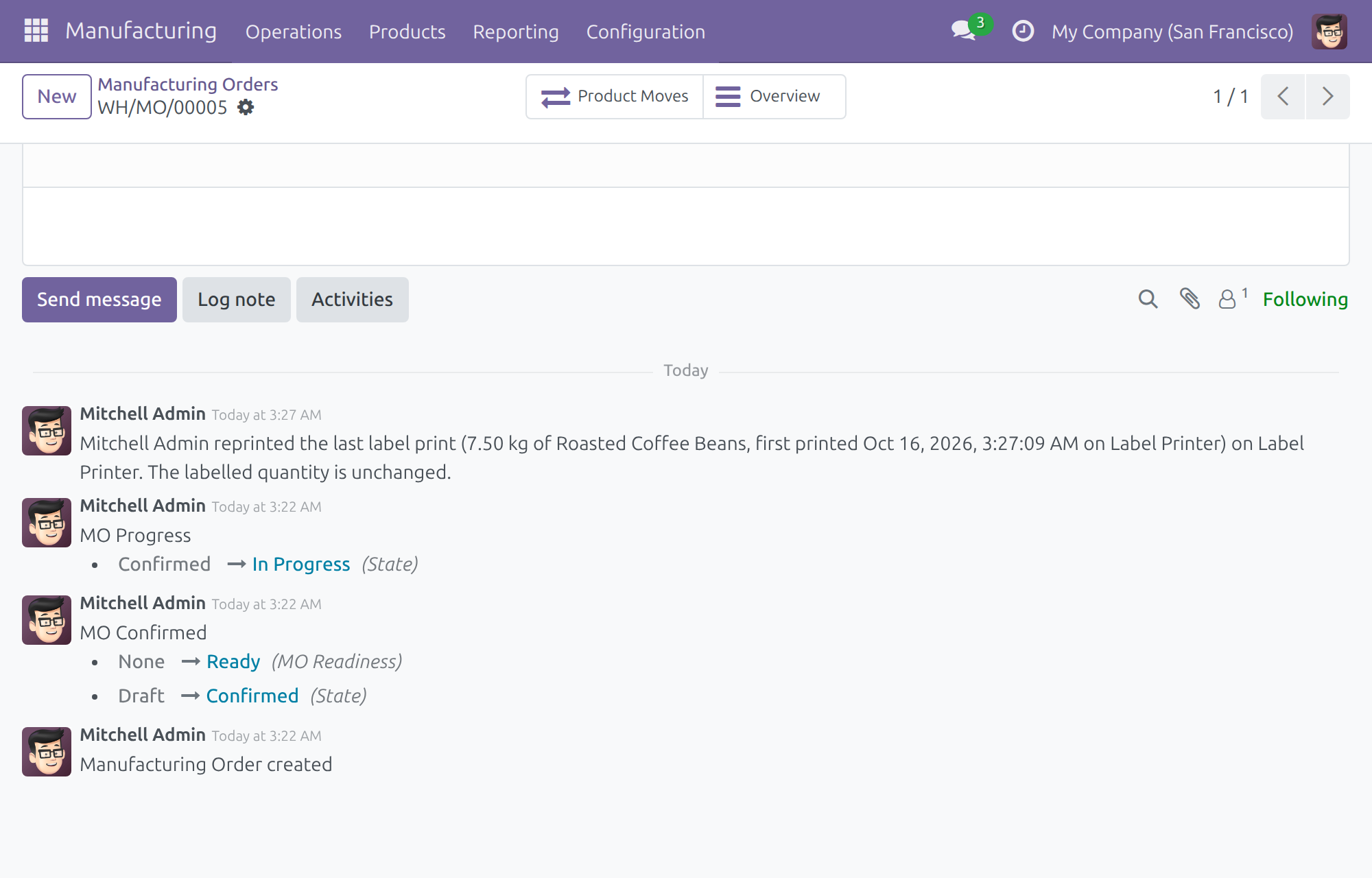
Every reprint is logged on the order
Frequently Asked Questions
Will the same unit be labelled twice?
No. Print Label prints only the output that was recorded and not yet labelled.
What if the label jams or the roll runs out?
A production manager uses Reprint Last Label. It resends the last accepted label and does not change the labelled quantity.
What if the scale or the IoT box cannot be reached?
The screen shows that the device is unreachable. You can type the value by hand; it is marked as manual.
Can two screens drive the same footswitch at once?
One screen holds a device at a time. If another screen takes it, the first shows a badge.
Which servers are supported?
Viindoo Cloud, or your own Viindoo server.
Need help with IoT Manufacturing?
Technical Support
apps.support@viindoo.comTechnical Requirement
- Editions: Odoo Community, Viindoo Cloud
- Required modules: IoT (
viin_iot), Manufacturing (mrp) - License: OPL-1
- Related apps: IoT (the IoT platform) · IoT Shop Floor (the shop-floor screen)
IoT Manufacturing
Note
Extends viin_iot - see its documentation.
Overview
A work center has no way to say which scale or label printer stands at it, so operators walk to a shared printer, read a weight off a display and type it in, or retype a label by hand. IoT Manufacturing lets you attach registered IoT devices to a work center - a label printer, a scale and a footswitch - and then use them from the work order form of that station:
- Print Label sends the label of the output that was recorded but not yet labelled to the station's own label printer.
- Read Scale takes one fresh reading from the station's scale and puts it into the quantity of the manufacturing order.
- Reprint Last Label lets a team leader send the last label again after a jam or an empty roll.
- A footswitch starts, pauses or finishes the work order hands-free.
A work center with no device attached, and a database without this module, work exactly as before.
How the work flows
- Production in progress - the production operator weighs the produced quantity with Read Scale. Next: the same operator.
- Output recorded, label printed - the production operator prints the label with Print Label. Next: the production manager or team leader, only if the label did not come out.
- Label did not come out - the production manager or team leader sends it again with Reprint Last Label.
Who uses this module
| Role | What they do | Access right to assign |
|---|---|---|
| IT / System Administrator | Installs the IoT apps, pairs the boxes (see the chapter Setting up an IoT box of the IoT documentation) and decides in Settings whether IoT Manufacturing is on. | Internet of Things (IoT) / Administrator, and the Settings access of Administration |
| Production Operator | Runs the work orders of a station: reads the scale, prints labels, uses the footswitch. | Manufacturing / User |
| Production Manager / Team Leader | Attaches devices to work centers and chooses the label printer, scale and footswitch of each station; does everything the operator does, plus reprinting the last label. | Manufacturing / Administrator (it brings Internet of Things (IoT) / User with it) |
Setup (for the Administrator)
Installation
- Open Apps.
- Search for IoT Manufacturing.
- Click Activate. The apps IoT and Manufacturing are required and are installed with it if they are missing.
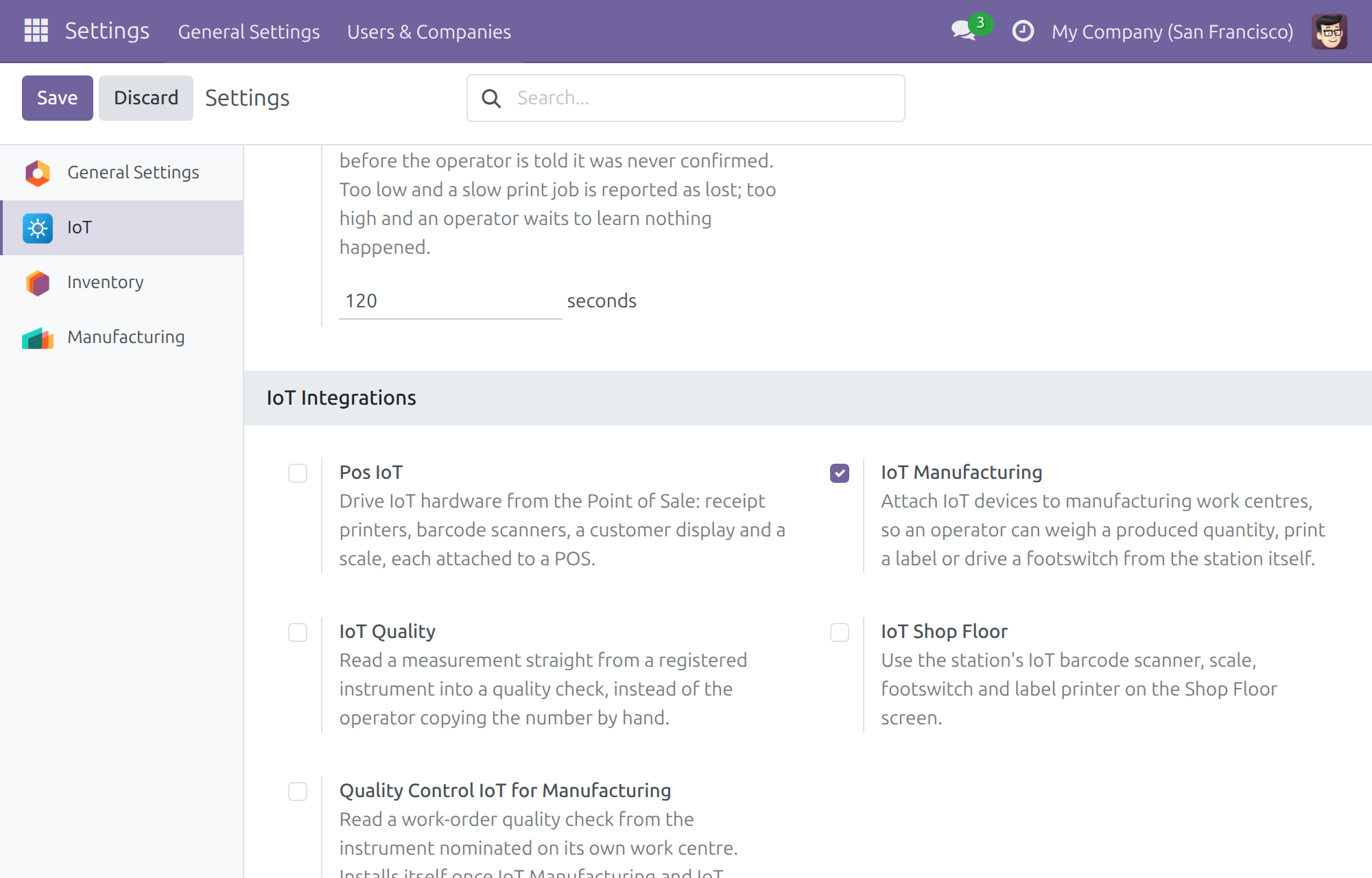
The module also switches itself on as soon as IoT and Manufacturing are both installed. To turn it off, open Settings ‣ IoT ‣ IoT Integrations and clear the IoT Manufacturing box.
Configuration
- Pair your IoT boxes first. To pair a box and connect its devices, follow the chapter Setting up an IoT box of the IoT documentation. A device can only be attached to a work center once its box has registered it.
- If your work orders are printed on a label printer, check Device Action Timeout (seconds) under Settings ‣ IoT. It is the time the system waits for the box to confirm a print before it records that the print was never confirmed. The default is 120 seconds.
Assign the access rights
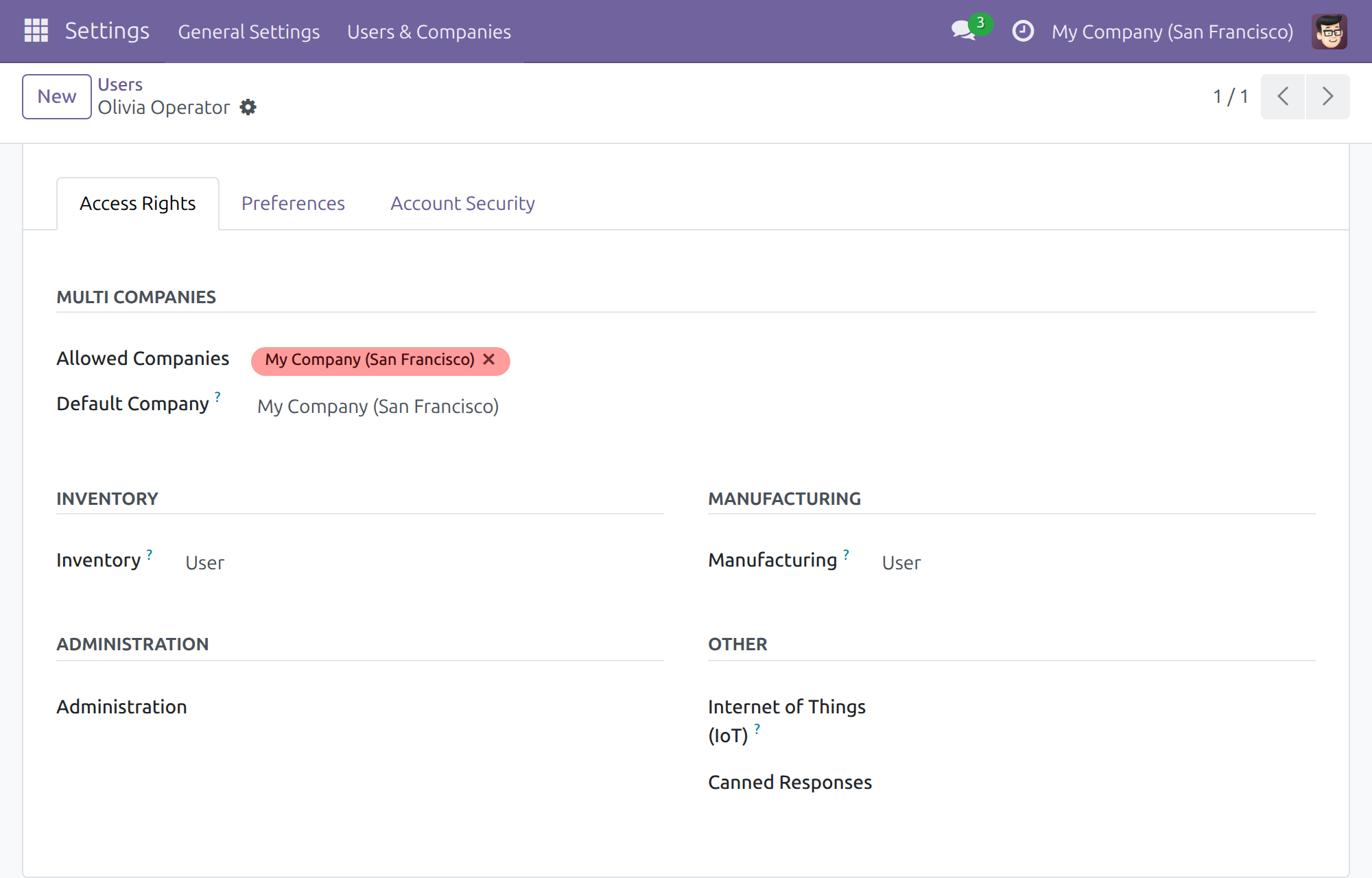
Open Settings ‣ Users & Companies ‣ Users, open a user and go to the Access Rights page.
- For each production operator, set Manufacturing to User.
- For each team leader or production manager, set Manufacturing to Administrator. This right brings Internet of Things (IoT) / User with it, so the manager sees the boxes and devices to choose from; there is nothing else to set.
Operators do not need any IoT access right: printing a label or reading a scale from the work order needs only the right to open the work order. Manufacturing / User cannot change a work center, so it cannot attach devices either.
If you uninstall IoT Manufacturing, Manufacturing / Administrator no longer brings Internet of Things (IoT) / User with it, but the people who already hold it keep it. Remove it by hand from those who no longer need it.
Production Manager: attach devices to work centers
Attach the devices of a station
- Open Manufacturing ‣ Configuration ‣ Work Centers and open the work center.
- Go to the IoT page.
- In IoT Devices, add the devices that stand at this station.
- Choose the Label Printer, the Scale and the Footswitch of the station. Each list only offers devices of the right kind that you attached in the previous step.
- If you chose a Footswitch, choose its Footswitch Action: Start, Pause, Toggle or Finish. Toggle pauses a running order and starts it again when it is paused.
- Save.
A device that does not belong to this station is refused with a reason when you save: a device must first be one of the IoT Devices of the work center before you can choose it for a role, and a device of another company cannot be attached.
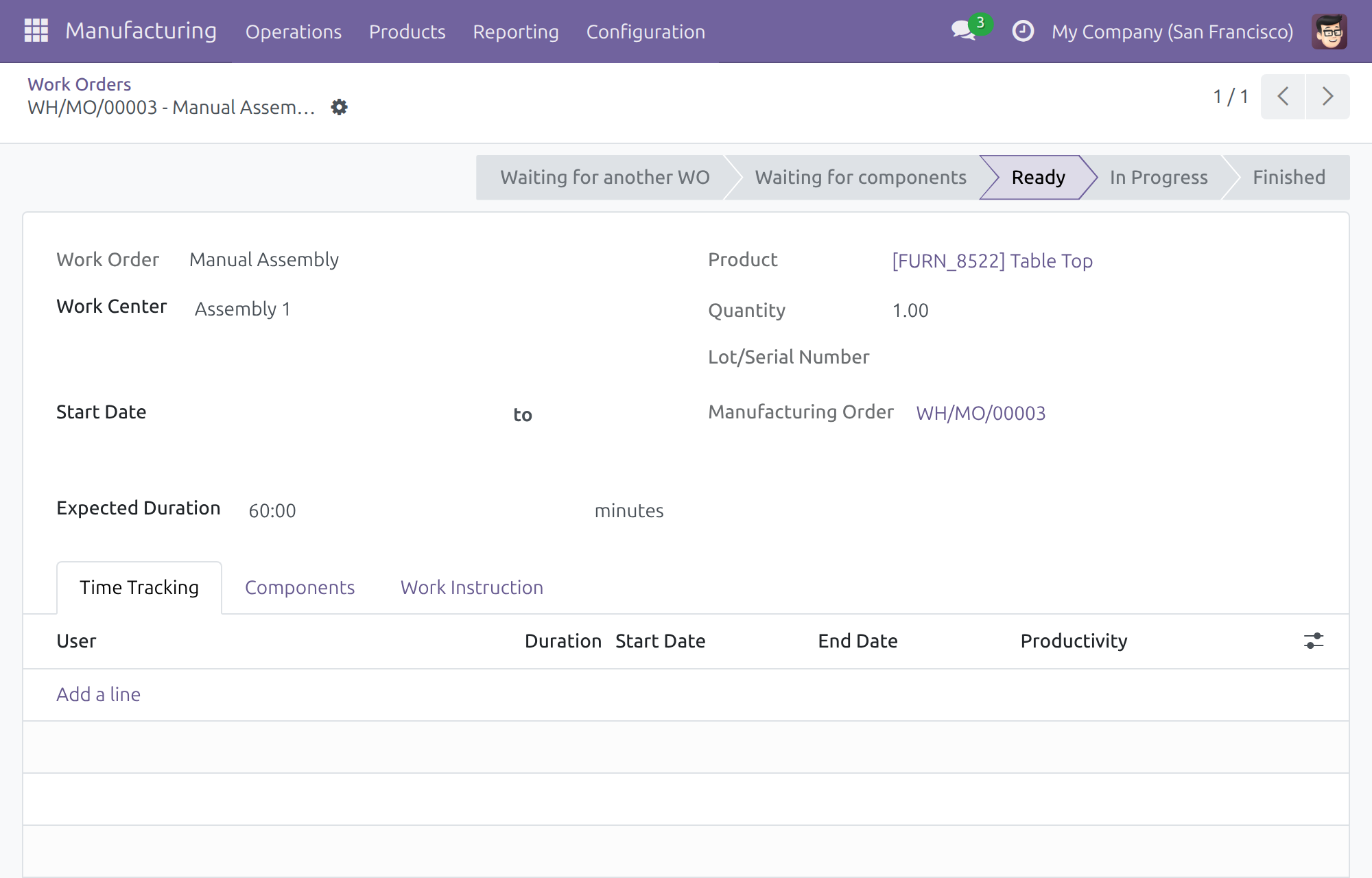
To free a device, remove it from the IoT Devices of the work center. A work order shows a button only when its work center has the matching device chosen, so a station with nothing chosen shows no IoT button at all.
Production Operator: weigh output and print labels
Read the weight of the produced quantity
- Open Manufacturing ‣ Operations ‣ Work Orders and open the work order you are running. Start it if it is not started yet.
- Put the product on the scale and wait until the weight is steady.
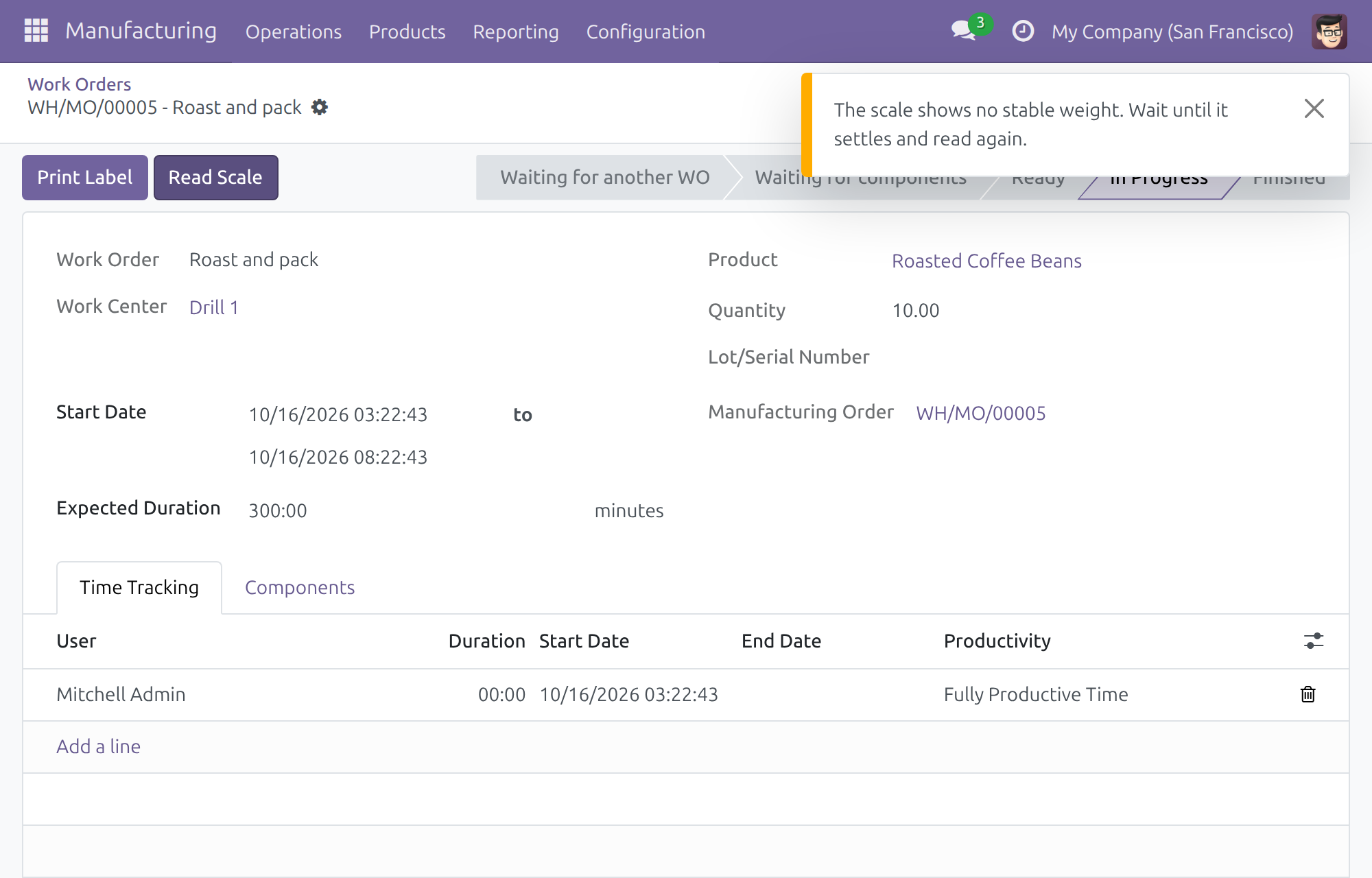
- Click Read Scale. One tap takes one fresh reading at that moment.
- Open the manufacturing order with the link Manufacturing Order. Its Quantity now shows the weight, converted into the unit of the order, and the components to consume follow the new quantity.
The reading is refused, and nothing changes, in these cases:
- the scale shows 0 or an unsteady weight - a message asks you to wait until it settles and read again;
- the order is counted in Units or in another unit that is not a weight - a scale reading can never become a count;
- the order is not in production, for instance a draft order.
Print the label
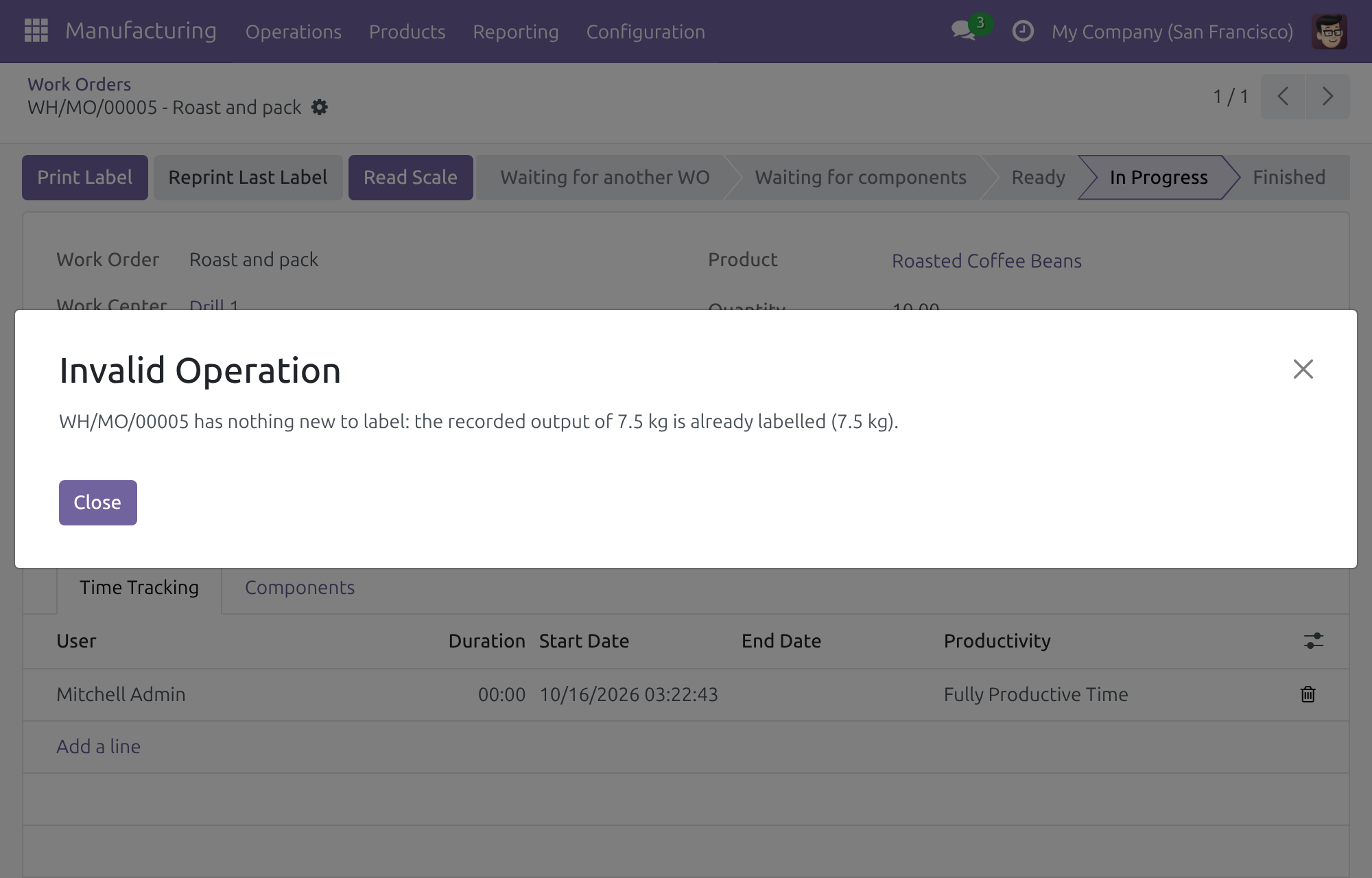
- On the work order, click Print Label.
- The label goes to the label printer of the station. The form reloads when the print is sent.
Each print covers only the output that was recorded but is not labelled yet, so no label is printed twice. For example, record 2 and print, then record 3 more and print again: the second print is for 3.
- While the order is in progress, the label is for the main product.
- When the order is done, one print covers the remaining quantity of the main product and each by-product, once.
- For products counted in Units, one label is printed per whole unit.
If there is nothing new to label, or no output is recorded yet, a message says so and nothing is printed. If the printer is offline, a message names the printer and says the label was not printed.
After the print, the manufacturing order gets a note in its chatter: one note says the label has printed when the box confirms it, and another says the print was never confirmed when no confirmation arrives within the Device Action Timeout.
Work hands-free with the footswitch
When the station has a footswitch, opening its work order on a screen claims the footswitch for that screen. A press then does what the work center's Footswitch Action says: start, pause, toggle or finish the work order, exactly as the matching button would.
If another screen opens the same station, the footswitch goes to that screen and your screen shows Footswitch handed to another screen. Open the work order again on your screen to take it back. Nothing is ever recorded twice.
When the box or a device fails
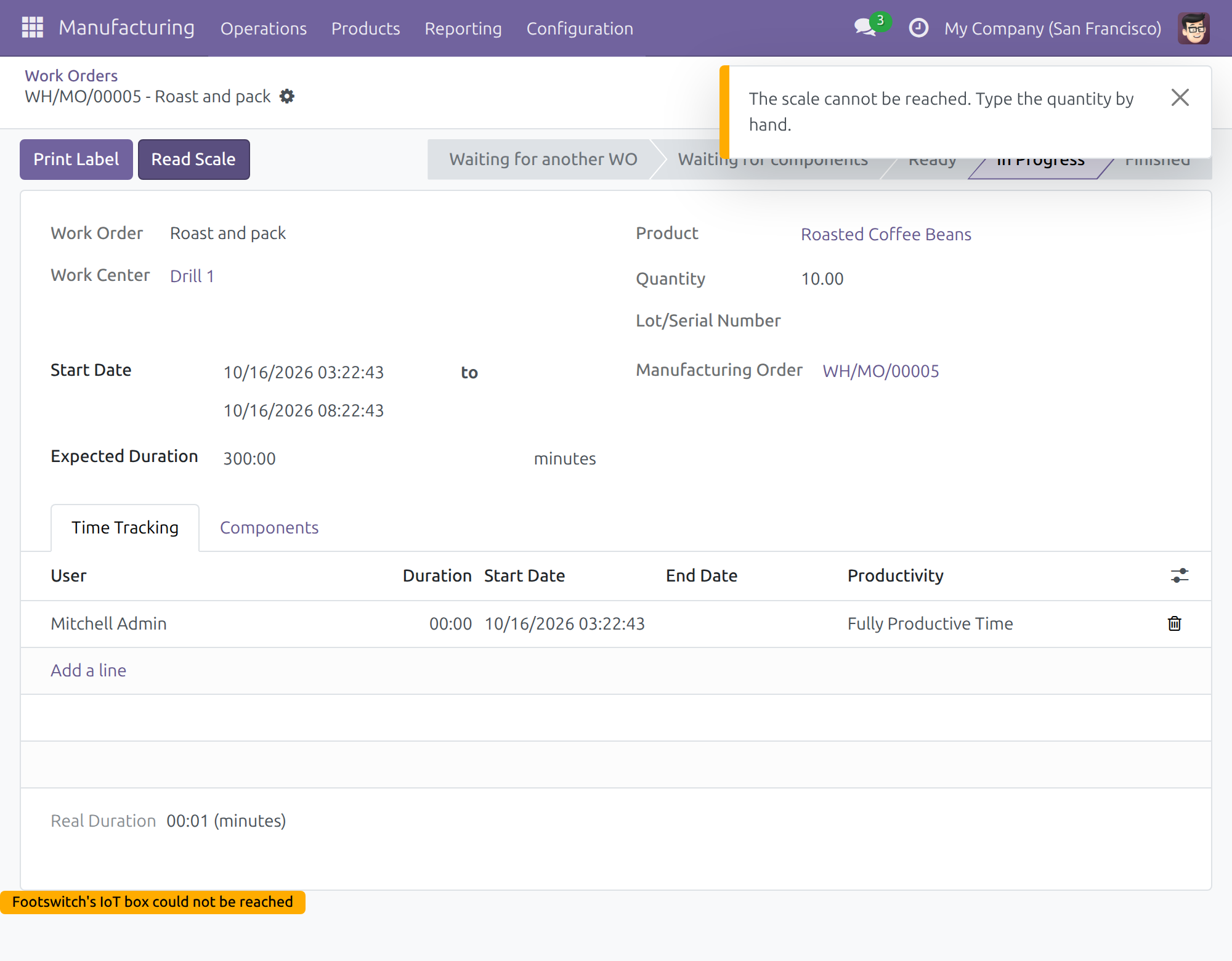
- The scale cannot be reached. A message asks you to type the quantity by hand. Open the manufacturing order and type the quantity in Quantity.
- The footswitch's box cannot be reached. The badge Footswitch's IoT box could not be reached appears at the bottom of the work order. Work the order without the footswitch until the box answers again; the badge then disappears by itself.
- The printer is offline. The message names the printer and nothing is marked as labelled, so you can print again once the printer is back.
If your browser asks for permission to reach devices on your local network, allow it: the browser talks to the IoT box directly.
Production Manager / Team Leader: reprint a label
Reprint the last label
Use this only when a print was accepted by the printer but no label came out, for instance after a jam or an empty roll.
- Open the work order from Manufacturing ‣ Operations ‣ Work Orders.
- Click Reprint Last Label. The button appears once a label has been printed for the order, and only for users with Manufacturing / Administrator; operators never see it.
- Confirm the question.
The same print is sent again to the label printer of this work order's station. What counts as labelled does not change, so a later Print Label continues from where it was. The manufacturing order records who reprinted the label, when it was first printed and on which printer.
The reprint is refused with a reason when the station has no label printer, or when the last print was made for another kind of printer (a label printer or a standard printer) than the one of this station. Print the labels from the station that has the right printer instead.
Manage the work centers
You open the work centers under Manufacturing ‣ Configuration ‣ Work Centers. The IoT page, where devices are attached, comes with Manufacturing / Administrator: see Production Manager: attach devices to work centers above. If you hold that right and still do not see the page, ask the administrator to check that your account holds Internet of Things (IoT) / User.
Troubleshooting
The Print Label or Read Scale button does not appear. The work center of the work order has no label printer or no scale chosen. Ask the production manager to choose one on the IoT page of the work center.
Reprint Last Label does not appear. Either nothing was printed yet for this order, or your account does not have Manufacturing / Administrator.
Print Label says there is nothing new to label. All the recorded output is already labelled. Record the new output first, then print again.
Read Scale says the order is not in production or is counted in Units. Start the work order, or type the quantity by hand if the product is counted in pieces.
Nothing came out although no message appeared. Wait for the Device Action Timeout. If the box never confirmed the print, the manufacturing order gets a note saying so; then use Reprint Last Label.
I cannot choose a device for the label printer, scale or footswitch. The device must first be in the IoT Devices of the work center, and be of the right kind.
FAQ
Does an operator need an IoT access right? No. Operators work with the buttons of the work order with Manufacturing / User. Attaching devices is the production manager's job, with Manufacturing / Administrator.
What happens to a work center without devices? Nothing changes: its work orders show no IoT button.
Can I attach two scales to one work center? You can attach several devices, but only the one chosen as Scale, Label Printer or Footswitch is used.
Does Read Scale keep reading while I move the product? No. One tap takes one reading; tap again for a new one.
This software and associated files (the "Software") may only be used (executed, modified, executed after modifications) if you have purchased a valid license from the authors, typically via Odoo Apps, or if you have received a written agreement from the authors of the Software (see the COPYRIGHT file).
You may develop Odoo modules that use the Software as a library (typically by depending on it, importing it and using its resources), but without copying any source code or material from the Software. You may distribute those modules under the license of your choice, provided that this license is compatible with the terms of the Odoo Proprietary License (For example: LGPL, MIT, or proprietary licenses similar to this one).
It is forbidden to publish, distribute, sublicense, or sell copies of the Software or modified copies of the Software.
The above copyright notice and this permission notice must be included in all copies or substantial portions of the Software.
THE SOFTWARE IS PROVIDED "AS IS", WITHOUT WARRANTY OF ANY KIND, EXPRESS OR IMPLIED, INCLUDING BUT NOT LIMITED TO THE WARRANTIES OF MERCHANTABILITY, FITNESS FOR A PARTICULAR PURPOSE AND NONINFRINGEMENT. IN NO EVENT SHALL THE AUTHORS OR COPYRIGHT HOLDERS BE LIABLE FOR ANY CLAIM, DAMAGES OR OTHER LIABILITY, WHETHER IN AN ACTION OF CONTRACT, TORT OR OTHERWISE, ARISING FROM, OUT OF OR IN CONNECTION WITH THE SOFTWARE OR THE USE OR OTHER DEALINGS IN THE SOFTWARE.