
Meal Orders
| Lines of Code | 1281 |
| Technical name | to_hr_meal |
| License | OPL-1 |
| Website | https://viindoo.com/apps/modules/19.0/to_hr_meal |
| Read description for | v 10.0 v 11.0 v 12.0 v 13.0 v 14.0 v 15.0 v 16.0 v 17.0 v 18.0 |
| Required Apps | Time Off (hr_holidays) Discuss (mail) Calendar (calendar) Employees (hr) |
| Included Dependencies | Viindoo Base Advanced HR Management |
| Extensions | HR Meal Order & Payroll Integration |
Order lunch for the whole office in minutes, with the cost under control
For companies that feed their employees: office managers, kitchen leads, HR and finance teams
Lunch for the office, ordered, approved, and costed
Is this you?
Meal counts are collected in chat messages and spreadsheets, and the kitchen still receives the wrong number.
Nobody can say for sure who ate, who was on leave and who brought a guest.
Ordering deadlines are missed because they live in someone's head.
At month end, nobody can say what meals cost per department, or how much the company paid against the employees.
What changes
Meal counts are collected in chat messages and spreadsheets, and the kitchen still receives the wrong number.
→ One order per day and meal type, with every employee, department and guest on it.
Nobody can say for sure who ate, who was on leave and who brought a guest.
→ Employees on approved leave or outside the meal programme are left out for you, and nobody is registered twice for the same meal.
Ordering deadlines are missed because they live in someone's head.
→ Each meal type carries its serving hour, its price and a note on the ordering deadline.
At month end, nobody can say what meals cost per department, or how much the company paid against the employees.
→ Every approved meal is counted by employee, department, meal type, month and kitchen, with the company and employee share shown.
How it works
Prepare
The meal manager defines meal types with an hour and a price, and the kitchens that cook.
Order
The meal orderer loads employees or whole departments, adds guests and confirms the order.
Decide
The meal manager approves or refuses the order. It is approved at once when the person confirming is the kitchen's responsible person or the vendor.
Analyse
The meal manager reads the analysis to plan ordering, staffing and cost.
Key Features
Meal types with hour and price
Classify meals by time or price, and remind orderers of the deadline in the description.
Orders for staff, departments and guests
Load everyone, a department with its sub-departments, or pick people one by one.
Internal kitchen or outside vendor
Send each order to a company kitchen or to an external supplier.
Approve or refuse
The meal manager finalizes the number of meals before the kitchen is told.
Employee price cap
Set the most an employee pays per meal; the company covers the difference.
Meal analysis
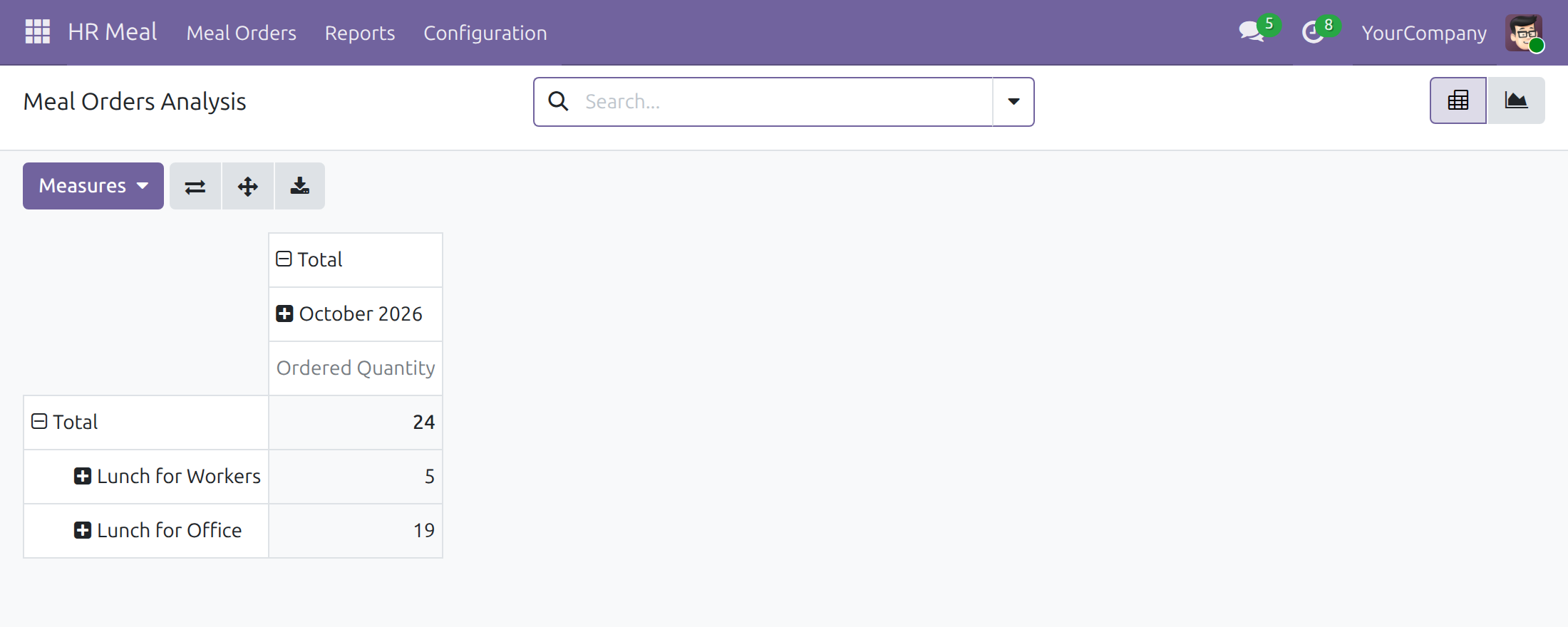
Pivot and chart meals by employee, department, meal type, month and kitchen.
Who it is for
Office manager
Spends the morning chasing headcounts. Orders for everyone from one screen.
Kitchen lead
Needs a firm number early. Receives only approved orders.
HR manager
Decides who takes part in the meal programme and sees each employee's meals.
Finance
Needs meal cost by department and the company and employee shares.
Best for: Companies and factories that serve lunch, dinner or night meals to employees every day.
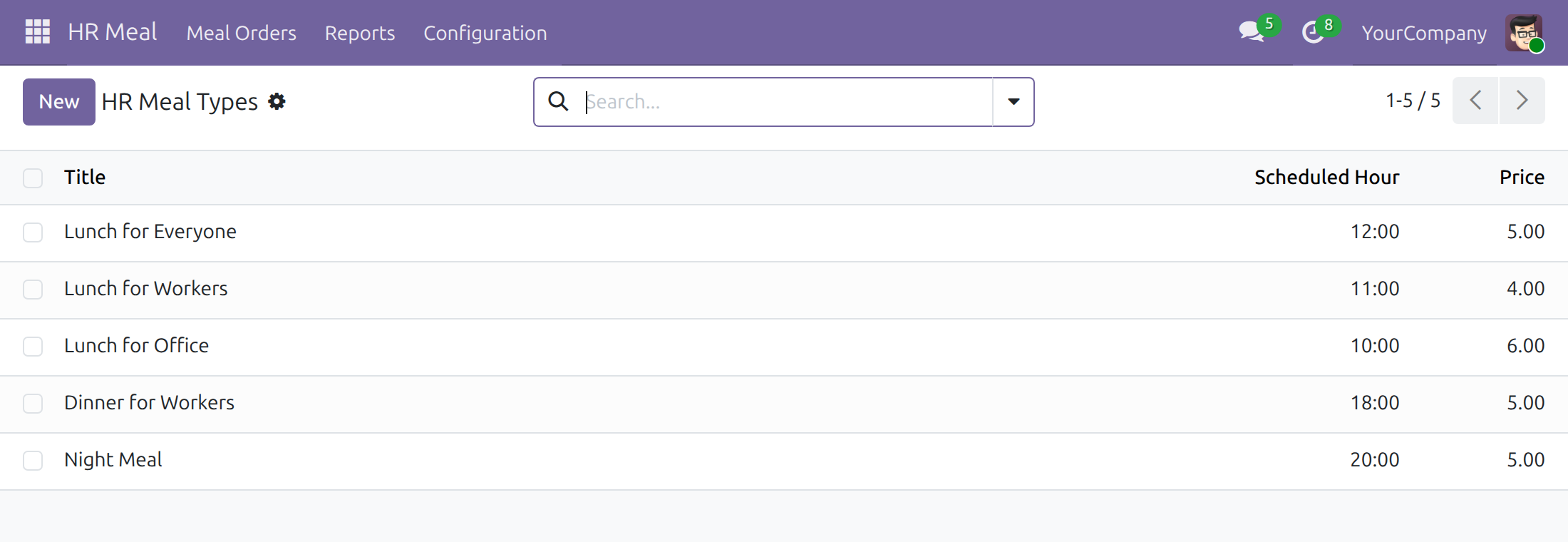
Prepare meal types with hour and price
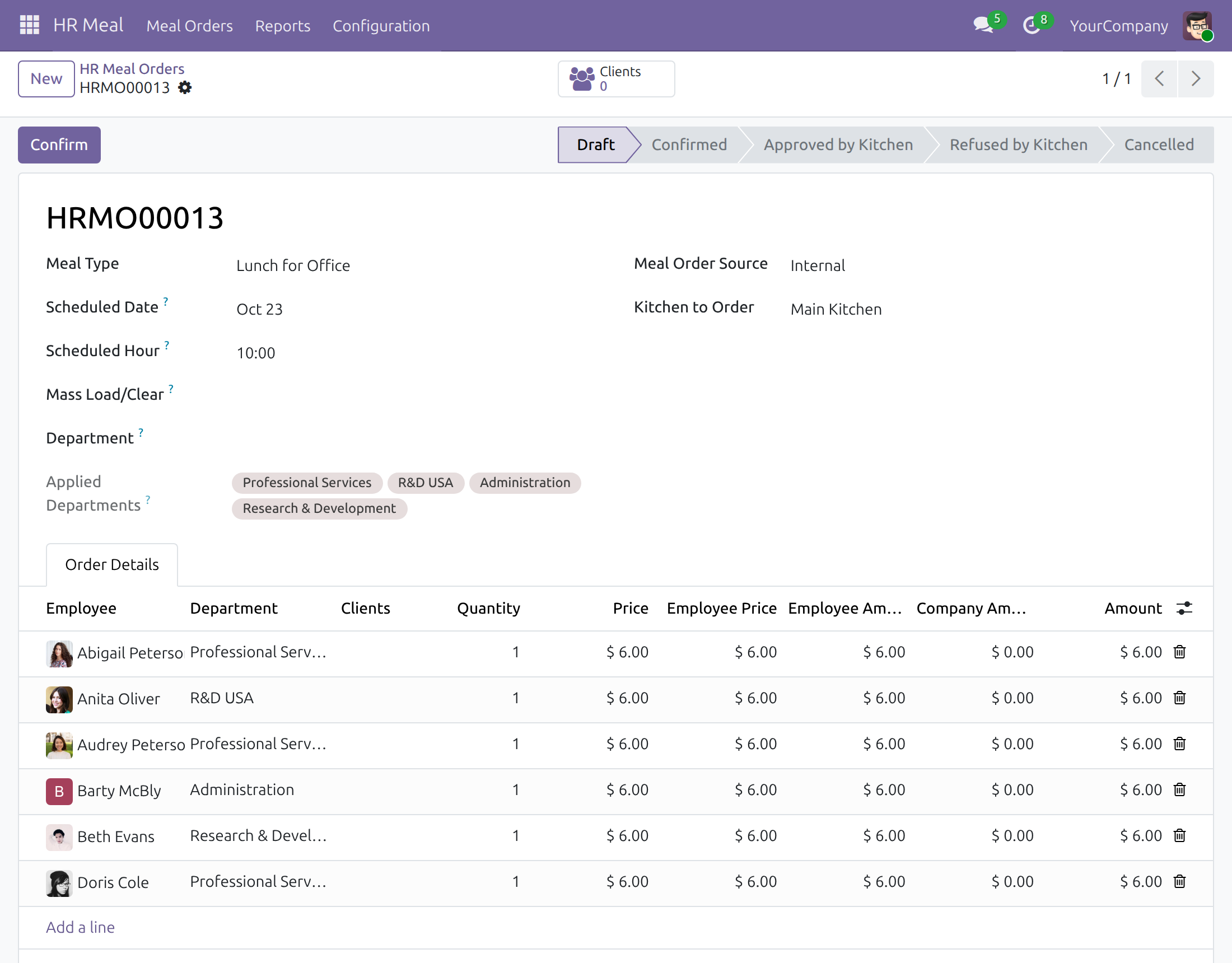
Place an order for staff, departments and guests
Approve or refuse a confirmed order
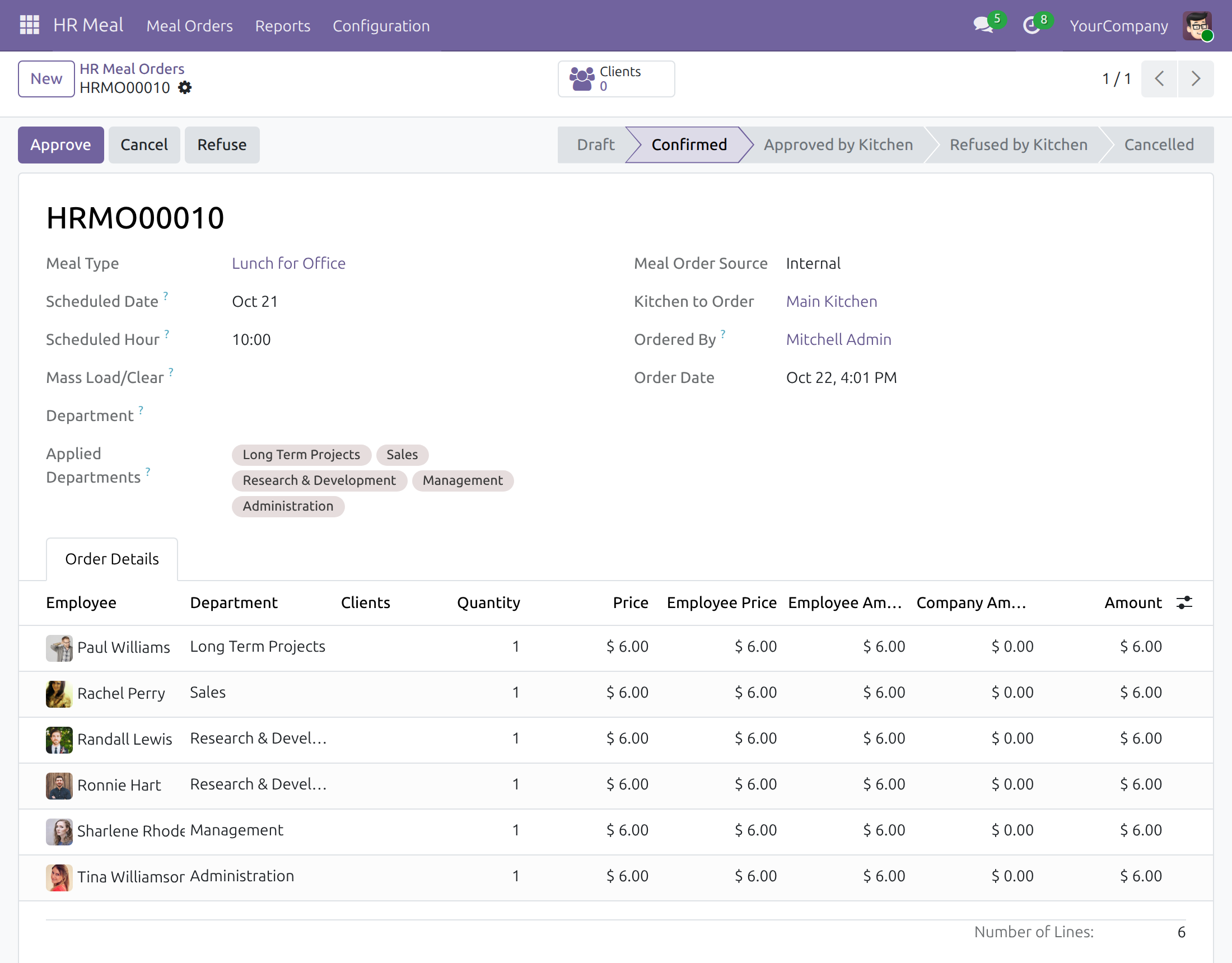
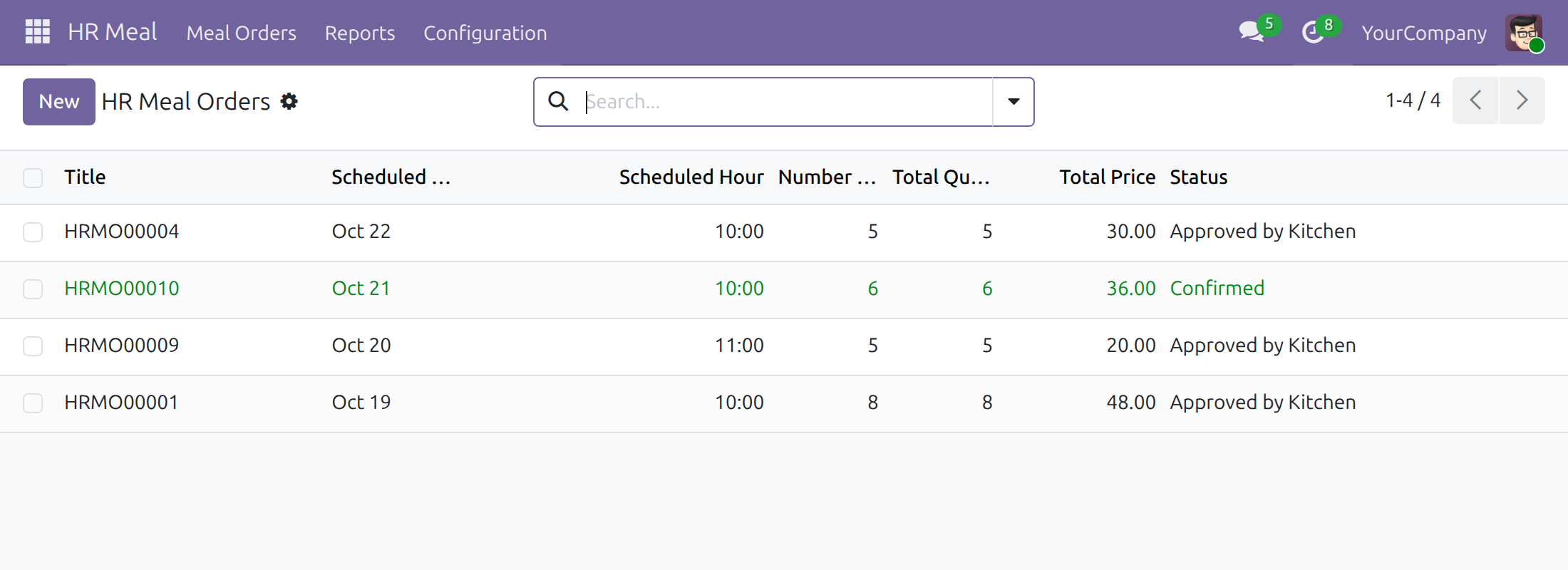
Follow orders
Analyse meals by employee, department and kitchen
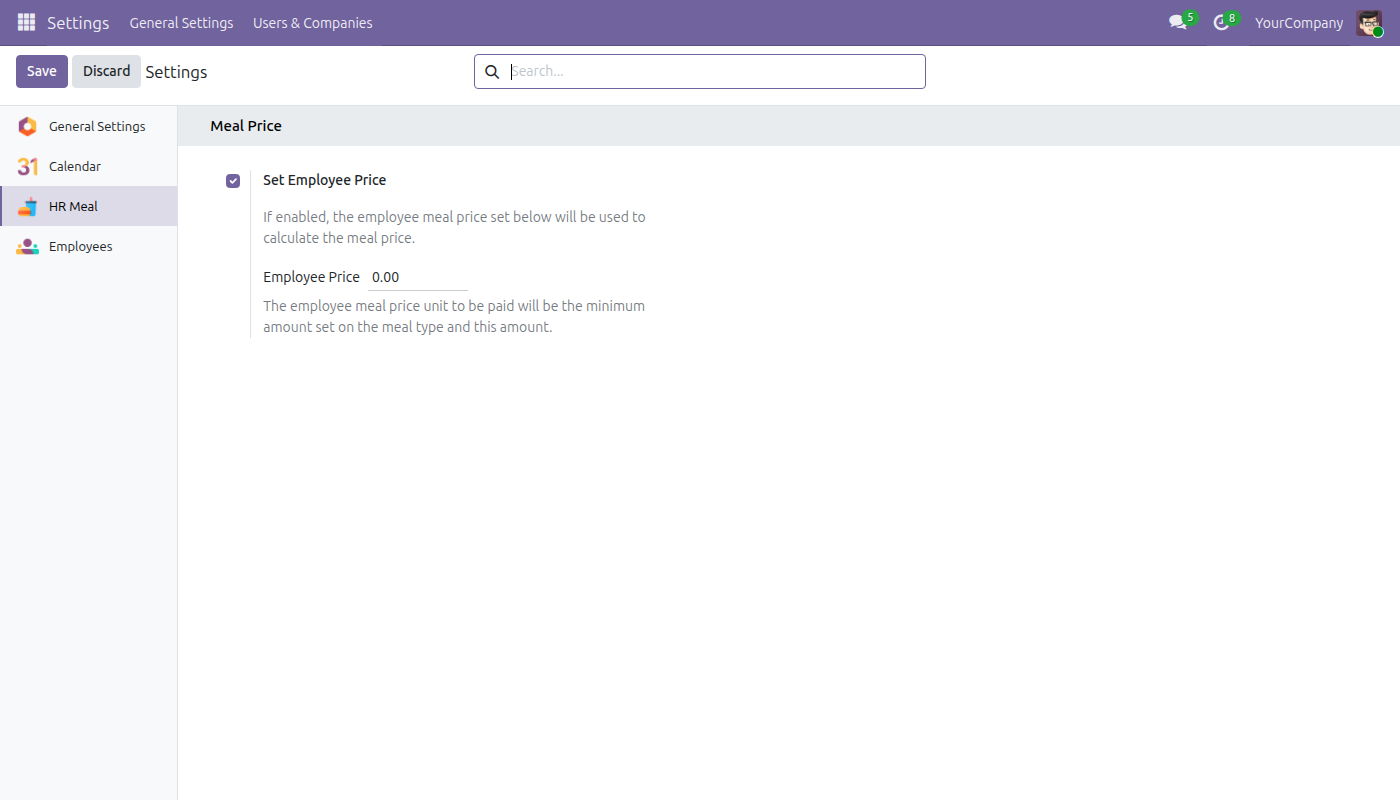
Set the employee meal price
See Meal Orders in Action
Live demo: v19demo-int.viindoo.com
Frequently Asked Questions
Can I order for guests?
Yes. Guests are added on the line of the employee in charge of them.
Who pays for the meal?
By default the employee amount equals the meal price. With the employee price option on, the employee pays up to the amount you set and the company pays the rest.
Are people on leave still ordered?
No. Employees on approved time off at the meal time, and employees who do not take part in the meal programme, are skipped when you load employees in bulk.
Does it work with an outside caterer?
Yes. Choose External and pick the vendor, or Internal and pick one of your kitchens.
Which Odoo editions are supported?
Odoo Community and Odoo Enterprise, version 19.0.
Need help with Meal Orders?
Pre-Sales & Partnership
viindoo.com/contactusTechnical Support
viindoo.com/ticketTechnical Requirement
- Odoo version: 19.0
- Editions: Odoo Community, Odoo Enterprise
- Required apps: Time Off, Viindoo Base, Advanced HR Management
- License: OPL-1
Meal Orders
Who this guide is for: the Odoo administrator who installs and configures Meal Orders, the meal manager (kitchen or general-affairs lead) who approves orders and reads the reports, the office staff who place meal orders for employees, and HR officers who decide who takes part in the meal programme.
Overview
Meal Orders lets a company order meals for many employees at once and know exactly what the meals cost over time. Staff create an order for a day and a meal type, add the employees (or whole departments) and guests who will eat, and send it to the kitchen or supplier. The meal manager then approves or refuses it, which fixes the number of meals. Every approved order feeds an analysis report by employee, department, meal type, month and kitchen.
How an order moves
- Draft - the person ordering prepares the order and presses Confirm.
- Confirmed - the order waits for the meal manager, who presses Approve or Refuse. When the person who confirms is the responsible person of the chosen internal kitchen (or the chosen external vendor), the order is approved straight away.
- Approved by Kitchen or Refused by Kitchen - the final answer of the kitchen. A confirmed or approved order can still be cancelled, and a cancelled order can be set back to draft.
| Role | What they do | Access right to assign |
|---|---|---|
| Administrator | Installs the module, sets the employee meal price and gives each person an access right. | Administration / Settings |
| Meal orderer | Creates, confirms and cancels meal orders; sees the list of meals served to each employee. | HR Meal / User |
| Meal manager | Everything the meal orderer does, plus approving or refusing orders, defining meal types and kitchens, and reading the analysis report. | HR Meal / Administrator |
| HR officer | Chooses which employees take part in the meal programme and sees each employee's meal count. | Employees / Officer: Manage all employees |
| Employee | Sees the meals ordered for himself or herself under Meal Order Details. | Any internal user |
Setup (for the Administrator)
Install the module
- Open Apps.
- Search for Meal Orders.
- Press Install. The required apps (Time Off, Employees and the Viindoo base apps) are installed with it.
Give each person an access right
Open Settings > Users & Companies > Users, open a user and, in the HR Meal line of the access rights, choose User for meal orderers or Administrator for meal managers. The Administrator right includes the User right.
Set the employee meal price (optional)
- Open HR Meal > Configuration > Settings.
- Under Meal Price, tick Set Employee Price and enter the Employee Price.
- Press Save.
With this option on, an employee pays at most this amount per meal (or the price of the meal type when that is lower), and the company pays the rest. With it off, the employee amount equals the full price of the meal.
Meal manager: prepare the catalogue
The meal manager defines the choices that orderers pick from. Open HR Meal > Configuration.
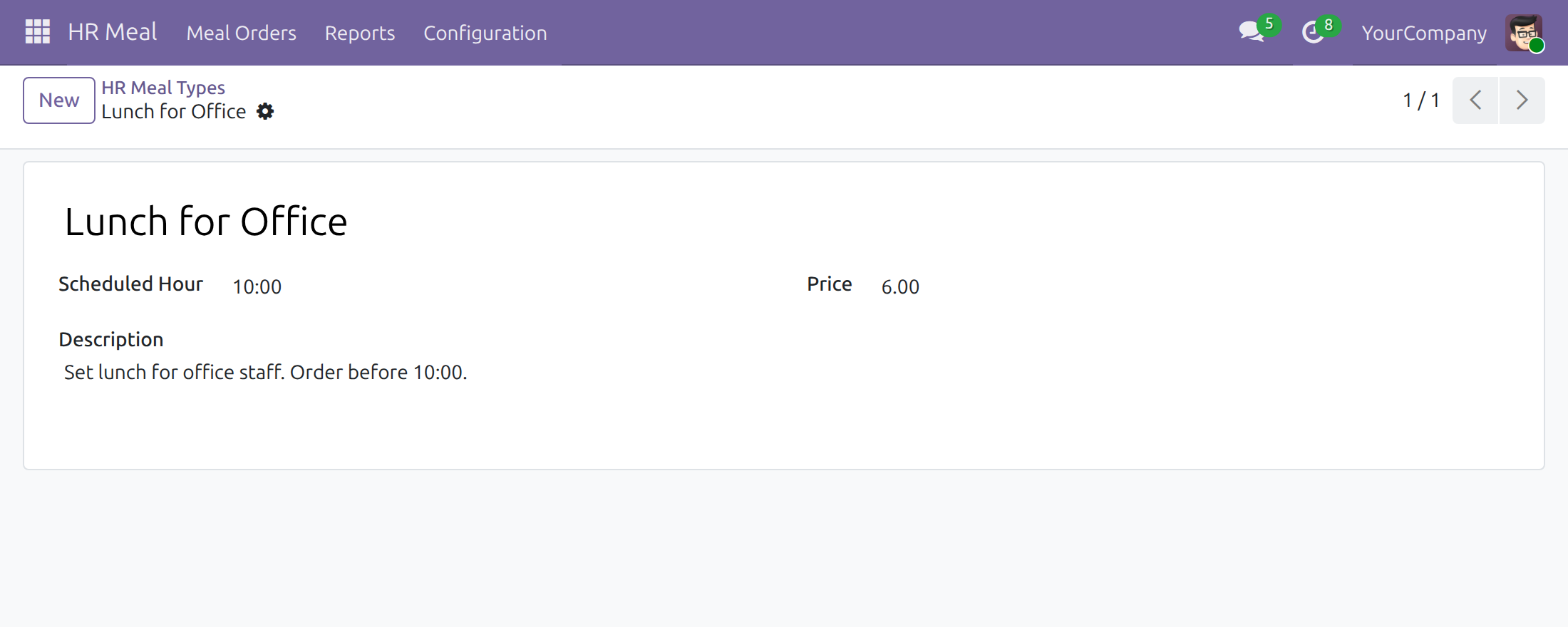
Create a meal type
- Open Meal Type and press New, or open an existing type.
- Enter the Title (for example Lunch for Office), the Scheduled Hour at which the meal is served and the Price of one meal.
- Use the Description to remind orderers of the ordering deadline, for example "order before 10:00".
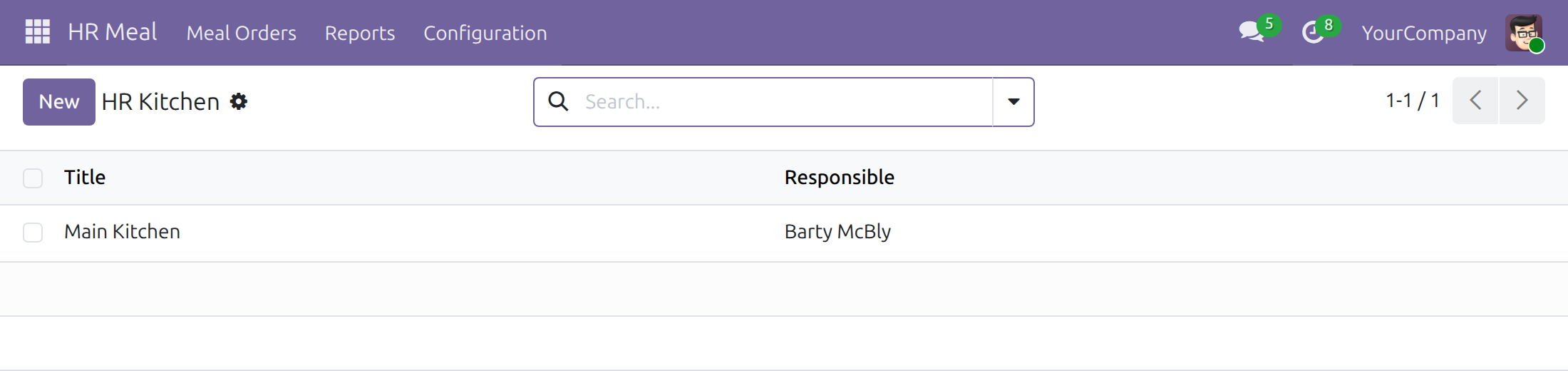
Create a kitchen
Open Kitchen, press New, enter the Title and choose the Responsible person. A Main Kitchen is provided. At least one kitchen must exist, because orders from the internal kitchen need one.
HR officer: choose who takes part
Open the employee form and, in the Meals group, tick or untick Order Meal. An employee who is not ticked is skipped when an order loads employees in bulk. The Meals button on the same form shows how many approved meals the employee has had and opens the detail.
Meal orderer: place an order
Create and confirm a meal order
- Open HR Meal > Meal Orders > Draft Orders and press New.
- Choose the Meal Type, the Scheduled Date and the Scheduled Hour (filled from the meal type).
- Choose the Meal Order Source: Internal (then pick the Kitchen to Order) or External (then pick the Vendor).
- Add the people who will eat:
- Set Mass Load/Clear to All Employees to add every employee of the company, or Clear All to empty the list.
- Pick a Department to add all its members, sub-departments included.
- Or press Add a line under Order Details and pick an Employee.
- Add guests in the Clients column of a line, next to the employee in charge of them.
- Check the Quantity and prices of each line and the totals under the list.
- Press Confirm.
Employees who do not have Order Meal ticked, and employees on approved time off at the meal time, are not added automatically. An employee cannot be registered twice for the same meal.
Follow your orders
Draft, cancelled and refused orders are under Meal Orders > Draft Orders. Confirmed and approved orders are under Meal Orders > Meal Orders. Press Cancel on a confirmed or approved order that is no longer needed (cancelling an approved order is reserved to the meal manager), then Set to Draft if you want to correct and resend it.
Meal manager: approve orders
- Open HR Meal > Meal Orders > Meal Orders and open a confirmed order.
- Check the date, hour, kitchen or vendor and the lines.
- Press Approve to fix the number of meals, or Refuse to turn the order down. The Approved By and Approved Date show who answered and when.
Meal manager: read the analysis
Open HR Meal > Reports > Meal Orders Analysis. The table counts the Ordered Quantity by meal type and month. Expand a row or column, change the measures, or filter on Confirmed or Approved, and group by Employee, Department, Meal Type or Meal Month to see when meals are ordered, how many each kitchen must prepare and how the cost evolves.
Employee: see your meals
Open HR Meal > Meal Orders > Meal Order Details to list the meals ordered for you. You cannot change them.
Troubleshooting
- No kitchen found when starting an order: the default kitchen was deleted. Create a kitchen under HR Meal > Configuration > Kitchen.
- You must select a meal type first: pick the Meal Type before loading employees or a department.
- You cannot register more than one meal for the same employee at the same time: the employee is already on another order for that date and hour; remove the line or change the schedule.
- Only users with Manager Access Right can approve meal orders: ask the Administrator for the HR Meal / Administrator access right.
- No Reports or Configuration menu: these are shown to meal managers only.
FAQ
Can I order for guests? Yes. Add the guests in the Clients column of the line of the employee in charge.
Who pays for the meal? By default the employee pays the price of the meal. With Set Employee Price on, the employee pays up to the amount set there and the company pays the difference.
Can an order be approved without the meal manager? Yes, when the person confirming the order is the responsible person of the chosen internal kitchen or the chosen external vendor.
This software and associated files (the "Software") may only be used (executed, modified, executed after modifications) if you have purchased a valid license from the authors, typically via Odoo Apps, or if you have received a written agreement from the authors of the Software (see the COPYRIGHT file).
You may develop Odoo modules that use the Software as a library (typically by depending on it, importing it and using its resources), but without copying any source code or material from the Software. You may distribute those modules under the license of your choice, provided that this license is compatible with the terms of the Odoo Proprietary License (For example: LGPL, MIT, or proprietary licenses similar to this one).
It is forbidden to publish, distribute, sublicense, or sell copies of the Software or modified copies of the Software.
The above copyright notice and this permission notice must be included in all copies or substantial portions of the Software.
THE SOFTWARE IS PROVIDED "AS IS", WITHOUT WARRANTY OF ANY KIND, EXPRESS OR IMPLIED, INCLUDING BUT NOT LIMITED TO THE WARRANTIES OF MERCHANTABILITY, FITNESS FOR A PARTICULAR PURPOSE AND NONINFRINGEMENT. IN NO EVENT SHALL THE AUTHORS OR COPYRIGHT HOLDERS BE LIABLE FOR ANY CLAIM, DAMAGES OR OTHER LIABILITY, WHETHER IN AN ACTION OF CONTRACT, TORT OR OTHERWISE, ARISING FROM, OUT OF OR IN CONNECTION WITH THE SOFTWARE OR THE USE OR OTHER DEALINGS IN THE SOFTWARE.