
Manufacturing Backdate
| Lines of Code | 700 |
| Technical name | to_mrp_backdate |
| License | OPL-1 |
| Website | https://viindoo.com/apps/modules/19.0/to_mrp_backdate |
| Read description for | v 11.0 v 12.0 v 13.0 v 14.0 v 15.0 v 16.0 v 17.0 v 18.0 |
| Required Apps | Manufacturing (mrp) Discuss (mail) Inventory (stock) |
| Included Dependencies | Inventory Backdate Backdate Operations |
| Extensions | Manufacturing Accounting Backdate Subcontracting Backdate |

Production recorded at the time it really happened
For manufacturers who enter production after the work is done
Start, pause, block, finish or mark done manufacturing orders and work orders on a past date
Odoo 19.0 · Odoo Community · Odoo Enterprise · OPL-1
Extends Inventory Backdate, which dates the order's stock movements.
What changes for your team
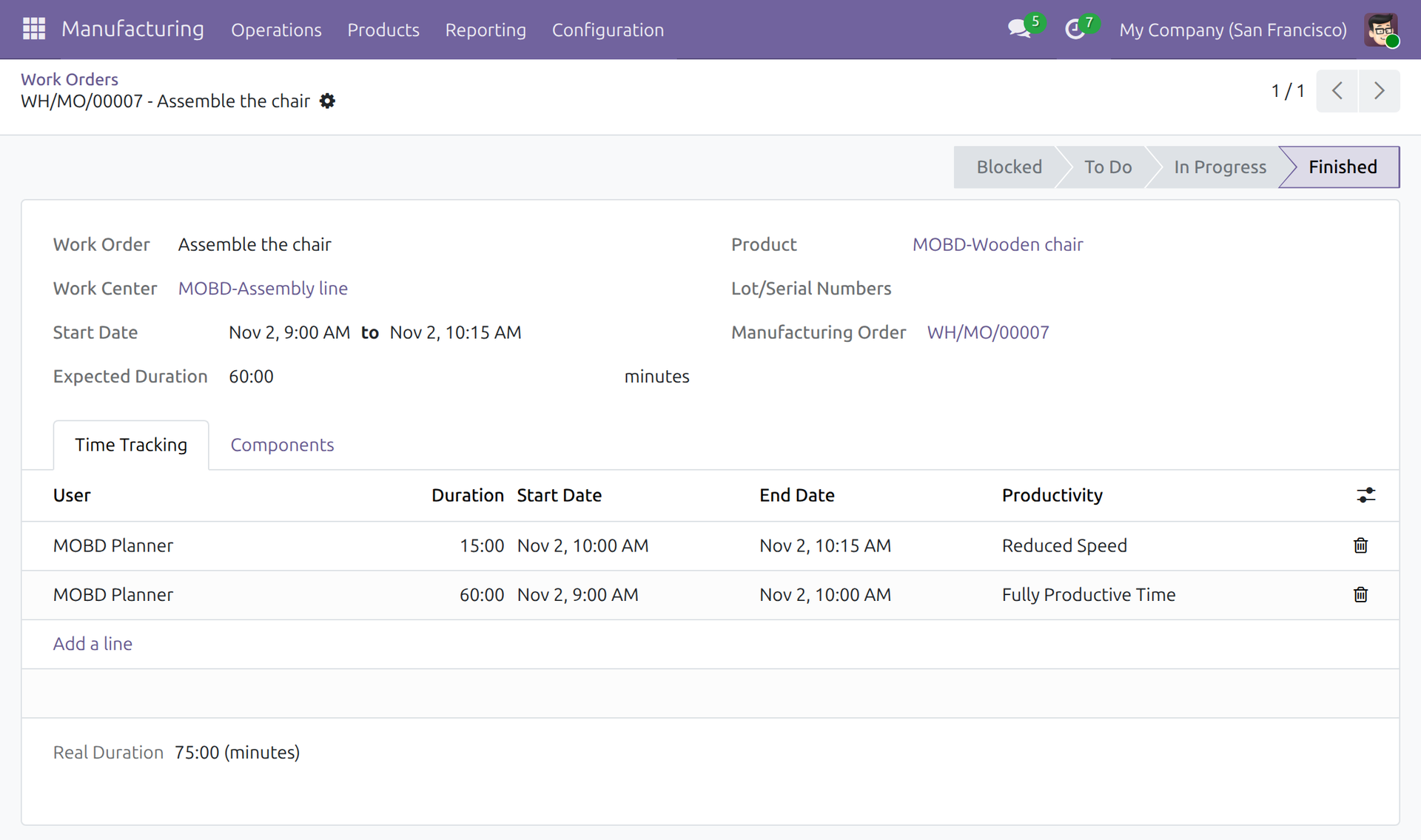
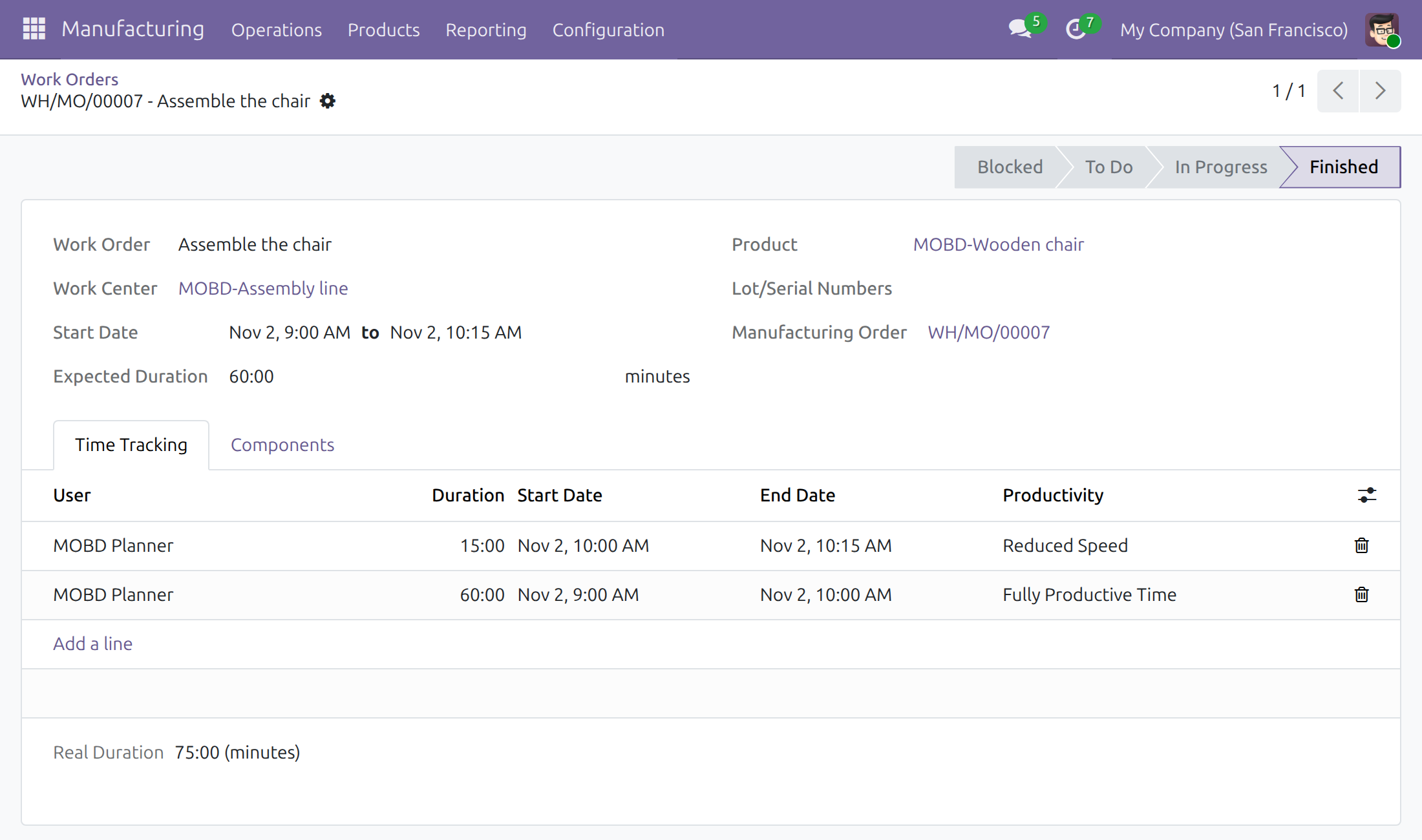
Work orders show the time the work really took
Today: a planner enters the work orders after the shift, and Odoo opens and closes each timer at the click, so Real Duration and operation cost follow the typing.
→ Start, Pause and Finish ask when the work began, stopped and ended. The timers, Real Duration and the real cost of operations follow those times.
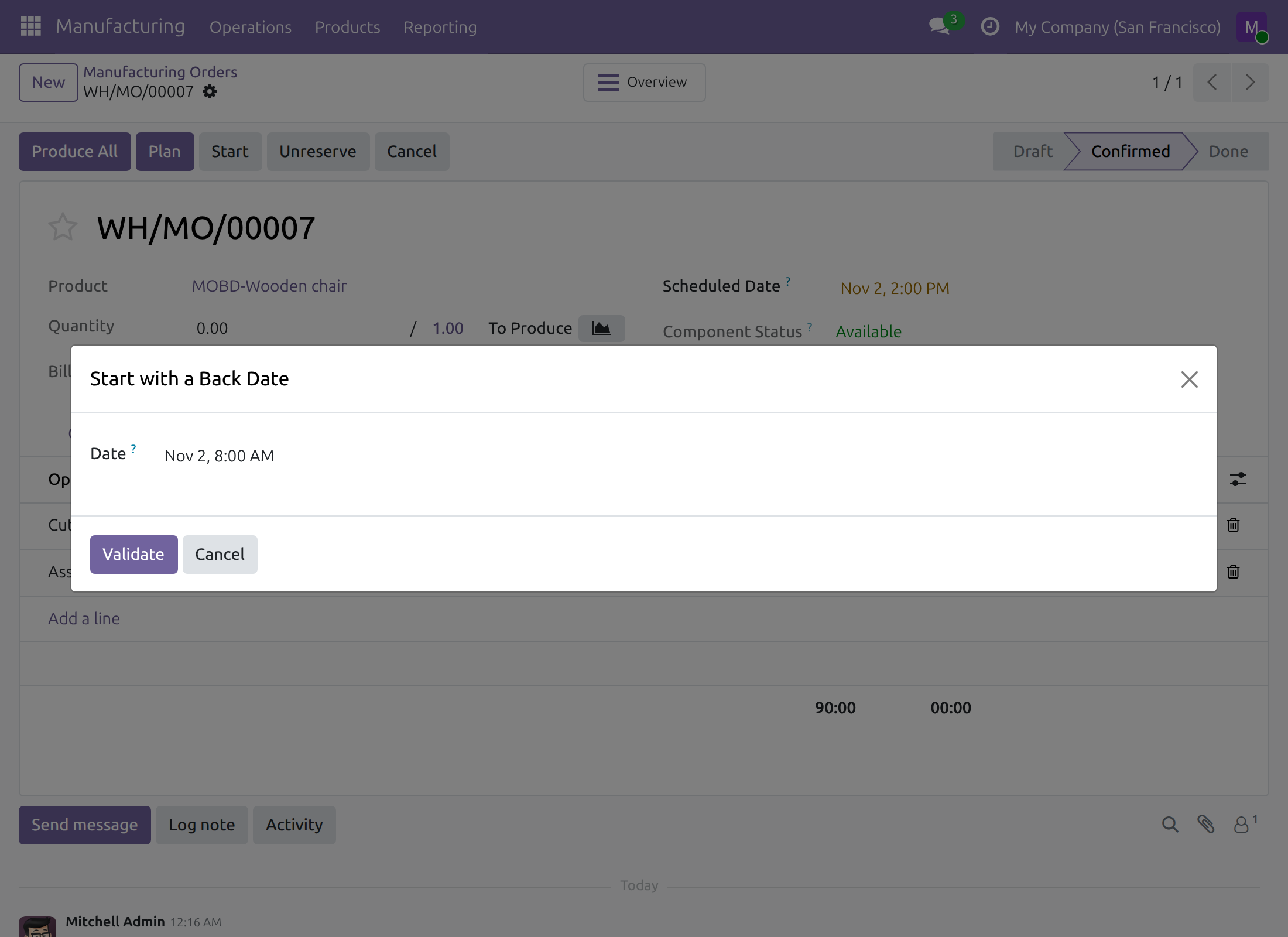
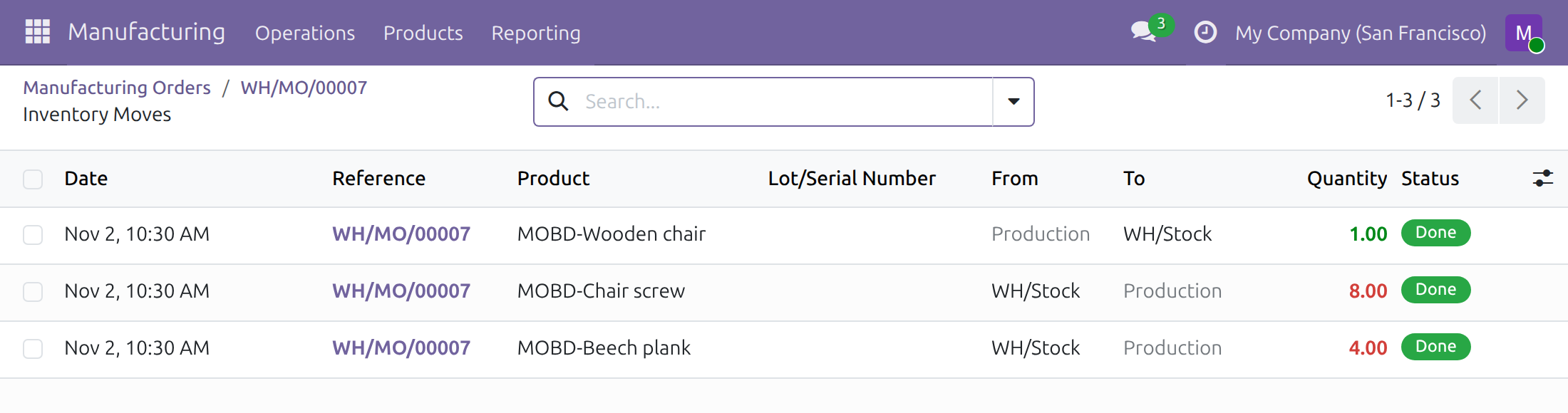
Orders close on the day production ended
Today: an order finished on Friday and closed on Monday dates itself, its stock movements and their journal entries on Monday.
→ Produce All asks for the Date Done. The order, its stock movements and, for automatically valued products, their journal entries take it. A date before the order's start is refused.
Machine stops count from when they began
Today: a machine that stops mid-morning is blocked when someone reaches the screen.
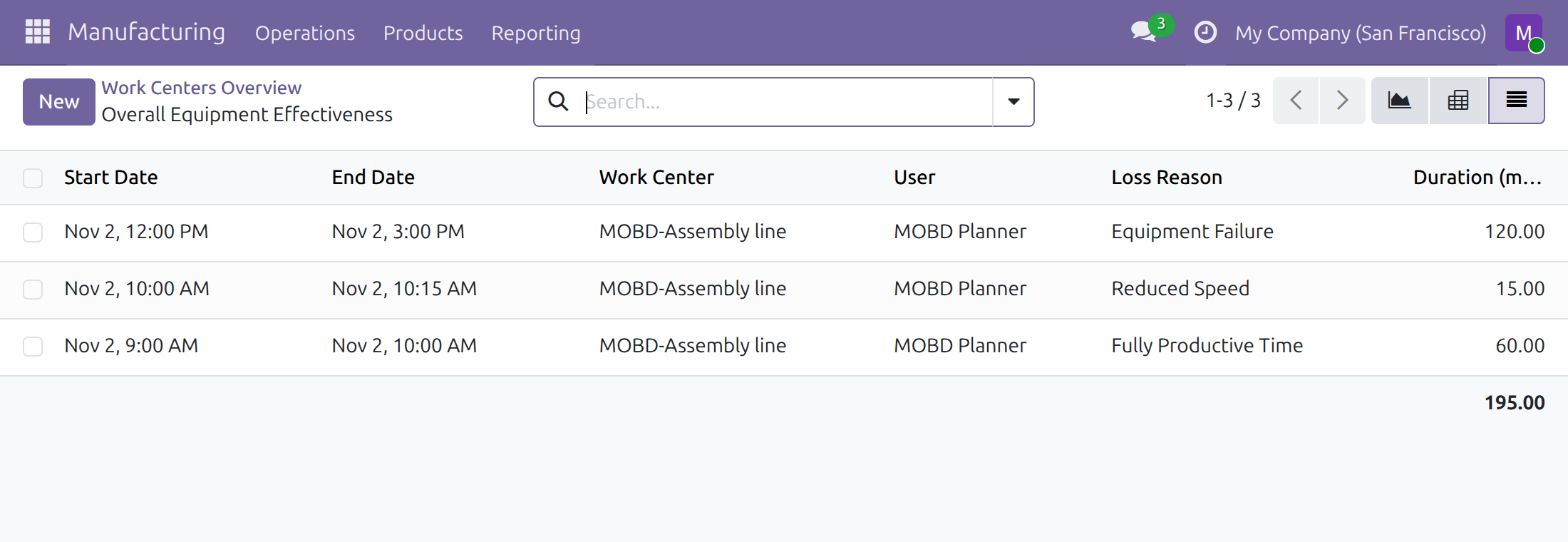
→ Odoo's Block dialog takes the Start Date of the stoppage and Unblock asks when it ended, so Overall Equipment Effectiveness shows the stoppage at its real times.
What is included
The date dialogs of work orders, of Produce All and of Unblock, the Start Date of Odoo's Block dialog, and the Manufacturing Backdate right.
Optional extensions
Manufacturing Accounting Backdate
Books the labour entry of an order done on a past date in that date's period.
Subcontracting Backdate
Completes the subcontracted manufacturing orders of a receipt on the receipt's date.
Before you decide
Who is asked for a date?
Only people given Manufacturing Backdate on the user form; nobody holds it by default. Everyone else works at the current time, and the state dropdown of the Work Orders list always does.
Which dates are refused?
A future date, a Date Done before the order's start, and an end before a running timer's start. Nothing is recorded until the date is valid.
What about a locked accounting period?
Nothing is refused: the movements keep their date and Odoo moves the journal entry to today or to the end of the first open period.
What if only part was produced?
Only the produced part takes the Date Done; the backorder stays open for its own date.
Which languages and time zones?
English and Vietnamese. Each person enters dates in their own time zone, which also sets the accounting day.
Try it, then ask us
The Documentation tab walks through set-up and each back-dated operation.
Pre-sales & partnership
viindoo.com/contactusTechnical support
viindoo.com/ticketTechnical requirements
- Odoo version: 19.0
- Editions: Odoo Community, Odoo Enterprise
- Required modules: Manufacturing, Inventory Backdate
- License: OPL-1
- Languages: English, Vietnamese
Manufacturing Backdate
Note
This guide is for administrators, who give people the Manufacturing Backdate right, for production planners who record work orders, manufacturing orders and work-centre stoppages after they happened, and for shop-floor operators who keep working at the current time.
Note
Extends Inventory Backdate - see the Inventory Backdate documentation for the stock side of a back-dated operation and for the rule that a back-date is never in the future.
Manufacturing Backdate records manufacturing on the date and time it really happened. A work order started on Monday morning and finished at noon, a manufacturing order closed on Friday afternoon and entered the following Tuesday: the work orders, the order, its stock movements and the cost of the operations carry the real times instead of the moment somebody got to the keyboard.
Overview
Odoo opens and closes the timer of a work order at the moment someone clicks Start, Pause or Done, and dates the completion of a manufacturing order, its stock movements and their journal entries at the moment someone clicks Produce All. Real durations and the real cost of the operations come from those timers. Production entered later than it happened therefore carries the wrong dates and a wrong duration and cost.
Manufacturing Backdate asks the person who holds the right for the date and time:
- when starting, pausing or finishing a work order;
- when marking a manufacturing order as done;
- when unblocking a work centre, and, in Odoo's own Block Workcenter dialog, when blocking it.
What takes the date, once an operation is recorded on a past date:
- the timers of the work order, and so its Real Duration and the real cost of its operations;
- the start date of the manufacturing order, when the first work order is started;
- the finished date of the manufacturing order, its component and finished-product stock movements, and their lines;
- when products are valued automatically, the journal entries of those stock movements, on the day of the chosen date in your time zone;
- the start and end of a work-centre stoppage.
The labour entry of the order is dated by Manufacturing Accounting Backdate, which puts it in the same period as the stock entries.
Who does what:
| Role | What they do | Access right to assign |
|---|---|---|
| Administrator | Installs the module and gives each person the Manufacturing Backdate right. | Role: Administrator |
| Shop-floor operator | Starts, pauses and finishes work orders and marks orders done. Every action is recorded at the current time, with no dialog. | Manufacturing: User |
| Production planner with the back-date right | Records work orders, manufacturing orders and work-centre stoppages at the date and time they really happened. Also does everything the shop-floor operator does. | Manufacturing Backdate: Manufacturing Backdate Operations (it includes Manufacturing: User) |
Setup (for the Administrator)
Installation
- Open Settings ‣ Backdate Operations.
- In the Manufacturing block, tick Manufacturing Backdate and click Save.
Odoo installs the module together with Inventory Backdate and the Manufacturing app. The section Backdate Operations is described in the guide of Backdate Operations.
Starting, pausing and finishing work orders needs the Work Orders option of the Manufacturing settings, which makes Odoo plan operations on work centres.
Give people the Manufacturing Backdate right
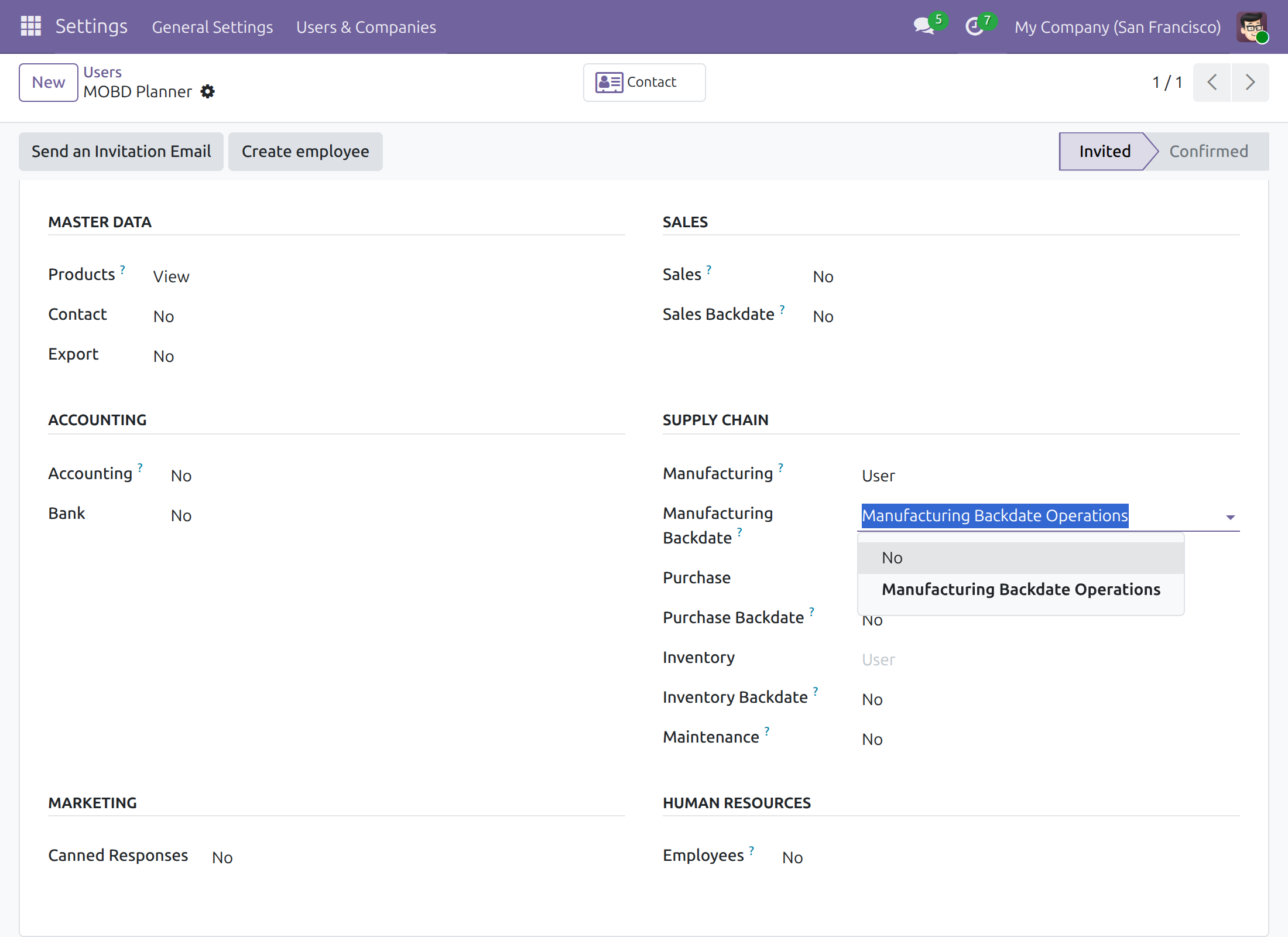
- Open Settings ‣ Users & Companies ‣ Users and open the user.
- In the tab Access Rights, find the row Manufacturing Backdate in the Supply Chain section.
- Choose Manufacturing Backdate Operations and click Save.
The right includes Manufacturing: User, so the person can work in the Manufacturing app at once. To take the right away, choose No: from then on that person works at the current time, without a dialog.
Having the right means the dialogs are offered to that person. It never stops anyone else from working.
Production planner: record manufacturing on the day it happened
For the people who hold Manufacturing Backdate: Manufacturing Backdate Operations. Every dialog below opens with the current time in its date field. Enter the date and time in your own time zone; a date after the current time is refused.
Start a work order on the day it began
- Open the manufacturing order, for example from Manufacturing ‣ Operations ‣ Manufacturing Orders, and open the tab Work Orders.
- Click the green Start button at the end of the work order's line. The dialog Start with a Back Date opens.
- In Date, enter the date and time the work began.
- Click Validate, or Cancel to leave the work order as it was.
The work order is In Progress and its timer starts at that instant. When it is the first work order started on the manufacturing order, the order's Start Date takes the same date.
The same Start button on the Work Orders list (Manufacturing ‣ Operations ‣ Work Orders) opens the same dialog.
Pause and resume at the real time
- Click the orange Pause button of a work order that is in progress. The dialog Pause with a Back Date opens.
- In Date, enter the date and time the work stopped, and click Validate.
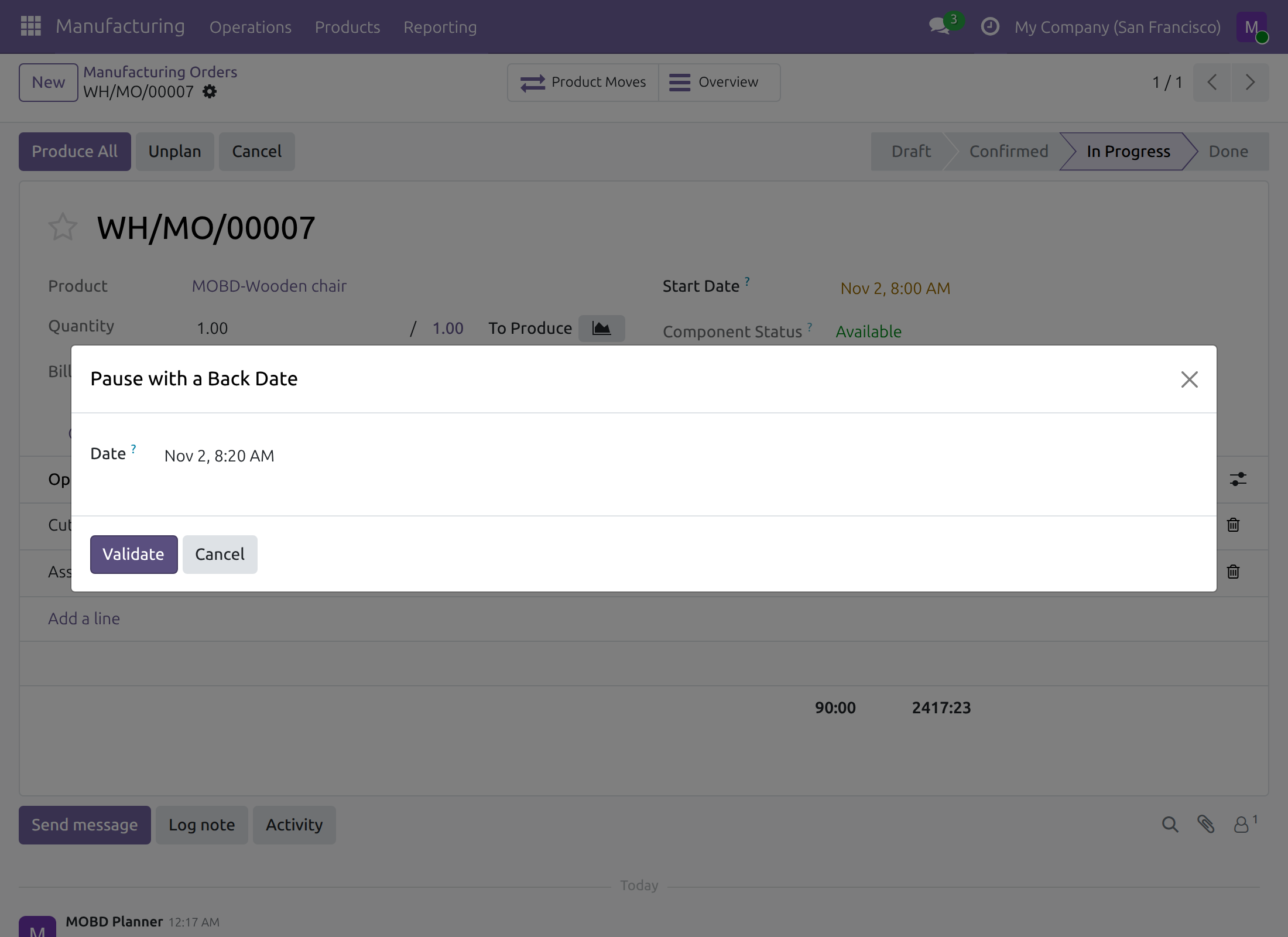
The timer is closed at that instant. To carry on, click Start again: the dialog Start with a Back Date asks when the work resumed and opens a new timer.
Finish a work order at the real time
- Click the green tick of a work order in progress. The dialog Finish with a Back Date opens.
- In Date, enter the date and time the work finished, and click Validate.
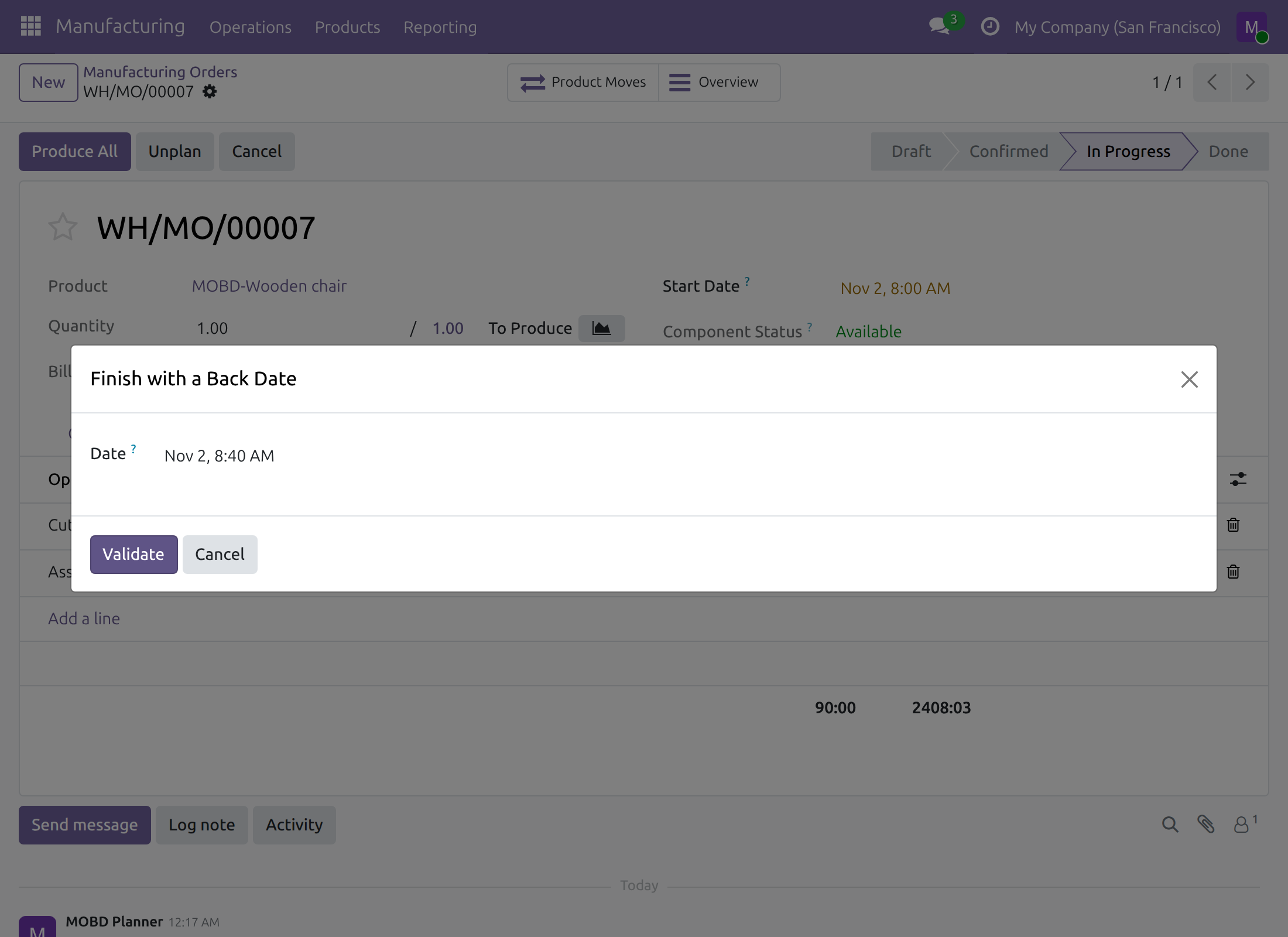
The work order is Finished at that instant. When the work order was never started, or the date is earlier than its start, its start date is set to the chosen date too.
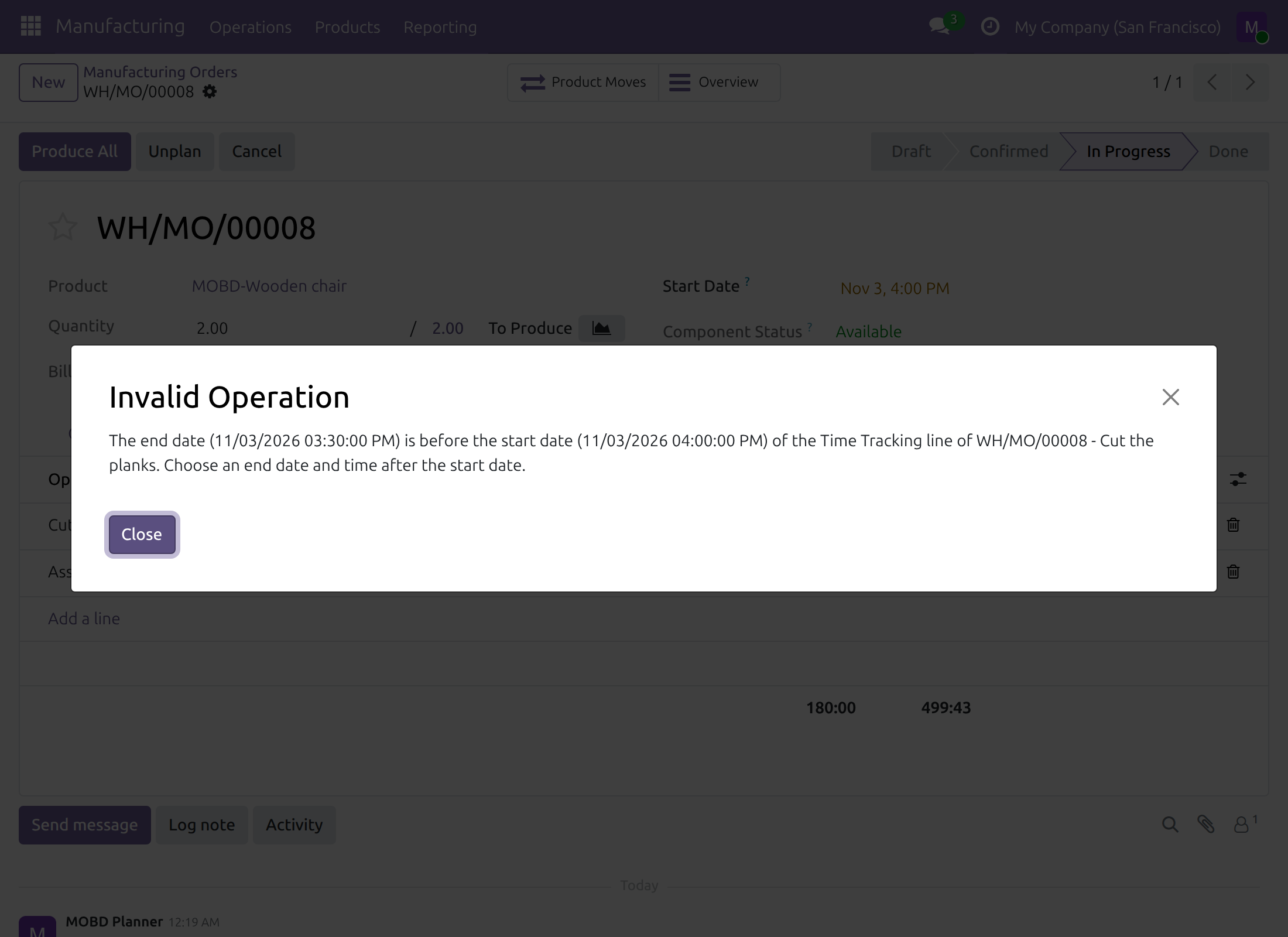
If the date is earlier than the start of the running timer, Odoo refuses it with the message "The end date (...) is before the start date (...) of the Time Tracking line of ...". Nothing is recorded: click Close, choose a date after the start in the open dialog and click Validate again.
Marking a work order as done without any recorded time, where your edition offers the Mark as Done action, credits its expected duration, ending at the date you give.
Read the real duration
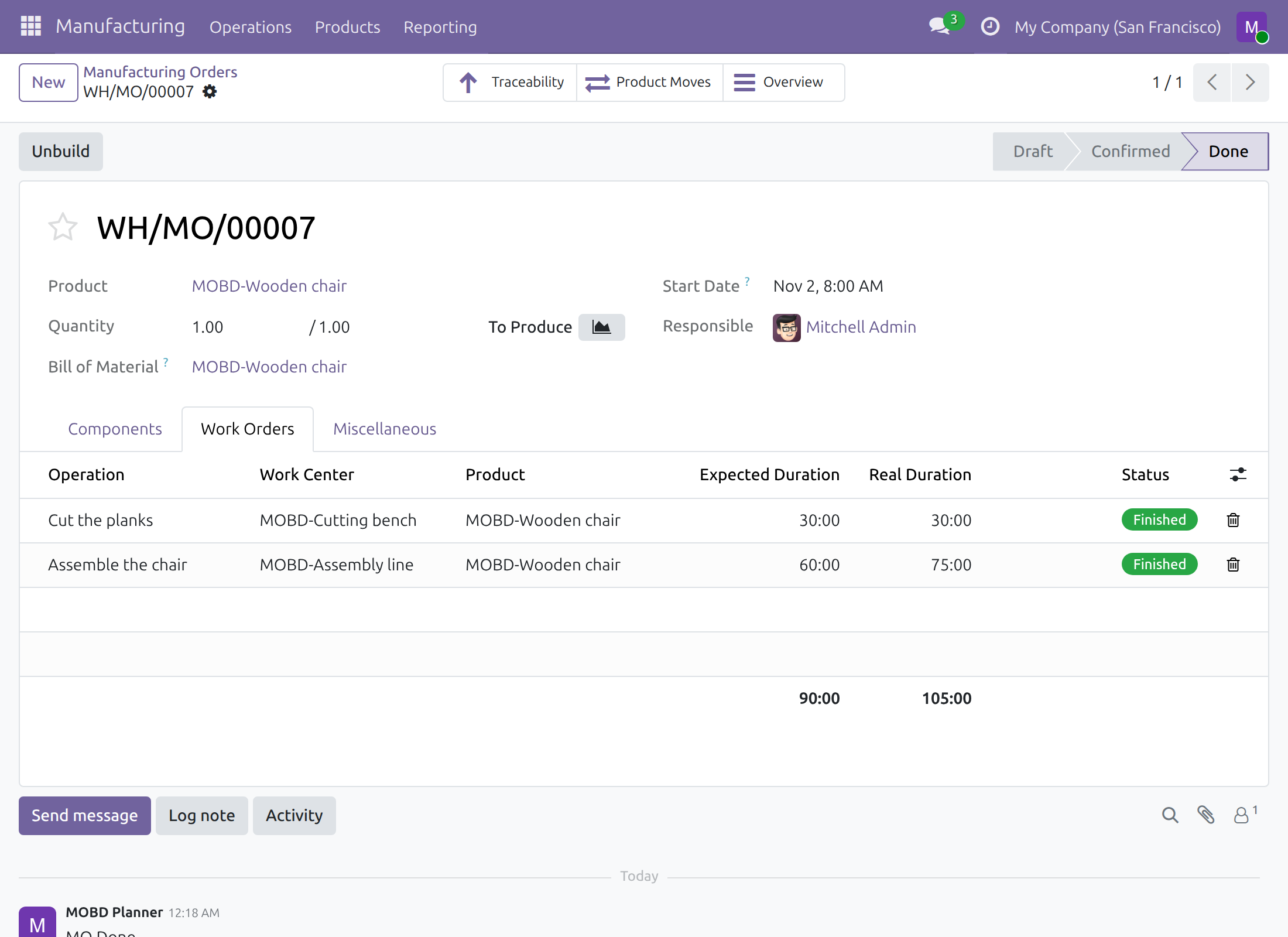
Real Duration is the sum of the timers of the work order, measured by Odoo in the working hours of the work centre. Hours outside the working hours of the work centre, such as a lunch break, do not count. The real cost of the operations on the Overview of the manufacturing order follows the real durations.
Mark a manufacturing order as done on the day it ended
- Open the manufacturing order and click Produce All (or Mark as Done). The dialog Mark as Done with a Back Date opens.
- In Date Done, enter the date and time production ended.
- Click Validate, or Cancel to leave the order as it was.
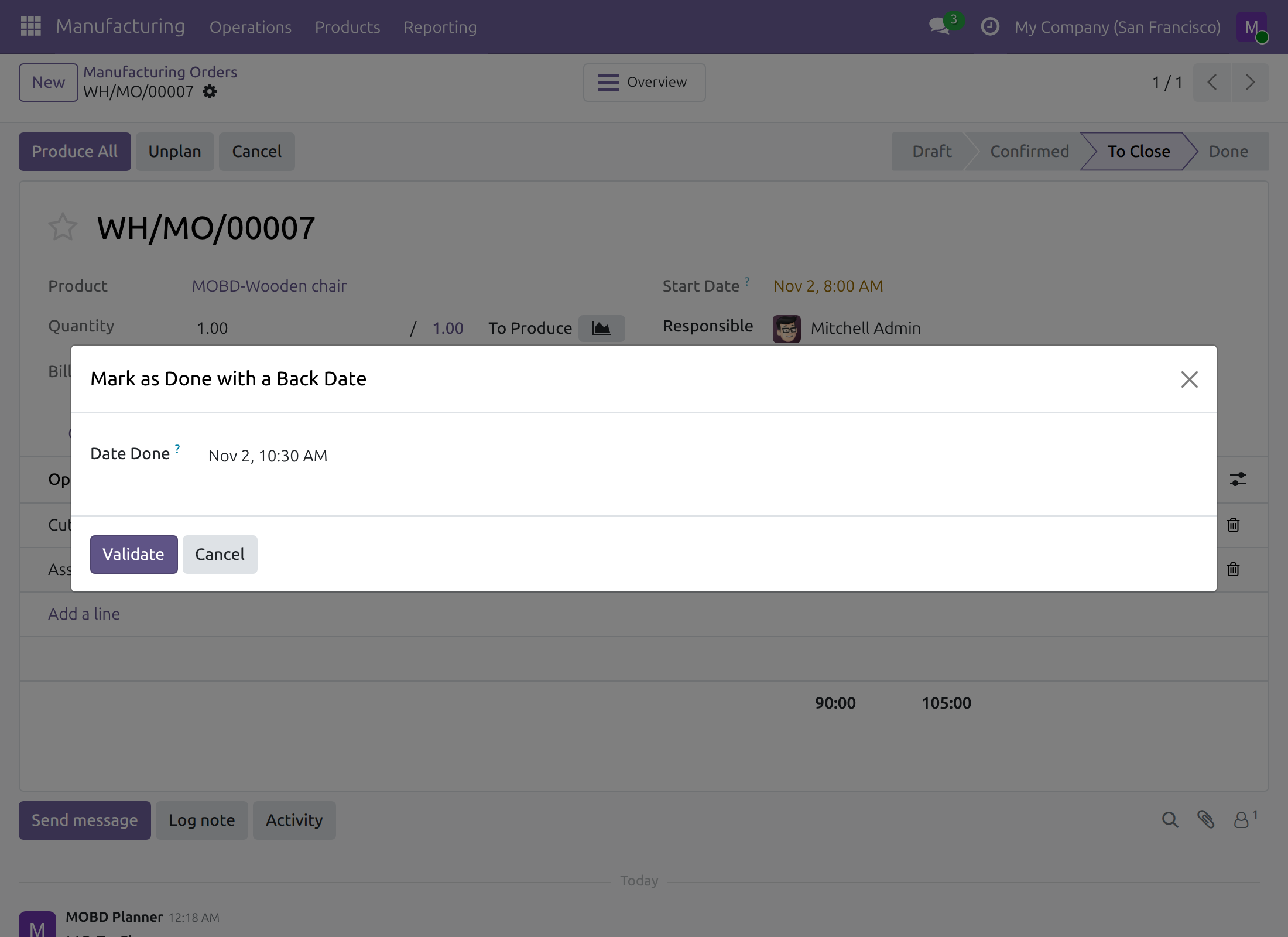
The order is Done at that date. Click Product Moves on the order to see its stock movements: the consumed components and the finished product all carry the date you chose.
When products are valued automatically, the journal entries of those movements are booked on the day of the chosen date in your time zone.
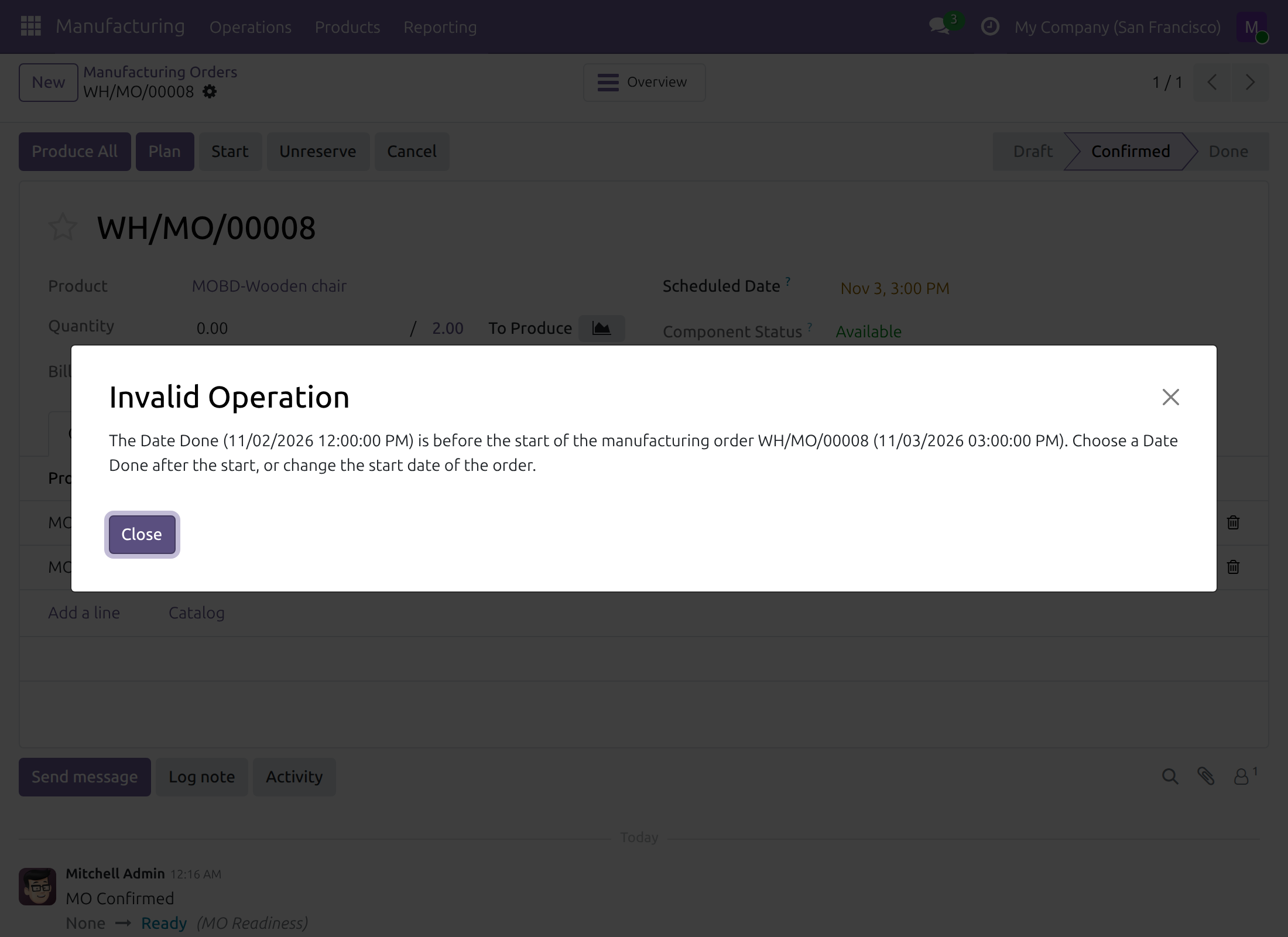
A date before the start of the order is refused. The message "The Date Done (...) is before the start of the manufacturing order ... (...). Choose a Date Done after the start, or change the start date of the order." names both dates. Nothing is recorded: click Close and choose a later date, or correct the Start Date of the order.
Backorders. When only part of the quantity was produced and you create a backorder, only the produced part takes the date. The original order is done at the chosen date and the backorder stays open, to be closed with its own dialog.
Block a work centre from the time it stopped
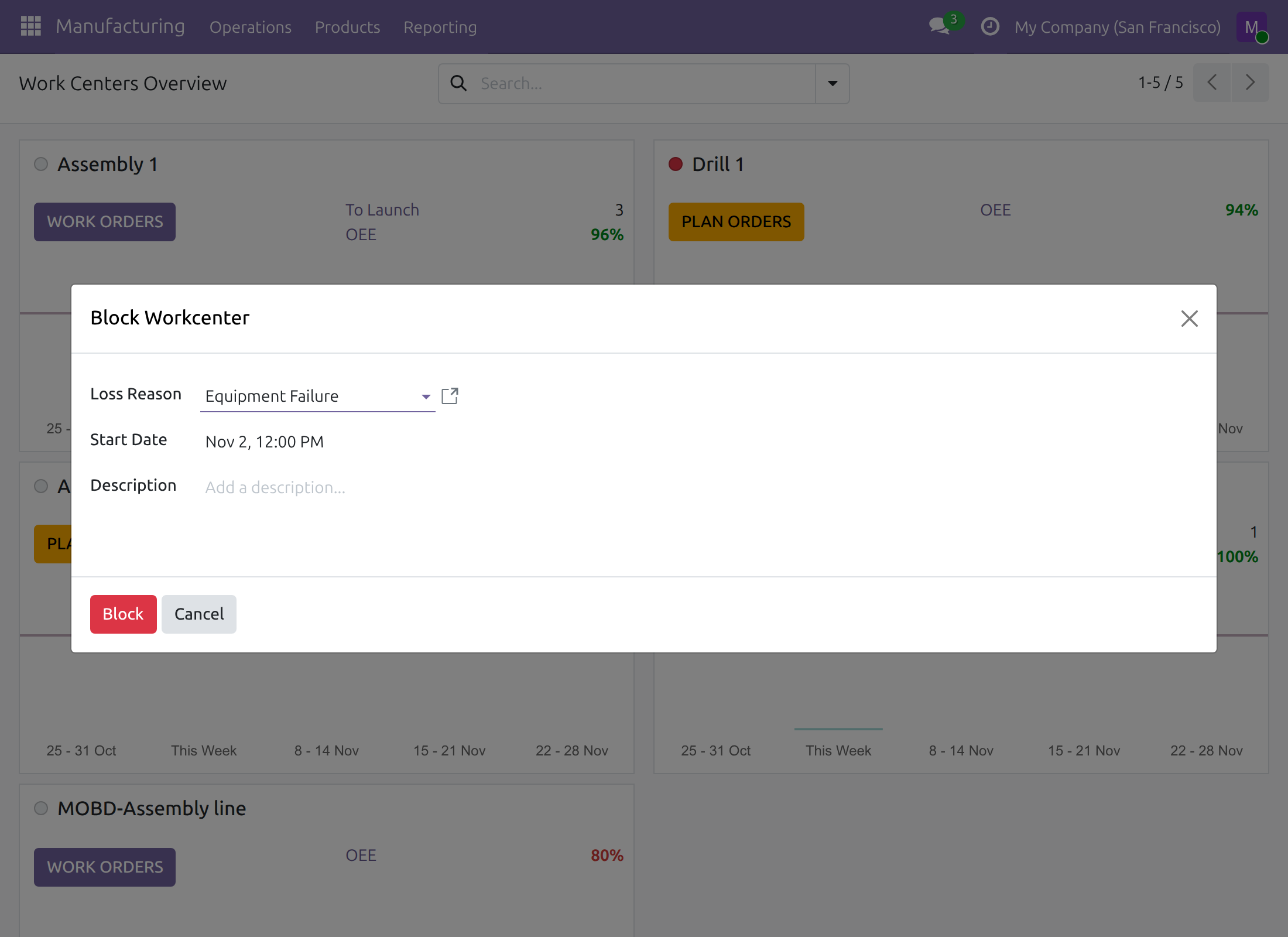
Work centres are shown as cards on the Work Centers Overview of the Manufacturing app (the entry Manufacturing ‣ Overview, where your edition provides it). The status dot at the top of a card is the control: grey or green blocks the work centre, red unblocks it.
- Click the status dot of a work centre that is not blocked. Odoo's dialog Block Workcenter opens.
- Choose the Loss Reason, and in Start Date enter the date and time the stoppage began.
- Click Block.
Unblock a work centre at the time it ran again
- Click the red status dot of the blocked work centre. The dialog Unblock with a Back Date opens.
- In Date, enter the date and time the work centre ran again, and click Validate.
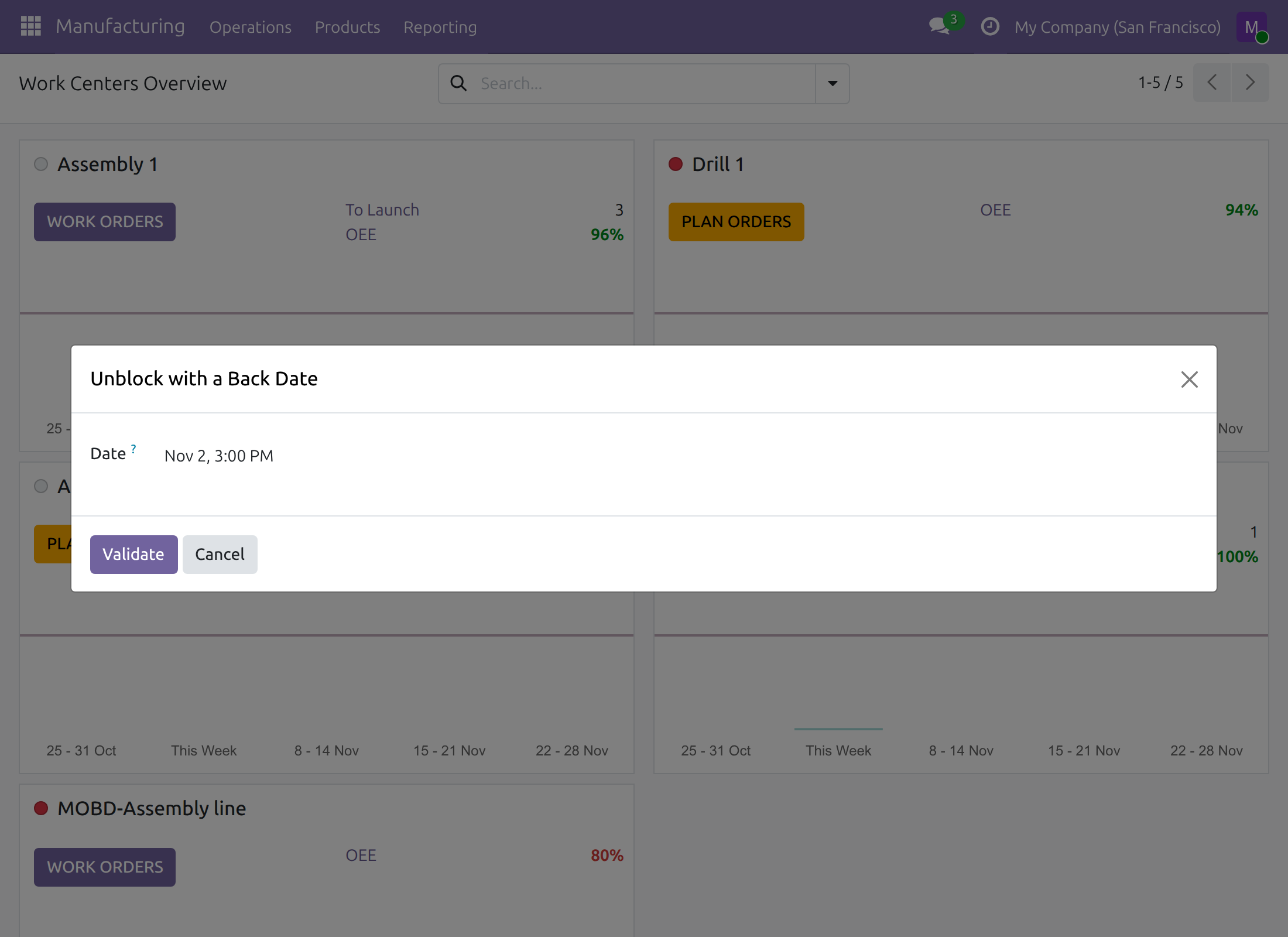
The stoppage runs from the block date to the unblock date. Open Manufacturing ‣ Reporting ‣ Overall Equipment Effectiveness, or click OEE on the card of the work centre, and switch to the list view to see it: its Start Date, End Date, Loss Reason and Duration (minutes). The duration is measured in the working hours of the work centre, so a stoppage over a lunch break is shorter than the time between its two dates.
If the unblock date is earlier than the block date, Odoo refuses it with the message "The end date (...) is before the start date (...) of the Time Tracking line of ...". Choose a later date.
What stays at the current time
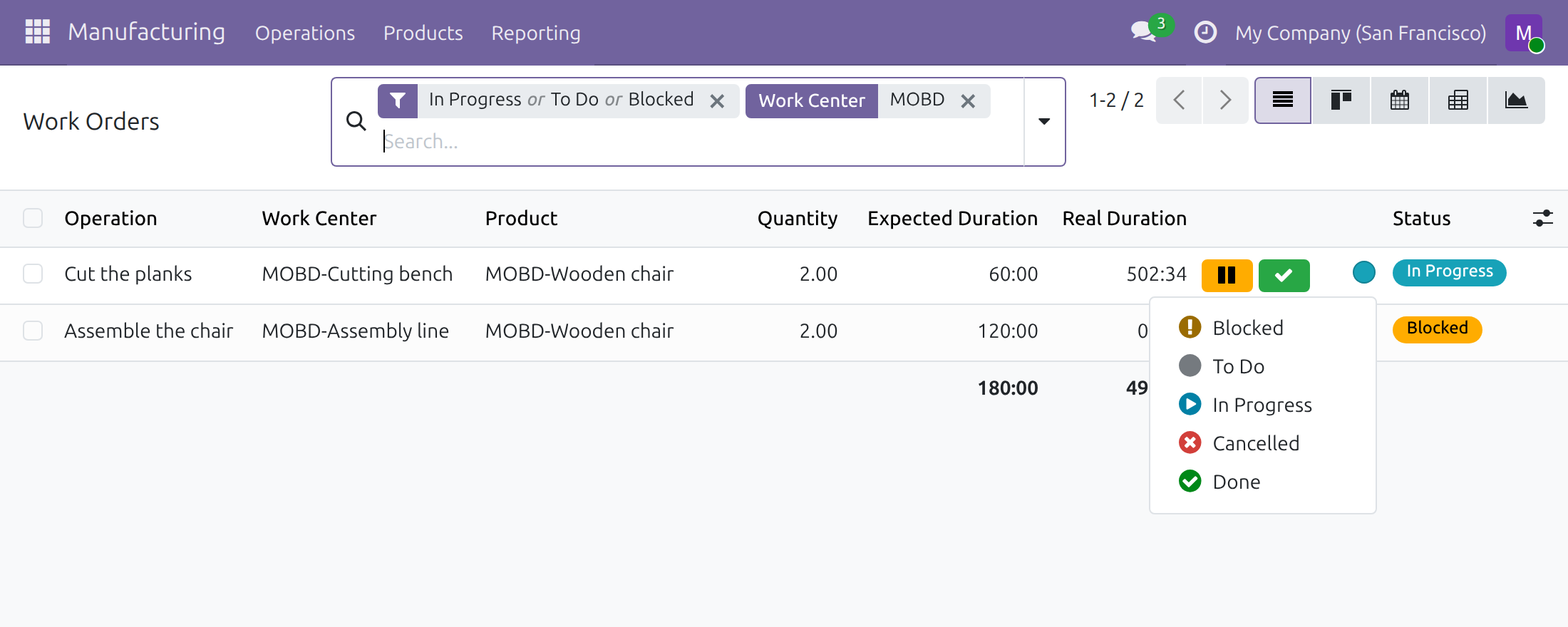
The state dropdown of the Work Orders list (Manufacturing ‣ Operations ‣ Work Orders) has no dialog: choosing In Progress, Done or another state there is recorded at the current time, for everyone, including people who hold the back-date right. To record a past time, use the Start, Pause and Done buttons of the line instead.
Odoo's mobile layout of work orders has no Start or Finish button. Record work orders on a desktop screen.
Shop-floor operator: work at the current time
For people who hold Manufacturing: User without the back-date right. The buttons are the same and nothing is asked: Start, Pause, Done, Produce All and the status dot of a work centre act at once, at the current time.
Troubleshooting
- I click Start, Pause, Done or Produce All and no dialog opens.
- You do not hold the Manufacturing Backdate right, so the action is recorded at the current time. Ask your administrator for Manufacturing Backdate Operations in the Access Rights tab of your user.
- The row Manufacturing Backdate is missing from my user form.
- The module is not installed. Tick Manufacturing Backdate in Settings ‣ Backdate Operations.
- Produce All is refused with a message naming two dates.
- The Date Done is before the start of the manufacturing order. Choose a later date, or correct the Start Date of the order.
- A work order or a work centre cannot be finished or unblocked at my date.
- The date is before the start of its running timer. Choose a date after the start shown in the message.
- The date is refused as being in the future.
- Choose a date and time up to the current time.
- The real duration is shorter than the time between my two dates.
- Odoo measures a duration in the working hours of the work centre. Time outside those hours does not count.
- I change the state of a work order from the list and it takes today's date.
- The state dropdown of the list always acts at the current time. Use the buttons of the work order line to record a past time.
FAQ
- Does the right matter for work orders only?
- No. It also covers Produce All on a manufacturing order and the unblock of a work centre.
- Which date do the stock movements and entries of an order take?
- The Date Done you give. Odoo books the journal entries of automatically valued products on that day in your time zone.
- What happens to the labour entry of the order?
- It is dated by Manufacturing Accounting Backdate, in the same period as the stock entries.
- Can I record a date that has not come yet?
- No. Every back-date dialog refuses a date after the current time.
- Is the order refused when its period is locked?
- No. The movements keep their date and Odoo moves the journal entry to today, or to the last day of the first open month.
This software and associated files (the "Software") may only be used (executed, modified, executed after modifications) if you have purchased a valid license from the authors, typically via Odoo Apps, or if you have received a written agreement from the authors of the Software (see the COPYRIGHT file).
You may develop Odoo modules that use the Software as a library (typically by depending on it, importing it and using its resources), but without copying any source code or material from the Software. You may distribute those modules under the license of your choice, provided that this license is compatible with the terms of the Odoo Proprietary License (For example: LGPL, MIT, or proprietary licenses similar to this one).
It is forbidden to publish, distribute, sublicense, or sell copies of the Software or modified copies of the Software.
The above copyright notice and this permission notice must be included in all copies or substantial portions of the Software.
THE SOFTWARE IS PROVIDED "AS IS", WITHOUT WARRANTY OF ANY KIND, EXPRESS OR IMPLIED, INCLUDING BUT NOT LIMITED TO THE WARRANTIES OF MERCHANTABILITY, FITNESS FOR A PARTICULAR PURPOSE AND NONINFRINGEMENT. IN NO EVENT SHALL THE AUTHORS OR COPYRIGHT HOLDERS BE LIABLE FOR ANY CLAIM, DAMAGES OR OTHER LIABILITY, WHETHER IN AN ACTION OF CONTRACT, TORT OR OTHERWISE, ARISING FROM, OUT OF OR IN CONNECTION WITH THE SOFTWARE OR THE USE OR OTHER DEALINGS IN THE SOFTWARE.