
Vendor Price Lock

The vendor price you negotiated is the price on the order
For purchasing teams where managers agree prices and purchasers prepare the orders
Lock vendor pricelist and purchase prices on purchase orders to ensure consistency and control.
Odoo 19.0 · Community and Enterprise · OPL-1
What changes for your team
An agreed price becomes binding in one click
Today a negotiated price sits in the vendor pricelist as a suggestion that anyone preparing an order can type over.
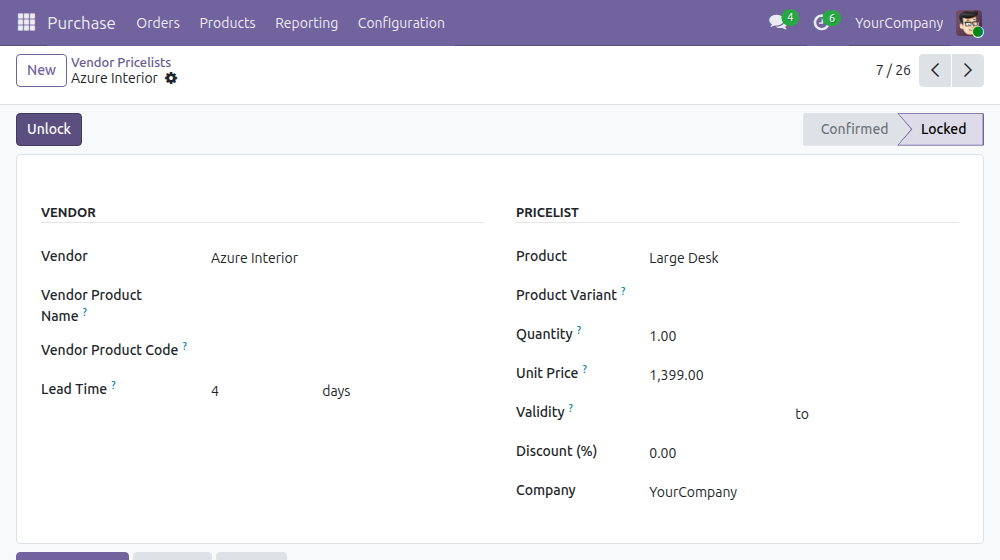
→ The purchase manager presses Lock on the vendor pricelist. Unlock returns it to Confirmed when the price may change again, and every change is kept in the record's history.
Orders go out at the agreed price
Today a deviation is found later, when someone reviews the order or the vendor bill.
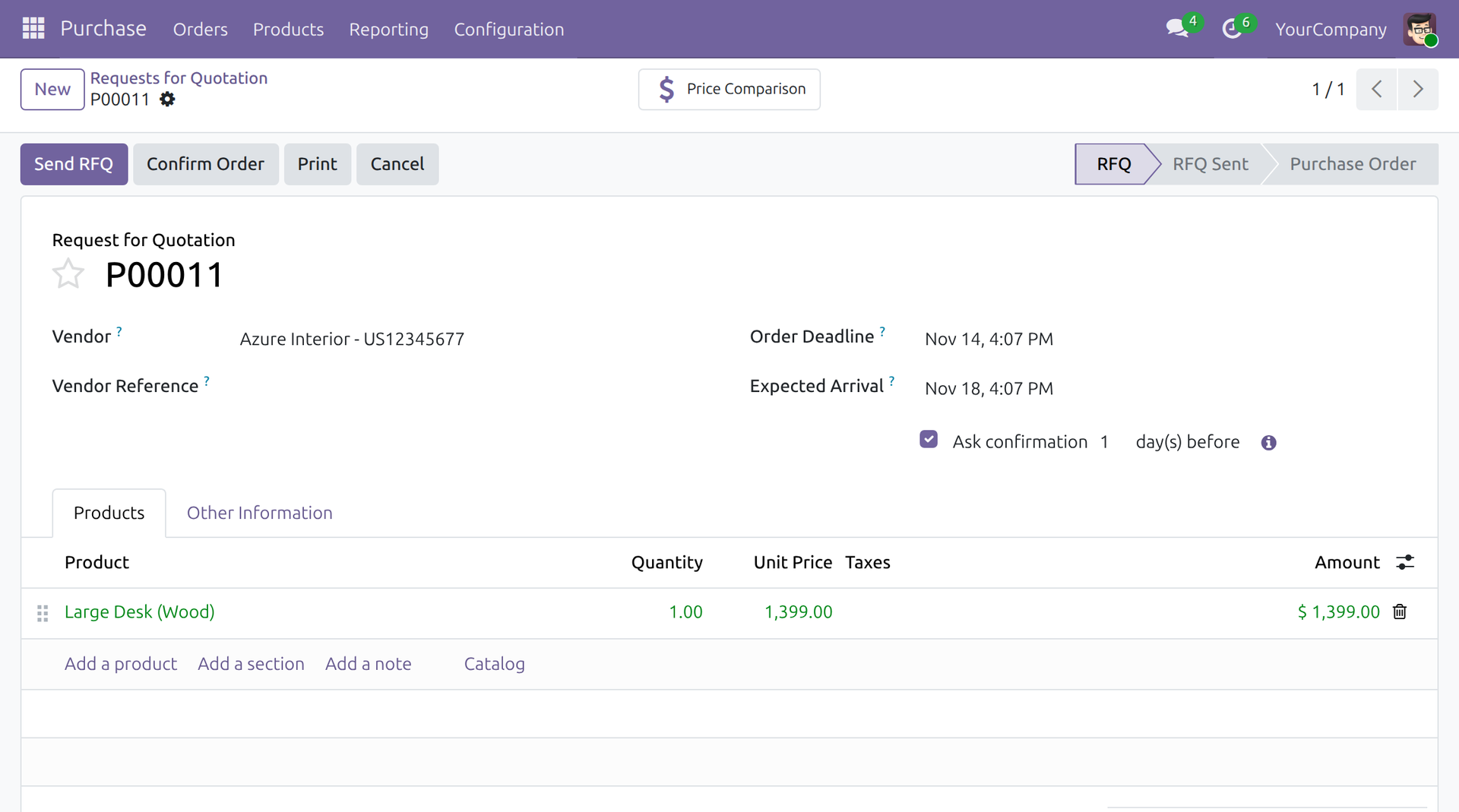
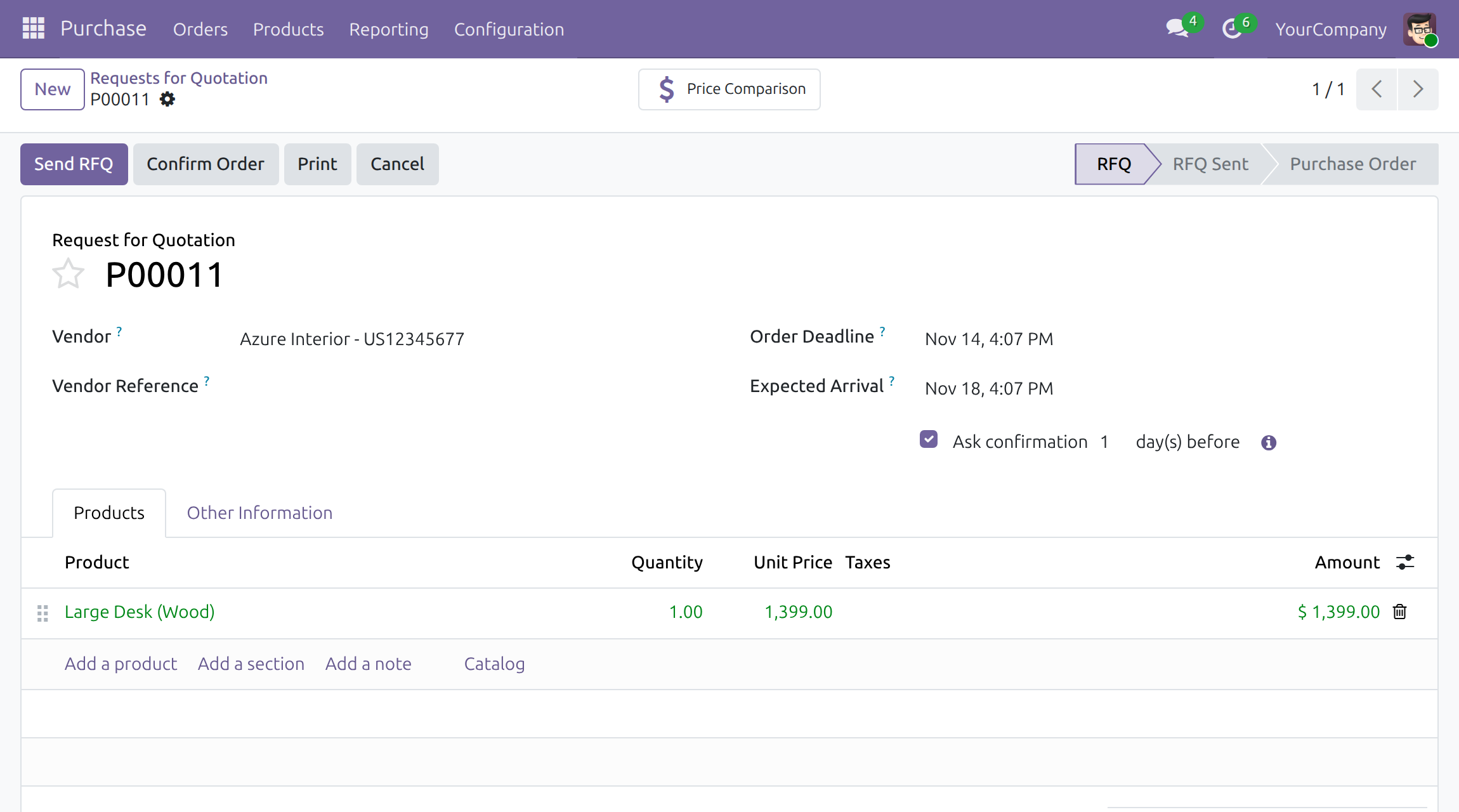
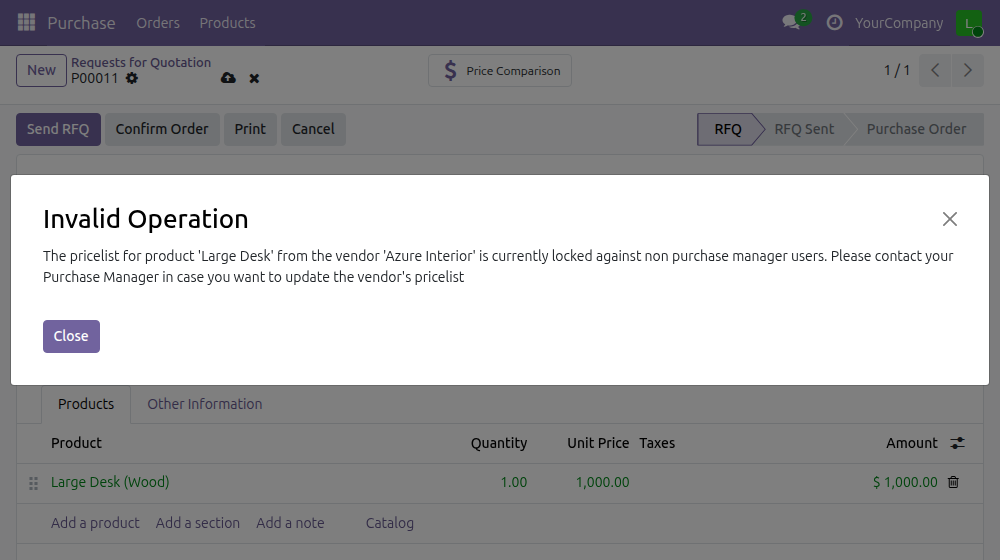
→ An order line that takes a locked price is shown in green. A purchaser who saves a different price gets a blocking error and the price is not saved. Purchase managers keep the right to change it.
The protected price stays protected
Today a pricelist can be edited, duplicated or deleted by people who did not negotiate it.
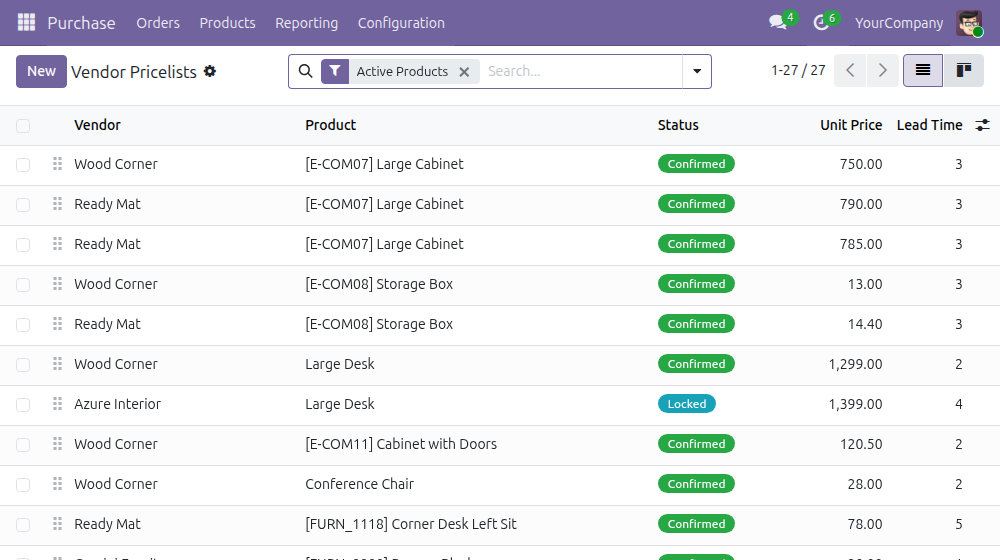
→ Only purchase managers edit a locked pricelist or add another one for the same vendor and product, and nobody deletes it while it is locked. The Status column shows which prices are locked.
Ready on day one
Lock and Unlock on every vendor pricelist
Existing and new pricelists start as Confirmed and behave as before until a manager locks them.
Price history on each pricelist
Changes to vendor, price, quantity, validity, lead time and status are logged on the record.
Locked lines visible on orders
Purchasers see which prices are binding before they save.
Configure first
Give purchase managers the Purchase: Administrator access right and purchasers Purchase: User.
What is included
Everything on this page works with the Purchase app alone: locking vendor pricelists, the price check on requests for quotation and purchase orders, and the protections of a locked pricelist. Nothing else is needed.
Before you decide
Is a different price a warning or a block?
A block. The check runs when the order is saved: the purchaser sees an error and the order is not saved with that price until the line carries the locked price again.
Who can lock, unlock or override a price?
Only people with the Purchase: Administrator access right. They see the Lock and Unlock buttons and may still save a different price on an order. Nobody can delete a locked pricelist; it is unlocked first.
Does it affect every vendor price?
No. Only the pricelists you lock. A line is checked against the pricelist that applies to it by vendor, product, quantity, date and unit of measure; all other prices work as in the standard Purchase app.
Which languages does it ship?
English and Vietnamese. Each person sees the buttons, statuses and messages in their own interface language.
What does it take to run or extend?
The Purchase app and the access rights you already manage. It adds no scheduled jobs, no demo or configuration data and no connection to an outside service: prices stay in your database. It follows standard Odoo inheritance, so a developer can adapt it.
Try it, then ask us
Open the Live Preview of this listing to lock a price yourself, watch the video above, and read the Documentation tab for the setup and each role's steps.
Pre-sales & partnership
viindoo.com/contactusTechnical support
viindoo.com/ticketTechnical requirements
- Odoo version: 19.0
- Editions: Community, Enterprise
- Required modules: Purchase
- License: OPL-1
- Languages: English, Vietnamese
Vendor Price Lock
This guide is for purchasers, purchase managers and administrators.
Overview
Vendor Price Lock lets a purchase manager freeze the price of a vendor pricelist. Once a pricelist is locked, purchasers can no longer quote or save a different price for that vendor and product on a request for quotation or purchase order, so negotiated prices are applied consistently.
How it works:
- The purchase manager opens a vendor pricelist and presses Lock. Its status changes from Confirmed to Locked.
- A purchaser creates a request for quotation for that vendor and product. The order line takes the pricelist price and is shown in green.
- If the purchaser changes the unit price and saves, a blocking error is shown and the price is not saved.
- The purchase manager can unlock the pricelist at any time with Unlock.
| Role | What they do | Access right to assign |
|---|---|---|
| Purchase manager | Opens Configuration > Vendor Pricelists; creates, edits and deletes vendor pricelists; locks and unlocks them; may still change a locked price on an order | Purchase: Administrator |
| Purchaser | Prepares requests for quotation and purchase orders; works with locked prices; does not see the Configuration menu | Purchase: User |
| Administrator | Installs the module and assigns the access rights | Settings: Administrator |
Setup (for the Administrator)
- Open Apps, remove the Apps filter, search for Vendor Price Lock and press Activate. The module needs the Purchase app.
- Open Settings > Users & Companies > Users and select a person.
- On the Access Rights tab, set Purchase (group Supply Chain) to User for purchasers or to Administrator for purchase managers.

Only people with Purchase: Administrator see the Configuration menu of the Purchase app, where the vendor pricelists are kept, and only they see the Lock and Unlock buttons. A person with Purchase: User does not see Configuration. Creating, editing and deleting vendor pricelists needs Purchase: Administrator or the Products: Create access right.
Purchase manager: lock and unlock vendor prices
Lock a vendor pricelist
- Open Purchase > Configuration > Vendor Pricelists.
- Select the pricelist of the vendor and product to protect.
- Press Lock. The status moves from Confirmed to Locked.
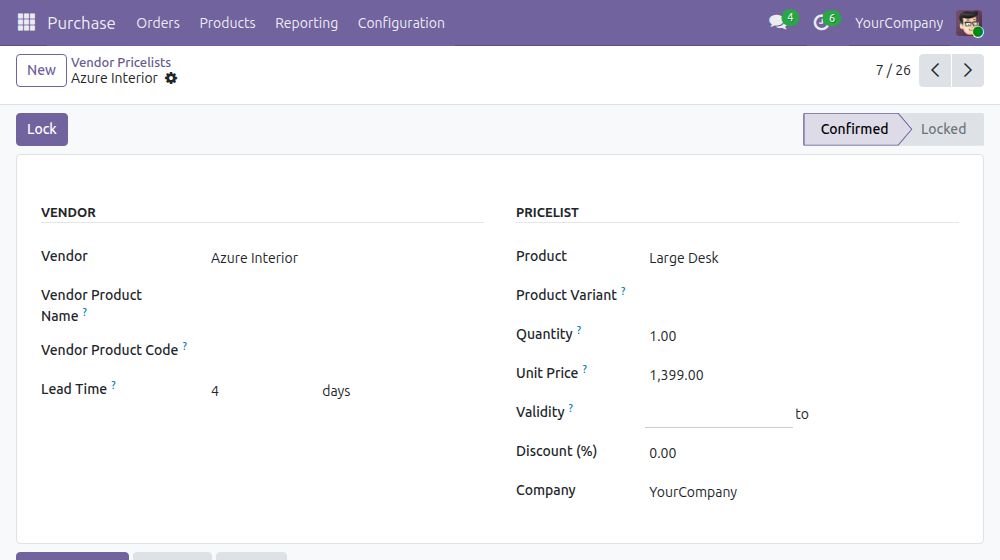
Press Unlock to return the pricelist to Confirmed whenever the price may change again. Changes to the pricelist and to its status are recorded in the chatter of the form.
See which prices are locked
In Purchase > Configuration > Vendor Pricelists, the Status column shows Confirmed or Locked on each row.
What a locked pricelist protects:
- A person without the Purchase: Administrator access right cannot edit it, even if their other access rights allow editing vendor pricelists.
- A person without that right cannot create a new pricelist for the same vendor and product while a locked one exists, whether the new pricelist names the product or only one of its variants. They are asked to contact the purchase manager.
- Nobody can delete a locked pricelist. Unlock it first.
Purchaser: quote with a locked price
- Open Purchase > Orders > Requests for Quotation and create a request for quotation.
- Choose the Vendor and add the Product. The line takes the price of the vendor pricelist. When that pricelist is locked, the whole line is shown in green.
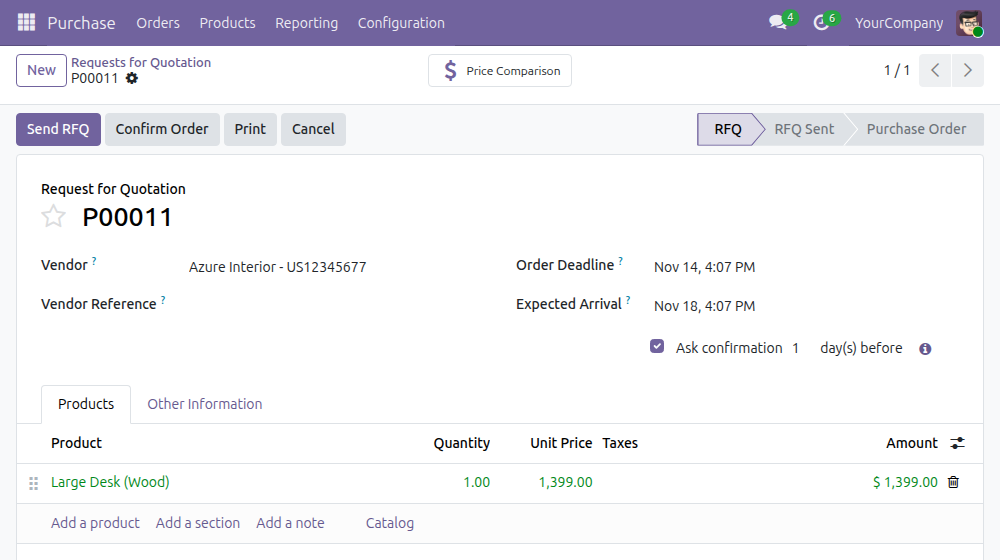
If you change the Unit Price of a green line and save, an Invalid Operation message tells you that the pricelist is locked and the price is not saved. Press Close, restore the pricelist price, or ask your purchase manager to unlock the pricelist or change the price.
The same line is not restricted for a purchase manager: a person with Purchase: Administrator can change the unit price of a green line.
Notes
- The message is an error, not a warning: the order cannot be saved with a different price.
- A pricelist is matched on the vendor, product, quantity, date and unit of measure of the line, so a line is green only when the pricelist that applies to it is locked.
This software and associated files (the "Software") may only be used (executed, modified, executed after modifications) if you have purchased a valid license from the authors, typically via Odoo Apps, or if you have received a written agreement from the authors of the Software (see the COPYRIGHT file).
You may develop Odoo modules that use the Software as a library (typically by depending on it, importing it and using its resources), but without copying any source code or material from the Software. You may distribute those modules under the license of your choice, provided that this license is compatible with the terms of the Odoo Proprietary License (For example: LGPL, MIT, or proprietary licenses similar to this one).
It is forbidden to publish, distribute, sublicense, or sell copies of the Software or modified copies of the Software.
The above copyright notice and this permission notice must be included in all copies or substantial portions of the Software.
THE SOFTWARE IS PROVIDED "AS IS", WITHOUT WARRANTY OF ANY KIND, EXPRESS OR IMPLIED, INCLUDING BUT NOT LIMITED TO THE WARRANTIES OF MERCHANTABILITY, FITNESS FOR A PARTICULAR PURPOSE AND NONINFRINGEMENT. IN NO EVENT SHALL THE AUTHORS OR COPYRIGHT HOLDERS BE LIABLE FOR ANY CLAIM, DAMAGES OR OTHER LIABILITY, WHETHER IN AN ACTION OF CONTRACT, TORT OR OTHERWISE, ARISING FROM, OUT OF OR IN CONNECTION WITH THE SOFTWARE OR THE USE OR OTHER DEALINGS IN THE SOFTWARE.