
Fleet Trip Accounting
| Lines of Code | 673 |
| Technical name | viin_fleet_booking_account |
| License | OPL-1 |
| Website | https://viindoo.com/apps/modules/19.0/viin_fleet_booking_account |
| Read description for | v 10.0 v 11.0 v 12.0 v 13.0 v 14.0 v 15.0 v 16.0 v 17.0 v 18.0 |
| Required Apps | Invoicing (account) Discuss (mail) Employees (hr) Fleet (fleet) |
| Included Dependencies | Fleet Drivers Management Fleet Booking & Trip Management Fleet Loading Capacity Employee Documents Fleet Cost & Revenue Accounting QR Code Mixin Viindoo Base Accounting Foundation Advanced HR Management Viin Fleet |

See what each trip cost, not only what each vehicle cost
For companies that plan vehicle trips and keep their books in Odoo
Collect the billed costs of each vehicle trip on its own analytic account and see which trips have all their services billed.
Odoo 19.0 · Community and Enterprise · OPL-1
Extends Fleet Booking & Trip Management, where trips are booked and dispatched.
Extends Fleet Cost & Revenue Accounting, where fleet services become vendor bills charged to each vehicle.
What changes for your team
Every trip is its own cost centre
Today fuel, tolls and repairs land on the vehicle, and the cost of one job is rebuilt by hand.
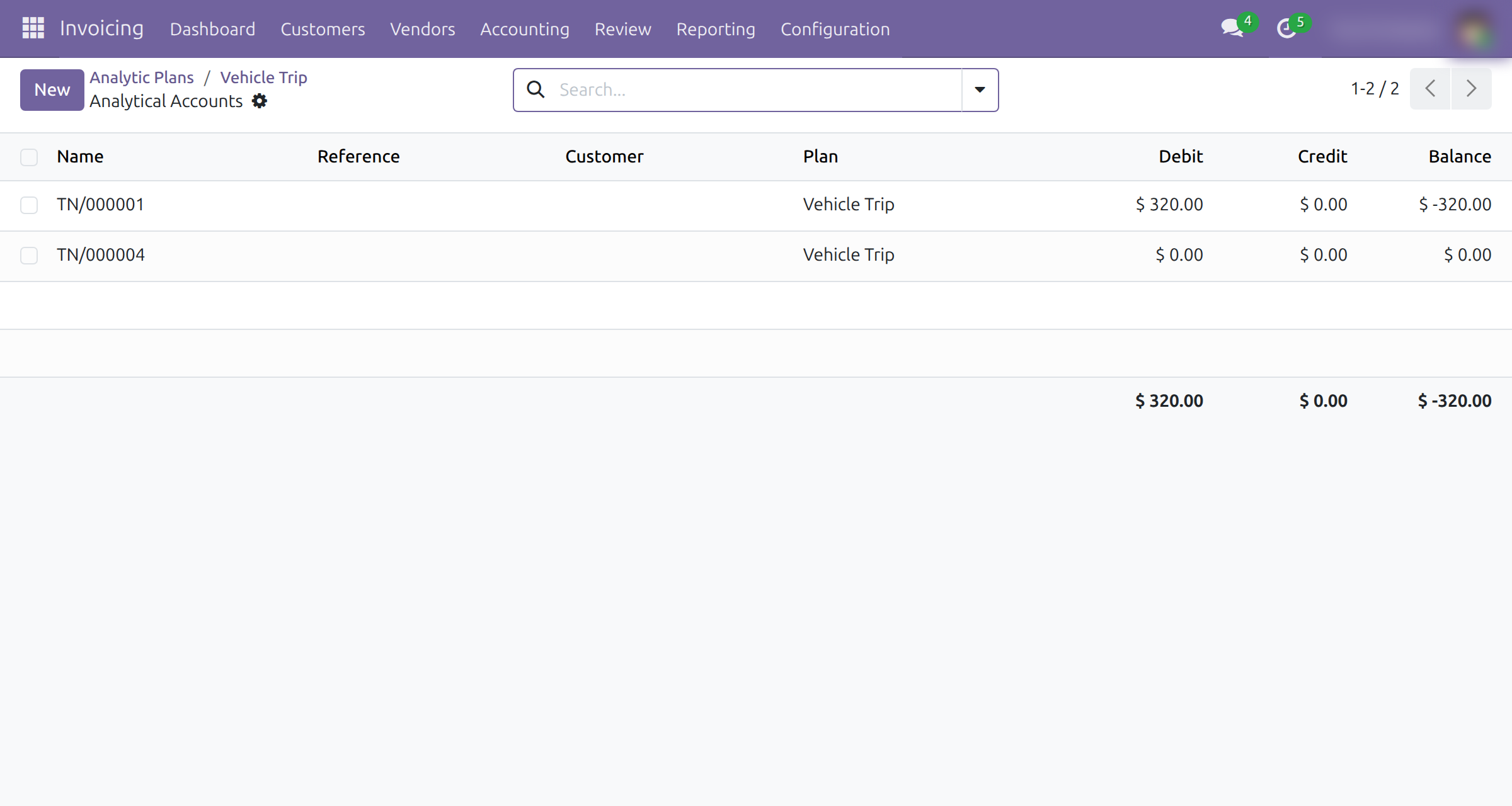
→ Confirming a trip gives it an analytic account named after the trip, on a Vehicle Trip plan of its own, with the debit, credit and balance charged to it.
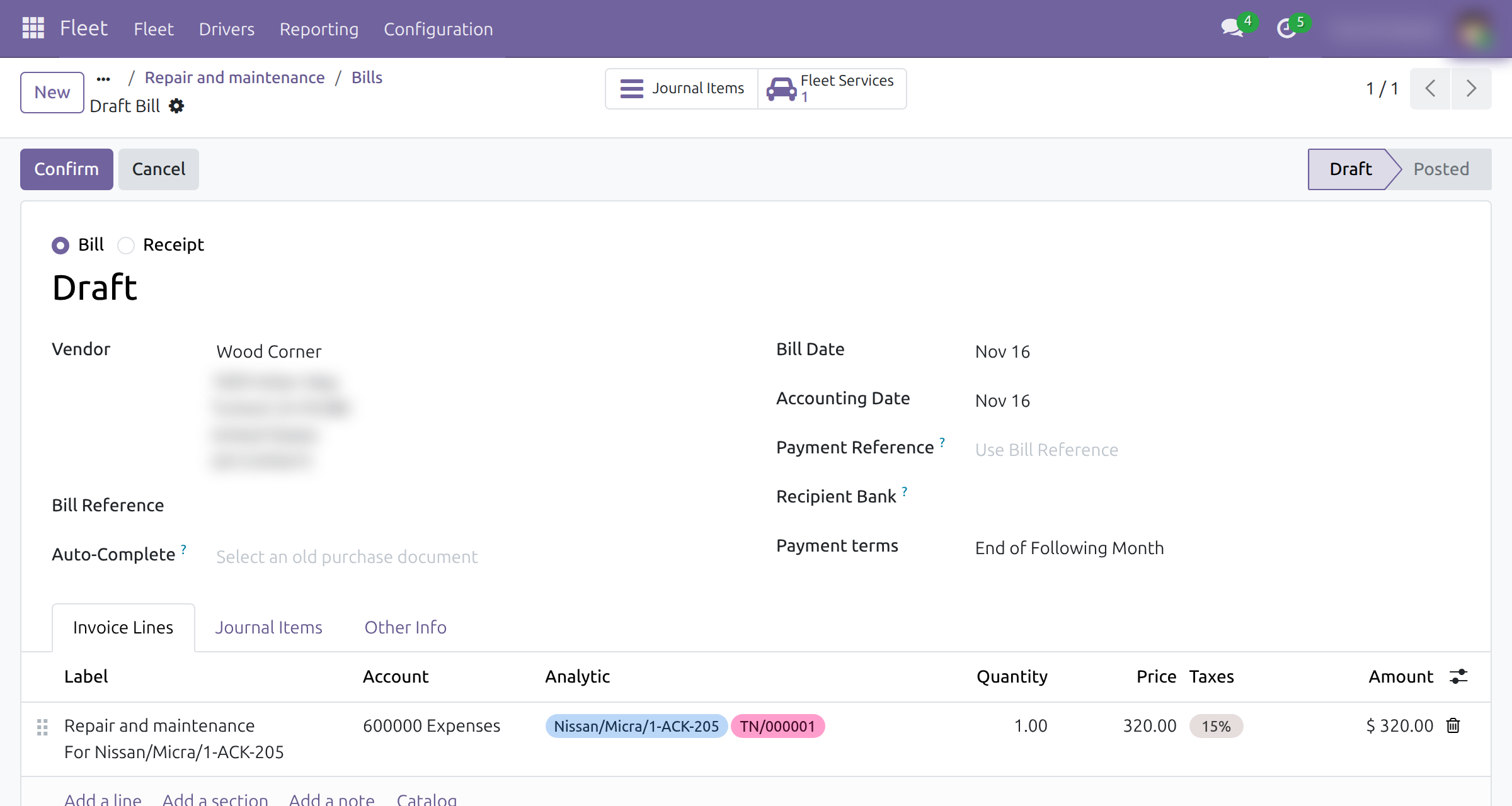
One bill line, charged to the vehicle and the trip
Today the accountant charges a cost either to the vehicle or to the job, never both.
→ The dispatcher records a service on its trip. The vendor bill created from it carries the vehicle account and the trip account on the same line, so one amount counts in both, once.
No trip cost waits unnoticed for its bill
Today someone checks service by service which costs still have no vendor bill.
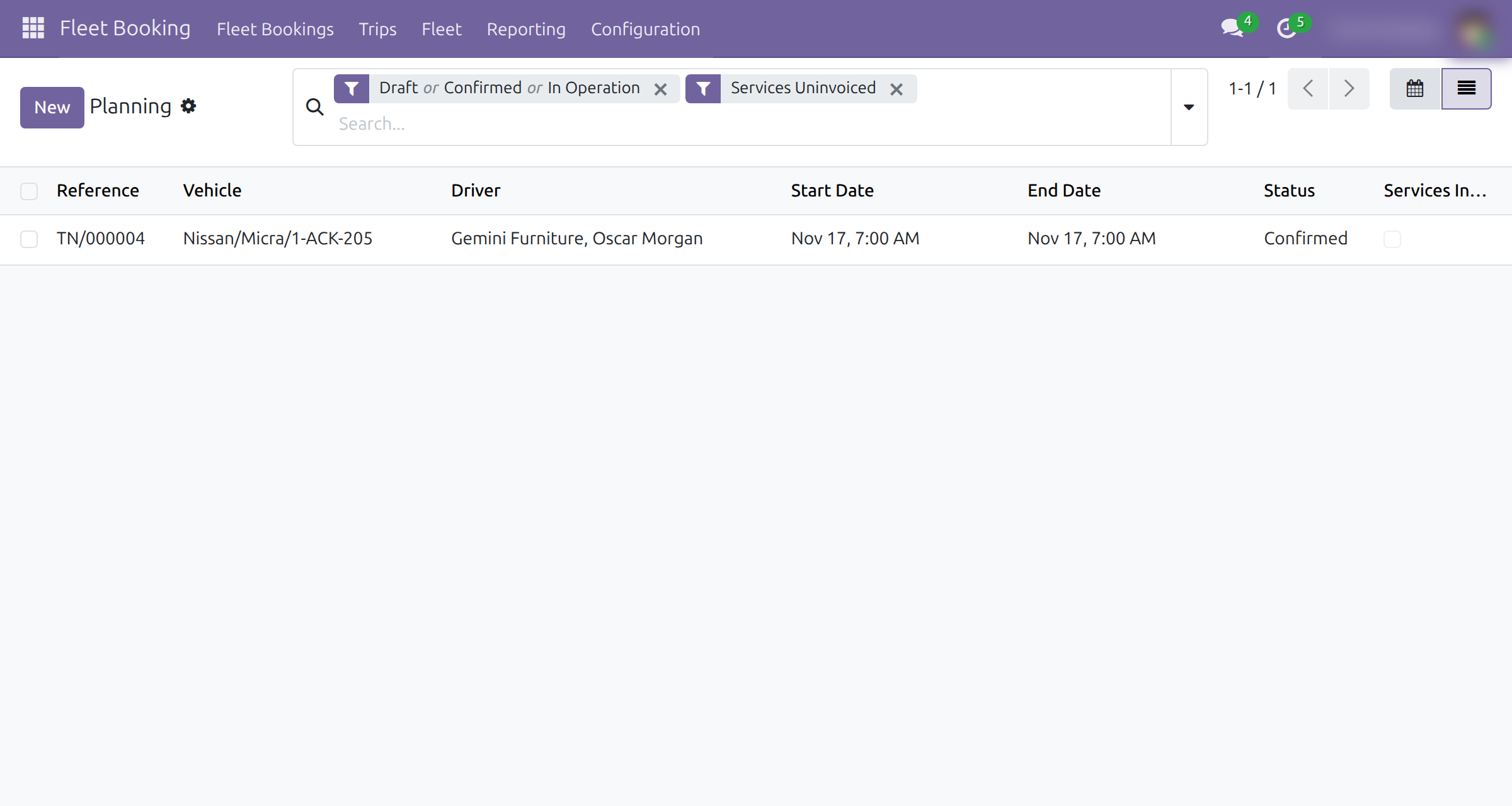
→ The trip list shows whether every service of a trip is billed, a filter lists the trips still waiting, and each trip opens the vendor bills behind it.
Ready on day one
A Vehicle Trip analytic plan
Created on install, next to the plans you already use.
Accounts for running trips
Trips already confirmed, in operation or done get their account at install.
Protected trip accounts
An account in use by a trip cannot be renamed, archived or deleted, and the Trip of a billed service is locked.
Set up first
Turn on Analytic Accounting and give the accountant Invoicing access.
What is included
An analytic account per confirmed trip, vendor bill lines charged to the vehicle and the trip, billing status and filters on trips, and the vendor bills of each trip one click away. It installs by itself when Fleet Booking & Trip Management and Fleet Cost & Revenue Accounting are both present.
Before you decide
Can a billed service move to another trip?
Not while it is billed: its Trip is locked, so the amount charged to a trip stays there. To change it, reset the bill to draft and remove the service's line. With Fleet Operations installed, the trip of a service follows its Trip Section or Trip Waypoint, and those two fields are not locked.
What about a trip still in draft?
A draft trip has no account yet, so a service billed for it is charged to the vehicle only. Confirm the trip before billing its services.
Who sees what?
Dispatchers confirm trips and record services. The billing status, its filters and the Vendor Bills button show only to users with accounting access.
Where does the data go?
Into your own analytic accounts, bills and services. The module calls no outside service.
Which languages does it ship?
English and Vietnamese.
Try it, then ask us
The Documentation tab walks the administrator, the dispatcher and the accountant through every screen above; the Live Preview opens a demo database.
Pre-sales & partnership
viindoo.com/contactusTechnical support
viindoo.com/ticketTechnical requirements
- Odoo version: 19.0
- Editions: Community, Enterprise
- Required modules: Fleet Booking & Trip Management, Fleet Cost & Revenue Accounting
- License: OPL-1
- Languages: English, Vietnamese
Fleet Trip Accounting
This guide is for the people who follow what each trip costs: the dispatcher, who confirms trips and records the services spent on them, the accountant, who bills those services and reads the cost of a trip, and the administrator, who prepares accounting for it.
Note
Extends Fleet Booking - see its documentation for trips, and Fleet Cost & Revenue Accounting - see its documentation for services, vendor bills and vehicle analytic accounts.
Overview
A vehicle trip is a unit of work with its own cost: fuel, repairs and tolls are spent on a trip, not only on a vehicle. This module gives every confirmed trip its own analytic account, named after the trip reference. A service tied to a trip is billed in one step, and its vendor bill line is charged to the vehicle and to the trip together, so the same amount shows in the cost of the vehicle and in the cost of the trip. Each trip shows its vendor bills, and the trip list shows which trips still have services waiting to be billed.
The work runs in these steps:
- Prepare. The administrator turns on analytic accounting and gives each person their access right. The Vehicle Trip analytic plan is created with the module.
- Confirm. The dispatcher confirms the trip. It receives its analytic account.
- Record. The dispatcher records each service with its vendor and cost, and chooses the trip on it.
- Bill. The accountant creates the vendor bill from the services and confirms it. The cost is charged to the vehicle and to the trip.
- Follow. The accountant reads each trip's vendor bills, the trips with services still to bill, and the cost recorded on the trip account.
| Role | What they do | Access right to assign |
|---|---|---|
| Administrator | Installs the module, turns on analytic accounting, assigns access rights. | Role / Administrator and Accounting / Administrator |
| Dispatcher | Confirms trips and records the services spent on them. | Fleet / Operator |
| Accountant | Bills the services of trips and follows the cost of each trip. | Accounting / Invoicing, plus Fleet / Officer: Manage all vehicles to open the services |
Setup (for the Administrator)
Installation
The module installs by itself when Fleet Booking and Fleet Cost & Revenue Accounting are both installed. You can also open Apps, search for Fleet Trip Accounting and click Install.
Trips that are already confirmed, in operation or done when the module is installed receive their analytic account at that moment.
Analytic accounting
Open Invoicing ‣ Configuration ‣ Settings, tick Analytic Accounting in the Analytics section and click Save. Without it, vendor bill lines have no Analytic column and cannot be charged to a trip. The full accounting features are needed to open the analytic accounts; the guide of Fleet Cost & Revenue Accounting explains both.
The Vehicle Trip plan
The module creates the analytic plan Vehicle Trip. Open Invoicing ‣ Configuration ‣ Analytic Accounting ‣ Analytic Plans, open Vehicle Trip and click Analytic Accounts to see one account per confirmed trip, with the Debit, Credit and Balance recorded on it.
The account carries the trip reference as its name. While a trip refers to it, the account cannot be renamed, archived or deleted, and the Vehicle Trip plan cannot be deleted. The message of a refused rename or archive names the account and the trip that refers to it.
Access rights
Open Settings ‣ Users & Companies ‣ Users, choose a person and open the Access Rights tab:
- Dispatcher: in Human Resources, choose Operator in the Fleet field.
- Accountant: in Accounting, choose Invoicing in the Accounting field, and Officer: Manage all vehicles in the Fleet field to open the services.
The Vendor Bills button of a trip, its Services Invoiced column and the matching filters are shown to people with accounting rights only.
Dispatcher: confirm trips and record their services
Confirm a trip
- Open Fleet Booking ‣ Trips ‣ Planning and open a trip in Draft.
- Click Confirm Trip.
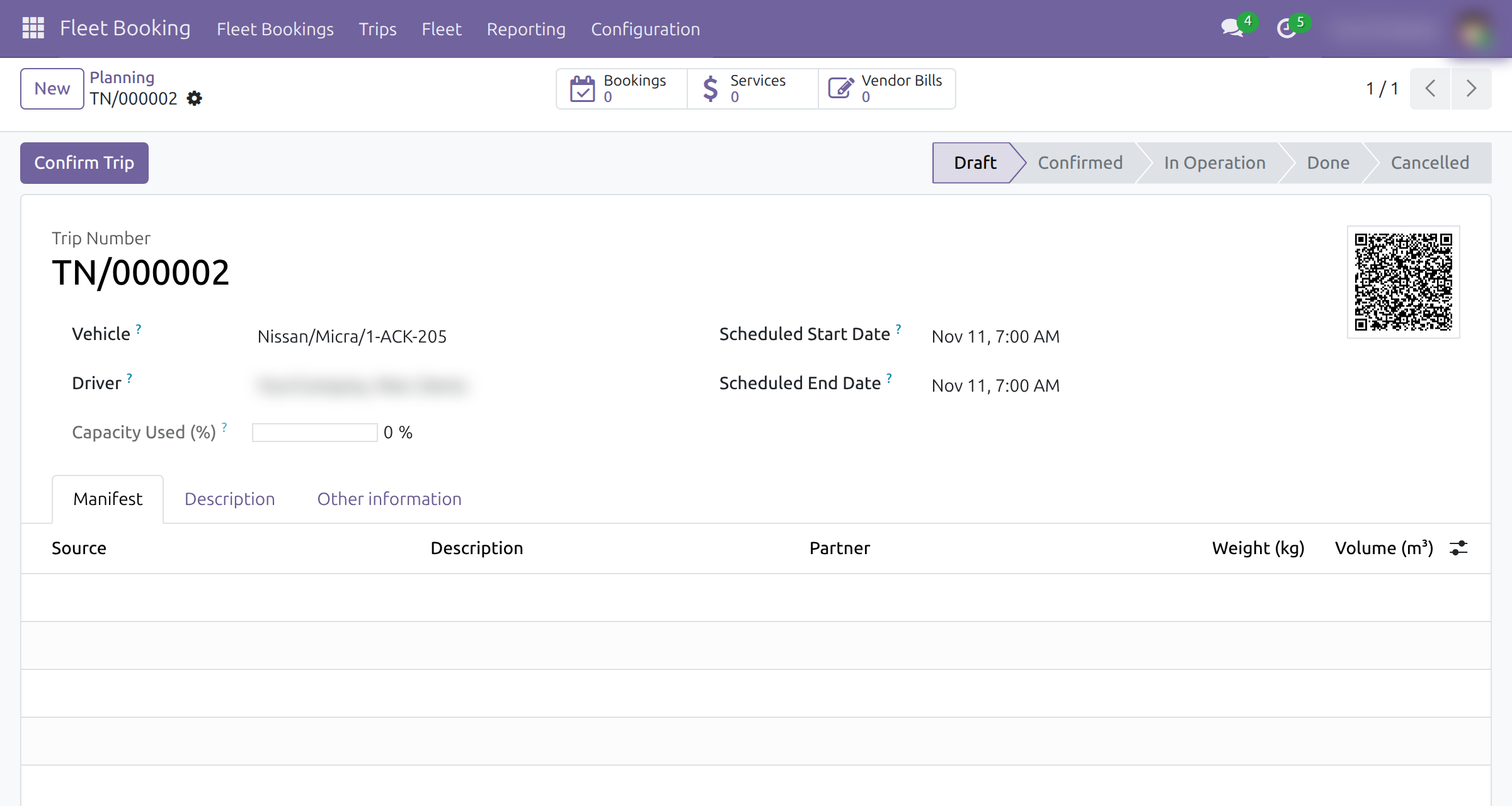
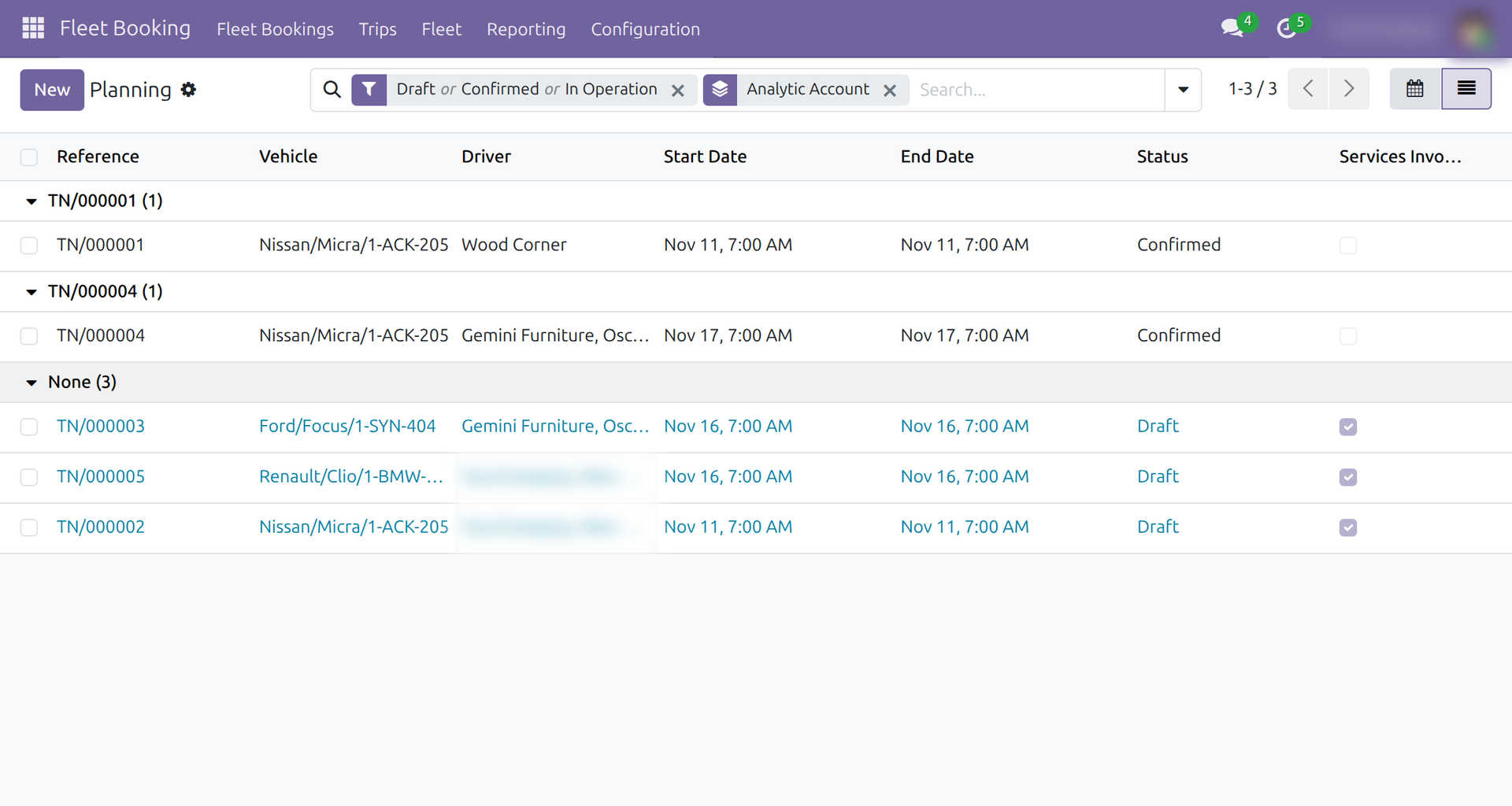
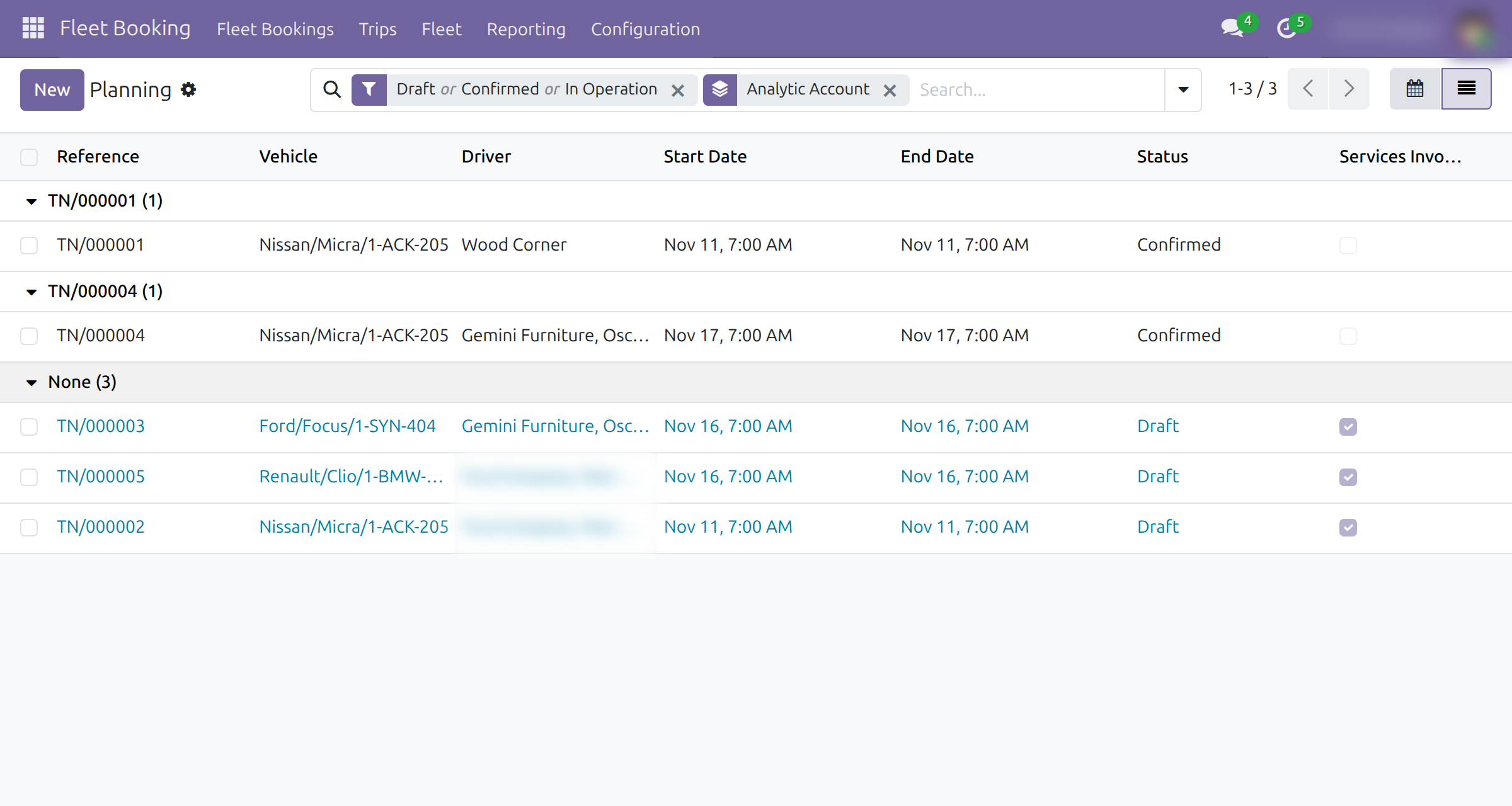
The trip moves to Confirmed and receives its analytic account, named after the trip reference. A trip in Draft has none. A trip that goes back to Draft and is confirmed again keeps its account.
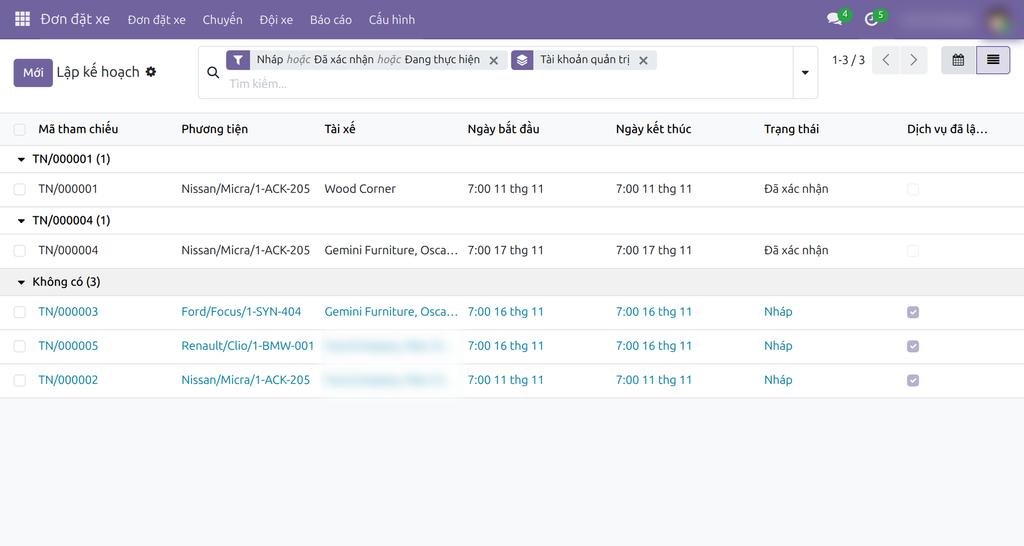
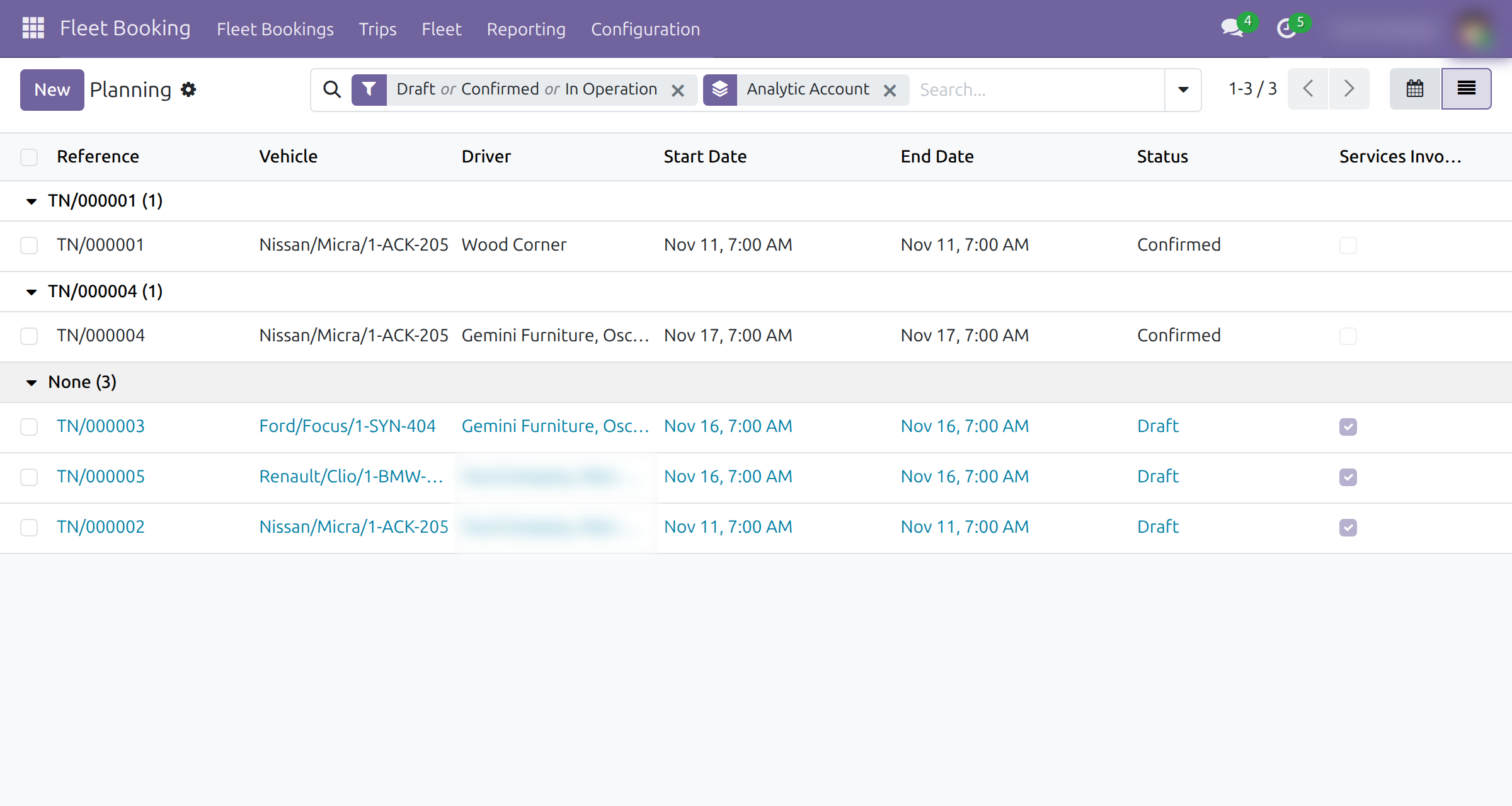
To see which trips have an account, open Fleet Booking ‣ Trips ‣ Planning, switch to the list, open Filters, click the Custom Group field and choose Analytic Account. Each confirmed trip forms its own group; trips without an account are in None.
Record a service on a trip
- Open Fleet Booking ‣ Fleet ‣ Services and click New.
- Fill in the Vehicle, the Service Type, the cost and the Vendor.
- In Trip, choose the trip the cost was spent on. The field offers the trips of the chosen vehicle.
- Save. The service is Billable and waits for the accountant.
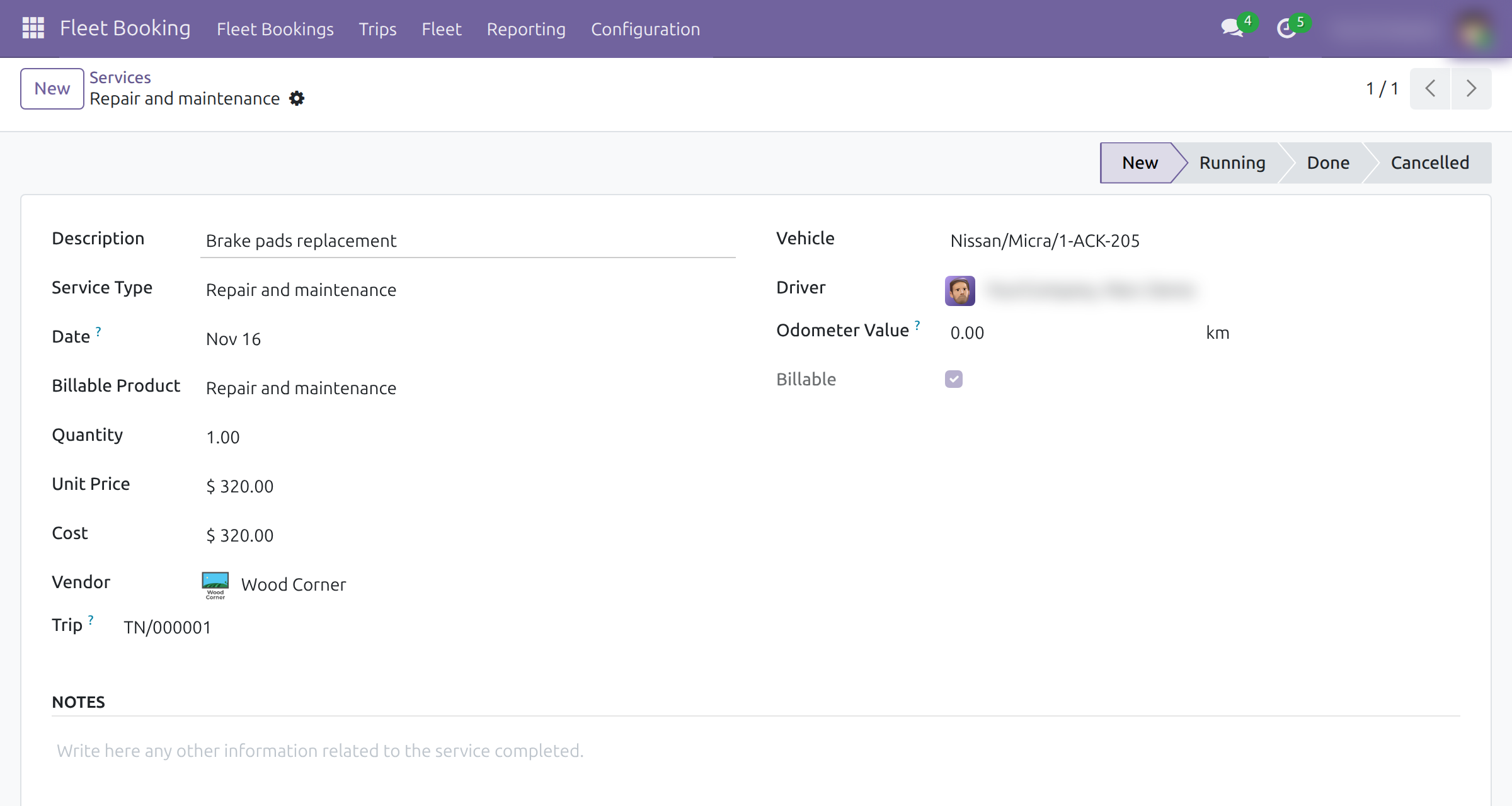
Choose a trip that is already confirmed: only a confirmed trip has an account to charge. Once a trip is in operation or done, Log Service on the trip records a service with the trip already set; the Services button of the trip lists them.
Accountant: bill the services of a trip
Create the vendor bill
Open Fleet Booking ‣ Fleet ‣ Services. The Trip column and the Trip filter in the search box help to find the services of one trip.
Select the services to bill, click Actions and choose Create Vendor Bills.
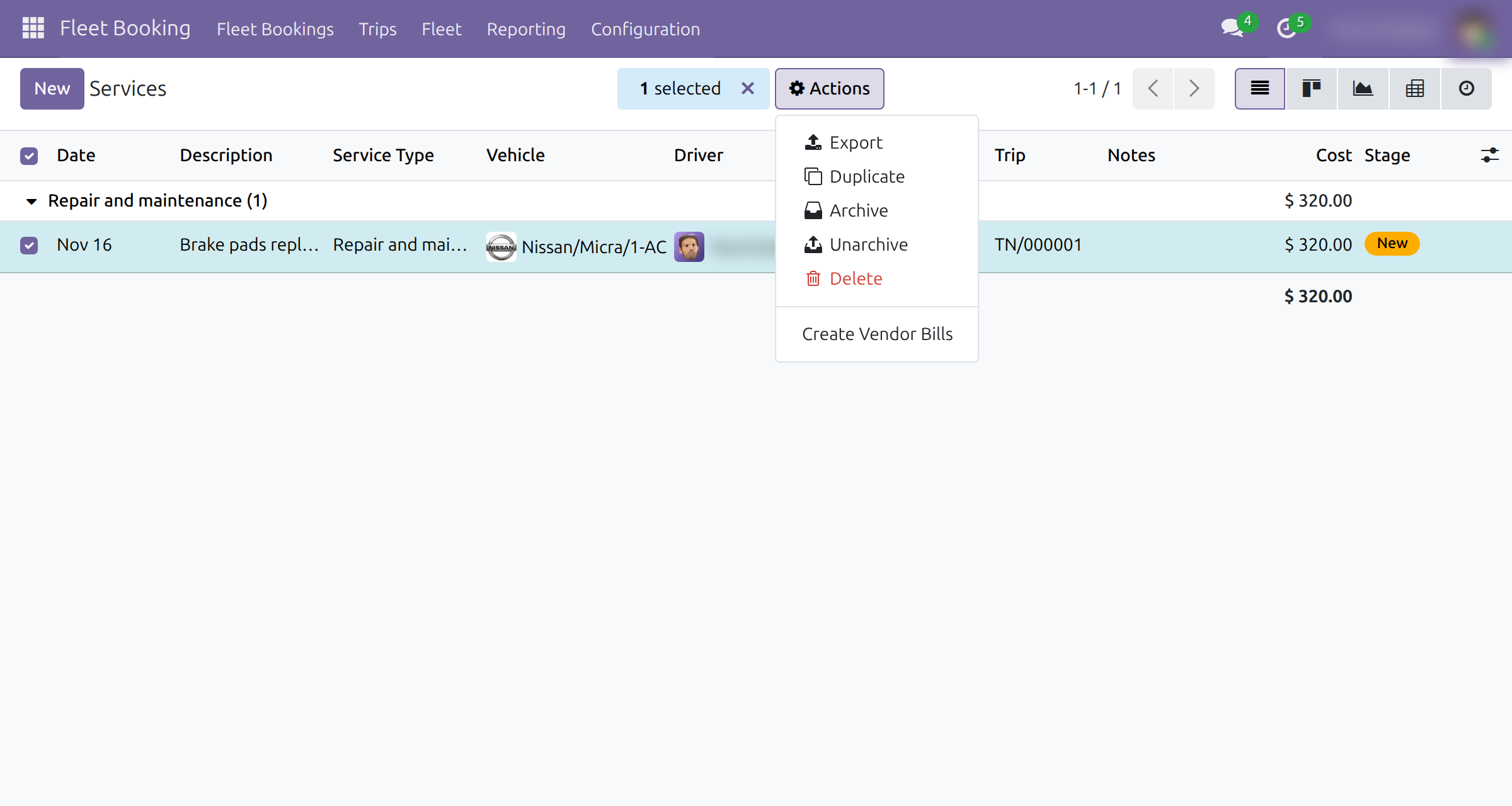
Choose how to group the lines and which date to use, as the guide of Fleet Cost & Revenue Accounting explains, then click Create and View Vendor Bills.
A draft vendor bill opens. In the Analytic column, the line of a trip service carries the vehicle and the trip side by side: the cost is charged to both at once, on one line.
Add the vendor's Bill Reference and click Confirm. The cost is then recorded on the vehicle's analytic account and on the trip's, and the service is not duplicated. When a bill collects services of several vehicles or trips, each line is split in proportion to the cost of its services.
A trip that is still in Draft has no account, so its services are charged to the vehicle only. Confirm the trip before you create the bill.
Charge a bill line to a trip directly
A vendor bill entered by hand under Invoicing ‣ Vendors ‣ Bills can be charged to a trip too: in the Analytic cell of the line, choose the vehicle and the Vehicle Trip account of the trip. When you confirm the bill, the service logged for the vehicle is linked to that trip.
Follow the cost of a trip
Vendor bills of a trip
Open a trip: its Vendor Bills button shows how many bills carry its services. With one bill, the button opens it directly; with several, it opens their list.
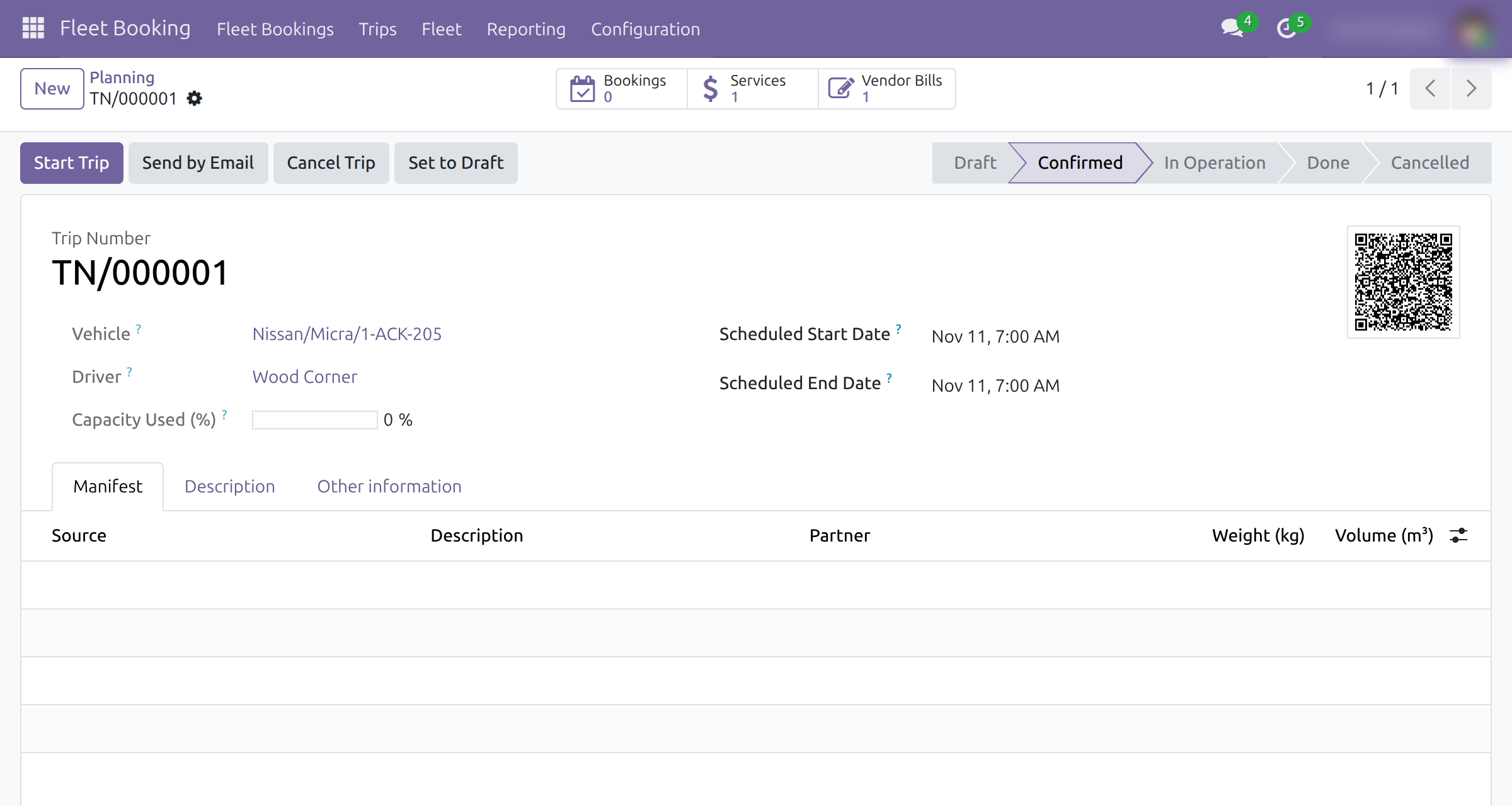
Trips with services to bill
In Fleet Booking ‣ Trips ‣ Planning, switch to the list and open Filters:
- Services Uninvoiced keeps the trips that have at least one service not billed yet.
- Services Invoiced keeps the trips whose services are all billed. A trip with no service also counts as invoiced.
The Services Invoiced column shows the same answer on every trip.
Cost on the trip account
Open Invoicing ‣ Configuration ‣ Analytic Accounting ‣ Analytic Plans, open Vehicle Trip and click Analytic Accounts (see The Vehicle Trip plan above). Debit is what the trip cost, Credit what was credited to it. Invoicing ‣ Reporting ‣ Management ‣ Analytic Report analyses the same amounts further. What a billed service locks ---------------------------
Once a service is billed, its Trip field is locked on every path, so the amount charged to a trip cannot be moved to another one:
- On the service form, Trip is read-only.
- Changing the trip of the service from the Services list, or by import, is refused. The message names the bill and lists the locked fields, Trip among them, and the service keeps its trip.
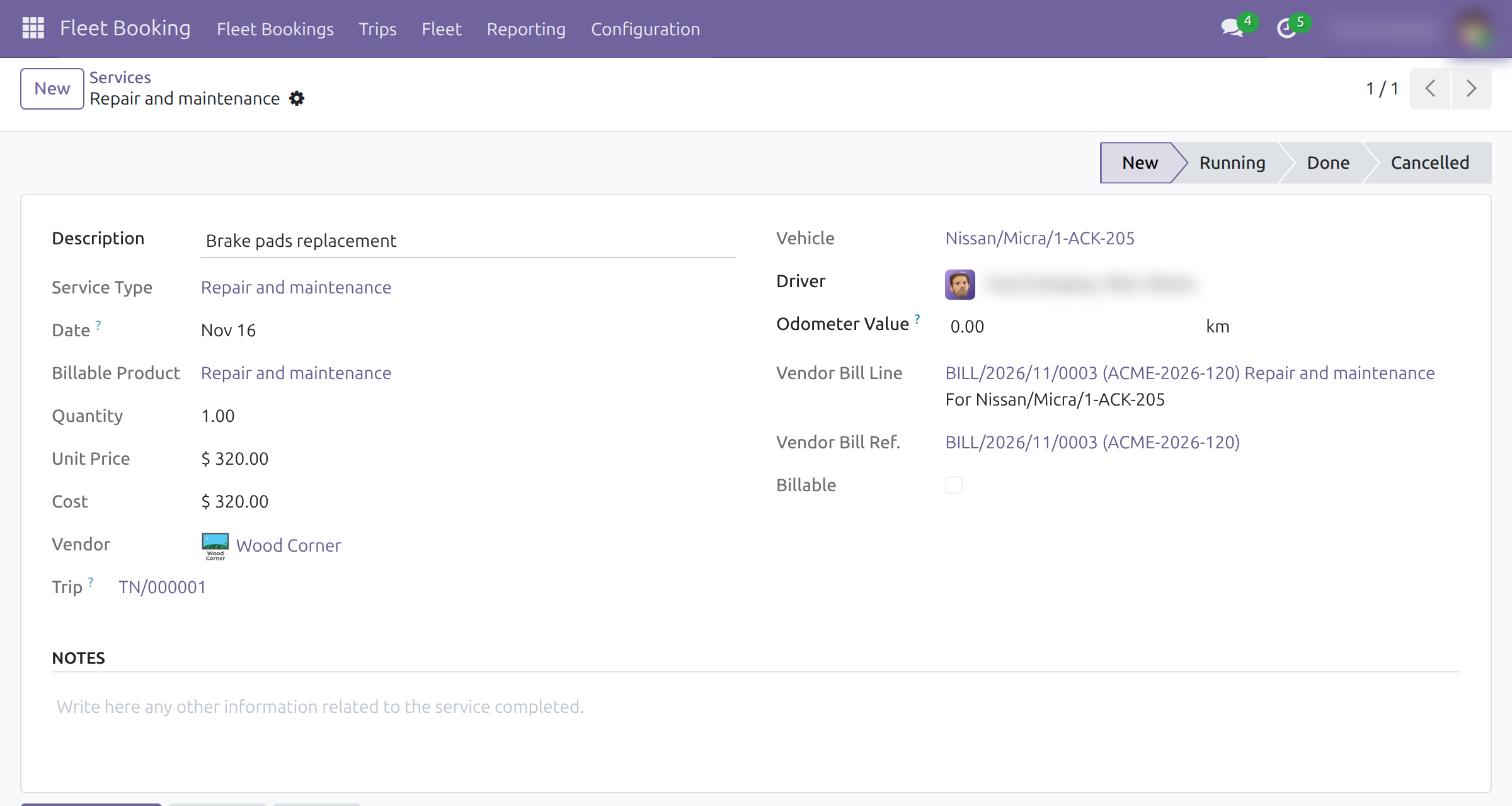
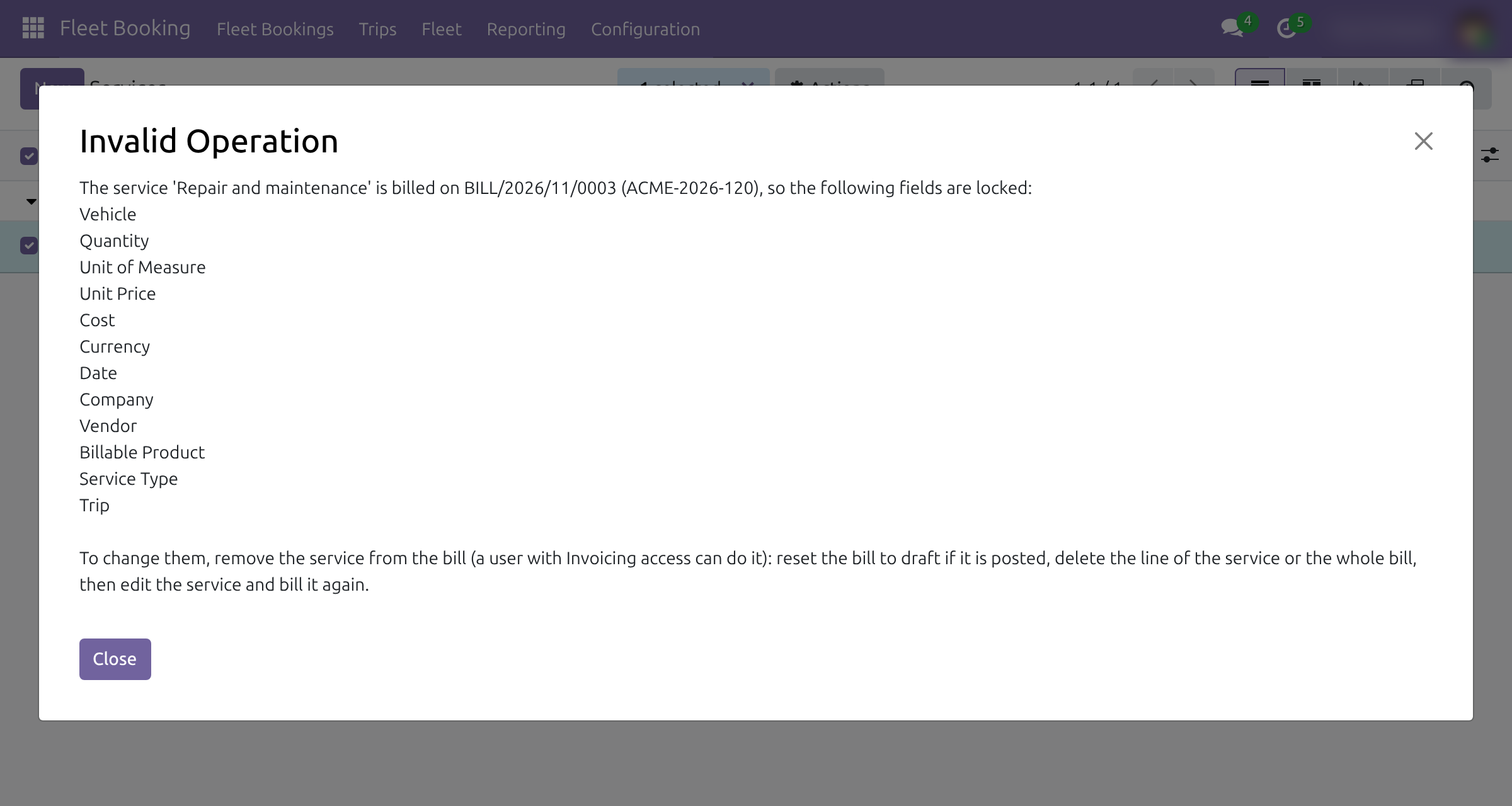
To change the trip, take the service off its bill. A user with the Invoicing right opens the bill, clicks Reset to Draft if it is posted, deletes the line of the service and saves. The Trip field of the service can then be edited again; make the change and bill the service again, as the guide of Fleet Cost & Revenue Accounting explains.
A service that is not billed keeps an editable Trip.
Note
With Fleet Operations installed, the trip of a service follows its Trip Section or Trip Waypoint. Those two fields are not locked when the service is billed.
This software and associated files (the "Software") may only be used (executed, modified, executed after modifications) if you have purchased a valid license from the authors, typically via Odoo Apps, or if you have received a written agreement from the authors of the Software (see the COPYRIGHT file).
You may develop Odoo modules that use the Software as a library (typically by depending on it, importing it and using its resources), but without copying any source code or material from the Software. You may distribute those modules under the license of your choice, provided that this license is compatible with the terms of the Odoo Proprietary License (For example: LGPL, MIT, or proprietary licenses similar to this one).
It is forbidden to publish, distribute, sublicense, or sell copies of the Software or modified copies of the Software.
The above copyright notice and this permission notice must be included in all copies or substantial portions of the Software.
THE SOFTWARE IS PROVIDED "AS IS", WITHOUT WARRANTY OF ANY KIND, EXPRESS OR IMPLIED, INCLUDING BUT NOT LIMITED TO THE WARRANTIES OF MERCHANTABILITY, FITNESS FOR A PARTICULAR PURPOSE AND NONINFRINGEMENT. IN NO EVENT SHALL THE AUTHORS OR COPYRIGHT HOLDERS BE LIABLE FOR ANY CLAIM, DAMAGES OR OTHER LIABILITY, WHETHER IN AN ACTION OF CONTRACT, TORT OR OTHERWISE, ARISING FROM, OUT OF OR IN CONNECTION WITH THE SOFTWARE OR THE USE OR OTHER DEALINGS IN THE SOFTWARE.