
Payroll By Administrative Regions
by Viindoo
| Lines of Code | 1100 |
| Technical name | viin_hr_payroll_administrative_region |
| License | OPL-1 |
| Website | https://viindoo.com/apps/modules/19.0/viin_hr_payroll_administrative_region |
| Read description for | v 13.0 v 14.0 v 15.0 v 16.0 v 17.0 v 18.0 |
| Required Apps | Time Off (hr_holidays) Discuss (mail) Calendar (calendar) Employees (hr) |
| Included Dependencies | Payroll Employee Relatives Viindoo Base Advanced HR Management HR Contracts (Viindoo) Work Entry Work Entry - Contract Viin Time-Off Base Addendum Viin - Holiday Work Entry Viindoo Holiday & WorkDay Manager Safe IR Metadata Proxies Administrative Region Management |
| Extensions | Vietnam Payroll by Administrative Regions |

Statutory amounts that depend on where the employee works
Set the administrative region on each work address and record the amounts set by law for each region, such as the regional minimum wage and the contribution bounds, as dated Statutory Amounts. Payslips apply the amounts of the region where the employee works on the last day of the pay period.
Payroll By Administrative Regions (technical name viin_hr_payroll_administrative_region) is an Odoo 19.0 app for Odoo Community and Odoo Enterprise and Viindoo Cloud, built for the HR administrator, the payroll administrator and the payroll officer.
At a Glance
The facts of Payroll By Administrative Regions, version 0.1.1, in one place. Published by Viindoo.
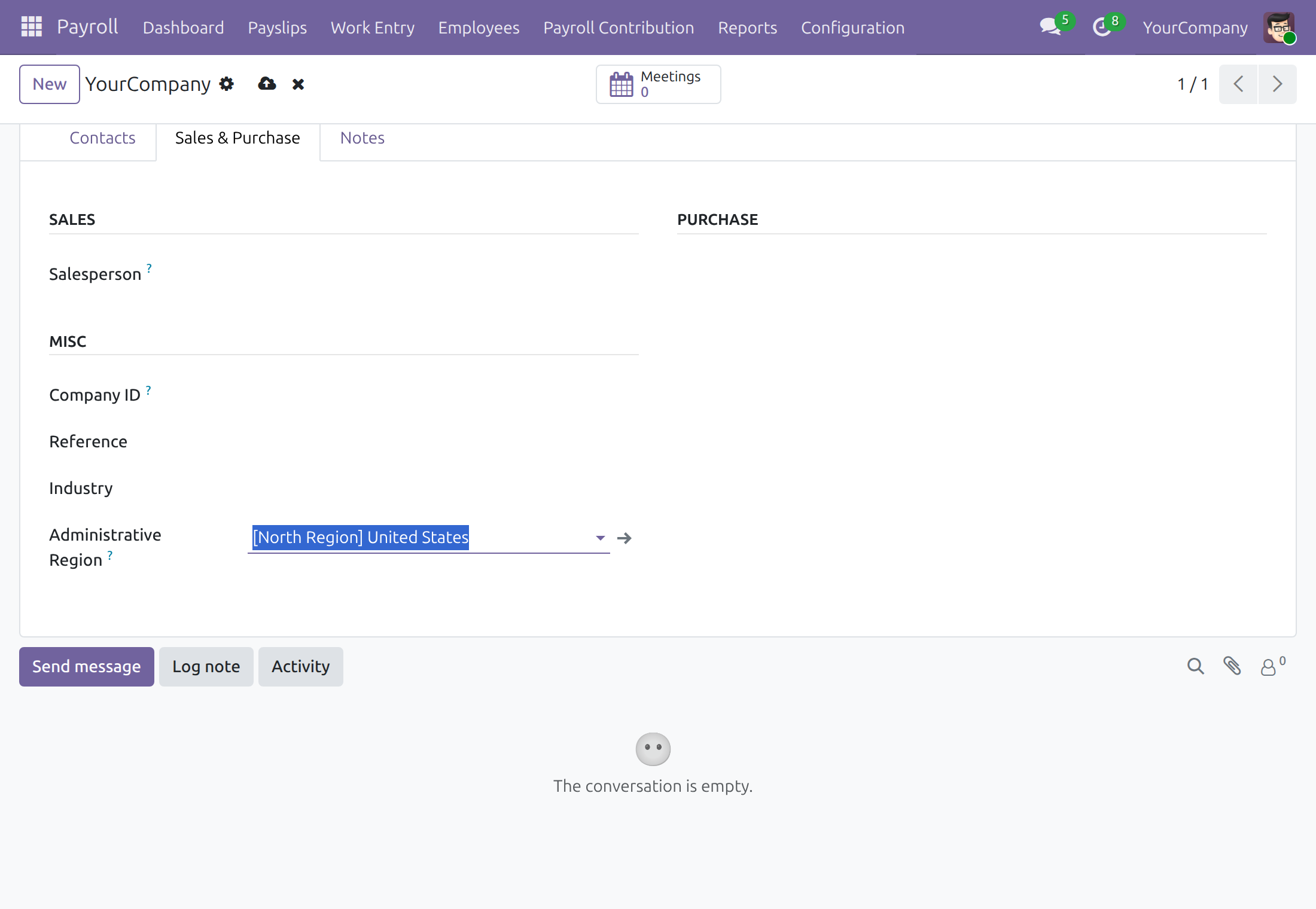
Set the region on a work address
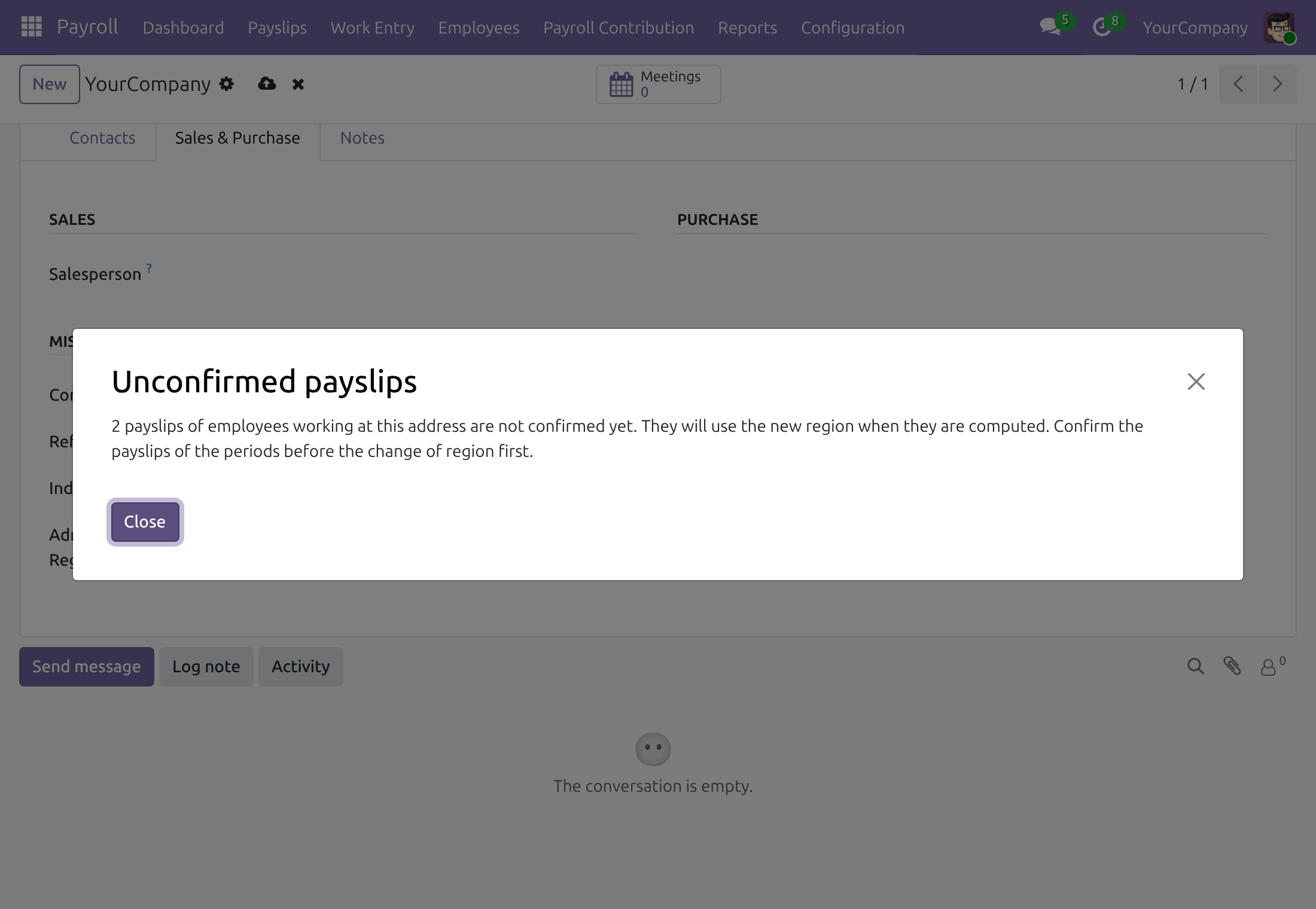
Get warned before a region change affects open payslips
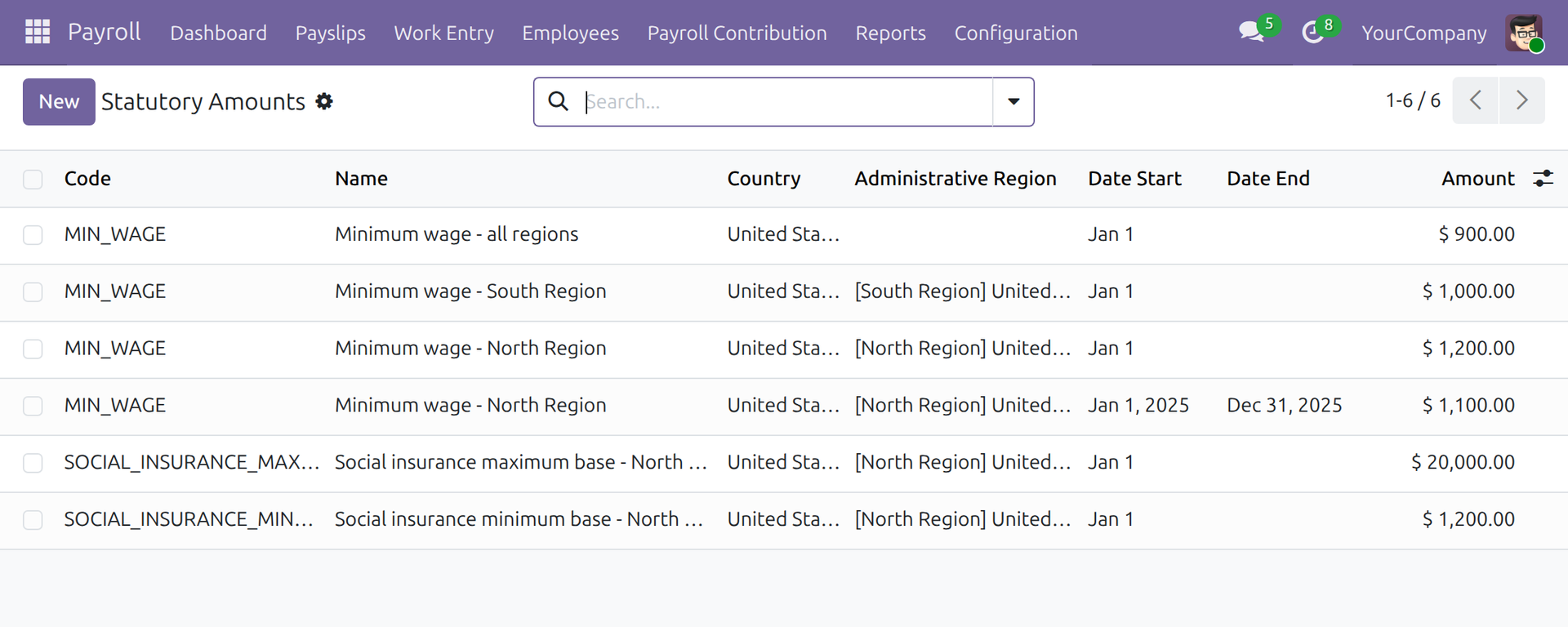
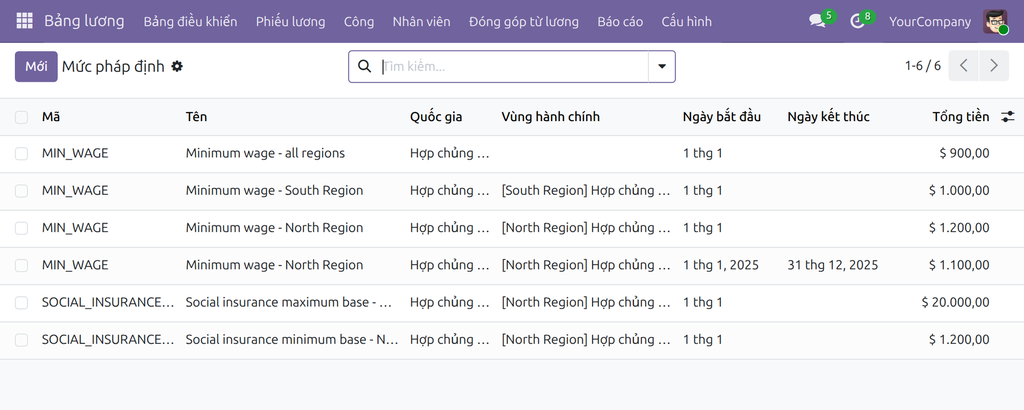
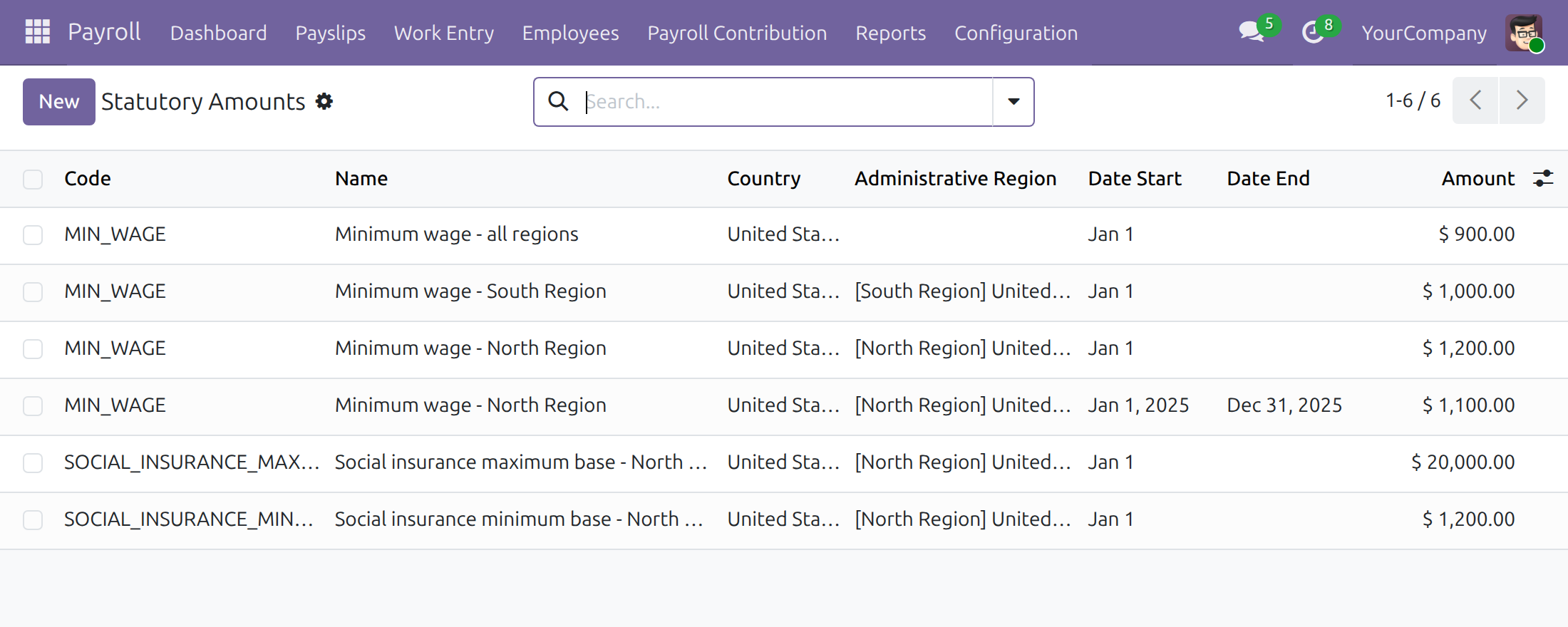
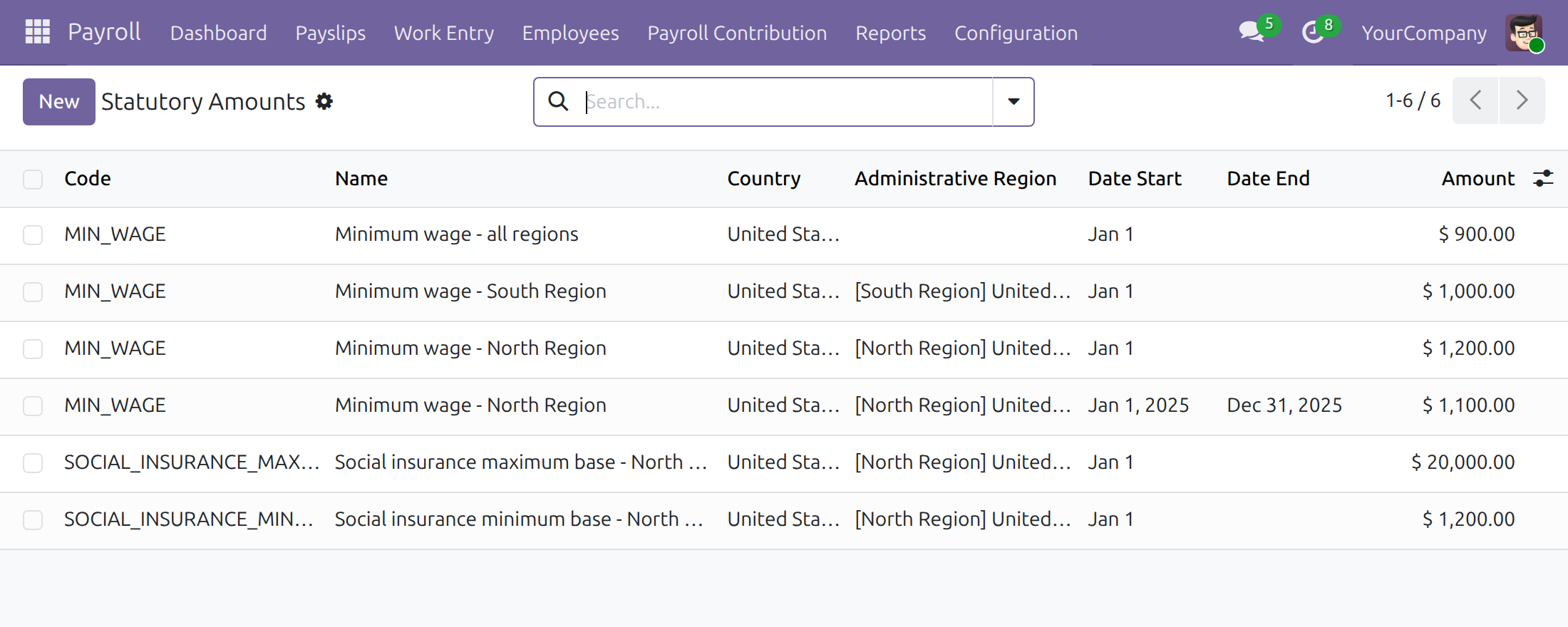
Keep the regional amounts with their validity dates
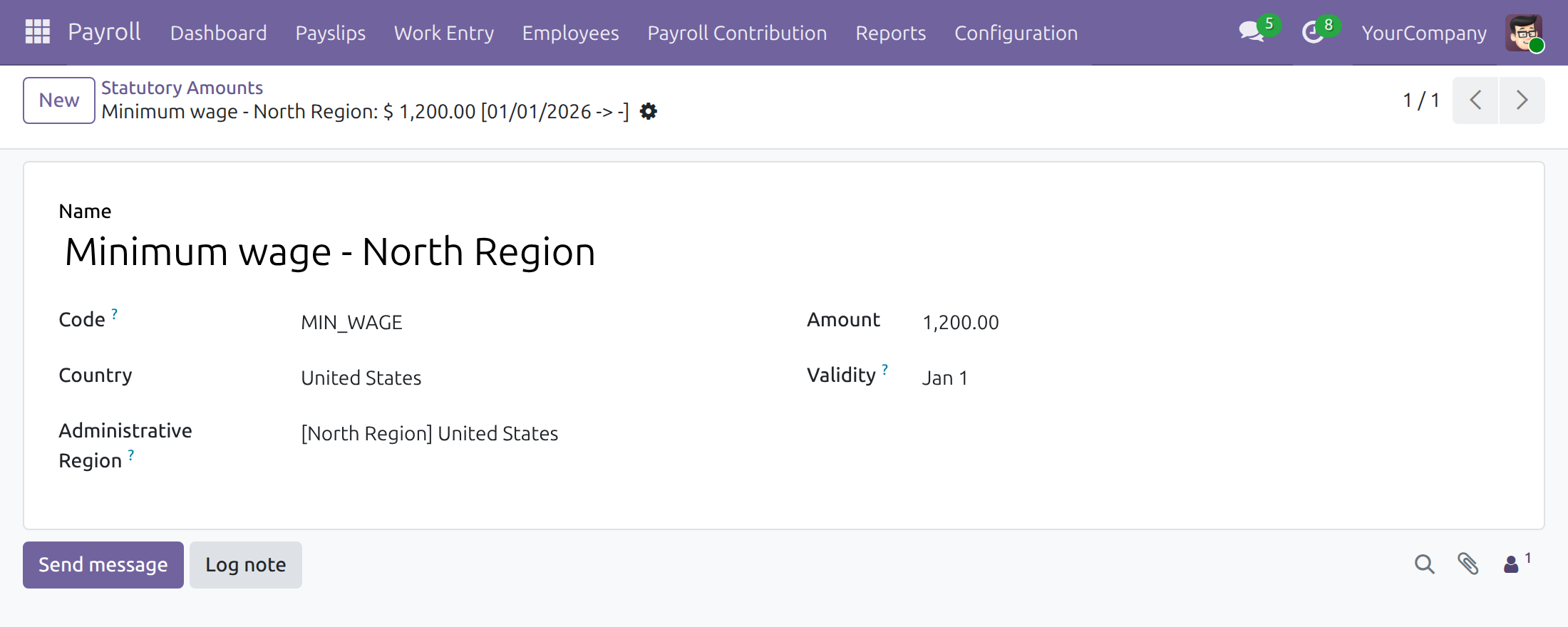
Record a regional amount for one period
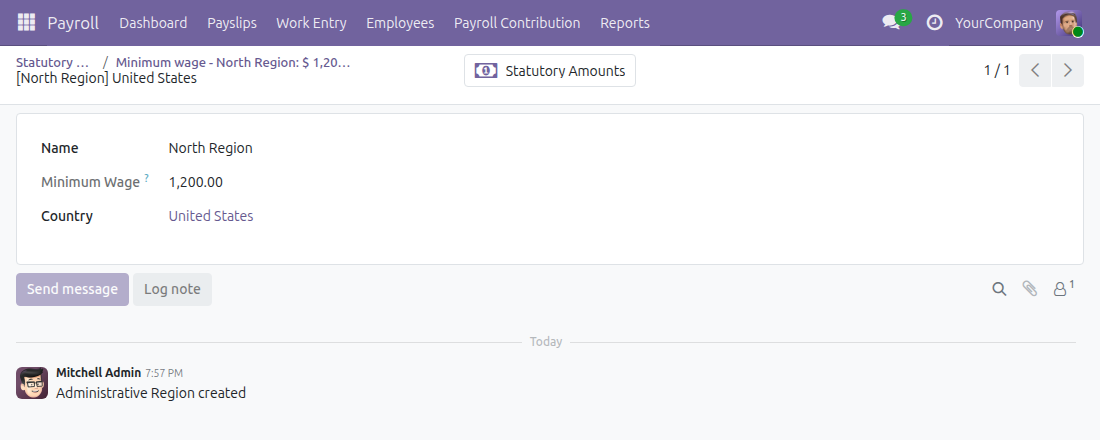
See the minimum wage in force for a region
How It Works
Set the region on work addresses; record the regional amounts in Statutory Amounts; compute payslips.
Regions on work addresses
Set the administrative region on each company or branch address, in the contact form under Sales & Purchase. HR administrators and payroll administrators can change it. Payroll administrators also maintain the regions themselves in Payroll > Configuration > Payroll Entry > Administrative Regions; only the Administrative Region Creation right, included with the Payroll Administrator access right, creates, edits or deletes a region (the right to create contacts does not).
Amounts by region
In Payroll > Configuration > Statutory Amounts, record each amount with its region and validity dates: the minimum wage MIN_WAGE, read by salary rules, and the bounds of a contribution type (<type code>_MIN_BASE, _MAX_BASE, _MAX_EMPLOYEE, _MAX_COMPANY). Payroll officers read the minimum wage of a region and its amounts, read only, through the region link on a Statutory Amount; they cannot create, edit or delete regions.
Payslips
A payslip uses the region of the work address of the employee version in force on the last day of the period, and the amounts in force on that day.
When the law changes
Set an end date on the amount in force and add the new amount with its start date. Payslips of earlier periods keep the old amount.
What You Get
Region set once on the work address
Regional amounts with validity dates, editable by payroll administrators
Regional minimum wage readable in salary rules
Contribution bounds by region, applied only where an amount is recorded
A move to another address counts from the version that ends the period
A company amount overrides the amount of the country
What This App Does Not Do
Read this before you buy. Everything below is something the app deliberately leaves to another app or to you.
A contribution base is bounded only by the amounts recorded for its contribution type.
Leave the amount out, or record zero, to apply no bound.
The region is chosen on each work address; it is not derived from the street address.
Works Well With
Apps from the same stack, built to fit this one:
Who Should Use Payroll By Administrative Regions?
Payroll officer
Regional amounts in salary rules and contributions without formulas.
HR administrator
Sets the region once on each work address.
Payroll administrator
Keeps the minimum wage and contribution limits of each region up to date as the law changes.
Frequently Asked Questions
What does Payroll By Administrative Regions do?
Set the administrative region on each work address and record the amounts set by law for each region, such as the regional minimum wage and the contribution bounds, as dated Statutory Amounts. Payslips apply the amounts of the region where the employee works on the last day of the pay period.
What does Payroll By Administrative Regions not do?
The minimum wage does not raise contribution bases on its own: a contribution base is bounded only by the amounts recorded for its contribution type. An amount of zero is no limit. Regions must be assigned by hand on each work address.
Who is Payroll By Administrative Regions for?
Payroll officer: Regional amounts in salary rules and contributions without formulas. HR administrator: Sets the region once on each work address. Payroll administrator: Keeps the regional amounts up to date as the law changes.
Which Odoo version and editions does it support?
Odoo 19.0 - Odoo Community, Odoo Enterprise, Viindoo Cloud. Upgrades to a newer Odoo series are a separate purchase for that series.
What does it depend on?
It installs on top of: to_hr_payroll, viin_administrative_region. Odoo installs them with it.
How do I set it up?
Set the region on work addresses; record the regional amounts in Statutory Amounts; compute payslips.
What works well with it?
Administrative Region (viin_administrative_region): The regions. Payroll (to_hr_payroll): The contributions.
Can I try it before buying?
Yes - the Live Preview button at the top of this page opens the module's own screen on a working database.
How do I get support?
Open a ticket at https://viindoo.com/ticket with your Odoo version and the technical name viin_hr_payroll_administrative_region; pre-sales questions go through https://viindoo.com/contactus.
See Payroll By Administrative Regions in Action
Live demo: v19demo-int.viindoo.com
Need help with Payroll By Administrative Regions?
For questions, implementation support or a custom feature, contact Viindoo.
Pre-Sales & Partnership
viindoo.com/contactusUpgrades to a newer Odoo series are a separate purchase for that series.
All Viindoo apps: Viindoo Apps
Technical Requirement
Changes log
0.1.1 - Latest on the 19.0 line
- Region on the work address and regional statutory amounts with validity dates.
Payroll By Administrative Regions
Note
Who this guide is for: the HR Administrator who keeps work addresses up to date, the Payroll Administrator who keeps the amounts set by law, and the Payroll Officer who runs payslips. Each chapter says which of them it addresses.
Note
Extends Administrative Region Management and Payroll - see their documentation.
Overview
Minimum wages and contribution limits are often set by law per area. This app lets payroll apply them automatically: you record each amount once, with the area it applies to and the dates it is in force, and every payslip picks the amount of the area where the employee works.
How the work flows:
- The HR Administrator sets the administrative region on each work address (company or branch).
- The Payroll Administrator records the amounts of each region as dated Statutory Amounts, and updates them when the law changes.
- The Payroll Officer computes payslips. Each payslip uses the region of the employee's work address on the last day of the pay period and the amounts in force on that day.
| Role | What they do | Access right to assign |
|---|---|---|
| HR Administrator | Sets the administrative region of work addresses | Human Resources: Administrator |
| Payroll Administrator | Creates and edits regions, records and updates Statutory Amounts | Payroll: Administrator (includes Administrative Region Creation) |
| Payroll Officer | Computes payslips; reads the regional minimum wage and the amounts of a region (read only) | Payroll: Officer |
Setup (for the Payroll Administrator)
Open Apps, search for Payroll By Administrative Regions and press Install. Payroll and Administrative Region Management are installed with it.
Give each person the access right of the table above in Settings ‣ Users & Companies ‣ Users. Changing the region of an address also requires the right to edit contacts.
Creating, editing and deleting regions is reserved to the Administrative Region Creation right, which the Payroll: Administrator access right already includes. The Contact: Creation right does not allow it.
Open Payroll ‣ Configuration ‣ Payroll Entry ‣ Administrative Regions and create the administrative regions of your country (a localization app may already provide them). Only the Payroll Administrator sees this menu.
HR Administrator: set the region of each work address
A region applies where people work. Do this once per company or branch address used as a Work Address.
- Open the contact of the address.
- Go to the Sales & Purchase tab.
- In the Misc group, choose the Administrative Region. Only regions of the address country are offered.
- Save. The change is traced in the chatter of the contact.
An employee who moves to an address of another region gets a new version with the new work address; a payslip uses the work address of the version in force on the last day of its period.
The region of an address has no effective date: every payslip computed after a change uses the new region, including a draft payslip of an earlier period. When you change a region, a warning tells you how many payslips of the employees of the address are not confirmed yet. Confirm the payslips of the earlier periods first, then change the region.
To recompute an earlier period later with the old region, give the employees a new branch address with the new region in a new version starting on the date of the change, instead of editing the region of the old address.
Payroll Administrator: maintain the regions
Open Payroll ‣ Configuration ‣ Payroll Entry ‣ Administrative Regions. The list shows each region with its country and the Minimum Wage in force today.
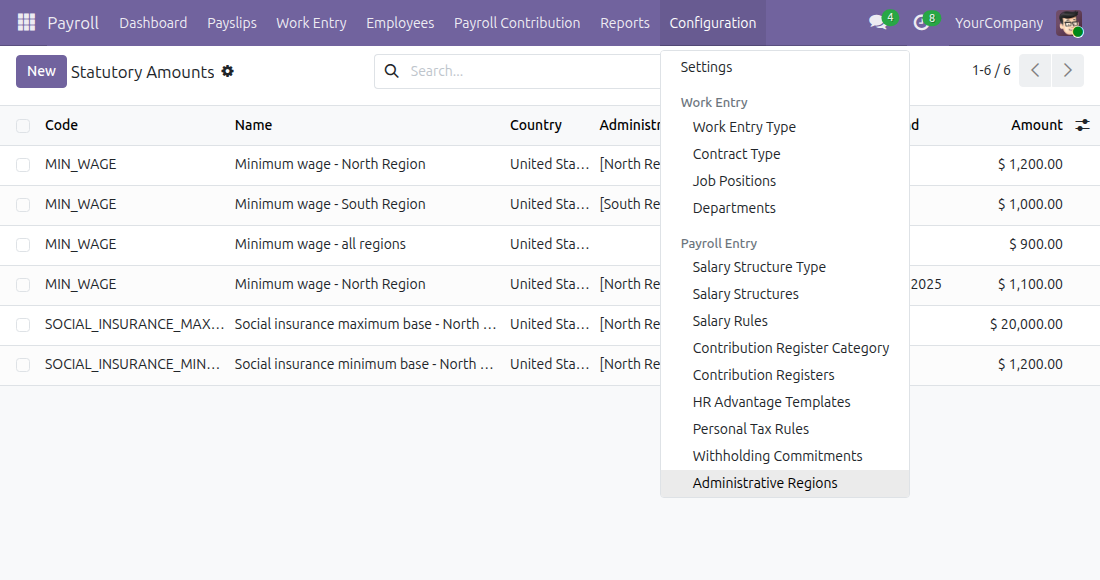
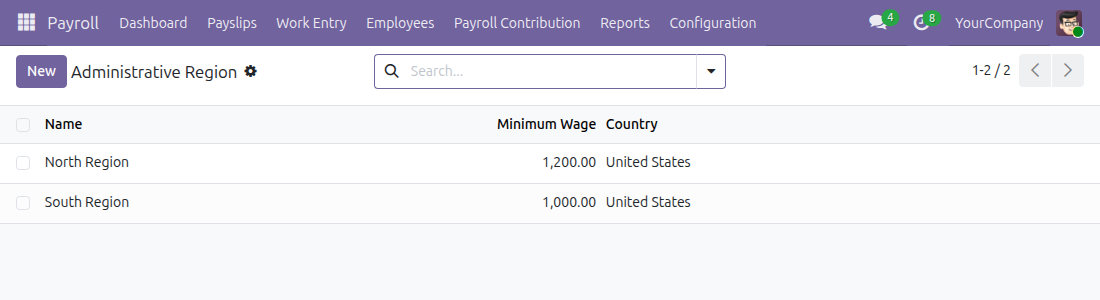
Create a region with New, giving its name and country. Open a region to see the amounts recorded for it with the Statutory Amounts button.
Payroll Administrator: record the amounts of each region
Open Payroll ‣ Configuration ‣ Statutory Amounts and record one amount per code, region and validity period. Leave the region empty for an amount that applies to the whole country. An amount of the region wins over an amount shared by the country, and an amount of the company wins over an amount shared by the country.
The code tells payroll what the amount is for:
- MIN_WAGE: the regional minimum wage, available to salary rules. It does not bound contribution bases on its own.
- <type code>_MIN_BASE and <type code>_MAX_BASE: the minimum and maximum contribution base of a contribution type (for example SOCIAL_INSURANCE_MAX_BASE). A base below the minimum is raised to it; a base above the maximum is lowered to it.
- <type code>_MAX_EMPLOYEE and <type code>_MAX_COMPANY: the maximum monthly contribution of the employee and of the company for the type.
A contribution is bounded only by the amounts recorded for its type; an amount of zero means no limit. The values are whatever you record: update them whenever the law changes.
When the law changes
- Open the amount in force and set its end date to the last day of the old value.
- Create a new amount with the same code and region, the new value and its start date.
Payslips of periods before the start date keep the old value; payslips computed afterwards for later periods use the new one. Confirmed payslips are not recomputed.
Payroll Officer: check the amounts a payslip will use
The Payroll Officer has no menu for regions; the Payroll Administrator maintains them. When an Officer opens a Statutory Amount, the link on its Administrative Region opens the region. The form shows the Minimum Wage in force today in the company currency, and the Statutory Amounts button lists every amount recorded for the region. It is read only: an Officer cannot create, edit or delete a region.
The minimum wage is shown only when the region belongs to the country of the company.
Troubleshooting
- A payslip does not use the expected amount. Check that the work address of the employee has a region, that an amount exists for the code with a period covering the last day of the payslip, and that the region and country match.
- The Administrative Region field is not visible on a contact. Only the HR Administrator and the Payroll Administrator see it.
- I cannot save the region of an address. You also need the right to edit contacts.
- I cannot create or edit a region. Only the Administrative Region Creation right, included in Payroll: Administrator, allows it; the right to create contacts does not.
- I do not see Administrative Regions in the Configuration menu. The menu is for the Payroll Administrator.
- A region form lacks the Minimum Wage. It is shown to Payroll Officers, Payroll Administrators and holders of the Administrative Region Creation right only.
This software and associated files (the "Software") may only be used (executed, modified, executed after modifications) if you have purchased a valid license from the authors, typically via Odoo Apps, or if you have received a written agreement from the authors of the Software (see the COPYRIGHT file).
You may develop Odoo modules that use the Software as a library (typically by depending on it, importing it and using its resources), but without copying any source code or material from the Software. You may distribute those modules under the license of your choice, provided that this license is compatible with the terms of the Odoo Proprietary License (For example: LGPL, MIT, or proprietary licenses similar to this one).
It is forbidden to publish, distribute, sublicense, or sell copies of the Software or modified copies of the Software.
The above copyright notice and this permission notice must be included in all copies or substantial portions of the Software.
THE SOFTWARE IS PROVIDED "AS IS", WITHOUT WARRANTY OF ANY KIND, EXPRESS OR IMPLIED, INCLUDING BUT NOT LIMITED TO THE WARRANTIES OF MERCHANTABILITY, FITNESS FOR A PARTICULAR PURPOSE AND NONINFRINGEMENT. IN NO EVENT SHALL THE AUTHORS OR COPYRIGHT HOLDERS BE LIABLE FOR ANY CLAIM, DAMAGES OR OTHER LIABILITY, WHETHER IN AN ACTION OF CONTRACT, TORT OR OTHERWISE, ARISING FROM, OUT OF OR IN CONNECTION WITH THE SOFTWARE OR THE USE OR OTHER DEALINGS IN THE SOFTWARE.