
Employee Recognition & Disciplinary Actions
by Viindoo
| Lines of Code | 2305 |
| Technical name | viin_hr_recognition_discipline |
| License | OPL-1 |
| Website | https://viindoo.com/apps/modules/19.0/viin_hr_recognition_discipline |
| Read description for | v 17.0 v 18.0 |
| Required Apps | Discuss (mail) Employees (hr) |
| Included Dependencies | Advanced HR Management |
Recognize great work and record discipline with confidence, in one HR register
For HR managers, CEOs and Odoo implementers
Recognize achievements with badges and record confidential disciplinary actions with a validity period
Is this you?
Great work goes unnoticed because rewards are decided in the corridor and nobody keeps track of them.
Warnings sit in personal files or spreadsheets, with no incident date and no end of validity, so nobody knows what is still in force.
Confidential matters travel too far: too many people can open a colleague's disciplinary record.
The person who proposes a decision is also the one who approves it, even when it is about themselves.
Recognition programmes and contests run by e-mail, and you cannot tell what they achieved or what they cost.
What changes
Rewards that nobody records
→ Reward one employee, a department or the whole company in one place; every beneficiary receives the badge as soon as the recognition is approved.
Warnings with no date and no end
→ Record the incident date, the measure and how many months it stays in force; once expired, the action stops counting as active.
Confidential records that leak
→ A disciplinary action is visible only to the employee once approved, to the line managers who hold the Officer right and to the Administrators. It never creates a badge and never sends a congratulation message.
Self-approved decisions
→ Line managers prepare, HR approves. Nobody can approve a decision that names them, nor one about the department they manage.
Programmes you cannot measure
→ Group recognitions into time-bound campaigns, then count them and analyse the approved decisions by type and scope.
How it works
Draft
The line manager prepares a recognition or a disciplinary action for someone of the team and submits it to HR.
To Approve
The HR manager reads the decision and approves it, or refuses it. A recognition grants its badge to every beneficiary on approval.
Approved
The HR manager can still withdraw an approved decision; its badges are withdrawn too. Every change stays in the chatter for later audit.
Key Features
Recognitions with badges
Reward one employee, a department or the whole company, with an optional amount. Approval grants the badge to every beneficiary; refusal or cancellation withdraws it.
Disciplinary actions with a validity period
Record the incident date, the measure and how long it stays in force. Expired actions are marked and stop counting as active.
Decision types by kind
Define your own kinds of recognitions and of disciplinary actions, and set the validity of each disciplinary measure.
Recognition campaigns
Group recognitions into time-bound campaigns that open and close by themselves, and follow their number and value.
Analysis of approved decisions
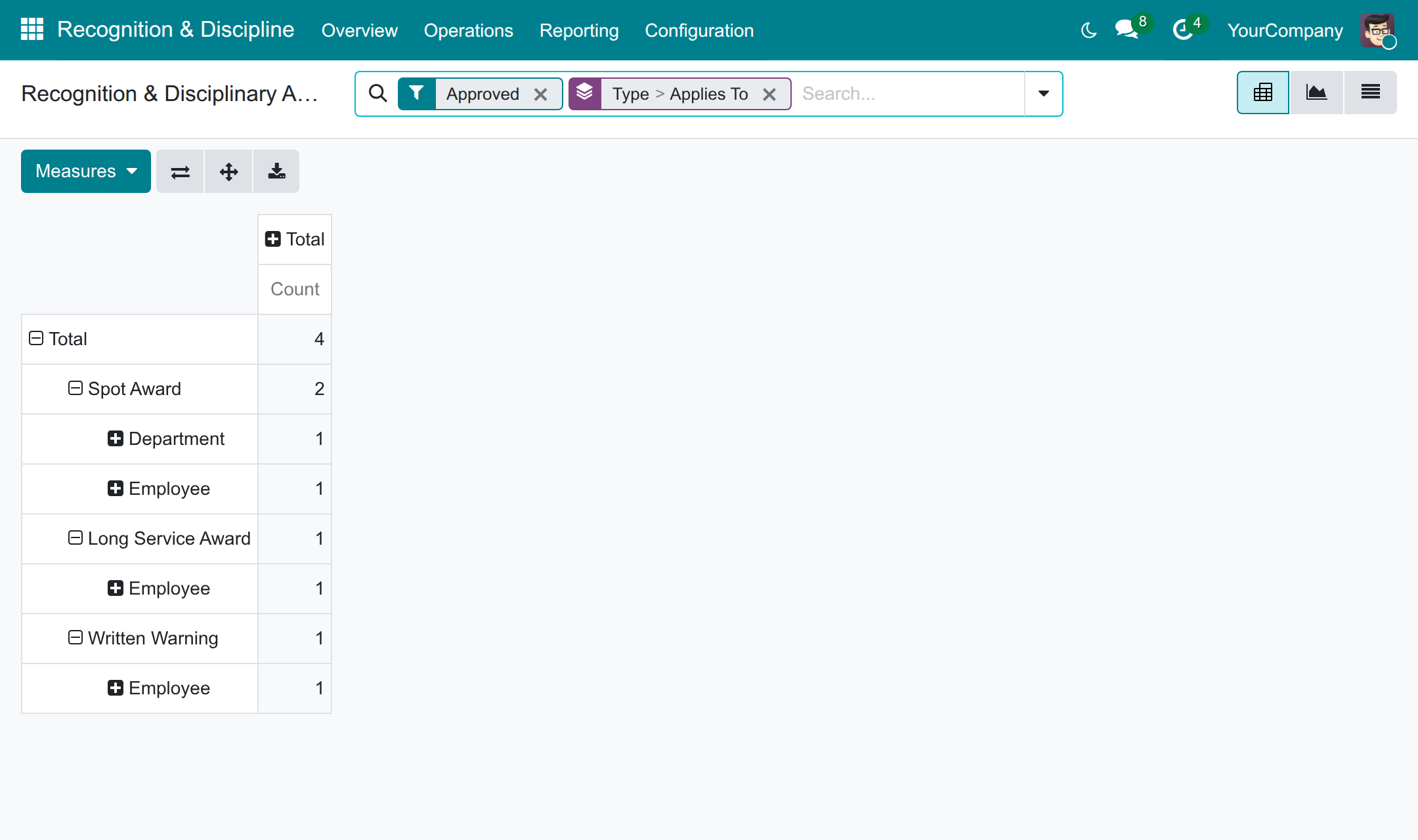
Break down the approved decisions by type and scope in a pivot table or a graph.
Counters where you need them
Open the recognitions and the active disciplinary actions of an employee, a department or a company from its own form.
Who it is for
HR managers
Need one register for rewards and warnings that is dated, approved and confidential, without chasing files.
CEOs and executives
Want recognition programmes that can be measured, and confidence that sensitive records are seen only by the people who must see them.
Odoo implementers
Want recognition and discipline ready in the Employees app, with roles, approval and demo data, and no custom code to write.
Line managers
Prepare recognitions and disciplinary actions for their own team and send them to HR in a few clicks.
Best for: Companies that run recognition programmes or incentive contests and want one confidential register for rewards and disciplinary actions.
See who was recognized, when and with which badge
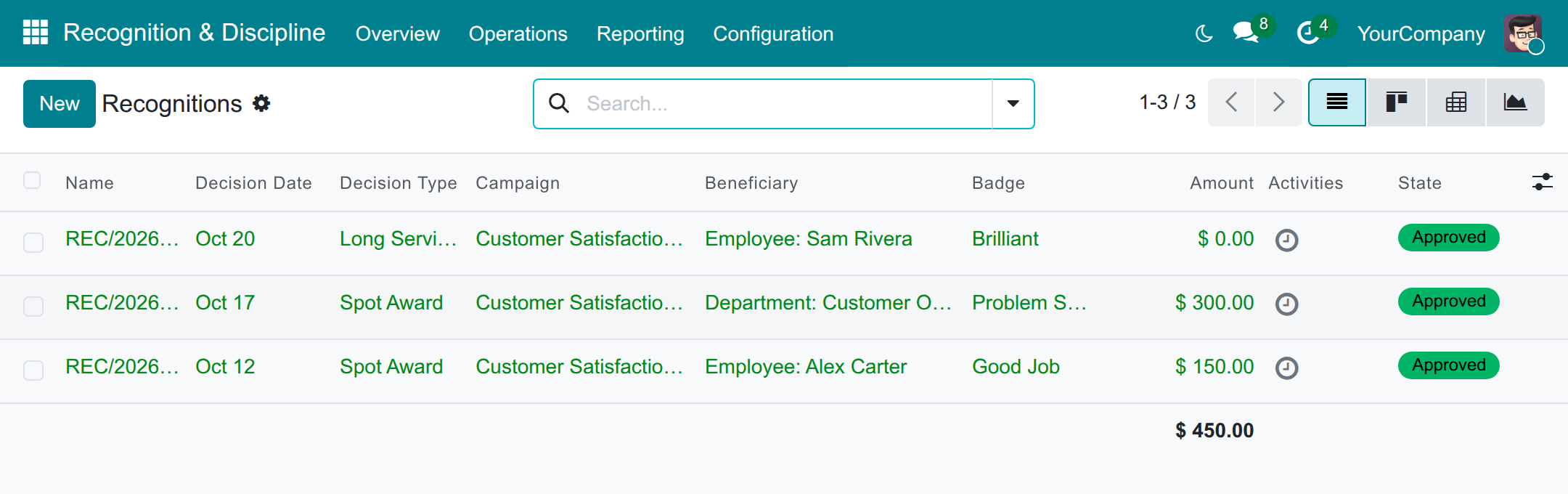
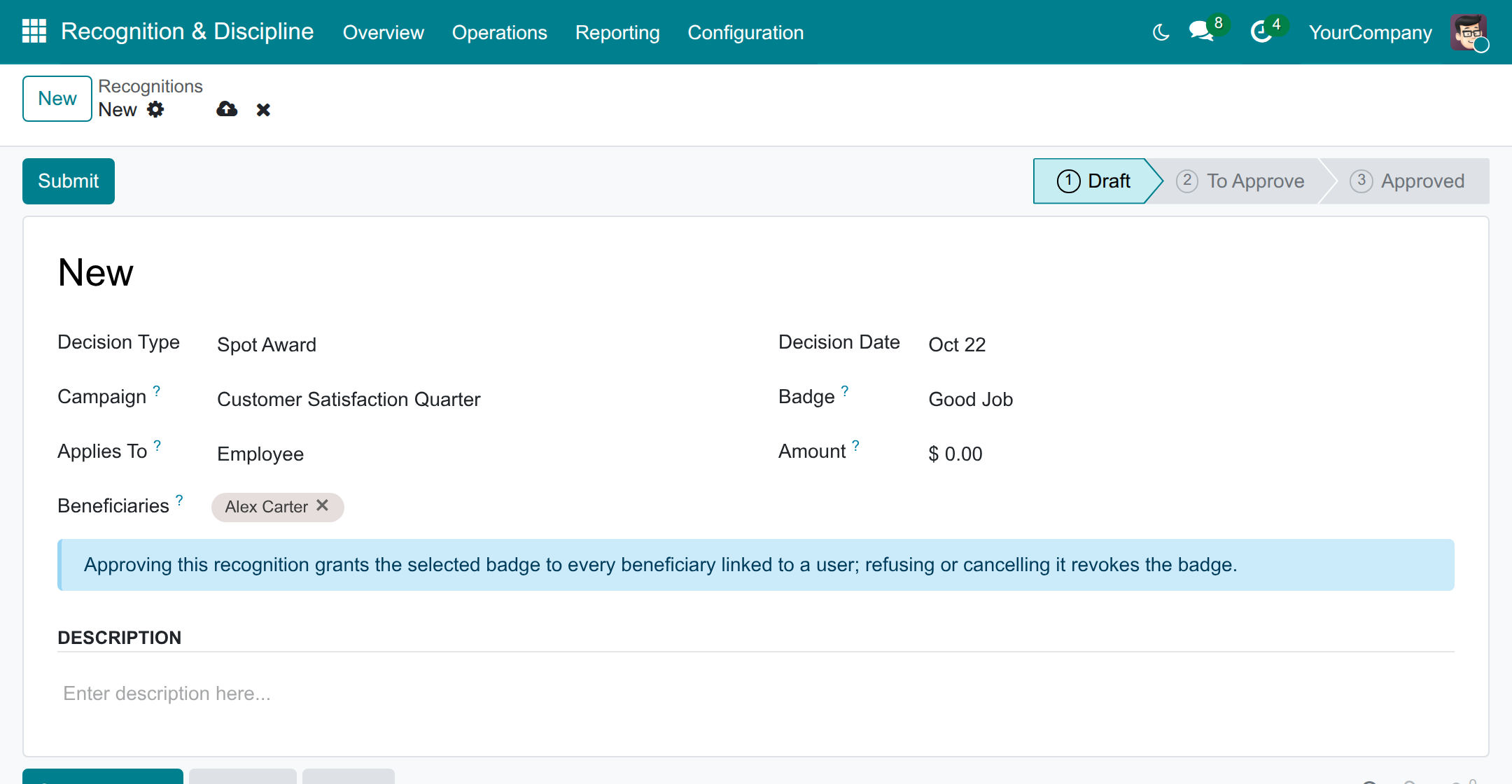
Propose a recognition with a badge
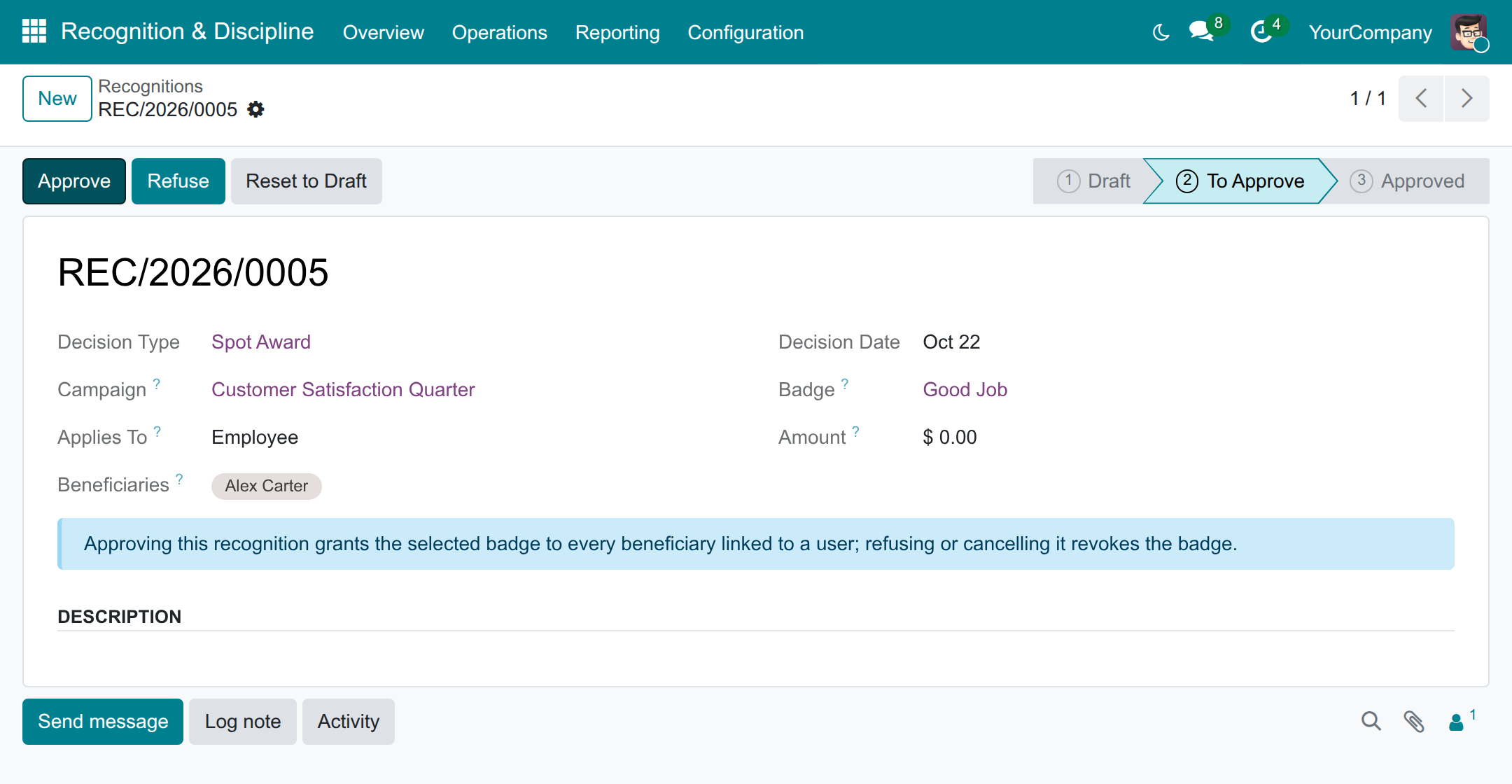
Approve or refuse in one click
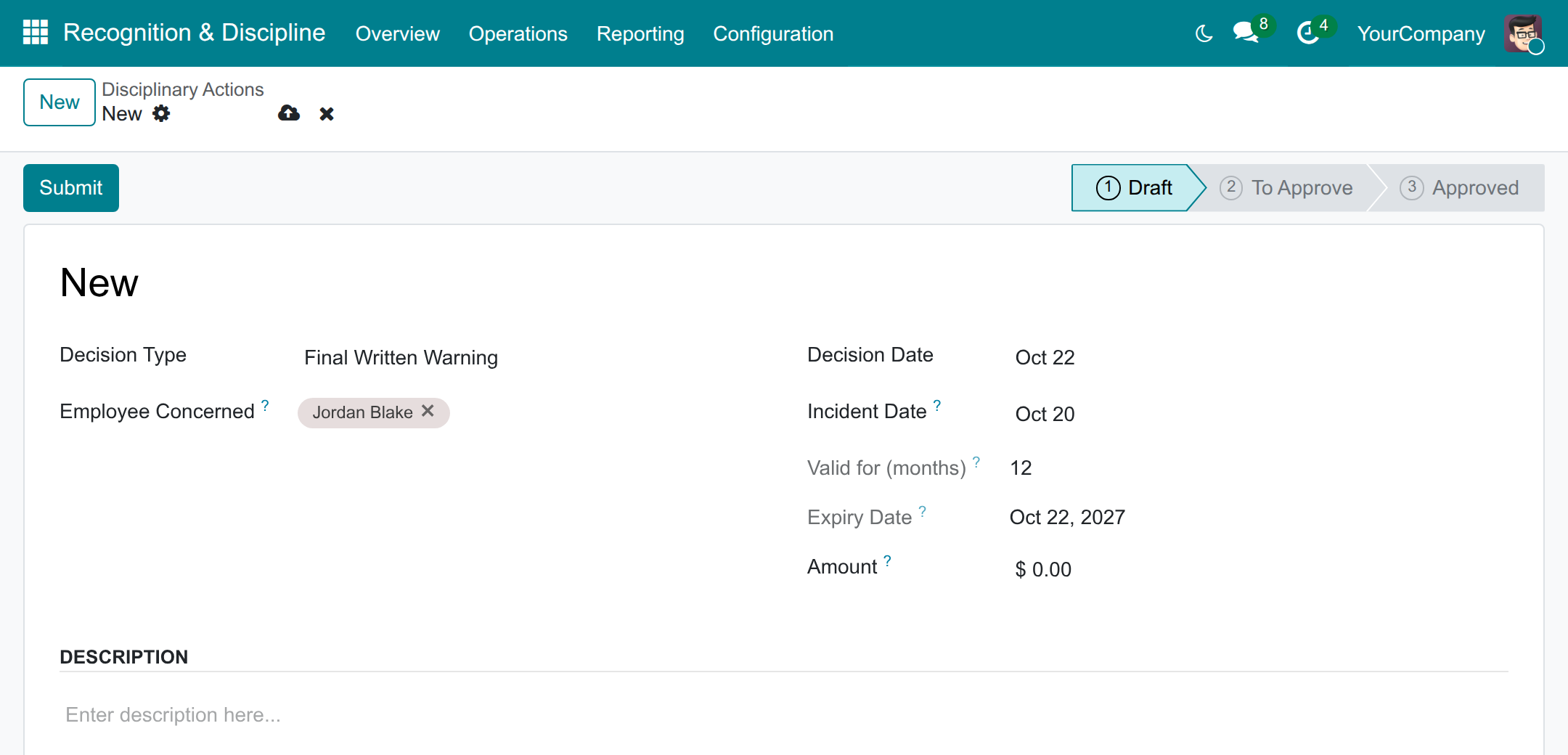
Record a disciplinary action with its validity
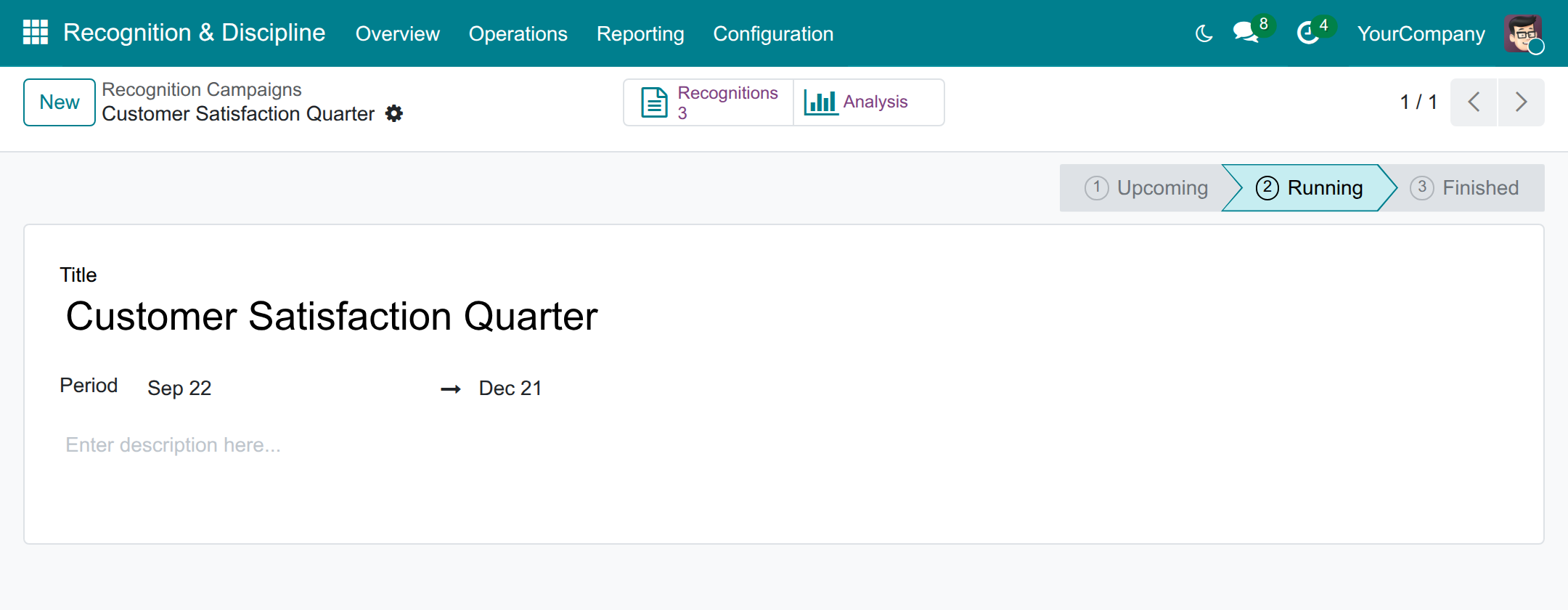
Run a recognition campaign
Analyse the approved decisions by type and scope
Frequently Asked Questions
Does it apply labour law or country-specific rules?
No. It records the decisions your company takes and checks them against no legal rule. The Amount field only carries a reminder to check the rules that apply to you.
Who can read a disciplinary action?
The employee concerned, once it is approved; the line managers who hold the Officer right and manage that employee; and the Administrators. Employees read the approved decisions that name them.
Can a manager approve their own decision?
No. An approver cannot approve a decision that names them, nor a decision about a department they manage; another Administrator approves it.
What does an employee without a user receive?
A badge needs a user. The decision stays approved and its chatter lists the people who could not receive the badge.
Can I try it with sample data?
Yes. In a demonstration database you find a sample team, decision types, a running campaign and approved decisions.
Need help with Employee Recognition & Disciplinary Actions?
Pre-Sales & Partnership
Contact usTechnical Support
Open a support ticketTechnical Requirement
- Odoo version: 19.0
- Editions: Odoo Community, Odoo Enterprise
- Required modules: Advanced HR Management, HR Gamification
- License: OPL-1
Employee Recognition & Disciplinary Actions
Note
Who this guide is for. The HR managers who set the application up and approve decisions, the line managers who propose recognitions and record disciplinary actions for their team, and the employees who read what concerns them. Every screen is shown as it appears in the Recognition & Discipline app.
Overview
Companies reward achievements, and sometimes they must record a measure taken against an employee. Kept in separate files or spreadsheets, rewards are forgotten, warnings carry no incident date and no end of validity, and confidential matters travel further than they should. This application keeps both in one register, and gives each kind of decision its own rules.
- Recognitions reward one employee, a whole department or the whole company. When a recognition is approved, every beneficiary receives its badge; when it is refused or cancelled, the badge is withdrawn. Recognitions can be grouped into time-bound recognition campaigns.
- Disciplinary actions always concern named employees. They record the date of the incident, the measure taken and how long it stays in force; once that time has passed, the action is shown as expired and stops counting as active. A disciplinary action never creates a badge and never sends a congratulation message. It is confidential: it is visible only to the employee once it is approved, to the line managers who hold the Officer right, and to the Administrators.
- One approval for both. A decision is prepared, submitted and approved by different people. The main data of every decision (type, dates, who it applies to, campaign, badge, amount and state) is logged in its chatter, so the history can be audited afterwards. Nothing else blocks the users.
How a decision moves
| Stage | Who acts | What happens | Hand-off |
|---|---|---|---|
| Draft | Line manager | Prepares the recognition or the disciplinary action for a person of the team and presses Submit. | HR manager |
| To Approve | HR manager | Reads the decision and presses Approve, or Refuse when it must not stand. | The decision is closed |
| Approved | HR manager | Can still withdraw an approved decision with Refuse or Cancel; its badges are then withdrawn. | None |
An approver can never approve a decision that names them, nor a decision about a department they manage: another Administrator approves it.
Who does what
The job titles below are suggestions. Give each person the access right of the last column, whatever their title is in your company.
| Role | What they do | Access right to assign |
|---|---|---|
| HR manager | Gives each person their access right, prepares the types, badges and campaigns, approves, refuses and cancels decisions, rewards a department or the whole company, reads the analysis. | Recognition & Disciplinary Actions: Administrator |
| Line manager | Prepares and submits recognitions and disciplinary actions for the people of their team, and reads the decisions of their team. | Recognition & Disciplinary Actions: Officer |
| Employee | Reads the approved recognitions and the approved disciplinary actions that name them. | None: every internal user can open the app |
Setup (for the Administrator)
Install the application
- Open Apps and search for Employee Recognition & Disciplinary Actions.
- Press Install. The apps it needs, Advanced HR Management and HR Gamification, are installed with it.
In a demonstration database you will find a sample team, a few types, a running campaign and a handful of approved decisions, so that every screen of this guide can be tried at once.
Give each person their access right
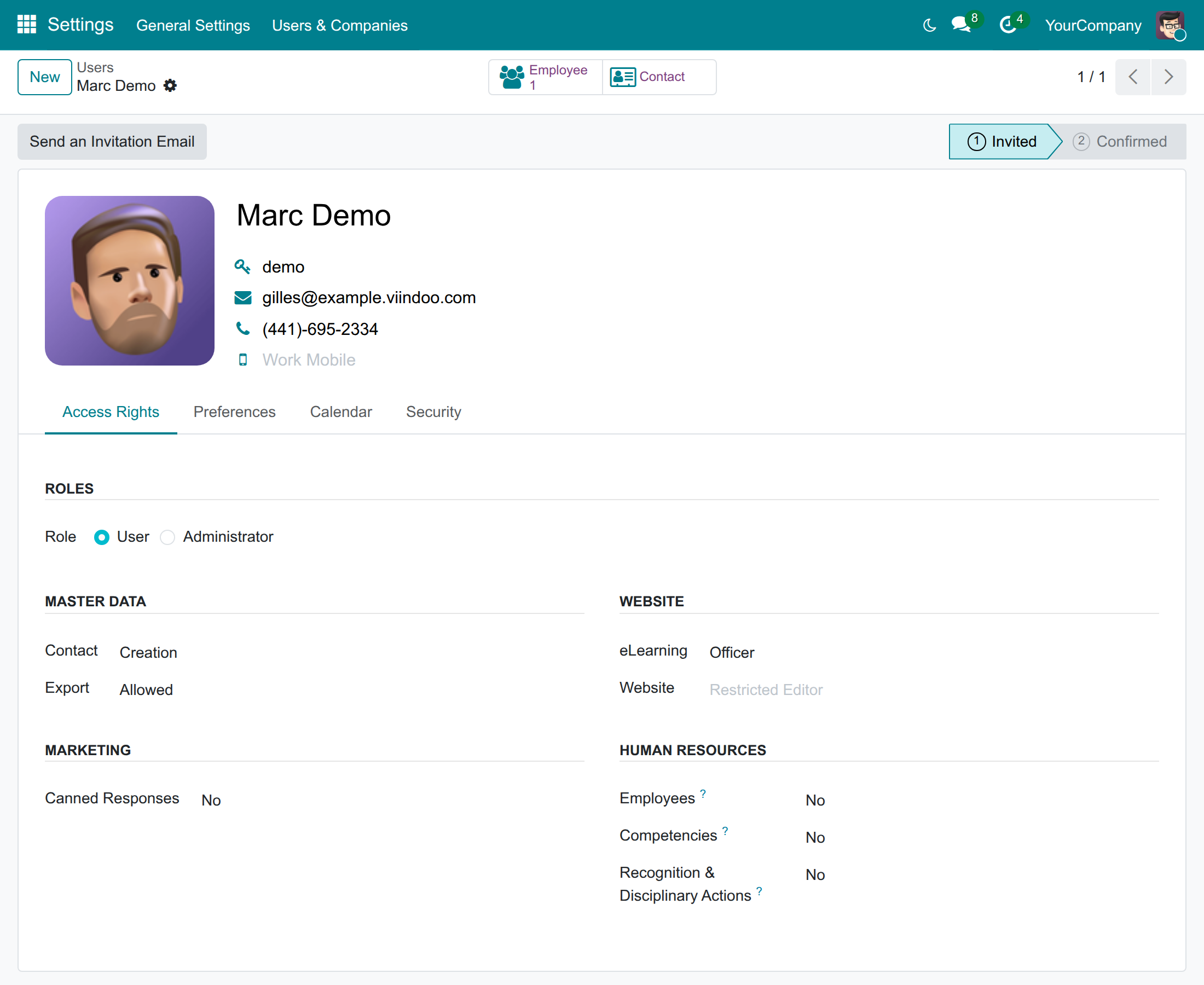
- Open Settings ‣ Users & Companies ‣ Users and open the user.
- Open the Access Rights tab.
- In the Human Resources section, set Recognition & Disciplinary Actions to Officer (line managers) or Administrator (HR managers).
- Save the user.
Note
The Administrator right includes the Officer right. A line manager's team is made of the employees who report to them, directly or through other managers, as set in the Manager field of the employee records. Nobody else needs an access right: every internal user can open the app and read what concerns them.
Prepare the decision types
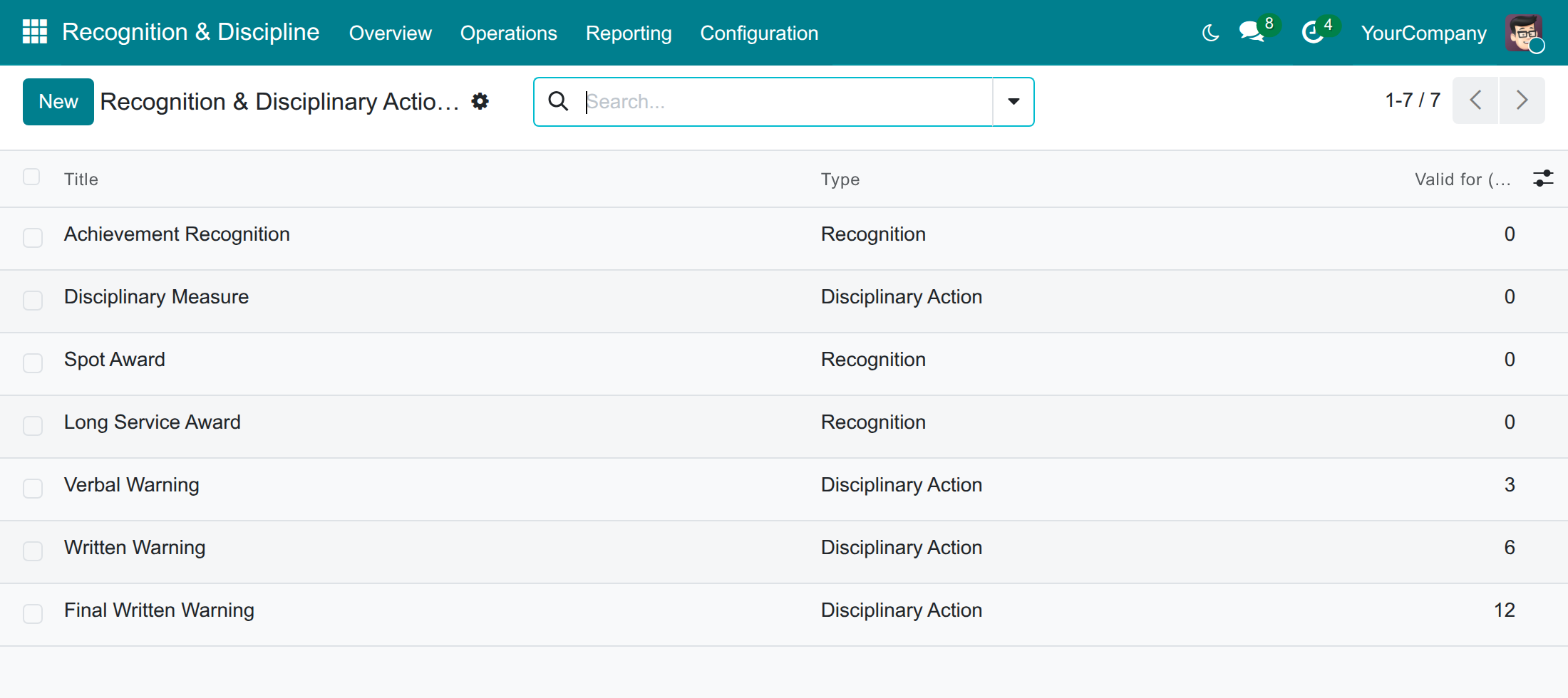
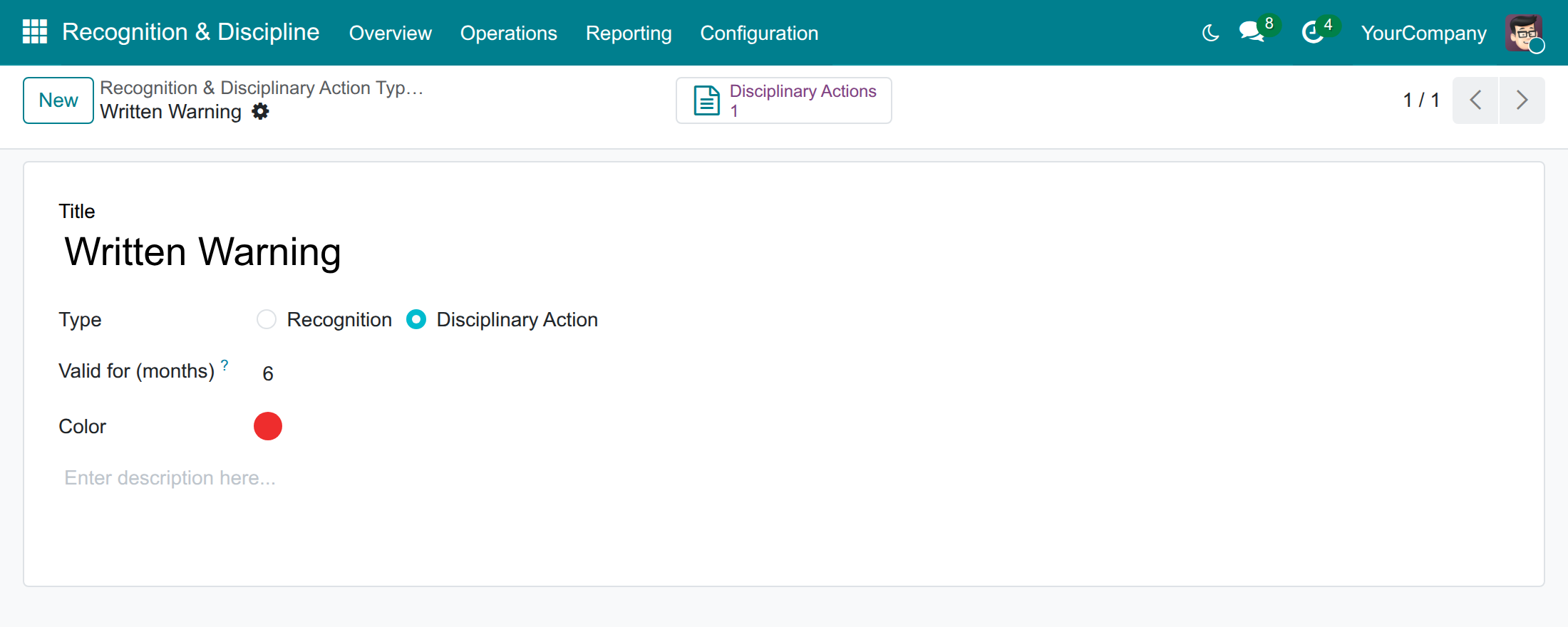
A type names a kind of decision ("Spot Award", "Written Warning") and tells whether it is a recognition or a disciplinary action. Two types are provided; add the ones your company uses.
- Open Recognition & Discipline ‣ Configuration ‣ Types and press New.
- Type the Title of the type.
- Choose its Type: Recognition or Disciplinary Action.
- For a disciplinary action, fill Valid for (months): the number of months the action stays in force after its decision date. 0 means it never expires.
- Pick a Color (it colours the card of the type in the Overview) and save.
Prepare the badges
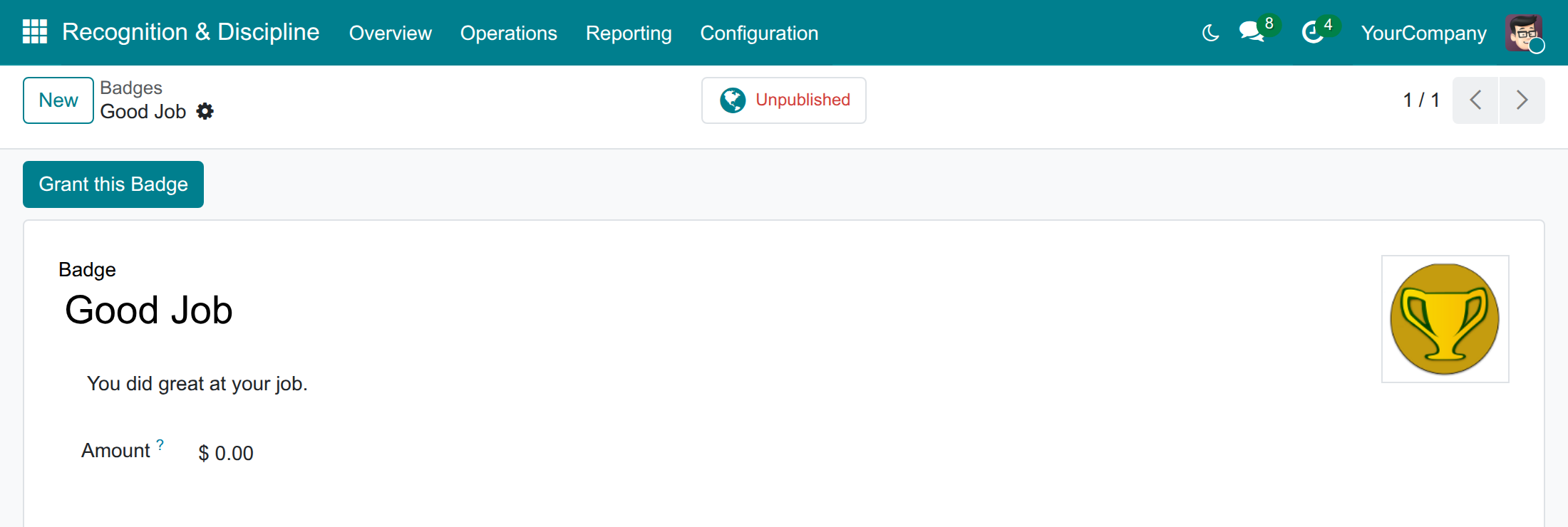
Badges come from the gamification feature of the Employees app. Prepare here the ones a recognition can grant.
- Open Recognition & Discipline ‣ Configuration ‣ Badges.
- Open a badge, or press New to create one.
- Optionally fill Amount: the value a recognition proposes when this badge is chosen.
- Save the badge.
Open a recognition campaign
A recognition campaign gathers the recognitions of a period, such as a quarter or a contest, so that you can count them and measure their value.
- Open Recognition & Discipline ‣ Operations ‣ Recognition Campaigns and press New.
- Type the Title and choose the Period: its first and last day.
- Describe the campaign if you wish, then save.
The status of the campaign follows its dates by itself: Upcoming before it starts, Running while it lasts, Finished once its last day has passed. A recognition can only be linked to a campaign whose period contains the decision date.
Line manager: prepare and submit decisions for the team
With the Officer right you prepare decisions for the people of your team. You cannot approve them, and you cannot reward a department or the whole company: both belong to the Administrator.
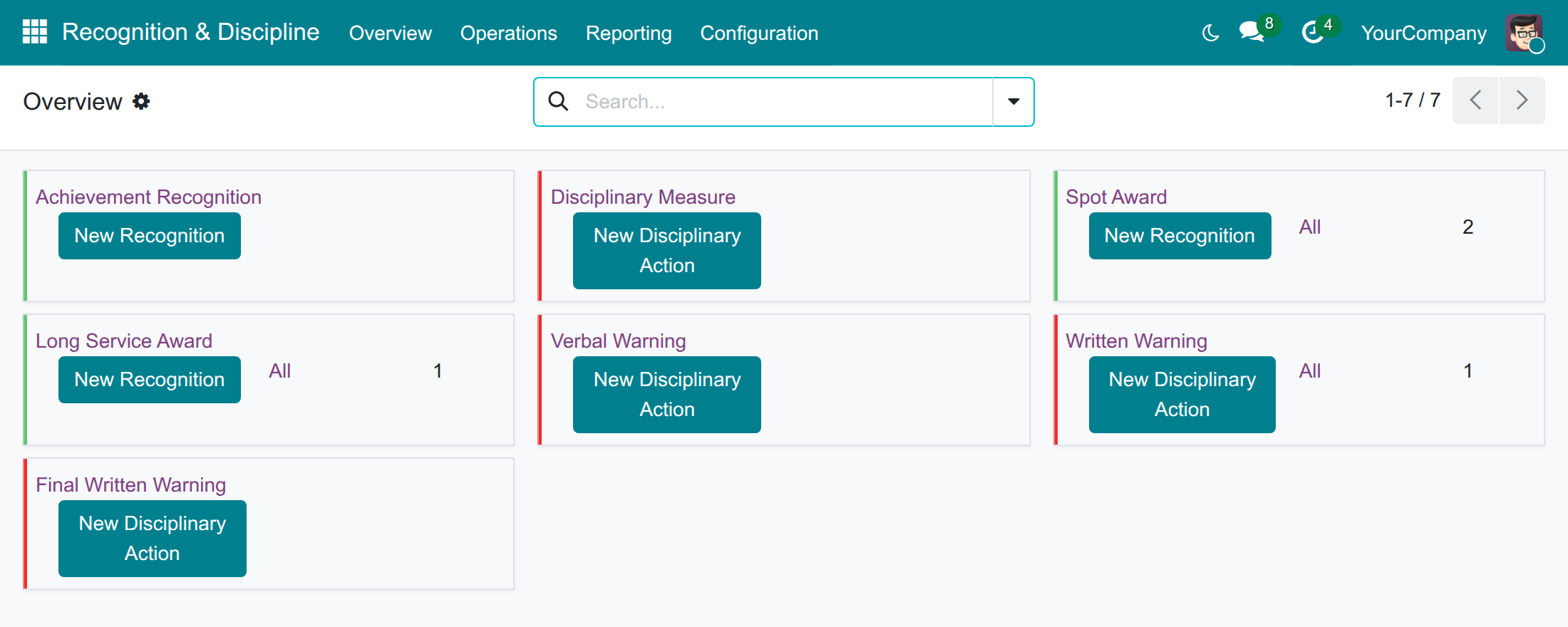
Find your way around the Overview
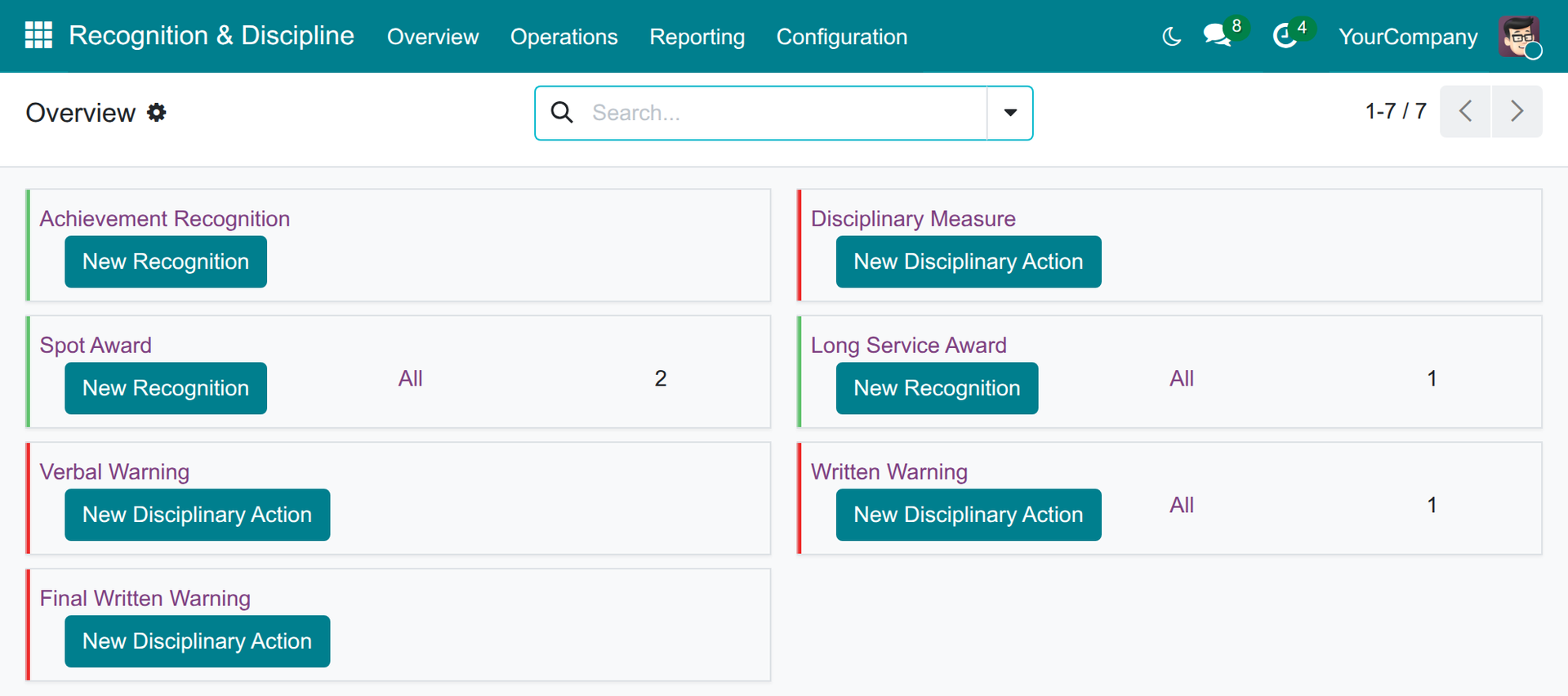
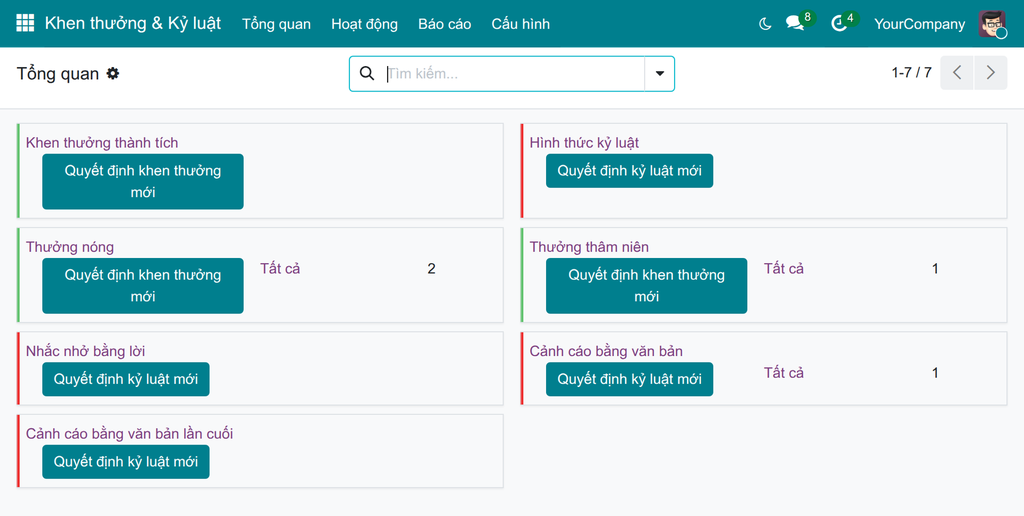
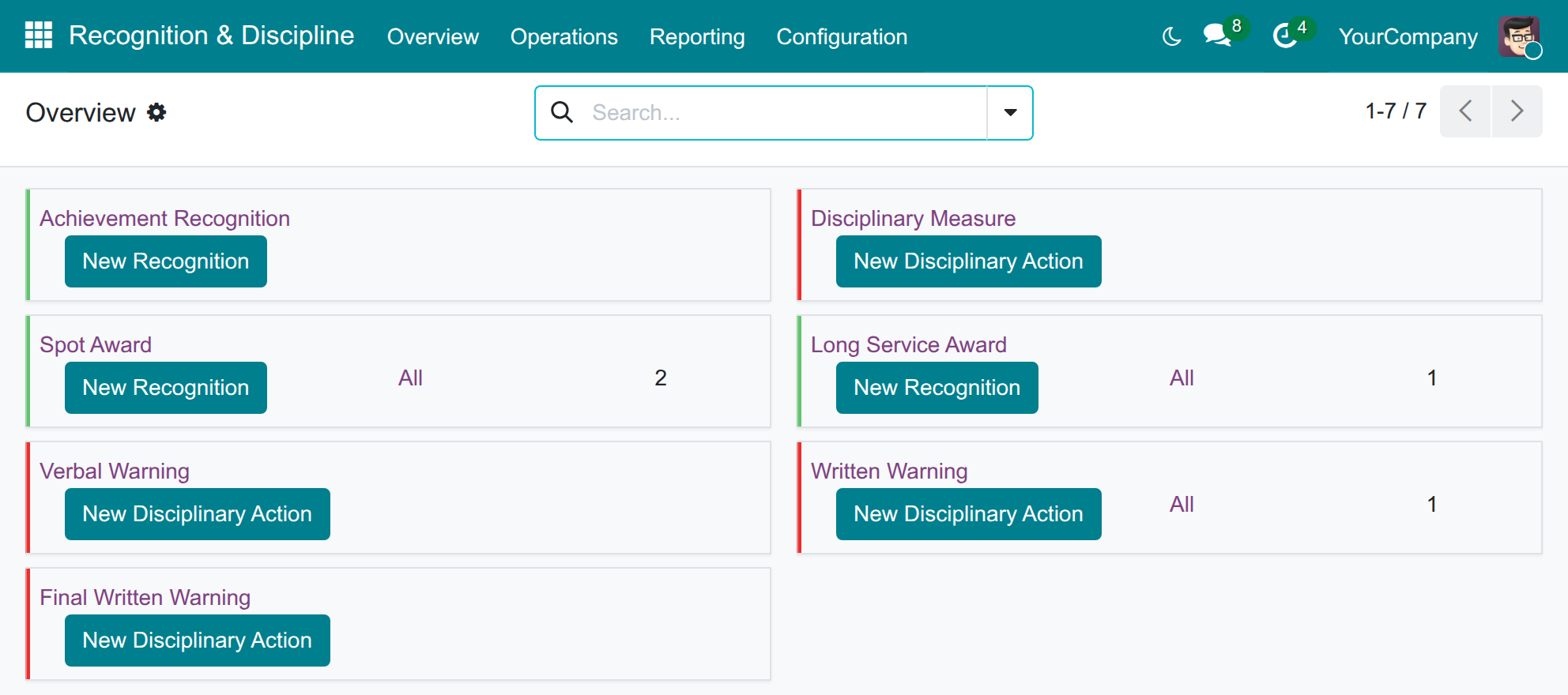
The Overview shows one card per decision type. The red cards are disciplinary types, the green cards recognition types. New Recognition or New Disciplinary Action on a card starts a decision of that type; Todo and All open the decisions of the type that are still to be dealt with, or all of them.
- Open Recognition & Discipline ‣ Overview.
- Press the button of the type you need.
Propose a recognition
- Open Recognition & Discipline ‣ Operations ‣ Recognitions and press New.
- Choose the Decision Type.
- Optionally choose the Campaign.
- Keep Applies To on Employee and add the people to reward in Beneficiaries.
- Choose the Badge. The Amount is filled with the amount of the badge; change it if this recognition is worth another value.
- Check the Decision Date (today by default), add a Description and press Submit.
The decision moves to To Approve and waits for an Administrator. Once it is approved, each beneficiary linked to a user receives the badge.
Record a disciplinary action
- Open Recognition & Discipline ‣ Operations ‣ Disciplinary Actions and press New.
- Choose the Decision Type: the measure taken.
- Choose the Employee Concerned. A disciplinary action always concerns named employees.
- Fill the Incident Date and check the Decision Date.
- Write the facts in the Description and press Submit.
Valid for (months) and Expiry Date are filled by the type and the decision date. There is no badge and no campaign on a disciplinary action. The Amount field is available; its help text reminds you that monetary penalties may be restricted by the labour rules that apply to you, so check them before recording an amount.
Follow and correct your submissions
- Open Recognition & Discipline ‣ Operations ‣ Recognitions or Disciplinary Actions.
- Read the State column: Draft, To Approve, Approved, Refused or Cancelled. Use the filters of the search bar to narrow the list.
- To correct a decision that is still waiting, open it and press Reset to Draft, change it, and submit it again.
Only a draft can be edited or deleted. Every change of the main data stays in the chatter of the decision.
HR manager: approve decisions, run campaigns and analyse
With the Administrator right you can do everything a line manager does, for any employee, and you also hold the tasks below.
Approve or refuse a decision
- Open Recognition & Discipline ‣ Operations ‣ Recognitions (or Disciplinary Actions) and open a decision in To Approve.
- Read it, then press Approve, or Refuse when it must not stand.
Approving a recognition grants its badge to every beneficiary who is linked to a user. A beneficiary who is not linked to a user cannot receive a badge: the decision stays approved and its chatter lists the people who were skipped. Approving a disciplinary action grants no badge and sends no message.
A decision that is already Approved can still be withdrawn with Refuse or Cancel; its badges are withdrawn too. A Refused decision can be approved again or cancelled, and a Cancelled one can be reset to draft and prepared again.
Reward a department or the whole company
- Start a recognition as described for the line manager.
- Set Applies To to Department and choose the Department, or to Company.
- Choose the badge and submit it.
The people rewarded are those of the department (its members and its manager) or all the employees of the company, as they are on the day of the approval.
Follow a campaign
- Open Recognition & Discipline ‣ Operations ‣ Recognition Campaigns and open a campaign.
- Read the number of recognitions in the Recognitions counter, and press Analysis to see them broken down.
Analyse the approved decisions
- Open Recognition & Discipline ‣ Reporting ‣ Recognition & Disciplinary Action Analysis.
- The table counts the approved decisions by type and by scope (employee, department, company). Click a group to unfold it, or switch to the graph or the list.
See the decisions of an employee, a department or a company
On the form of an employee, the Recognitions counter opens the recognitions of the person and Active Disciplinary Actions counts the approved actions that have not expired yet; both are shown to the people who hold a right on the Employees app. The forms of a department and of a company have the same two counters.

Employee: read what concerns you
Read your recognitions and disciplinary actions
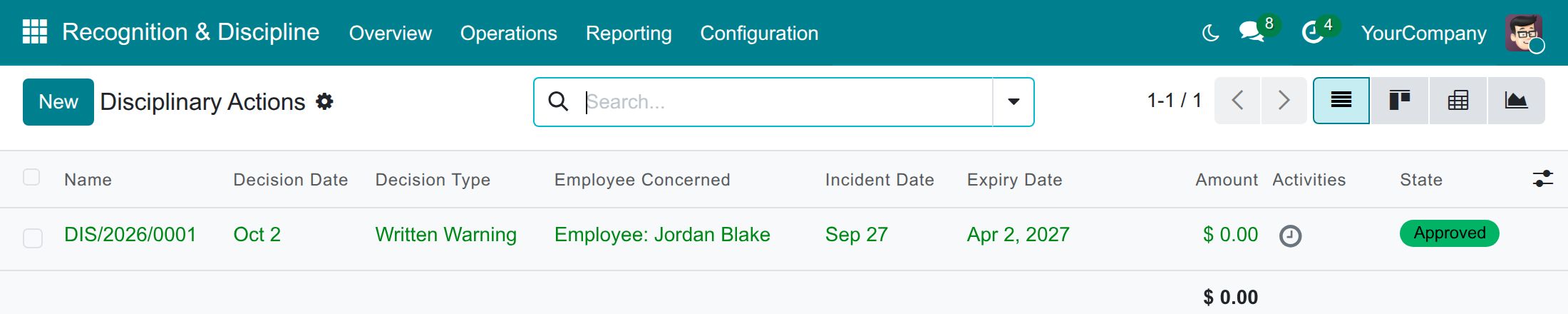
- Open Recognition & Discipline ‣ Operations ‣ Recognitions to read the approved recognitions that name you, directly or through your department or your company.
- Open Recognition & Discipline ‣ Operations ‣ Disciplinary Actions to read the disciplinary actions that name you, once they are approved.
You see only your own decisions: the screen below lists every decision because it is shown with an Administrator account. The Overview and Recognition Campaigns can be read by everybody but only edited by an Administrator.
Troubleshooting
- You cannot approve a decision: "You cannot approve a decision that names you as a beneficiary."
- The decision names you. Ask another Administrator to approve it. The same applies to a department-wide decision about a department you manage: "You cannot approve a decision about a department you manage."
- The Approve, Refuse and Cancel buttons are missing, or a message says that only a Recognition & Disciplinary Actions Administrator can approve, refuse or cancel
- Your access right is Officer or none. Ask an Administrator to set the right to Administrator on your user.
- A beneficiary did not receive the badge
- The chatter of the decision says "The badge could not be granted to the following employees because they are not linked to a user". Link the employee to a user, then press Refuse on the decision and Approve it again: the badge is granted to everyone who can receive it.
- "You cannot delete a decision that is not in draft status."
- Only a draft can be deleted. Open the decision, press Reset to Draft (from To Approve or Cancelled) and delete it. An approved decision is withdrawn with Cancel, not deleted.
- A decision you expect is not in your list
- Disciplinary actions are confidential. An employee sees them once approved; the Officer right shows the decisions of the people who report to you; the Administrator sees all. A line manager who does not hold the Officer right sees only the decisions that name them.
- The campaign is not offered on a recognition
- Only a campaign whose period contains the Decision Date is offered. Check the period of the campaign and the date of the decision.
- There is no Reporting or Configuration menu
- Both menus are reserved to the Administrator right.
FAQ
- What is the difference between a recognition and a disciplinary action?
- A recognition rewards an achievement, grants a badge and can be linked to a campaign. A disciplinary action records a measure against named employees, with an incident date and a period of validity; it never grants a badge, sends no congratulation message and is confidential.
- How long does a disciplinary action stay in force?
- From its decision date for the number of months set on its type. After that date it is shown as expired and stops counting in the Active Disciplinary Actions counter of the employee. A type valid for 0 months never expires.
- Who can see a disciplinary action?
- The employee concerned once it is approved, the line managers who hold the Officer right and manage that employee, and the Administrators.
- How do I correct an approved decision?
- Press Cancel, then Reset to Draft, change the decision and submit it again. Its history stays in the chatter.
- Where can I see who changed what?
- In the chatter at the bottom of the decision: the type, the dates, who it applies to, the campaign, the badge, the amount and the state are logged with the date and the author.
- Does the application apply any labour rule?
- No. It records the decisions your company takes; it does not check them against any legal rule. The help text of the Amount field only reminds you to check the rules that apply to you.
This software and associated files (the "Software") may only be used (executed, modified, executed after modifications) if you have purchased a valid license from the authors, typically via Odoo Apps, or if you have received a written agreement from the authors of the Software (see the COPYRIGHT file).
You may develop Odoo modules that use the Software as a library (typically by depending on it, importing it and using its resources), but without copying any source code or material from the Software. You may distribute those modules under the license of your choice, provided that this license is compatible with the terms of the Odoo Proprietary License (For example: LGPL, MIT, or proprietary licenses similar to this one).
It is forbidden to publish, distribute, sublicense, or sell copies of the Software or modified copies of the Software.
The above copyright notice and this permission notice must be included in all copies or substantial portions of the Software.
THE SOFTWARE IS PROVIDED "AS IS", WITHOUT WARRANTY OF ANY KIND, EXPRESS OR IMPLIED, INCLUDING BUT NOT LIMITED TO THE WARRANTIES OF MERCHANTABILITY, FITNESS FOR A PARTICULAR PURPOSE AND NONINFRINGEMENT. IN NO EVENT SHALL THE AUTHORS OR COPYRIGHT HOLDERS BE LIABLE FOR ANY CLAIM, DAMAGES OR OTHER LIABILITY, WHETHER IN AN ACTION OF CONTRACT, TORT OR OTHERWISE, ARISING FROM, OUT OF OR IN CONNECTION WITH THE SOFTWARE OR THE USE OR OTHER DEALINGS IN THE SOFTWARE.