
Employee Roles & Responsibilities
by Viindoo
| Lines of Code | 1181 |
| Technical name | viin_hr_role |
| License | OPL-1 |
| Website | https://viindoo.com/apps/modules/19.0/viin_hr_role |
| Read description for | v 13.0 v 14.0 v 15.0 v 16.0 v 17.0 v 18.0 |
| Required Apps | Discuss (mail) Employees (hr) |
| Included Dependencies | Viindoo Base |

Always know who holds each responsibility beyond the job description
For HR managers, CEOs and Odoo implementers
Catalogue responsibilities such as Fire Warden or Internal Auditor and assign them to employees with dates
Is this you?
Who is the first aider on the floor this week? Nobody can answer without asking around.
Responsibilities live in spreadsheets, e-mails and notice boards, and every copy says something different.
When someone leaves or changes duties, the safety, audit or privacy role they held is forgotten until an inspection finds the gap.
You cannot show an auditor who held a responsibility last year.
Duties get squeezed into job titles and org charts, although they have no seat and no manager.
What changes
Nobody can answer without asking around.
→ Keep one catalogue of every responsibility, shared by all companies or kept for one.
Every copy says something different.
→ See a colleague's current responsibilities right on their profile.
Duties are forgotten when people move.
→ Give a role from a date, end it on another date, and let the next person take over without losing the past.
No proof of who held a duty last year.
→ Keep the full history and list assignments as current, ended or upcoming.
Duties squeezed into job titles.
→ Keep responsibilities apart from the job: a role has no seat, no manager and no reporting line.
Key Features
Roles catalogue
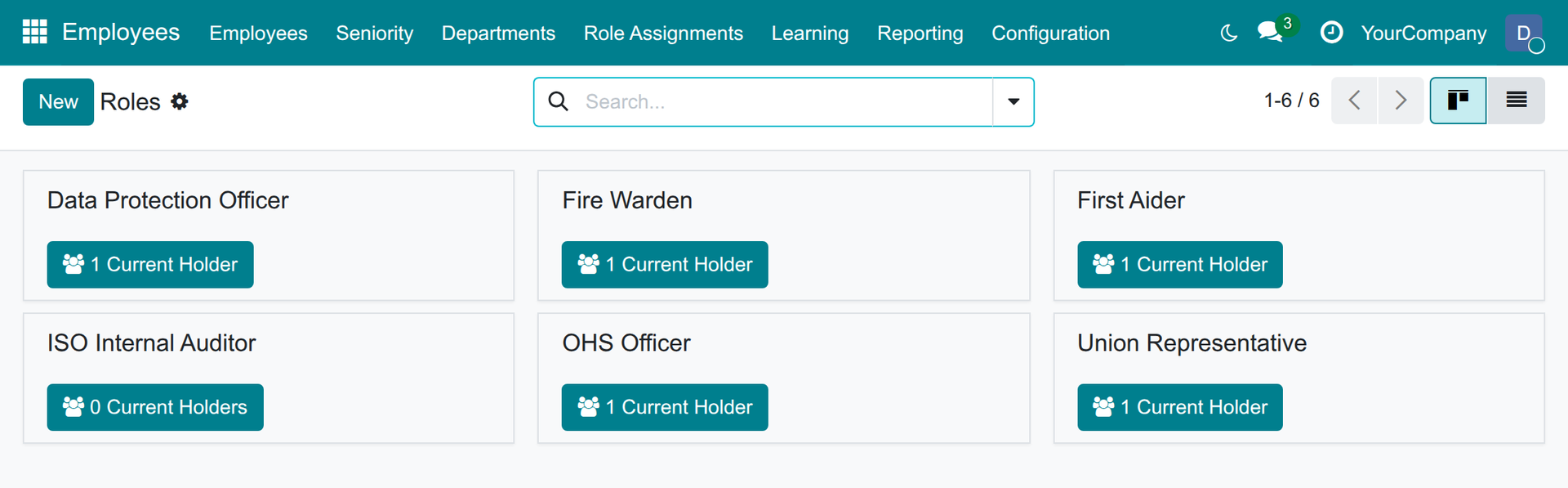
Keep one catalogue of the responsibilities people hold on top of their job, such as Fire Warden or First Aider.
Holders and history
See who holds a role today and who held it before, with dates.
Dated assignments
Assign a role to an employee for a period, optionally for one department, and keep the full history.
Current roles on the profile
Everybody can see which responsibilities a colleague holds today.
Search by role
Find in one search everybody who currently holds a given responsibility.
Assignment register
A company-wide register of who holds which role, filtered by current, ended or upcoming.
Who it is for
CEO and executives
Cannot show who is accountable for safety, quality or privacy duties. Gain named, dated accountability.
HR manager and HR officer
Track duties in spreadsheets that are always out of date. Gain one catalogue and dated assignments.
Employees and line managers
Do not know whom to call. Gain a look-up right on the colleague's profile.
Odoo implementers
Want a module that installs with no setup. Gain a light add-on to Employees, with standard HR access rights.
Best for: companies that must show, at any time, who carries each safety, quality, privacy or representation duty on top of their job.
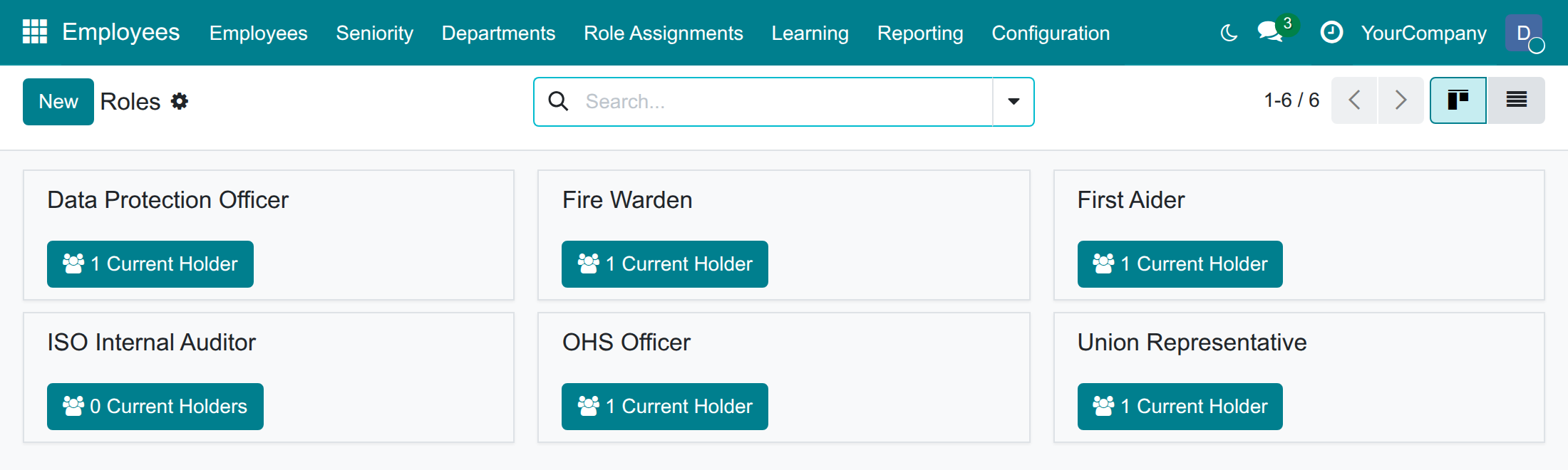
Build the catalogue of roles
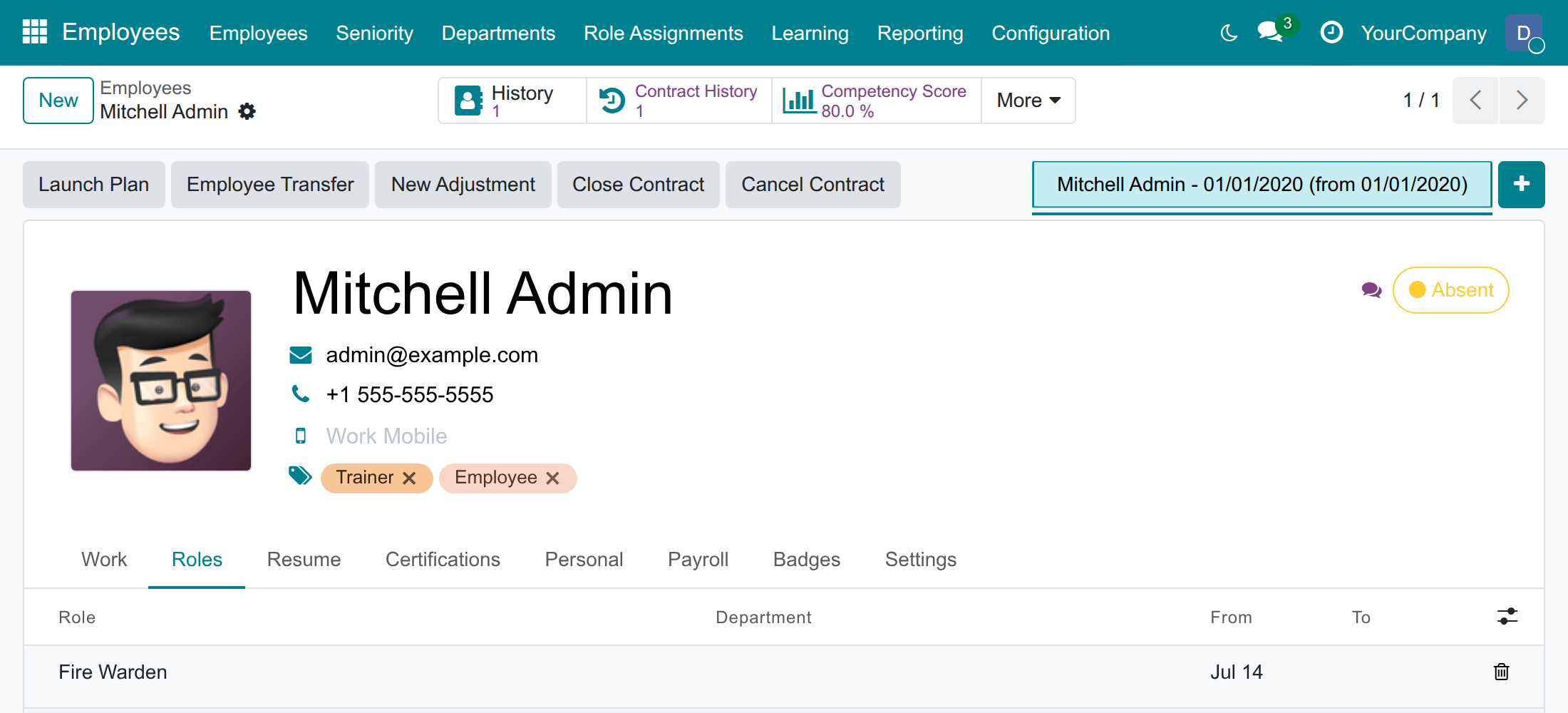
Assign a role to an employee with dates
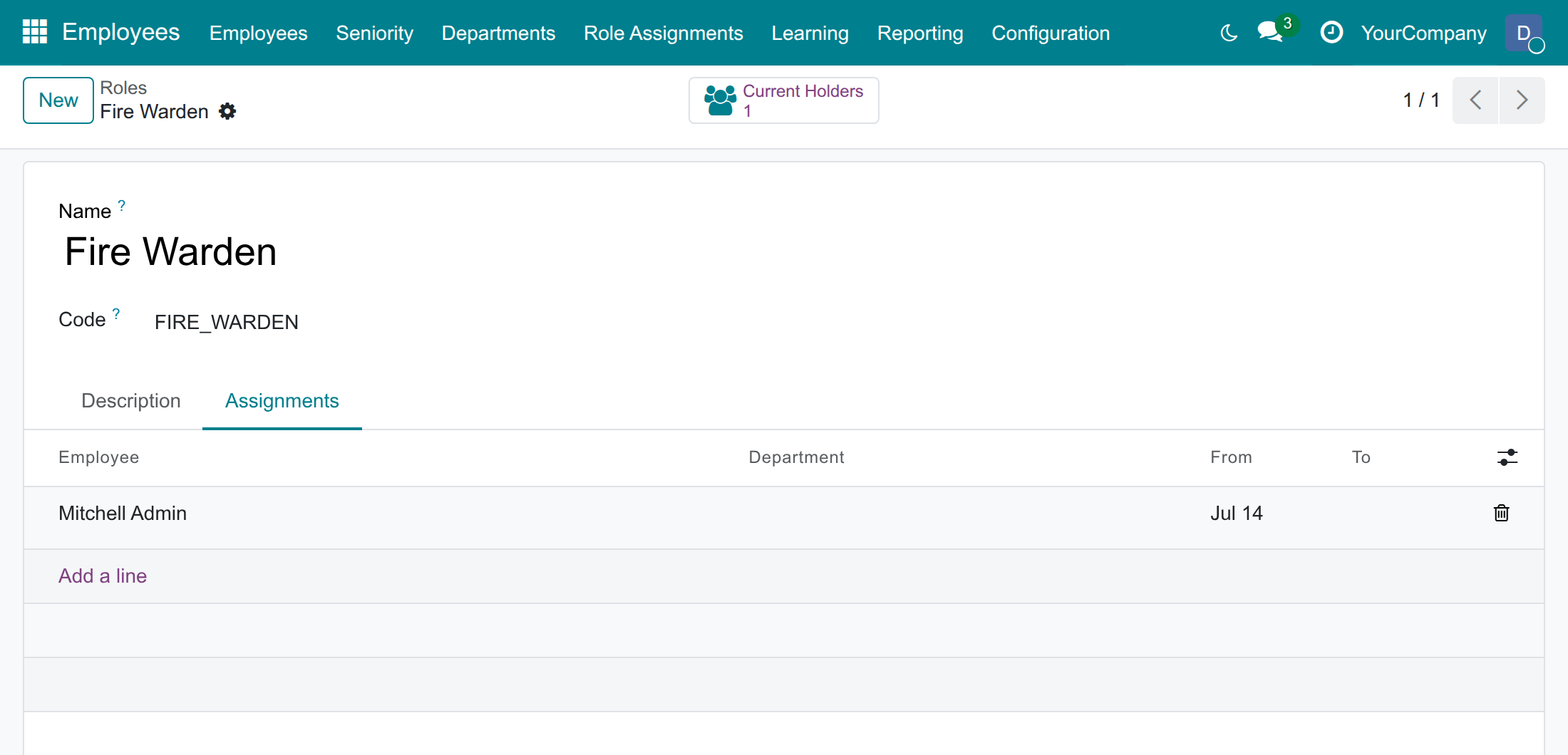
See who holds a role, today and in the past
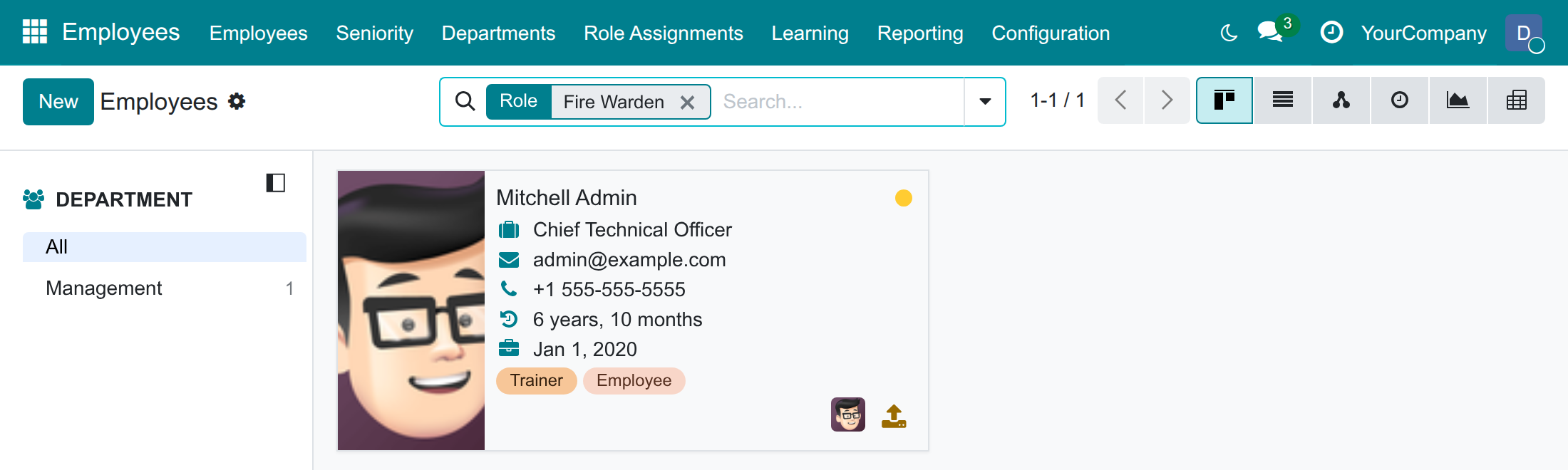
Find employees by role
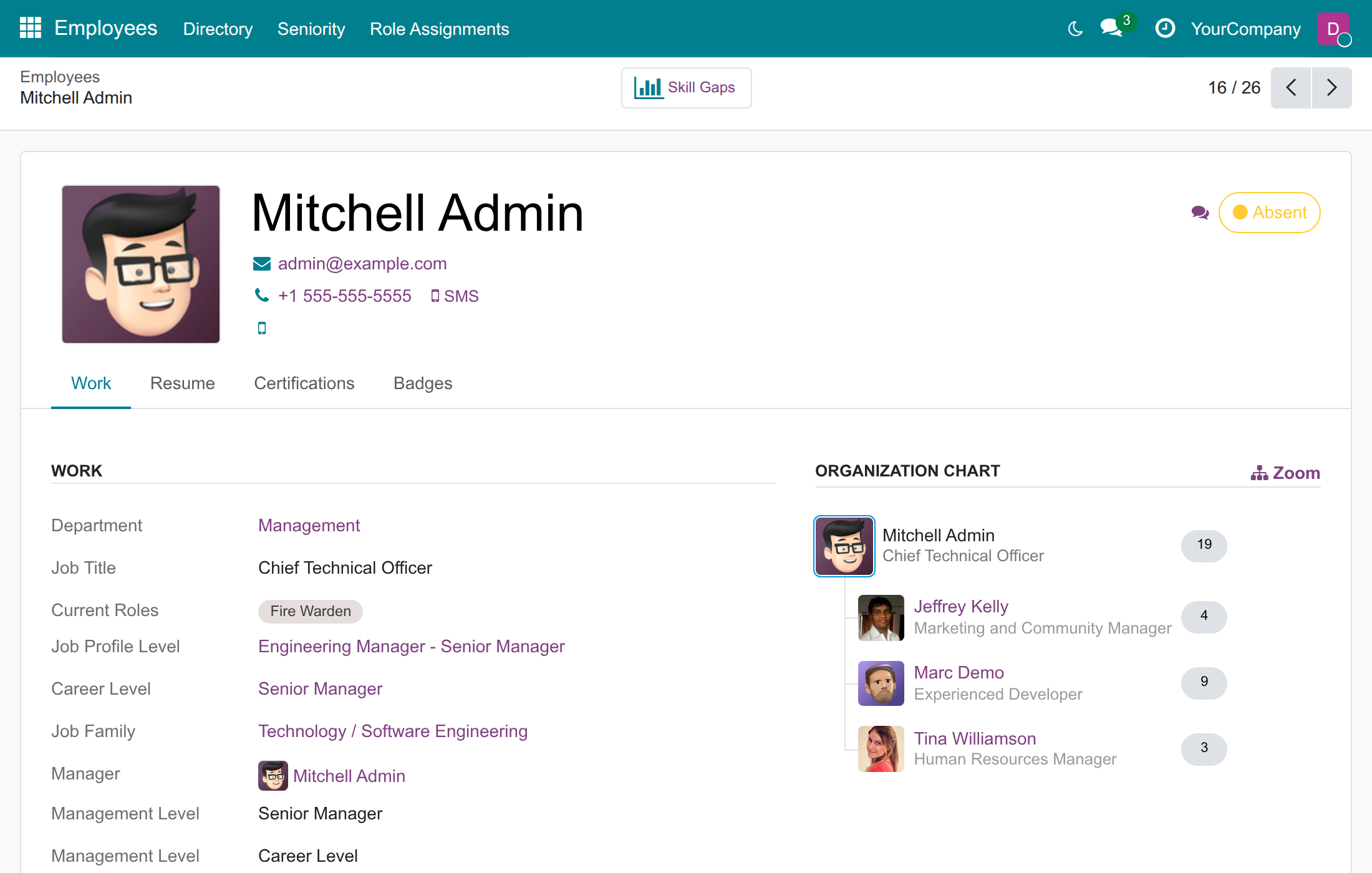
See a colleague's current roles
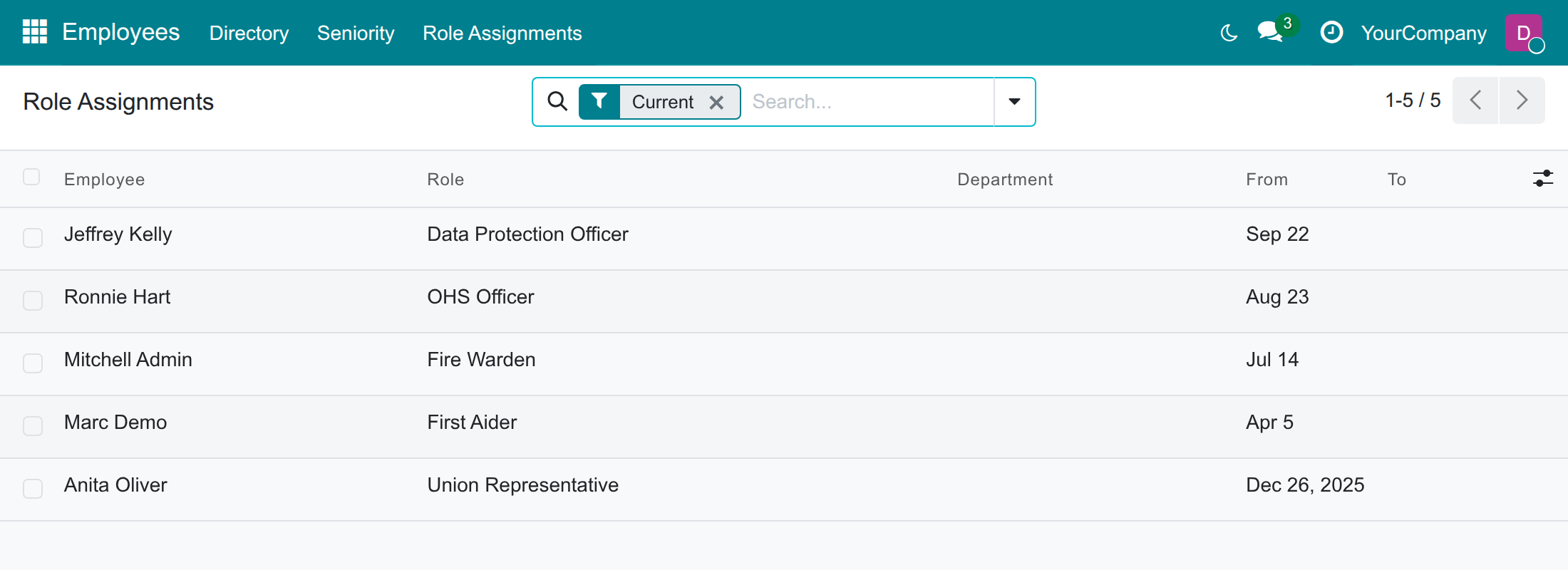
Browse the register of role assignments
Frequently Asked Questions
Is a role the same as a job position?
No. A job position is a seat in a department with a manager and a reporting line. A role is a responsibility held on top of the job, with no seat and no manager. An employee has one job and any number of roles.
Can an employee hold several roles, and can they overlap in time?
An employee can hold several different roles at the same time. The same role cannot be given twice for overlapping periods: end the first assignment, then start the next.
Who can see the roles and who can change them?
Every internal user can read roles and who holds them. Only HR officers can create roles, assign them and read the private notes of an assignment.
Does it work with several companies?
Yes. A role can be shared by all companies or kept for one, and users only see the assignments of the companies they may work in.
What do I need to install first?
Employees and Viindoo Base, which are installed automatically. No setting is needed: give HR officers their usual Employees access right and start.
Which Odoo version and editions does it support?
Odoo 19.0, Community and Enterprise editions.
Need help with Employee Roles & Responsibilities?
For questions, implementation support or a custom feature, contact Viindoo.
Pre-Sales & Partnership
Contact usTechnical Support
Open a support ticketTechnical Requirement
- Odoo version: 19.0
- Editions: Odoo Community, Odoo Enterprise
- Required modules: Employees, Viindoo Base
- License: OPL-1
- Author: Viindoo
- Live demo: v19demo-int.viindoo.com
Employee Roles & Responsibilities
Who this guide is for: the HR officer, who keeps the list of responsibilities and records who holds them, the system administrator, who installs the module and gives people their access, and every employee or line manager who wants to know who is the Fire Warden, the First Aider or the Data Protection Officer today.
Overview
An employee holds a job, and very often a few responsibilities on top of it: floor fire warden, first aider, occupational health and safety officer, ISO internal auditor, union representative, data protection officer. These responsibilities are rarely written down in one place, and nobody can tell when somebody took one over or handed it on.
Employee Roles & Responsibilities gives each responsibility a name, records who holds it and for which period, and shows the answer to everybody who needs it:
- A role is a responsibility, not a job: it has no seat in a department, no manager and no reporting line. An employee can hold several roles at the same time.
- A role is given to an employee from a date, optionally until a date and optionally for one department. Past assignments are kept, so you always know who held a role last year.
- The same employee cannot hold the same role twice in overlapping periods.
- Roles and who holds them are public information inside the company. The private Note of an assignment is for HR only.
- A role can be shared by all companies or kept for one company.
| Who | What they do | Access right to assign |
|---|---|---|
| System Administrator | Installs the module and gives people their access rights. | Settings: Administrator |
| HR Officer (and HR Administrator) | Keeps the list of roles, assigns roles to employees with dates, searches employees by role. The HR Administrator has the same rights in this module. | Employees: Officer: Manage all employees |
| Employee and line manager | Look up who holds a role today and browse the register of assignments. They cannot change anything and cannot read the HR notes. | None to add: every internal user has it |
Setup (for the Administrator)
Install the module
- Open Apps.
- Remove the default filter, search for Employee Roles & Responsibilities and press Install.
The Employees app is installed with it if it was not there yet. No further setting is needed: the Roles menu appears at once.
Give people their access right
- Open Settings ‣ Users & Companies ‣ Users and select the HR officer.
- In the Access Rights tab, set Employees to Officer: Manage all employees (or Administrator), then save.
Every other internal user can already read roles and assignments; they need nothing more.
HR Officer: keep roles and assignments
Create a role
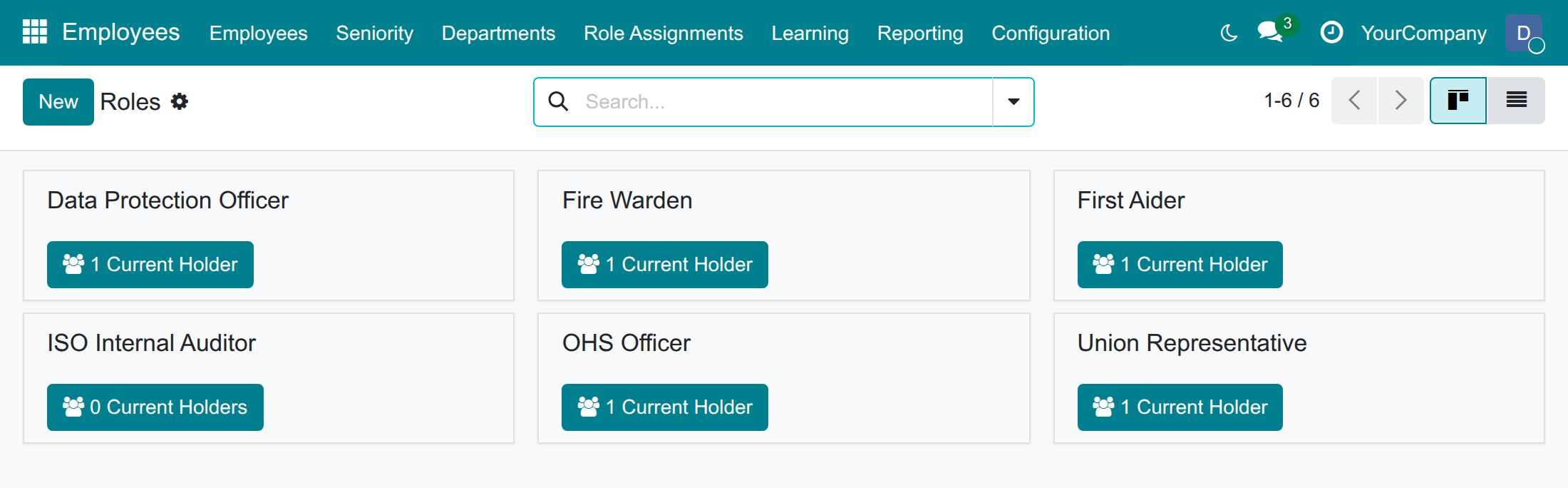
Open Employees ‣ Configuration ‣ Roles (under the Employee heading). The roles are shown as cards, each with the number of people who hold the role today. Press New and fill in:
- Name: for example Safety Delegate.
- Code: leave it empty and it is generated from the name; it must be unique.
- Company: only in a multi-company database. Leave it empty to share the role with all companies, or pick one company to keep it there.
- Description tab: what the person holding the role is expected to do.
To stop using a role without losing its history, archive it from the Actions menu. Use the Archived filter to find it again. A role that was ever assigned cannot be deleted: archive it instead.
Assign a role to an employee
- Open Employees ‣ Employees and select the employee.
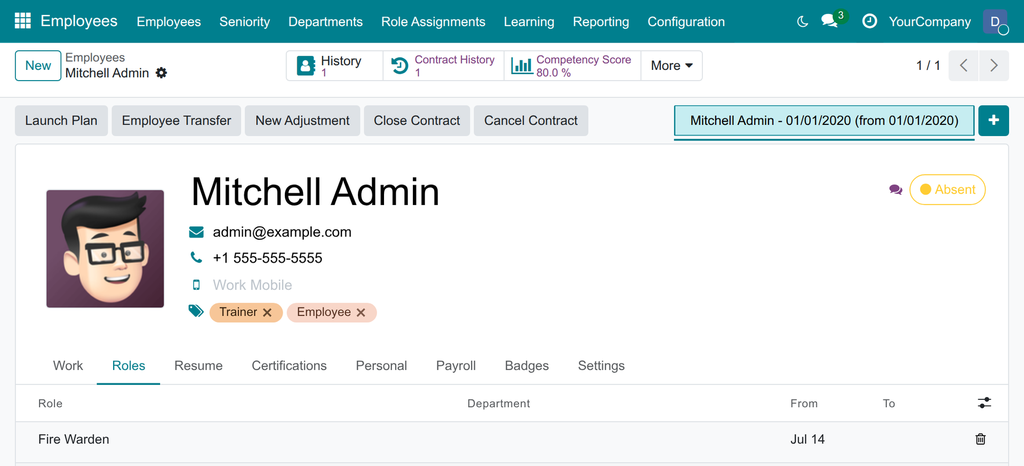
- Open the Roles tab and press Add a line.
- Pick the Role.
- Check the From date (today by default). Fill To only when you already know the last day; leave it empty otherwise.
- Fill Department when the role applies to one department only.
- Save the employee.
To record a private remark, show the Note column with the column selector at the right of the list header; only HR can read it. An assignment whose period is over, or has not started, is greyed out.
End a role or hand it over
Open the employee's Roles tab and fill the To date of the line: that is the last day the employee holds the role. Then add a line for the new holder, starting the next day. The old line stays as history.
Review or correct an assignment
Open Employees ‣ Role Assignments: the register lists the assignments of everybody, by default only the current ones. Select a line to open it, or press New to record an assignment for any employee. Besides the employee, the role, the department and the dates, the form holds the private Note that only HR can read, and its chatter keeps the changes.
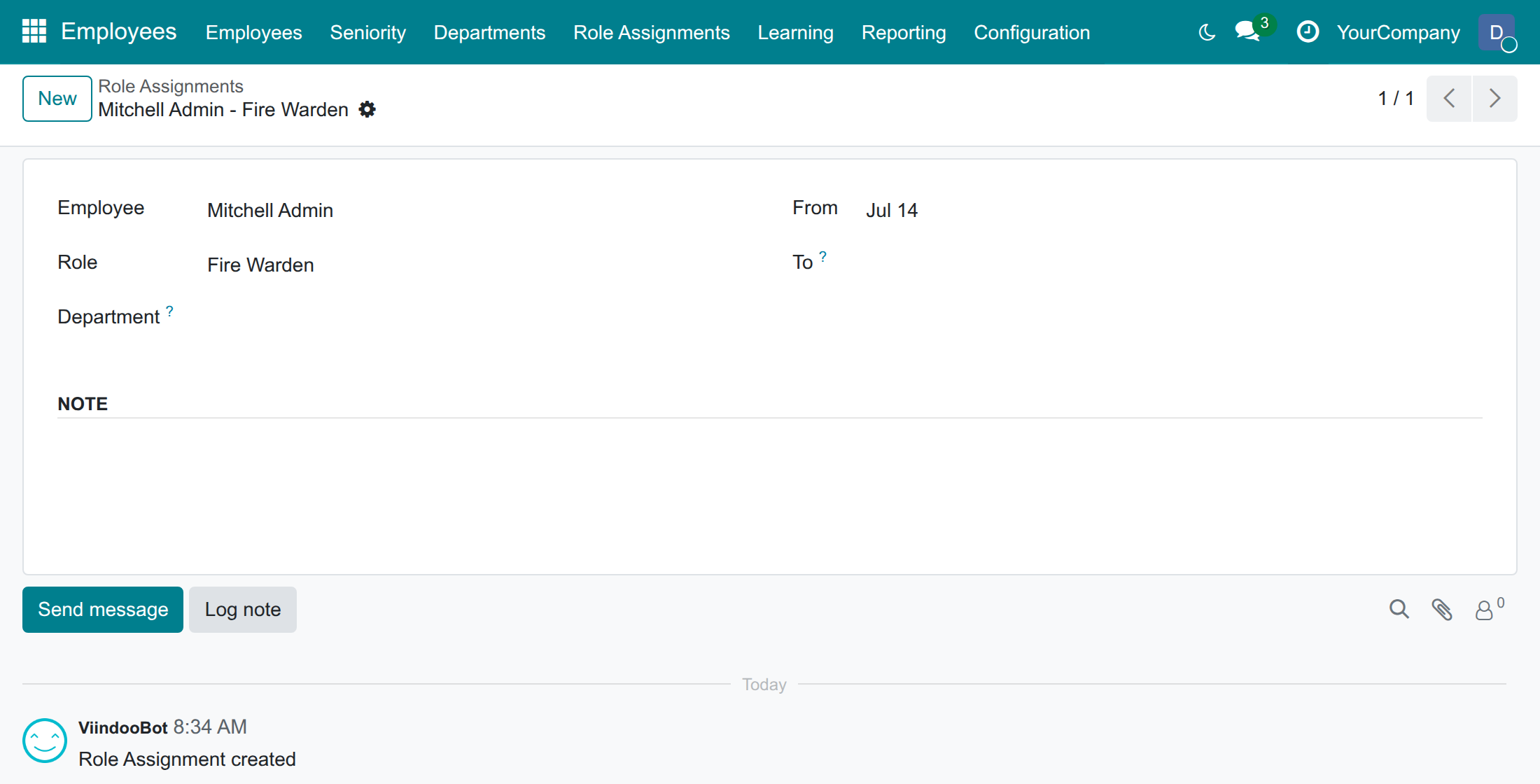
See who holds a role
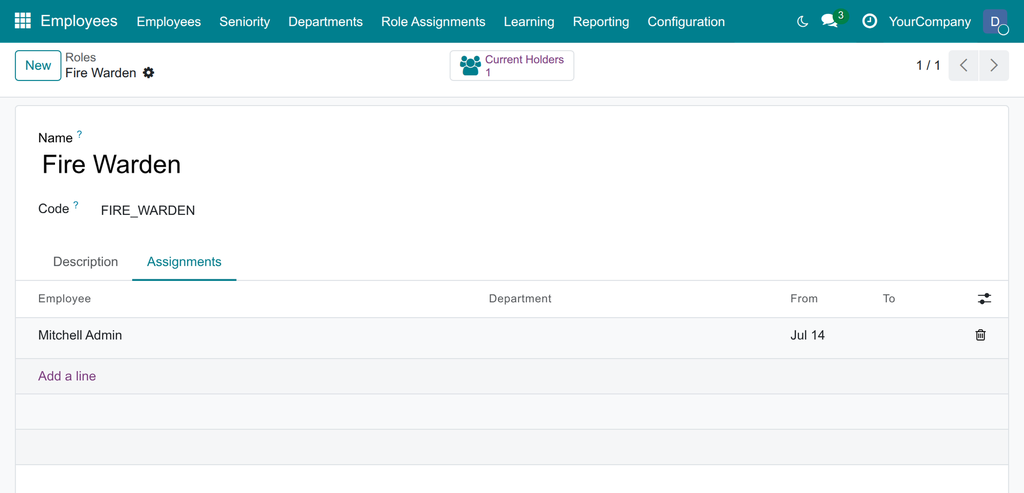
Open Employees ‣ Configuration ‣ Roles and select a role. The Current Holders button shows how many employees hold it today (archived employees are not counted); press it to open them. The Assignments tab lists every assignment with its dates, the most recent first, and you can add or edit lines there too.
Find employees by role
- Open Employees ‣ Employees.
- Type the role name in the search box and choose Search Role for: ....
Only the employees who hold the role today are listed.
Employee and line manager: who holds a role
See the current roles of a colleague
Open Employees ‣ Directory and select a colleague. Their responsibilities of today are shown as tags in Current Roles, just after the job title.
Browse the register of assignments
Open Employees ‣ Role Assignments. By default the list shows the assignments that are current. Remove the Current filter or choose Ended or Upcoming to see the others, and group the list by Role or Department. For you the list is read-only: open a line to see it in full.
Troubleshooting
- "The employee already holds this role during that period." The employee has another line for the same role that overlaps these dates. Set the To date of the earlier line first, or change the dates.
- "The end date of a role assignment cannot be earlier than its start date." Correct the From or To date.
- The Roles tab, the Role search or the Note are missing. They are reserved for HR officers. Ask your administrator for the Officer: Manage all employees access right.
- A holder is not counted in Current Holders. The assignment may not have started yet, may already be over, or the employee may be archived.
- A role cannot be deleted. It has assignments. Archive it instead.
- A role is not offered when you assign it. The role may belong to another company than the employee's company: empty the Company of the role to share it.
FAQ
- What is the difference between a role and a job position?
- A job position is a seat in a department, with a manager and a reporting line. A role is a responsibility held in addition to the job, with no seat and no manager. One employee has one job and any number of roles.
- Can the same person hold a role twice?
- Not at the same time. After the first assignment ends, a new one can start.
- Who can see the history of a role?
- Every internal user can read the register, including ended assignments. Only HR can read the notes.
- Does the module work with several companies?
- Yes. A role can be shared or limited to one company, and users only see the assignments of their allowed companies.
This software and associated files (the "Software") may only be used (executed, modified, executed after modifications) if you have purchased a valid license from the authors, typically via Odoo Apps, or if you have received a written agreement from the authors of the Software (see the COPYRIGHT file).
You may develop Odoo modules that use the Software as a library (typically by depending on it, importing it and using its resources), but without copying any source code or material from the Software. You may distribute those modules under the license of your choice, provided that this license is compatible with the terms of the Odoo Proprietary License (For example: LGPL, MIT, or proprietary licenses similar to this one).
It is forbidden to publish, distribute, sublicense, or sell copies of the Software or modified copies of the Software.
The above copyright notice and this permission notice must be included in all copies or substantial portions of the Software.
THE SOFTWARE IS PROVIDED "AS IS", WITHOUT WARRANTY OF ANY KIND, EXPRESS OR IMPLIED, INCLUDING BUT NOT LIMITED TO THE WARRANTIES OF MERCHANTABILITY, FITNESS FOR A PARTICULAR PURPOSE AND NONINFRINGEMENT. IN NO EVENT SHALL THE AUTHORS OR COPYRIGHT HOLDERS BE LIABLE FOR ANY CLAIM, DAMAGES OR OTHER LIABILITY, WHETHER IN AN ACTION OF CONTRACT, TORT OR OTHERWISE, ARISING FROM, OUT OF OR IN CONNECTION WITH THE SOFTWARE OR THE USE OR OTHER DEALINGS IN THE SOFTWARE.