

Vietnam Chart of Accounts - Circular 99 and 133
by Viindoo
| Lines of Code | 5733 |
| Technical name | l10n_vn_viin |
| License | OPL-1 |
| Website | https://viindoo.com/apps/modules/19.0/l10n_vn_viin |
| Read description for | v 15.0 v 16.0 v 17.0 v 18.0 |
| Required Apps | Invoicing (account) Discuss (mail) |
| Included Dependencies | Viindoo Base Accounting Foundation |
| Extensions | Vietnam Legal Stock Reports Vietnam - Account Asset Accounting Reports - Vietnam Accounting Vietnam - Freight Project Localization |

Vietnam Chart of Accounts - Circular 99 and 133
Vietnam Chart of Accounts according to Circular #99/2025/TT-BTC and #133/2016/TT-BTC by the Ministry of Finance

Key Features
Built natively on Odoo/Viindoo to streamline real business operations:
Two Complete Charts of Accounts, Ready to Use
Circular 99 (TT99/2025): Full COA for large enterprises.
- Circular 133 (TT133/2016): Full COA for small and medium enterprises.
- Account Groups are pre-configured for structured financial reporting.
- Accounts are auto-tagged with Account Tags matching Vietnamese reporting standards - new.
accounts you create are auto-tagged too.
Vietnamese Tax Configuration Out of the Box
Pre-configured tax types: VAT 0%, 5%, 8%, 10%, VAT on imported goods, export tax.
and VAT-exempt transactions.
- Tax Groups are correctly classified (VAT vs. non-VAT) for accurate tax reporting.
- Tax Report Lines for the Vietnamese VAT declaration are included.
Print-Ready Vietnamese Accounting Documents
Receipt voucher (Phiếu thu - Mẫu 01-TT) and Payment voucher (Phiếu chi - Mẫu 02-TT).
printed directly from Payments or Journal Entries.
- Journal Entry report in standard Vietnamese PDF format.
- Customizable fields: recipient/payer name, origin document number.
- Reports use a dedicated Vietnamese accounting layout with legal name support on every report.
Smart Default Account Mapping
Property accounts (income, expense, receivable, payable, stock valuation, etc.) are.
pre-mapped to the correct Vietnamese accounts upon installation.
Company-level defaults for currency exchange, cash differences, early payment discounts.
VAT payable, employee payable, advance, borrowing, lending, deferred revenue, and prepaid expense accounts are all set automatically.
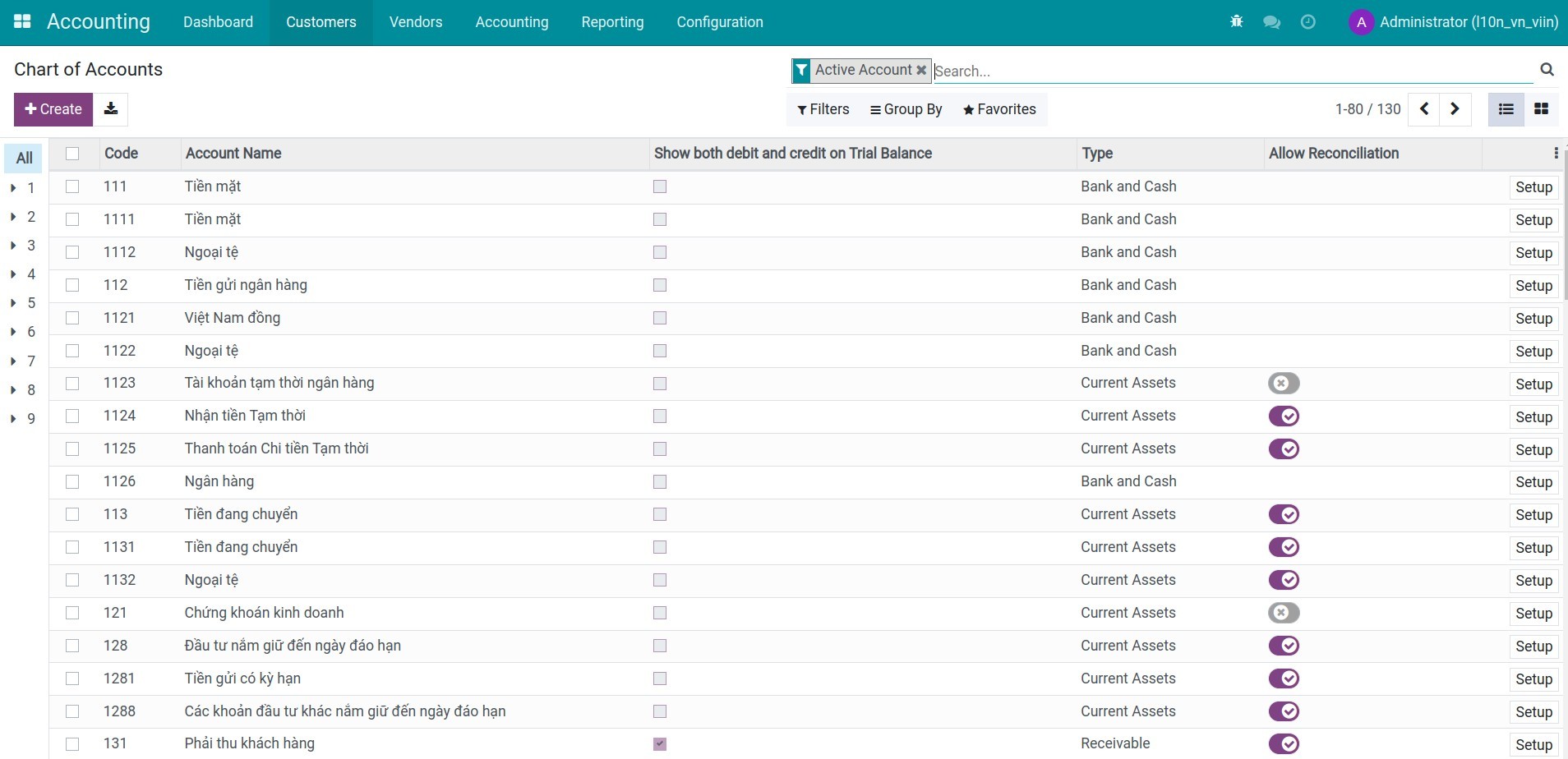
The Chart of Accounts
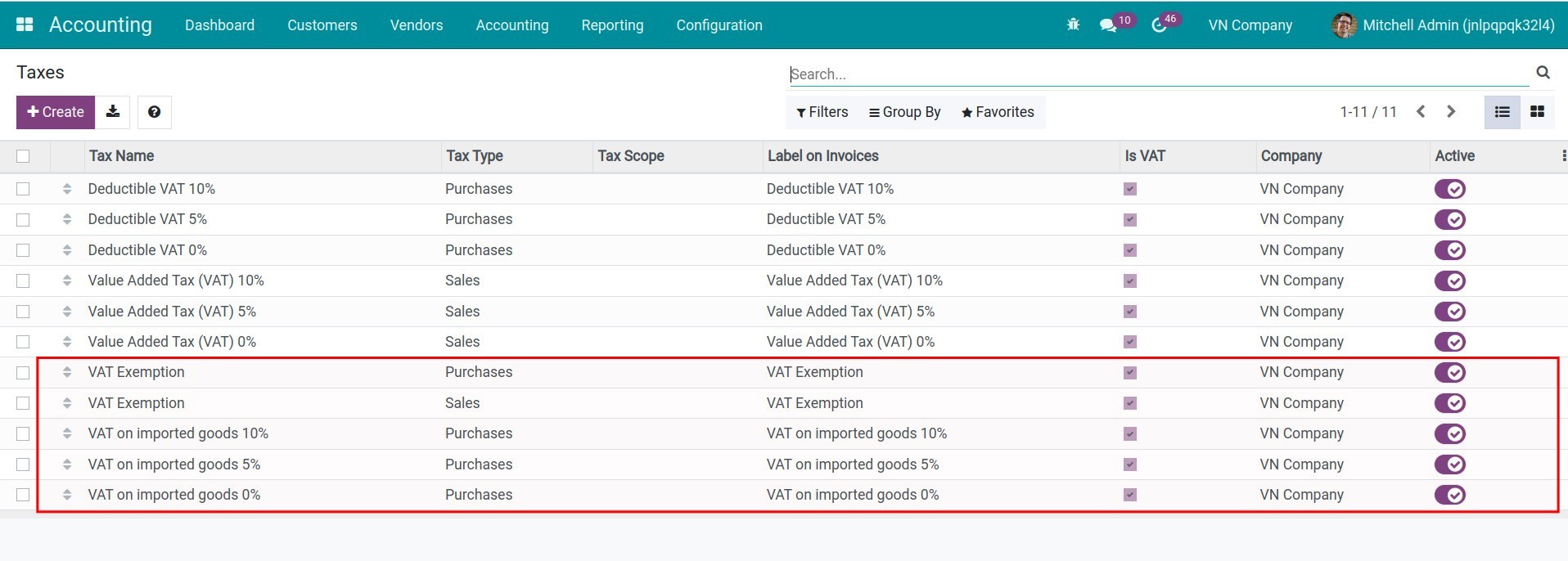
Add common taxs
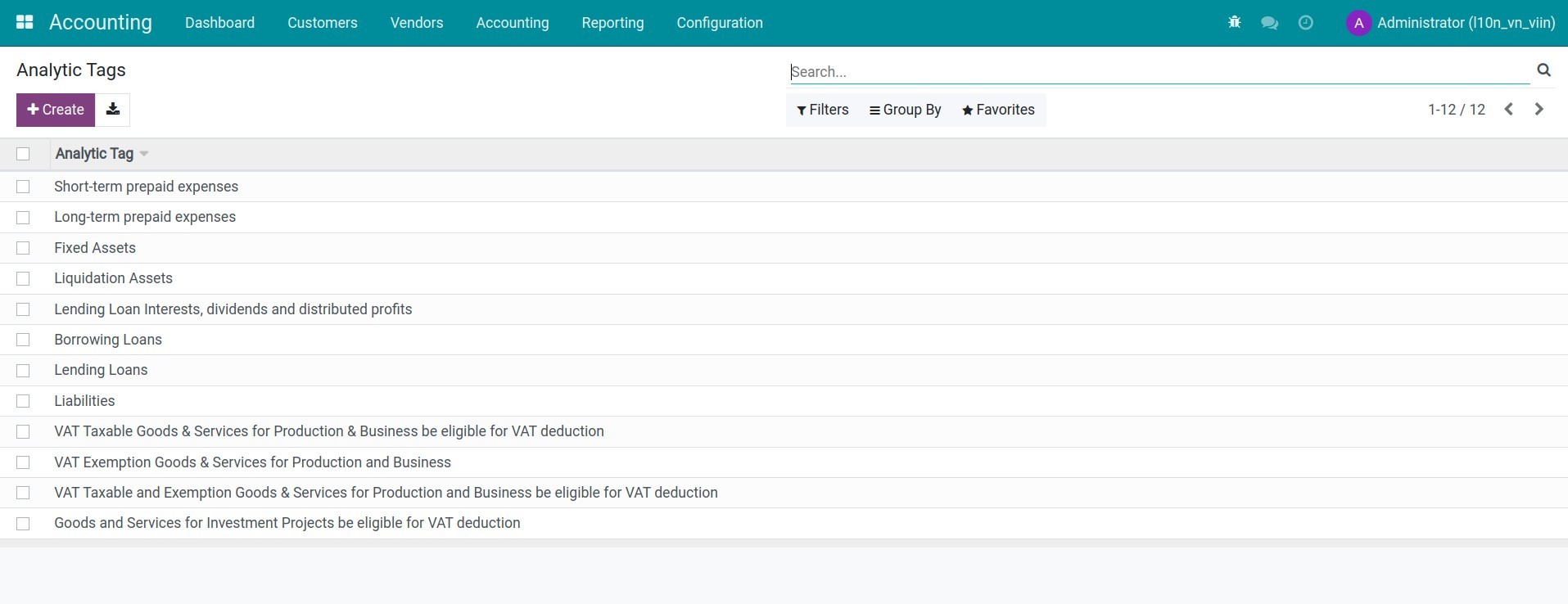
Analytic tags
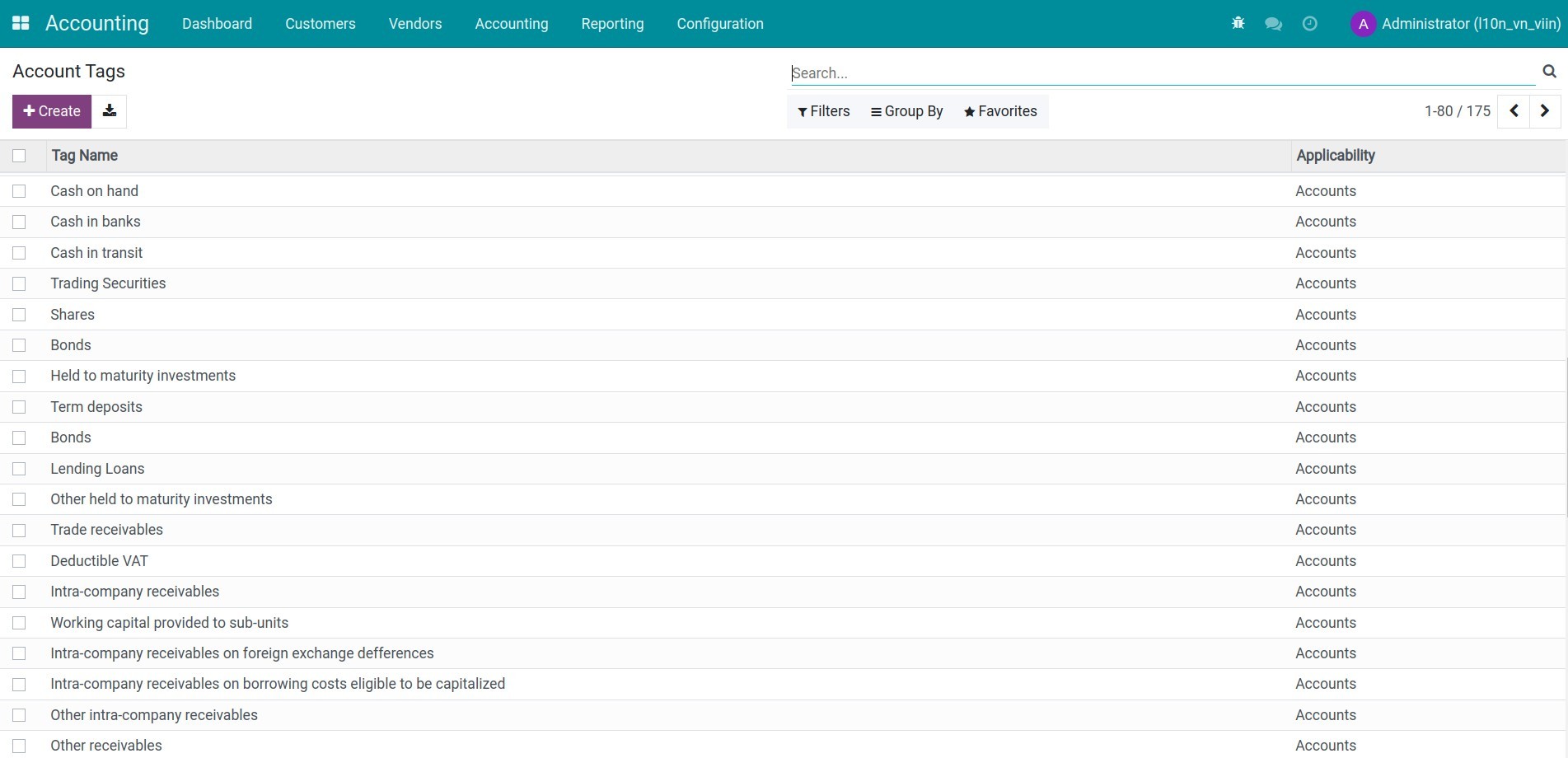
Account tags
Print Payment Receipts in PDF
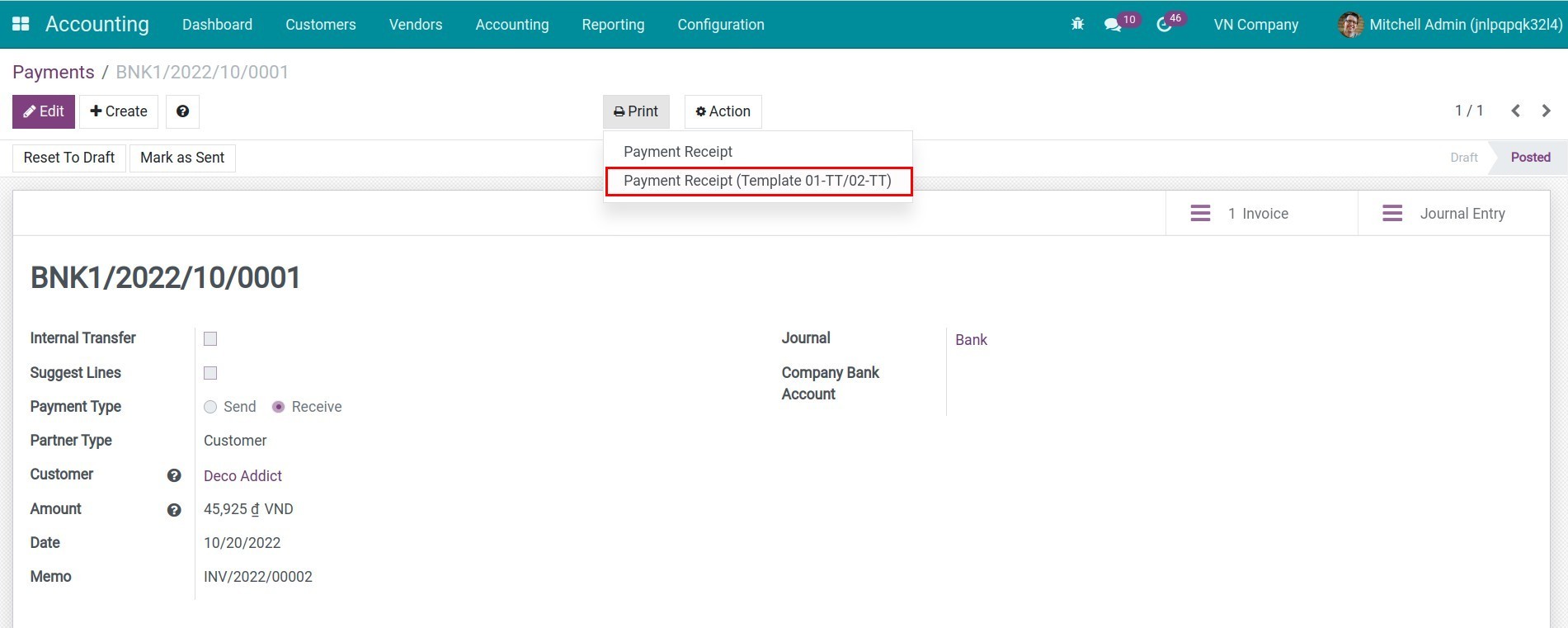
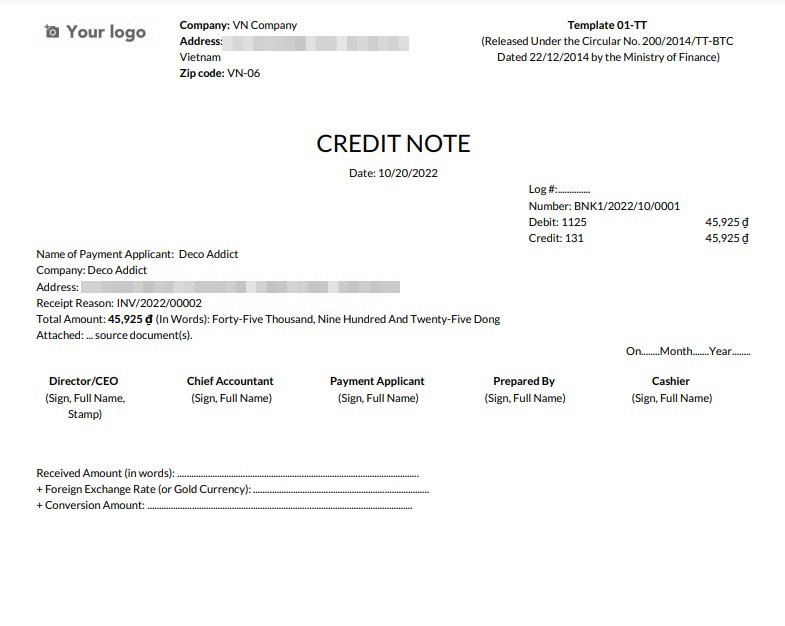
Payment Receipts
Payment gateway conversion differences land in the right Vietnamese account from day one
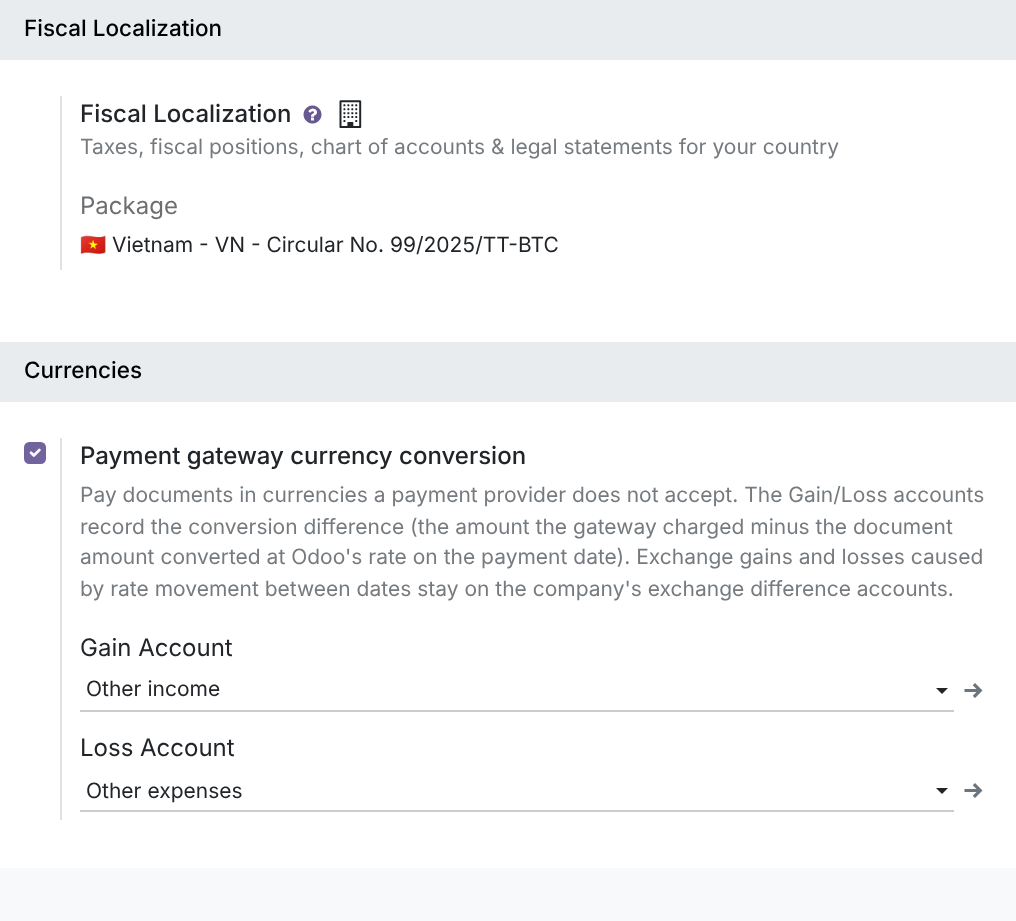
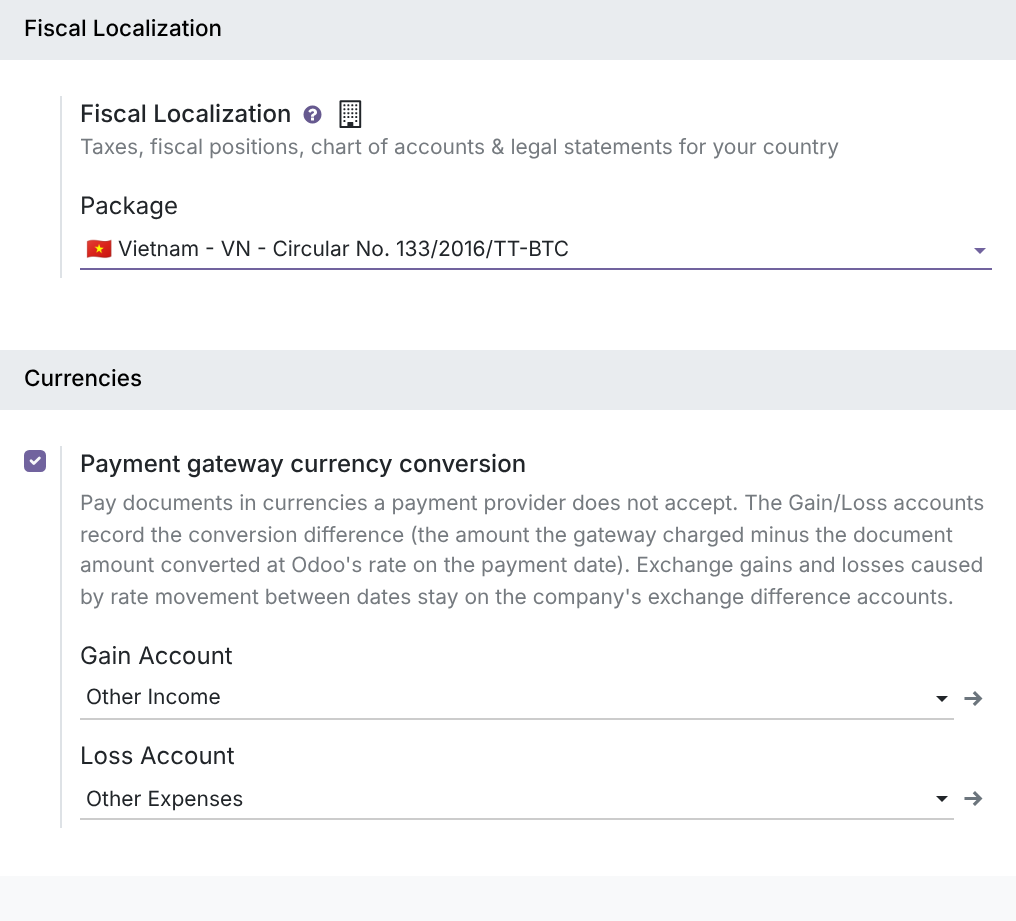
Online payments in a foreign currency rarely settle at exactly the amount on the invoice. Under Vietnamese rules that gap is not a plain exchange gain or loss, and posting it to the wrong account means a correction at every period end. The Vietnam localization pre-fills the Gain Account and Loss Account of the Payment gateway currency conversion block (Invoicing > Configuration > Settings) for the chart your company runs on:
- TT99 (C99): gain posts to 7118, loss to 8118.
- TT133 (C133): gain posts to 711, loss to 811.
- Conversion differences stay separate from exchange gain/loss. Under TT99, exchange gain/loss keeps its own accounts (5151 and 6352).
- Each company keeps its own setting, so a group with one entity on TT99 and another on TT133 gets the right accounts for each, and you can still change them to match your accountant's policy.
The Gain and Loss fields appear once the Payment gateway currency conversion option is turned on in Settings.
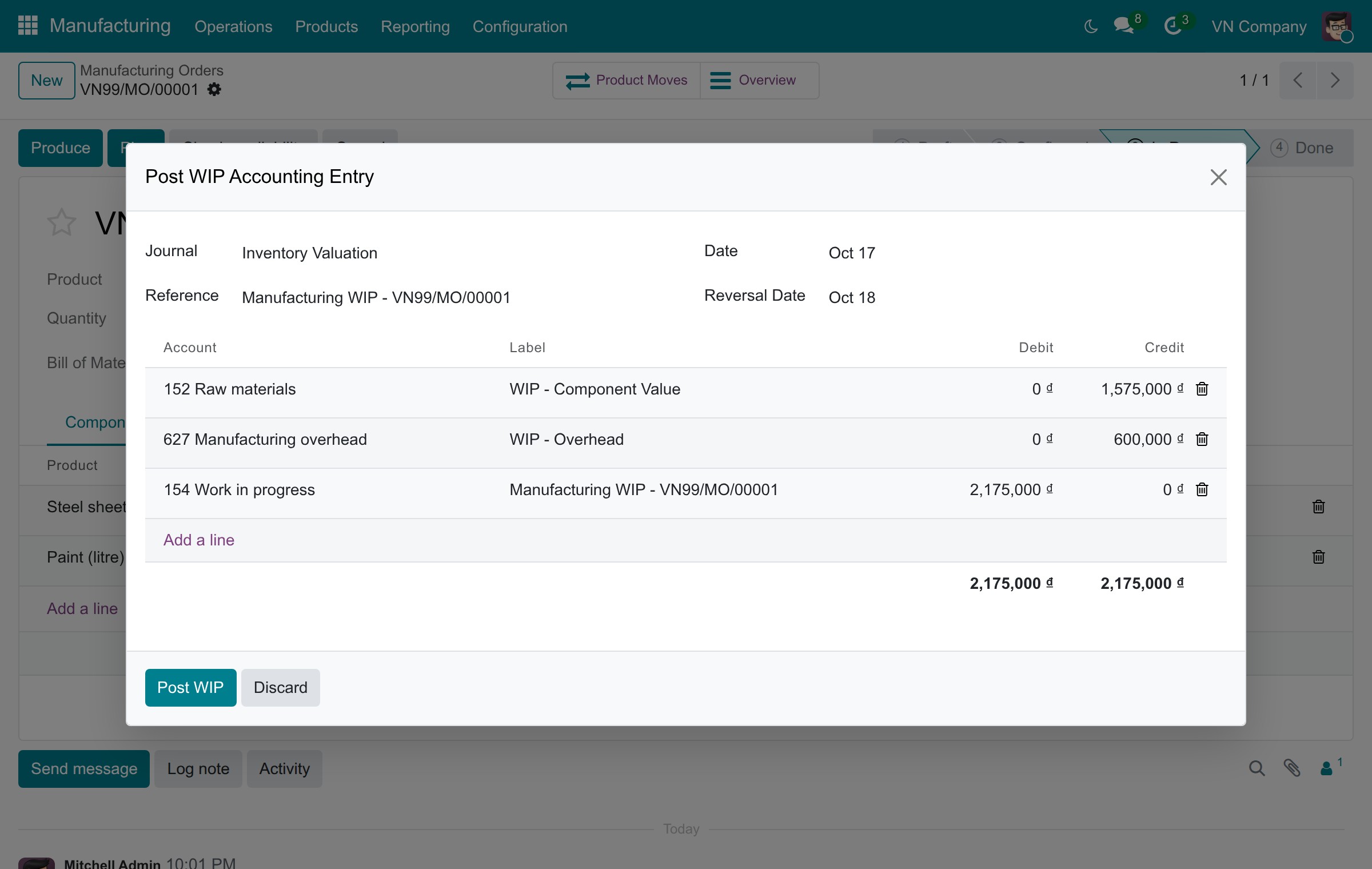
Work in progress lands on 154 without hunting for accounts
Put the cost of unfinished manufacturing orders on the balance sheet at any date. The Vietnamese charts pre-fill the accounts the Post WIP Accounting Entry action of a manufacturing order uses:
- TT99 (C99): work in progress on 154, manufacturing overhead absorbed from 627, components from the stock account.
- TT133 (C133): work in progress on 154; TT133 has no account 627, so you pick the overhead account on the entry.
- The entry is reversed automatically the next day, and every line can be changed before you post it.
Stock and cost of goods sold on the Vietnamese accounts, periodic or perpetual
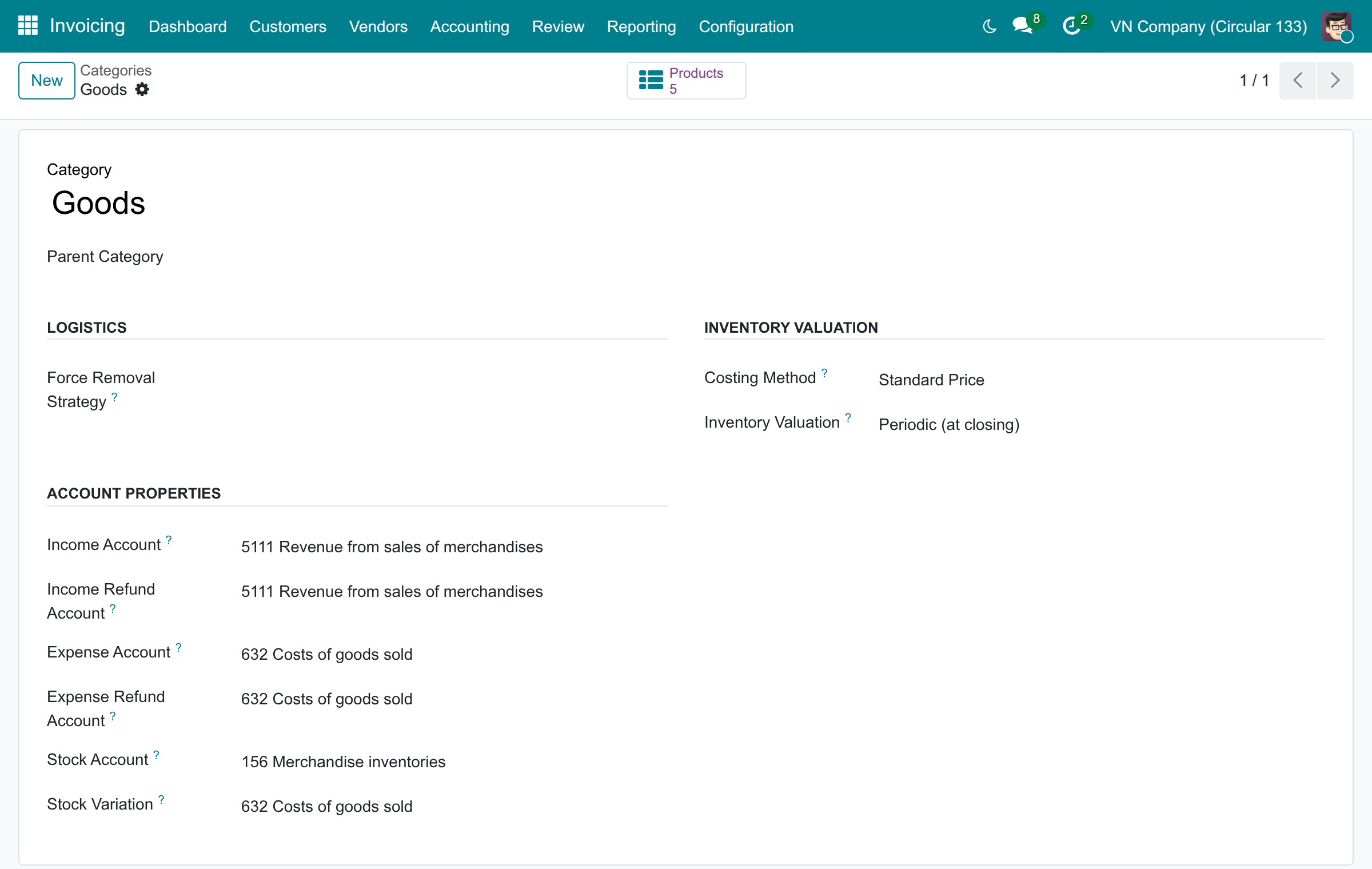
Every product category starts with the accounts your chart expects, and you choose per category when stock and cost of goods sold are recognised:
- Defaults: revenue 511 (TT99) or 5111 (TT133), cost of goods sold 632, stock 152 (TT99) or 156 (TT133).
- Starting point: a company created on either chart starts with Inventory Valuation Periodic (at closing) and with Anglo-Saxon accounting turned on, so standard-price differences on vendor bills can go to their own account (a TT133 company created before this version keeps continental accounting).
- Periodic (at closing): vendor bills go to 632 and the stock account is brought to the value on hand at period end, by a scheduled closing entry when the company's inventory period is daily or monthly, otherwise by your own journal entry.
- Perpetual (at invoicing): vendor bills go to the stock account and each customer invoice posts its cost of goods sold, Dr 632 / Cr stock.
- Receipts and deliveries create no journal entry, and 151 stays reserved for goods in transit.
See Vietnam Chart of Accounts - Circular 99 and 133 in Action
See how this module solves real business problems in a working Viindoo environment.
Need help with Vietnam Chart of Accounts - Circular 99 and 133?
For questions, implementation support, or consulting services, contact Viindoo.
Pre-Sales & Partnership
sales@viindoo.comWhen contacting us, please include:
- Odoo/Viindoo version (CE/EE).
- Number of users and business scope.
- Other modules currently in use.
Technical Support
apps.support@viindoo.comFor faster troubleshooting, please provide:
- Order number or app reference.
- Odoo/Viindoo version & edition.
- Steps to reproduce the issue.
- Screenshots/logs if available.
Technical Requirement
Changes log
We continuously improve this module. Recent updates from the official Viindoo repository:
- 2026-08-14 Fixed Skip loading taxes and accounts when reloading the chart template for branch companies, which share the root company's records.
- 2026-08-14 Fixed Do not resolve property defaults when reloading the chart template for companies missing the stock valuation journal external id.
- 2026-02-27 Improved Switch VN CoA template to Circular 99 (C99).
- 2026-03-03 Improved Complete account_type and reconcile in overridden CoA for clarity.
- 2026-03-01 Fixed Format quoted text as text for template CSVs.
- 2025-11-18 Improved Translation account tax data csv.
- 2025-11-18 Fixed Number to work with out currency label.
Works Great With These Modules
Extend Vietnam Chart of Accounts - Circular 99 and 133 with complementary Viindoo apps:
Vietnam Account Auto Transfer
Add transfer rules in compliance with VAS
Module l10n_vn_viin_account_auto_transferVietnam - Foreign Trade
Extending Foreign Trade & Logistics module providing Vietnam Standards
Module l10n_vn_viin_foreign_tradeVietnam - HR Accounting
Extending Human Resource Accounting according to Vietnam Accounting Standards
Module l10n_vn_viin_hr_accountLoan Management - Vietnam Accounting
Default Loan Order Template receivable & payable accounts for Vietnam
Module l10n_vn_viin_loan_managementVietnam Receipt/Delivery Order Templates
Print Goods Receipts and Delivery Orders according to the Circular 99/2025/TT-BTC and 133/2016/TT-BTC forms.
Module l10n_vn_viin_picking_operationVietnam - Point of Sale - Accounting Optimization
Streamline POS accounting in Vietnam by enabling flexible invoice creation and eliminating redundant journal entries
Module l10n_vn_viin_posWho Should Use This Module?
Built for teams that need this capability fully integrated into their Odoo/Viindoo stack.
Executives & Business Owners
Need clear visibility into operations and a stack that scales without bespoke development.
Operations / Department Leaders
Want to streamline daily workflows, remove manual handoffs, and keep data consistent across teams.
Implementers & Odoo Partners
Looking for production-ready Viindoo modules to deliver projects faster and at lower risk.
Installation
- Navigate to Apps.
- Search with keyword l10n_vn_viin.
- Press Install.
Instruction
Instruction video: Vietnam Chart of Accounts - Circular 99 and 133
1. A Full Chart of Accounts.
- Provide a full Chart of Accounts according to Circular No. 99 and Circular No. 133 based on the specified circular of your company.
2. Add common taxes.
3. Add analytic tags.
- Go to Accounting > Configuration > Analytic tags.
4. Add account tags.
- Go to Accounting > Configuration > Account tags.
5. Provide Payment Receipts in PDF according to Circular No. 99/2014/TT-BTC and Circular No. 133/2016/TT-BTC.
- Template 01-TT: for receiving payments.
- Template 02-TT: for sending payments.
6. Payment gateway currency conversion accounts are pre-filled.
When a payment gateway charges an amount that differs from the document amount converted at the Odoo rate, the difference is recorded in the Gain Account or Loss Account of the Payment gateway currency conversion block. For Vietnamese charts these accounts are filled in for you:
- Circular No. 99 (TT99): Gain Account 7118 Other income, Loss Account 8118 Other expenses.
- Circular No. 133 (TT133): Gain Account 711 Other Income, Loss Account 811 Other Expenses.
This conversion difference is separate from the exchange gain and loss caused by rate movement between dates. Under TT99 the exchange gain and loss stay on accounts 5151 and 6352.
Each company keeps its own choice. Open Invoicing ‣ Configuration ‣ Settings, switch to the company you want, and find the block in the Currencies section; the Gain Account and Loss Account fields appear once Payment gateway currency conversion is enabled. You can select other accounts there to follow your accountant's policy. When the module is installed on a company that already uses one of these charts, the accounts are filled in only where the fields were empty - existing choices are never overwritten.
TT99 company:
TT133 company:
7. Manufacturing work in progress posts to the right accounts.
While a manufacturing order is in progress, the accountant can bring its work in progress into the books before the order is finished. With the Inventory, Manufacturing and Invoicing apps installed, the Vietnamese charts fill in the accounts this entry uses:
- Circular No. 99 (TT99): Production WIP Account 154 Work in progress and Production WIP Overhead Account 627 Manufacturing overhead.
- Circular No. 133 (TT133): Production WIP Account 154. TT133 has no account 627, so the overhead account is left empty.
To post the entry, open the order in Manufacturing ‣ Operations ‣ Manufacturing Orders, open the Actions menu (gear icon next to the order name) and choose Post WIP Accounting Entry. The action is offered to users who have the full accounting features. The window proposes one balanced entry:
- WIP - Component Value: credit of the company's stock account (152 on TT99, 156 on TT133) with the cost of the components already consumed.
- WIP - Overhead: credit of the overhead account with the cost of the work-center time recorded on the order (627 on TT99).
- Manufacturing WIP: debit of 154 with the total.
The entry is posted in the Inventory Valuation journal and reversed automatically on the Reversal Date (the next day by default), so the work in progress shows in the balance at the posting date and is cleared afterwards. Every line stays editable before you click Post WIP. On a TT133 company, choose the account of the WIP - Overhead line yourself before posting.
8. Purchased and sold goods: when stock and cost of goods sold are posted.
This applies to storable products bought with the Purchase app, stored with the Inventory app and sold with the Sales app. Receipts and deliveries do not create journal entries: the postings come from vendor bills, customer invoices and, at the end of the period, the adjustment of the stock account. When the stock and the cost of goods sold are posted depends on the Inventory Valuation of the product category.
Each new company starts with these product category defaults:
| Field | TT99 | TT133 |
|---|---|---|
| Income Account | 511 | 5111 |
| Expense Account | 632 | 632 |
| Stock Account | 152 | 156 |
| Stock Variation | 632 | 632 |
| Costing Method | Standard Price | Standard Price |
| Inventory Valuation | Periodic (at closing) | Periodic (at closing) |
On TT99 the default Stock Account is 152 Raw materials. For goods bought for resale, set 156 Merchandise inventory on their product categories.
With Periodic (at closing):
- The vendor bill posts Dr 632 / Cr 331.
- The customer invoice posts the revenue only (Dr 131 / Cr 511 or 5111), without a cost of goods sold line.
- Bills and invoices do not change the Stock Account. Odoo adjusts it to the value of the goods on hand, against the Stock Variation account 632, only through a stock closing entry in the Inventory Valuation journal, which a scheduled action posts at the end of each day or each month when the company's inventory period is set to daily or monthly. A new company is set to manual, which posts nothing, and Odoo Community has no screen to change this setting. At the end of each period, record the adjustment yourself in Invoicing ‣ Accounting ‣ Transactions ‣ Journal Entries (available to users with the full accounting features), for example Dr 156 / Cr 632 when the goods on hand are worth more than the balance of the Stock Account.
With Perpetual (at invoicing):
- The vendor bill posts Dr Stock Account (156, or 152 by default on TT99) / Cr 331 at the bill price.
- The customer invoice posts the revenue and, on the same entry, the cost of goods sold: Dr 632 / Cr Stock Account at the product cost.
- First In First Out (FIFO) and Average Cost (AVCO): the bill price becomes the value of the goods received.
- Standard Price: a company created on either chart uses Anglo-Saxon accounting, so the vendor bill also posts the difference between the bill price and the standard cost to the Price Difference Account of the product category (a TT133 company created before this version keeps continental accounting and gets no such line). This field appears when the category uses Standard Price with Perpetual (at invoicing), and it is empty on both charts: choose the account your accountant uses, for example 632. While it is empty, or on a company without Anglo-Saxon accounting, the difference stays on the Stock Account until a stock closing entry or your own period-end adjustment moves it to 632.
Account 151 Goods in transit is not used as an intermediate account by these postings. It holds goods you have bought and own but that have not reached your warehouse at the end of the period; record them on 151 as the Circular requires.
To change the accounts, the costing method or the inventory valuation of a product category, go to Invoicing ‣ Configuration ‣ Invoicing ‣ Product Categories (also Inventory ‣ Configuration ‣ Products ‣ Categories).
This software and associated files (the "Software") may only be used (executed, modified, executed after modifications) if you have purchased a valid license from the authors, typically via Odoo Apps, or if you have received a written agreement from the authors of the Software (see the COPYRIGHT file).
You may develop Odoo modules that use the Software as a library (typically by depending on it, importing it and using its resources), but without copying any source code or material from the Software. You may distribute those modules under the license of your choice, provided that this license is compatible with the terms of the Odoo Proprietary License (For example: LGPL, MIT, or proprietary licenses similar to this one).
It is forbidden to publish, distribute, sublicense, or sell copies of the Software or modified copies of the Software.
The above copyright notice and this permission notice must be included in all copies or substantial portions of the Software.
THE SOFTWARE IS PROVIDED "AS IS", WITHOUT WARRANTY OF ANY KIND, EXPRESS OR IMPLIED, INCLUDING BUT NOT LIMITED TO THE WARRANTIES OF MERCHANTABILITY, FITNESS FOR A PARTICULAR PURPOSE AND NONINFRINGEMENT. IN NO EVENT SHALL THE AUTHORS OR COPYRIGHT HOLDERS BE LIABLE FOR ANY CLAIM, DAMAGES OR OTHER LIABILITY, WHETHER IN AN ACTION OF CONTRACT, TORT OR OTHERWISE, ARISING FROM, OUT OF OR IN CONNECTION WITH THE SOFTWARE OR THE USE OR OTHER DEALINGS IN THE SOFTWARE.