
Employee Retirement Age
by Viindoo
| Lines of Code | 1102 |
| Technical name | viin_hr_retirement_age |
| License | OPL-1 |
| Website | https://viindoo.com/apps/modules/19.0/viin_hr_retirement_age |
| Read description for | v 17.0 v 18.0 |
| Required Apps | Discuss (mail) Employees (hr) |
| Included Dependencies | Advanced HR Management |

Know who retires next, and warn the right people in time
For HR managers, executives and teams running Odoo
Forecast the retirement date of each employee from configurable retirement ages and warn the people in charge before it comes.
Is this you?
You learn that an experienced colleague is retiring when the notice lands on your desk.
Retirement dates live in a spreadsheet that drifts out of date as soon as a birthday is corrected.
The retirement age is not the same for everyone, and one number for the whole company does not fit.
An employee's retirement date reveals their age, and it should not be readable by every colleague.
Reminders depend on somebody remembering to look at the calendar.
What changes
Notice lands on your desk
→ Get a warning activity before the date, for the people you choose.
The spreadsheet drifts
→ Every employee shows an expected retirement date that follows the birthday and gender on file.
One number does not fit
→ Set the company default once, then refine it with rules by gender and birth date range.
The date reveals the age
→ Only HR Officers and HR Managers see the date; it stays off the public profile.
Nobody remembers
→ A daily check does the remembering and warns once per employee.
How it works
System Administrator
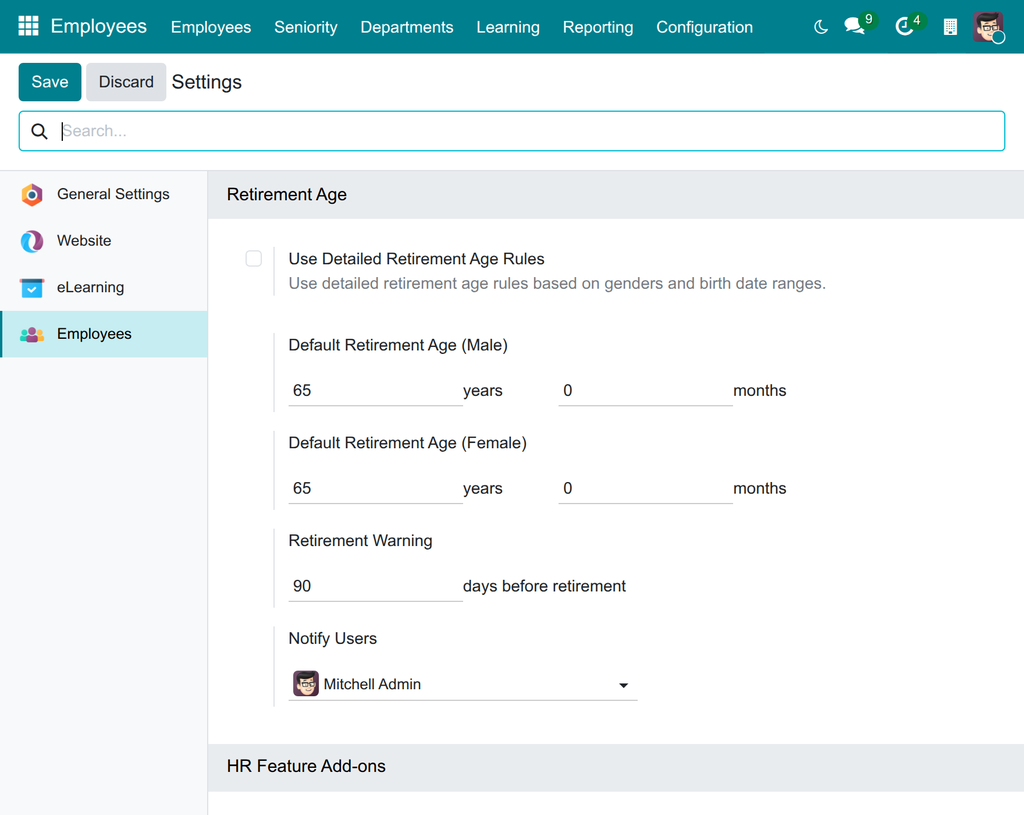
Sets the default retirement age, the warning window and the people to warn.
HR Manager
Adds retirement age rules by gender and birth date range when one age does not fit everyone.
HR Officer
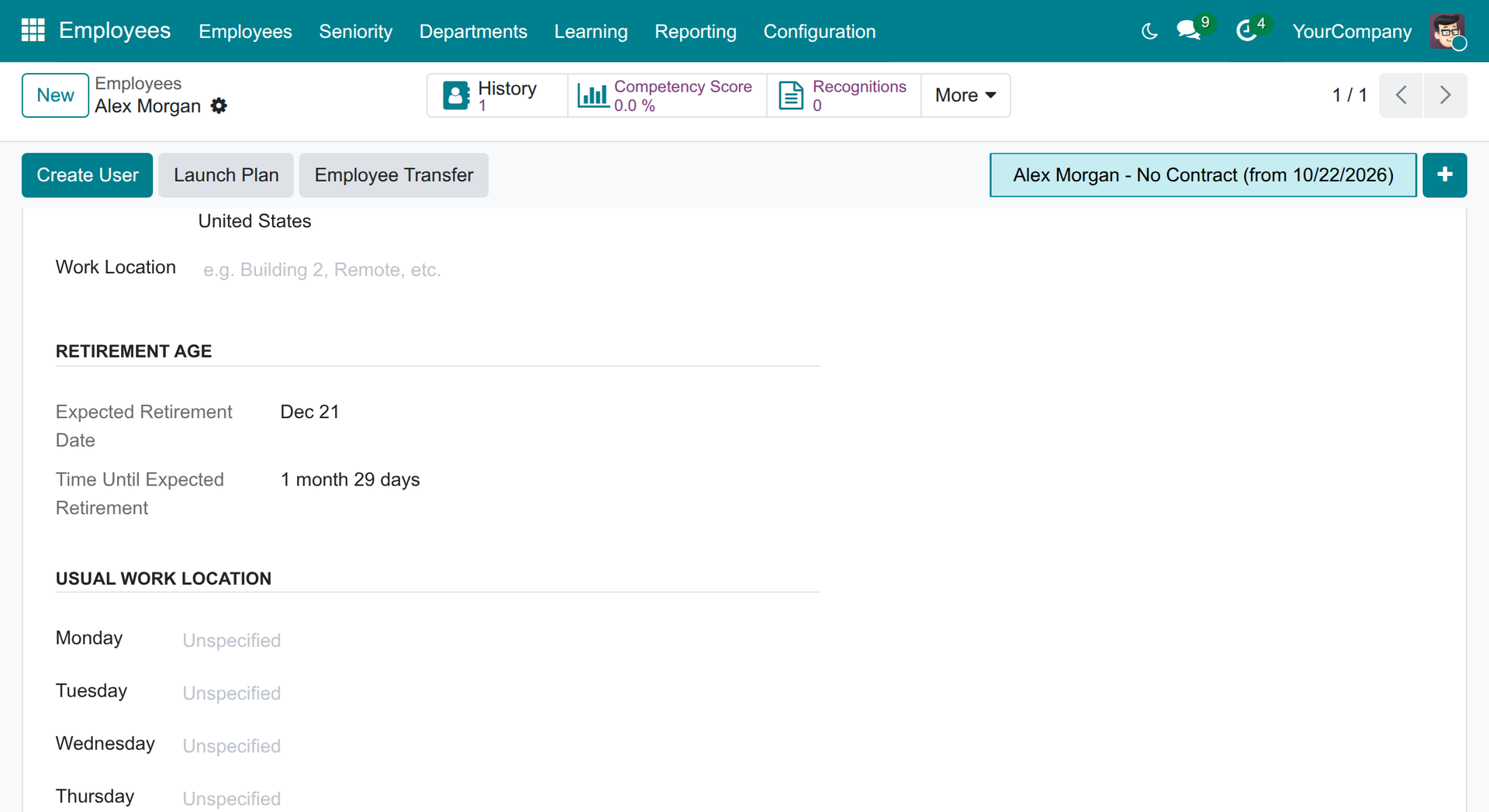
Reads the expected retirement date on each employee and filters who retires in a period.
Notified colleague
Receives the warning activity before the date and prepares the handover.
Key Features
Retirement Age settings
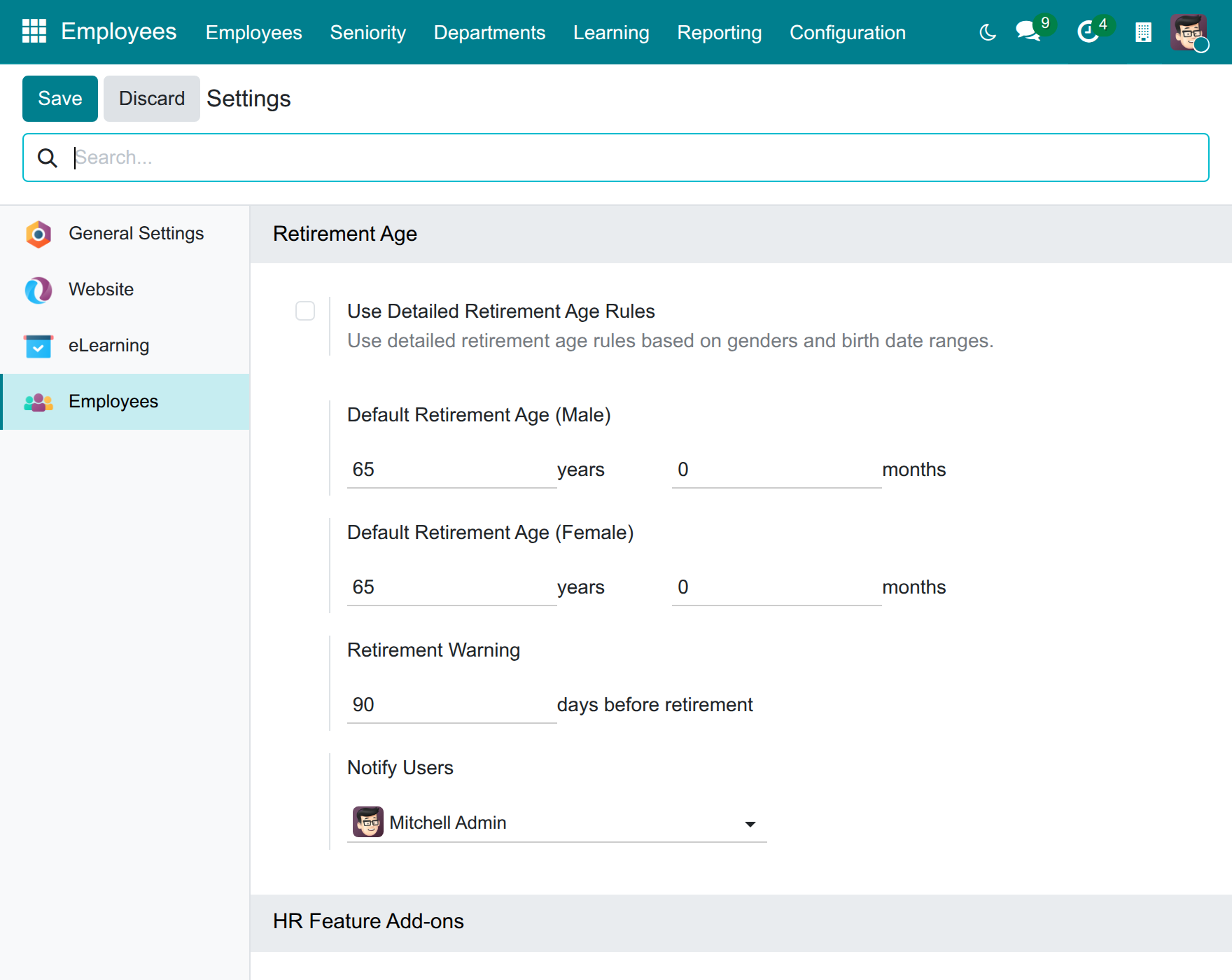
Set each company's default retirement age (65 years out of the box), the warning window and the people to warn.
Retirement Age Rules
Set a different retirement age for groups of employees by gender and birth date range, with a rule for Any gender as the fallback.
Expected Retirement Date
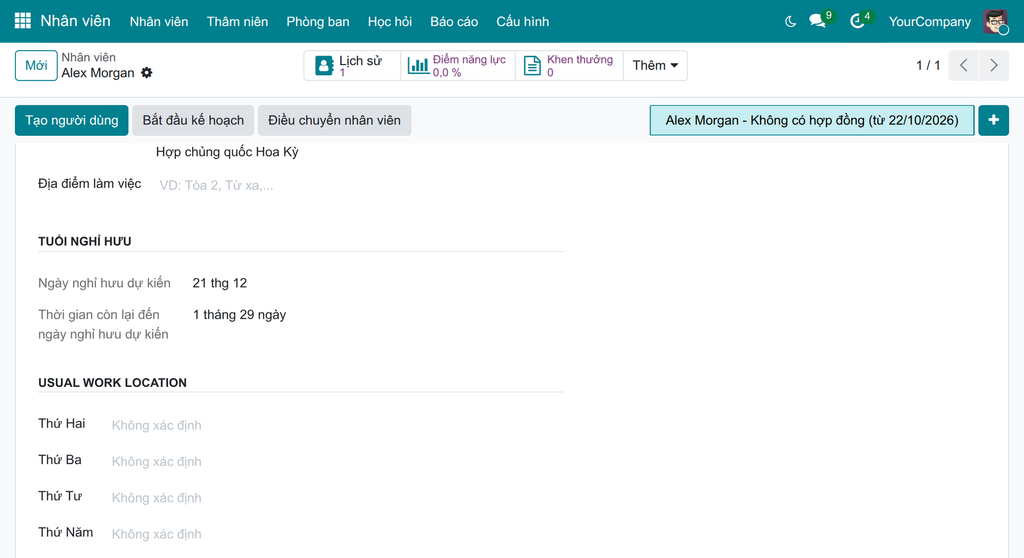
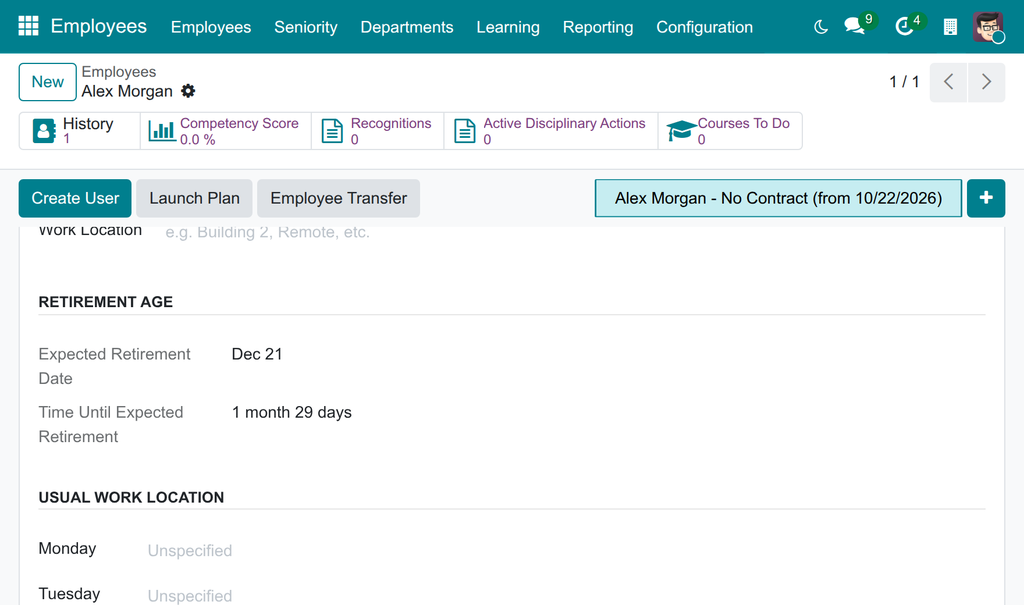
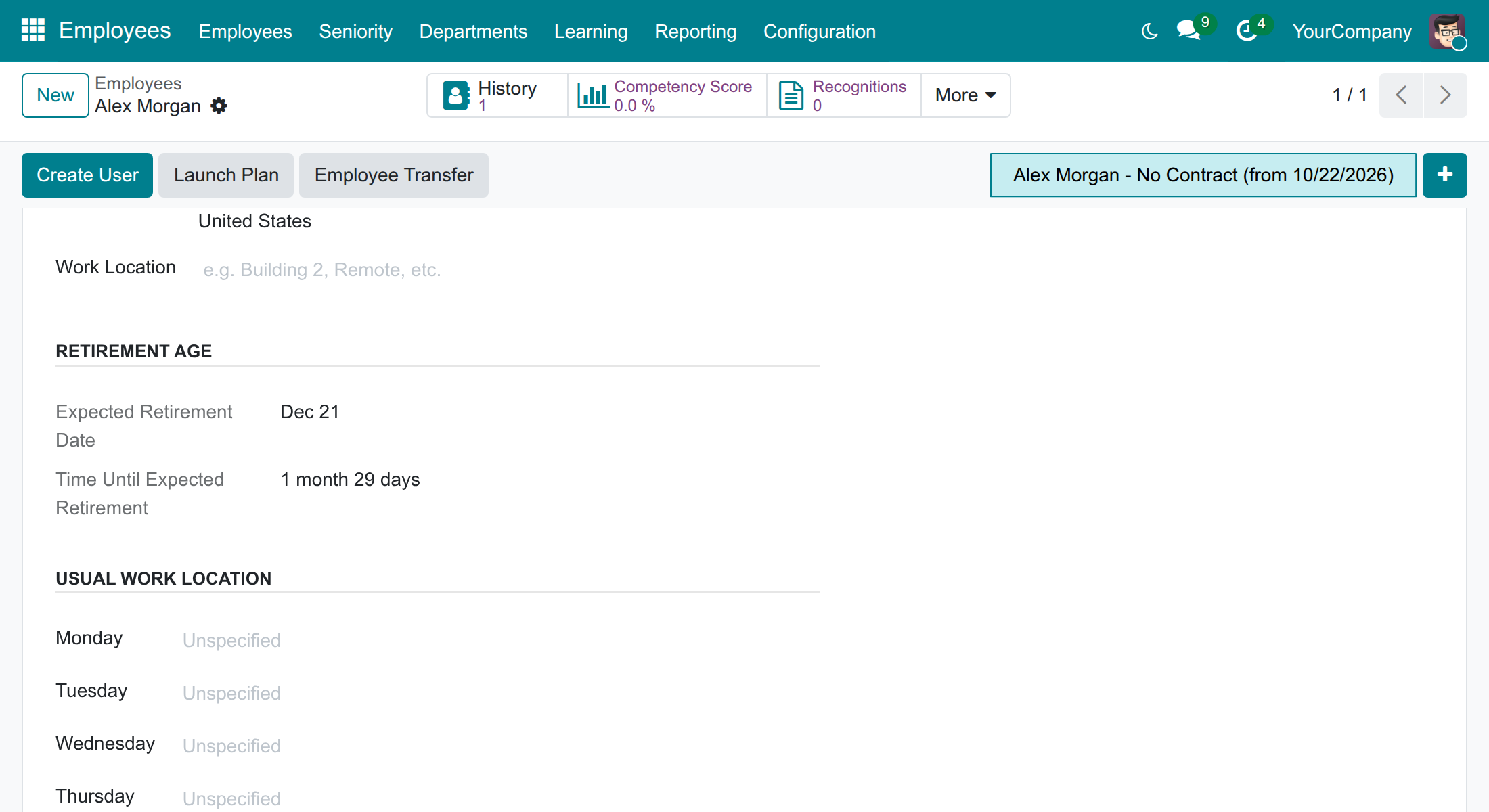
Know when each employee retires and how long is left, visible to HR only.
Expected Retirement Date filter
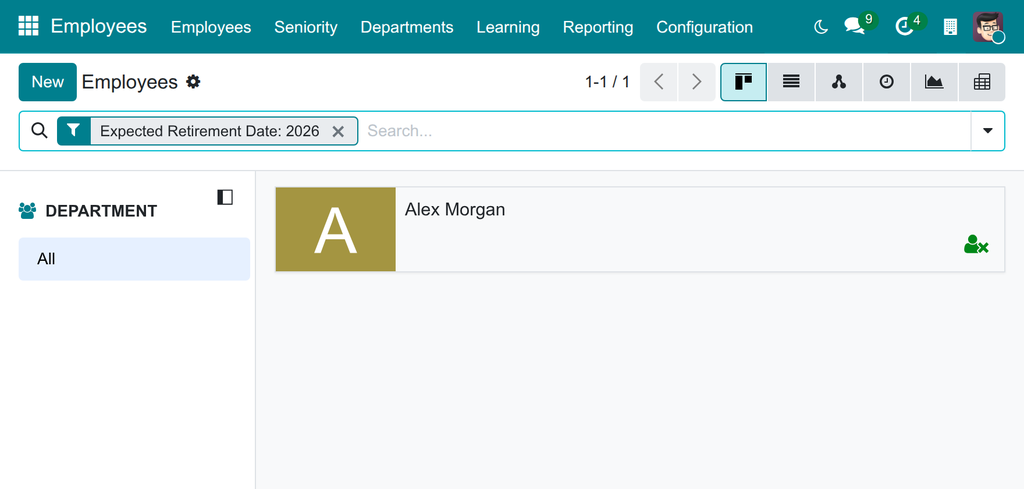
List the employees retiring in a month, quarter or year to plan successions.
Retirement Warning
Warn the chosen people with an activity before an employee retires, once per employee, never for employees who have left.
Who it is for
HR Manager
Plans successions and recruitment early, and keeps the retirement rules of the company in one place.
CEO or executive
Sees departures coming instead of discovering them, and protects know-how before it leaves.
HR Officer
Reads every employee's expected date and filters who retires this year without a spreadsheet.
Odoo implementer
Configures ages, rules and recipients in Settings, with no code and no country-specific content.
Best for: HR teams of companies that want to see retirements coming and hand over know-how calmly.
Set the defaults and who is warned
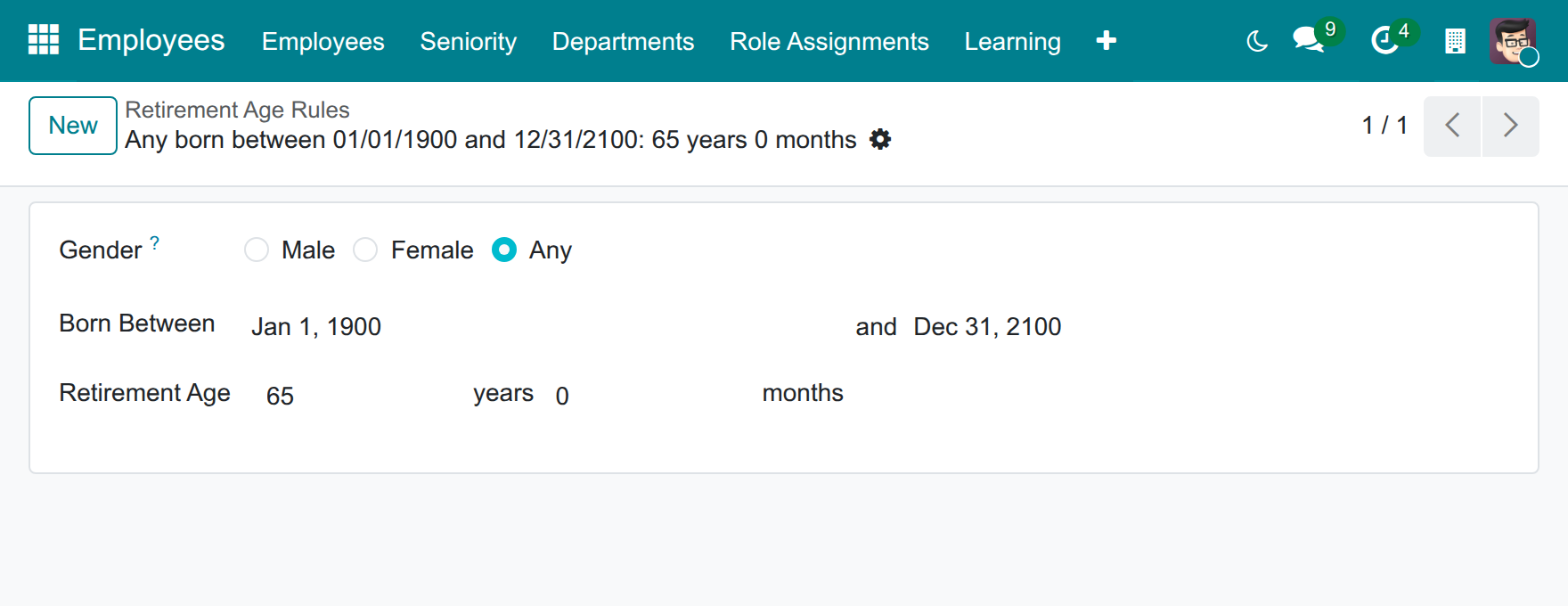
Refine the age with a rule
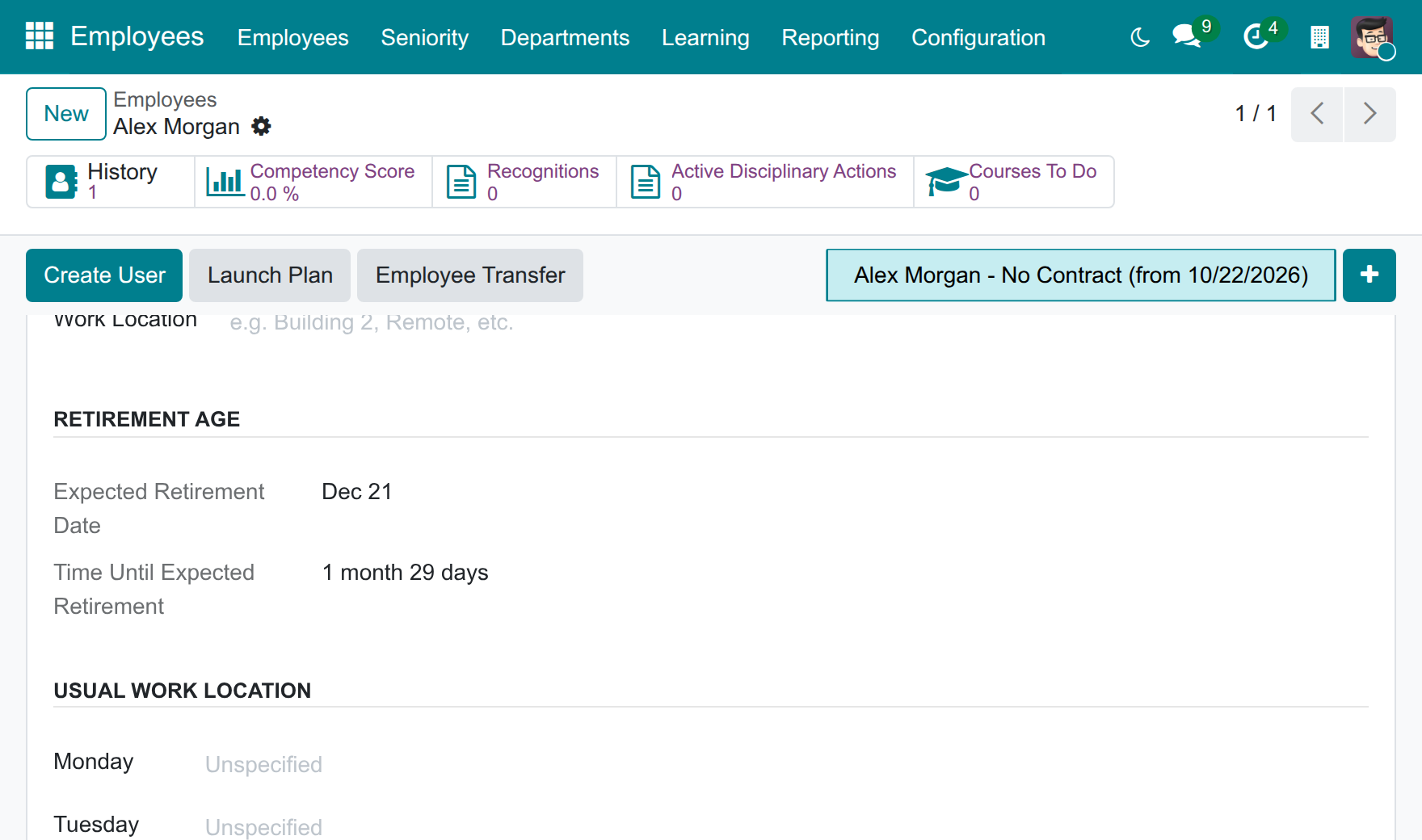
See the date on the employee
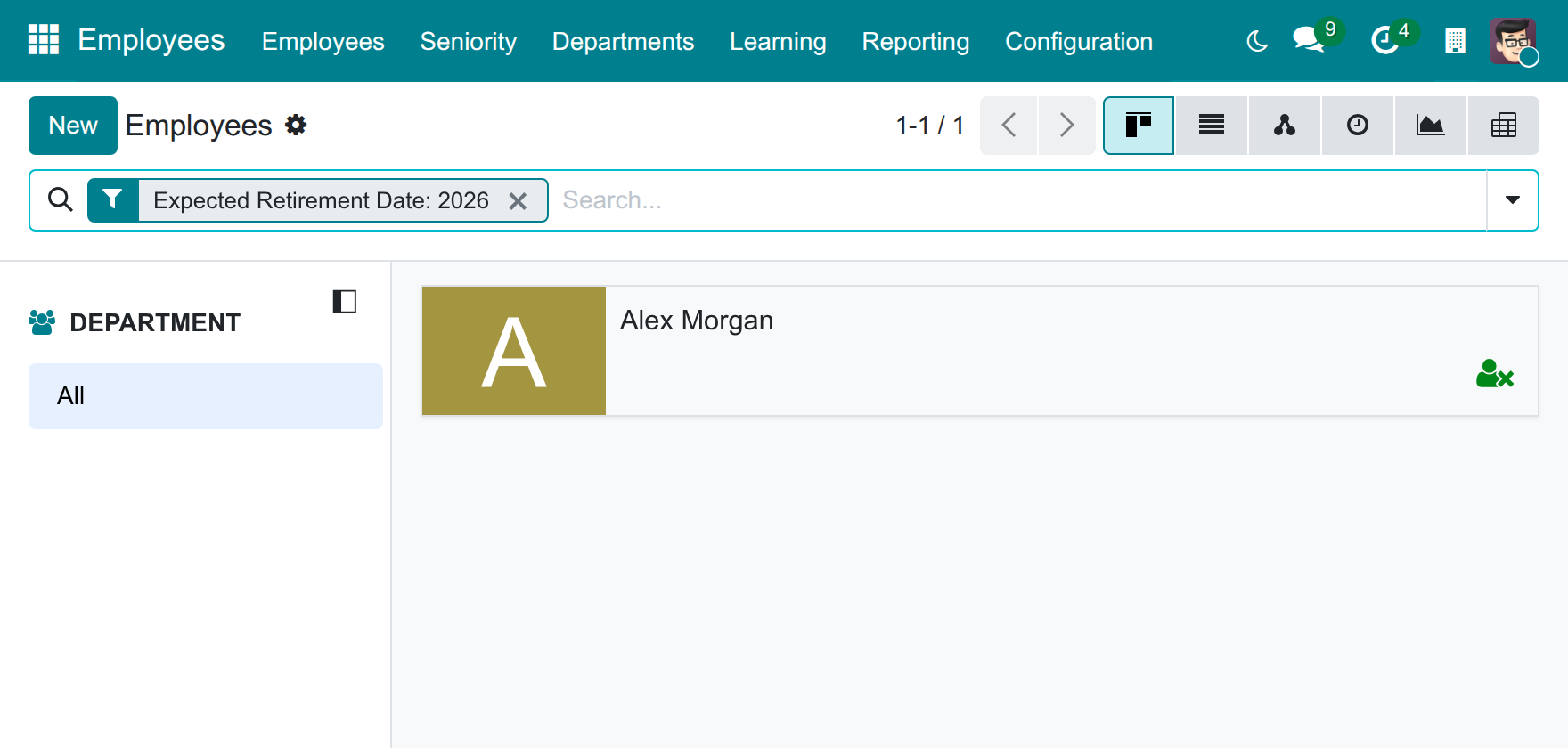
Find who retires in a period
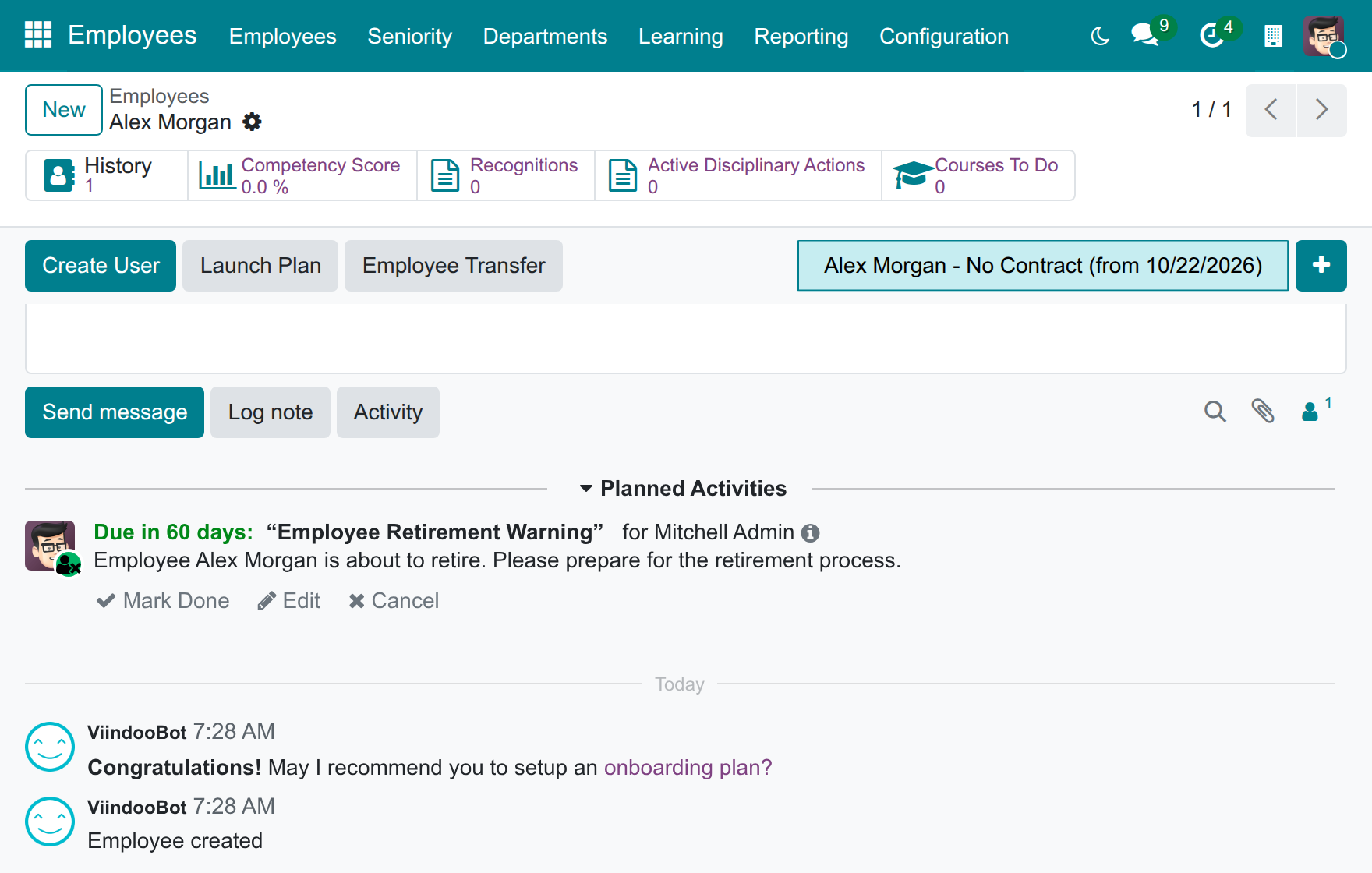
Read the warning in time
Frequently Asked Questions
Does it end the contract or archive the employee?
No. It forecasts and warns; HR decides and records the departure.
Which retirement age does it use?
65 years for every gender out of the box. You change it in Settings, or add rules by gender and birth date range. No country-specific age is shipped.
Who can see the retirement date?
HR Officers and HR Managers. It is hidden from other users and from the public employee profile.
Can each company use its own ages?
Yes. The defaults, the rules, the warning window and the people to warn belong to each company.
Will the same employee be warned again and again?
No. An employee is warned once; an employee who has already left is never warned.
Need help with Employee Retirement Age?
Pre-Sales & Partnership
Contact usTechnical Support
Open a support ticketTechnical Requirement
- Odoo version: 19.0
- Editions: Odoo Community, Odoo Enterprise
- Required modules: Advanced HR Management
- License: OPL-1
Employee Retirement Age
Note
Who this guide is for: the System Administrator who installs and configures the app, the HR Manager who maintains the retirement age rules, the HR Officer who follows the retirement dates of employees, and the colleagues who are told when an employee is about to retire.
Overview
Knowing who will retire, and when, lets HR plan successions, handovers and recruitment well before the date. Employee Retirement Age works the date out for you and warns the right people in time:
- every employee gets an Expected Retirement Date and the time left until then, calculated from the employee's date of birth and gender;
- the retirement age is set once for the company (65 years for everyone out of the box) and can be refined by Retirement Age Rules for groups of employees, for example by gender and year of birth;
- a daily check creates a Retirement Warning activity for the people you choose, a number of days before an employee reaches the date;
- the date reveals an employee's age, so only HR Officers and HR Managers can see it. It is not shown on the employee's public profile.
The app does not end an employee's contract or archive the employee on the retirement date. It forecasts and warns; the departure itself stays an HR decision.
| Role | What they do | Access right to assign |
|---|---|---|
| System Administrator | Installs the app, sets the company defaults and chooses who is warned. | Administration / Settings |
| HR Manager | Creates and maintains the Retirement Age Rules. | Employees / Administrator |
| HR Officer | Reads the expected retirement date of employees and filters the employee list by it. | Employees / Officer: Manage all employees |
| Notified colleague | Receives the retirement warning and prepares the handover. | Any internal user chosen in the Notify Users setting |
Setup (for the System Administrator)
Install the app
- Open Apps.
- Remove the default filter and search for Employee Retirement Age.
- Press Install. The app needs Advanced HR Management, which is installed with it.
Give each person the right access
- Open Settings > Users & Companies > Users and open the user.
- In the Employees line of the access rights, choose Officer: Manage all employees for people who must see retirement dates, or Administrator for people who maintain the rules.
- Save.
Set the company defaults
The defaults apply to every employee for whom no rule matches. They belong to the company you are working in: in a multi-company database, repeat the steps for each company.
- Open Settings and select Employees in the left menu.
- Scroll to the Retirement Age section.
- Fill in Default Retirement Age (Male) and Default Retirement Age (Female) in years and months. Out of the box both are 65 years 0 months.
- In Retirement Warning, enter how many days before the retirement date the warning is created (90 by default).
- In Notify Users, add the people who must receive the warning. Only internal users can be chosen. Without a user in this list, no warning is created.
- Tick Use Detailed Retirement Age Rules only if you want to refine the ages with rules (see the chapter of the HR Manager).
- Press Save.
Note
The app ships no country-specific retirement age. Enter the ages that apply to your organization. Dates are recalculated automatically whenever you change a default, a rule, an employee's date of birth or gender.
HR Manager: maintain the retirement age rules
Rules are useful when the retirement age is not the same for everyone, for example when it depends on the year of birth or on gender. Without rules, the company defaults decide.
How an employee's date is chosen
- If Use Detailed Retirement Age Rules is ticked, the app looks for a rule of the employee's company whose birth date range contains the employee's date of birth.
- A rule for the employee's own gender wins over a rule for Any gender.
- When no rule matches, or rules are not used, the company default for the employee's gender applies.
- The date is the date of birth plus the retirement age.
An employee whose gender is Other or empty has no company default: that employee gets a date only from a rule for Any gender. A retirement age of 0 years 0 months gives no date.
Create a rule
- Open Employees > Configuration > Retirement Age Rules. The list shows the existing rules.
- Press New.
- Choose the Gender the rule is for: Male, Female or Any.
- In Born Between, enter the first and the last birth date the rule covers.
- Enter the Retirement Age in years and months.
- In a multi-company database, check the Company field.
- Save.
The title of the rule is built from its gender, birth dates and age, and reads New until both birth dates are filled in.
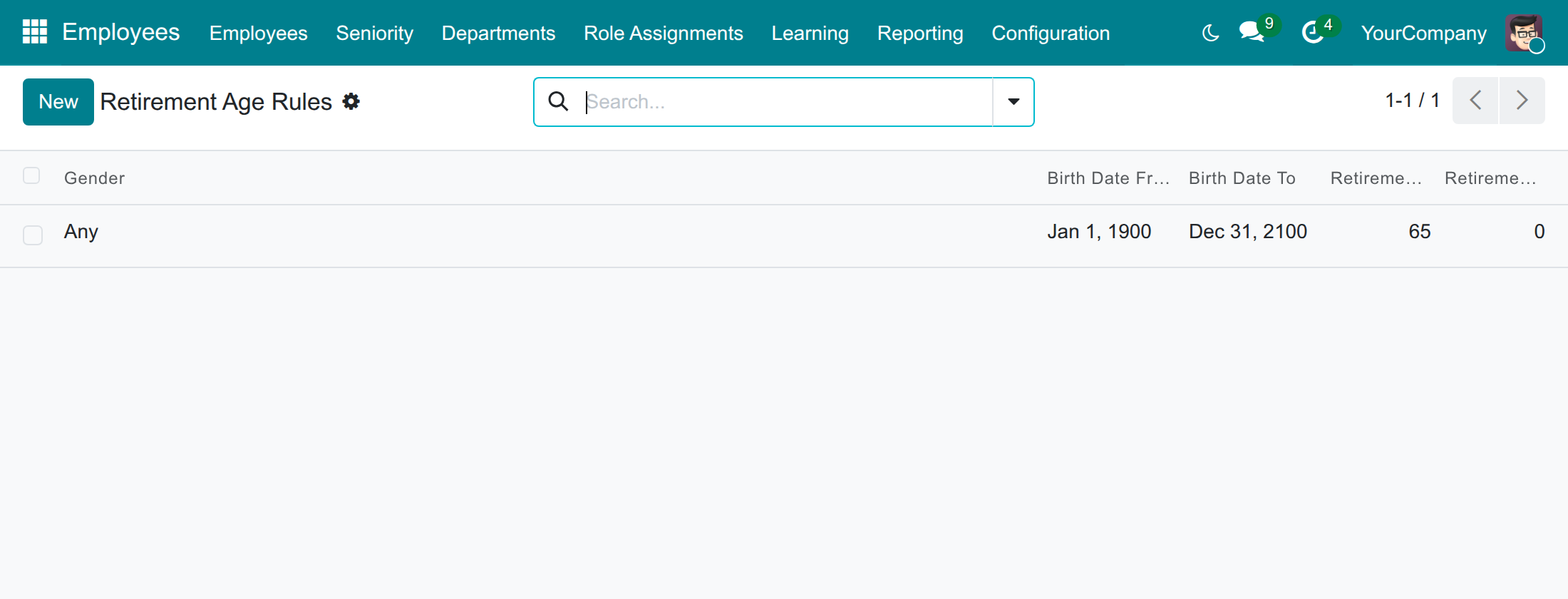
The app refuses to save a rule whose start date is after its end date, or whose birth date range overlaps another rule of the same gender in the same company.
Note
Rules only take effect when a Settings administrator ticks Use Detailed Retirement Age Rules in Settings > Employees. From there, Configure Retirement Age Rules opens the same list.
HR Officer: follow the retirement dates
See the retirement date of an employee
- Open Employees > Employees and open an employee.
- Check that the Birthday and the Gender are filled in on the Personal tab.
- Open the Work tab and find the Retirement Age group.
- Expected Retirement Date shows the forecast date. Time Until Expected Retirement shows the time left in years, months and days, or Past retirement age once the date has come.
If there is no date of birth yet, the group tells you to set it first.
Find who retires in a given period
- Open Employees > Employees.
- Open the filter menu of the search bar and choose Expected Retirement Date.
- Pick a month, a quarter or a year. The list keeps the employees whose date falls in that period.
Notified colleague: act on a retirement warning
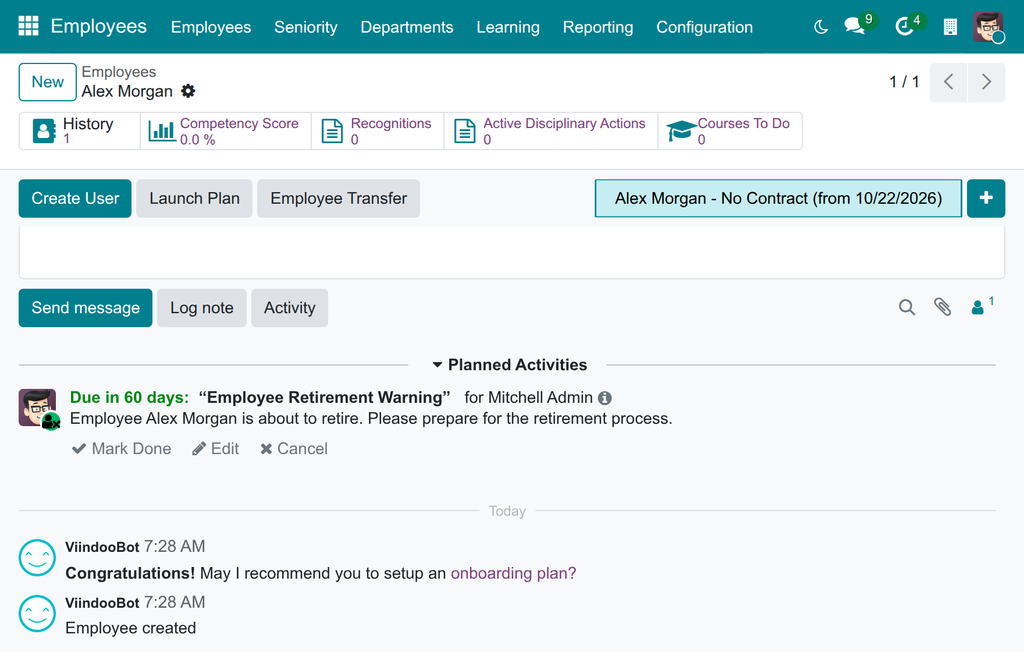
Every day the app checks the employees of each company. When an employee's retirement date is within the number of warning days, and the employee has not left the company yet, each user listed in Notify Users receives a Retirement Warning activity on the employee, due on the retirement date. It reads "Employee Alex Morgan is about to retire. Please prepare for the retirement process."
- Open the Activities menu in the top bar: the warning is listed under Employee. You can also open Employees > Employees, switch to the Activity view and read the Retirement Warning column.
- Open the employee. The warning is in the chatter under Planned Activities, with its due date.
- Prepare the handover, then press Mark Done.
An employee is warned once only: marking the activity done does not create another one, but deleting it instead of marking it done lets the next daily check create it again while the date is still ahead. An employee whose retirement date is today or already past gets no warning, and neither does an employee with a departure date.
Troubleshooting
- An employee has no expected retirement date
- Check that the Birthday is filled in, that the Gender is Male or Female (or that a rule for Any gender covers the birth date), and that the retirement age is not 0 years 0 months. Only HR Officers and HR Managers can see the date: other users see no field at all.
- The date is not the one I expected
- Check whether Use Detailed Retirement Age Rules is ticked. If it is, look at the rules: a rule of the employee's gender wins over a rule for Any, and a rule only applies if the date of birth is inside its range. Without a matching rule, the company default for the gender applies.
- A rule cannot be saved
- Its start date is after its end date, or the range overlaps another rule of the same gender in the same company. Adjust the ranges so that rules of one gender never overlap.
- I do not see Retirement Age Rules in the Employees menu
- The menu is reserved to users with Employees / Administrator access.
- I do not see the Retirement Age section in the settings
- Opening the settings requires the Administration / Settings access right.
- Nobody received a warning
- Check, in this order: that someone is listed in Notify Users for the employee's company; that the retirement date is within the warning days and still ahead; that the employee has no departure date; that the employee was not warned before; and that the daily scheduled action HR Employee: Notice of Retirement is active. The administrator can find it in developer mode under Settings > Technical > Automation > Scheduled Actions and run it by hand.
FAQ
- Which retirement age is used out of the box?
- 65 years for every gender, in every company. Change it in the settings, or define rules.
- What happens when an employee's gender changes?
- The date follows the gender recorded on the employee's current version, and is recalculated automatically.
- Can different companies use different ages?
- Yes. The defaults, the rules, the warning days and the users to notify belong to each company.
- Does the app archive an employee who reaches the retirement date?
- No. The app forecasts and warns; HR decides and records the departure.
- Who can see the retirement date?
- HR Officers and HR Managers. It is hidden from the other users and from the public employee profile.
This software and associated files (the "Software") may only be used (executed, modified, executed after modifications) if you have purchased a valid license from the authors, typically via Odoo Apps, or if you have received a written agreement from the authors of the Software (see the COPYRIGHT file).
You may develop Odoo modules that use the Software as a library (typically by depending on it, importing it and using its resources), but without copying any source code or material from the Software. You may distribute those modules under the license of your choice, provided that this license is compatible with the terms of the Odoo Proprietary License (For example: LGPL, MIT, or proprietary licenses similar to this one).
It is forbidden to publish, distribute, sublicense, or sell copies of the Software or modified copies of the Software.
The above copyright notice and this permission notice must be included in all copies or substantial portions of the Software.
THE SOFTWARE IS PROVIDED "AS IS", WITHOUT WARRANTY OF ANY KIND, EXPRESS OR IMPLIED, INCLUDING BUT NOT LIMITED TO THE WARRANTIES OF MERCHANTABILITY, FITNESS FOR A PARTICULAR PURPOSE AND NONINFRINGEMENT. IN NO EVENT SHALL THE AUTHORS OR COPYRIGHT HOLDERS BE LIABLE FOR ANY CLAIM, DAMAGES OR OTHER LIABILITY, WHETHER IN AN ACTION OF CONTRACT, TORT OR OTHERWISE, ARISING FROM, OUT OF OR IN CONNECTION WITH THE SOFTWARE OR THE USE OR OTHER DEALINGS IN THE SOFTWARE.