
Documents - Project
by Viindoo
| Lines of Code | 1238 |
| Technical name | viin_document_project |
| License | OPL-1 |
| Website | https://viindoo.com/apps/modules/19.0/viin_document_project |
| Read description for | v 14.0 v 15.0 v 16.0 v 17.0 v 18.0 |
| Required Apps | Project (project) Discuss (mail) |
| Included Dependencies | Viindoo Base Documents Management Multilingual Tracking Token Expiration |
Every Project File, Filed Where the Work Happens
Attach a file to a project or a task and Documents - Project gives it a home automatically - no folder to create first, no one to ask.
At a Glance
The facts of Documents - Project, version 0.1.1, in one place. Published by Viindoo.
Extends viin_document -
see its documentation.
Your files organize themselves
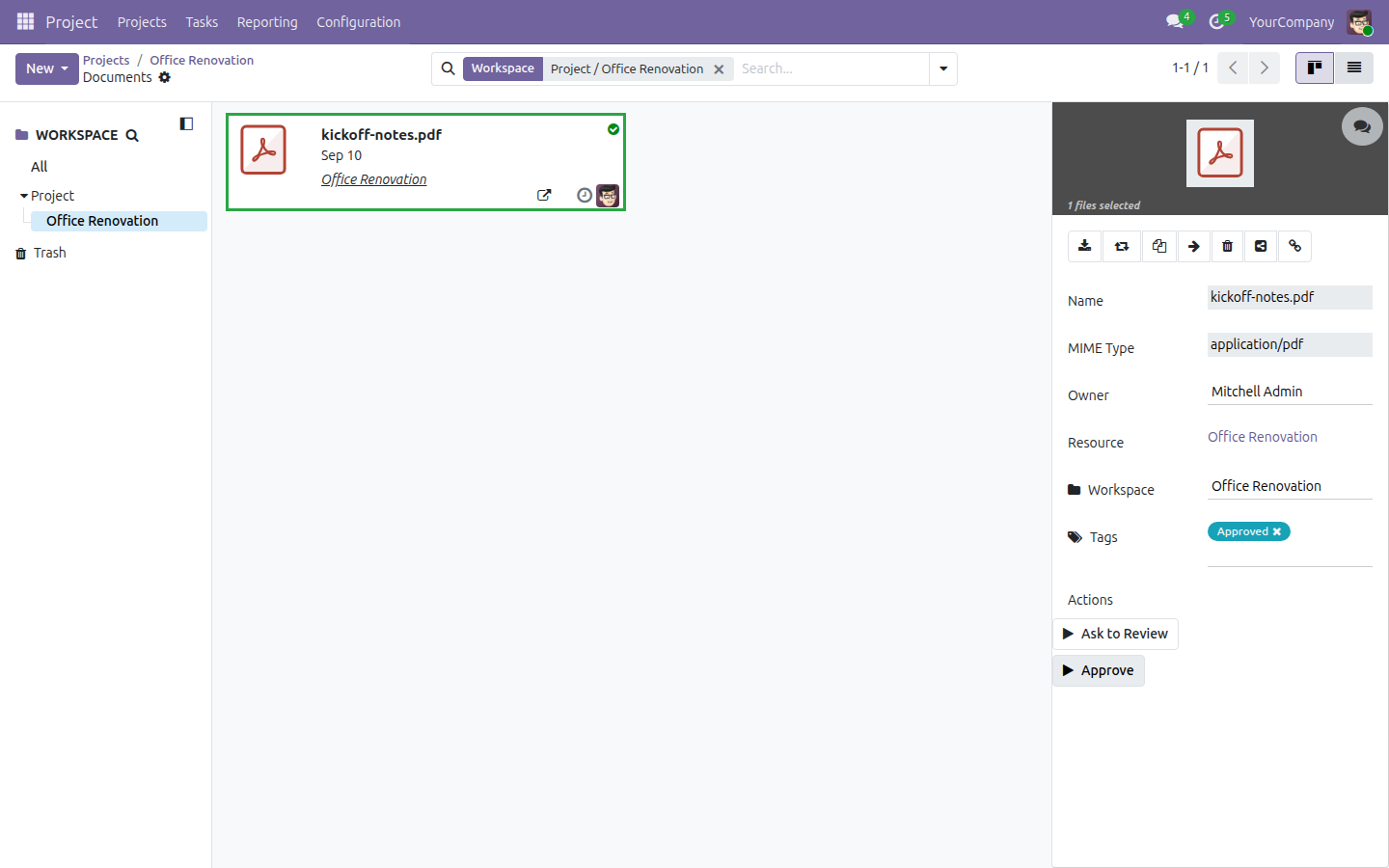
The moment someone attaches a file to a project or to one of its tasks, Documents - Project creates a dedicated workspace and drops the file inside it - nobody has to build a folder structure first. That workspace already carries the right tags, the right access, and the same "Ask to Review" / "Approve" actions your team uses everywhere else in the Documents app.
Everyone sees exactly what they need
A project's Documents button counts every file filed anywhere in that project's workspace tree; a task's Documents button counts only the files linked to that exact task. A project manager gets the full picture without hunting for it, and a task owner isn't buried in files that were never theirs to review.
Review that actually finishes
"Ask to Review" tags a document "To Review" and raises an activity for whoever should check it; "Approve" tags it "Approved" and closes that same activity. Nothing is left half-done - the step that opened the review is the step that closes it.
Key Features
A "Project" Workspace, Team, and Tag Category on Day One
The shared scaffolding every project- and task-generated folder attaches to, already wired to the review actions. Nothing to configure before your first project even exists.
A Dedicated Workspace per Project, Created Automatically
The first time a file is attached to a project or to one of its tasks, Documents - Project opens a workspace for that exact project and files the document there. Projects and tasks that already existed before you installed the module get backfilled the same way.
A "Workspaces" Button on Every Project
One click from the project form straight into its document folder, no detour through the Documents app's own navigation.
A "Documents" Button That Counts What Matters
On a project, it counts the whole tree; on a task, only that task's own files. The button stays out of the way (hidden) until there is something to show.
Chatter That Reloads Itself
Post a message or attach a file on a project or task and the chatter refreshes on its own, so the new file shows up without a manual page reload.
How It Works
Create a project the way you always do. Name it "Office Renovation," for example - Documents - Project stays out of the way until there is a file to file.
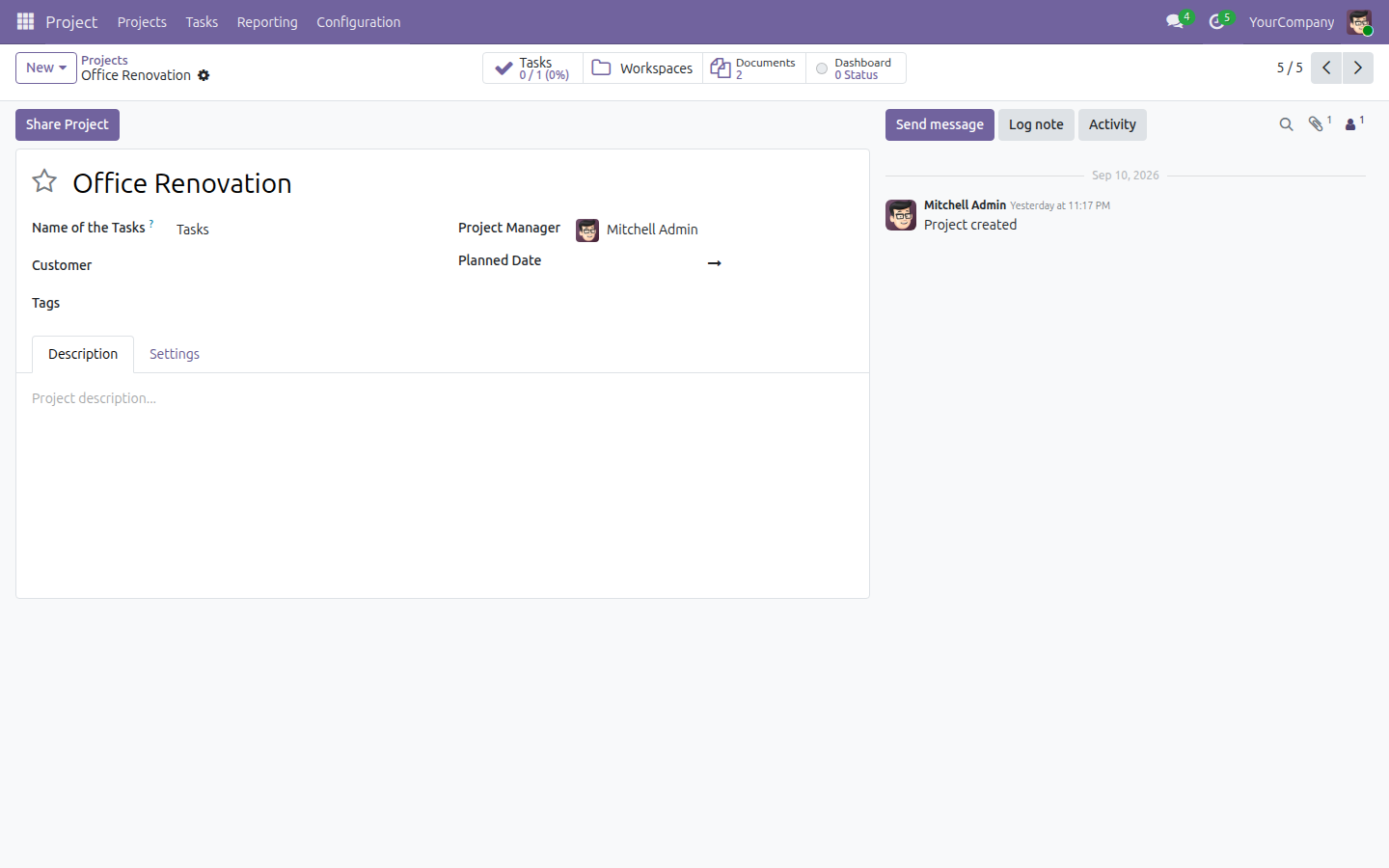
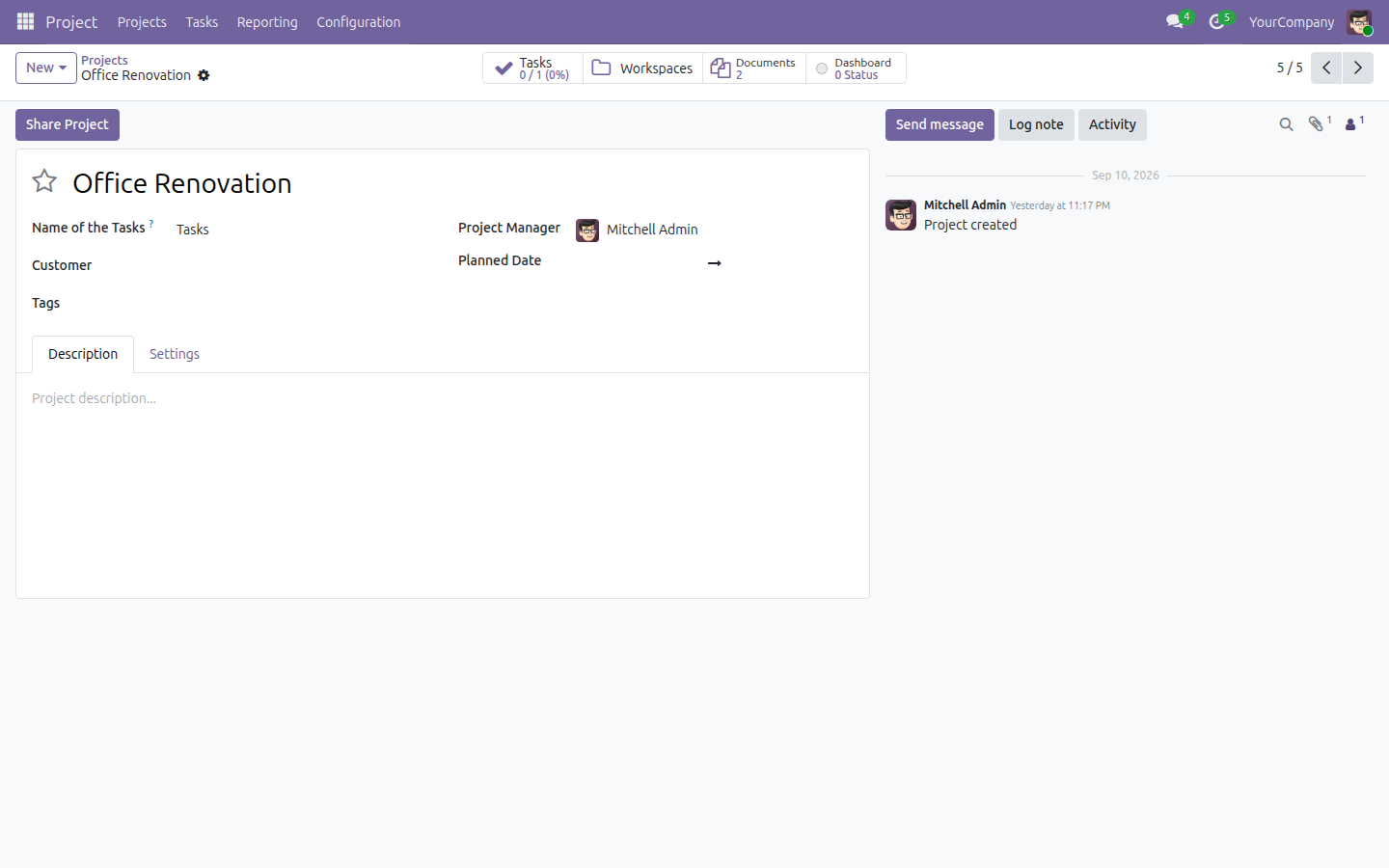
Attach a file to the project's chatter. As soon as that attachment is saved, the module opens a workspace for "Office Renovation" nested under the shared "Project" folder and files the document there. Reload the project once, and the "Workspaces" and "Documents" stat buttons appear.
Add a task under the project and attach a file to it too. That file lands in the same project workspace, not a separate one. The task's own "Documents" button shows just its own file, while the project's "Documents" button grows to cover everything filed anywhere under it.
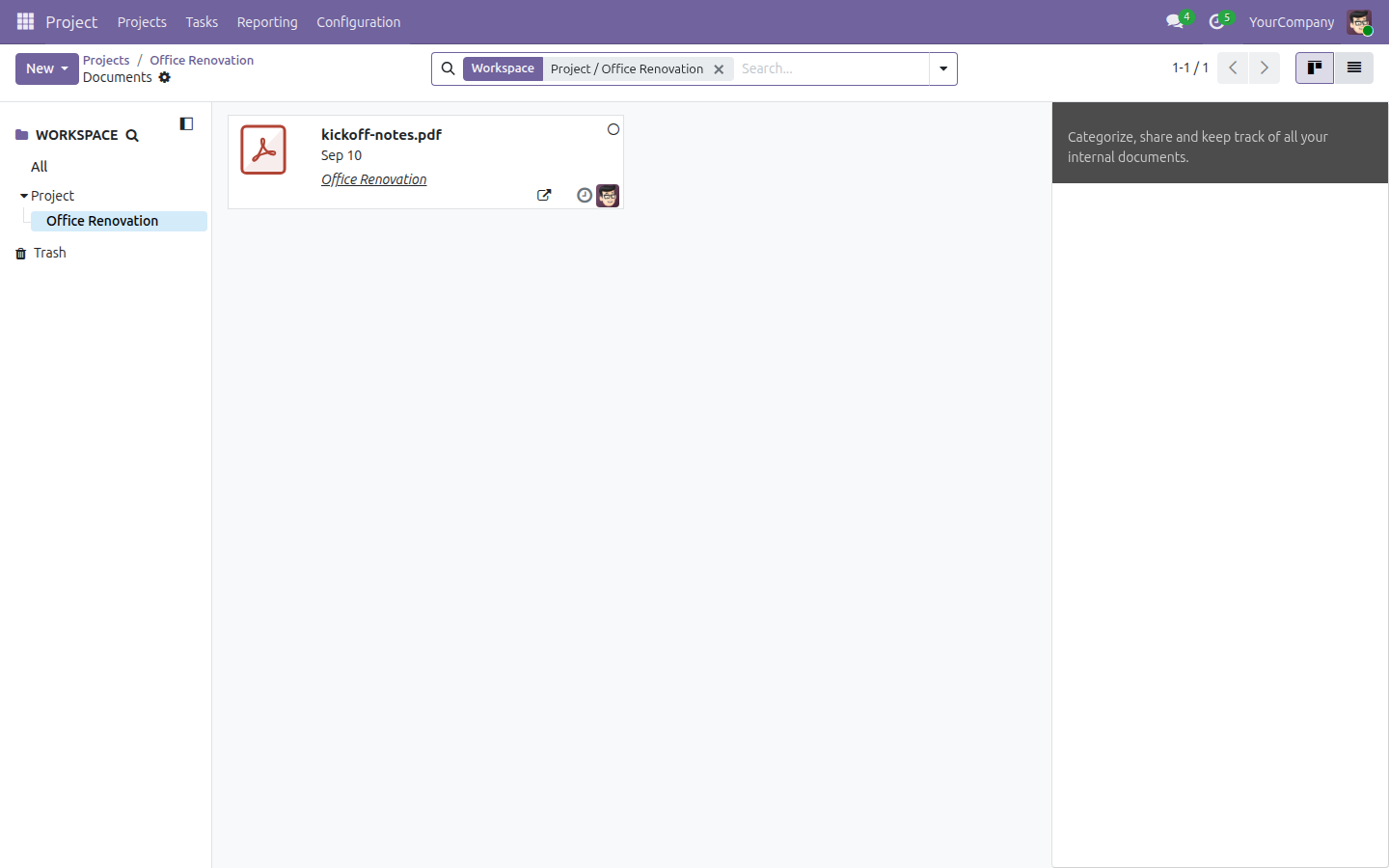
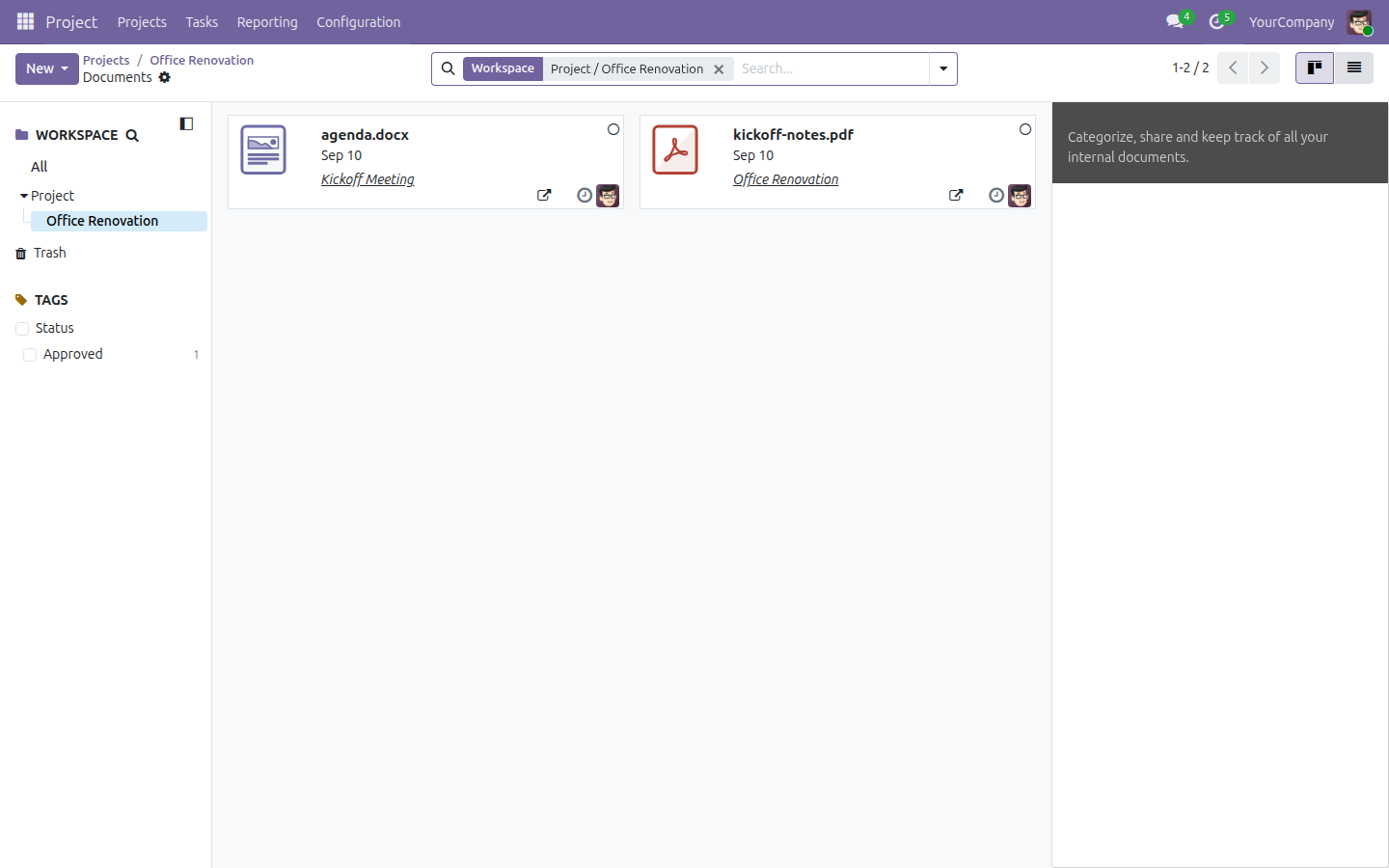
The project's Documents button counts the whole tree - "2"
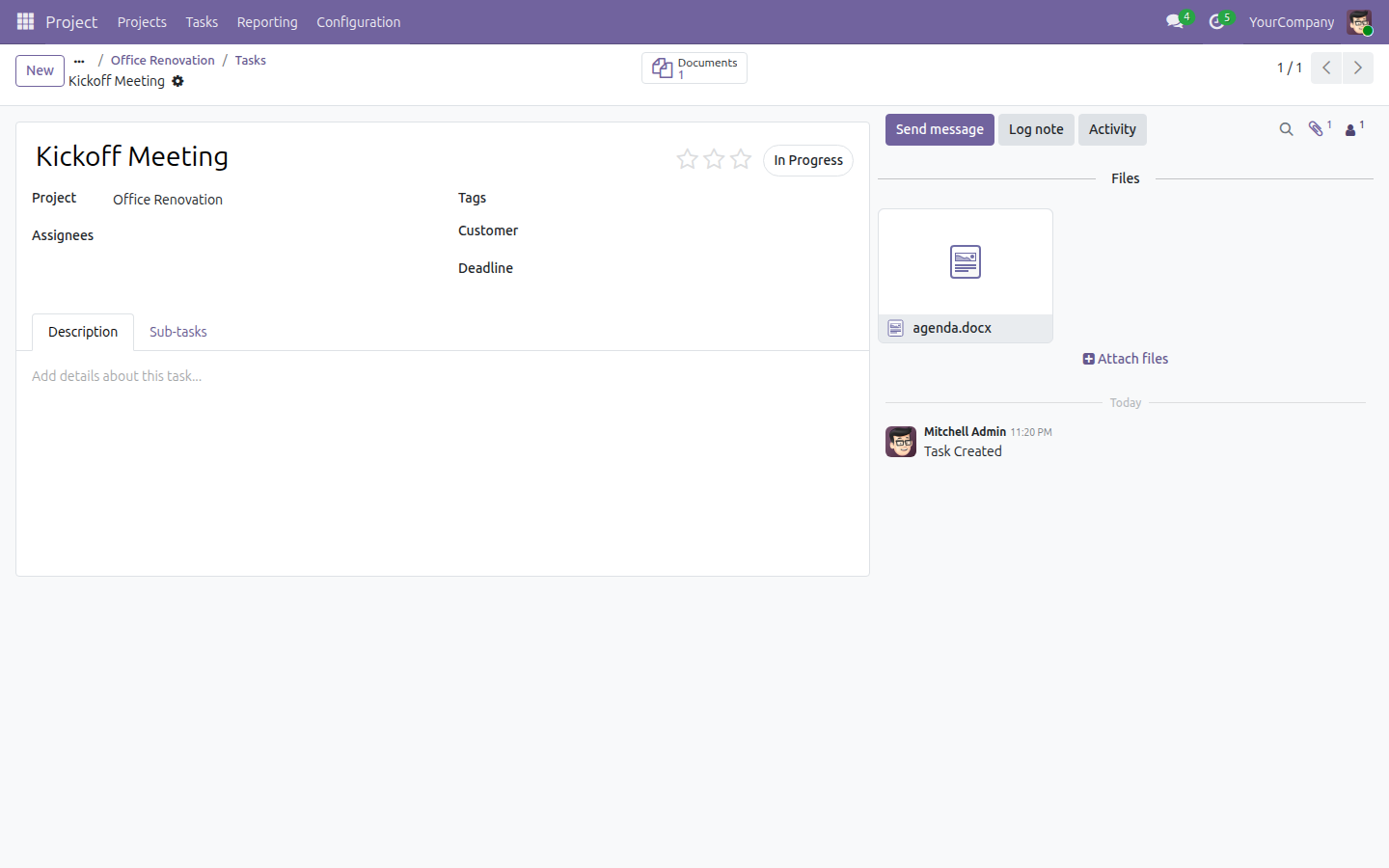
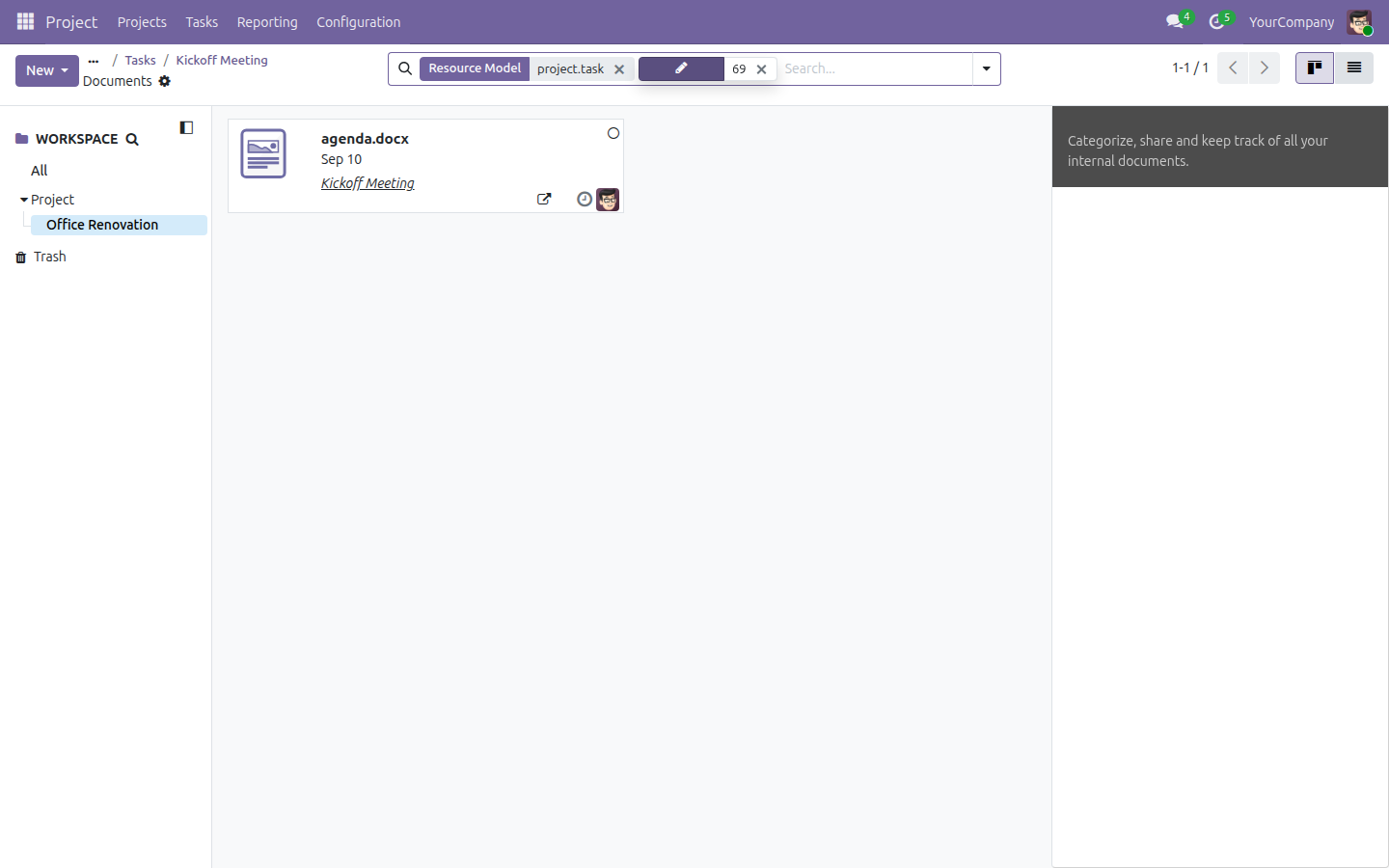
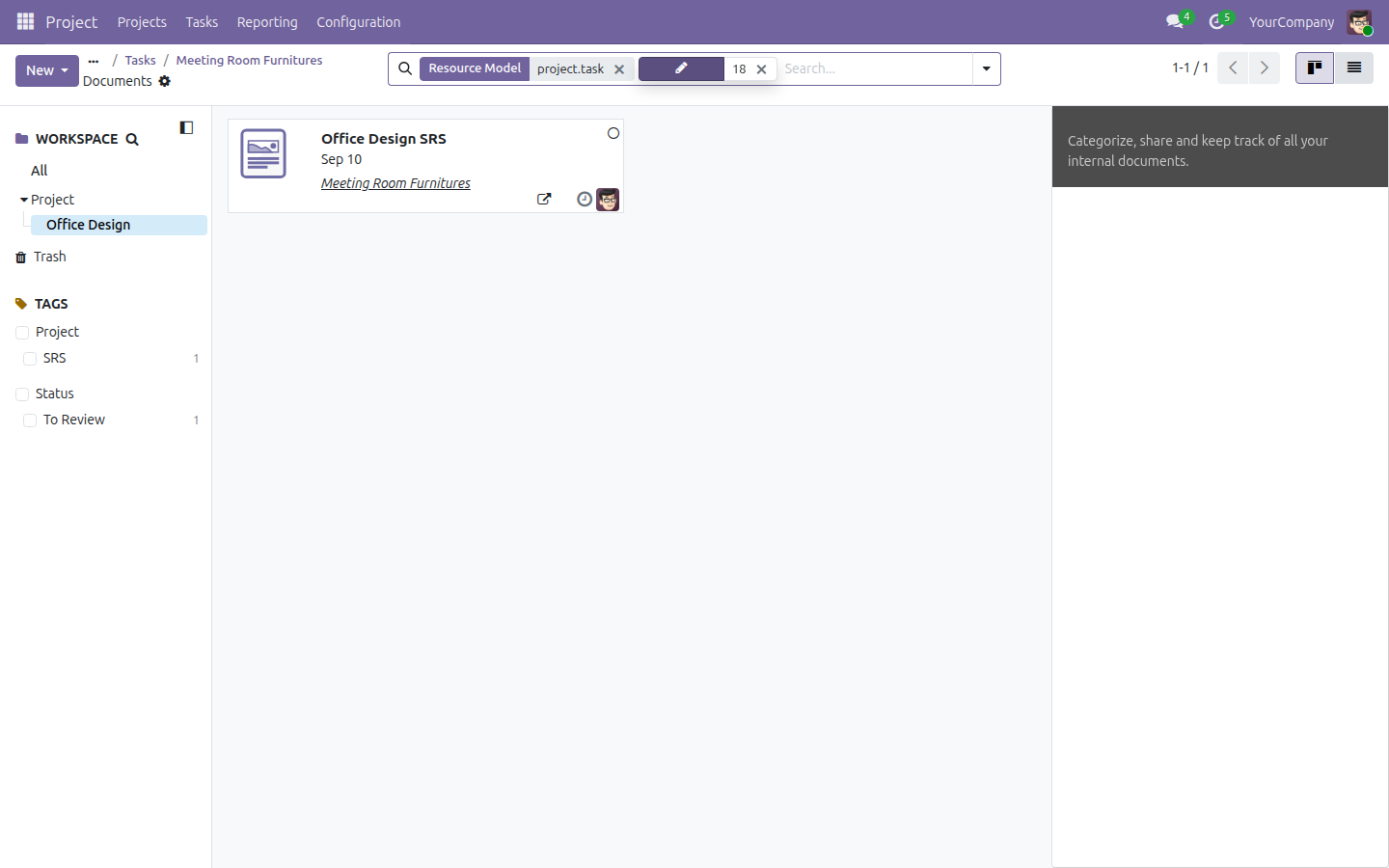
The task's Documents button counts only its own file - "1"
Send a filed document for sign-off. Open it from the Documents app and run "Ask to Review" - its status tag flips to "To Review" and an activity is scheduled for whoever should check it. Once it has been checked, "Approve" flips the tag to "Approved" and closes that same activity.
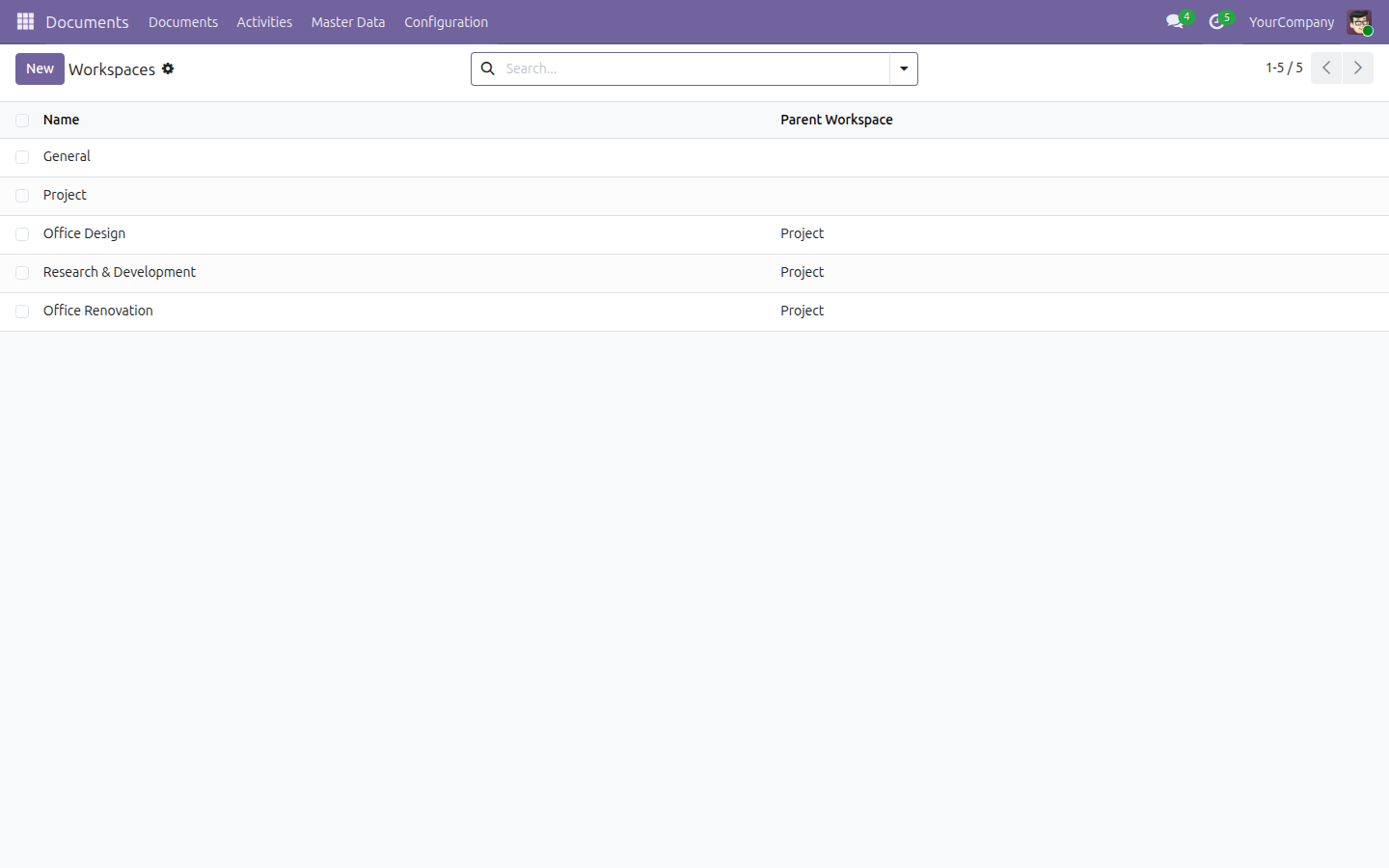
Master Data, Ready Before Your First Project
Documents - Project ships a "Project" workspace, team, and tag category the moment you install it - already wired to the same "Ask to Review" and "Approve" actions used everywhere else in the Documents app.
A Task's File Still Lands in Its Project's Folder
There is no separate folder per task. Attach a file to a task and Documents - Project files it in that task's project workspace - the same place every other file for that project lives.
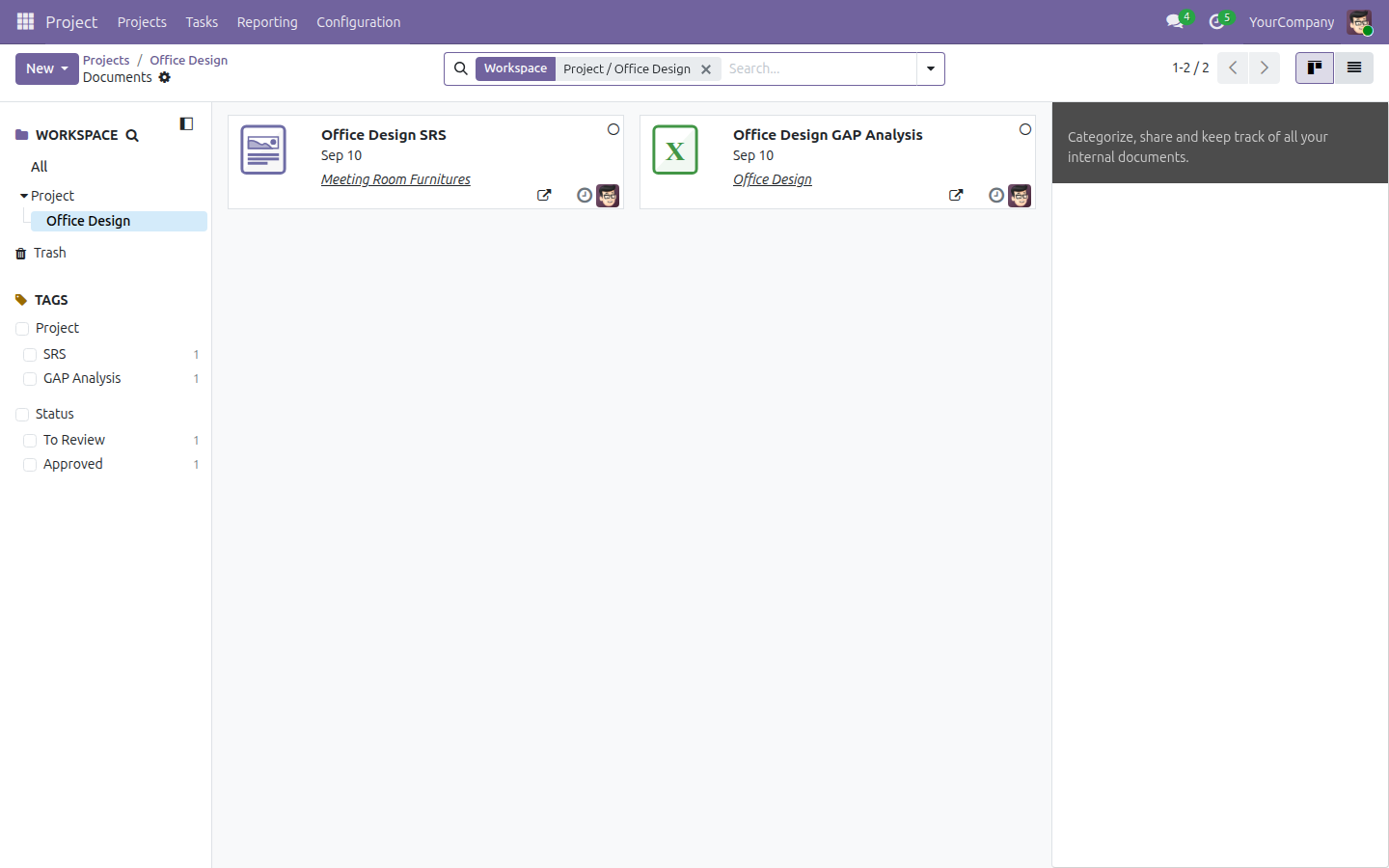
See It Work Before You File Anything Real
The demo project "Office Design" ships with its own workspace and pre-filed documents, so you can see Documents - Project in action before you attach a single real file.
Need help with Documents - Project?
Support
apps.support@viindoo.comTechnical Requirement
- Odoo version: 19.0
- Editions: Odoo Community Edition, Viindoo SaaS
- Required modules: Documents Management (viin_document), Project
- Auto-install: No - add it deliberately from Apps
- License: OPL-1
Frequently Asked Questions
Which Odoo edition does Documents - Project need?
It runs on Odoo Community and Viindoo SaaS - no Enterprise license required.
Does it install itself when I install Project?
No. Unlike a few of its siblings in the Documents cluster, this bridge does not auto-install - you add it deliberately, and it starts working the moment you do.
What does it depend on?
Just the two apps it connects: the Documents app (viin_document) and Odoo's core Project app. Nothing else.
Do I need demo data for it to work?
No. The "Project" workspace, team, and tag category it ships are regular data, present on every install. The sample "Office Design" project with its pre-filed documents is demo data only - a convenient way to see the module in action before you file anything real.
Are the documents it files automatically tagged?
Not automatically. A document arrives in its workspace untagged; applying a status or category tag is a manual step your team does as part of its own review habit.
Documents - Project
Note
Extends viin_document - see its documentation: viin_document guide.
Installation
- Go to Apps.
- Search for viin_document_project.
- Click Activate.
This module depends on two other apps. Odoo installs them automatically together with it if they are not already present:
- Documents Management (technical name viin_document) - the workspace, tagging and review-action engine this module plugs into.
- Project - Odoo's project and task management app.
Configuration
Nothing needs to be configured before use. Once the module is installed, it ships ready-made setup data so a project's documents start working immediately:
- A Project document workspace, already linked to the Project app's own access roles.
- A Project document team, led by the user who installed the module.
- A Project tag category, ready for you to add your own tags under.
- Two document-generation rules - one for projects, one for tasks - that decide where a project's or a task's attached files land.
By default, running the Ask to Review and Approve actions on a document needs the Administrator role in the Project app; the User role can view a filed document but not act on it.
To review this ready-made data yourself, see "Review the ready-made Project master data" below.
Usage
Get a dedicated document workspace the moment you start a new project
- Go to Project ‣ Projects, click New, name the project (for example Office Renovation), then click Save.
- On the project's chatter, the panel on the right of the form, click the paperclip icon and attach a file.
As soon as the file is attached, a Workspaces button and a count-badged Documents button appear at the top of the project form.
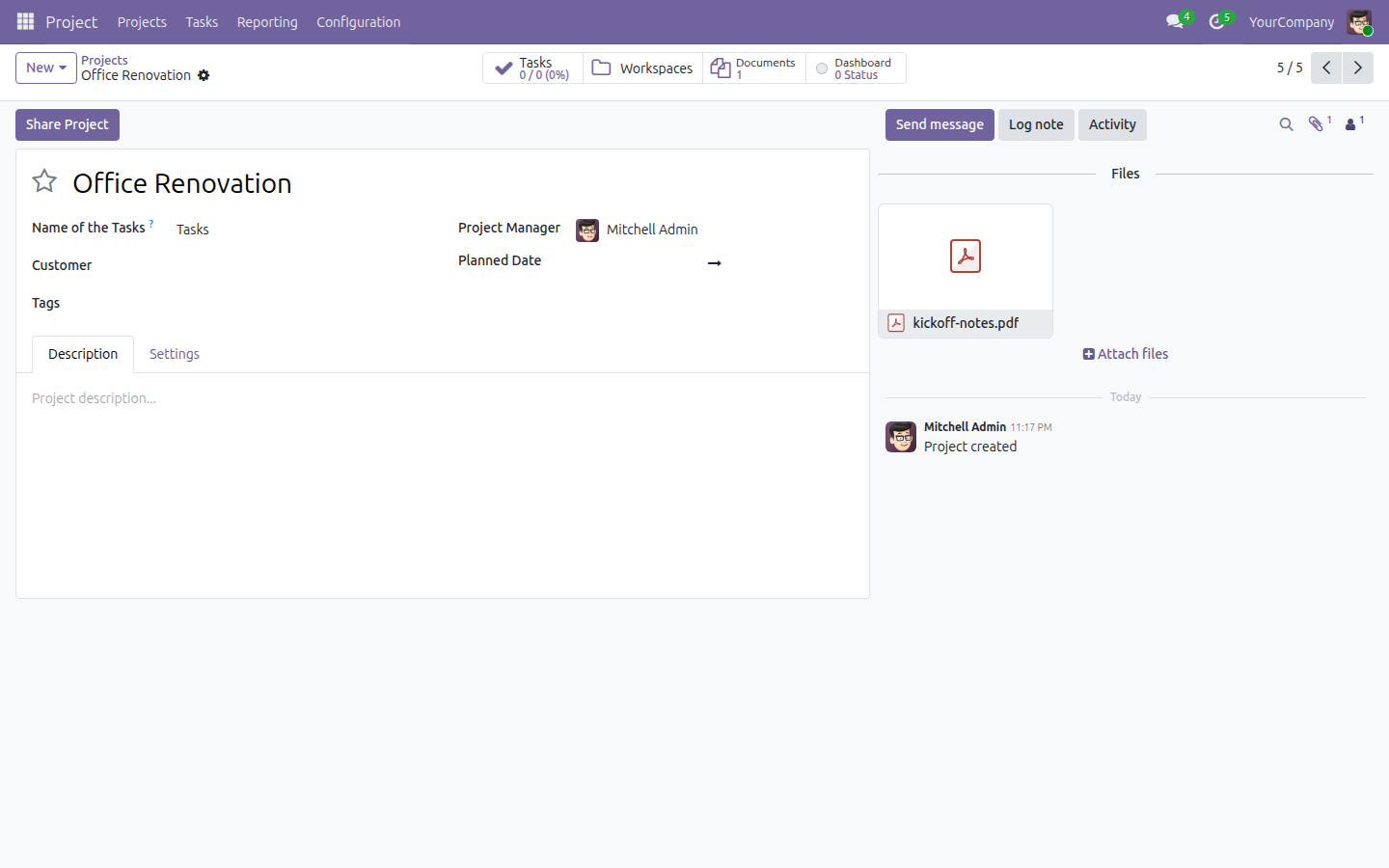
- Click Workspaces to open the new document workspace: it is named after the project, and sits inside the shipped Project workspace.
- Click Documents to open the Documents app already filtered to that workspace, with the file inside it.
File a document on a task and see it counted differently on the task and the project
Attach a file to one of the project's tasks the same way: open Project ‣ Projects ‣ <project name> ‣ Tasks, create or open a task, and attach a file from its chatter.
A count-badged Documents button appears on the task too. Open it: the file is there, but look at the workspace it is filed under - it is the SAME workspace as the project's own documents, not a separate folder for this task. A task's attached files always land in its own project's workspace; there is no per-task folder.
Go back to the project and open its Documents button again: it now counts both files. A project's Documents button counts everything filed anywhere in its workspace, including files attached to its tasks, while a task's Documents button counts only the files linked directly to that task.
Route a filed document through Ask to Review then Approve
- Go to Documents ‣ Documents, then click a document card to open its detail panel on the right.
- Under Actions, click Ask to Review. The document's Status tag switches to To Review and a review activity is scheduled.
- Click Approve. The Status tag switches to Approved, and the review activity that Ask to Review raised is marked done.
Review the ready-made Project master data
Before creating any project, you can see the scaffolding this module ships for you: go to Documents ‣ Master Data ‣ Workspaces, Teams, or Tag Categories. Each one already lists a Project entry - the root workspace, team, and tag category that every project- and task-generated workspace attaches to.
Explore the pre-loaded demo documents for the Office Design project
This scenario only applies to a database installed with demo data.
Open Project ‣ Projects ‣ Office Design, then click its Documents button: it shows two sample files, one already Approved and one still To Review.
Open the task Meeting Room Furnitures under that project, then click its own Documents button: it shows only the one file linked directly to that task - the same project-versus-task distinction shown above, now on pre-loaded data.
Troubleshooting
No Workspaces or Documents button appears after attaching a file. Reload the page. The document is generated once the attachment is fully processed, and the stat buttons only appear once the corresponding data exists.
A file attached to a task does not seem to have its own folder. That is expected: a task's attached files are filed under its own PROJECT's workspace, not a separate task workspace. Open the project's Documents button, or the task's own Documents button, to find it.
Ask to Review or Approve is missing, or running it fails. These actions need the Administrator role in the Project app. A user with only the User role can view a filed document but cannot run these actions.
FAQ
Does this module need Odoo Enterprise? No. It runs on Odoo Community, and on Viindoo SaaS.
Do I need to configure anything before using it? No. The workspace, team, tag category and the rules that generate a project's or task's document folder ship ready-made; see Configuration above.
Does every task get its own document folder? No. A task's attached files are filed under its own project's workspace; there is no separate per-task folder.
Are documents that get filed automatically tagged for me? No. A document generated from an attachment gets a name and a workspace, but no tag - add tags yourself if you want to use them for filtering.
Which apps does this module require? Documents Management and Project. Odoo installs both automatically together with this module if they are not already present.
Instruction video
Watch a walkthrough of this module: Watch the instruction video
This software and associated files (the "Software") may only be used (executed, modified, executed after modifications) if you have purchased a valid license from the authors, typically via Odoo Apps, or if you have received a written agreement from the authors of the Software (see the COPYRIGHT file).
You may develop Odoo modules that use the Software as a library (typically by depending on it, importing it and using its resources), but without copying any source code or material from the Software. You may distribute those modules under the license of your choice, provided that this license is compatible with the terms of the Odoo Proprietary License (For example: LGPL, MIT, or proprietary licenses similar to this one).
It is forbidden to publish, distribute, sublicense, or sell copies of the Software or modified copies of the Software.
The above copyright notice and this permission notice must be included in all copies or substantial portions of the Software.
THE SOFTWARE IS PROVIDED "AS IS", WITHOUT WARRANTY OF ANY KIND, EXPRESS OR IMPLIED, INCLUDING BUT NOT LIMITED TO THE WARRANTIES OF MERCHANTABILITY, FITNESS FOR A PARTICULAR PURPOSE AND NONINFRINGEMENT. IN NO EVENT SHALL THE AUTHORS OR COPYRIGHT HOLDERS BE LIABLE FOR ANY CLAIM, DAMAGES OR OTHER LIABILITY, WHETHER IN AN ACTION OF CONTRACT, TORT OR OTHERWISE, ARISING FROM, OUT OF OR IN CONNECTION WITH THE SOFTWARE OR THE USE OR OTHER DEALINGS IN THE SOFTWARE.