
Documents - Inventory
by Viindoo
| Lines of Code | 1082 |
| Technical name | viin_document_stock |
| License | OPL-1 |
| Website | https://viindoo.com/apps/modules/19.0/viin_document_stock |
| Read description for | v 14.0 v 15.0 v 16.0 v 17.0 v 18.0 |
| Required Apps | Discuss (mail) Inventory (stock) |
| Included Dependencies | Viindoo Base Documents Management Multilingual Tracking Token Expiration |

Signed delivery notes, filed instead of buried
Delivery notes, packing lists, and carrier paperwork attached to any transfer are filed into a Documents workspace automatically - not buried three scrolls down a chatter thread.
Documents - Inventory (technical name viin_document_stock) is an Odoo 19.0 app for Odoo Community and Viindoo SaaS, built for warehouse, customer service, finance, and audit.
Extends viin_document - see its documentation.
At a Glance
The facts of Documents - Inventory, version 0.1.0, in one place. Published by Viindoo.
stock.picking; a ready-made workspace, team, tags, and rulesHow It Works
Four screens, from attaching a file to sharing it outside Inventory.
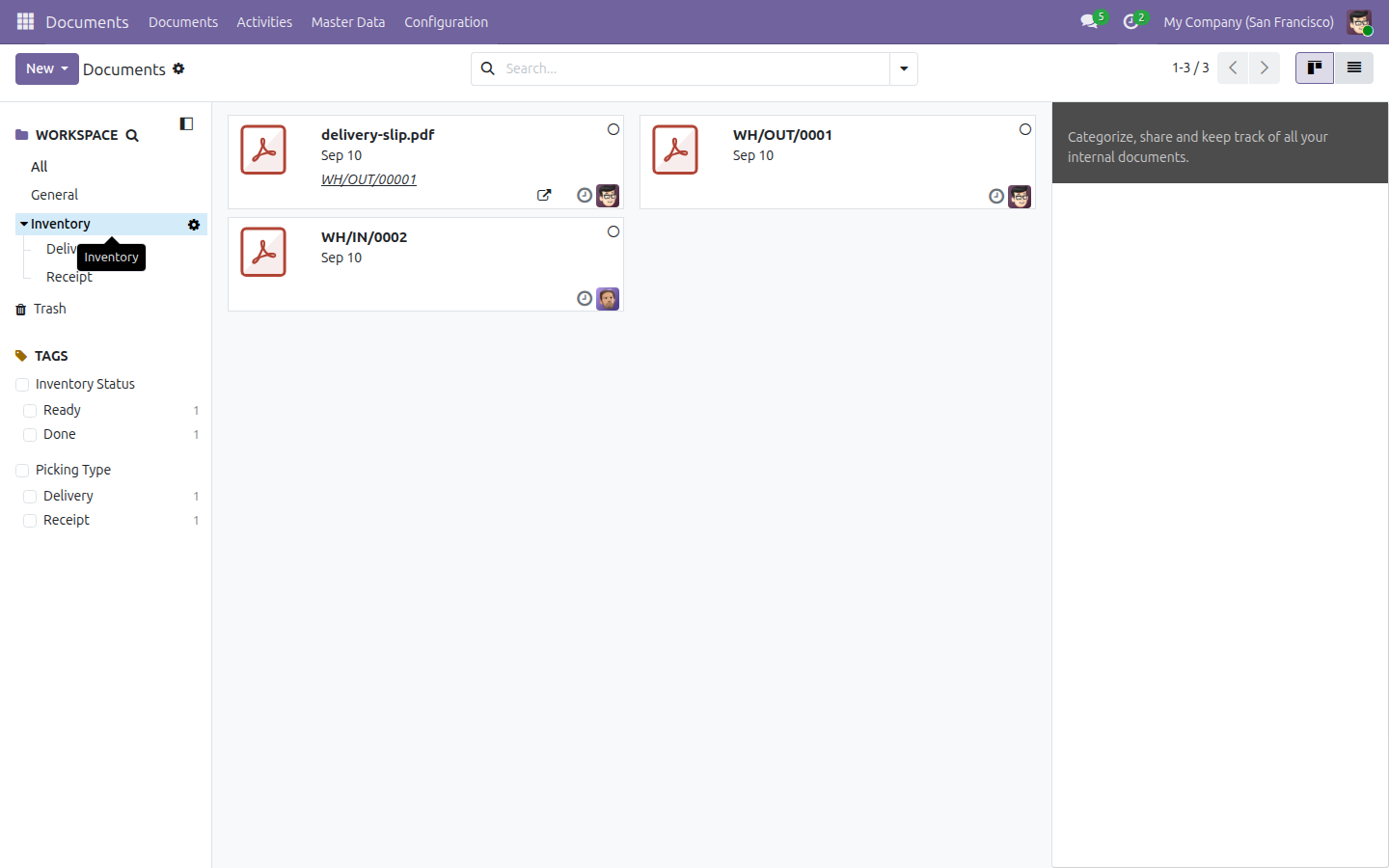
Attach a file - watch it get filed automatically
Attach a file to any transfer's chatter the way you always would. The auto-filing rule catches it and files a matching copy into Documents > Inventory, already tagged.
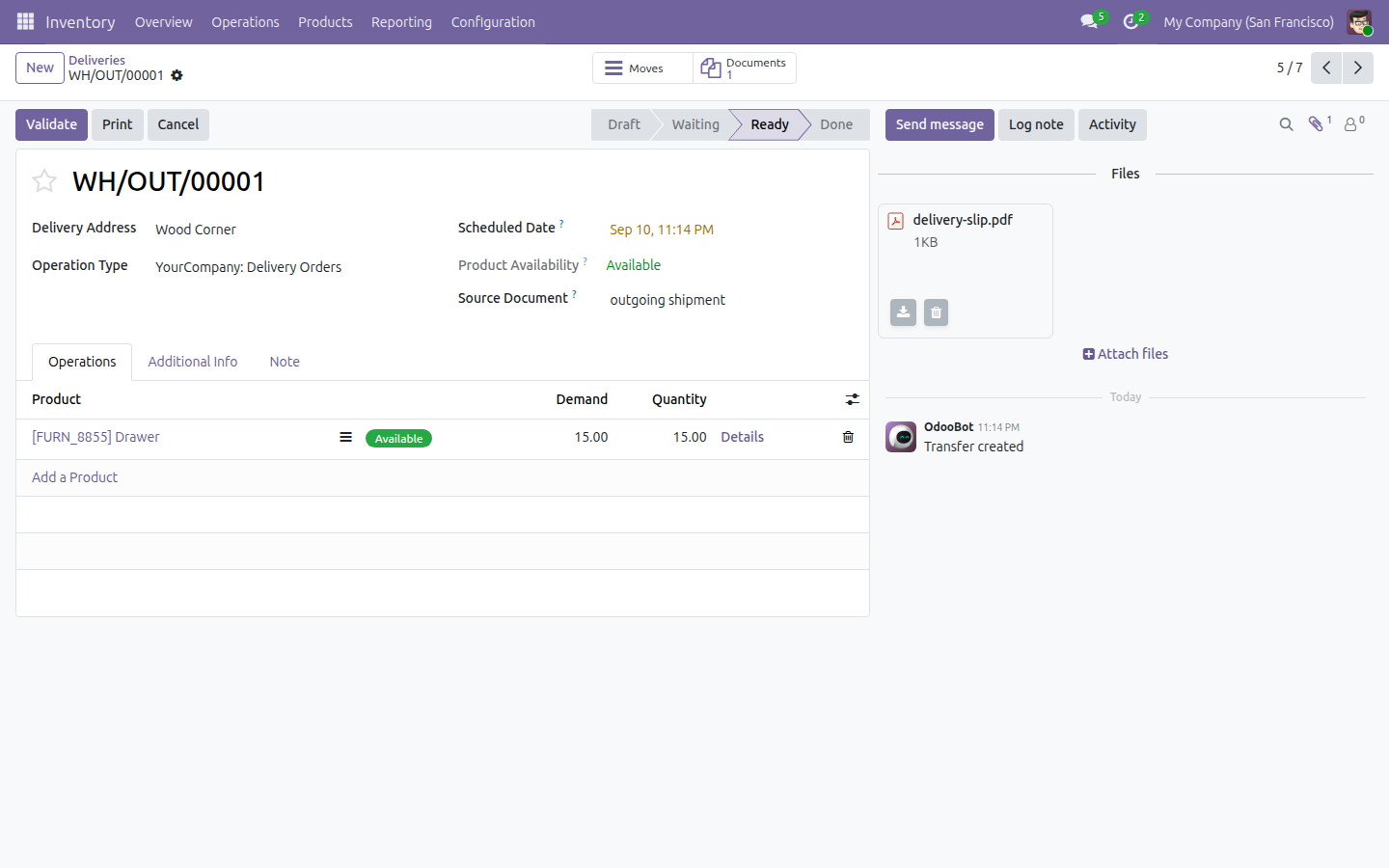
Jump straight from the transfer to its paperwork
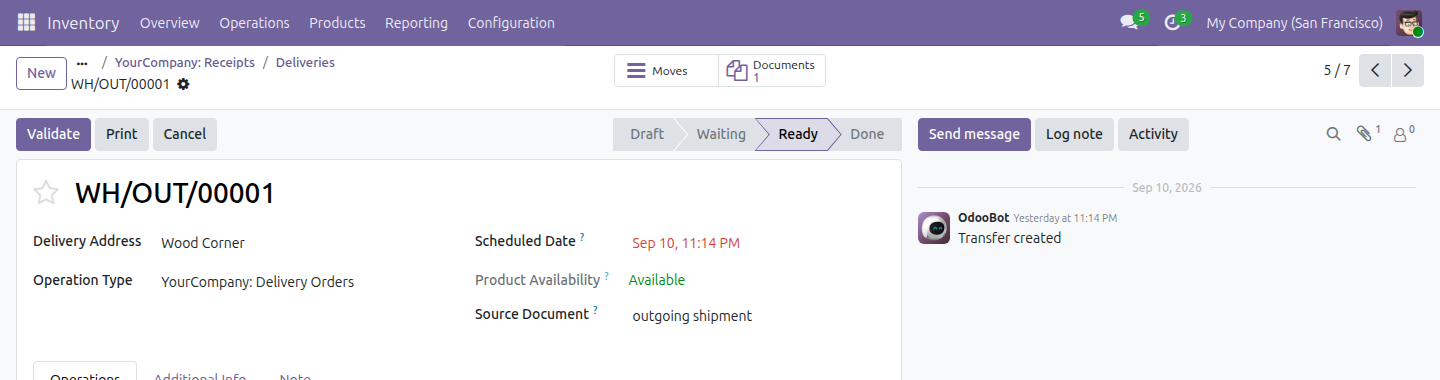
A Documents button on the transfer form shows the count of filed documents and opens them, pre-filtered, without leaving Inventory.
Tag the document with where the transfer stands
Run "Waiting Another Operation", "Mark Picking as Ready", or "Mark Picking as Done" from the document's detail panel; each updates its Inventory Status tag and schedules a to-do reminder.
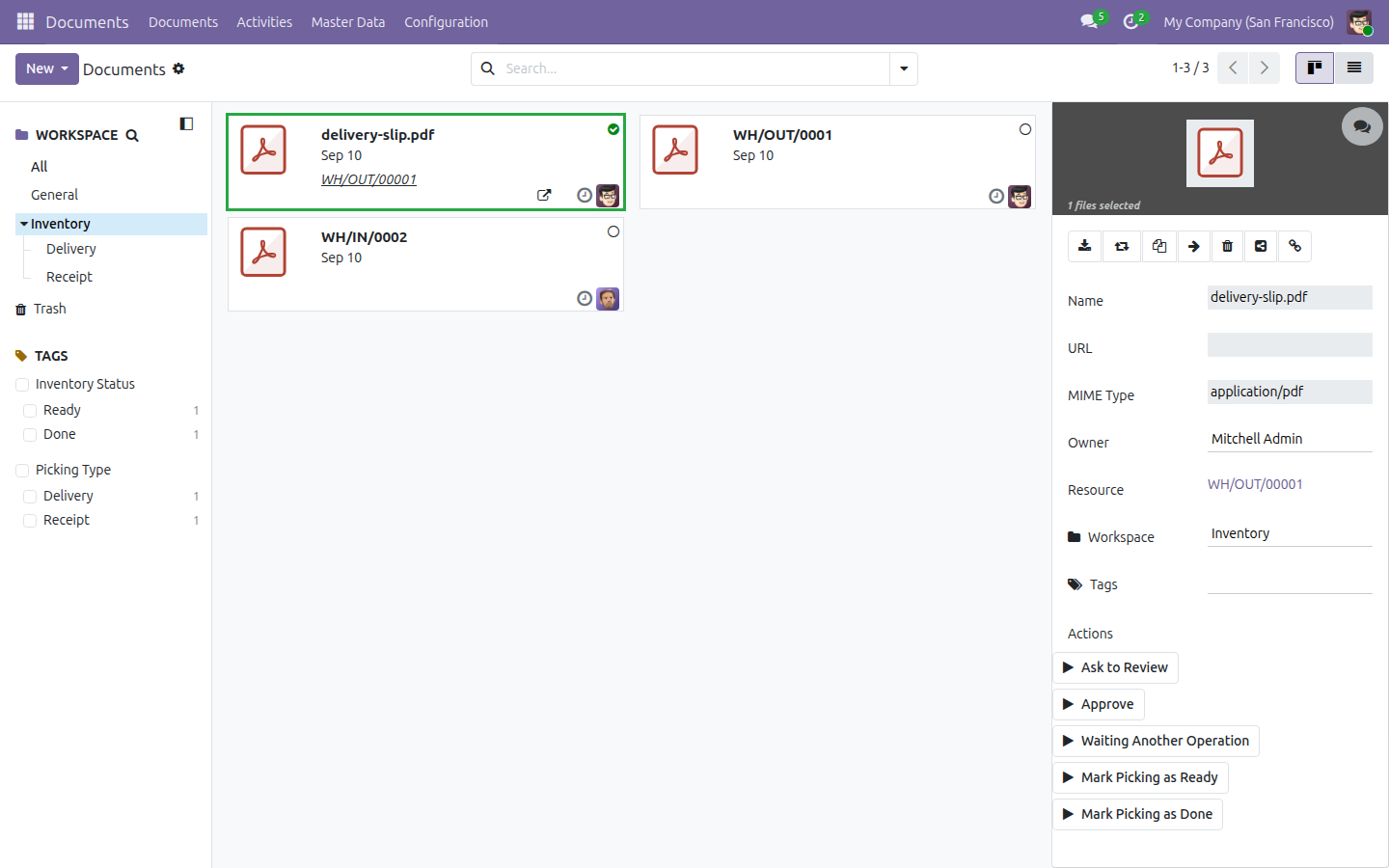
Bring in a colleague who has no Inventory access
Add them to the Inventory team's Members tab under Documents > Master Data > Teams, and they can read every filed document without ever opening Inventory.
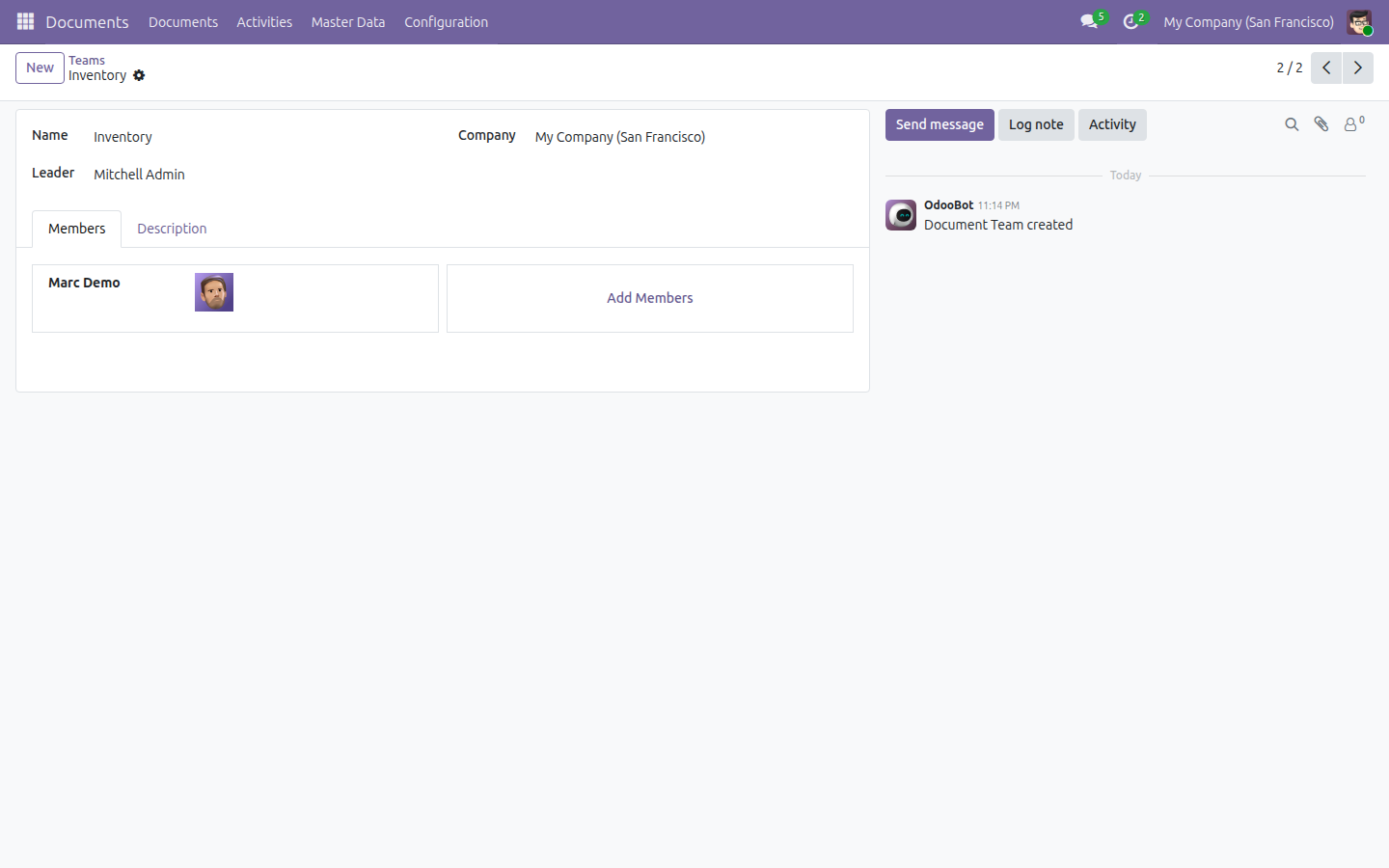
What You Get
Documents smart button on every transfer
An auto-filing rule that keeps working on every new attachment
A dedicated Inventory workspace, ready on install
A tagging taxonomy built for Inventory (Picking Type, Inventory Status)
Three status actions on every filed document
An Inventory documents team for people outside Inventory
More Screens
Everything below was taken on a database seeded with real business data, on this series - not a mock-up and not a screenshot from an older version.
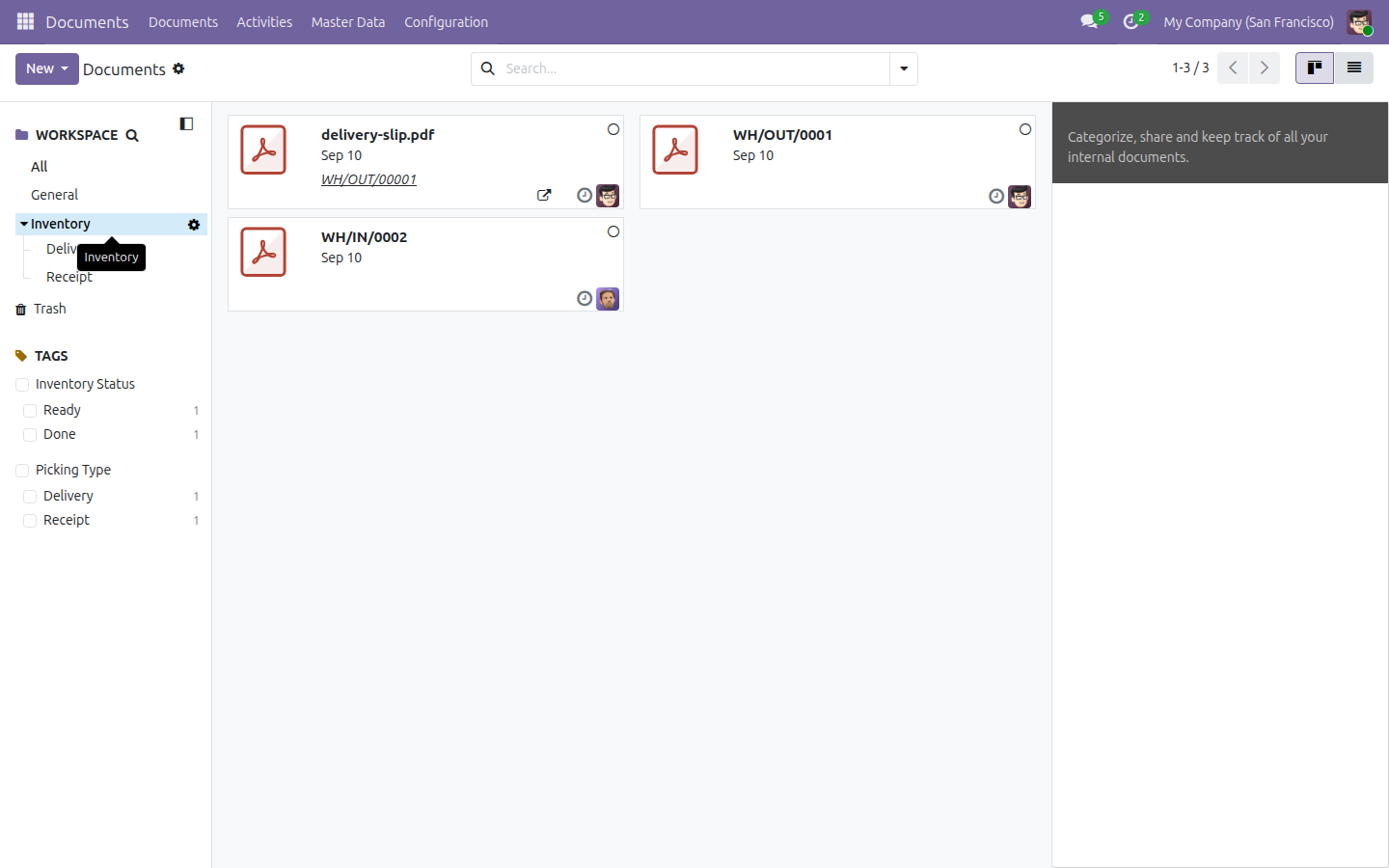
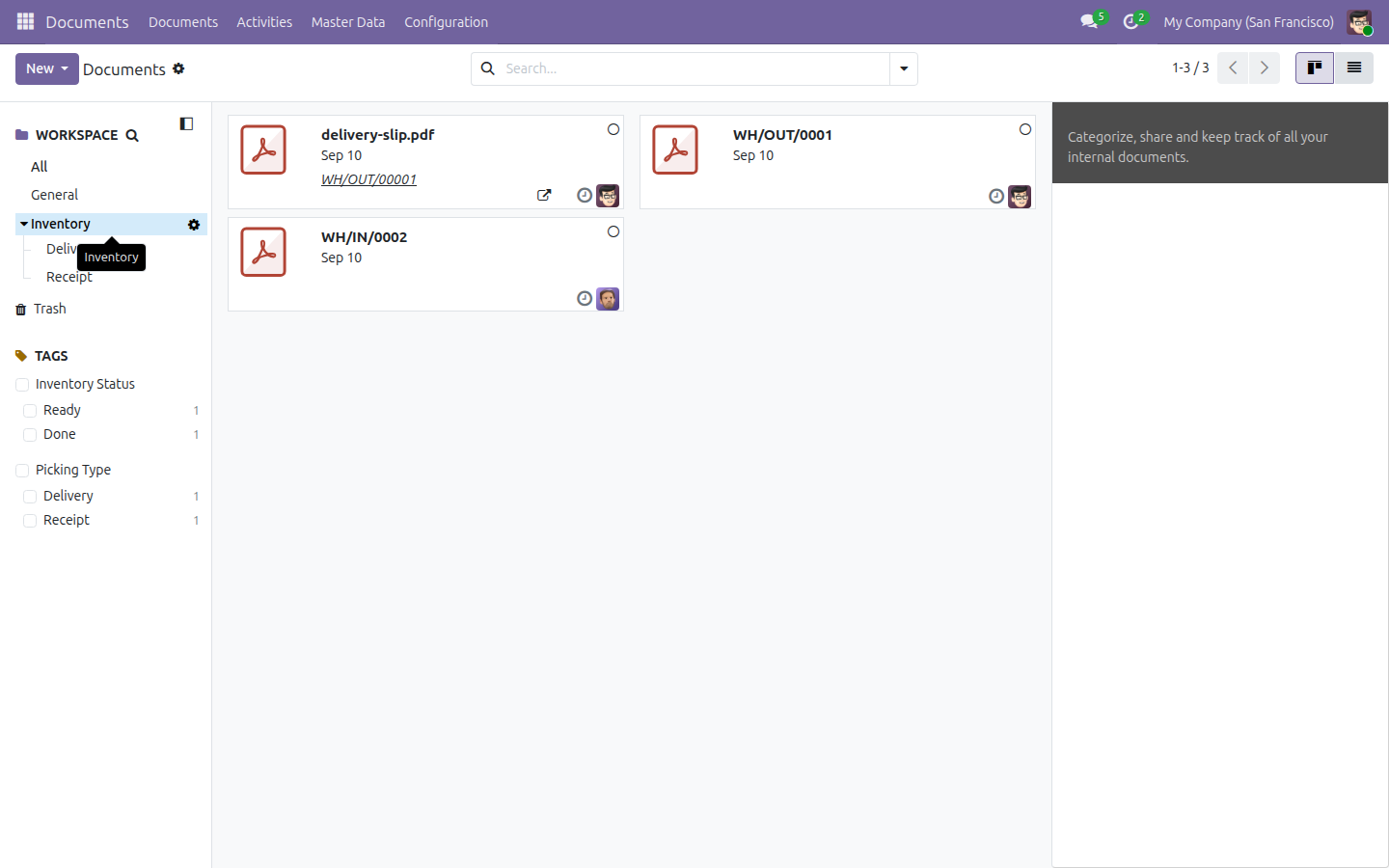
The workspace
What This App Does Not Do
Read this before you buy. Everything below is something the app deliberately leaves to another app or to you.
A scanner or a phone puts the file on the transfer first.
There is no OCR of the signature.
Paperwork nobody attaches stays on paper.
There is no folder per transfer - the Picking Type and Inventory Status tags keep it findable instead.
Works Well With
Apps from the same stack, built to fit this one:
Who Should Use Documents - Inventory?
Warehouse
Scans and moves on - filing happens by itself.
Customer service
Finds the signed note during the call, in seconds.
Finance
Matches proof of delivery to the invoice.
Audit
Has one searchable store instead of scattered chatter attachments.
Frequently Asked Questions
Which Odoo edition does this need?
It runs on Odoo Community, with no Enterprise licence required, and it runs on Viindoo SaaS.
Does it install itself once I have Inventory?
No. Documents - Inventory is installed explicitly, like any other app - it does not activate automatically alongside Inventory.
What does it depend on?
The Documents app (viin_document) and Inventory (stock). Odoo installs them with it.
Does every transfer get its own folder?
No. Every transfer's documents land in one shared Inventory workspace, kept easy to find with the Picking Type and Inventory Status tags rather than a folder per transfer.
Does it work without demo data?
Yes. The auto-filing rule, the Inventory workspace, its tags, its team, and its three status actions are all regular installed data, present on every install. A demo database additionally shows sample documents and Delivery/Receipt sub-folders - demo data only, not part of a production install.
What works well with it?
Documents Management (viin_document): the document store itself. Documents - Purchase (viin_document_purchase): the same filing for purchase receipts. Documents - Sale (viin_document_sale): the same filing for sale-driven deliveries.
Can I try it before buying?
Yes - the Live Preview button at the top of this page opens the module's own screen on a working database.
How do I get support?
Write to apps.support@viindoo.com with your Odoo version and the technical name viin_document_stock; pre-sales questions go to sales@viindoo.com.
See Documents - Inventory in Action
or use the Live Preview button at the top of this page
Need help with Documents - Inventory?
For questions, implementation support or a custom feature, contact Viindoo.
Pre-Sales & Partnership
sales@viindoo.comUpgrades to a newer Odoo series are a separate purchase for that series.
All Viindoo apps: Viindoo Apps
Technical Requirement
Changes log
0.1.0 - Latest on the 19.0 line
- Always reload the document count when an attachment is added.
- Hide the Documents statbutton when there is no filed document.
- Share default generation rules and workspaces between companies.
Documents - Inventory
Note
Extends viin_document - see its documentation.
Documents - Inventory connects the Documents app to your Inventory transfers. Every file you attach to a transfer's chatter is filed automatically into a shared Inventory folder in the Documents app - no folder is created for the transfer itself. Ready-made tags and actions let you track a document's status (Waiting Another Operation, Ready, Done), and a dedicated Inventory team lets colleagues who have no Inventory access still see these documents. The app runs on Odoo Community and Viindoo SaaS - no Enterprise licence is required.
Installation
- Open Apps.
- Search for Documents - Inventory.
- Click Activate.
Installing this app also installs the apps it depends on if they are not already present: Documents Management and Inventory.
Configuration
No manual setup is required before you start attaching files. Installing the app creates, once, the shared data every transfer reuses:
- A dedicated Inventory folder (workspace) in the Documents app.
- Two tag categories: Picking Type (Delivery, Receipt) and Inventory Status (Waiting Another Operation, Ready, Done).
- Three ready-made actions wired to that folder - Waiting Another Operation, Mark Picking as Ready and Mark Picking as Done - alongside the Ask to Review and Approve actions every Documents folder ships with.
- An Inventory team you can add users to so they can see the folder's documents without needing Inventory access rights.
The only optional configuration step is adding members to the Inventory team - see Give visibility to users without Inventory access below.
Usage
Attach a document and see it filed automatically
Open Inventory ‣ Operations ‣ Deliveries (or Receipts), then open a transfer. In its chatter, click the attach-files (paperclip) icon and choose a file - a signed delivery slip, a scanned receipt, anything relevant. As soon as the file is attached, it is filed automatically into the Inventory folder in the Documents app: no folder is created for the transfer itself, so every transfer's paperwork lands in the same shared Inventory folder. A Documents smart button also appears on the transfer's form, showing how many files are attached.
Open Documents, then select the Inventory folder in the Workspace panel on the left: the file you just attached is already listed there, matched to the transfer it came from.
Jump straight to a transfer's documents
From the transfer form, click the Documents smart button (top right, showing the attached file count) to open the Documents app already filtered to that transfer's own files. Use the Tags panel on the left to narrow further, for example by Picking Type (Delivery / Receipt) or Inventory Status (Waiting Another Operation / Ready / Done).
Track a document's status with the three ready-made actions
A newly filed document always arrives with no tag - tagging is a manual step, never automatic. Select a document inside the Inventory folder to open its detail panel: you will see its owner, its folder and its tags (empty at first), and under Actions five buttons - the Ask to Review and Approve actions every Documents folder ships with, plus three built for inventory transfers.
Click Waiting Another Operation when a transfer is blocked on another move: it replaces the document's Inventory Status tag with Waiting Another Operation and schedules a new to-do reminder, due in one day.
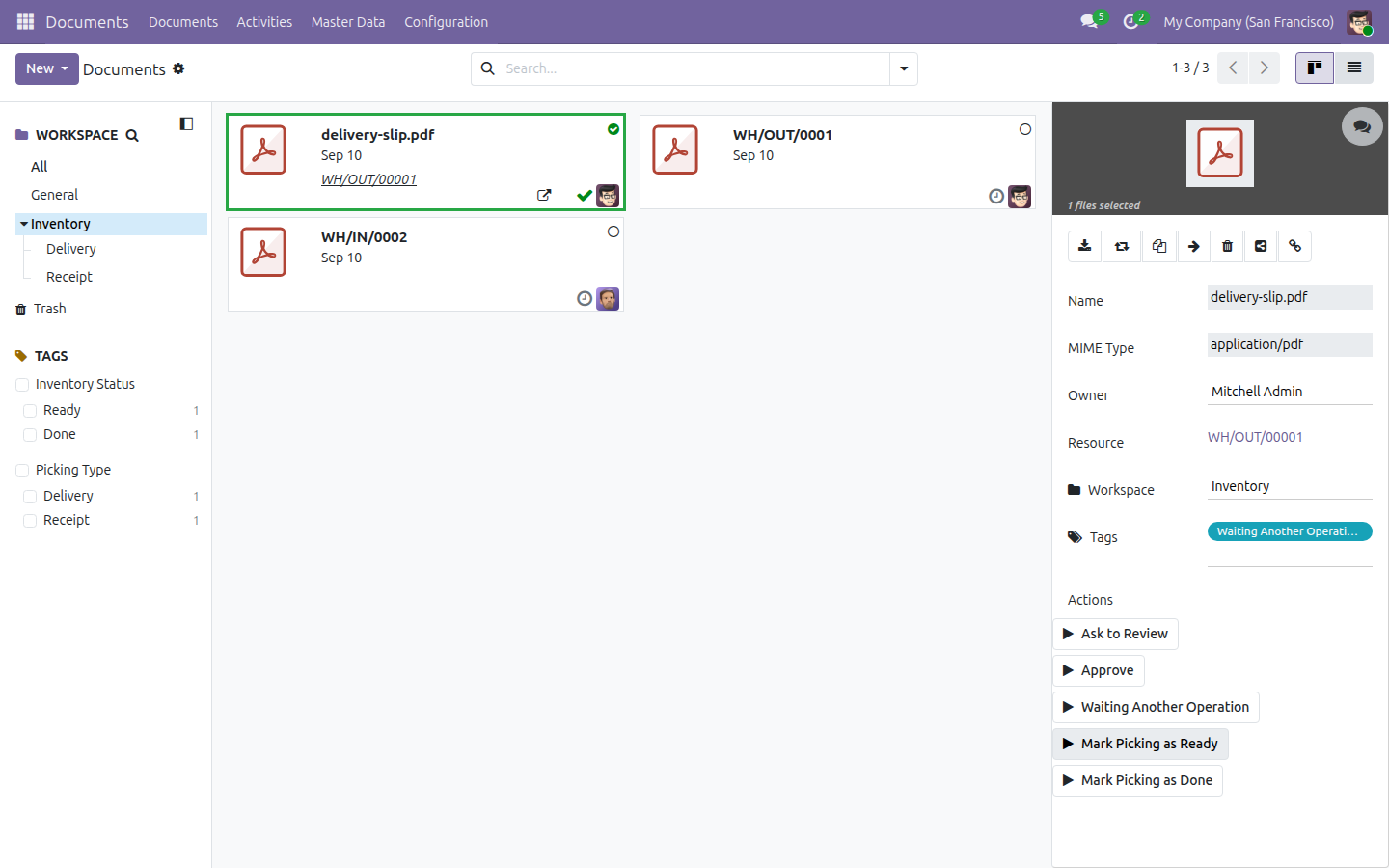
Click Mark Picking as Ready once the transfer is ready to process: it replaces the tag with Ready and schedules its own new to-do reminder the same way.
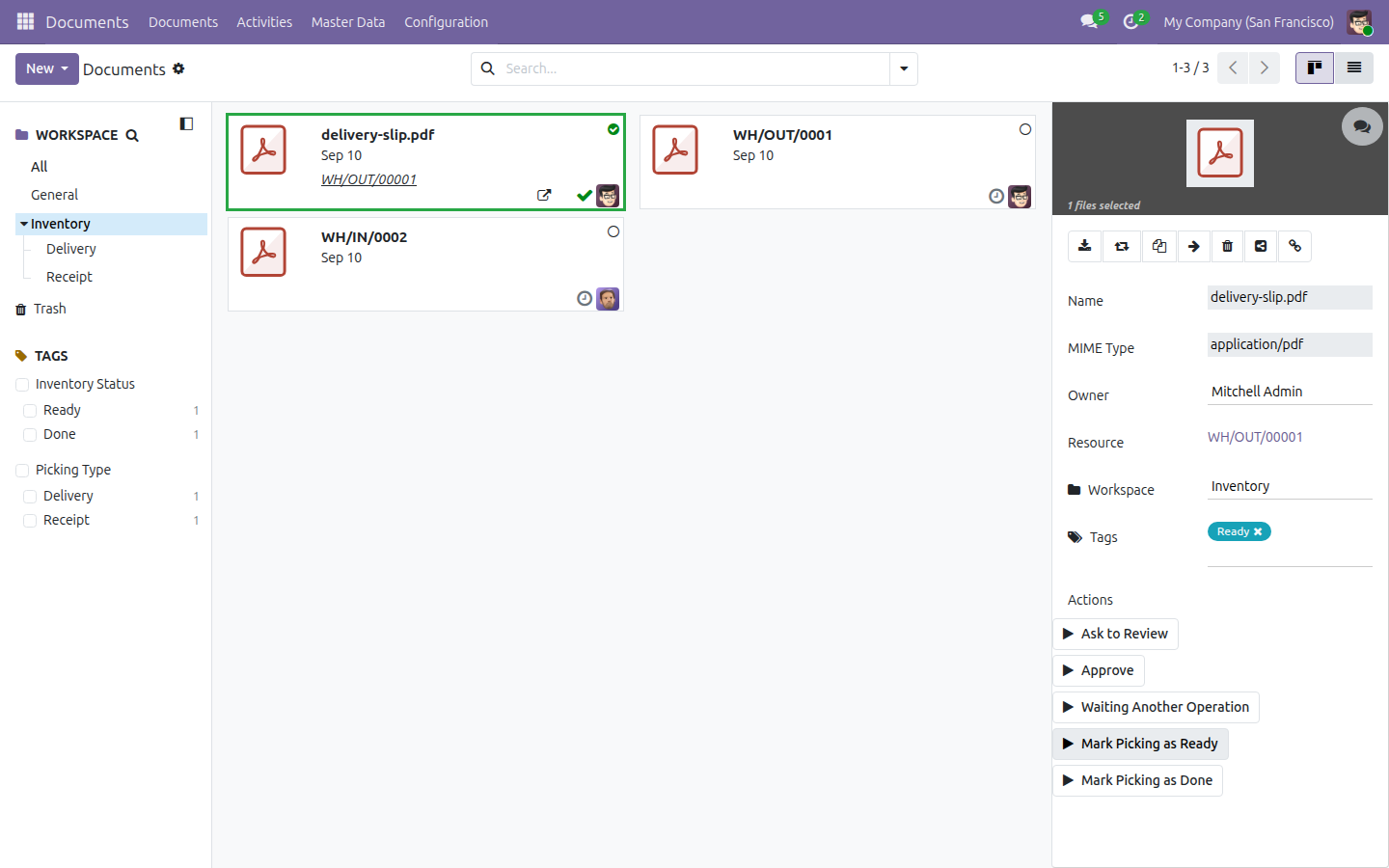
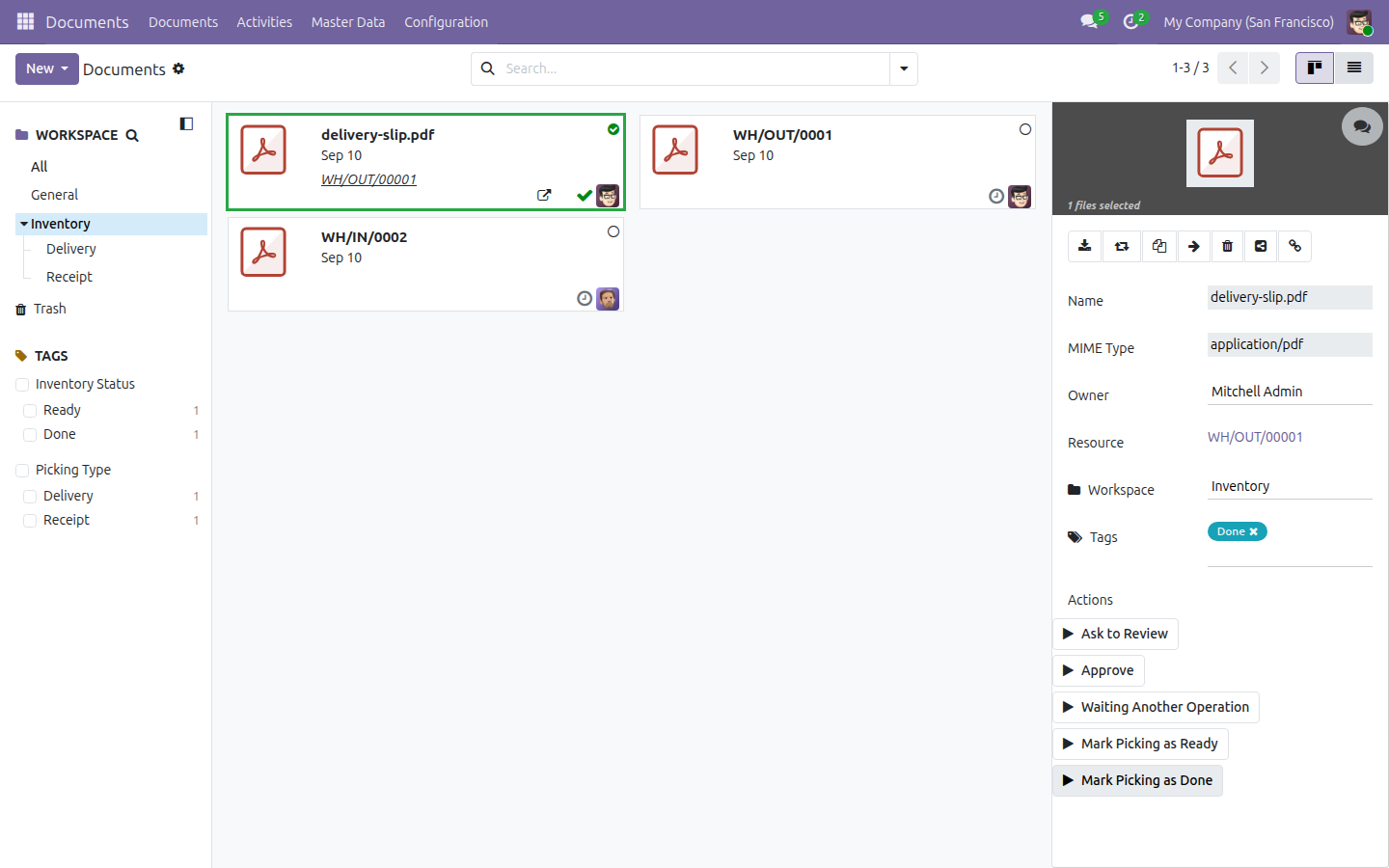
Click Mark Picking as Done once the transfer is complete: it replaces the tag with Done. This action only closes a reminder of the "To Review" type - a to-do reminder scheduled earlier by Waiting Another Operation or Mark Picking as Ready stays open, so do not expect it to disappear when a document is marked Done.
Give visibility to users without Inventory access
Open Documents ‣ Master Data ‣ Teams and click the Inventory team.
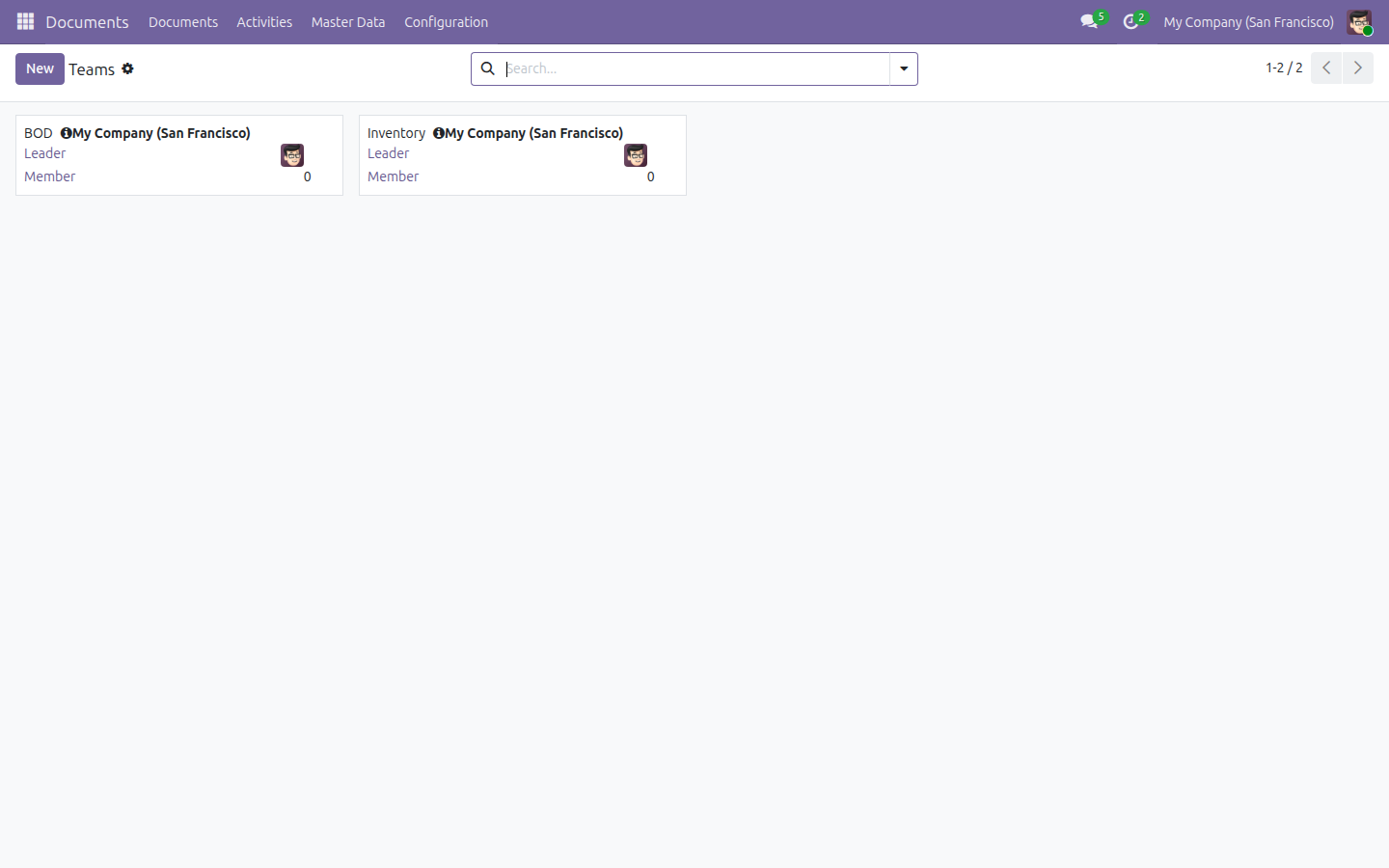
Open the Members tab and add any user - for example a salesperson with no Inventory access - as a member. Once added, that person can see every document filed in the Inventory folder, even though they cannot open the Inventory app at all.
Demo data: the Delivery and Receipt sub-folders
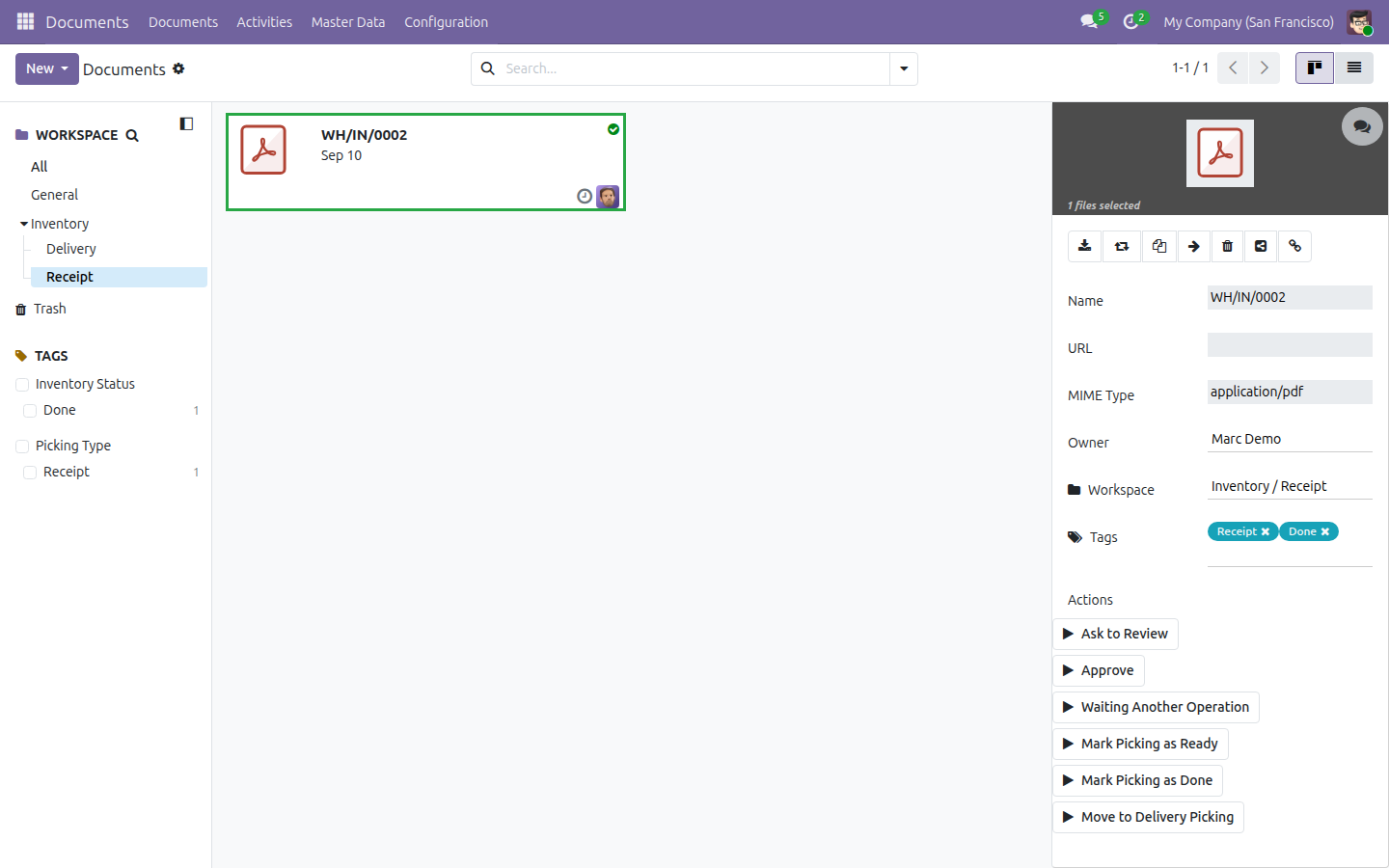
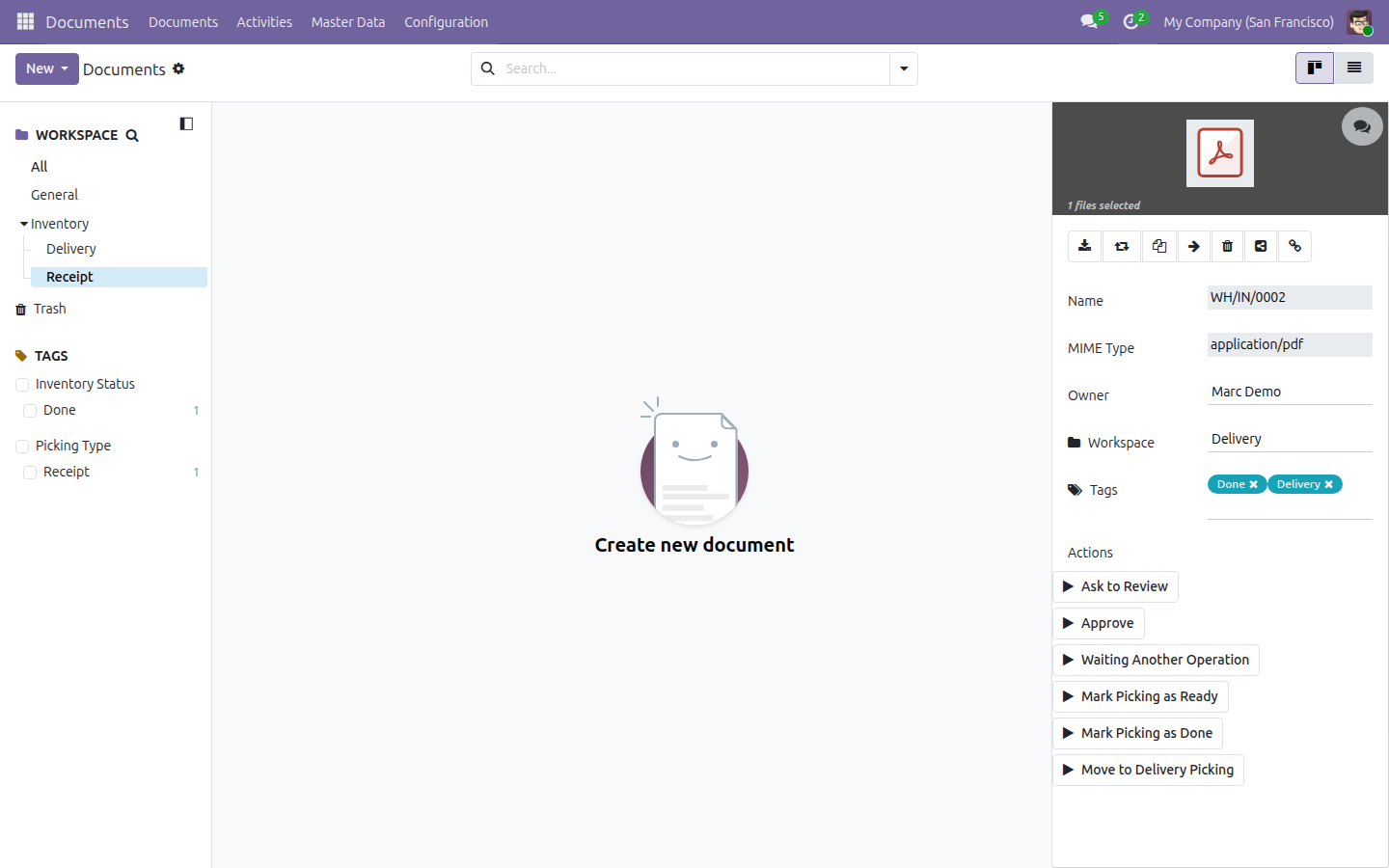
If your database was installed with demo data, the Inventory folder also ships two extra sub-folders, Delivery and Receipt, each holding one sample document already tagged, plus two demo-only actions - Move to Delivery Picking and Move to Receipt Picking - that re-file a sample document between the two. These sub-folders, sample documents and demo actions exist ONLY when demo data is loaded; a production install without demo data does not create them, and no folder is ever created automatically for an individual transfer.
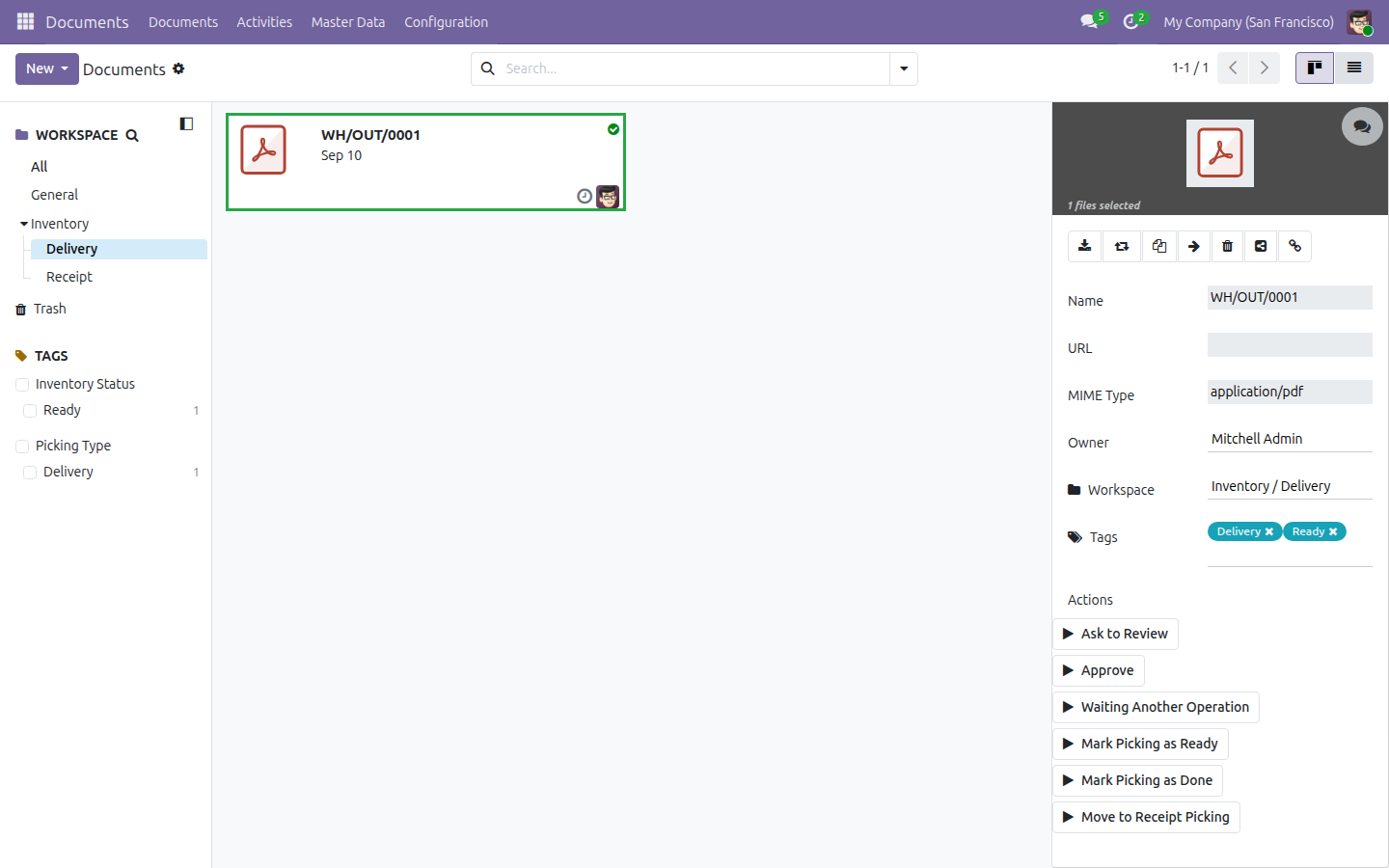
Selecting the sample document in Receipt shows the Move to Delivery Picking action:
After clicking it, the document moves into Delivery and its Picking Type tag switches from Receipt to Delivery:
Troubleshooting
- A document I attached does not show up in the Inventory folder. Confirm the file was attached directly to the transfer's chatter (not to an unrelated record), and that the Documents app is filtered to the Inventory folder rather than another one.
- The document has no tags right after I attached it. This is expected: auto-filed documents always arrive untagged. Run one of the three ready-made actions, or add a tag yourself from the detail panel.
- I ran Mark Picking as Done but a reminder is still shown. Expected. Mark Picking as Done only closes a "To Review" reminder; a to-do reminder scheduled earlier by Waiting Another Operation or Mark Picking as Ready stays open until someone marks it done by hand.
- I cannot find a folder for my transfer. There is none, by design: every transfer's documents are filed into the single shared Inventory folder (or its Delivery / Receipt sub-folders on a demo database), never into a folder created per transfer. Use the Documents smart button on the transfer, or the Tags panel, to find one transfer's files.
- A colleague with no Inventory access cannot see inventory documents. Add that person as a member of the Inventory team (Documents ‣ Master Data ‣ Teams).
FAQ
- Does each transfer get its own folder?
- No. Every transfer's documents are filed into the same shared Inventory folder; the Documents smart button and the Tags panel let you find one transfer's files without a folder per transfer.
- Are documents tagged automatically when they are filed?
- No. Auto-filed documents always arrive with no tags; tagging is always a manual step, whether you add a tag yourself or run one of the ready-made actions.
- Does Mark Picking as Done close every open reminder on a document?
- No. It only closes a "To Review" reminder. A to-do reminder scheduled by Waiting Another Operation or Mark Picking as Ready is left open.
- Do I need Odoo Enterprise to use this app?
- No. It runs on Odoo Community and Viindoo SaaS.
- Do the Delivery and Receipt sub-folders always exist?
- No. They ship only with demo data, together with the Move to Delivery Picking / Move to Receipt Picking actions. A production install without demo data does not create them.
Instruction video
This software and associated files (the "Software") may only be used (executed, modified, executed after modifications) if you have purchased a valid license from the authors, typically via Odoo Apps, or if you have received a written agreement from the authors of the Software (see the COPYRIGHT file).
You may develop Odoo modules that use the Software as a library (typically by depending on it, importing it and using its resources), but without copying any source code or material from the Software. You may distribute those modules under the license of your choice, provided that this license is compatible with the terms of the Odoo Proprietary License (For example: LGPL, MIT, or proprietary licenses similar to this one).
It is forbidden to publish, distribute, sublicense, or sell copies of the Software or modified copies of the Software.
The above copyright notice and this permission notice must be included in all copies or substantial portions of the Software.
THE SOFTWARE IS PROVIDED "AS IS", WITHOUT WARRANTY OF ANY KIND, EXPRESS OR IMPLIED, INCLUDING BUT NOT LIMITED TO THE WARRANTIES OF MERCHANTABILITY, FITNESS FOR A PARTICULAR PURPOSE AND NONINFRINGEMENT. IN NO EVENT SHALL THE AUTHORS OR COPYRIGHT HOLDERS BE LIABLE FOR ANY CLAIM, DAMAGES OR OTHER LIABILITY, WHETHER IN AN ACTION OF CONTRACT, TORT OR OTHERWISE, ARISING FROM, OUT OF OR IN CONNECTION WITH THE SOFTWARE OR THE USE OR OTHER DEALINGS IN THE SOFTWARE.