
Fleet Booking & Trip Management
by Viindoo
| Lines of Code | 5733 |
| Technical name | viin_fleet_booking |
| License | OPL-1 |
| Website | https://viindoo.com/apps/modules/19.0/viin_fleet_booking |
| Read description for | v 17.0 v 18.0 |
| Required Apps | Discuss (mail) Employees (hr) Fleet (fleet) |
| Included Dependencies | Fleet Drivers Management Fleet Loading Capacity Employee Documents QR Code Mixin Viindoo Base Advanced HR Management Viin Fleet |
| Extensions | Fleet Trip Accounting Fleet Operations |
Every vehicle request becomes a booking the fleet team can plan, run and trace
For companies that run a shared fleet for staff, guests and customers
Book vehicles for employees and guests, run each trip and keep its odometer, fuel and costs.
Odoo 19.0 · Community and Enterprise · OPL-1
Builds on Fleet Drivers Management, which keeps the list of people who may drive.
What changes for your team
Requests arrive complete, and someone is told to plan them
Today, a car is requested by phone or chat, the pickup time or the purpose goes missing, and the trips of the week live in a spreadsheet.
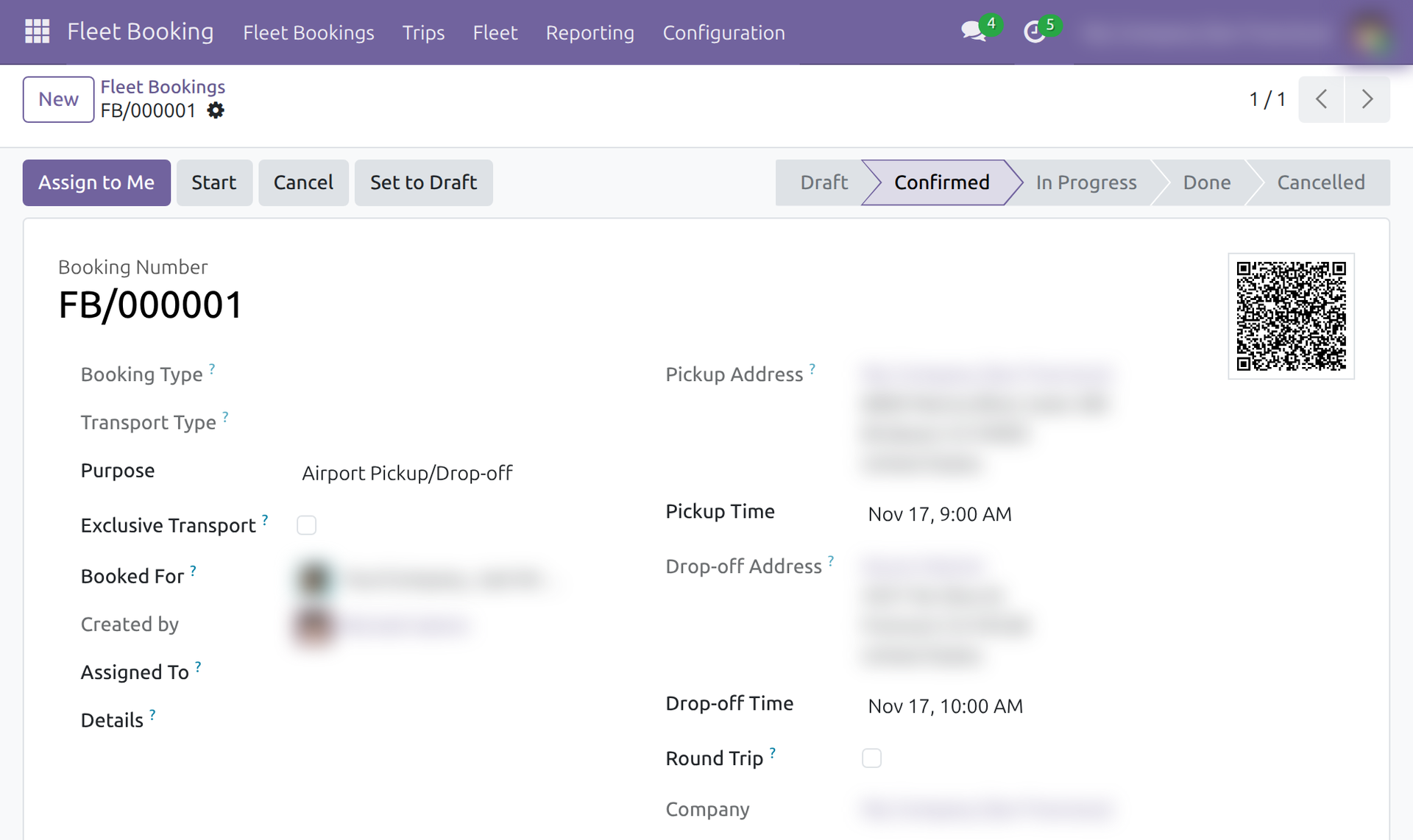
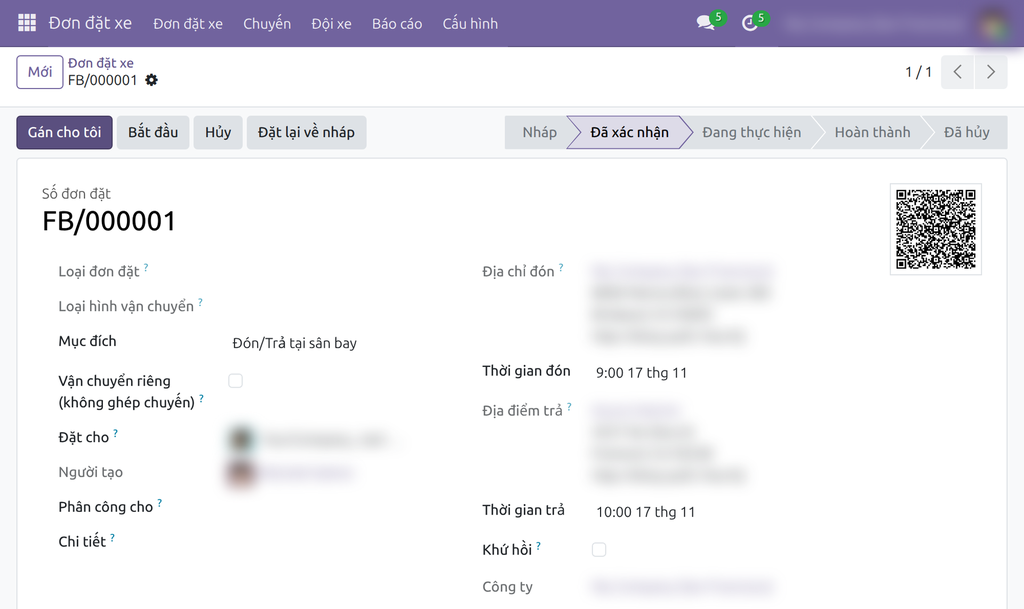
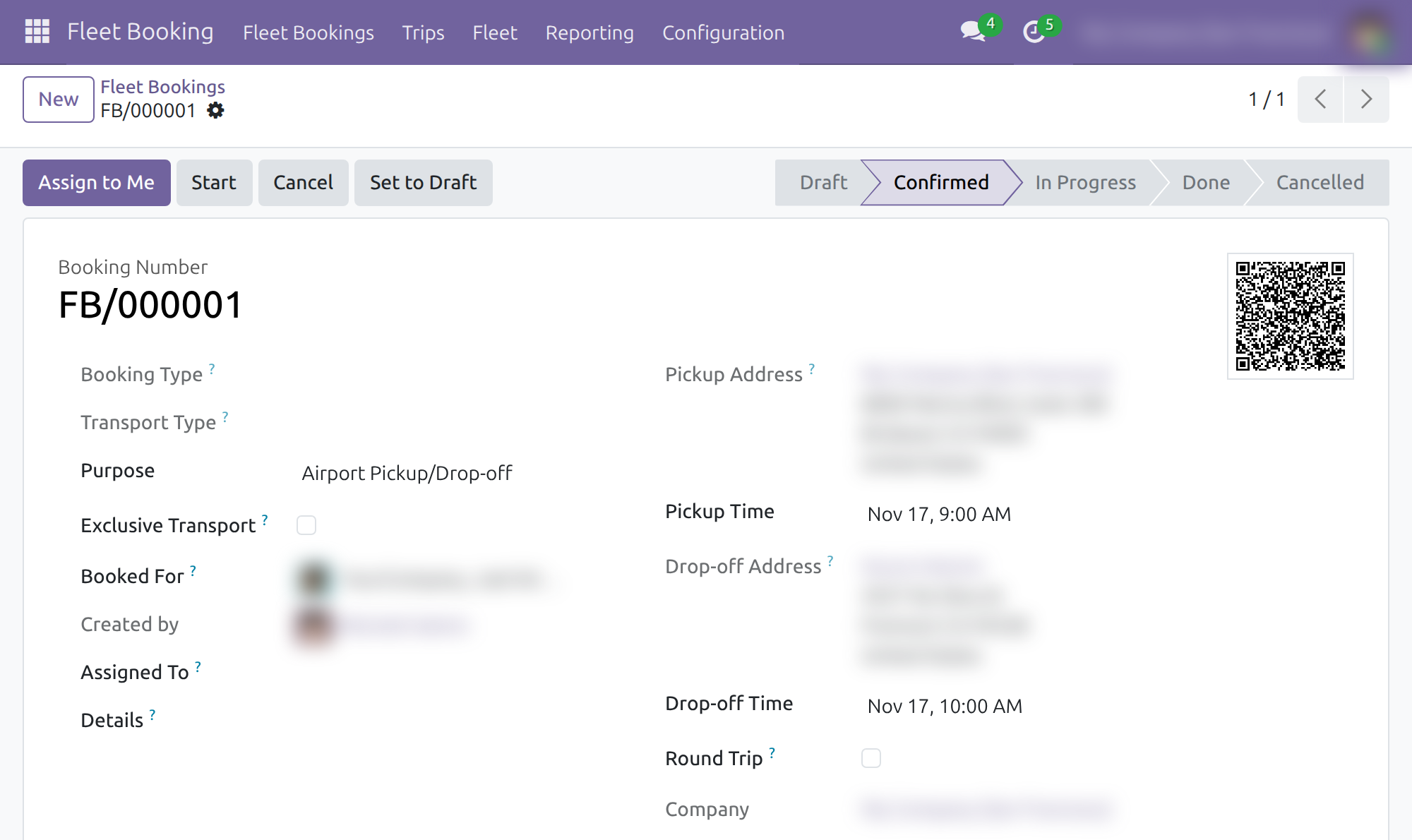
→ A booking holds the purpose, the person it is for, pickup and drop-off addresses and times, and a preferred vehicle or driver. Confirming it gives the fleet managers an activity to plan it, and every trip sits on one calendar with its vehicle and driver.
Each trip records how the vehicle was used
Today, odometer readings, fuel and costs on the road are collected after the fact, if at all.
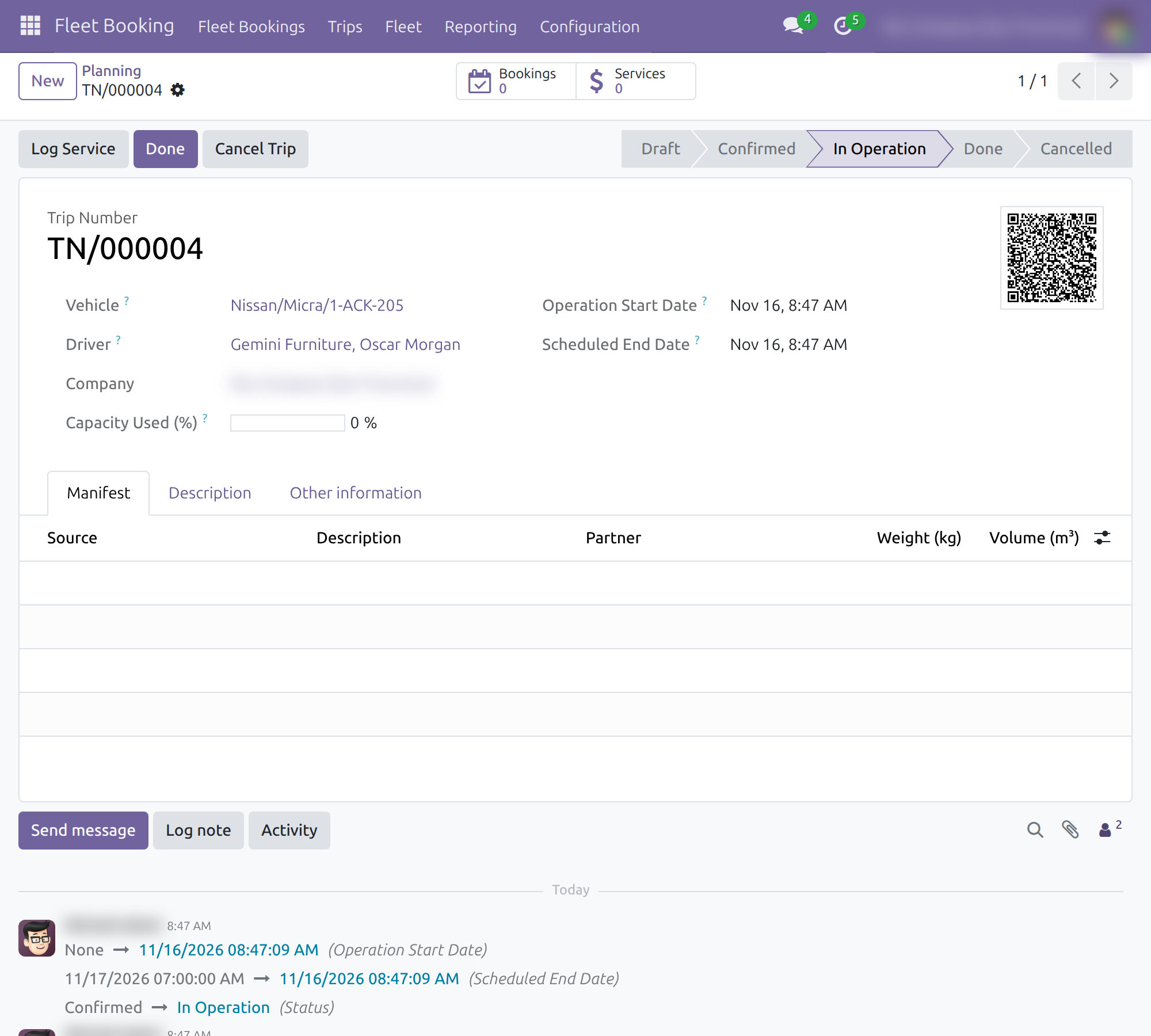
→ A trip moves from Draft to Done. Starting it records the odometer and the driver, costs are logged as services during the trip, and finishing it records the odometer and the fuel consumption. Trips Analysis then shows duration and cost per vehicle.
Customers follow their booking without calling
Today, the person waiting to be picked up calls to ask whether the booking still stands.
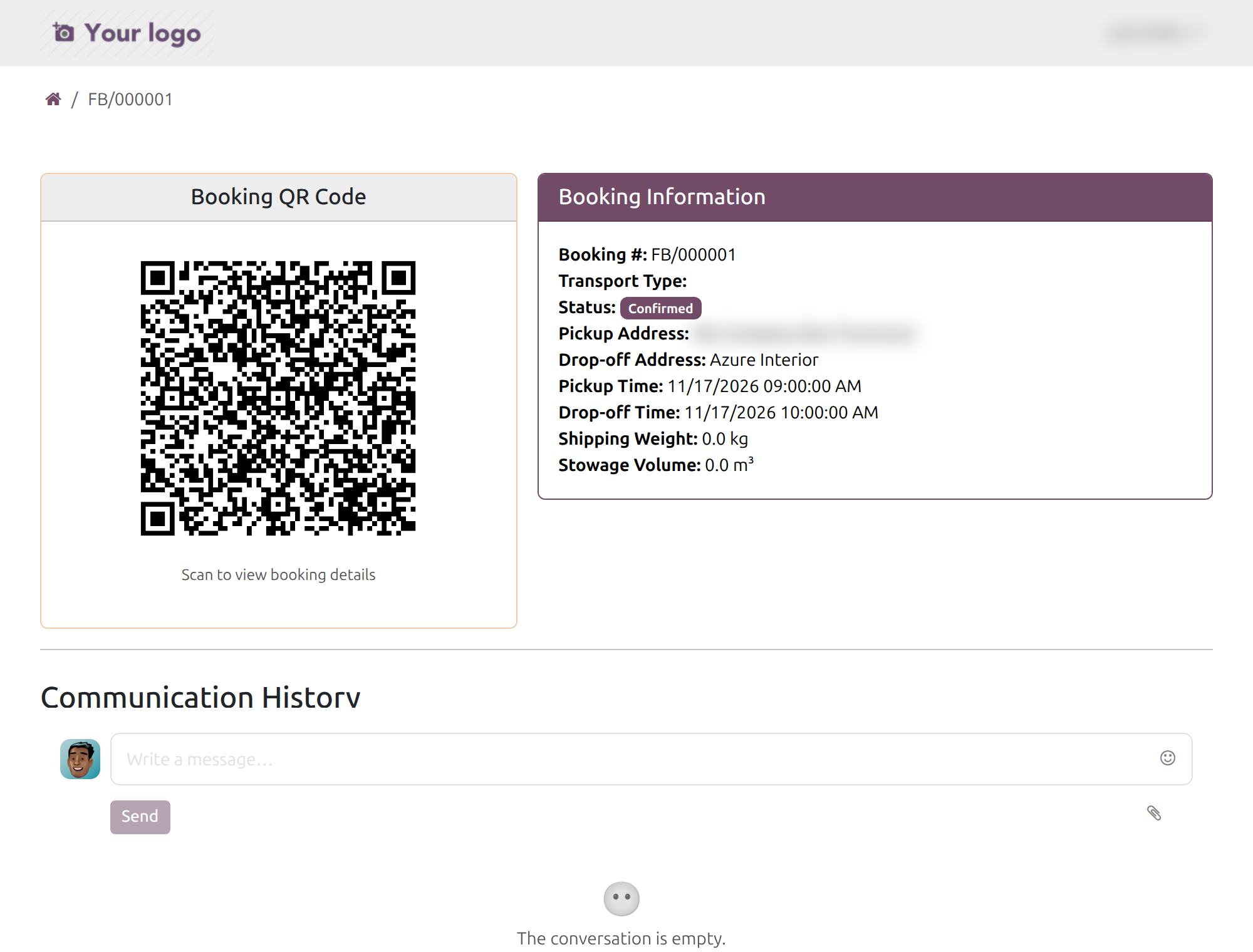
→ With portal access, the contact a booking is for sees their bookings and trips online: status, addresses, times, a QR code and a message thread with the fleet team.
Ready on day one
Booking purposes
Common purposes such as Business Trip, Client Meeting and Airport Pickup/Drop-off. Edit them, add your own, and mark a purpose as exclusive so its bookings do not share a vehicle.
Roles
Fleet Booking User for requesters, Operator for dispatchers and Fleet Booking Administrator for the whole application.
Two reports
Trips Analysis for duration and cost per vehicle, Fleet Booking Analysis for bookings by status and purpose.
Set up first
Give each person a Fleet access right, review the purposes and decide in Settings whether trips respect vehicle load limits. The Documentation tab walks through each step.
What is included
Bookings with their QR code, trips from Draft to Done with odometer, fuel and service costs, the trip calendar, the planning board, the two reports, a printable trip report and the customer portal pages. Vehicles, services and odometers of the Fleet app open from the same menu.
Before you decide
Where does our data go?
Bookings, trips and costs stay in your own database. Trip schedules go out as emails through your own mail server.
Who sees what?
A requester sees their own bookings, those of the people they manage and those they follow. An operator sees every booking and trip. A driver sees every trip and edits the trips assigned to them. A portal customer sees only the bookings made for them or their company.
Does it assign vehicles and plan routes for us?
Putting a booking on a trip needs booking items, which a companion application creates; without one, you plan each trip on the calendar and give it a vehicle and a driver. With booking items, the planning board assigns those of a day to vehicles or trips, by hand or automatically. Routes, waypoints and distances belong to Fleet Operations.
Which languages does it ship in?
English and Vietnamese. Other languages are added through the standard Odoo translation tools.
What does it take to run it?
The Fleet and Employees apps; Odoo installs the required modules listed below with it. Load limits use the weight and volume capacity recorded on each vehicle.
Try it, then ask us
Read the Documentation tab of this listing, or open the Live Preview to try it on a working database.
Pre-sales & partnership
viindoo.com/contactusTechnical support
viindoo.com/ticketTechnical requirements
- Odoo version: 19.0
- Editions: Community, Enterprise
- Required modules: QR Code Mixin, Fleet Loading Capacity, Advanced HR Management, Fleet Drivers Management
- License: OPL-1
- Languages: English, Vietnamese
Fleet Booking & Trip Management
Note
Extends Fleet Drivers Management - see its documentation.
This guide is for the people who book vehicles, plan and run trips, and administer the fleet: requesters, dispatchers, drivers, fleet managers, the administrator who sets the application up, and the customers who follow their bookings online.
Overview
Fleet Booking lets a company book a vehicle for an employee or a guest, plan which vehicle and driver carries the booking, run the trip from start to finish while recording odometer, fuel and costs, and analyse how the fleet is used. A customer can follow a booking and its trips online.
The process runs in these stages:
- Book. A requester creates a booking in Draft and clicks Confirm; the booking is Confirmed and handed to the dispatcher.
- Plan. A dispatcher takes the booking with Assign to Me, then assigns the day's booking items to vehicles or trips with Vehicle/Trip Planning.
- Run. A trip is confirmed, started and finished by its driver. When the trip is Done, the bookings whose booking items it carries are Done too.
- Analyse. The fleet manager reads Trips Analysis and Fleet Booking Analysis.
| Role | What they do | Access right to assign |
|---|---|---|
| Administrator | Installs the application, sets capacity and planning rules, gives each person an access right | Administrator role (Roles section of the user) plus Fleet Booking Administrator |
| Requester | Books vehicles and follows their own bookings | Fleet Booking User |
| Driver | Starts and finishes the trips assigned to them, logs services | Officer: Manage all vehicles |
| Dispatcher | Plans vehicles and trips for every booking | Operator |
| Fleet manager | Reads reports and keeps booking purposes | Administrator (Fleet), or Fleet Booking Administrator |
| Customer | Follows bookings and trips on the portal | Portal access, being the Booked For contact |
Setup (for the Administrator)
Installation
- Open Apps, remove the default filter, search for Fleet Booking & Trip Management and click Install.
- The applications it relies on are installed with it: Fleet Loading Capacity (see its documentation), the QR code feature, Advanced HR Management and Fleet Drivers Management.
Access rights
Open Settings ‣ Users & Companies ‣ Users, select a person, open the Access Rights tab and choose a value in Human Resources ‣ Fleet:
- Fleet Booking User - books vehicles and manages their own bookings.
- Officer: Manage all vehicles - sees every vehicle and trip and runs the trips assigned to them.
- Operator - plans vehicles and trips and records costs for every booking.
- Administrator - adds the reports and the configuration menus.
- Fleet Booking Administrator - full access to the whole application, including the Fleet administration.
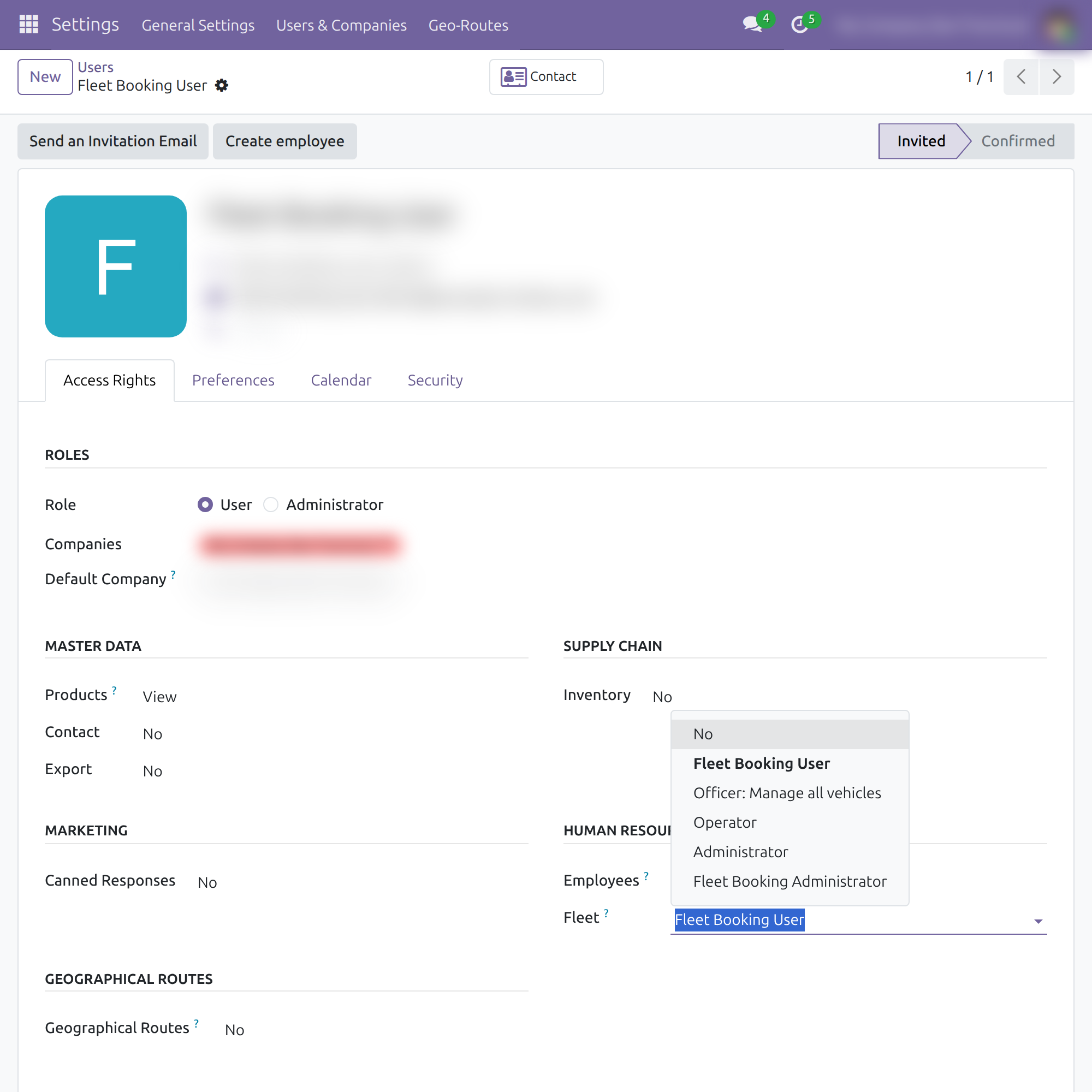
The Settings menu of the application additionally needs the Administrator role in the Roles section of the same tab.
Application settings
Open Fleet Booking ‣ Configuration ‣ Settings. The Fleet Booking tab is selected.
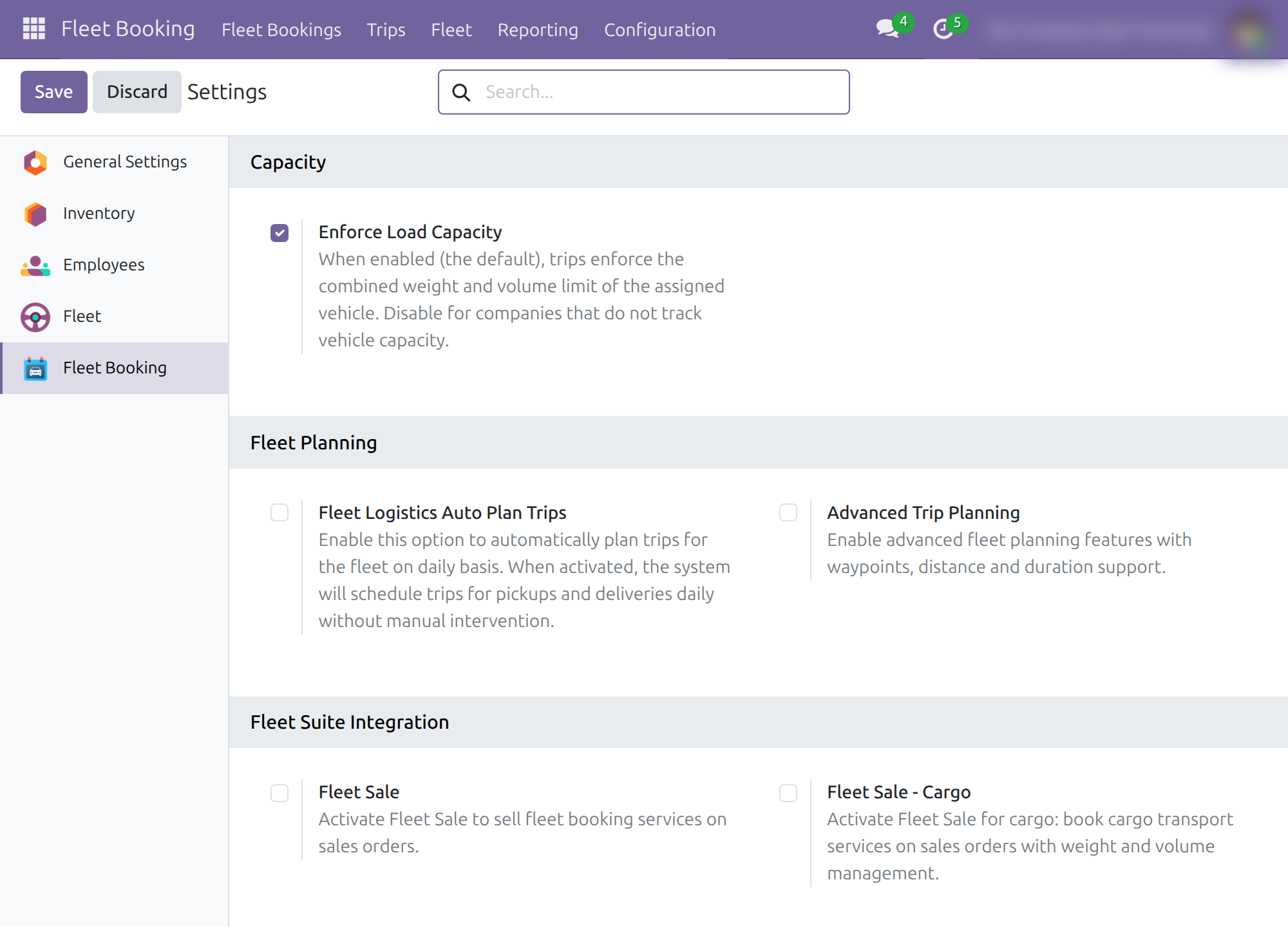
Enforce Load Capacity (on by default) - a trip respects the weight and volume limit of its vehicle.
Fleet Logistics Auto Plan Trips - plans pickups and deliveries every day without manual work. When it is on, choose the allocation: Even Distribution spreads bookings across the available vehicles, Fill Vehicles fills one vehicle before the next.
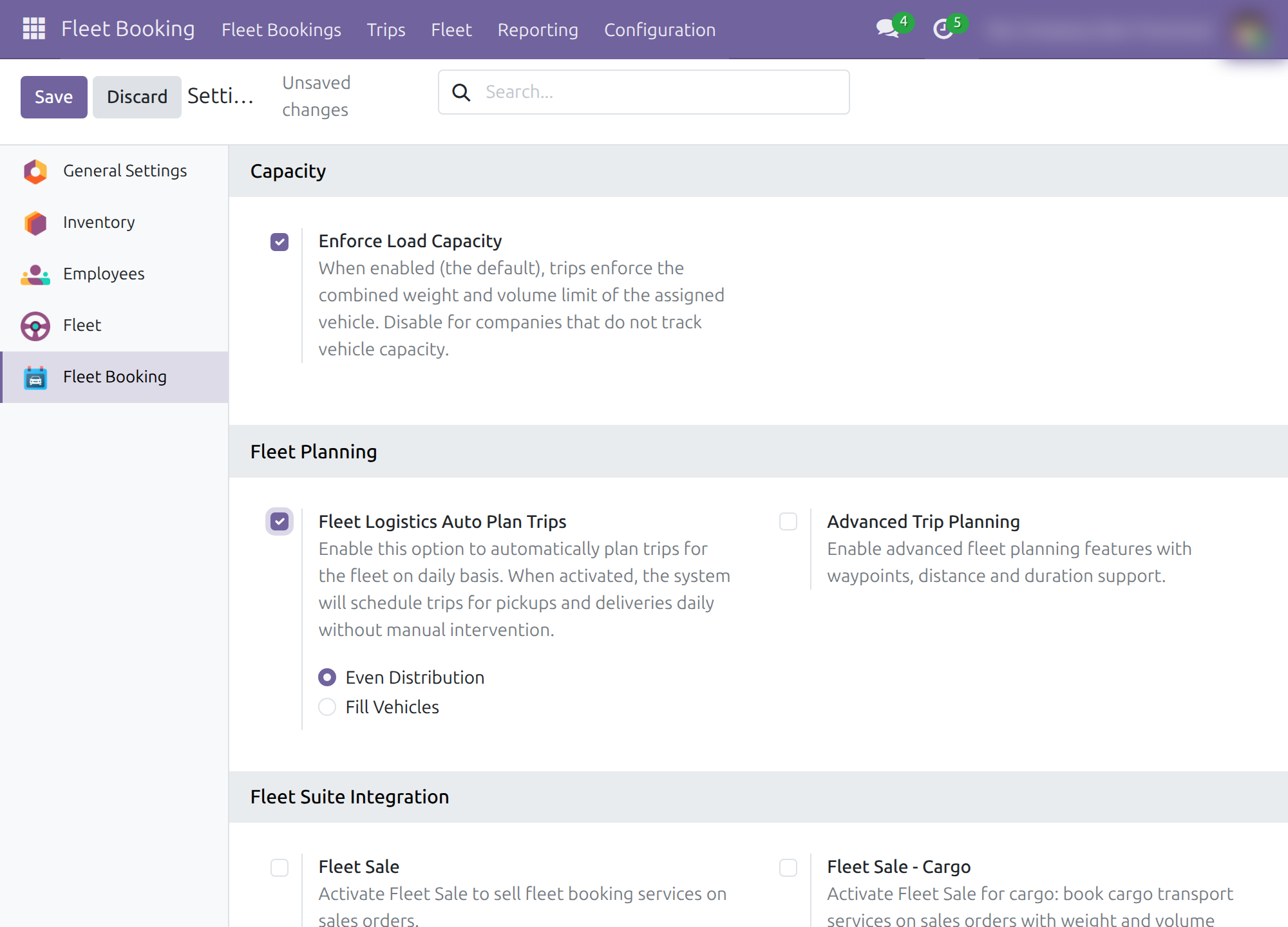
Advanced Trip Planning - activates waypoints, distances and durations with the companion application Fleet Operations (see its documentation).
Fleet Suite Integration - activates companion applications: Fleet Sale, Fleet Sale - Cargo, Fleet Sale - Passenger (Commercial Fare), Fleet Booking - Passenger, Fleet Pickup and Delivery Planning (see its documentation) and Fleet Loading Capacity (Volume & Payload).
Note
Booking Type and Transport Type on a booking stay empty until a companion application such as Fleet Booking - Passenger adds its values. The same applications create the booking items that Vehicle/Trip Planning assigns. Without them, classify a booking with Purpose.
Booking purposes
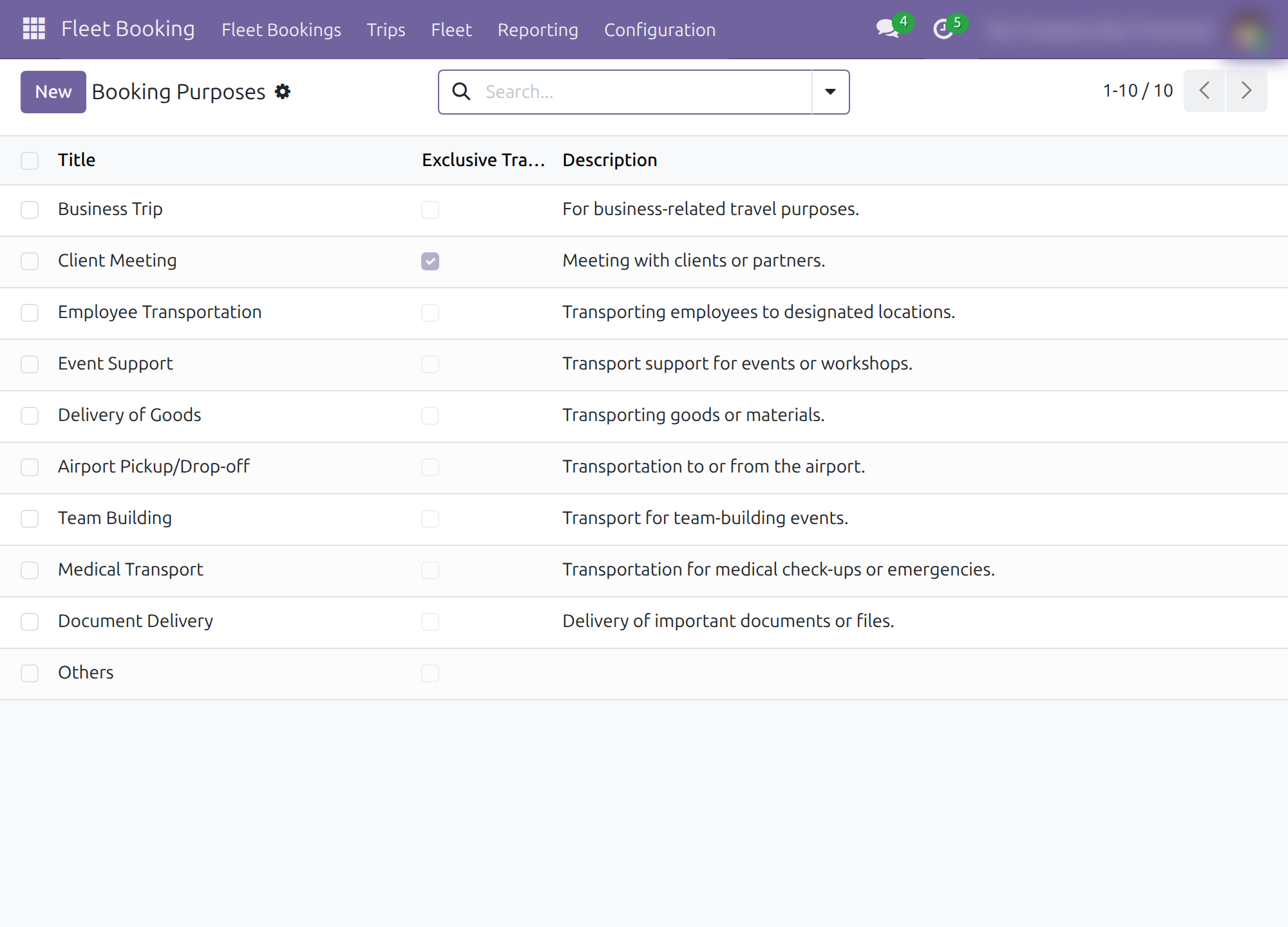
Open Fleet Booking ‣ Configuration ‣ Booking Purposes to keep the reasons offered in the Purpose field of a booking. Ten purposes are provided, for example Business Trip, Client Meeting and Airport Pickup/Drop-off. Tick Exclusive Transport on a purpose when its bookings should not share the vehicle.
Requester: book a vehicle
The requester needs the Fleet Booking User access right. They see Bookings and Booking Items under Fleet Bookings, the four Trips lists and Fleet ‣ Fleet. They see their own bookings, the bookings of the people they manage, and the bookings they follow.
Create and confirm a booking
Open Fleet Booking ‣ Fleet Bookings ‣ Bookings and click New.
Choose the Purpose, for example Airport Pickup/Drop-off.
Choose Booked For, the person or company the trip is for.
Fill Pickup Address and Pickup Time, then Drop-off Address and Drop-off Time. The pickup time must not be later than the drop-off time. Tick Round Trip when the vehicle returns; Waiting Time at Dropoff (hours) then appears.
Optionally use the Preferences tab to name a Preferred Vehicle Model, Preferred Vehicle, Preferred Driver and Booking Notes.
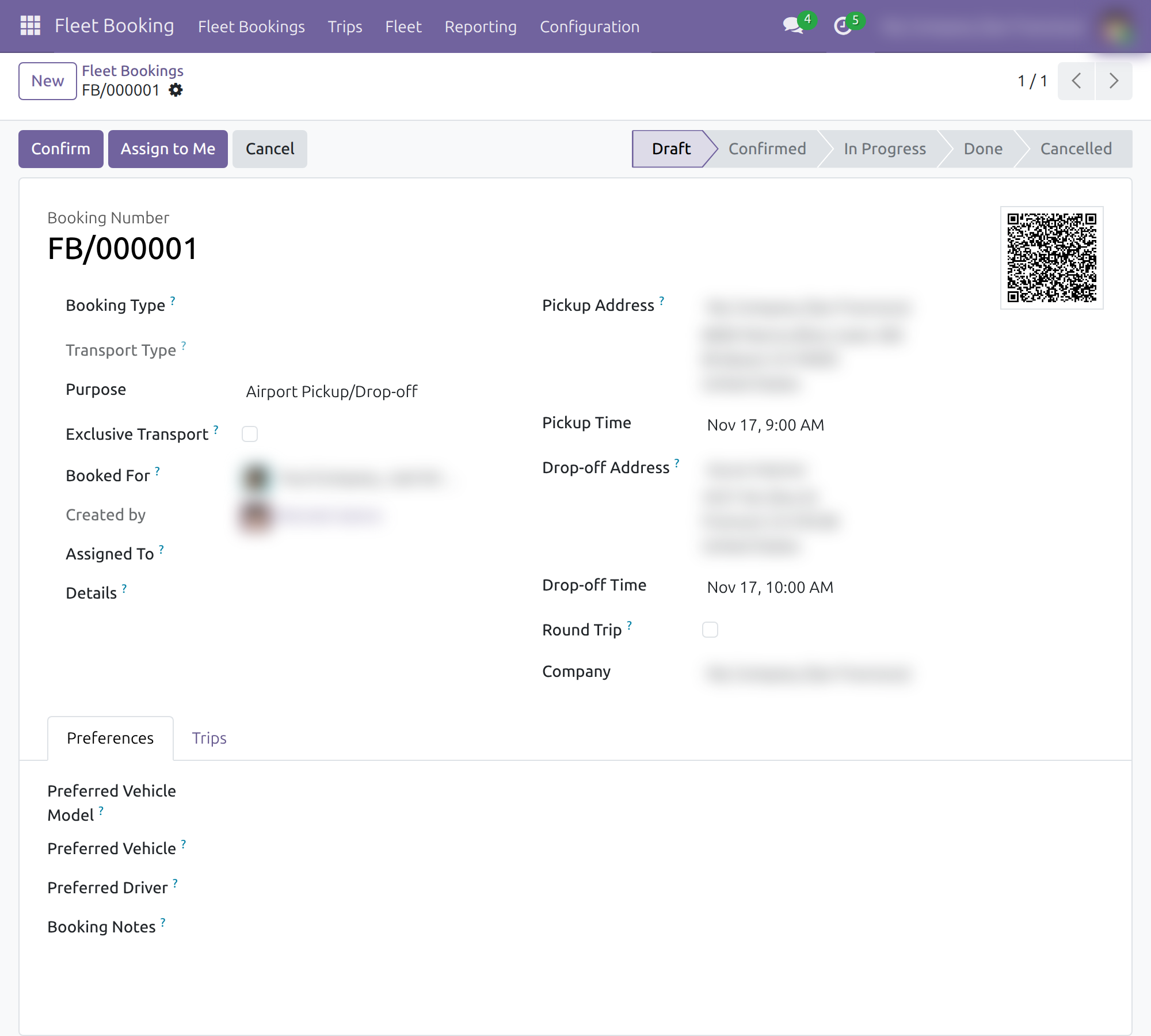
Click Confirm. The booking moves from Draft to Confirmed, the contact in Booked For follows it, and the fleet managers (or the person in Assigned To) receive an activity to plan it. Start, Cancel and Set to Draft are now available.
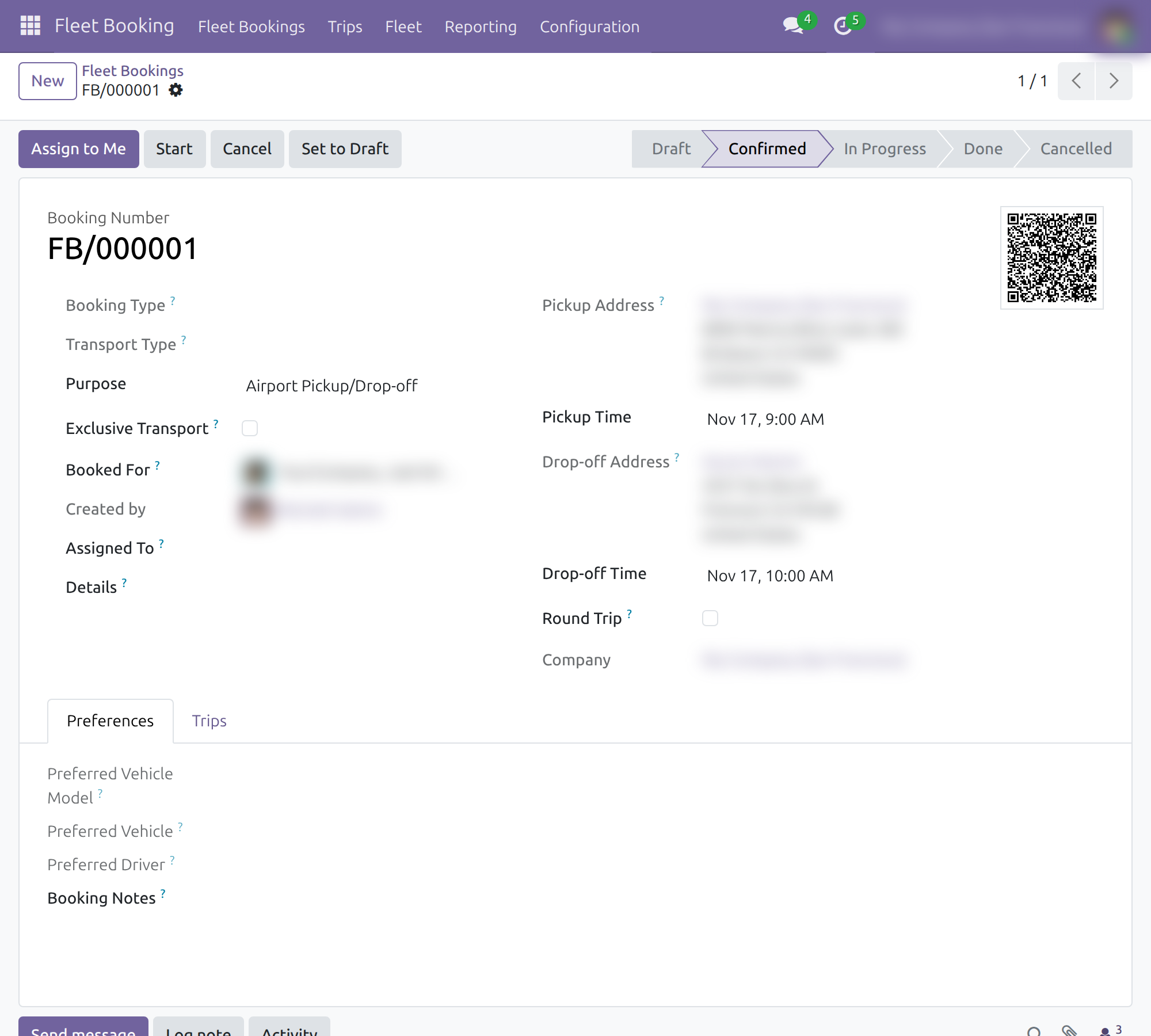
The booking carries a Booking Number and a QR code. The Trips tab lists the trips carrying it. Cancel stops a booking that is not Done; Set to Draft reopens a confirmed or cancelled one. Only a booking in Draft can be deleted.
Follow the bookings
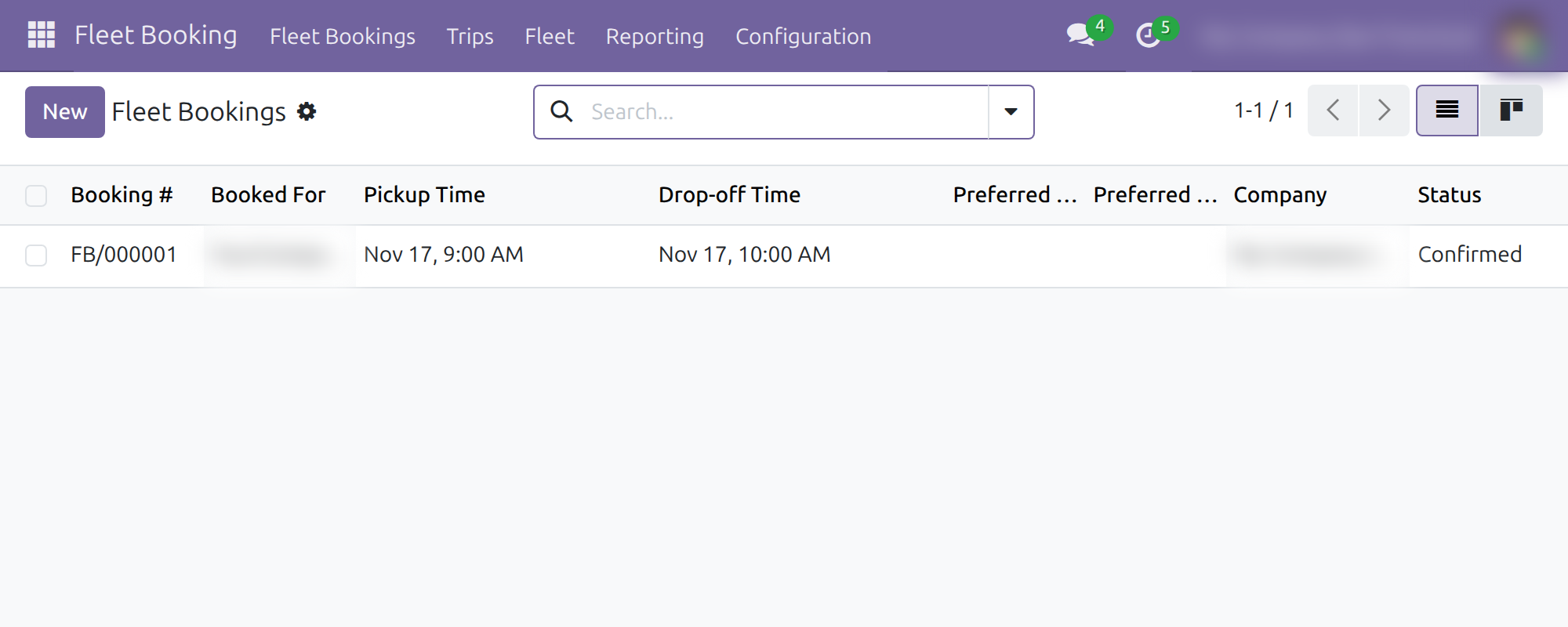
Open Fleet Booking ‣ Fleet Bookings ‣ Bookings to list the bookings with their Booked For, times and Status. The kanban view shows the same bookings as cards with their QR code.
Dispatcher: plan vehicles and trips
The dispatcher needs the Operator access right, which includes the requester and driver rights. An operator sees every booking and trip, and also Services and Odometers under Fleet.
Take a booking
Open a Draft or Confirmed booking and click Assign to Me. The booking shows you in Assigned To, and the booking's chatter records it.
Assign booking items to vehicles
- Open Fleet Booking ‣ Fleet Bookings ‣ Vehicle/Trip Planning.
- Choose the Date. Only confirmed bookings scheduled on that date are offered.
- Keep Assignment Type on Manual and choose Assignment Mode: Vehicle shows one column per vehicle, Trip one column per trip.
- Click Start Manual Planning and drag each booking item card to a vehicle or trip column.
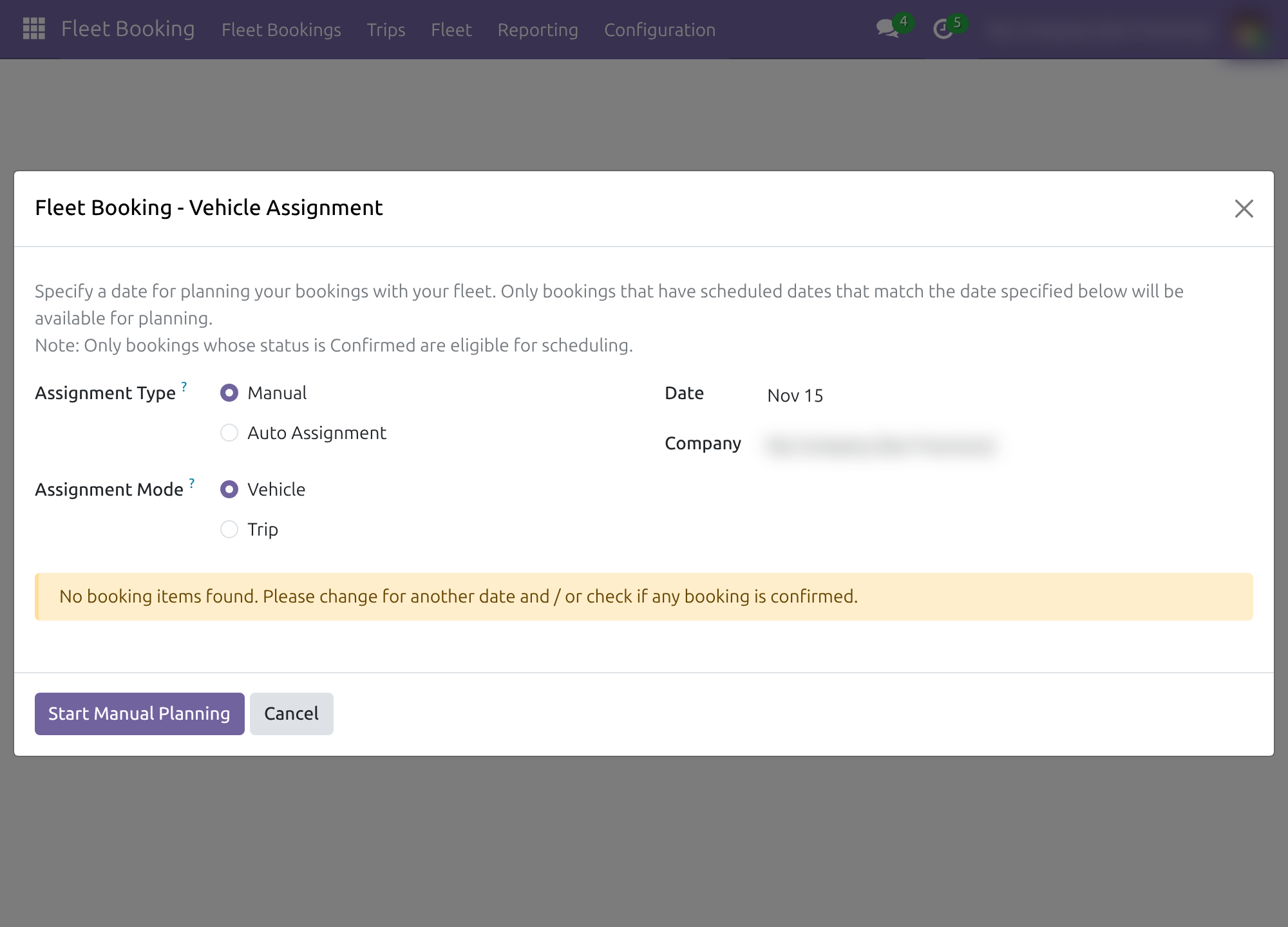
With Assignment Type set to Auto Assignment, click Start Auto Assign: the booking items of the date are spread across the available vehicles following the allocation mode of the settings, then the board opens for review. When Fleet Logistics Auto Plan Trips is on, the same planning also runs every day on its own. This allocation chooses the vehicle; it does not compute the driving route. Route optimisation belongs to Fleet Operations.
The dialog displays No booking items found when no confirmed booking item matches the date. Booking items come from the companion booking applications (see the note in the setup chapter). Click Cancel to close the dialog without planning.
Plan the trips
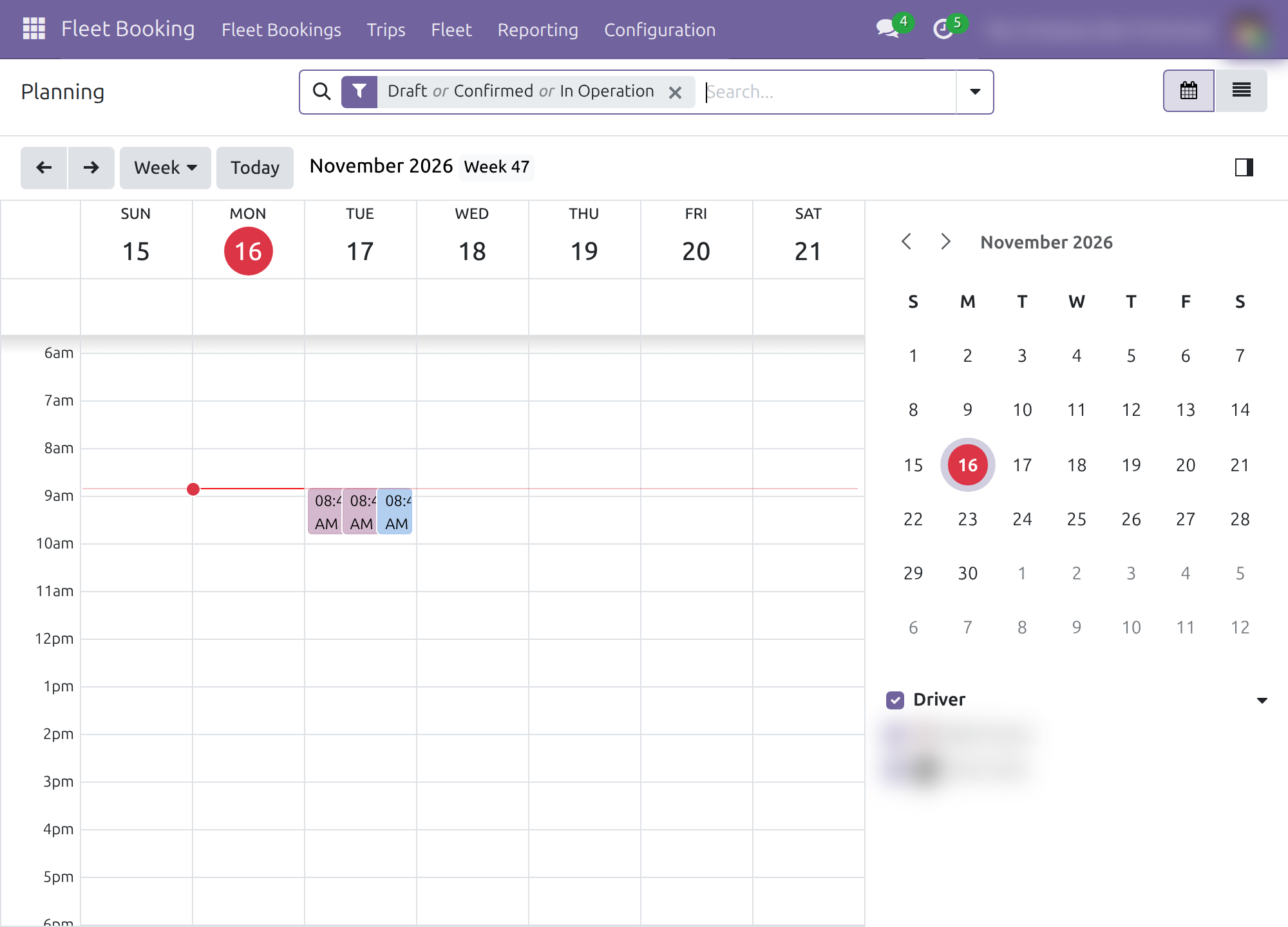
Open Fleet Booking ‣ Trips ‣ Planning to see the trips on a calendar coloured by vehicle, filtered on Draft, Confirmed and In Operation. The Trips Confirmed, Trips in Operation and Trips Done menus list the trips by stage.
Open a trip to set its Vehicle, Driver, Scheduled Start Date and Scheduled End Date while it is in Draft. The Manifest tab lists what the trip carries and Capacity Used (%) shows the load against the vehicle limit. A trip can only be confirmed when it has a driver.
Vehicles, services and odometers
Fleet Booking ‣ Fleet gives access to Fleet (the vehicles), Services and Odometers. On a vehicle, Scheduled Trips opens its planned trips, Operation Hours records its working hours and the filters Idle Today and Idle in Two Days (also three and seven days) find free vehicles. On a contact, the Fleet Settings tab holds the Default Stop Duration (hours).
Driver: run a trip
The driver needs the Officer: Manage all vehicles access right. A driver sees every trip and edits the trips assigned to them or still without a driver.
Open a trip in Draft from Fleet Booking ‣ Trips ‣ Planning and click Confirm Trip. The driver is subscribed to the trip and receives an activity.
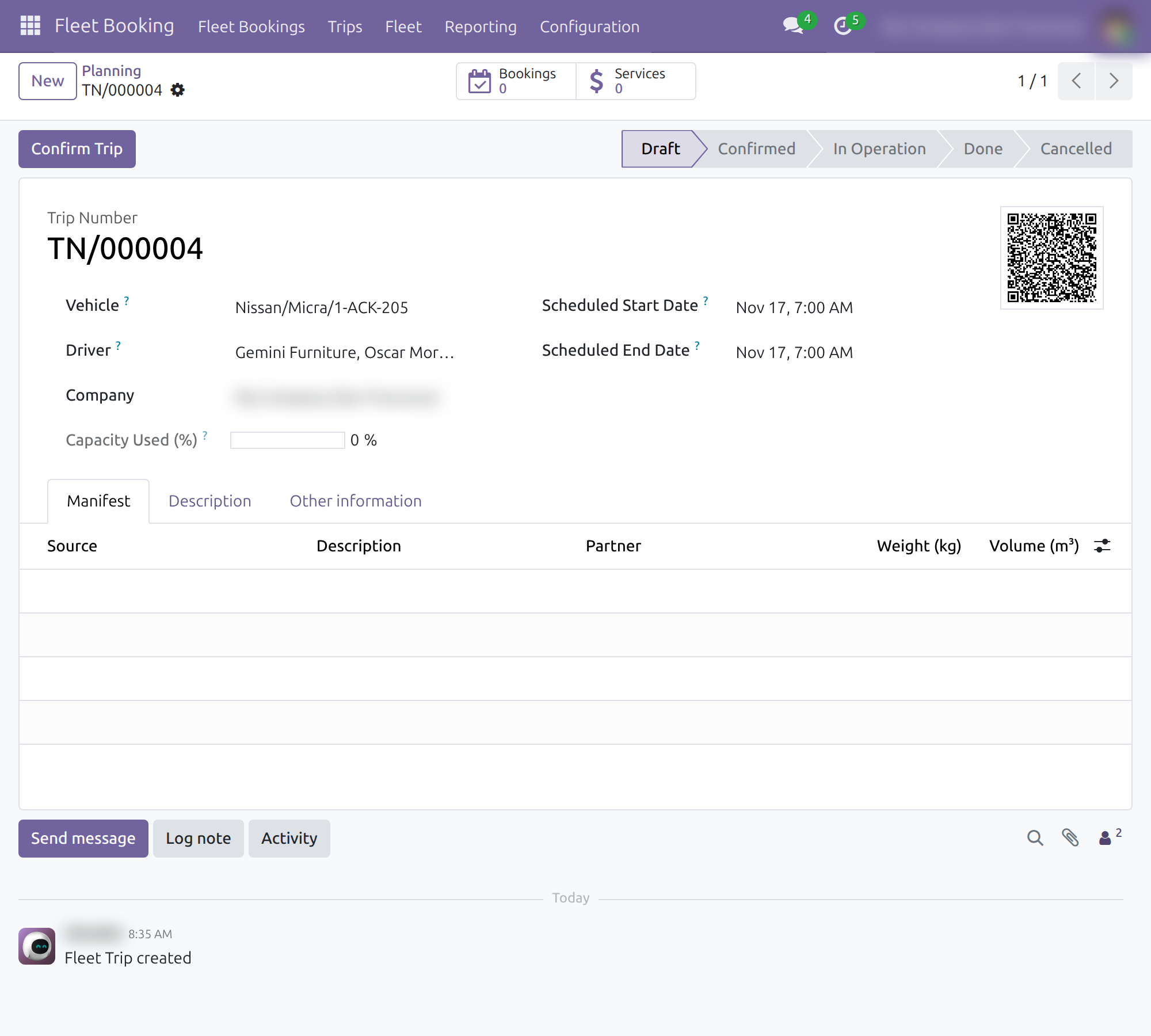
The trip is Confirmed. Send by Email opens the trip schedule email; Cancel Trip and Set to Draft are also available. Click Start Trip.
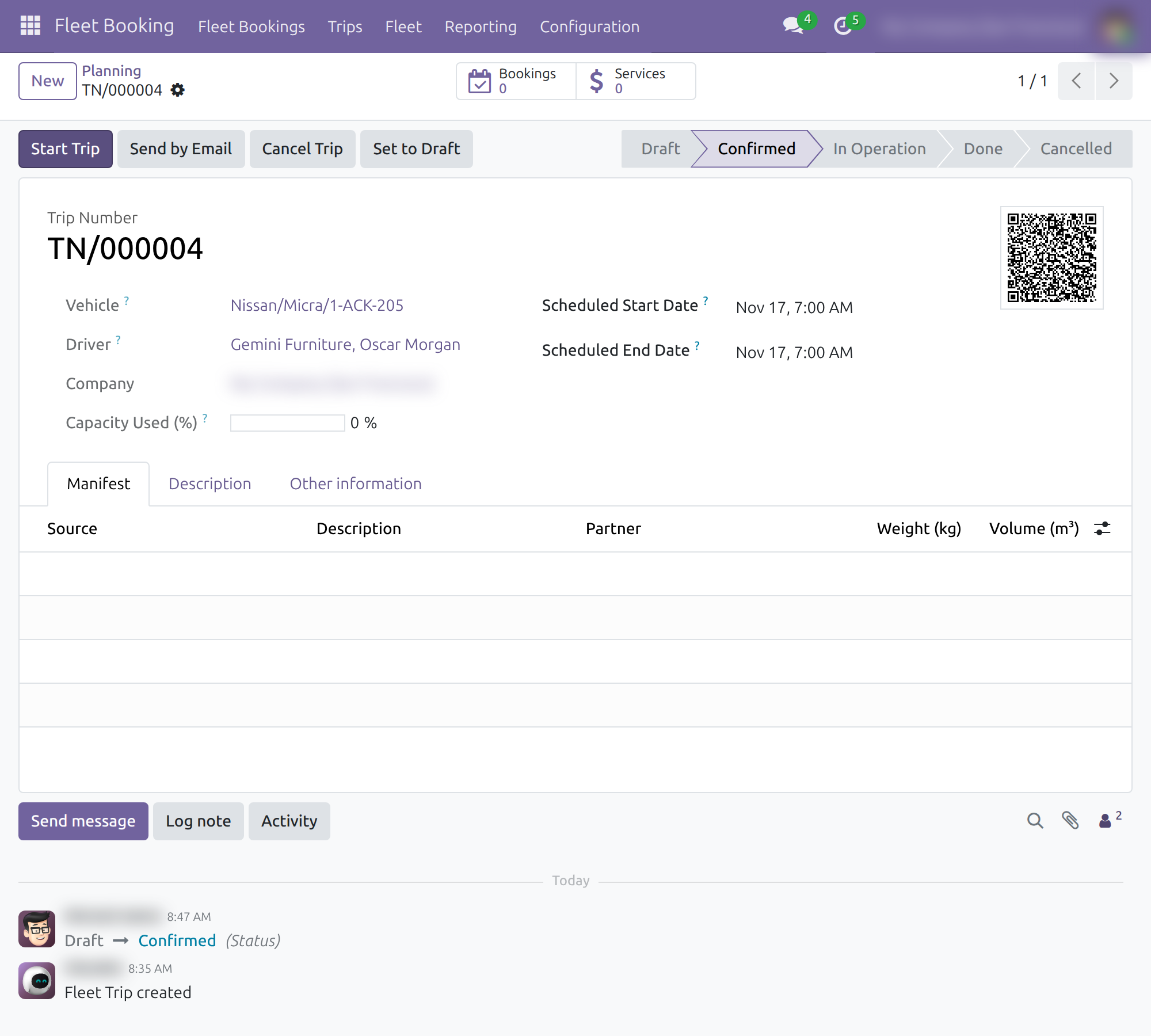
Check the Start Date, the Odometer Value and the Driver, then click Start.
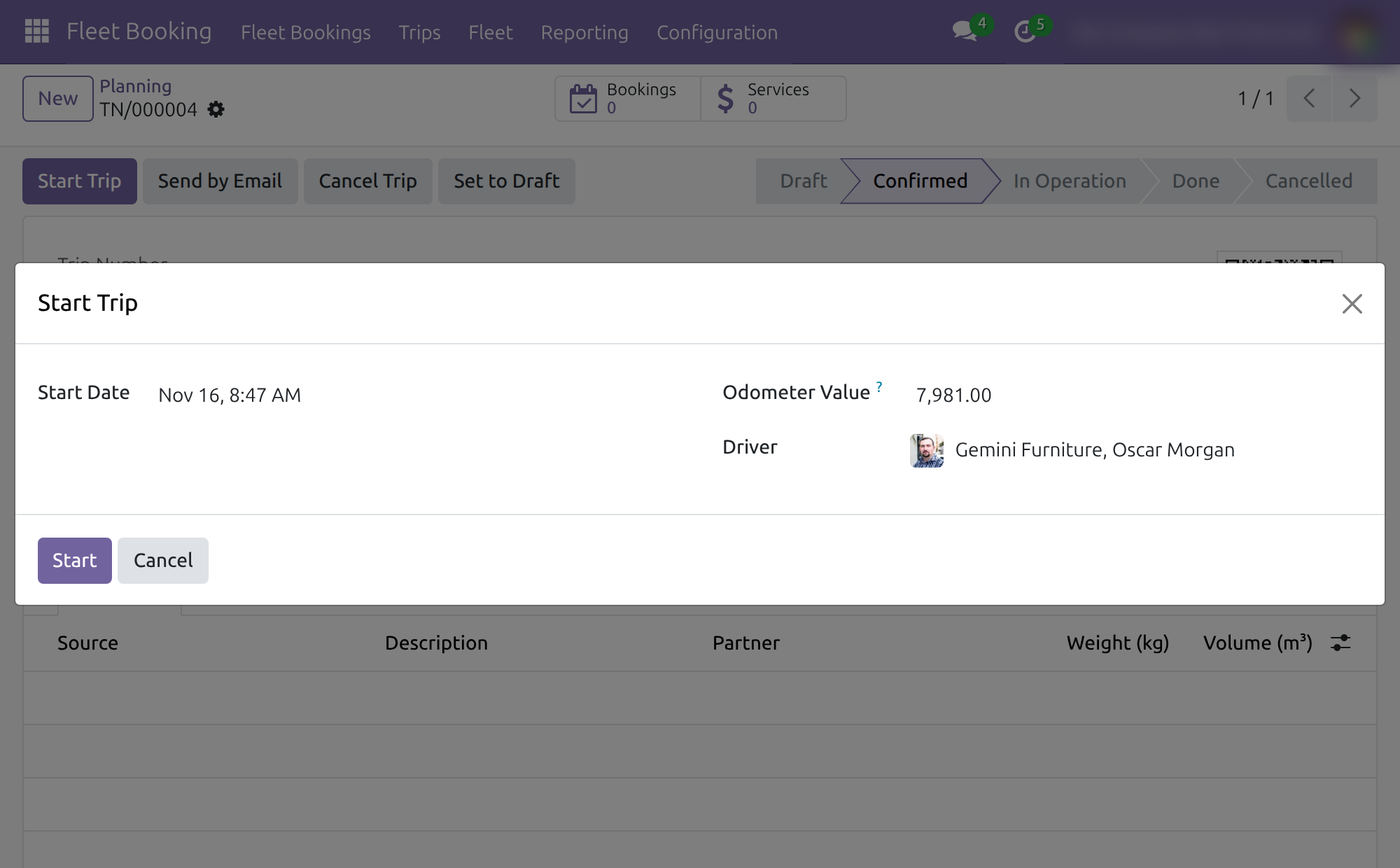
The trip is In Operation; Operation Start Date shows when it began.
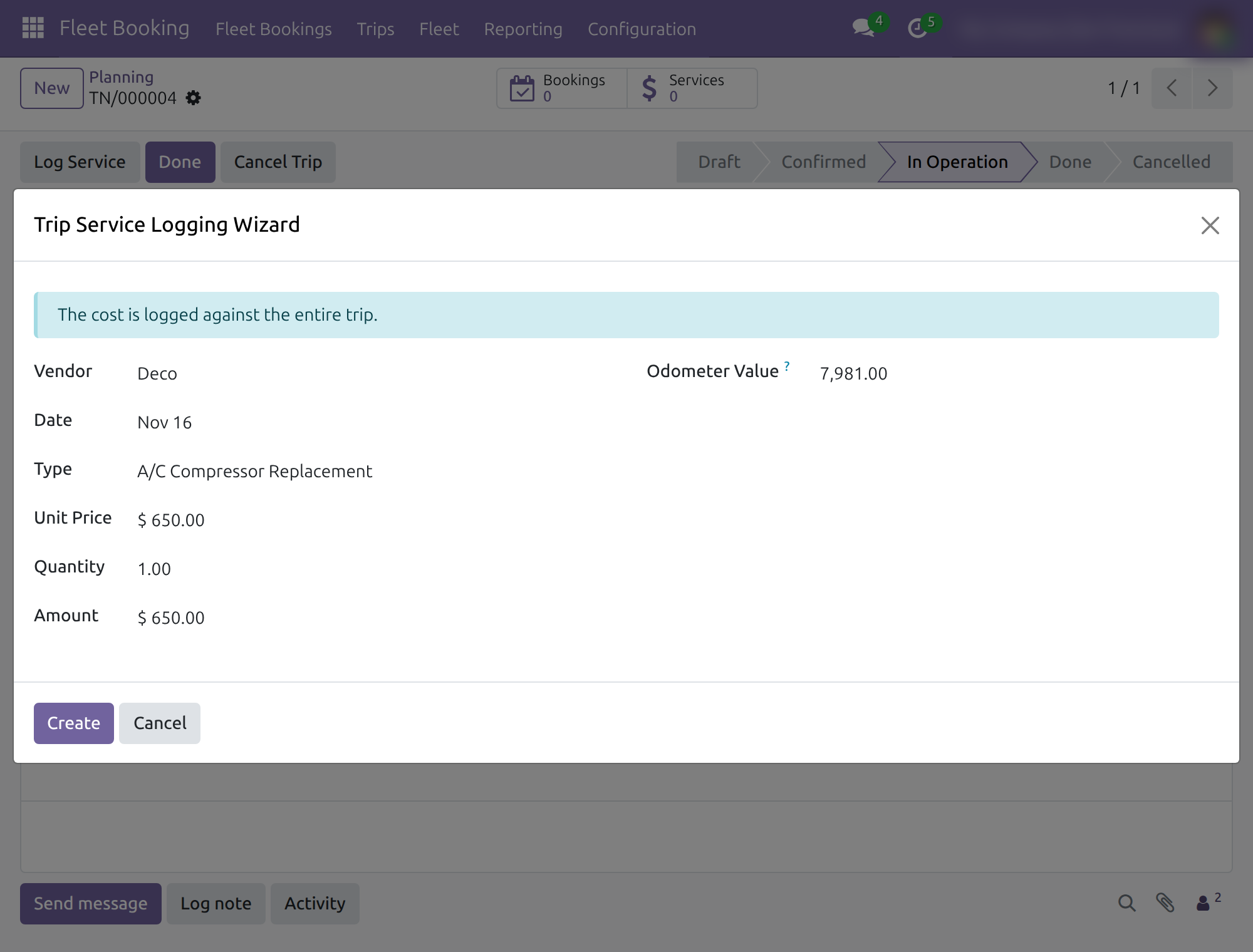
Click Log Service to record a cost during the trip. The dialog notes that the cost is logged against the entire trip. Choose the Vendor, Date, Type, Unit Price, Quantity and Odometer Value, then click Create (Cancel closes the dialog). The Services smart button of the trip counts them.
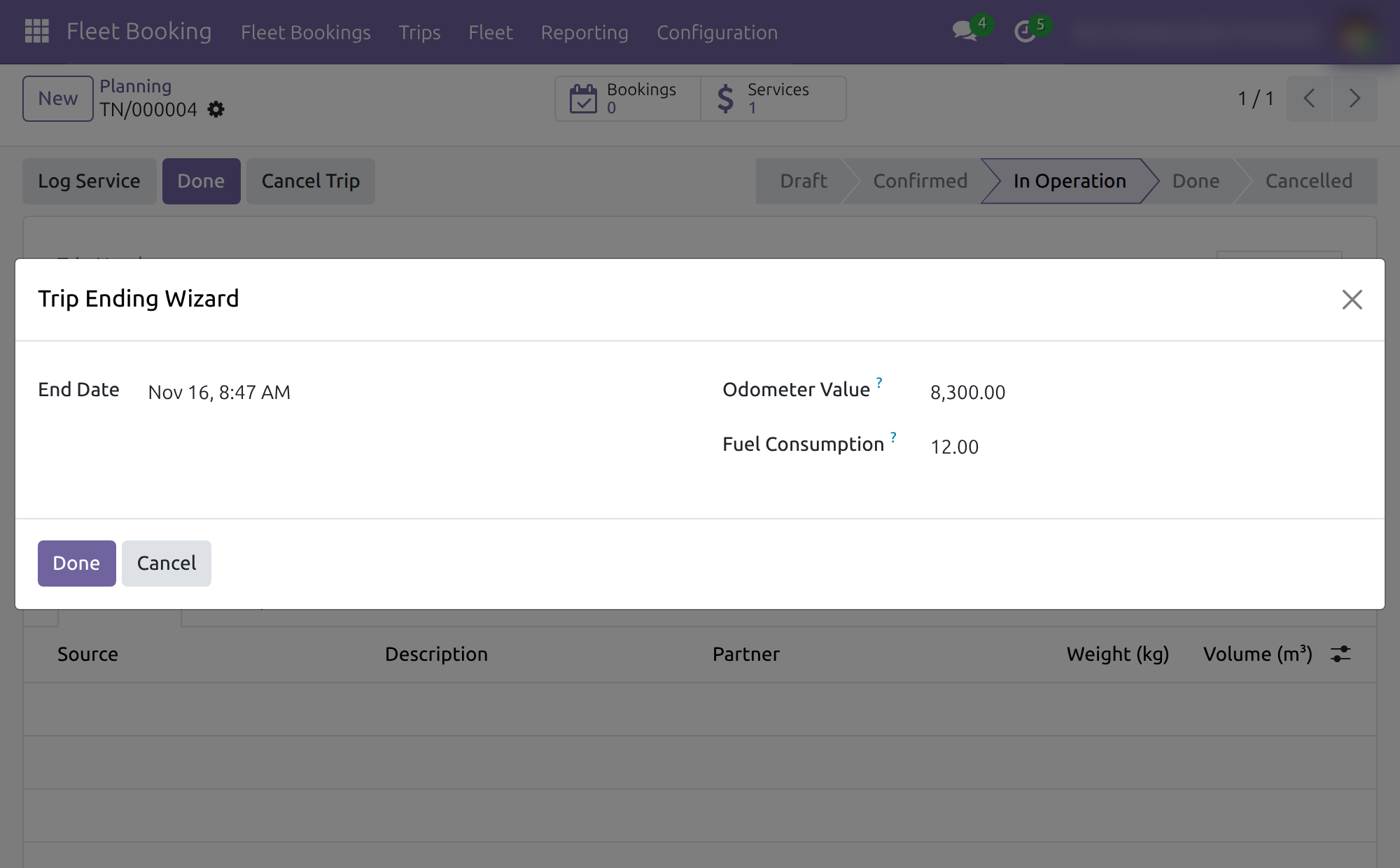
When the trip is over, click Done. Enter the ending Odometer Value and the Fuel Consumption, then click Done.
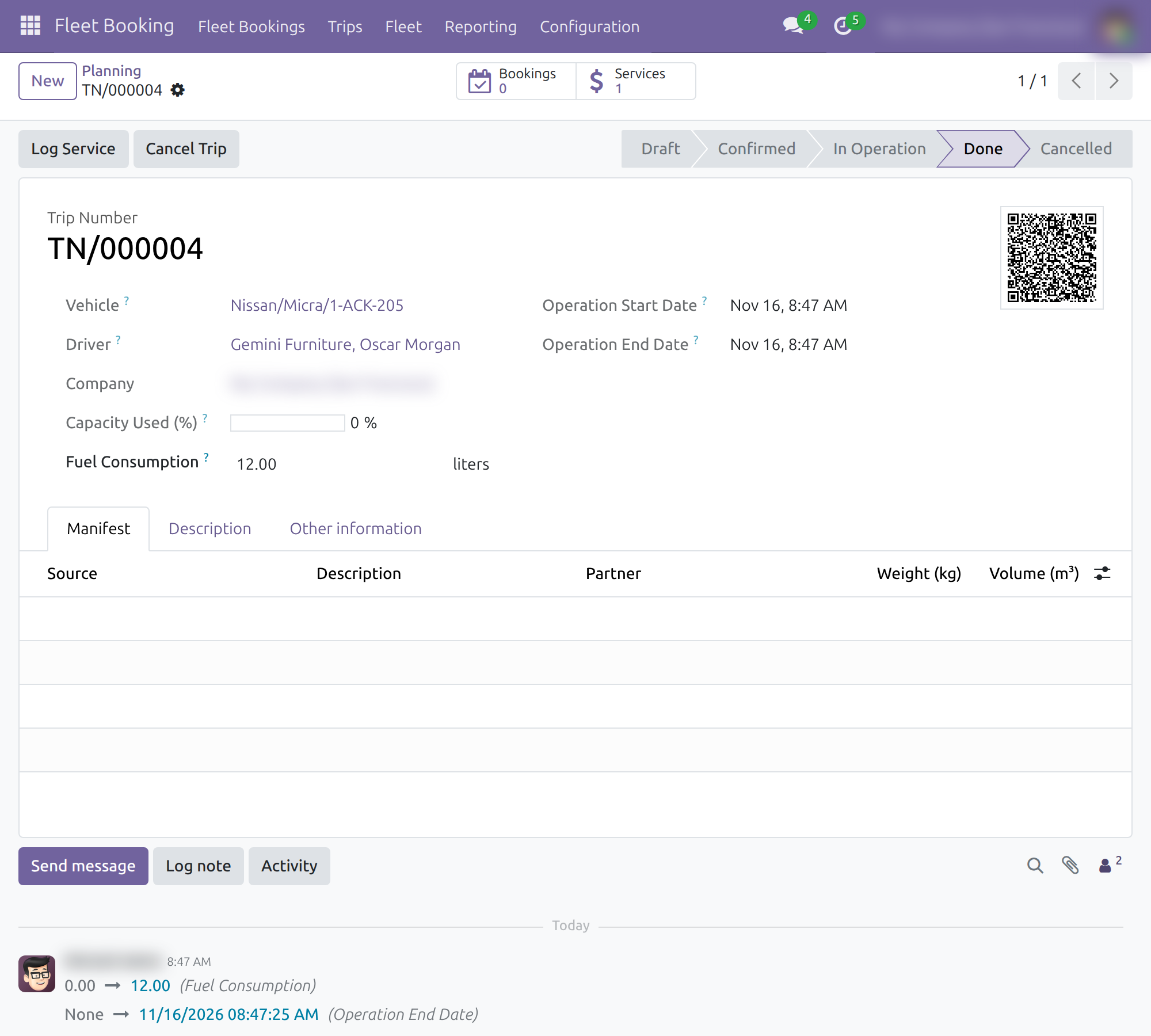
The trip is Done and appears under Trips Done with its Operation End Date. The bookings whose booking items the trip carries become Done as well; a booking with no booking item on the trip, such as one created by hand without a companion application, keeps its status.
Cancel Trip is offered on a trip that is Confirmed, In Operation or Done. It releases every booking item of the trip, clears the operation dates and the odometer readings recorded for the trip, and sets the trip to Cancelled. A booking that is In Progress returns to Confirmed so it can be planned again. A booking that is already Confirmed or Done keeps its status; a Done booking is not offered for planning again. Only an operator can cancel a trip that is In Operation or Done.
Fleet manager: analyse the fleet
The fleet manager needs the Administrator access right of the Fleet application (or Fleet Booking Administrator), which adds the Reporting and Configuration menus.
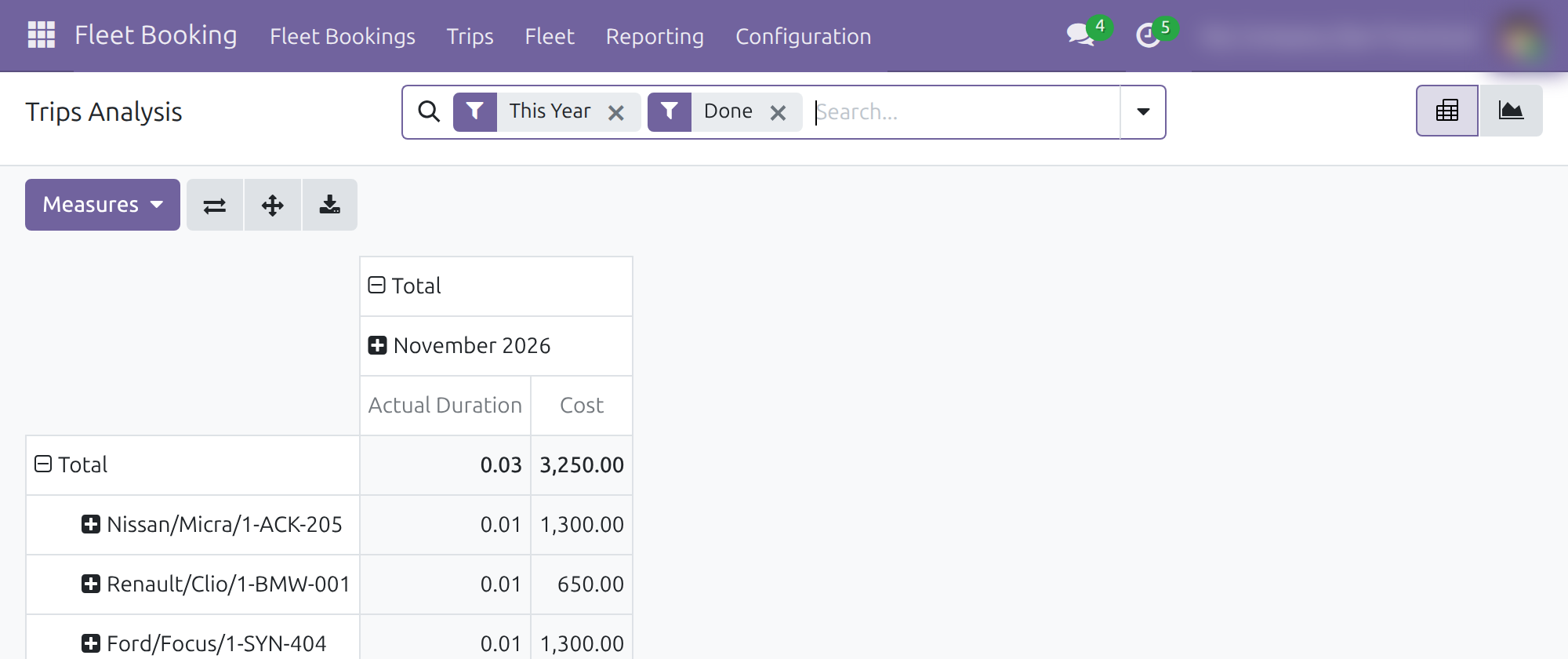
Open Fleet Booking ‣ Reporting ‣ Trips Analysis. The pivot shows the actual duration and the cost per vehicle for the done trips of the year; switch to the graph or change the measures and filters as in any pivot. Each trip counts once: the cost adds up the services logged on the trip, whatever their number, and cancelled or archived services are left out.
Fleet Booking ‣ Reporting ‣ Fleet Booking Analysis summarises the bookings by status and purpose, with their weight and volume. The fleet manager also keeps the list under Configuration ‣ Booking Purposes.
Customer: follow a booking online
A customer with portal access sees the bookings where they are the Booked For contact (or the company they belong to). They cannot create or edit a booking.
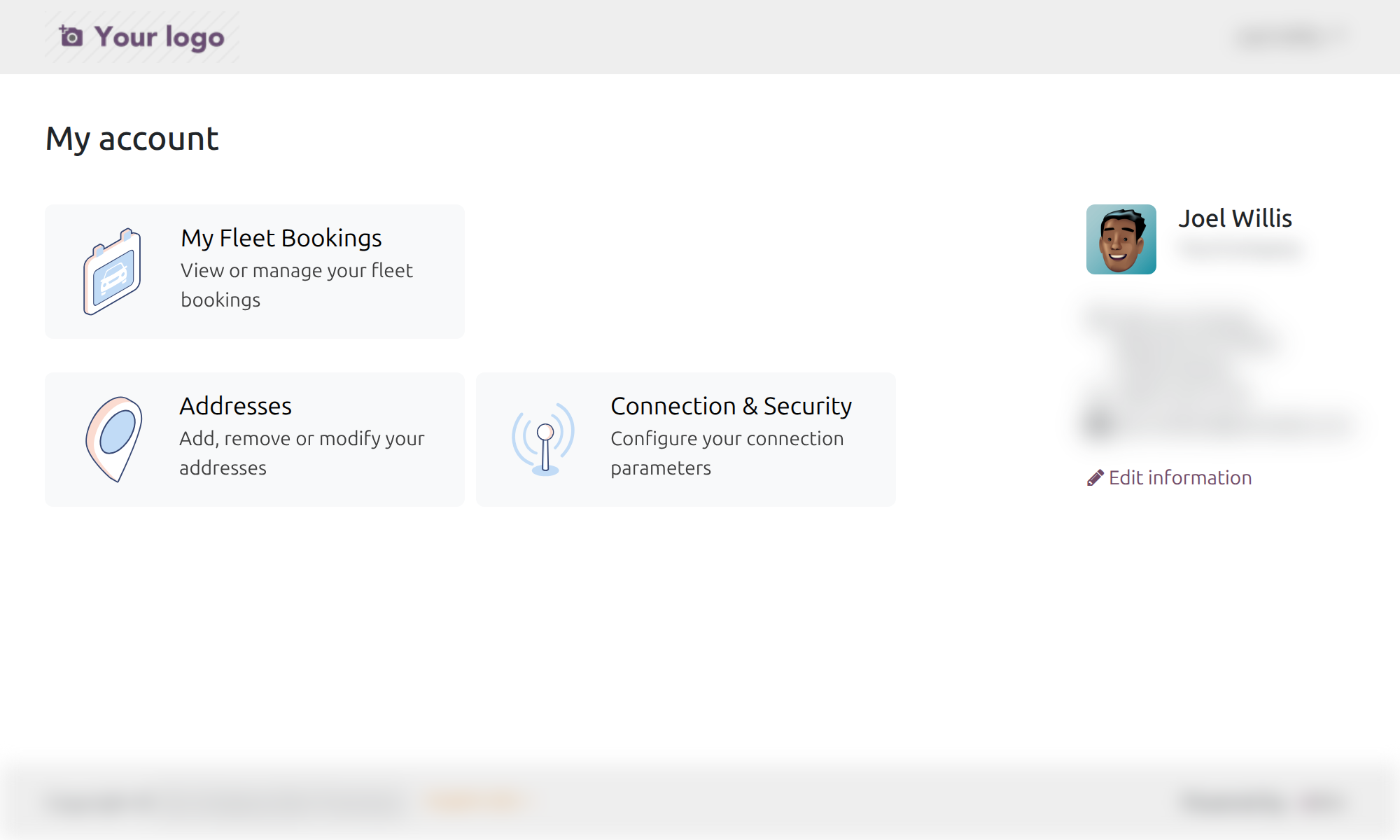
Sign in and open My Account, then click My Fleet Bookings. My Fleet Trips also appears once the customer has trips.
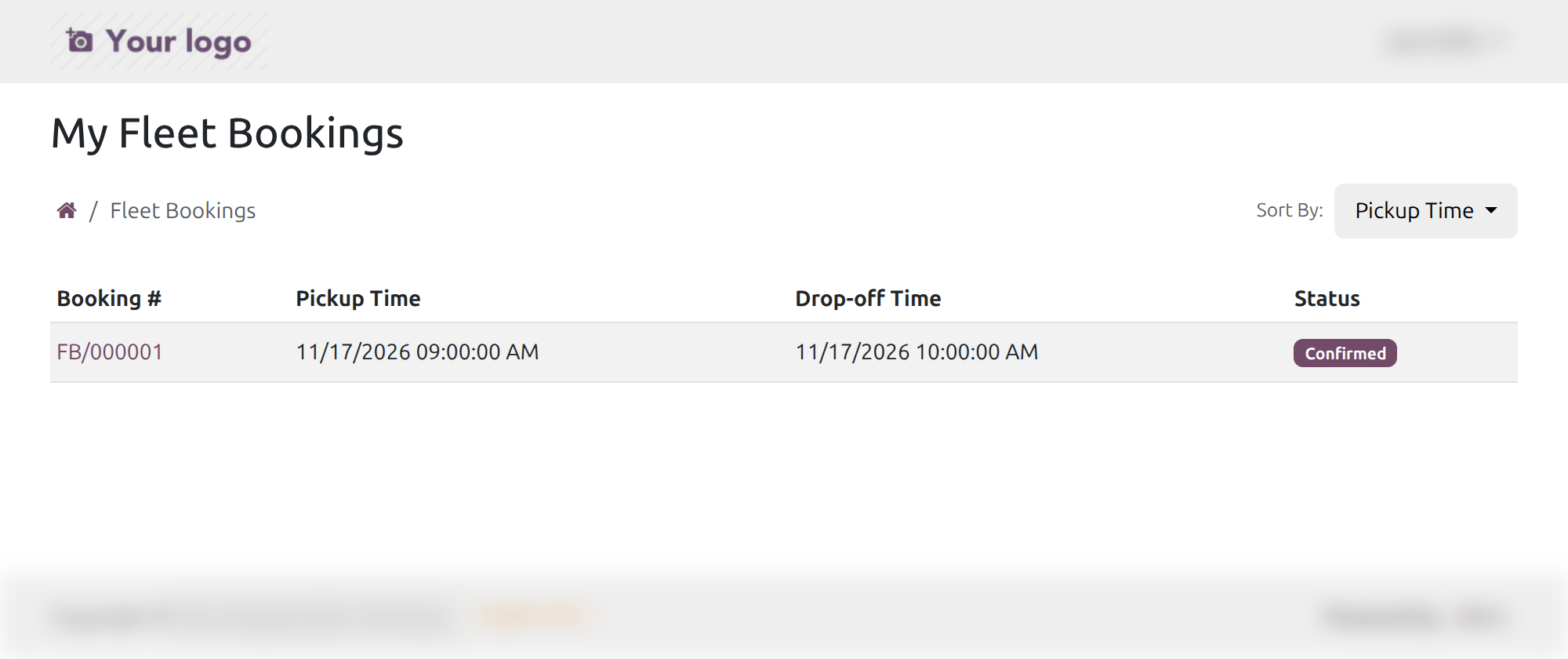
The list shows Booking #, Pickup Time, Drop-off Time and Status; sort it with Sort By (Pickup Time or Name).
Open a booking to see the Booking QR Code and the Booking Information: addresses, times, status, shipping weight and stowage volume. The Communication History lets the customer write to the fleet team.
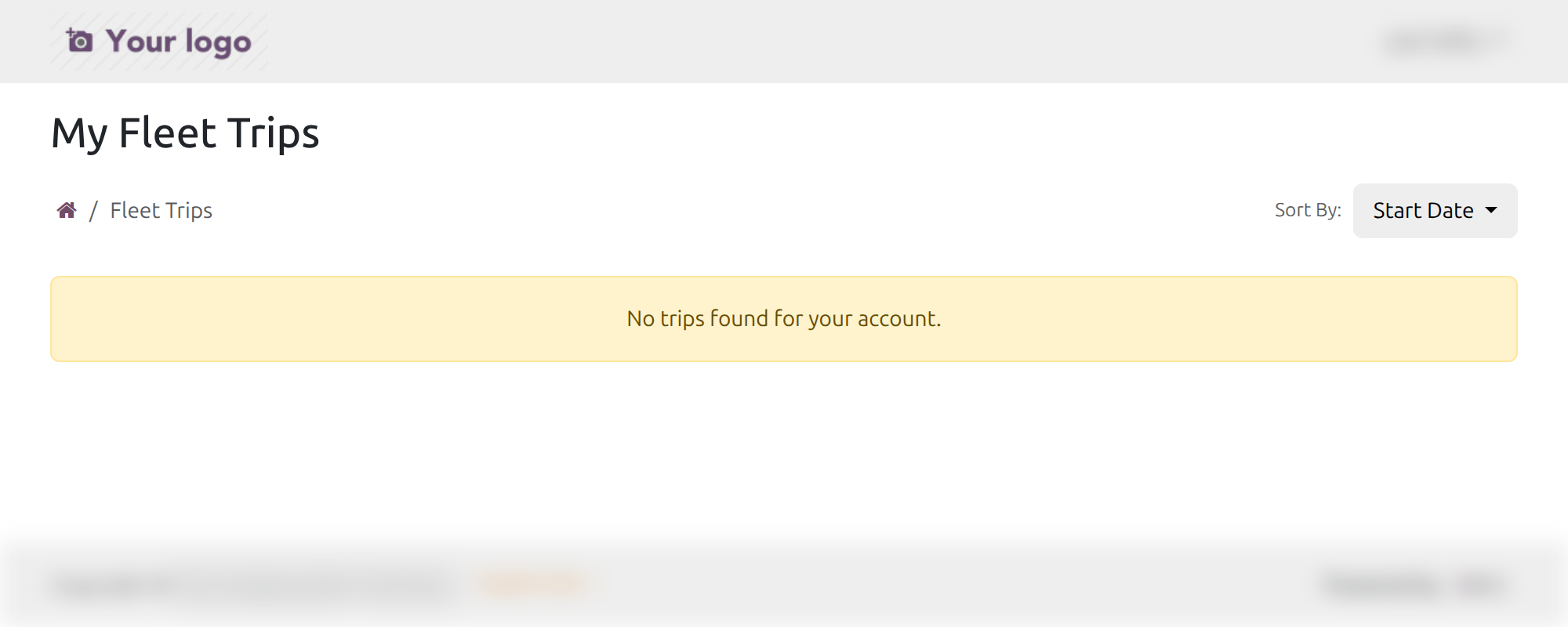
My Fleet Trips lists the trips carrying the customer's bookings, sorted with Sort By (Start Date or Code); it reads No trips found for your account. before a trip exists.
This software and associated files (the "Software") may only be used (executed, modified, executed after modifications) if you have purchased a valid license from the authors, typically via Odoo Apps, or if you have received a written agreement from the authors of the Software (see the COPYRIGHT file).
You may develop Odoo modules that use the Software as a library (typically by depending on it, importing it and using its resources), but without copying any source code or material from the Software. You may distribute those modules under the license of your choice, provided that this license is compatible with the terms of the Odoo Proprietary License (For example: LGPL, MIT, or proprietary licenses similar to this one).
It is forbidden to publish, distribute, sublicense, or sell copies of the Software or modified copies of the Software.
The above copyright notice and this permission notice must be included in all copies or substantial portions of the Software.
THE SOFTWARE IS PROVIDED "AS IS", WITHOUT WARRANTY OF ANY KIND, EXPRESS OR IMPLIED, INCLUDING BUT NOT LIMITED TO THE WARRANTIES OF MERCHANTABILITY, FITNESS FOR A PARTICULAR PURPOSE AND NONINFRINGEMENT. IN NO EVENT SHALL THE AUTHORS OR COPYRIGHT HOLDERS BE LIABLE FOR ANY CLAIM, DAMAGES OR OTHER LIABILITY, WHETHER IN AN ACTION OF CONTRACT, TORT OR OTHERWISE, ARISING FROM, OUT OF OR IN CONNECTION WITH THE SOFTWARE OR THE USE OR OTHER DEALINGS IN THE SOFTWARE.