
Fleet Loading Capacity
| Lines of Code | 1034 |
| Technical name | viin_fleet_loading_capacity |
| License | OPL-1 |
| Website | https://viindoo.com/apps/modules/19.0/viin_fleet_loading_capacity |
| Read description for | v 10.0 v 11.0 v 12.0 v 13.0 v 14.0 v 15.0 v 16.0 v 17.0 v 18.0 |
| Required Apps | Discuss (mail) Fleet (fleet) |
| Included Dependencies | Viin Fleet |

How much this vehicle may actually carry
Payload and volume limits per vehicle model, with a warning threshold below the maximum - so a load is checked against something.
Fleet Loading Capacity (technical name viin_fleet_loading_capacity) is an Odoo 19.0 app for Odoo Community and Odoo Enterprise and Viindoo Cloud, built for dispatcher, fleet manager, warehouse, compliance.
At a Glance
The facts of Fleet Loading Capacity, version 1.1.1, in one place. Published by Viindoo.
How It Works
Two screens.
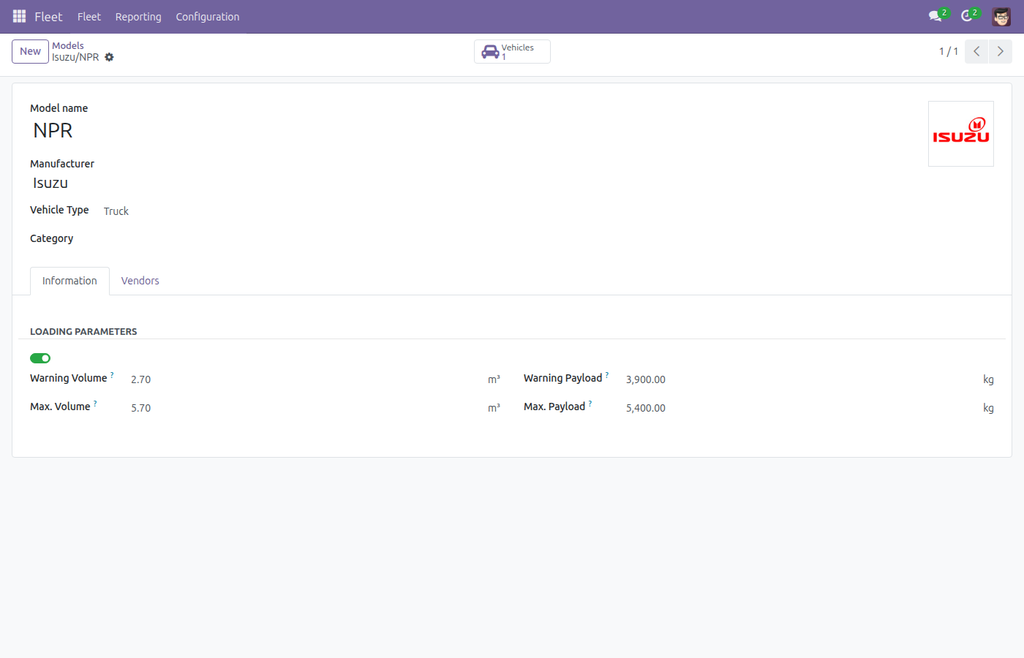
The limits, on the model
Maximum payload and volume, and the warning level a planner should stop at.
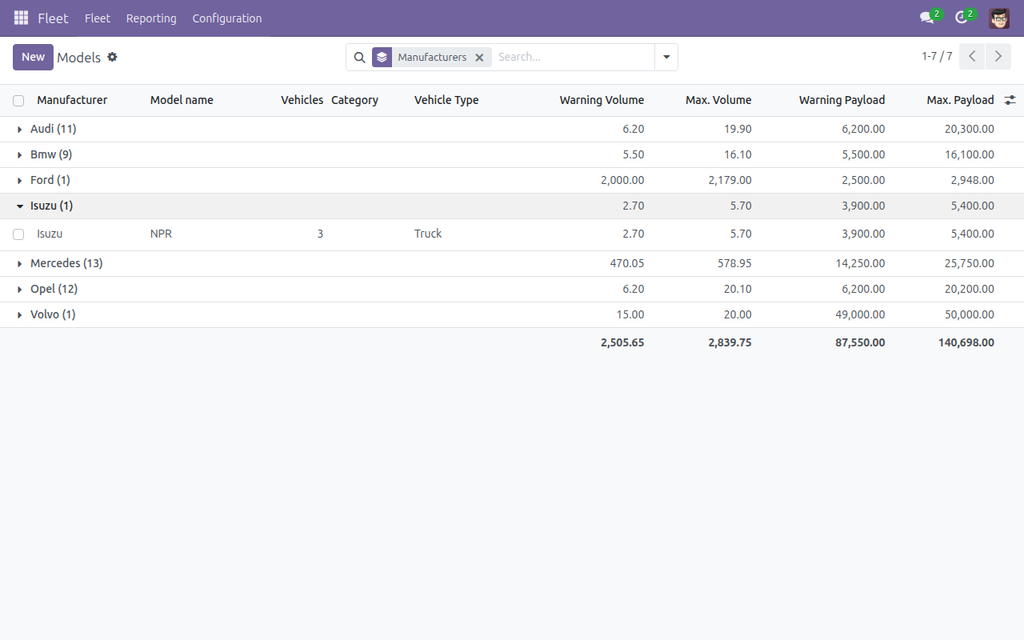
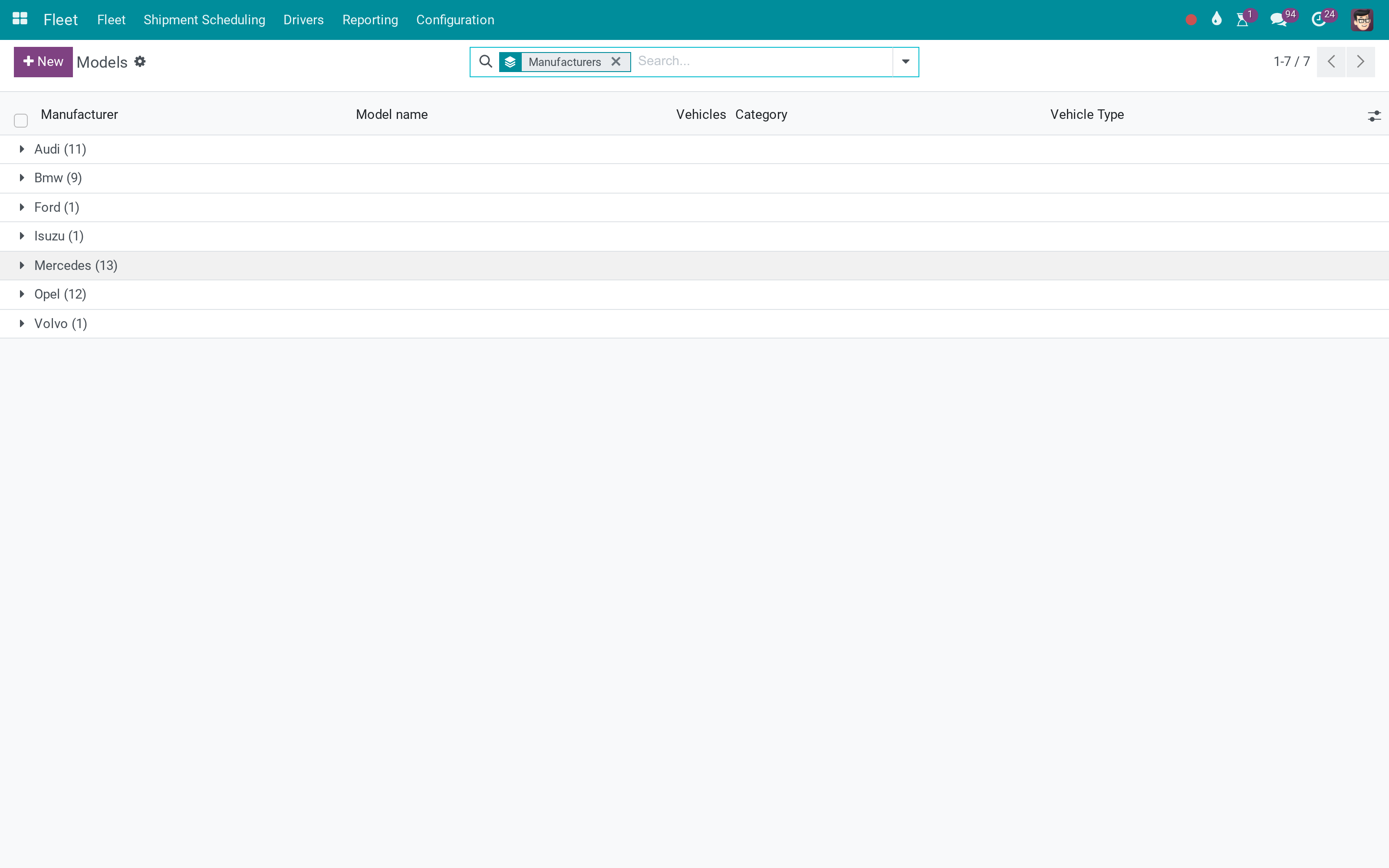
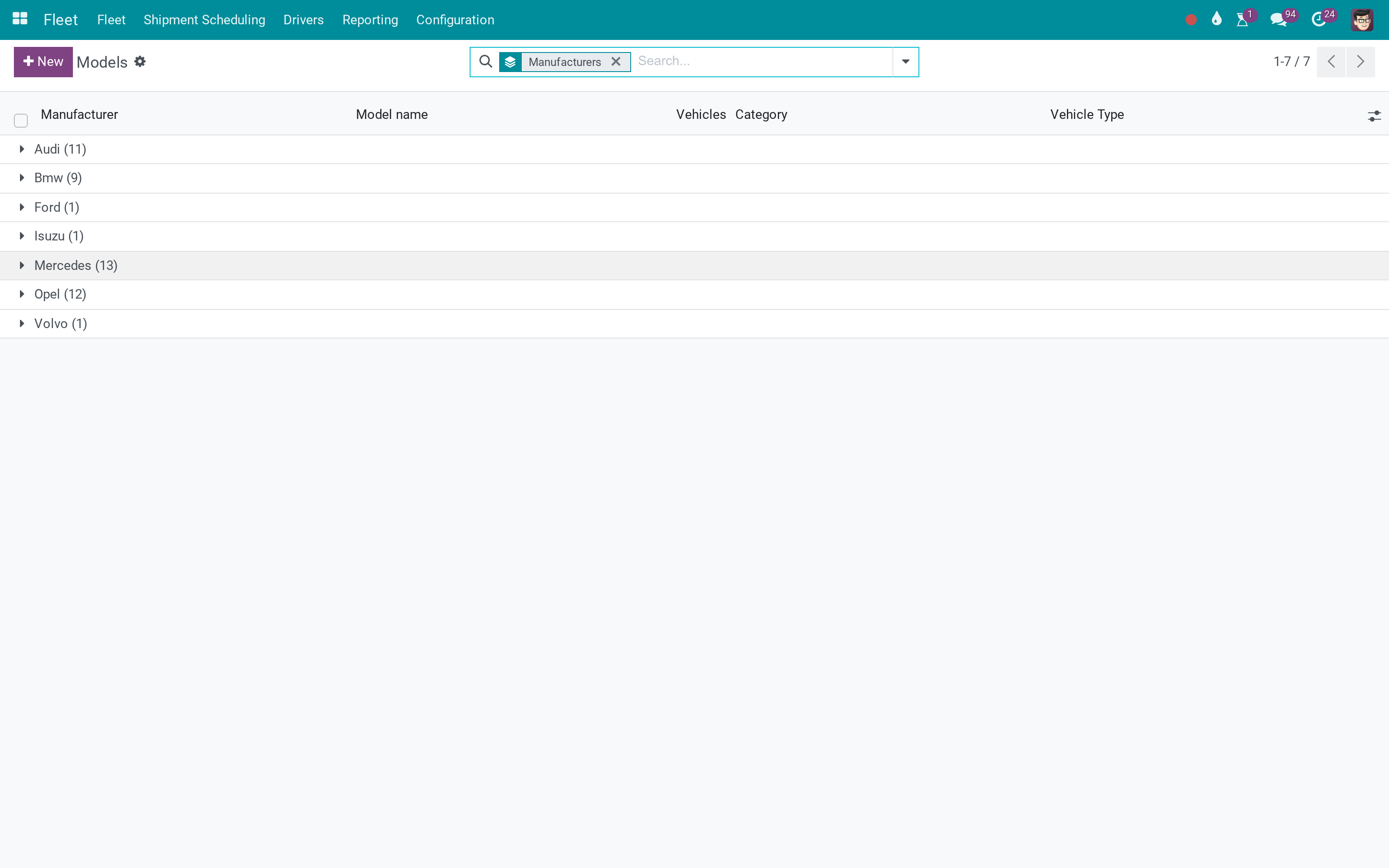
Across the models
Set once per model; every vehicle of that model inherits it.
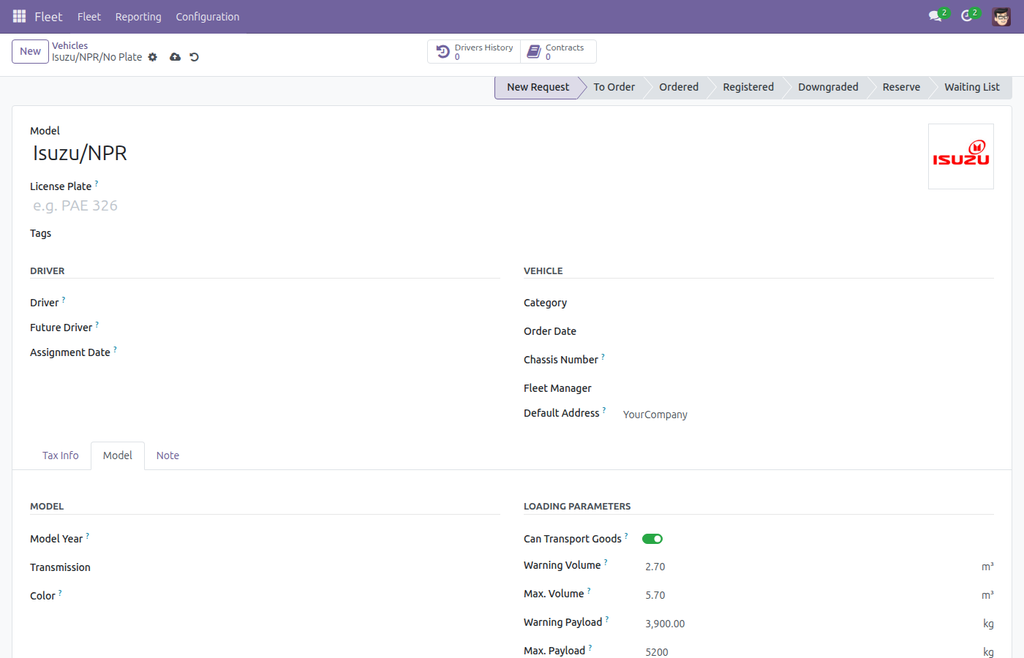
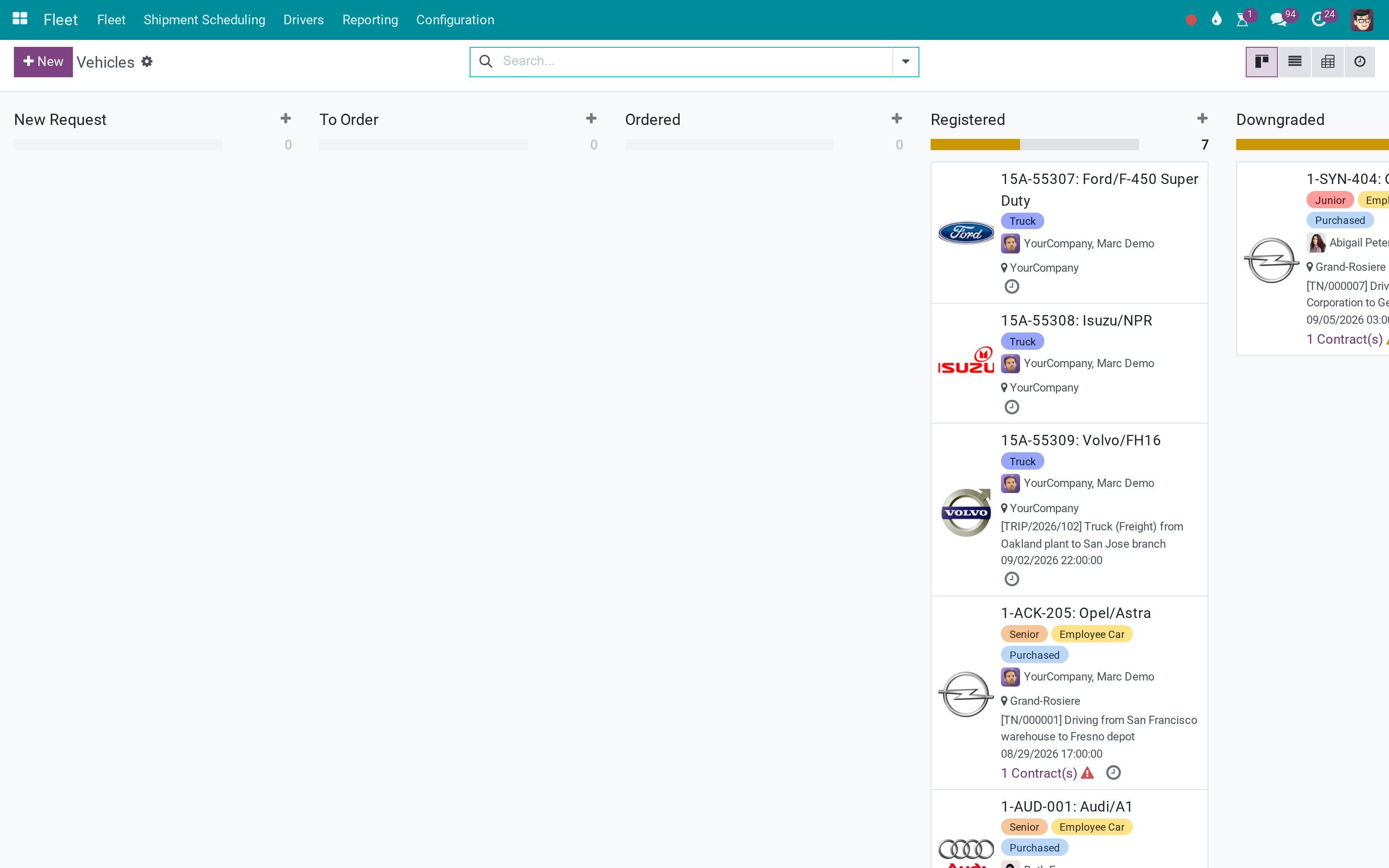
And the vehicles themselves
Unchanged - the capacity comes from the model they belong to.
What You Get
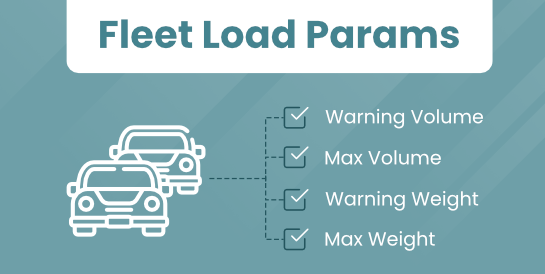
Maximum payload and maximum volume per vehicle model
A warning level below each maximum
A flag for models that carry goods at all
Stored on the model, inherited by every vehicle of it
Read by the loading and dispatch modules
No new screen - the fleet model form you already use
More Screens
Everything below was taken on a database seeded with real business data, on this series - not a mock-up and not a screenshot from an older version.
Vehicles
What This App Does Not Do
Read this before you buy. Everything below is something the app deliberately leaves to another app or to you.
It stores the limits; enforcing them is the loading and dispatch modules' job.
Two identical trucks have the same capacity - a per-unit exception would be a different field.
Weight and volume of a load come from the products being moved.
One payload and one volume figure - what a planner can actually use.
Works Well With
Apps from the same stack, built to fit this one:
Who Should Use Fleet Loading Capacity?
Dispatcher
Loads against a number instead of an impression.
Fleet manager
Records the limits once per model, not per vehicle.
Warehouse
Knows when a shipment needs a bigger truck.
Compliance
Has the payload limit written down where the fleet lives.
Frequently Asked Questions
What does Fleet Loading Capacity do?
Payload and volume limits per vehicle model, with a warning threshold below the maximum - so a load is checked against something.
What does Fleet Loading Capacity not do?
It does not stop an overload. It stores the limits; enforcing them is the loading and dispatch modules' job. Per model, not per vehicle. Two identical trucks have the same capacity - a per-unit exception would be a different field. It does not weigh anything. Weight and volume of a load come from the products being moved. No axle or legal limits. One payload and one volume figure - what a planner can actually use.
Who is Fleet Loading Capacity for?
Dispatcher: Loads against a number instead of an impression. Fleet manager: Records the limits once per model, not per vehicle. Warehouse: Knows when a shipment needs a bigger truck. Compliance: Has the payload limit written down where the fleet lives.
Which Odoo version and editions does it support?
Odoo 19.0 - Odoo Community, Odoo Enterprise, Viindoo Cloud. Upgrades to a newer Odoo series are a separate purchase for that series.
What does it depend on?
It installs on top of: viin_fleet. Odoo installs them with it.
How do I set it up?
Two screens.
What works well with it?
Fleet and Inventory (viin_fleet_stock): Loads whose weight and volume are checked against this. Fleet Planning (viin_fleet_planning): The dispatch board that plans them. Logistics (viin_logistics): The freight layer above.
Can I try it before buying?
Yes - the Live Preview button at the top of this page opens the module's own screen on a working database.
How do I get support?
Write to apps.support@viindoo.com with your Odoo version and the technical name viin_fleet_loading_capacity; pre-sales questions go to sales@viindoo.com.
See Fleet Loading Capacity in Action
Live demo: v19demo-int.viindoo.com/web#action=fleet.fleet_vehicle_model_action
Need help with Fleet Loading Capacity?
For questions, implementation support or a custom feature, contact Viindoo.
Pre-Sales & Partnership
sales@viindoo.comUpgrades to a newer Odoo series are a separate purchase for that series.
All Viindoo apps: apps.odoo.com/apps/modules/browse?author=Viindoo
Technical Requirement
Changes log
1.1.1 - Latest on the 17.0 line
- Warning thresholds sit alongside the maximums, so planning can react before the limit.
Fleet Loading Capacity (Volume & Payload)
This guide shows how to record how much volume (m³) and payload (kg) each of your fleet vehicle models and vehicles can carry, so this information is ready for any other Viindoo app that plans trips, bookings, or shipments around vehicle capacity.
Installation
- Go to Apps.
- Make sure the Fleet application is installed first. Search for Fleet and click Install if it is not already installed - this module adds fields on top of it.
- Remove the default Apps filter, search for Fleet Loading Capacity, and click Install on the Fleet Loading Capacity (Volume & Payload) card. Odoo installs the required Viin Fleet technical add-on for you automatically.
Configuration
This module does not add its own settings screen - there is nothing to switch on. The only thing to check is who is allowed to use it:
- Go to Settings > Users & Companies > Users and open the person's profile.
- Under the Fleet access rights, grant at least Officer: Manage all vehicles so they can view and edit the loading capacity on vehicles, or Administrator so they can also manage Manufacturers, Models and Categories under Fleet > Configuration.
Usage
Set the loading capacity on a vehicle model
Every vehicle model can carry a Warning Volume, a Max. Volume, a Warning Payload and a Max. Payload, plus a Can Transport Goods switch. Setting these once on the model means every vehicle created from it starts with sensible defaults.
Open Fleet > Configuration > Models.

Click a model, for example Isuzu / NPR, and go to the Information tab. Scroll to the Loading Parameters group.

Turn on Can Transport Goods if vehicles of this model can be used for stock picking or goods transport.

Fill in Warning Volume, the safe volume (in m³) that can be loaded onto vehicles of this model.

Fill in Max. Volume, the absolute volume ceiling (not recommended in normal use).

Fill in Warning Payload, the safe weight (in kg).

Fill in Max. Payload, the absolute weight ceiling (not recommended in normal use).

Click Save.

The same four values are also available as optional columns on the Models list - click the column-options icon at the top-right of the list to show Warning Volume, Max. Volume, Warning Payload and Max. Payload.
Create a vehicle and, if needed, override its capacity
When you assign a Model to a vehicle, its Can Transport Goods, Warning Volume, Max. Volume, Warning Payload and Max. Payload are copied in automatically. Every value stays stored and editable on the vehicle, so you can adjust one vehicle without changing the model or any other vehicle that uses it.
Open Fleet > Vehicles.

Click New.

Set the Model, for example Isuzu / NPR.

Open the Model tab. The Loading Parameters group is filled in automatically from the vehicle model - Can Transport Goods, Warning Volume, Max. Volume, Warning Payload and Max. Payload.

If this particular unit is different, for example a lighter chassis, edit the value directly - here Max. Payload is lowered to 5200 kg for this one vehicle only.

Click Save.

This module only records the numbers - it does not check them against anything by itself. Other Viindoo apps (for example trip, booking, or shipment planning) read these values to decide whether a vehicle is allowed to carry a given load.
Troubleshooting
I changed the capacity on the model, but an existing vehicle did not update
The values only copy from the model to the vehicle when you set or change the vehicle's Model field, and only into fields that are still empty (0) on the vehicle - a value you already entered on the vehicle is never overwritten automatically. To pull in the model's current value, clear the field on the vehicle (set it to 0) and re-select the Model, or simply type the new value on the vehicle directly.
I do not see the Loading Parameters group
On a vehicle model, open the Information tab. On a vehicle, open the Model tab. The group sits near the bottom, below the model/engine details.
The Warning Volume, Max. Volume, Warning Payload and Max. Payload columns are missing from the Models list
These columns are hidden by default to keep the list compact. Click the column-options icon (the sliders icon) at the top-right of the Fleet > Configuration > Models list and enable the columns you need.
FAQ
Does this module stop me from overloading a vehicle? No. It only stores the volume and payload numbers. Blocking an over-capacity assignment is done by other Viindoo apps that read these values, such as trip or shipment planning.
If I edit a value on one vehicle, does it change the model or other vehicles? No. Every value is stored directly on the vehicle. Editing it only affects that one vehicle.
What units are used? Volumes are in cubic meters (m³). Payloads and weights are in kilograms (kg).
Do I need to configure anything before using this? No dedicated setup is required beyond installing the module and having the right Fleet access - just open a vehicle model or a vehicle and fill in the Loading Parameters group.
Instruction video
This software and associated files (the "Software") may only be used (executed, modified, executed after modifications) if you have purchased a valid license from the authors, typically via Odoo Apps, or if you have received a written agreement from the authors of the Software (see the COPYRIGHT file).
You may develop Odoo modules that use the Software as a library (typically by depending on it, importing it and using its resources), but without copying any source code or material from the Software. You may distribute those modules under the license of your choice, provided that this license is compatible with the terms of the Odoo Proprietary License (For example: LGPL, MIT, or proprietary licenses similar to this one).
It is forbidden to publish, distribute, sublicense, or sell copies of the Software or modified copies of the Software.
The above copyright notice and this permission notice must be included in all copies or substantial portions of the Software.
THE SOFTWARE IS PROVIDED "AS IS", WITHOUT WARRANTY OF ANY KIND, EXPRESS OR IMPLIED, INCLUDING BUT NOT LIMITED TO THE WARRANTIES OF MERCHANTABILITY, FITNESS FOR A PARTICULAR PURPOSE AND NONINFRINGEMENT. IN NO EVENT SHALL THE AUTHORS OR COPYRIGHT HOLDERS BE LIABLE FOR ANY CLAIM, DAMAGES OR OTHER LIABILITY, WHETHER IN AN ACTION OF CONTRACT, TORT OR OTHERWISE, ARISING FROM, OUT OF OR IN CONNECTION WITH THE SOFTWARE OR THE USE OR OTHER DEALINGS IN THE SOFTWARE.