
Multiple Job Positions
by Viindoo
| Lines of Code | 1258 |
| Technical name | viin_hr_multi_position |
| License | OPL-1 |
| Website | https://viindoo.com/apps/modules/19.0/viin_hr_multi_position |
| Read description for | v 17.0 v 18.0 |
| Required Apps | Discuss (mail) Employees (hr) |
| Included Dependencies | Advanced HR Management |

One employee, several departments, and everybody knows who works for whom
For HR managers, CEOs and Odoo implementers
Let employees hold dated concurrent job positions in other departments, without a second contract.
Is this you?
A person works for two departments, but the system knows only one. The second manager keeps asking who is on the team.
Department heads cannot tell who really works for them, so capacity and headcount are guessed.
Opening a second contract just to record a shared position means paperwork, double headcount and payroll confusion.
Temporary assignments never get an end date and linger long after the project is over.
The org chart shows one boss per person, so matrix teams stay invisible to executives.
What changes
The system knows only one department.
→ Record the other positions an employee holds, each with its own department, manager and dates.
Nobody knows who really works for a department.
→ See how many people work in a department on top of their main position, and open them.
A second contract only to record a position.
→ Keep one contract: a concurrent position carries no contract, wage or schedule and is not counted in main headcount.
Assignments that never end.
→ Give each position a period: when it is over it leaves the current ones and stays in the history.
Matrix teams are invisible.
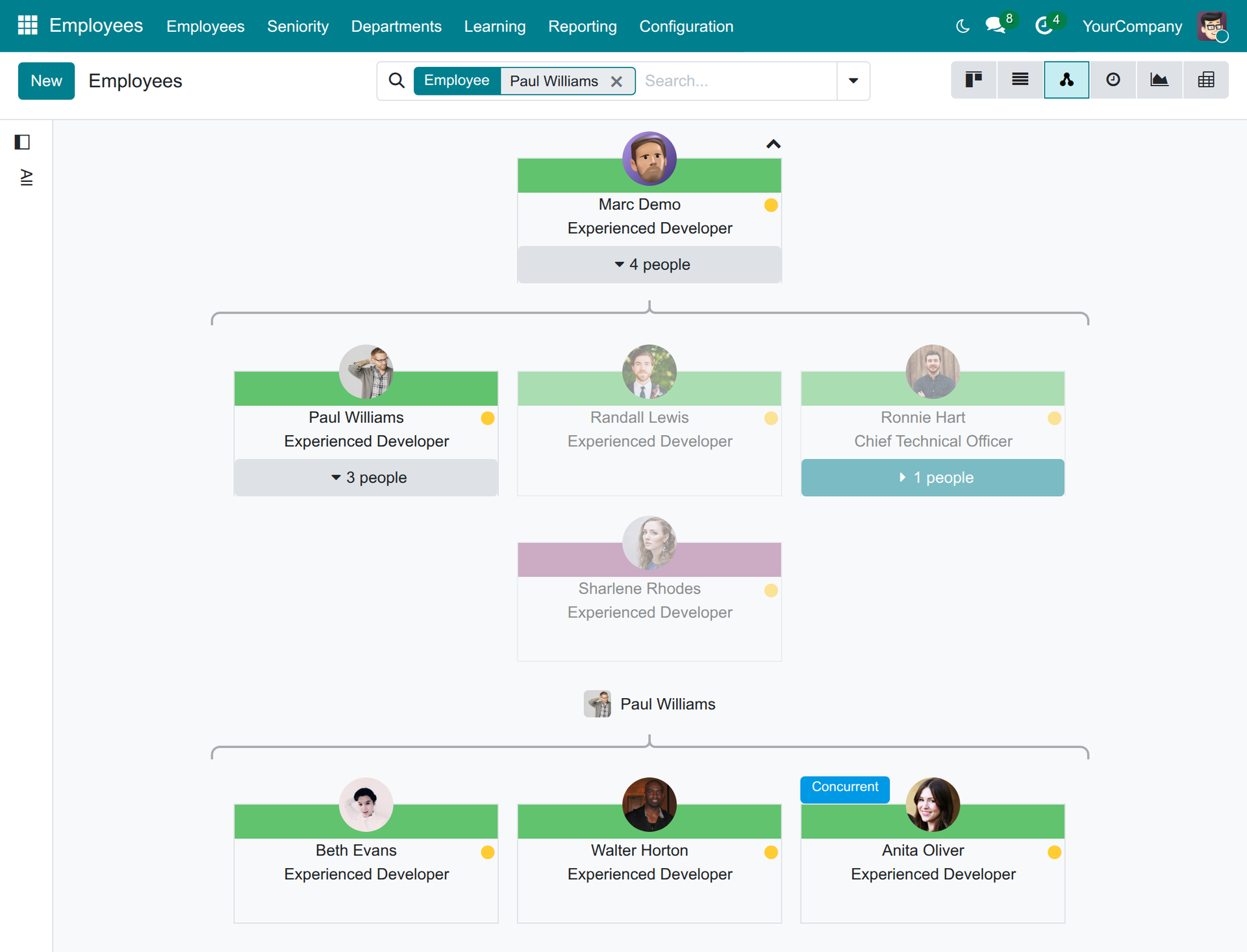
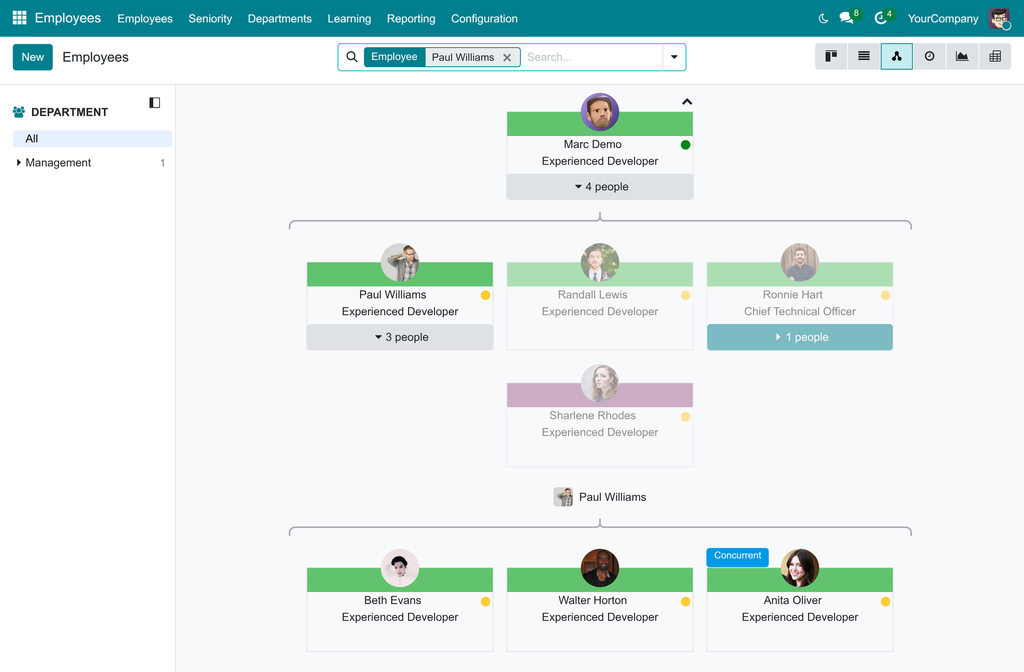
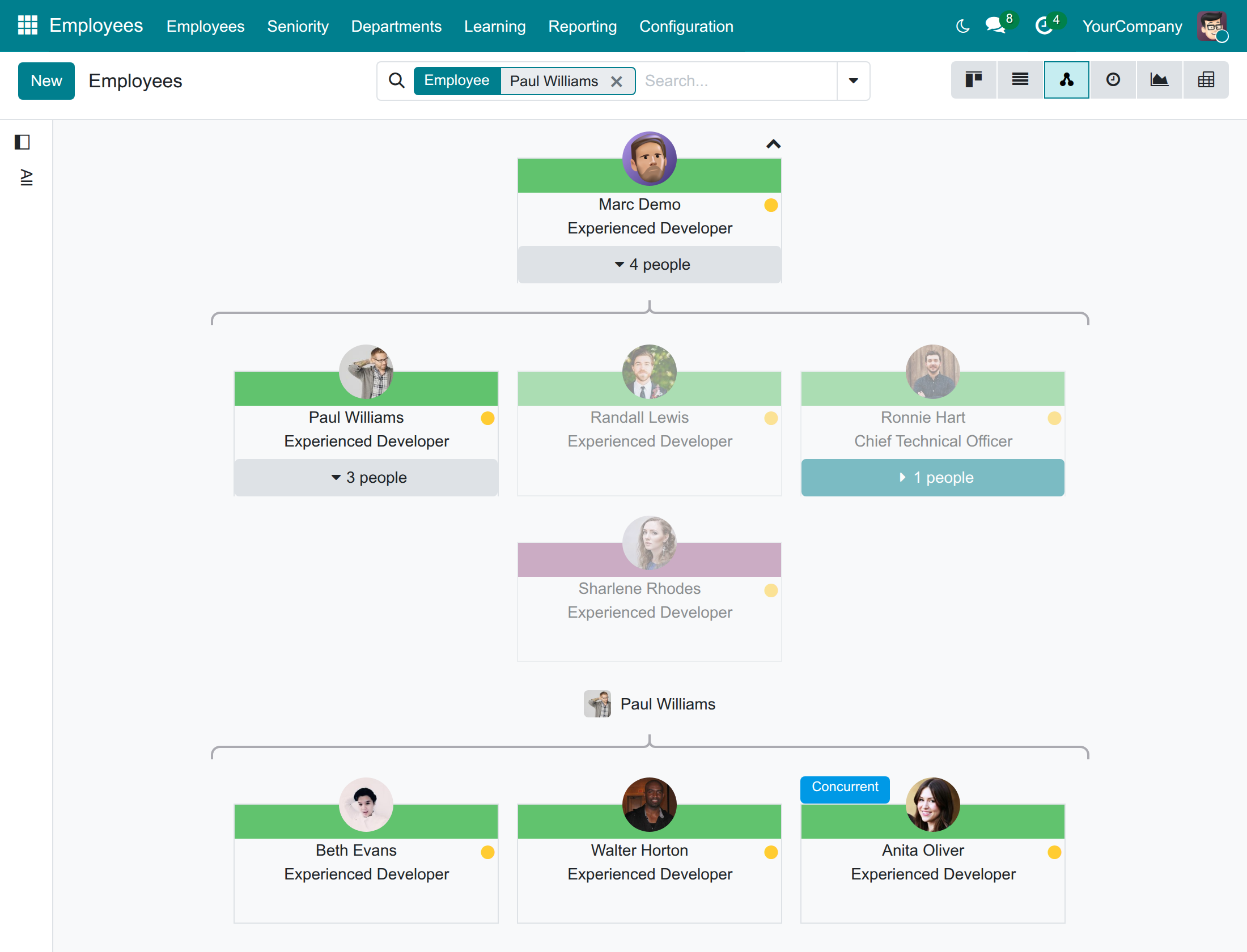
→ See employees under their concurrent manager in the org chart, marked Concurrent, while the main manager stays the same.
Key Features
Dated concurrent positions
Record the other positions an employee holds, each with its own department, manager and dates, without a second contract. Positions that are over stay in the history.
Manager follows the department head
The manager of a concurrent position is the head of its department and stays in step when the head changes.
Concurrent counts
See how many people work in a department on top of their main position, and how many hold a job position as a concurrent one, and open them.
Find them by department
Find a department's people including those who work there concurrently, and show their concurrent job positions in lists.
Concurrent badge in the org chart
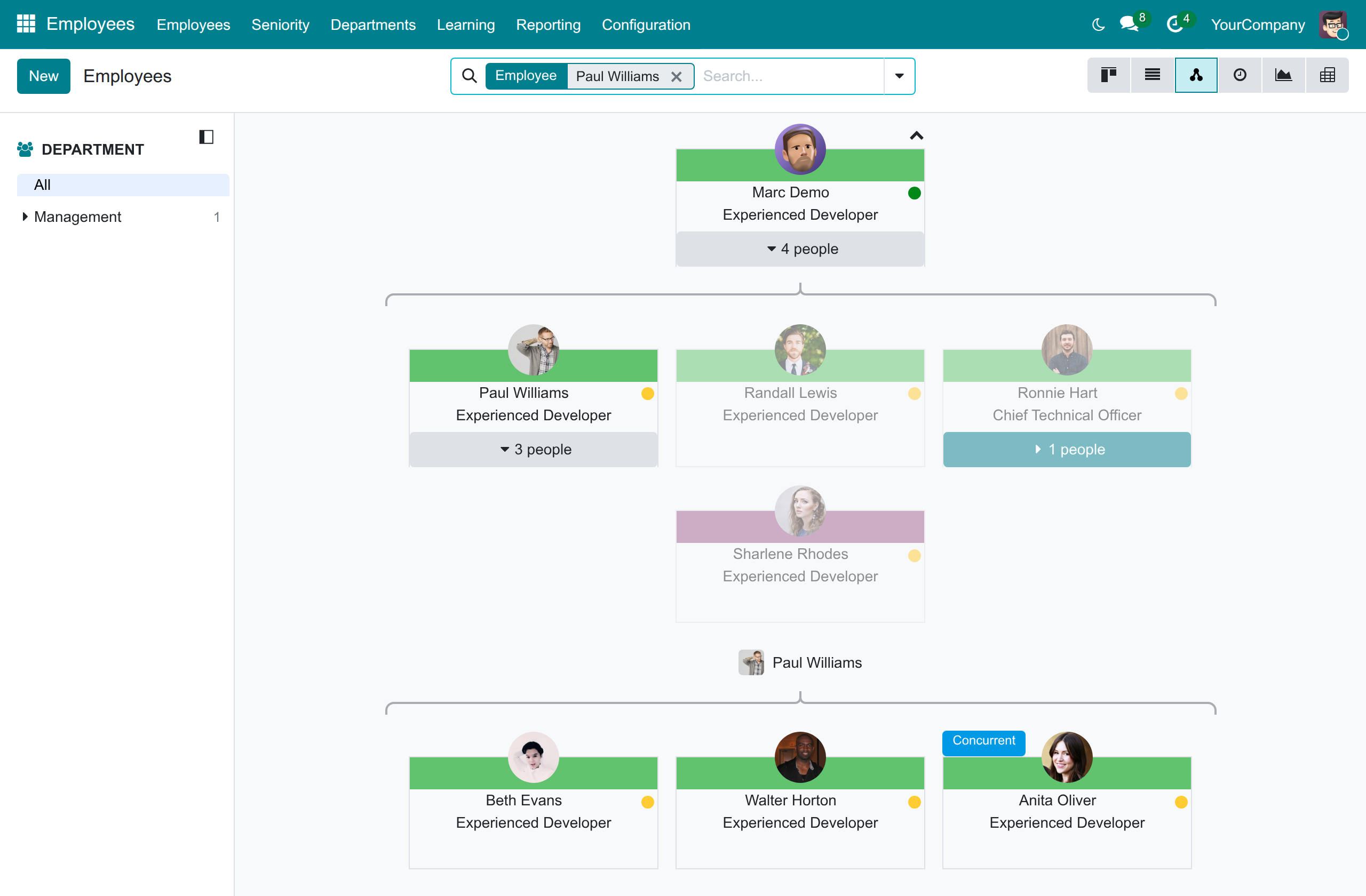
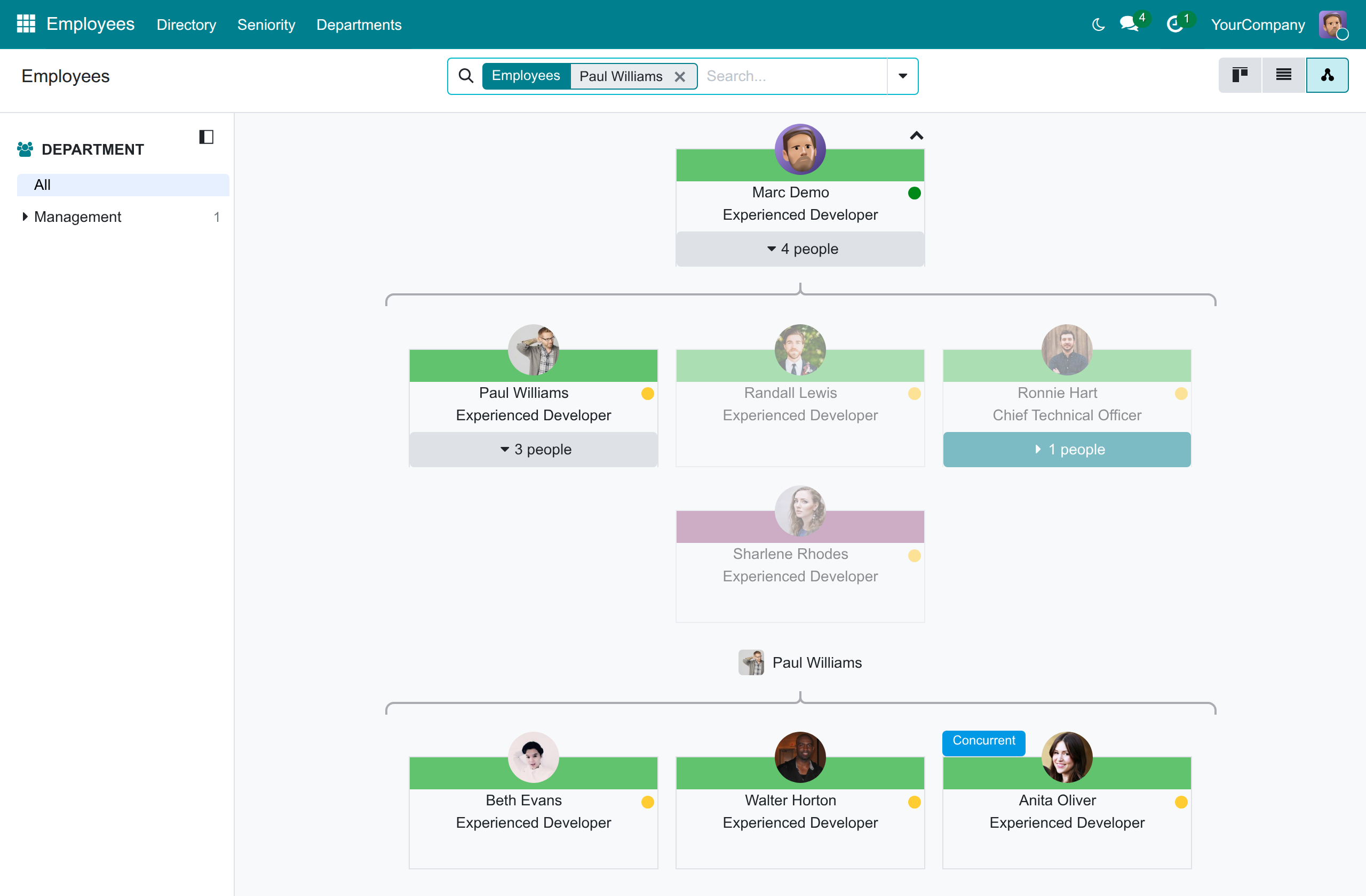
Employees appear under their concurrent manager, marked Concurrent, while their main manager does not change.
Visible to everybody
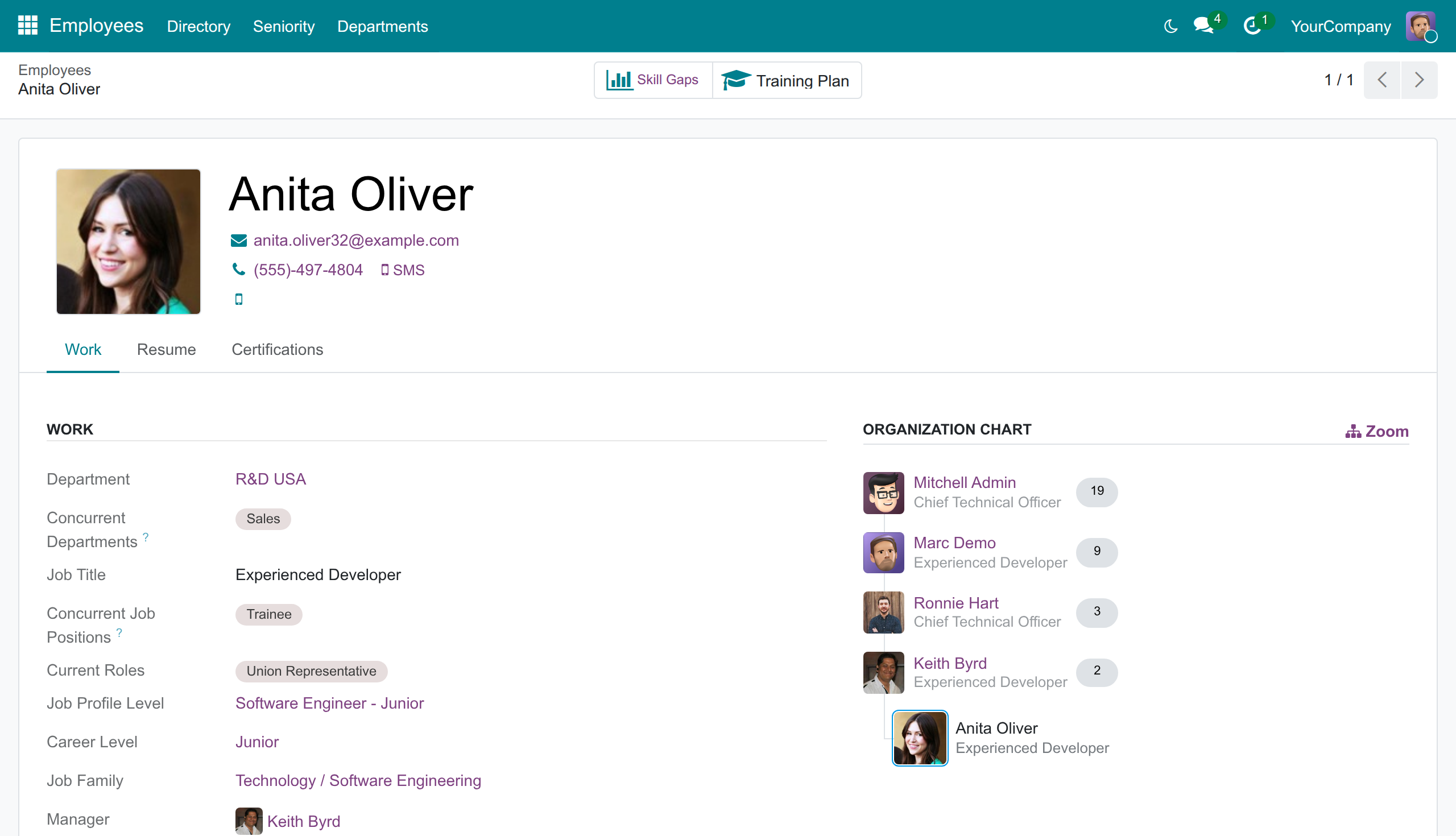
Everybody in the company sees which other departments and positions a colleague works in.
Who it is for
HR manager
Matrix and shared roles are tracked in spreadsheets. Gain one place with dates and history, without extra contracts.
CEO and executives
The org chart hides who really reports to whom. Gain a true picture of each manager's reach.
Line manager
Colleagues from other departments work for the team, but are invisible. Gain them in the team view, marked Concurrent.
Odoo implementer
Customers ask for dual positions without a second contract. Deliver it with standard views and no custom code.
Best for: companies where people work across departments: shared services, matrix teams and project-based organisations.
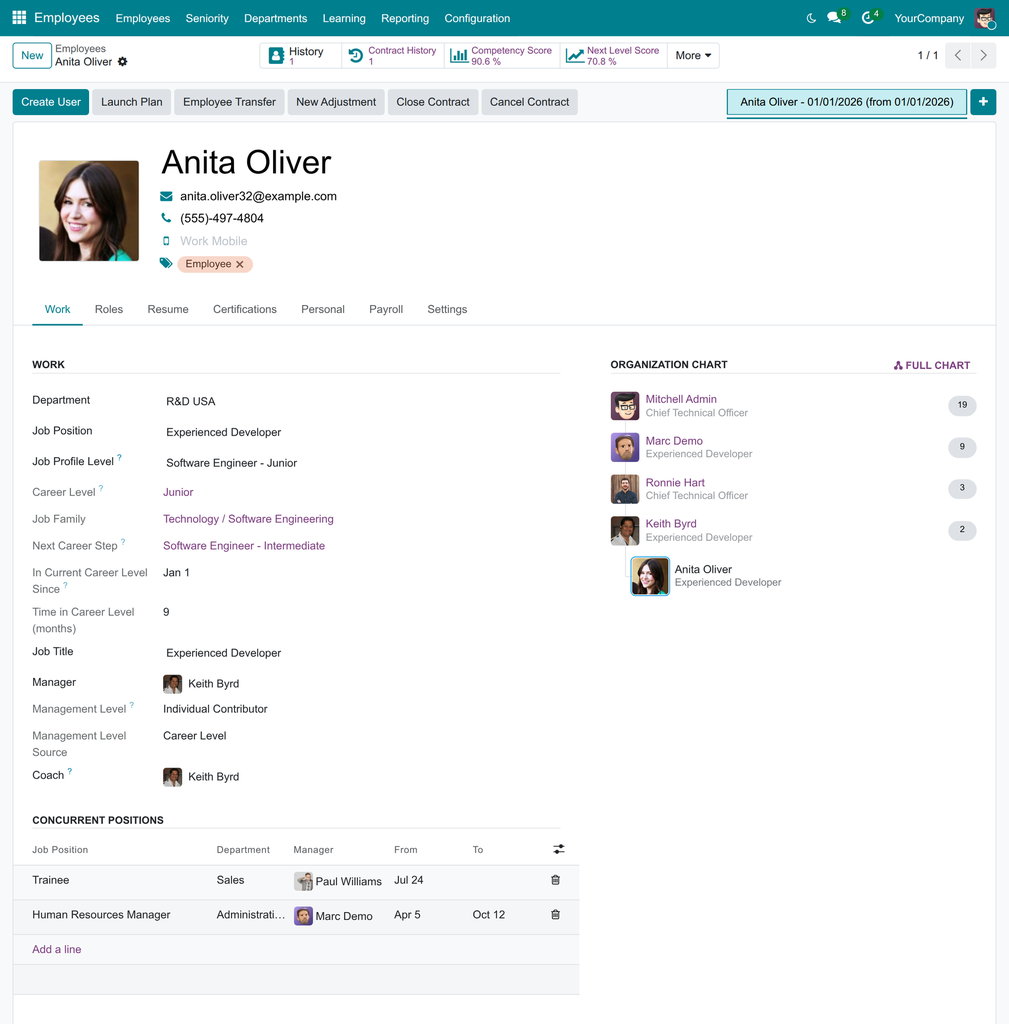
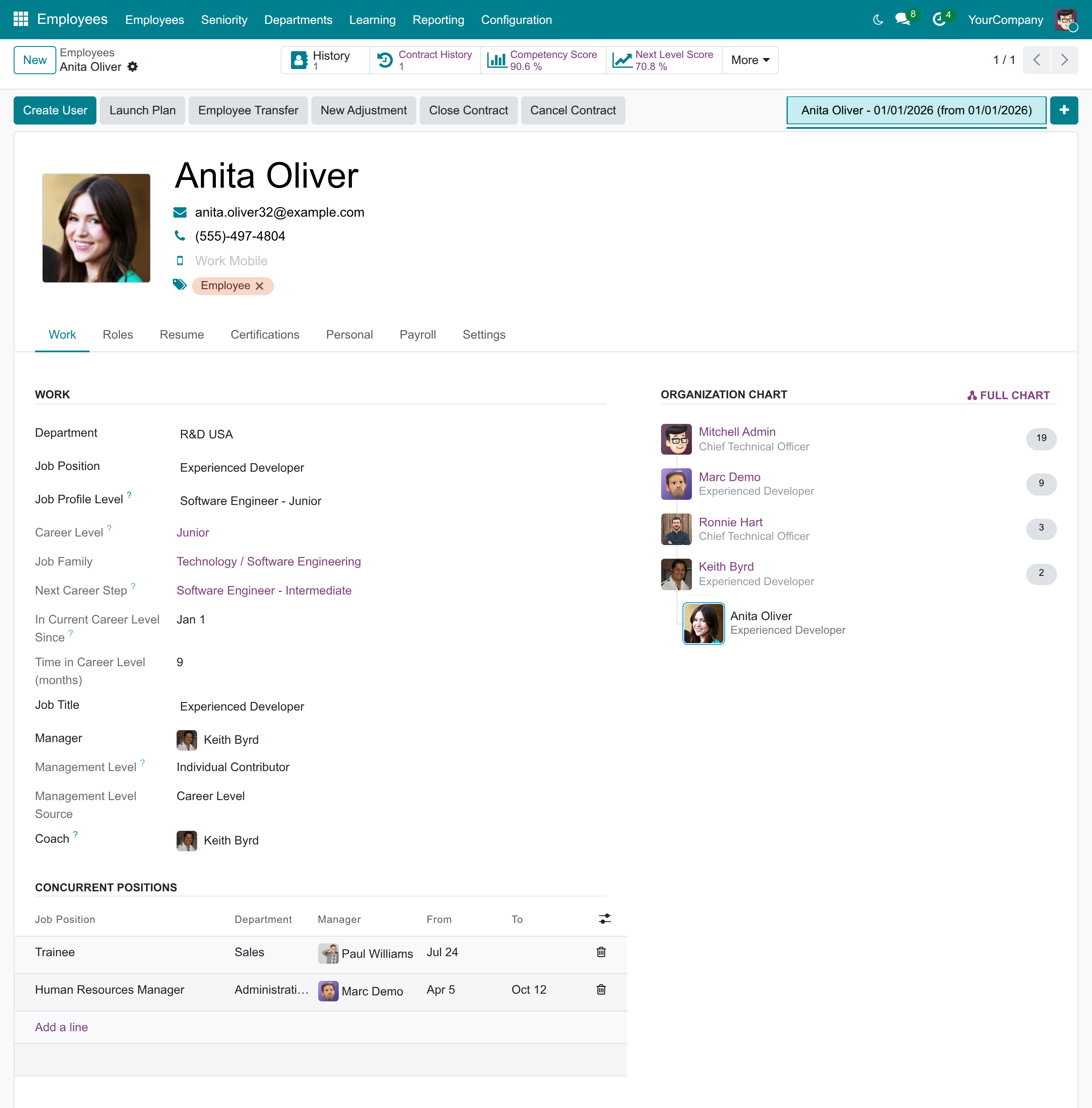
Record a concurrent position on the employee
See the team of a manager with the Concurrent badge
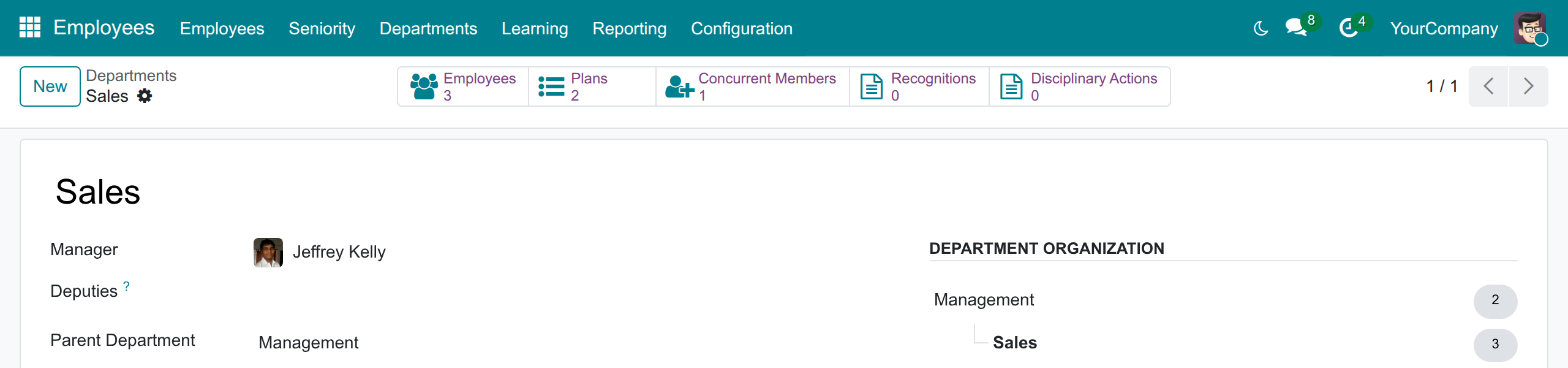
Count the concurrent members of a department
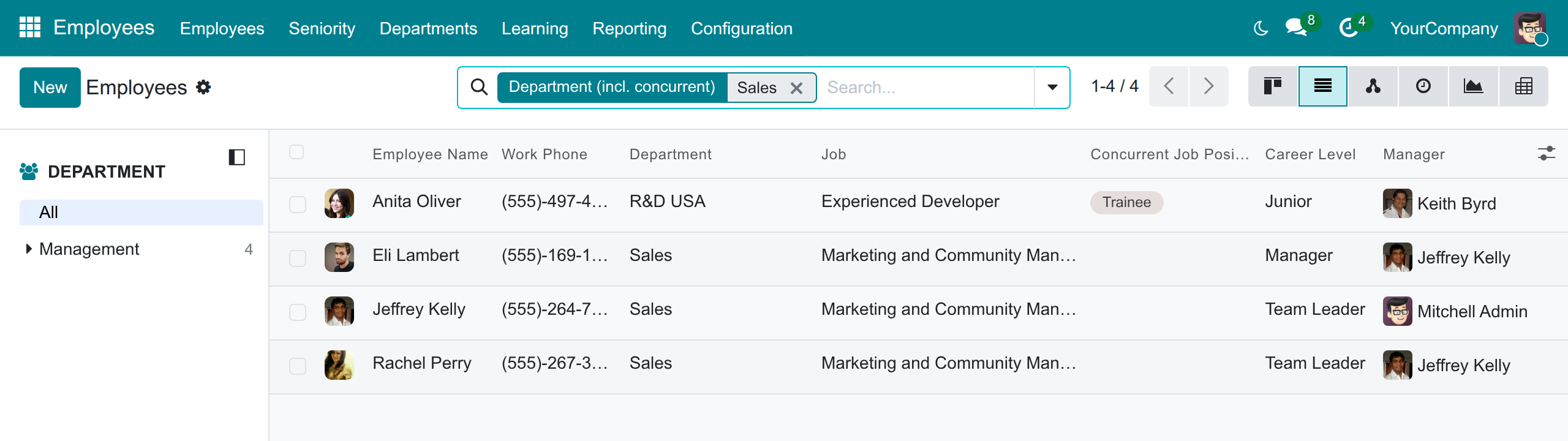
Find the people of a department, concurrent ones included
Let everybody see where a colleague works
Frequently Asked Questions
Does a concurrent position create a second contract or change the pay?
No. It has no contract, no wage and no working schedule, and the contract history of the employee is not touched.
Is the person counted twice in the headcount?
No. The employee is counted once, in the main department and the main job position. Concurrent members are counted separately.
Does it change who the employee reports to?
No. The main manager stays the same. The concurrent manager is shown in the org chart, and a concurrent card cannot be dragged to another manager.
Who can see and who can change concurrent positions?
Everybody can see the concurrent departments and job positions of a colleague. Only HR officers add, change or end them and read the notes.
Does it work with several companies?
Yes. A position belongs to the company of its employee, and users only see and count the positions of their allowed companies.
Need help with Multiple Job Positions?
For questions, implementation support or a custom feature, contact Viindoo.
Pre-Sales & Partnership
Contact usTechnical Support
Open a support ticketTechnical Requirement
- Odoo version: 19.0
- Editions: Odoo Community, Odoo Enterprise
- Required modules: Employees (HR Org Chart), Advanced HR Management
- License: OPL-1
- Author: Viindoo
- Live demo: v19demo-int.viindoo.com
Multiple Job Positions
Who this guide is for: the HR officer, who records the positions people hold besides their main one; the system administrator, who installs the module and gives people their access; and every employee, line manager and executive who wants to know who works in which department and under whom.
Overview
In many companies a person has one main job and also works part of the time in another department: the accountant who also covers the sales back office, the engineer who leads a project team for a quarter. Without a place to record it, the second job lives in somebody's memory, the second manager does not know the person is theirs, and the department head cannot tell who really works for the department.
Multiple Job Positions lets you record these concurrent positions on the employee, each with its own department, manager and dates:
- A concurrent position is a seat held in addition to the main job position. It has its own Department, its own Manager and a period (From and To).
- It carries no contract, no wage and no working schedule, and recording it creates nothing in the employee's contract history. The main position and its contract do not change.
- A concurrent position is not counted in the headcount of the main positions of a department or of a job position; the department and the job position show their own concurrent count.
- The manager of the position follows the head of its department: when the head of the department changes, the concurrent positions that followed the former head follow the new one.
- Positions whose dates are over stop being current but stay in the employee's history.
- Everybody in the company can see the concurrent departments and positions of a colleague on the colleague's profile, and the org chart shows the person under the concurrent manager with a Concurrent badge. The main manager does not change.
| Who | What they do | Access right to assign |
|---|---|---|
| System Administrator | Installs the module and gives people their access rights. | Settings: Administrator |
| HR Officer (and HR Administrator) | Adds, changes and ends the concurrent positions of employees, follows who works concurrently in a department or in a job position, and finds employees by department including their concurrent departments. The HR Administrator has the same rights in this module. | Employees: Officer: Manage all employees |
| Employee, line manager and executive | See the concurrent departments and positions of a colleague and read the org chart with the concurrent subordinates. They cannot change anything and cannot read the HR notes. | None to add: every internal user has it |
Setup (for the Administrator)
Install the module
- Open Apps.
- Remove the default filter, search for Multiple Job Positions and press Install.
The Employees app and its org chart are installed with it if they were not there yet. No further setting is needed: the Concurrent Positions block appears at once on the employees.
Give people their access right
- Open Settings ‣ Users & Companies ‣ Users and select the HR officer.
- In the Access Rights tab, set Employees to Officer: Manage all employees (or Administrator), then save.
Every other internal user can already read the concurrent positions of a colleague; they need nothing more.
HR Officer: record and follow concurrent positions
Record a concurrent position
- Open Employees ‣ Employees and select the employee.
- In the Work tab, find the Concurrent Positions block under the work information and press Add a line.
- Pick the Job Position. The Department is filled with the department of that job position, and the Manager with the head of that department.
- Change the Department or the Manager if the person works for another department or reports to somebody else.
- Check the From date (today by default). Fill To only when you already know the last day; leave it empty otherwise.
- Save the employee.
The Manager is the head of the chosen department, except when that head is the employee: nobody reports to themselves through their own concurrent position, so the manager stays as it was and you pick one by hand. To keep a private remark, show the Note column with the column selector at the right of the list header; only HR can read it.
The module refuses a line in three cases, and tells you why:
- the To date is before the From date;
- the job position is already the employee's main position: choose another job position for the concurrent position;
- the employee already holds the same job position as a concurrent position during an overlapping period: end the earlier line first, or change the dates.
Note
The mini organization chart on the right of the employee form shows the main manager only. The concurrent managers appear in the org chart views described below.
Change the manager of a concurrent position
There are two ways, and both keep the history of the employee untouched:
- Change it on the line. Pick another Manager in the Concurrent Positions block of the employee and save.
- Change the head of the department. Open Employees ‣ Departments, select the department and pick the new Manager. Every concurrent position that is current and whose manager was the former head now has the new head as its manager. A line to which you gave another manager by hand, and a line that has ended, are left as they are.
End a concurrent position
Open the Work tab of the employee and fill the To date of the line: that is the last day of the concurrent position. Save. From the next day the position is no longer current: it leaves the concurrent counts, the profile and the org chart, and the line stays in the list as history. To record that the person holds the position again later, add a new line starting at the new date.
A line whose From date is in the future is not current yet: it appears in the counts, on the profile and in the org chart from its start date.
See who works concurrently in a department
- Open Employees ‣ Departments and select the department.
- The Concurrent Members button shows how many people hold a current concurrent position in this department. Press it to open them.
These people are not counted in the Employees button of the department, which counts the main members. The button is hidden while nobody works in the department concurrently; archived employees are not counted.
See who holds a job position concurrently
- Open Employees ‣ Configuration ‣ Recruitment ‣ Job Positions and select the job position.
- The Concurrent Employees button shows how many people hold this job position as a concurrent one. Press it to open them.
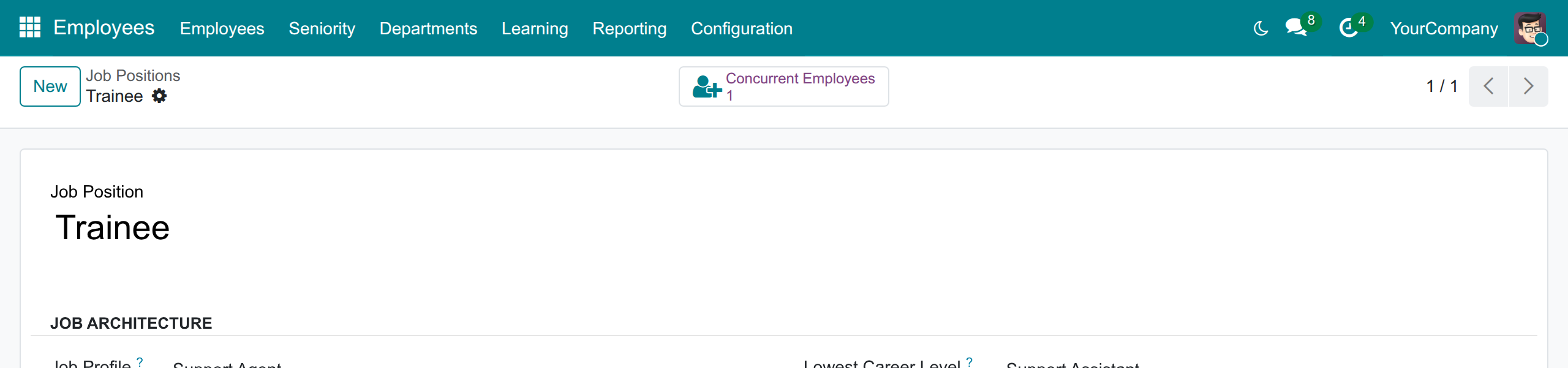
They are not counted in the current number of employees of the job position.
Find employees by department, including concurrent ones
- Open Employees ‣ Employees.
- Type the department name in the search box and choose Search Department (incl. concurrent) for: ....
The list shows the people whose main department is the one you typed, those of its sub-departments, and those who work there through a current concurrent position. To see each person's concurrent job positions, open the column selector at the right of the list header and tick Concurrent Job Positions.
Read the org chart with concurrent subordinates
- Open Employees ‣ Employees and press the Hierarchy view button (the tree icon at the right of the control panel).
- Type the name of the manager in the search box and press Enter.
- The team of the manager is shown below the card; if it is folded, press the people button of the card.
The employees who report to the manager through a concurrent position are shown with the other subordinates, marked with the Concurrent badge. Their main manager is unchanged, and a card with the badge cannot be dragged to another manager, so the org chart cannot change the main reporting line by accident.
Note
The HR officers see the Employees menu without Directory. They use Employees ‣ Employees; the people who are not HR officers use Employees ‣ Directory, described in the next chapter.
Employee, line manager and executive: who works where
See the concurrent departments of a colleague
Open Employees ‣ Directory and select a colleague. In the Work tab, Concurrent Departments is shown just after Department and Concurrent Job Positions just after Job Title. Both are shown only when the colleague holds a current concurrent position.
Find people of a department
In Employees ‣ Directory, type the department name in the search box and choose Search Department (incl. concurrent) for: .... You get the people of the department and those who work there concurrently. The Concurrent Job Positions column can be shown from the column selector of the list.
See your team in the org chart
- Open Employees ‣ Directory and press the Hierarchy view button.
- Type the name of the manager in the search box and press Enter. The team of the manager is shown below the card; if it is folded, press the people button of the card.
A person who reports to the manager through a concurrent position appears with the Concurrent badge. A line manager sees in this way the colleagues of other departments who work for the team for a period, and an executive sees the real reach of each manager.
Troubleshooting
- "... already holds ... as the main position; choose another job position for the concurrent position." The job position you picked is the employee's own main position. Pick another one.
- "... already holds ... as a concurrent position during an overlapping period." The employee has another line for the same job position that overlaps these dates. Set the To date of the earlier line first, or change the dates.
- "The end date of a concurrent position cannot be before its start date." Correct the From or To date.
- The Concurrent Positions block or the Note are missing. They are reserved for HR officers. Ask your administrator for the Officer: Manage all employees access right.
- The Concurrent Members or Concurrent Employees button is missing. Nobody holds a current concurrent position there: the lines may not have started yet, may already be over, or the employees may be archived.
- The Manager of a line stays empty. The department has no head, or the head is the employee. Pick the manager by hand.
- A person is not shown under the concurrent manager in the org chart. Check that the line has a Manager, that its dates are current and that the employee is not archived. Unfold the manager's team with the people button of the card.
- A card cannot be dragged. A card with the Concurrent badge keeps its main manager: change the concurrent manager on the line of the employee instead.
FAQ
- Does a concurrent position create a second contract or change the pay?
- No. It has no contract, no wage and no working schedule, and the contract history of the employee is not touched.
- Is the person counted twice in the headcount?
- No. The employee is counted once, in the main department and in the main job position. The concurrent departments and job positions show their own concurrent count.
- What is the difference between a concurrent position and the main position?
- The main position is the job of the employee's contract; it determines the main department and the main manager. A concurrent position is an additional seat in another department, with its own manager and period.
- Who can see a concurrent position?
- Every internal user can see the concurrent departments and job positions of a colleague, and the org chart. Only HR can see the lines in the Concurrent Positions block and their notes.
- Does the module work with several companies?
- Yes. A line belongs to the company of its employee, and users only see and count the lines of their allowed companies.
This software and associated files (the "Software") may only be used (executed, modified, executed after modifications) if you have purchased a valid license from the authors, typically via Odoo Apps, or if you have received a written agreement from the authors of the Software (see the COPYRIGHT file).
You may develop Odoo modules that use the Software as a library (typically by depending on it, importing it and using its resources), but without copying any source code or material from the Software. You may distribute those modules under the license of your choice, provided that this license is compatible with the terms of the Odoo Proprietary License (For example: LGPL, MIT, or proprietary licenses similar to this one).
It is forbidden to publish, distribute, sublicense, or sell copies of the Software or modified copies of the Software.
The above copyright notice and this permission notice must be included in all copies or substantial portions of the Software.
THE SOFTWARE IS PROVIDED "AS IS", WITHOUT WARRANTY OF ANY KIND, EXPRESS OR IMPLIED, INCLUDING BUT NOT LIMITED TO THE WARRANTIES OF MERCHANTABILITY, FITNESS FOR A PARTICULAR PURPOSE AND NONINFRINGEMENT. IN NO EVENT SHALL THE AUTHORS OR COPYRIGHT HOLDERS BE LIABLE FOR ANY CLAIM, DAMAGES OR OTHER LIABILITY, WHETHER IN AN ACTION OF CONTRACT, TORT OR OTHERWISE, ARISING FROM, OUT OF OR IN CONNECTION WITH THE SOFTWARE OR THE USE OR OTHER DEALINGS IN THE SOFTWARE.