
Accounting Reports - Vietnam Accounting - Foreign Trade
| Lines of Code | 828 |
| Technical name | l10n_vn_viin_foreign_trade_account_reports |
| License | OPL-1 |
| Website | https://viindoo.com/apps/modules/19.0/l10n_vn_viin_foreign_trade_account_reports |
| Read description for | v 16.0 v 17.0 v 18.0 |
| Required Apps | Invoicing (account) Purchase (purchase) Discuss (mail) Inventory (stock) |
| Included Dependencies | Accounting & Financial Reports Foreign Trade, Logistics Account Counterparts Viindoo Base Vietnam Chart of Accounts - Circular 99 and 133 Accounting Foundation Accounting Reports - Vietnam Accounting Legal Invoice Number Payment with Payment Lines Foreign Trade Import, Logistics |
Customs declarations reach your VAT purchase list without retyping
For Vietnamese importers: accountants and chief accountants who file the 01/GTGT return and the 01-2/GTGT purchase list
List the import VAT of customs declarations in the Vietnamese 01-2/GTGT purchase list.
Works inside Accounting Reports - Vietnam Accounting.
Is this you?
Import VAT sits on the customs declaration, not on a supplier bill, so you type it into the purchase list yourself.
You are never sure whether the import VAT of a declaration is already paid and deductible this month.
Customs corrects a declaration after you filed, and you adjust the next return by hand.
Imports at 0% leave no accounting voucher, so they are easy to miss on the VAT return.
The tax office asks for the customs document number and your list shows an internal code.
What changes
Typing import VAT into the purchase list
→ Get one row per customs declaration, in its clearance month, with the customs authority and its tax ID.
Not knowing whether the VAT is paid
→ See a note on every declaration whose import VAT is unpaid at month end, and decide the deduction yourself.
Adjusting corrections by hand
→ Reverse the VAT voucher and read a negative row in the month of the reversal.
0% imports missing from the return
→ Find 0% imports on the 0% base lines of the Tax Report, and on the list with a VAT of 0.
An internal code on the list
→ Print the customs document number on every row.
How it works
Declaration confirmed
The customs declarant records the customs document number, clearance date, authority and import taxes, confirms the declaration and hands it to the accountant.
Month end
The accountant prints the 01-2/GTGT list and reads the imported-goods lines of the Tax Report for the clearance month.
The months after
A later payment changes nothing. A reversed import VAT voucher shows as a negative row in the month of its reversal.
Key Features
Customs declarations on the purchase list 01-2/GTGT
Each customs declaration with import VAT is listed once, in its clearance month, with its customs document number, authority and tax ID.
Unpaid import VAT note
A declaration whose import VAT is unpaid at the end of the month is flagged, so the deduction month stays your decision.
Reversed VAT voucher as a negative row
A reversed import VAT voucher takes the VAT back in the month of its reversal, as a credit note does.
0% imports on the Tax Report
Imports at 0% duty or 0% import VAT, which post no voucher, still reach the 0% base lines of the VAT return.
Who it is for
Accountant
Stops retyping import VAT and gets one list for the month, with notes where the VAT is still unpaid.
Chief accountant
Checks every figure of the imported-goods lines back to its customs voucher before the return is filed.
Customs declarant
Enters the customs document number and clearance date once; the accountant finds the declaration on the list. The declarant sees no accounting report.
Administrator
Installs nothing extra: no setting and no new menu, only the access rights of the people involved.
Best for: Vietnamese importers whose accountant prepares the 01/GTGT return and the 01-2/GTGT purchase list from customs declarations.
Record the declaration the tax office will match
Print the purchase list of the clearance month
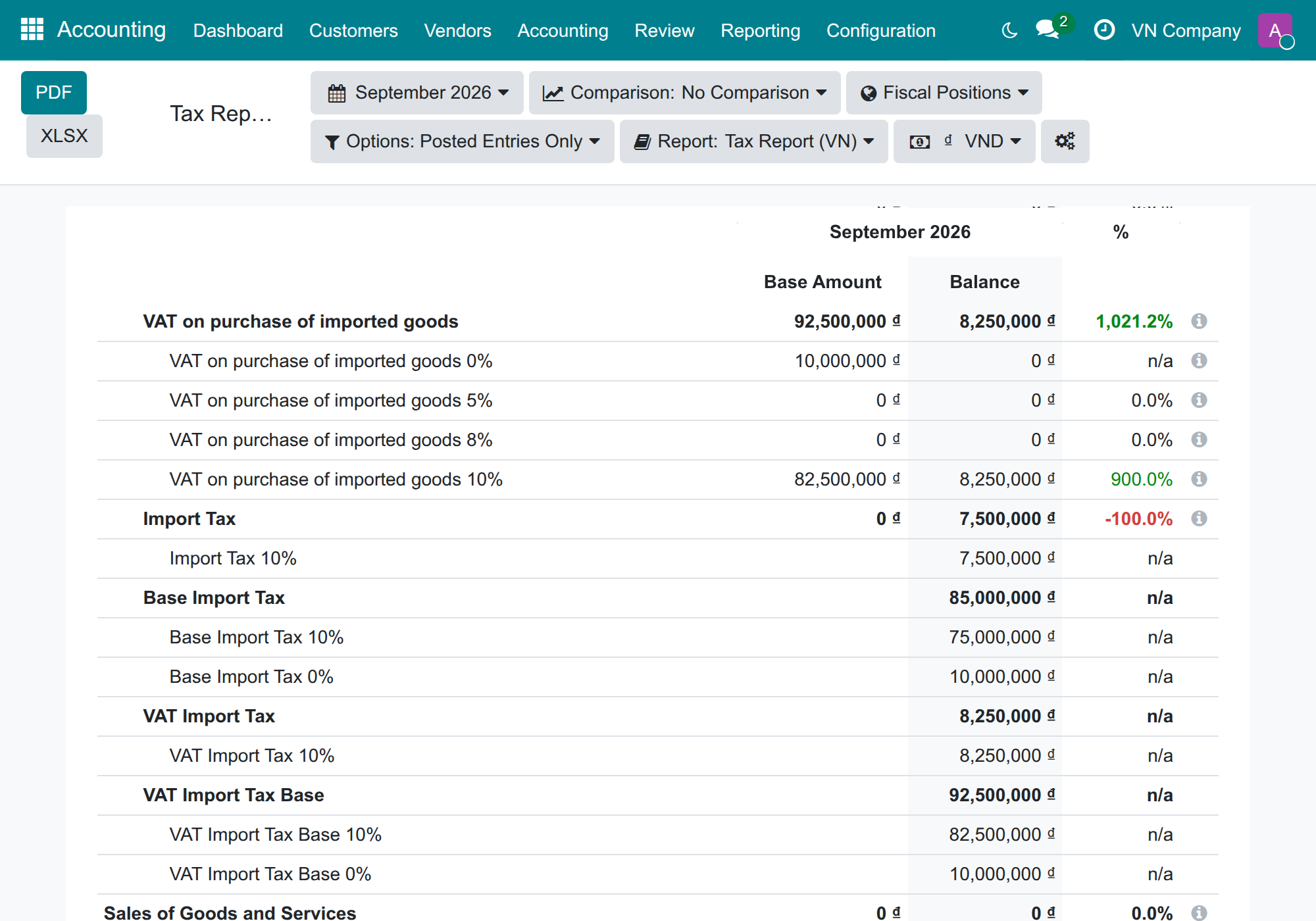
Read the imported-goods lines of the Tax Report
Trace a figure to its customs vouchers
Take back the VAT of a corrected declaration
Frequently Asked Questions
Which month is a declaration listed in?
The month of its clearance date. Paying the customs taxes in a later month does not list it again.
Can I choose when to deduct unpaid import VAT?
Yes. The list only flags a declaration whose import VAT is unpaid at month end. The deduction month stays the accountant's decision, to be confirmed with your chief accountant or tax adviser.
What happens when customs corrects a declaration?
Reverse its import VAT voucher: the purchase list shows a negative row in the month of the reversal.
Are imports at 0% covered?
Yes. Their bases reach the 0% lines of the Tax Report, and a declaration with 0% import VAT is listed with its base and a VAT of 0.
Do I need to set anything up?
No. The module has no setting and adds no menu. Give the accountant the Accounting right (Bookkeeper, or Administrator with the Accounting app) and the customs declarant the Foreign Trade right. The declarant sees no accounting report; the accountant reads the declarations from Accounting › Customs Declarations.
Need help with this module?
Technical Support
apps.support@viindoo.comTechnical Requirement
- Odoo version: 19.0
- Editions: Community Edition, Viindoo Cloud
- Required modules: Accounting Reports - Vietnam Accounting (l10n_vn_viin_account_reports), Foreign Trade Import, Logistics (viin_foreign_trade_import)
- License: OPL-1
Changes log
- v0.1.0 - Customs declarations with import VAT are listed on the 01-2/GTGT purchase list in their clearance month, with a note while their import VAT is unpaid and a negative row for a reversed VAT voucher; 0% imports reach the 0% base lines of the Tax Report. The customs declarant (Foreign Trade User) opens neither the Tax Report nor the purchase list; the accountant reads the declarations from Accounting › Customs Declarations.
Accounting Reports - Vietnam Accounting - Foreign Trade
This guide is for the accountants and chief accountants of Vietnamese companies that import goods and prepare the VAT return (01/GTGT) and the purchase list (01-2/GTGT), for the person who records the customs declarations, and for the administrator who gives them access.
Note
Extends Accounting Reports - Vietnam Accounting - see its documentation for the Tax Report, the purchase list in general and who may run them.
Overview
Import VAT is paid to customs, not charged on the supplier's invoice. It therefore sits on the customs declaration, and the accountant needs it on the purchase list 01-2/GTGT and on the imported-goods lines of the VAT return. This module brings it there:
- The purchase list 01-2/GTGT shows one row per customs declaration that has import VAT, in the month of its Clearance Date. The row gives the customs document number, the clearance date, the customs authority and its tax ID, the import VAT base (the customs duty is inside it) and the import VAT.
- Paying the customs taxes in a later month does not list the declaration again.
- A declaration whose import VAT is still unpaid at the end of the month carries the note Import VAT not yet paid - not deductible until paid.
- An import VAT voucher that is reversed is listed as a negative row in the month of its reversal.
- Imports at 0% customs duty or 0% import VAT post no voucher. Their bases are added to the 0% lines of the Tax Report, so they are not missing from the return.
The work is shared between three people:
| Role | What they do | Access right to assign |
|---|---|---|
| System administrator | Checks the module is installed and gives each person their access right. | Administrator of the system (Settings) |
| Customs declarant | Records each import customs declaration with its customs document number, clearance date, customs authority and taxes, and moves it to Confirmed by Custom. | Foreign Trade: User |
| Accountant | Prints the purchase list and reads the Tax Report for the clearance month, deals with the flagged and reversed amounts. | Accounting: Bookkeeper (or Administrator) |
How a declaration reaches the reports:
- Customs declarant: the declaration is confirmed by customs, with its customs document number and clearance date. It is handed to the accountant.
- Accountant: at month end, the declaration appears on the purchase list and on the Tax Report of its clearance month.
- Accountant, next months: a payment made later changes nothing; a reversed import VAT voucher appears as a negative row in the month of its reversal.
Setup (for the Administrator)
Installation
The module installs by itself when Accounting Reports - Vietnam Accounting and Foreign Trade Import, Logistics are both installed. To check it:
- Go to Apps.
- Search with the keyword l10n_vn_viin_foreign_trade_account_reports.
- If the module is not installed, press Install.
The module has no setting of its own and adds no menu: it works inside the purchase list and the Tax Report that already exist.
Before the first month
- The customs authority of each declaration is a contact of your company. Fill in its Tax ID: the purchase list prints it on every row.
- The import VAT of a declaration must be a tax marked as VAT: in the tab Taxes Computation of the declaration, the Is VAT box of its row is ticked. A declaration without an import VAT tax is not a deductible document and is not listed.
Giving people their access right
- Go to Settings ‣ Users & Companies ‣ Users and open the user.
- In the tab Access Rights, set the Accounting line to Bookkeeper (or Administrator) for the accountant, and the Foreign Trade line to User for the customs declarant.
- Save.
The accountant does not need the Foreign Trade right to print the purchase list: the Accounting right is enough to read the declarations. For the other conditions of the Accounting right, see the guide of Vietnam Accounting Reports.
The Foreign Trade right of the customs declarant gives no access to the accounting: the declarant opens neither the Tax Report nor the purchase list. The accountant reads every customs declaration, read-only, from Accounting app ‣ Customs Declarations ‣ Import (the app is named Invoicing when the Accounting app is not installed).
Customs declarant: make the declaration ready to be listed
You record each import customs declaration. Three entries decide how it appears on the purchase list, so check them before the declaration is confirmed.
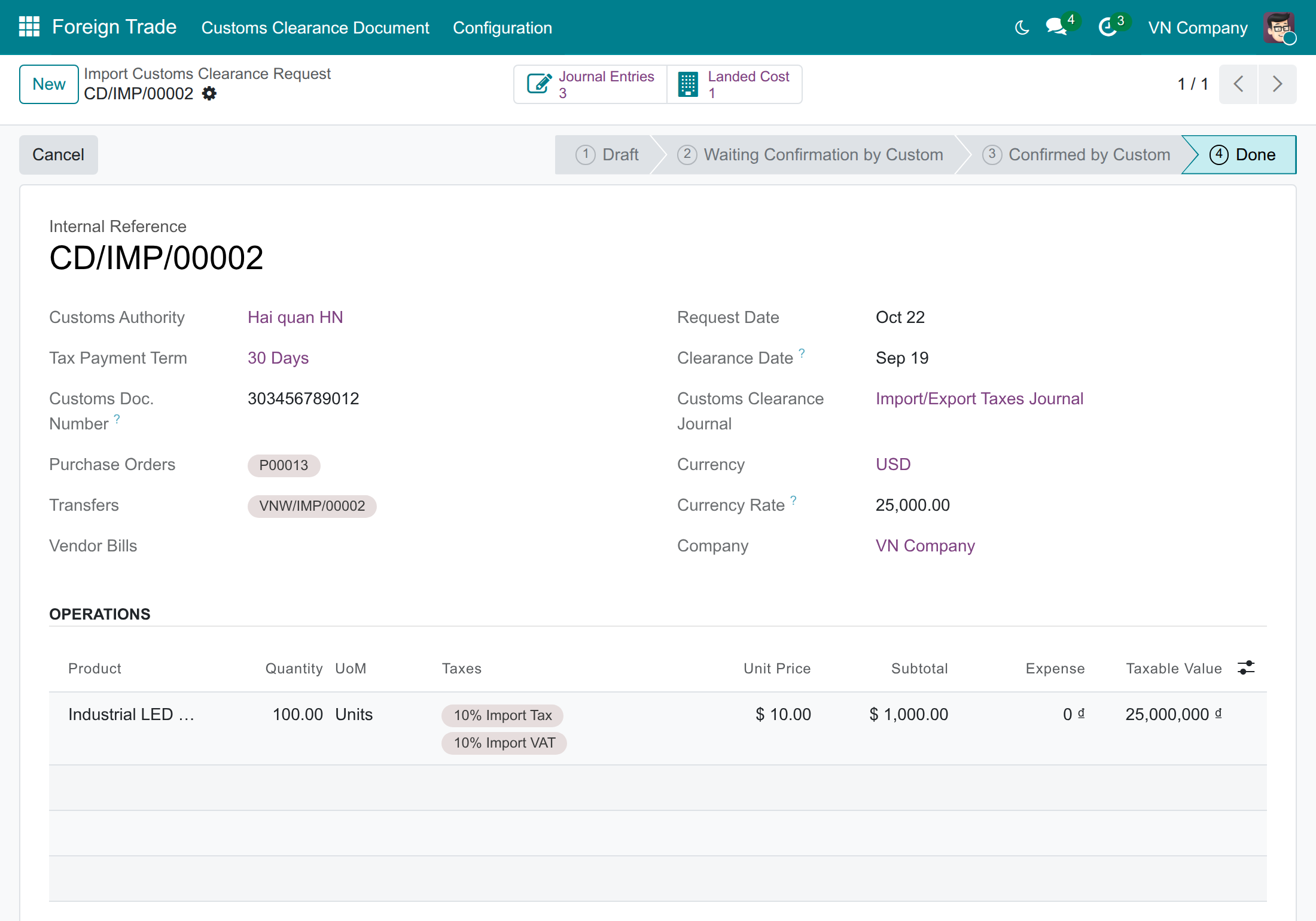
- Go to Foreign Trade ‣ Customs Clearance Document ‣ Import Customs Clearance Request and open the declaration.
- Check the Customs Authority. Its name and tax ID are printed on the list.
- Enter the Customs Doc. Number given by customs. The list prints this number; when it is empty, the list prints the internal reference of the declaration (for example CD/IMP/00003), which the tax office cannot match.
- Enter the Clearance Date. It decides the month in which the declaration is listed.
- In the line, check that the Taxes column holds the import duty tax and the import VAT tax.
- Move the declaration along its status bar: Draft, Waiting Confirmation by Custom, Confirmed by Custom, then Done once the customs taxes are paid. Only a declaration that is Confirmed by Custom or Done is listed.
Note: a draft or cancelled declaration is never listed. A declaration with the import duty only, without import VAT, is not listed either.
Accountant: month-end for imports
Print the purchase list for the clearance month
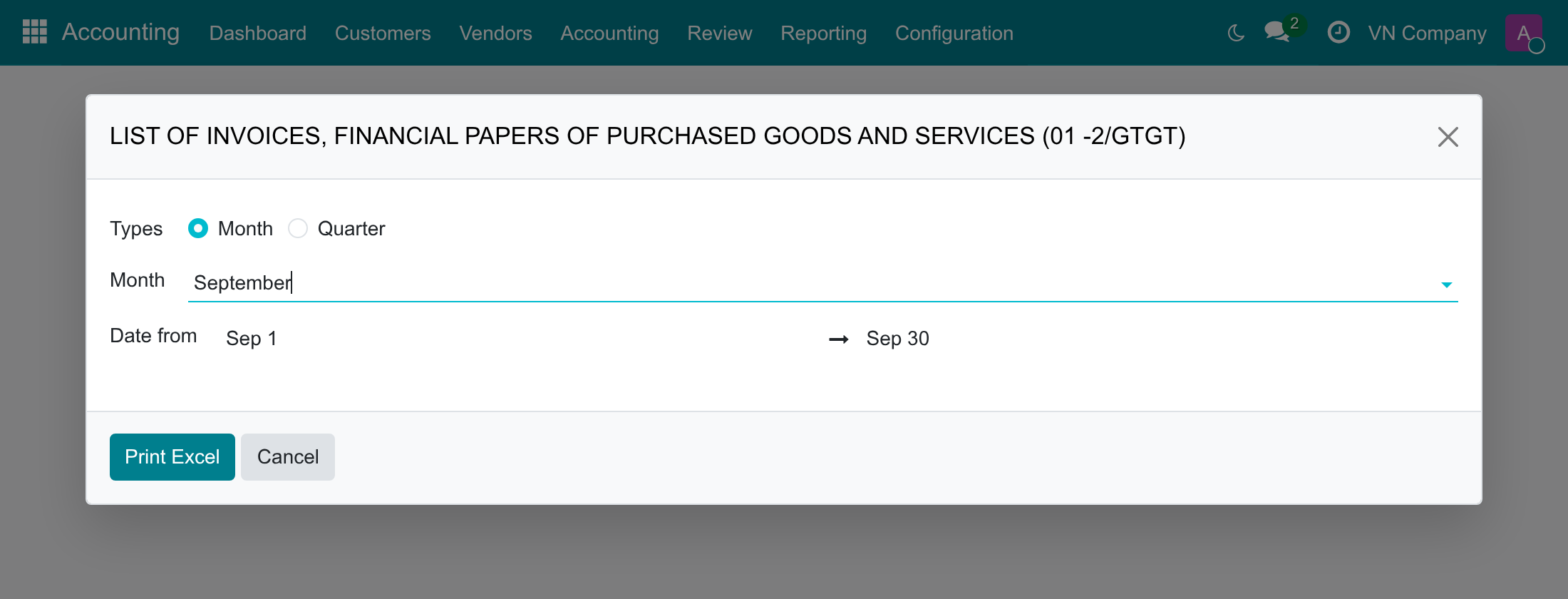
- Go to Accounting app ‣ Reporting ‣ Invoice Declaration ‣ List of Invoice, Financial paper of Purchased and Services (01 -2/GTGT).
- Choose Types: Month or Quarter, then the month or the quarter.
- Press Print Excel.
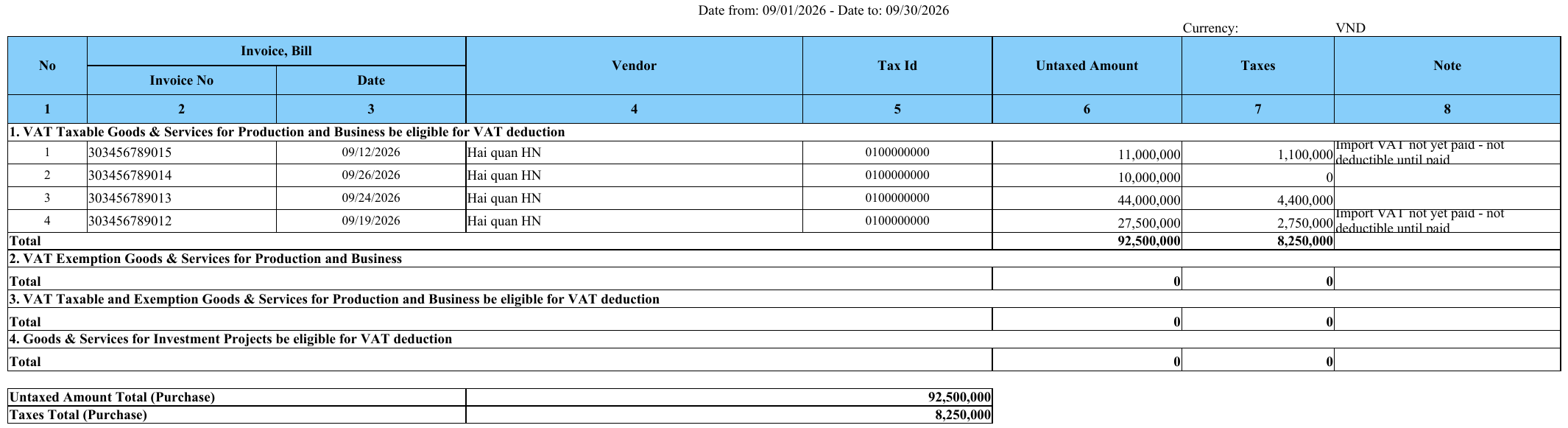
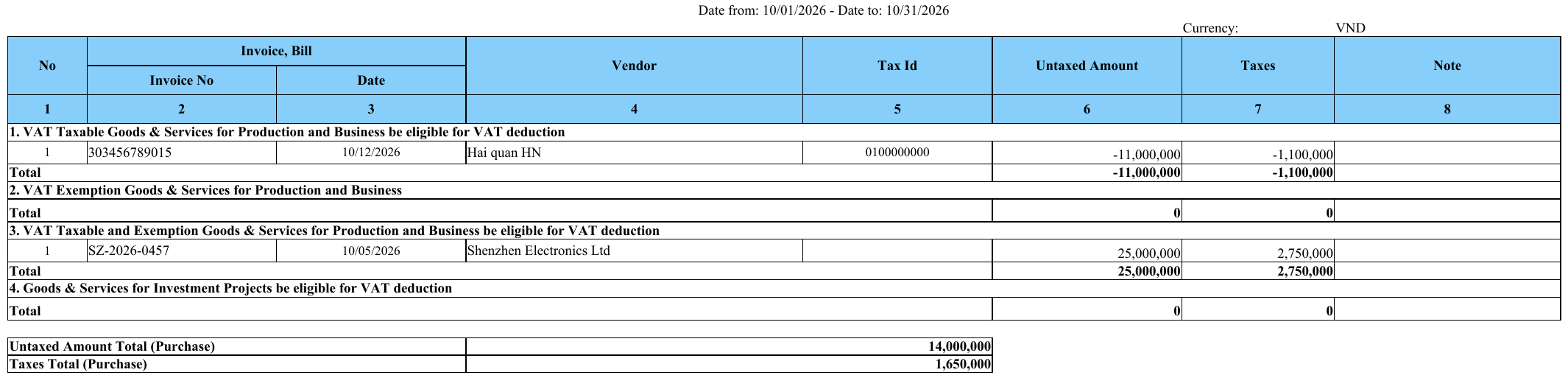
In the file, the declarations are under section 1. VAT Taxable Goods & Services for Production and Business be eligible for VAT deduction, always section 1, whatever the analytic distribution of the goods. The figure below is the list of September 2026, opened in a spreadsheet program.
For each declaration, the row shows:
- Invoice No: the customs document number (303456789012), or the internal reference when the number is empty.
- Date: the clearance date.
- Vendor and Tax Id: the customs authority and its tax ID.
- Untaxed Amount: the base of the import VAT, with the customs duty inside it. For goods of 25,000,000 with 10% duty it is 27,500,000.
- Taxes: the import VAT (2,750,000 in the example).
A declaration with 0% import VAT is listed with its base and a VAT of 0 (303456789014 above).
Deal with the unpaid import VAT
In the example, 303456789012 and 303456789015 carry the note Import VAT not yet paid - not deductible until paid: at 30 September, the import VAT of these two declarations was still owed to customs. 303456789013 was paid on 25 September and has no note.
- The note is a warning. The amount is still in the totals of the list: the module lists the declaration in its clearance month and leaves the decision to you.
- The module's guidance is to deduct that VAT in the month of its payment document and to adjust the return. Check this rule with your chief accountant or tax adviser before you file.
- The note is judged at the end of the month you print. 303456789012 was paid on 5 October: the list of September still shows the note, and the list of October does not list this declaration again.
Note: in the spreadsheet, the Note column is narrow. Widen it to read the whole sentence.
Read the imported-goods lines of the Tax Report
- Go to Accounting app ‣ Reporting ‣ Statement Reports ‣ Tax Report.
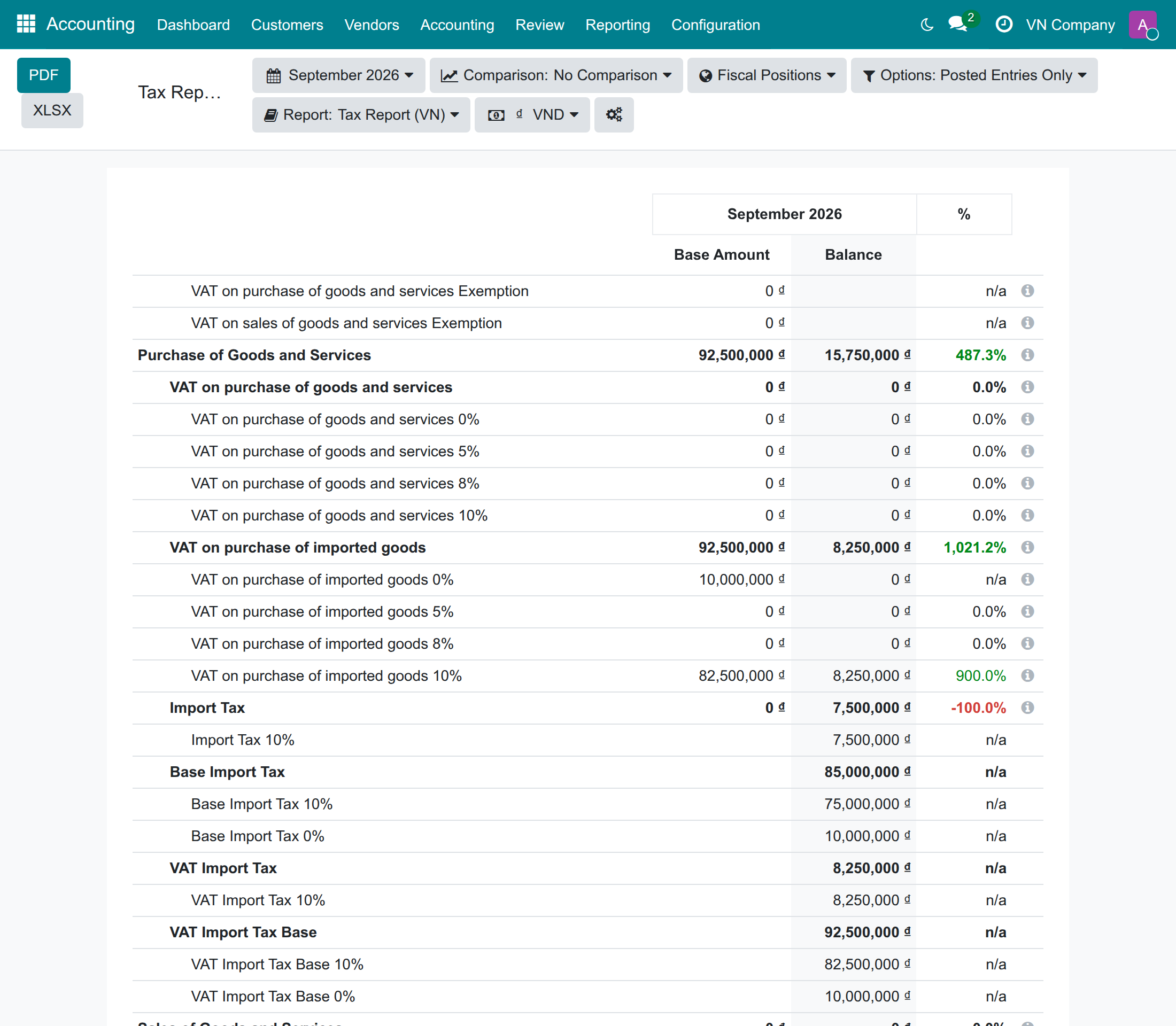
- Set the period to the clearance month (here Last Month, September 2026). For a company on the Vietnam chart, the Report selector shows Tax Report (VN).
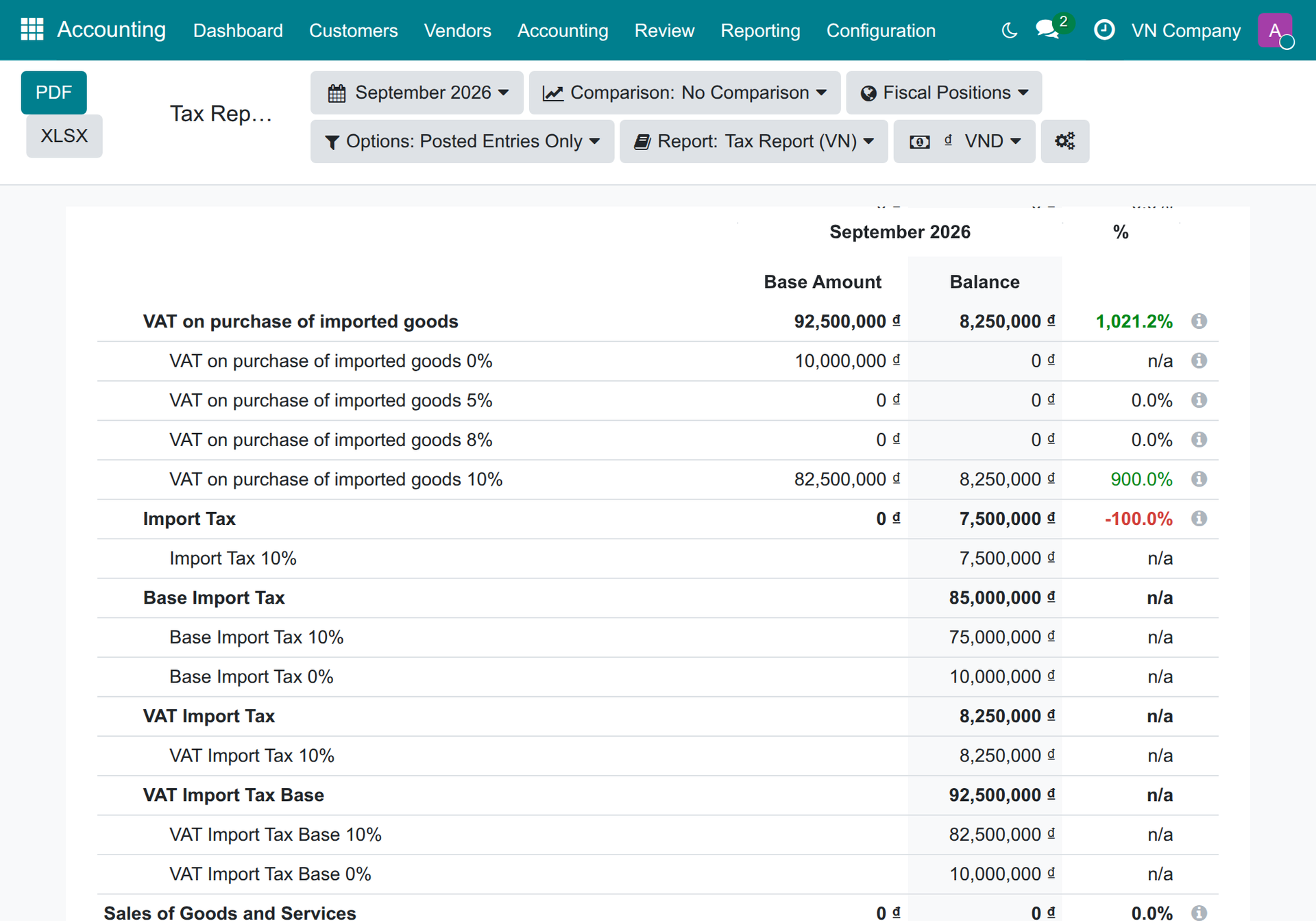
- Read the lines VAT on purchase of imported goods 0%, 5%, 8% and 10%, then Base Import Tax, VAT Import Tax and VAT Import Tax Base.
For September 2026 the Tax Report shows:
| Line | Base Amount | Balance |
|---|---|---|
| VAT on purchase of imported goods 10% | 82,500,000 | 8,250,000 |
| VAT on purchase of imported goods 0% | 10,000,000 | 0 |
| Import Tax 10% | 7,500,000 | |
| Base Import Tax 10% | 75,000,000 | |
| Base Import Tax 0% | 10,000,000 | |
| VAT Import Tax Base 10% | 82,500,000 | |
| VAT Import Tax Base 0% | 10,000,000 |
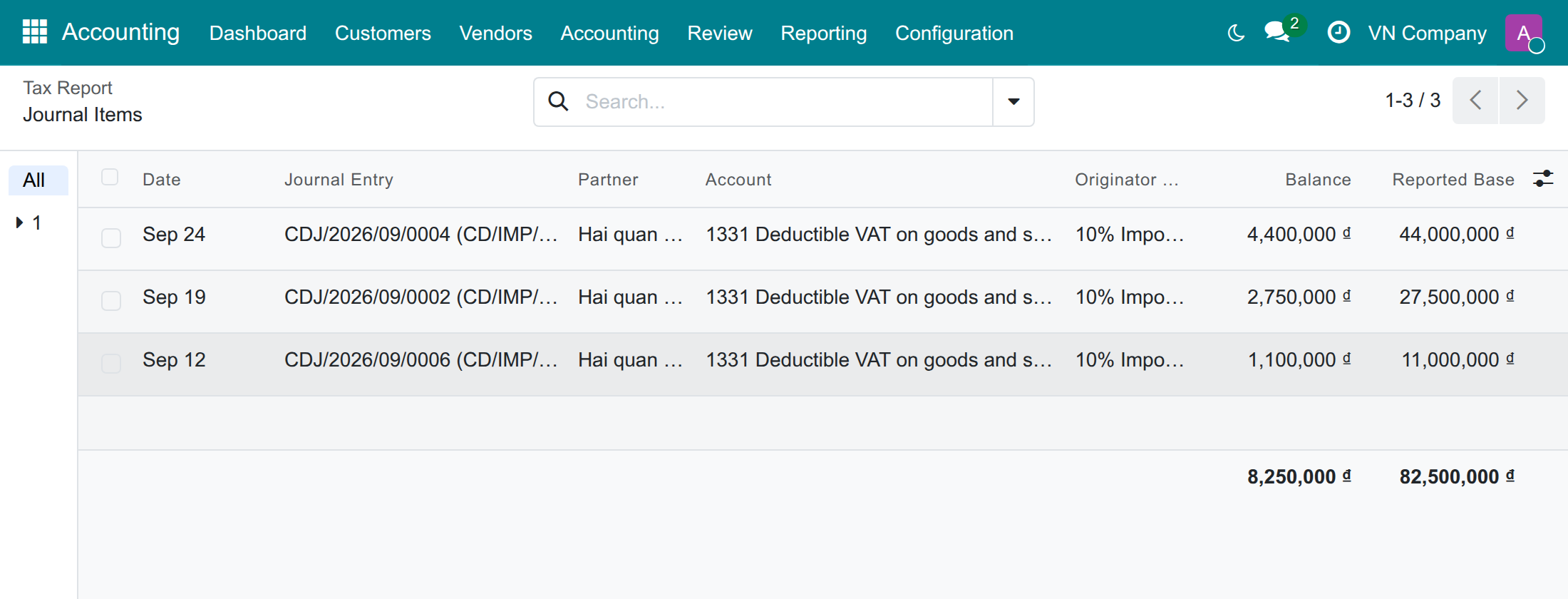
The 82,500,000 is the three declarations with import VAT: 27,500,000 + 44,000,000 + 11,000,000. The 10,000,000 at 0% is the declaration 303456789014. The lines themselves are explained in the guide of Vietnam Accounting Reports.
Trace a figure to its source
- On the Tax Report, click the Base Amount of VAT on purchase of imported goods 10%.
- The Journal Items list opens: one item per customs voucher, with the Reported Base column. Its total is the figure you clicked.
The 0% lines are the exception. A customs tax at 0% posts no voucher, so the declared 0% bases come from the declarations, not from journal items. If you click VAT on purchase of imported goods 0% (10,000,000), the list that opens is empty.
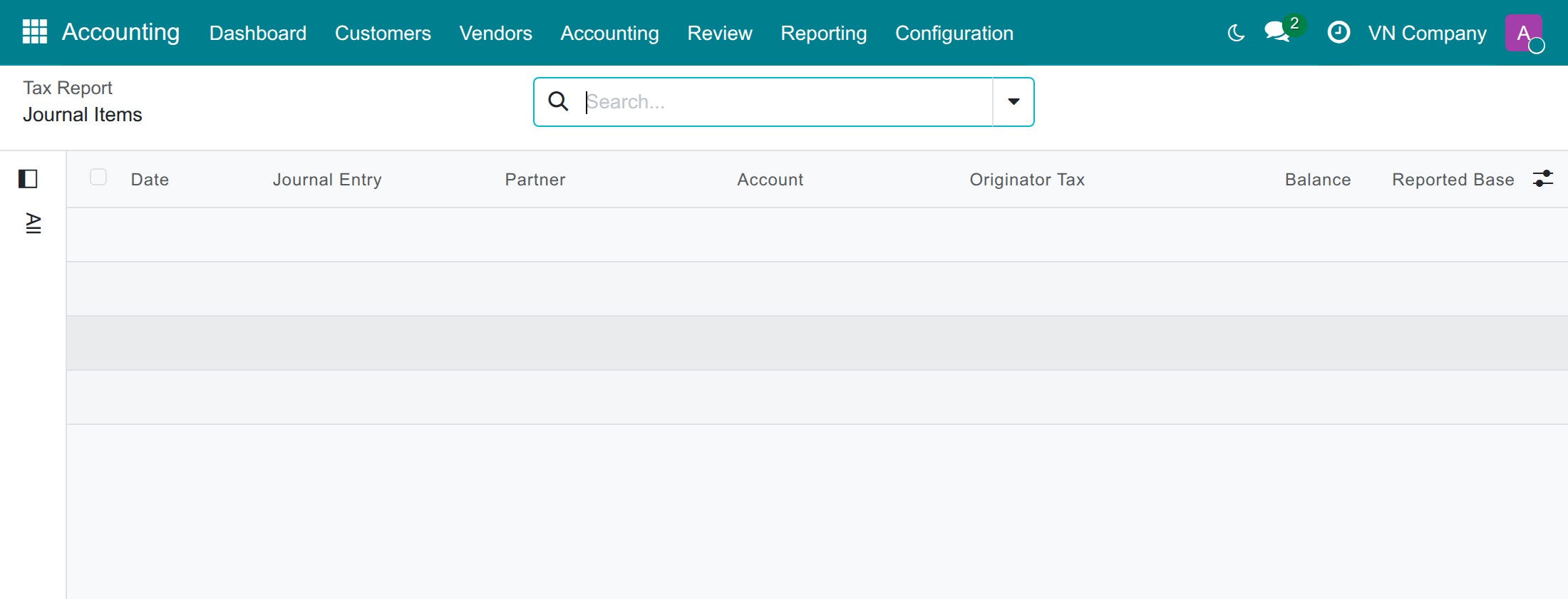
To check a 0% figure, open the declarations cleared in the period and look at their lines taxed at 0%.
Take back the import VAT of a declaration
When customs corrects a declaration after you declared it, reverse its import VAT voucher in the month of the correction.
- Open the declaration (Accounting app ‣ Customs Declarations ‣ Import) and press the Journal Entries button.
- Open the voucher that carries the import VAT amount (here CDJ/2026/09/0004, 4,400,000). The declaration has one voucher per tax.
- Press Reverse Entry, choose the Reversal date and press Reverse.
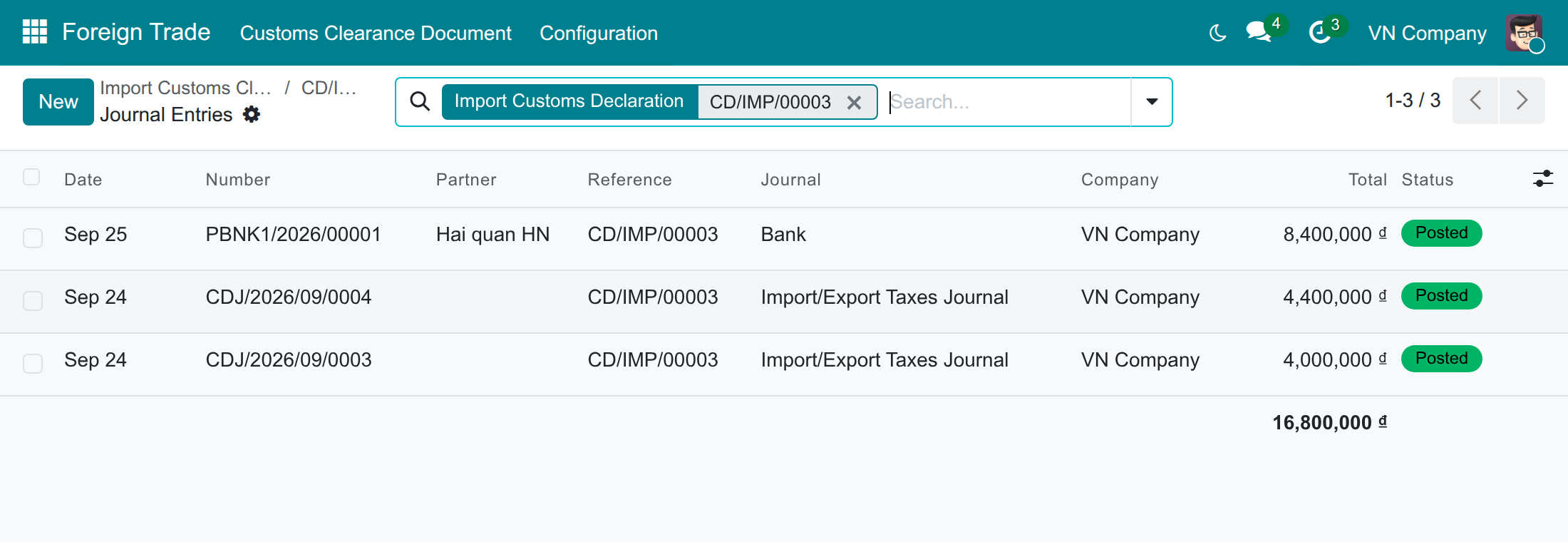
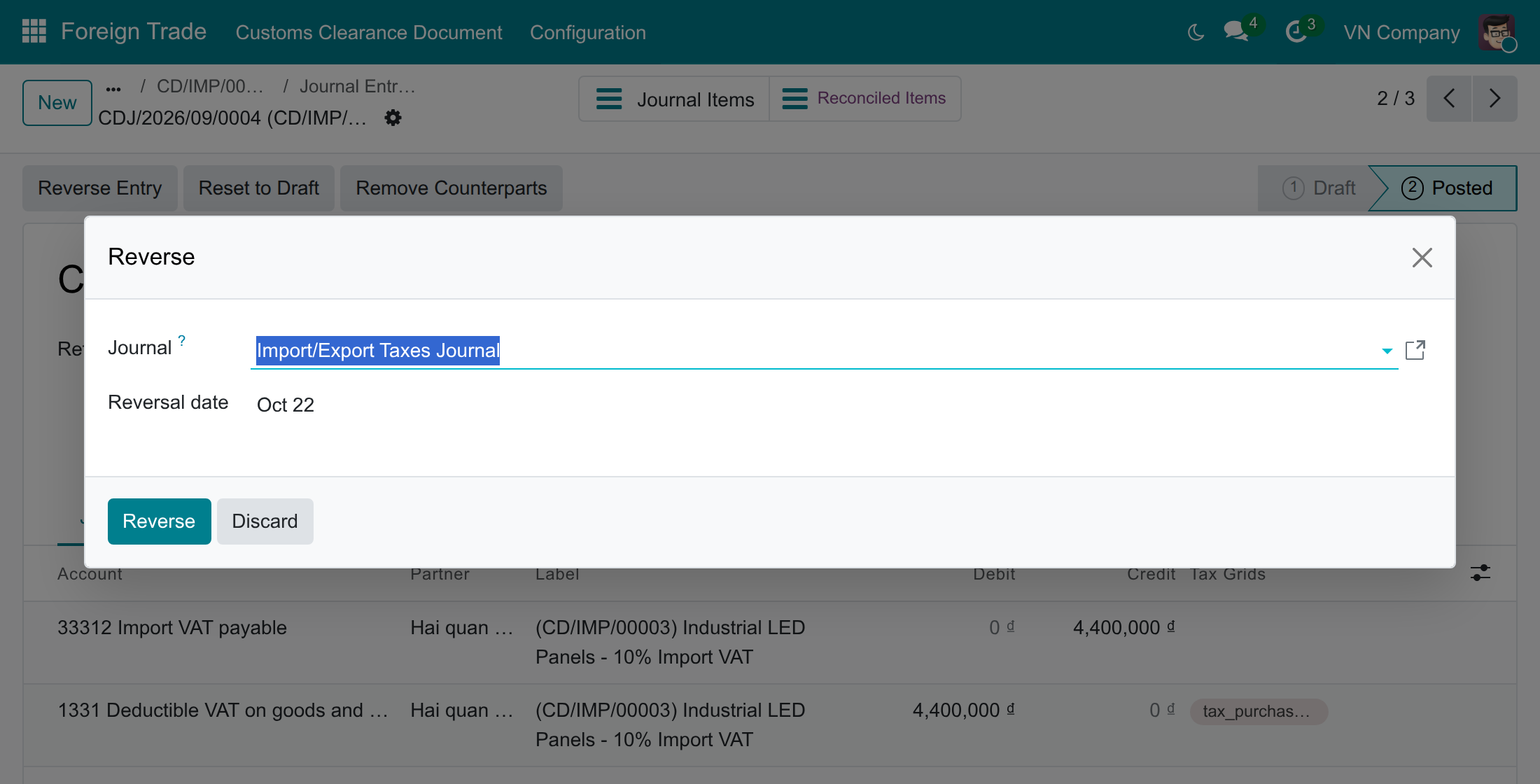
In the month of the reversal date, the purchase list gets a negative row for the declaration, dated on the reversal (October 2026 below). The month of the clearance still shows its positive row.
- Reverse each voucher from its own form. Reversing several entries at once from the journal entry list leaves the reversals in draft, and a draft reversal is not listed.
- Each reversed voucher gives its own negative row: reversing both vouchers of a declaration gives two negative rows.
- A reversal dated in the future is posted later by the scheduler: it is listed, in the month of its date, once it is posted.
Rules to follow and known limits
- Declare the import taxes on the customs declaration. Record the vendor bill of imported goods without them: an import VAT or a customs duty entered on the bill as well is reported twice.
- The clearance month decides. The module lists a declaration in the month of its clearance date. It does not list it in the month of payment.
- Section 1 only. Declarations are always listed in the section of goods and services eligible for VAT deduction.
- Declarations without import VAT are not listed. A 0% import VAT declaration is listed, with a VAT of 0.
- Voiding a declaration. An import declaration whose duty is already capitalised in the stock value cannot be cancelled: you reverse its vouchers at today's date and the declaration stays Confirmed by Custom. Such a declaration keeps its 0% bases on the Tax Report and on the purchase list, because a 0% tax has no voucher to reverse. Check with your chief accountant whether they must be adjusted in the return.
- 0% bases are not in the drill-down, and a Tax Report line that is configured with a duration term reads journal items only, so it does not receive them.
Troubleshooting
- A declaration is missing from the purchase list. Check that it is Confirmed by Custom or Done, that its Clearance Date is in the month you print, that its lines carry an import VAT tax, and that the company selected in the top bar is the company of the declaration.
- The row shows ``CD/IMP/00003`` instead of the customs number. The Customs Doc. Number of the declaration is empty. Enter it on the declaration.
- The figures are twice the expected ones. The import taxes are entered on the vendor bill as well as on the declaration. Correct the bill with its usual actions: Reset to Draft, remove the import duty and the import VAT from its lines and Confirm it again, or, once it is in draft, Cancel it and record the bill again; keep those taxes on the customs declaration. If the period is already filed, correct the return through the usual adjustment procedure.
- A negative row is missing. Check that the reversal is posted (not draft) and dated in the month you print.
- A 0% figure of the Tax Report has nothing behind it. This is expected: see Trace a figure to its source.
- An access error opens when you print the list. The user needs the Accounting right, see Setup and the guide of Vietnam Accounting Reports.
FAQ
- Why is the Untaxed Amount of a declaration bigger than its goods value? It is the base of the import VAT, and the customs duty is part of that base: 25,000,000 of goods and 2,500,000 of duty give 27,500,000.
- Does paying the customs taxes later change the list? No. The declaration stays in its clearance month, and the note is only judged at the end of the month you print.
- What if the import taxes were entered on the vendor bill? Import VAT and customs duty are declared on the customs declaration. Correct the bill with its usual actions: Reset to Draft, remove the import duty and the import VAT from its lines and Confirm it again, or, once it is in draft, Cancel it and record the bill again; then declare those taxes on the customs declaration. If the period is already filed, correct the return through the usual adjustment procedure. A bill is listed from its own VAT lines; a bill without any VAT tax is not listed. See the guide of Vietnam Accounting Reports.
- Where do I set the period rule? There is no setting: the clearance month is applied. If your company declares import VAT in the month of payment, confirm the treatment with your tax adviser and adjust the return.
This software and associated files (the "Software") may only be used (executed, modified, executed after modifications) if you have purchased a valid license from the authors, typically via Odoo Apps, or if you have received a written agreement from the authors of the Software (see the COPYRIGHT file).
You may develop Odoo modules that use the Software as a library (typically by depending on it, importing it and using its resources), but without copying any source code or material from the Software. You may distribute those modules under the license of your choice, provided that this license is compatible with the terms of the Odoo Proprietary License (For example: LGPL, MIT, or proprietary licenses similar to this one).
It is forbidden to publish, distribute, sublicense, or sell copies of the Software or modified copies of the Software.
The above copyright notice and this permission notice must be included in all copies or substantial portions of the Software.
THE SOFTWARE IS PROVIDED "AS IS", WITHOUT WARRANTY OF ANY KIND, EXPRESS OR IMPLIED, INCLUDING BUT NOT LIMITED TO THE WARRANTIES OF MERCHANTABILITY, FITNESS FOR A PARTICULAR PURPOSE AND NONINFRINGEMENT. IN NO EVENT SHALL THE AUTHORS OR COPYRIGHT HOLDERS BE LIABLE FOR ANY CLAIM, DAMAGES OR OTHER LIABILITY, WHETHER IN AN ACTION OF CONTRACT, TORT OR OTHERWISE, ARISING FROM, OUT OF OR IN CONNECTION WITH THE SOFTWARE OR THE USE OR OTHER DEALINGS IN THE SOFTWARE.