
Quality
| Lines of Code | 5302 |
| Technical name | to_quality |
| License | OPL-1 |
| Website | https://viindoo.com/apps/modules/18.0/to_quality |
| Read description for | v 10.0 v 11.0 v 12.0 v 13.0 v 14.0 v 15.0 v 16.0 v 17.0 |
| Required Apps | Discuss (mail) |
| Extensions | Stock Quality Control |
Catch defects before they move on - and know exactly who checked what.
Viindoo Quality turns your inspection plan into checks a named person records on a tablet, keeps photos as evidence nobody can quietly delete, and follows every problem through to a corrective and preventive action.
Key Features
Control Points
Define what is inspected, how (test type, norm and tolerance), how often, for which products and who is Responsible - and block goods when a check fails.
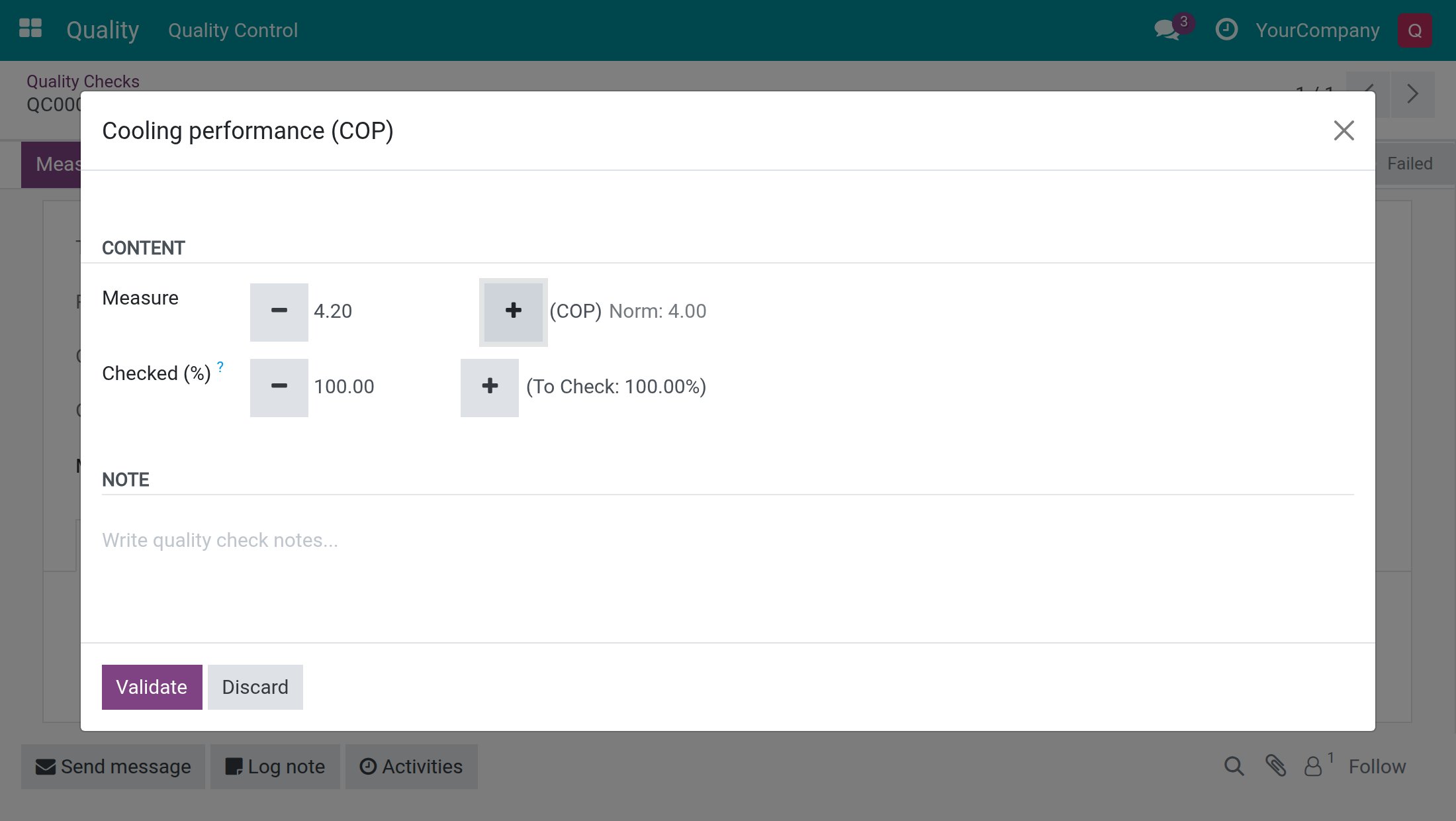
Touch-Screen Check Dialog
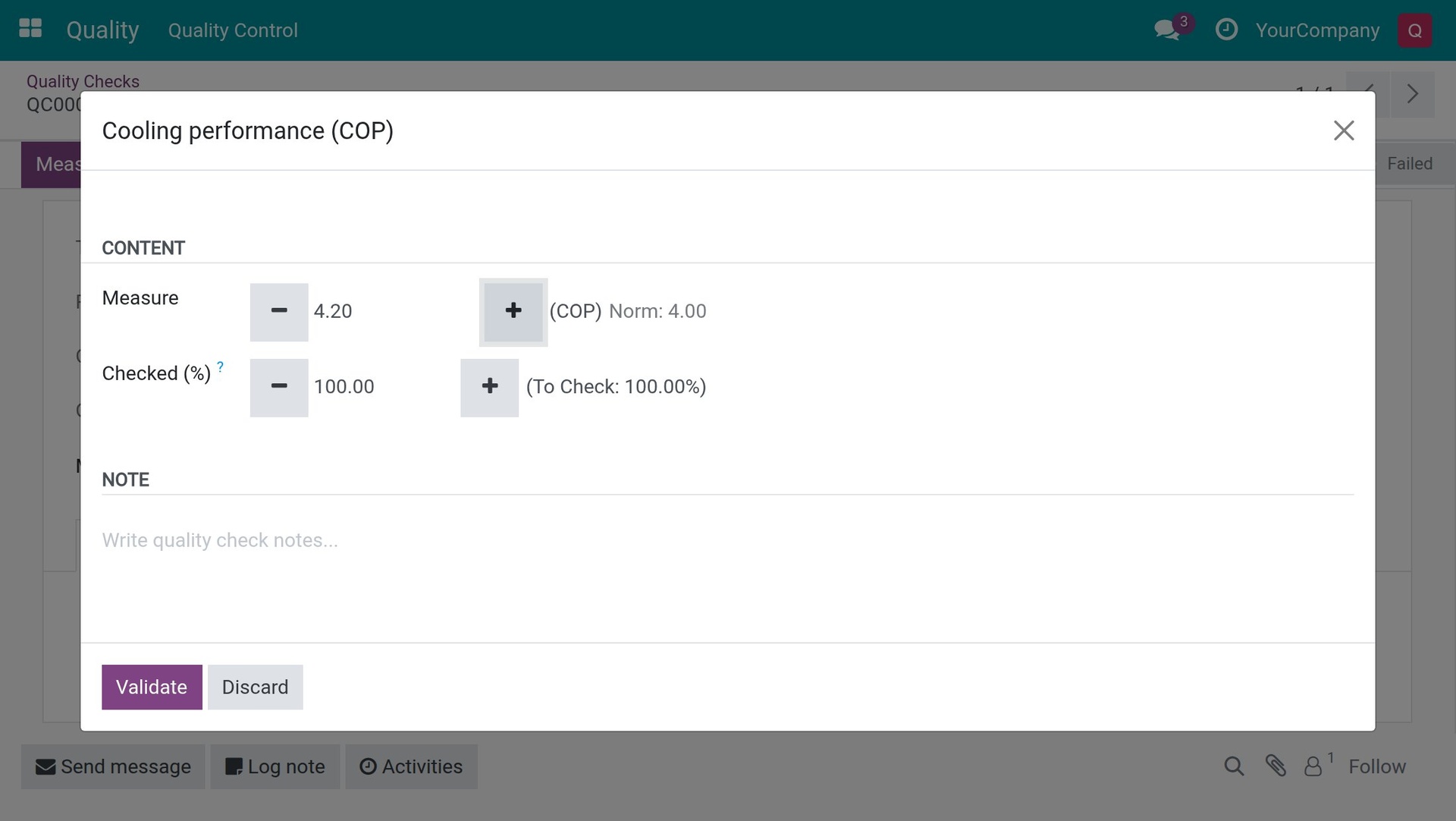
A big-button dialog for recording a check on a tablet: Pass, Fail, Validate a measure, Previous and Next across several checks, with only the controls the test type and the user allow.
Evidence Photos
A photo check needs a photo to Pass, a Fail can carry photos on any type, and photos cannot be quietly removed.
Quality Alerts
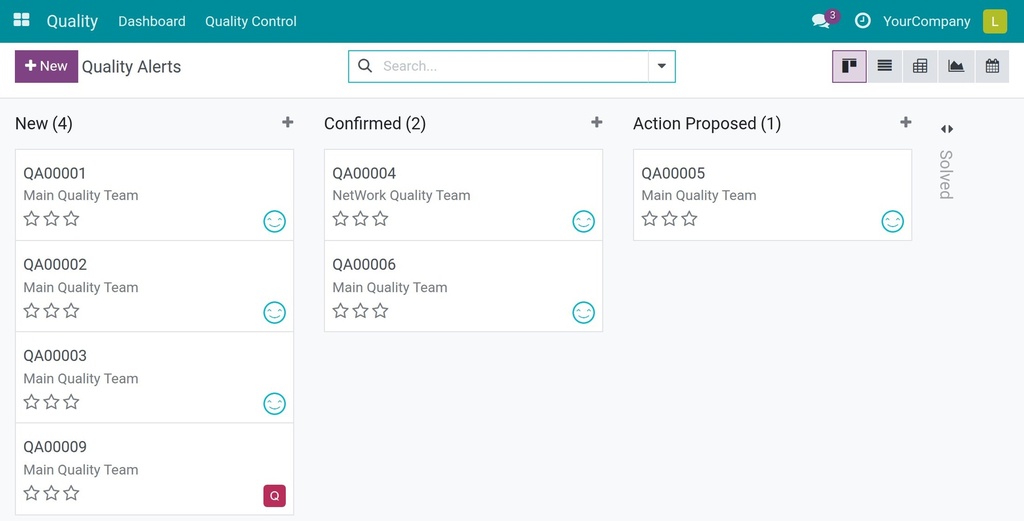
Track a quality problem from report to solved on a kanban of stages, with root cause, priority and corrective and preventive actions.
Apply Template to Product
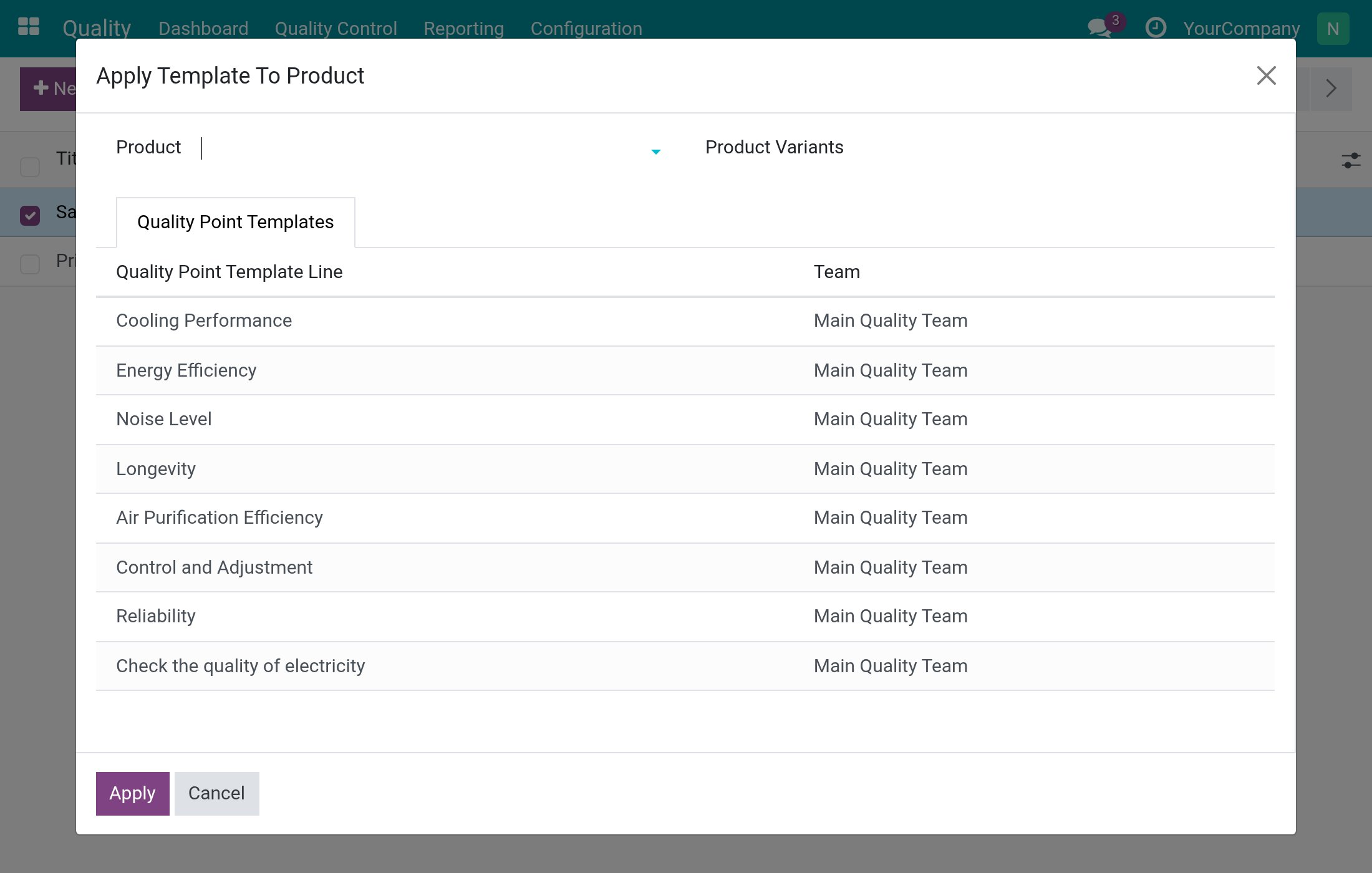
Select templates and products, review each line with its team, and create the matching control points in one go.
SPC Control Chart
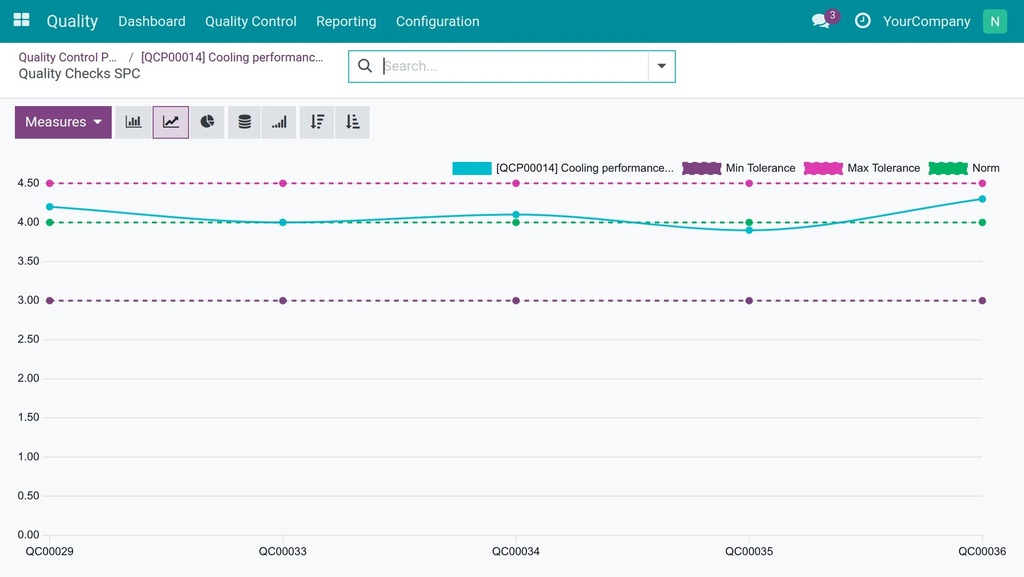
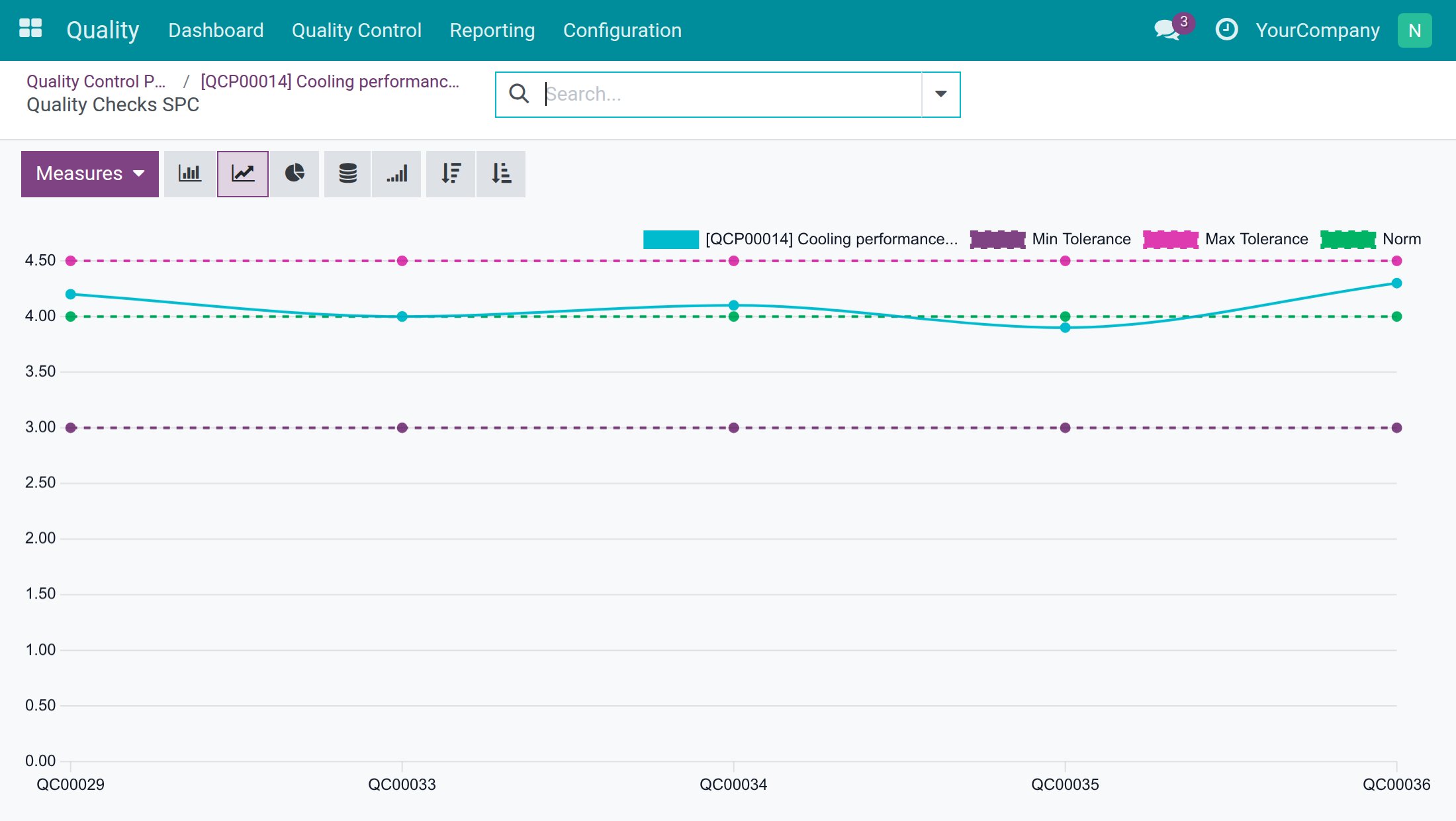
A line chart of measured values against norm and tolerance limits, with the average and standard deviation, from any Measure control point.
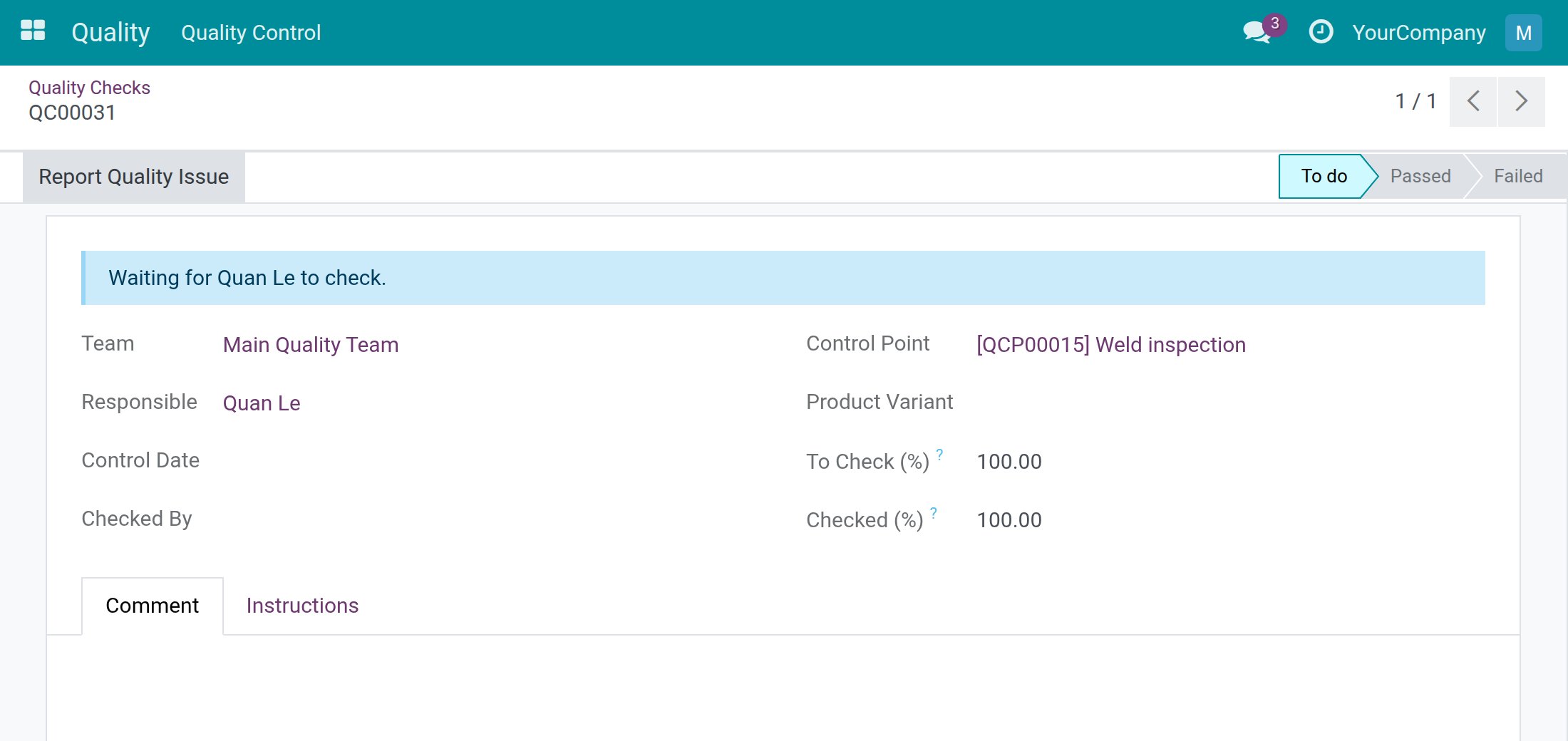
A named person behind every result
Each check takes its Responsible from the control point, and only that person or a Quality User can record a Pass or a measure - everyone else sees “Waiting for <name> to check.” Checked By and the control date show who gave the result and when, Reopen sends a Passed check back to To do, and only a Quality User can take a check out of Failed.
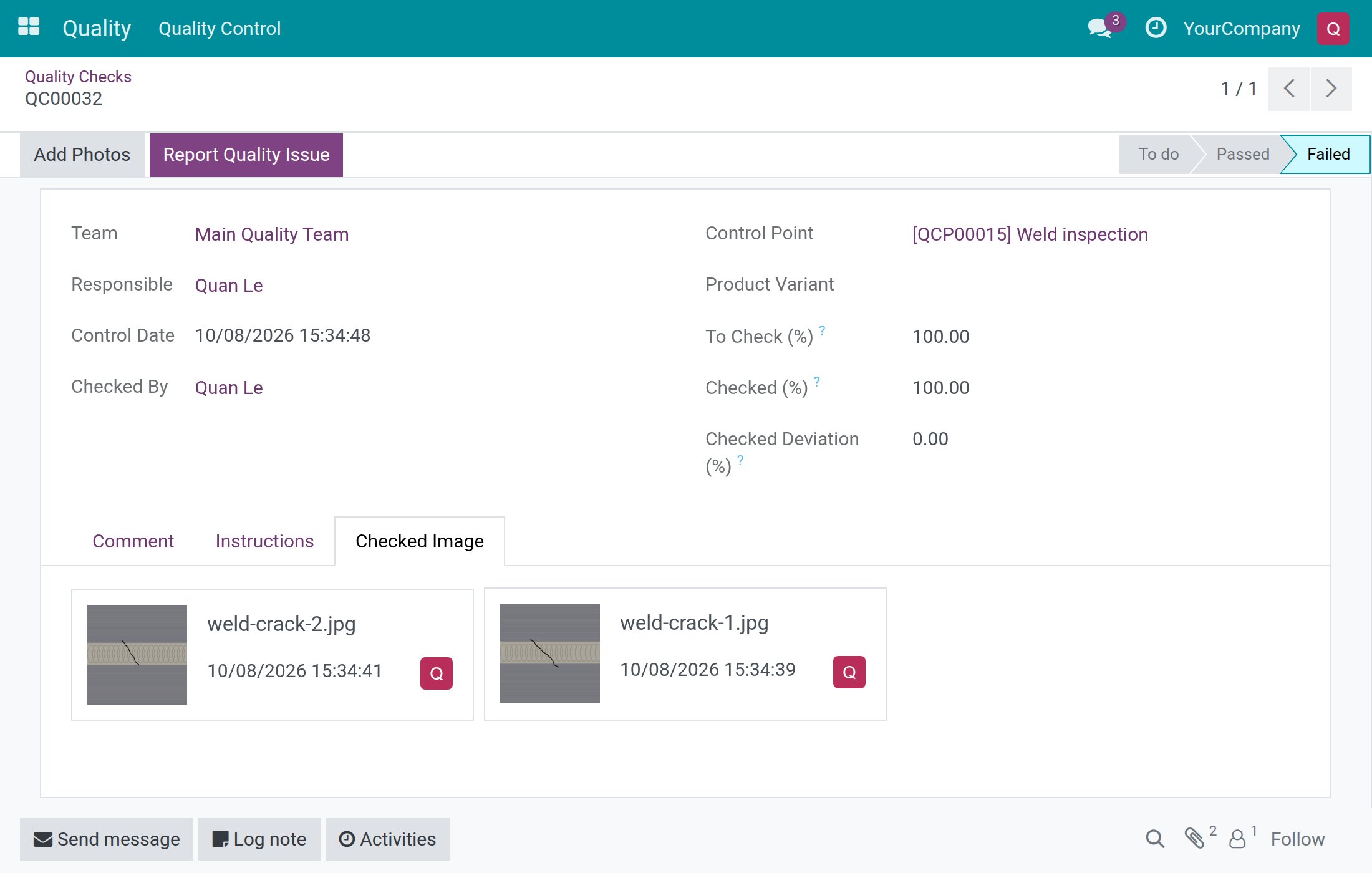
Evidence that cannot be quietly removed
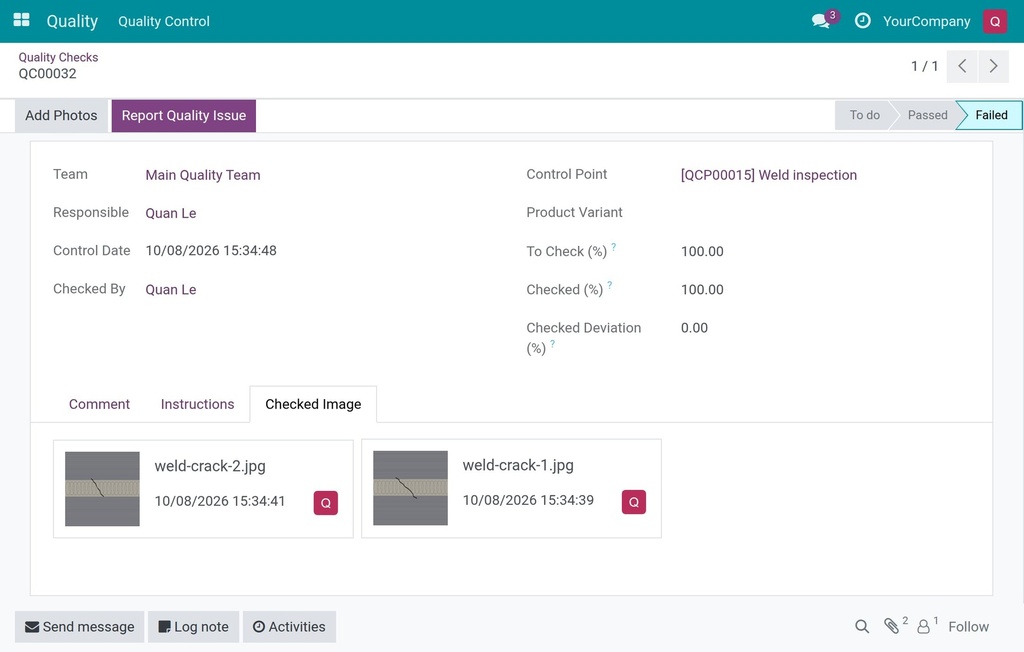
A Take a Picture check cannot Pass without a photo, and a Fail on any test type can carry photos taken straight from the tablet camera. Photos can be added to a Failed check but not removed or replaced, and the photos of a Passed check stay locked for everyone except Quality Users.
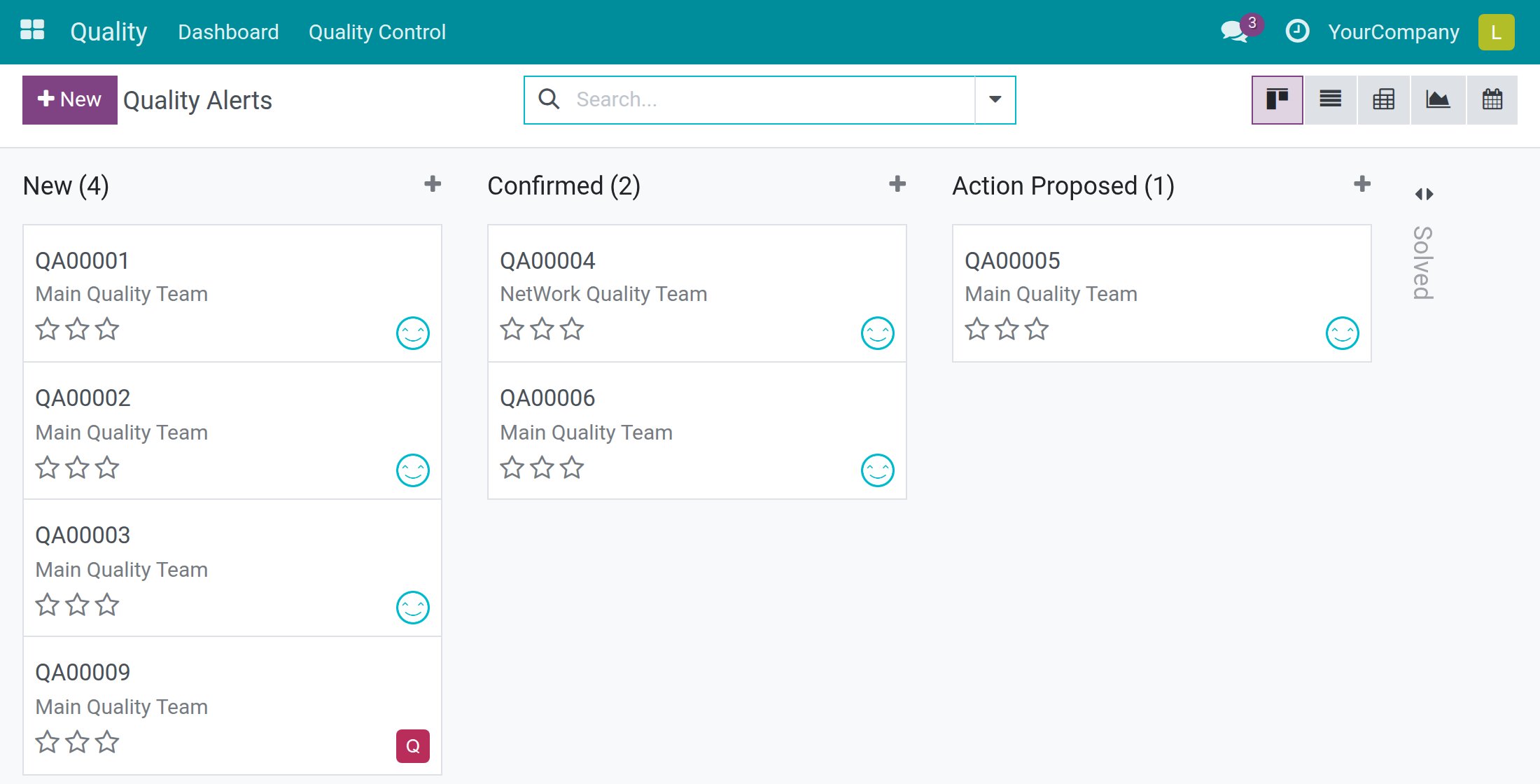
Anyone can pull the cord, and the fix is followed through
Anyone working with a check can record a Fail, even when someone else is Responsible, and raise a quality alert from it with Report Quality Issue. Each alert moves from New to Solved with its root cause, priority and corrective and preventive actions, each with its own Responsible and deadline.
Questions buyers ask
Can operators record checks on a tablet?
Yes. Each check opens in a big-button dialog with Pass, Fail, Validate for a measure, plus and minus buttons to enter values, the camera for photos, and Previous and Next to move through several checks. The dialog shows only the buttons that the test type and the user are allowed to use.
How are measurements judged?
On a Measure control point you set the norm and the tolerance, and each measured check is judged against them. The measure is never pre-filled with the norm, so Validate waits until someone enters a real value. The Statistics button on the control point shows the average, the standard deviation and a control chart of measured values against the norm and tolerance limits.
Can a failed check stop goods from moving on?
Yes. Tick No Proceed if Failed on the control point. With Viindoo Stock Quality Control, a failed check then blocks validating the transfer; with Viindoo Manufacturing Quality Control, it blocks starting and finishing the work order and closing the manufacturing order.
How do we set up inspection plans for many products?
Each control point defines what is checked (Pass - Fail, Measure or Take a Picture), how often (All Operations, Randomly or Periodically), for which products, and who is Responsible. Keep reusable sets in Quality Point Templates, then use Apply Template to Product to create the matching control points for many products in one go.
How do managers see what is still open?
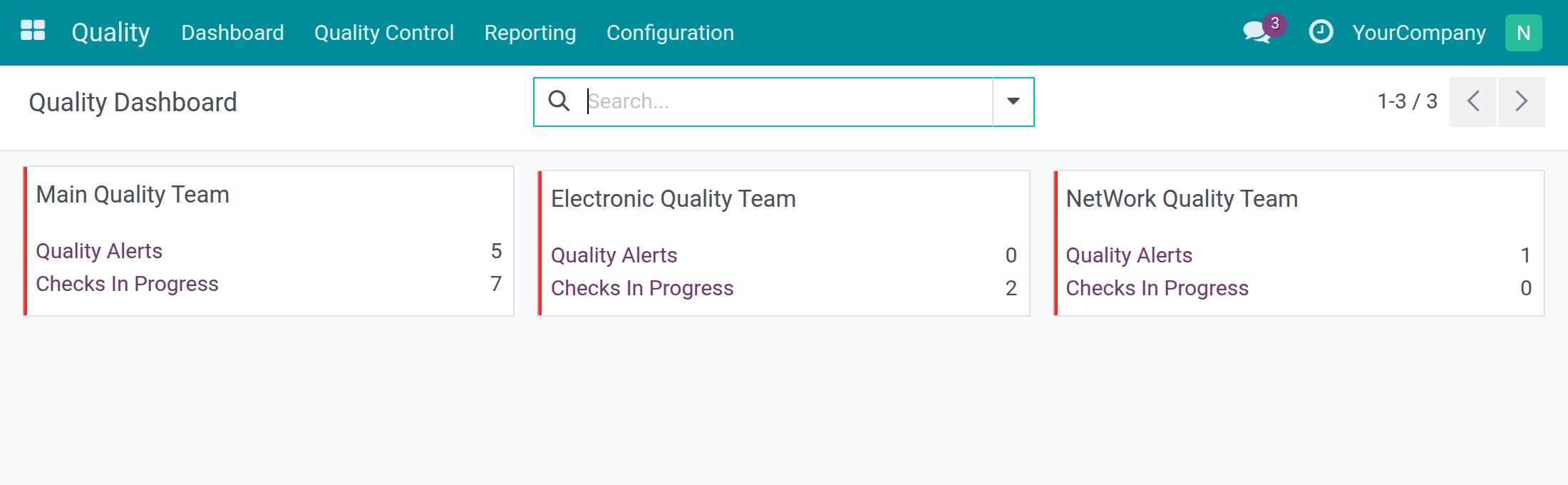
The Dashboard shows one card per quality team with its checks still to do and its open alerts, one click away from each list. Reporting adds passed against failed units and the pass rate per product, alerts by stage, root cause and team, and corrective and preventive actions that are open, late or done. Mail sent to a team's email alias also becomes an alert in that team.
Compatibility
Works with Odoo 18.0 Community Edition.
Not supported on Odoo Enterprise.
Put a name, a photo and a decision behind every quality check.
Quality
The Quality app turns your inspection plan into quality checks that a named person records, keeps photos as evidence, and follows every quality problem through to corrective and preventive actions. This guide explains, role by role, what you see on screen and what to click.
Who does what
- Quality Administrator (access right Quality: Administrator): defines the control points and templates, sets up teams, alert stages and root causes, and reads the reports.
- Quality User (access right Quality: User): sees every quality check, records results for any check, reopens results, handles quality alerts and watches the dashboard.
- Inspector (an employee without any Quality access right who is named as the Responsible of a control point): sees only the checks assigned to him or her or followed by him or her, and records the result of those checks.
- Any employee: can open the checks assigned to or followed by him or her and report a quality issue from a check.
Every quality check has one of three statuses: To do, Passed or Failed.
Installation
- Open Apps.
- Search for the keyword to_quality (the app is named Quality).
- Click Install.
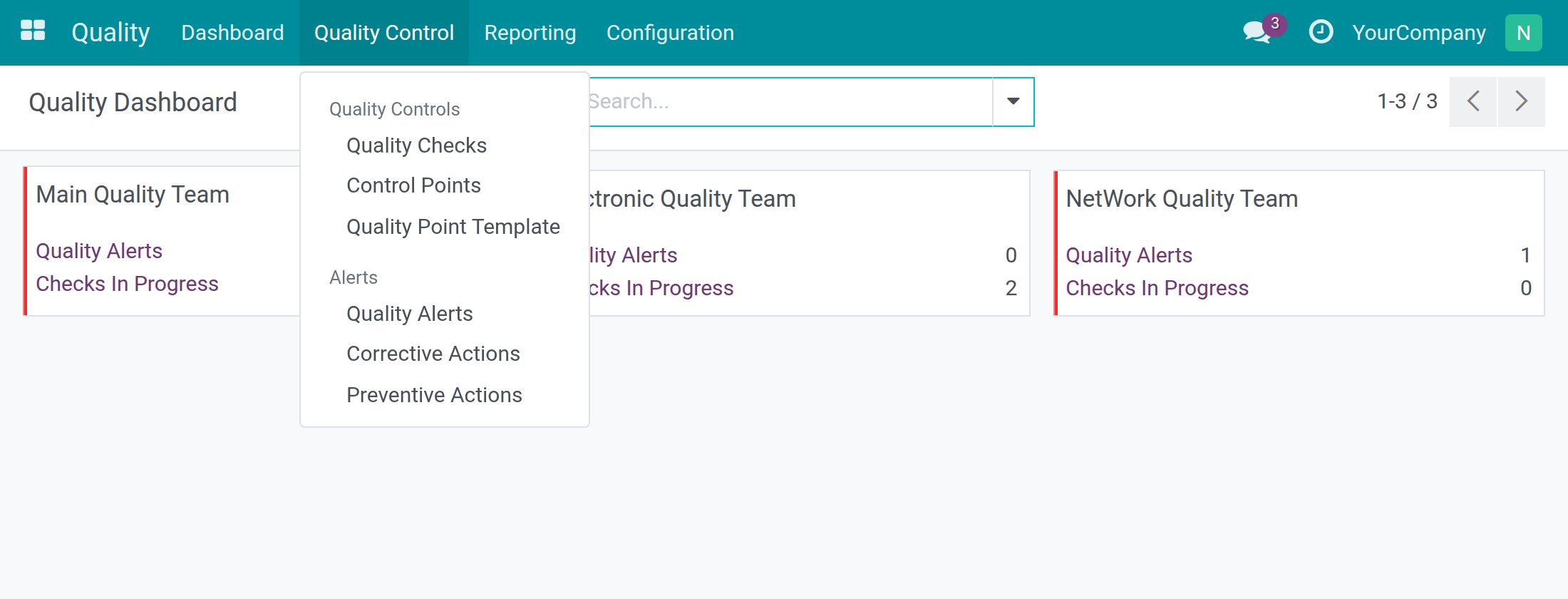
After the installation, the Quality app appears in the main menu. Each person only sees the menus that their access rights allow: an inspector sees Quality ‣ Quality Control with the quality checks, a Quality User also sees the Dashboard and the Alerts menu, and a Quality Administrator sees every menu, including Reporting and Configuration.
Configuration
Give people access
- Open Settings ‣ Users & Companies ‣ Users and open the user.
- On the Access Rights tab, in the Quality line, choose User or Administrator.
- Leave the line empty for an inspector or any other employee who only records results of the checks assigned to them.
- Click Save.
Set up the quality teams
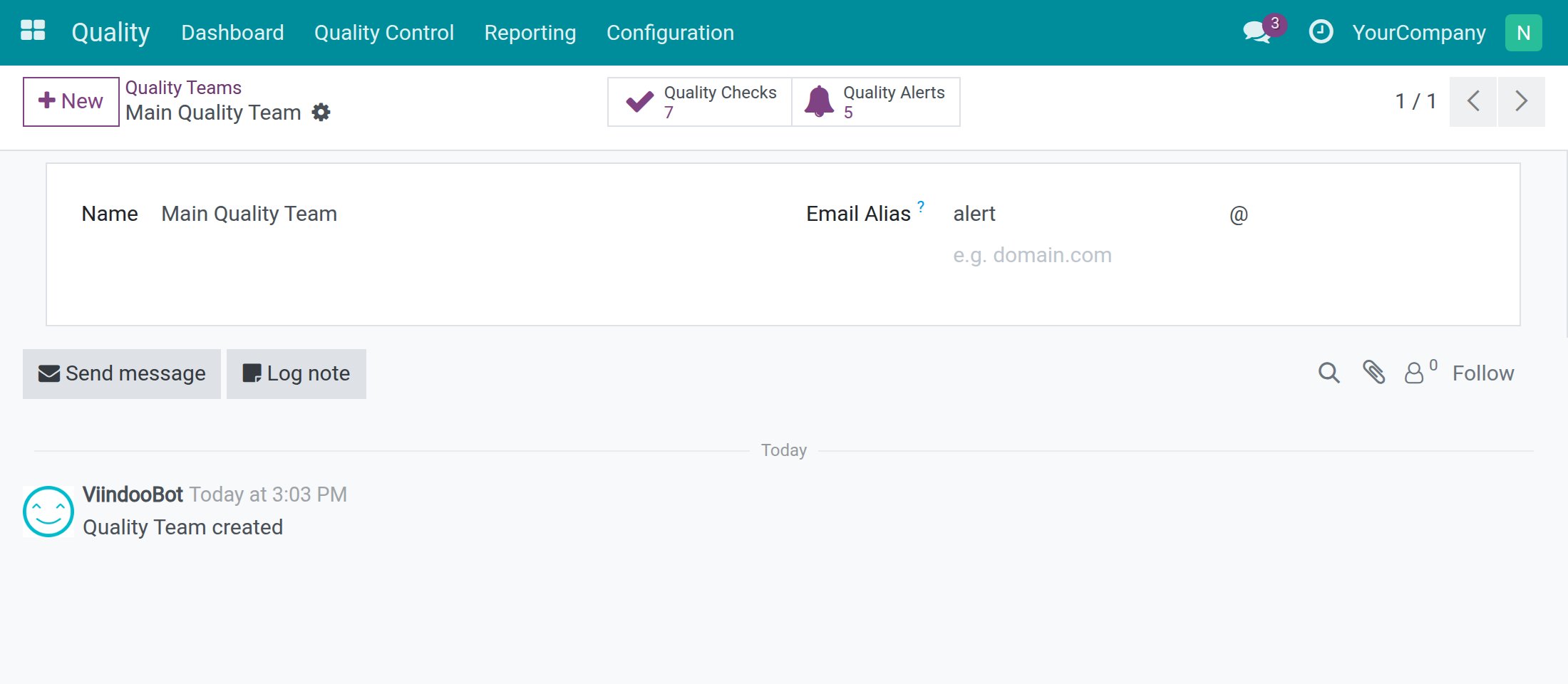
A quality team owns control points, checks and alerts. Open Quality ‣ Configuration ‣ Quality Teams and open or create a team.
- Name: the name people see on the dashboard and on every check.
- Email Alias: mail sent to this address creates a quality alert in the team, with the subject of the mail as description.
Other lists you can adapt
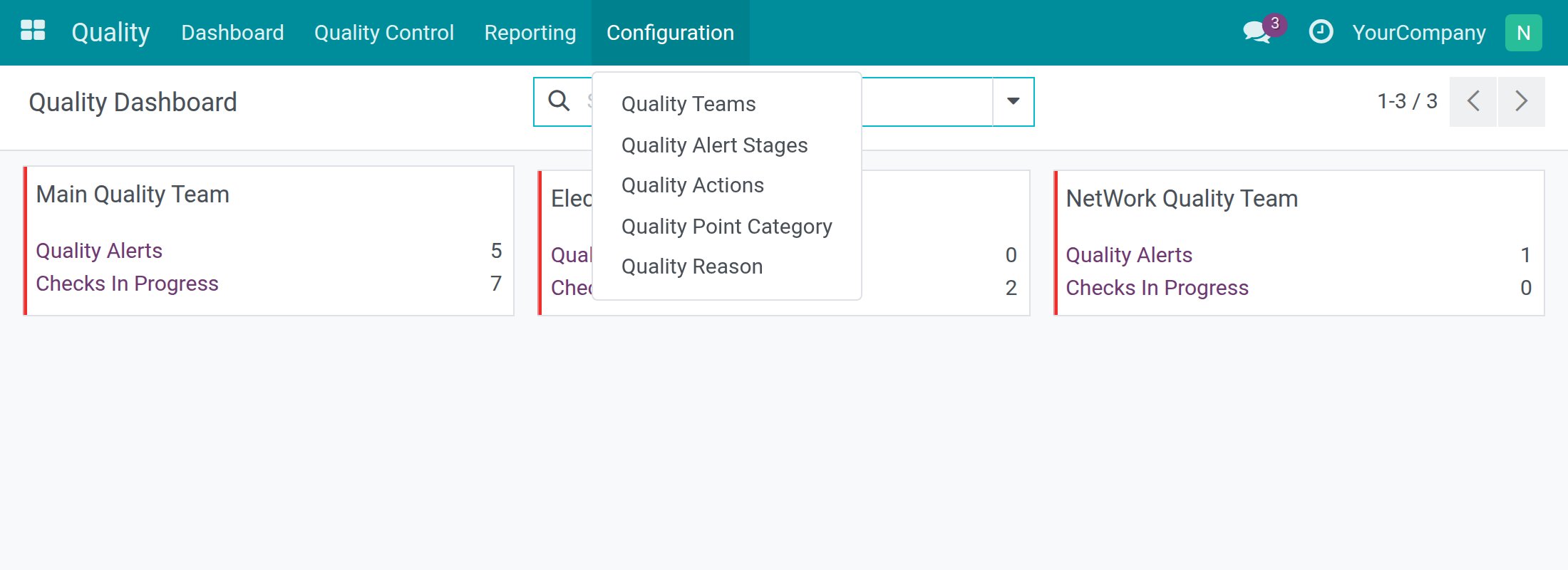
All of them are under Quality ‣ Configuration:
- Quality Alert Stages: the stages an alert moves through. The app comes with New, Confirmed, Action Proposed and Solved. Tick Folded to fold a stage in the alert board and Alert Processed for a stage that means the alert is dealt with.
- Quality Reason: the root causes you can choose on an alert (for example Parts Quality).
- Quality Actions: a catalogue of reusable corrective and preventive actions, each with a default Responsible. You pick them on the alerts.
- Quality Point Category: groups of control points, so you can find them by category.
- Quality Tags: labels for alerts. This menu only appears in debug mode.
Set up control points (Quality Administrator)
A control point tells the team what to inspect, how, how often and who is responsible. Open Quality ‣ Quality Control ‣ Control Points.
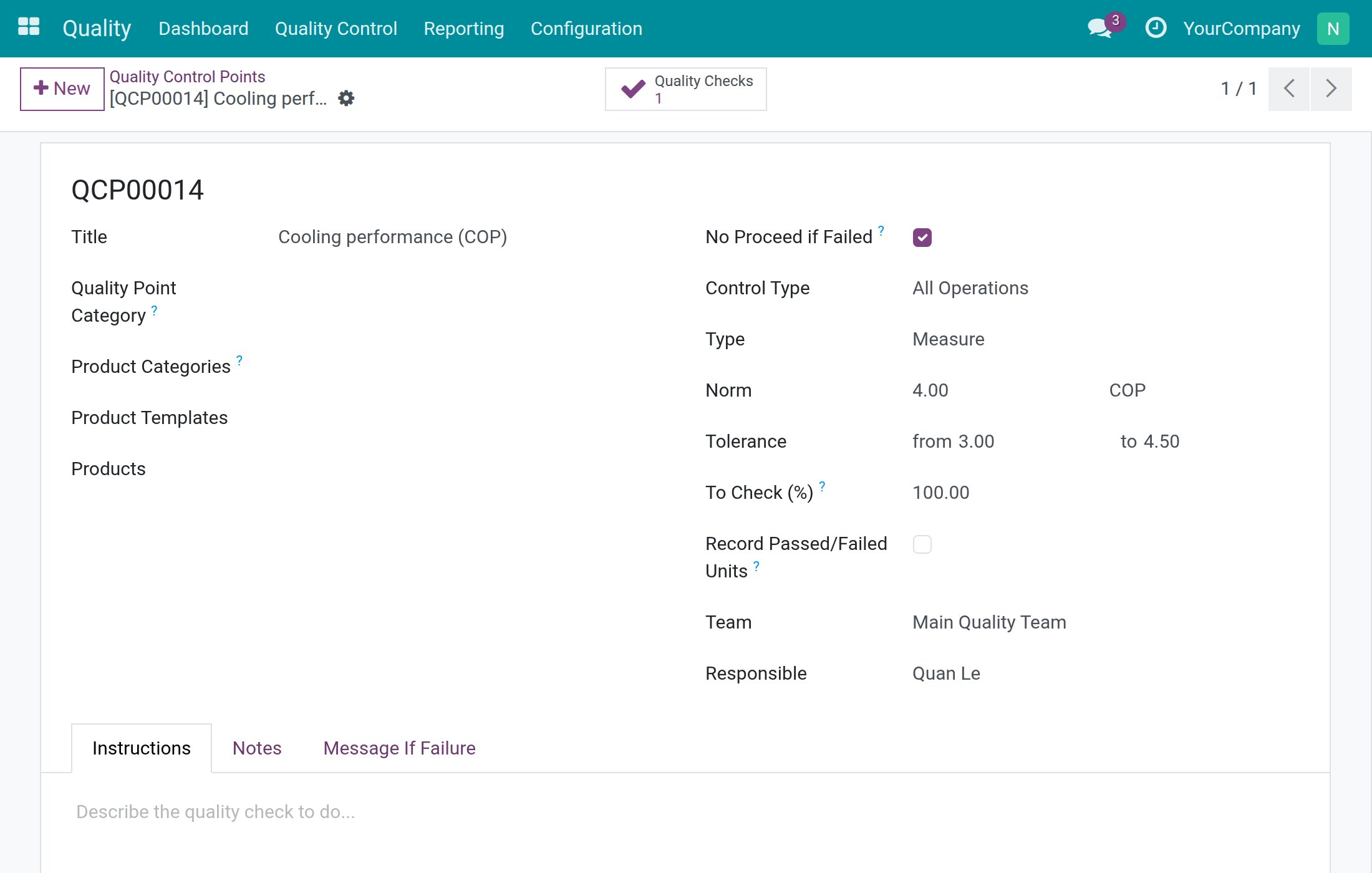
Measure a value against a norm and a tolerance
- Click New.
- In Title, type the name that inspectors will see, for example Cooling performance (COP).
- In Type, choose Measure. The fields Norm and Tolerance appear.
- In Norm, type the ideal value (for example 4) and, next to it, the unit (for example COP).
- In Tolerance, type the lowest accepted value after from (3.0) and the highest accepted value after to (4.5). The norm must lie inside this range.
- In Control Type, choose how often a check is required: All Operations, Randomly (a percentage of the operations) or Periodically (every given number of units of time).
- In To Check (%), type the share of the quantity to inspect, for example 100.
- In Team, choose the quality team.
- In Responsible, choose the inspector who has to record the result of every check of this point.
- Tick No Proceed if Failed if goods must stay blocked while a check of this point is failed (see the Pass - Fail example below).
- Click Save. The control point receives a reference such as QCP00014.
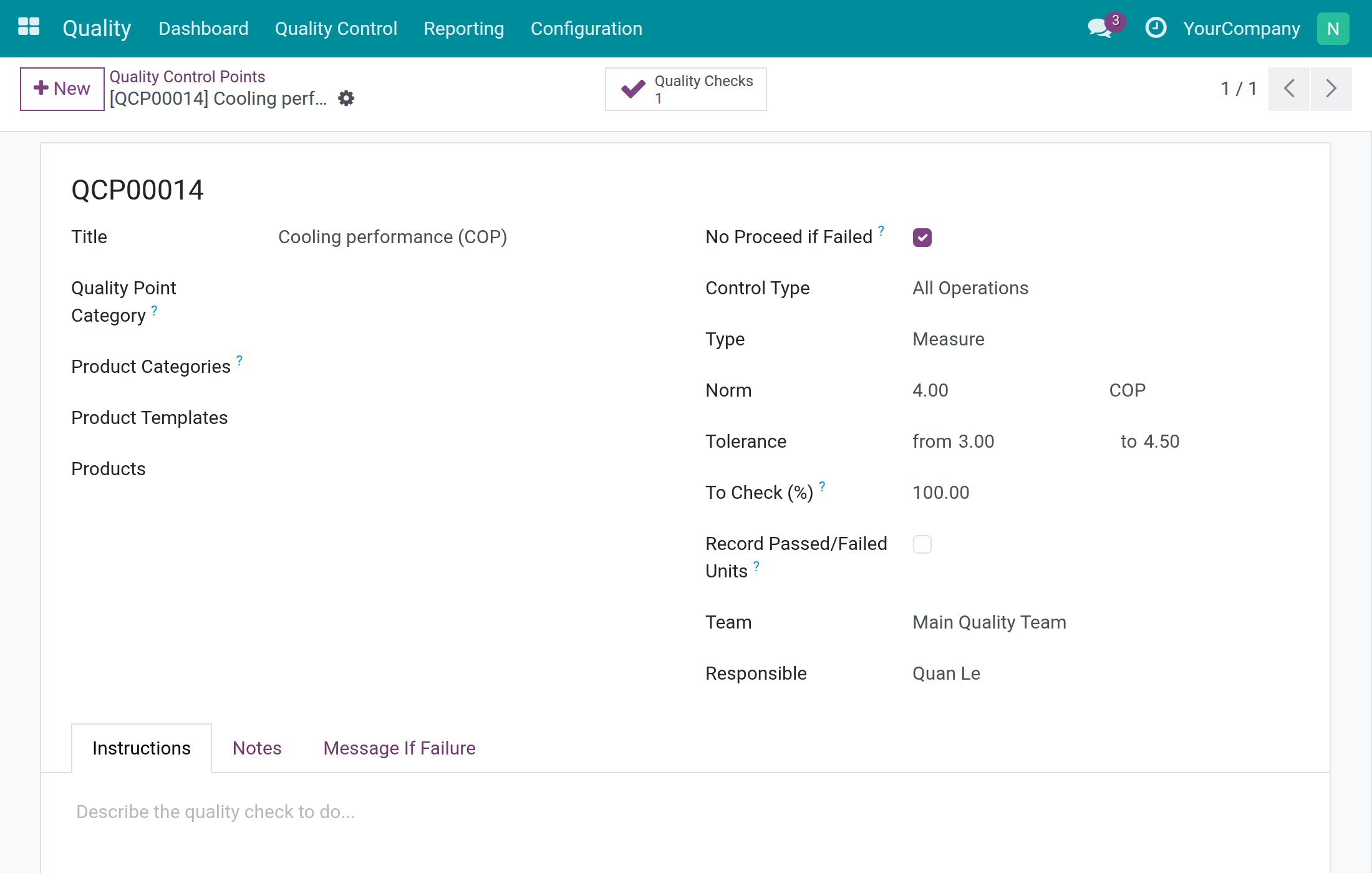
You can also limit a control point to some products with Product Categories, Product Templates or Products, and file it under a Quality Point Category. Tick Record Passed/Failed Units if inspectors must also enter how many units passed and failed. The Message If Failure tab holds the text shown to whoever records the check when its result is Failed.
Give a Pass - Fail verdict
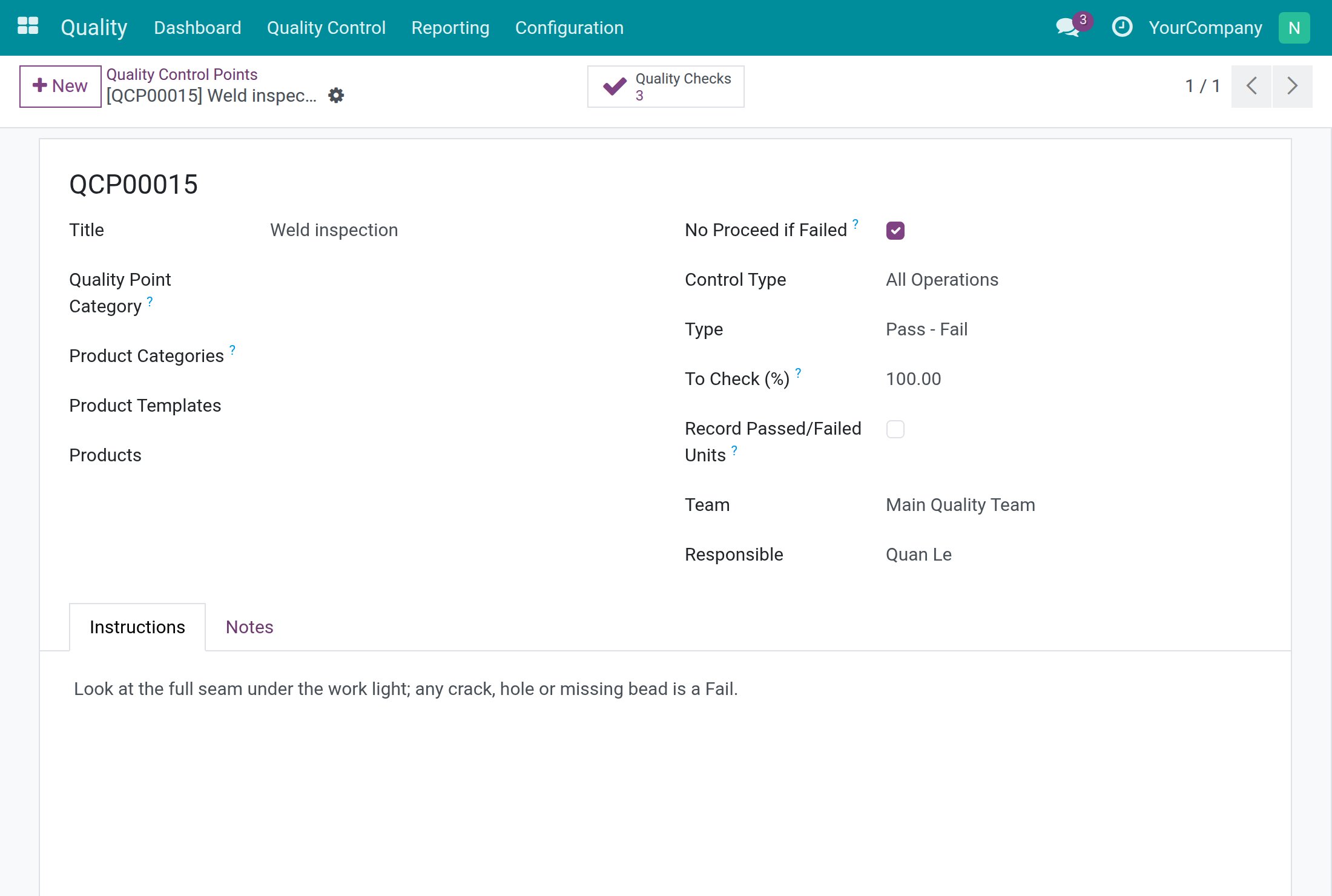
- Click New and type the Title, for example Weld inspection.
- Keep Type on Pass - Fail: the inspector gives a direct verdict, so no norm or tolerance is asked.
- Tick No Proceed if Failed if goods must stay blocked while a check of this point is failed. This blocking is applied by the Viindoo stock and manufacturing quality apps when they are installed.
- Choose the Team and the Responsible. Only the Responsible, or a Quality User, will be able to record a Pass on these checks.
- Open the Instructions tab and describe what to look at. Inspectors see this text while they inspect.
- Click Save.
The third type, Take a Picture, asks the inspector for a photo: the check can only be passed when it carries a photo.
Create many control points from a template
A template keeps a reusable set of control point lines.
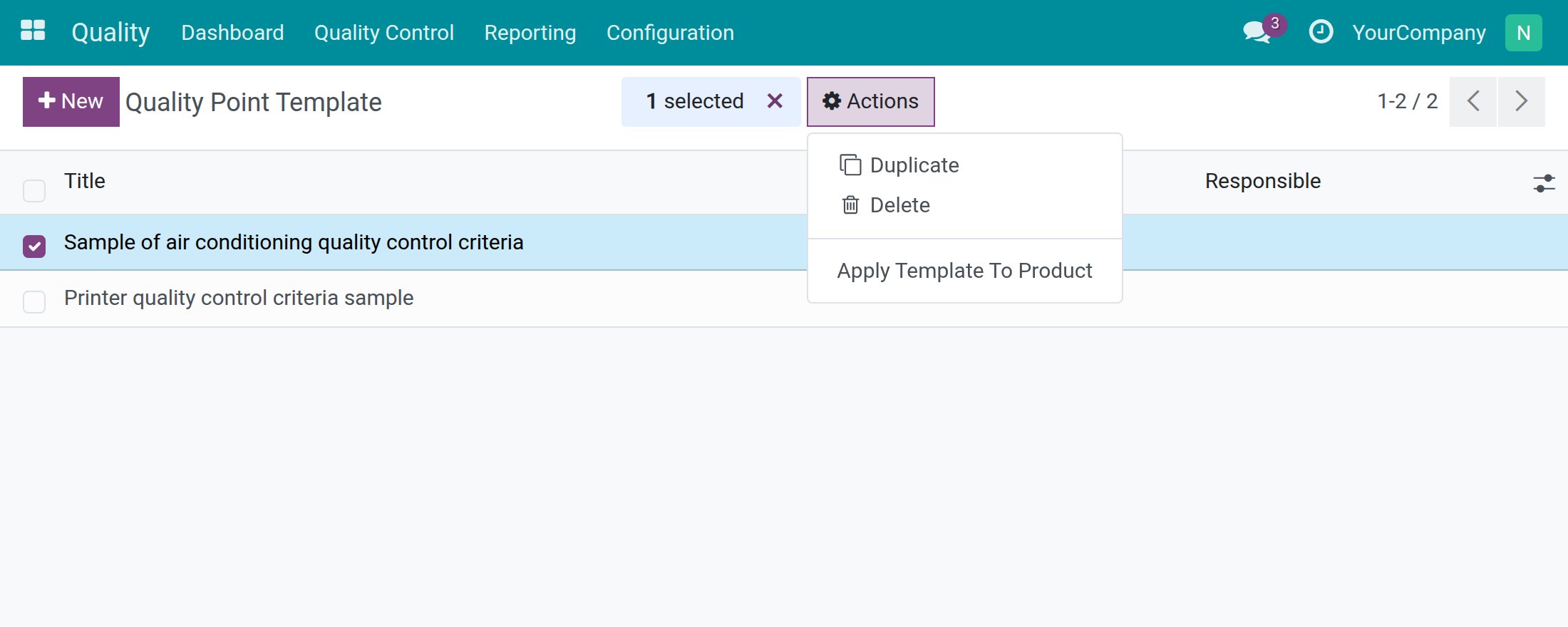
- Open Quality ‣ Quality Control ‣ Quality Point Template and create a template with its lines (title, type, frequency, norm, tolerance, quantity to check).
- Tick one or several templates in the list.
- Click Actions and choose Apply Template To Product.
- In the window that opens, choose the Product or the Product Variants, check the Team of every line and click Apply. The matching control points are created in one go.
Record a check as the inspector
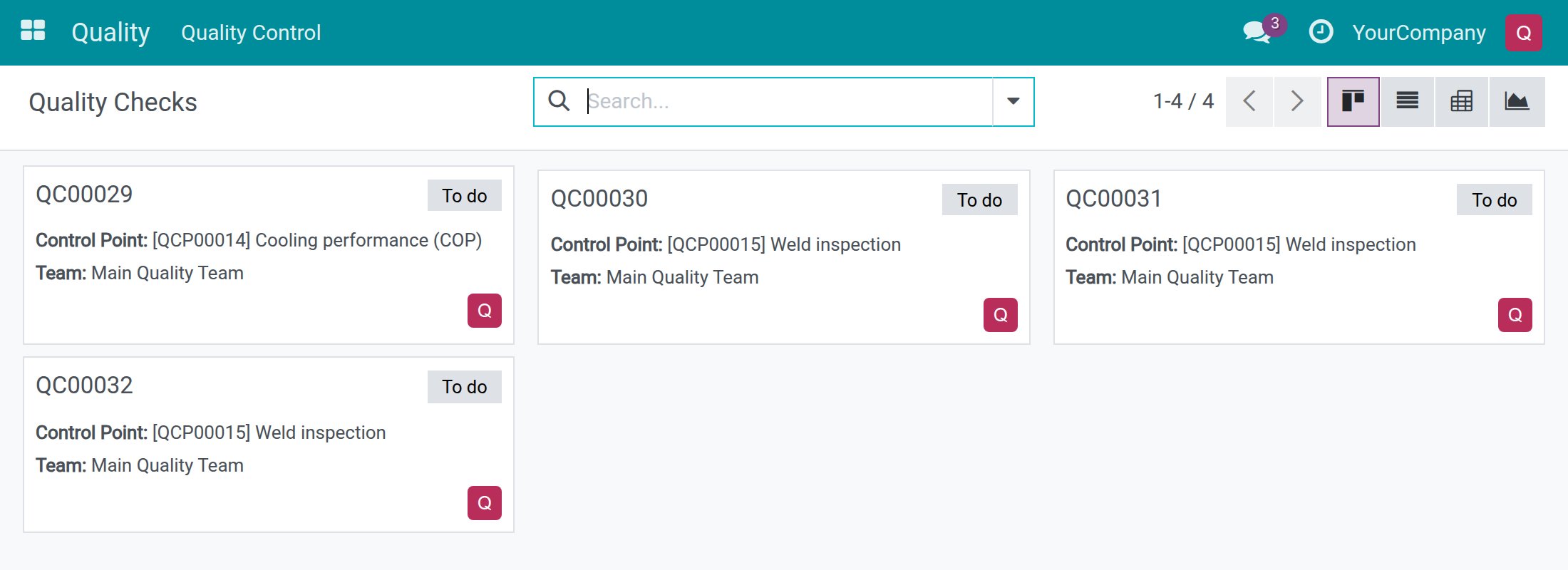
An inspector is the Responsible of a control point but has no Quality access right. Open Quality ‣ Quality Control ‣ Quality Checks: the list only shows the checks assigned to you or followed by you.
Record a measurement
- Click the check, for example the one of Cooling performance (COP). The status bar shows To do.
- Click Measure. A large dialog opens with the control point title.
- Type the reading in Measure, or tap the + and - buttons beside it. Each tap moves the value by a twentieth of the tolerance range. Validate stays grey until you have entered a first measure.
- Click Validate.
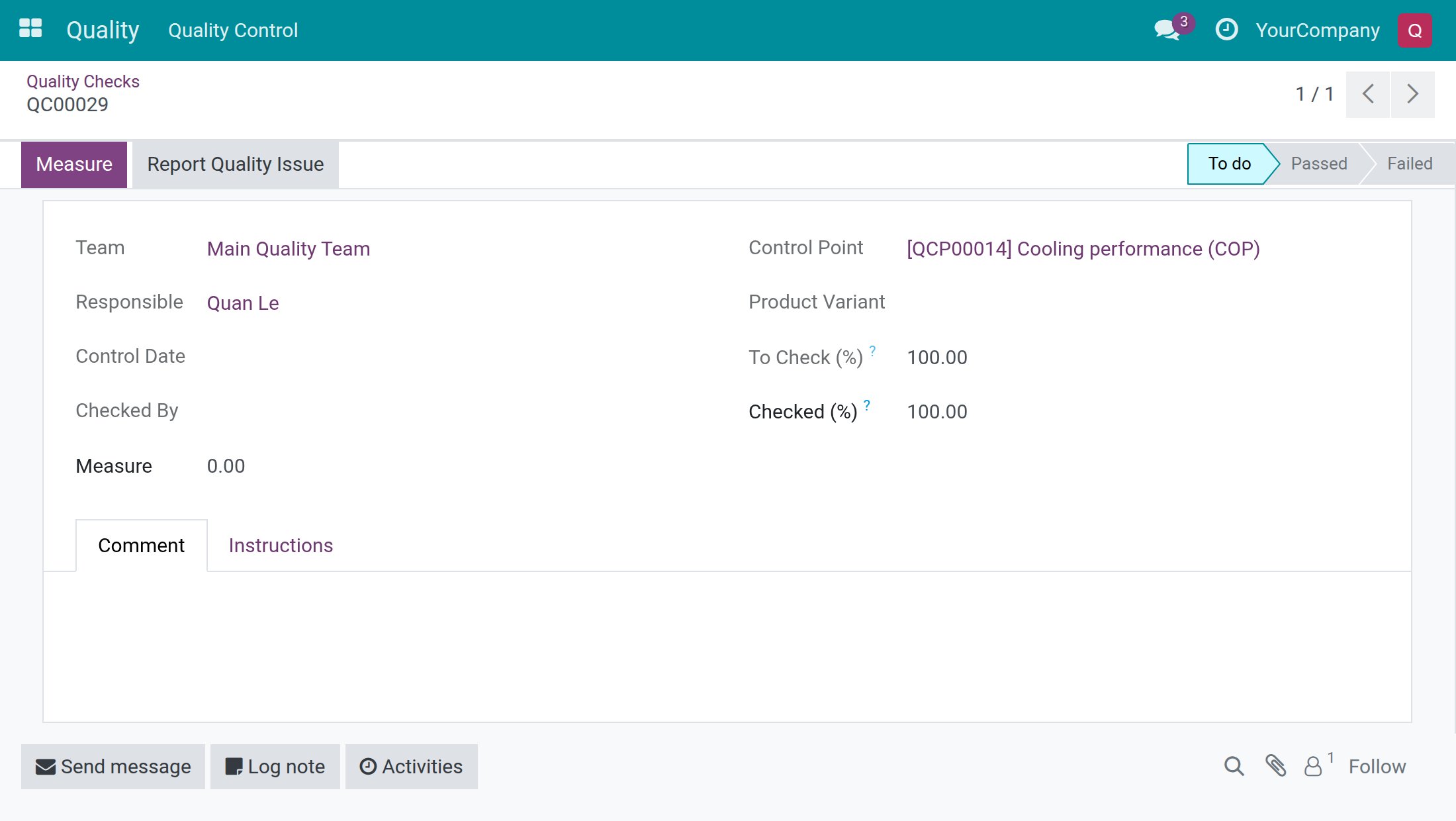
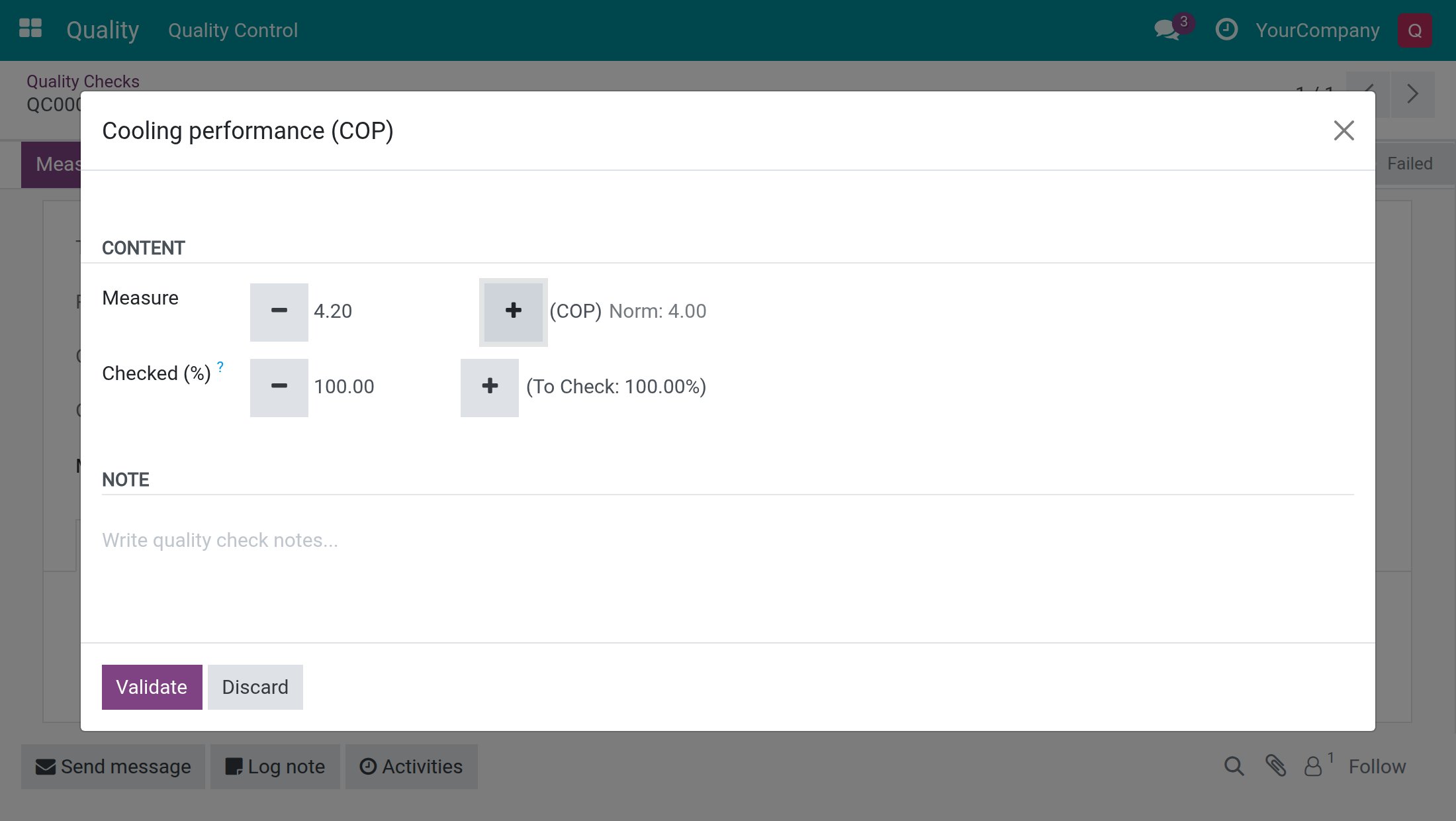
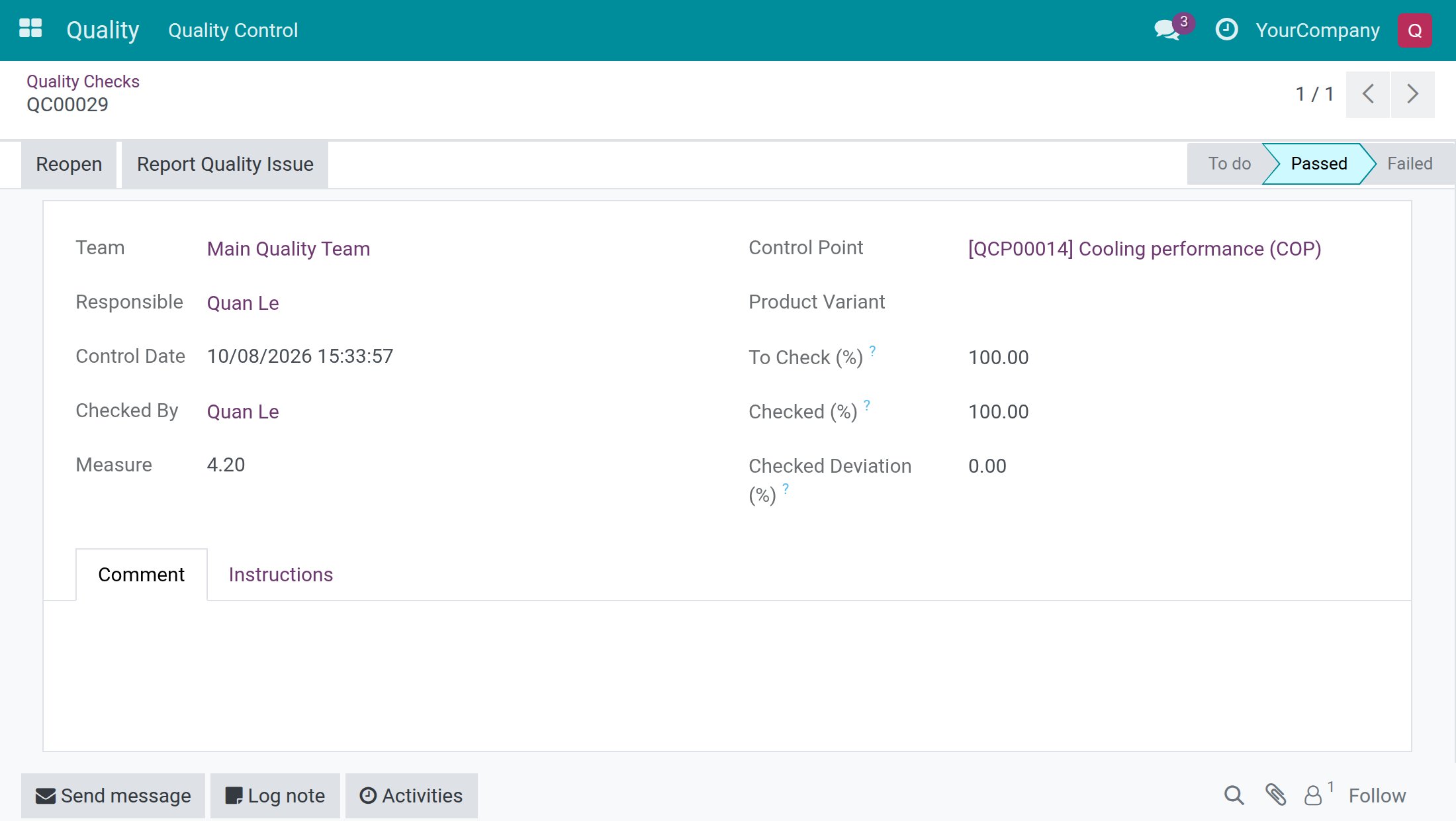
When the reading lies inside the tolerance range (3.00 to 4.50 in the example), the check becomes Passed. If it lies outside, the dialog warns you and the check is recorded as Failed. Checked By shows your name and Control Date shows the moment of the result.
Give a Pass or Fail verdict
- Open the check of a Pass - Fail control point. The header offers Take Photo, Pass and Fail.
- Read the Instructions tab if you need to, inspect the item, then click Pass or Fail.
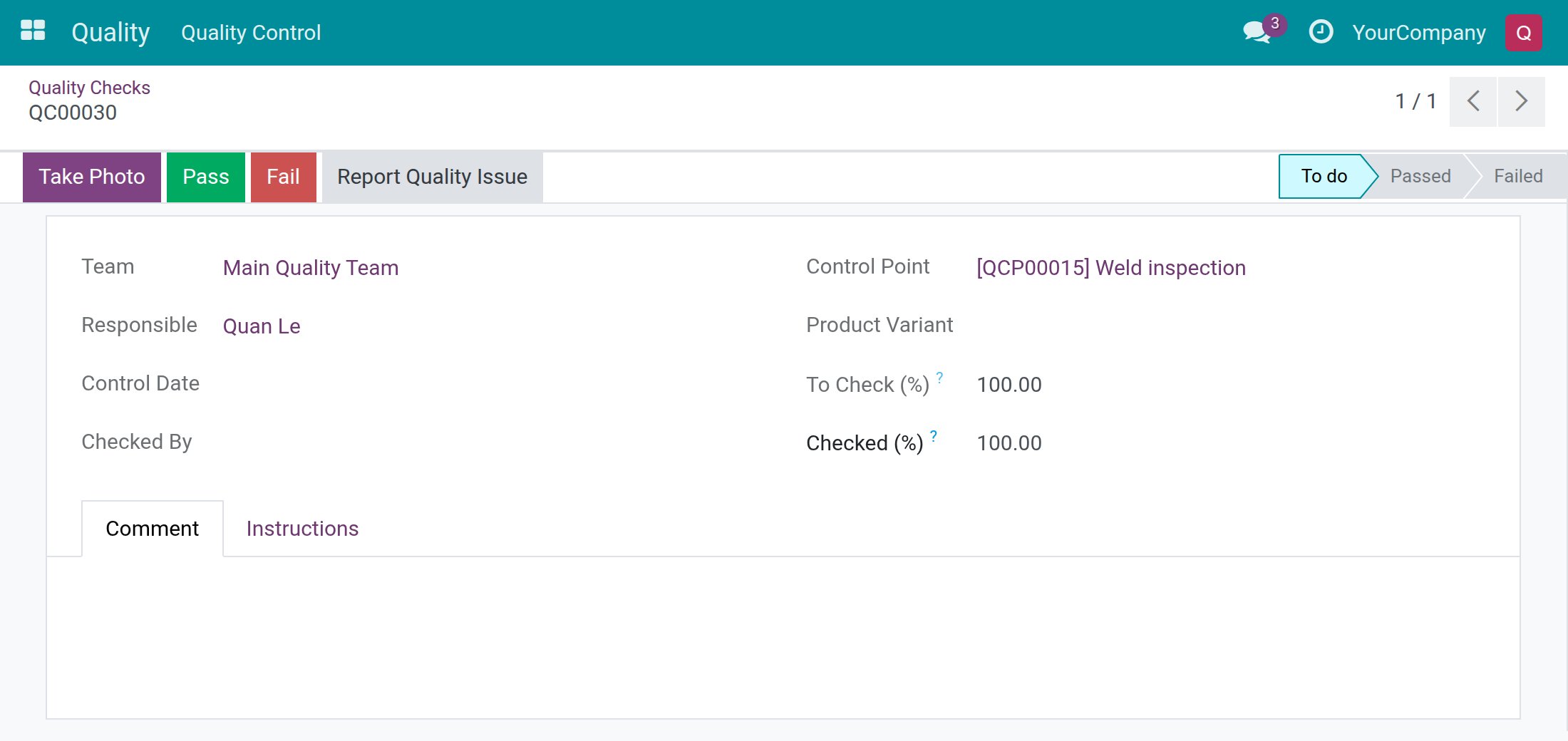
After Pass, the status bar shows Passed, Checked By shows your name and Control Date shows the time of your click. In the check list, a passed check is green.
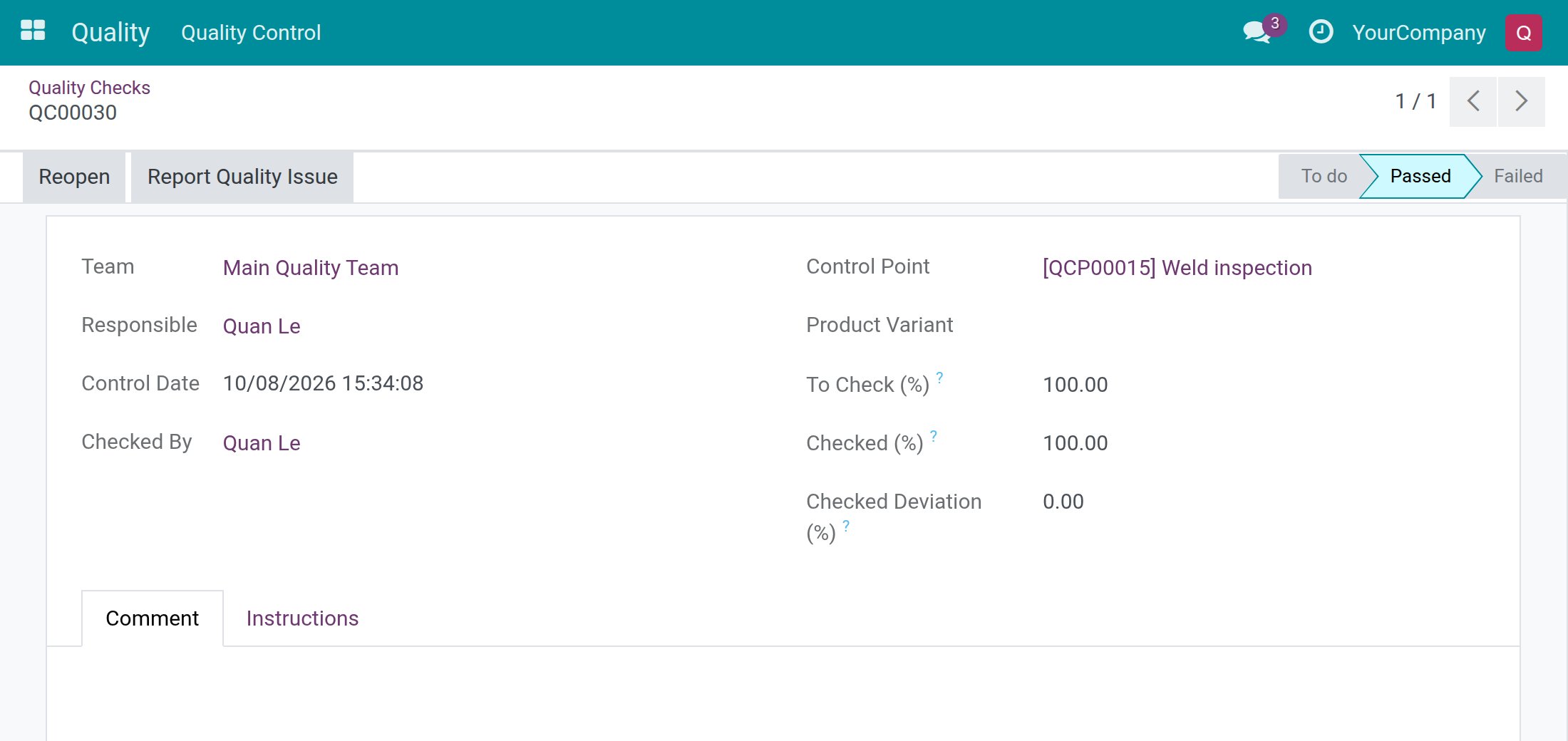
If you passed a check by mistake, click Reopen. The check goes back to To do and Checked By and Control Date are cleared. Inspect again and give the right verdict. You can reopen a passed check as long as the document it belongs to is not completed.
Fail a check with photos and a comment
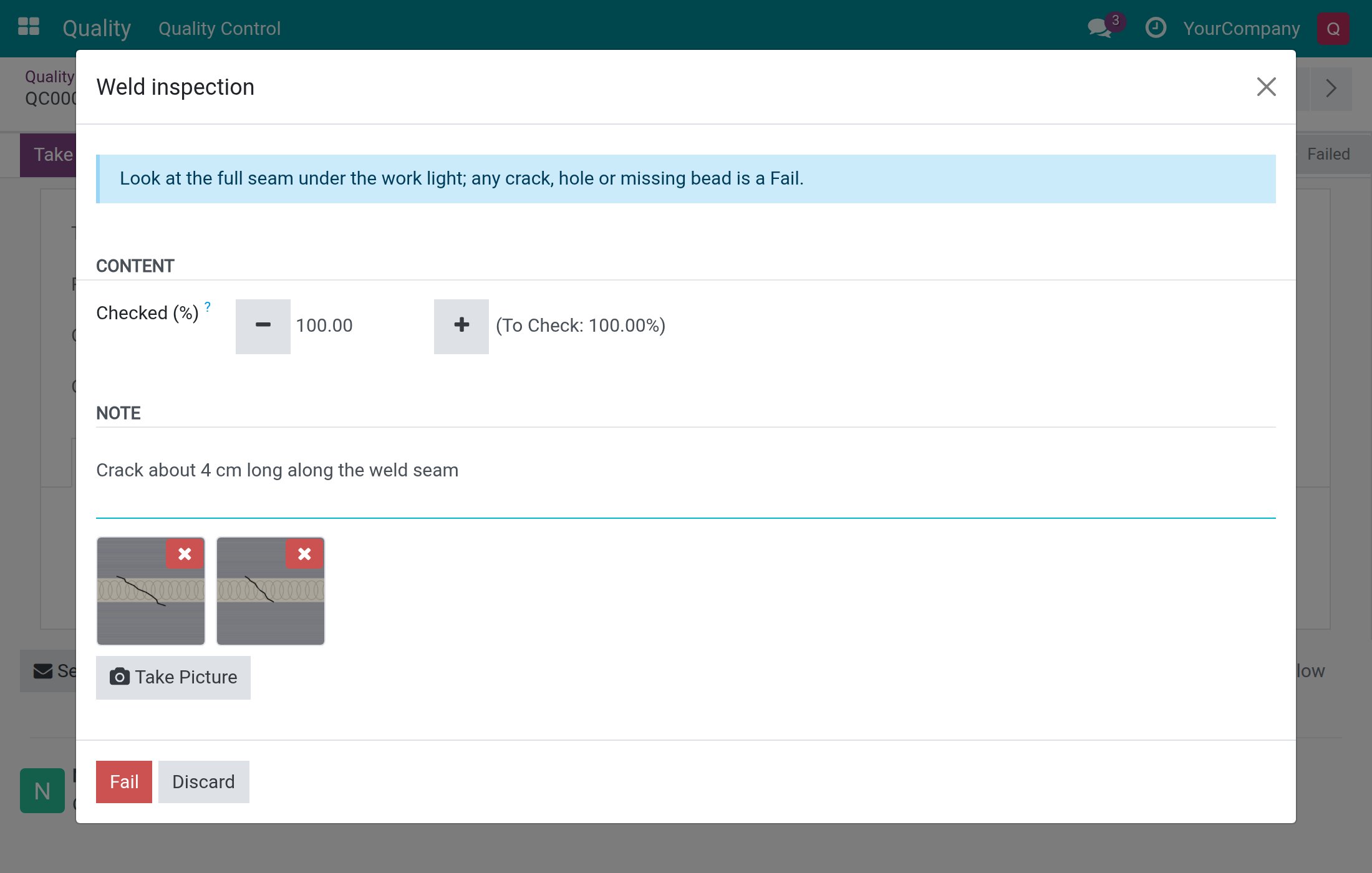
- Open the check and click Take Photo.
- Click Take Picture and take or choose a photo. A thumbnail appears. Repeat for more photos. The red cross on a thumbnail removes a photo you have not saved yet.
- In Note, explain what the photos show, for example Crack about 4 cm long along the weld seam.
- Click Fail. As soon as a photo is attached to a Pass - Fail check, the dialog only offers Fail.
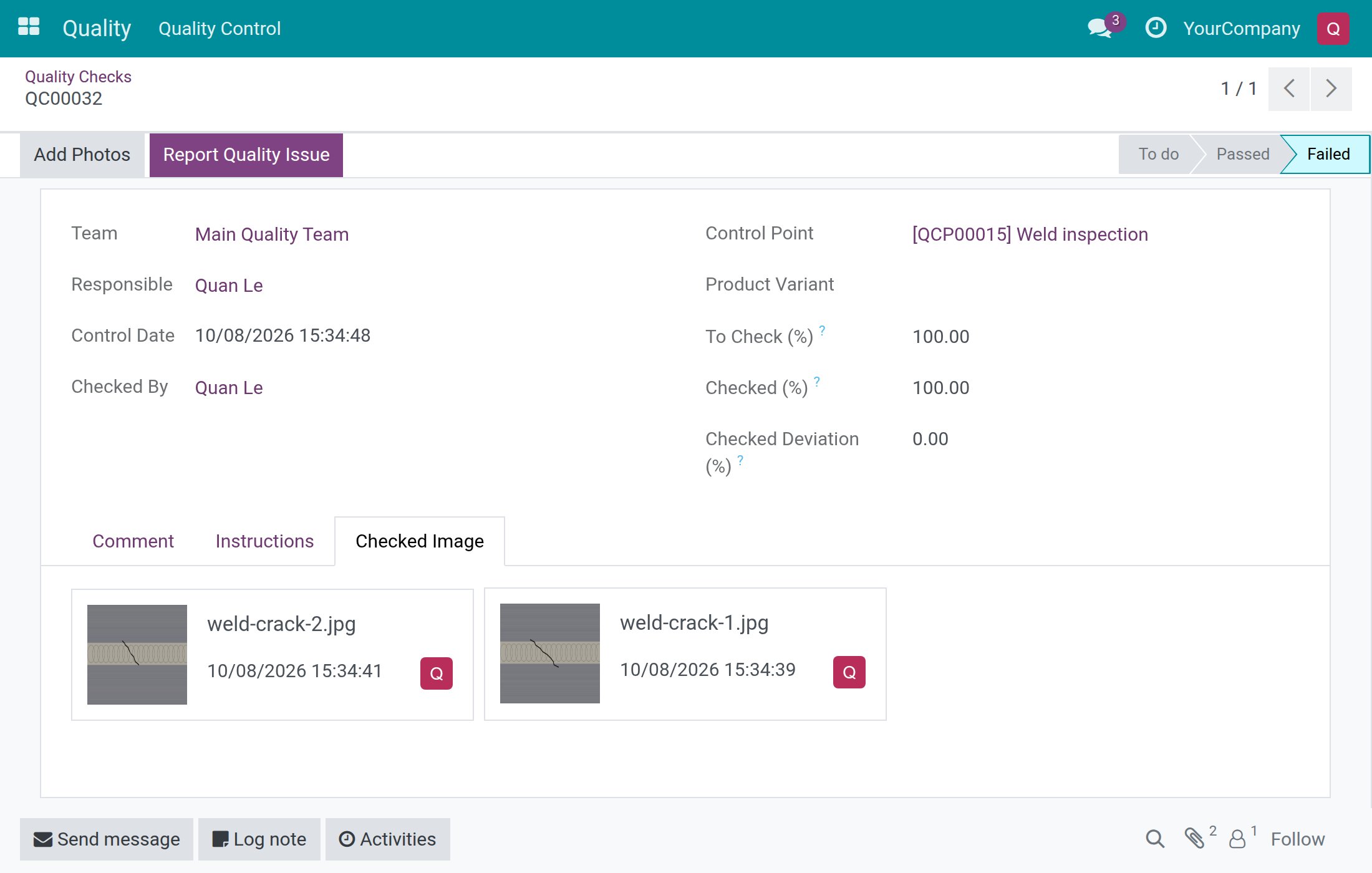
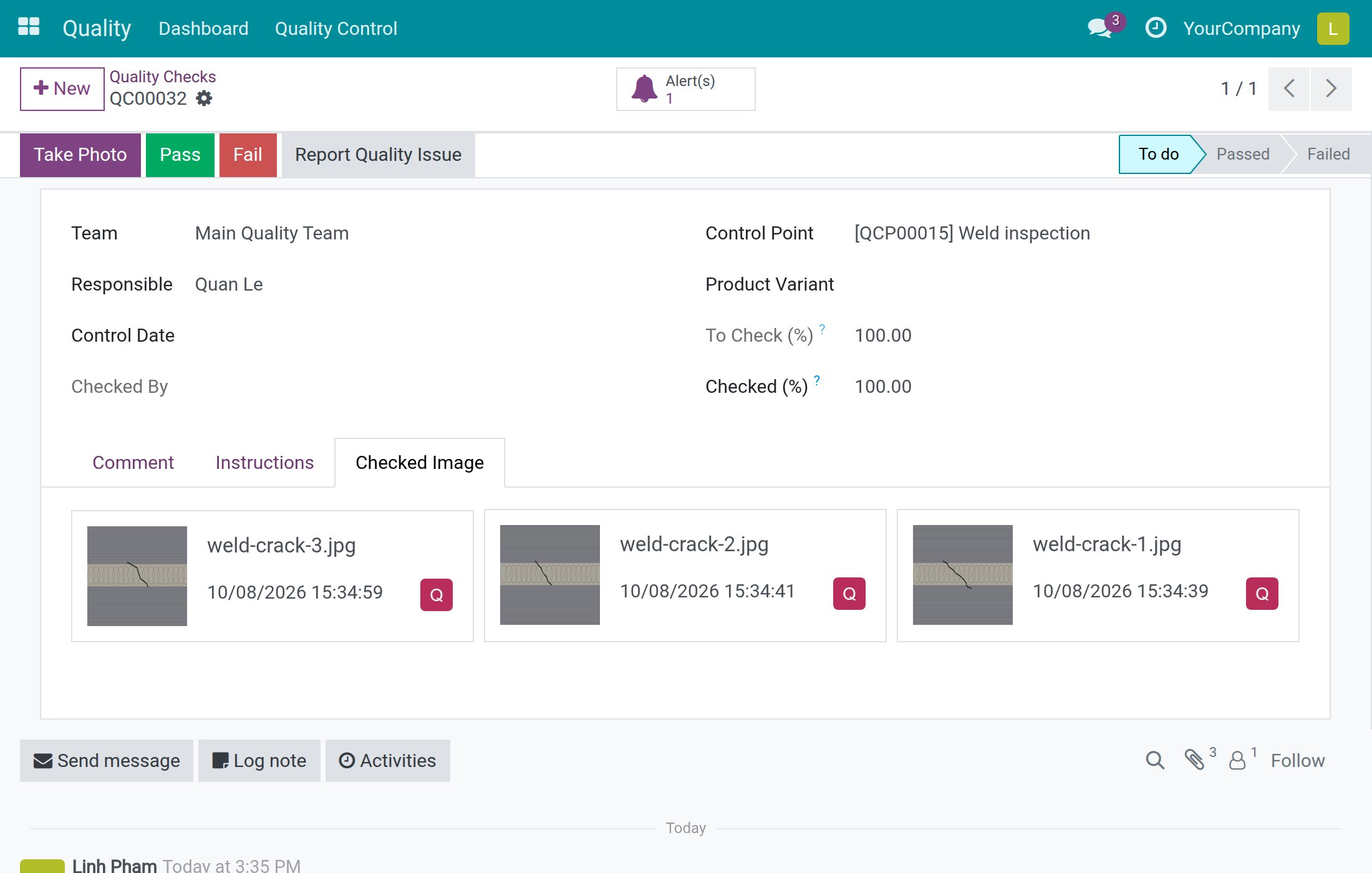
The check is now Failed. The Checked Image tab shows the photos and the Report Quality Issue button is highlighted.
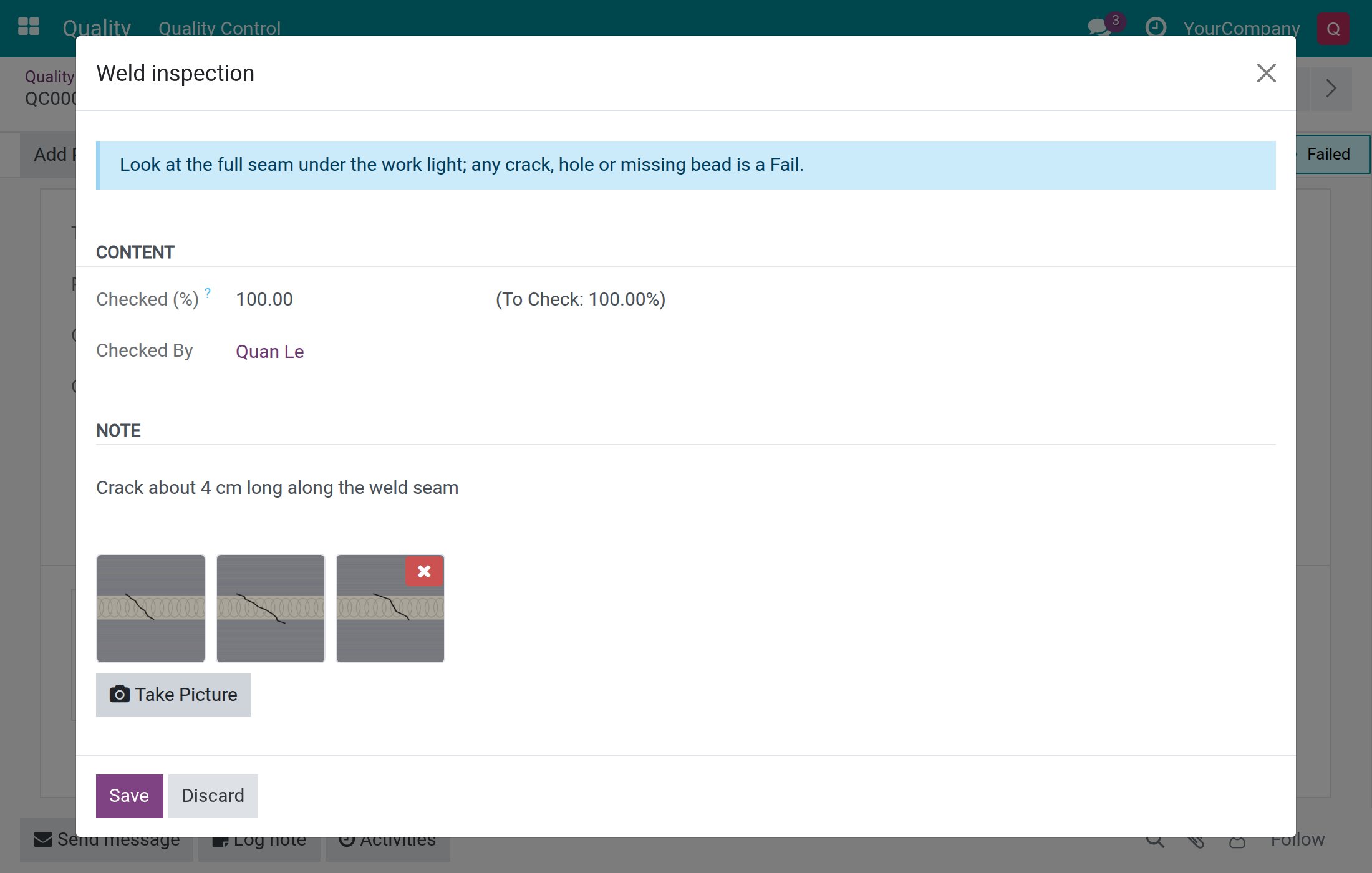
To add a photo afterwards, click Add Photos on the failed check, take the picture and click Save. The check stays Failed. Photos already attached to a failed check cannot be removed by an inspector: only a Quality User can.
Report a quality issue (any employee)
Anyone who can open a check can raise a quality alert from it.
- Open the check, usually a failed one.
- Click Report Quality Issue.
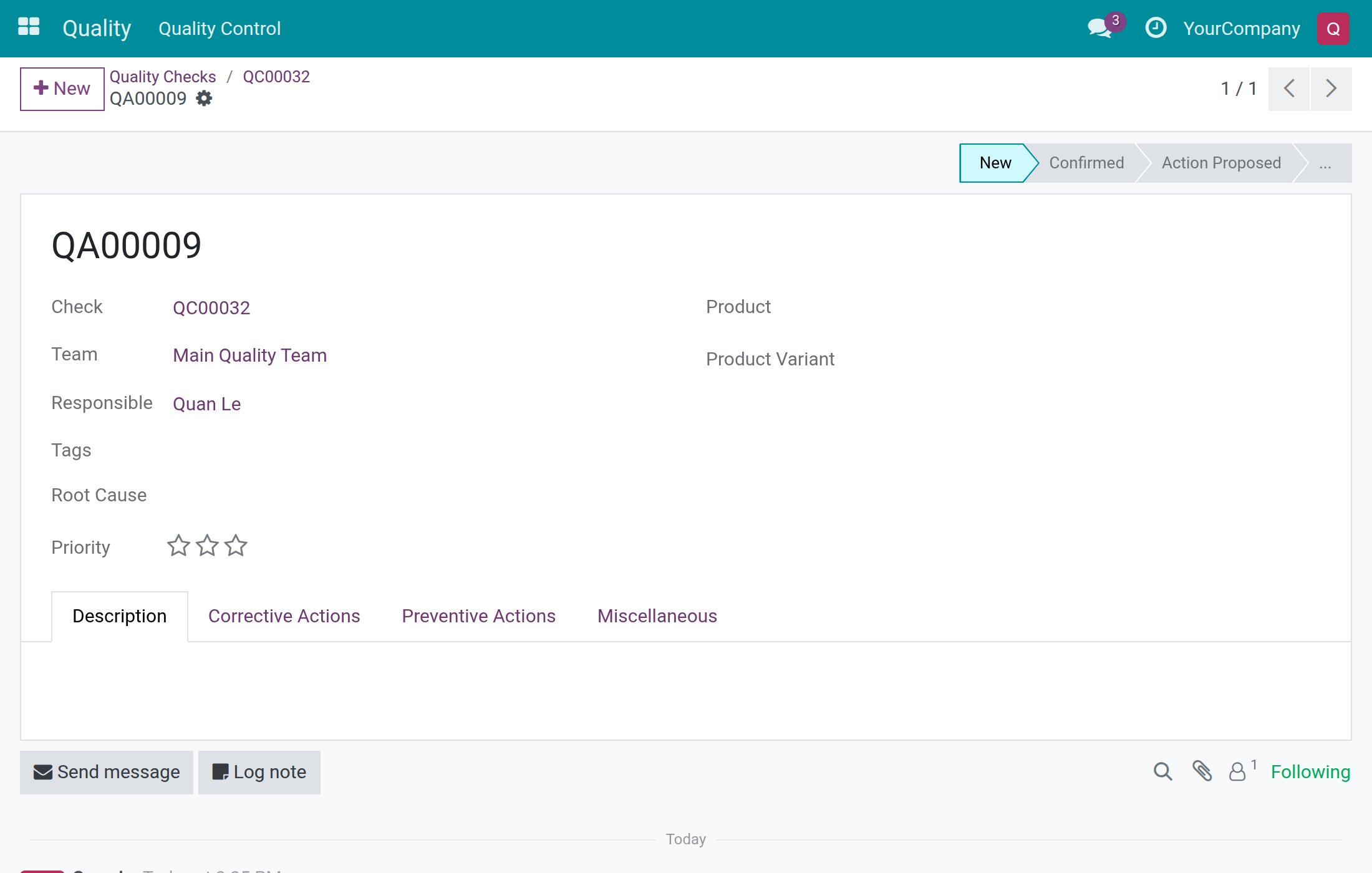
A quality alert opens in the stage New with a reference such as QA00007. It is linked to the check and takes its Team and product, and you are its Responsible. Back on the check, the Alert(s) button shows the number of alerts and opens them. People without the Quality User right cannot edit the alert: they follow it in the discussion below the form, and the quality team takes over.
When you are not the Responsible
Only the Responsible of the control point, or a Quality User, may record the result of a check. If nobody is named as Responsible, anyone allowed to work on the check may record it.
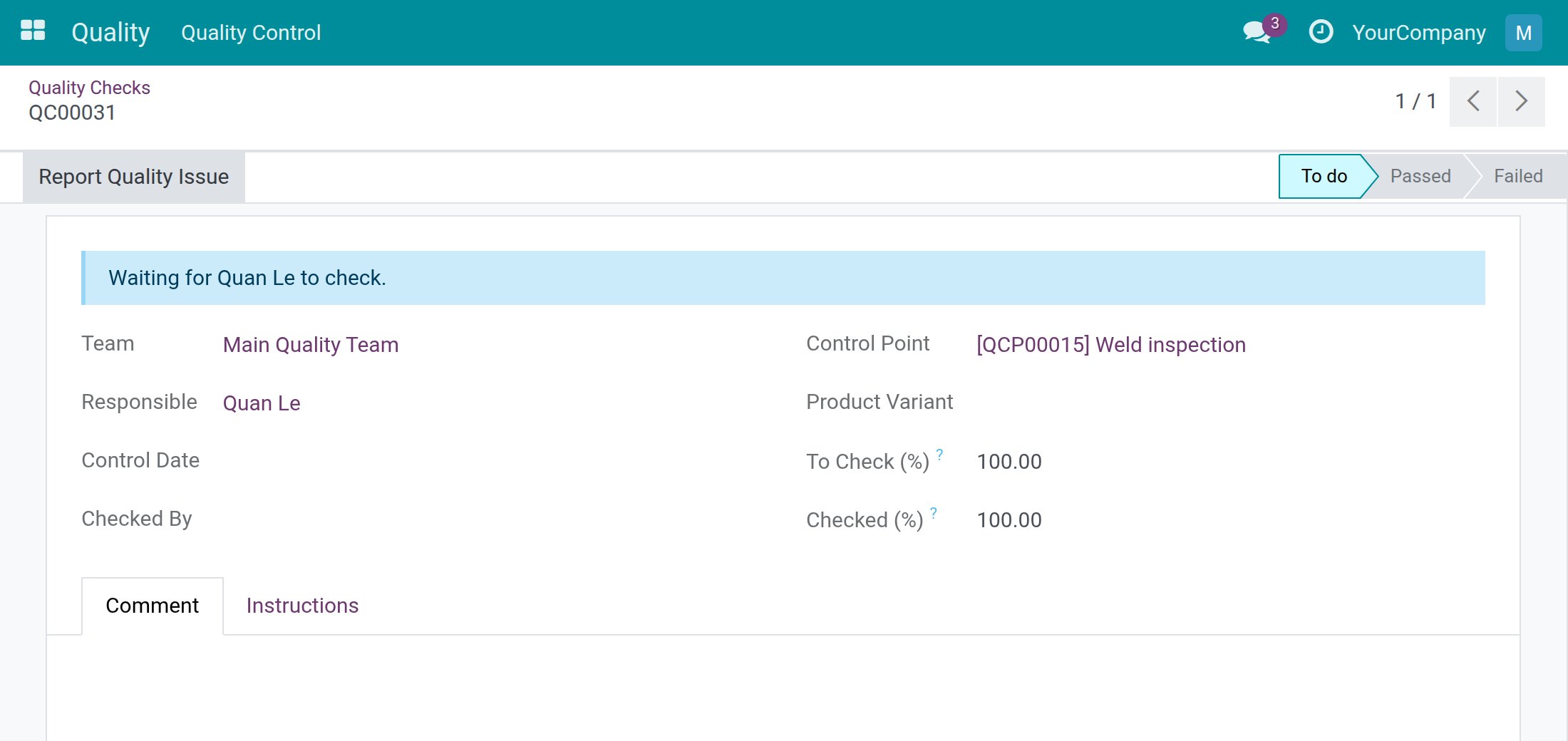
If you follow a check that someone else has to inspect, a blue line tells you who is expected, for example Waiting for Quan Le to check., and the header offers you no result button, only Report Quality Issue.
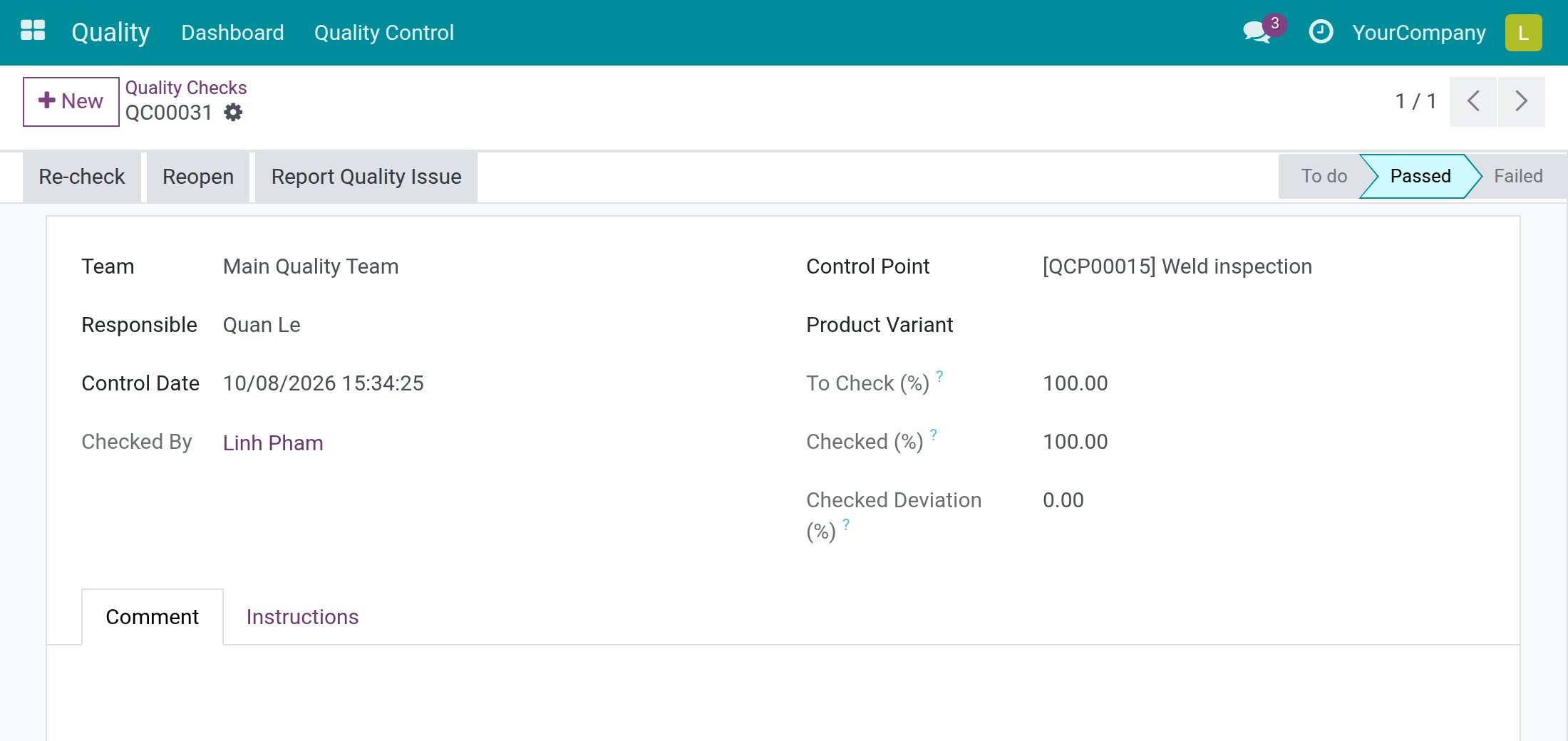
A Quality User never waits: the Quality User right is the authority to release the goods. When a Quality User passes the check, Checked By shows the Quality User while Responsible still shows the inspector. On a passed check a Quality User also gets Re-check, which opens the dialog again to change the recorded values.
Work as a Quality User
Reopen a failed check
Only a Quality User takes a check out of Failed. The inspector who failed it sees no Reopen button.
- Open Quality ‣ Quality Control ‣ Quality Checks. You see all the checks. Use the Failed filter in the search options to narrow the list.
- Open the failed check and click Reopen.
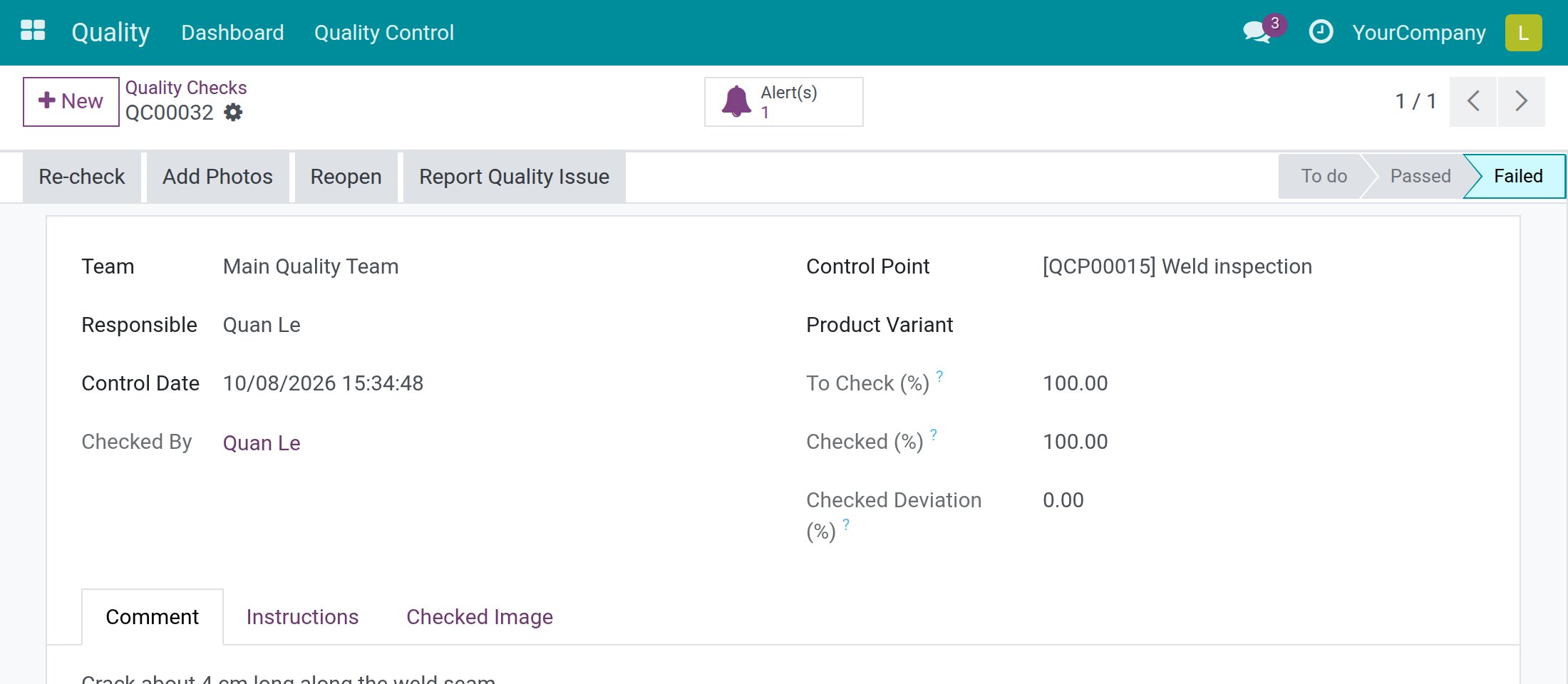
The check goes back to To do. Its comment and its photos are kept: reopening withdraws the result, not the evidence. The Responsible, or you, can now record a new result.
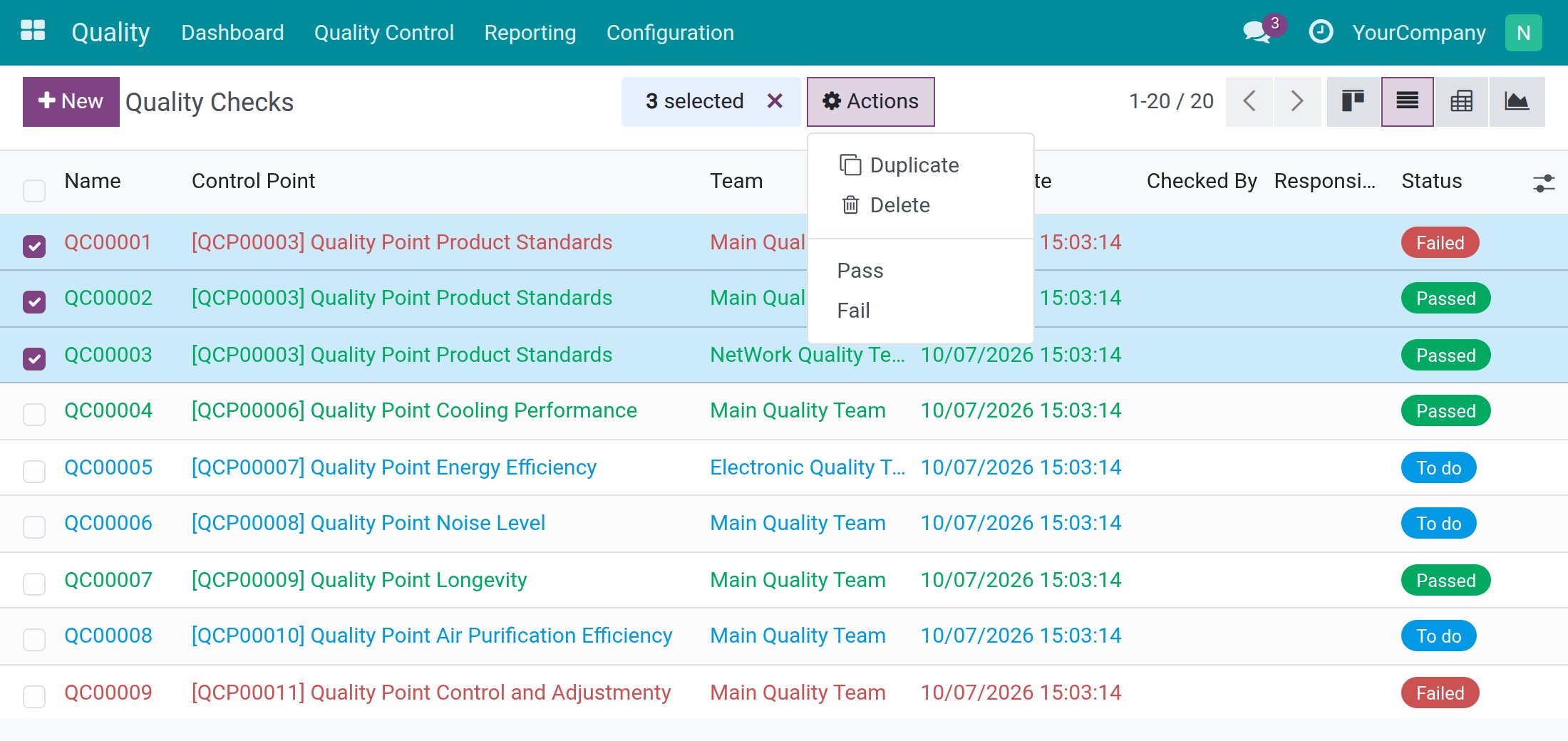
Pass or fail many checks at once
In the check list, tick several checks of the Pass - Fail type, click Actions and choose Pass or Fail. Checks of other types are refused.
Work through a quality alert
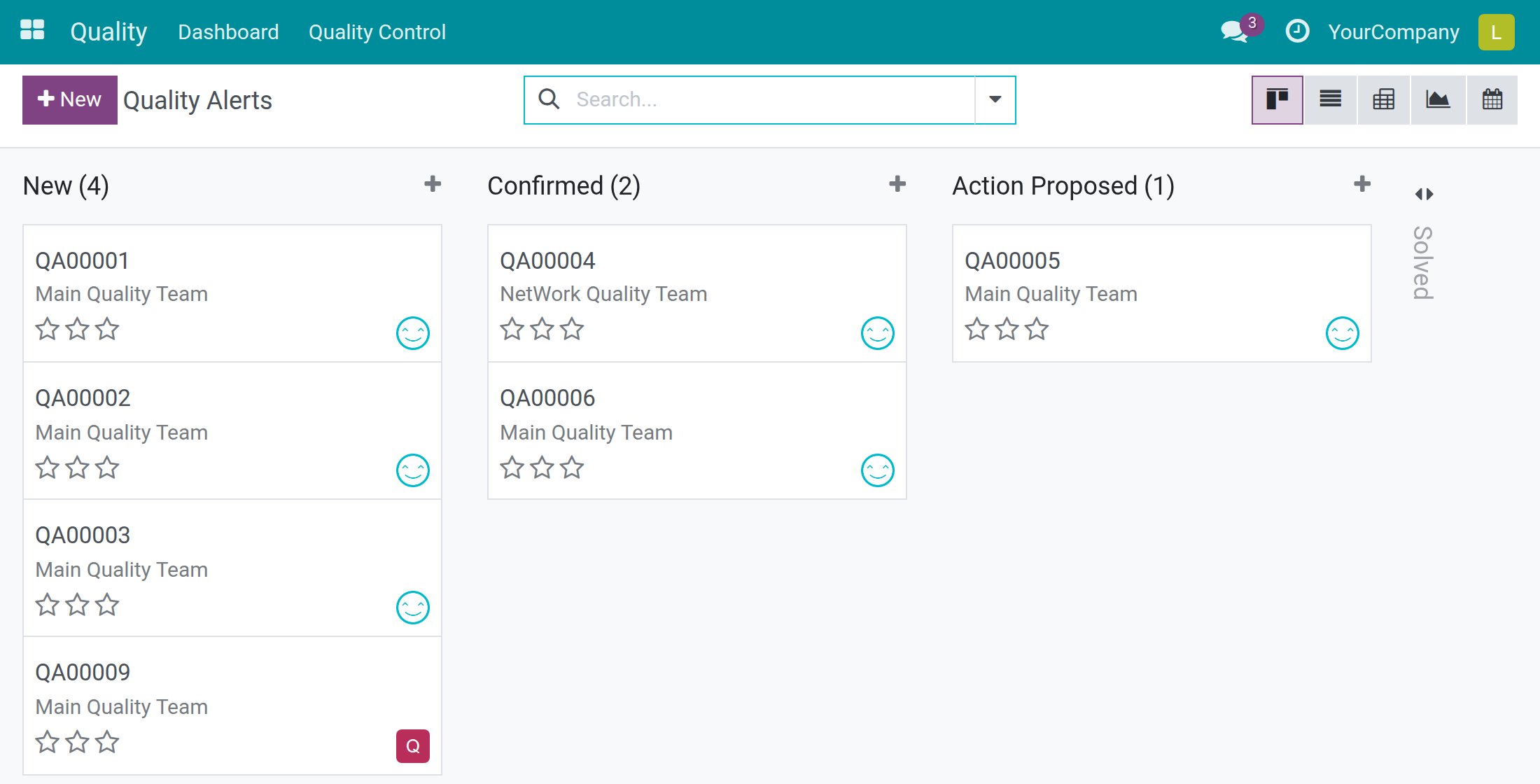
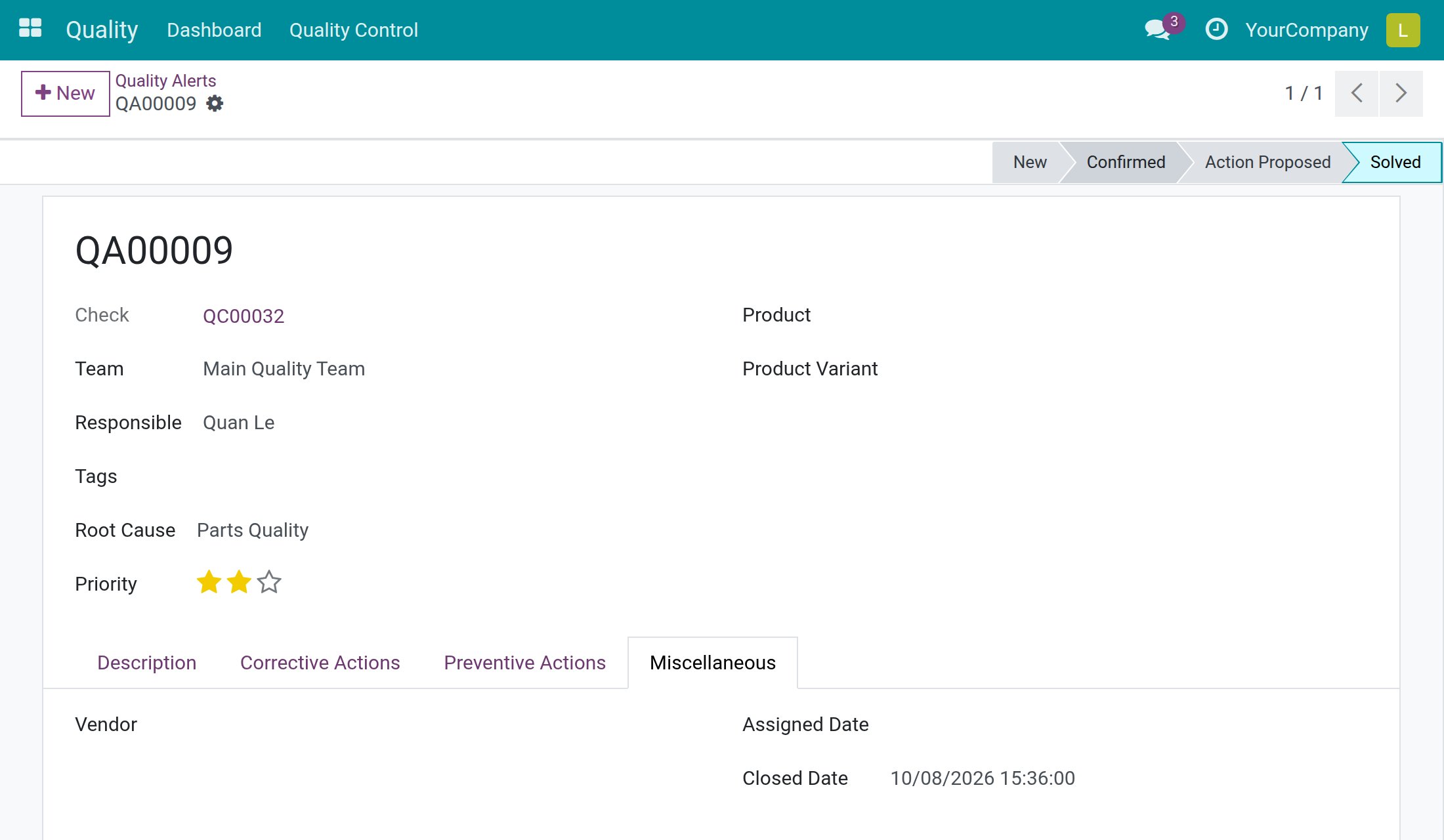
Open Quality ‣ Quality Control ‣ Quality Alerts. The board has one column per stage; the Solved column is folded.
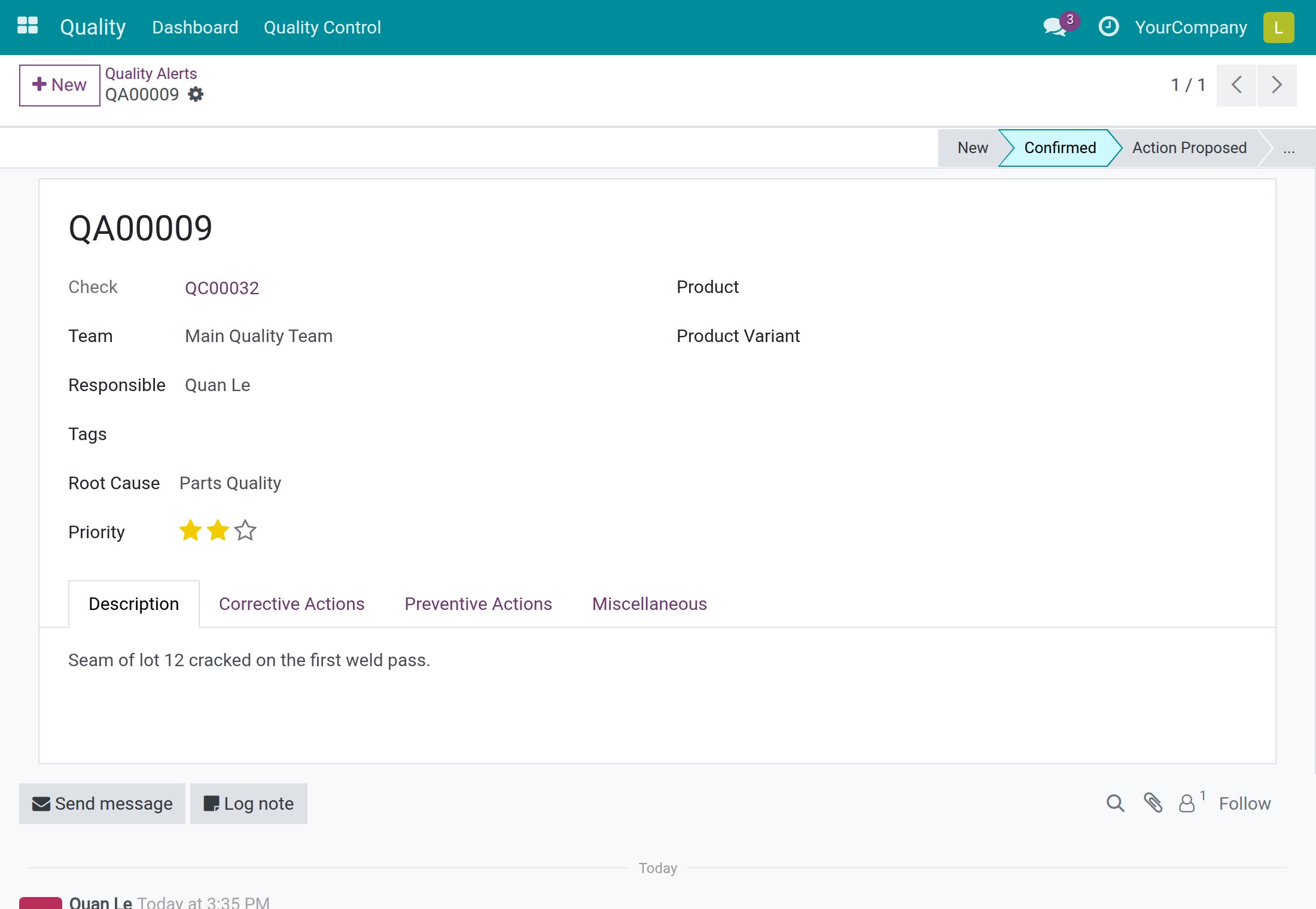
- Open the alert.
- On the Description tab, describe the issue.
- In Root Cause, choose why it happened, for example Parts Quality. Use Tags to label the alert.
- In Priority, click the stars to set the urgency.
- Click Confirmed in the status bar once the problem is acknowledged.
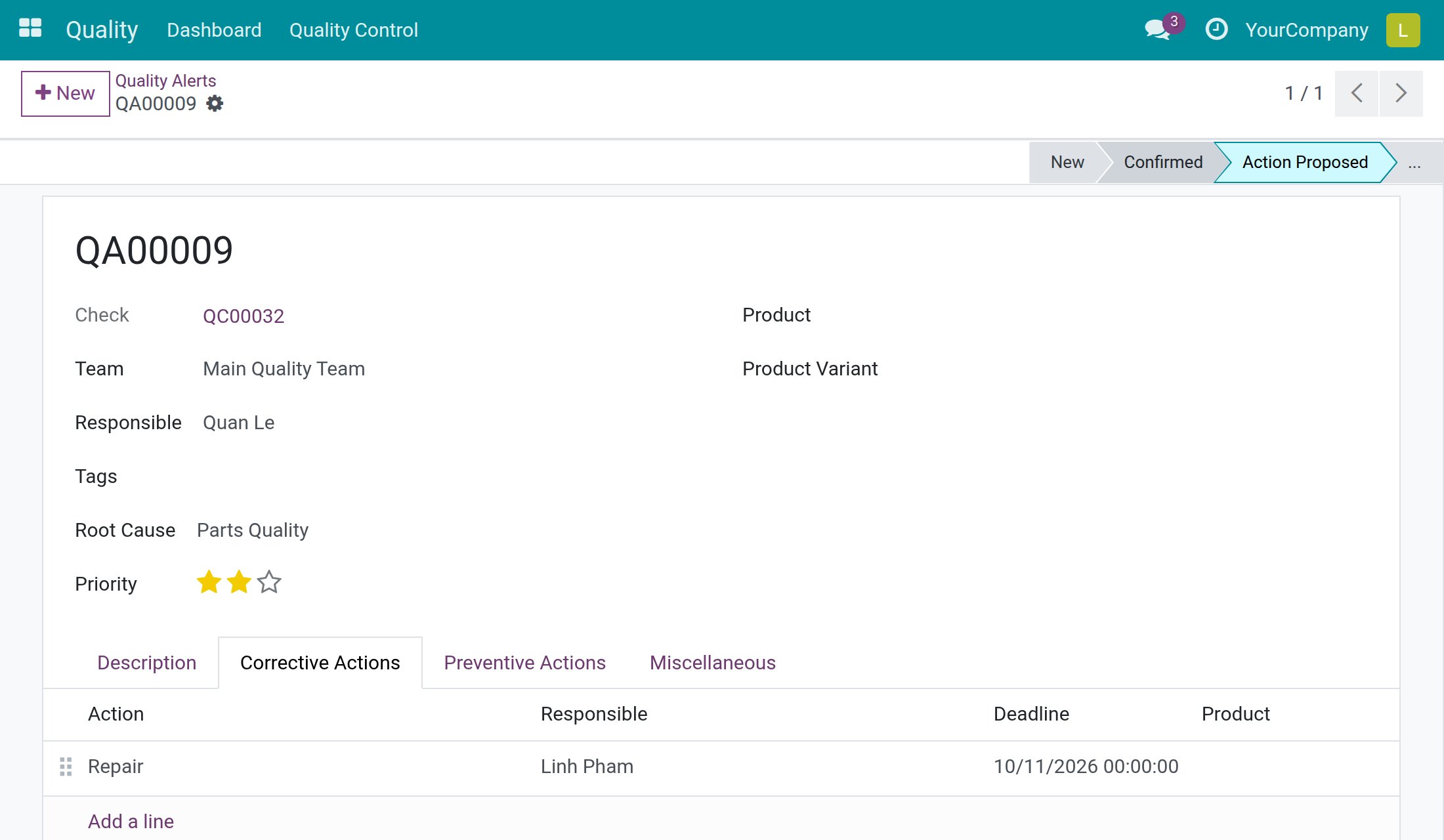
- Open the Corrective Actions tab and click Add a line.
- In Action, pick a reusable action (for example Repair). Check the Responsible and set the Deadline. Use the Preventive Actions tab in the same way for the measures that stop the problem from coming back.
- Click Action Proposed in the status bar when the fix is planned.
- When the fix is done and verified, click ... in the status bar and choose Solved.
The Miscellaneous tab now shows the Closed Date.
The follow-up lists are in Quality ‣ Quality Control ‣ Corrective Actions and Preventive Actions: they show the actions of all alerts with their Responsible, deadline and completion date.
Follow the quality of your teams
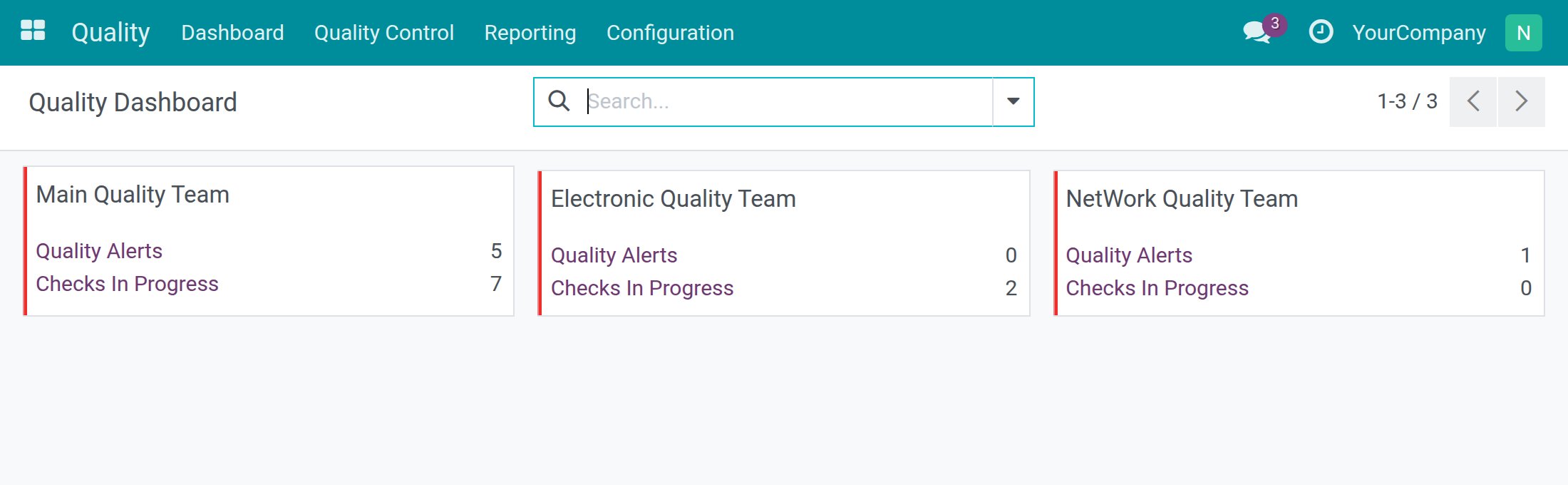
Dashboard
Open Quality ‣ Dashboard. Each quality team has a card with the number of Quality Alerts that are not processed yet and the number of checks Checks In Progress. Click a number to open the matching list.
Reports (Quality Administrator)
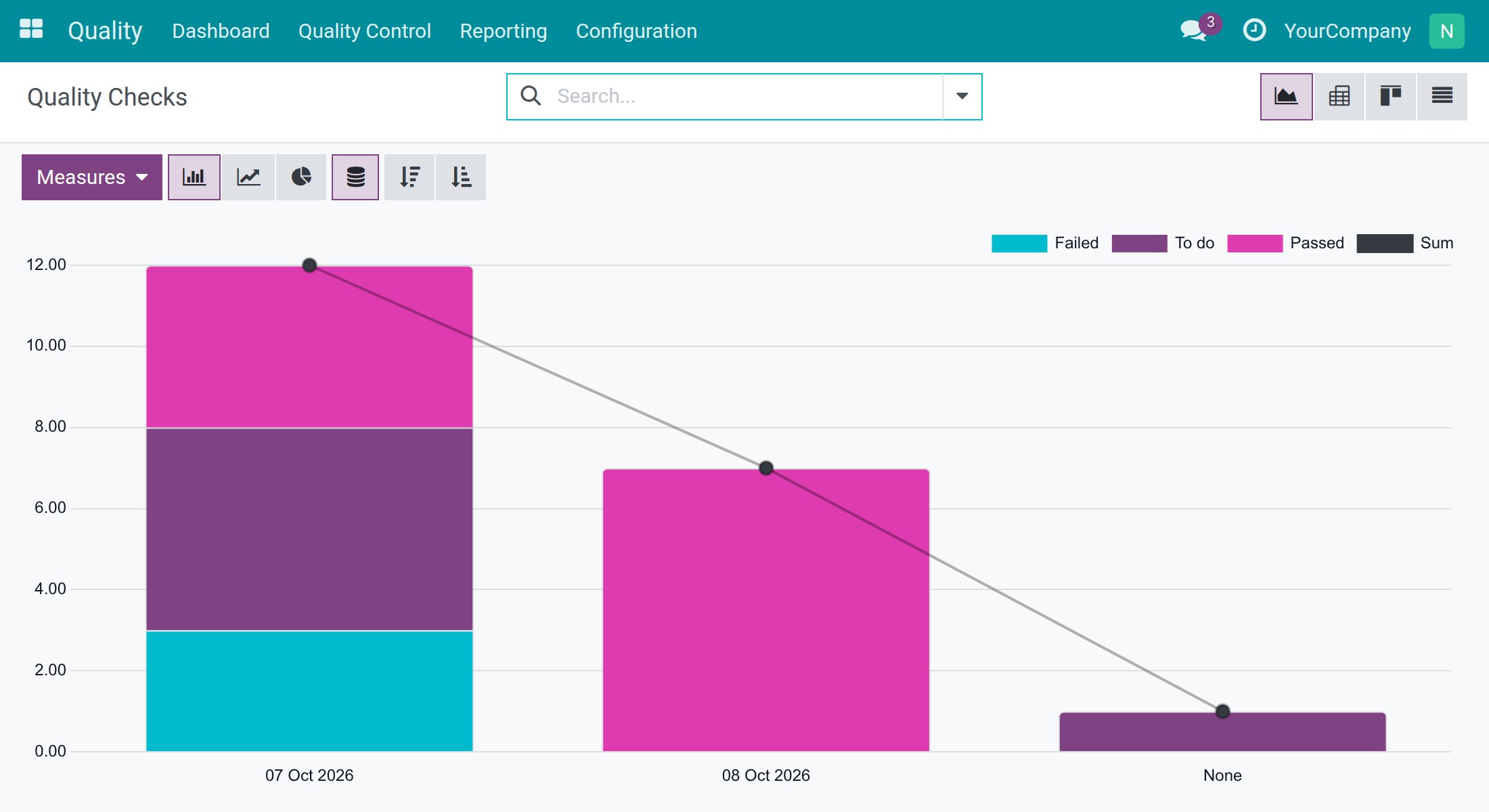
Under Quality ‣ Reporting you find three analyses:
- Quality Checks: results over time and passed against failed units per product, as a graph, a pivot table, a board or a list.
- Quality Alerts: alerts by stage, root cause, team and product.
- Alert Actions Analysis: the corrective and preventive actions that are open, late or done.
Statistics chart of a measure
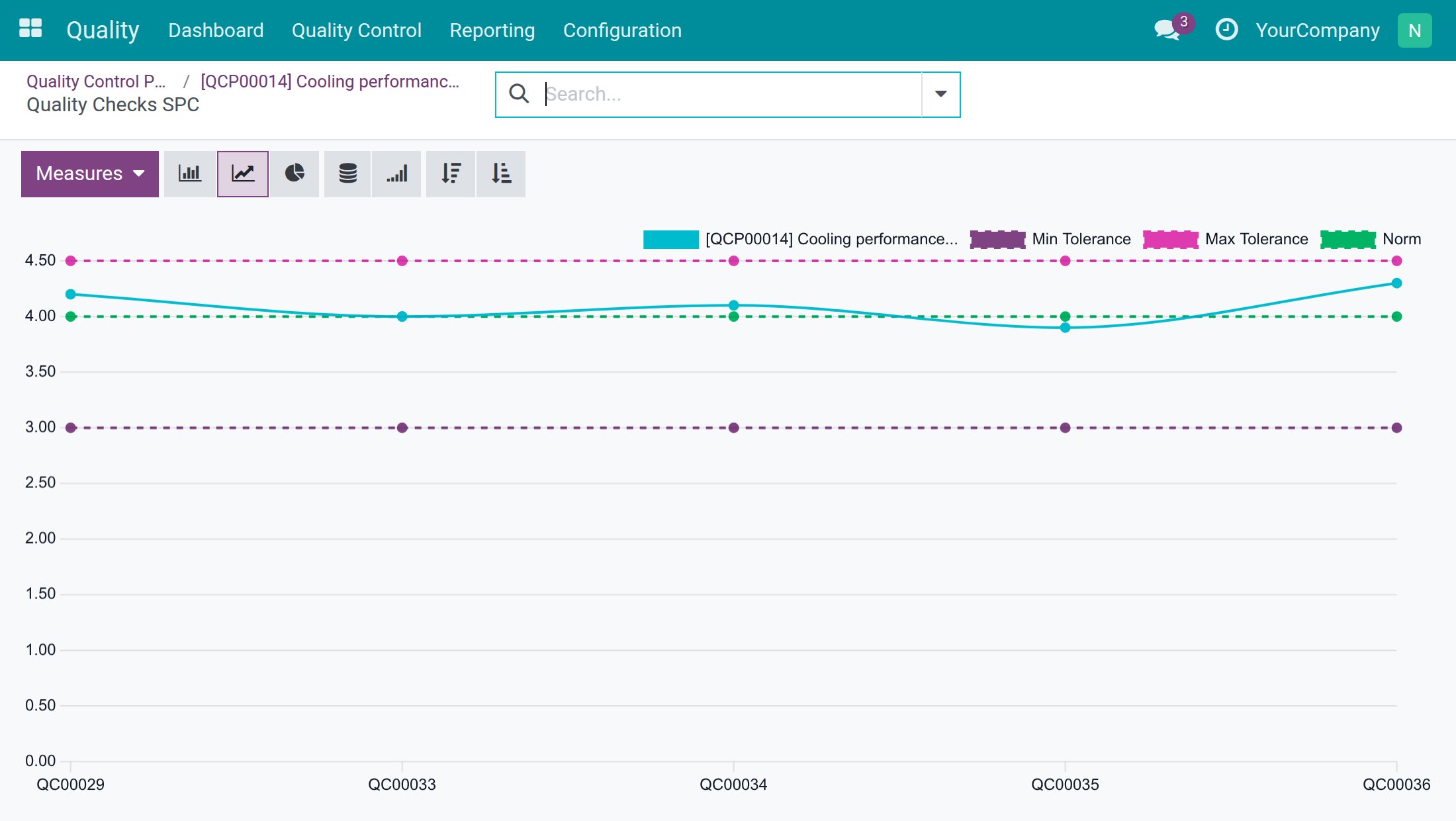
Once a Measure control point has measured checks, its form shows a button with the average (AVG) and the standard deviation (STD) of the measures.
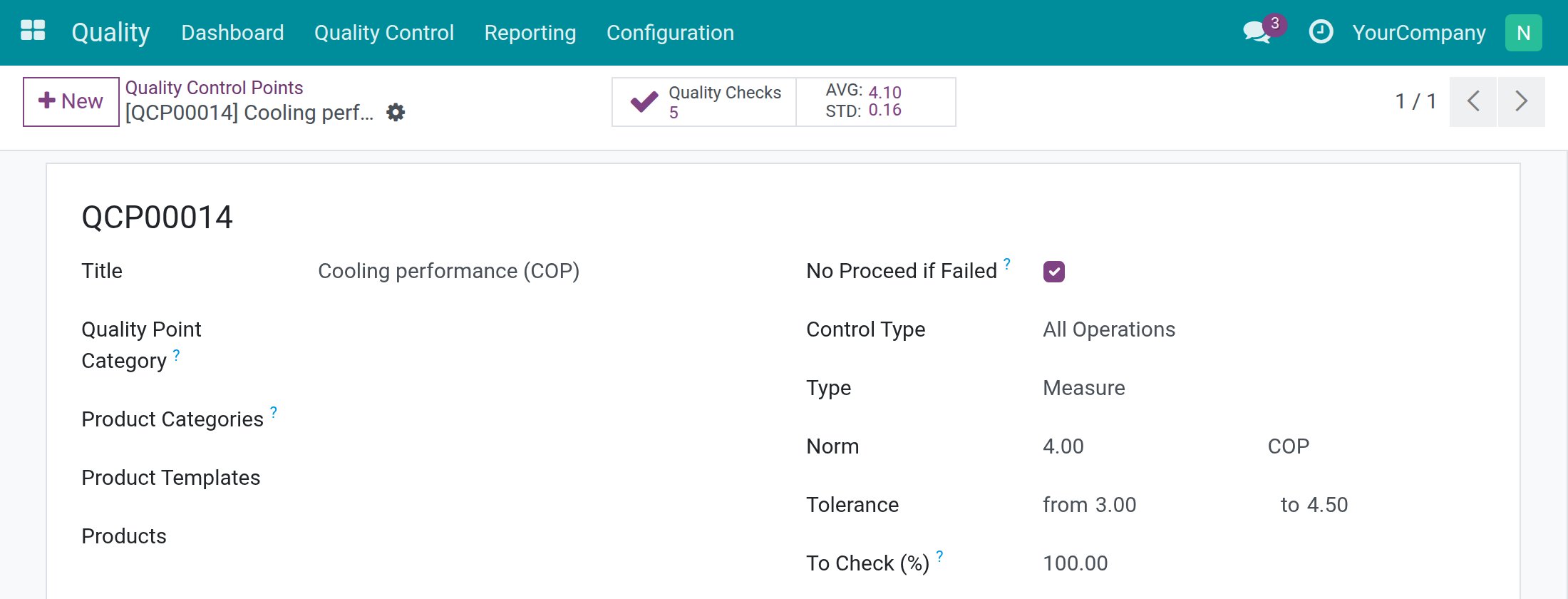
Click that button to open the chart Quality Checks SPC. It plots one point per measured check and draws the norm and the minimum and maximum tolerance as dashed lines, so you see at a glance whether the process drifts toward a limit.
Troubleshooting
- I do not see the Control Points, Reporting or Configuration menus.
- These menus are for the Quality Administrator. Ask an administrator to set your Quality access right to Administrator.
- I do not see the Dashboard or the Alerts menu.
- They are for the Quality User. Without a Quality access right you only see the checks assigned to you or followed by you, under Quality ‣ Quality Control.
- I open a check and there is no Pass or Measure button.
- Look for the blue line Waiting for ... to check. Another person is the Responsible of the control point and only that person, or a Quality User, can record the result.
- The Validate button is grey.
- Enter a measure first, by typing it or by tapping + or -.
- I cannot remove a photo.
- Photos attached to a failed check cannot be removed, and the photos of a passed check are locked. Only a Quality User can change them.
- I cannot pass a Take a Picture check.
- This type of check needs at least one photo before it can be passed.
- The Reopen button is missing on a failed check.
- Only a Quality User takes a check out of Failed. Ask one to reopen it.
- I cannot edit the quality alert I just reported.
- Without the Quality User right the alert is read-only for you. Write in the discussion below the form; the quality team handles it.
FAQ
- Who decides that a check is passed?
- The Responsible of the control point, or any Quality User. Checked By records who did it and Control Date when.
- Can anyone fail a check?
- Anyone who is allowed to work on the check can record a Fail. Only a Quality User can take the check out of Failed afterwards.
- Is the result of a measurement calculated for me?
- Yes. The check is passed when the measure lies inside the tolerance of the control point and failed when it lies outside.
- Does reopening a check delete anything?
- No. It withdraws the result and brings the check back to To do. The comment and the photos are kept.
- Where do the checks come from?
- You create them with New in Quality Checks. When the Viindoo stock and manufacturing quality apps are installed, they create the checks for receipts, deliveries and production orders for you, using your control points.
This software and associated files (the "Software") may only be used (executed, modified, executed after modifications) if you have purchased a valid license from the authors, typically via Odoo Apps, or if you have received a written agreement from the authors of the Software (see the COPYRIGHT file).
You may develop Odoo modules that use the Software as a library (typically by depending on it, importing it and using its resources), but without copying any source code or material from the Software. You may distribute those modules under the license of your choice, provided that this license is compatible with the terms of the Odoo Proprietary License (For example: LGPL, MIT, or proprietary licenses similar to this one).
It is forbidden to publish, distribute, sublicense, or sell copies of the Software or modified copies of the Software.
The above copyright notice and this permission notice must be included in all copies or substantial portions of the Software.
THE SOFTWARE IS PROVIDED "AS IS", WITHOUT WARRANTY OF ANY KIND, EXPRESS OR IMPLIED, INCLUDING BUT NOT LIMITED TO THE WARRANTIES OF MERCHANTABILITY, FITNESS FOR A PARTICULAR PURPOSE AND NONINFRINGEMENT. IN NO EVENT SHALL THE AUTHORS OR COPYRIGHT HOLDERS BE LIABLE FOR ANY CLAIM, DAMAGES OR OTHER LIABILITY, WHETHER IN AN ACTION OF CONTRACT, TORT OR OTHERWISE, ARISING FROM, OUT OF OR IN CONNECTION WITH THE SOFTWARE OR THE USE OR OTHER DEALINGS IN THE SOFTWARE.