

Sales Target
| Lines of Code | 1844 |
| Technical name | to_sales_target |
| License | OPL-1 |
| Website | https://viindoo.com/apps/modules/18.0/to_sales_target |
| Read description for | v 10.0 v 11.0 v 12.0 v 13.0 v 14.0 v 15.0 v 16.0 v 17.0 |
| Required Apps | Discuss (mail) |
| Included Dependencies | Sales Teams Advanced |
| Extensions | Sales Target Management - Sales Management |

A quarter's number, split down to the person, and approved
Set the target for a team, break it into personal targets, and put both through draft, waiting approval, approved and done - so the number a salesperson carries is one somebody signed.
Sales Target (technical name to_sales_target) is an Odoo 18.0 app for Odoo Community and Odoo Enterprise and Viindoo Cloud, built for sales director, team leader, salesperson, regional manager.
At a Glance
The facts of Sales Target, version 1.0.2, in one place. Published by Viindoo.
Key Features
A sales target that lives in a spreadsheet is a target nobody has agreed to. This app puts it in Odoo, where the team it belongs to already is: a team target for a period, personal targets for the salespeople under it, and a state on both - Draft, Waiting Approved, Approved, Done, with Refused and Cancelled for the ones that do not survive the conversation. The team target holds its personal targets, so the split is visible in one screen and the two cannot drift: the app refuses to attach a personal target to a team target in a different state, which is the rule that stops half-approved quarters. Targets sit on the sales team and region structure, so a regional manager sees the targets in their branch and a salesperson sees their own.
Closed quarters
Done targets stay readable - last quarter's commitment, not last quarter's spreadsheet.
Drafts in progress
Next period's numbers while they are still being argued about.
My targets
What a salesperson carries, for which period, in which state.
How It Works
Three steps from a number to a commitment.
Set the team's number
Choose the team and the period, put the amount in, and list the people who carry it. The personal targets live inside the team target, so the split is never a separate document.
Send it for approval
Confirm moves the target and its personal targets to Waiting Approved together. What is waiting for a decision is a menu rather than a filter someone has to remember.
Approve it, and close it when the period ends
Approved targets are the live ones; Done closes the period. Refused and Cancelled keep the ones that did not survive, with the chatter that explains why.
What You Get
Team targets for any period - a quarter, a month, a year - with a currency and an amount
Personal targets underneath, each on a salesperson, summing up under the team target
A real workflow on both: Draft, Waiting Approved, Approved, Done, plus Refused and Cancelled
Team and personal targets must be in the same state - the app refuses a half-approved split
Separate menus per state, so "what is waiting for my approval" is a menu, not a filter
My Targets for the salesperson: what they carry, for which period, and whether it is signed
More Screens
Everything below was taken on a database seeded with real business data, on this series - not a mock-up and not a screenshot from an older version.
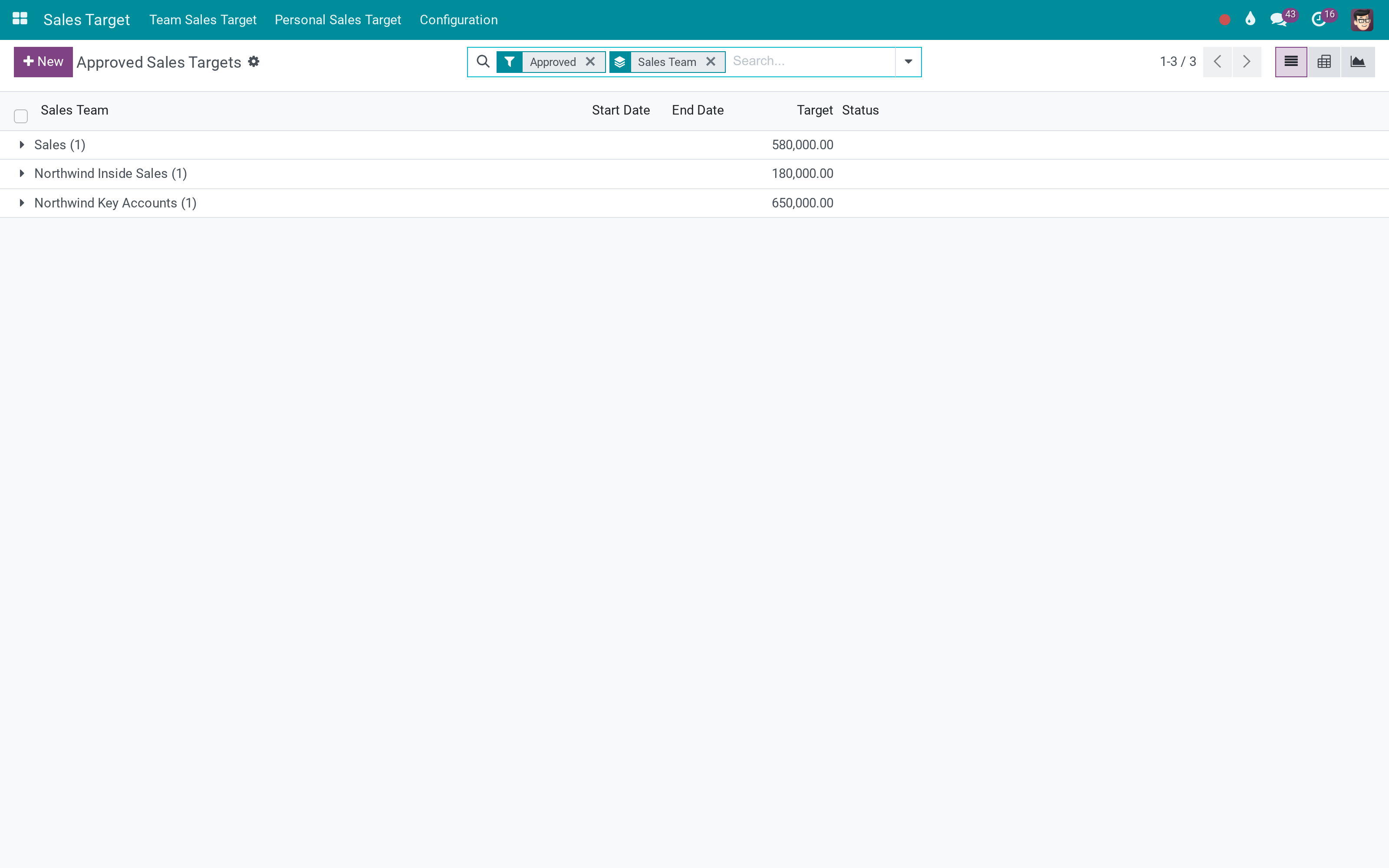
Approved targets
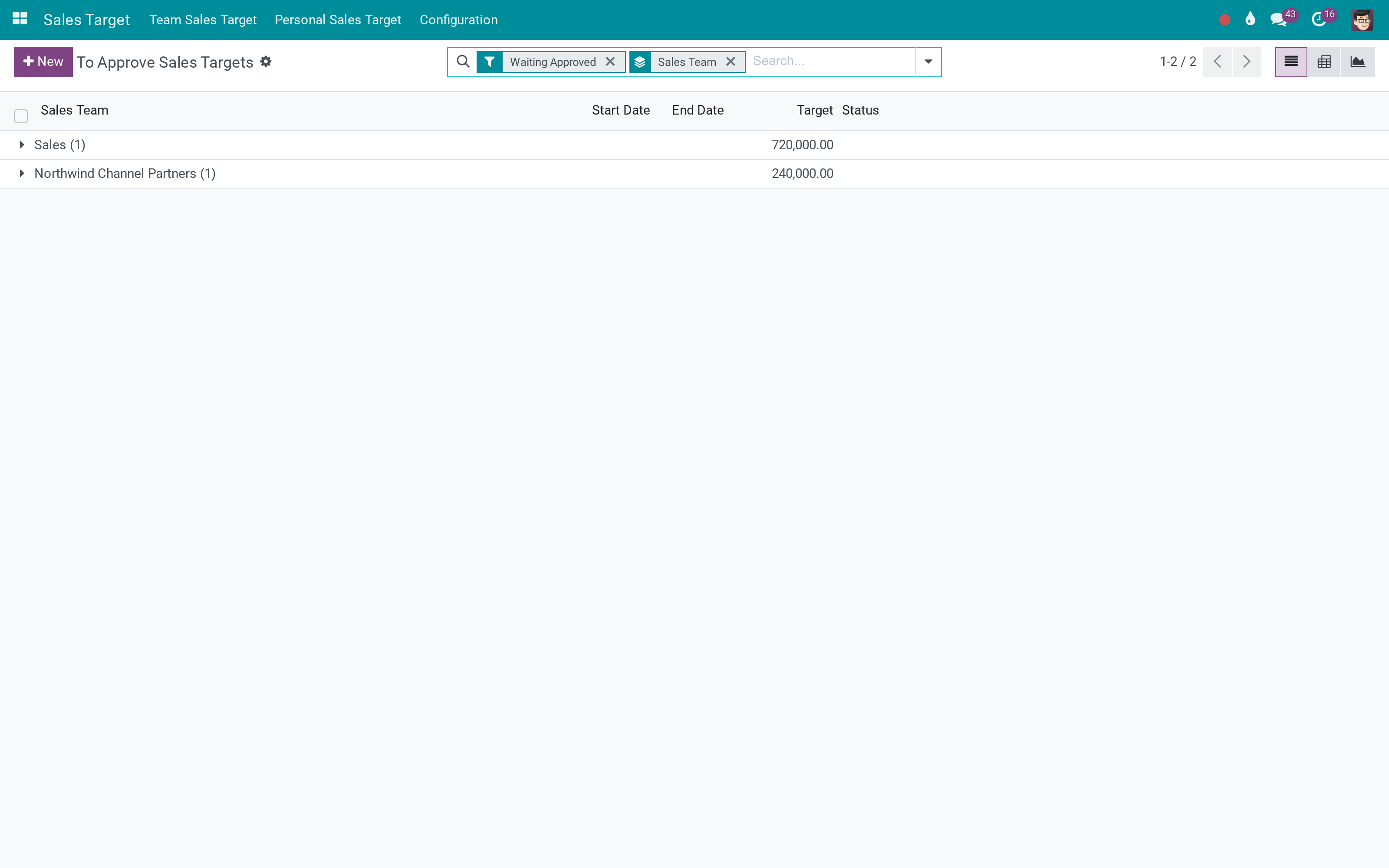
Waiting for approval
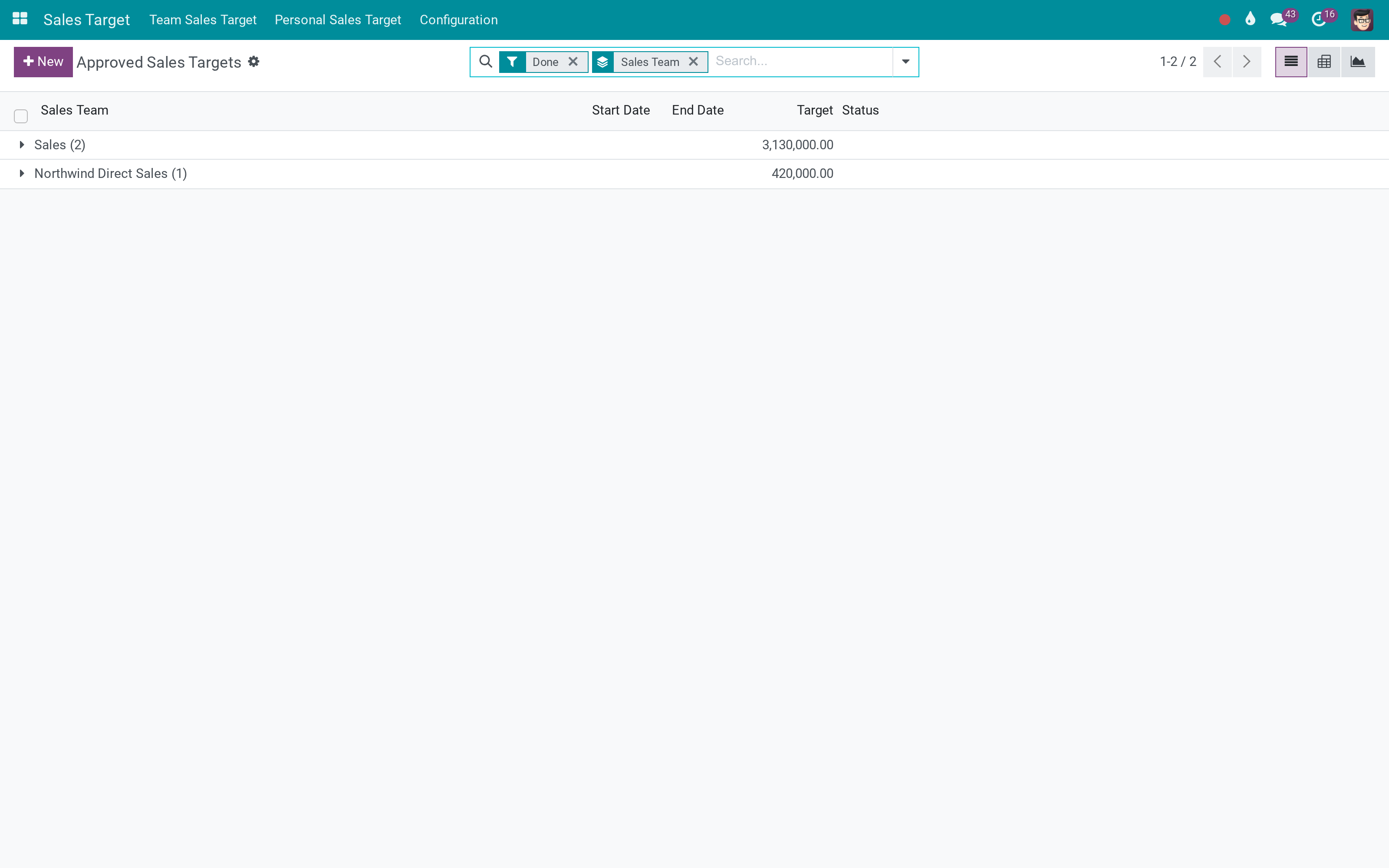
Closed periods
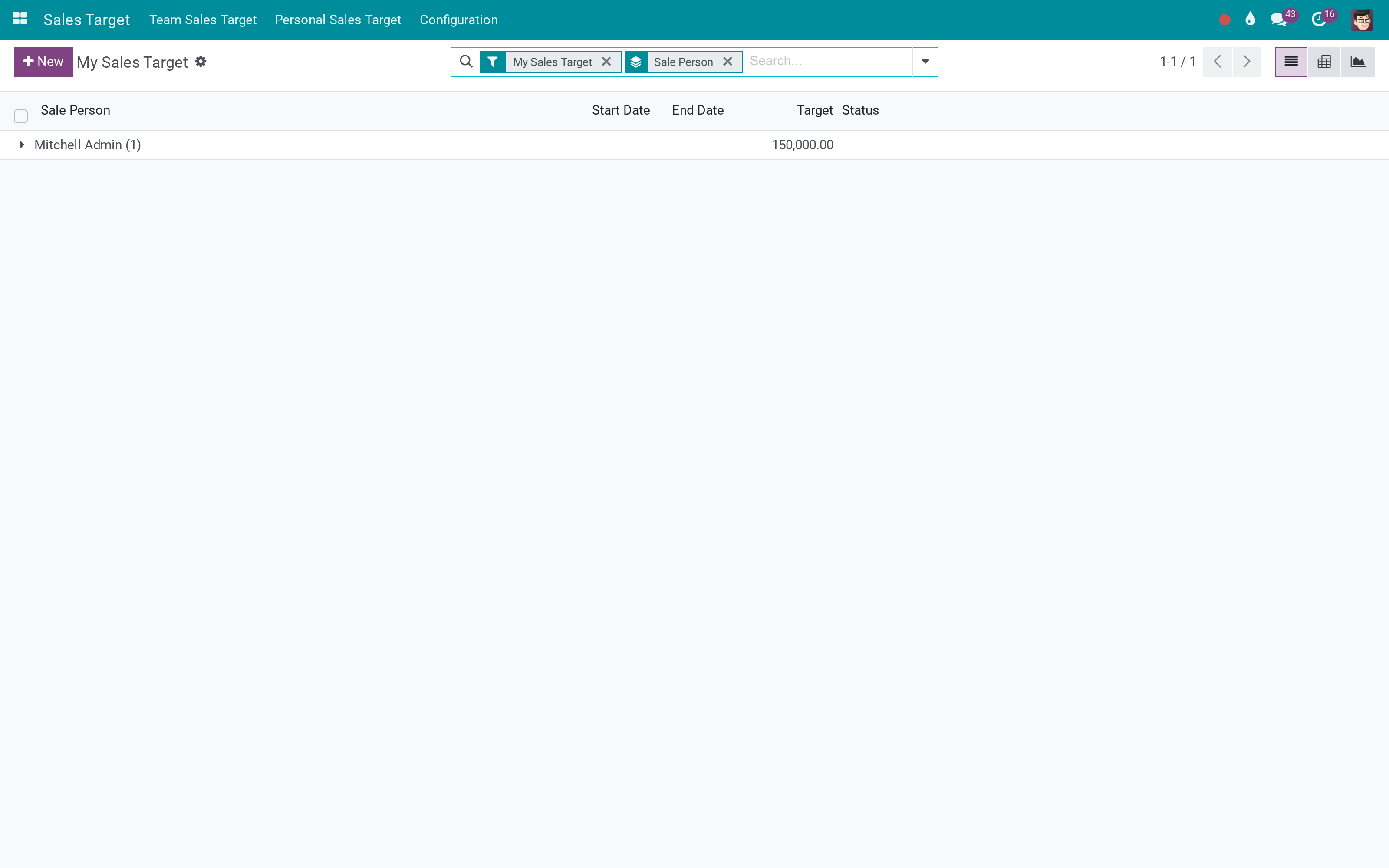
A salesperson's own targets
What This App Does Not Do
Read this before you buy. Everything below is something the app deliberately leaves to another app or to you.
The target is the commitment; comparing it with invoiced or won revenue is a report you build on Odoo's sales analysis.
Payouts are a separate matter; this holds the number they would be based on.
A salesperson in two teams needs two team targets, each with its own period.
Targets hang on teams and regions from Sales Teams Advanced, which comes with it.
Works Well With
Apps from the same stack, built to fit this one:
Sales Teams Advanced
The teams, regions and roles targets are set against - installed with it.
Sales Teams AdvancedOmniApproval
When the target approval has to follow a longer chain.
OmniApproval™: One platform. Every approval.Who Should Use Sales Target?
Sales director
Sets the team number and approves the split, in the same screen.
Team leader
Breaks the team target into personal ones and sends them for approval.
Salesperson
Sees their own target and its state - not a figure someone mentioned in a meeting.
Regional manager
Reads targets across the teams in their region.
Frequently Asked Questions
What does Sales Target do?
Set the target for a team, break it into personal targets, and put both through draft, waiting approval, approved and done - so the number a salesperson carries is one somebody signed.
What does Sales Target not do?
It does not measure achievement. The target is the commitment; comparing it with invoiced or won revenue is a report you build on Odoo's sales analysis. No commission calculation. Payouts are a separate matter; this holds the number they would be based on. One target per person per period. A salesperson in two teams needs two team targets, each with its own period. It needs the sales hierarchy. Targets hang on teams and regions from Sales Teams Advanced, which comes with it.
Who is Sales Target for?
Sales director: Sets the team number and approves the split, in the same screen. Team leader: Breaks the team target into personal ones and sends them for approval. Salesperson: Sees their own target and its state - not a figure someone mentioned in a meeting. Regional manager: Reads targets across the teams in their region.
Which Odoo version and editions does it support?
Odoo 18.0 - Odoo Community, Odoo Enterprise, Viindoo Cloud. Upgrades to a newer Odoo series are a separate purchase for that series.
What does it depend on?
It installs on top of: to_sales_team_advanced. Odoo installs them with it.
How do I set it up?
Three steps from a number to a commitment.
What works well with it?
Sales Teams Advanced (to_sales_team_advanced): The teams, regions and roles targets are set against - installed with it.OmniApproval (viin_approval): When the target approval has to follow a longer chain.
Can I try it before buying?
Yes - the Live Preview button at the top of this page opens the module's own screen on a working database.
How do I get support?
Write to apps.support@viindoo.com with your Odoo version and the technical name to_sales_target; pre-sales questions go to sales@viindoo.com.
See Sales Target in Action
Live demo: v18demo-int.viindoo.com/web#action=to_sales_target.team_sales_target_action_approved
Need help with Sales Target?
For questions, implementation support or a custom feature, contact Viindoo.
Pre-Sales & Partnership
sales@viindoo.comUpgrades to a newer Odoo series are a separate purchase for that series.
All Viindoo apps: Viindoo Apps
Technical Requirement
Changes log
1.0.2 - Latest on the 17.0 line
- Team and personal targets move through the approval workflow together; a mismatched state is refused.
- Each state has its own menu, so what is waiting for approval is one click away.
- Demo targets ship at a scale that reads in USD or EUR rather than in a local currency.
Installation
- Navigate to Apps.
- Search with keyword to_sales_target.
- Press Install.
Instruction
Instruction video: Sales Target
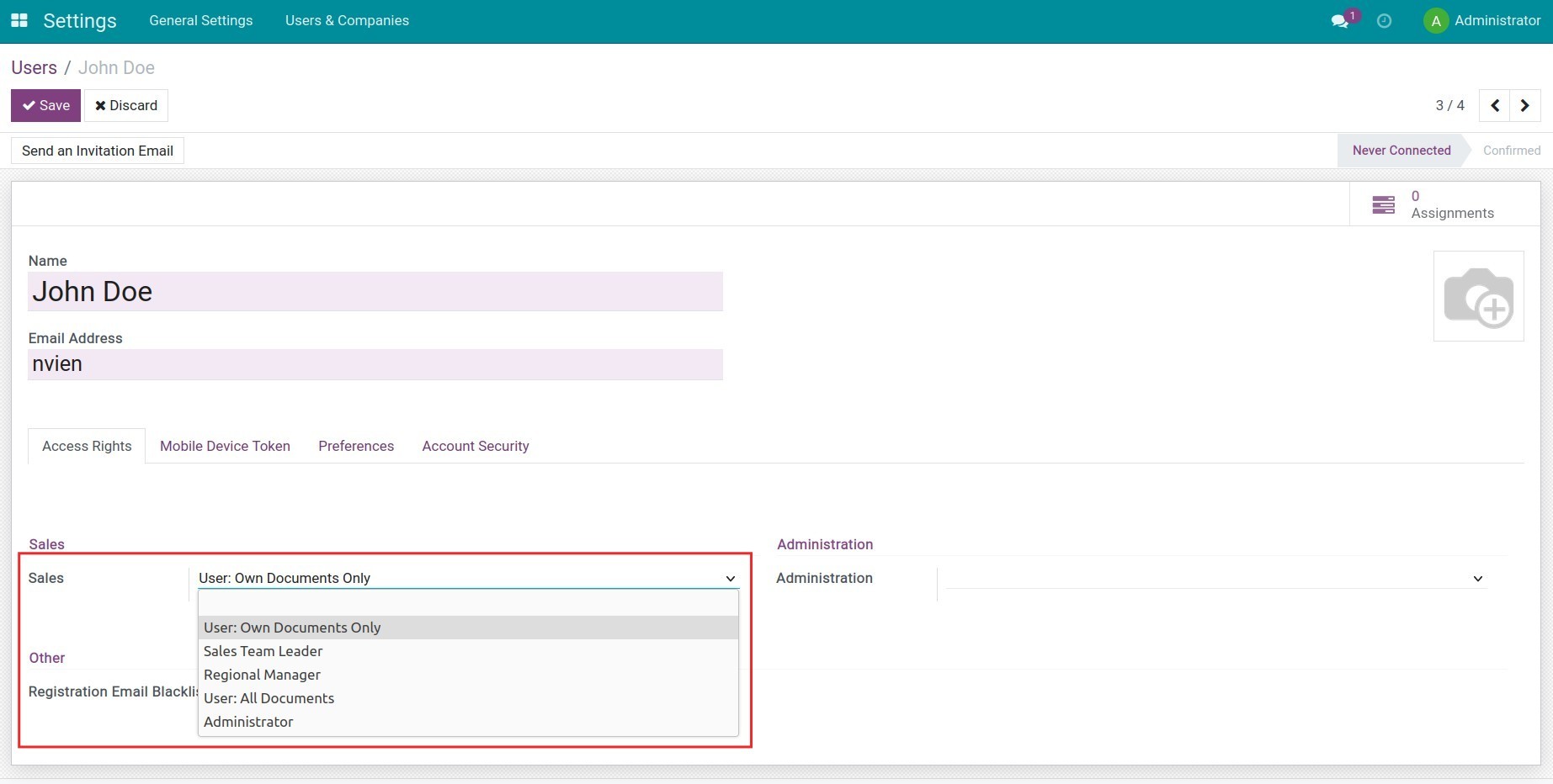
1. Set up access rights
Navigate to Settings > Users & Companies > Users and set up the Sales target access right for the employees.
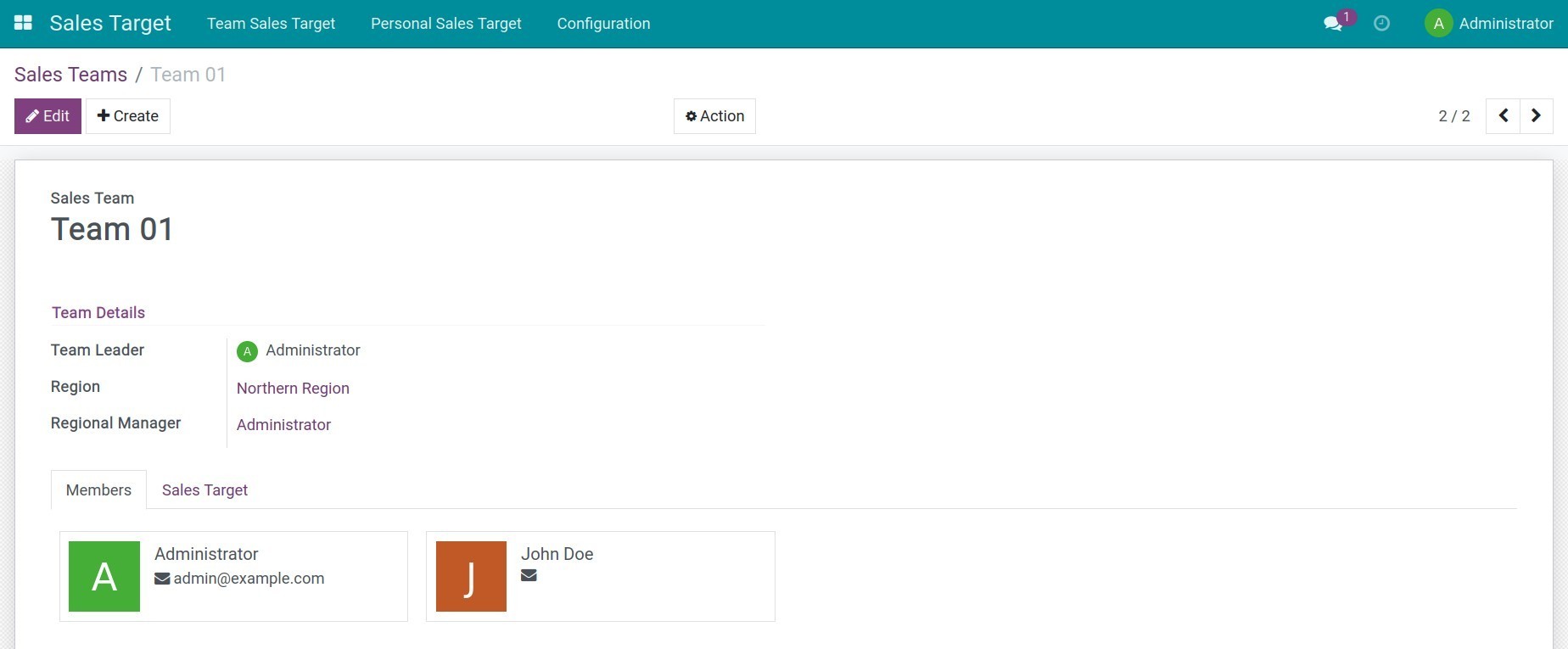
2. Set up Sales region/Sales team
Navigate to Sales Target > Configuration > Sales Teams, and press Create to create a new sales team and add team members.
3. Add and submit the team's sales target
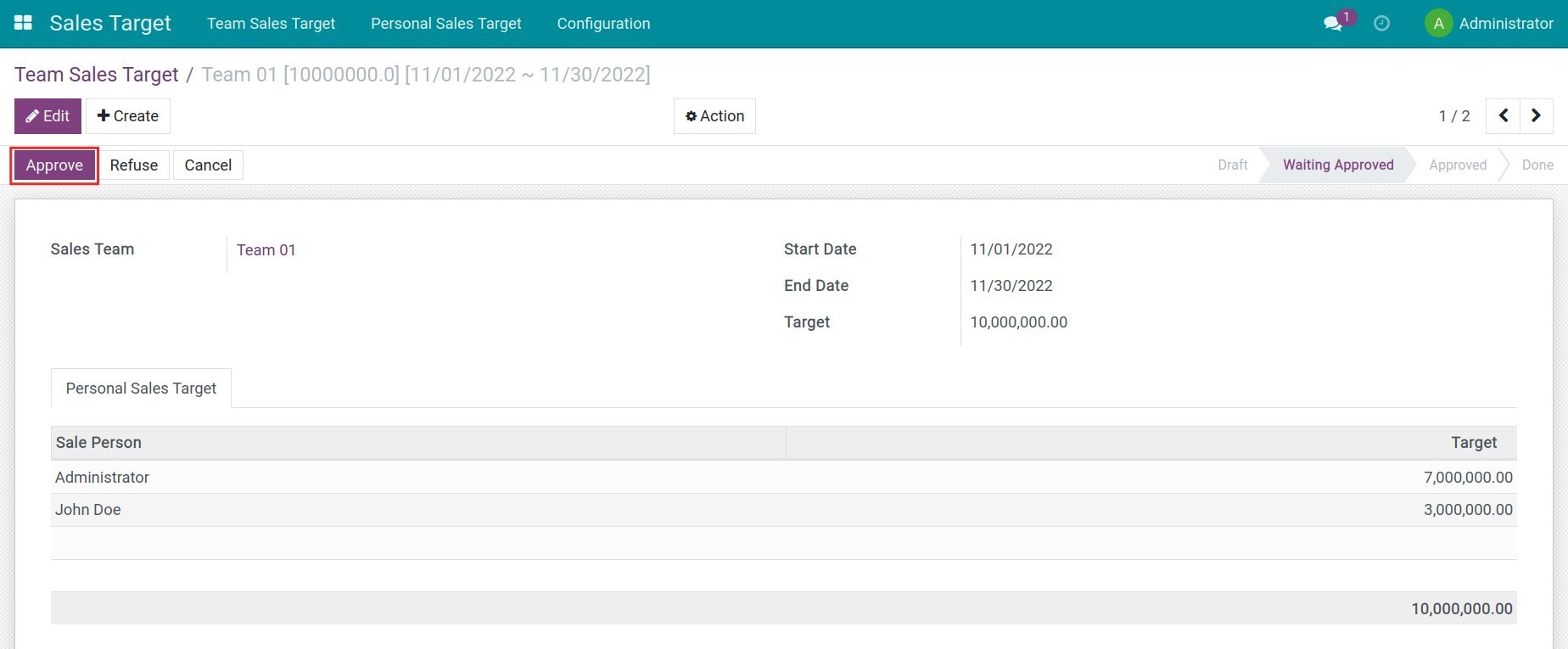
Navigate to Sales Target > Team Sales Target > Draft Targets, press Create to create a sales target for the team. Fill in the following information:
- Sales Team;
- Start/End Date: The time this sales target is applied;
- Target: The total sales target to achieve in the selected time;
- Personal Sales Target: The system will automatically divide the total sales equally among the members of the selected team. You can change the sales target for each member accordingly.
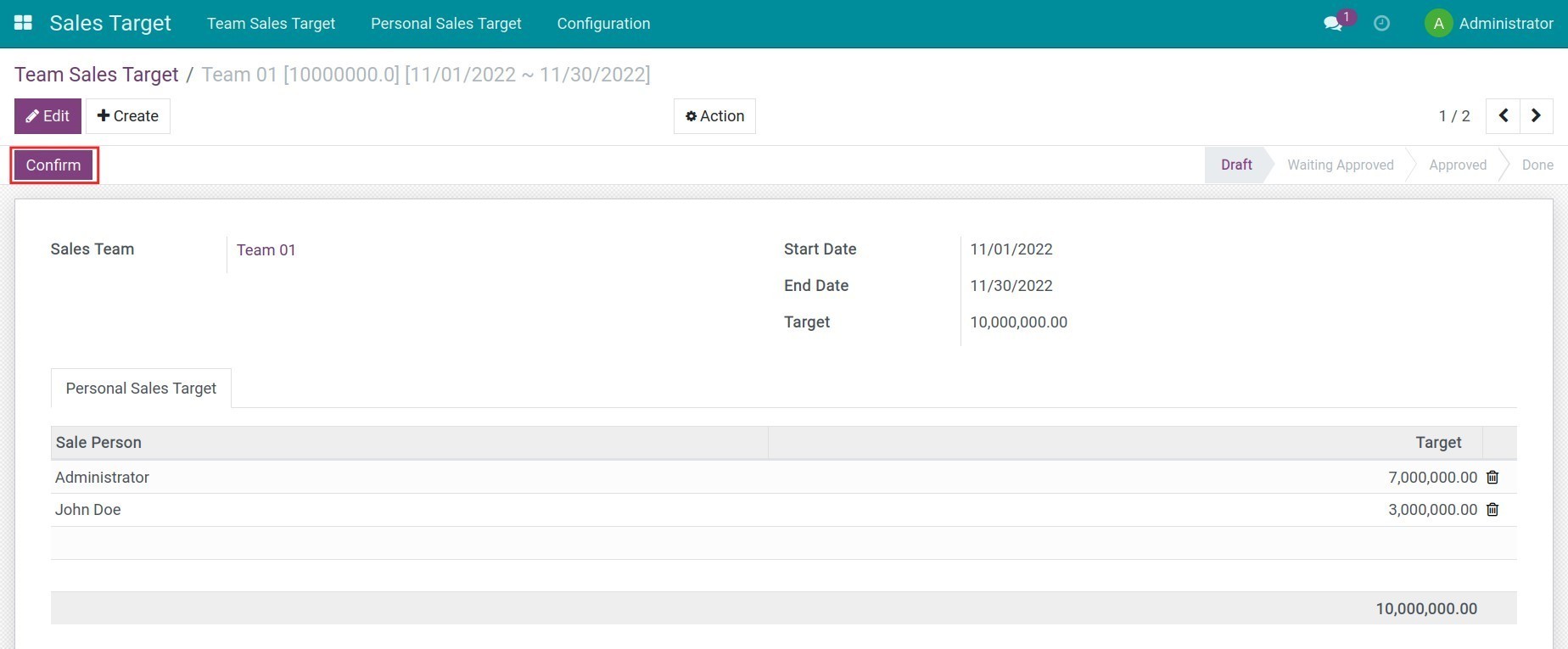
Press Confirm to submit the team's sales target.
4. Approve the team's sales target
The manager checks the submitted sales target and presses Approve to apply the sales target for the team.
5. Manage sales target
With the Sales target app, you can see an overview of the sales target of your teams as well as your own by accessing the corresponding submenu. In addition, Viindoo ERP software provides specific criteria for filtering, and grouping, to create flexible sales reports suitable to the management purposes of your enterprise.
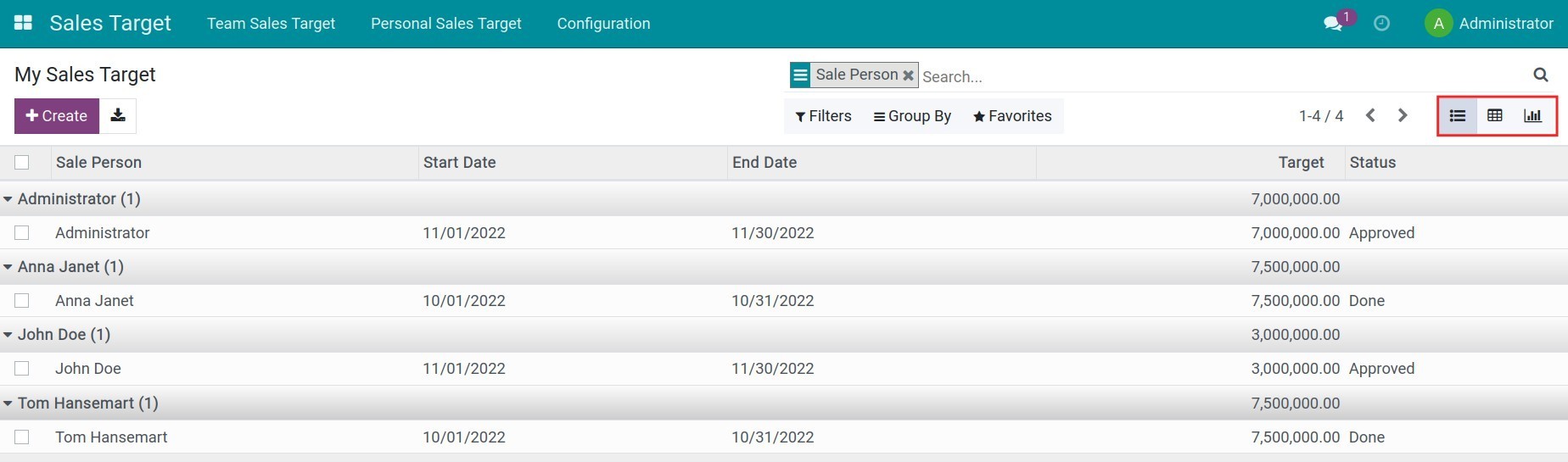
When the sales target period expires, the sales target of the team will be marked as done.
Note: You need to install the to_sales_target_sale module or the to_sales_target_pos to track and evaluate the actual sales target of each sales employee/sales team in the POS app.
This software and associated files (the "Software") may only be used (executed, modified, executed after modifications) if you have purchased a valid license from the authors, typically via Odoo Apps, or if you have received a written agreement from the authors of the Software (see the COPYRIGHT file).
You may develop Odoo modules that use the Software as a library (typically by depending on it, importing it and using its resources), but without copying any source code or material from the Software. You may distribute those modules under the license of your choice, provided that this license is compatible with the terms of the Odoo Proprietary License (For example: LGPL, MIT, or proprietary licenses similar to this one).
It is forbidden to publish, distribute, sublicense, or sell copies of the Software or modified copies of the Software.
The above copyright notice and this permission notice must be included in all copies or substantial portions of the Software.
THE SOFTWARE IS PROVIDED "AS IS", WITHOUT WARRANTY OF ANY KIND, EXPRESS OR IMPLIED, INCLUDING BUT NOT LIMITED TO THE WARRANTIES OF MERCHANTABILITY, FITNESS FOR A PARTICULAR PURPOSE AND NONINFRINGEMENT. IN NO EVENT SHALL THE AUTHORS OR COPYRIGHT HOLDERS BE LIABLE FOR ANY CLAIM, DAMAGES OR OTHER LIABILITY, WHETHER IN AN ACTION OF CONTRACT, TORT OR OTHERWISE, ARISING FROM, OUT OF OR IN CONNECTION WITH THE SOFTWARE OR THE USE OR OTHER DEALINGS IN THE SOFTWARE.