
Documents - Accounting
by Viindoo
| Lines of Code | 1031 |
| Technical name | viin_document_account |
| License | OPL-1 |
| Website | https://viindoo.com/apps/modules/19.0/viin_document_account |
| Read description for | v 14.0 v 15.0 v 16.0 v 17.0 v 18.0 |
| Required Apps | Invoicing (account) Discuss (mail) |
| Included Dependencies | Viindoo Base Documents Management Multilingual Tracking Token Expiration |
Documents - Accounting
Give every invoice, bill and journal entry a home for its paperwork
Documents - Accounting connects your Documents app to Odoo Accounting, so an attachment on an invoice, a vendor bill or a journal entry is filed into the right accounting folder automatically — no separate filing system to keep alongside it.
Extends viin_document → see its documentation.
At a Glance
The facts of Documents - Accounting in one place. Published by Viindoo.
Stop losing the paper trail behind a journal entry
When someone attaches a scanned invoice or vendor bill, it lands in the right accounting folder without anyone choosing a destination. Nothing depends on one person's inbox or a shared drive nobody else checks.
Give the finance team a folder that's already organized and secured
The Accounting workspace ships pre-tagged and pre-authorized, so documents are separated by type from day one. Whoever opens it sees only what their existing Accounting role already allows.
Find the paperwork from the record you're already looking at
A "Documents" button appears right on the invoice, the bill and the journal, so nobody has to leave the accounting screen to check what's attached. Fewer tabs open, fewer "where's the vendor's invoice" questions.
Key Features
Automatic filing for every invoice and bill
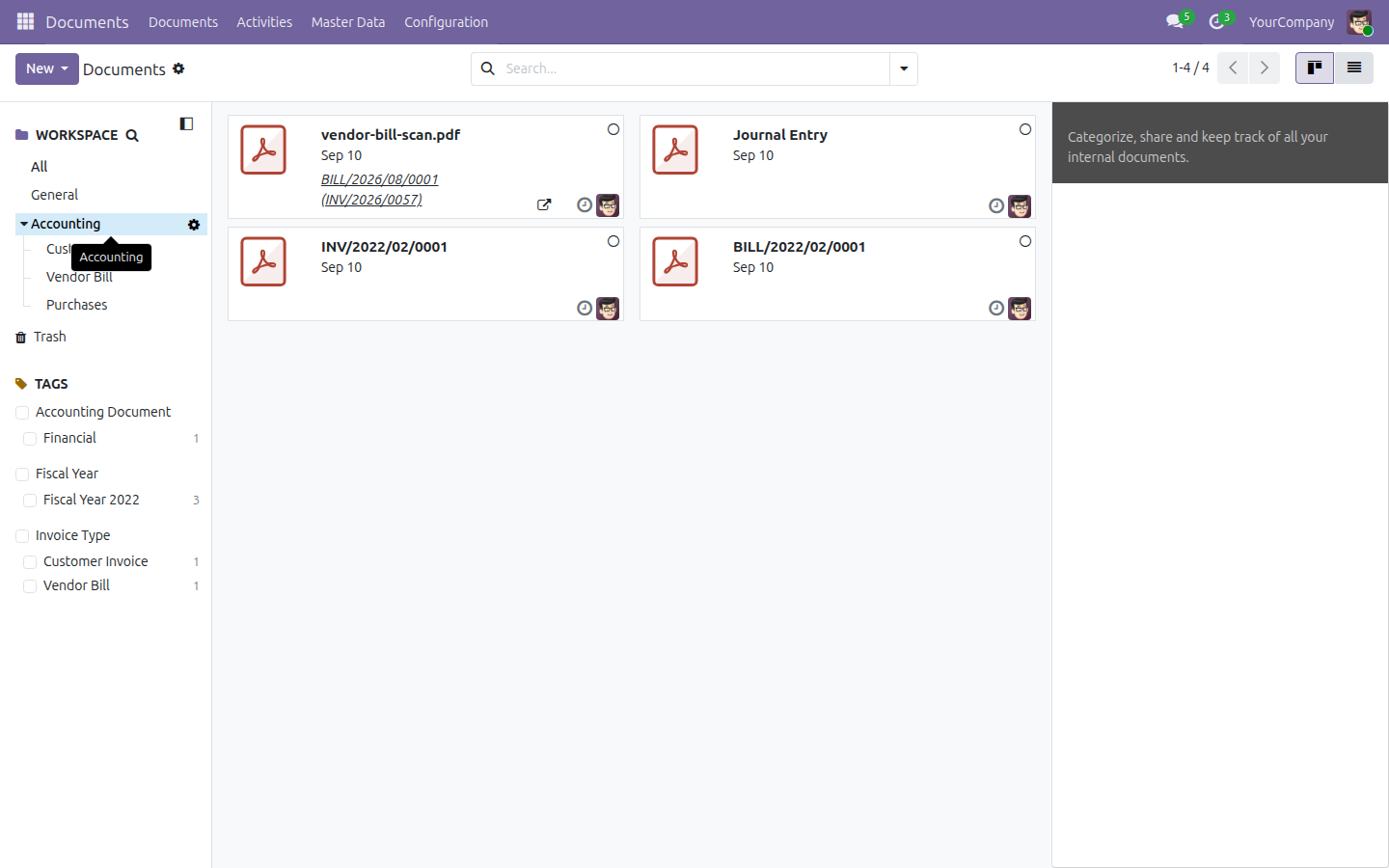
Attach a scanned copy to an invoice, a vendor bill, or any accounting move, and the module routes it into a sub-workspace named after that move's journal — nested under the shipped "Accounting" folder. Saves the clerk a manual filing step and stops copies from ending up in a personal folder no one else can open.
A ready-made Accounting workspace, already secured
The Accounting folder in the Documents app ships pre-built, with access already wired to the Accounting Administrator, Invoicing, and read-only Accounting roles you already use. Saves the work of designing folder-level security by hand.
Document shortcuts on the records you already use
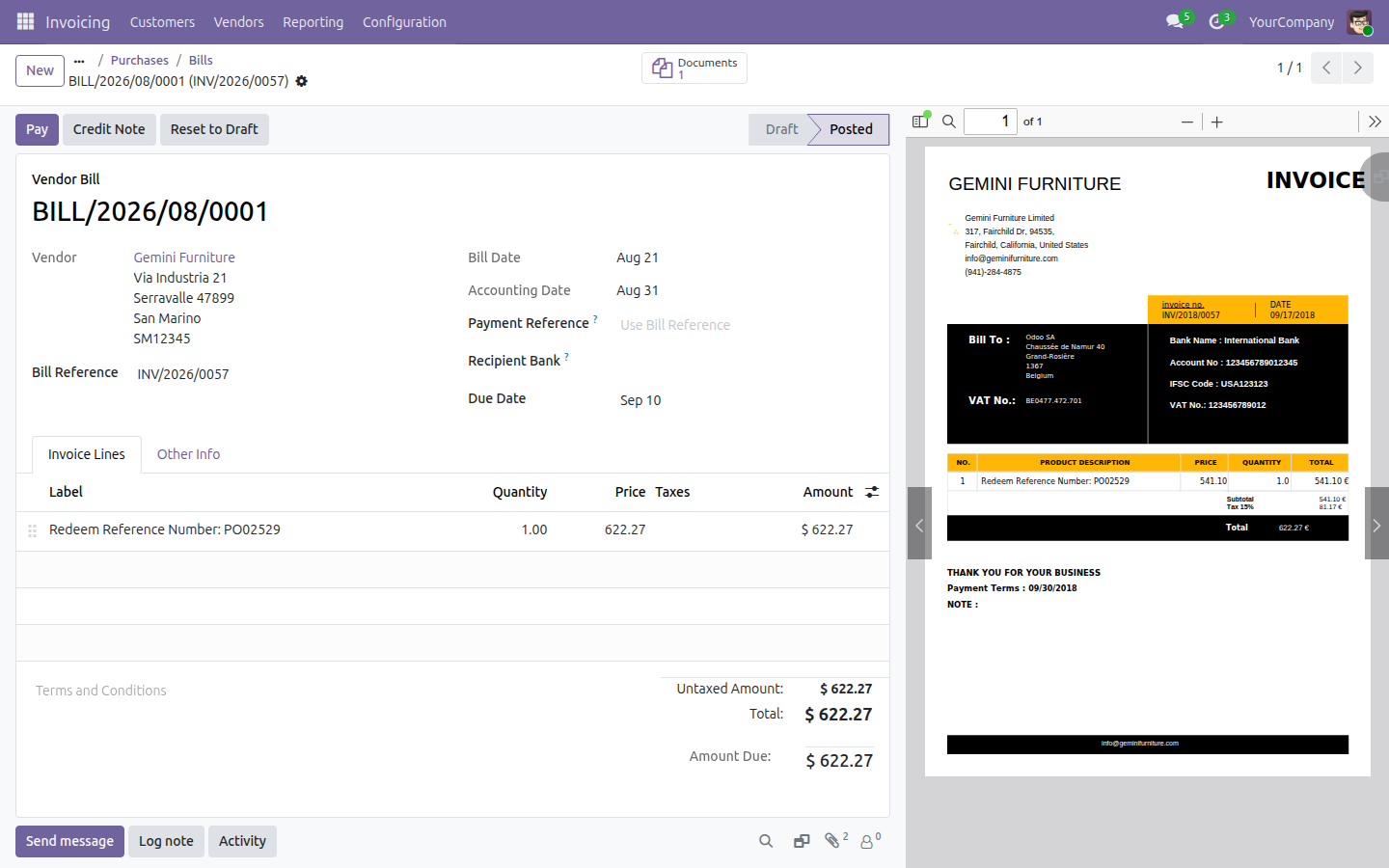
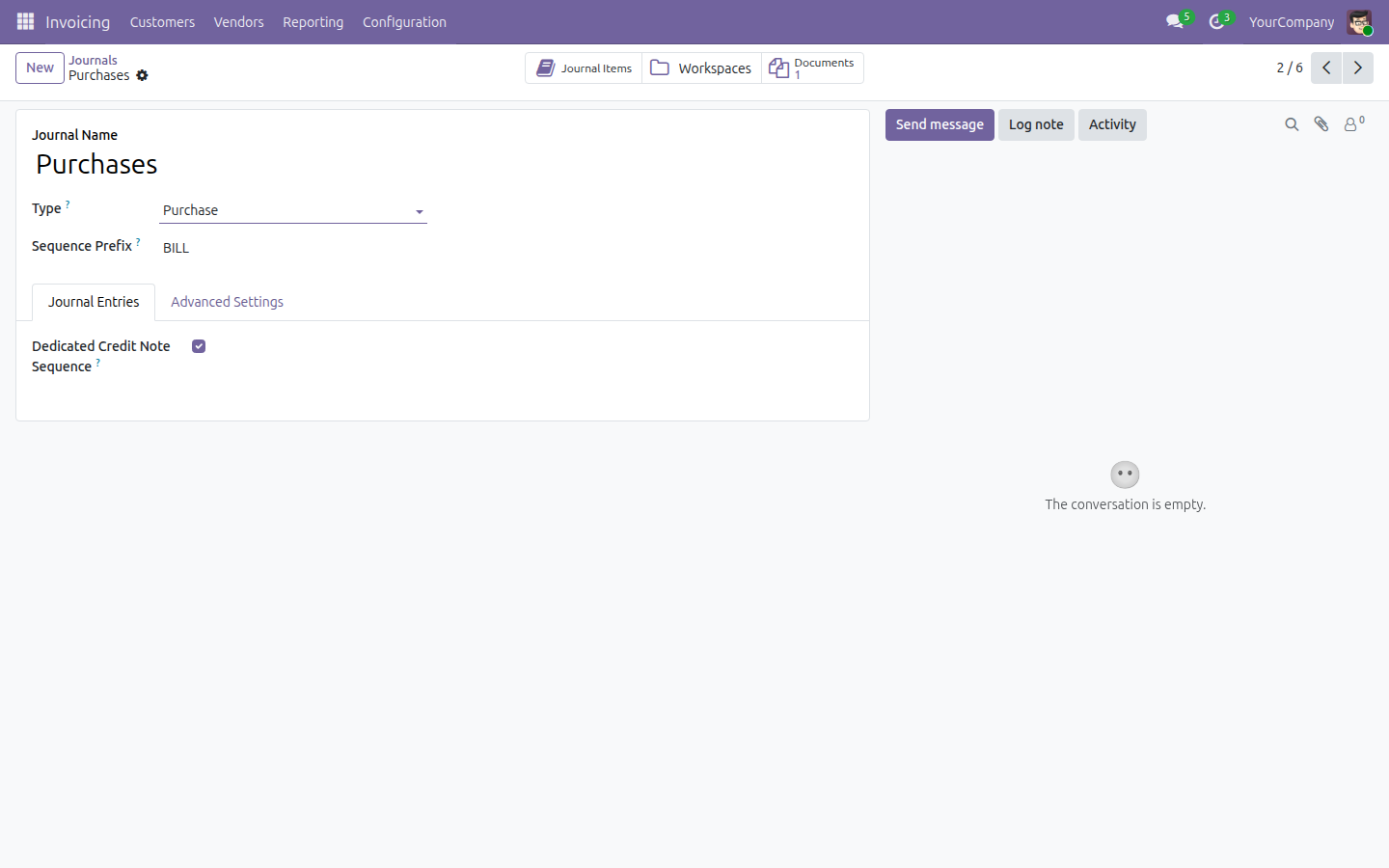
A "Documents" stat button appears on every invoice and bill, showing how many files are attached, and two stat buttons — "Documents" and "Workspaces" — appear on the Journal form. The invoice or bill form refreshes itself right after you attach a file, so the new count shows without reloading the page. Saves the trip through the Documents app menu just to check one record's paperwork.
Accounting-specific tags, ready to apply
Ten tags across three categories — invoice type, document type, and fiscal year — come pre-built for accounting documents. Saves the naming and setup work before anyone starts classifying files by hand. (Filing is automatic; tagging a document is still a manual step you or your team apply.)
A dedicated Accounting team for shared visibility
An Accounting team record lets you grant document visibility to people outside the Accounting group — an outside bookkeeper or an auditor, for instance — without changing anyone's actual Accounting role. Saves having to loosen real Accounting access just to share paperwork for review.
From Attachment to Filed Document, Automatically
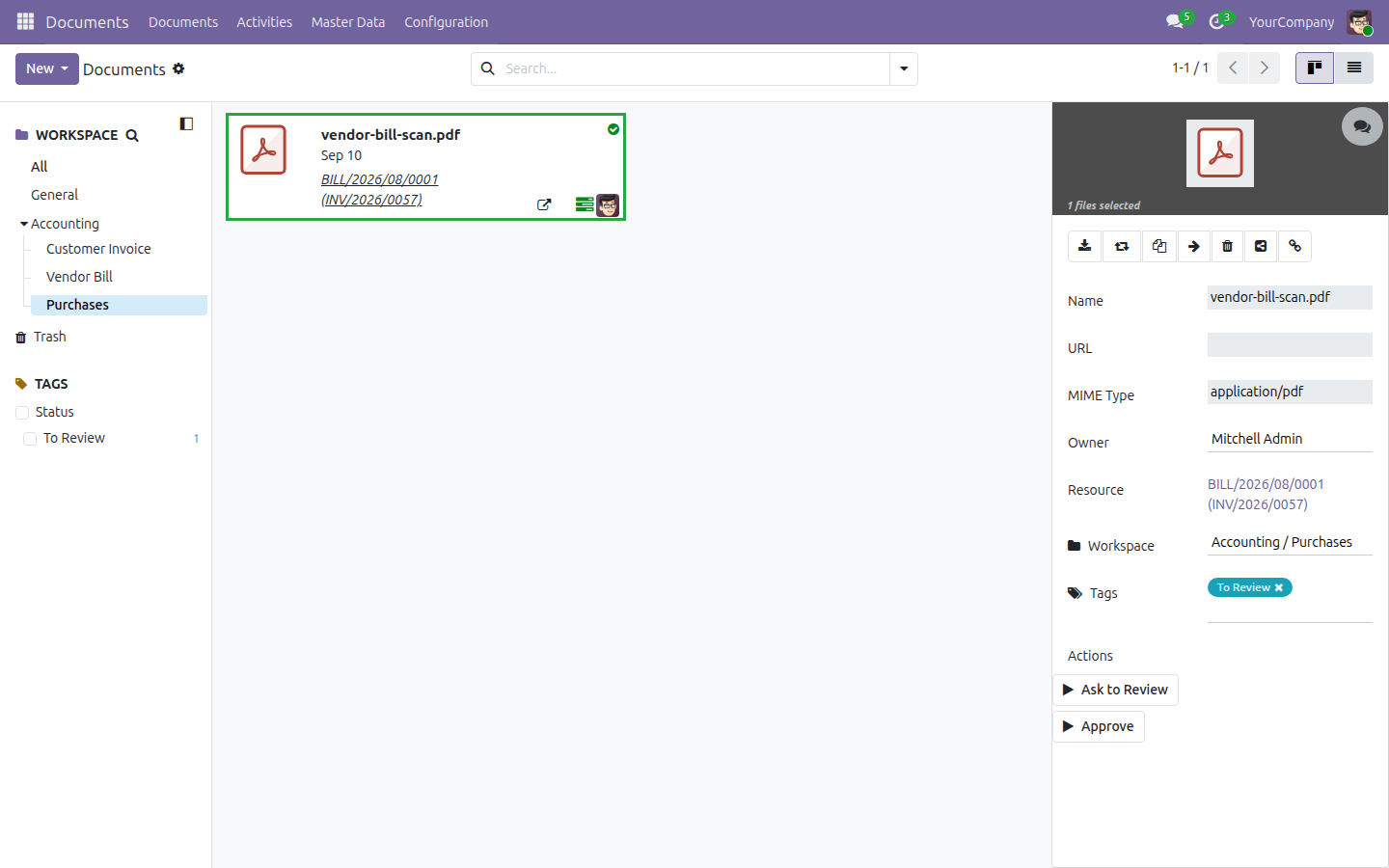
A clerk opens a vendor bill under Invoicing → Vendors → Bills and attaches the scanned copy through the chatter, exactly as they always have. In the background, Documents - Accounting reads the move's journal and files the attachment into a matching sub-workspace — nested under the shipped "Accounting" folder — without anyone picking a destination. The bill's form refreshes on its own, and a "Documents" button now shows a count of 1.
Later, whoever manages that journal can go the other way: open Invoicing → Configuration → Accounting → Journals, open the journal, and click its "Documents" stat button to see everything ever filed there — or click "Workspaces" to jump straight to the underlying folder.
What a Document Action Can Do (Example, Built on Sample Data)
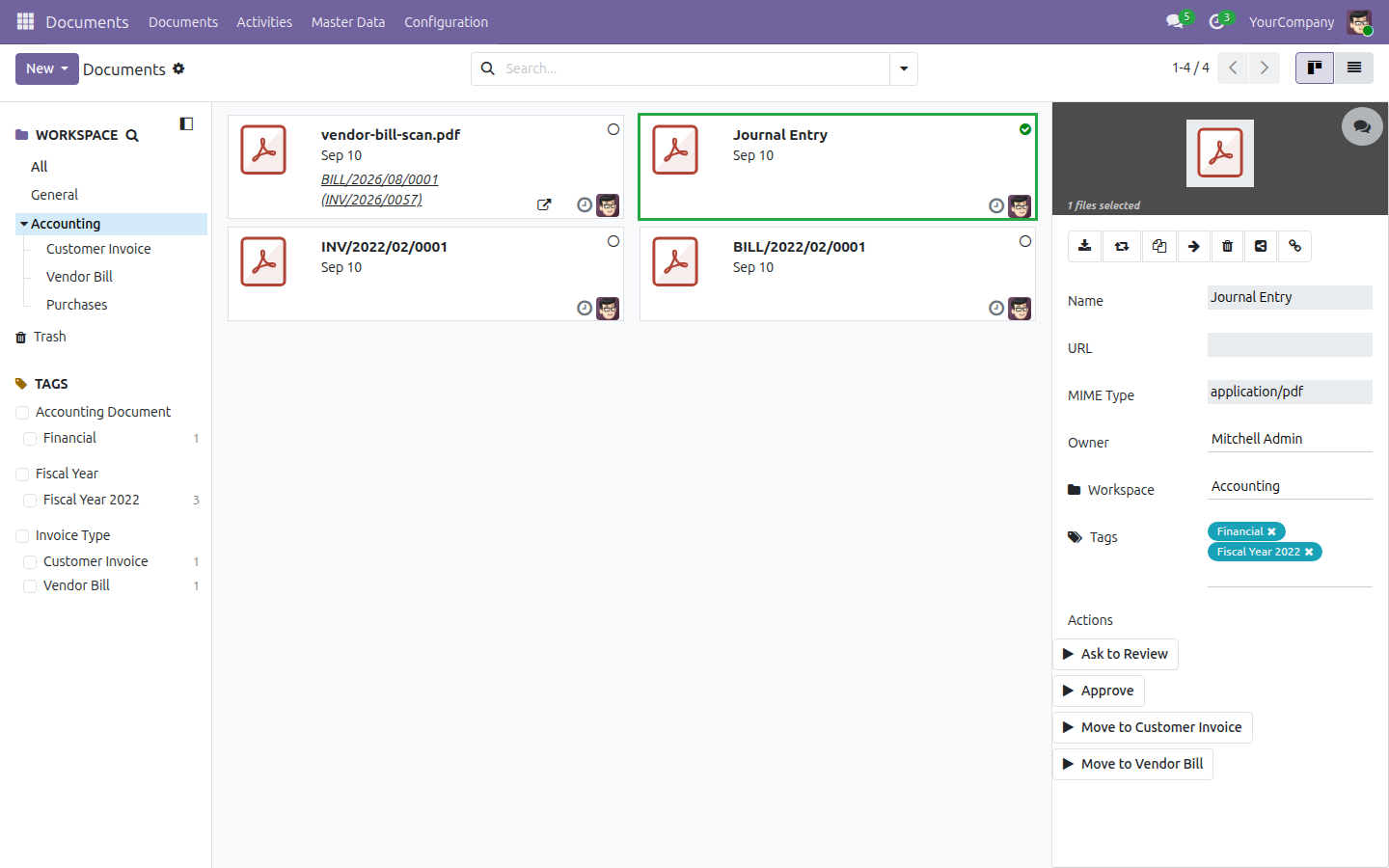
Install with demo data on, and you can see the kind of thing your own team could build once live: open Documents → Documents, select the sample "Journal Entry" document filed under Accounting, and click "Move to Customer Invoice" in the sidebar. The document is retagged and moved into the "Customer Invoice" sub-folder in one click. These two example actions ("Move to Customer Invoice" and "Move to Vendor Bill") ship only with the demo data for evaluation purposes — they are not created on a production install — and they exist to show what a one-click reclassification action can do, not to hand you a finished workflow.
Frequently Asked Questions
Does this need Odoo Enterprise?
No. Documents - Accounting runs on Odoo Community or Viindoo SaaS — no Enterprise edition or Enterprise-only app required.
Will it install itself once I have the Accounting app?
No. This module does not auto-install. Install it explicitly whenever you want your invoices, bills and journal entries linked to the Documents app.
What does it depend on?
Two modules: viin_document (the Documents app itself) and Odoo's own
account app. Install both first if you don't already have them.
Does everything here work without demo data?
The parts that matter day to day, yes: the Accounting workspace, its tags, its team, and the rule that auto-files invoice and bill attachments all ship as real data and are there the moment you install. The "Move to Customer Invoice" / "Move to Vendor Bill" actions mentioned above are sample data included only for evaluation — they are not created on a production install. You can build the same kind of action for your own workspace once you're live.
Who can move or reclassify a filed document?
It depends on how the document got there. A document that was auto-filed from an
invoice or bill follows that same invoice or bill's own edit permission — so
an Invoicing user can send it for review or approve it on their own day-to-day
journals, the same way they can already edit that invoice or bill. The two sample
actions above ("Move to Customer Invoice" and "Move to Vendor Bill") are different:
they live on the shared Accounting folder itself, which is reserved for the
Accounting Administrator role (account.group_account_manager) —
an Invoicing-only user will see those two buttons but get an access error if they
use them. Worth planning for before rollout.
Technical Requirement
- Odoo version: 19.0
- Editions: Odoo Community, Viindoo SaaS
- Required modules:
viin_document,account - License: OPL-1
Need Help With Documents - Accounting?
Sales & Support
apps.support@viindoo.comDocuments - Accounting
Note
Extends viin_document - see its documentation: ../../viin_document/doc/index.rst
This guide walks you through filing, organizing and securing accounting paperwork - vendor bills, customer invoices, receipts and journal entries - once this app is installed. It adds a ready-made folder and tags to the Documents app, a filing rule that routes attachments there automatically, and two shortcuts on the Invoicing app's journal and invoice/bill forms.
Installation
- Go to Apps.
- Search for viin_document_account.
- Click Activate.
Installing this app also installs its two requirements, Documents Management and Invoicing, if they are not already installed.
Configuration
Nothing needs to be set up before you start filing documents. On install, this app automatically creates:
- The Accounting folder in the Documents app, already tagged and secured for accounting use.
- 3 tag categories and 10 tags for classifying accounting paperwork (Invoice Type, Accounting Document, Fiscal Year).
- The Accounting team, so a user without Invoicing or Accounting access can still be granted visibility through team membership.
- A filing rule that creates one folder per accounting journal, nested under Accounting, and routes every attachment added to an invoice or bill into the matching folder.
See the "Review how the Accounting folder is organized and secured" scenario below for exactly what got created and who can see or edit it.
Usage
The scenarios below use this database's real Purchases journal and its real filed vendor bill throughout. The last two scenarios use the sample documents that ship only when demo data is enabled at install, and are described as such.
Check how many documents are filed for a journal
- Go to Invoicing ‣ Configuration ‣ Accounting ‣ Journals.
- Open the journal you want to check - for example Purchases.
- Look at the button box. A Documents button appears there as soon as at least one document has been filed for that journal, and its number is the count of documents filed so far. A Workspaces button is always there, and jumps straight to the folder itself.
- Click Documents to open the list, already scoped to this journal's own folder, nested under Accounting.
File a scanned invoice or bill
- Open the invoice or bill - for example Invoicing ‣ Vendors ‣ Bills, then open a posted bill.
- In the chatter, click the paperclip icon and add the file (PDF, image, scanned document, etc.).
- Wait a moment - the record refreshes itself right after the attachment is logged, and a Documents stat button appears in the button box showing a count of 1.
The file is filed automatically into the folder for that bill's journal, nested under Accounting - the same mechanism shown above. It arrives without any tag; adding a tag afterwards, from the Documents app, is a manual step.
This keeps working for every new attachment you add after install, not only for the first one.
Review how the Accounting folder is organized and secured
- Go to Documents ‣ Master Data ‣ Workspaces, then open Accounting.
- Open the Access Right tab to check who can read or write documents filed here.
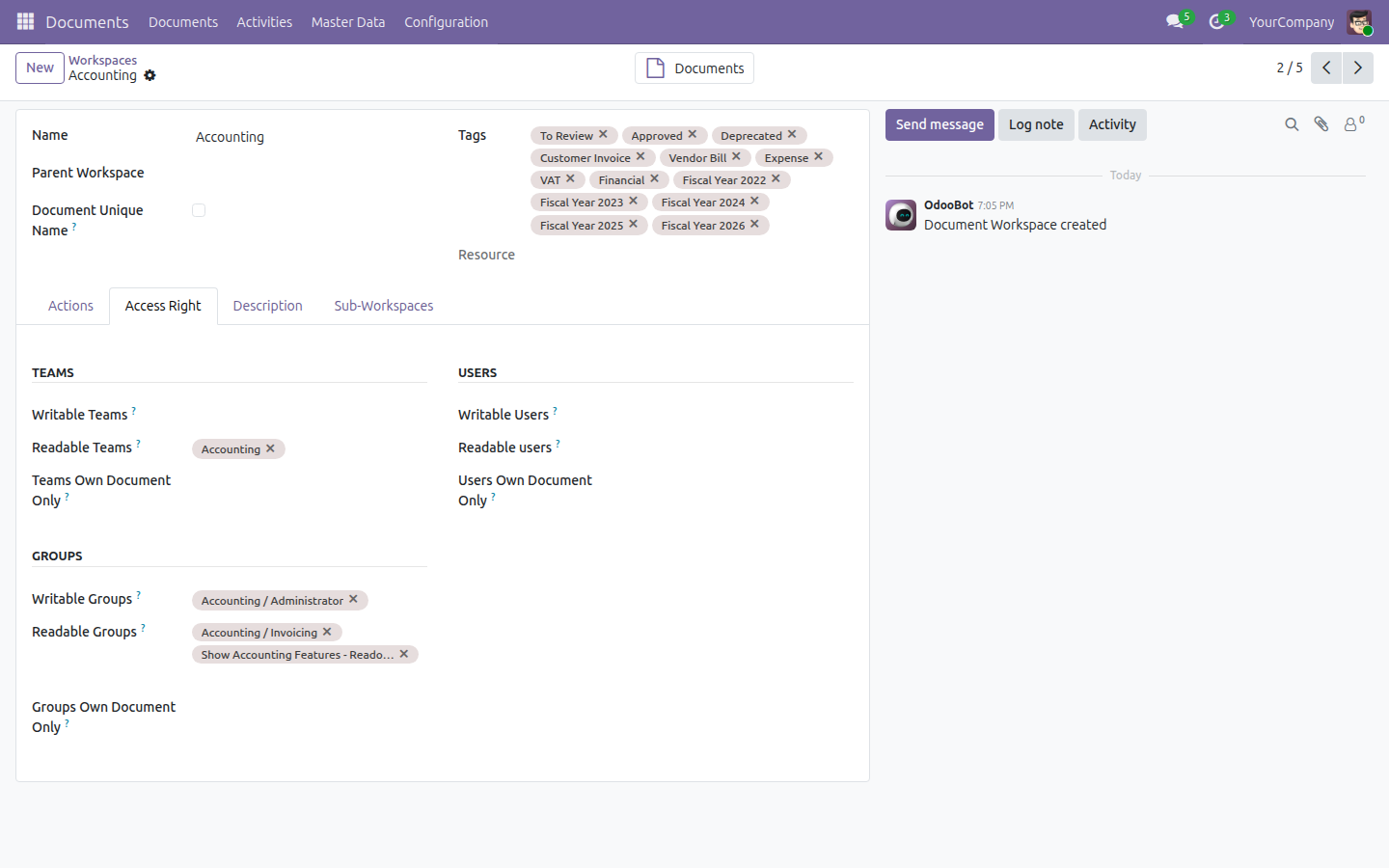
The Accounting folder ships with its Writable Groups set to Accounting / Administrator and its Readable Groups set to Accounting / Invoicing and Show Accounting Features - Readonly, plus Accounting in Readable Teams.
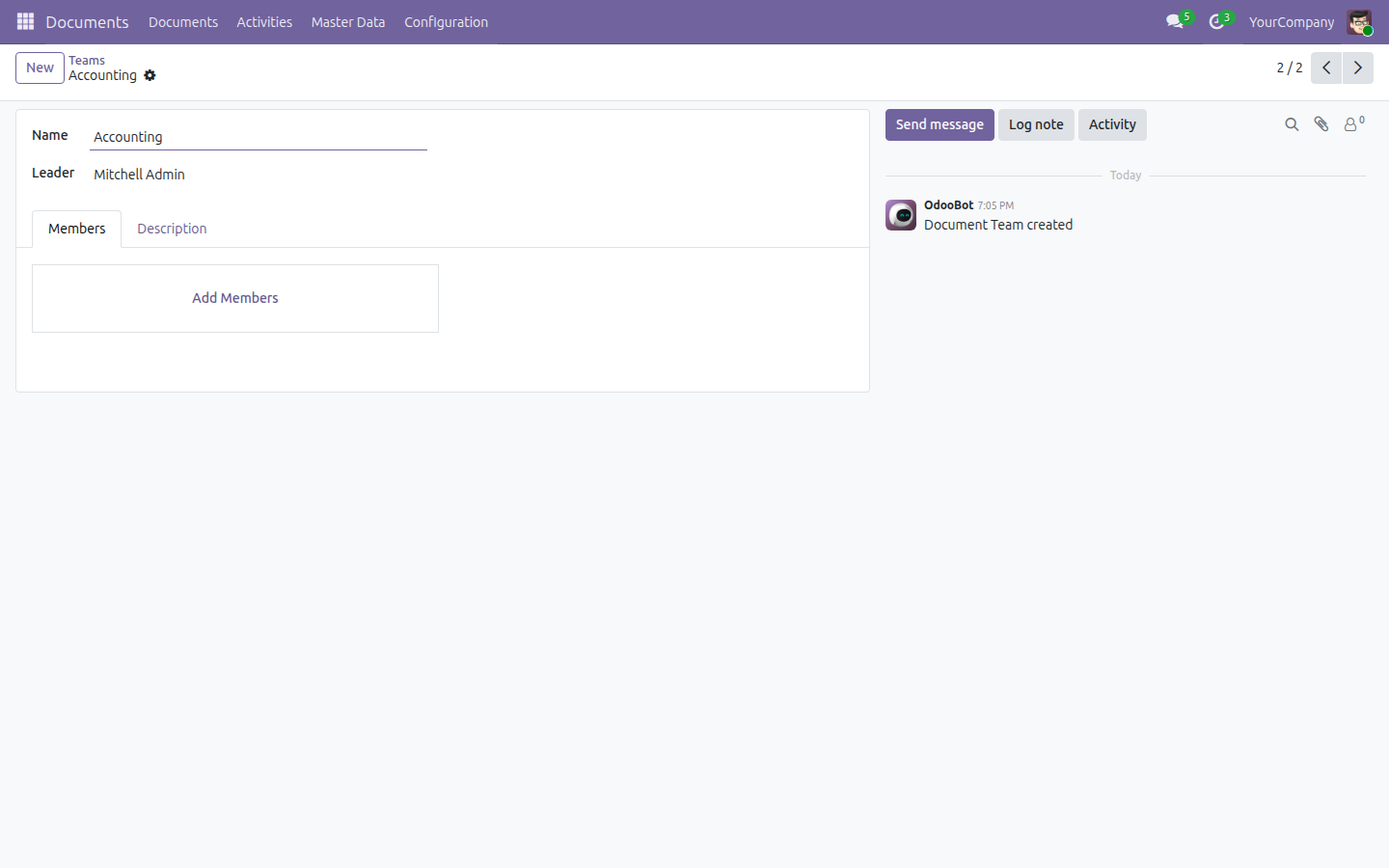
- Go to Documents ‣ Master Data ‣ Teams, then open Accounting, to see who is covered by that team.
Whether a user can act on a document they did not file themselves - clicking Ask to Review or Approve, for example - depends on the document, not on a single access right:
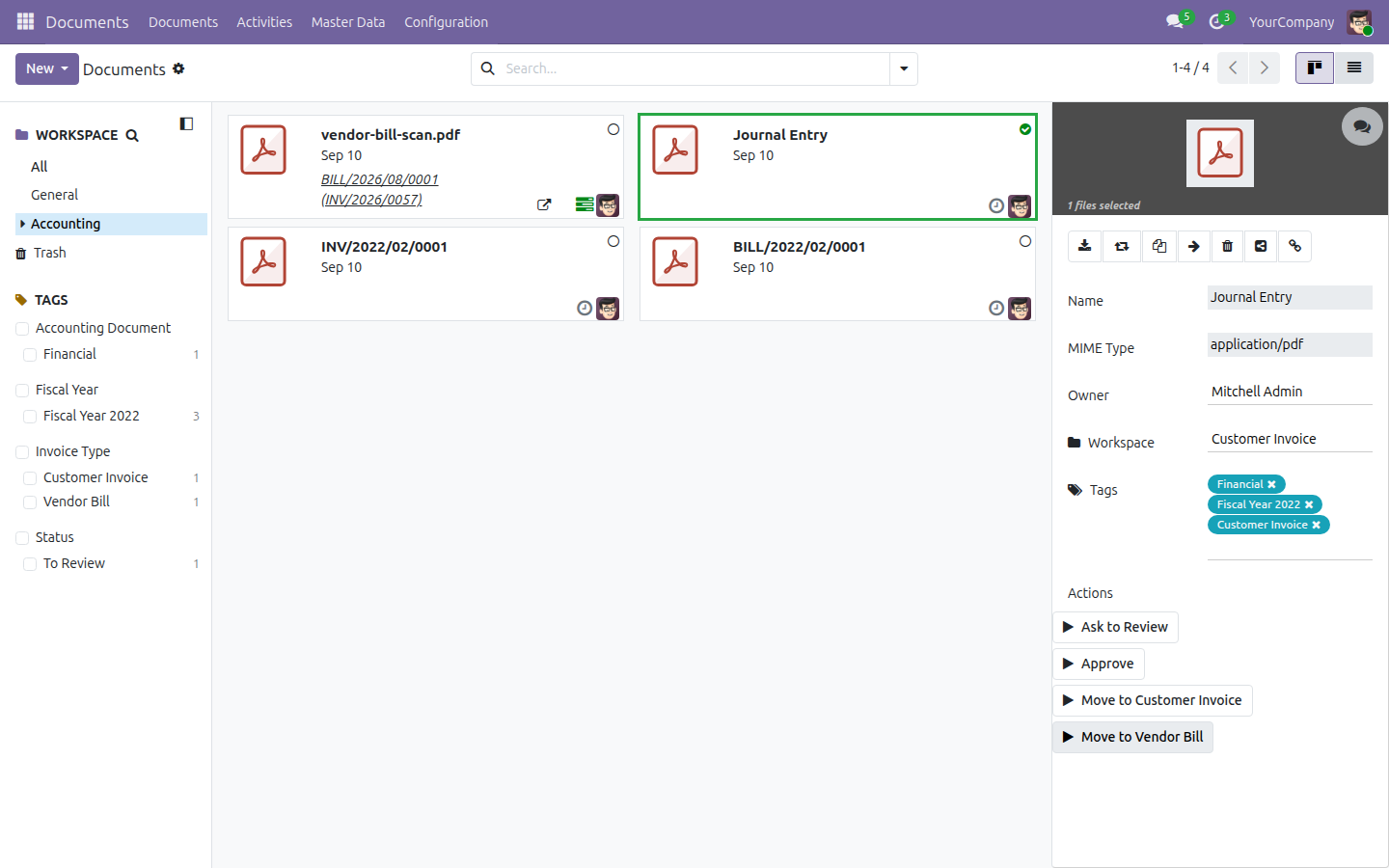
- A document that shows a value in its Resource field (see the BILL/2026/08/0001 bill in the screenshot above) was filed from a real invoice or bill. Anyone who already has Invoicing access - the same access that let them post that invoice or bill - can act on it.
- A document with no Resource value only follows the folder's own Writable/Readable Groups above, which for the shipped Accounting folder means Accounting / Administrator access. The two demo documents used in the next two scenarios are of this kind.
Reclassify a document as a Customer Invoice (demo example)
This scenario only works when demo data was enabled at install. It uses the sample Journal Entry document and the two sample actions the demo data ships, Move to Customer Invoice and Move to Vendor Bill, as an illustration of what a document action can do. Neither the sample document nor these two actions exist on a plain, demo-off install; build your own from Documents ‣ Configuration ‣ Actions (see the viin_document documentation) if your team wants the same pattern.
- Go to Documents ‣ Documents, select Accounting in the folder tree, then click the Journal Entry card.
- In the right-hand panel, under Actions, click Move to Customer Invoice.
The document is retagged Customer Invoice and moved into the Customer Invoice folder nested under Accounting.
Reclassify a document as a Vendor Bill (demo example)
Also demo-only, using the complementary "wrong bucket" action: the sample document INV/2022/02/0001 ships already filed in the demo Customer Invoice folder, with a Move to Vendor Bill action available for exactly this case.
- Go to Documents ‣ Documents, select Accounting ‣ Customer Invoice in the folder tree, then click the INV/2022/02/0001 card.
- In the right-hand panel, under Actions, click Move to Vendor Bill.
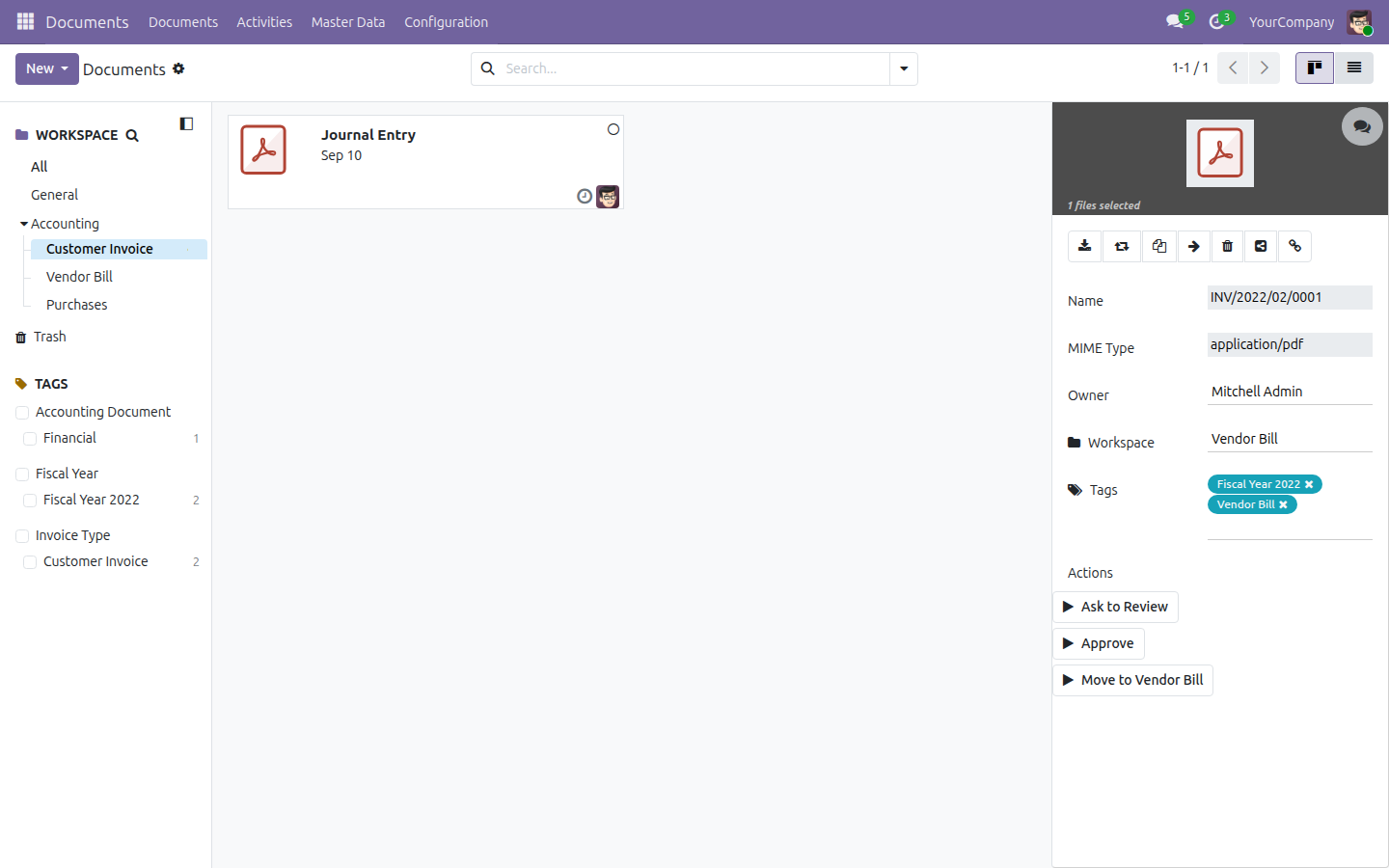
The document is retagged Vendor Bill and moved into the Vendor Bill folder nested under Accounting.
Troubleshooting
- The Documents button is missing from an invoice or bill. It only appears once at least one document has been filed for that record - attach a file first, as shown above.
- A tag you applied does not show as a colored chip on the card. A tag needs a color assigned to it to appear on the card face; a tag with no color still works for filtering and search, it is simply invisible on the card. Open the tag from Documents ‣ Master Data ‣ Tags and give it a color.
- You cannot run an action on a document. This depends on how the document got there - see "Review how the Accounting folder is organized and secured" above for the two cases.
- Move to Customer Invoice / Move to Vendor Bill are not available. These two actions ship only with demo data, as sample actions. They are not part of a production install; build your own action from Documents ‣ Configuration ‣ Actions if you want the same pattern.
- A journal's folder never appears. The folder is created the first time an attachment is added to a posted invoice or bill in that journal - it will not exist for a journal with no filed attachments yet.
FAQ
Do I need to configure anything before filing my first document?
No. The folder, tags, team and filing rule are all created automatically when this app is installed.
Are documents filed automatically also tagged automatically?
No. Only the destination folder is chosen automatically; applying a tag is a manual step, done from the Documents app.
What happens to attachments that existed before I installed this app?
They are filed retroactively in a one-time pass when the app is installed; every attachment added afterwards is filed as it comes in.
Who can see documents filed under Accounting?
Users with Invoicing access, users with the "Show Accounting Features - Readonly" access, and members of the Accounting team; editing them requires Accounting / Administrator access, unless the document was filed from a real invoice or bill the user can already edit.
Can I create my own actions like Move to Customer Invoice?
Yes - actions are configured the same way for every folder; see the viin_document documentation for how to add one.
Instruction video
This software and associated files (the "Software") may only be used (executed, modified, executed after modifications) if you have purchased a valid license from the authors, typically via Odoo Apps, or if you have received a written agreement from the authors of the Software (see the COPYRIGHT file).
You may develop Odoo modules that use the Software as a library (typically by depending on it, importing it and using its resources), but without copying any source code or material from the Software. You may distribute those modules under the license of your choice, provided that this license is compatible with the terms of the Odoo Proprietary License (For example: LGPL, MIT, or proprietary licenses similar to this one).
It is forbidden to publish, distribute, sublicense, or sell copies of the Software or modified copies of the Software.
The above copyright notice and this permission notice must be included in all copies or substantial portions of the Software.
THE SOFTWARE IS PROVIDED "AS IS", WITHOUT WARRANTY OF ANY KIND, EXPRESS OR IMPLIED, INCLUDING BUT NOT LIMITED TO THE WARRANTIES OF MERCHANTABILITY, FITNESS FOR A PARTICULAR PURPOSE AND NONINFRINGEMENT. IN NO EVENT SHALL THE AUTHORS OR COPYRIGHT HOLDERS BE LIABLE FOR ANY CLAIM, DAMAGES OR OTHER LIABILITY, WHETHER IN AN ACTION OF CONTRACT, TORT OR OTHERWISE, ARISING FROM, OUT OF OR IN CONNECTION WITH THE SOFTWARE OR THE USE OR OTHER DEALINGS IN THE SOFTWARE.