
Documents - HR
by Viindoo
| Lines of Code | 891 |
| Technical name | viin_document_hr |
| License | OPL-1 |
| Website | https://viindoo.com/apps/modules/19.0/viin_document_hr |
| Read description for | v 14.0 v 15.0 v 16.0 v 17.0 v 18.0 |
| Required Apps | Discuss (mail) Employees (hr) |
| Included Dependencies | Viindoo Base Documents Management Multilingual Tracking Token Expiration |
| Extensions | Documents - Recruitment Documents - Payroll |
Every employee's paperwork, filed where HR already looks for it
Documents - HR connects the Documents app to Employees, so contracts, certificates, ID scans and other employee paperwork are filed against the right person automatically - instead of sitting scattered across inboxes, shared drives and personal folders.
Extends viin_document - see its documentation.
At a Glance
The facts of Documents - HR in one place. Published by Viindoo.
Stop hunting for employee paperwork
Attach a contract, certificate or ID scan to an employee's record and it's filed automatically into a dedicated HR workspace the moment it saves. No more emailing to ask who has the latest copy, and no more digging through a shared drive.
A visible trail for HR document approvals
Route a filed document through "Ask to Review" and "Approve" (or escalate with "Send to Legal") and its status tag and pending activity update as it moves. Whoever filed it and whoever signs off can both see exactly where it stands, without a side conversation.
No Enterprise license required
Documents - HR runs on Odoo Community and Viindoo SaaS. Your HR team gets a working document workflow on the edition you already have - no Enterprise upgrade to budget for.
Key Features
Auto-filing on upload
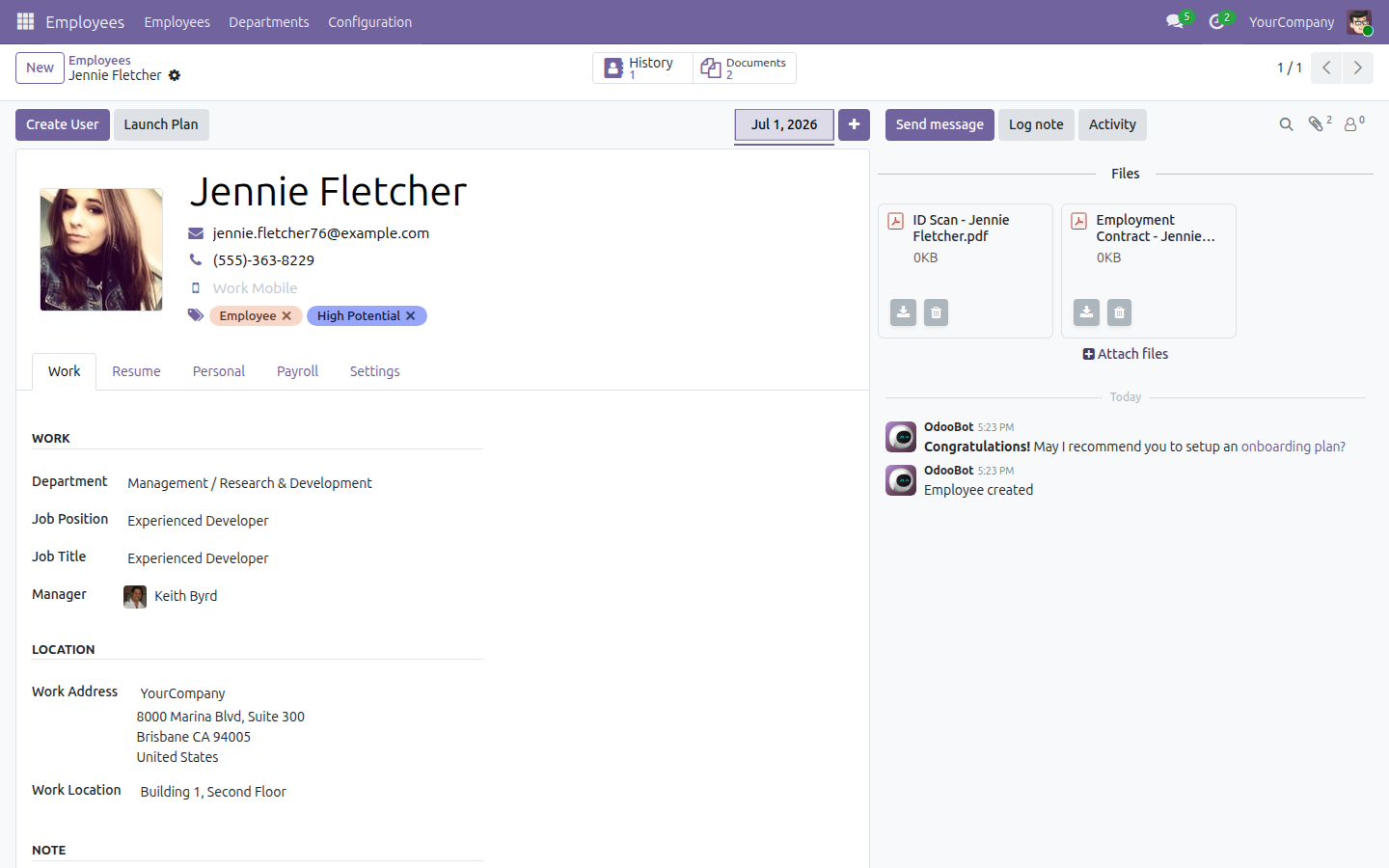
Attach a file to an employee's chatter - an ID scan, a signed contract, a certificate - and the module's filing rule places it straight into the HR workspace as soon as it's saved. There is no separate "send to Documents" step to remember, and no document that only lives in an email thread.
A "Documents" button on the employee's own form
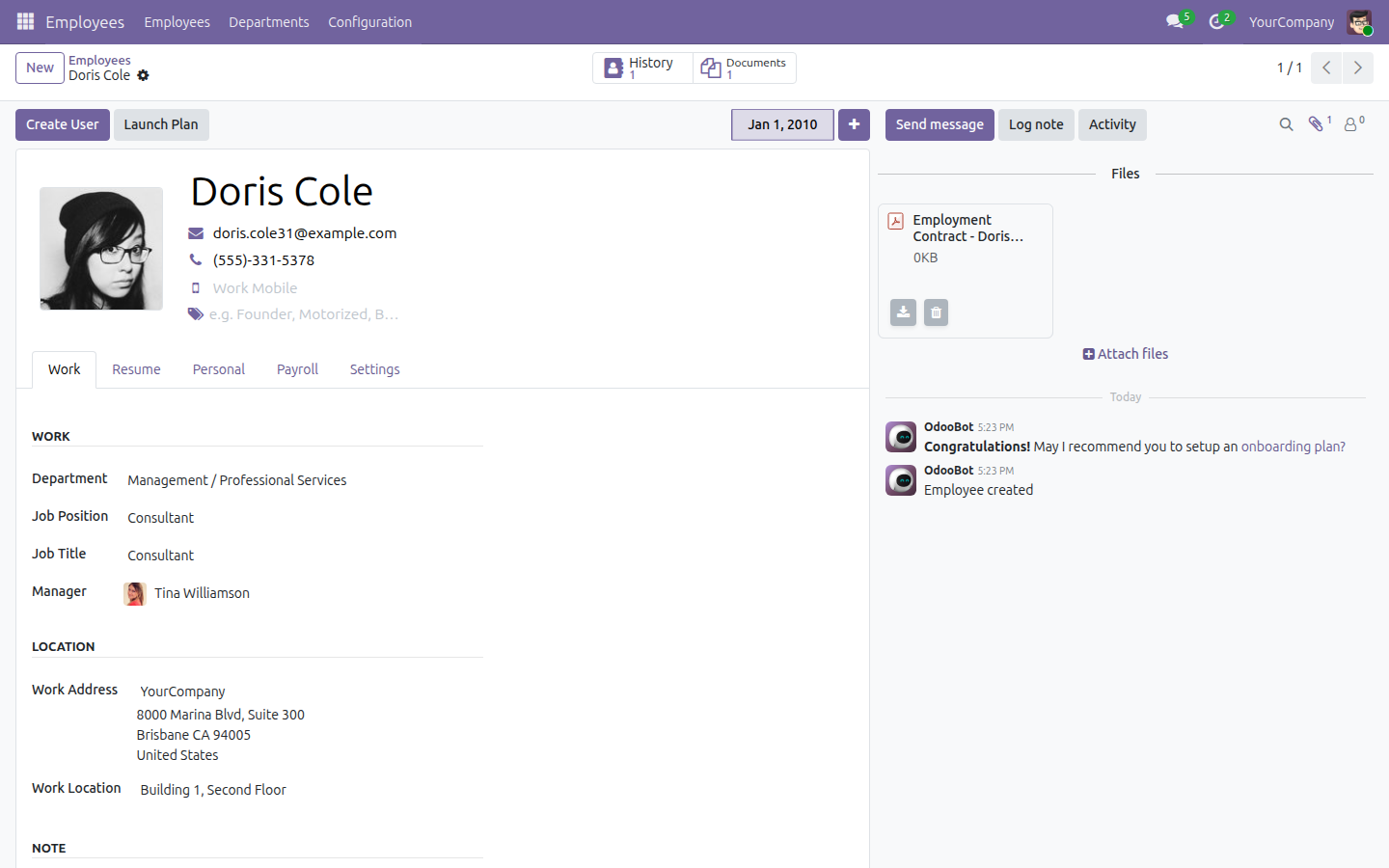
The moment a document exists for that person, a stat button appears on their record. Click it and the Documents app opens already filtered to that one employee - no searching the wider Documents app for the right file.
A working HR workspace and tag vocabulary from day one
Installing the module also installs a ready-made "HR" workspace (with an "HR / Document" sub-workspace), an "HR" document team, and three tags - "Employee Document", "Certification", "HR" - already in place. There is no setup screen to fill in before HR can start filing.
Review, approval and escalation actions wired for HR paperwork
"Ask to Review", "Approve", "Send to Legal" and "Mark As Deprecated" are available on every document filed in the HR workspace, and each one updates the document's status tag and any pending review activity as the paperwork moves through the process.
How It Works
An HR Officer opens an employee's record in the Employees app and attaches a file from the chatter - a signed contract, an ID scan, whatever needs to be on file for that person.
The moment the attachment saves, it's filed automatically into the "HR / Document" workspace. Back on the employee's form, a "Documents" stat button now shows a count.
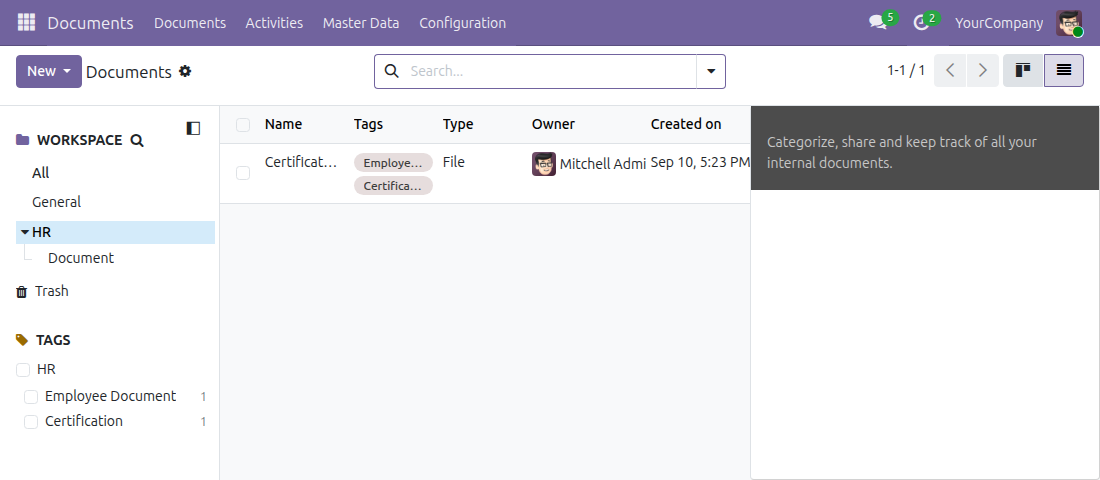
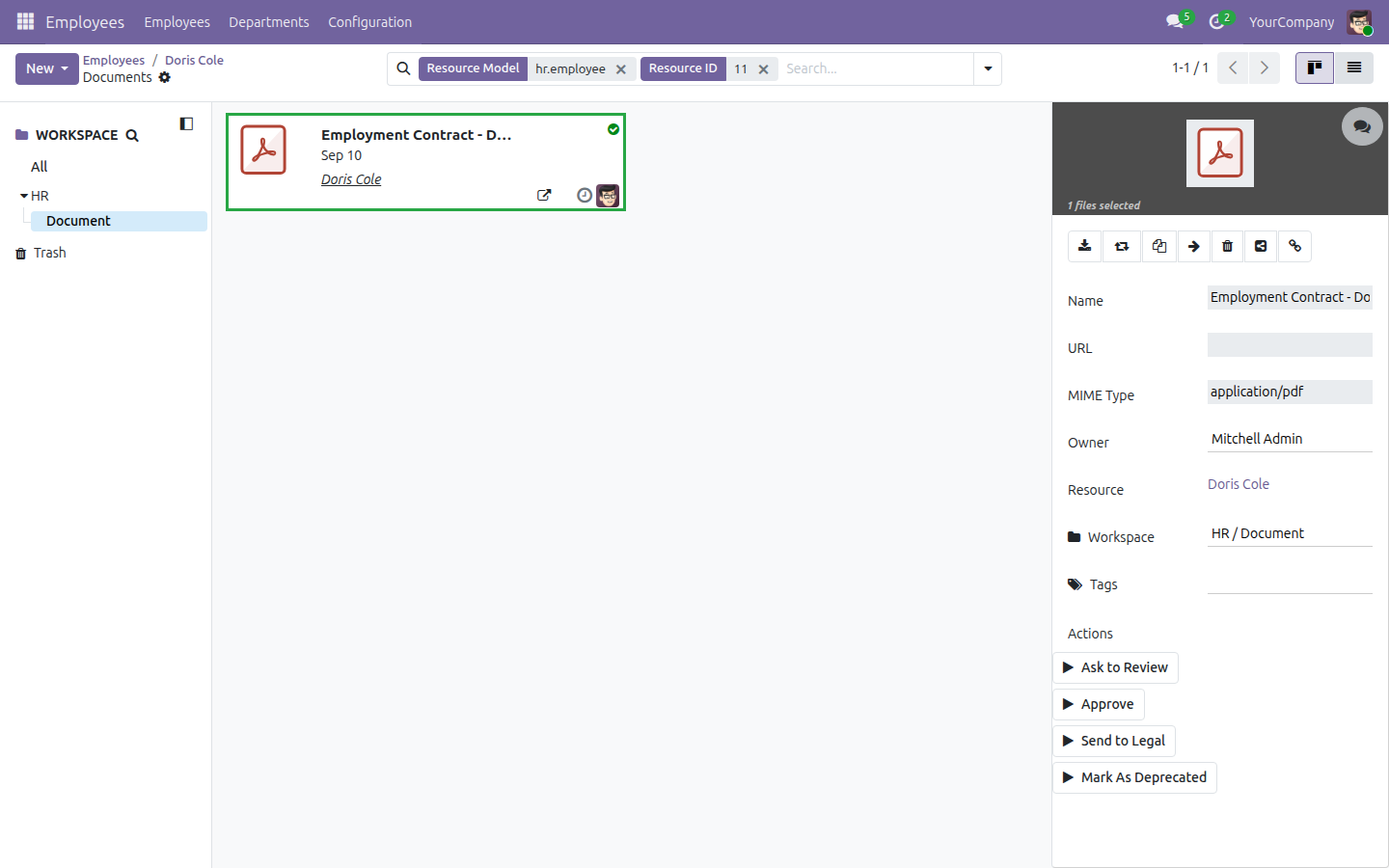
Clicking that button opens the Documents app already filtered to this one employee, showing the file that was just uploaded - filed, but with no tags applied yet, since tagging is a manual step.
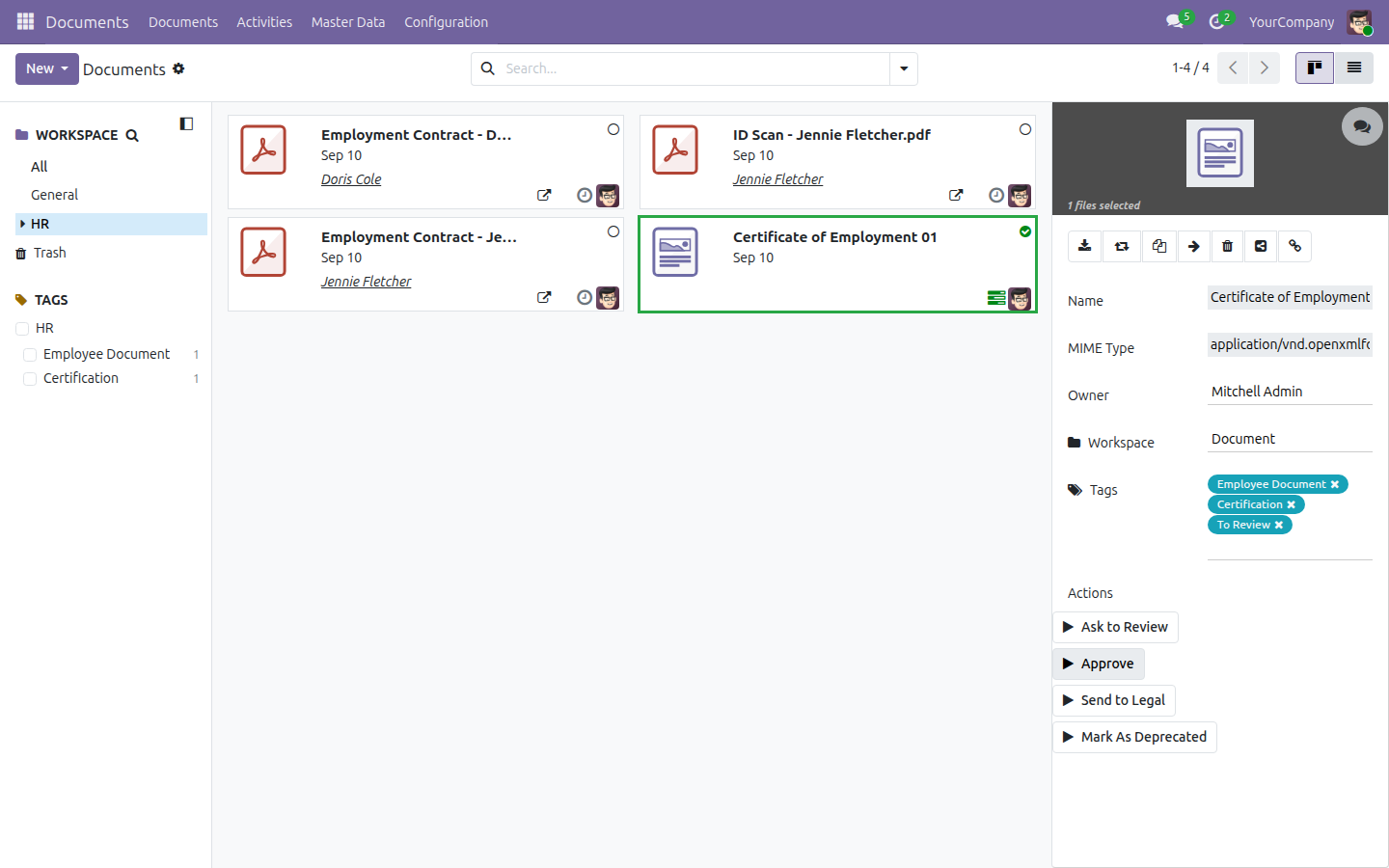
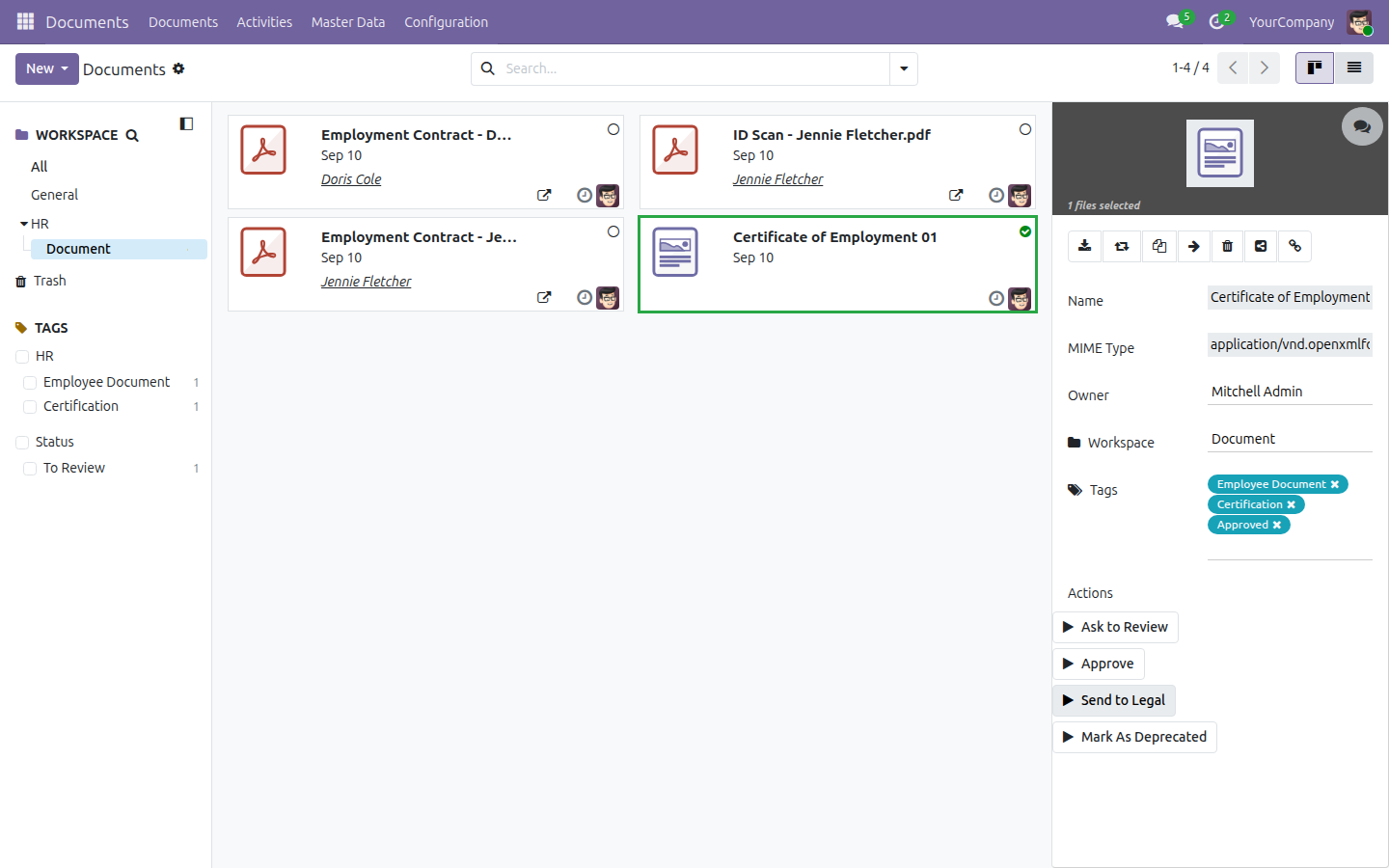
An HR Administrator - the role with write access on the HR workspace - can then apply a tag, run "Ask to Review" to flag it for a second look, and later "Approve" it: the review activity it raised closes automatically and the document's status tag updates to "Approved".
Frequently Asked Questions
Who can see an employee's documents once they're filed?
Any HR Officer (hr.group_hr_user - "Employees / Officer: Manage all
employees") can open and read every employee's documents filed under HR, not only the
ones for people they manage. This is workspace-level access by design: the HR workspace
is built for a team that is already trusted to see the whole personnel file inside the
Employees app itself. There is no per-employee, per-manager or per-department narrowing
built into this module. If your HR policy needs finer-grained visibility, check this
before installing - this module does not provide it.
Can an HR Officer actually run document actions like "Approve" or "Send to Legal"?
Yes. Document write access follows the write access on the record a document is filed against, and an HR Officer already has write access on Employees - so an Officer can run "Ask to Review", "Approve", "Send to Legal" and "Mark As Deprecated" on any employee's filed document, not just see the buttons. The one thing an Officer cannot do is close a review activity that was raised for someone else - that specific step returns an access error naming the activity, since clearing another user's activity needs a right beyond document write. Plan roles with that boundary in mind, not an Administrator-only one.
Does each employee get their own folder?
No. Every employee's documents, across the whole company, file into one shared "HR / Document" workspace - not a folder per employee. Use the ready-made tags ("Employee Document", "Certification", "HR") or the employee's own "Documents" button to find what you're looking for inside that shared space.
Does this also cover job candidates and CVs?
No. Documents - HR is scoped to people already on your payroll. Candidate CVs and recruitment paperwork are covered by the sibling module, Documents - HR Recruitment, which files per job position instead.
What do I need to install this, and does it need Odoo Enterprise?
Documents - HR depends on hr and the Documents app
(viin_document) - install those first; it does not activate itself
automatically, so you add it when you're ready to start filing HR documents. It runs on
Odoo Community and Viindoo SaaS - no Enterprise license required. The HR workspace,
team, tags and filing rule are installed as real data on any install, not demo data -
only one sample document needs demo data turned on to see a filled-in example.
Technical Requirement
- Odoo version: 19.0
- Editions: Odoo Community, Viindoo SaaS
- Required modules:
viin_document,hr - License: OPL-1
Need Help With Documents - HR?
Sales & Support
apps.support@viindoo.comDocuments - HR
Note
Extends viin_document - see its documentation (viin_document documentation).
Bridges the Documents app and the Employees app: every file attached to an employee's record is filed automatically into a ready-made HR workspace, with tags, a document team and review actions already set up.
Installation
- Open Apps.
- Search for Documents - HR.
- Click Activate.
This module depends on the Documents and Employees apps; Odoo installs both automatically if they are not already present.
Configuration
Everything you need is created automatically when the module installs - there is nothing you must configure before using it. The following places let you review or adjust what was created:
- Documents ‣ Master Data ‣ Workspaces - a pre-made HR workspace with a Document sub-workspace, where every employee document is filed.
- Documents ‣ Master Data ‣ Teams - a pre-made HR team, led by the Administrator user by default, that is notified about documents filed in the HR workspace.
- Documents ‣ Master Data ‣ Tag Categories and Documents ‣ Master Data ‣ Tags - a pre-made HR tag category with the Employee Document, Certification and HR tags, ready to classify filed documents.
- Documents ‣ Configuration ‣ Document Generation Rule - the rule that automatically files every new attachment on an Employee record into HR ‣ Document.
Access rights
Any user with Officer: Manage all employees access (or higher) can open and read every document filed in the HR workspace - not only documents about their own record, their team, or their department. This is the intended design: the HR workspace is shared, not scoped per employee.
Completing a review action (for example Approve) is stricter: it closes an activity that Odoo scheduled for a specific person, usually the HR team's leader. Only that person, or a user with full HR administrator access, can complete it - see Troubleshooting below.
Usage
File a document from an employee's record
- Open Employees and select (or create) an employee.
- In the chatter on the right, click Attach files and choose a file - for example an ID scan or a signed contract.
- Odoo files the attachment into the HR workspace automatically. Click the employee's Documents button (in the button box, next to History) to jump straight to it.
The new document is owned by whoever uploaded it, filed under HR ‣ Document, and carries no tags yet - tagging stays a manual step.
Review and approve a filed document
- Open Documents ‣ Documents and select HR ‣ Document in the workspace panel on the left.
- Click a document, then click Ask to Review under Actions. Odoo replaces the Status tag with To Review and schedules a review activity.
- Once the review is done, click Approve. Odoo replaces the To Review tag with Approved and closes the review activity.
Any HR Officer can open a colleague's document
- As a user with Officer: Manage all employees access, open Documents ‣ Documents and select HR ‣ Document.
- Click any document filed there, including one that belongs to a colleague you never shared it with individually.
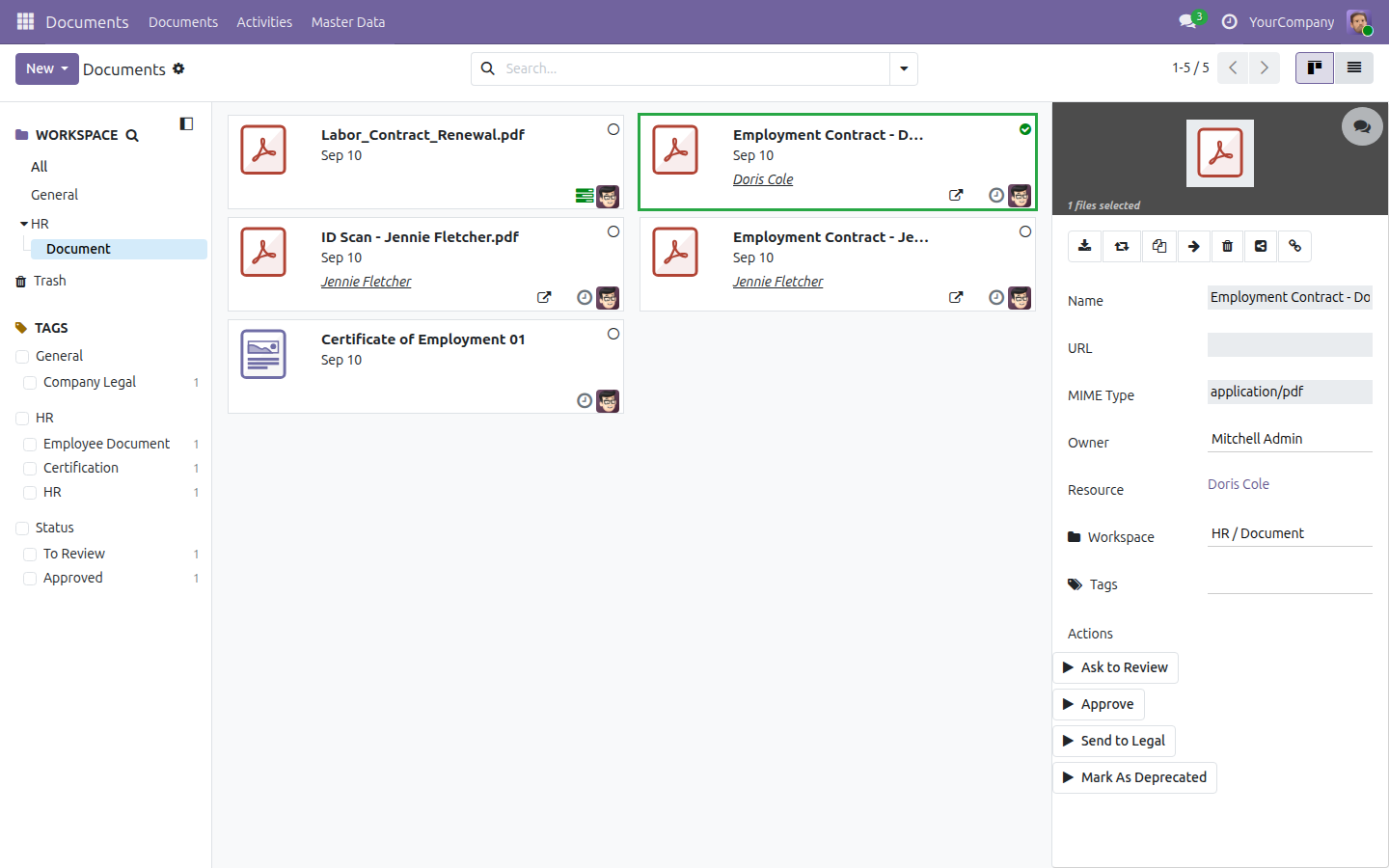
The document opens fully - name, the employee it belongs to, owner and content are all visible. Read access to the HR workspace is granted to every HR Officer, not scoped to individual employees.
Upload a document directly and send it to Legal
- Open Documents ‣ Documents, select HR ‣ Document, then click New ‣ Upload and choose a file.
- Apply the pre-made HR tag from the Tags field.
- Click Send to Legal under Actions.
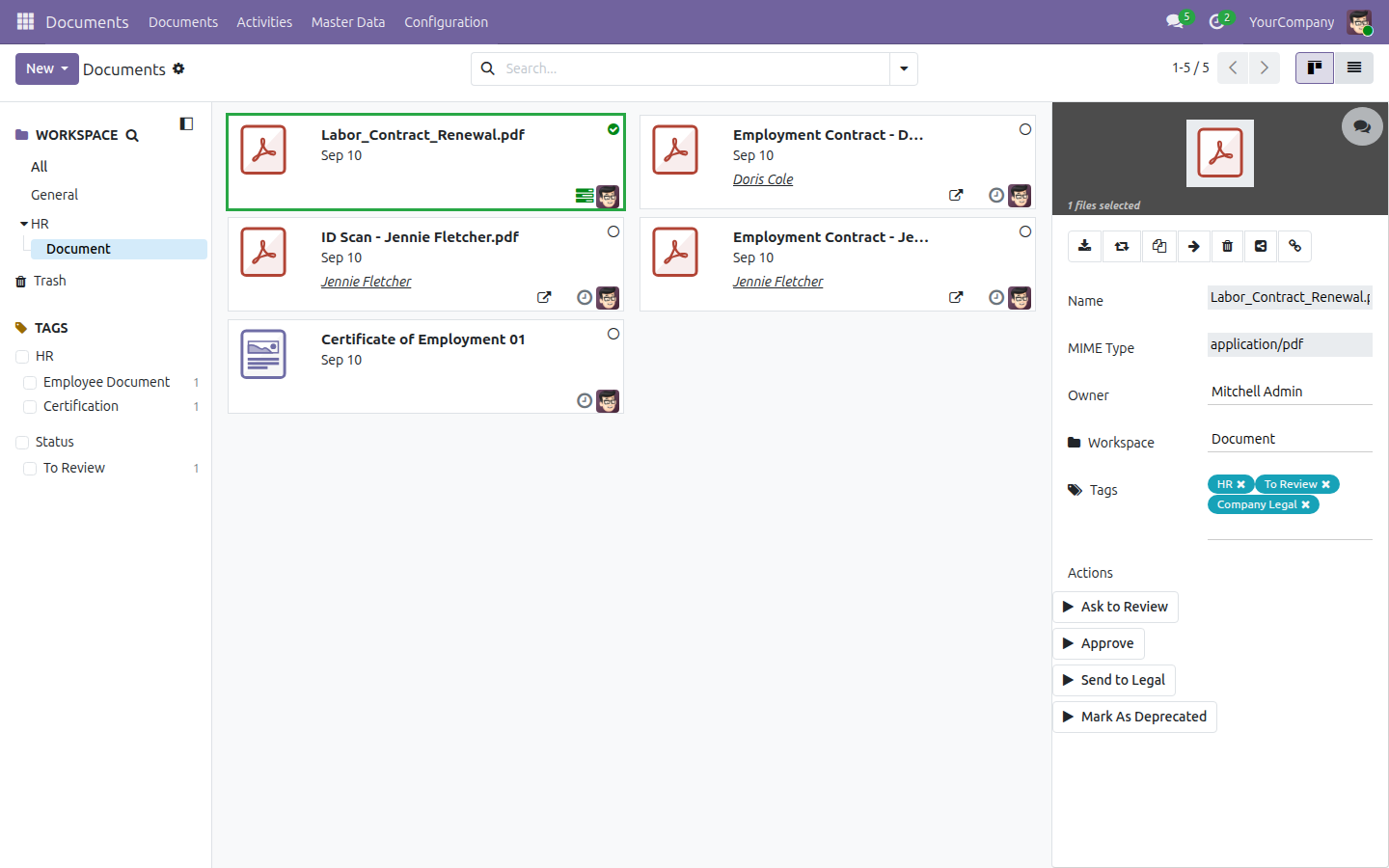
Odoo adds the To Review Status tag and the Company Legal tag, and schedules a follow-up activity - the pre-seeded HR data is usable immediately, even on a document the automatic filing rule never touched.
Troubleshooting
I clicked an action and got an "Access Error" message
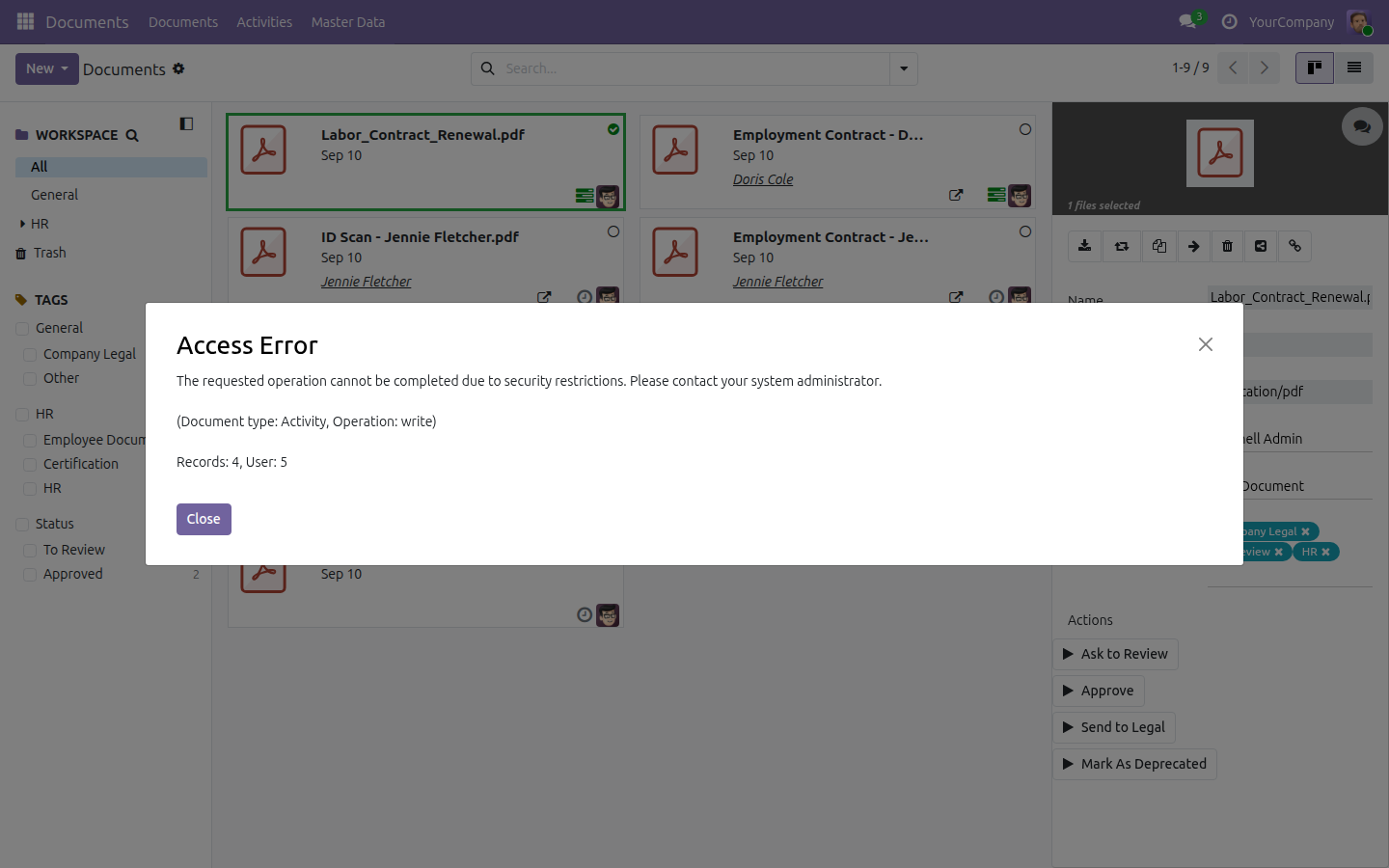
Every action button under Actions is visible to any HR Officer, but completing one (for example Approve) closes an activity that Odoo scheduled for a specific person - normally the HR team's leader. If you are not that person and do not have full HR administrator access, Odoo blocks the write and shows this message. Ask the person the activity is assigned to (or an administrator) to complete the action instead.
I do not see a "Documents" button on the employee form
The button only appears once at least one document has been filed for that employee - either through an attachment on the chatter, or uploaded directly into the HR workspace and linked to that employee.
FAQ
Is there a separate folder for each employee?
No. Every employee's filed documents land in the single shared HR ‣ Document workspace; there is no per-employee subfolder.
Who can see an employee's filed documents?
Anyone with Officer: Manage all employees access or higher - not only the employee's manager or department. This is the intended access model.
Do I need to tag a document myself after it is auto-filed?
Yes. Automatic filing applies the workspace, but never a tag - add tags manually from the document's Tags field.
Does this module require Odoo Enterprise?
No. It runs on Odoo Community.
Instruction video
This software and associated files (the "Software") may only be used (executed, modified, executed after modifications) if you have purchased a valid license from the authors, typically via Odoo Apps, or if you have received a written agreement from the authors of the Software (see the COPYRIGHT file).
You may develop Odoo modules that use the Software as a library (typically by depending on it, importing it and using its resources), but without copying any source code or material from the Software. You may distribute those modules under the license of your choice, provided that this license is compatible with the terms of the Odoo Proprietary License (For example: LGPL, MIT, or proprietary licenses similar to this one).
It is forbidden to publish, distribute, sublicense, or sell copies of the Software or modified copies of the Software.
The above copyright notice and this permission notice must be included in all copies or substantial portions of the Software.
THE SOFTWARE IS PROVIDED "AS IS", WITHOUT WARRANTY OF ANY KIND, EXPRESS OR IMPLIED, INCLUDING BUT NOT LIMITED TO THE WARRANTIES OF MERCHANTABILITY, FITNESS FOR A PARTICULAR PURPOSE AND NONINFRINGEMENT. IN NO EVENT SHALL THE AUTHORS OR COPYRIGHT HOLDERS BE LIABLE FOR ANY CLAIM, DAMAGES OR OTHER LIABILITY, WHETHER IN AN ACTION OF CONTRACT, TORT OR OTHERWISE, ARISING FROM, OUT OF OR IN CONNECTION WITH THE SOFTWARE OR THE USE OR OTHER DEALINGS IN THE SOFTWARE.