
Fleet Trip Accounting
| Lines of Code | 1200 |
| Technical name | viin_fleet_booking_account |
| License | OPL-1 |
| Website | https://viindoo.com/apps/modules/18.0/viin_fleet_booking_account |
| Read description for | v 10.0 v 11.0 v 12.0 v 13.0 v 14.0 v 15.0 v 16.0 v 17.0 |
| Required Apps | Invoicing (account) Discuss (mail) Employees (hr) Fleet (fleet) |
| Included Dependencies | Fleet Drivers Management Fleet Booking & Trip Management Fleet Loading Capacity Employee Documents Fleet Cost & Revenue Accounting QR Code Mixin Viindoo Base Accounting Foundation Advanced HR Management Viin Fleet |
| Extensions | Fleet Route Accounting - Cost by Geographical Route |

What did that trip actually cost
Each vehicle trip gets its own analytic account, so fuel, tolls and repairs land against the trip and not just the vehicle.
Fleet Trip Accounting (technical name viin_fleet_booking_account) is an Odoo 18.0 app for Odoo Community and Odoo Enterprise and Viindoo Cloud, built for fleet manager, finance, operations, management.
At a Glance
The facts of Fleet Trip Accounting, version 1.0.2, in one place. Published by Viindoo.
How It Works
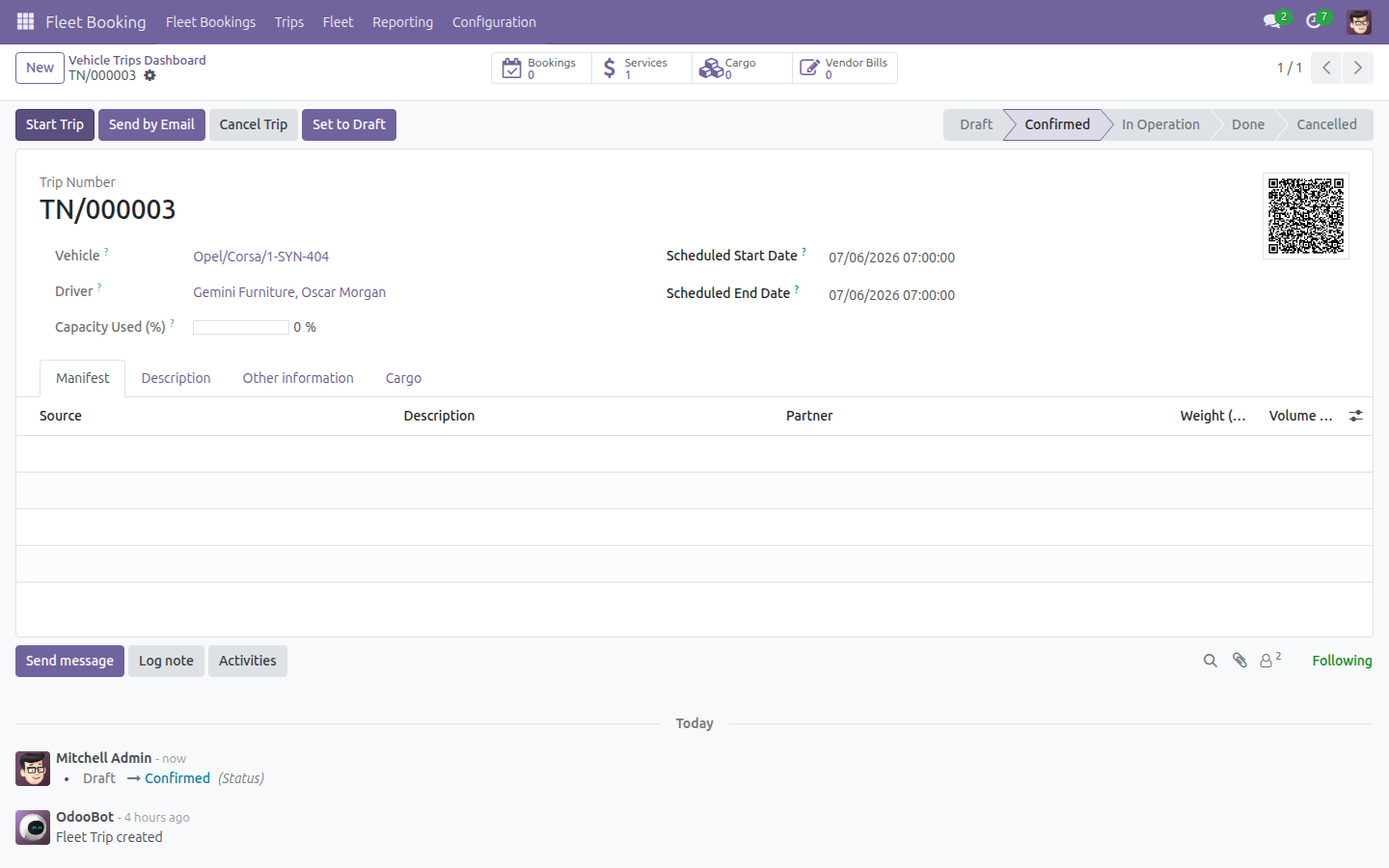
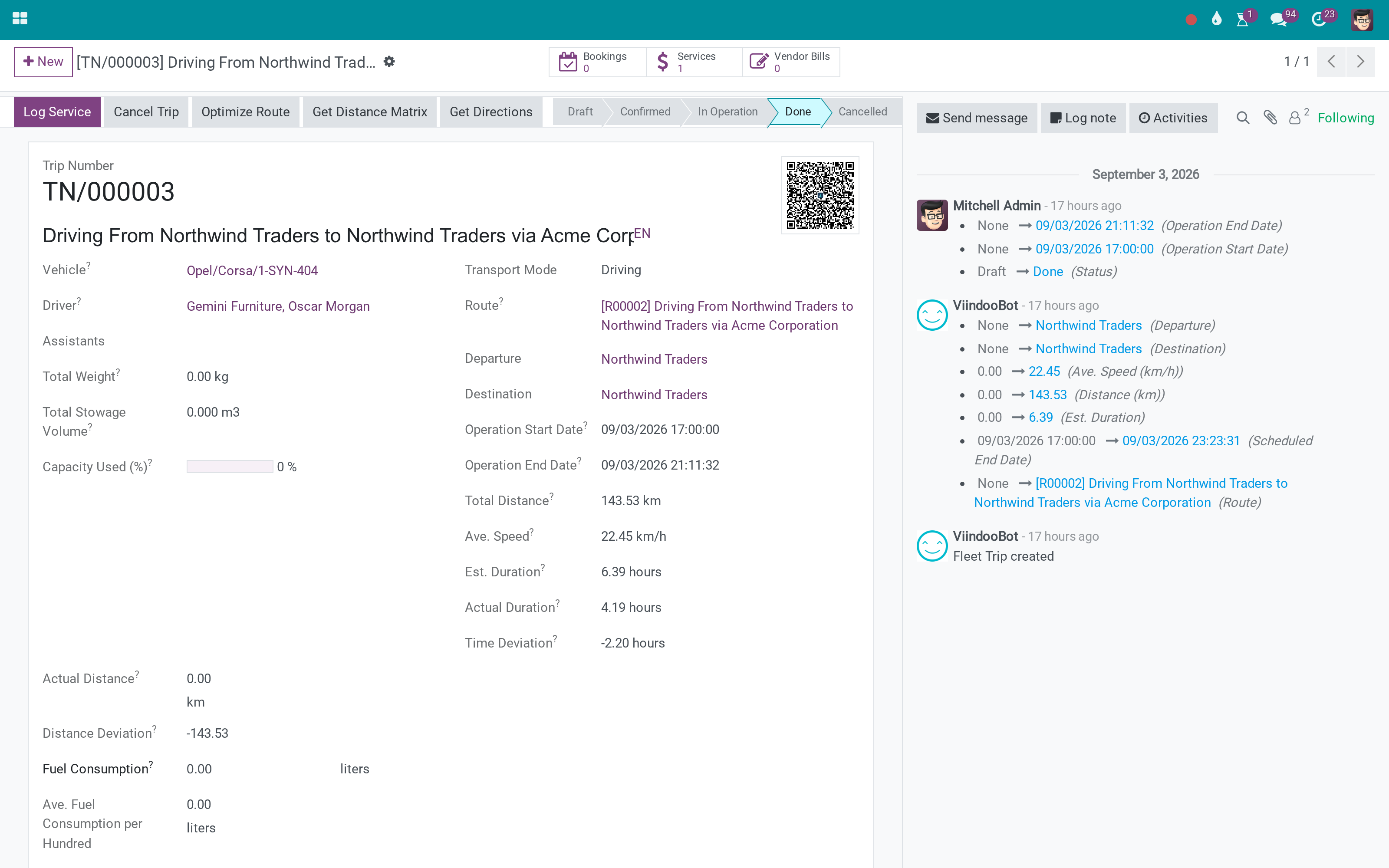
Three screens.
The trip
Its own analytic account, its vendor bills, its invoicing state.
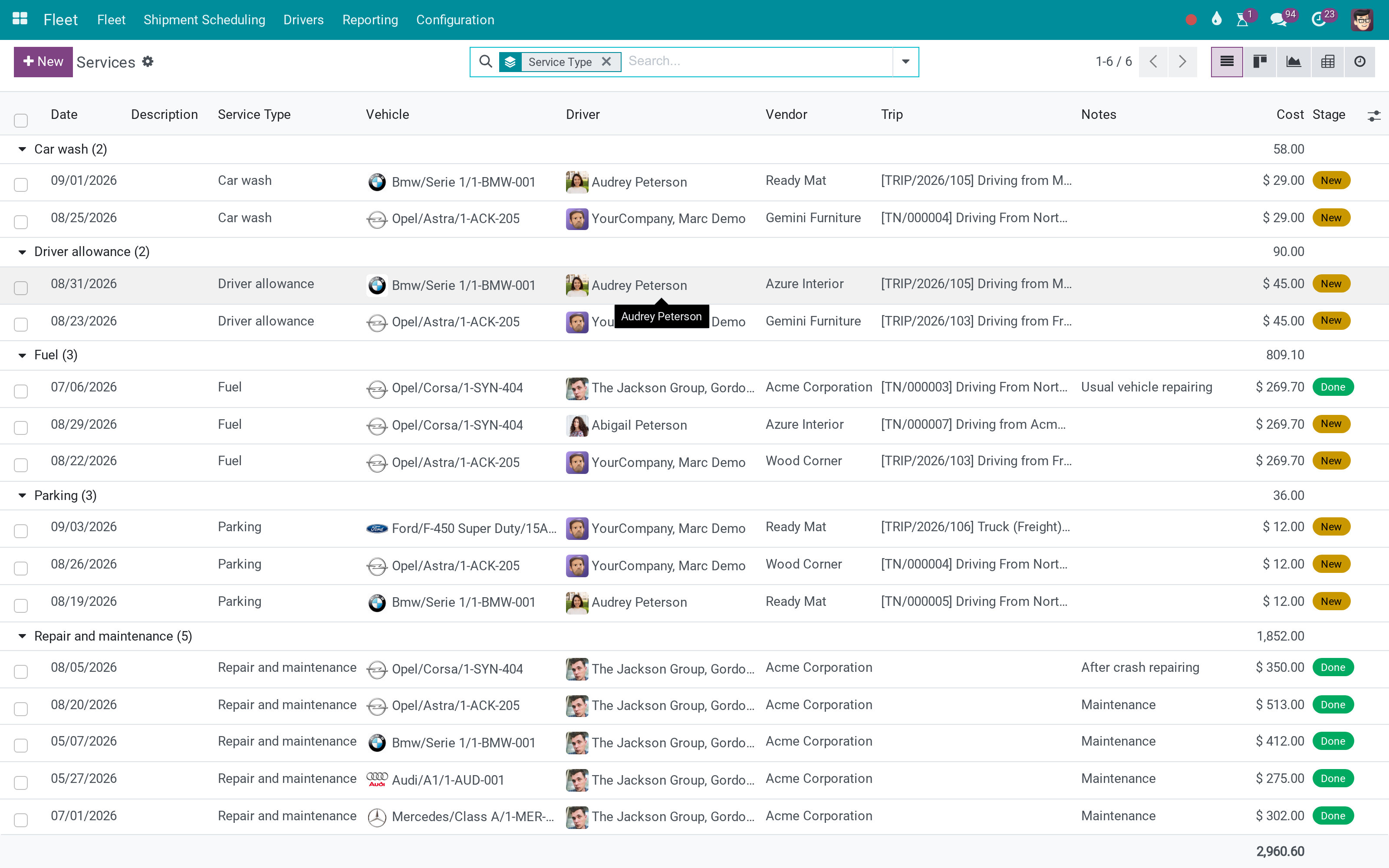
The costs on it
Fuel, tolls, parking - registered against the trip that incurred them.
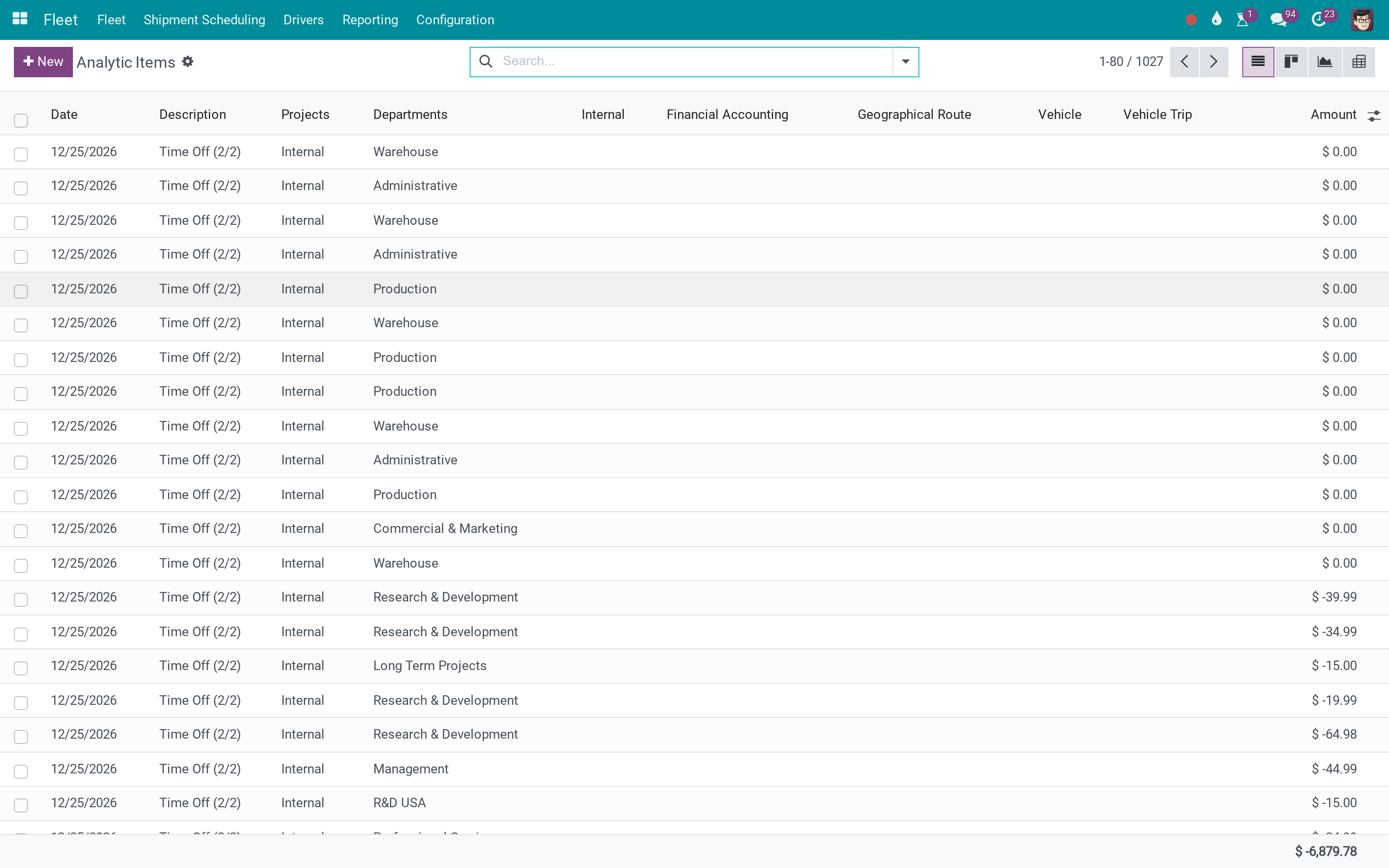
In the analytic ledger
The same amounts, readable next to every other analytic dimension.
What You Get
An analytic account per vehicle trip, on its own plan
Service costs registered on a trip land on that account
Vendor bills linked back to the trip
A flag for trips whose services are fully invoiced
Trip cost readable in ordinary analytic reporting
Works with the trips the Fleet Booking app already creates
More Screens
Everything below was taken on a database seeded with real business data, on this series - not a mock-up and not a screenshot from an older version.
Vehicle services
What This App Does Not Do
Read this before you buy. Everything below is something the app deliberately leaves to another app or to you.
What you charge is a sales decision.
Someone registers the fuel receipt; this module files it.
Labour cost comes from payroll analytic, if you post it.
There is no trip record without it.
Works Well With
Apps from the same stack, built to fit this one:
Who Should Use Fleet Trip Accounting?
Fleet manager
Sees the cost of a run, not just of a truck.
Finance
Allocates fleet cost to the job that caused it.
Operations
Compares two ways of covering the same route.
Management
Prices transport from measured cost.
Frequently Asked Questions
What does Fleet Trip Accounting do?
Each vehicle trip gets its own analytic account, so fuel, tolls and repairs land against the trip and not just the vehicle.
What does Fleet Trip Accounting not do?
It does not price the trip. What you charge is a sales decision. It does not capture the cost by itself. Someone registers the fuel receipt; this module files it. It does not allocate driver payroll. Labour cost comes from payroll analytic, if you post it. Trips need the Fleet Booking app. There is no trip record without it.
Who is Fleet Trip Accounting for?
Fleet manager: Sees the cost of a run, not just of a truck. Finance: Allocates fleet cost to the job that caused it. Operations: Compares two ways of covering the same route. Management: Prices transport from measured cost.
Which Odoo version and editions does it support?
Odoo 18.0 - Odoo Community, Odoo Enterprise, Viindoo Cloud. Upgrades to a newer Odoo series are a separate purchase for that series.
What does it depend on?
It installs on top of: viin_fleet_booking, viin_fleet_account. Odoo installs them with it.
How do I set it up?
Three screens.
What works well with it?
Fleet Booking (viin_fleet_booking): The bookings and trips themselves.Fleet Planning (viin_fleet_planning): Deciding which trip runs when.
Can I try it before buying?
Yes - the Live Preview button at the top of this page opens the module's own screen on a working database.
How do I get support?
Write to apps.support@viindoo.com with your Odoo version and the technical name viin_fleet_booking_account; pre-sales questions go to sales@viindoo.com.
See Fleet Trip Accounting in Action
Live demo: v18demo-int.viindoo.com/web#action=viin_fleet_booking.fleet_done_trips_action
Need help with Fleet Trip Accounting?
For questions, implementation support or a custom feature, contact Viindoo.
Pre-Sales & Partnership
sales@viindoo.comUpgrades to a newer Odoo series are a separate purchase for that series.
All Viindoo apps: apps.odoo.com/apps/modules/browse?author=Viindoo
Technical Requirement
Changes log
1.0.2 - Latest on the 17.0 line
- Trip analytic accounts live on their own analytic plan.
Fleet Trip Accounting - Cost & Revenue by Trip
Note
Extends viin_fleet_booking - see its documentation.
This guide shows how to track the real cost and revenue of every vehicle trip: each confirmed trip gets its own dedicated accounting record, vendor bills for trip-related vehicle services are split automatically between the vehicle and the trip, and the Trips Analysis report rolls everything up into one true per-trip cost figure.
Installation
- Go to Apps.
- Remove the default Apps filter and search for Fleet Trip Accounting.
- Click Install on the Fleet Trip Accounting - Cost & Revenue by Trip card - or simply
install both apps it builds on below and Odoo activates this one automatically for you:
- Fleet Booking & Trip Management - trip planning and booking (see its own guide).
- Fleet Cost & Revenue Accounting - the accounting layer this app extends.
Configuration
Access rights
Everyday use (confirming trips, billing services, reading the Trips Analysis report) only needs the fleet roles described in the Fleet Booking & Trip Management guide (Operator or Fleet Booking Administrator).
Two screens in this guide need a step up to full Accounting access, not just Billing:
- Invoicing > Configuration > Analytic Accounting > Analytic Accounts - lists every trip's dedicated account directly.
- The Journal Items tab on a vendor bill, where the combined vehicle/trip cost split is visible line by line.
That level ("Show Full Accounting Features") is a step above the standard Billing role and is granted by an administrator under Settings > Users & Companies > Users. If you only ever need the day-to-day fleet screens covered below, you can skip this and use the Group By > Analytic Account trick on the trip list instead (see Track each trip's own cost and revenue account below) - it works for any fleet role, no extra Accounting access required.
Analytic setup
Installing this app seeds a dedicated Vehicle Trip analytic plan (under Invoicing > Configuration > Analytic Accounting > Analytic Plans) alongside the existing Vehicle plan, so a vendor bill line can carry both dimensions at once - no manual setup is required before first use.
Usage
Track each trip's own cost and revenue account
When you confirm a trip, it automatically gets its own dedicated analytic account named after the trip - so every cost and every revenue booked afterwards can be traced back to that one trip.
Open Fleet Booking > Trips > Planning.

Click a Draft trip to open it.

Click Confirm Trip in the statusbar. The trip moves from Draft to Confirmed, and header buttons for Start Trip, Cancel Trip and Set to Draft appear.

To see the proof without needing Accounting access, go back to the trip list and use Filters > Group By > Analytic Account. Each confirmed trip shows up as its own group, named after the trip itself, while trips still in Draft fall under None.

Tip
With full Accounting access, the same account also shows up by name under Invoicing > Configuration > Analytic Accounting > Analytic Accounts.
Find trips still waiting on vendor billing
Two search filters on the trip list separate trips whose vehicle-service costs are fully billed from those still pending.
Open Fleet Booking > Trips > Planning and open Filters.
Select Services Uninvoiced to see only trips that still have a service waiting to be billed.

Switch to Services Invoiced to see the opposite - trips whose services are all billed (a trip with no services logged at all also counts as fully invoiced).

Open a fully-billed trip and click the Vendor Bills smart button in the button box. With exactly one bill behind the trip, it opens that vendor bill directly instead of a list.

Bill a trip-linked vehicle service
When a vehicle service is tied to a trip, billing it splits the cost between the vehicle's own analytic account and the trip's account in one line - not two separate postings.
Open Fleet Booking > Fleet > Services.
Tick a service line that has a Vendor, a Trip, and is not yet billed.

From Actions, choose Create Vendor Bills.

On the Create Vendor Bills wizard, click Create and View Vendor Bills. A draft vendor bill opens with one line for the service.

Click Confirm to post the bill. With full Accounting access, open the Journal Items tab on the posted bill: the line's Analytic column shows a single combined distribution split between the vehicle's and the trip's analytic accounts, summing to 100 percent - one line, not two.

Review a trip's true cost, including billed services
The Trips Analysis report folds vendor-billed vehicle-service amounts into each trip's cost, so the figure you see already includes services billed after the trip.
Open Fleet Booking > Reporting > Trips Analysis.
Adjust the filters if needed - by default the report only shows this year's Done trips; remove the Done filter to include Confirmed trips too.
Look at the Cost column for the vehicle used on your trip.

Confirm a billed service can no longer change its trip
Once a service has been billed, its Trip field is locked so the cost allocation used for billing cannot be silently reassigned afterwards.
Open Fleet Booking > Fleet > Services and open a service that already has a Vendor Bill Line.
The Trip field now shows as a plain link instead of an editable field.

Troubleshooting
- I confirmed a trip but cannot find its analytic account.
- Use Group By > Analytic Account on the trip list (see Track each trip's own cost and revenue account above) - it needs no extra access. The Invoicing > Configuration > Analytic Accounting > Analytic Accounts menu itself only appears for users with full Accounting access, not Billing.
- The vendor bill's Journal Items tab is missing.
- That tab is only visible to users with the Show Full Accounting Features access level. Ask an administrator to raise your access under Settings > Users & Companies > Users.
- The Trip field on a service is greyed out and I need to change it.
- That happens once the service has a Vendor Bill Line (its cost has already been billed). Reset the vendor bill to Draft or cancel it first if the trip really needs to change, then re-bill the service afterwards.
- A trip shows as "Services Invoiced" even though it has no services at all.
- That is expected - the filter treats a trip with nothing to bill as fully invoiced by definition.
FAQ
- Do I need to configure anything before confirming my first trip?
- No - the Vehicle Trip analytic plan is seeded automatically when the app installs.
- Can a vendor bill line be split across more than one trip?
- No - a vehicle-service line links to exactly one trip. Log separate service lines if a single vendor bill should cover several trips.
- Does this app change how vendor bills are created for services with no trip?
- No - services with no Trip set are billed exactly as before; only the analytic distribution changes for service lines that do have a trip.
This software and associated files (the "Software") may only be used (executed, modified, executed after modifications) if you have purchased a valid license from the authors, typically via Odoo Apps, or if you have received a written agreement from the authors of the Software (see the COPYRIGHT file).
You may develop Odoo modules that use the Software as a library (typically by depending on it, importing it and using its resources), but without copying any source code or material from the Software. You may distribute those modules under the license of your choice, provided that this license is compatible with the terms of the Odoo Proprietary License (For example: LGPL, MIT, or proprietary licenses similar to this one).
It is forbidden to publish, distribute, sublicense, or sell copies of the Software or modified copies of the Software.
The above copyright notice and this permission notice must be included in all copies or substantial portions of the Software.
THE SOFTWARE IS PROVIDED "AS IS", WITHOUT WARRANTY OF ANY KIND, EXPRESS OR IMPLIED, INCLUDING BUT NOT LIMITED TO THE WARRANTIES OF MERCHANTABILITY, FITNESS FOR A PARTICULAR PURPOSE AND NONINFRINGEMENT. IN NO EVENT SHALL THE AUTHORS OR COPYRIGHT HOLDERS BE LIABLE FOR ANY CLAIM, DAMAGES OR OTHER LIABILITY, WHETHER IN AN ACTION OF CONTRACT, TORT OR OTHERWISE, ARISING FROM, OUT OF OR IN CONNECTION WITH THE SOFTWARE OR THE USE OR OTHER DEALINGS IN THE SOFTWARE.