
Stock Internal Transit Valuation
| Lines of Code | 532 |
| Technical name | viin_stock_internal_transit_valuation |
| License | OPL-1 |
| Website | https://viindoo.com/apps/app/17.0/viin_stock_internal_transit_valuation |
| Read description for | v 10.0 v 11.0 v 12.0 v 13.0 v 14.0 v 15.0 v 16.0 |
| Required Apps | Invoicing (account) Discuss (mail) Inventory (stock) |
| Extensions | Stock Internal Transit Valuation - Specific Identification |

Stock Internal Transit Valuation
Automatically create accounting entries when validating stock move between internal and transit locations.
Display stock valuation account fields on transit locations. Automatic accounting entries creation for stock transfers from the internal to the transfer location and vice-versa, using the holding accounts configured on the transit location. Record the stock valuation modification in the Inventory Valuation report.
Key Features
Built natively on Odoo/Viindoo to streamline real business operations:
Automatically create accounting entries when validating stock move between internal and transit locations
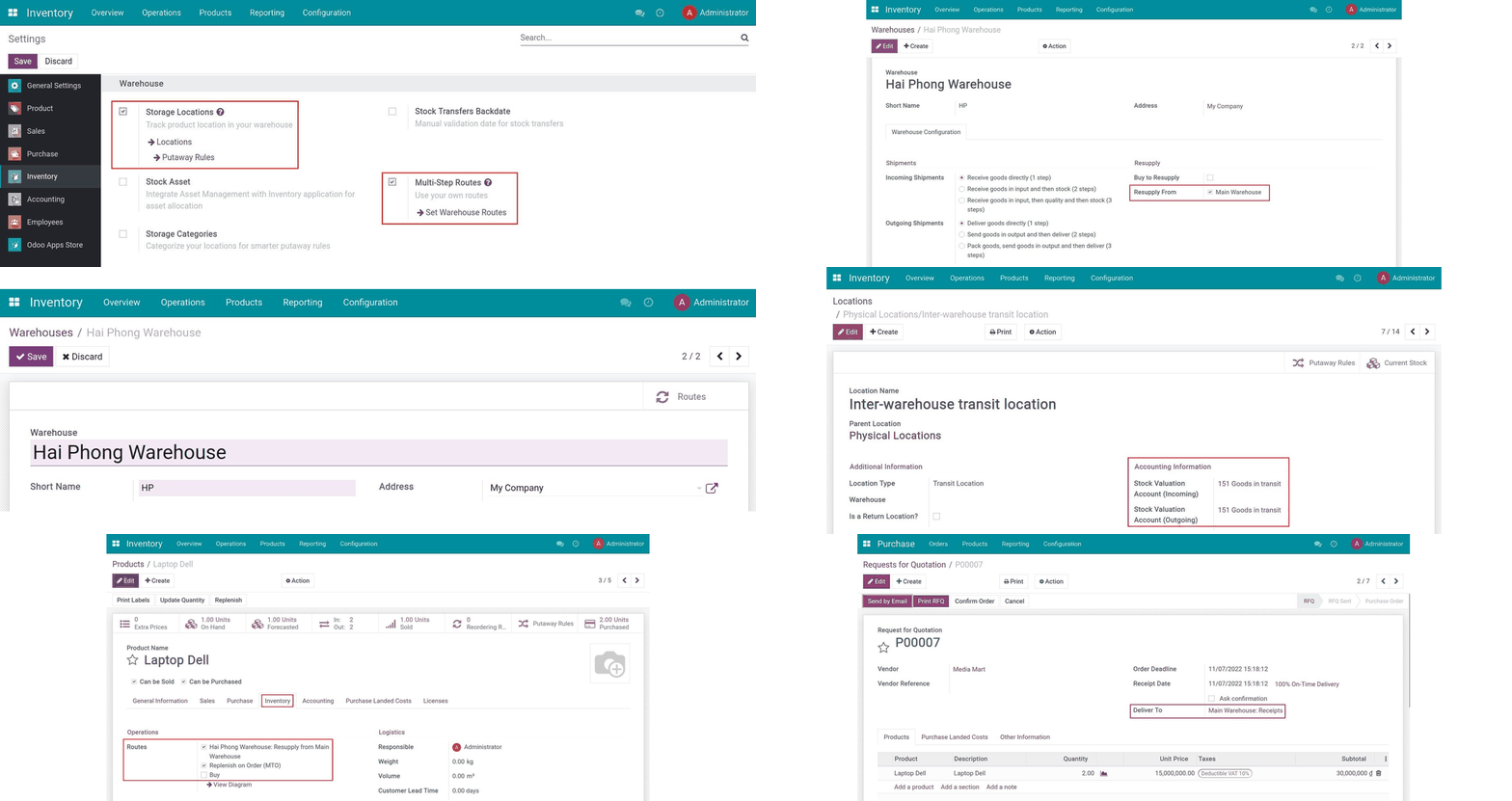
Activate Inventory features
Create a new warehouse in the Viindoo Inventory app
Enable resupply from main warehouse
Configure accounting accounts for transit location
Create a product in Viindoo ERP software
Create a purchase order with delivery to the main warehouse
See Stock Internal Transit Valuation in Action
See how this module solves real business problems in a working Viindoo environment.
Need help with Stock Internal Transit Valuation?
For questions, implementation support, or consulting services, contact Viindoo.
Pre-Sales & Partnership
When contacting us, please include:
- Odoo/Viindoo version (CE/EE).
- Number of users and business scope.
- Other modules currently in use.
Technical Support
For faster troubleshooting, please provide:
- Order number or app reference.
- Odoo/Viindoo version & edition.
- Steps to reproduce the issue.
- Screenshots/logs if available.
Technical Requirement
Works Great With These Modules
Extend Stock Internal Transit Valuation with complementary Viindoo apps:
Stock Internal Transit Valuation - Specific Identification
Extending Stock Internal Transit Valuation module to support specific identification valuation method
Module viin_stock_internal_transit_valuation_specific_identificationWho Should Use This Module?
Built for teams that need this capability fully integrated into their Odoo/Viindoo stack.
Executives & Business Owners
Need clear visibility into operations and a stack that scales without bespoke development.
Operations / Department Leaders
Want to streamline daily workflows, remove manual handoffs, and keep data consistent across teams.
Implementers & Odoo Partners
Looking for production-ready Viindoo modules to deliver projects faster and at lower risk.
Installation
- Navigate to Apps.
- Search with keyword viin_stock_internal_transit_valuation.
- Press Install.
Instructions
Instruction video: Stock Internal Transit Valuation
1. Create a new storage location
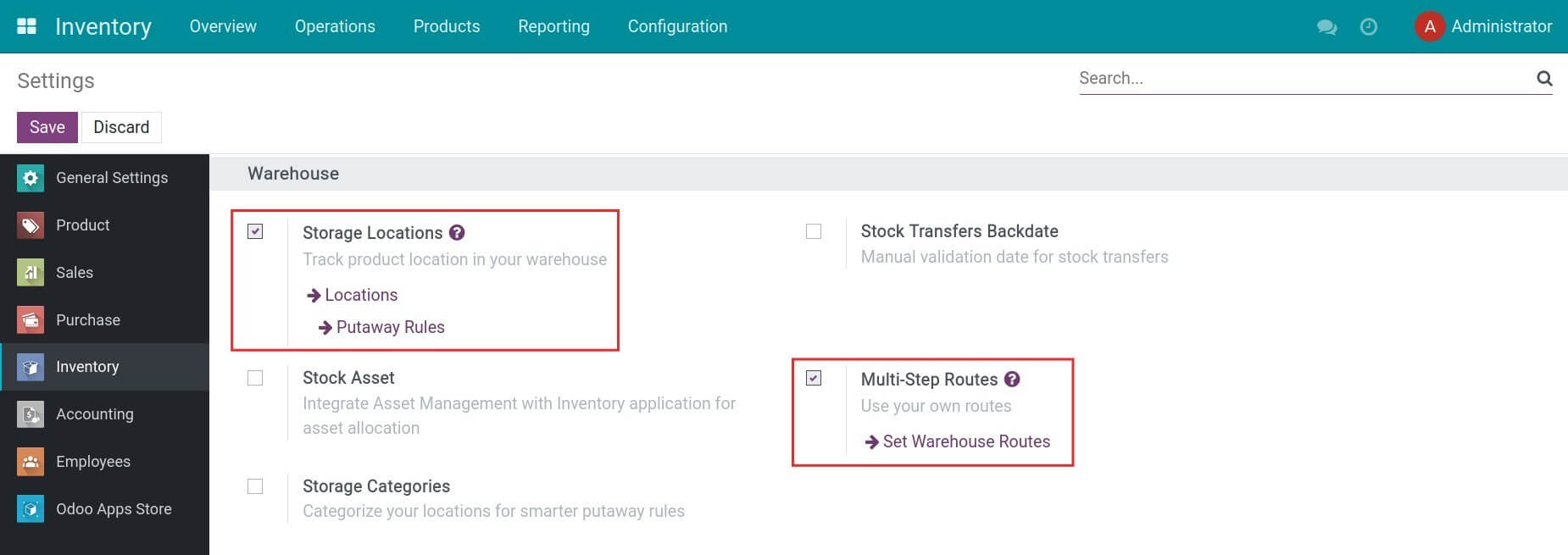
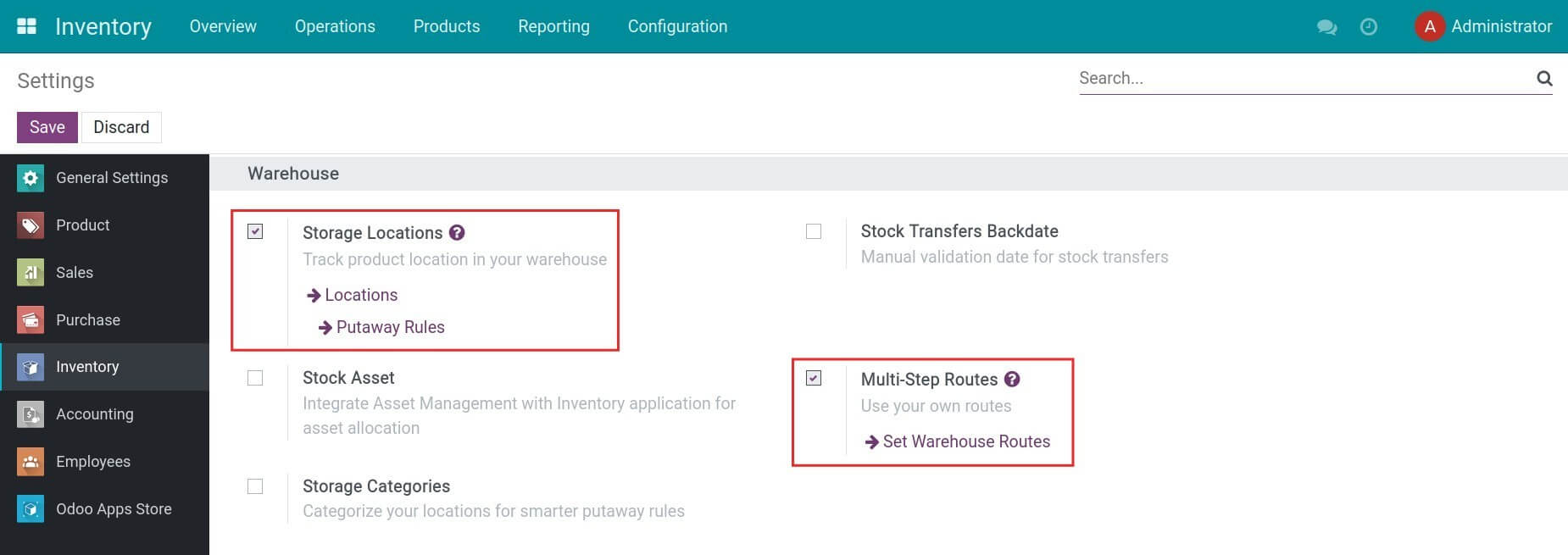
Navigate to Inventory > Configuration > Settings, and enable the Storage Locations and Multi-Step Routes features. Press Save to store the changes.
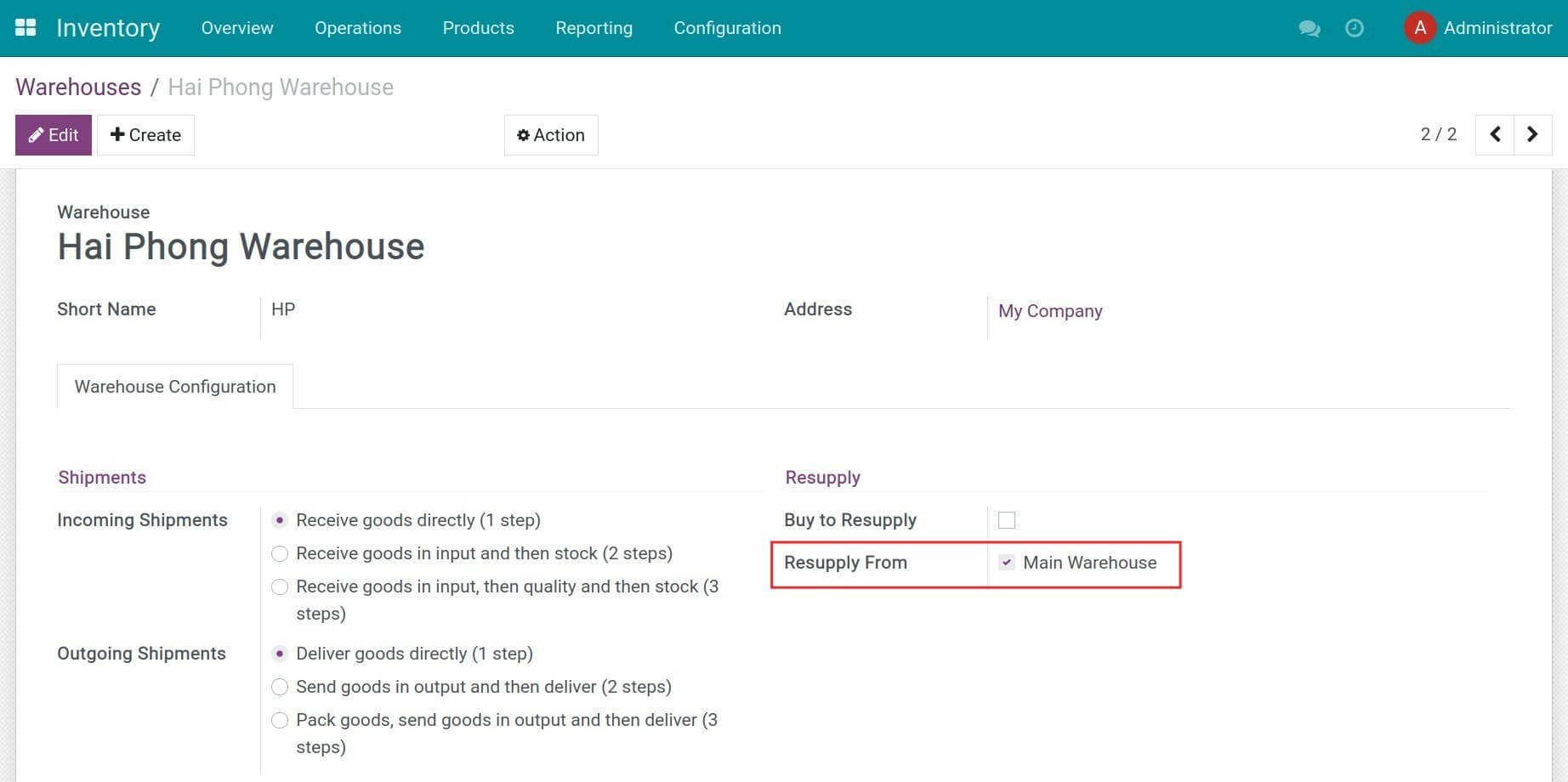
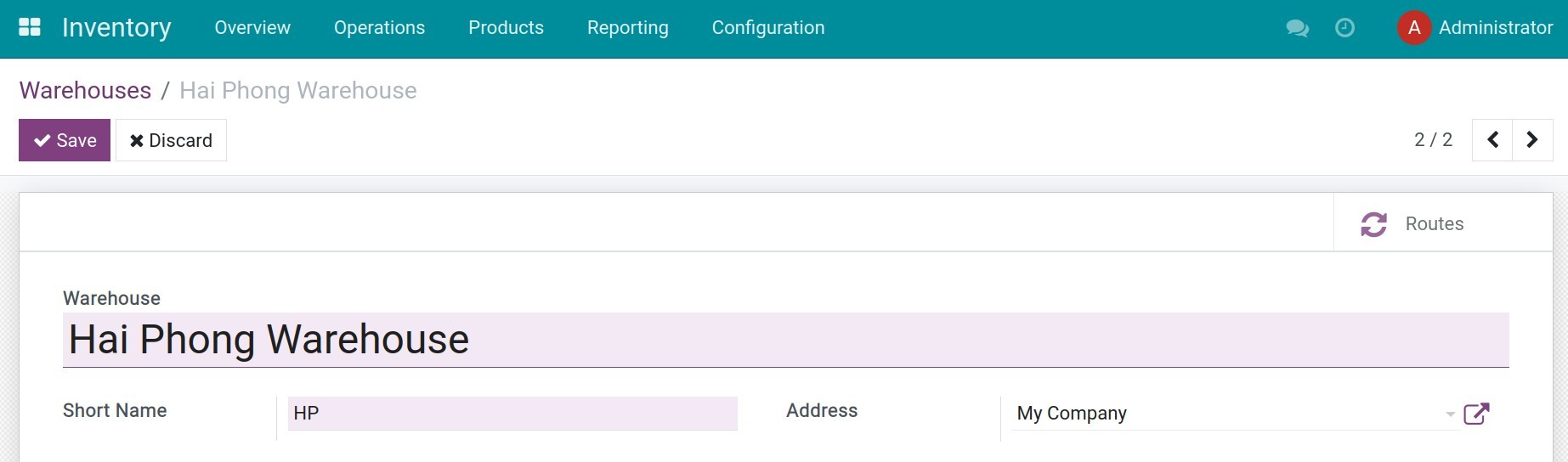
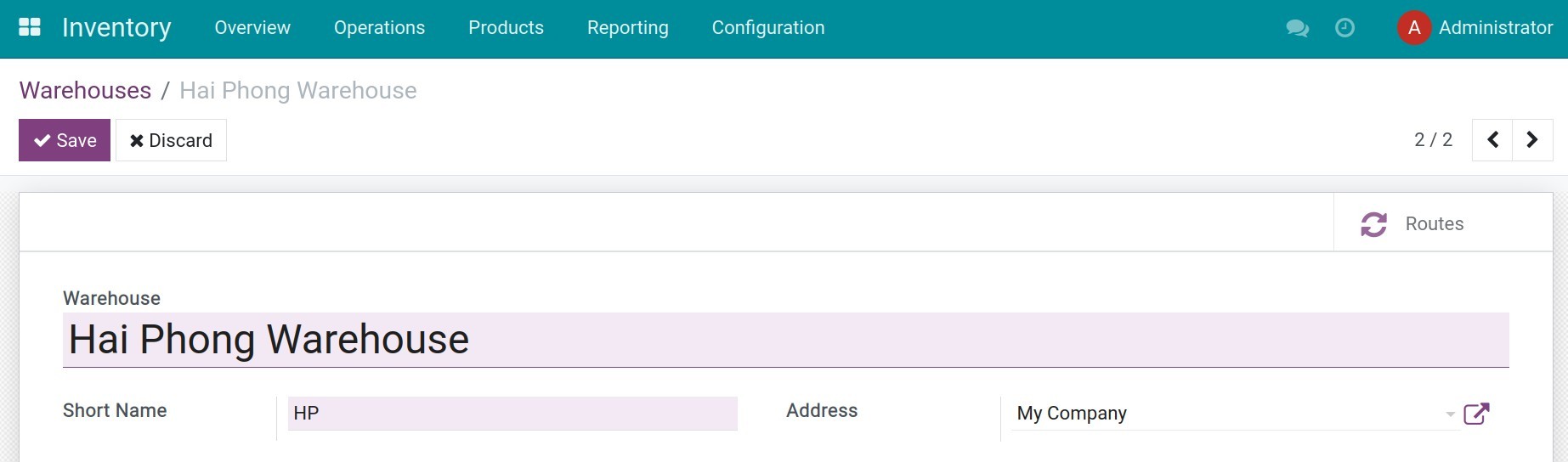
Navigate to Inventory > Configuration > Warehouses, and press Create to create the Hai Phong Warehouse. Press Save to store the information.
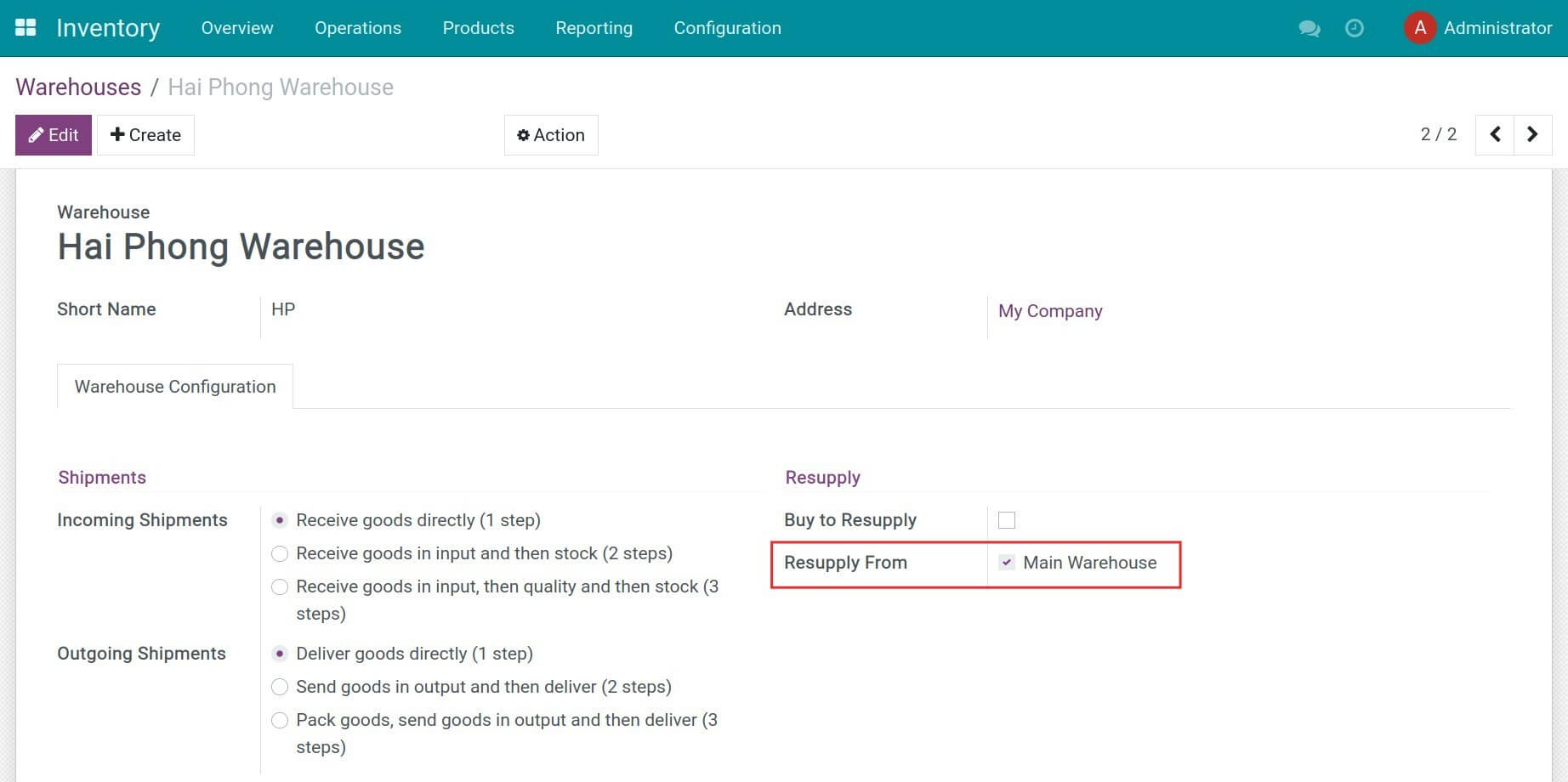
Then click on Edit and select Resupply From: Main Warehouse.
2. Configure accounting accounts for Transit location
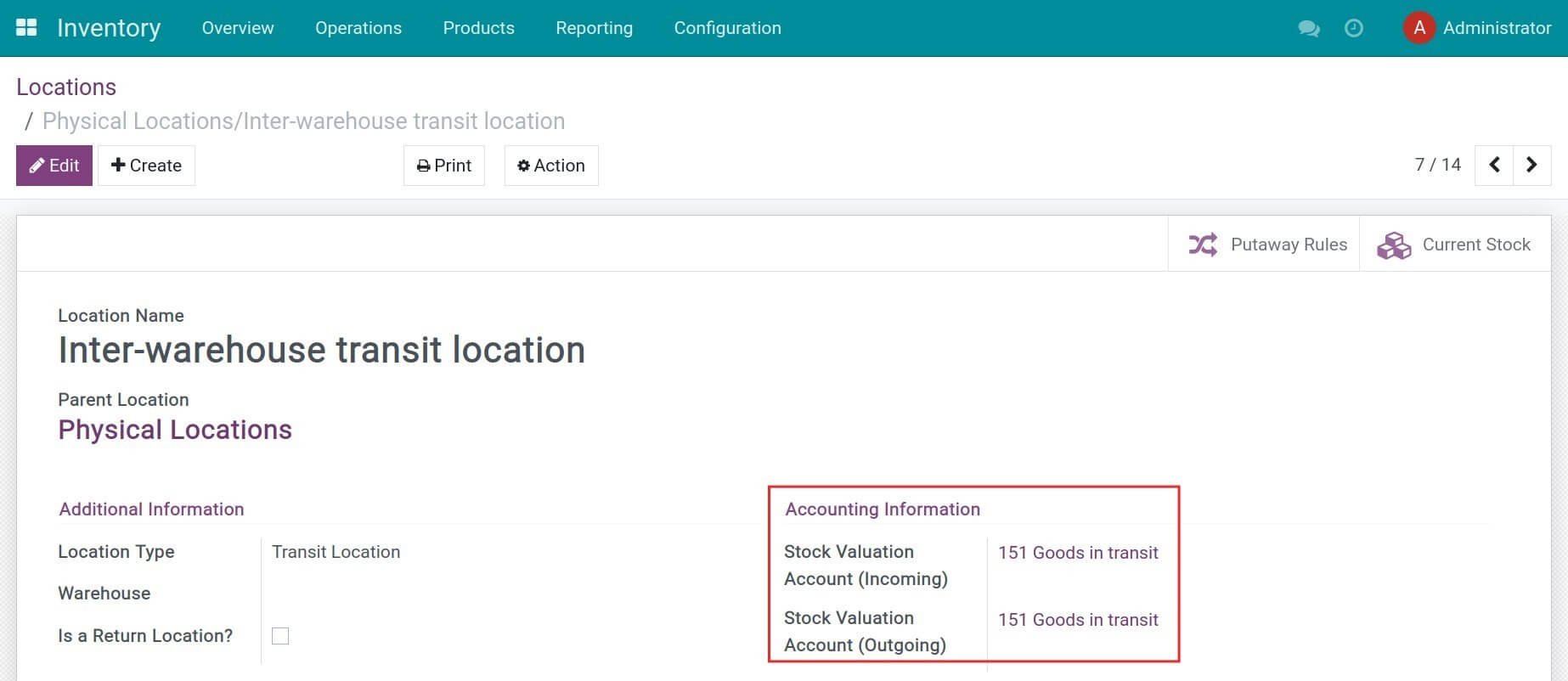
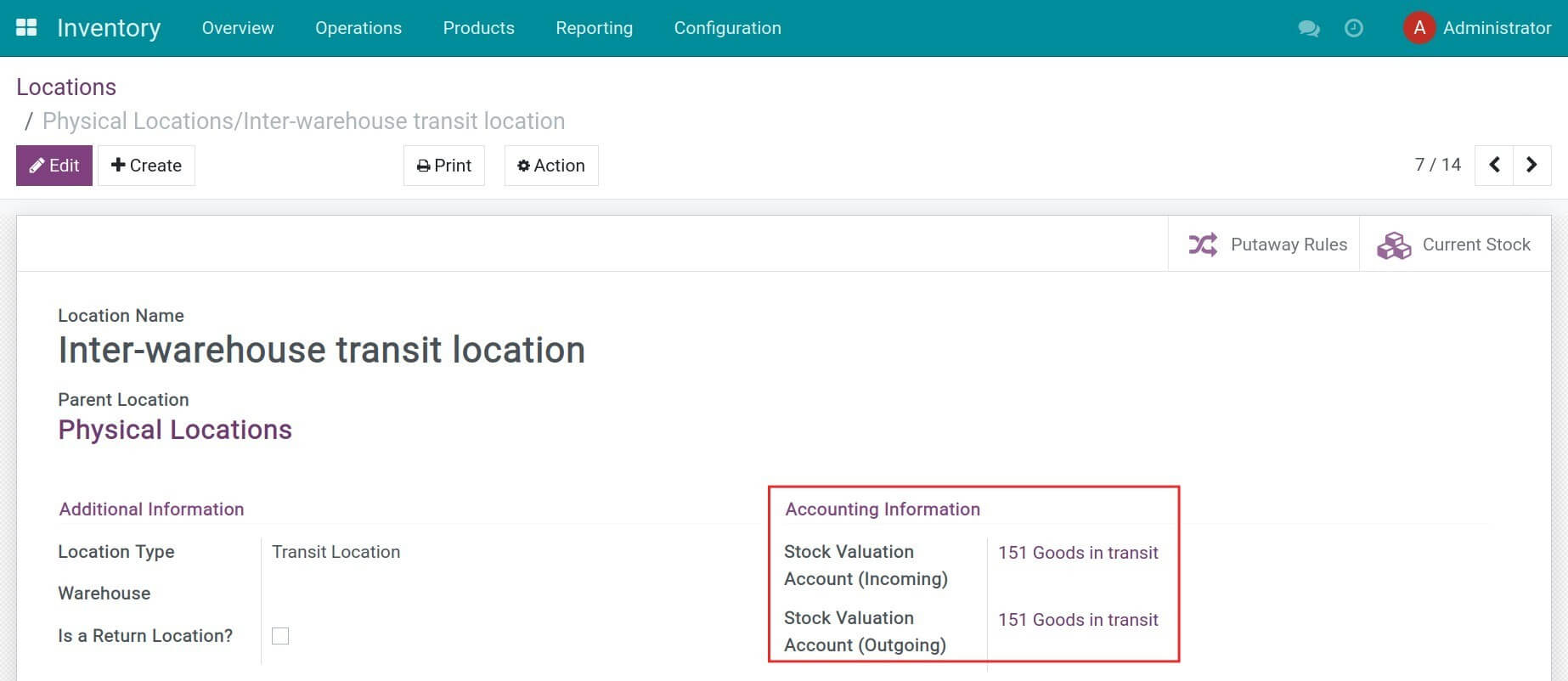
Navigate to Inventory > Configuration > Locations, turn off the default filters, and search for the Transit location. Then, you need to set up the stock valuation accounts for the incoming and outgoing goods.
3. Create and receive products in the main warehouse
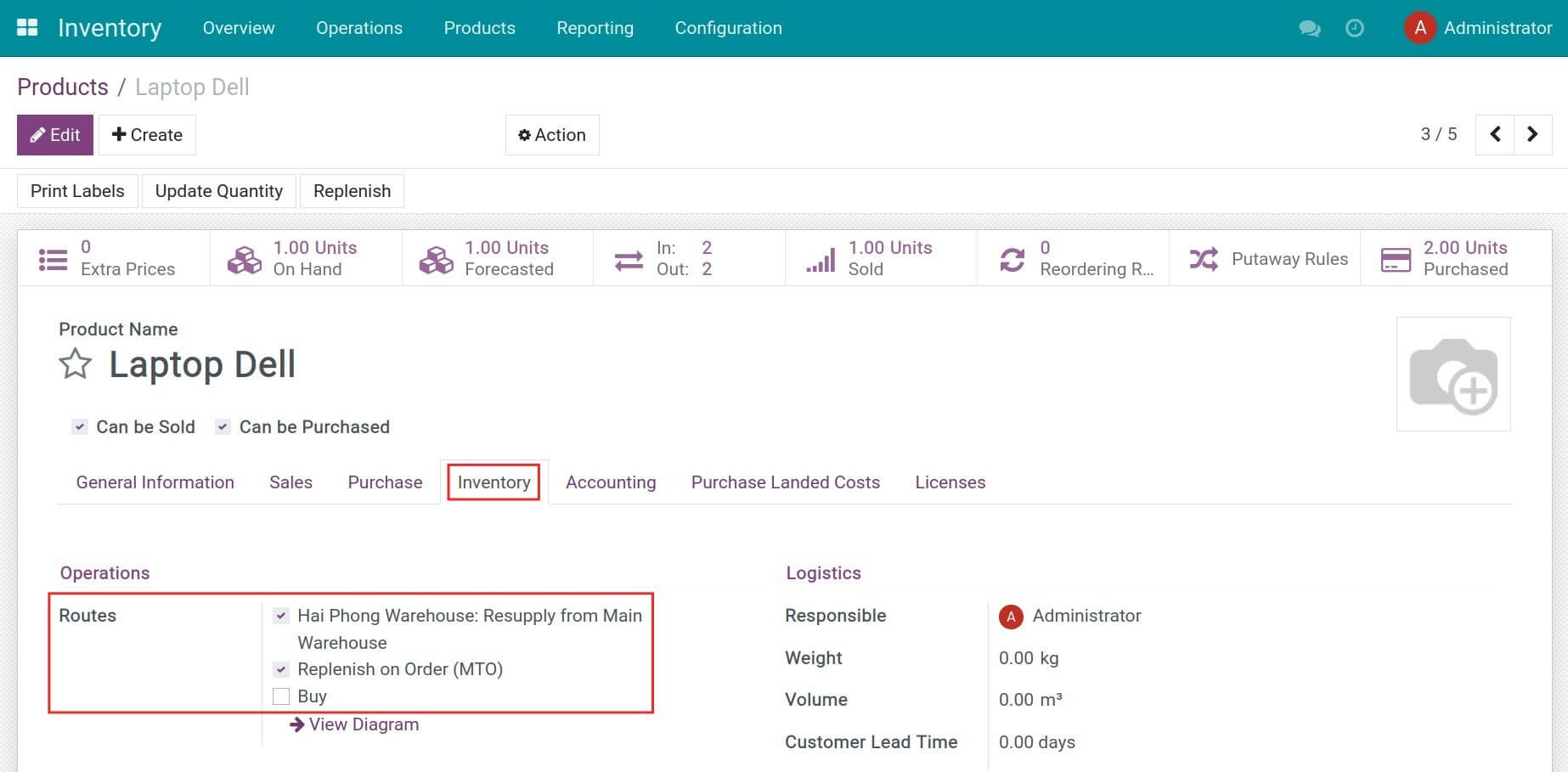
Create a new product and activate the following routes:
- Hai Phong Warehouse: Resupply from Main Warehouse;
- Replenish on Order (MTO).
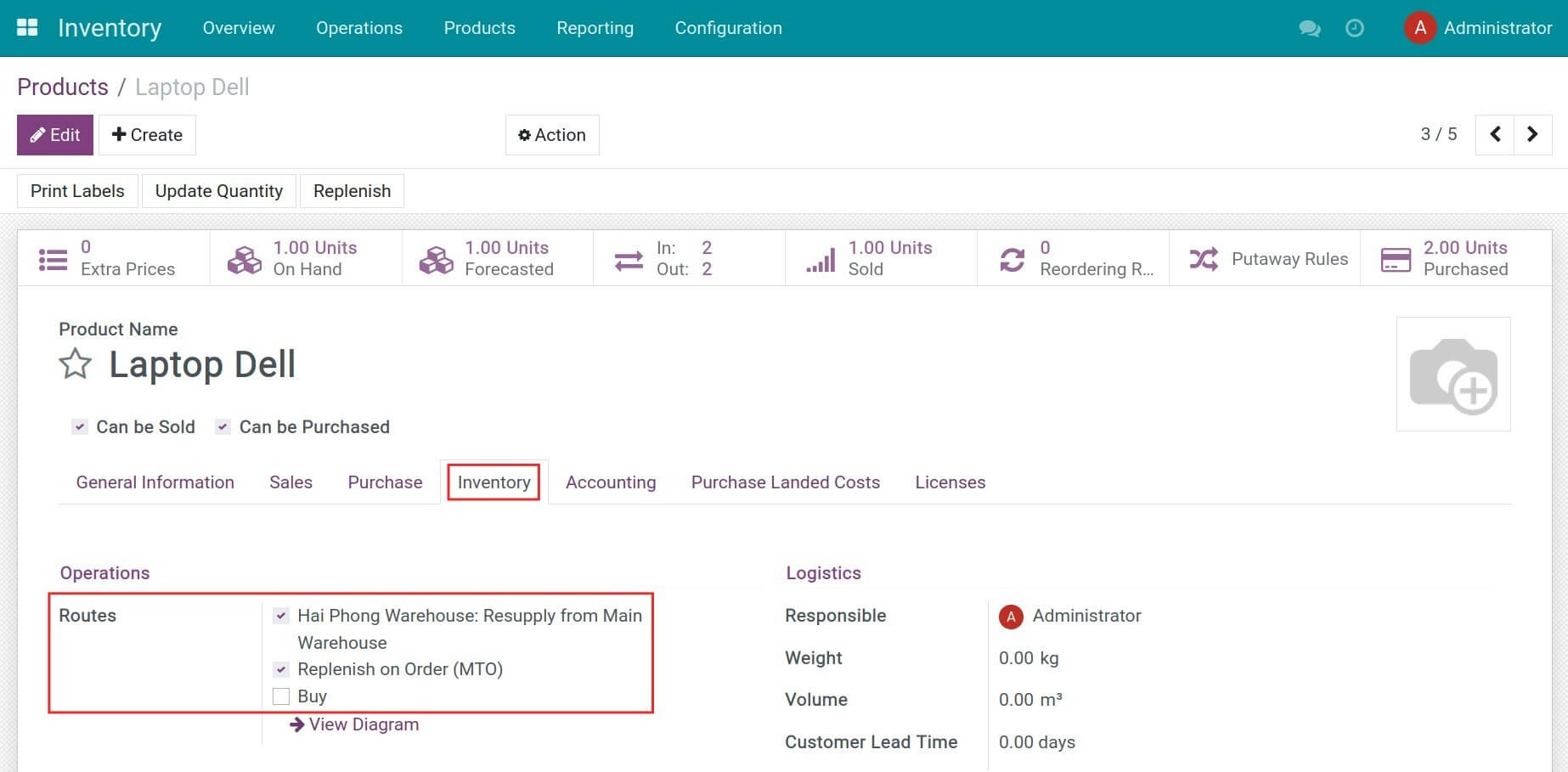
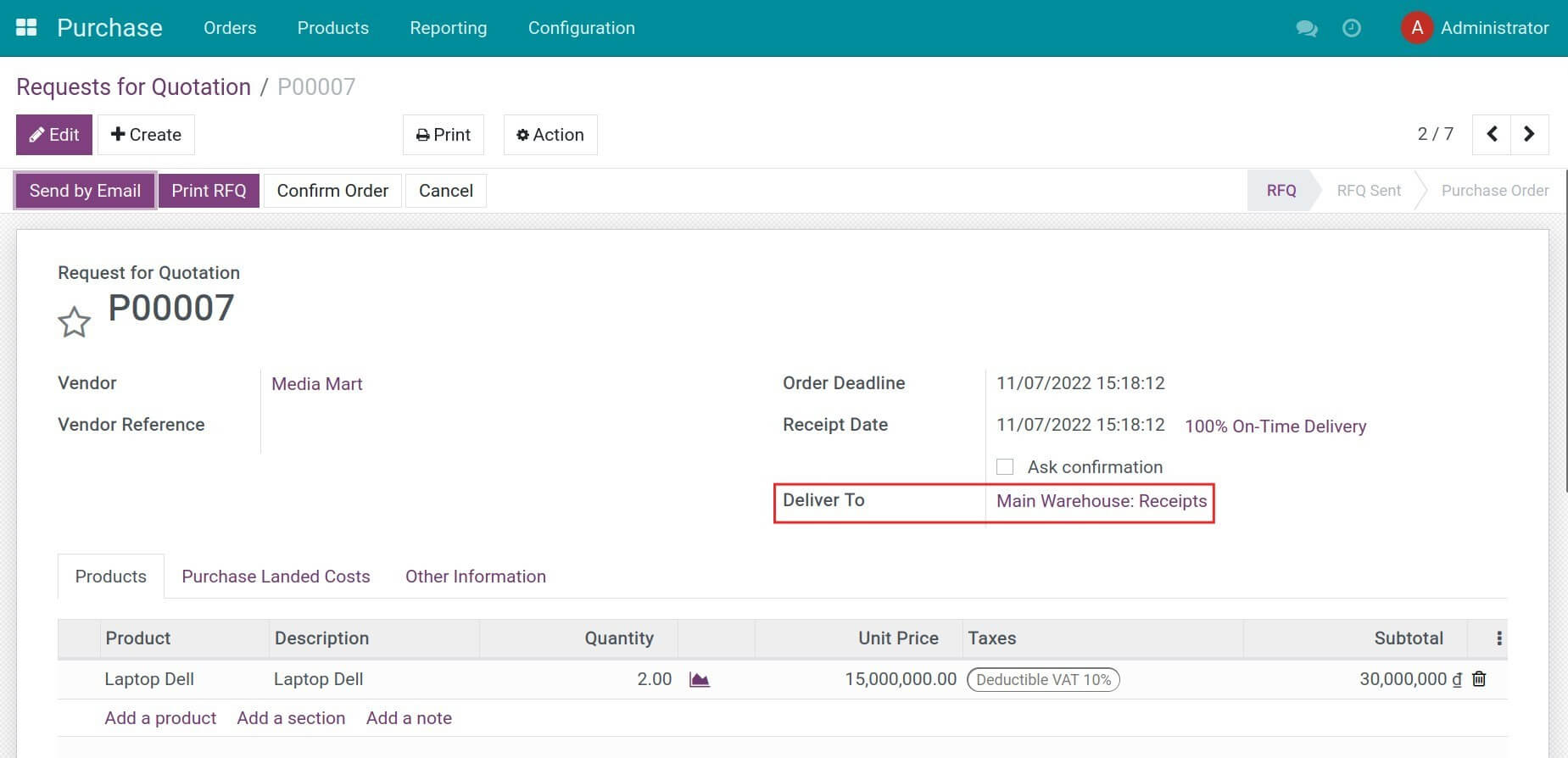
Then you need to create a purchase order and receive products at the Main Warehouse.
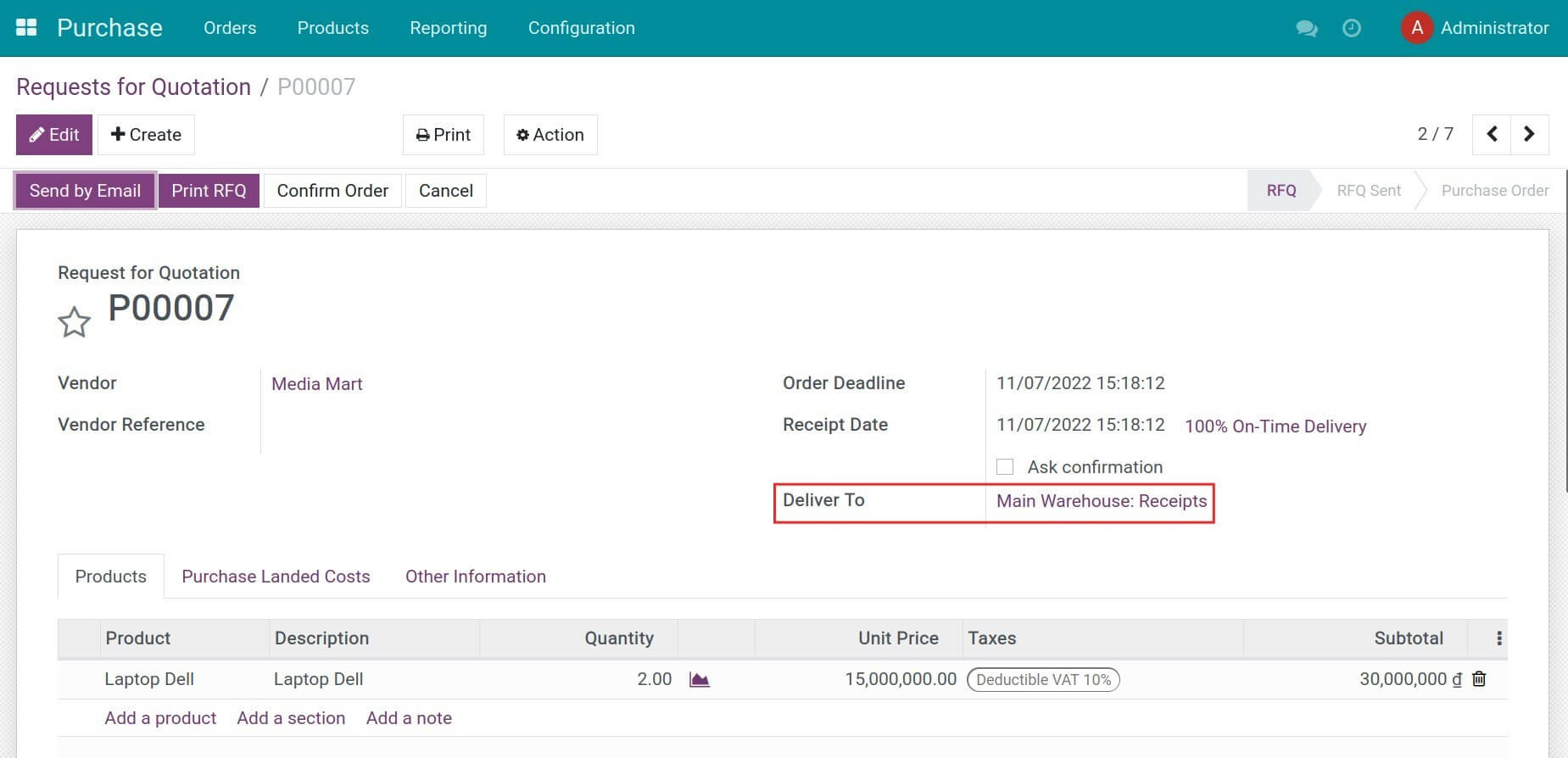
Note: You need to un-archive the Replenish on Order (MTO) route.
4. Create a sales order with delivery from another warehouse
Go to Sales > Orders > Quotations to create a sales quotation in the Sales app. In the Other Info tab, set up delivery from the Hai Phong Warehouse.
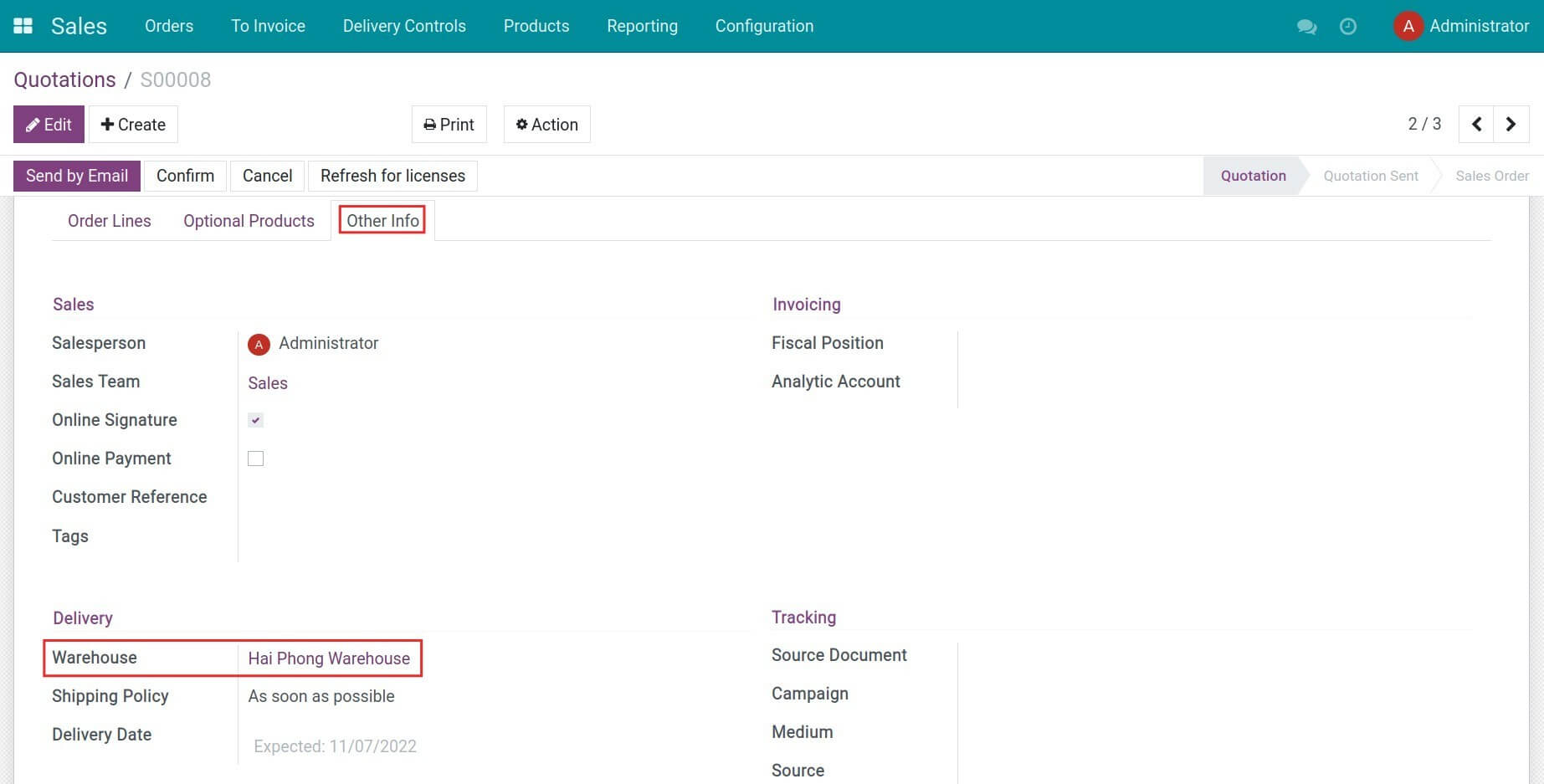
Press Confirm to have the following 3 warehouse transfers:
- Transfer 1: From Main warehouse to Transit location;
- Transfer 2: From Transit location to Hai Phong warehouse;
- Transfer 3: From Hai Phong warehouse > Customer.
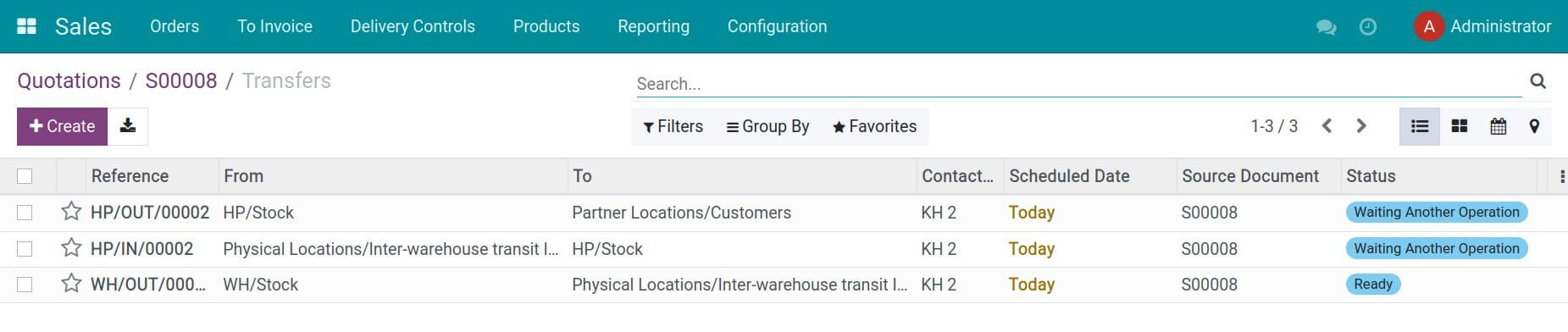
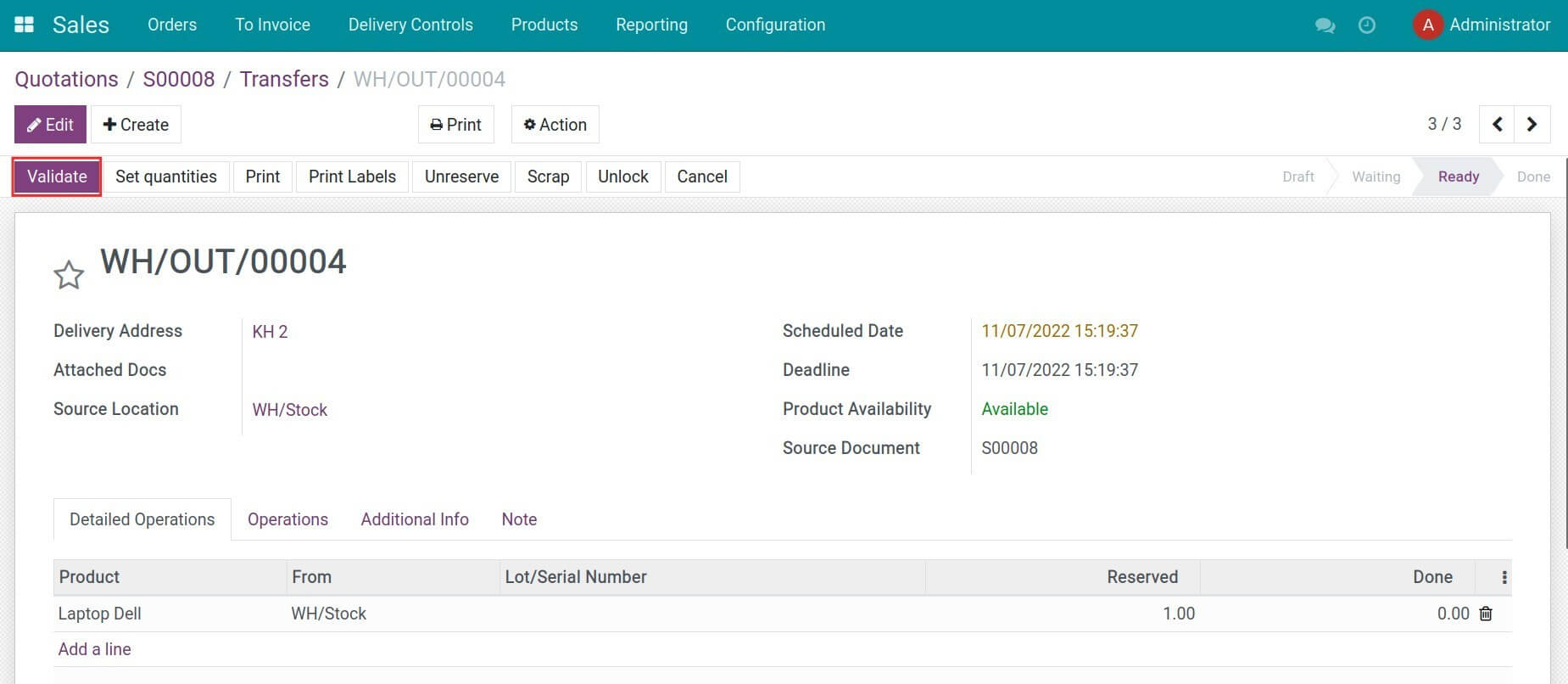
When the first transfer is ready, click Validate to confirm the delivery from the Main warehouse to the Transit location. The respective journal items are created according to the accounting accounts set up on the Transit location.
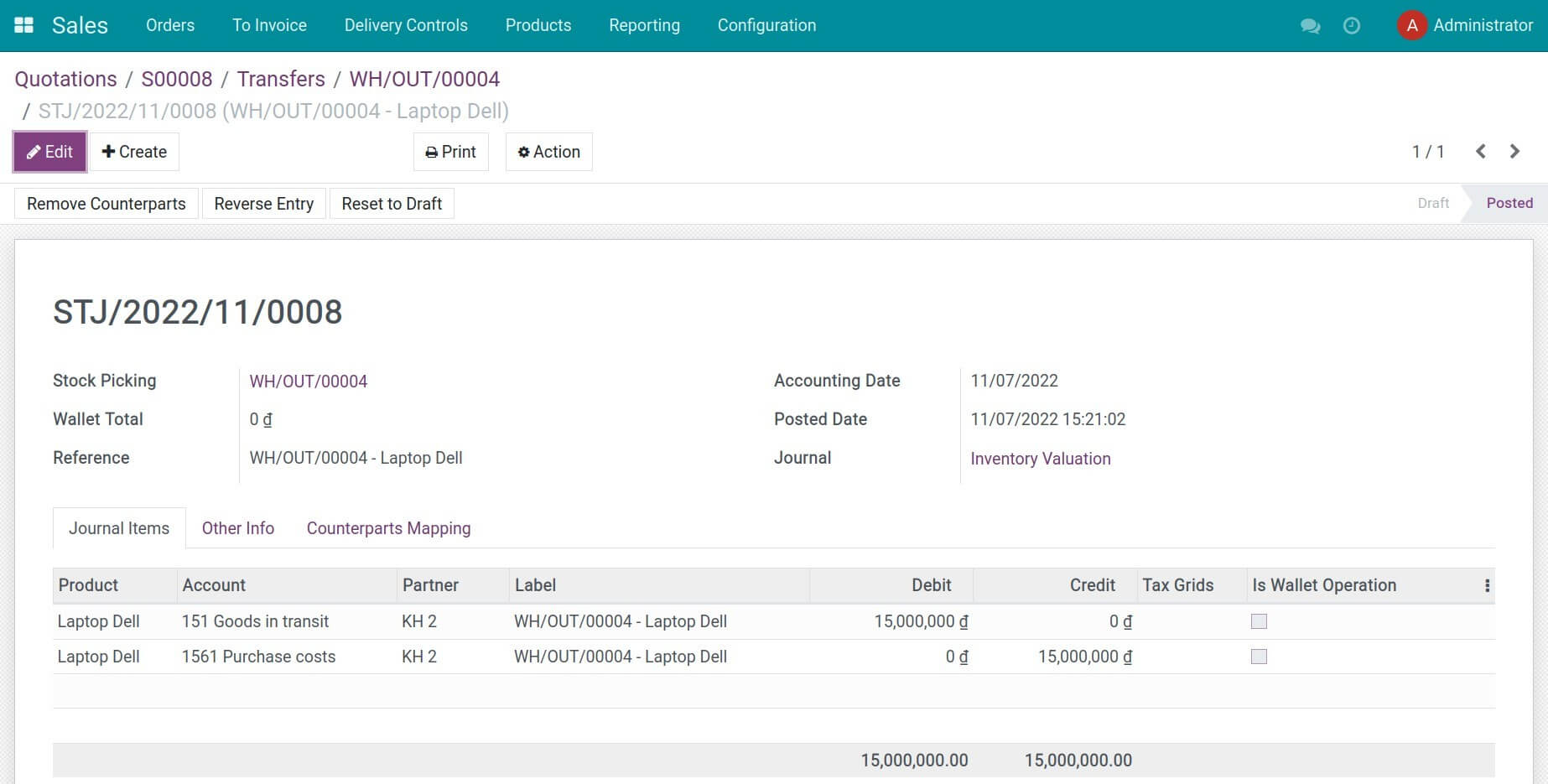
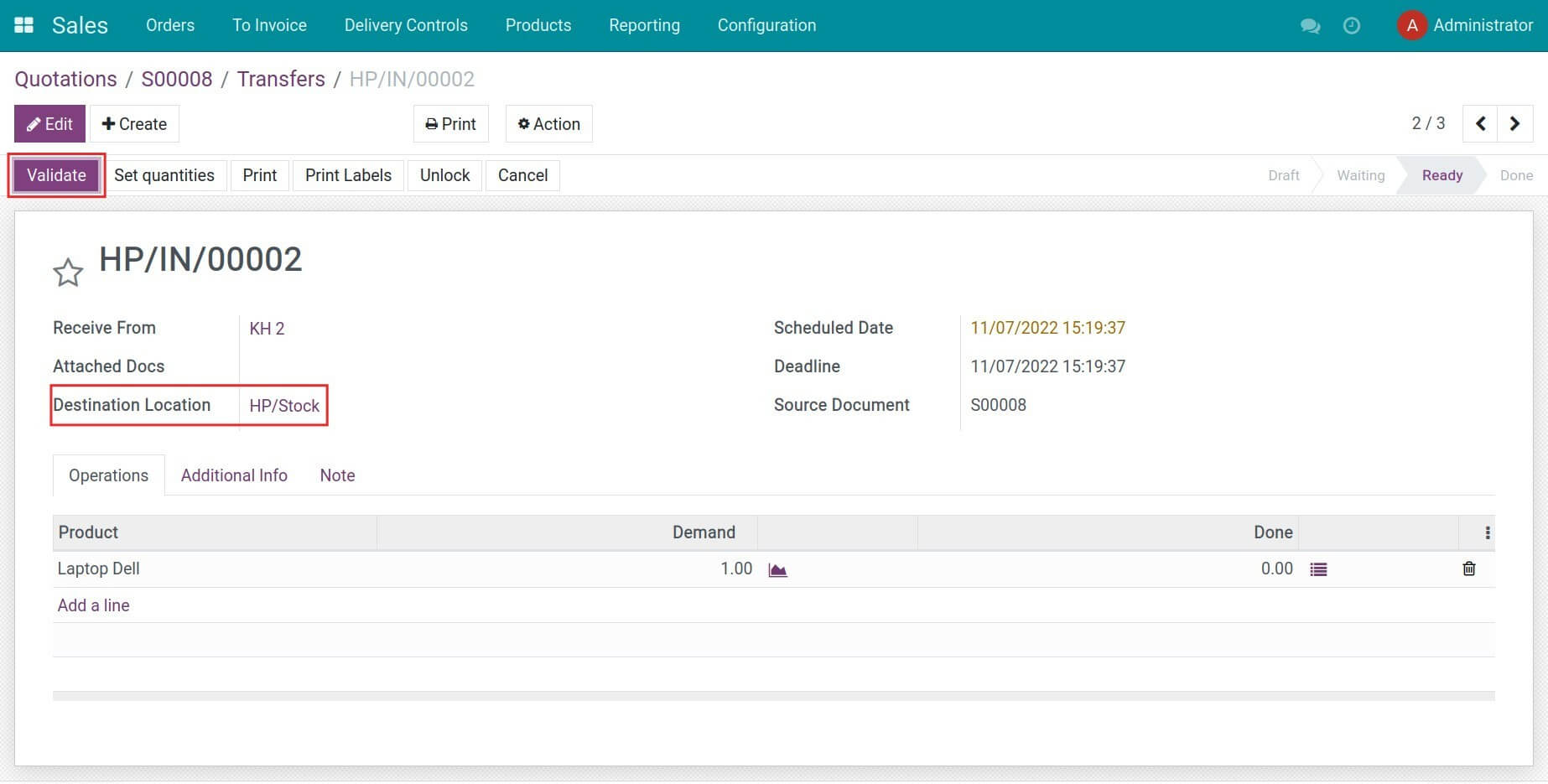
At this moment, the second transfer will be ready. When stocks are delivered to the Hai Phong warehouse, the warehouse staff go to the transfer slip and press Validate to confirm the incoming stocks at the Hai Phong warehouse. Journal items recording the incoming stocks are created accordingly.
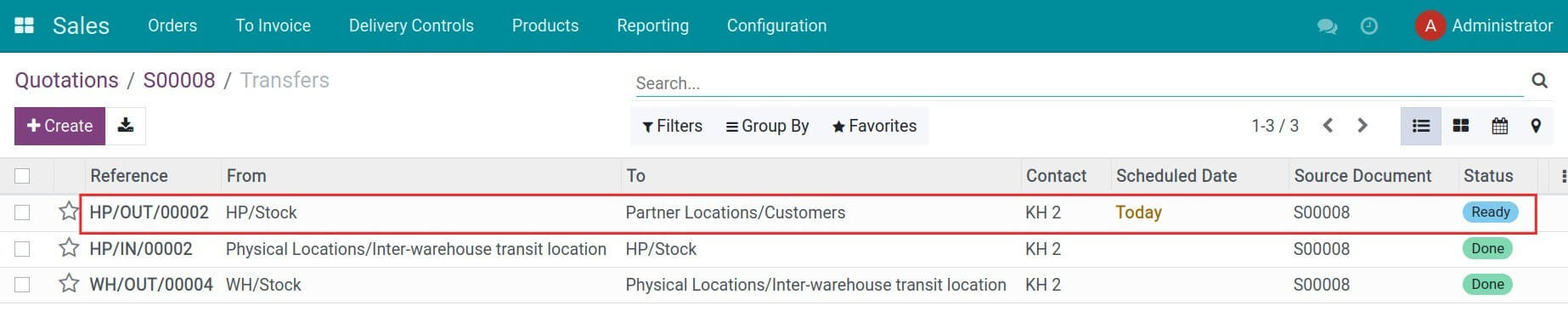
Finally, goods are ready to be delivered to the customer. Press Validate at the third transfer to complete the delivery.
Note: You can use the Minimum stock rule (MTS) for the above workflow. On the other hand, you can also manually create warehouse transfers to the transit location instead of using the automatic replenishment rules.
5. Intercompany transfers — using the shared transit location
Two transit-location scenarios must be distinguished:
- Intra-company transit — the transit location has a Company set (e.g. the per-company WH/Transit automatically created by System). Used for multi-step routes and resupply between warehouses of the same legal entity. Goods stored here are still part of the company's inventory.
- Intercompany transit — the transit location has no Company (e.g. the shared Inter-company transit location, stock.stock_location_inter_wh). Goods stored here belong to no company in the system; they represent goods that have left one legal entity but have not yet been received by another.
For the second scenario, System core's _get_dest_account does not honour the transit location's Stock Valuation Account (Incoming) and falls back to the product category's Stock Output account (typically TK 632 - Cost of Goods Sold in the Vietnamese chart). This is incorrect because no sale has occurred yet — the outbound side of an intercompany transfer is merely moving inventory across legal entities.
This module overrides _get_dest_account so that:
- When the destination is a transit location without a company, the configured Stock Valuation Account (Incoming) on the transit location is used as the debit account on the outbound side (e.g. TK 151 - Hàng mua đang đi đường or any user-defined holding account).
- When the destination is anything else (including intra-company transit, which is handled by the journal-entry pipeline introduced earlier in this module), core behaviour is preserved.
The symmetric incoming side requires no patching: core's _get_src_account already honours location_id.valuation_out_account_id for any usage, so the destination company correctly credits the transit location's Stock Valuation Account (Outgoing).
To enable this behaviour, configure both Stock Valuation Account (Incoming) and Stock Valuation Account (Outgoing) on the shared Inter-company transit location. Choose accounts that belong to the appropriate company's chart of accounts — typically a single holding account (e.g. TK 151) used by both sides.
This software and associated files (the "Software") may only be used (executed, modified, executed after modifications) if you have purchased a valid license from the authors, typically via Odoo Apps, or if you have received a written agreement from the authors of the Software (see the COPYRIGHT file).
You may develop Odoo modules that use the Software as a library (typically by depending on it, importing it and using its resources), but without copying any source code or material from the Software. You may distribute those modules under the license of your choice, provided that this license is compatible with the terms of the Odoo Proprietary License (For example: LGPL, MIT, or proprietary licenses similar to this one).
It is forbidden to publish, distribute, sublicense, or sell copies of the Software or modified copies of the Software.
The above copyright notice and this permission notice must be included in all copies or substantial portions of the Software.
THE SOFTWARE IS PROVIDED "AS IS", WITHOUT WARRANTY OF ANY KIND, EXPRESS OR IMPLIED, INCLUDING BUT NOT LIMITED TO THE WARRANTIES OF MERCHANTABILITY, FITNESS FOR A PARTICULAR PURPOSE AND NONINFRINGEMENT. IN NO EVENT SHALL THE AUTHORS OR COPYRIGHT HOLDERS BE LIABLE FOR ANY CLAIM, DAMAGES OR OTHER LIABILITY, WHETHER IN AN ACTION OF CONTRACT, TORT OR OTHERWISE, ARISING FROM, OUT OF OR IN CONNECTION WITH THE SOFTWARE OR THE USE OR OTHER DEALINGS IN THE SOFTWARE.