
Stock Block Quantity

Stop a transfer from shipping more than it was asked to
A switch per operation type: validate refuses any line whose quantity is above the initial demand.
Stock Block Quantity (technical name to_stock_block_quantity) is an Odoo 17.0 app for Odoo Community and Odoo Enterprise and Viindoo Cloud, built for warehouse manager, operator, controller.
At a Glance
The facts of Stock Block Quantity, version 1.0.0, in one place. Published by Viindoo.
How It Works
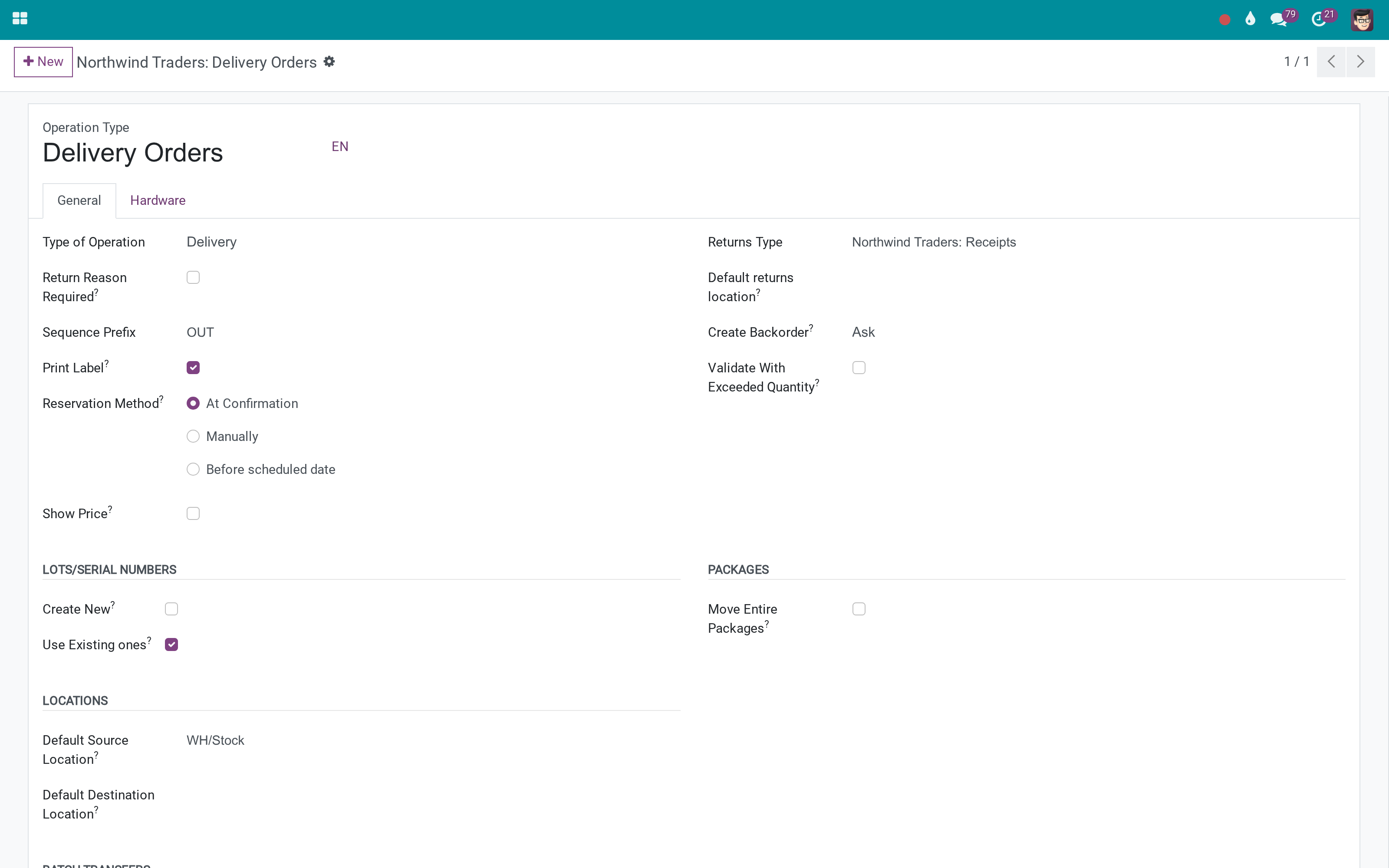
One flag.
On the operation type
Uncheck Validate With Exceeded Quantity and this operation refuses to ship more than was asked for.
Chosen per operation
Receipts can stay permissive while deliveries are strict - which is usually the right combination.
What You Get
Validate With Exceeded Quantity, per operation type
On by default - existing behaviour is unchanged until you decide otherwise
The message names the product, the initial demand and the attempted quantity
Counts detached move lines added during the transfer, not only the planned ones
Works on deliveries, receipts, internal transfers - whichever type you flag
No new screen, no new field to fill on the transfer
More Screens
Everything below was taken on a database seeded with real business data, on this series - not a mock-up and not a screenshot from an older version.
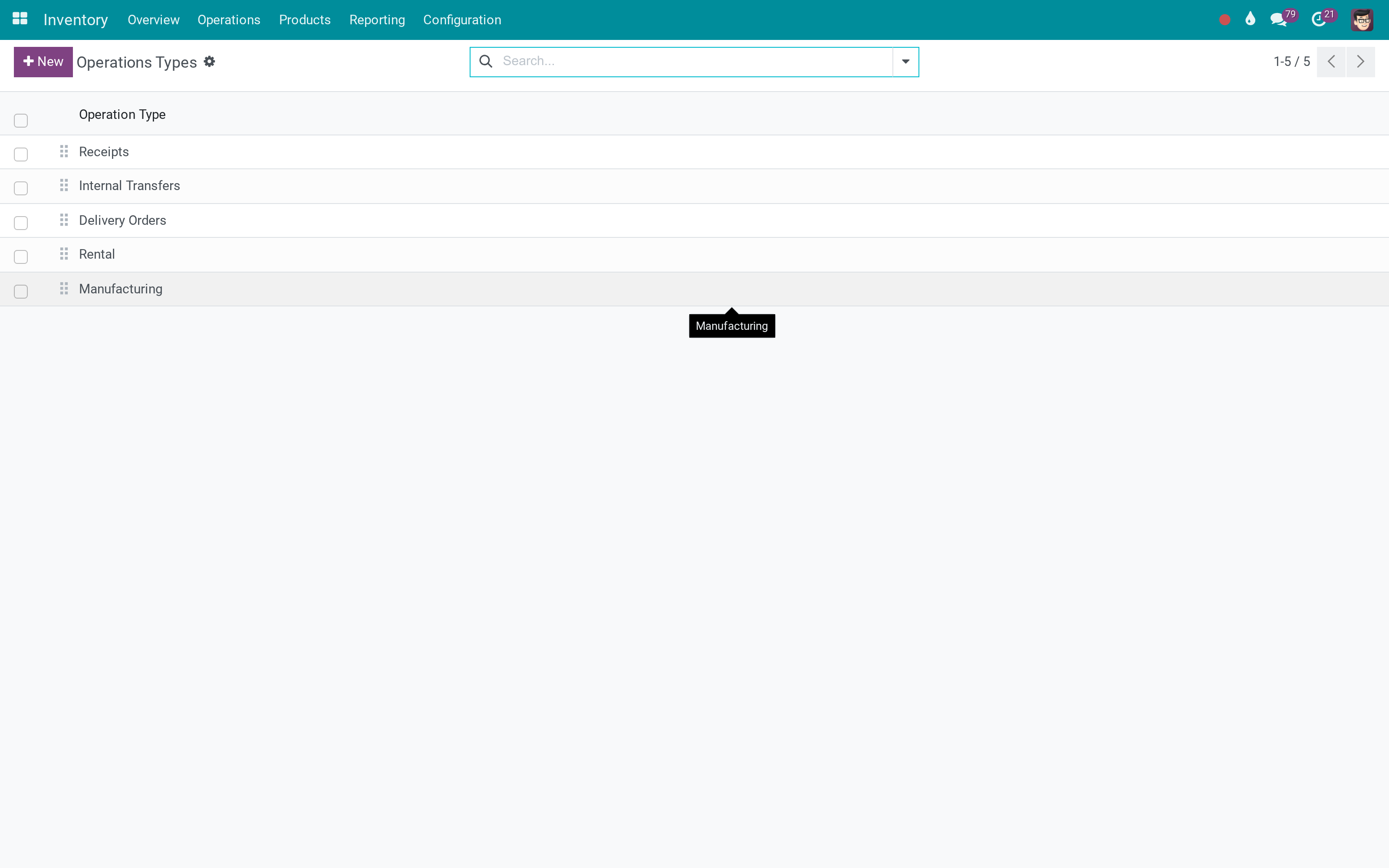
Operation types
What This App Does Not Do
Read this before you buy. Everything below is something the app deliberately leaves to another app or to you.
The block happens at validation, where the movement becomes real.
The transfer is refused with a message; correcting it is a decision, not an automation.
Shipping less is Odoo's back-order flow and is left alone.
The rule belongs to the operation type; a supervisor override would be a different module.
Works Well With
Apps from the same stack, built to fit this one:
Return Reasons in Inventory
Why goods came back, recorded where the return is made.
Product Return Reasons - InventoryWho Should Use Stock Block Quantity?
Warehouse manager
Decides which operations may exceed the demand and which may not.
Operator
Is told at validation, with the numbers, instead of discovering it at stocktake.
Controller
Stops quiet stock leakage on outgoing operations.
Frequently Asked Questions
What does Stock Block Quantity do?
A switch per operation type: validate refuses any line whose quantity is above the initial demand.
What does Stock Block Quantity not do?
It does not block picking more. The block happens at validation, where the movement becomes real. It does not adjust quantities for you. The transfer is refused with a message; correcting it is a decision, not an automation. It says nothing about under-delivery. Shipping less is Odoo's back-order flow and is left alone. No per-user exception. The rule belongs to the operation type; a supervisor override would be a different module.
Who is Stock Block Quantity for?
Warehouse manager: Decides which operations may exceed the demand and which may not. Operator: Is told at validation, with the numbers, instead of discovering it at stocktake. Controller: Stops quiet stock leakage on outgoing operations.
Which Odoo version and editions does it support?
Odoo 17.0 - Odoo Community, Odoo Enterprise, Viindoo Cloud. Upgrades to a newer Odoo series are a separate purchase for that series.
What does it depend on?
It installs on top of: stock. Odoo installs them with it.
How do I set it up?
One flag.
What works well with it?
Warehouse Access Control (to_multi_warehouse_access_control): Who may operate which warehouse at all. Return Reasons in Inventory (to_product_return_reason_stock): Why goods came back, recorded where the return is made.
Can I try it before buying?
Yes - the Live Preview button at the top of this page opens the module's own screen on a working database.
How do I get support?
Write to apps.support@viindoo.com with your Odoo version and the technical name to_stock_block_quantity; pre-sales questions go to sales@viindoo.com.
See Stock Block Quantity in Action
Stop a transfer from shipping more than it was asked to
Need help with Stock Block Quantity?
For questions, implementation support, or consulting services, contact Viindoo.
Pre-Sales & Partnership
sales@viindoo.comWhen contacting us, please include:
- Odoo/Viindoo version (Odoo CE / Viindoo Editions).
- Number of users and business scope.
- Other modules currently in use.
Technical Support
apps.support@viindoo.comFor faster troubleshooting, please provide:
- Order number or app reference.
- Odoo/Viindoo version & edition.
- Steps to reproduce the issue.
- Screenshots/logs if available.
Upgrades to a newer Odoo series are a separate purchase for that series.
Technical Requirement
Changes log
1.0.0 - Latest on the 17.0 line
- Move lines added during the transfer are counted towards the demand check.
Installation
- Navigate to Apps.
- Search with keyword to_stock_block_quantity.
- Press Install.
Instruction
Instruction video: Stock Block Quantity
The initial settings
You navigate to Inventory > Configuration > Operations Types, find the operations type you want to block/set up the Allow validating stock picking on exceeds feature: Press Edit to leave the check box unchecked if you want to block stock orders with more completed orders than required.
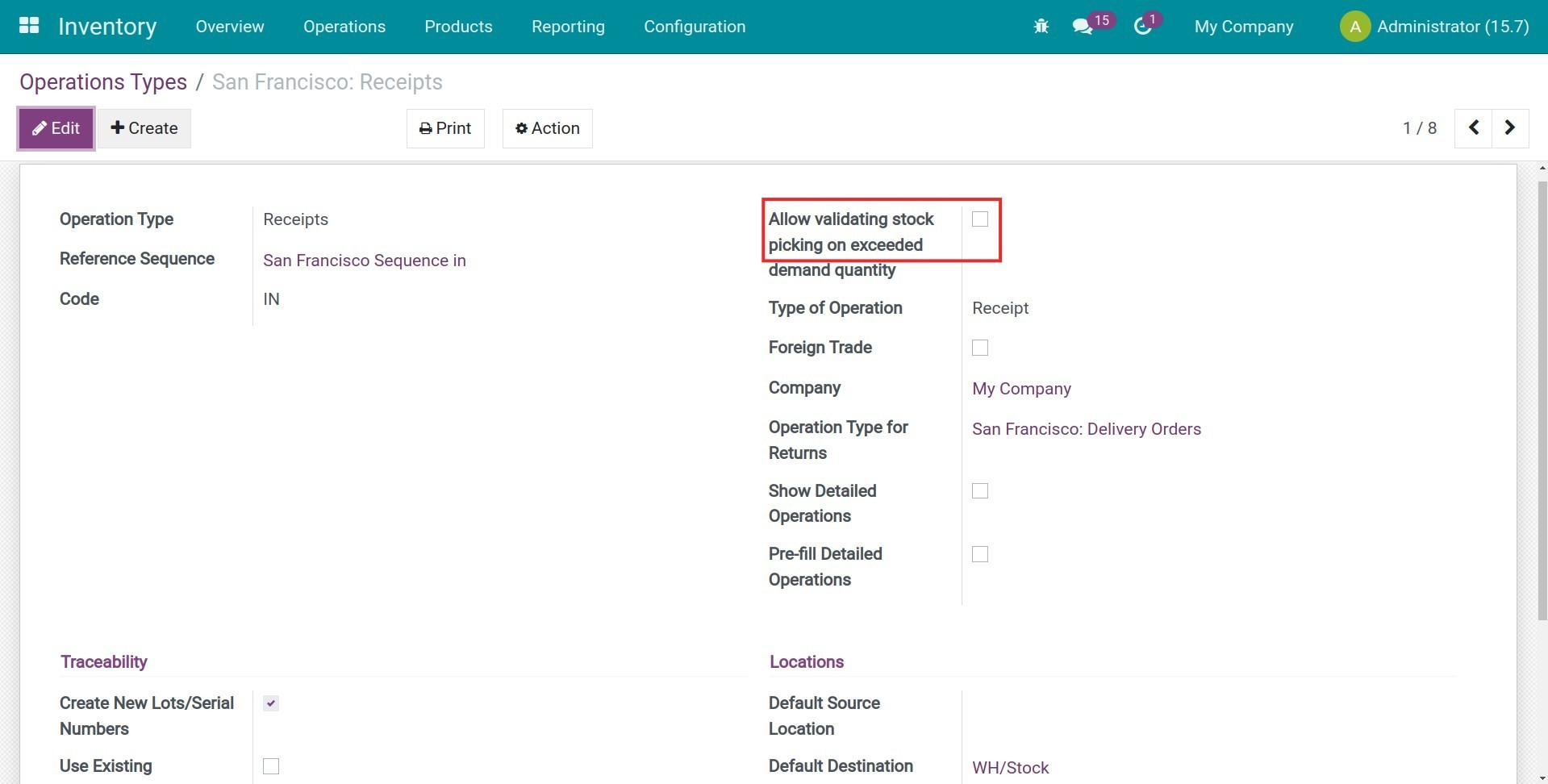
Note: This feature can apply to different Operations Types like Receipts, Manufacturing,...
Usages
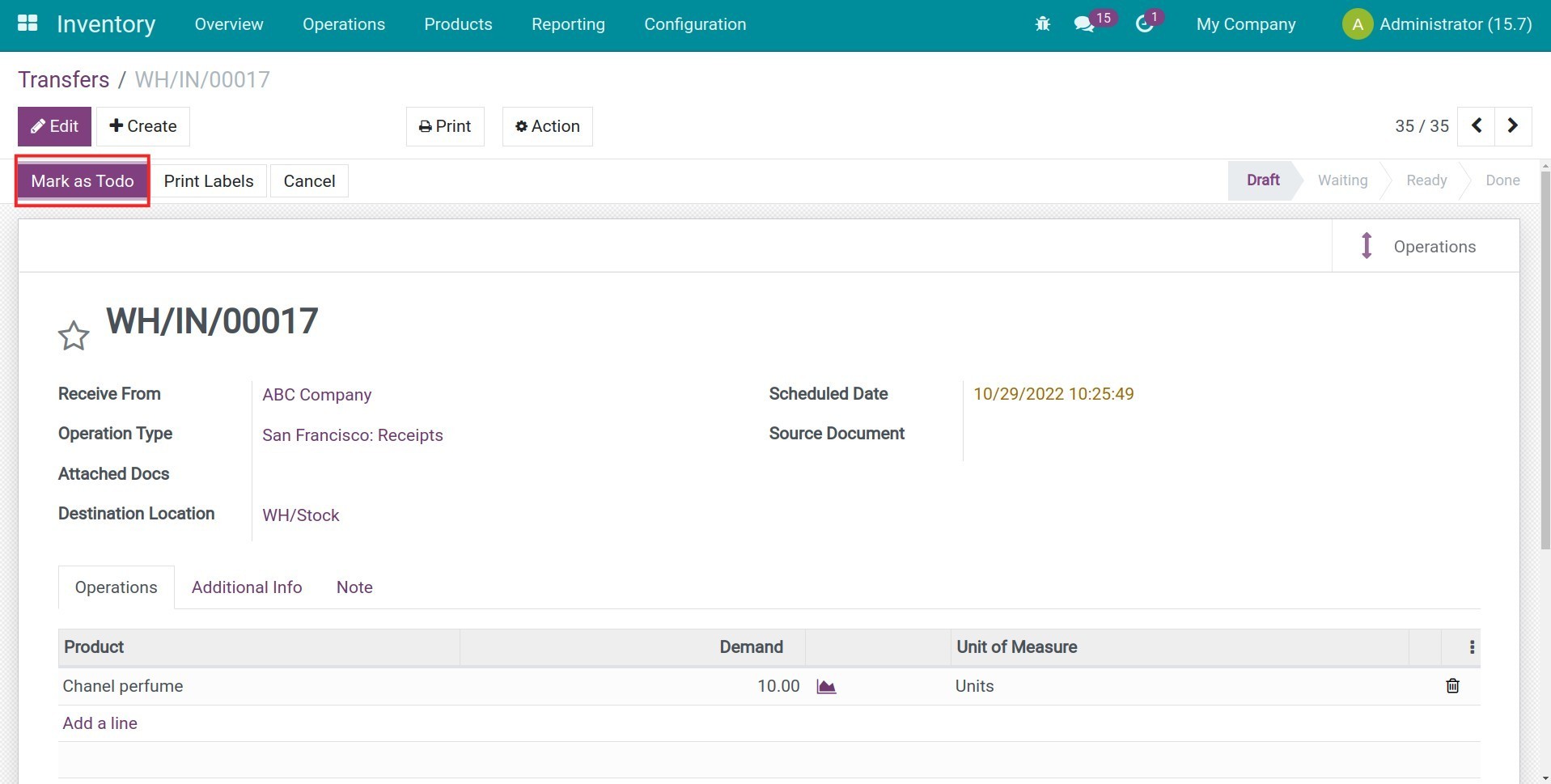
Step 1: Create a transfer slip.
Navigate to Inventory > Transfers > Create, create a transfer slip use Operations Types you set up above, press Mark as Todo.
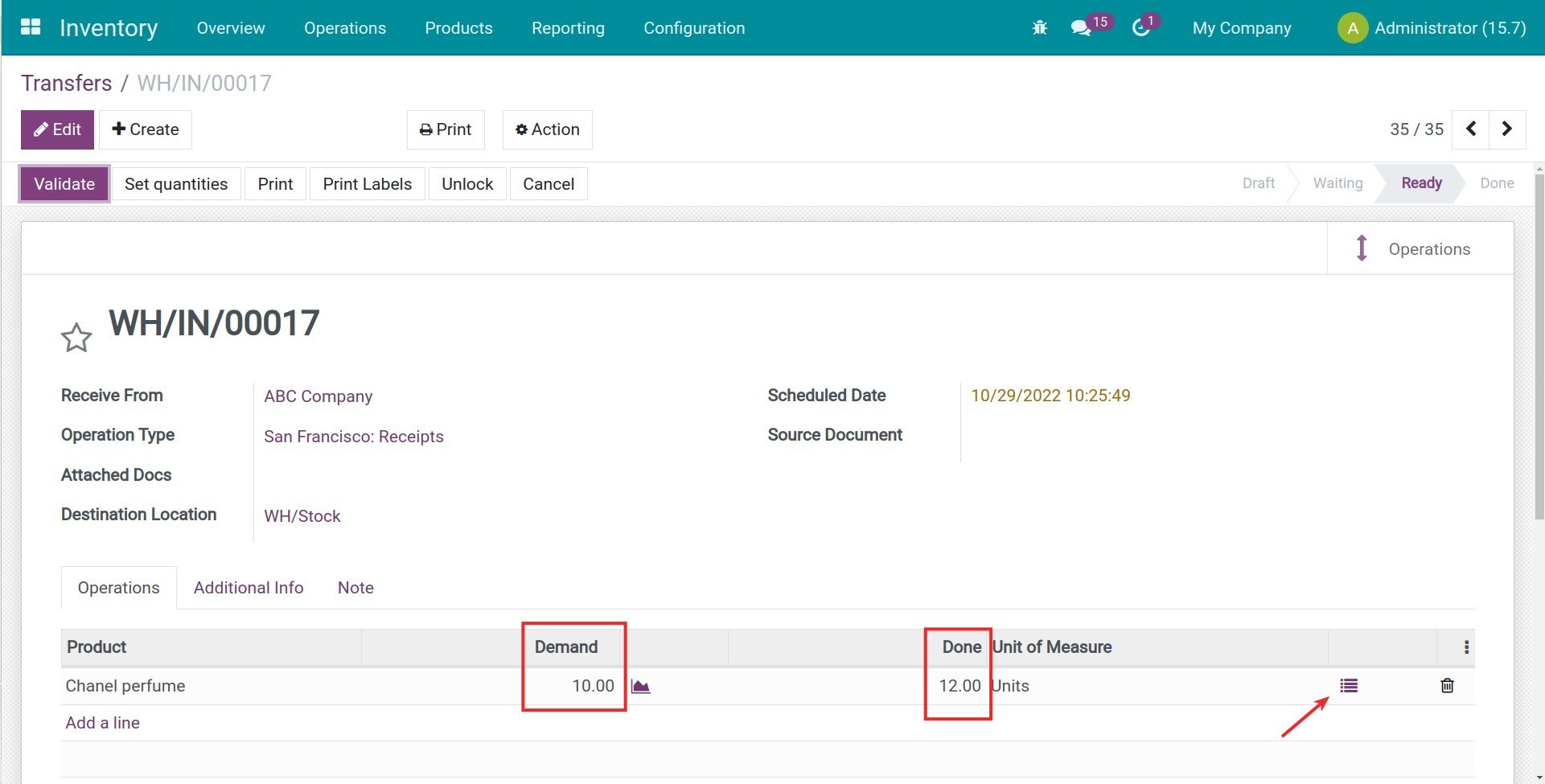
Step 2: Edit the Done quantity more than the Demand quantity.
On this transfer ticket, press Edit and click on the list icon to enter the Done quantity more than the Demand quantity.
Step 3: The software deny confirming the transfer slip.
When you press Validate the transfer slip, the software deny confirming and shows specific warnings about The quantity done must not be greater than the initial demand, initial Demand quantity, Done quantity.
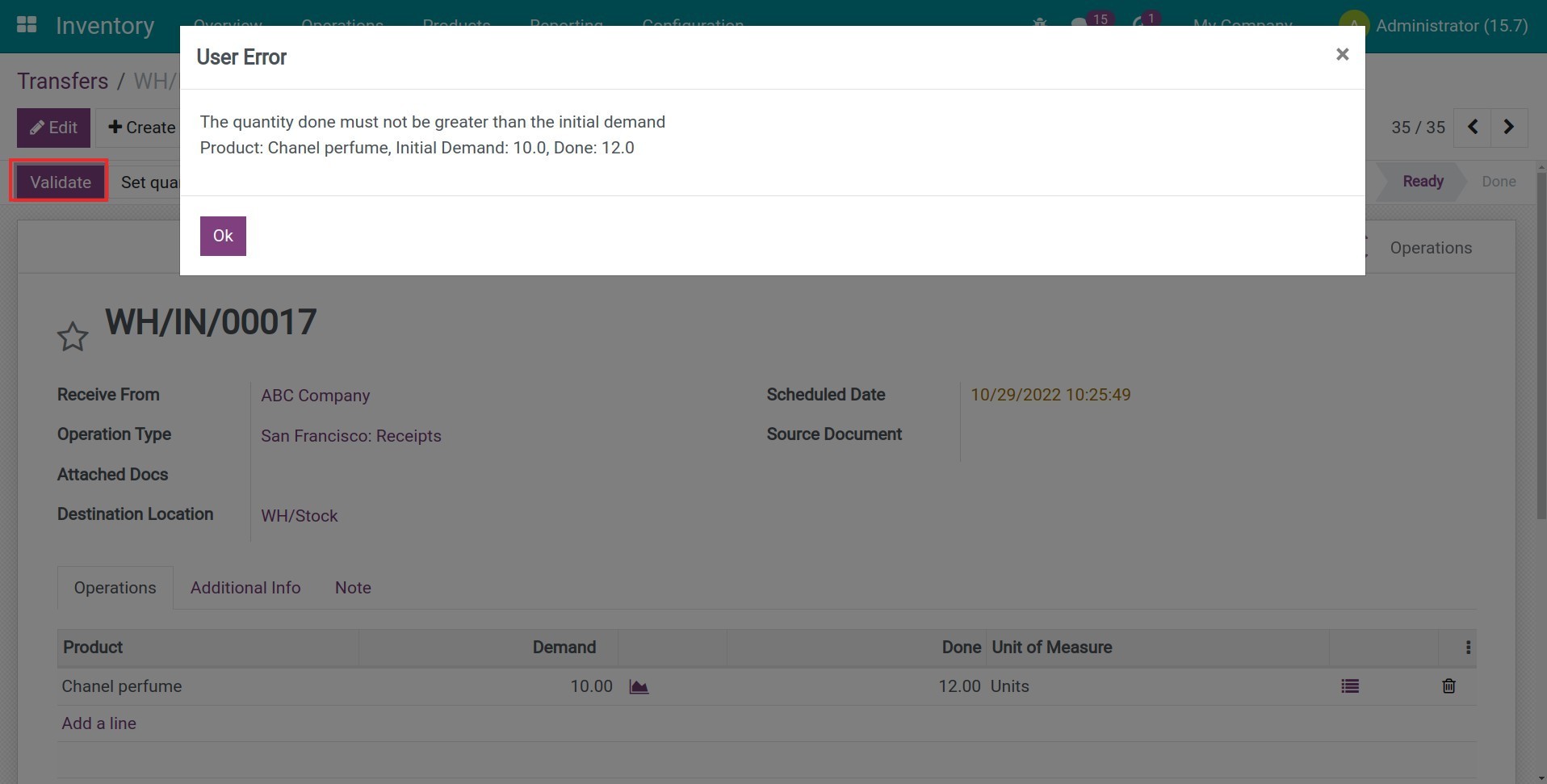
To be able to confirm the transfer slip, you are required to enter the Done quantity equal to or less than the Demand quantity.
This software and associated files (the "Software") may only be used (executed, modified, executed after modifications) if you have purchased a valid license from the authors, typically via Odoo Apps, or if you have received a written agreement from the authors of the Software (see the COPYRIGHT file).
You may develop Odoo modules that use the Software as a library (typically by depending on it, importing it and using its resources), but without copying any source code or material from the Software. You may distribute those modules under the license of your choice, provided that this license is compatible with the terms of the Odoo Proprietary License (For example: LGPL, MIT, or proprietary licenses similar to this one).
It is forbidden to publish, distribute, sublicense, or sell copies of the Software or modified copies of the Software.
The above copyright notice and this permission notice must be included in all copies or substantial portions of the Software.
THE SOFTWARE IS PROVIDED "AS IS", WITHOUT WARRANTY OF ANY KIND, EXPRESS OR IMPLIED, INCLUDING BUT NOT LIMITED TO THE WARRANTIES OF MERCHANTABILITY, FITNESS FOR A PARTICULAR PURPOSE AND NONINFRINGEMENT. IN NO EVENT SHALL THE AUTHORS OR COPYRIGHT HOLDERS BE LIABLE FOR ANY CLAIM, DAMAGES OR OTHER LIABILITY, WHETHER IN AN ACTION OF CONTRACT, TORT OR OTHERWISE, ARISING FROM, OUT OF OR IN CONNECTION WITH THE SOFTWARE OR THE USE OR OTHER DEALINGS IN THE SOFTWARE.