
Purchases Lines Numbering
Talk about "line 3" with your vendor and mean the same line
For purchasing teams who send long requests for quotation and purchase orders
Numbered lines on every RFQ and purchase order
Odoo 19.0 · Community and Enterprise · OPL-1
What changes for your team
Every product line has a number
On a long order, people point at lines by product name or by counting rows, and a call with the vendor slows down at every question.
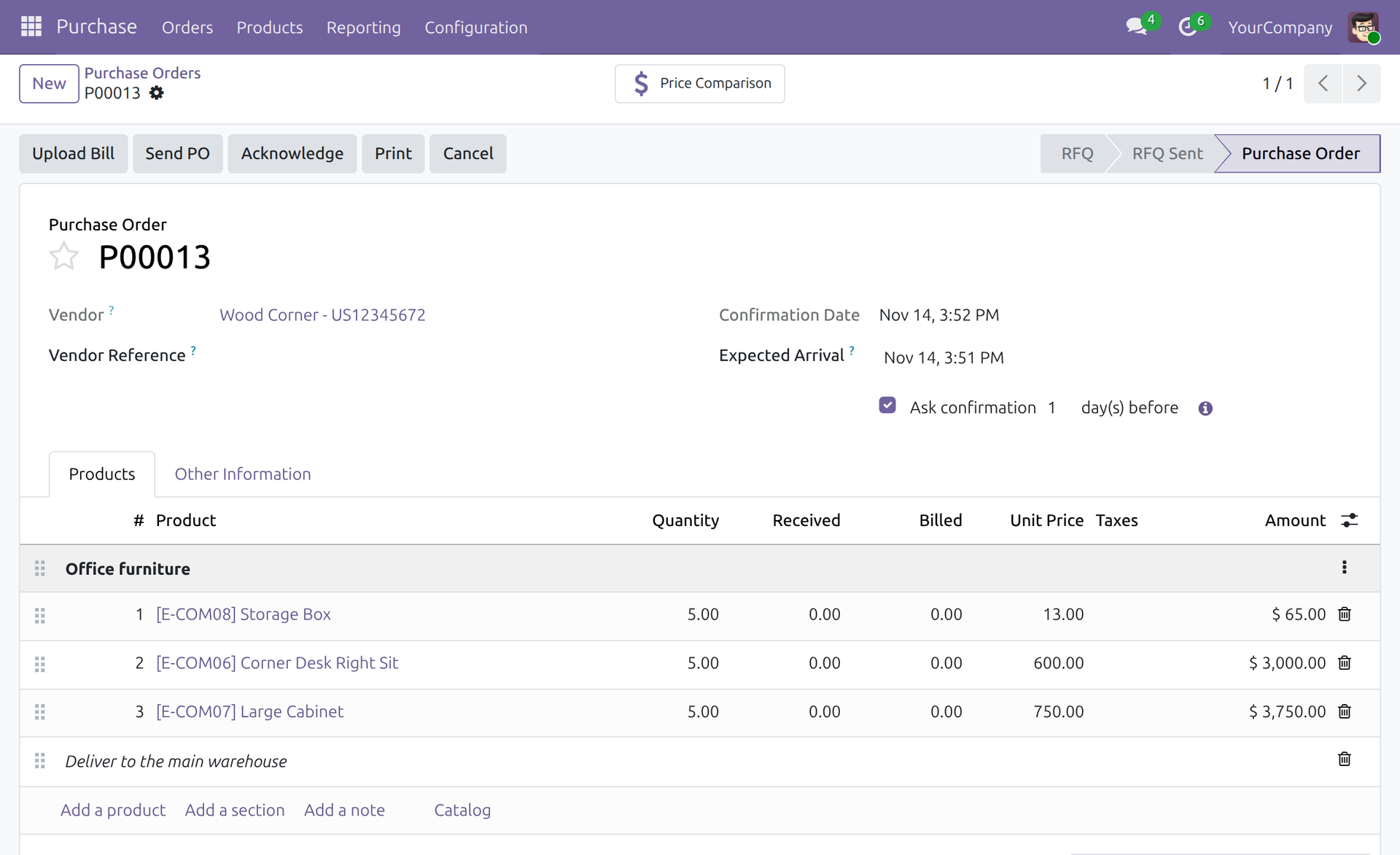
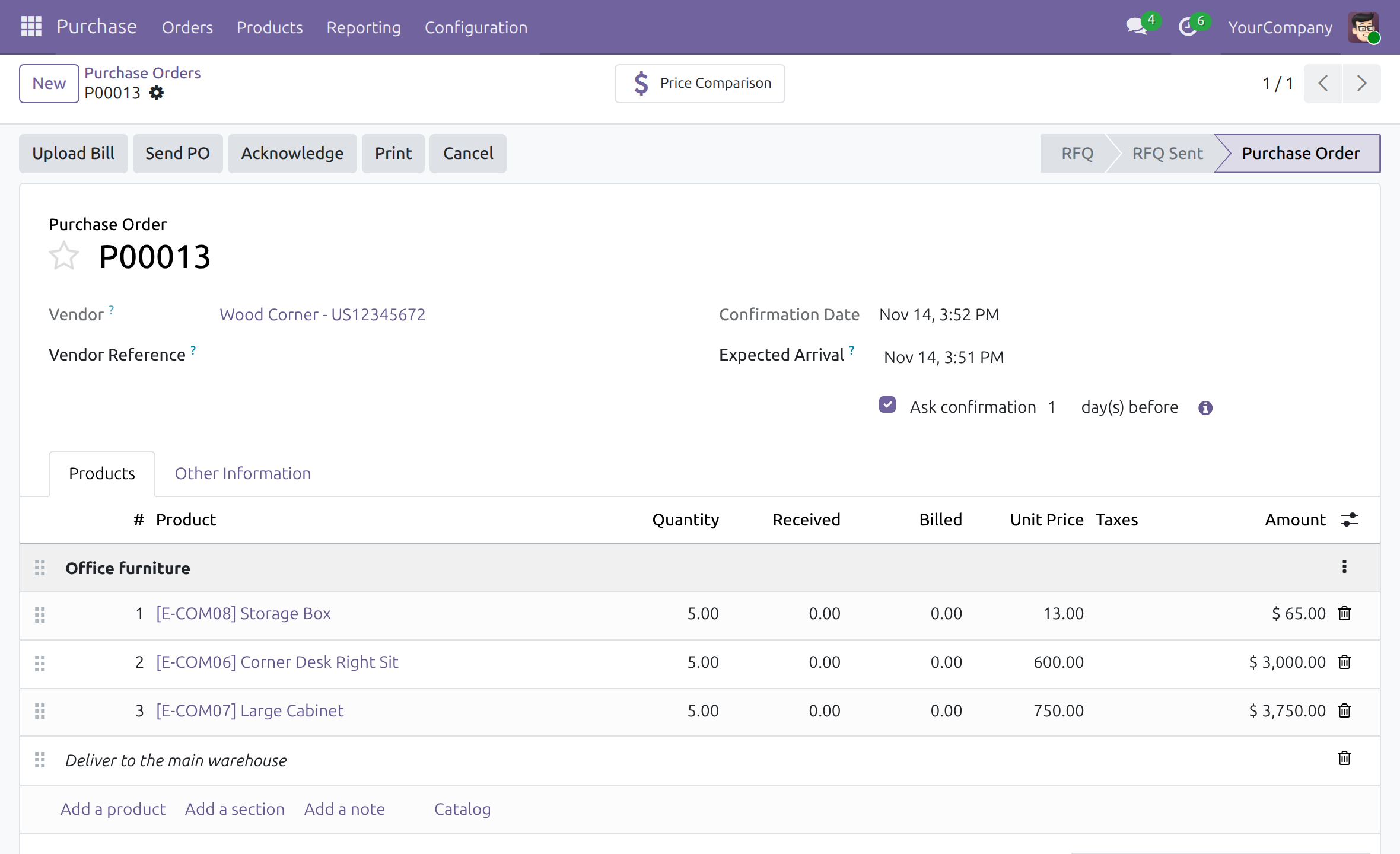
→ A "#" column numbers the product lines 1, 2, 3 on every RFQ and purchase order. Nobody types the numbers, and Section and Note lines carry no number, so the count matches the products.
The numbers stay in order when the order changes
Hand-kept numbers go wrong the moment a line is moved, added or removed, and a gap or a duplicate number creates doubt.
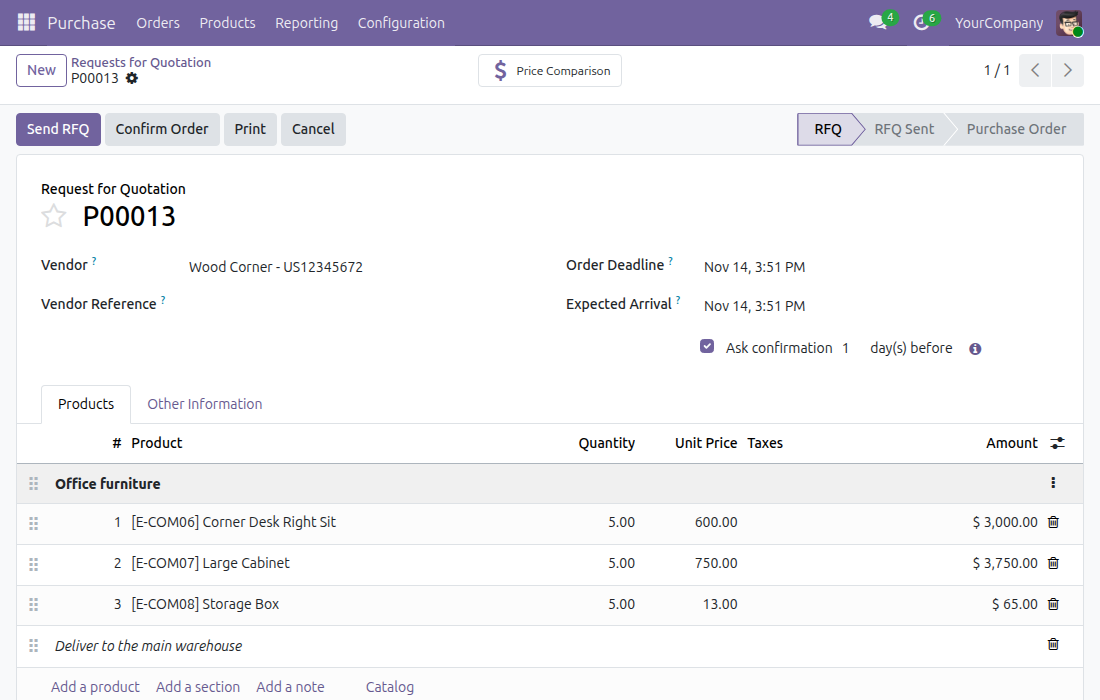
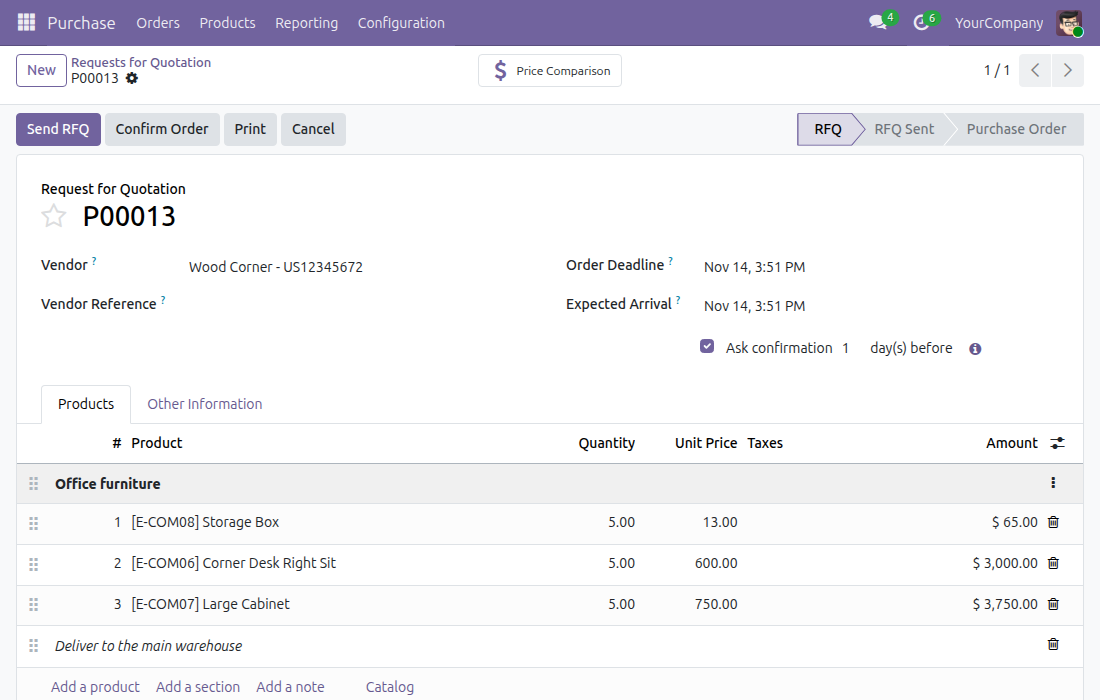
→ When a line is moved, added or deleted, the order is renumbered from 1 without gaps as soon as it is saved.
Your vendor reads the same numbers
The vendor works from the printed document, so a number that exists only on your screen does not help the conversation.
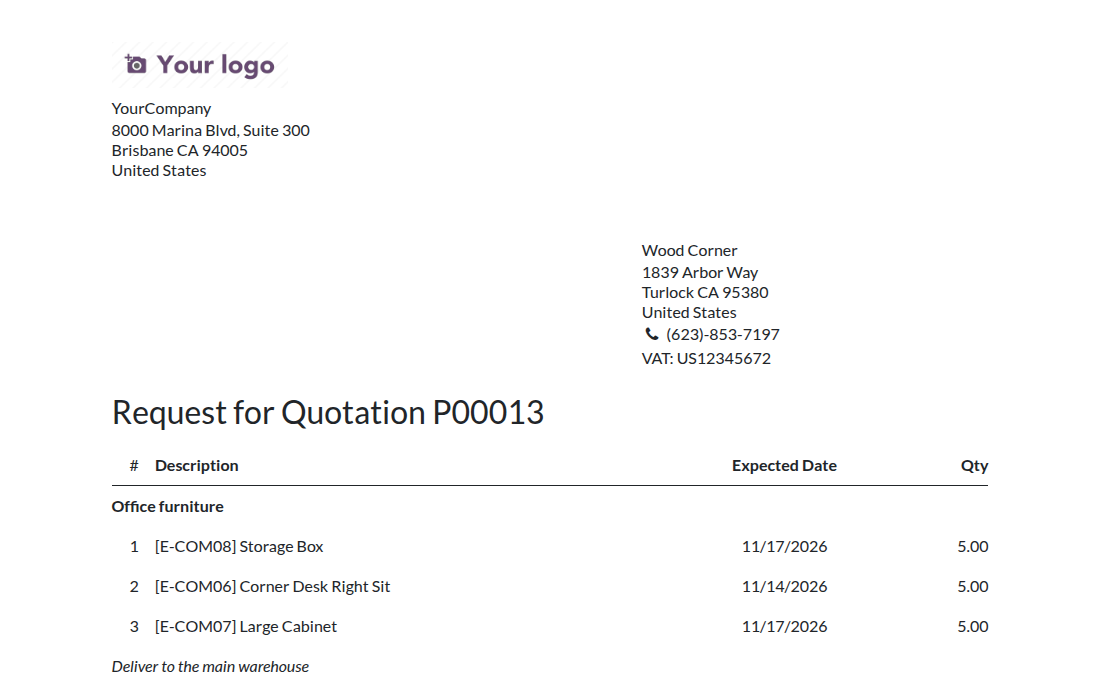
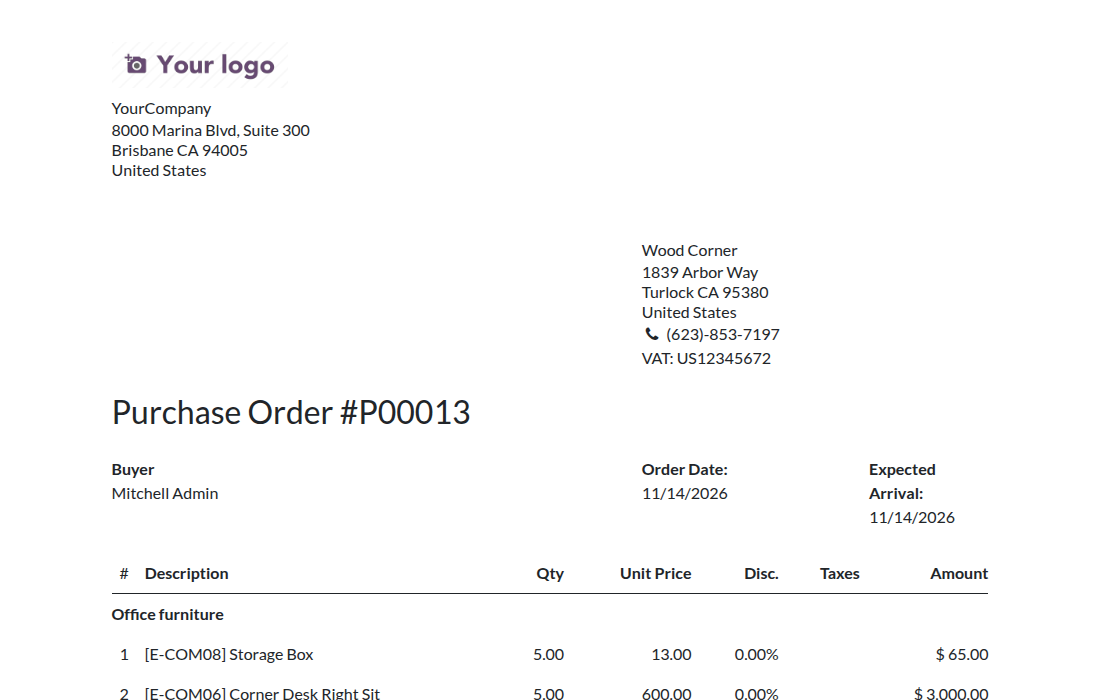
→ The printed request for quotation and the printed purchase order carry the same "#" column, in front of the description.
Ready on day one
Numbers on screen
The "#" column appears on the order lines of every request for quotation and purchase order.
Numbers on paper
Both printed documents show the same numbers, with no report to customize.
Nothing to configure
There is no setting and no new access right: the administrator installs the module and the purchasing team carries on.
What is included
Automatic line numbers on requests for quotation and purchase orders, on screen and on both printed documents. It needs only the Purchase app.
Before you decide
Can a buyer type or change a number?
No. The column is read-only and the numbers follow the order of the lines. To change a number, move the line.
Is a line number a permanent reference?
No. It is the position of the line in the order. Delete line 2 and the line below it becomes line 2. Agree on the numbers with the vendor once the order is final.
What about orders that already exist?
Their product lines are numbered from 1 when the module is installed or upgraded. Section and Note lines carry no number.
Who sees the numbers?
Everyone who can open requests for quotation and purchase orders. The module uses the access rights of the Purchase app and adds none.
Which languages does it support?
The interface is in English and ships a Vietnamese translation. The column header is the "#" sign, so printed documents read the same in every language.
Try it, then ask us
Read the Documentation tab for the purchaser's walkthrough, open the live demo with the Live Preview button, or watch the video above.
Pre-sales & partnership
viindoo.com/contactusTechnical support
viindoo.com/ticketTechnical requirements
- Odoo version: 19.0
- Editions: Community, Enterprise
- Required modules: Purchase
- License: OPL-1
- Languages: English, Vietnamese
Purchases Lines Numbering
Audience: purchasers and purchase managers who prepare and print requests for quotation and purchase orders, and the administrator who installs the module.
Overview
Long requests for quotation (RFQs) and purchase orders are hard to discuss line by line. This module adds a # column to the order lines, on screen and on the printed documents, so that you and your vendor can refer to "line 3". The numbers are assigned automatically, always continuous, starting at 1.
| Role | What they do | Access right to assign |
|---|---|---|
| Administrator | Installs the module. There is nothing to configure. | Roles: Administrator |
| Purchaser | Creates RFQs and purchase orders, arranges the lines and prints the documents. | Purchase: User |
| Purchase manager | Does the same as the purchaser on any order. | Purchase: Administrator |
The module adds no access right of its own: whoever can open an RFQ or a purchase order sees the numbers.
Setup (for the Administrator)
- Go to Apps.
- Search for Purchases Lines Numbering (technical name to_purchase_line_numbering).
- Click Activate. The Purchase app is installed with it if it is not already.
No setting needs to be changed. To give a user access to purchase orders, open Settings > Users & Companies > Users, open the user, and on the Access Rights tab set Purchase (section Supply Chain) to User or Administrator.
Purchaser: number, arrange and print the lines
Read the line numbers
- Go to Purchase > Orders > Requests for Quotation (or Purchase Orders) and open an order, or click New.
- On the Products tab, add your products. The # column, shown after the drag handle, numbers the products 1, 2, 3 and so on.
The # column is read-only: you do not type the numbers. Section and note lines are not numbered, so the numbers count products only.
Move a line
- Drag a line by its handle, at the left of the row, to its new place.
- Click Save. The lines are renumbered from 1 in the new order.
The numbers also follow when you add a line or delete one: the remaining lines are renumbered without gaps. The new numbers appear once the order is saved.
Note
Product lines of the RFQs and purchase orders that already exist are numbered 1..n when the module is installed or upgraded. Section and Note lines carry no number.
Print the documents
On a request for quotation, click Print. The table has a # column in front of the description.
After Confirm Order, click Print on the purchase order. The same numbers appear in the first column.
Troubleshooting
- The order was not renumbered after I moved a line
- Click Save: the numbers are updated when the order is saved.
- A line has no number
- Section and note lines are never numbered.
This software and associated files (the "Software") may only be used (executed, modified, executed after modifications) if you have purchased a valid license from the authors, typically via Odoo Apps, or if you have received a written agreement from the authors of the Software (see the COPYRIGHT file).
You may develop Odoo modules that use the Software as a library (typically by depending on it, importing it and using its resources), but without copying any source code or material from the Software. You may distribute those modules under the license of your choice, provided that this license is compatible with the terms of the Odoo Proprietary License (For example: LGPL, MIT, or proprietary licenses similar to this one).
It is forbidden to publish, distribute, sublicense, or sell copies of the Software or modified copies of the Software.
The above copyright notice and this permission notice must be included in all copies or substantial portions of the Software.
THE SOFTWARE IS PROVIDED "AS IS", WITHOUT WARRANTY OF ANY KIND, EXPRESS OR IMPLIED, INCLUDING BUT NOT LIMITED TO THE WARRANTIES OF MERCHANTABILITY, FITNESS FOR A PARTICULAR PURPOSE AND NONINFRINGEMENT. IN NO EVENT SHALL THE AUTHORS OR COPYRIGHT HOLDERS BE LIABLE FOR ANY CLAIM, DAMAGES OR OTHER LIABILITY, WHETHER IN AN ACTION OF CONTRACT, TORT OR OTHERWISE, ARISING FROM, OUT OF OR IN CONNECTION WITH THE SOFTWARE OR THE USE OR OTHER DEALINGS IN THE SOFTWARE.