
Management Levels
by Viindoo
| Lines of Code | 1063 |
| Technical name | viin_hr_management_tiers |
| License | OPL-1 |
| Website | https://viindoo.com/apps/modules/19.0/viin_hr_management_tiers |
| Read description for | v 17.0 v 18.0 |
| Required Apps | Discuss (mail) Employees (hr) |
| Included Dependencies | Viindoo Base Job Levels & Career Paths Advanced HR Management |
Know who manages whom, without keeping a list.
For HR managers, CEOs and Odoo implementers
Every employee's management level: from the career level, else inferred from the reporting line.
Management Levels is an Odoo 19.0 app for Odoo Community and Odoo Enterprise.
Is this you?
The list of managers and executives is a spreadsheet, and it is out of date after the first promotion.
Nobody can say how many first-line, middle and senior managers the company has.
Deputies exist in practice, but the system does not know who stands in for the manager.
The executive team is not modelled: heads of the top departments and the CEO, CFO or CTO are tagged by hand.
Only HR knows who is a manager, and employees cannot see it on a colleague's profile.
What changes
The list of managers and executives is a spreadsheet, and it is out of date after the first promotion.
→ Give every employee a management level that follows the career level, or the reporting line when there is none.
Nobody can say how many first-line, middle and senior managers the company has.
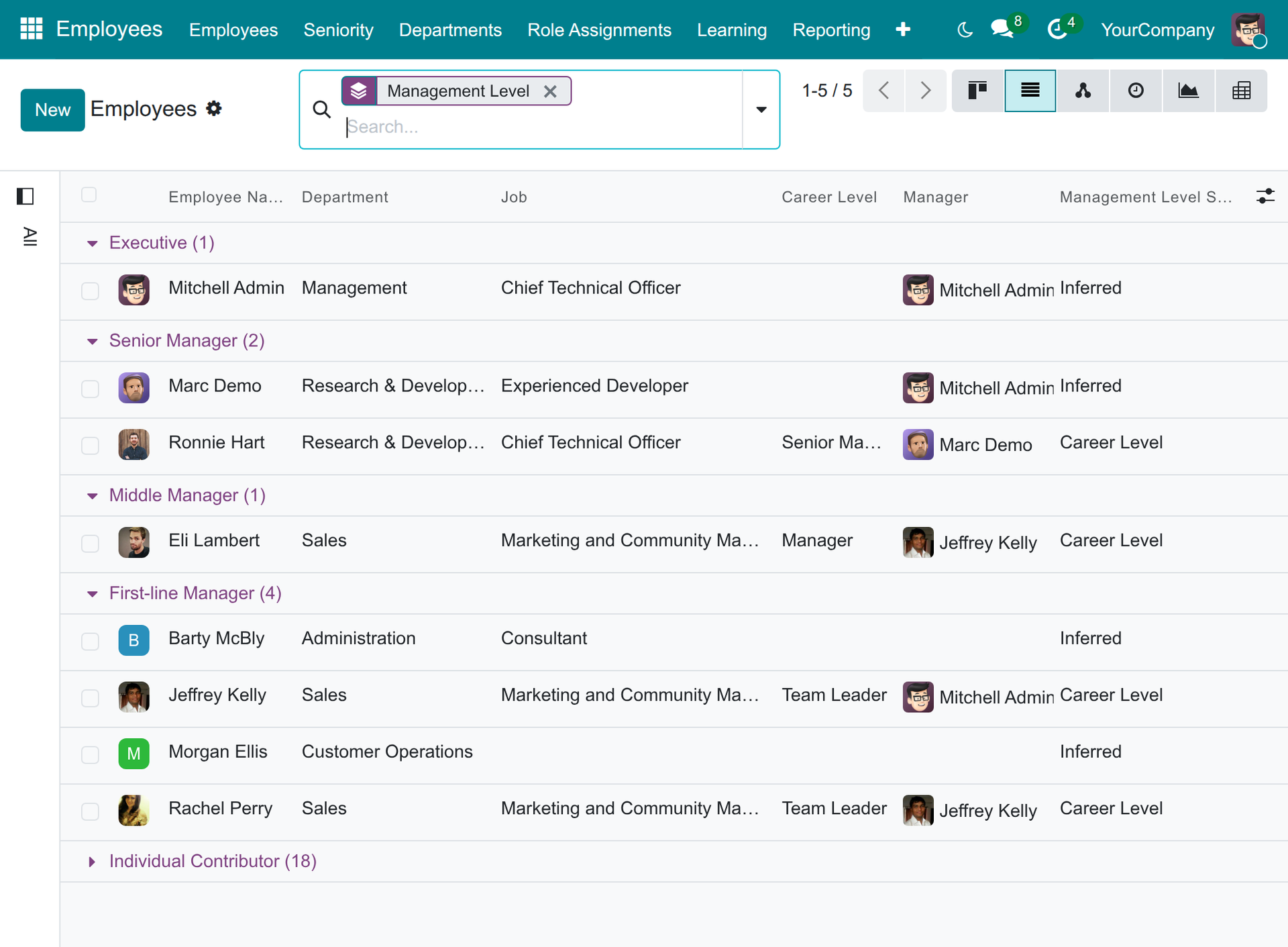
→ Count the managers per level with one grouping, and find the managers of managers with one filter.
Deputies exist in practice, but the system does not know who stands in for the manager.
→ Name the deputies of each department and the principal deputy who acts for the manager.
The executive team is not modelled: heads of the top departments and the CEO, CFO or CTO are tagged by hand.
→ Mark executive departments and C-suite positions once; their heads and holders become executives.
Only HR knows who is a manager, and employees cannot see it on a colleague's profile.
→ Show the level and its source on the public profile of every colleague.
How it works
Define the executive team
The HR manager marks the executive departments and the C-suite positions. The HR officer takes it from there.
Name the deputies
The HR officer appoints the deputies of each department and the principal deputy, then checks the level and the source on each employee.
Read and count
Employees, line managers and executives read a colleague's level, and count managers per level in the directory.
Key Features
A level on every employee
Individual Contributor, First-line, Middle or Senior Manager, or Executive - calculated for each employee, and always up to date.
The source is always shown
See whether the level comes from the career level or is inferred from the reporting line, the departments headed or deputized and the executive team.
Deputies per department
Appoint several deputies and a principal deputy who acts for the manager.
Executive departments and C-suite positions
Mark a department as executive and a position as C-suite - automatically with its department, or by hand.
Filter and group
Group employees by level or by source; filter the managers, the managers of managers and the levels that are still inferred.
Visible to everyone
Every colleague sees the management level and its source on the public profile.
Who it is for
CEO
Has no reliable count of managers and executives. Gets the workforce counted by management level, always current.
HR manager
Keeps the list of managers by hand. Defines the executive team once and lets the levels follow the organisation chart.
HR officer, line managers and employees
Deputies live in emails and levels are known only to HR. Get deputies on the department and the level on every profile.
Odoo implementer
Needs a rule that works before career levels exist. Starts from the reporting line on Odoo Community or Enterprise, and adds career levels when ready.
Best for: companies that want to know who is an individual contributor, a manager or an executive without keeping a list by hand - from a team with its first managers to a group with an executive team.
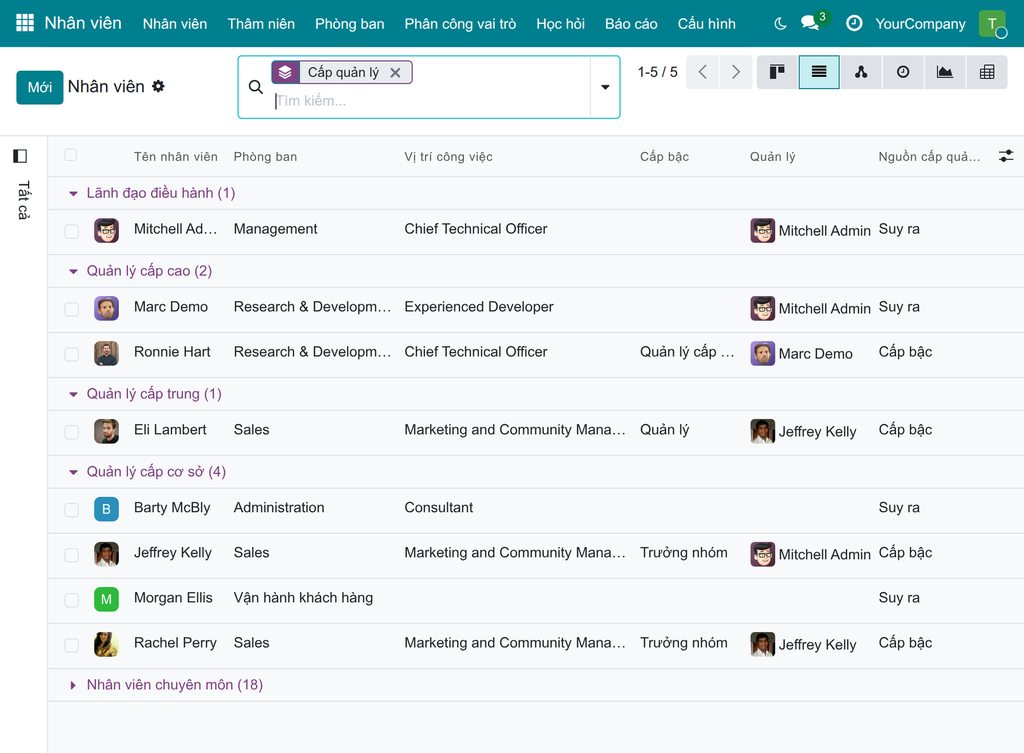
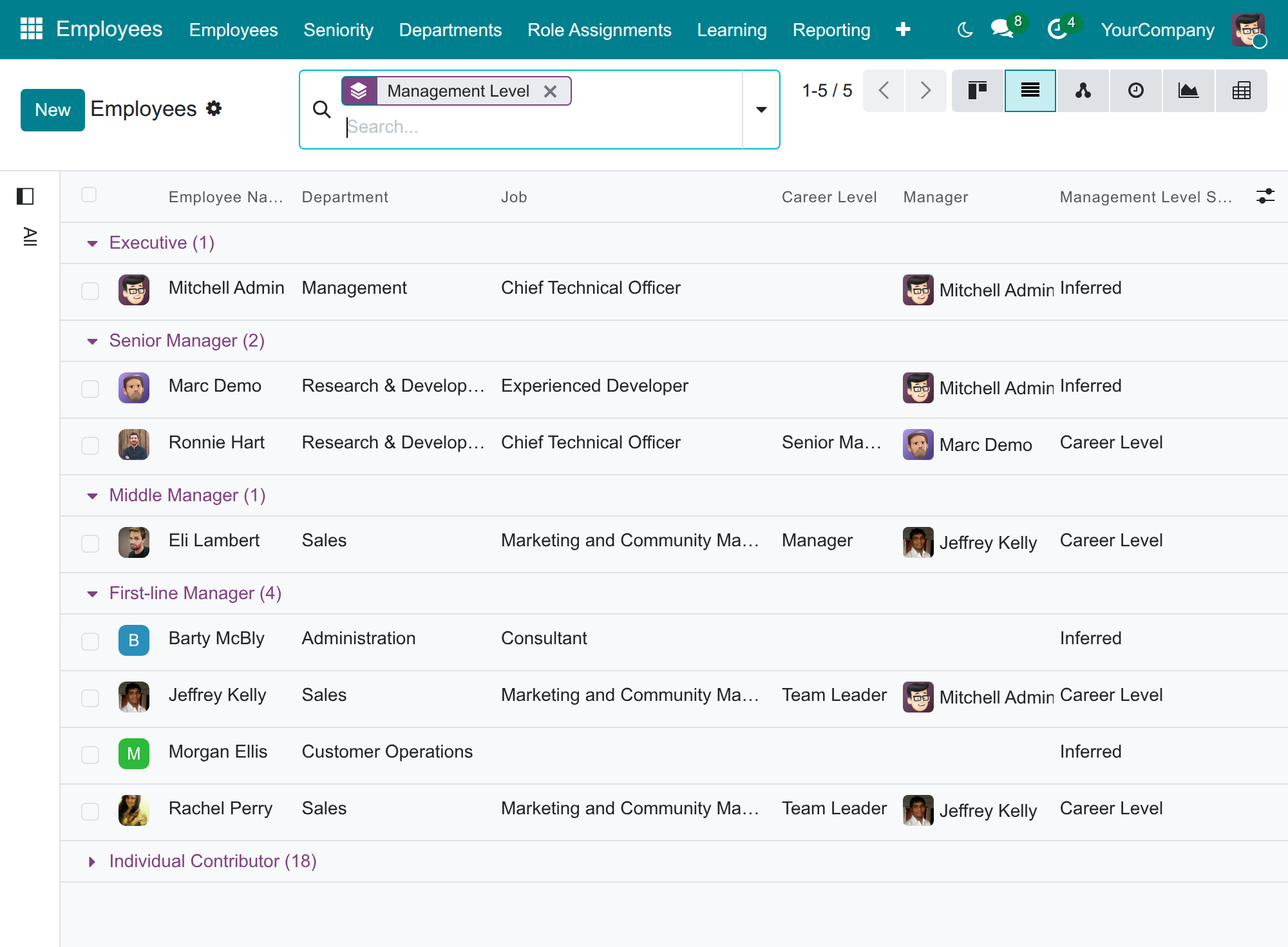
Count your managers per level
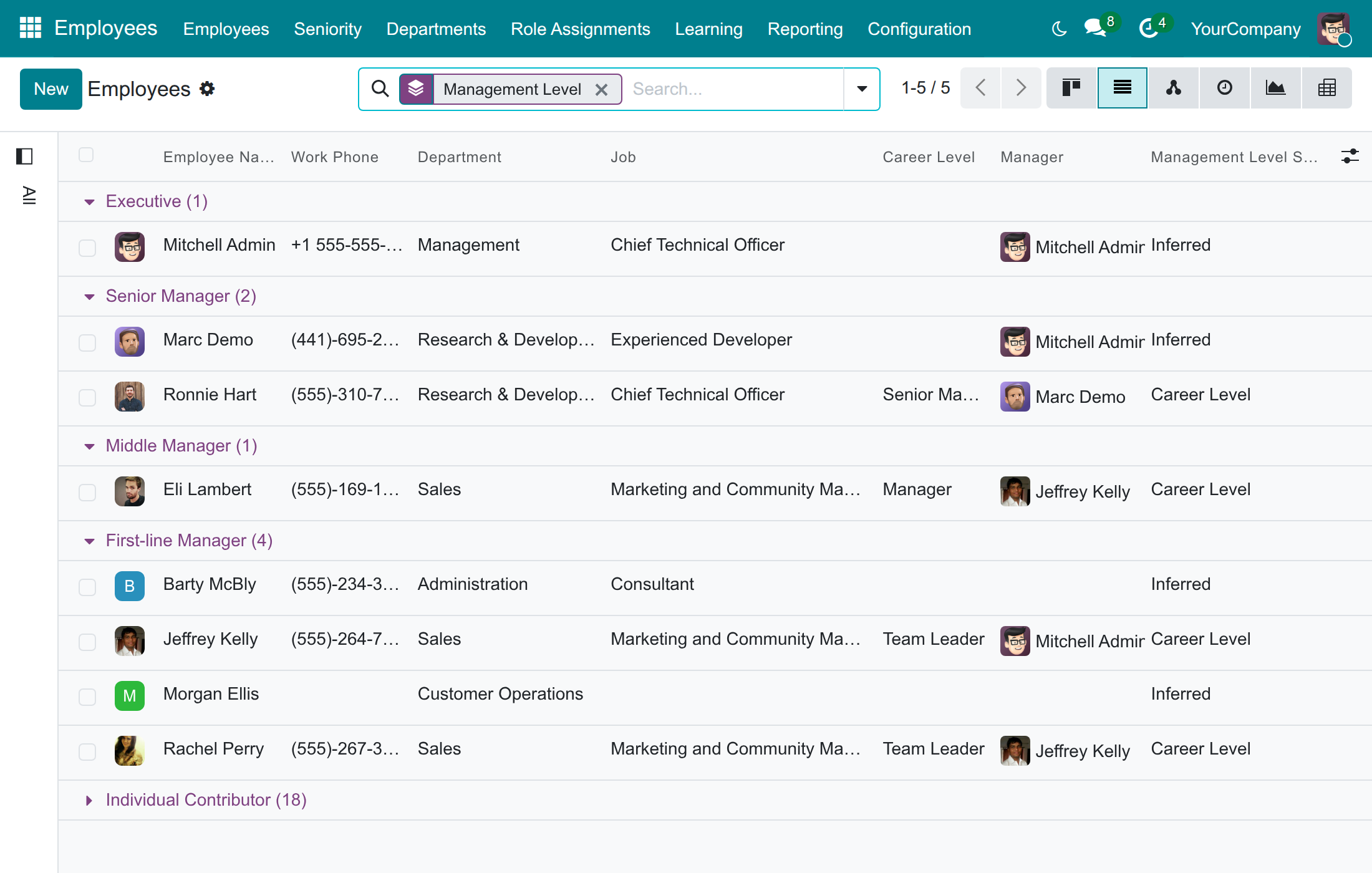
See where each level comes from
The career level takes over when assigned
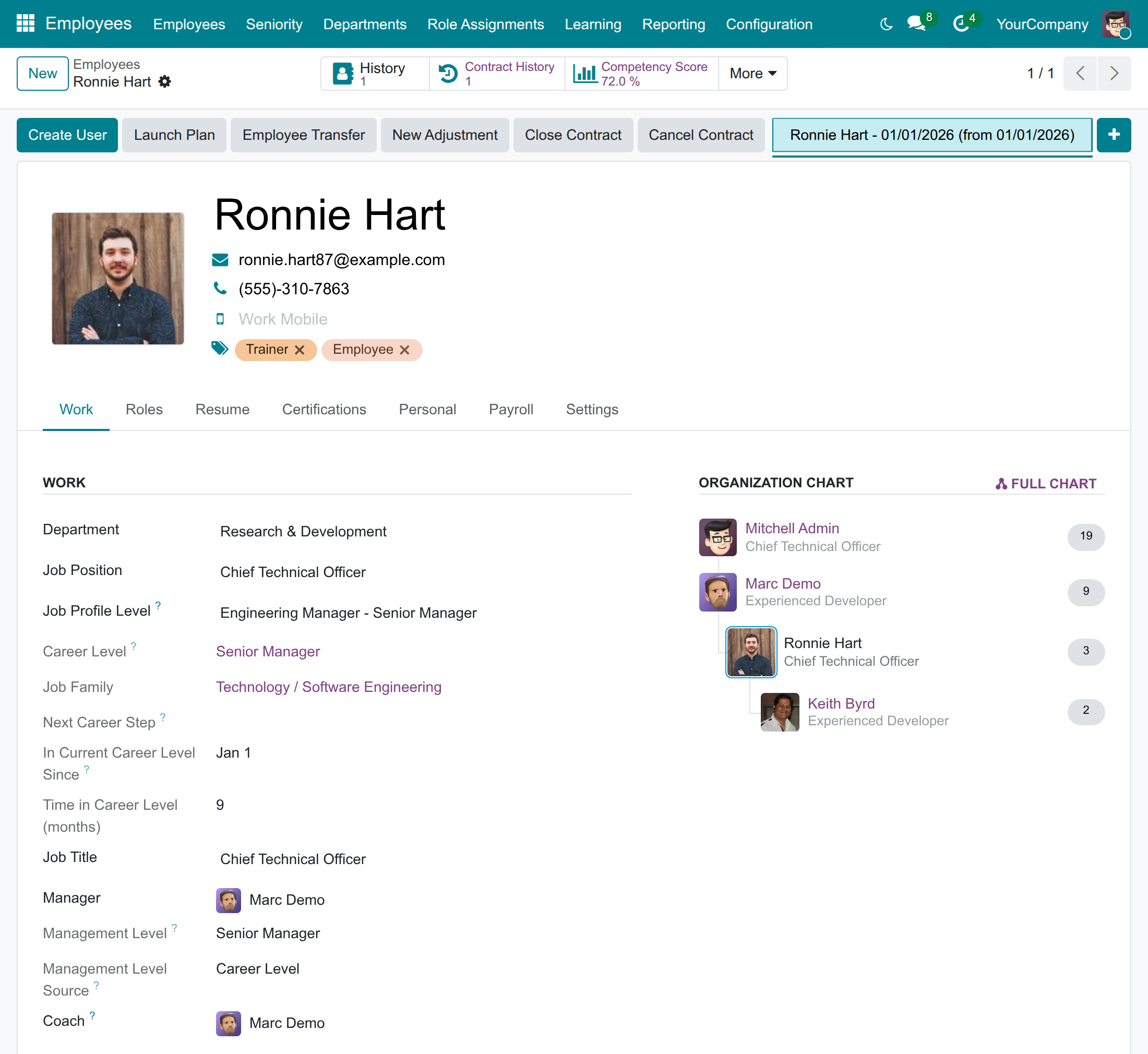
Name the deputies of a department
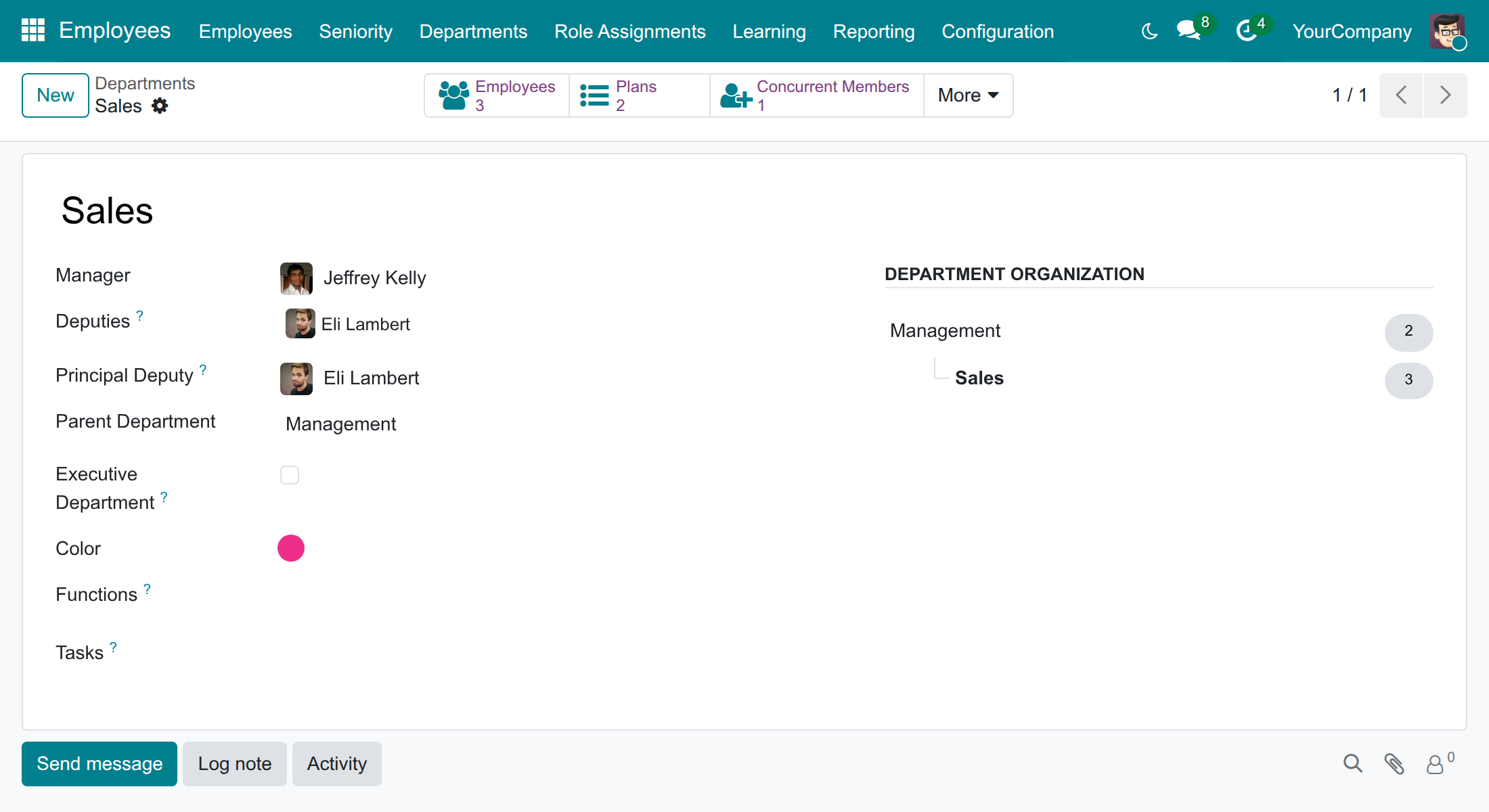
Flag C-suite positions
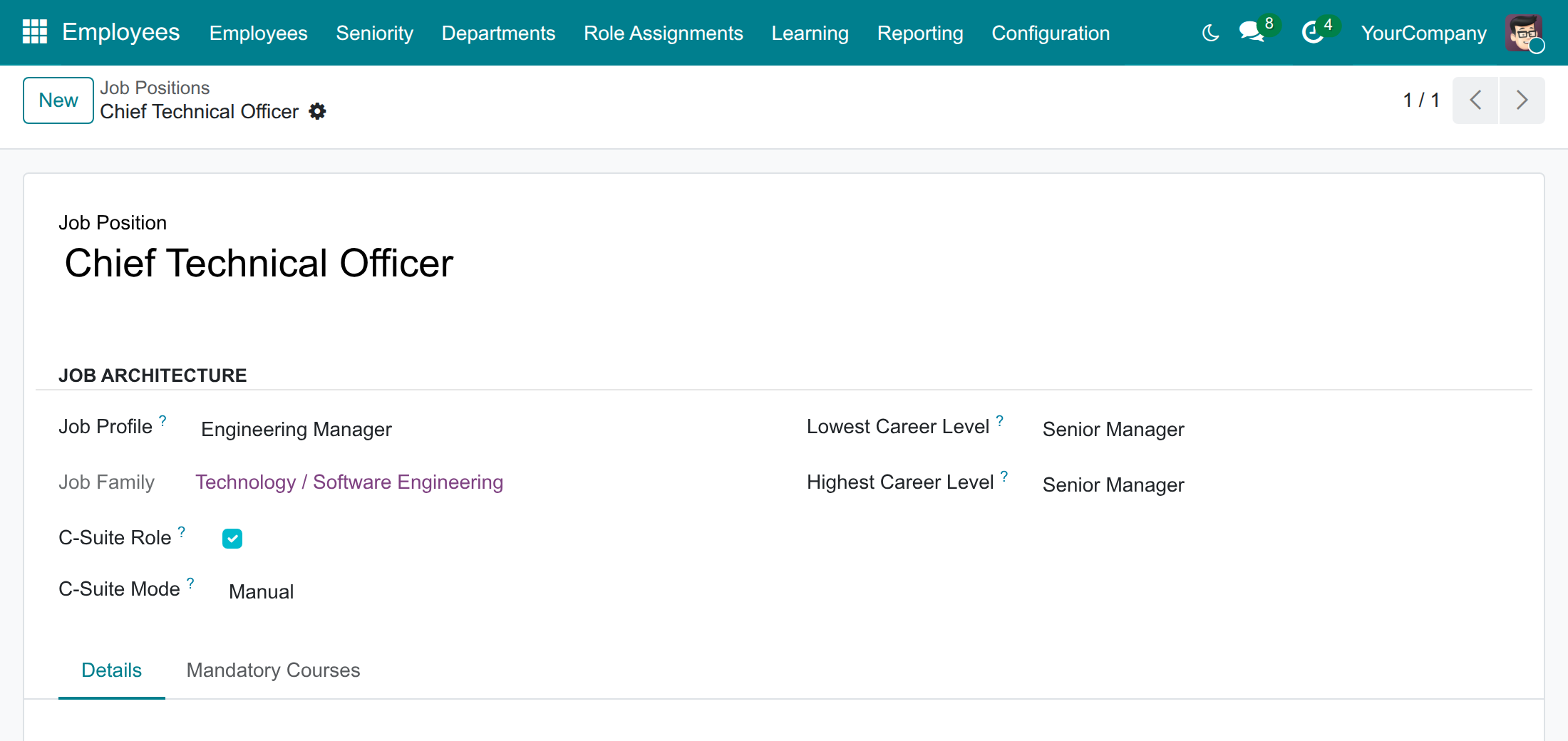
Review the levels that are still inferred
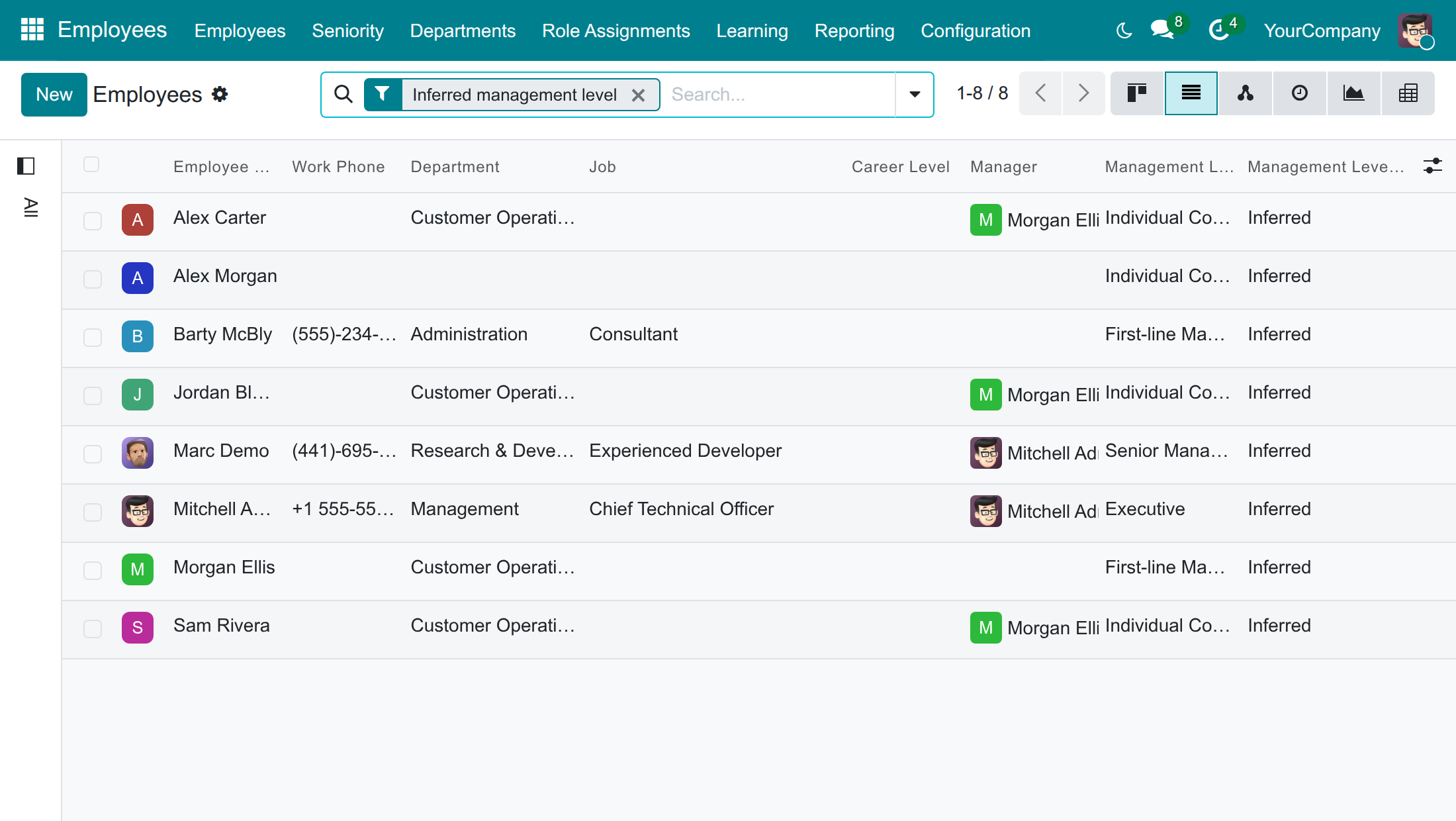
Let everyone see the level
Frequently Asked Questions
Do we need career levels first?
No. Without a career level, the management level is inferred from the reporting line, the departments headed or deputized, the executive departments and the C-suite positions. When a career level is assigned, its management level applies.
Can we set a level by hand?
The level follows the career level, or the organisation chart. To change it, change the career level, the manager, the department or the position.
How is a level inferred?
Heads of an executive department and holders of a C-suite position are executives. Otherwise three or more management layers below make a senior manager, two a middle manager, one a first-line manager. Heads and deputies of a department are at least first-line managers.
Who can see the levels?
Everyone, on the public profile of a colleague. HR officers also filter and group the employees by level.
Does it manage pay or plan headcount?
No. It tells the level of each employee and where it comes from.
Which Odoo editions does it support?
Odoo Community and Odoo Enterprise, version 19.0.
Need help with Management Levels?
Technical Support
Open a support ticketTechnical Requirement
- Odoo version: 19.0
- Editions: Odoo Community, Odoo Enterprise
- Required modules: Advanced HR Management, Job Levels & Career Paths (installed together, Management Levels installs itself)
- License: OPL-1
Management Levels
Note
Who this guide is for. HR managers and HR officers who set up and follow the management structure of the company, and employees, line managers and executives who want to know who is an individual contributor, a manager or an executive. Each chapter says which role it is written for.
Overview
Who is a first-line manager, who manages other managers, who belongs to the executive team? Most companies answer with a spreadsheet that is out of date the day after a promotion. Management Levels gives every employee an effective management level and tells you where it comes from, so the answer is always on the employee and follows the organisation chart on its own.
With the module you can:
- see the Management Level of every employee - Individual Contributor, First-line Manager, Middle Manager, Senior Manager or Executive - and its Management Level Source;
- let the level follow the career level of the employee when one is assigned, and be inferred from the reporting line when none is;
- appoint deputies of a department, and a principal deputy who acts for the manager;
- mark executive departments and C-suite positions, so that their heads and holders are executives;
- filter and group the employees by level, to count managers per level or to find the managers of managers;
- let every colleague see the level of the others on the public profile.
How the level is decided
The module applies the first rule that fits:
| Step | Situation | Management level and source |
|---|---|---|
| 1 | The employee has a career level (see Job Levels & Career Paths). | The management level of that career level. The source is Career Level. |
| 2 | No career level, and the employee heads an executive department or holds a C-suite position. | Executive. The source is Inferred. |
| 3 | No career level, and three or more management layers are below the employee. | Senior Manager. The source is Inferred. |
| 4 | No career level, and two management layers are below the employee. | Middle Manager. The source is Inferred. |
| 5 | No career level, and either one management layer is below the employee, or the employee heads or deputizes a department. | First-line Manager. The source is Inferred. |
| 6 | Anyone else. | Individual Contributor. The source is Inferred. |
A management layer is a step of managers below a person. A manager whose reports have no reports of their own has one layer below. A manager of such managers has two, and so on. The level is recalculated by itself when someone is promoted, moves, or when the organisation chart changes: nothing has to be tagged by hand.
The key terms
| Term | Meaning |
|---|---|
| Management Level | The effective level of the employee: Individual Contributor, First-line Manager, Middle Manager, Senior Manager or Executive. |
| Management Level Source | Career Level when the level is the one of the career level of the employee, Inferred when it was deduced from the reporting line, the departments headed or deputized, the executive departments and the C-suite positions. |
| Deputies | The employees of a department who stand in for its manager. When the level is inferred, a deputy is at least a first-line manager. |
| Principal Deputy | The one deputy who acts on behalf of the manager when the manager is absent. |
| Executive Department | A department whose head, and the positions it holds, are executives. Top-level departments are executive by default. |
| Department Depth | 1 for a top-level department, then one more for each parent department above. It is shown in developer mode only. |
| C-Suite Role | A position such as CEO, CFO or CTO. Employees who hold it are executives. |
| C-Suite Mode | Automatic: the position is C-suite when its department is an executive department. Manual: the choice you make on the position is kept. |
How the work flows
Typically, the work goes through three hand-offs:
- The HR manager decides which departments are executive and which positions are C-suite.
- The HR officer appoints the deputies of the departments and checks the level of the employees, mostly the ones whose level is inferred.
- Employees, line managers and executives read the level of a colleague, or count the managers per level.
Who does what
| Role | What they do | Access right to assign |
|---|---|---|
| HR manager | Decides which departments are executive and which job positions are C-suite. | Employees / Administrator |
| HR officer | Appoints the deputies of a department, marks executive departments, checks the management level and source of every employee, and filters or groups the employees by level. | Employees / Officer: Manage all employees |
| Employee, line manager and executive | Look up the management level of a colleague, and count the managers per level in the directory. | None beyond the internal user access right |
Setup (for the Administrator)
Install the module
Management Levels is installed automatically as soon as Advanced HR Management and Job Levels & Career Paths are both installed. To install it by hand:
- Open Apps.
- Remove the default Apps filter in the search box and type Management Levels.
- Click Install on the Management Levels card.
Without a career level on an employee, the management level is inferred from the reporting line: the module is useful from the first day, before any career level is assigned.
Give each person their access right
- Open Settings ‣ Users & Companies ‣ Users and open the user.
- In the Access Rights tab, set Employees to the right of the table above: Administrator for the HR manager, Officer: Manage all employees for the HR officer.
- Save.
Every internal user can read the management level of a colleague on the public profile without any further right.
Note
The Configuration menu of the Employees app, where job positions are maintained, is shown to the Administrator access right only. Departments are in the Departments menu, open to everybody and editable by the Officer and Administrator access rights.
HR manager: define executives and C-suite positions
Mark an executive department
The head of an executive department is an executive, and so are the employees who hold the C-suite positions of that department. A top-level department is executive by default. You can also mark a sub-department, for example a management committee inside a larger department.
- Open Employees ‣ Departments and open the department.
- Tick Executive Department.
- Save.
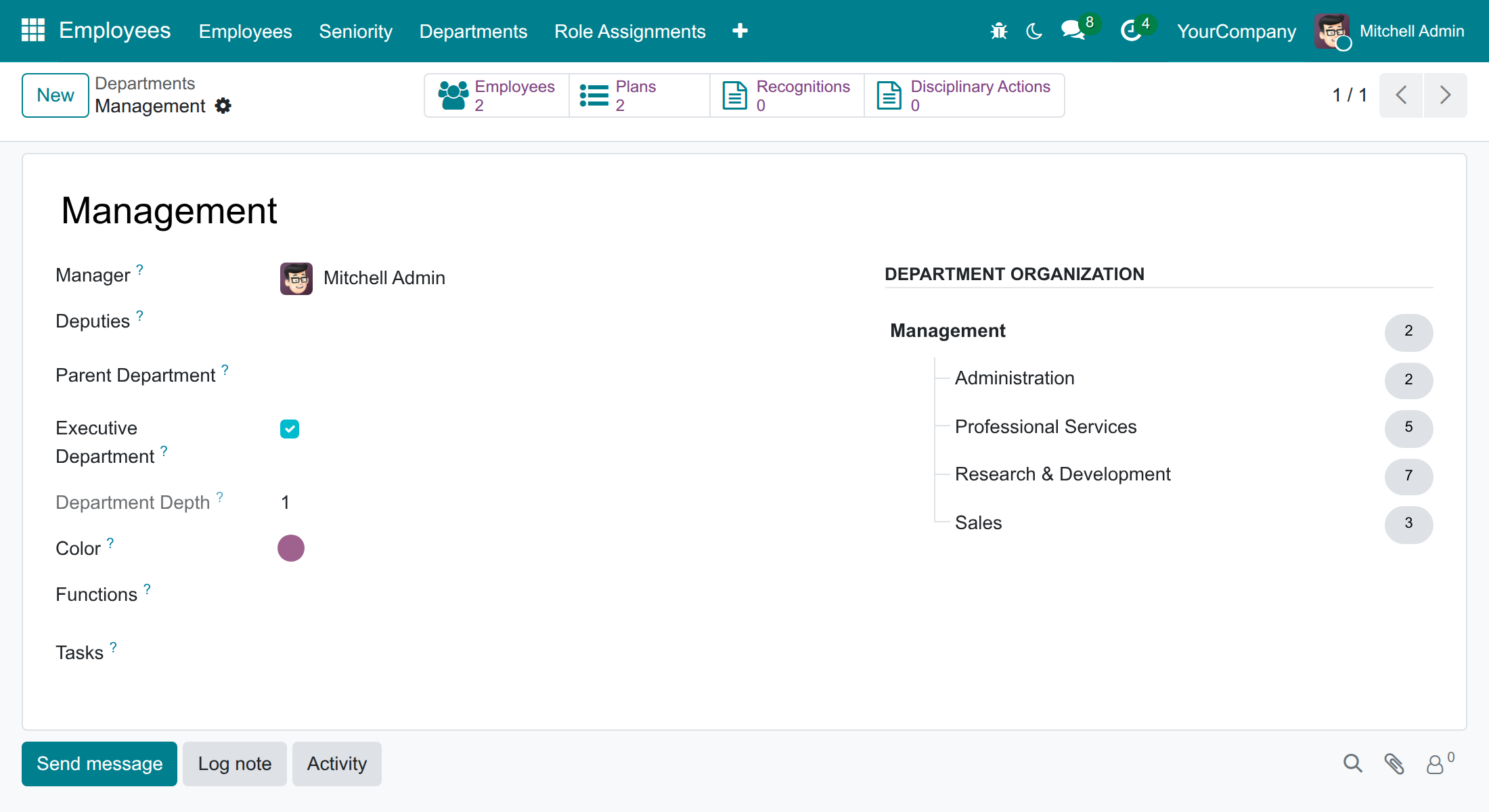
The Department Depth is calculated: 1 for a top-level department, 2 for a department inside it, and so on. It is shown in developer mode only. To see it, activate the developer mode, for example by adding ?debug=1 to the address of the page.
Flag a C-suite position
A C-suite position makes every employee who holds it an executive, wherever the employee sits in the organisation chart.
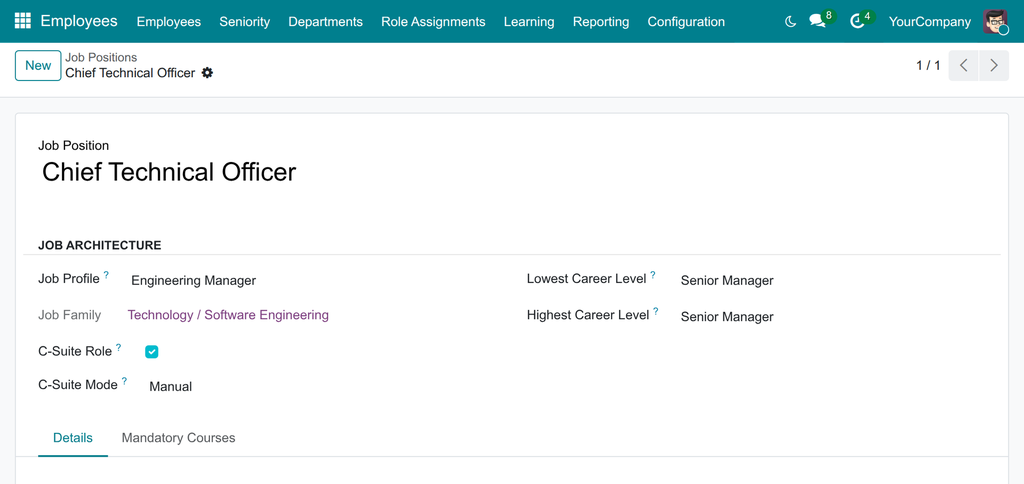
- Open Employees ‣ Configuration ‣ Recruitment ‣ Job Positions and open the position.
- In the Job Architecture section, read C-Suite Role and C-Suite Mode. By default the mode is Automatic: the position is C-suite when its department is an executive department, and the C-Suite Role box cannot be edited.
Note
With the Recruitment app installed, job positions are edited by users with the Officer right of Recruitment.
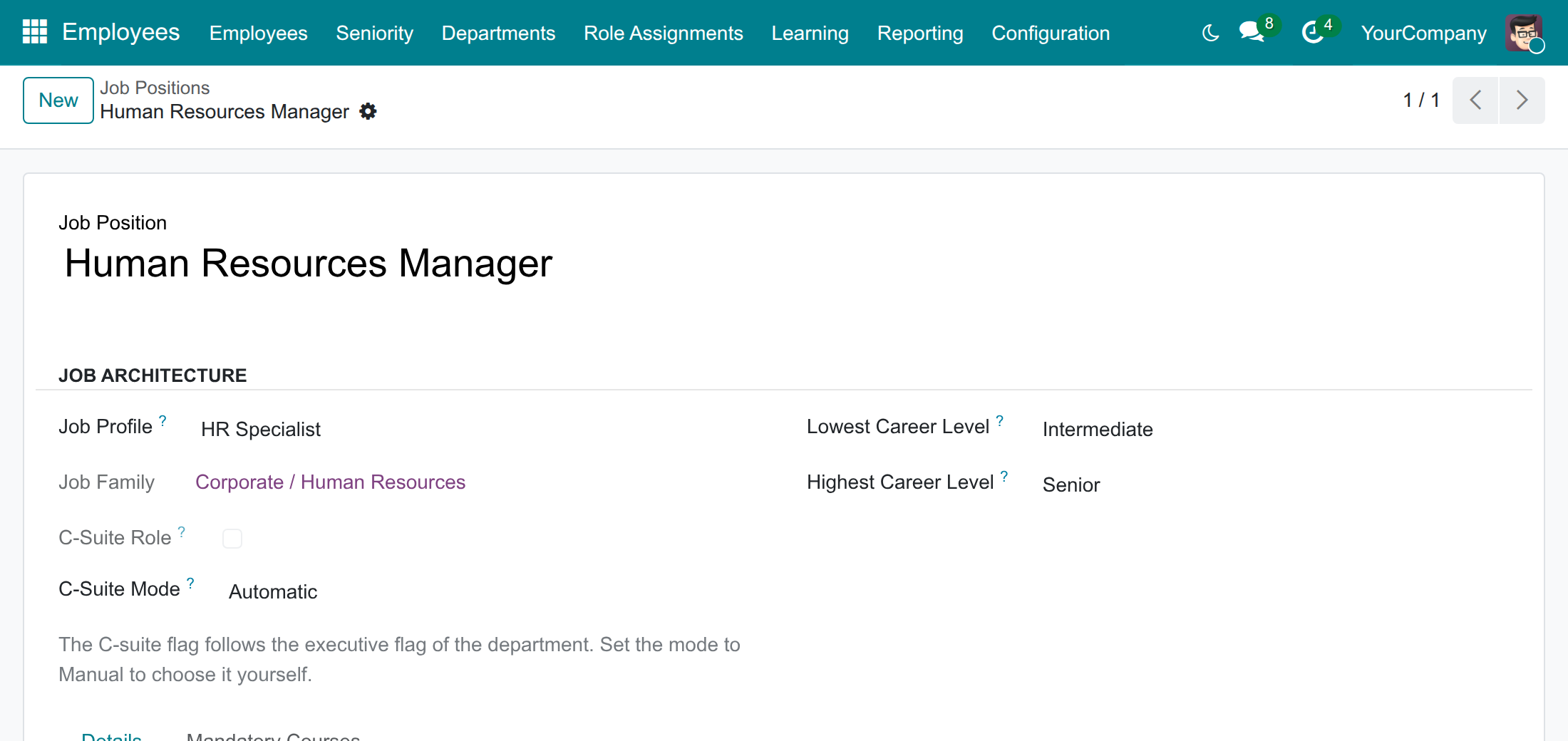
To choose it yourself, whatever the department - for example for a Chief Technical Officer who sits in a technical department:
- Set C-Suite Mode to Manual.
- Tick C-Suite Role to flag the position as C-suite, or leave it empty to make sure it is not.
- Save.
In the list of job positions, the C-Suite Role and C-Suite Mode columns can be shown from the column selector at the end of the header.
HR officer: appoint deputies and follow the levels
Appoint the deputies of a department
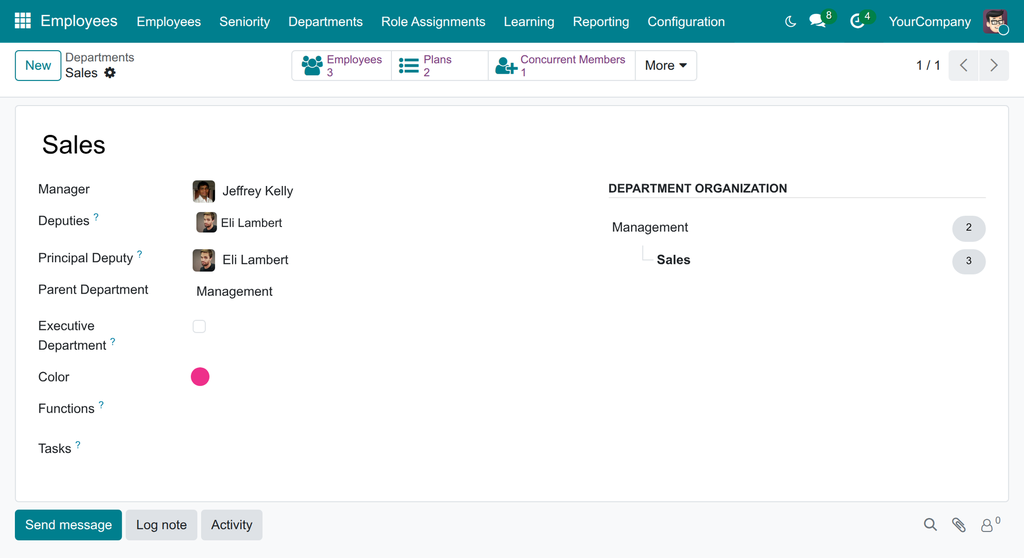
A deputy backs up the department manager. Deputies count as managers even when nobody reports to them: when the level is inferred, a deputy without reports is a first-line manager.
- Open Employees ‣ Departments and open the department.
- In Deputies, select one or several employees. The list proposes the employees of the department who report to its manager.
- Once there is at least one deputy, Principal Deputy appears. Select the deputy who acts on behalf of the manager when the manager is absent.
- Save.
The principal deputy must be one of the deputies: if you remove a deputy who is the principal deputy, the principal deputy is cleared. An employee can be a deputy only in a department of the employee's own company.
Check the level of an employee
- Open Employees ‣ Employees and open the employee.
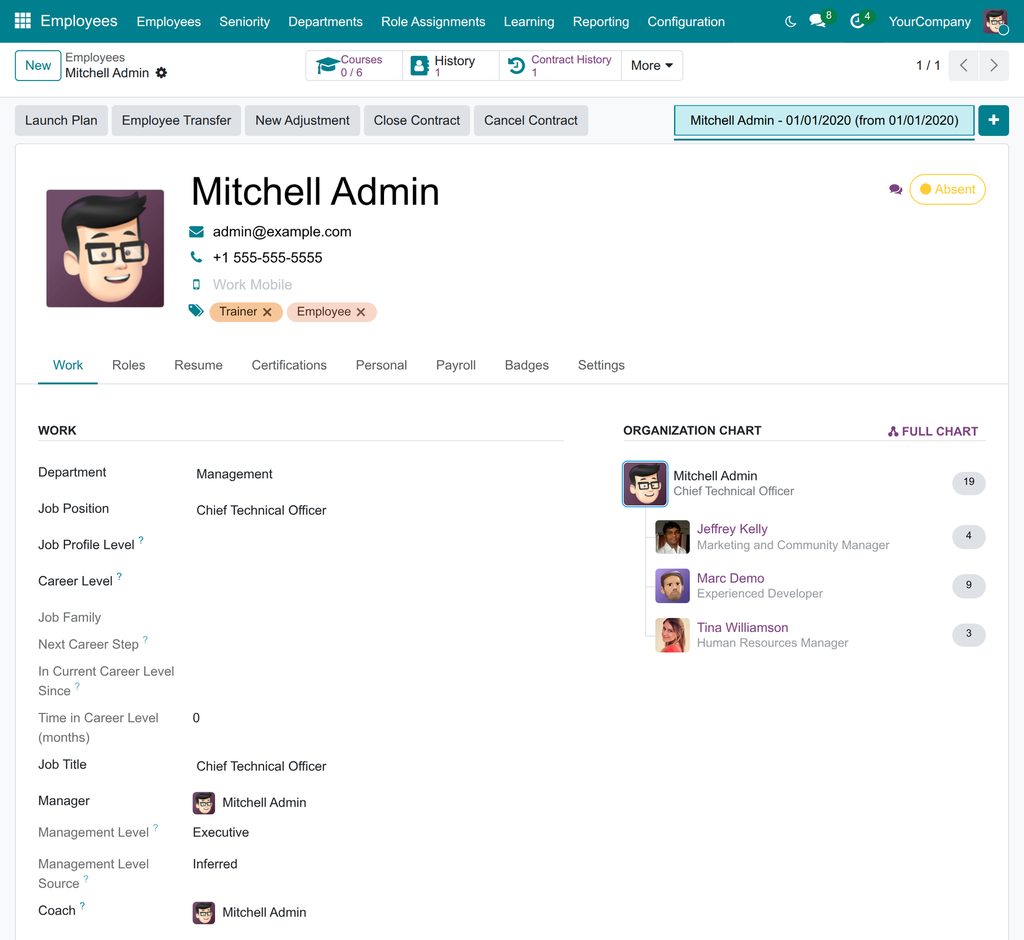
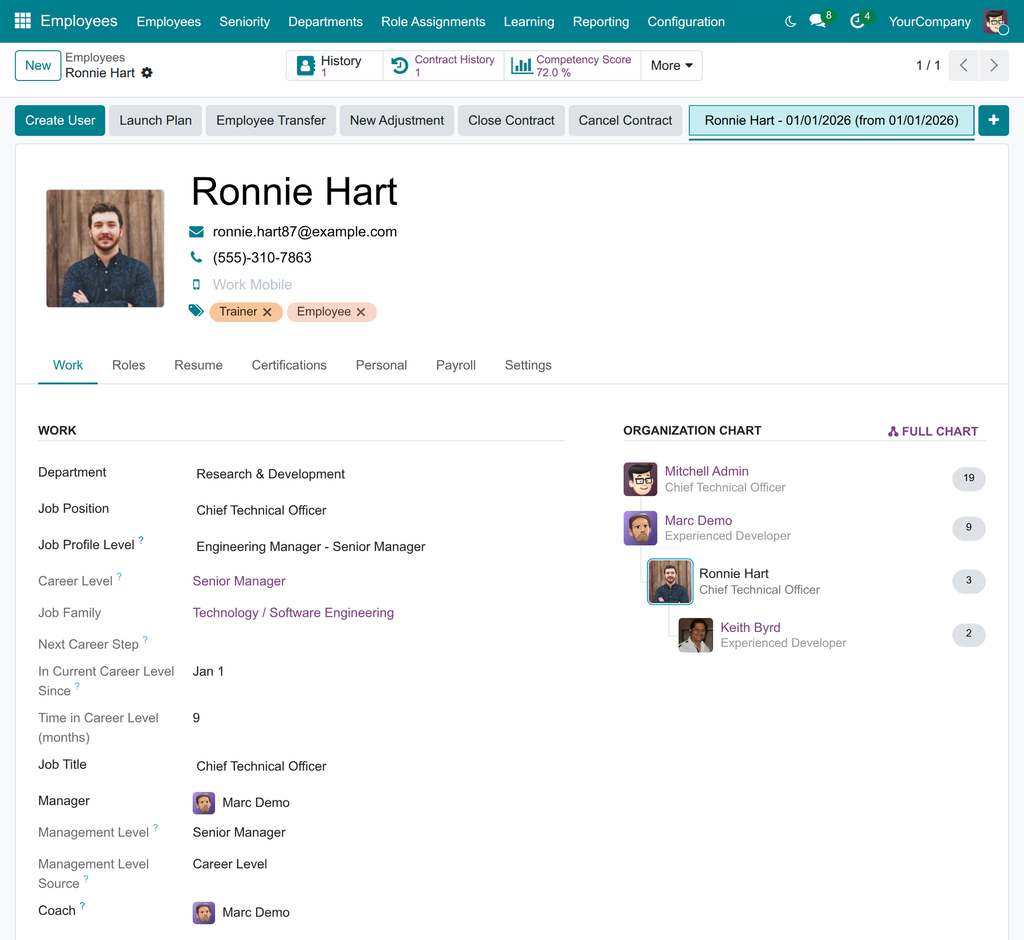
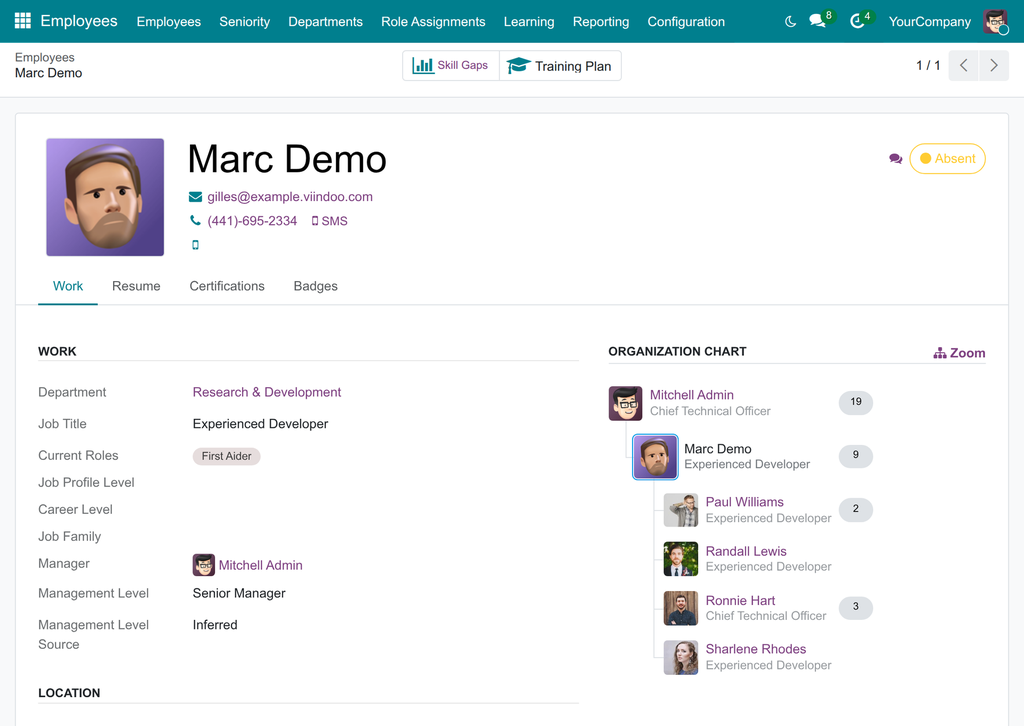
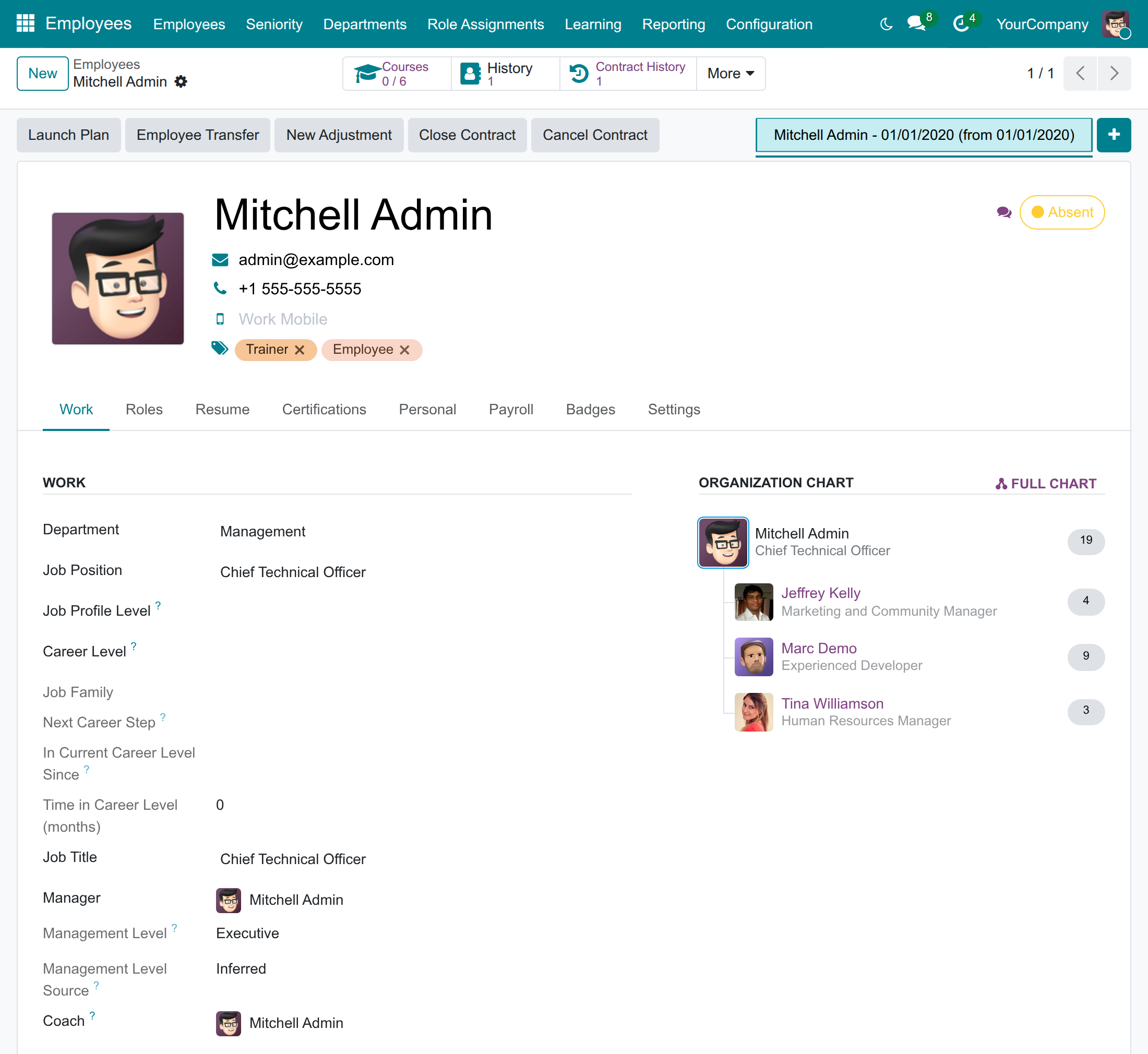
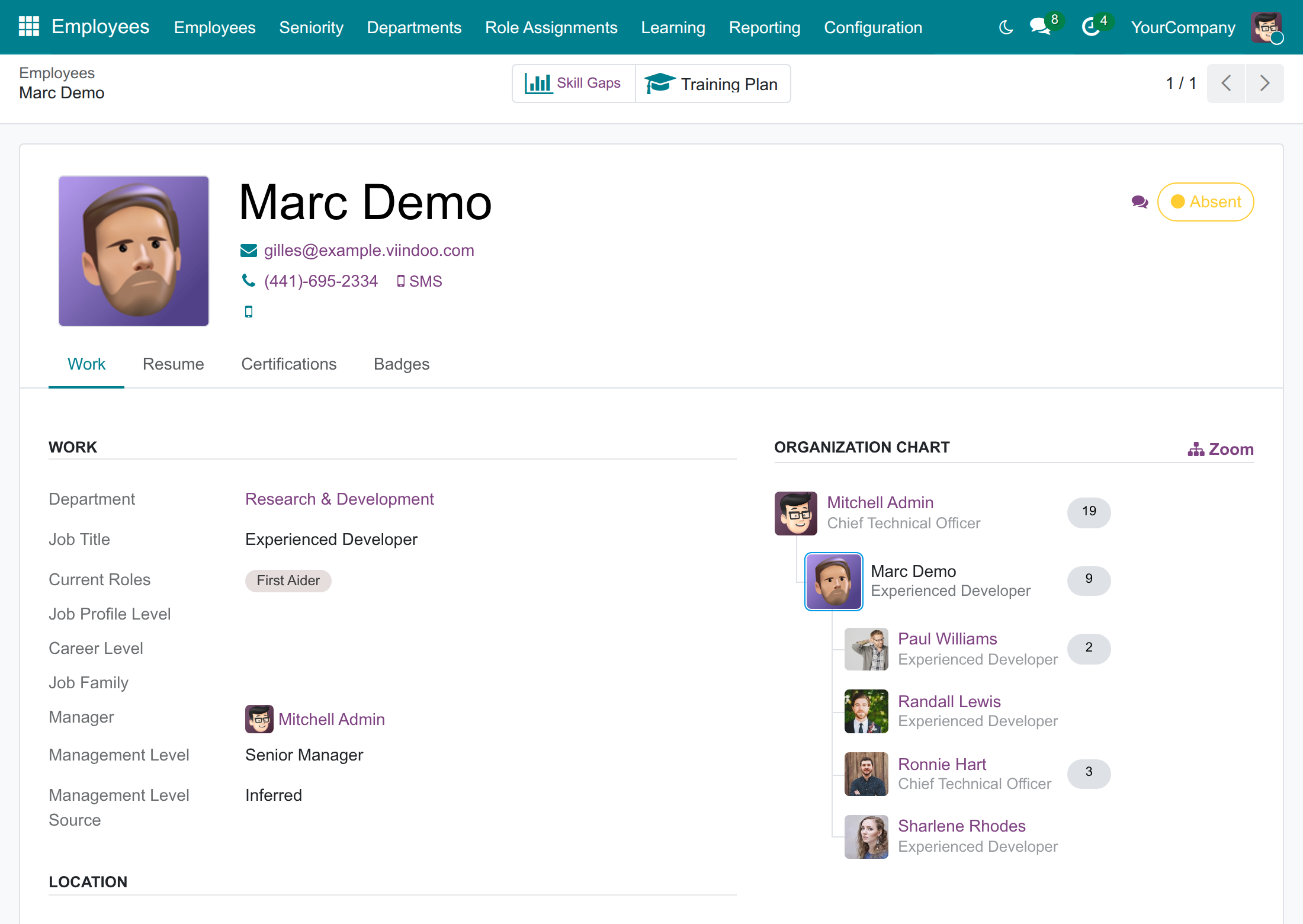
- In the Work tab, read Management Level and Management Level Source, below the Manager. Both fields are calculated and cannot be edited.
When the source is Inferred, the employee holds no career level, and the level comes from the organisation chart. In this example the employee heads an executive department, so the level is Executive:
When the source is Career Level, the level is the one of the career level the employee holds now, even for the holder of a C-suite position. A new career level on the employee, for example after a promotion, replaces the inferred level; removing the career level returns the employee to the inferred level.
Count the managers per level
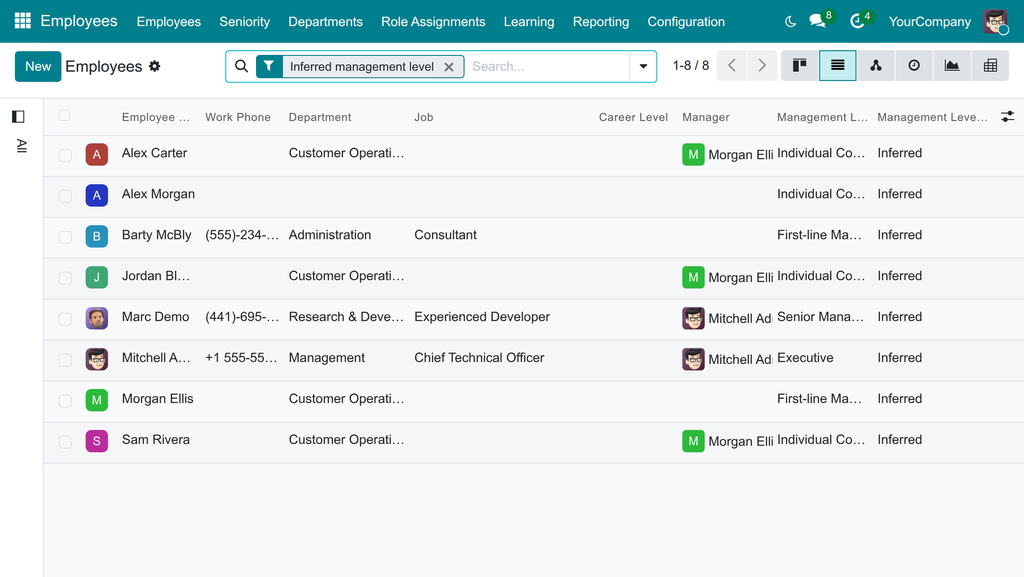
- Open Employees ‣ Employees and switch to the list view.
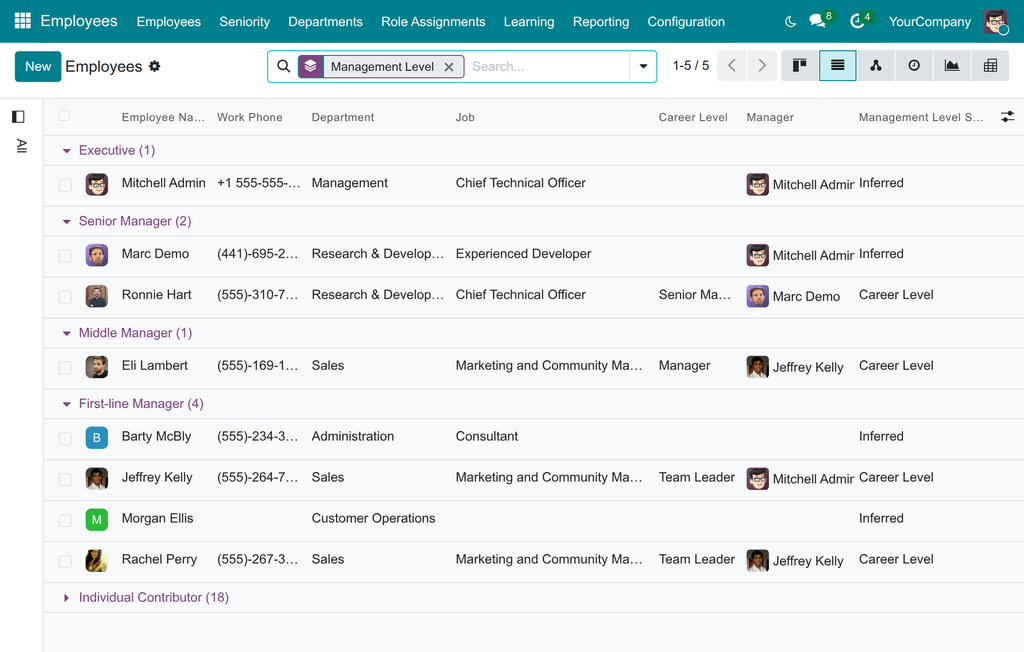
- Click the arrow of the search box. Under Group By, select Management Level. The five levels are always listed, from Executive to Individual Contributor, with the number of employees of each.
- Select Management Level Source under Group By to count how many levels come from a career level and how many are inferred.
The Management Level and Management Level Source columns are optional: show them from the column selector at the end of the header.
Filter the managers
Under Filters, three lines help you find the people behind the numbers:
- Managers: the employees who head a department, are the deputy of a department, or have direct reports.
- Manages managers: the employees with at least two management layers below them.
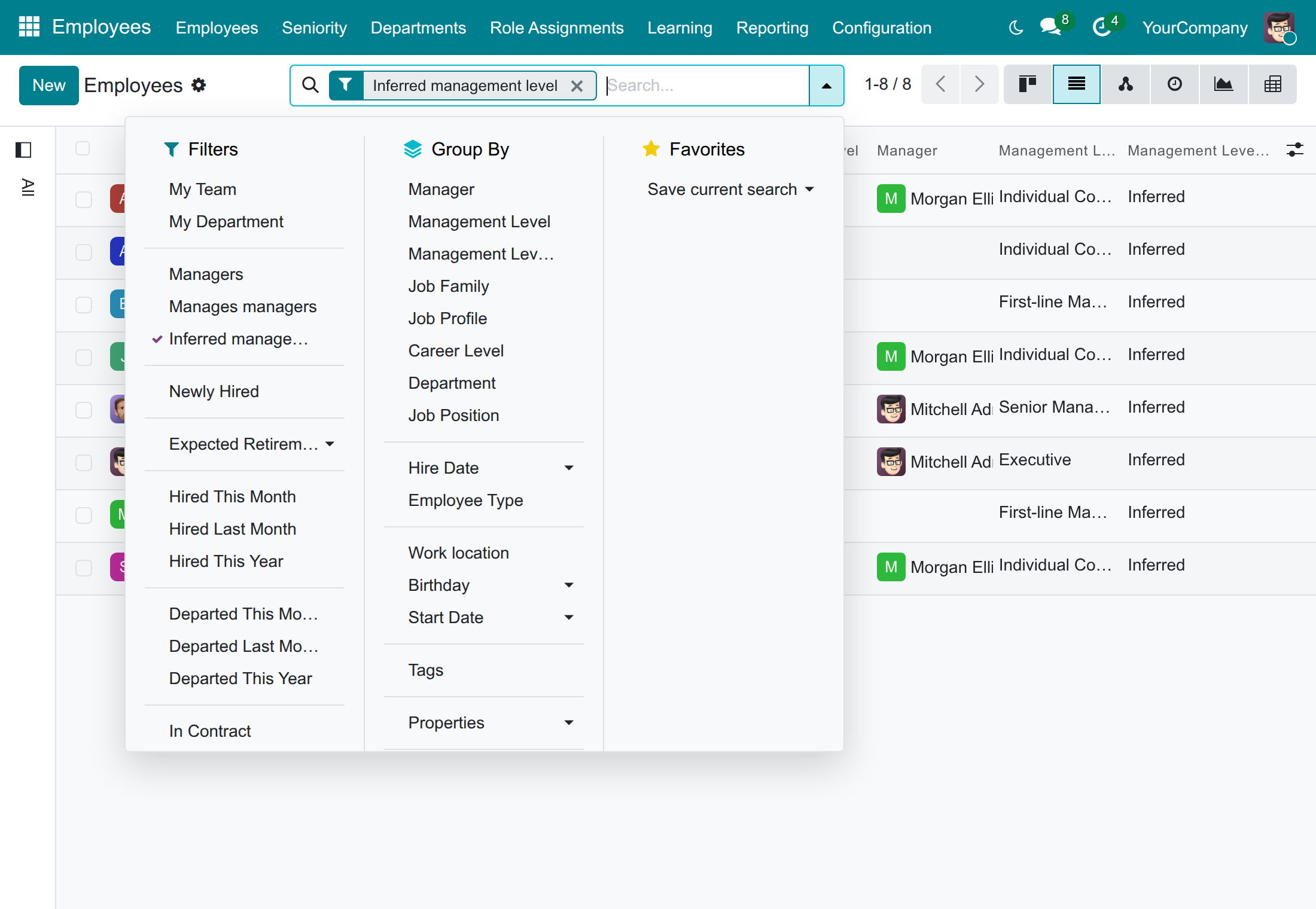
- Inferred management level: the employees whose level is deduced from the organisation chart because they hold no career level. Use it to review who still needs a career level.
Employee, line manager and executive: look up a level
Everyone can see the management level of a colleague on the public profile, without access to the other HR data of the person.
- Open Employees ‣ Directory and open a colleague.
- In the Work tab, read Management Level and Management Level Source.
The same Managers, Manages managers and Inferred management level filters, and the Management Level and Management Level Source groupings, are available in the search box of the directory. An executive who wants the number of managers per level only has to group the directory by Management Level.
Troubleshooting
| What you see | What to do |
|---|---|
| The Configuration menu, or the Job Positions screen, is not visible. | Ask the administrator for the Administrator access right on Employees. |
| I cannot edit a department. | Ask the administrator for the Officer: Manage all employees access right on Employees. |
| "The principal deputy ... is not one of the deputies." | Add the employee to Deputies first, or select a principal deputy among the deputies. |
| "Deputy departments must belong to the same company as the employee." | Appoint the deputy in a department of the company of the employee. |
| The Principal Deputy field is not shown. | It appears once the department has at least one deputy. |
| The list of Deputies is empty or too short. | Only the employees of the department who report to its manager are proposed. Check the Department and the Manager of the employee. |
| The C-Suite Role box cannot be ticked. | The mode is Automatic. Set C-Suite Mode to Manual to choose it yourself. |
| The Department Depth field is not shown. | It is shown in developer mode only. |
| An employee who heads a department is not an executive. | Check that the department is an Executive Department, and that the employee has no career level: when there is one, its management level applies. |
| The management level shown is not the one I expected. | Read the Management Level Source. Career Level: change the management level on the career level, or the career level on the employee. Inferred: check the Manager of the employee and of the people below, and the departments headed. |
| The Executive group of the list is empty. | No employee holds an executive career level, heads an executive department or holds a C-suite position. |
FAQ
- Can I set the management level of an employee by hand?
- No. It follows the career level of the employee, or the organisation chart. To change it, change the career level of the employee, the manager, the department or the position.
- What happens when an employee has a career level and also heads an executive department, or holds a C-suite position?
- The career level wins: the management level is the one of the career level and the source is Career Level. The executive department and the C-suite position count only when there is no career level.
- Does an inferred level follow a promotion?
- Yes. A new manager, a new head of department, a new deputy, or a new C-suite position changes the level of the people concerned as soon as it is saved.
- Does a deputy count as a manager?
- Yes. When the level is inferred, a deputy of a department is at least a first-line manager, even without direct reports.
- Who can see the management level?
- Everyone, on the public profile of a colleague.
- Do archived departments count?
- No. Only the departments that are still active make their head a manager.
- Does the module hold pay ranges or the number of people in a team?
- No. It tells the level and its source. Pay is managed elsewhere.
This software and associated files (the "Software") may only be used (executed, modified, executed after modifications) if you have purchased a valid license from the authors, typically via Odoo Apps, or if you have received a written agreement from the authors of the Software (see the COPYRIGHT file).
You may develop Odoo modules that use the Software as a library (typically by depending on it, importing it and using its resources), but without copying any source code or material from the Software. You may distribute those modules under the license of your choice, provided that this license is compatible with the terms of the Odoo Proprietary License (For example: LGPL, MIT, or proprietary licenses similar to this one).
It is forbidden to publish, distribute, sublicense, or sell copies of the Software or modified copies of the Software.
The above copyright notice and this permission notice must be included in all copies or substantial portions of the Software.
THE SOFTWARE IS PROVIDED "AS IS", WITHOUT WARRANTY OF ANY KIND, EXPRESS OR IMPLIED, INCLUDING BUT NOT LIMITED TO THE WARRANTIES OF MERCHANTABILITY, FITNESS FOR A PARTICULAR PURPOSE AND NONINFRINGEMENT. IN NO EVENT SHALL THE AUTHORS OR COPYRIGHT HOLDERS BE LIABLE FOR ANY CLAIM, DAMAGES OR OTHER LIABILITY, WHETHER IN AN ACTION OF CONTRACT, TORT OR OTHERWISE, ARISING FROM, OUT OF OR IN CONNECTION WITH THE SOFTWARE OR THE USE OR OTHER DEALINGS IN THE SOFTWARE.