
Zalo Helpdesk Template Pack
by Viindoo
| Lines of Code | 813 |
| Technical name | viin_zalo_helpdesk |
| License | OPL-1 |
| Website | https://viindoo.com/apps/modules/19.0/viin_zalo_helpdesk |
| Read description for | v 17.0 v 18.0 |
| Required Apps | Discuss (mail) |
| Included Dependencies | Helpdesk Integration with Zalo OA Viindoo Base API Request Logger |

Customers hear about their support ticket on Zalo, in a message that already carries its details
For support teams that serve their customers through a Zalo Official Account
Predefined Zalo ZBS templates for helpdesk ticket communication.
Odoo 19.0 · Community and Enterprise · OPL-1
Extends Helpdesk: its tickets get ready-made Zalo messages for the customer.
What changes for your team
A message for every moment of the ticket
Each agent writes the customer a new Zalo message in their own words, and some moments are never announced.
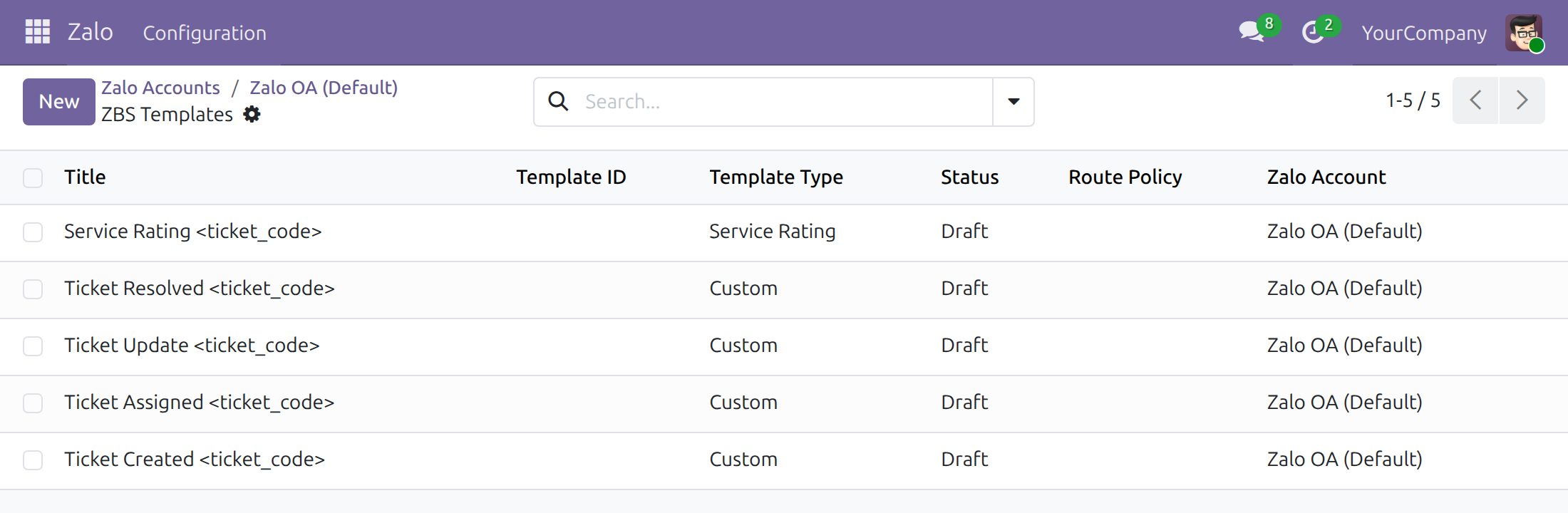
→ Five templates are installed for the helpdesk ticket: Ticket Created, Ticket Assigned, Ticket Update, Ticket Resolved and Service Rating, each addressed to the contact of the ticket.
The ticket's details fill themselves in
The agent copies the ticket name, its status and the person in charge into the message, and sometimes gets one wrong.
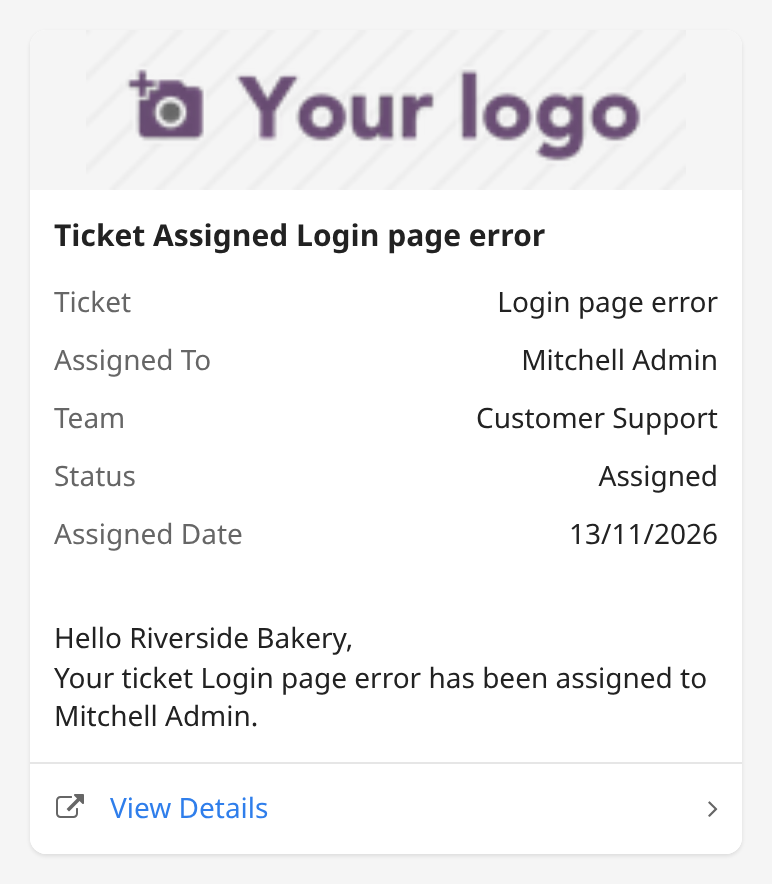
→ The customer's name, the ticket, the assignee, the team, the status and the date of the moment are read from the ticket. A View Details button opens the ticket on the customer portal, and Preview shows the message as the customer receives it.
Wording you own, approved by Zalo before it goes out
Nobody checks what is sent to customers on Zalo until a customer complains.
→ The administrator adjusts the sentences of a template while it is a draft and submits it to Zalo. Agents can pick only the templates Zalo has approved.
Ready on day one
Four ticket updates
Created, assigned, updated and resolved: text, ticket values and the View Details button already laid out.
A service rating request
Asks the customer to rate the support from one to five stars once the ticket is solved.
Sent from the ticket
The agent opens Send by Zalo in the ticket's message box and picks the approved template that fits.
What you set up first
Connect your Official Account, adjust the wording, then submit each template and wait for Zalo's approval.
What is included
The five ticket templates, already linked to the ticket and its contact. The Zalo connection, the sending window and the approval status come from Integration with Zalo OA; tickets, teams and the customer portal come from Helpdesk.
Before you decide
Are messages sent automatically when a ticket changes stage?
No. The module ships templates, not automation: an agent chooses the template and sends it from the ticket.
Can we send right after installing?
Not yet. The templates are installed as drafts, and Zalo delivers only templates it has approved. Once your Official Account is connected, the administrator submits each template and reads Zalo's decision; a rejected template shows the reason and can be corrected and submitted again.
In which language does the customer read the message?
In the wording you submit. The templates ship with English sentences; rewrite them in your customers' language while they are drafts, before submitting them to Zalo.
Who can change the templates, and who can send them?
Zalo administrators edit, submit and synchronise the templates. Helpdesk users send the approved ones from the tickets they work on.
Can we reach a customer who has never written to our Official Account?
Zalo's anti-spam policy refuses free text to such a customer. An approved template message is the way to reach them, and the ticket's message box says so.
Try it, then ask us
The Documentation tab walks the administrator through the review and submission of the templates and the agent through sending one from a ticket.
Pre-sales & partnership
viindoo.com/contactusTechnical support
viindoo.com/ticketTechnical requirements
- Odoo version: 19.0
- Editions: Community, Enterprise
- Required modules: Integration with Zalo OA, Helpdesk
- Also needed: a Zalo Official Account connected to Odoo
- License: OPL-1
- Languages: English, Vietnamese
Zalo Helpdesk Template Pack
Note
This guide is for the Zalo administrator who prepares the message templates and for the support agents who use them to keep customers informed about their support tickets.
Note
Extends Helpdesk - see the viin_helpdesk documentation. It also builds on the Zalo OA integration, viin_zalo, which provides the Zalo account, the template screens and the sending window.
Overview
Customers who write to a company on Zalo expect to hear about their request on Zalo too. This module adds five ready-made Zalo message templates (ZBS templates) for the life of a helpdesk ticket, so an agent sends a clean, consistent update in a few clicks instead of typing it each time.
The templates cover these moments of a ticket:
- Ticket Created: tells the customer the request has been received.
- Ticket Assigned: tells the customer who handles the request, in which team and since when.
- Ticket Update: gives the customer the current status of the ticket.
- Ticket Resolved: confirms that the request is solved and gives a link to the ticket details.
- Service Rating: asks the customer to rate the support from one to five stars.
Every template is written for tickets and addresses the contact of the ticket. The ticket number, the status, the assignee, the team, the dates and the link to the ticket on the customer portal are filled in from the ticket when the message is sent.
| Role | What they do | Access right to assign |
|---|---|---|
| Zalo administrator | Connects the Zalo Official Account, reviews the five templates, submits them to Zalo for approval and follows their status. | Administrator, in the Zalo field of the user |
| Support agent | Sends the approved templates to the customer from a ticket. | User, in the Helpdesk field of the user |
Note
Zalo reviews every template before it can be used. A template can be sent only when its status is Approved. The five templates are installed in the Draft status, so the administrator submits them once the Official Account is connected.
Setup (for the Zalo administrator)
Install the module
- Go to Apps.
- Search for Zalo Helpdesk.
- Press Install.
The Zalo integration and Helpdesk applications are installed with it when they are not yet installed.
Connect the Zalo Official Account
The templates belong to the default Zalo account. Open Zalo ‣ Configuration ‣ Accounts, open the account and follow the onboarding steps shown on the form until its status is Connected. The steps are described in the documentation of the Zalo integration.
Review the templates
- Go to Zalo ‣ Configuration ‣ Accounts and open the account.
- Press the ZBS Templates button. The list shows the five templates with their type and status.
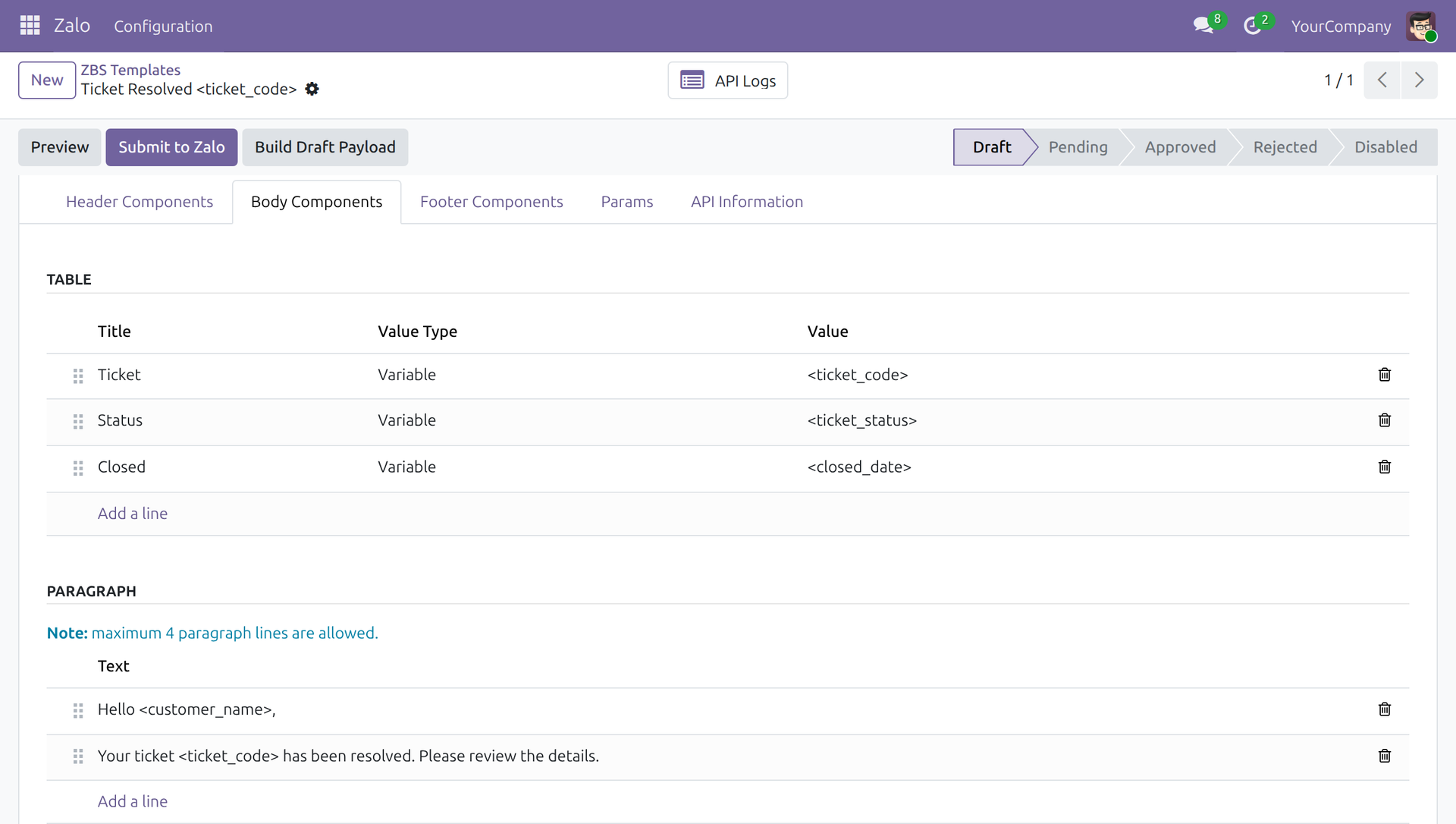
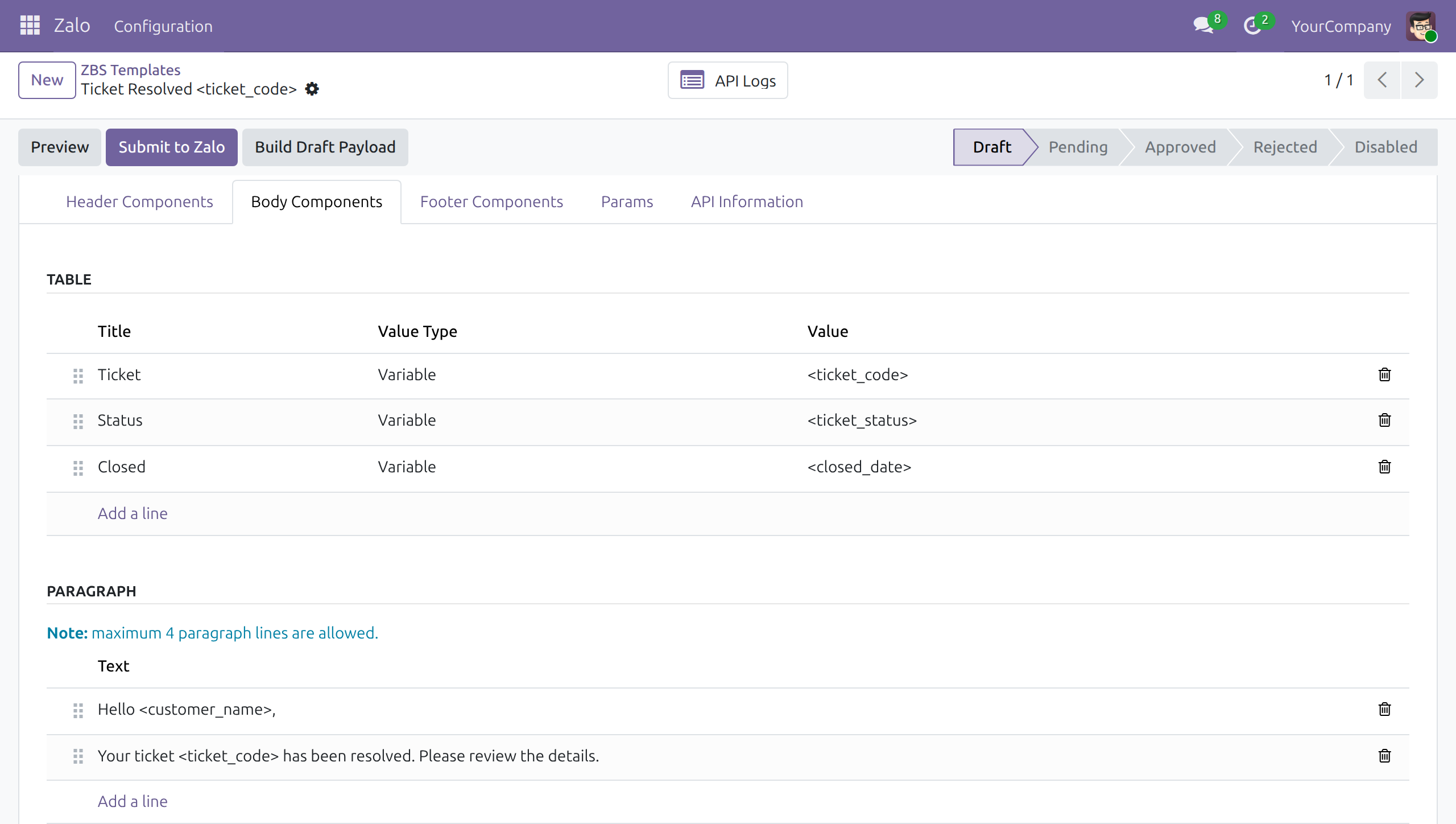
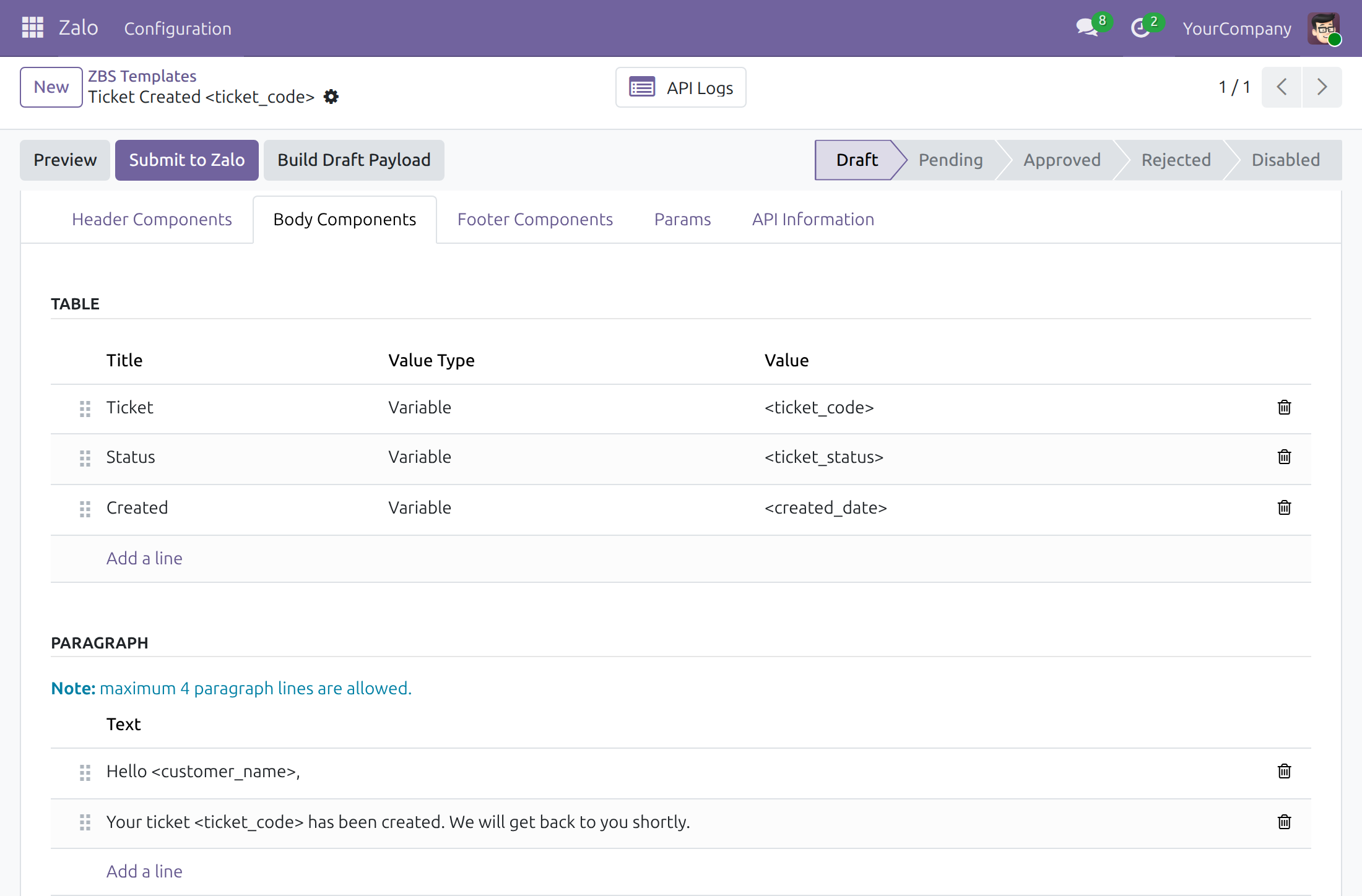
- Open a template. The form shows the buttons Preview, Submit to Zalo and Build Draft Payload, and the status bar Draft, Pending, Approved, Rejected, Disabled.
- Open the tab Body Components. The Table lists the values shown to the customer (ticket number, status, dates) and the Paragraph holds the sentences of the message. Words between angle brackets, such as <ticket_code>, are replaced by the data of the ticket when the message is sent.
- Press Preview. In the window, the Example Record field offers the tickets of your database: choose one to see the message as the customer will receive it, with the values of that ticket.
The logo at the top of the message is the logo of the company. The message is built from the template, so labels and sentences keep the language of the template while the values come from the ticket.
Note
The text of a template can be changed only while its status is Draft or Rejected. Zalo checks the text again each time a template is submitted.
Submit the templates to Zalo
- Open a template in the Draft status.
- Press Submit to Zalo. The status becomes Pending while Zalo reviews it.
- When Zalo has decided, the status is Approved or Rejected. Press Sync Template, or select templates in the list and use Sync Status from Zalo in the gear menu next to the title, to read the answer of Zalo.
- For a Rejected template, read the reason on the tab API Information, correct the text and submit it again with Reset to Draft and Submit to Zalo.
Repeat for each of the five templates you want to use.
Support agent: keep the customer informed
Send a template from a ticket
Open a ticket from Helpdesk ‣ Tickets ‣ All Tickets. The menu opens with the Open filter, which hides tickets in the Resolved and Cancelled stages; remove it or choose Closed to find a ticket that is already closed. The contact of the ticket must have a phone number or already be linked to Zalo.
- In the chatter of the ticket, press Send message.
- In the message box, press the Send by Zalo icon. A small window opens.
- Press Send Template. The window Send Zalo Message opens.
- Check the Recipients (the contact of the ticket) and choose the ZBS Template that matches the moment of the ticket: created, assigned, update, resolved or rating.
- Check the message shown, then press Send.
Only approved templates are offered in the field ZBS Template. When the list is empty, ask the Zalo administrator to submit and approve the templates.
Note
Zalo does not allow free text to a customer who has not written to the Official Account first. A template message is the way to reach such a customer. The small window of Send by Zalo says so when no recipient can receive free text.
Which template to send
| Template | When to send it | What the customer sees |
|---|---|---|
| Ticket Created | Right after the ticket is registered. | Ticket number, status, creation date and a View Details button. |
| Ticket Assigned | When an agent takes the ticket. | Ticket number, assignee, team, status, assignment date and a View Details button. |
| Ticket Update | When the ticket moves to another stage. | Ticket number, status, update date and a View Details button. |
| Ticket Resolved | After the ticket has been moved to the Resolved stage. The closing date is filled in when the ticket enters that stage. | Ticket number, status, closing date and a View Details button. |
| Service Rating | After the ticket is resolved. | A request to rate the support, with one to five stars and a View Details button. |
The View Details button opens the ticket on the customer portal.
This software and associated files (the "Software") may only be used (executed, modified, executed after modifications) if you have purchased a valid license from the authors, typically via Odoo Apps, or if you have received a written agreement from the authors of the Software (see the COPYRIGHT file).
You may develop Odoo modules that use the Software as a library (typically by depending on it, importing it and using its resources), but without copying any source code or material from the Software. You may distribute those modules under the license of your choice, provided that this license is compatible with the terms of the Odoo Proprietary License (For example: LGPL, MIT, or proprietary licenses similar to this one).
It is forbidden to publish, distribute, sublicense, or sell copies of the Software or modified copies of the Software.
The above copyright notice and this permission notice must be included in all copies or substantial portions of the Software.
THE SOFTWARE IS PROVIDED "AS IS", WITHOUT WARRANTY OF ANY KIND, EXPRESS OR IMPLIED, INCLUDING BUT NOT LIMITED TO THE WARRANTIES OF MERCHANTABILITY, FITNESS FOR A PARTICULAR PURPOSE AND NONINFRINGEMENT. IN NO EVENT SHALL THE AUTHORS OR COPYRIGHT HOLDERS BE LIABLE FOR ANY CLAIM, DAMAGES OR OTHER LIABILITY, WHETHER IN AN ACTION OF CONTRACT, TORT OR OTHERWISE, ARISING FROM, OUT OF OR IN CONNECTION WITH THE SOFTWARE OR THE USE OR OTHER DEALINGS IN THE SOFTWARE.