
Freight & Document Integration
by Viindoo
| Lines of Code | 2131 |
| Technical name | viin_document_freight |
| License | OPL-1 |
| Website | https://viindoo.com/apps/modules/19.0/viin_document_freight |
| Read description for | v 16.0 v 17.0 v 18.0 |
| Required Apps | Invoicing (account) Project (project) Purchase (purchase) Discuss (mail) Inventory (stock) Employees (hr) Sales (sale_management) |
| Included Dependencies | Logistics Shipment Tracking Location Route Extension Viindoo Unified Routing Framework Logistics Package Type Freight Forwarder Management Freight Sale Logistics Shipment Sale Integration Freight Project & Operations Tasks Tracking Location QR Code Mixin Logistics Sales Team Viindoo Base Accounting Foundation Documents Management Project Customization API Request Logger Logistics Routes Integration Logistics Accounting Multilingual Tracking Supplier-Based Pricelist Incoterms on Logistics Quotations Token Expiration |
| Extensions | Freight Air — Document Integration Freight Consolidation — Document Integration |
Never let a shipment leave without its paperwork
Freight & Document Integration gives every shipment its own document checklist, its own folder, and one-click wizards for preparing carrier paperwork - all inside Viindoo's Documents app, ready the moment your freight apps are installed.
At a Glance
The facts of Freight & Document Integration, version 0.1.1, in one place. Published by Viindoo.
Extends viin_document -
see its documentation.
See what's missing before the carrier asks
Every shipment carries its own Required Documents checklist, and every task it depends on shows a "Docs Missing" or "Docs Approved" badge right on the Kanban card. A coordinator can tell which shipments are paperwork-ready without opening a single form.
Each shipment keeps its own paper trail
Freight & Document Integration creates a separate document folder for every shipment, named after the shipment itself - not one shared bucket for the whole freight team. Documents from one shipment never get lost among another's.
Prepare carrier paperwork without leaving the shipment
The Prepare SI and Prepare Draft B/L wizards open straight from the shipment, pre-filled from its own cargo details and cutoff date. Confirm the wizard and the module files, tags and links the resulting document on its own.
Key Features
A Documents menu built for freight, not the whole company
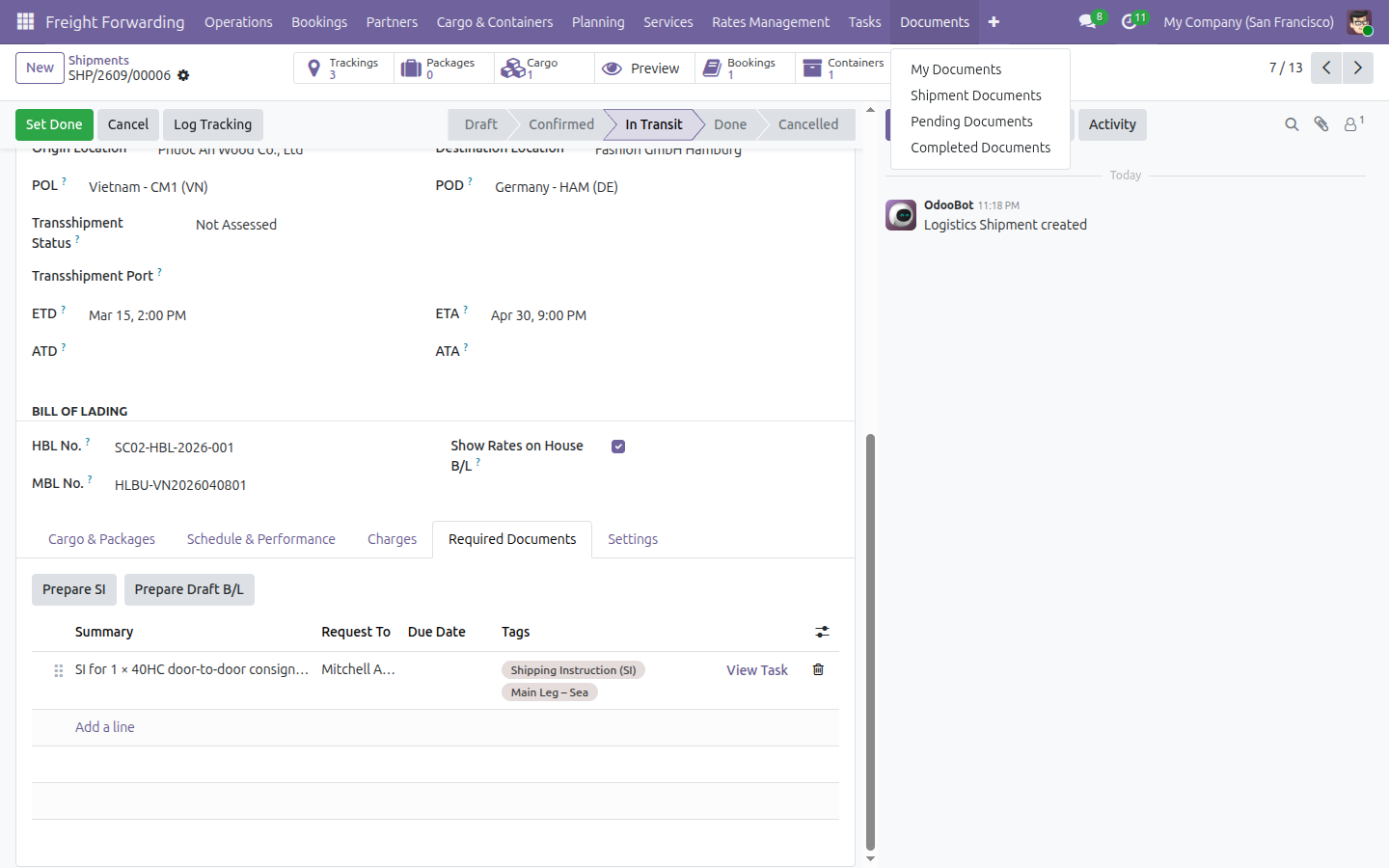
Freight Forwarding gets its own Documents menu - My Documents, Shipment Documents, Pending Documents, Completed Documents - filtering the general Documents app down to exactly what a freight user needs, without digging through unrelated workspaces.
Required Documents checklist, per shipment
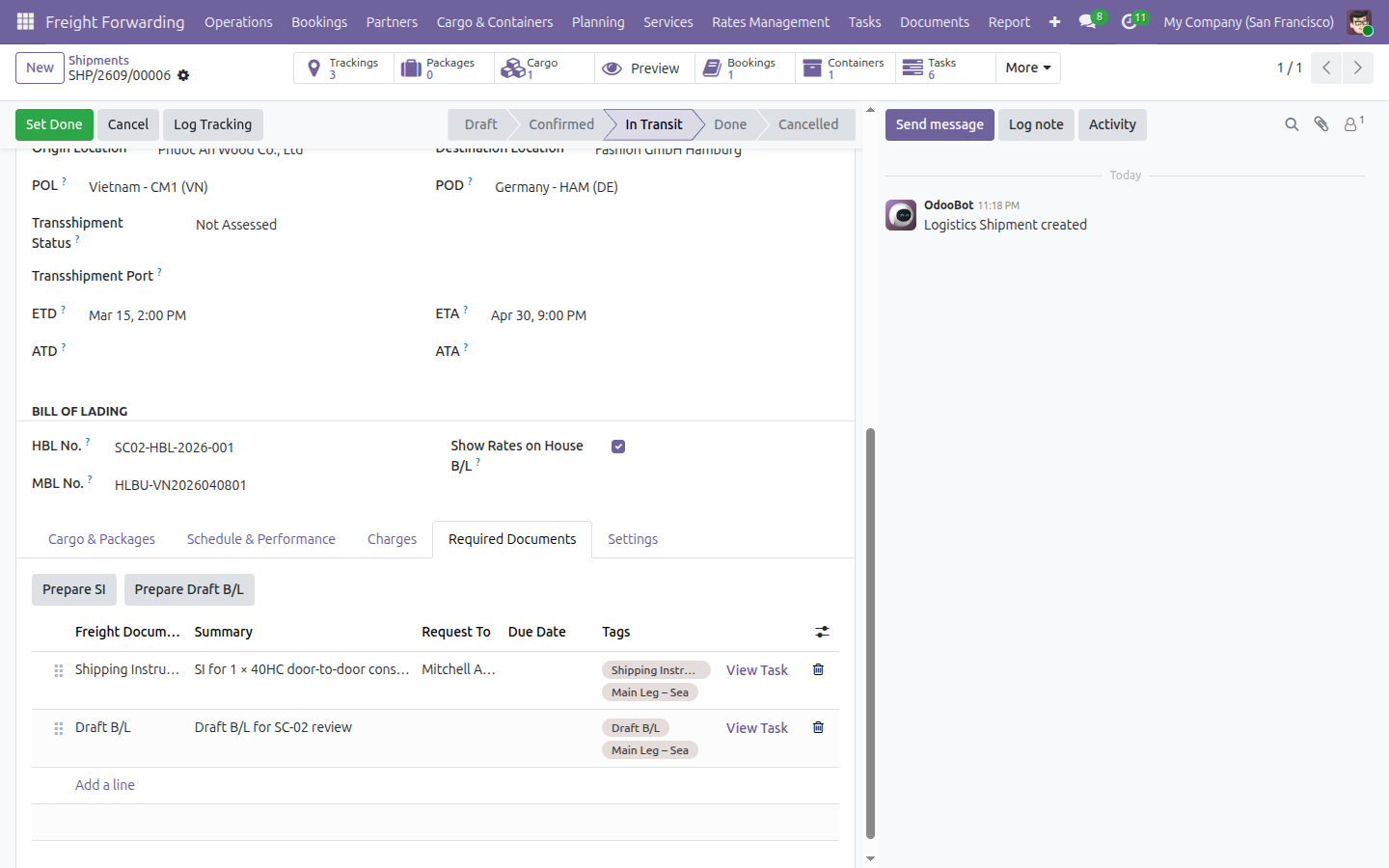
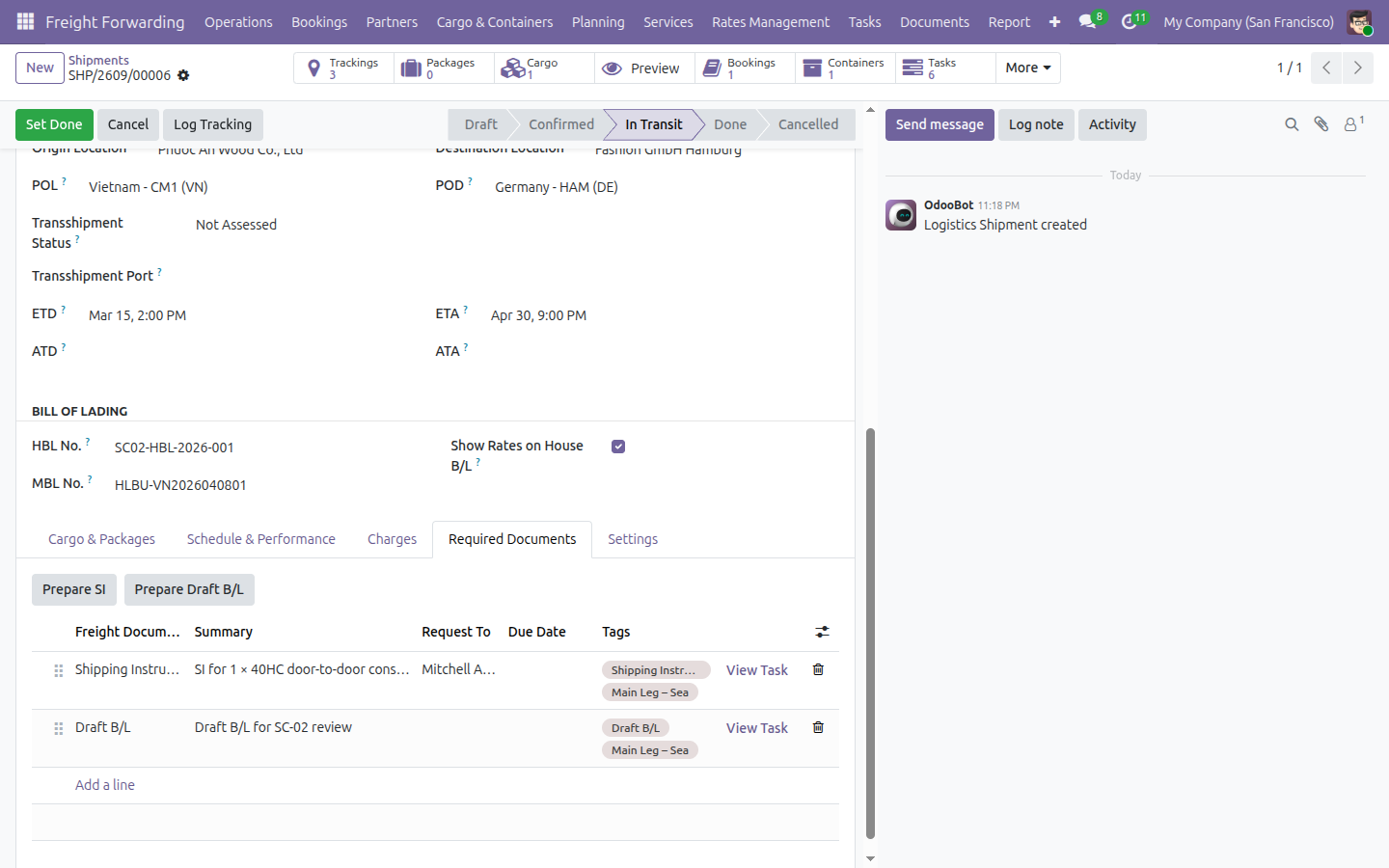
A "Required Documents" tab on every shipment lists what has been requested (Summary), who owns it (Request To) and when it's due (Due Date). Add a row directly in the list and the module creates the matching document request and execution task behind it automatically - click "View Task" on any row to jump straight there.
Prepare SI wizard
Launches from the Required Documents tab, pre-filled from the shipment's cargo description and SI cutoff date. Confirming it auto-tags the resulting document "Shipping Instruction (SI)" + "Main Leg - Sea" - no retyping, no manual tagging.
Prepare Draft B/L wizard
The same guided pattern for the Draft Bill of Lading - add carrier-facing remarks, confirm, and the document comes out tagged "Draft B/L" + "Main Leg - Sea" automatically.
Document status on the task board
Tasks gated on a document carry a "Docs Missing" (orange) or "Docs Approved" (green) badge on their Kanban card, plus three ready-made search filters - Requires Documents, Missing Documents, Approved Documents.
One click from Booking or Shipment to its documents
A Documents stat button on both the Booking and Shipment forms opens every attached document in one click, once at least one exists.
Zero setup before your team can use it
A ready-made Freight workspace, team and an 11-tag taxonomy (document type, stakeholder, leg) ship with the module, along with rules that automatically create a matching folder for every new booking and shipment - including ones that already existed before the module was installed.
How It Works
A coordinator opens a shipment that's already In Transit and clicks into "Required Documents". Something is still missing - say, a Draft B/L - so they type a Summary, pick "Draft B/L" as the Freight Document Type, and save. The module quietly creates the matching document request and task behind that row.
Need the actual paperwork prepared, not just tracked? The same tab holds "Prepare SI" and "Prepare Draft B/L" buttons. Each wizard opens pre-filled from the shipment's own cargo description and cutoff date - the coordinator adds carrier-facing remarks, confirms, and the resulting document comes out auto-tagged with its type and leg.
Back on the shipment's project, the task board shows at a glance which tasks are still "Docs Missing" and which are "Docs Approved" - filtering to "Missing Documents" narrows the board to exactly what's still open.
Once a document gets approved, it moves itself from "Pending Documents" to "Completed Documents" in the Freight Forwarding > Documents menu - nobody re-files it by hand. Approving also closes the "To Review" activity that was raised when the request first went out, so the requester's own to-do list clears along with it, not just the document's status.
Assign a request to yourself from the Required Documents tab and it shows up in "My Documents" - a personal queue of everything asked of you, across every shipment you're on.
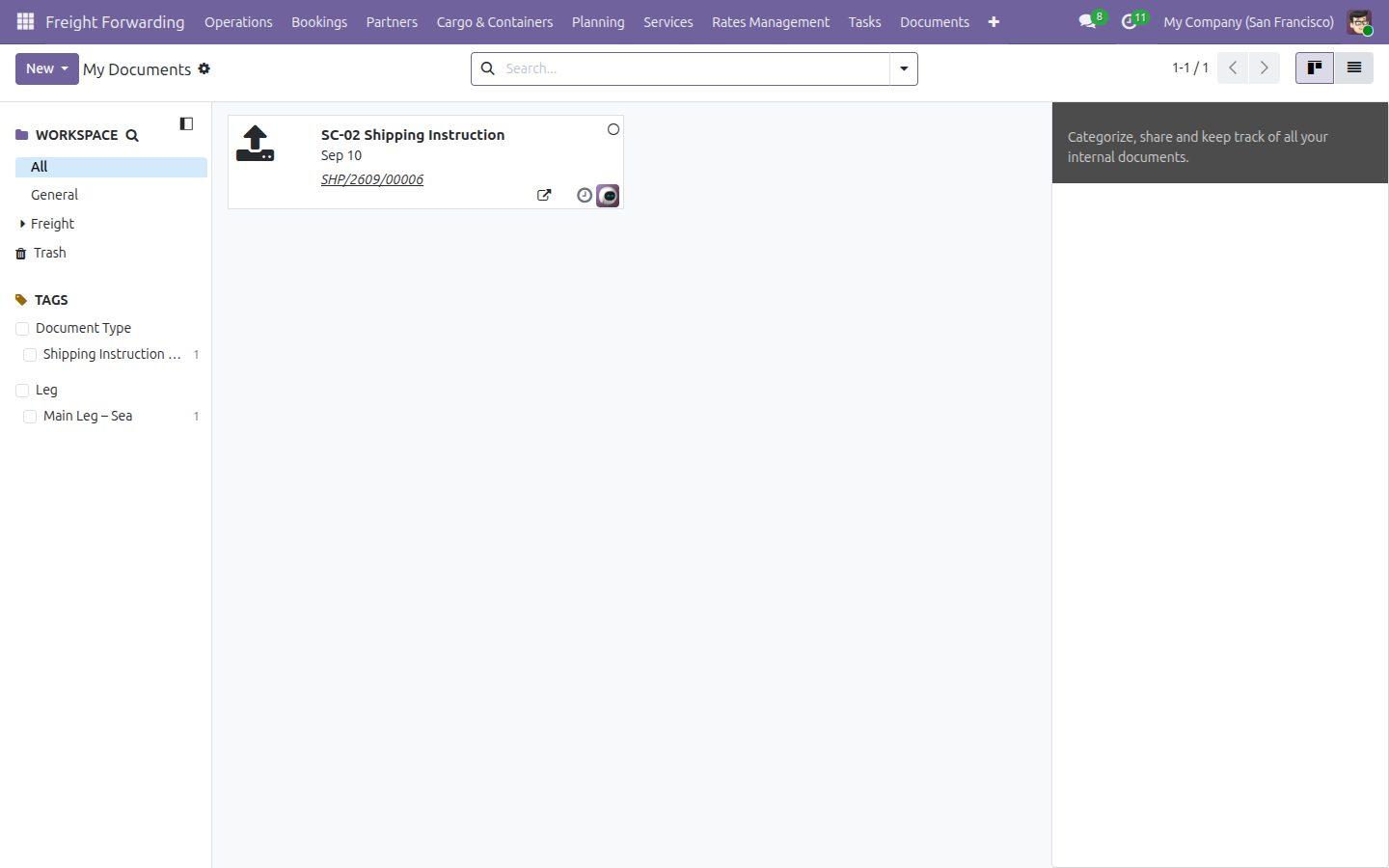
My Documents - your own queue
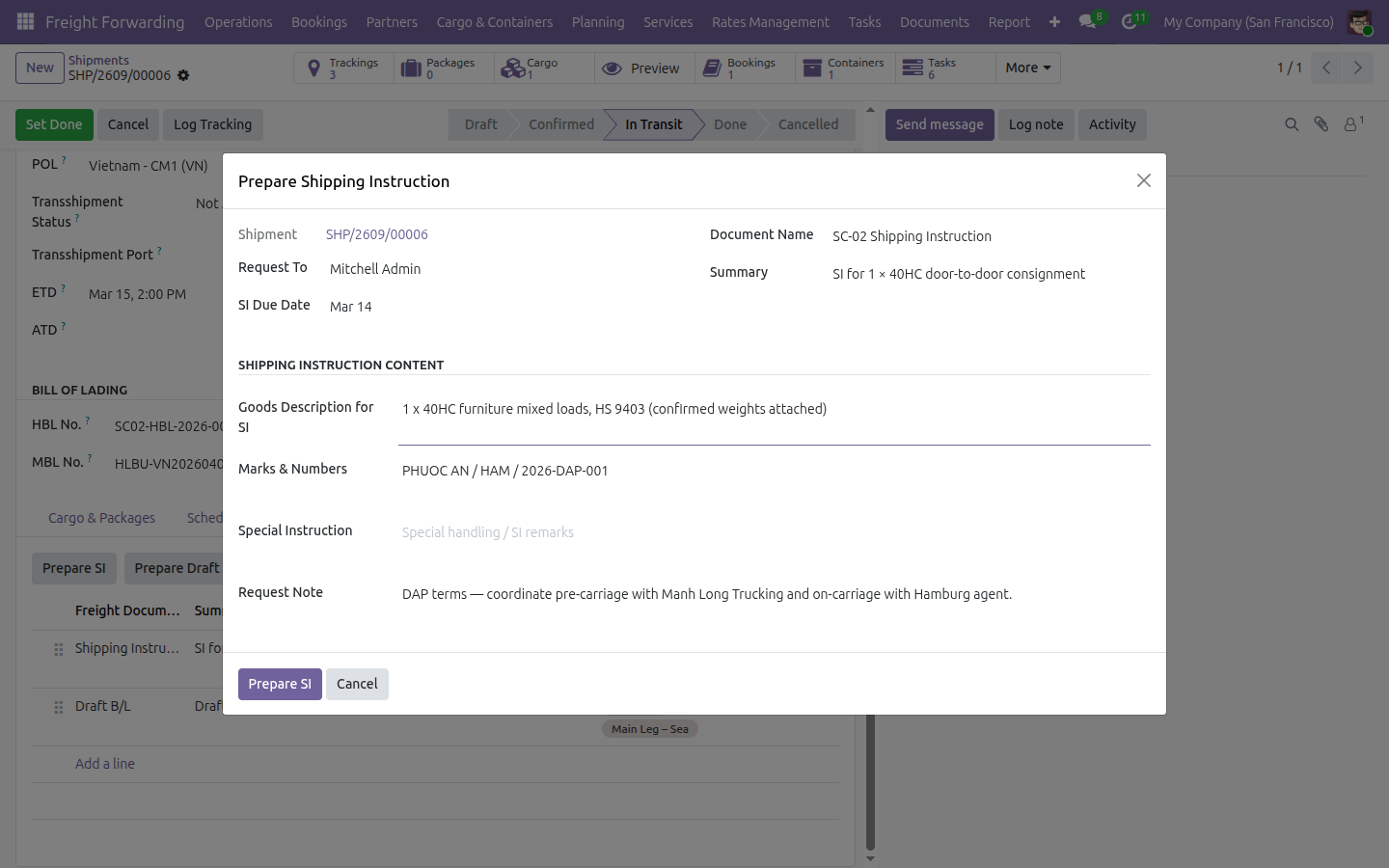
Prepare SI, pre-filled from the shipment
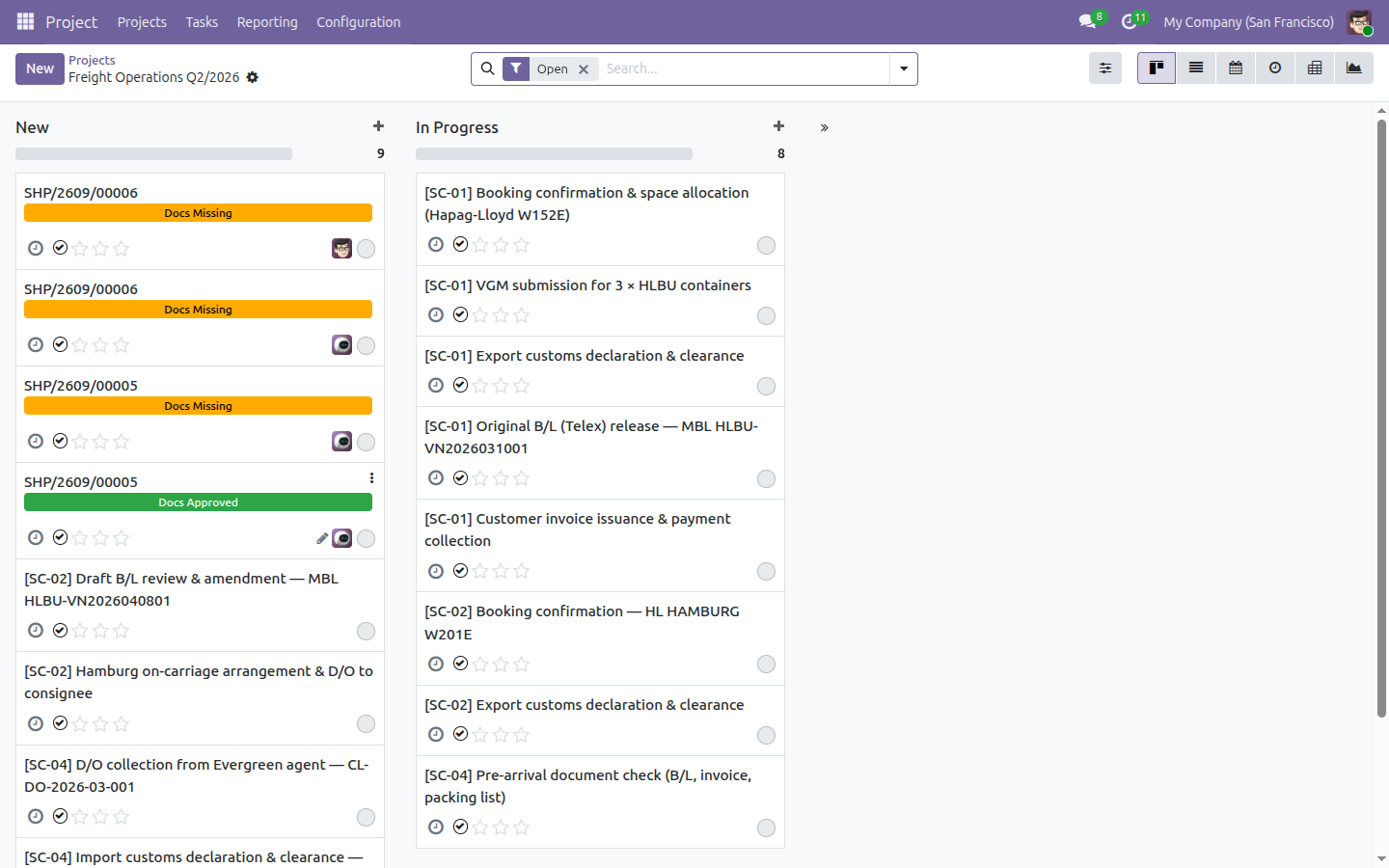
Docs Missing vs Docs Approved, right on the card
A Documents menu built just for Freight Forwarding
My Documents, Shipment Documents, Pending Documents, Completed Documents - four views under Freight Forwarding's own Documents menu. Many document bridges only add a button to an existing form; this one ships a menu tree of its own.
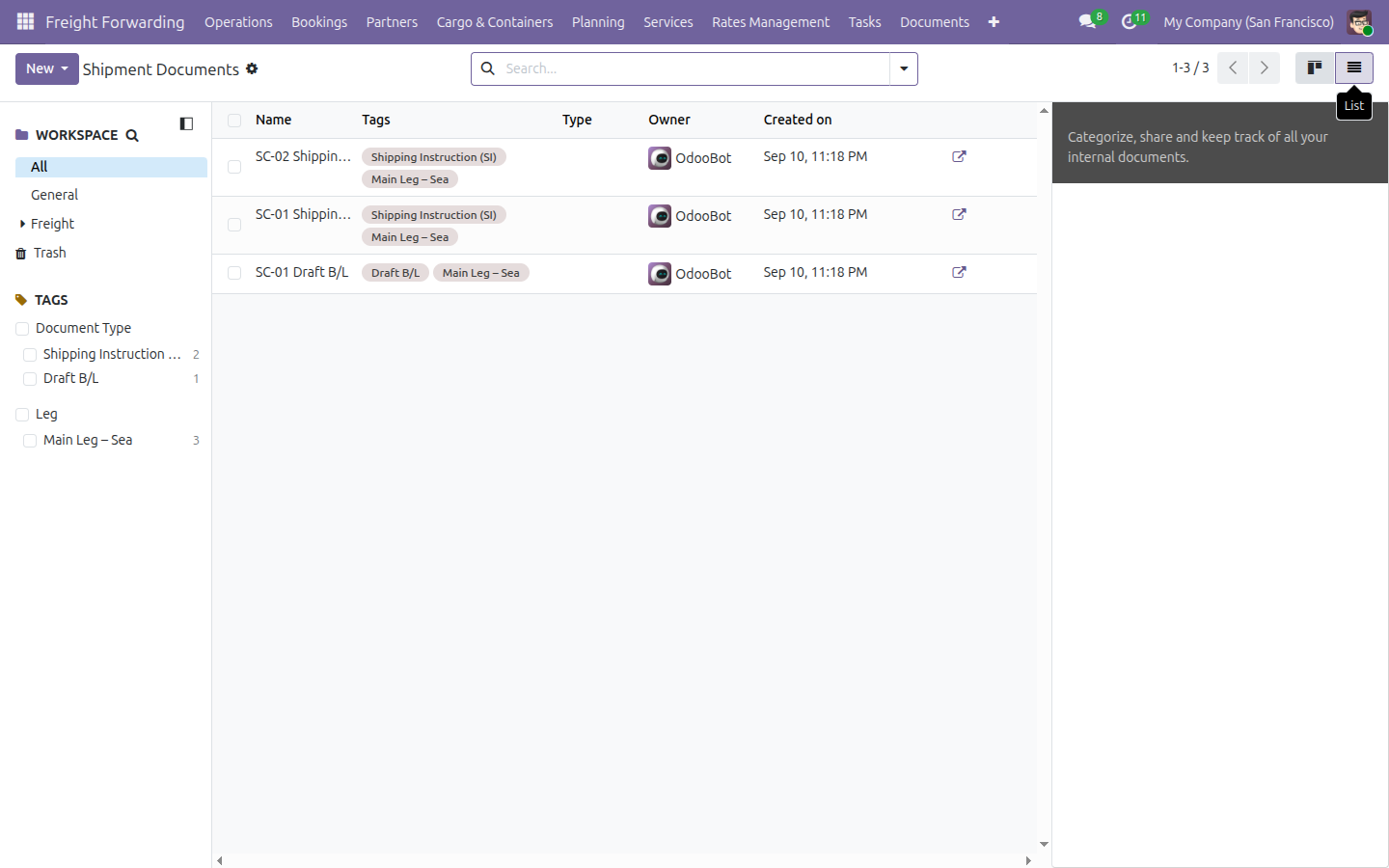
Every document tied to a shipment, in one list
Shipment Documents lists every filed document across every shipment you can see - Shipping Instructions, Draft B/Ls, tagged by type and leg - without opening each shipment one at a time.
One click from Booking or Shipment to its documents
A Documents stat button sits right in the header of both the Booking and the Shipment form, once at least one document exists - open every attached file without leaving the record.
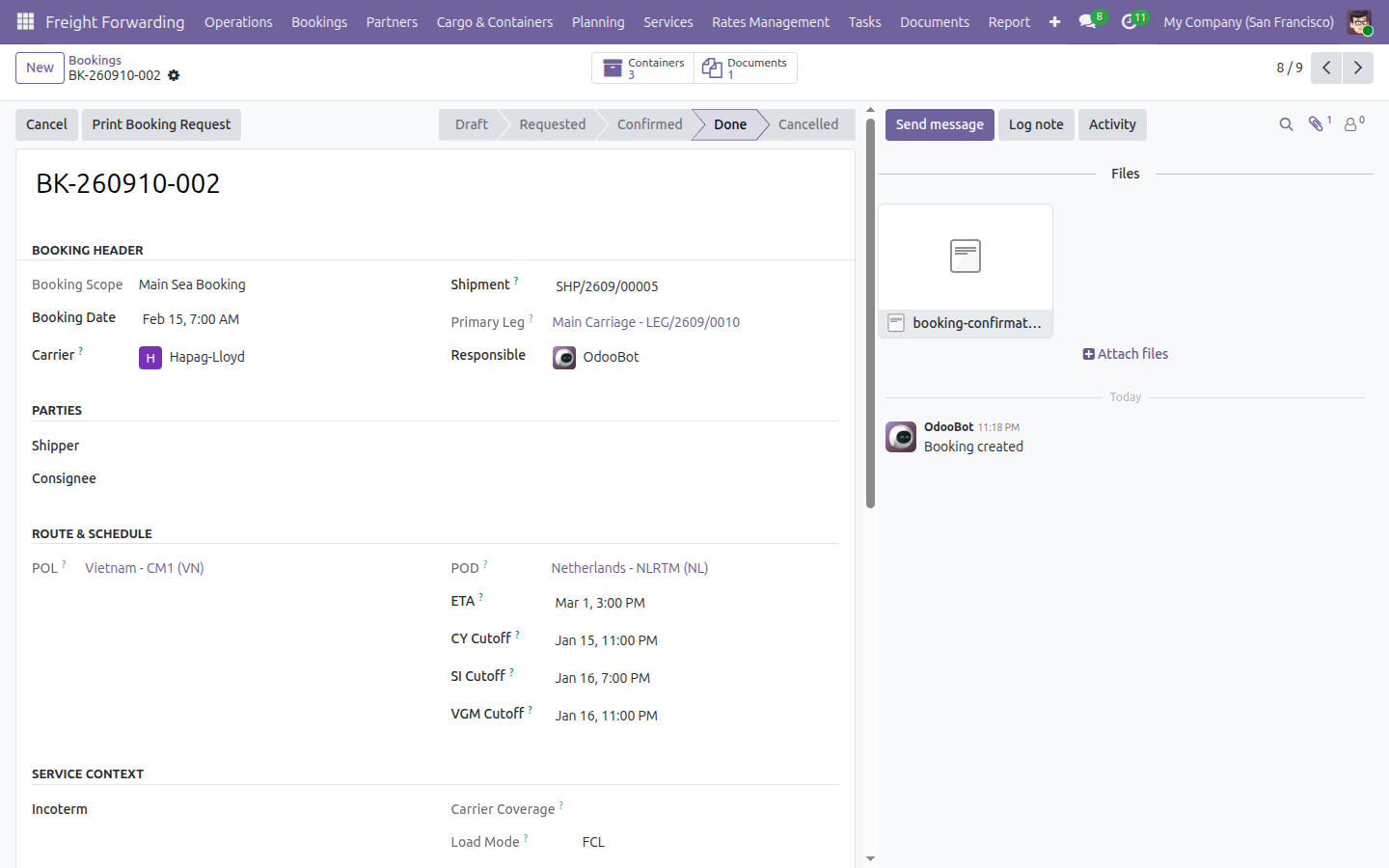
A booking's paperwork lives in its shipment's folder
Attach a file to a Booking and it doesn't get a folder of its own - it files straight into that booking's Shipment workspace, alongside everything else on the shipment. Each Shipment gets its own named folder; a Booking always shares its Shipment's.
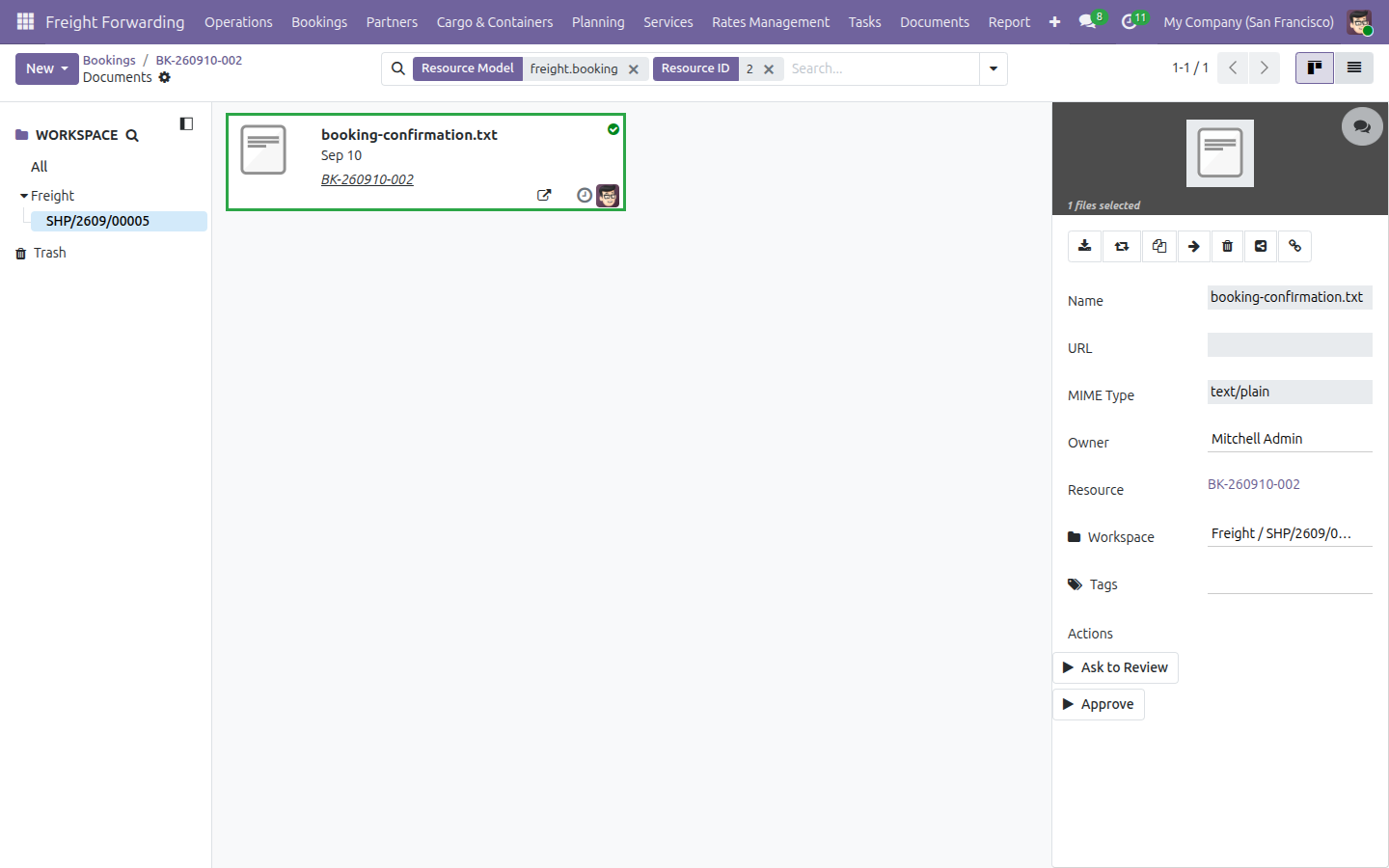
Prepare the Draft B/L the same guided way
Add carrier-facing remarks and a due date, confirm, and the resulting document comes out auto-tagged "Draft B/L" + "Main Leg - Sea" - no manual tagging afterward.
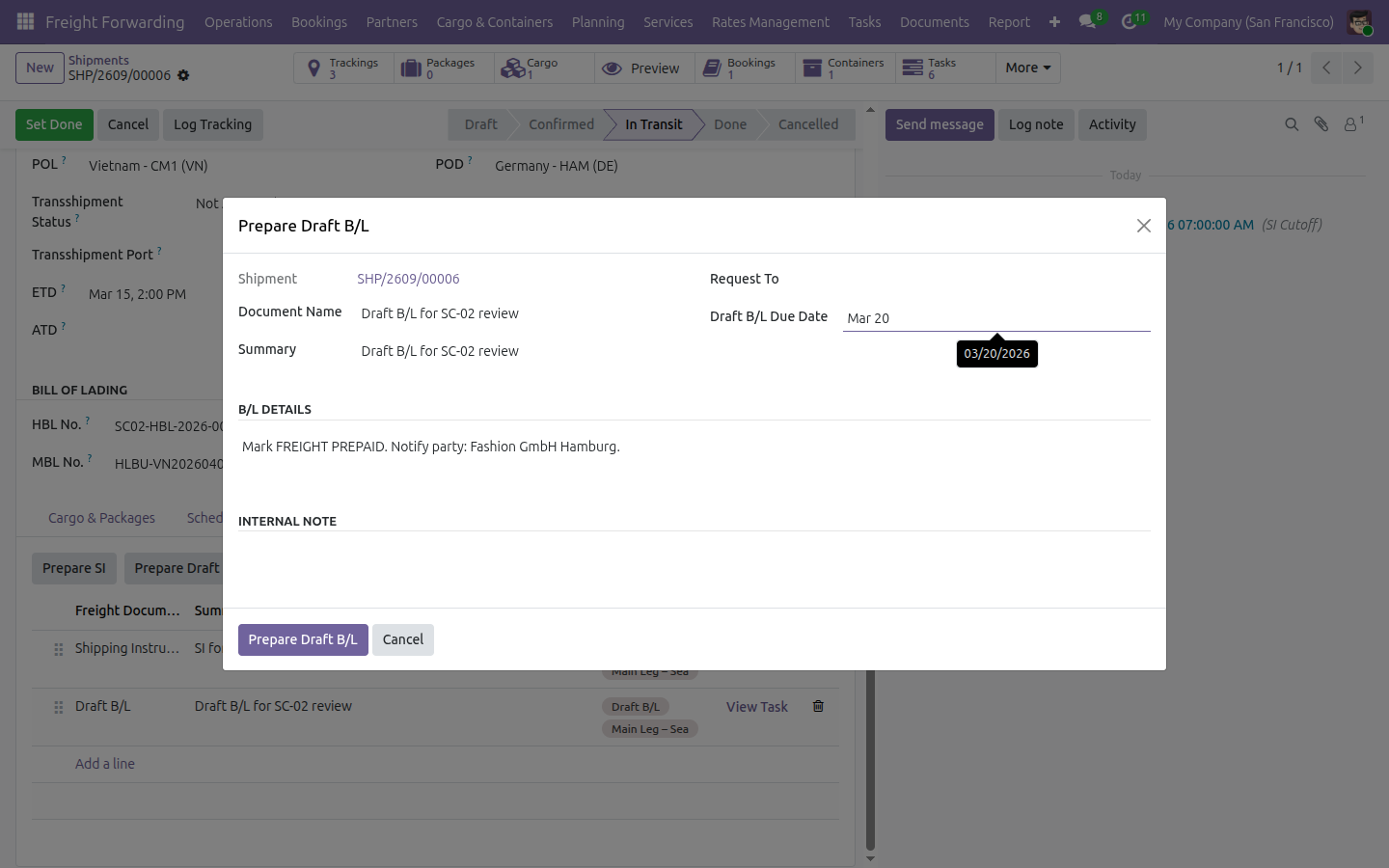
Approved documents file themselves into Completed
Once a document is approved, it moves itself out of Pending Documents and into Completed Documents - nobody re-files it by hand.
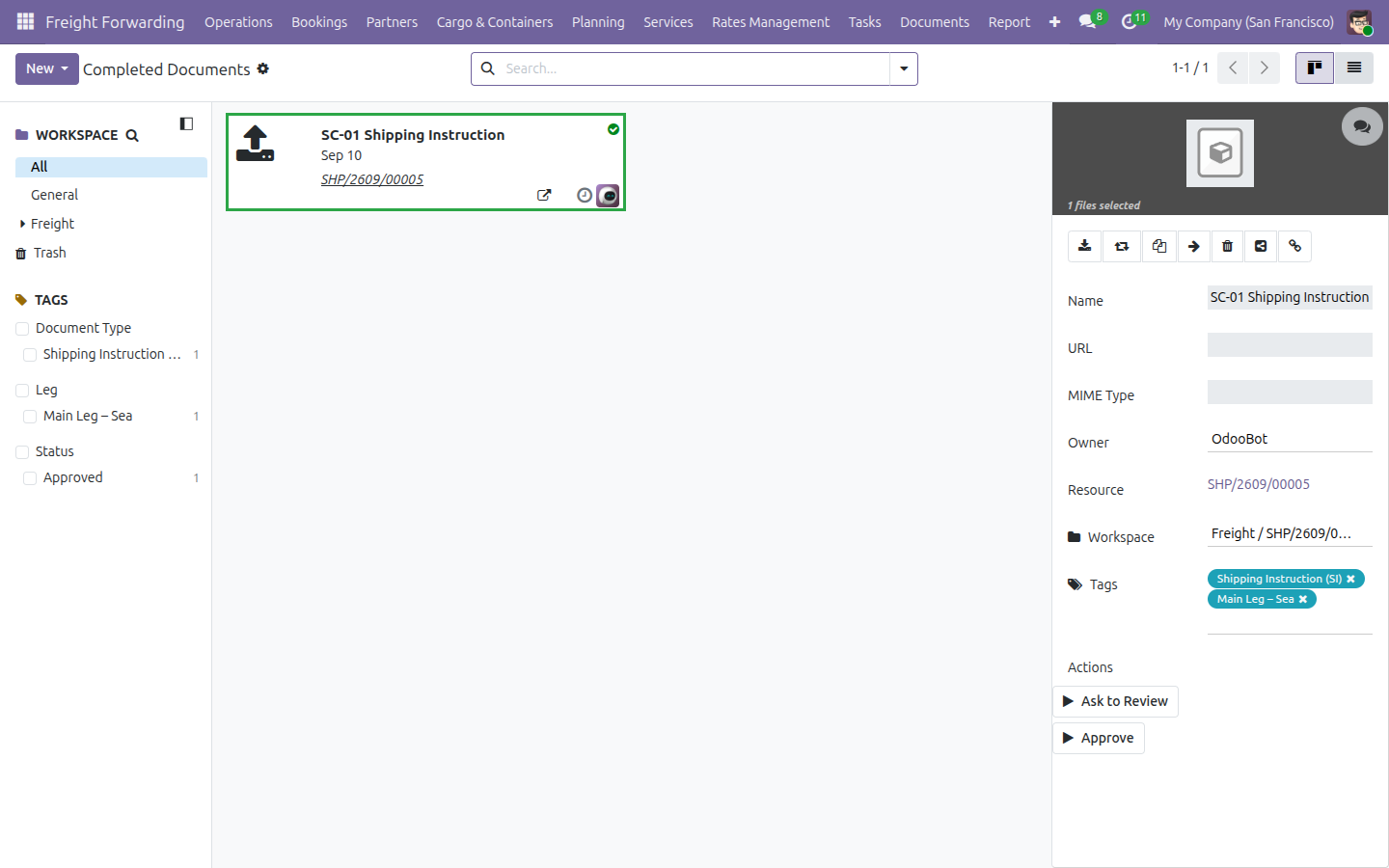
See Freight & Document Integration in Action
Explore the Required Documents checklist, the Prepare SI and Prepare Draft B/L wizards, and the freight Documents menu on a live database.
Try the Live DemoNeed help with Freight & Document Integration?
Support
apps.support@viindoo.comTechnical Requirement
- Odoo version: 19.0
- Editions: Odoo Community Edition, Viindoo SaaS
-
Required modules:
Documents Management (
viin_document), Freight Project & Operations Tasks (viin_freight_project) - Installation: Activates automatically once both required modules are present - no separate install step.
- License: OPL-1
Frequently Asked Questions
Which Odoo edition does this need?
Community Edition or Viindoo SaaS. It does not require Odoo Enterprise.
Does it install itself?
Yes. It auto-installs the moment its two dependencies - Documents Management
(viin_document) and Freight Project & Operations Tasks
(viin_freight_project) - are both present on your database, so there's no
separate install step once your freight apps are running.
What does it depend on?
Directly, Documents Management and Freight Project & Operations Tasks. Functionally, it also needs a working freight stack - Viindoo's Logistics and Freight Management apps - so there are shipments and bookings to attach documents to.
Does it work without demo data?
Yes. The Freight workspace, team, 11-tag taxonomy and auto-generate rules are regular data, present the moment the module installs - demo data is not required for any of it. Only the sample Required Documents rows used to illustrate this listing come from demo data.
Do all my freight users get full access?
Everyone who can view a shipment can see its Required Documents checklist. Preparing paperwork - the Prepare SI and Prepare Draft B/L wizards - needs the "All Shipments" access level, not just "Own Shipments" view access. Worth checking before you assign roles.
Freight & Document Integration
Note
Extends viin_document - see its documentation.
This module connects the Documents app to your freight operations. Every Shipment and Booking gets its own document folder automatically, and a dedicated Documents menu on the Freight Forwarding app lets your team track exactly which paperwork is missing, who it was requested from, and when it is due.
Installation
This module activates itself - there is no Activate button to click for it directly. It turns on automatically as soon as both of the following apps are present:
- Documents (technical name viin_document) - install it from Apps.
- Freight Project & Operations Tasks (technical name viin_freight_project) - install it from Apps, or install any Freight Forwarding module that depends on it.
Once both are installed, open Apps, search for viin_document_freight and confirm its state shows Installed. If you already had Shipments or Bookings before installing, their document folders are created automatically at install time - you do not need to recreate them.
Configuration
Nothing needs to be set up before you start using this module. It ships ready to go with:
- A Freight document workspace and a Freight team, already wired with read and write access for your logistics users.
- A ready-made set of document tags, organised into three categories: Document Type (for example Shipping Instruction (SI), Draft B/L, Booking Confirmation, Commercial Invoice, Packing List), Stakeholder (Customer) and Leg (Pickup Leg, Main Leg - Sea).
- Two rules that create a document folder automatically for every new Shipment and every new Booking.
One behaviour worth knowing before you rely on it: a Booking's folder is not separate from its Shipment's folder. A file you attach to a Booking is filed inside that Booking's own Shipment folder - there is no dedicated per-Booking folder. If you are looking for a document you attached to a Booking, check the Shipment it belongs to.
Usage
Opening Freight Forwarding ‣ Documents shows four screens: My Documents, Shipment Documents, Pending Documents and Completed Documents.
Track the documents requested from you
Every requested document can be assigned to a specific person. Once a document is assigned to you, it shows up in your own personal list.
- Open the Shipment (search by consignee or by MBL number in the search bar).
- Click the Required Documents tab.
- On the row for the document you are picking up, fill in Request To with your own name, then save.
- Open Freight Forwarding ‣ Documents ‣ My Documents.
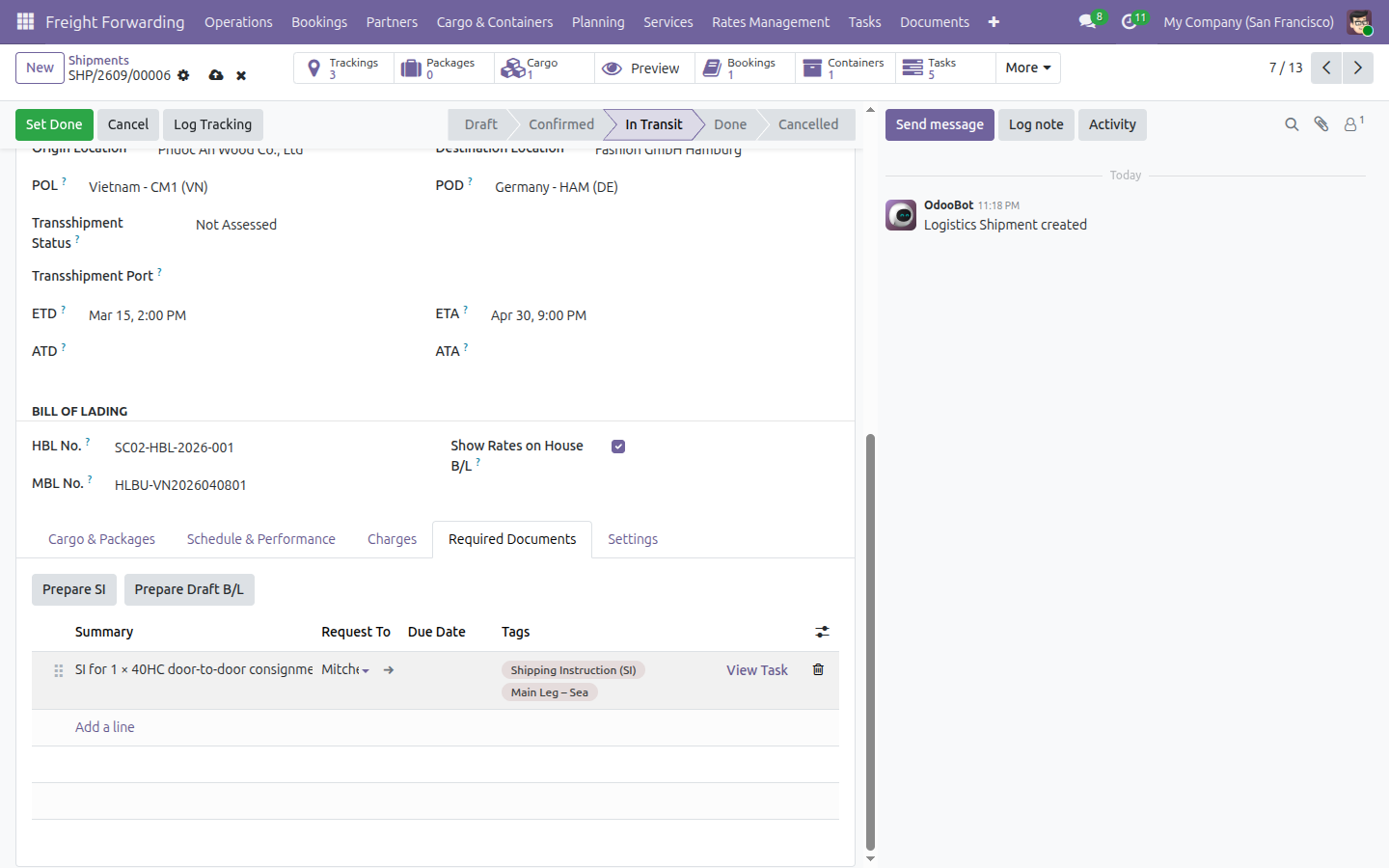
The document now appears as a card in My Documents, showing its name, its tags and its due date.
Browse every document tied to a shipment
Shipment Documents brings together every document tied to a shipment - whether it was filed directly against the shipment or generated from one of its tasks - in a single list, across every shipment at once.
- Open Freight Forwarding ‣ Documents ‣ Shipment Documents.
- Switch to the list view (top-right of the screen) for a denser read.
Move a document from pending to completed
A document stays in Pending Documents until it is approved, then moves on its own to Completed Documents.
- Open Freight Forwarding ‣ Documents ‣ Pending Documents.
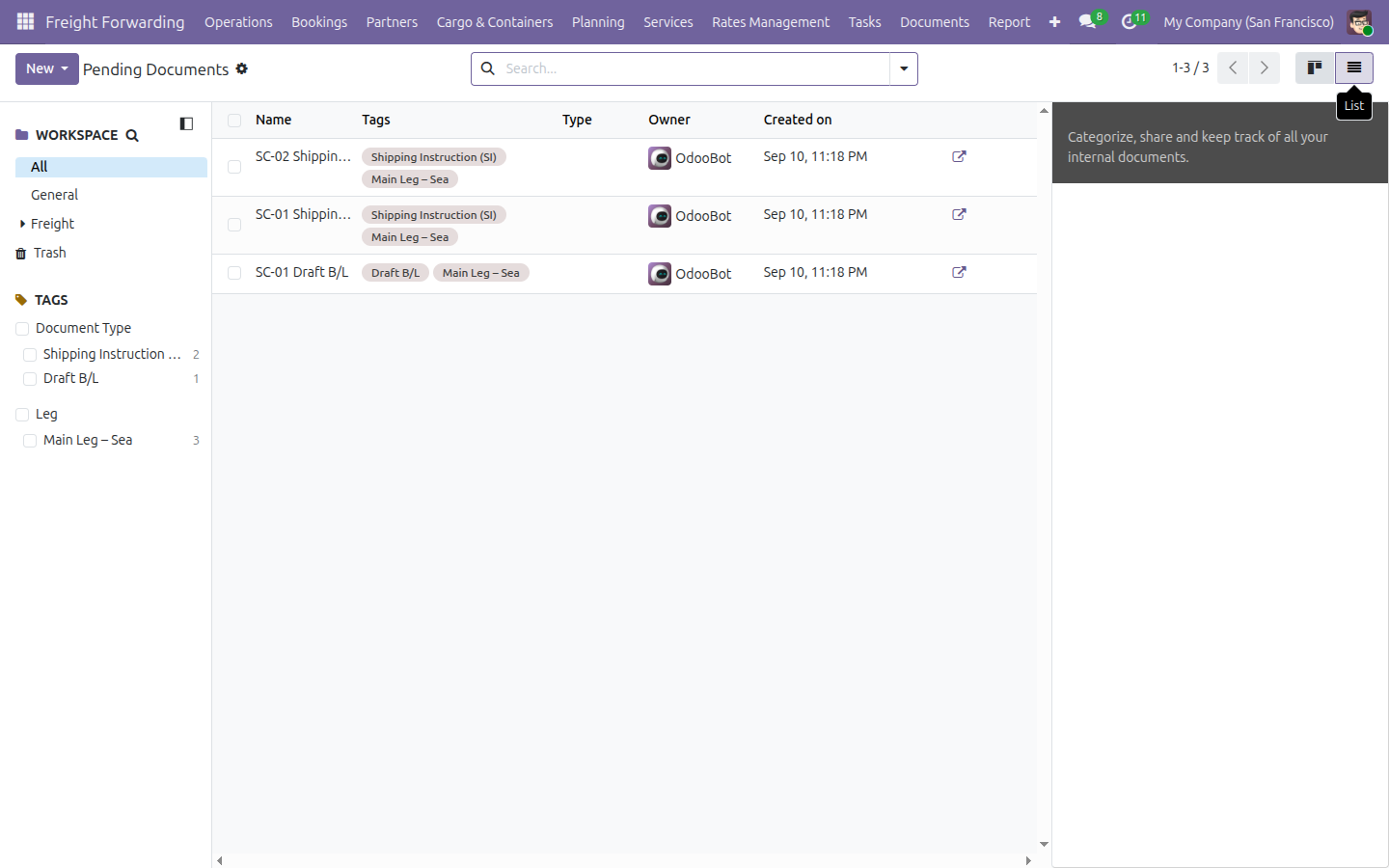
- Click the document to open its detail panel on the right.
- Click Approve in the Actions panel.
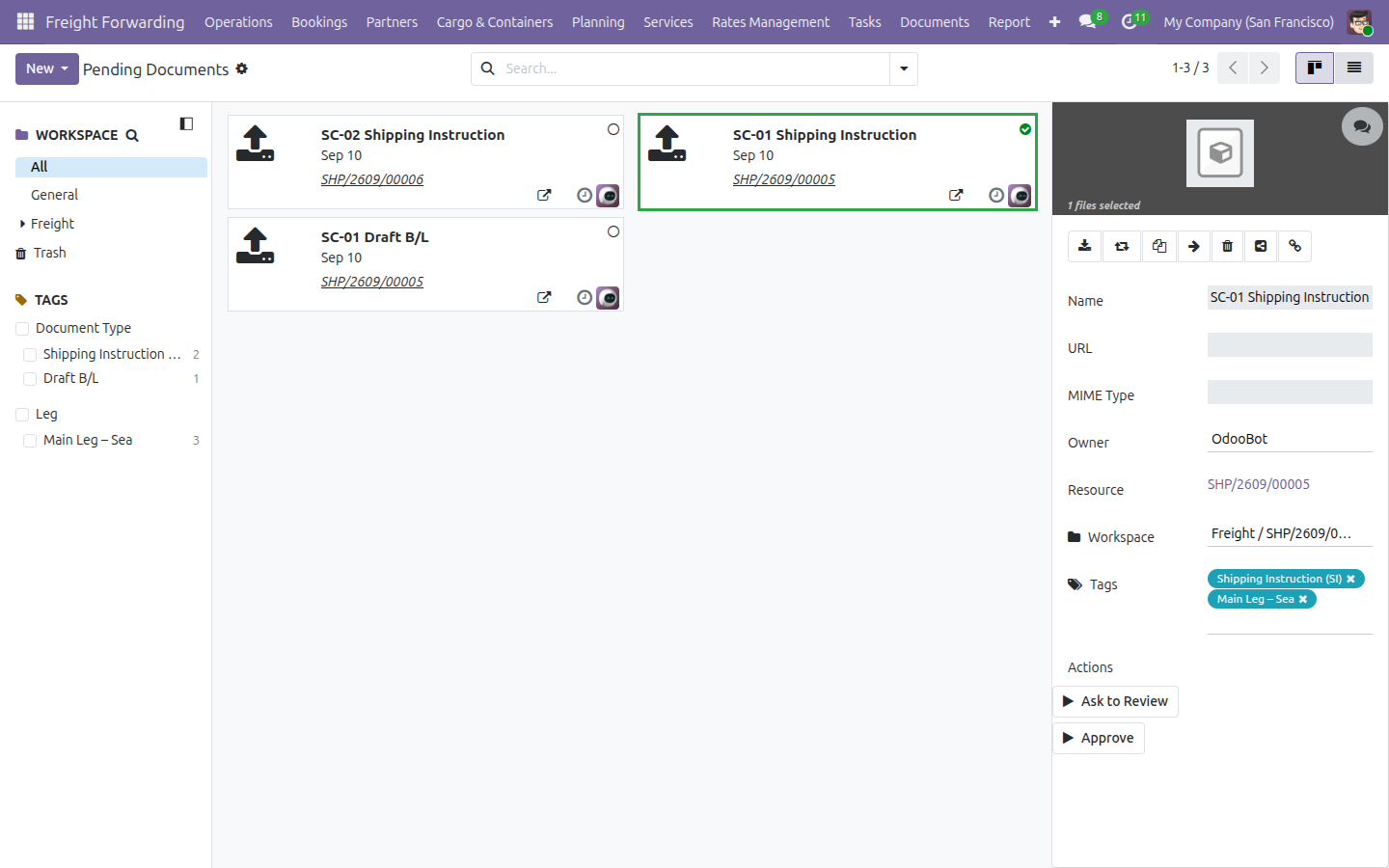
- Open Freight Forwarding ‣ Documents ‣ Completed Documents to confirm it moved there.
Open a booking's documents in one click
Once a Booking has at least one document filed directly against it, a Documents button appears in its button box, showing the count.
- Open Freight Forwarding ‣ Bookings and open a booking.
- Attach a file to it (use Attach files in the chatter, at the bottom of the record).
- Click the Documents button.
The Documents app opens filtered to this booking, and you can see straight away that the document's own folder is the booking's shipment - not a folder named after the booking itself.
Maintain the Required Documents checklist on a shipment
Every shipment carries its own checklist of required documents (Shipping Instruction, Draft B/L, and any others you add), each one automatically linked to a document and to a task that tracks the work.
- Open a Shipment, then click the Required Documents tab.
- Click Add a line, and fill in a Summary for the new requirement.
- Show the Freight Document Type column if it is hidden (use the column-options icon at the top-right of the list) and pick a type, for example Draft B/L.
- Save. The row is auto-tagged with its document type and the Main Leg - Sea tag, and a task is created behind the scenes to track it.
- Click View Task on the row to jump straight to the task that was created for it.
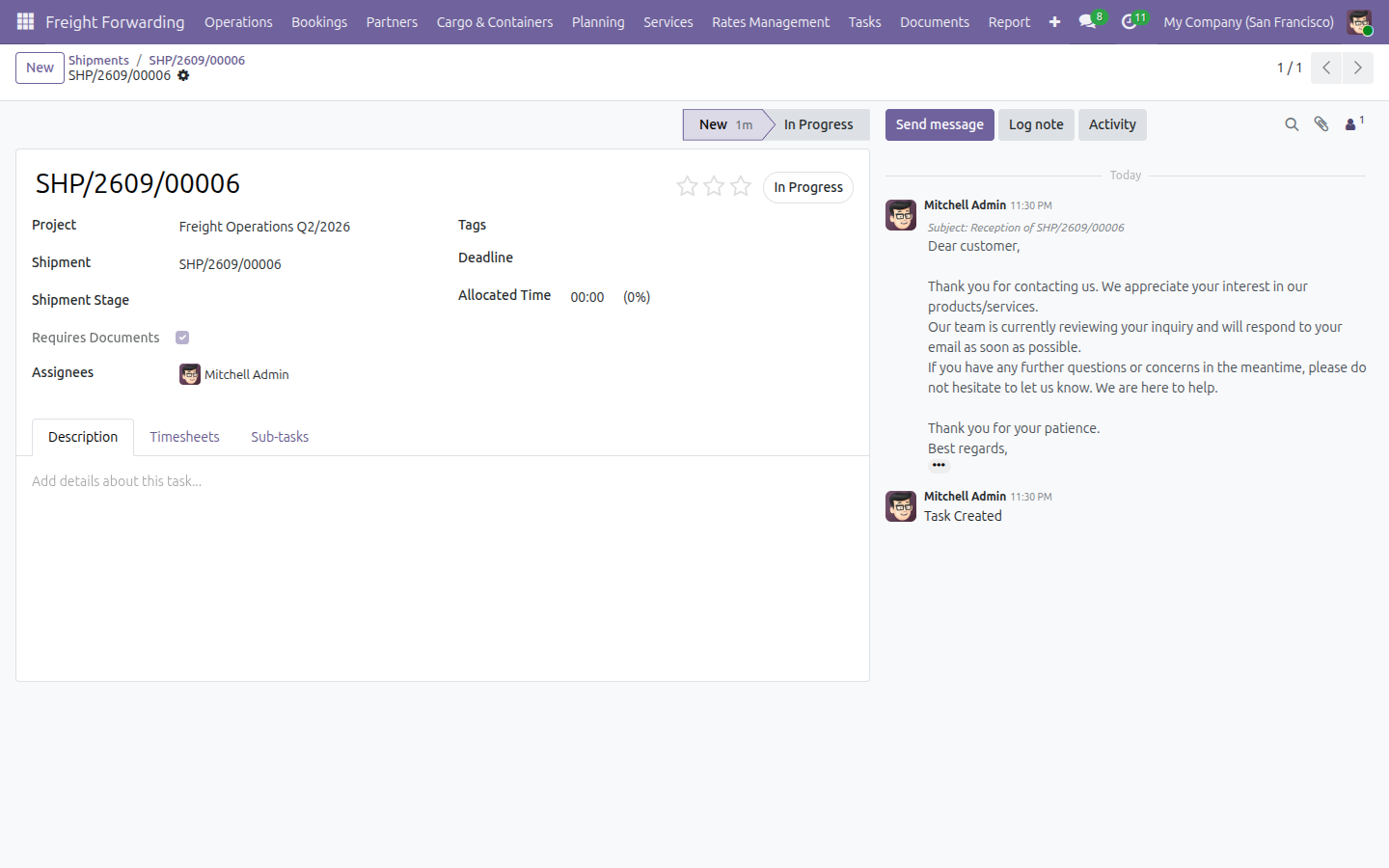
One thing to know: the task's title defaults to the shipment's own reference, not the Summary text you typed - use View Task to find the right one rather than relying on its name.
See document status on the task board
Tasks that are gating on a document carry a badge on their Kanban card, so your team can see at a glance what is still blocked.
- Open Project, then the freight project's Tasks board.
A task still waiting on an approved document shows an orange Docs Missing badge; a task whose document has been approved shows a green Docs Approved badge instead.
The search panel also offers Requires Documents, Missing Documents and Approved Documents filters, so you can narrow the board down to exactly the tasks still gating on a document.
Prepare the Shipping Instruction and Draft B/L
Two guided forms let you draft the carrier-facing paperwork without leaving the shipment.
- Open a Shipment, then click the Required Documents tab.
- Click Prepare SI. The form pre-fills from the shipment's cargo and its SI cutoff date - review and adjust the Goods Description for SI, Marks & Numbers and any special instructions, then click Prepare SI in the footer to save.
- Back on the Required Documents tab, click Prepare Draft B/L. Fill in the Draft B/L Due Date (required) and any B/L Remarks for the carrier, then click Prepare Draft B/L in the footer to save.
Both wizards auto-tag the resulting document with its document type and the Main Leg - Sea tag - ready to hand to the carrier without any extra tagging step.
Troubleshooting
- The task created from a checklist row is not named what I typed. This is expected - the task's default title is the shipment's own reference. Use the View Task link on the checklist row rather than searching by name.
- I attached a file to a Booking, but I cannot find a folder named after that booking. Check the Booking's own Shipment folder instead - a Booking's documents are filed there, not in a separate per-Booking folder.
- My Shipment or Booking shows no Documents button. The button only appears once at least one document has been filed directly against that record (for example, by attaching a file through its chatter). Rows you add on the Required Documents checklist are linked to their own task instead, and do not count toward this button.
FAQ
Do I need to configure anything before I start using this module? No. The Freight workspace, team, tags and auto-generate rules all ship ready to use.
Are documents I add through the Required Documents checklist tagged automatically? Yes, for Shipping Instruction and Draft B/L rows - they are tagged with their document type and the Main Leg - Sea tag as soon as you save. This is different from a file you attach directly through a record's chatter, which arrives with no tags.
Where do a Booking's filed documents actually end up? In its Shipment's own folder - Bookings do not get a separate folder of their own.
Does this module need Odoo Enterprise? No - it runs on Odoo Community.
This software and associated files (the "Software") may only be used (executed, modified, executed after modifications) if you have purchased a valid license from the authors, typically via Odoo Apps, or if you have received a written agreement from the authors of the Software (see the COPYRIGHT file).
You may develop Odoo modules that use the Software as a library (typically by depending on it, importing it and using its resources), but without copying any source code or material from the Software. You may distribute those modules under the license of your choice, provided that this license is compatible with the terms of the Odoo Proprietary License (For example: LGPL, MIT, or proprietary licenses similar to this one).
It is forbidden to publish, distribute, sublicense, or sell copies of the Software or modified copies of the Software.
The above copyright notice and this permission notice must be included in all copies or substantial portions of the Software.
THE SOFTWARE IS PROVIDED "AS IS", WITHOUT WARRANTY OF ANY KIND, EXPRESS OR IMPLIED, INCLUDING BUT NOT LIMITED TO THE WARRANTIES OF MERCHANTABILITY, FITNESS FOR A PARTICULAR PURPOSE AND NONINFRINGEMENT. IN NO EVENT SHALL THE AUTHORS OR COPYRIGHT HOLDERS BE LIABLE FOR ANY CLAIM, DAMAGES OR OTHER LIABILITY, WHETHER IN AN ACTION OF CONTRACT, TORT OR OTHERWISE, ARISING FROM, OUT OF OR IN CONNECTION WITH THE SOFTWARE OR THE USE OR OTHER DEALINGS IN THE SOFTWARE.