
Payroll
| Lines of Code | 14877 |
| Technical name | to_hr_payroll |
| License | OPL-1 |
| Website | https://viindoo.com/apps/modules/19.0/to_hr_payroll |
| Read description for | v 13.0 v 14.0 v 15.0 v 16.0 v 17.0 v 18.0 |
| Required Apps | Time Off (hr_holidays) Discuss (mail) Employees (hr) Calendar (calendar) |
| Included Dependencies | Employee Relatives Viindoo Base Advanced HR Management HR Contracts (Viindoo) Work Entry Work Entry - Contract Viin Time-Off Viin - Holiday Work Entry Base Addendum Viindoo Holiday & WorkDay Manager Safe IR Metadata Proxies |
| Extensions | HR Payroll Accounting Vietnam - Payroll Payroll Attendance Payroll Timesheet Integrator Overtime Payroll HR Meal Order & Payroll Integration Payroll By Administrative Regions Documents - Payroll HR Contracts Suspension & Payroll Payroll Payment ACB bank Templates |
Payroll that closes the month, not just prints payslips
For payroll officers, HR managers, finance teams and every employee who wants a payslip they can follow line by line
Contracts, work entries, contributions and personal income tax in one payroll engine.
Extends Time Off - see its documentation: Time Off
Is this you?
Closing payroll takes days of collecting attendance, time off and overtime from every department.
Each position, shift pattern or contract has its own pay formula, and the spreadsheet keeps growing.
When a statutory rate or ceiling changes, nobody is sure which payslips used the old value.
Finance asks for salary cost by department or project and the answer takes another week.
Employees ask how their net pay was reached and the payroll team has to rebuild the calculation by hand.
What changes
Closing payroll takes days of collecting data
→ Generate a whole Salary Cycle's payslips in one batch, drawn from contracts, work entries and time off.
Each position has its own pay formula
→ Group salary rules into salary structures per population and keep every formula in one place.
A statutory value changes and nobody knows what used it
→ Keep legal amounts, tax rules and contribution rates as dated data the Payroll Administrator updates; earlier periods keep reading the value that applied.
Salary cost questions take a week
→ Open the pay analysis by period and department and regroup it yourself.
Employees ask how net pay was reached
→ Every payslip shows each line, category and tax decision, including why a payment was or was not withheld.
How it works
Set up
Payroll Administrator configures Salary Cycles, structures, tax rules, statutory amounts and contribution types, then hands over to the Payroll Officer.
Maintain contracts
Payroll Officer records wage, tax rule, monthly advantages and contribution registrations on each contract.
Run the payslips
Payroll Officer generates the batch, computes, verifies and closes it; single payslips go from Draft through Waiting to Done. Payroll Officers also confirm and cancel payslips, including those with time off, and set a cancelled payslip back to Draft to correct it.
Analyse and share
Team Leader and Employees read cost reports for their team, and every employee sees their own dashboard and payslips.
Key Features
Payslip batches
Generate and compute the payslips of a whole Salary Cycle at once, then verify and close the batch.
Salary structures and rules
Build pay formulas per employee group from reusable salary rules, with a basic set provided.
Personal income tax rules
Progressive tables and flat rates with dated rates, payment-date based withholding and employee commitments.
Statutory amounts
Keep amounts set by law as dated data instead of writing them into formulas, per country and company. Found under Payroll > Payroll Contribution > Statutory Amounts: Payroll Officers read them, the Payroll Administrator edits them.
Contribution registers
Track insurance and union contributions per employee, and let the Payroll Administrator change the rates of a whole type in one action; Payroll Officers change one register at a time.
Payroll analysis
Pivot reports of cost, contributions and personal income tax by period, department and employee. The Payroll Contribution Analysis lists the ongoing contributions of each company.
Who it is for
Payroll Administrator
Needs payroll configured once and kept correct when policy or law changes. Gains one place for rules, tax and statutory values.
Payroll Officer
Runs the month under time pressure. Gains batch generation, clear statuses, a payslip that explains itself, and the right to edit contract pay terms (a Payroll Administrator can switch that off).
Team Leader
Wants the cost of the team without asking payroll. Gains own and subordinates' payslips and the analysis report.
Employee
Wants to understand the payslip. Gains a personal dashboard with net pay, deductions and history.
Best for: Companies with many employees, different pay formulas per position, and contracts that change during the year.
Configure payroll once
Choose the country payroll, default Salary Cycle and rule categories. The Payroll settings are for Settings administrators: a Settings administrator who also holds the Payroll Administrator access right opens them.
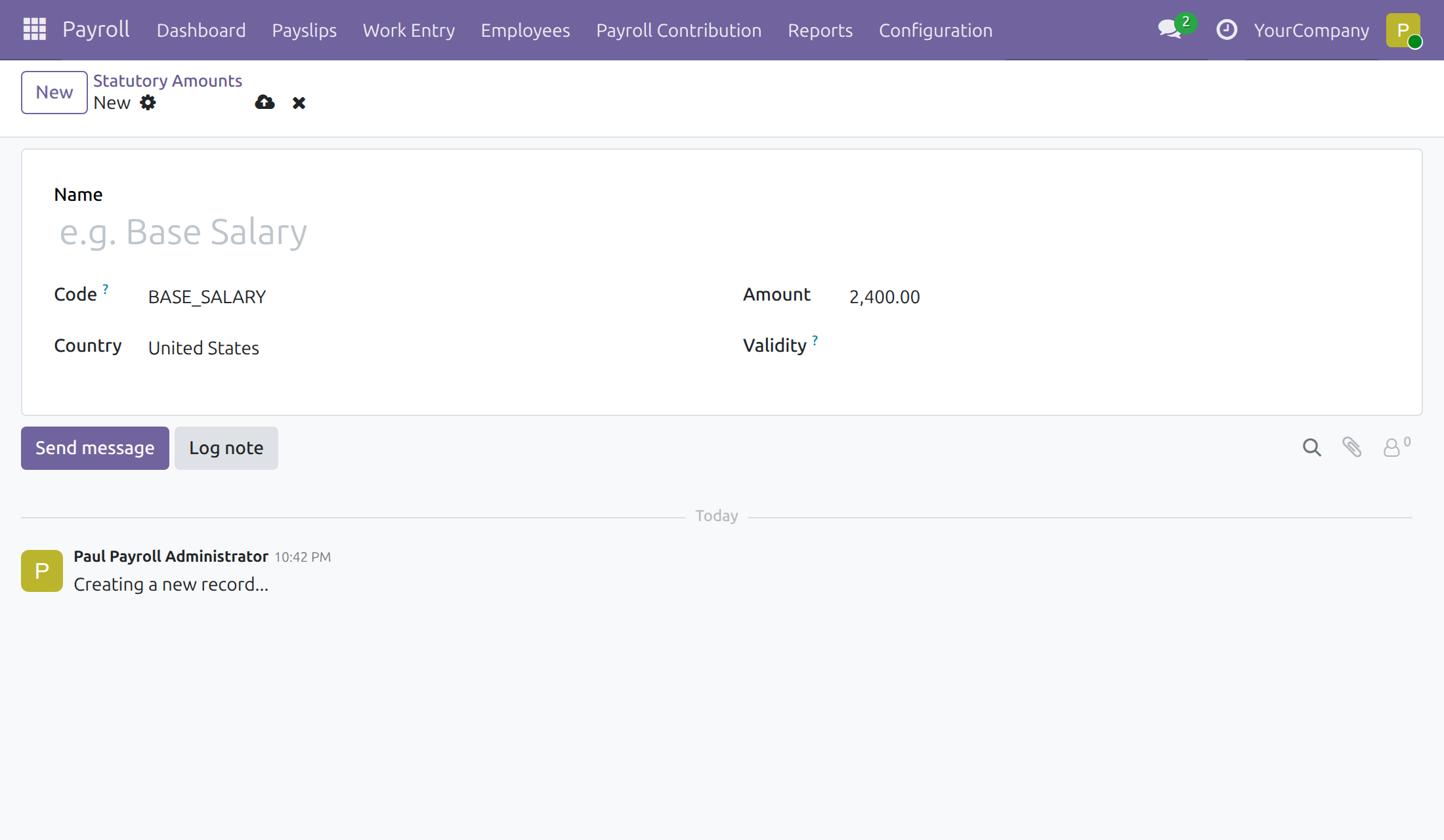
Keep law-set values as data
Record an amount with its country, company and validity period.
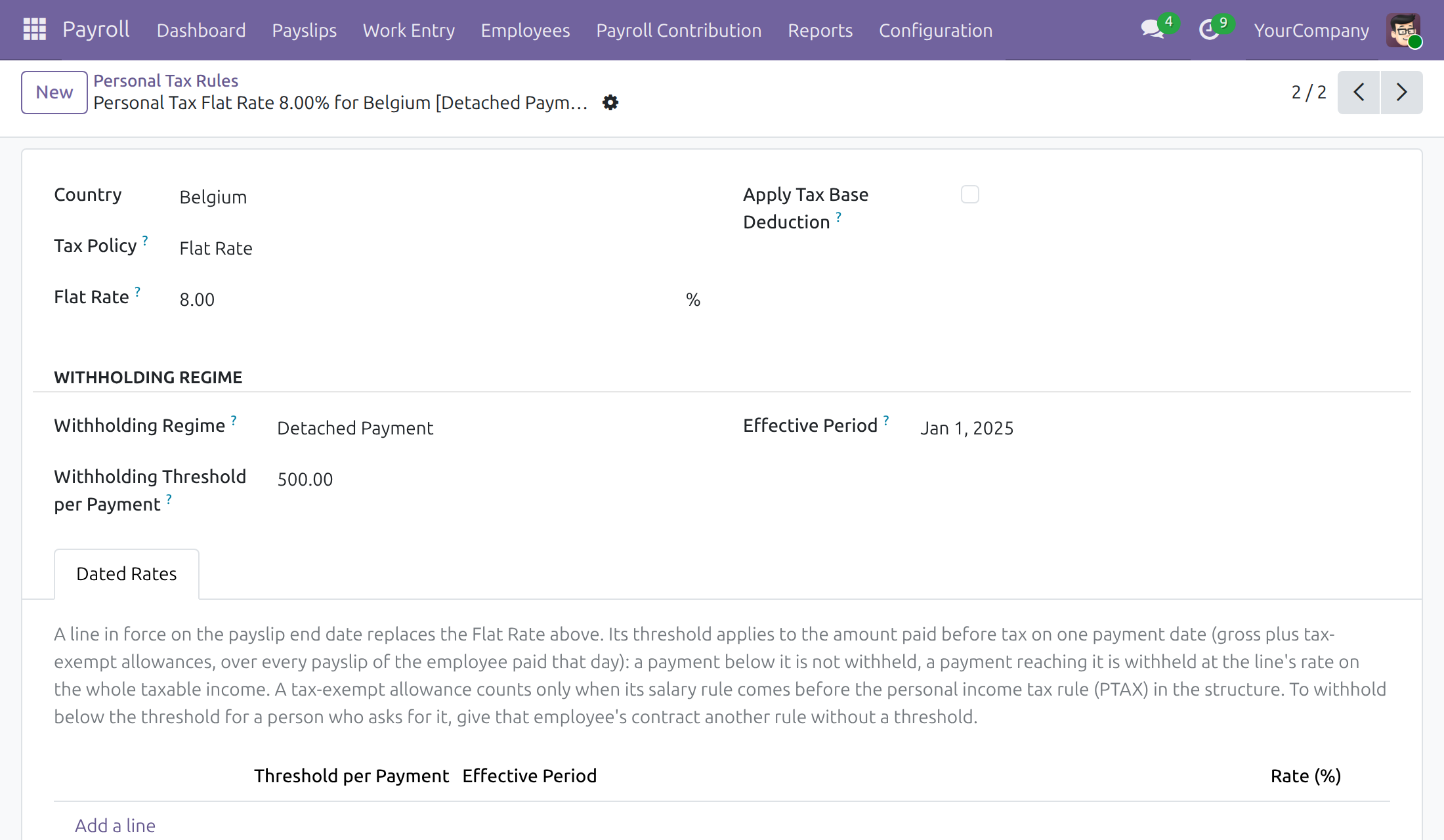
Maintain personal tax rules
Flat rates and thresholds by effective period.
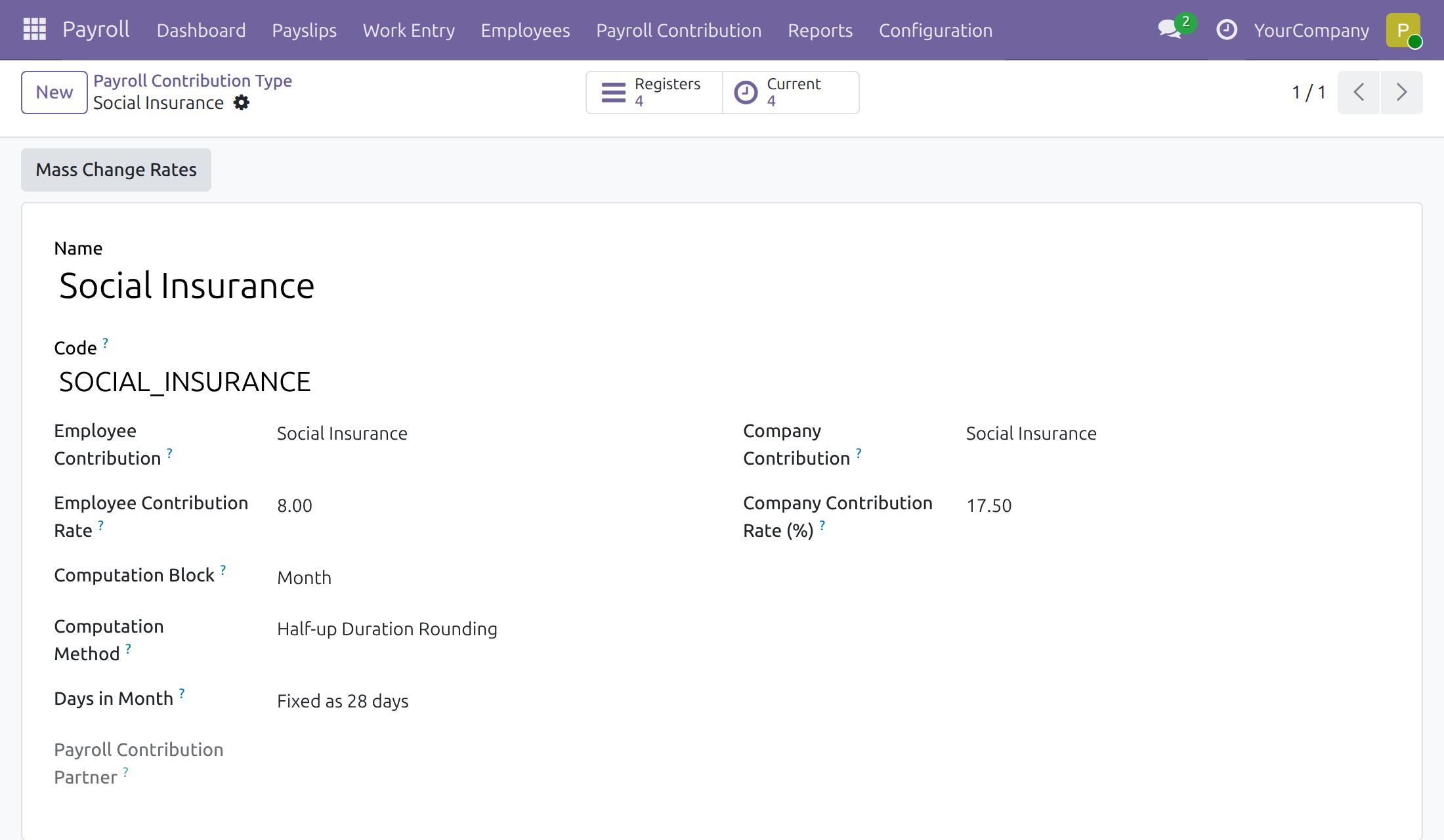
Change contribution rates in one action
The Payroll Administrator's Mass Change Rates updates every register that follows the default.
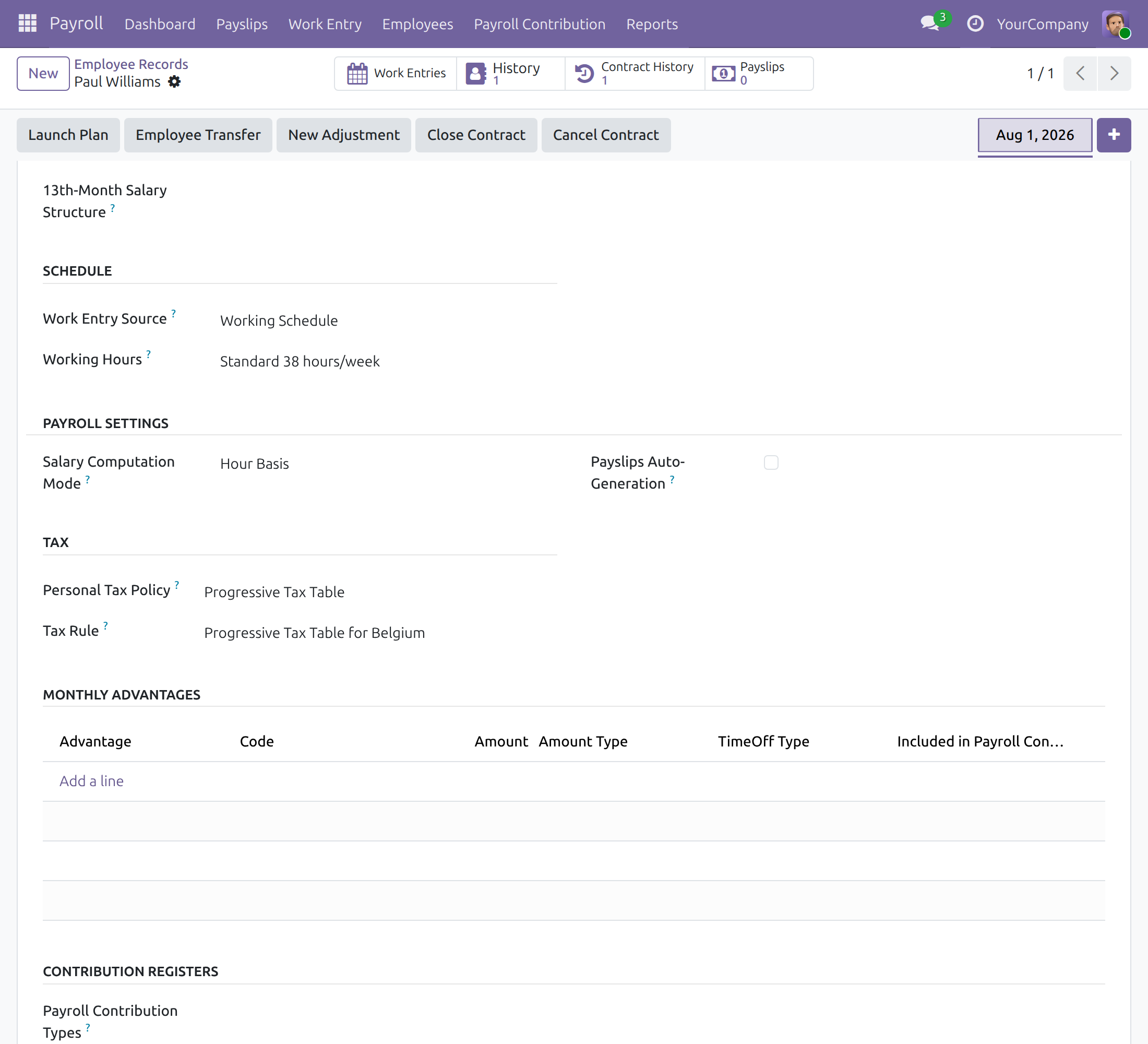
Set the pay terms on a contract
Wage, tax rule, monthly advantages and contribution types.
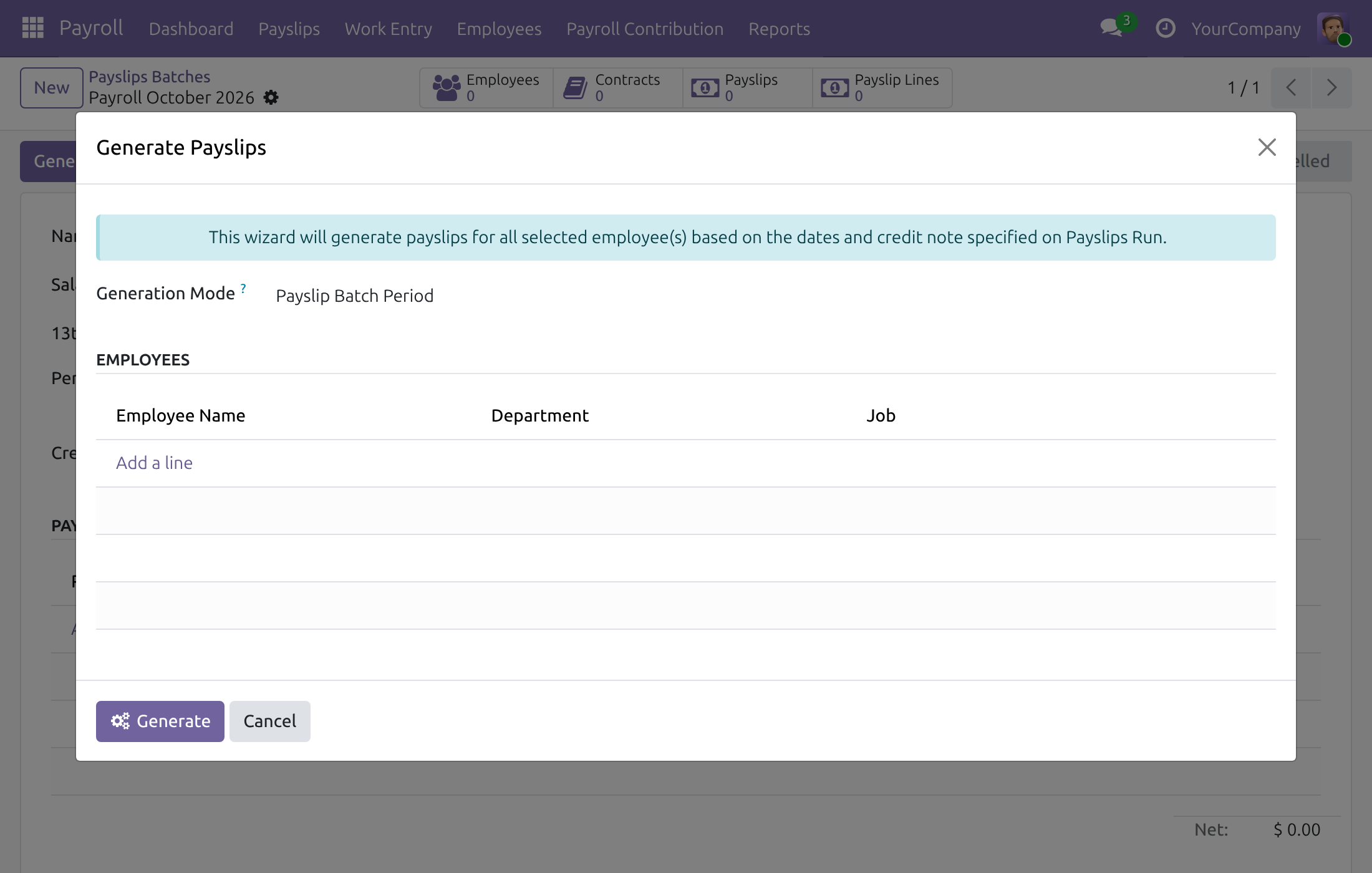
Generate the payslips of a cycle
Pick employees and generate the payslips of the Salary Cycle into the batch.
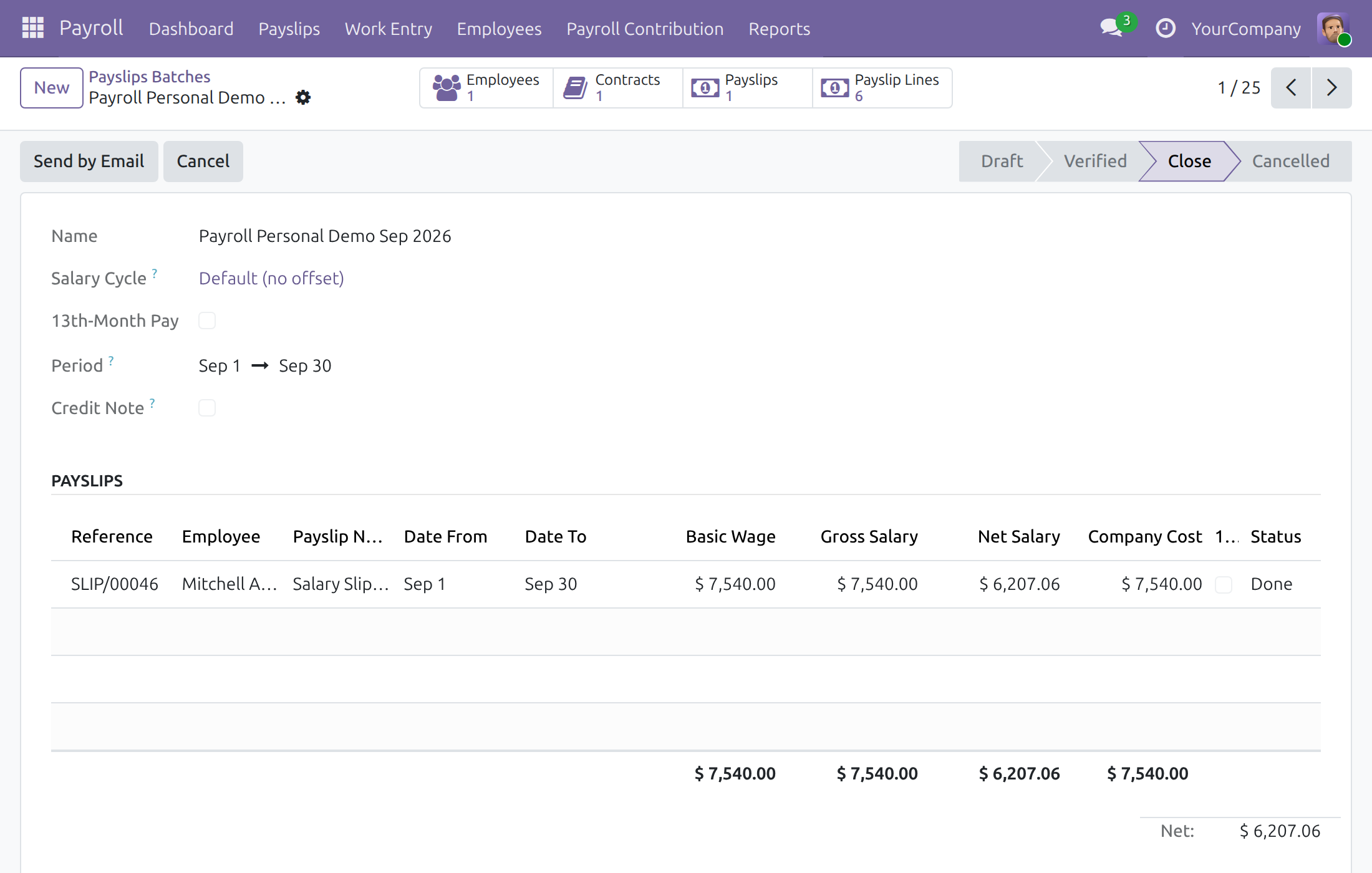
Review a batch
Totals and every payslip of the period at a glance.
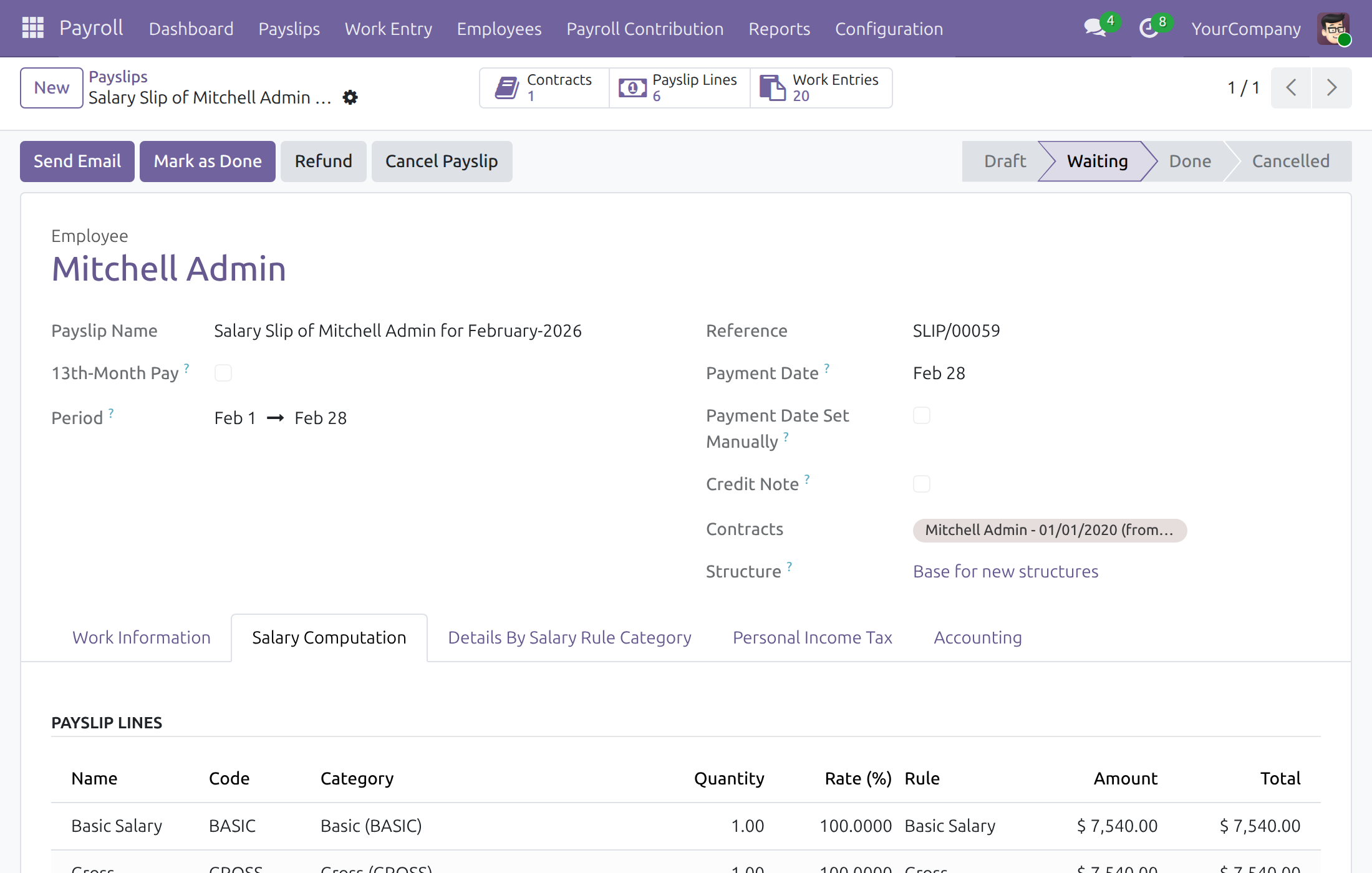
Check a payslip line by line
Each line with its category, rate and total. Every payslip is named after its employee and the month its period ends.
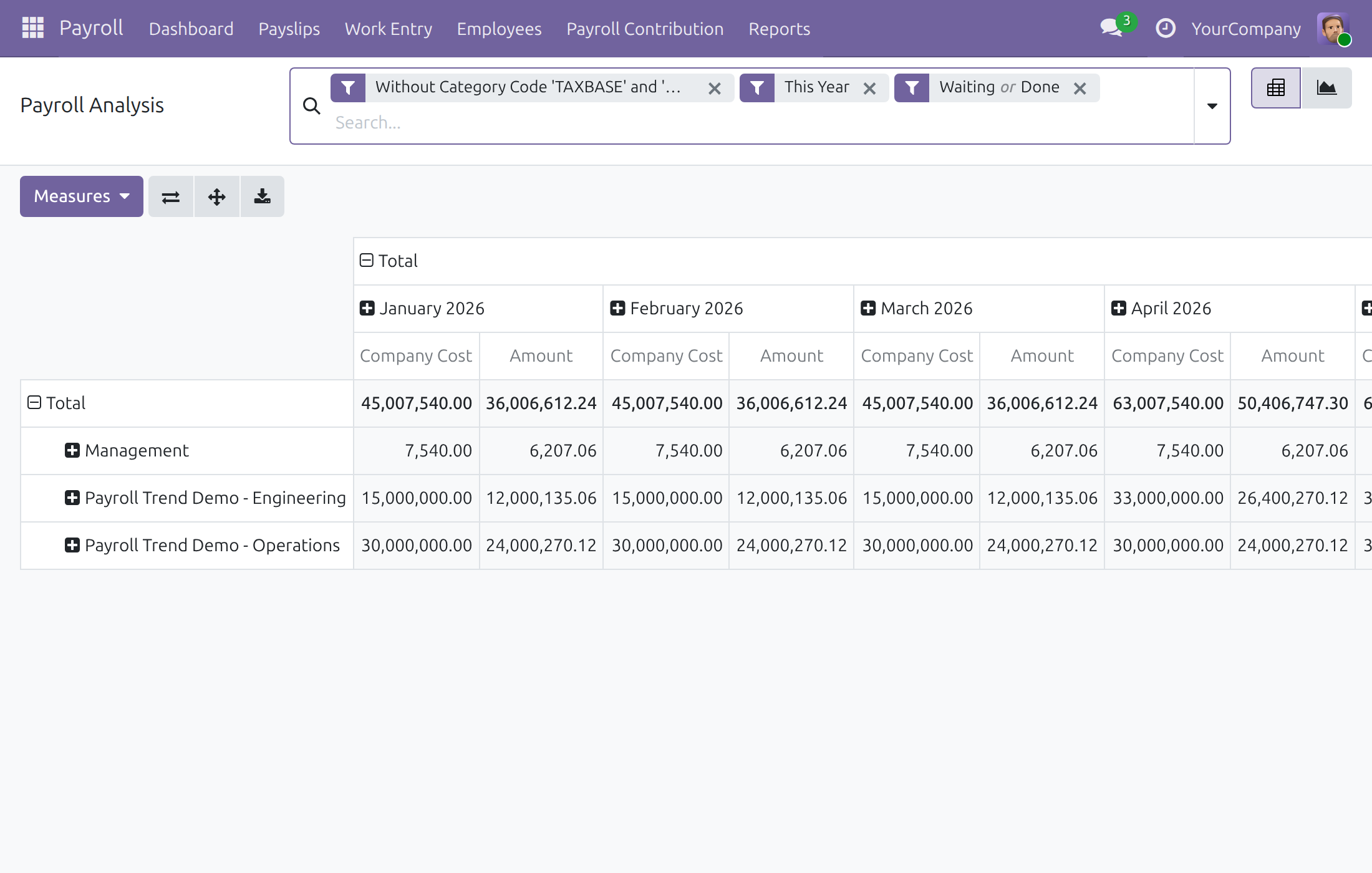
Analyse payroll cost
Pivot by period and department.
Follow personal income tax
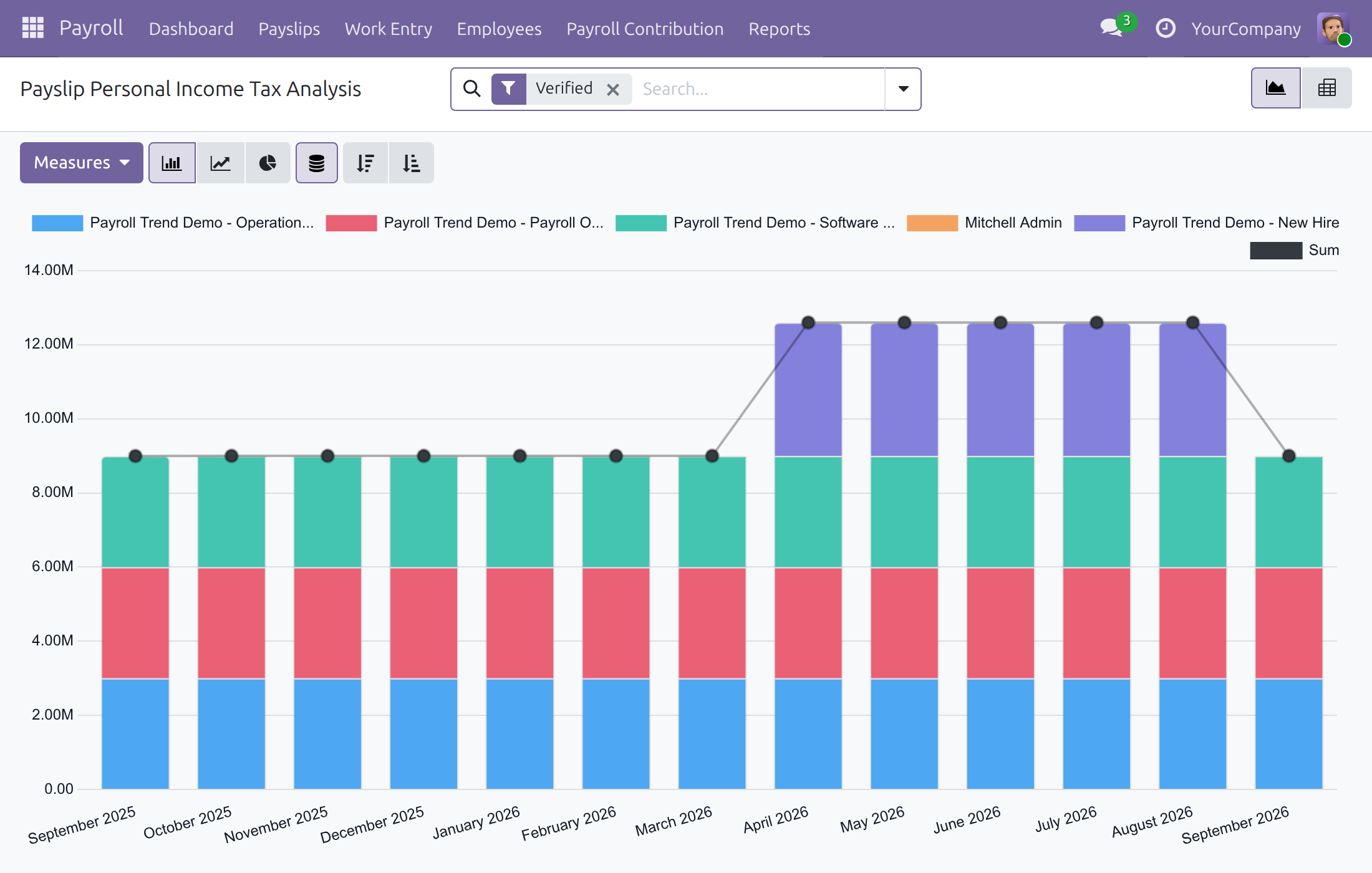
Tax over time by employee.
See Payroll in Action
v19demo-int.viindoo.com/webFrequently Asked Questions
Can the legal values and tax rates be changed without a developer?
Yes. Statutory amounts, personal tax rules and contribution rates are data the Payroll Administrator edits; end the current line and add a new one from the effective date, and earlier payslips keep their values.
Does it work for any country?
Payroll is generic. Country payroll rules can be loaded from a localization, and tax rules, statutory amounts and contribution types are configured per country.
Can one employee have several contracts in a period?
Yes. Payslips are computed from the contracts matching the period.
Which data feeds a payslip?
Work entries, time off and the contract's pay terms. Other apps (attendance, overtime, expenses, meals) can add their data.
Who can change the pay terms on a contract?
By default Payroll Officers can edit the wage, salary structures, tax rule, monthly advantages and contract dates. A Payroll Administrator who also holds the Settings administrator right can switch this off in the Payroll settings, which makes those fields read-only for Officers; otherwise the payroll team asks a Settings administrator.
Who changes contribution rates and statutory amounts?
The Payroll Administrator edits statutory amounts and changes the rates of a whole contribution type with Mass Change Rates. Payroll Officers read the amounts and change the rates of a single contribution register with Change Rates.
Can a confirmed payslip be corrected?
Yes. A Payroll Officer cancels the payslip, including one that covers time off, sets it back to Draft, fixes the data, computes it and confirms it again.
Which date decides the tax rules of a payslip?
The Tax Date shown on the payslip. A Payroll Administrator chooses, per country or company, whether it is the Payment Date or the last day of the payslip period, so a wage paid in the next month can be taxed under the rules of the month it is paid. The date is set when the payslip is computed and stays fixed once the payslip is confirmed.
Can employees see payslips of others?
No. Employees see their own payslips; a Team Leader also sees subordinates'; the Payroll Officer sees all.
Need help with Payroll?
Pre-Sales & Partnership
viindoo.com/contactusTechnical Support
viindoo.com/ticketTechnical Requirement
- Odoo version: 19.0
- Editions: Odoo Community
- Required modules: Base, Employees (viin_hr), Contracts (viin_hr_contract), Employee Relatives, Work Entries, Time Off (viin_hr_holidays)
- License: OPL-1
Payroll
For: the Payroll Administrator who sets payroll up, the Payroll Officer who runs the monthly payslips, the Team Leader who follows the payroll cost of a team, and every employee who looks at their own payslips.
Note
Extends Time Off - see its documentation: Time Off.
Overview
Payroll turns the month's working time, time off, allowances, insurance contributions and personal income tax into payslips, and keeps the figures for analysis. A payslip batch computes every payslip of a salary cycle in one go, so the month can be closed with a few checks instead of a spreadsheet.
The process, stage by stage:
- Setup (Payroll Administrator). Salary cycle, salary structures and rules, tax rules, statutory amounts, allowance templates and contribution types are configured once and updated when policy or law changes.
- Contracts (Payroll Officer). Each employee contract carries the pay terms: wage, salary structure, tax rule, monthly advantages and contribution registers.
- Payslips (Payroll Officer). The Officer generates the payslips of the period, computes them, confirms them and marks them as done. A payslip goes through the statuses Draft, Waiting and Done; a cancelled one is shown as Cancelled and can be set back to Draft to be corrected and confirmed again.
- Analysis (Team Leader, Officer, Manager). Payroll reports show cost, contributions and tax by period, department and employee.
- Self-service (Employee). Every employee sees their own payroll dashboard and payslips.
| Role | What they do | Access right to assign |
|---|---|---|
| Payroll Administrator | Configures payroll, keeps statutory amounts, tax rules and contribution types up to date, changes the rates of a whole contribution type at once with Mass Change Rates. | Payroll / Administrator |
| Payroll Officer | Maintains contract pay terms (by default the Officer can change them), generates, confirms, cancels and validates payslips and payslip batches, manages contribution registers and changes the rates of one register with Change Rates, reads the statutory amounts and the contribution types. | Payroll / Officer |
| Team Leader | Views own payslips and those of subordinates, and reads the Payroll Analysis report. | Payroll / Team Leader |
| Employee | Views own payslips and own payroll dashboard. | Internal user (no payroll access right needed) |
| Settings administrator | Creates users, gives each person the payroll access right, and opens the Payroll settings. | Role / Administrator |
Setup (for the Payroll Administrator)
Installation
- Open Apps.
- Search for Payroll.
- Click Install. The apps it builds on (employees, contracts, time off, work entries) are installed with it.
Warning
Odoo's own Payroll app must be uninstalled first if it is in use: the two cannot work together.
Give each person the right access
The Settings administrator (Role / Administrator) opens Settings > Users & Companies > Users, opens the user and, in the Payroll line of the access rights, picks Team Leader, Officer or Administrator. Each level includes the one before it. An employee who only reads their own payslips needs no Payroll access right.
Configure payroll
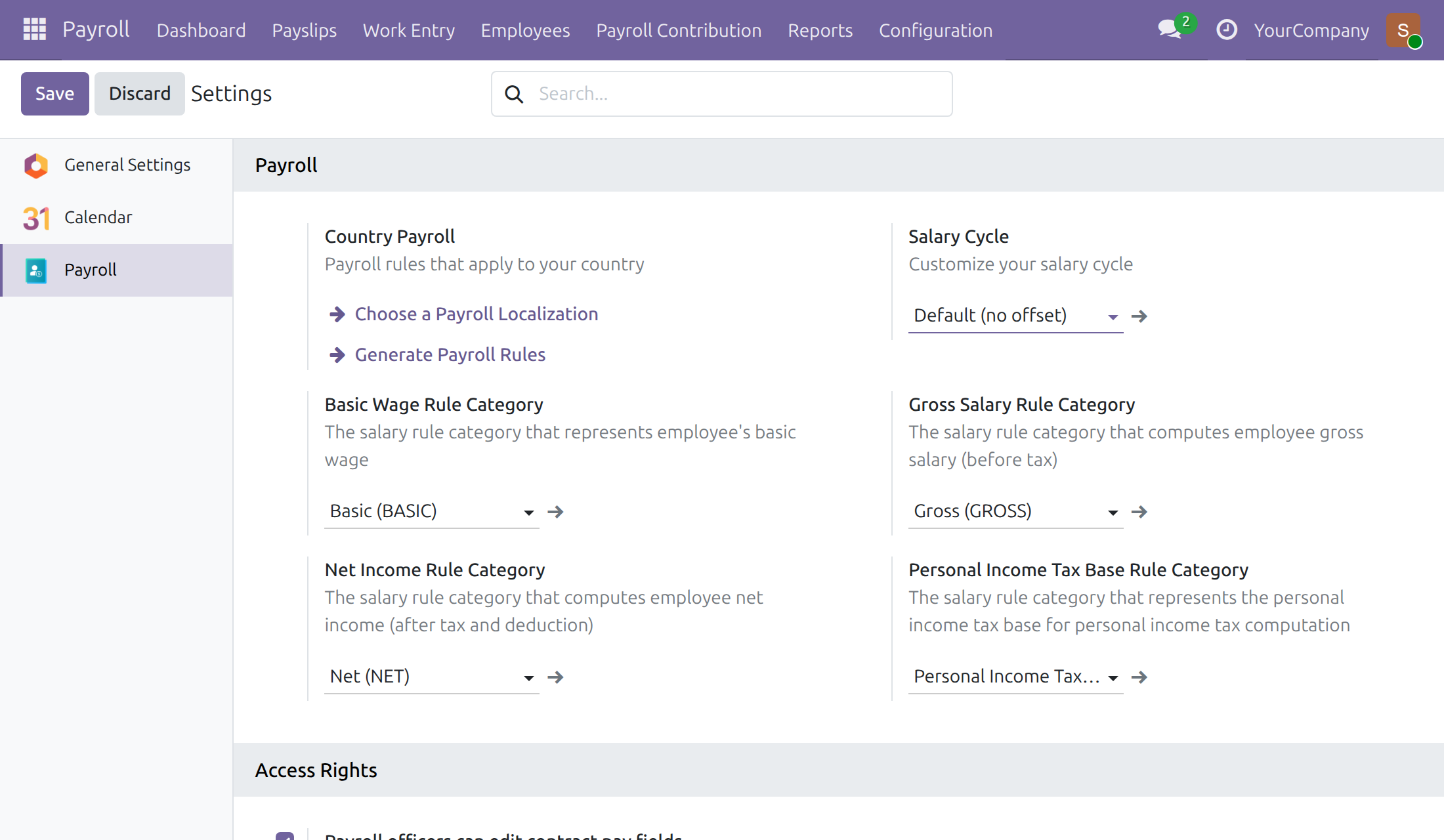
The payroll settings live in the Payroll block of the Settings app, which is also reachable as Payroll > Configuration > Settings. The Settings entry of the Payroll menu is shown to Settings administrators only (the Role / Administrator access right), and the Payroll block inside the Settings app opens for a Settings administrator who also holds the Payroll / Administrator access right. A Payroll Administrator who is not a Settings administrator sees neither the Settings entry nor the Settings app; the rest of the configuration (salary cycles, structures, rules, tax rules, statutory amounts and contribution types) stays available to the Payroll Administrator under Configuration and Payroll Contribution. The payroll team asks a Settings administrator to make the change in the Payroll settings, or to give the person who maintains payroll both access rights.
The Payroll settings hold:
- Country Payroll - Choose a Payroll Localization installs the payroll of the company's country, and Generate Payroll Rules creates its salary rules.
- Salary Cycle - the default cycle of the company.
- Basic Wage, Gross Salary, Net Income and Personal Income Tax Base rule categories - the categories payroll reads to find each figure.
- Access Rights - the switch Payroll officers can edit contract pay fields. It is on by default: Payroll Officers read and change the wage, salary structures, tax rule, monthly advantages and contract dates on a contract. Untick it to make these pay terms read-only for Officers, so that only people allowed to edit contracts in general change them.
- Payslips Automation - generate payslips periodically from the contracts' settings, on a chosen day.
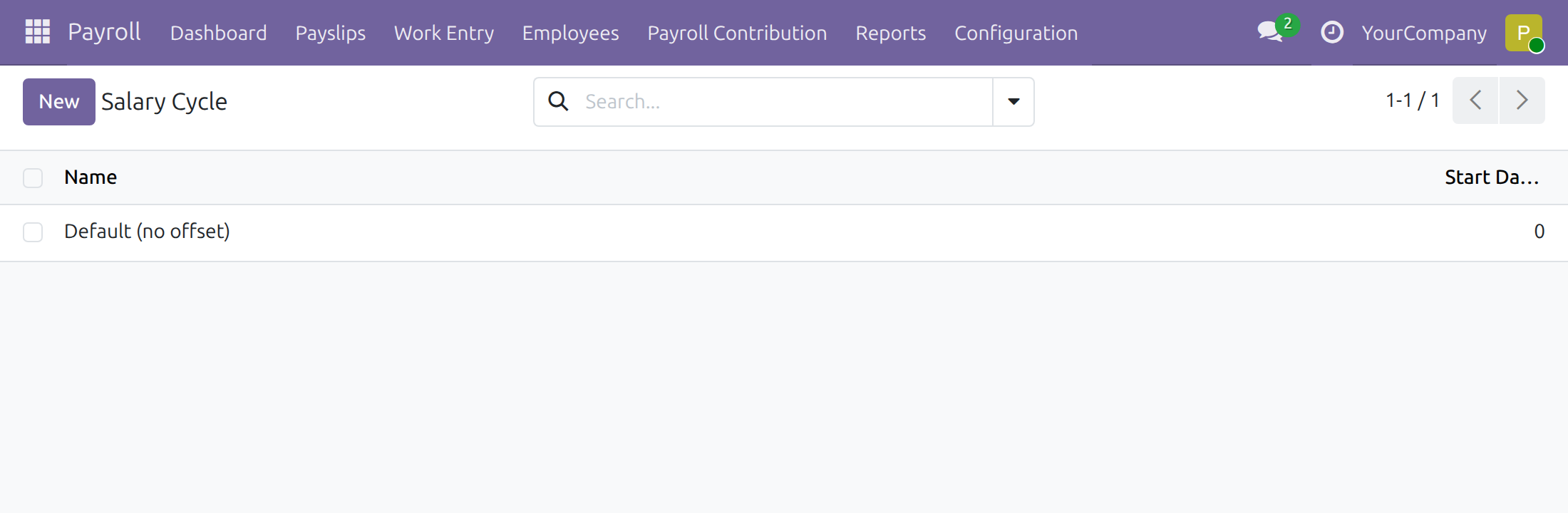
Salary Cycle
Open Payroll > Configuration > Payroll Entry > Salary Cycle. The default cycle runs from the first to the last day of the month. Create another cycle when the company pays on a different rhythm, for example from the 25th of one month to the 25th of the next.
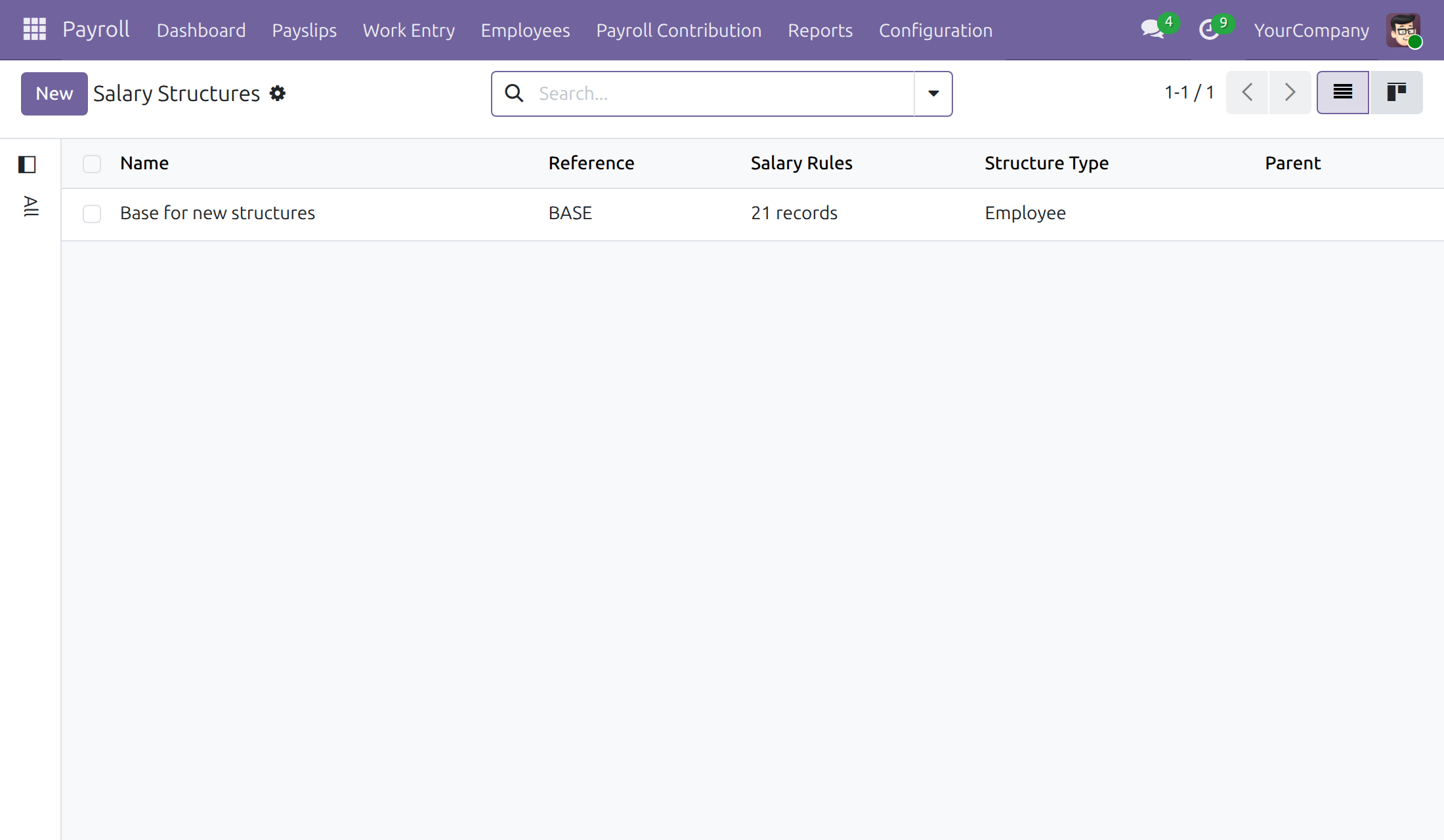
Salary structures and salary rules
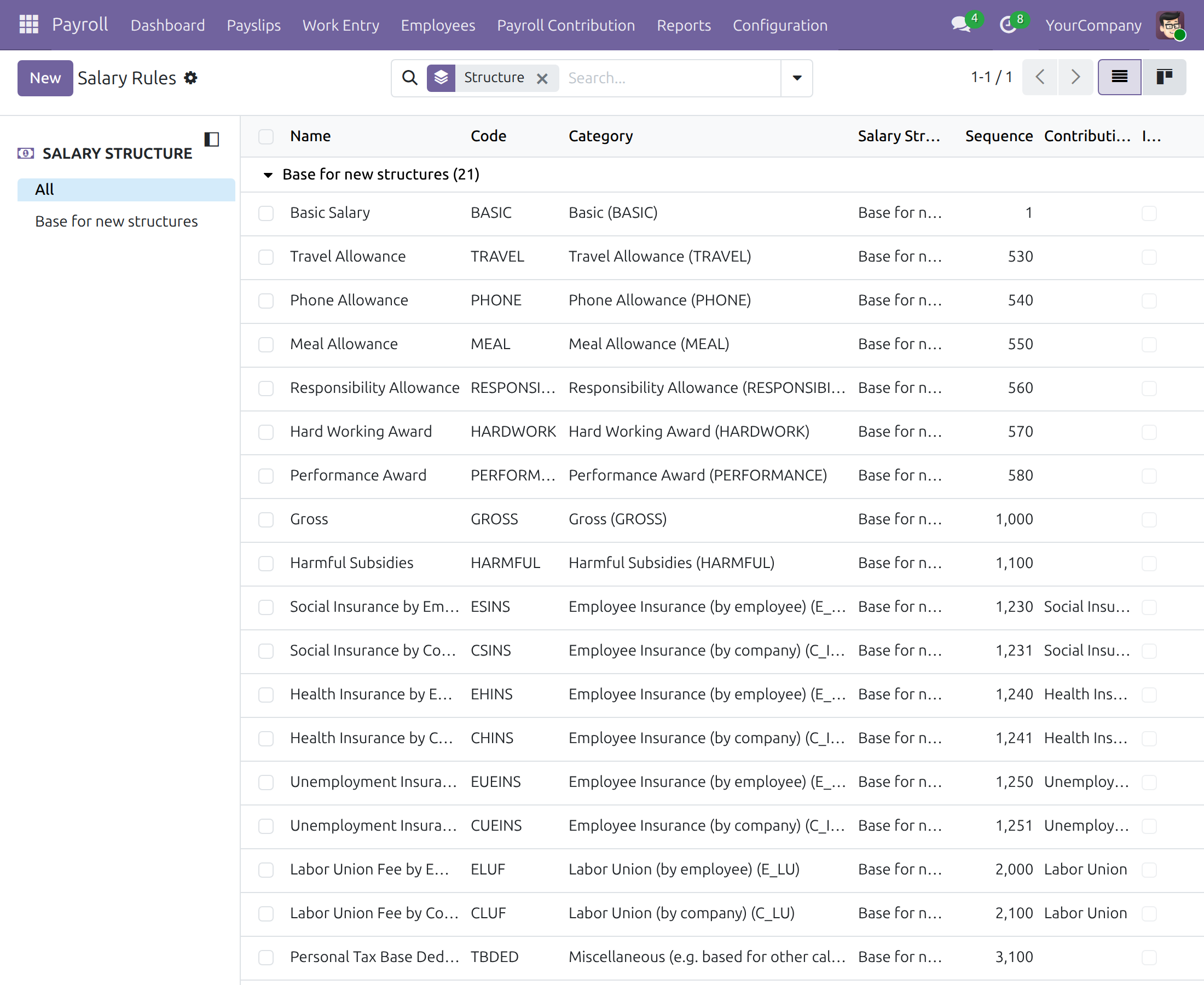
Open Payroll > Configuration > Payroll Entry > Salary Structures. A structure is the set of salary rules that decides how an employee is paid; create one per population, for example office staff and production staff.
Open Payroll > Configuration > Payroll Entry > Salary Rules to see and edit the calculation formulas, grouped by structure. A basic set of rules is provided.
Personal tax rules
Open Payroll > Configuration > Payroll Entry > Personal Tax Rules. A rule is either a progressive tax table or a flat rate, set per country and policy. Tax values are data kept by the Manager, not fixed by the software.
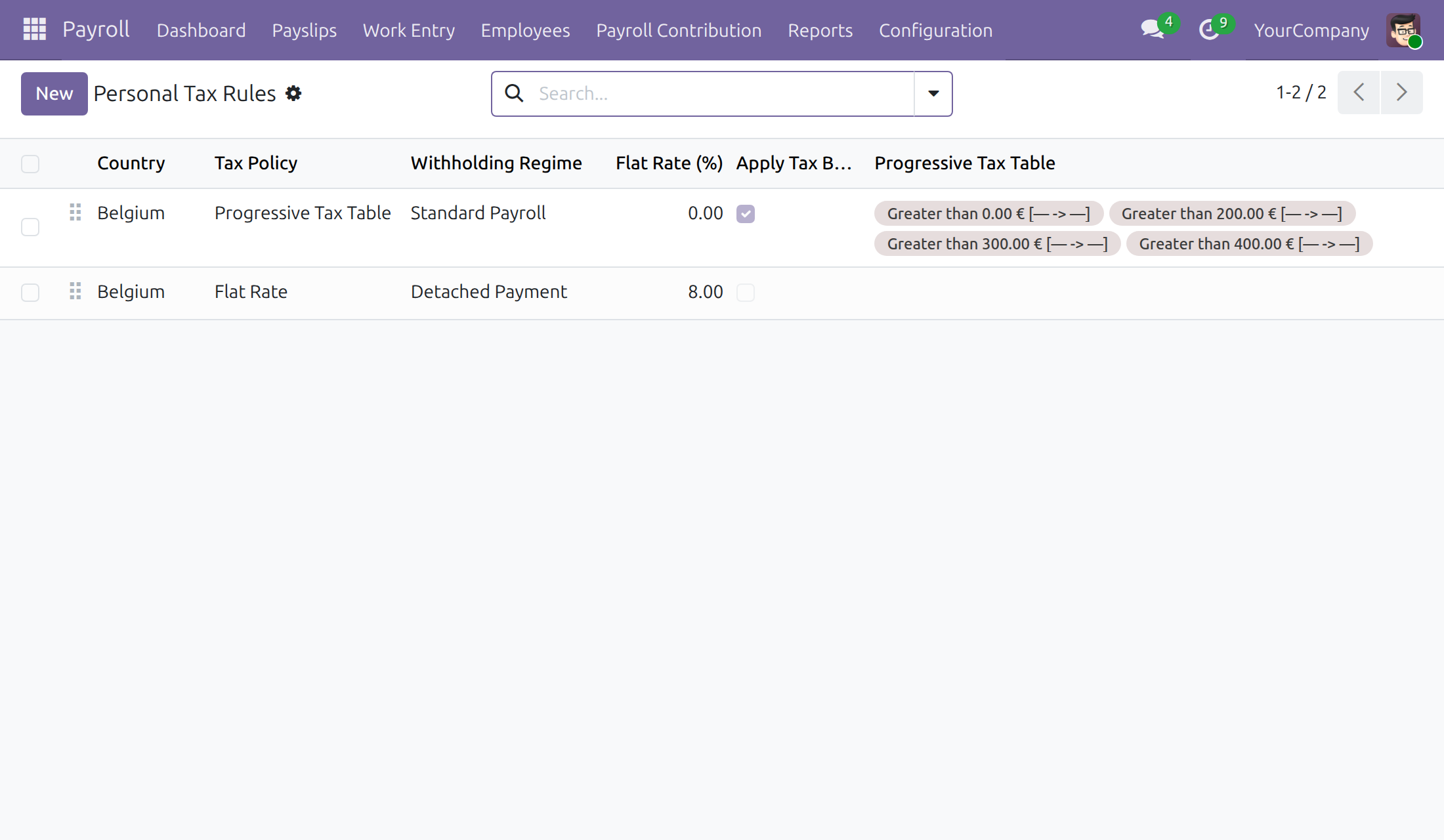
On a flat rate rule, the Withholding Regime and the Dated Rates tab hold the rates and thresholds by effective period.
Statutory amounts
Open Payroll > Payroll Contribution > Statutory Amounts. A statutory amount is a value set by law, such as a base salary or a contribution ceiling, kept as dated data instead of being written into salary rules. The Payroll Administrator creates and edits the amounts; Payroll Officers open the same list to read them. Each amount has a Name, a Code, a Country, an optional Company, an Amount and a Validity period.
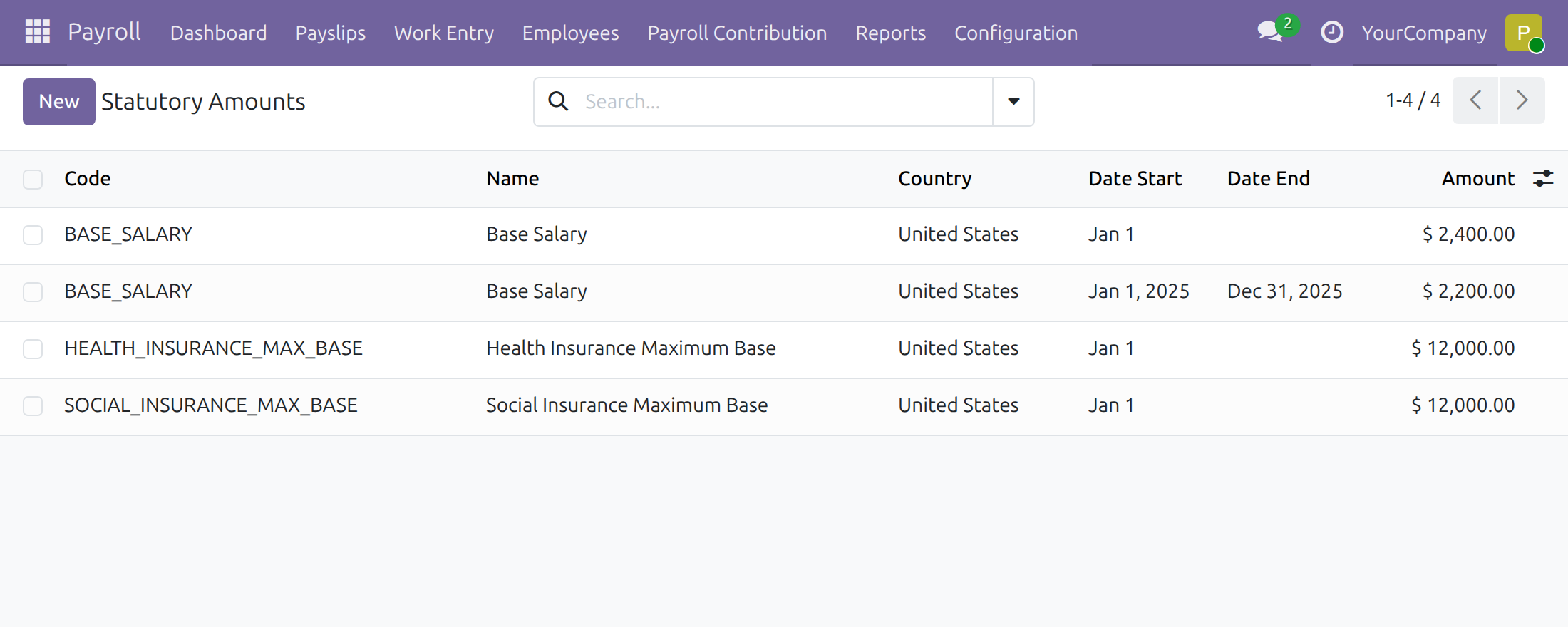
Click New to add an amount. The title of a new amount reads New until it is given a Name; the name then becomes its title, together with the amount and the validity period.
- For one code, country and company the periods may not overlap. When the screen refuses a save because of an overlap, move the end date of the earlier amount or the start date of the later one.
- An amount of a company wins over the amount shared by its country (company left empty).
- Payroll reads the amount in force at the end of the payslip period. A salary rule formula can read an amount by its code, and returns 0 when none is in force.
- A contribution type reads its bounds from the codes <TYPE>_MIN_BASE (floor of the contribution base), <TYPE>_MAX_BASE (ceiling of the base), <TYPE>_MAX_EMPLOYEE and <TYPE>_MAX_COMPANY (ceilings of the contribution), where <TYPE> is the code of the contribution type. No amount in force means no bound; an amount of 0 means unlimited.
HR advantage templates
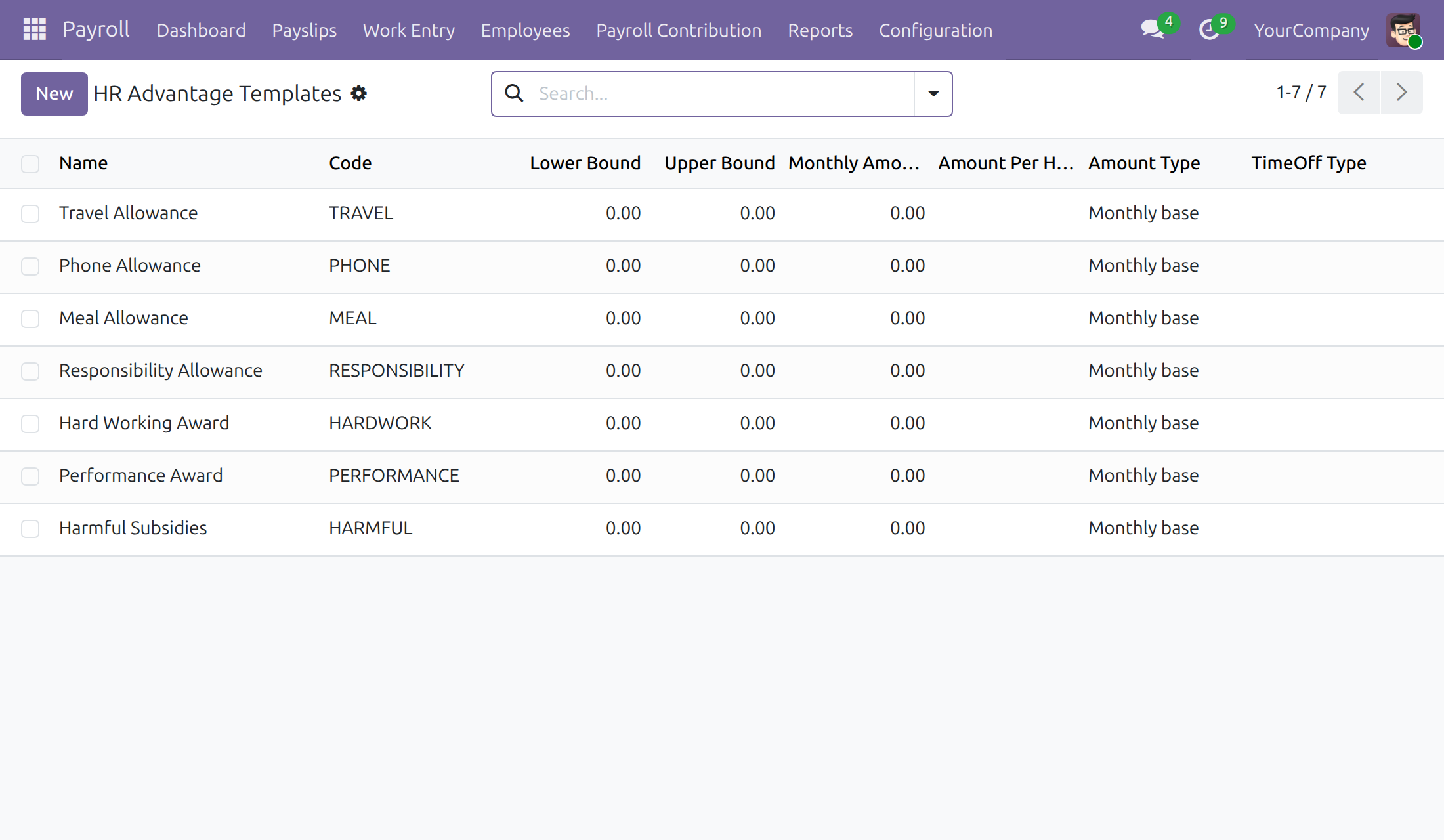
Open Payroll > Configuration > Payroll Entry > HR Advantage Templates. A template describes an allowance or award granted by company policy, such as a travel allowance or a performance award, and can be attached to a contract.
Payroll contribution types
Open Payroll > Payroll Contribution > Payroll Contribution Type. A type, such as social insurance or labour union fee, holds the default employee and company rates and how the contribution is computed. The Payroll Administrator edits the types; Payroll Officers read them.
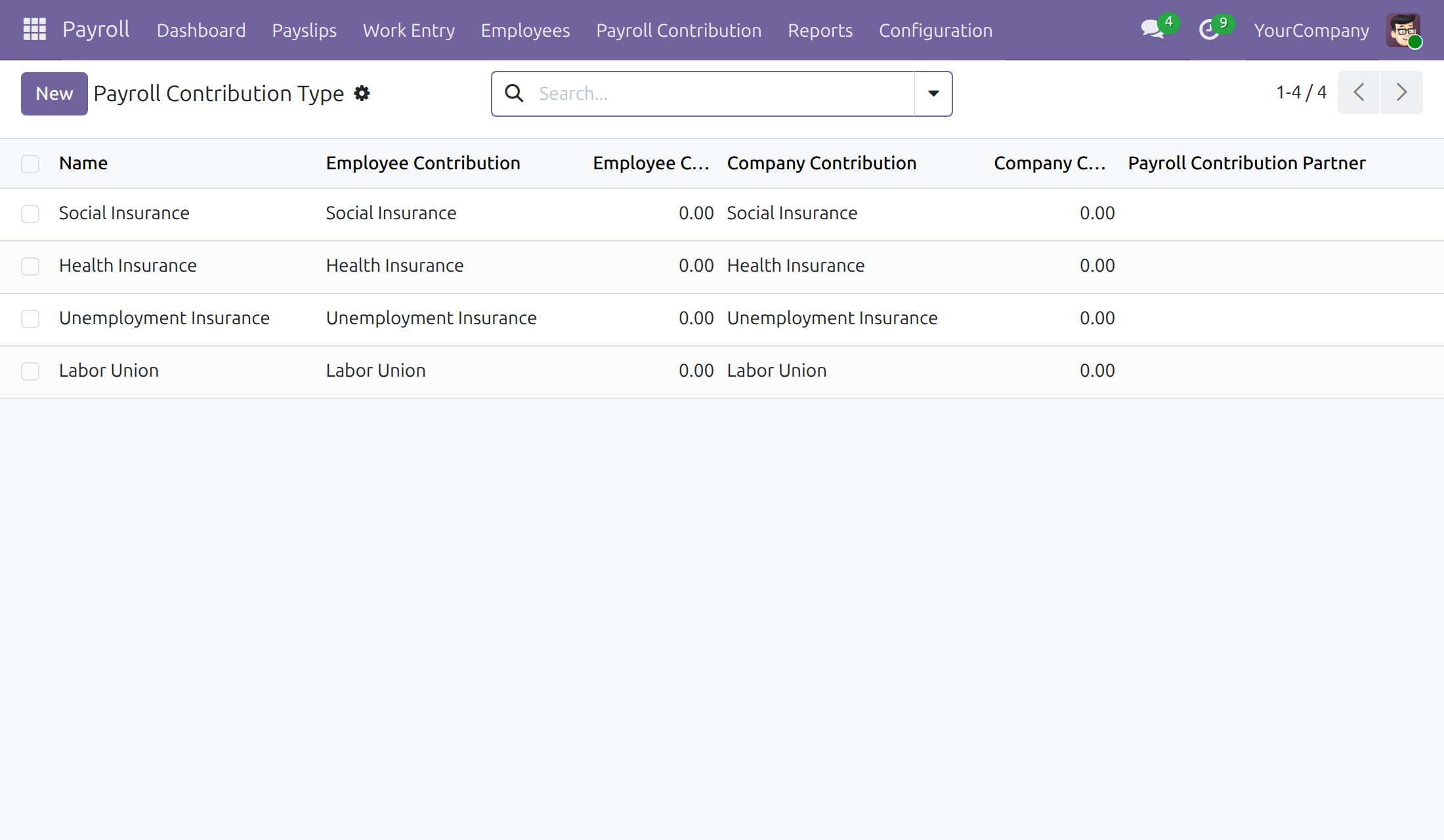
To change the rates of a whole type, the Payroll Administrator opens it and clicks Mass Change Rates, then enters the effective date and the new employee and company rates. One action updates every open register that follows the default rates of the type and sets the new rates as the type's default. Registers that have rates of their own, and draft registers starting earlier than the effective date, are left out; the notification and the chatter of the type name them, and their rates are changed one by one with Change Rates on the register, by the Payroll Administrator or a Payroll Officer. The Mass Change Rates button is shown to the Payroll Administrator only: a Payroll Officer changes the rates of a single register.
Withholding commitments
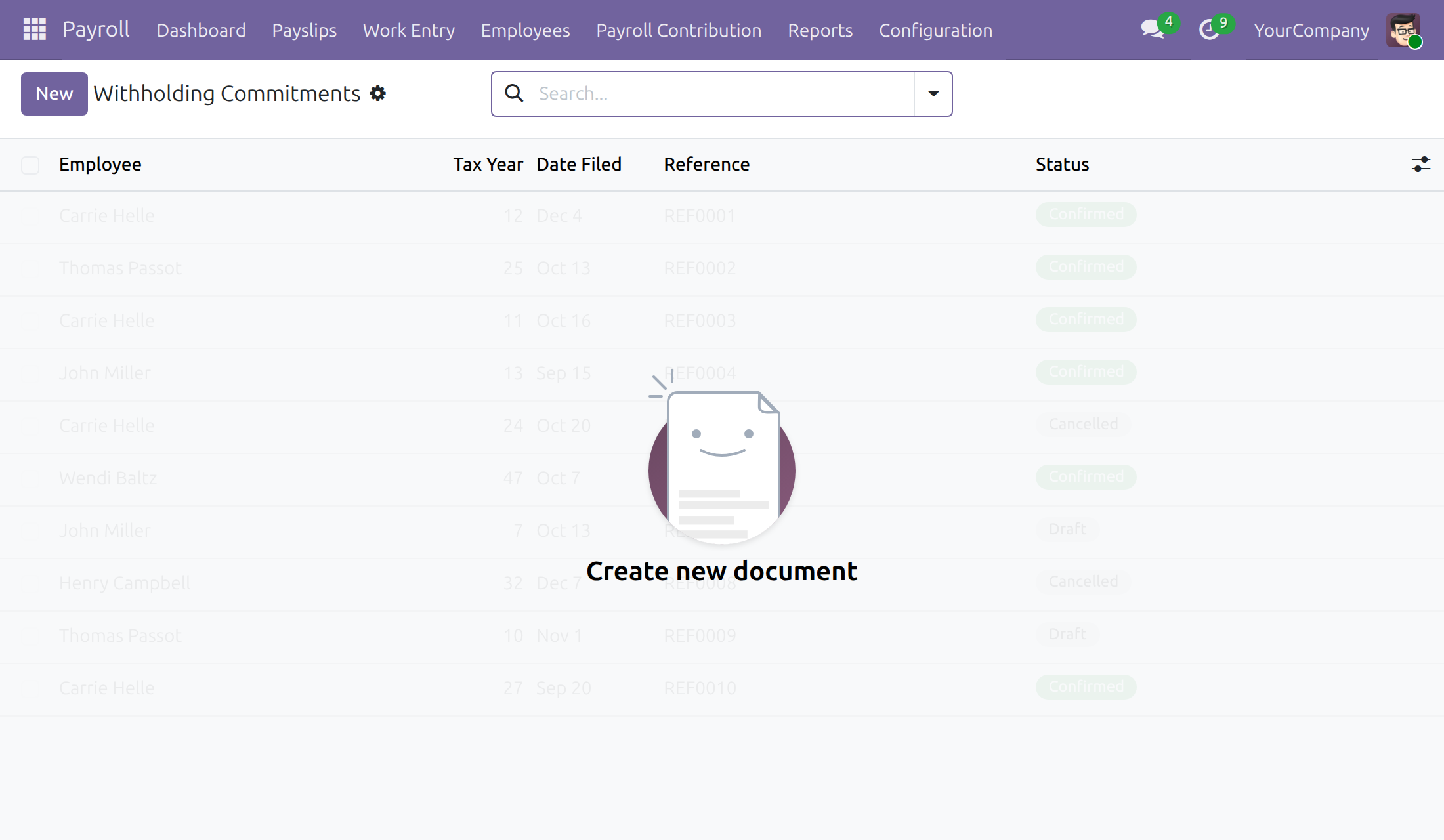
An employee who expects their taxable income for the year to stay under the threshold can file a written commitment asking not to be withheld on detached payments for that tax year. Open Payroll > Configuration > Payroll Entry > Withholding Commitments, click New, select the Employee and the Tax Year, then click Confirm. Only a Confirmed commitment blocks withholding; a Draft or Cancelled one has no effect.
When the law changes
- Statutory amount changes (base salary, ceilings): open the current amount, set its end date to the day before the change, and create a new amount with the same code starting on the day of the change. Do not edit the old amount: payslips of earlier periods keep reading it.
- Flat rate or threshold changes of a personal tax rule: end the current dated rate line the day before and add a new line starting on the day of the change.
- Contribution rate changes: use Mass Change Rates on the contribution type (Payroll Administrator), then change the left-out registers one by one with Change Rates on each register.
- Check the result on a test payslip dated after the change before computing the real ones.
Payroll Officer: run the monthly payroll
The Payroll Officer works in the Payroll app: Employees, Payslips, Payroll Contribution and Reports are the menus of the job. The Officer does not see the Configuration menu; setup changes go to the Payroll Administrator.
Set the pay terms on an employee's contract
- Open Payroll > Employees > Employee Records and open the employee's contract.
- Open the Payroll tab.
- Check, and change when needed, the Basic Wage, the Salary Computation Mode, the Personal Tax Policy and the Tax Rule. These pay fields are editable by default; if the Payroll Administrator has switched off Payroll officers can edit contract pay fields, the Officer reads them but cannot change them.
- Under Monthly Advantages, click Add a line for each allowance, and choose the Payroll Contribution Types of the employee under Contribution Registers.
Register an employee's contributions
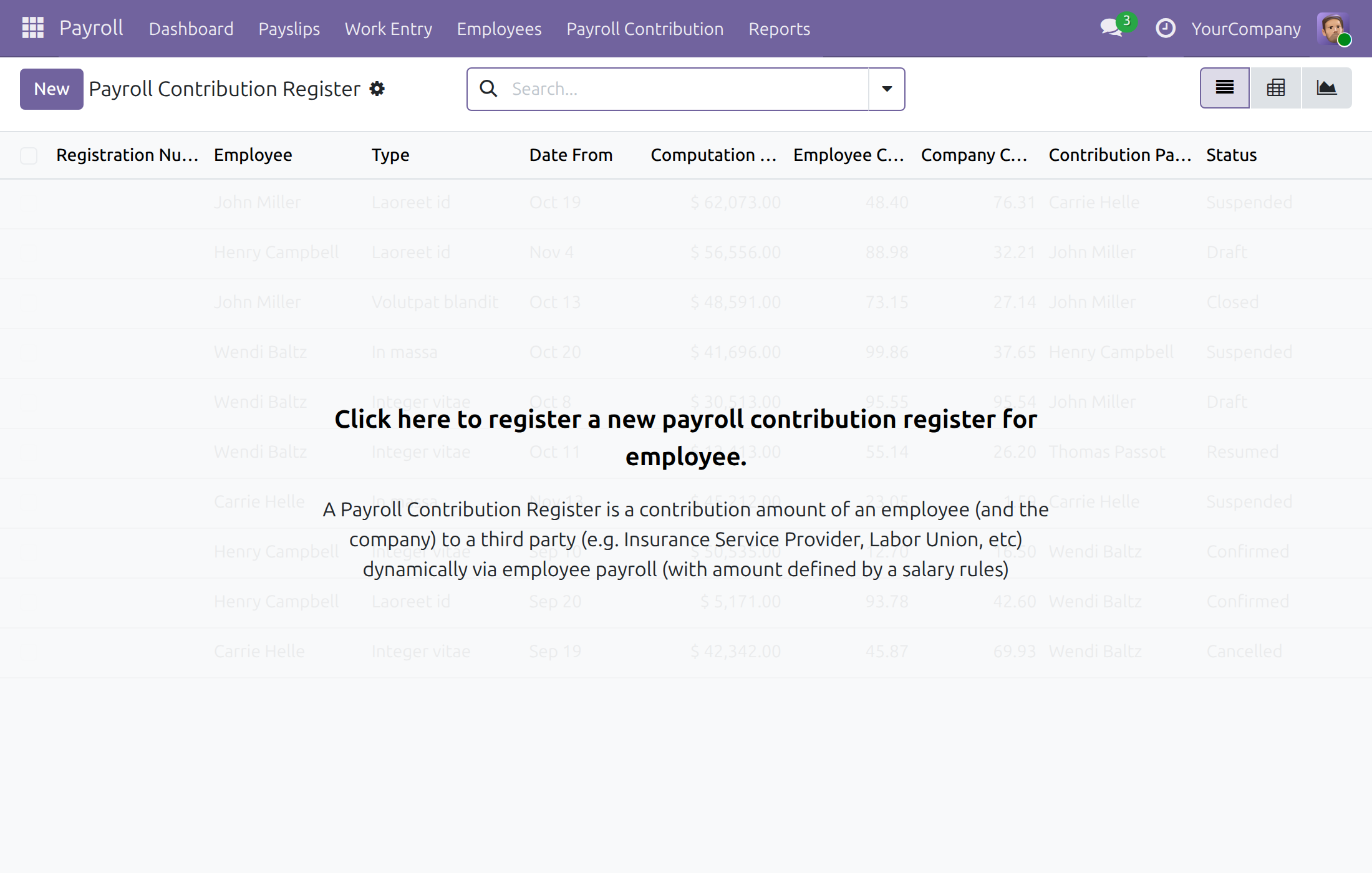
Open Payroll > Payroll Contribution > Payroll Contribution Register to see every employee's registration to a contribution type, with the base, the rates and the period.
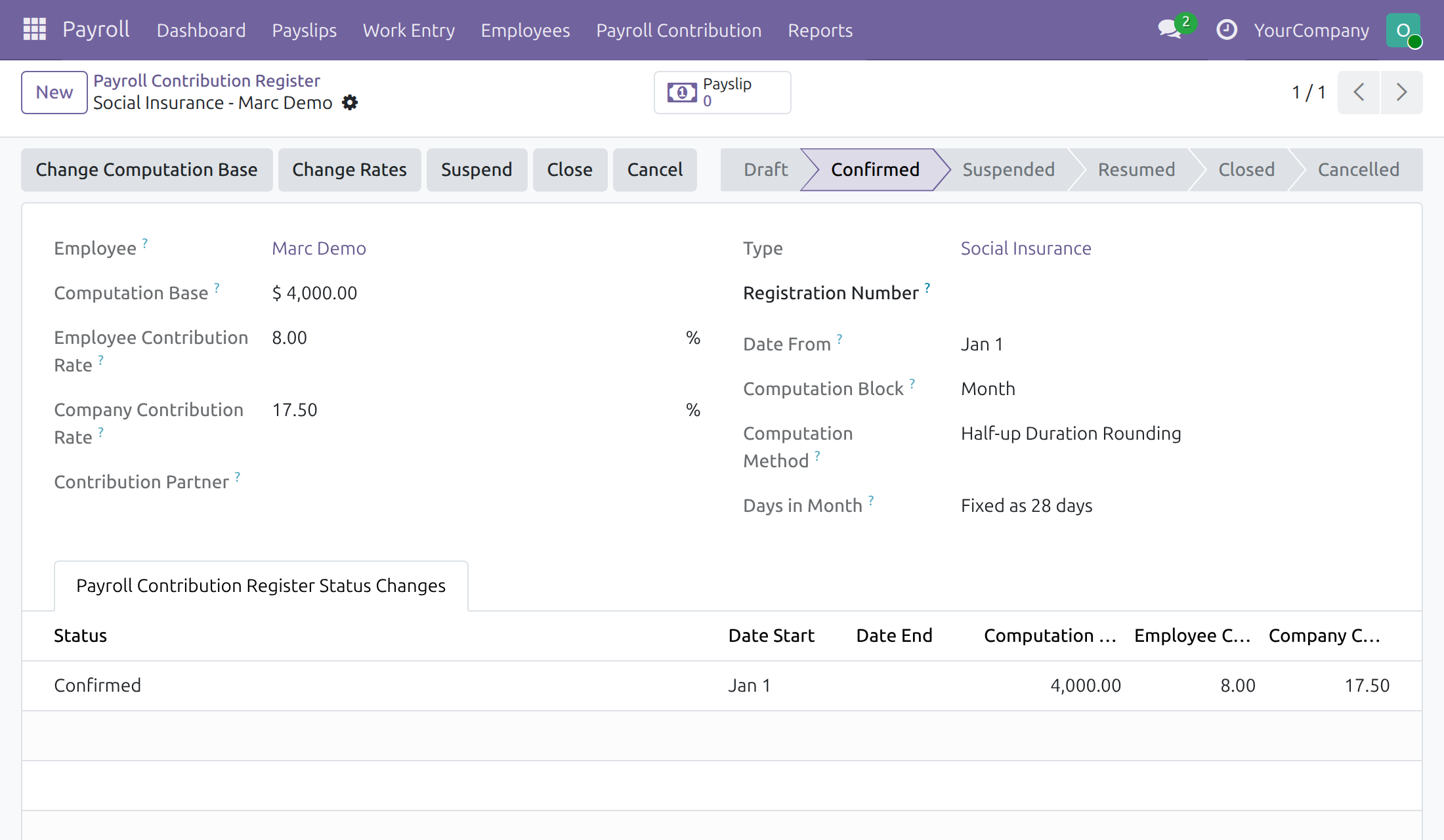
Open a register and use the buttons of its header to change its rates (Change Rates), its base (Change Computation Base) or its dates, or to suspend, resume or close it. Change Rates asks for the effective date and the new employee and company rates of this register only; changing the rates of every register of a type at once is the Payroll Administrator's Mass Change Rates. A register cancelled by mistake is set back to draft with Reset to draft.
Look up a statutory amount
Open Payroll > Payroll Contribution > Statutory Amounts to read the amounts set by law that payroll uses, such as a base salary or a contribution ceiling, with the period in which each applies. The Officer reads this list; the Payroll Administrator keeps it up to date.
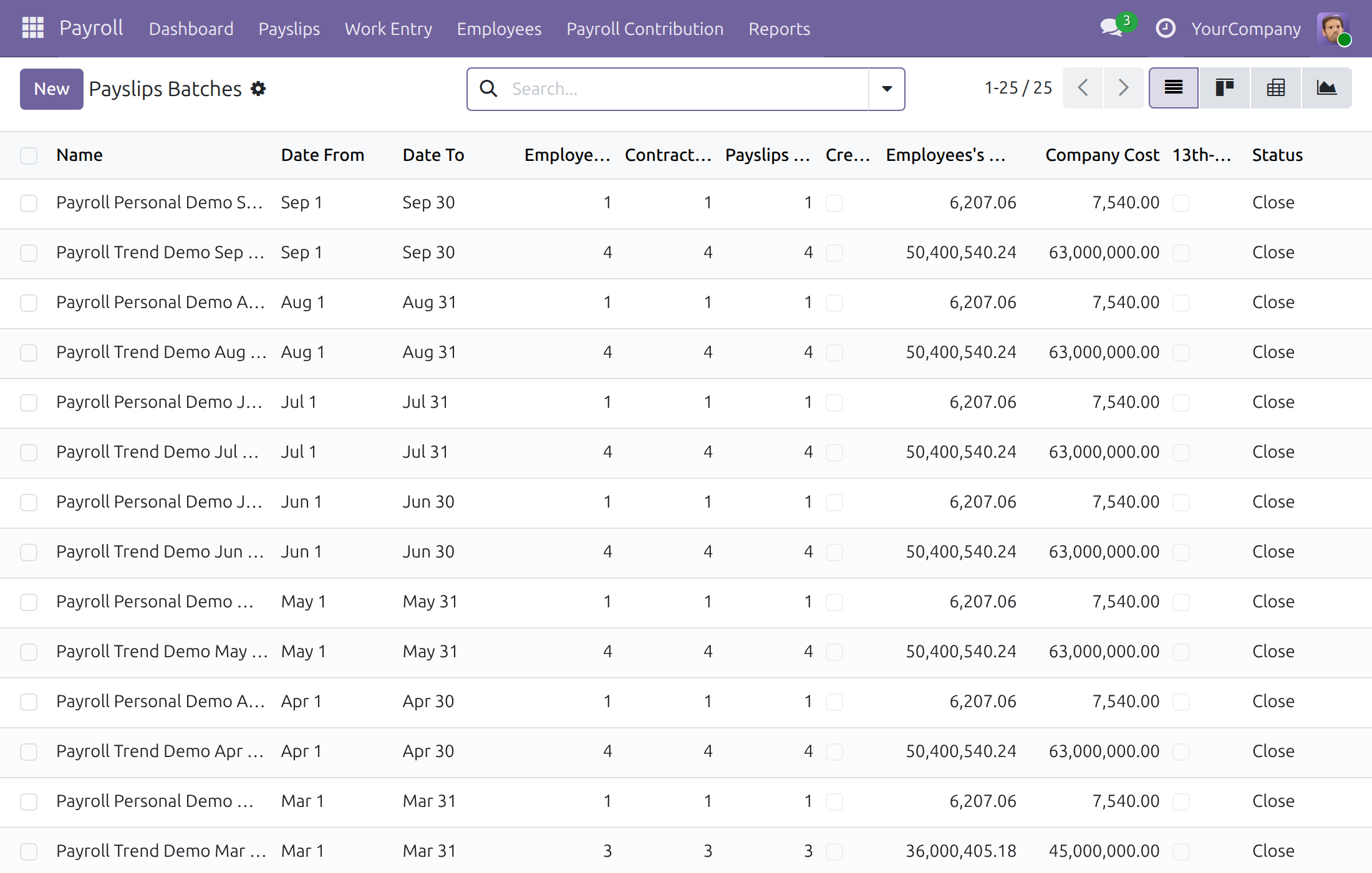
Create a payslip batch for the period
A payslip batch gathers the payslips of one salary cycle.
- Open Payroll > Payslips > Payslips Batches, then click New.
- Enter the Name; the Salary Cycle and the Period follow the default cycle.
- Click Generate Payslips, choose the Generation Mode and add the employees, then click Generate.
- Click Compute Payslip Batch to calculate every payslip, then Verify Payslips, then Close the batch.
A batch moves through Draft, Verified and Close. To correct a batch after it is verified or closed, click Cancel, which cancels all its payslips and moves the batch to Cancelled; then click Set to Draft to bring the batch and its payslips back to Draft, fix the data, and run Compute Payslip Batch, Verify Payslips and Close again.
Work with a single payslip
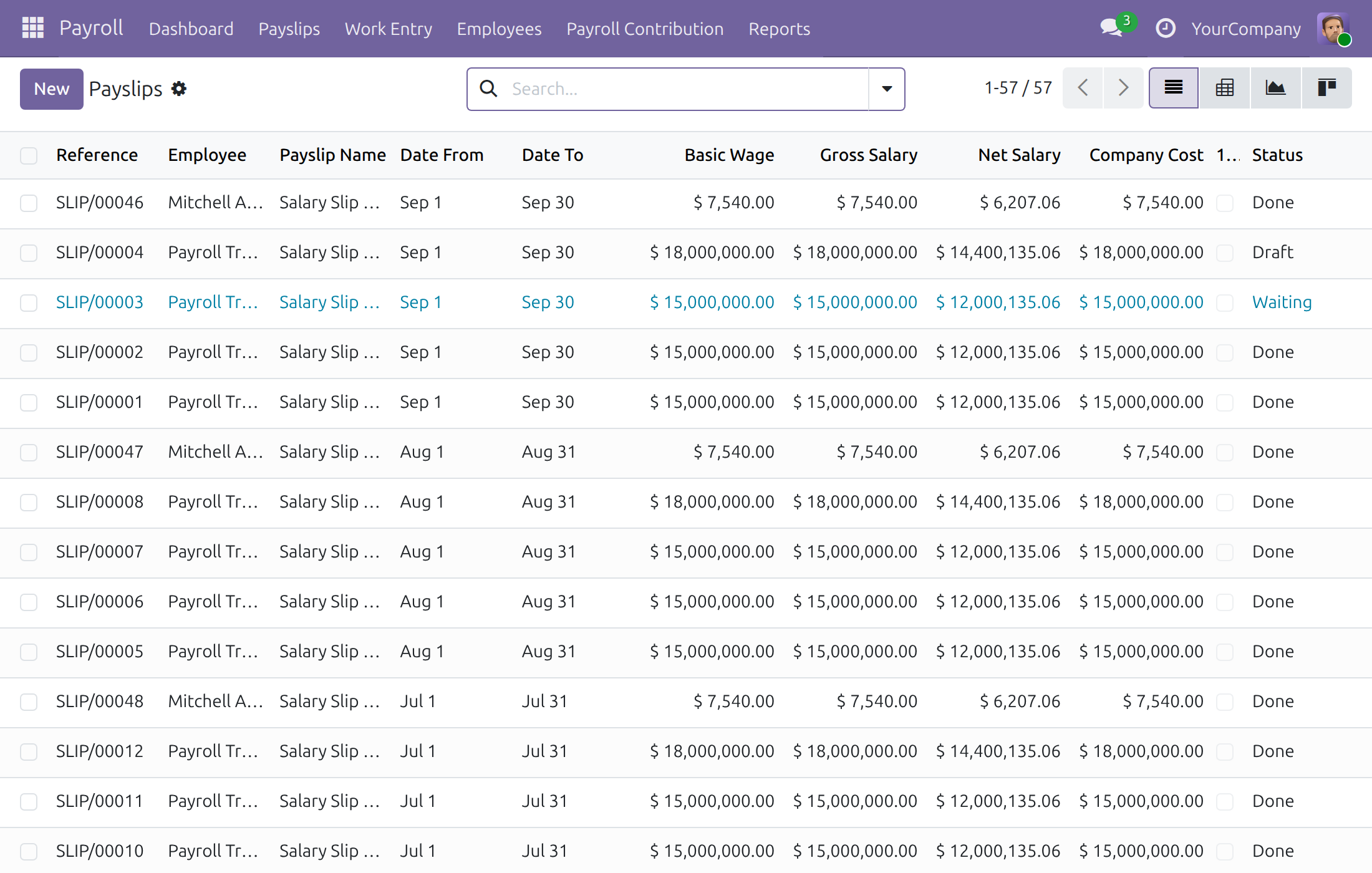
Open Payroll > Payslips > Payslips to see all payslips, or New to create one for a single employee. The Payslip Name is proposed from the employee and the month in which the payslip period ends, for example "Salary Slip of Mitchell Admin for February-2026", written in the language of the employee; when the period is changed the name follows it.
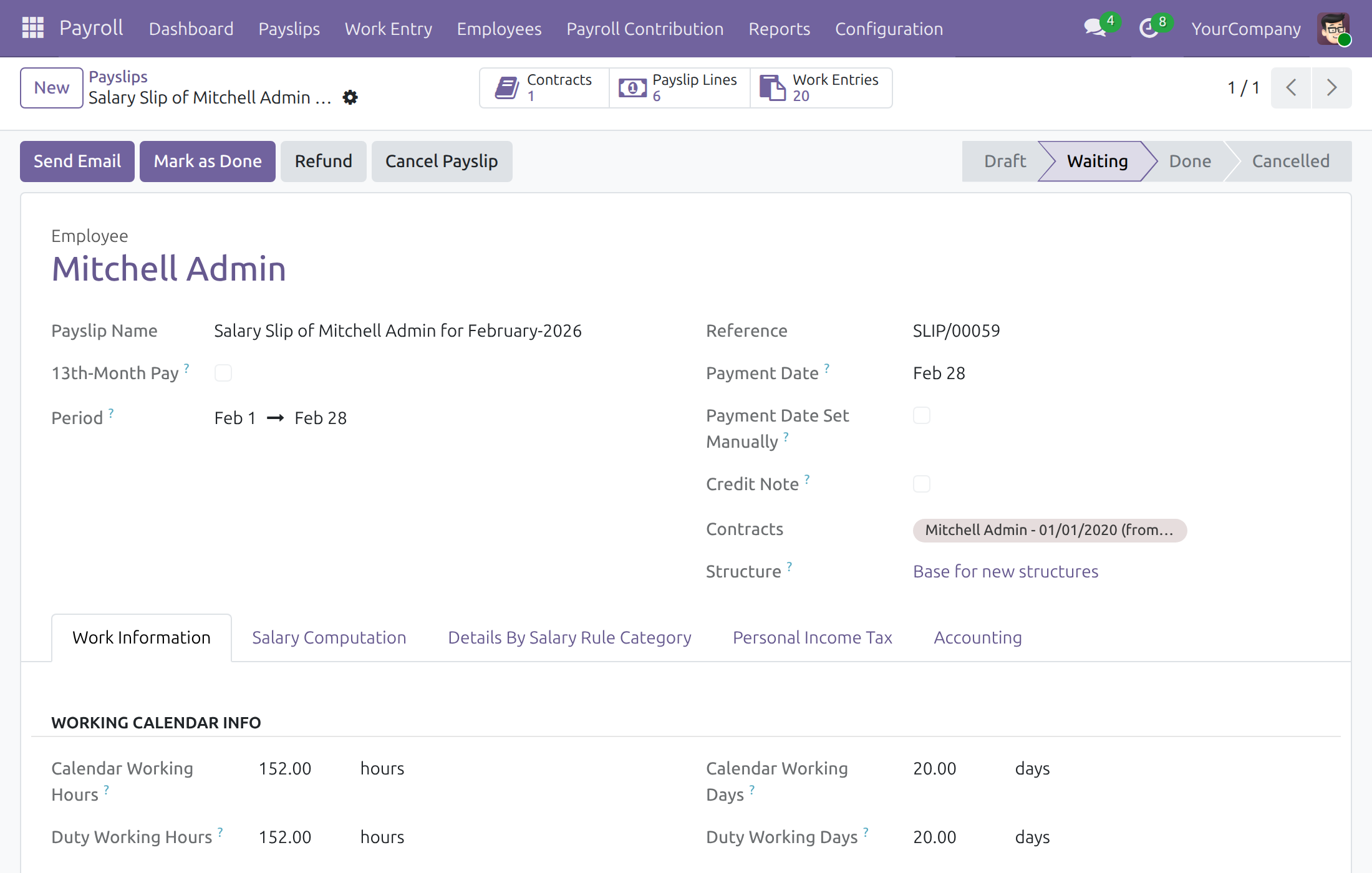
- On a Draft payslip, click Compute Sheet, check the figures, then click Confirm. The payslip is now Waiting. A payslip that includes time off is confirmed in the same way: the time off it covers is marked as reported in payslips.
- Click Mark as Done when the payslip is final. Send Email sends it to the employee.
- Refund creates a credit note for a Waiting or Done payslip.
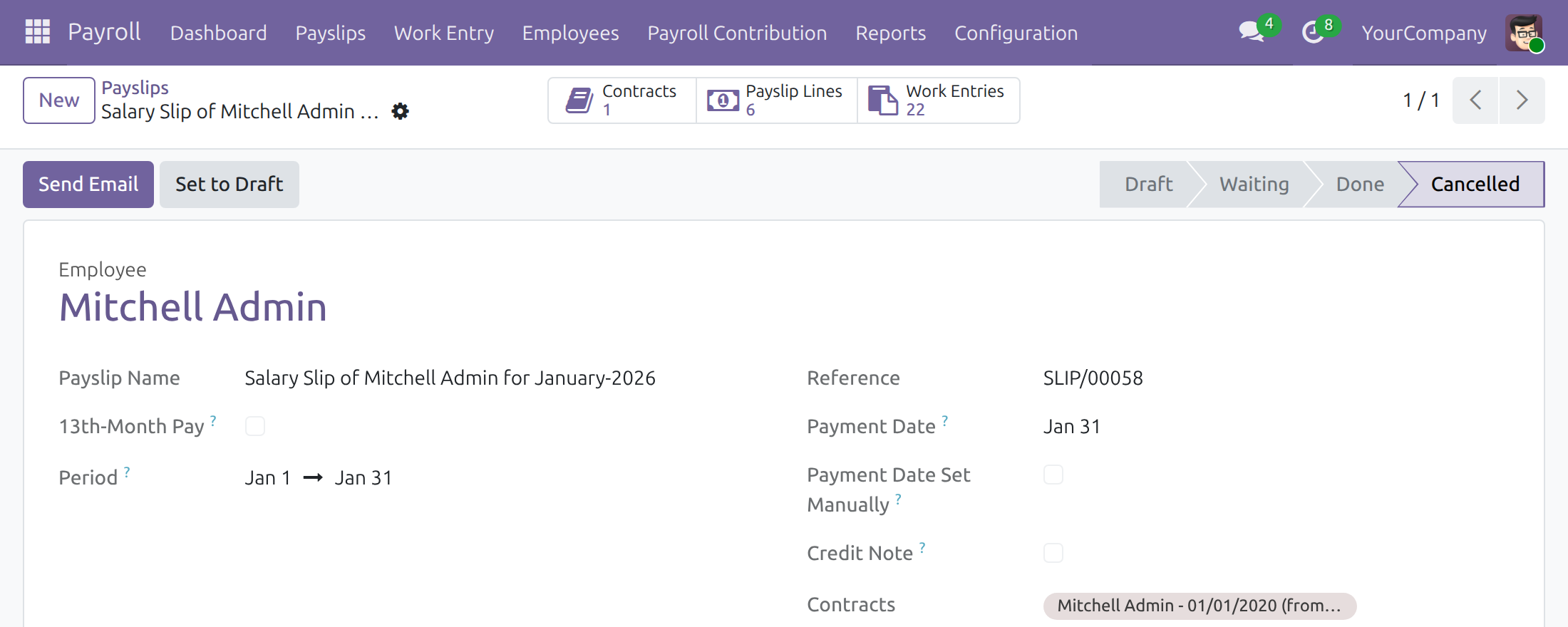
To correct a payslip that is already confirmed, click Cancel Payslip. It moves to Cancelled and the time off it covered is released, so that it can be reported again. Then click Set to Draft, change what is wrong (the contract, the work entries, the period), click Compute Sheet and Confirm again. Payroll Officers do all of this, including on payslips that include time off.
The Salary Computation tab lists every payslip line with its category, rate and total; Details By Salary Rule Category groups the same figures. The names of the lines are written in the language of the employee.
Payment date and detached payments
Every payslip carries a Payment Date - the date the income is actually paid, not the payslip period - because that date decides which tax rule applies. It defaults from the batch's end date or the payslip's own period and can be edited by hand (Payment Date Set Manually). If, on the Payment Date, none of the employee's labour contracts is in force any more, the payslip is marked Detached Payment; a payslip whose contract is still open is taxed on the progressive table as before.
The withholding threshold is checked per payment event, not per payslip: every payslip paid to the same employee, in the same company, on the same Payment Date is added together and compared with the threshold. If the total reaches it, every payslip of the group is withheld.
On the Personal Income Tax tab, Withholding Reason explains why a payslip is taxed the way it is, in this order:
- a tax rule picked by hand (Tax Rule Set Manually ticked) always wins;
- otherwise, a labour contract still in force on the Payment Date is used;
- otherwise, a Confirmed withholding commitment blocks withholding entirely;
- otherwise, the payment is withheld once it reaches the threshold, or when the employee asked for it (Withholding Requested ticked).
Ticking Tax Rule Set Manually stops the automatic selection from overwriting the Personal Tax Policy and the Tax Rule of that payslip, including each time Compute Sheet is clicked again. A duplicated payslip never inherits this choice, so review the tax rule on any duplicate.
Warning
Severance pay is fully tax-exempt by law once a labour contract ends. If it is entered as ordinary income, it is withheld at the country's configured Detached Payment rate - the opposite of what the law requires. Record such an allowance through the Allowance (tax exemption) category so it is excluded from the taxable base before withholding is considered.
Tax Date and Tax Period Basis
Personal income tax is not always due under the rules of the month a payslip covers: in many countries a wage is taxed in the legal period in which it is paid. Every payslip therefore carries a Tax Date, shown under Payment Date on the payslip form. The Tax Date is the date whose rules the payslip follows: the progressive tax table, the deductions and the dated flat rates and thresholds of its tax rule are read as they stand on that date, and the Personal Income Tax Analysis report places the payslip on that date.
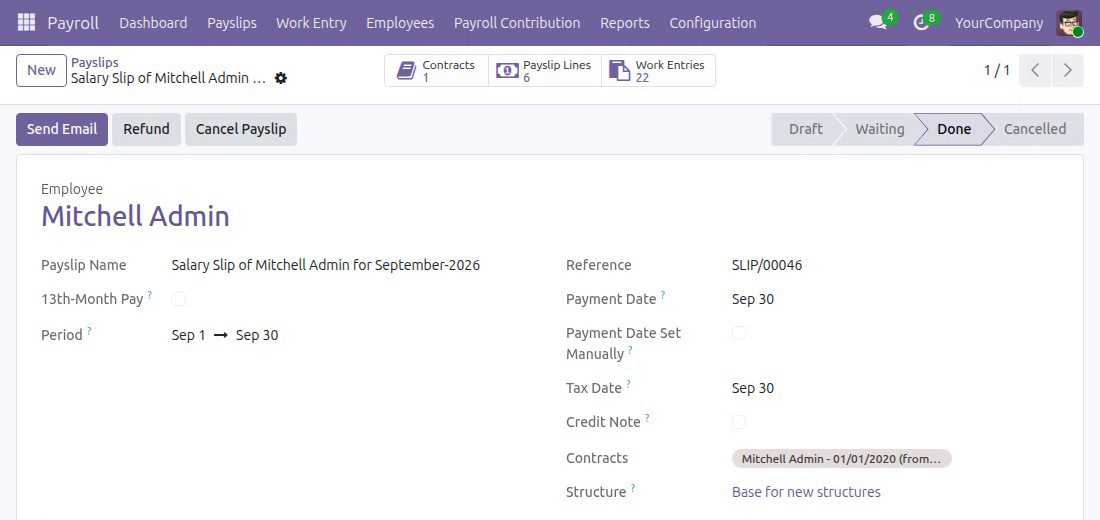
The Tax Date is filled in by the application and is always read-only: nobody types it. It is either the Payment Date of the payslip or the last day of its period, as the Tax Period Basis says.
The Payroll Administrator sets the basis in Payroll > Configuration > Payroll Entry > Tax Period Basis. Each line names a Country (or a Company, which also covers its branches), a Tax Date Taken From value and a Validity period:
- Payment Date - the payslip is taxed under the rules in force on the day it is paid, even when that day falls in the next month.
- Payslip Period End - the payslip is taxed under the rules in force on the last day of its period.
Without a basis in force on the payment date, a payslip follows the rules in force at the end of its period. A basis of the company, or of its parent company, wins over the basis of the country. For one company, or for one country without company, two periods may not overlap: when the screen refuses a save, end the older basis the day before the newer one starts.
For the Payroll Officer nothing changes in the daily work, but it helps to know when the Tax Date is settled:
- On a Draft payslip that has not been computed, the Tax Date follows the Payment Date and the period: change either and the Tax Date is derived again.
- Compute Sheet derives the Tax Date again from the basis in force at that moment. Once a payslip has lines it keeps its Tax Date until Compute Sheet is clicked again, so the lines and the deductions of one payslip never mix two tax periods.
- A payslip that is no longer a Draft keeps the Tax Date it was computed on, and the screen refuses any attempt to change it. To correct it, click Cancel Payslip, then Set to Draft, change what is wrong (for example the Payment Date), click Compute Sheet and Confirm again.
A paid payslip freezes the contract version
A month already paid is not rewritten: as soon as a payslip is confirmed (Waiting or Done), the contract version in force on the days it covers can no longer be changed in what the payslip was computed from or attributed to. This covers the Basic Wage, the Salary Structure and the 13th-month structure, the Monthly Advantages, the Personal Tax Policy and the Tax Rule, the Salary Computation Mode, the department and the job, the contract dates and the version dates. A 13th-month payslip and a credit note do not freeze a period. An edit of a frozen field is refused with a message that names the payslip. To change the pay terms from a later date, record the change as an adjustment (a new version) taking effect after the period already paid; to correct the period itself, cancel that payslip, apply the change, click Compute Sheet and Confirm again. The settings of a running contract that no payslip is computed from, such as the automatic generation of payslips and the Payroll Contribution Types, stay editable.
Read the payroll reports
Open the Reports menu.
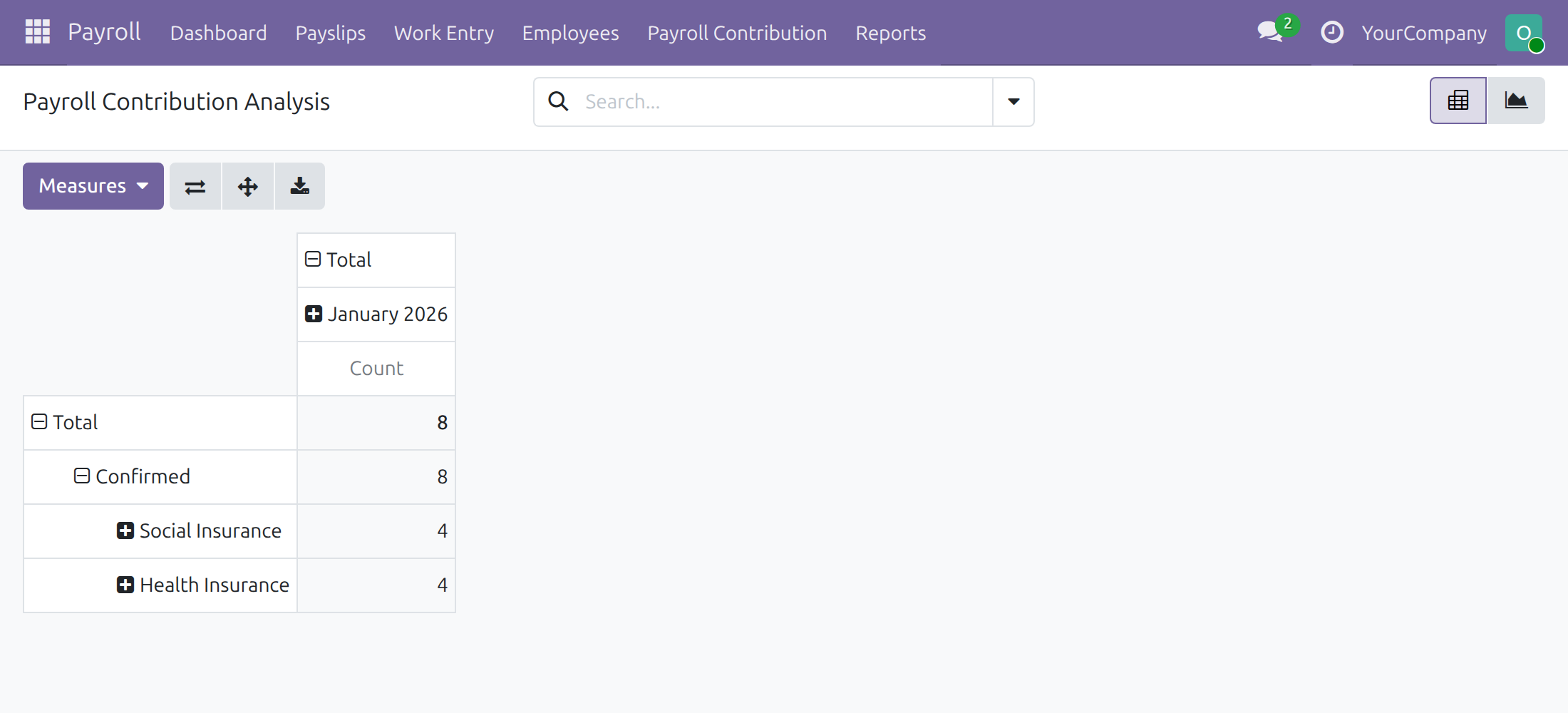
- Payroll Analysis - cost and amount by period and department in a pivot table; filter, regroup or add measures as needed.
- Payroll Contribution Analysis - the contributions of every employee, ongoing ones (without an end date) included, in a pivot table or a chart; it lists the contributions of the companies the user works in.
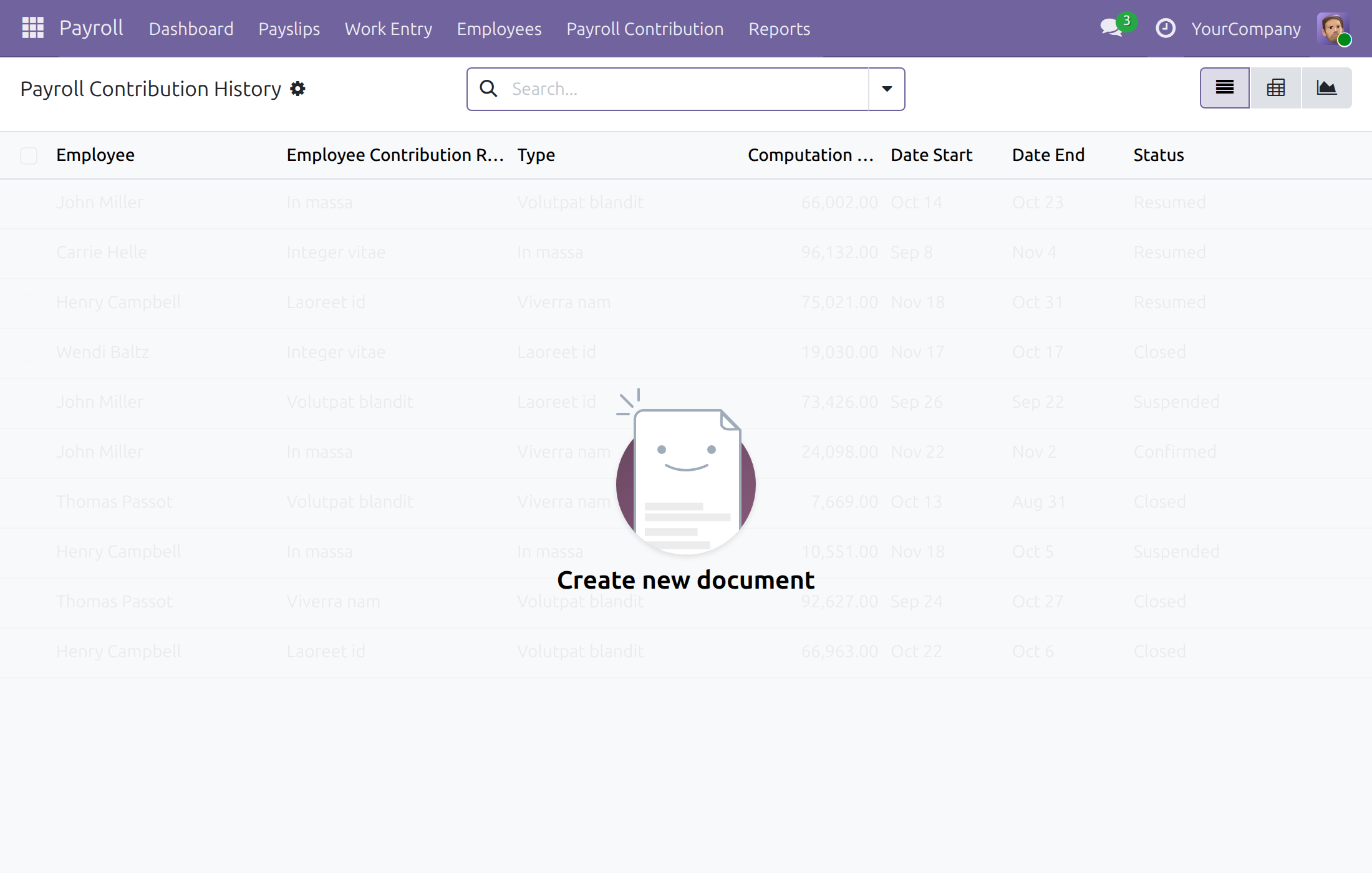
- Payroll Contribution History - the contributions of every employee by period.
- Personal Income Tax Analysis - tax amount, tax base and taxable income over time.
Team Leader: follow the team's payroll
The Team Leader sees own payslips and the payslips of subordinates under Payroll > Payslips > Payslips, and opens Payroll > Reports > Payroll Analysis to read the cost of the team (the Officer's pivot report in the previous chapter). A Team Leader reads but does not create or change payslips.
Employee: look at my payslips
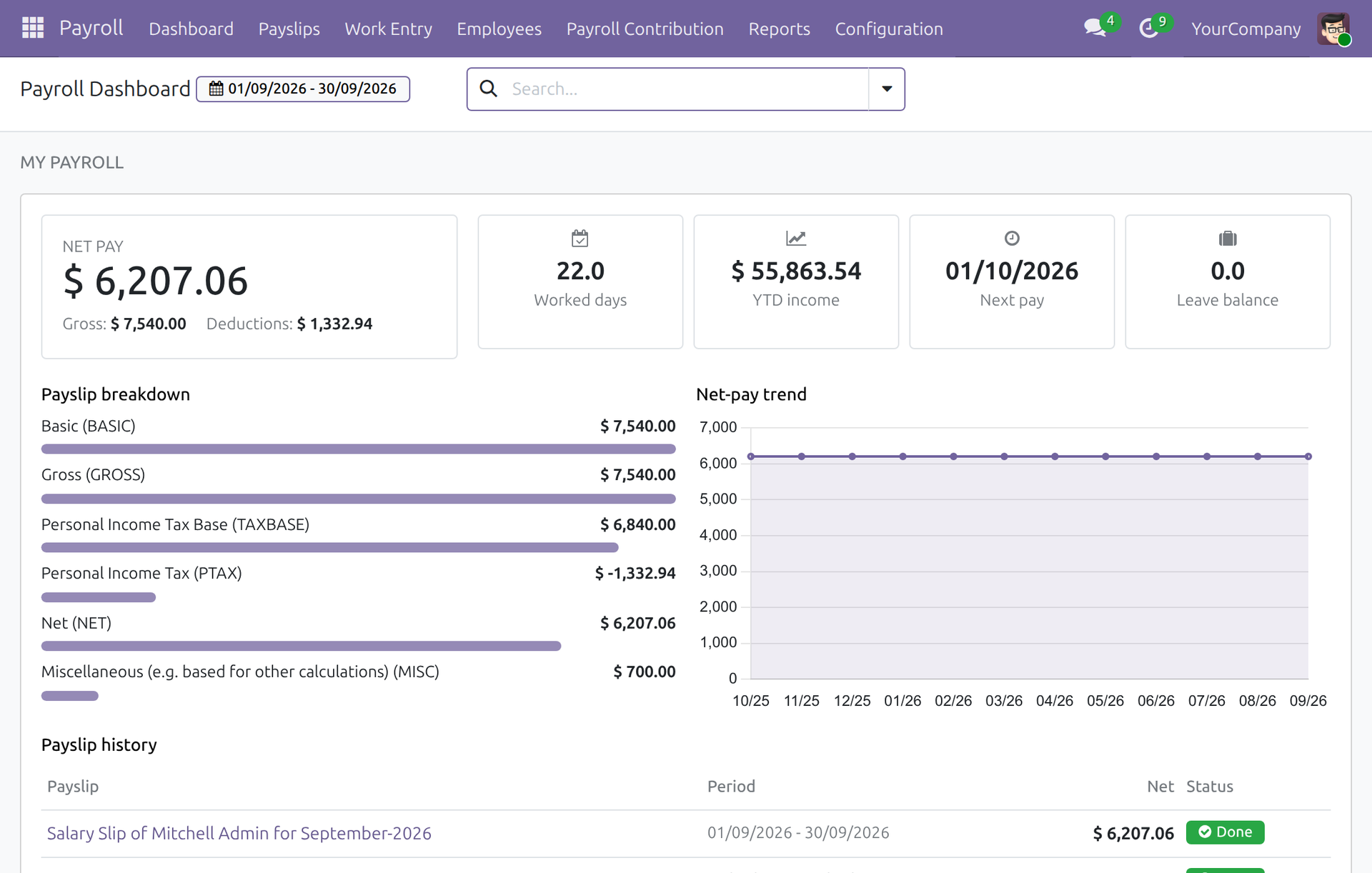
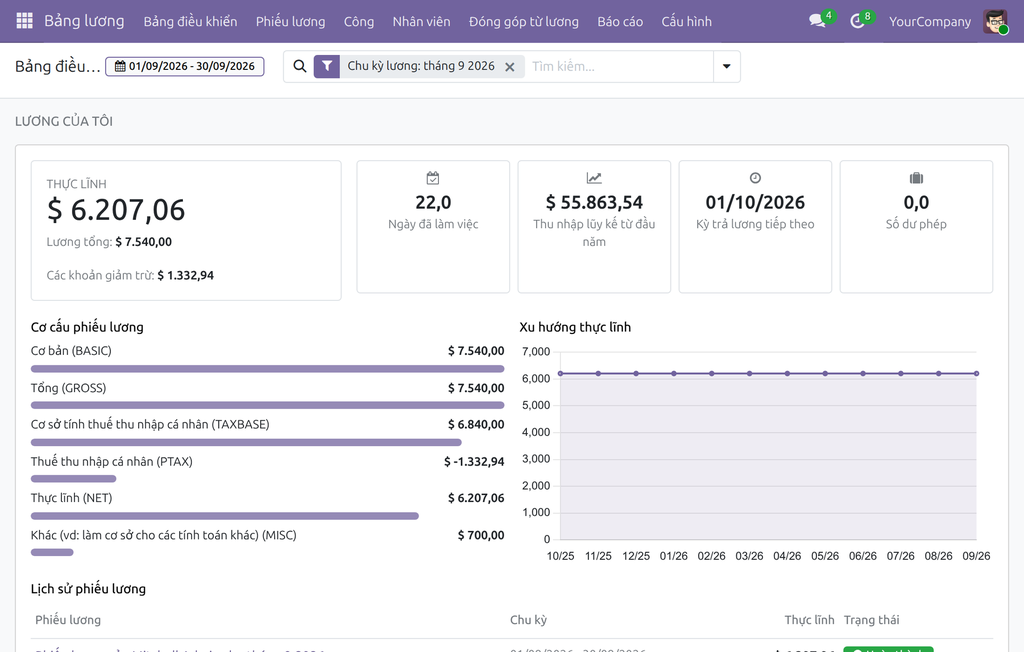
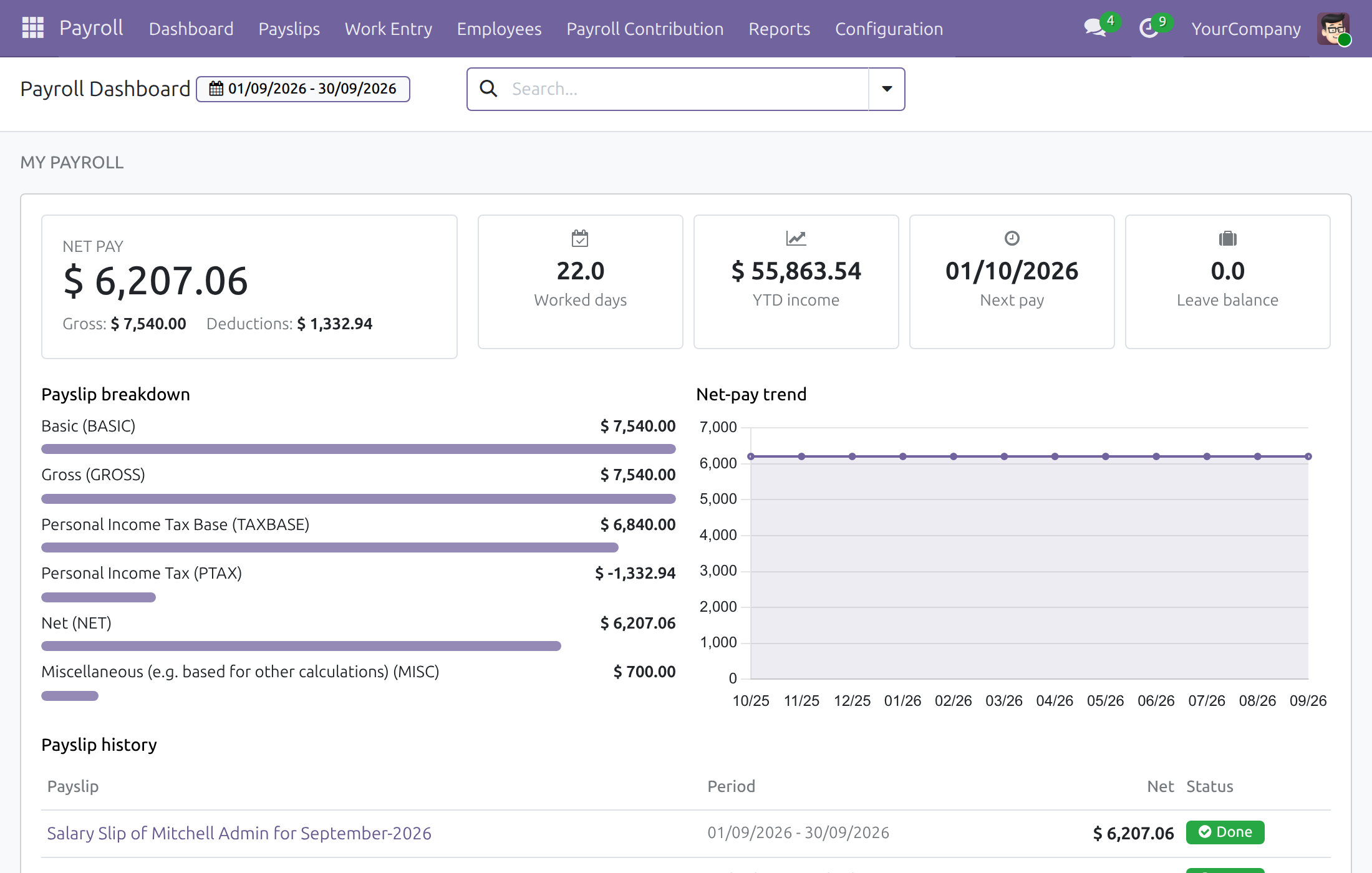
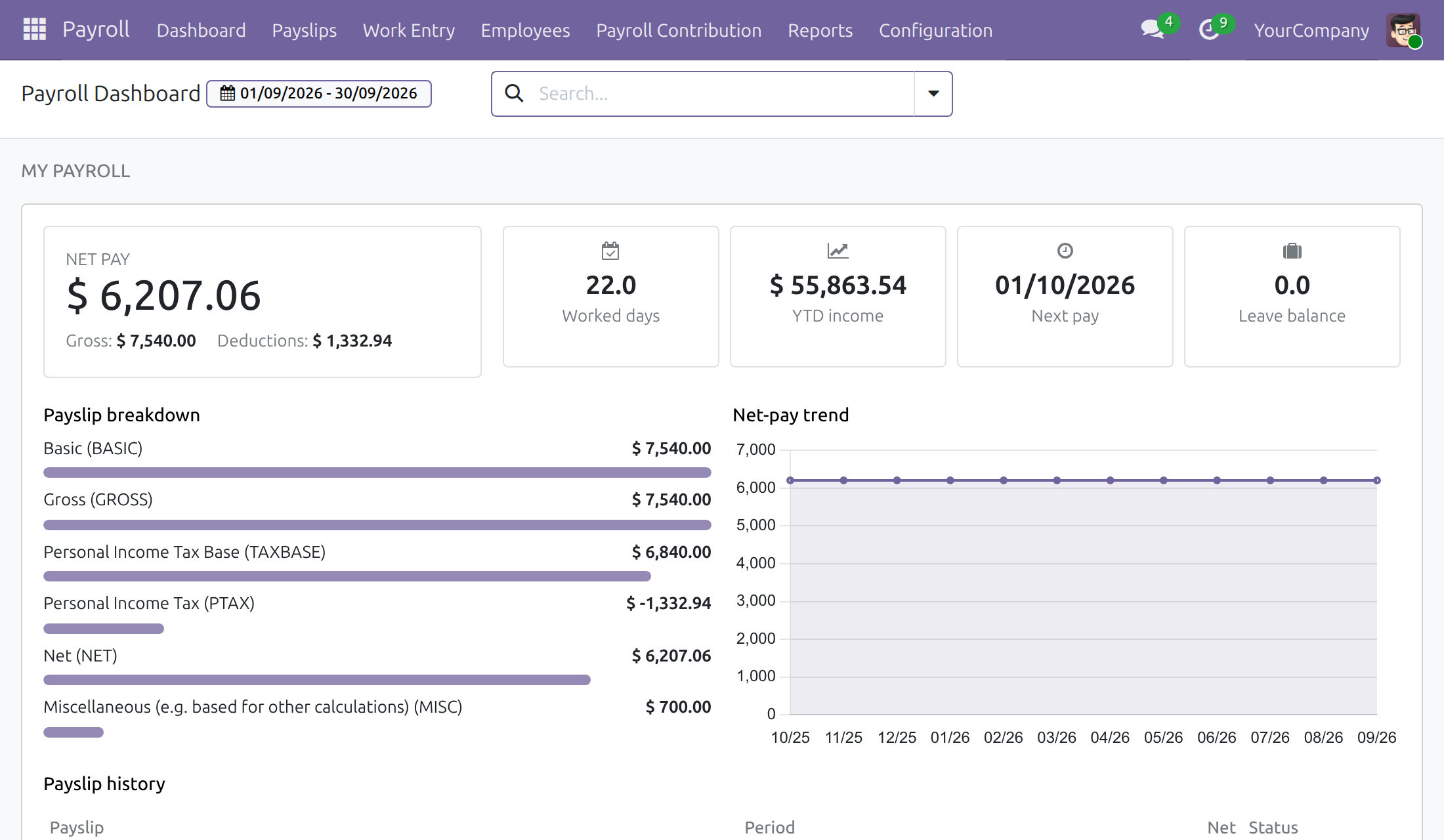
Every employee opens Payroll > Dashboard for their net pay, gross and deductions, worked days, year-to-date income, next pay date and leave balance, with the payslip breakdown, the net pay trend and the payslip history of the chosen period. The Salary Period filter in the search bar switches the dashboard to another month, quarter or year. Payroll > Payslips > Payslips lists the employee's own payslips; opening one shows the same detail as the Officer sees, in read-only form.
This software and associated files (the "Software") may only be used (executed, modified, executed after modifications) if you have purchased a valid license from the authors, typically via Odoo Apps, or if you have received a written agreement from the authors of the Software (see the COPYRIGHT file).
You may develop Odoo modules that use the Software as a library (typically by depending on it, importing it and using its resources), but without copying any source code or material from the Software. You may distribute those modules under the license of your choice, provided that this license is compatible with the terms of the Odoo Proprietary License (For example: LGPL, MIT, or proprietary licenses similar to this one).
It is forbidden to publish, distribute, sublicense, or sell copies of the Software or modified copies of the Software.
The above copyright notice and this permission notice must be included in all copies or substantial portions of the Software.
THE SOFTWARE IS PROVIDED "AS IS", WITHOUT WARRANTY OF ANY KIND, EXPRESS OR IMPLIED, INCLUDING BUT NOT LIMITED TO THE WARRANTIES OF MERCHANTABILITY, FITNESS FOR A PARTICULAR PURPOSE AND NONINFRINGEMENT. IN NO EVENT SHALL THE AUTHORS OR COPYRIGHT HOLDERS BE LIABLE FOR ANY CLAIM, DAMAGES OR OTHER LIABILITY, WHETHER IN AN ACTION OF CONTRACT, TORT OR OTHERWISE, ARISING FROM, OUT OF OR IN CONNECTION WITH THE SOFTWARE OR THE USE OR OTHER DEALINGS IN THE SOFTWARE.