
IoT Shop Floor
by Viindoo
| Lines of Code | 1494 |
| Technical name | viin_iot_mrp_workorder |
| License | OPL-1 |
| Website | https://viindoo.com/apps/modules/18.0/viin_iot_mrp_workorder |
| Read description for | v 17.0 |
| Required Apps | Manufacturing (mrp) Invoicing (account) Discuss (mail) Inventory (stock) Employees (hr) |
| Included Dependencies | Advanced MRP Accounting Shop Floor Control Viindoo Manufacturing Viindoo Base Viin Warehouse Web Gantt Viin Warehouse Accounting Internet Of Things IoT Manufacturing |
Keep your hands on the product - the station’s devices come to the Shop Floor screen
For manufacturers running work orders on the Shop Floor
Scanner, scale, footswitch and label printer, working on the screen your operators already use - with no IoT rights to hand out.
Extends viin_iot_mrp - see its documentation.
Is this you?
Your operators put the product down just to type a weight or a quantity.
Start, Pause and Done are still a tap away, when both hands are busy.
A scanned barcode only works if the scanner is plugged into the device running the screen.
Giving operators IoT access just so they can use their own station’s devices feels wrong.
A label jam or an empty roll stops the line until someone with the right access fixes it.
What changes
Typing a weight becomes one tap.
Use weight takes a fresh reading from the scale, converts it to the order’s unit and pre-fills Record output. It is recorded only when the operator confirms.
Hands stay on the product.
Start, Pause and Done come from the footswitch, which presses the screen’s own button, so every Shop Floor rule still applies.
Scans arrive wherever the scanner is.
Every barcode scanner of the station is listened to, and a scan is handled like a scan from a locally attached scanner.
No IoT rights for operators.
The screen is told exactly which devices belong to the station and nothing more.
A jam is a one-tap recovery.
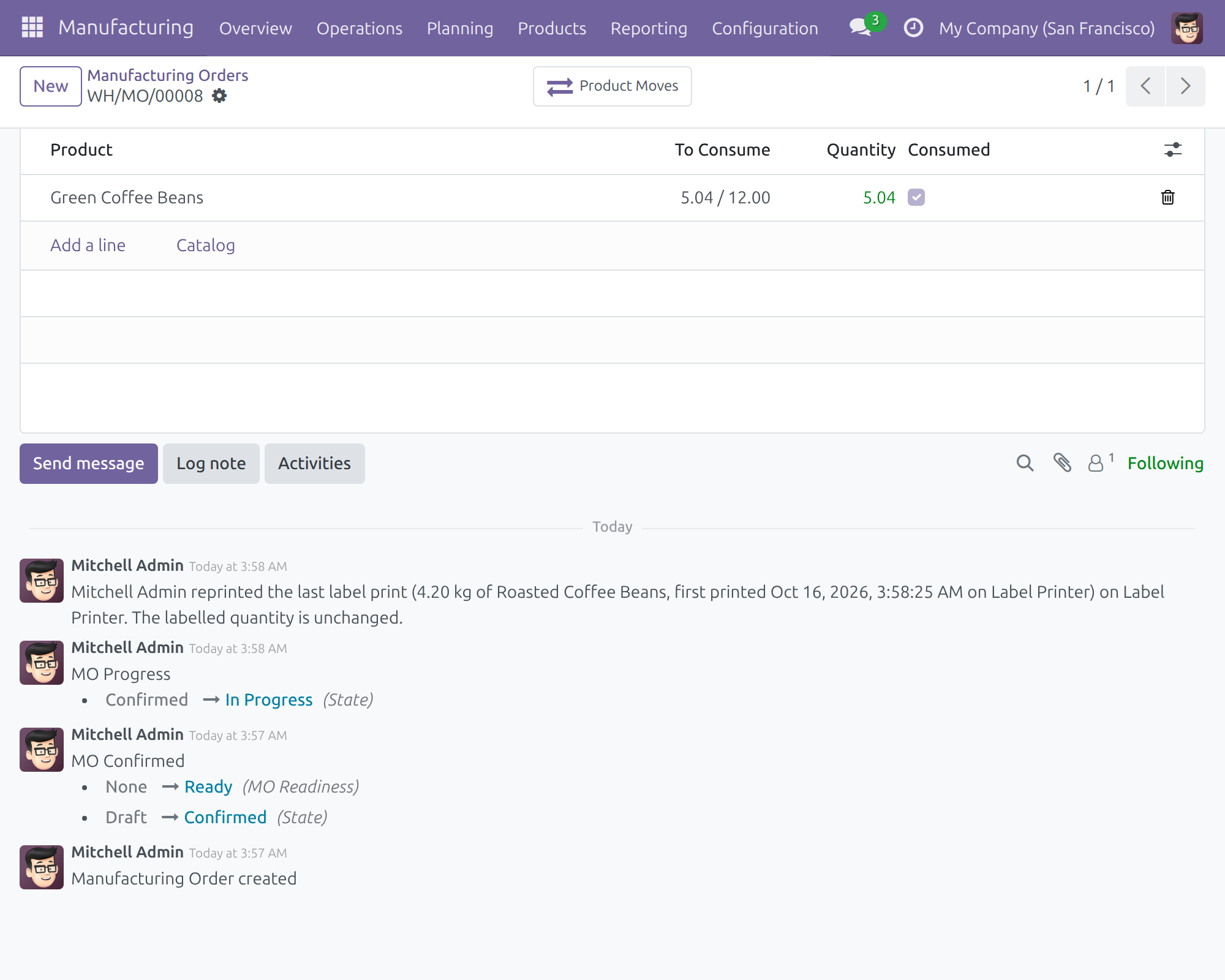
A team leader can reprint the last label after a confirmation. The labelled quantity does not change, and the reprint is logged on the manufacturing order.
How a work order runs
Start
Shop Floor Operator starts the work order with the footswitch or the screen button.
Work and weigh
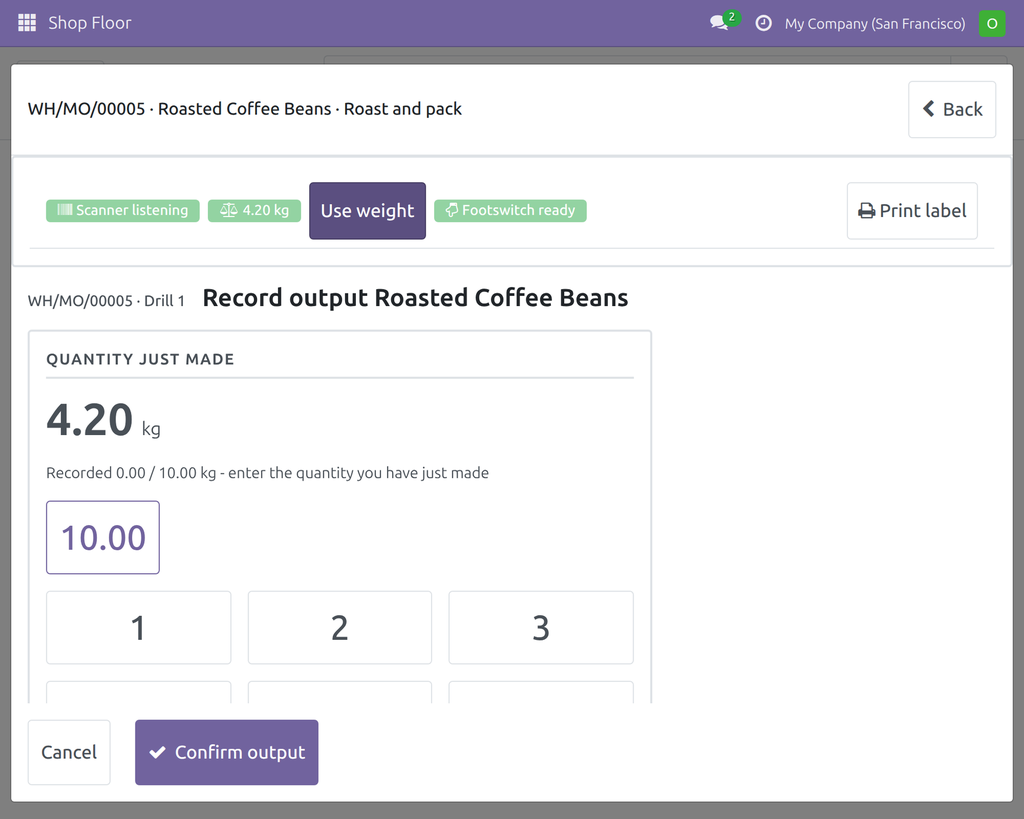
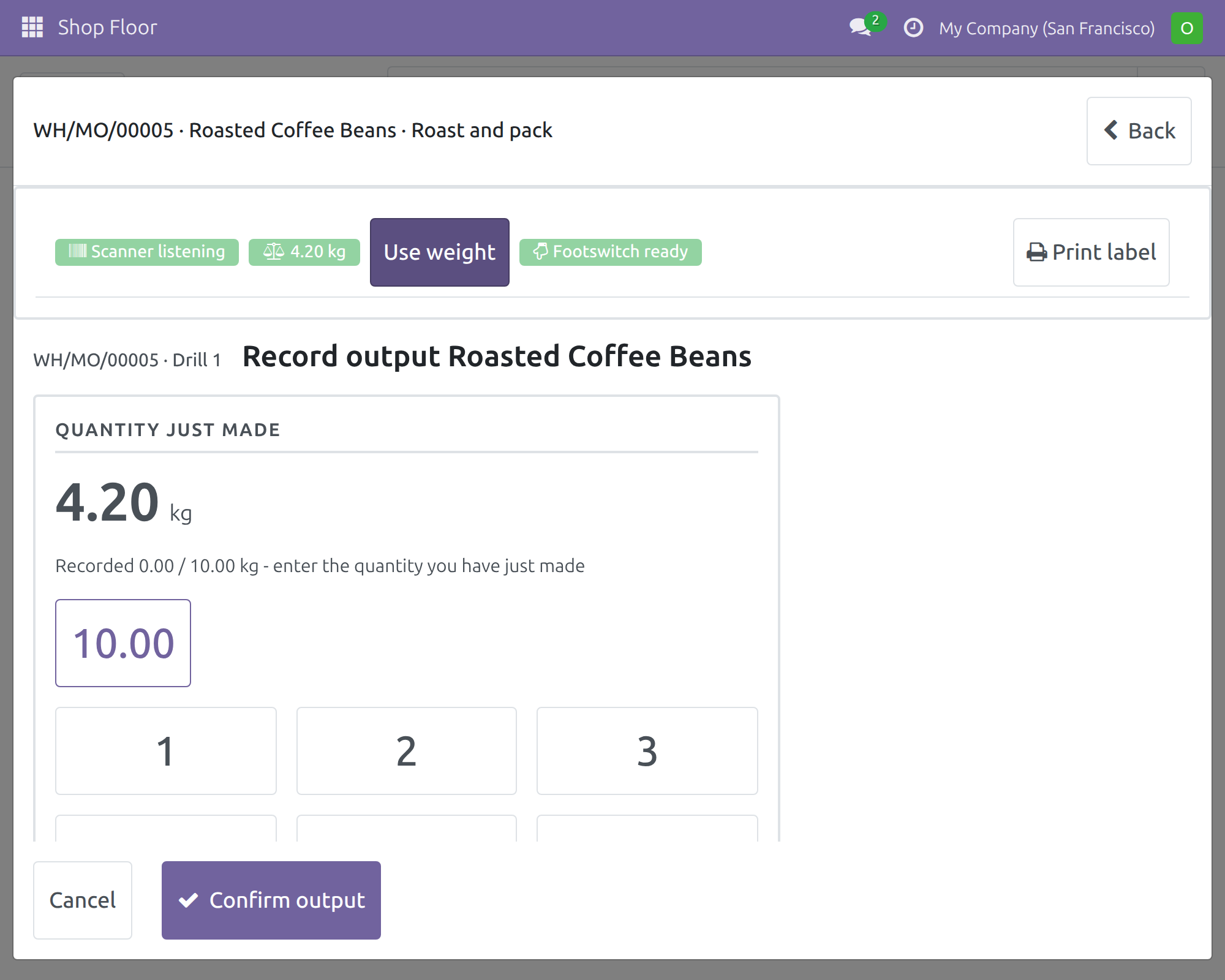
The operator taps Use weight; the reading is converted to the order’s unit and pre-fills Record output. Confirm records it.
Label
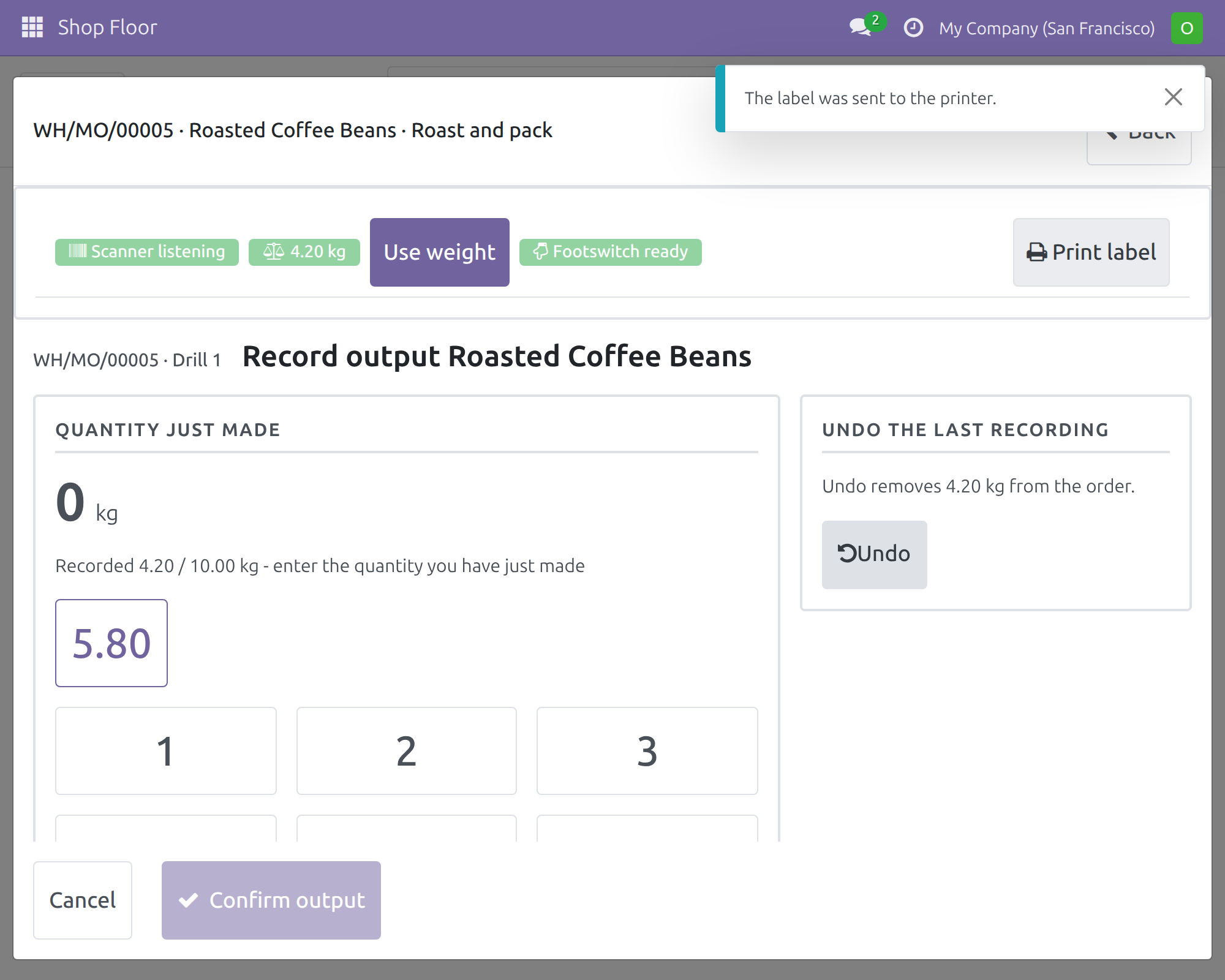
The operator taps Print label; the label for output recorded and not yet labelled goes to the station’s printer. An offline printer is reported at once.
Done, and recovery
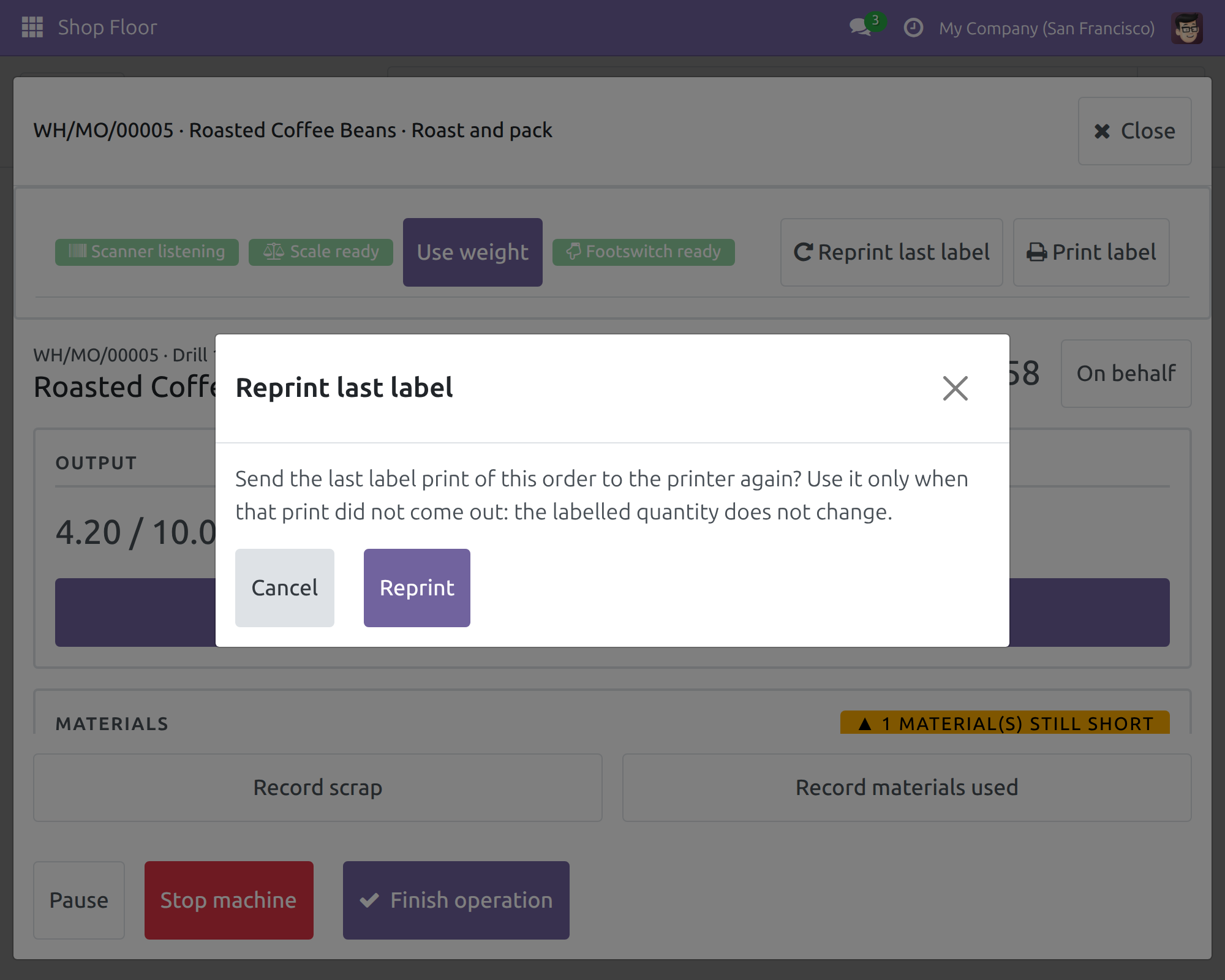
If a print did not come out, the Production Team Leader uses Reprint last label.
If the scale cannot be read, the operator types the quantity by hand.
Key Features
Device strip on the Shop Floor
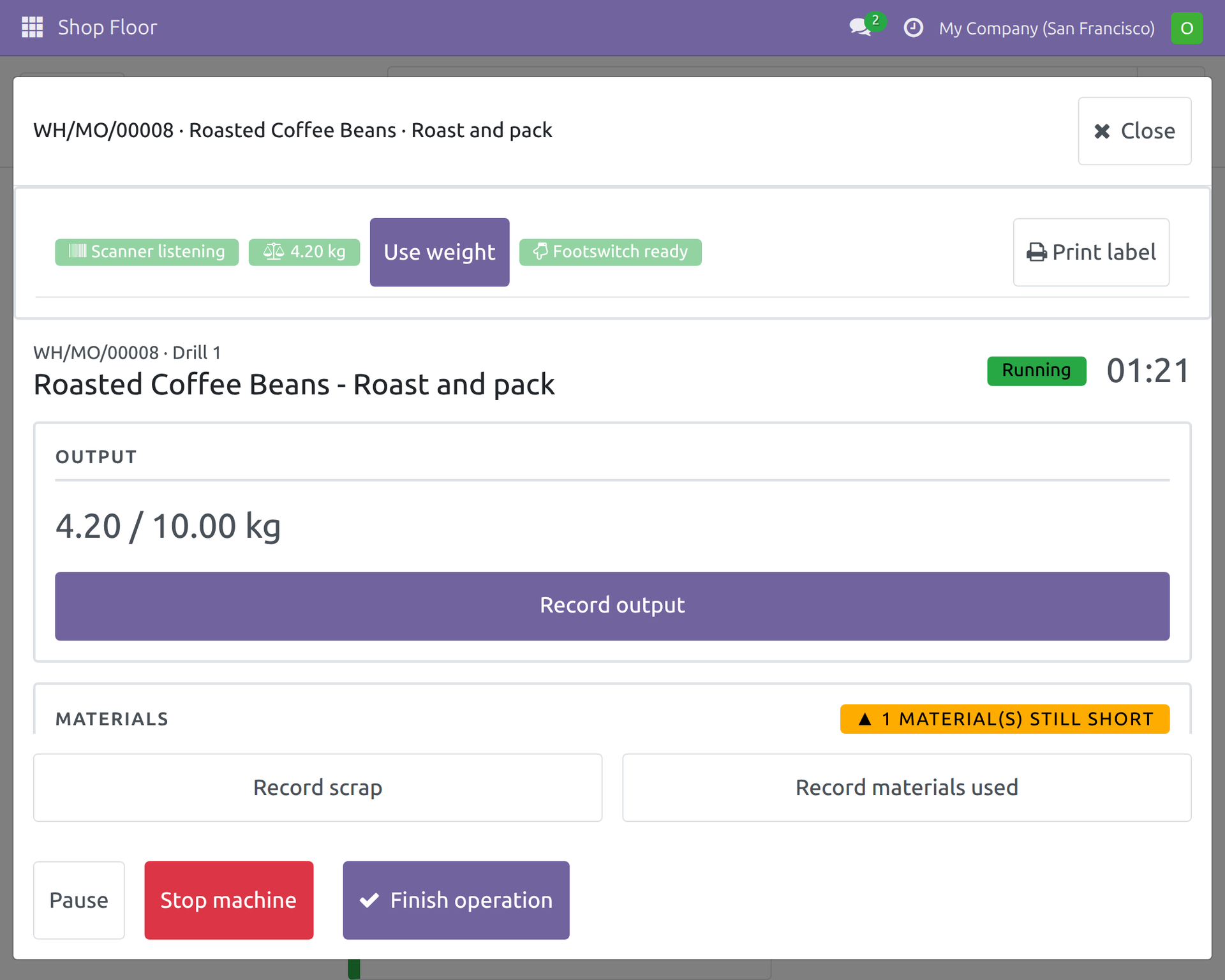
Shows the station’s own scanner, scale, footswitch and label printer status on the Shop Floor screen, with no IoT rights for the operator; hidden when the station has no device.
Barcode scanner listening
Every barcode scanner of the station is listened to and a scan is handled like a scan from a locally attached scanner; the screen shows listening, in use by another screen or unreachable.
Use weight
One tap takes a fresh scale reading, converts it to the order’s unit and pre-fills Record output; recorded only on Confirm. A zero or unstable weight, a too-small weight and non-weight units are refused.
Footswitch
A press does the station’s configured action (start, pause, finish or toggle) by pressing the screen’s own button, so all Shop Floor rules still apply.
Print label
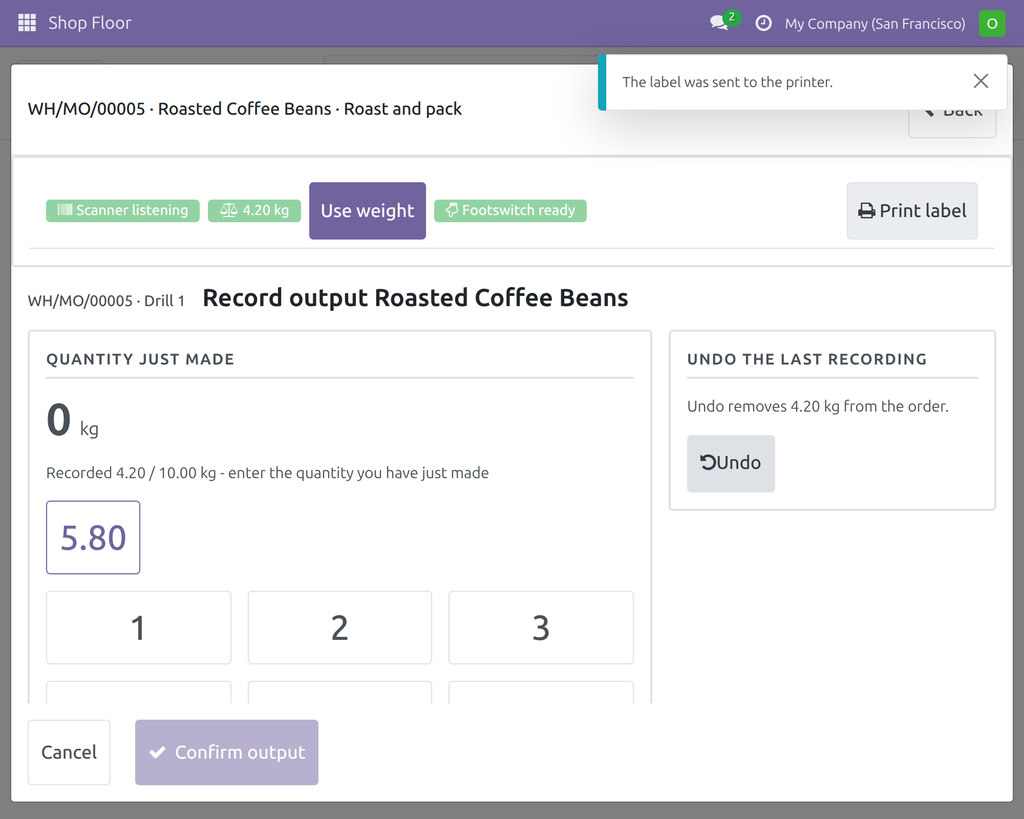
Prints the label for output recorded and not yet labelled on the station’s printer; an offline printer and nothing-to-label are reported.
Reprint last label
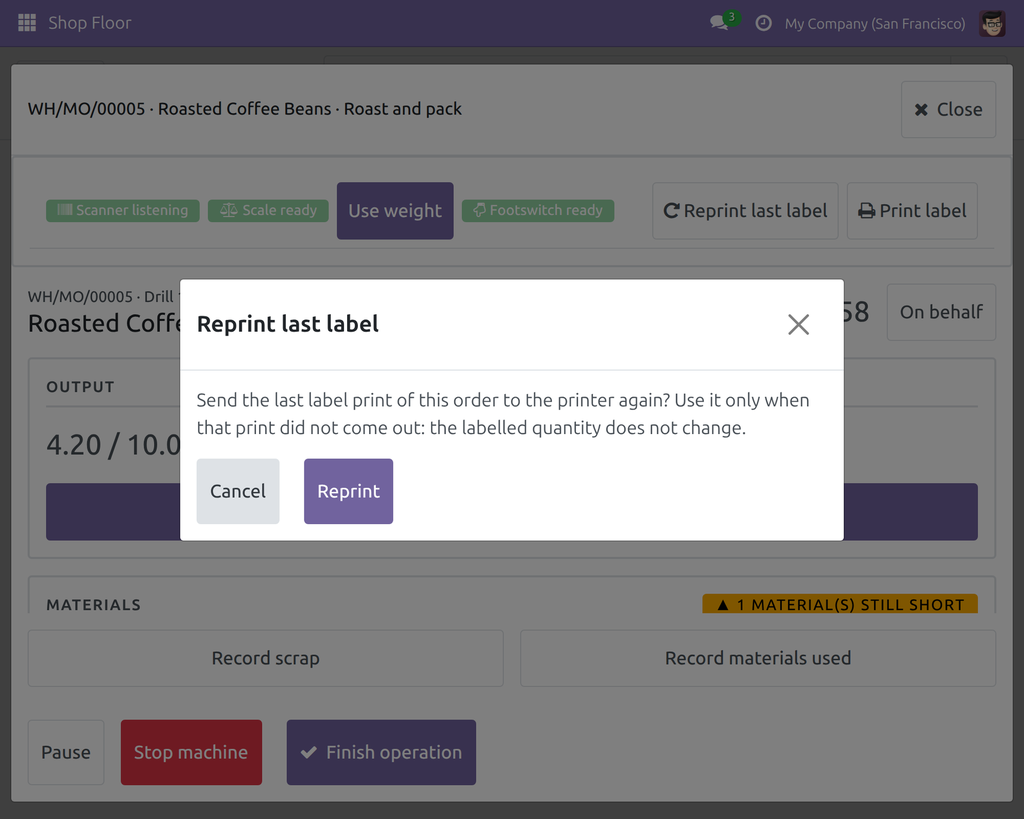
A team leader resends the last label after a jam or an empty roll, after a confirmation; the labelled quantity is unchanged, the reprint is logged on the manufacturing order and operators do not see it.
Who it is for
Plant or operations manager
Faster, steadier execution at every station, with no extra IoT access to manage for operators.
Production Team Leader
See a station’s device status at a glance and fix a label jam from the screen in one confirmed tap.
Shop Floor Operator
Scan, weigh, start, pause, finish and print without leaving the product.
System Administrator
Pair the box as the chapter Setting up an IoT box of the IoT documentation describes, then set devices and station roles once in IoT Manufacturing. Link each operator and team leader to an employee (Related User) so the Shop Floor can start their work. The module installs itself when its two dependencies are present.
Best for: manufacturing plants that run work orders on the Shop Floor screen and want each station’s own scanner, scale, footswitch and label printer working there.
Give each station its own devices
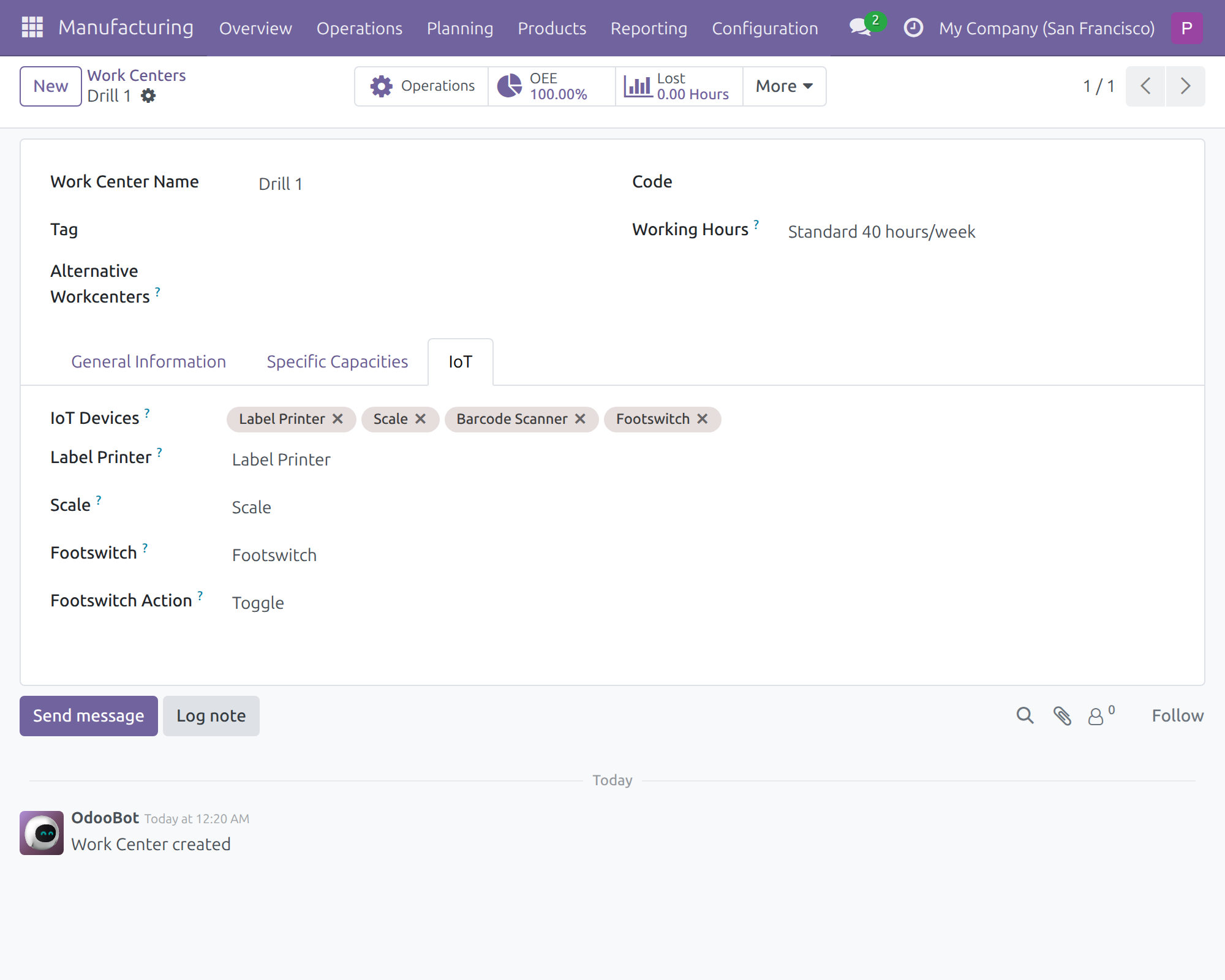
See every device of the station at a glance
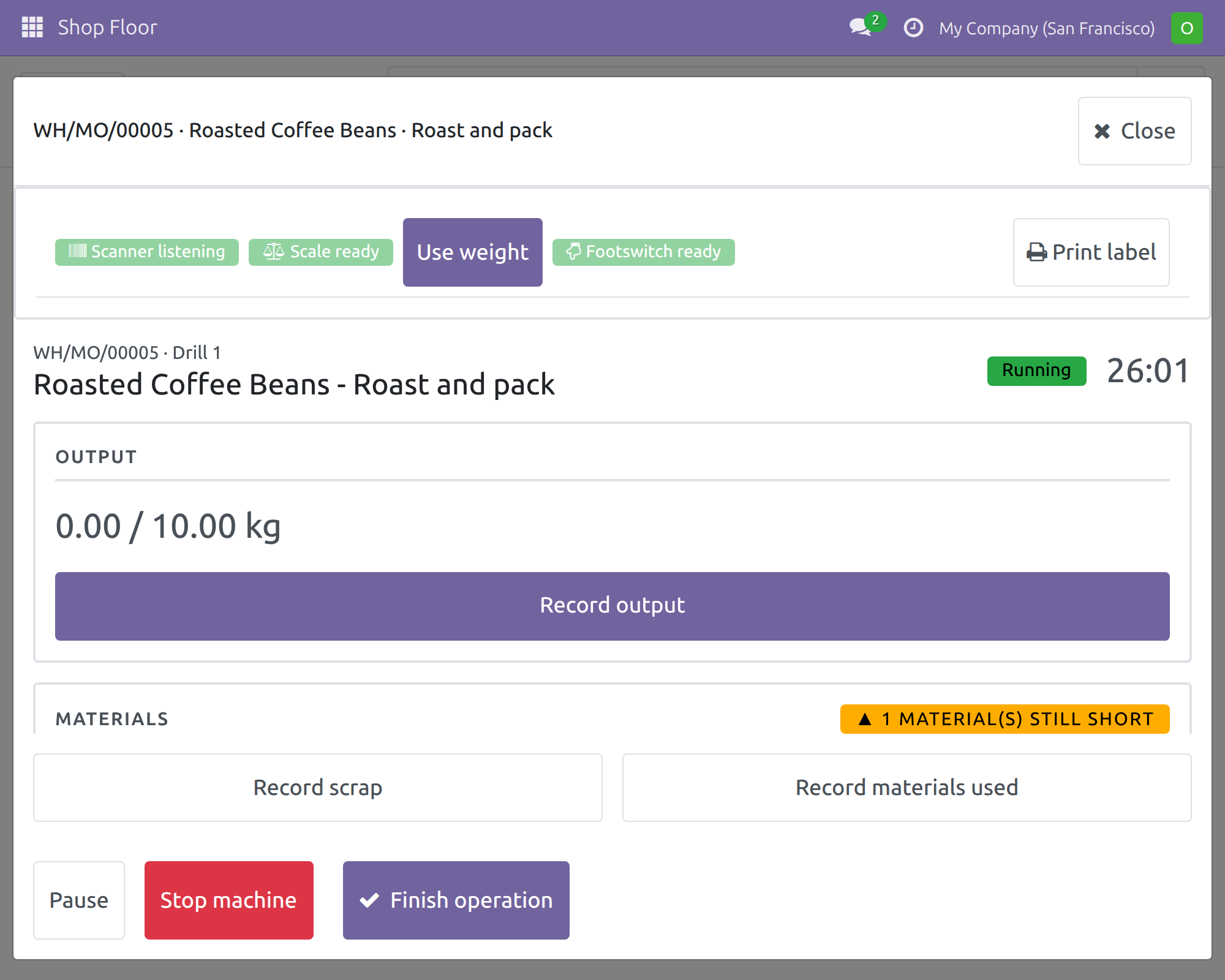
Weigh with one tap and confirm the output
Output recorded from the scale
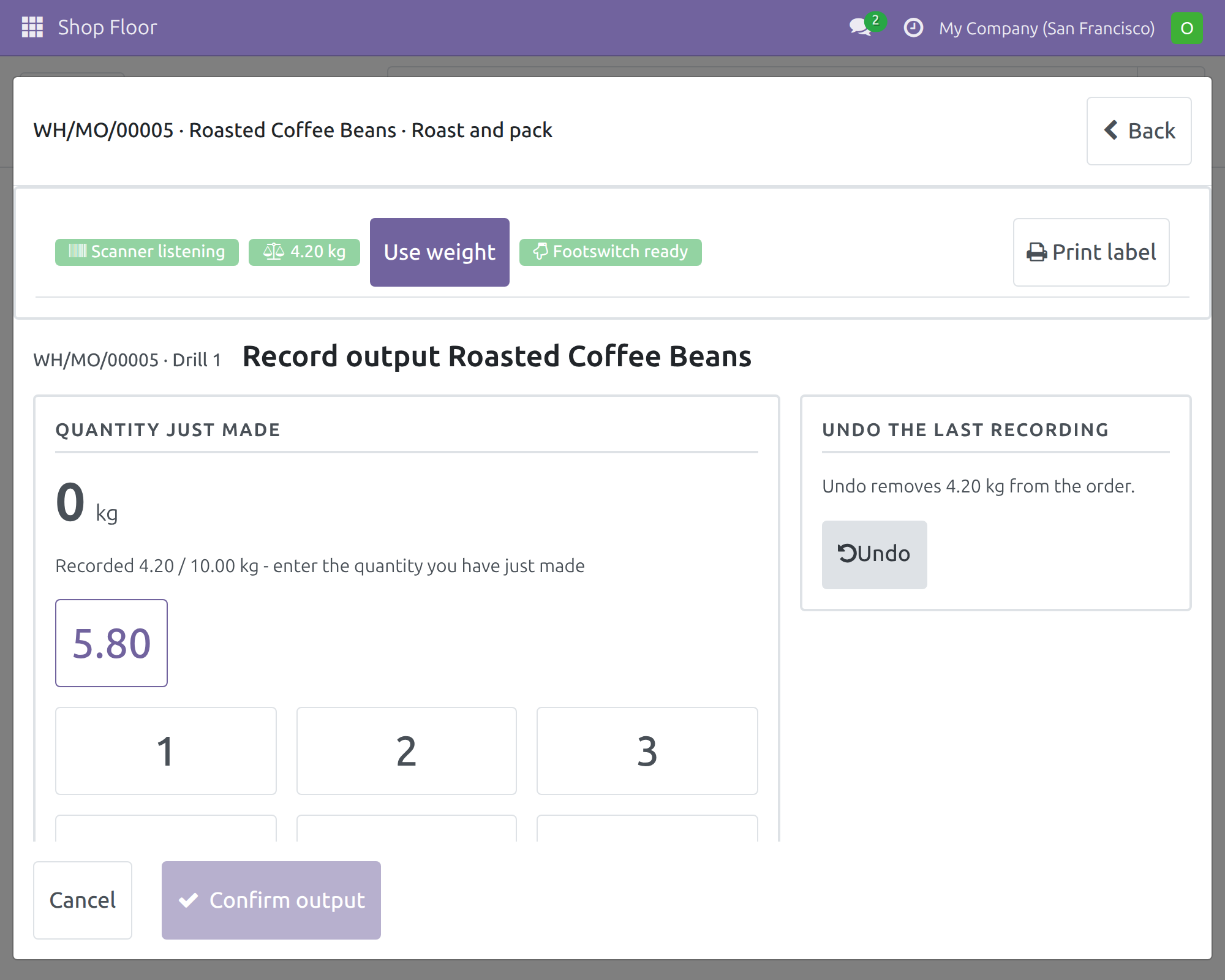
Pause the work order with a foot press
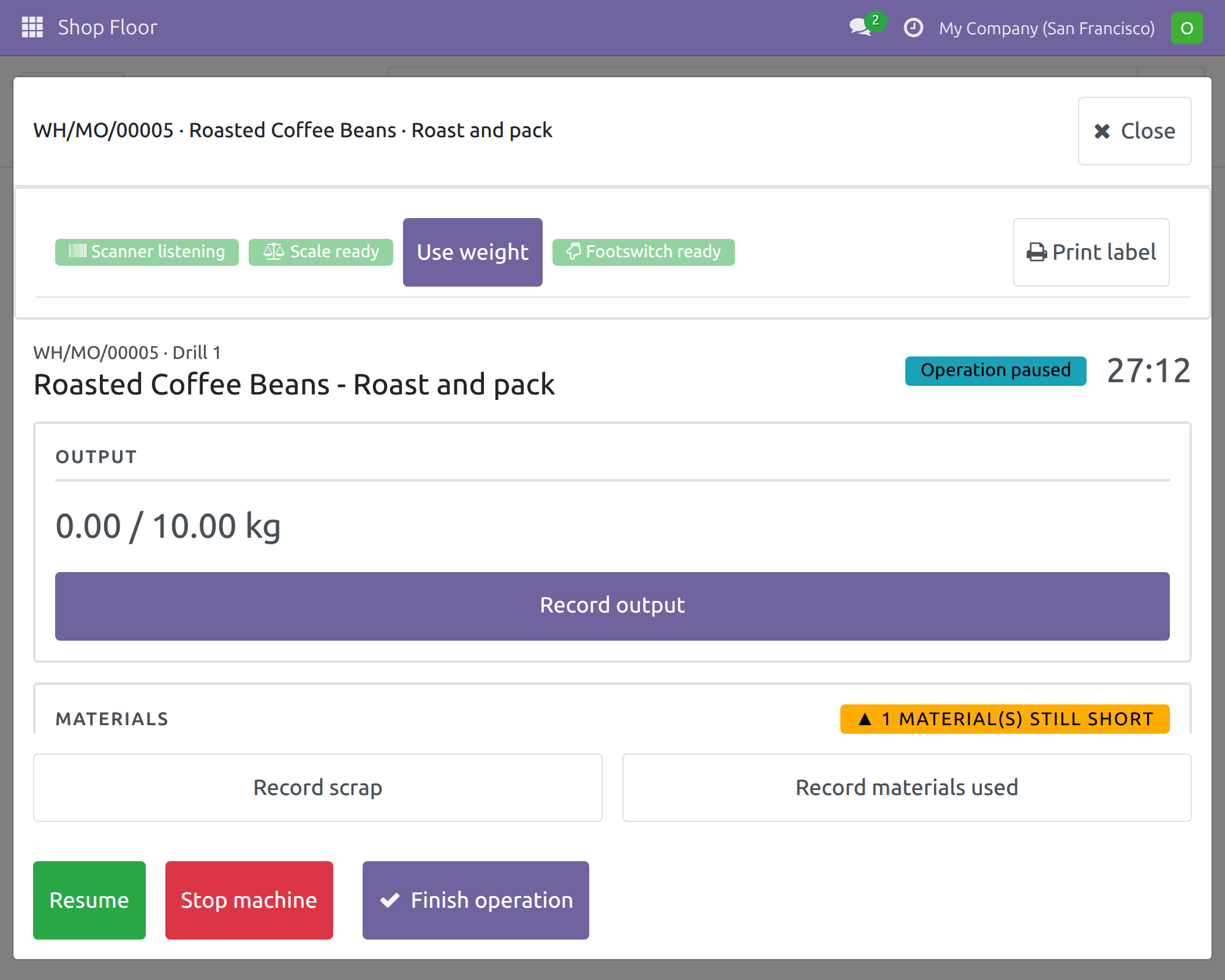
Print the label for what was just made
Nothing new to label, nothing printed twice
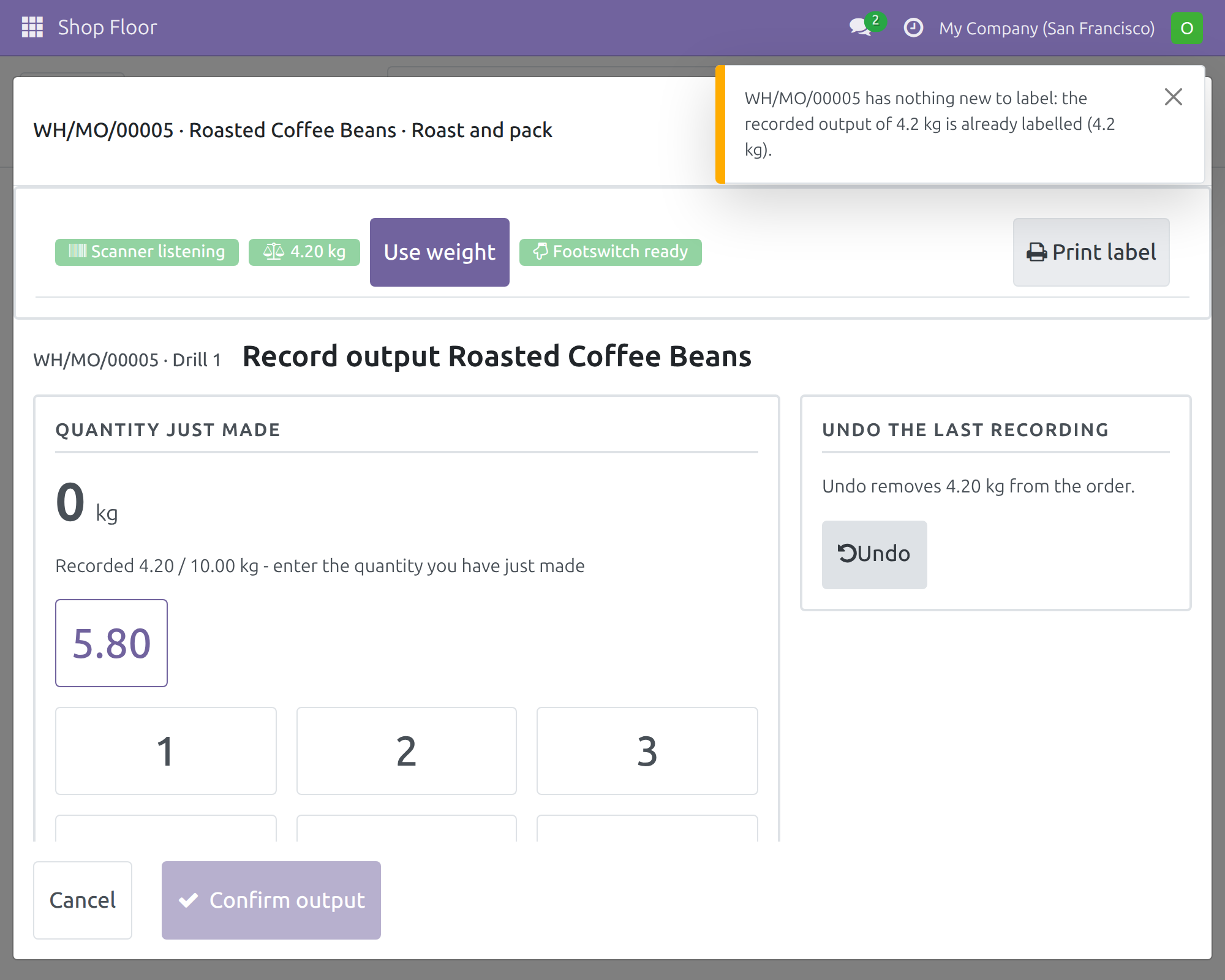
Reprint the last label after a jam
Every reprint is logged on the order
One screen holds the devices at a time
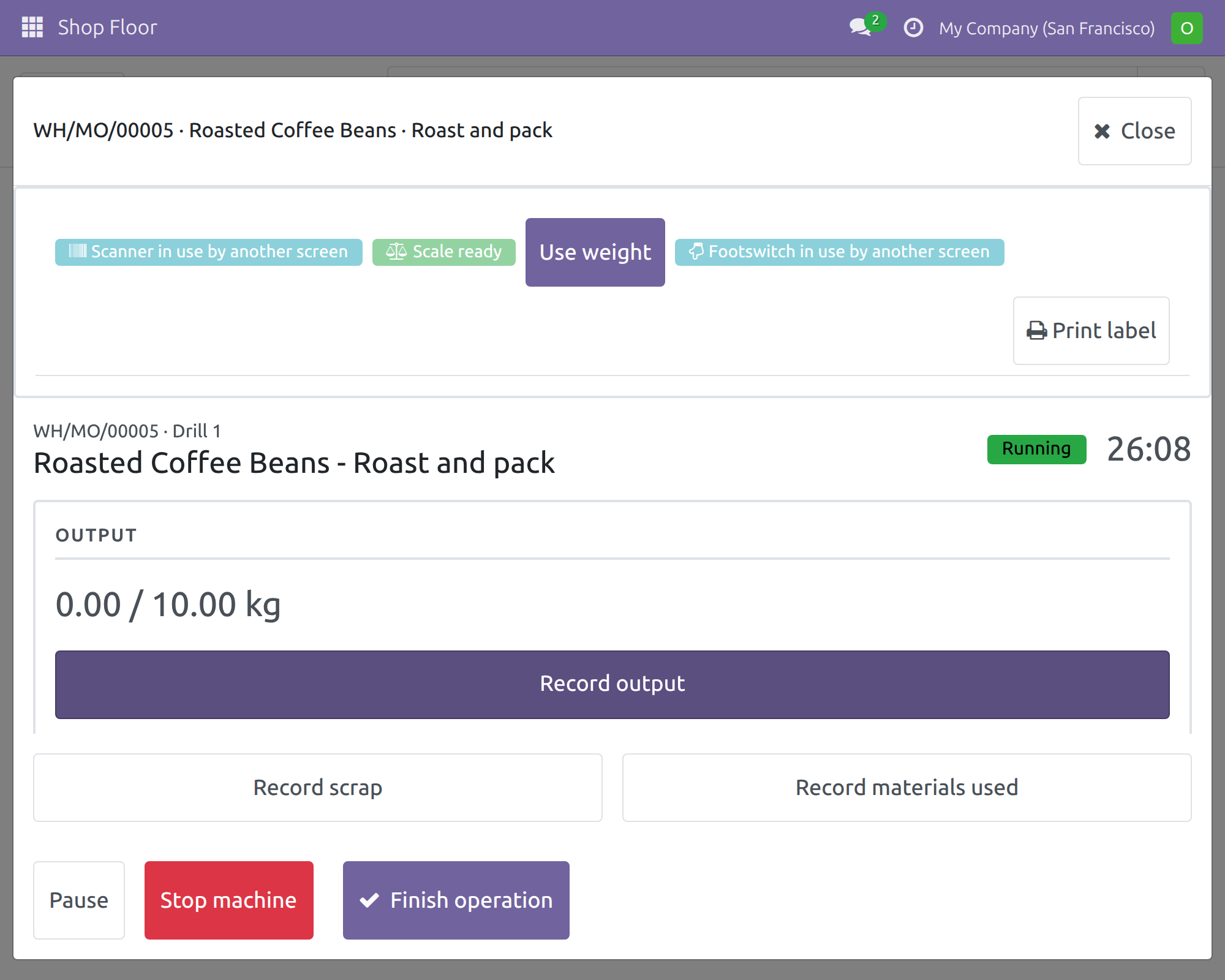
Calm recovery when a device is unreachable
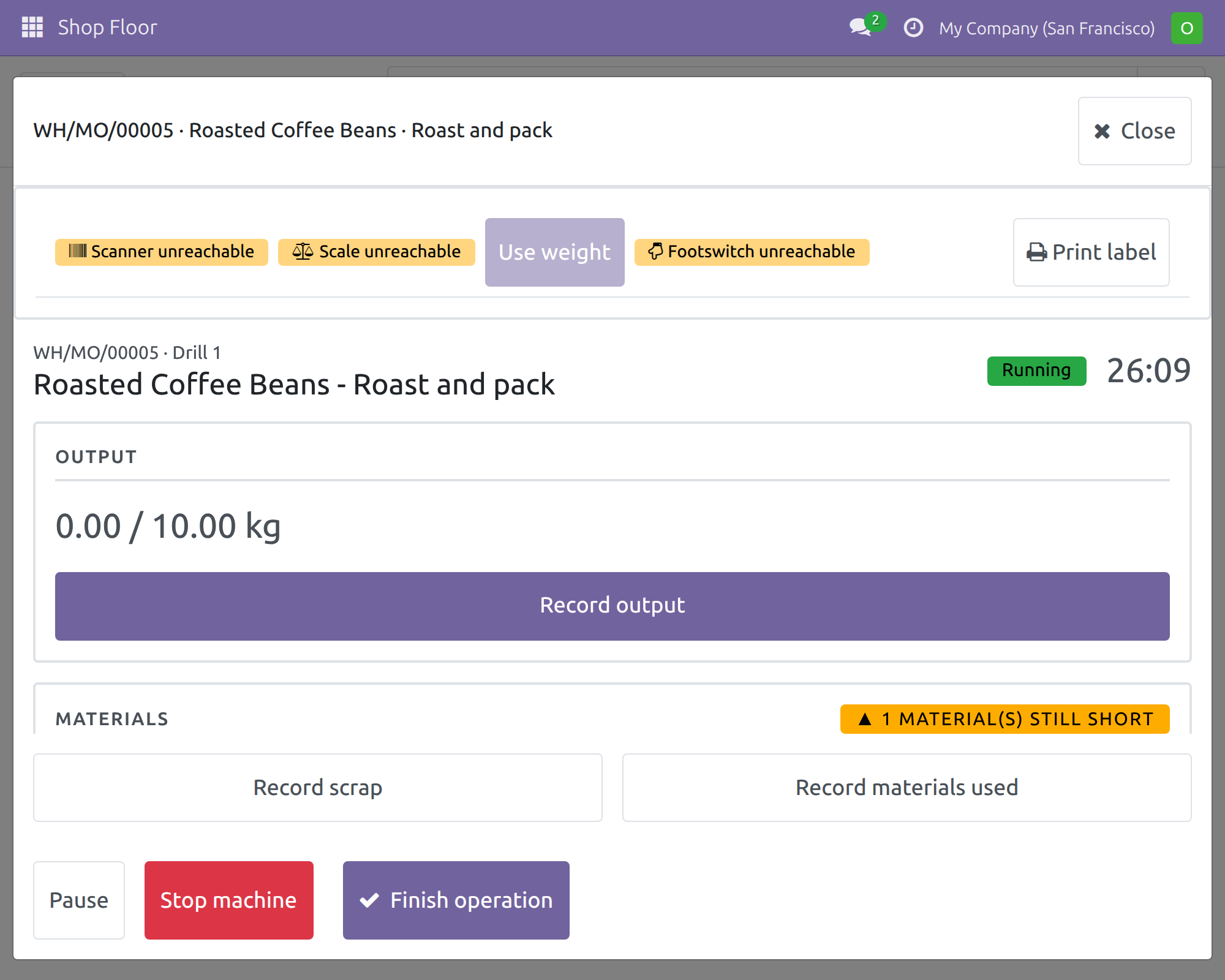
Frequently Asked Questions
Do my operators need IoT access rights?
No. The screen is told which devices belong to the station and nothing else about them.
What happens when the scale shows zero or is not stable?
The reading is refused with a message to wait until it settles and read again. Orders counted in Units or a volume unit refuse a weight. A weight is recorded only when the operator confirms.
Can the footswitch skip our Shop Floor rules?
No. A press does the station’s configured action (start, pause, finish or toggle) by pressing the screen’s own button, so all rules still apply. It works on the work order screen.
Will a label be printed twice?
Print label prints only output recorded and not yet labelled. After a jam, a team leader can use Reprint last label; it asks for a confirmation, leaves the labelled quantity unchanged and is logged on the manufacturing order. Operators do not see it.
What if two screens open the same station?
One screen holds a scanner or footswitch at a time. The other shows “in use by another screen”, and touching the station screen takes the device back. Nothing is recorded twice.
What if a work center has no devices?
It behaves as before, and the device strip is hidden.
What if a device or the box is unavailable?
The screen shows the device as unreachable, and the operator can type the value by hand.
Which apps does it work with?
It joins IoT Manufacturing with the Shop Floor and installs itself when both are present.
Need help with IoT Shop Floor?
Technical Support
apps.support@viindoo.comTechnical Requirement
- Editions: Odoo Community, Viindoo Cloud
- Required modules: IoT Manufacturing (
viin_iot_mrp), Shop Floor (viin_mrp_workorder) - License: OPL-1
- Related apps: IoT Manufacturing (devices on the work center) · Shop Floor (the execution screen)
IoT Shop Floor
Note
Extends IoT Manufacturing - see its documentation.
Overview
An operator running a work order on the Shop Floor screen has both hands on the product. Every scan, every weight read off a scale and every Start, Pause or Finish still has to be typed or tapped, and the devices wired to the station - its barcode scanner, scale, footswitch and label printer - cannot reach that screen.
IoT Shop Floor brings the devices of the station to the Shop Floor screen:
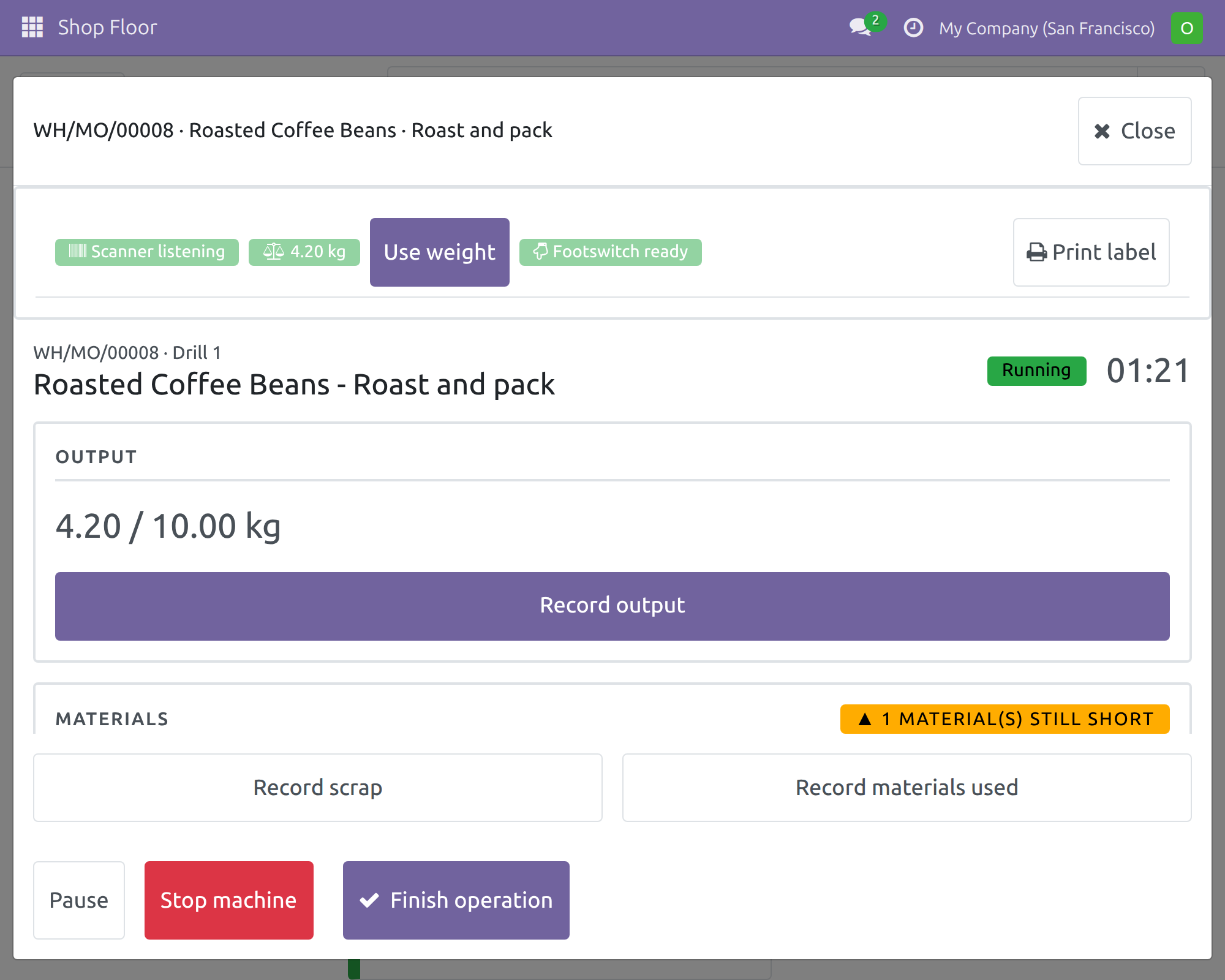
- A device strip at the top of the work order shows what the station's scanner, scale and footswitch are doing, and offers the Use weight, Print label and Reprint last label buttons.
- The station's barcode scanner is listened to: a scan is handled exactly as a scan from a scanner plugged into the device that runs the Shop Floor.
- Use weight takes one fresh reading from the scale, converts it into the unit of the order and fills in Record output for the operator to confirm.
- The footswitch starts, pauses or finishes the work order without touching the screen.
- Print label sends the label of the output that was recorded but not labelled yet to the station's own label printer.
The operator needs no IoT access right: the Shop Floor is told which devices belong to the station and nothing else about them. A station with no device attached, and a database without this module, work exactly as before.
How the work flows
- Ready / started - the shop floor operator starts the work order, with the footswitch or with the button on the screen. Next: the same operator.
- In progress - the shop floor operator weighs the product with Use weight and confirms Record output. Next: the same operator.
- Label - the shop floor operator prints the label with Print label. Next: the production team leader, only if the label did not come out.
- Done - the production team leader sends the last label again with Reprint last label when the print failed.
Who uses this module
| Role | What they do | Access right to assign |
|---|---|---|
| System Administrator | Installs the module, decides in Settings whether it is on, and gives people their Manufacturing access. The devices of a station are attached in IoT Manufacturing. | Administration: Settings |
| Shop Floor Operator | Runs the work orders of a station: starts them, weighs the output, scans, prints labels and uses the footswitch. | Manufacturing: User |
| Production Team Leader | Everything the operator does, plus reprinting the last label after a jam or an empty roll. | Manufacturing: Administrator |
The Manufacturing: Administrator right includes the Manufacturing: User right.
Setup (for the System Administrator)
Installation
IoT Shop Floor installs itself as soon as IoT Manufacturing and Shop Floor Control are both installed, so most databases never install it by hand. If it is not installed:
- Open Apps.
- Remove the default Apps filter, so that modules that are not applications are listed, and search for IoT Shop Floor.
- Click Activate. IoT Manufacturing and Shop Floor Control are required and are installed with it if they are missing.
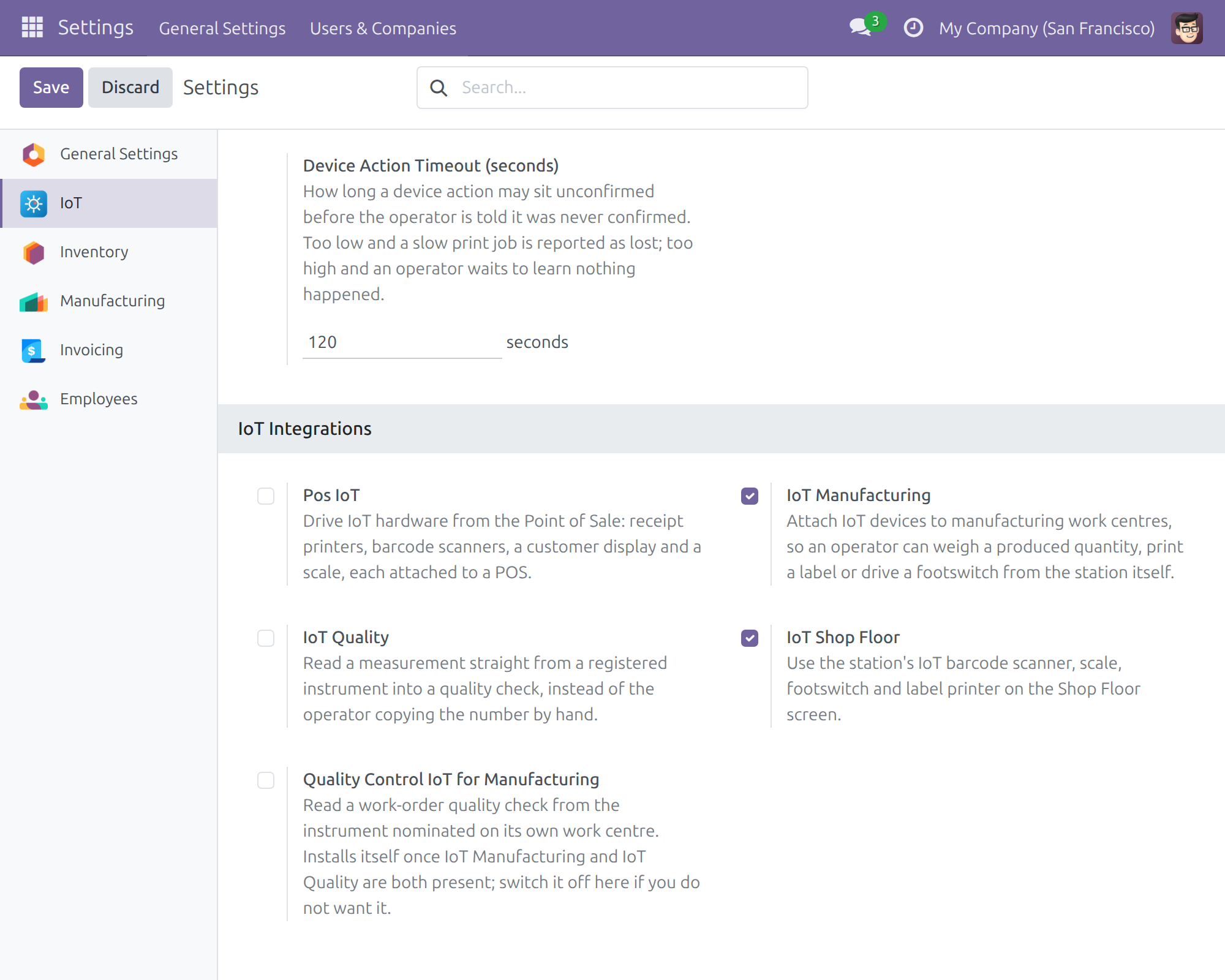
To switch it off for a database that holds both apps but owns no IoT hardware, open Settings ‣ IoT, go to IoT Integrations and clear the IoT Shop Floor box.
Configuration
The module has no setting of its own. The devices that appear on the Shop Floor are the ones attached to the work center of the work order:
- Pair the IoT box and connect its devices first. To pair a box and connect its devices, follow the chapter Setting up an IoT box of the IoT documentation.
- Open Manufacturing ‣ Configuration ‣ Work Centers and open the work center.
- On the IoT page, add the devices of the station to IoT Devices, then choose the Label Printer, the Scale and the Footswitch. If you chose a footswitch, choose its Footswitch Action: Start, Pause, Toggle or Finish.
- Save.
Every barcode scanner in IoT Devices is listened to; there is no per-scanner role to choose. The IoT page only appears to people who hold the Internet of Things (IoT) access right User or higher; Manufacturing / Administrator brings it with it. If the label does not come out, the order records that the print was never confirmed once the Device Action Timeout (seconds) under Settings ‣ IoT has passed (120 seconds by default).
Assign the access rights
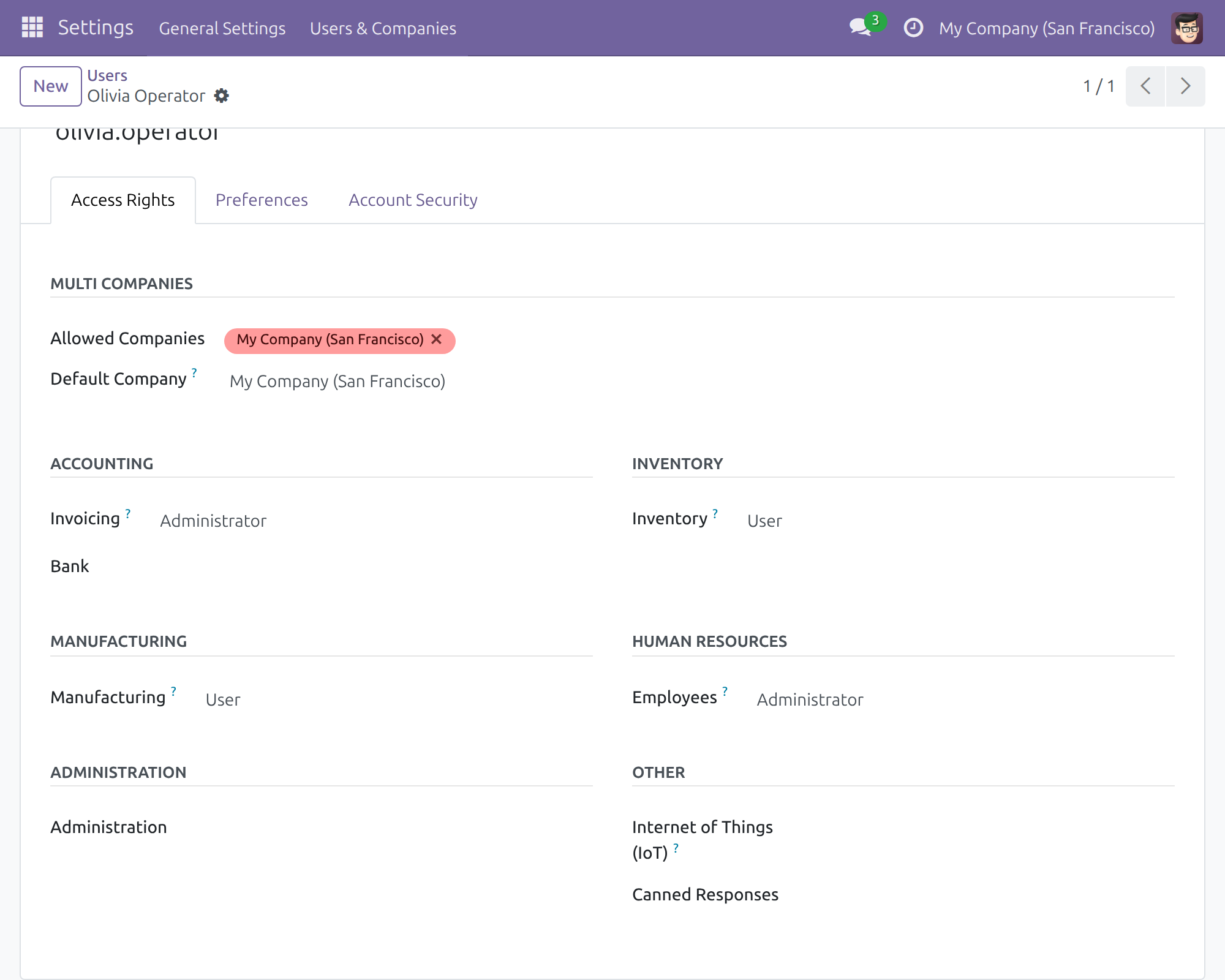
Open Settings ‣ Users & Companies ‣ Users, open the person and go to the Access Rights page.
- For each shop floor operator, set Manufacturing to User.
- For each production team leader, set Manufacturing to Administrator.
- Save.
Operators need no Internet of Things (IoT) access right: they only need the right to open the work order on the Shop Floor.
Each shop floor operator and each production team leader must also be linked to an employee. Open the employee in the Employees app and set Related User to the person's user. Without that link the Shop Floor refuses to start work and answers that the user is not linked to an employee.
Shop Floor Operator: run a work order with the station's devices
Open the work order
- Open the Shop Floor app and choose your work center.
- Click Open job board.
- On the card of the work order, click Open & start (or Continue operation for an order that is already running, Resume operation for one that is paused).
The device strip appears at the top of the work order and stays there while you move between its screens. A station with no device attached shows no strip at all.
Read the strip
Each chip tells you what one device is doing. Hold your finger or the pointer on a chip to see the name of the device.
- Scanner listening - the station's scanner is ready (2 scanners listening when the station has several).
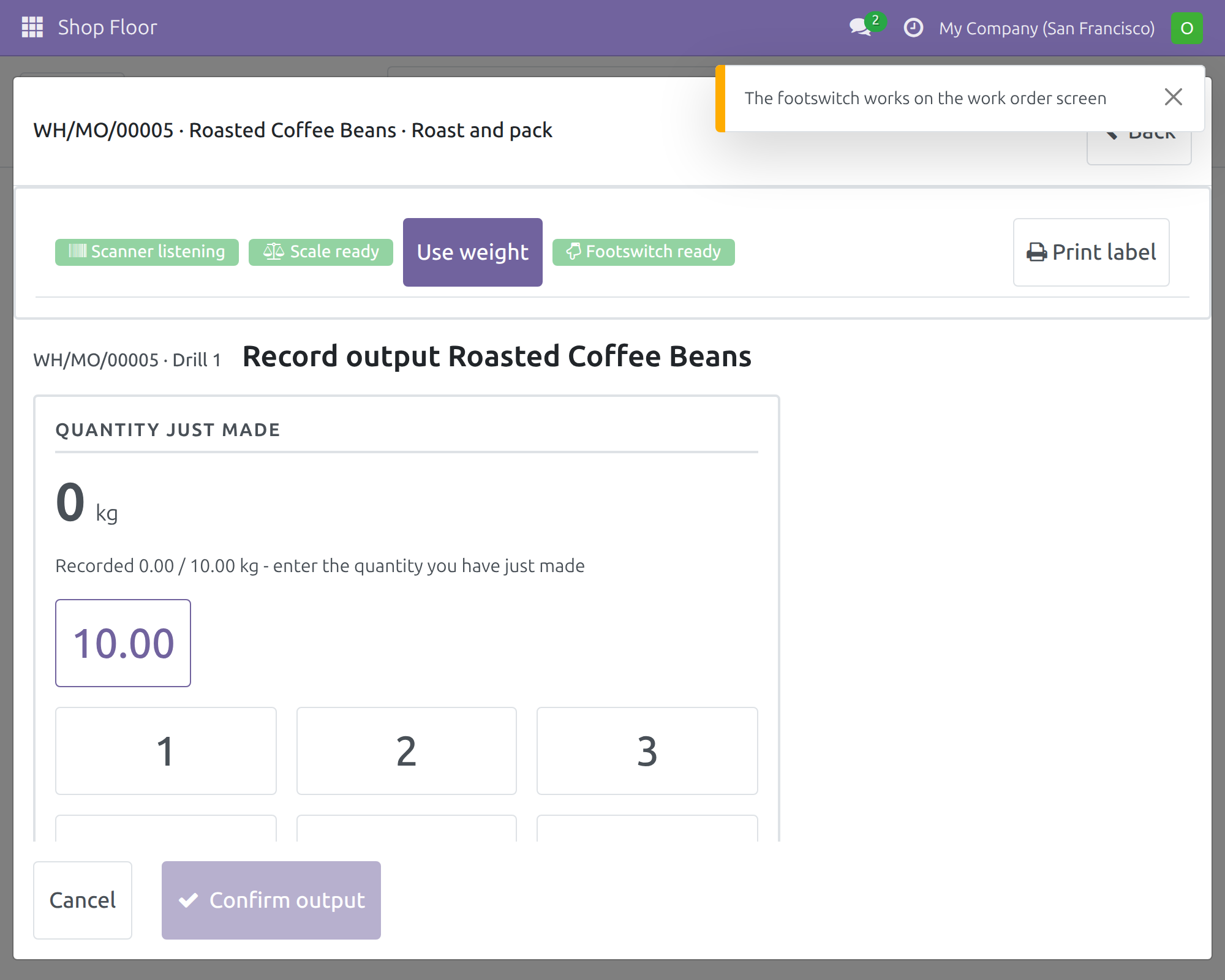
- Scale ready - the scale is ready. Once the scale reports a weight, or you tap Use weight, the chip shows it as the scale gave it, for example 4.20 kg. The weight on the chip is only a display.
- Footswitch ready - the footswitch is ready.
- Scanner in use by another screen, Scale in use by another screen, Footswitch in use by another screen - another screen holds the device, see When another screen holds the devices below.
- Scanner unreachable, Scale unreachable, Footswitch unreachable - the box of the station does not answer, see When the box or a device fails below.
- Scanner not connected, Scale not connected, Footswitch not connected - the box answers, but it does not report this device as connected, see When the box or a device fails below.
Start, pause and finish with the footswitch
Press the footswitch while the work order screen is open. The press does what the station's footswitch action says: start, pause, finish, or alternate between starting and pausing. It presses the same button that is on the screen, so every Shop Floor rule still applies, and a press that the screen would refuse is refused in the same way.
The footswitch works on the work order screen only. If you press it while Record output is open, the screen answers The footswitch works on the work order screen and nothing else happens.
Record the output with Use weight
- Put the product on the scale and wait until the weight is steady.
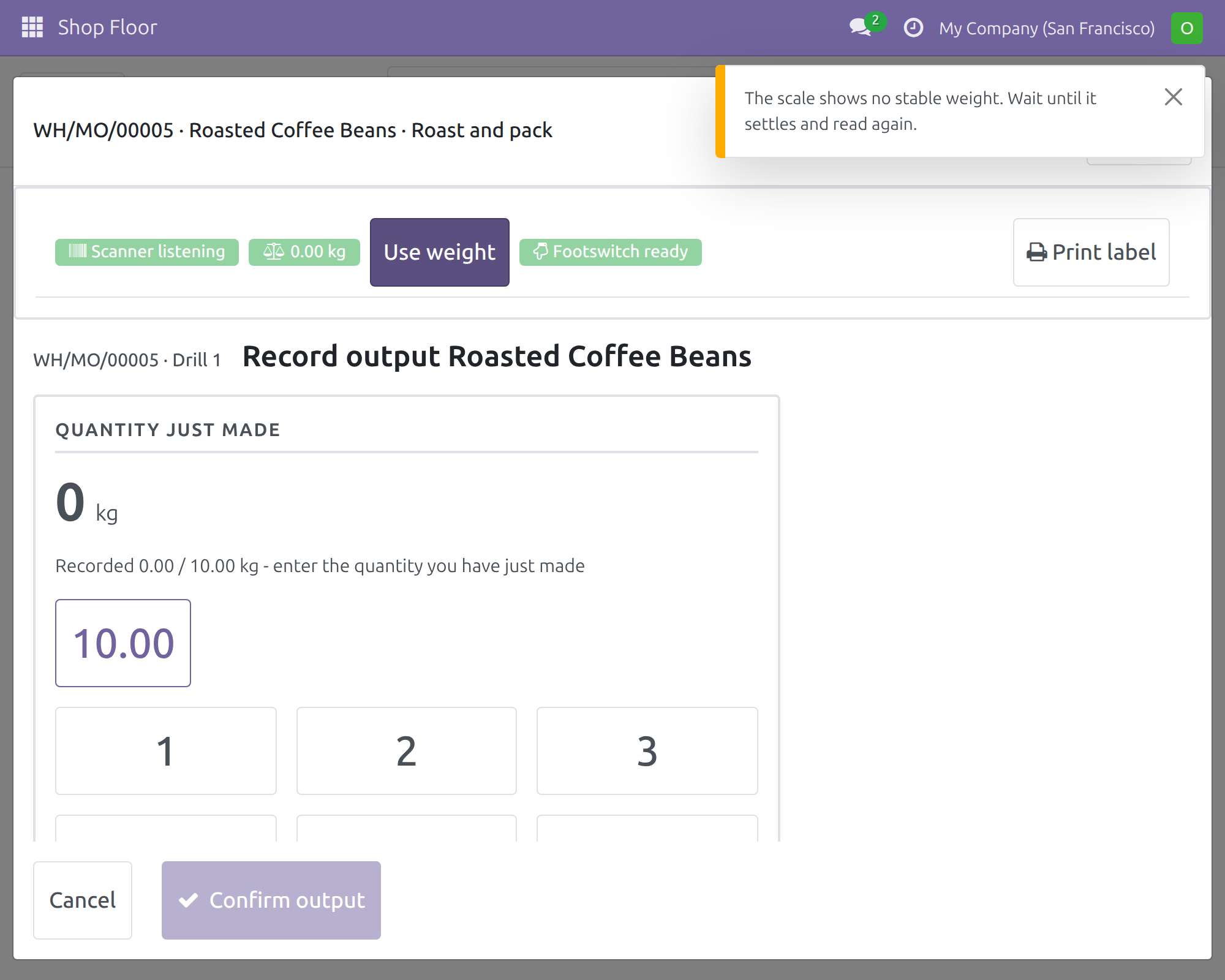
- Click Use weight. One tap takes one fresh reading at that moment.
- Record output opens with the weight already filled in, converted into the unit of the order. Check the figure.
- Click Confirm output. Nothing is recorded before you confirm.
After you confirm, the screen shows what was recorded and offers Undo the last recording. Click Undo to take that quantity off the order again.
You can also type the quantity yourself. A quantity taken from the scale is recorded as read from the instrument and a quantity you typed is recorded as typed by hand; nobody can edit that afterwards.
Use weight refuses the reading, and nothing changes, in these cases:
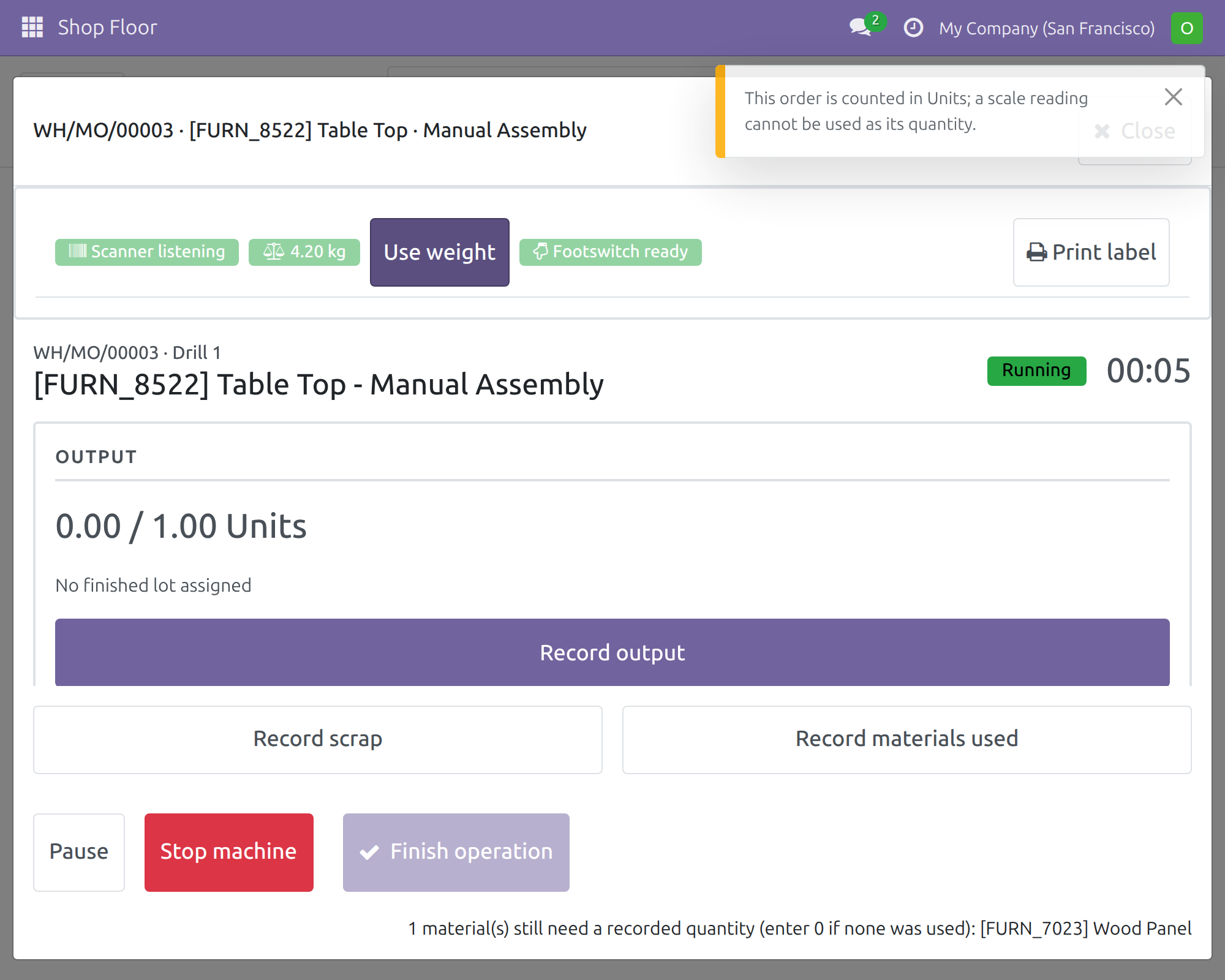
- The scale shows 0 or an unsteady weight: The scale shows no stable weight. Wait until it settles and read again.
- The weight is too small to count in the unit of the order: A reading of ... is too small to be recorded in ....
- The order is counted in Units or in a volume unit: This order is counted in Units; a scale reading cannot be used as its quantity.
- The scale returns something that is not a weight: The scale did not return a valid weight.
- The scale gives no reading: No reading from the scale. Check the scale and try again, or type the quantity.
- The box of the station cannot be reached: The scale cannot be reached. Type the quantity instead.
Scan with the station's scanner
Scan a code with the scanner of the station. It is handled exactly as a scan from a scanner plugged into the device that runs the Shop Floor, on whichever screen of the work order is open. A read that is too short to be a barcode is ignored, the same as it would be from any other scanner.
Print the label
- Click Print label.
- The message The label was sent to the printer. confirms that the label went to the station's label printer.
Each print covers only the output that was recorded but is not labelled yet, so no label is printed twice. While the order is in progress the label is for the main product. When the order is done, one print covers the remaining quantity of the main product and each by-product, once. If there is nothing new to label, a message says so and nothing is sent.
Once you have finished and closed the manufacturing order, it leaves the Shop Floor board. Print the labels of the by-products that are still missing from the work order form, under Manufacturing ‣ Operations ‣ Work Orders.
When another screen holds the devices
A scanner and a footswitch are held by one screen at a time. When a second screen - another browser tab, or a team leader's computer - opens the same station, it takes the scanner and the footswitch and your screen shows Scanner in use by another screen and Footswitch in use by another screen.
Touch your screen to take the devices back; the chips return to Scanner listening and Footswitch ready. A scan or a footswitch press is only ever acted on by one screen, so nothing is recorded twice. Use weight keeps working on a screen that does not hold the devices, because reading the scale takes nothing from the other screen.
When the box or a device fails
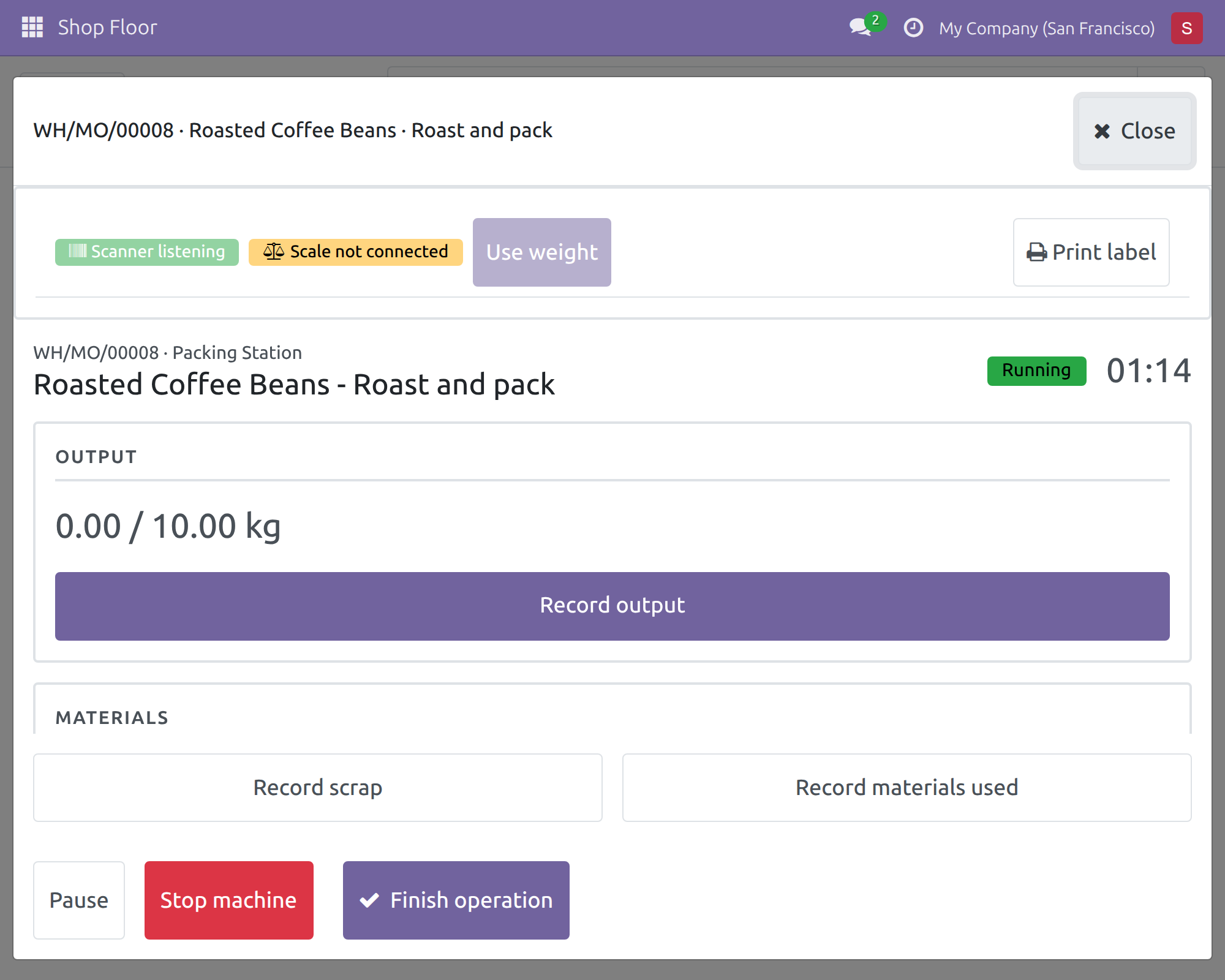
When the box of the station does not answer, the chips read Scanner unreachable, Scale unreachable and Footswitch unreachable, and Use weight is dimmed.
- Type the quantity yourself in Record output and click Confirm output; it is recorded as typed by hand.
- Scan with a scanner plugged into the device that runs the Shop Floor, or type the code.
- An offline printer is reported as soon as you click Print label: The label was not printed: printer ... is offline or refused the request. Fix the printer, then click Print label again.
- The chips return by themselves when the box answers again. A screen that is opened while the box is still starting shows the devices as unreachable and recovers on its own.
When the box answers but does not report a device - the scale is unplugged or switched off, for instance - its chip reads Scale not connected (or Scanner not connected, Footswitch not connected) and Use weight is dimmed, so a weight is never taken from a scale that is not there. Type the quantity yourself as above, and plug the device in or switch it on. The chip turns ready again the next time the screen loads the work order, for instance when you move to another of its screens or open it again.
Production Team Leader: reprint the last label
The team leader sees everything the operator sees, and one more button: Reprint last label, beside Print label. It appears once a label has been printed for the order. Operators never see it.
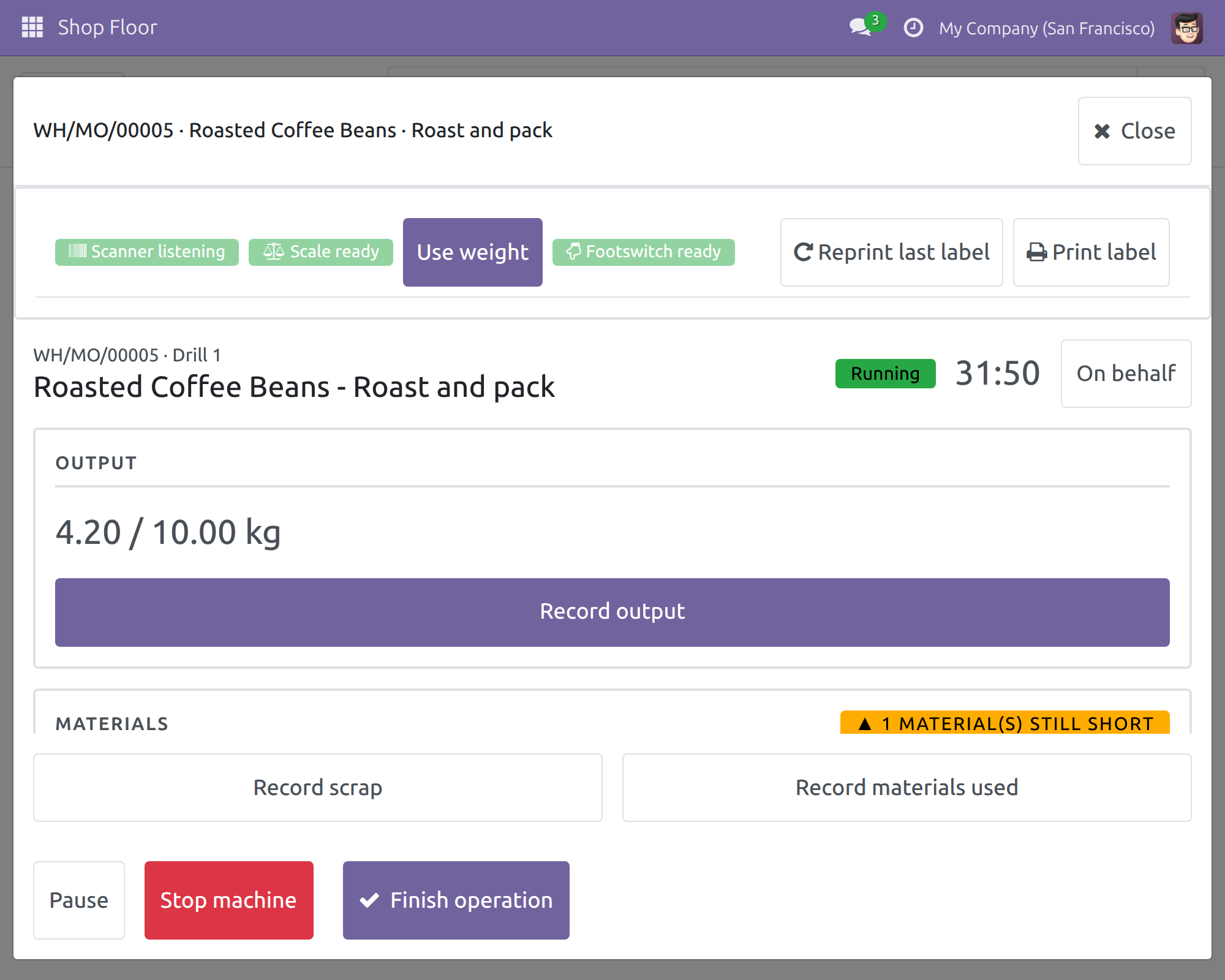
Reprint after a jam or an empty roll
- Open the work order on the Shop Floor, as described above.
- Click Reprint last label.
- Read the confirmation and click Reprint. Use it only when the print did not come out.
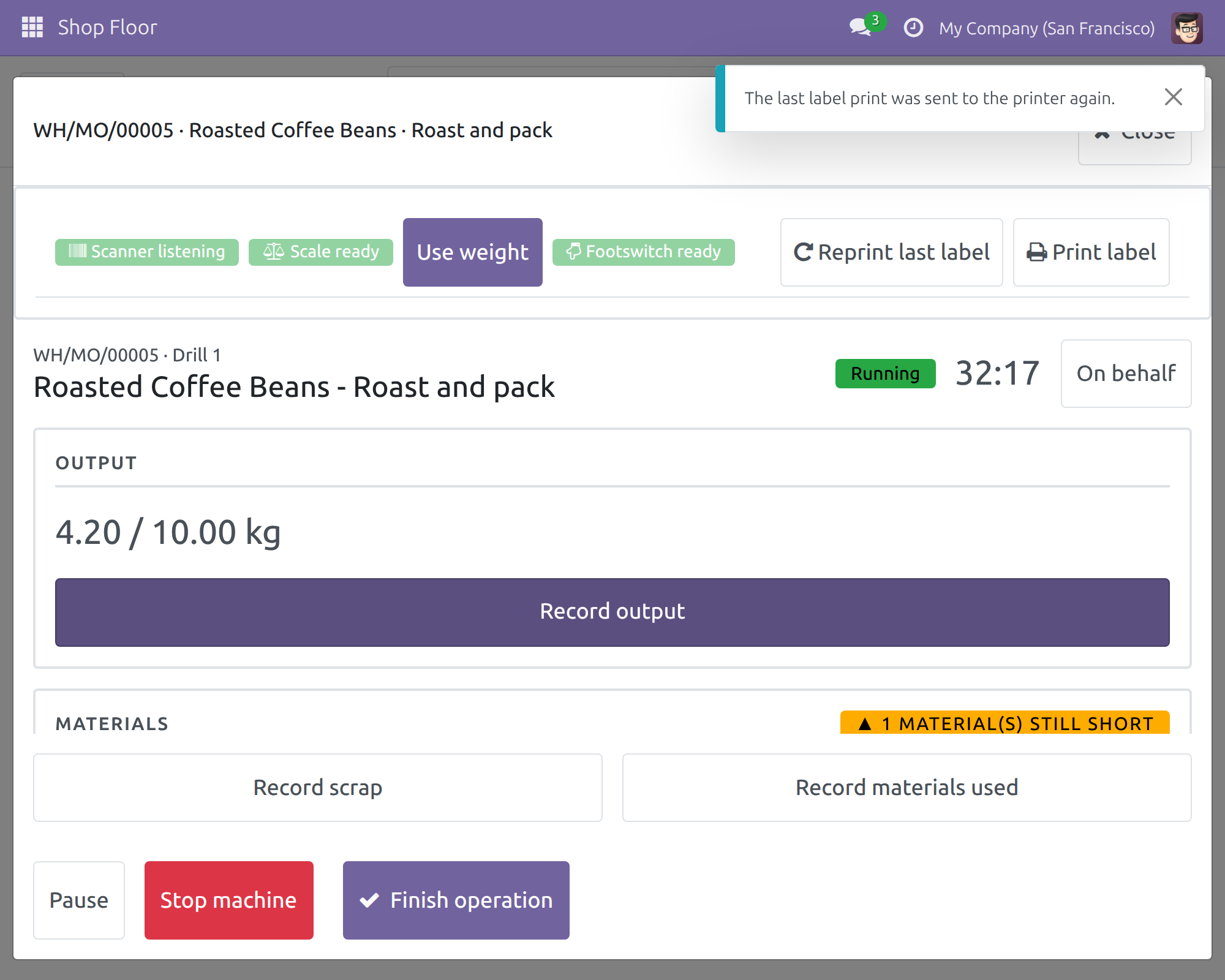
The last print is sent again. The quantity that counts as labelled does not change, so the next Print label still prints only what has not been labelled.
Check the log of the order
Every reprint is logged in the chatter of the manufacturing order: who reprinted which label, on which printer, and that the labelled quantity is unchanged.
Troubleshooting
- The device strip does not appear. The work center of the order has no IoT device attached. Ask the system administrator to attach the devices on the IoT page of the work center.
- A chip reads unreachable. The box of the station does not answer. Check that it is powered and on the network. The chips return by themselves when it answers again; see When the box or a device fails.
- A chip reads in use by another screen. Another screen holds the device. Touch your screen to take it back, or close the other screen.
- The browser asks for permission to reach devices on the local network, or blocks it. When Viindoo is opened over HTTPS and the box has a private address, the browser may ask whether the Viindoo site may reach devices on your local network. Allow it for the Viindoo address. If the browser blocks the access, the chips report the devices as unreachable.
- Use weight is dimmed. The scale is unreachable or a reading is in progress. Type the quantity instead.
- Use weight refuses the reading. See Record the output with Use weight for the messages and what each one asks you to do.
- The footswitch does nothing. Check that the chip reads Footswitch ready, that the work order screen is open (not Record output) and that the footswitch action of the work center is the one you expect.
- The label does not come out. The order's log notes that the print was never confirmed once the Device Action Timeout (seconds) has passed. The team leader clicks Reprint last label.
- A device unplugged while the box was offline still shows as connected. The box reports its devices again the next time it connects; until then the old state is shown.
- After a network outage, one scan or press was recorded by two screens. If a screen loses its network exactly while another screen takes a device and the box restarts before any event reaches the first screen, the first scan or press after the restart is acted on by both screens once. Check the order after an outage like that.
FAQ
- Does the operator need an IoT access right?
- No. Manufacturing: User is enough. The Shop Floor is told which devices belong to the station and nothing else about them.
- Is the weight recorded as soon as I tap Use weight?
- No. Use weight only fills in Record output. The quantity is recorded when you click Confirm output, and Undo removes it again.
- Why is the weight on the chip not recorded?
- The chip only displays the latest reading of the scale. Only a tap on Use weight takes a fresh reading for the order.
- Can I check the reading before it counts?
- Yes. The reading reaches Viindoo through the browser of the person who tapped Use weight, so read the figure on the Record output screen before you confirm it.
- Why does Print label sometimes say there is nothing to label?
- Because all the recorded output is already labelled. Record more output, then print again.
- Can the footswitch be used on the Record output screen?
- No. It works on the work order screen only.
- Who can reprint a label?
- Only people with Manufacturing: Administrator. The reprint asks for confirmation, leaves the labelled quantity unchanged and is logged on the manufacturing order.
This software and associated files (the "Software") may only be used (executed, modified, executed after modifications) if you have purchased a valid license from the authors, typically via Odoo Apps, or if you have received a written agreement from the authors of the Software (see the COPYRIGHT file).
You may develop Odoo modules that use the Software as a library (typically by depending on it, importing it and using its resources), but without copying any source code or material from the Software. You may distribute those modules under the license of your choice, provided that this license is compatible with the terms of the Odoo Proprietary License (For example: LGPL, MIT, or proprietary licenses similar to this one).
It is forbidden to publish, distribute, sublicense, or sell copies of the Software or modified copies of the Software.
The above copyright notice and this permission notice must be included in all copies or substantial portions of the Software.
THE SOFTWARE IS PROVIDED "AS IS", WITHOUT WARRANTY OF ANY KIND, EXPRESS OR IMPLIED, INCLUDING BUT NOT LIMITED TO THE WARRANTIES OF MERCHANTABILITY, FITNESS FOR A PARTICULAR PURPOSE AND NONINFRINGEMENT. IN NO EVENT SHALL THE AUTHORS OR COPYRIGHT HOLDERS BE LIABLE FOR ANY CLAIM, DAMAGES OR OTHER LIABILITY, WHETHER IN AN ACTION OF CONTRACT, TORT OR OTHERWISE, ARISING FROM, OUT OF OR IN CONNECTION WITH THE SOFTWARE OR THE USE OR OTHER DEALINGS IN THE SOFTWARE.