
Internet Of Things
by Viindoo
| Lines of Code | 5385 |
| Technical name | viin_iot |
| License | OPL-1 |
| Website | https://viindoo.com/apps/modules/18.0/viin_iot |
| Read description for | v 16.0 v 17.0 |
| Required Apps | Discuss (mail) |
| Extensions | Pos IoT IoT Manufacturing Internet Of Things - Viindoo Cloud IoT Quality |

Connect, watch and test the devices behind every till and work station
For shops, restaurants and factories that print, weigh and scan from Viindoo Point of Sale, Manufacturing, Quality and the Shop Floor screen.
Pair IoT boxes with a one-time code, then see, test and name every device they connect.
Is this you?
"I find out a printer or a scale is down when the till or the line tells me."
"Connecting a box means someone who knows how, typing addresses and passwords by hand."
"When a box breaks, every till and work center has to be set up again."
"A label was sent to print, or a scale works on the box but not on this PC, and nobody can tell why."
"Anyone on the network can change a box, and nobody keeps its software current."
What changes
→ Know when a device stops, not from a complaint.
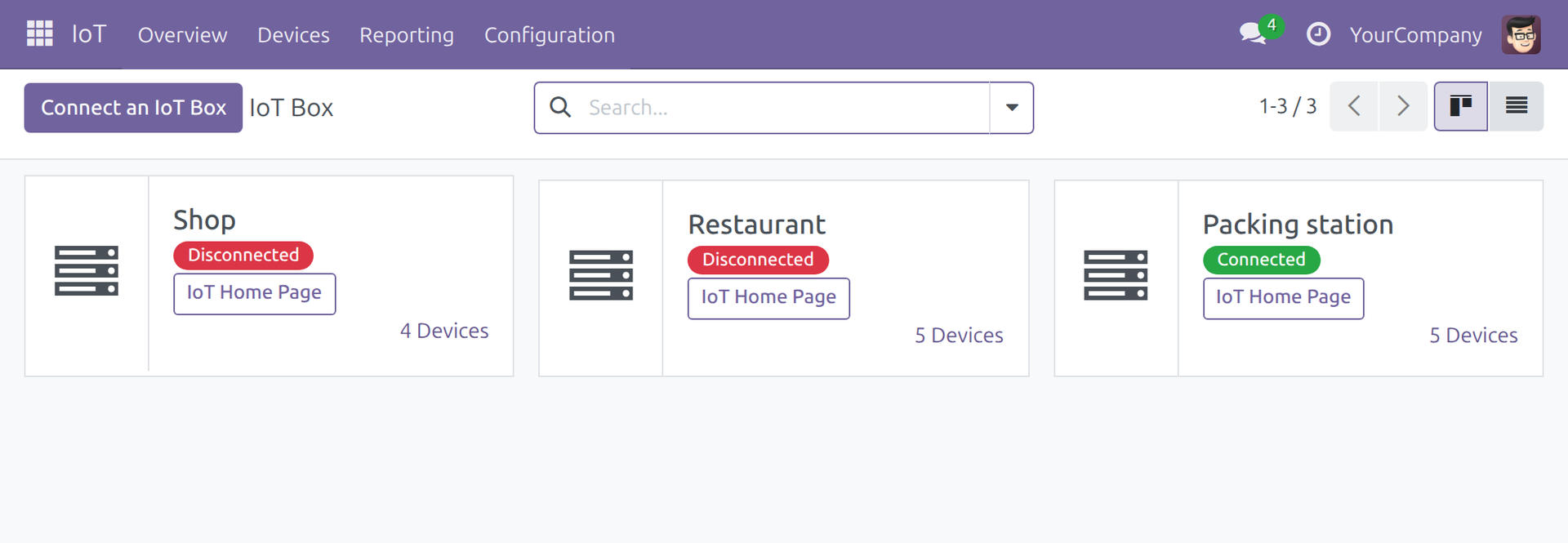
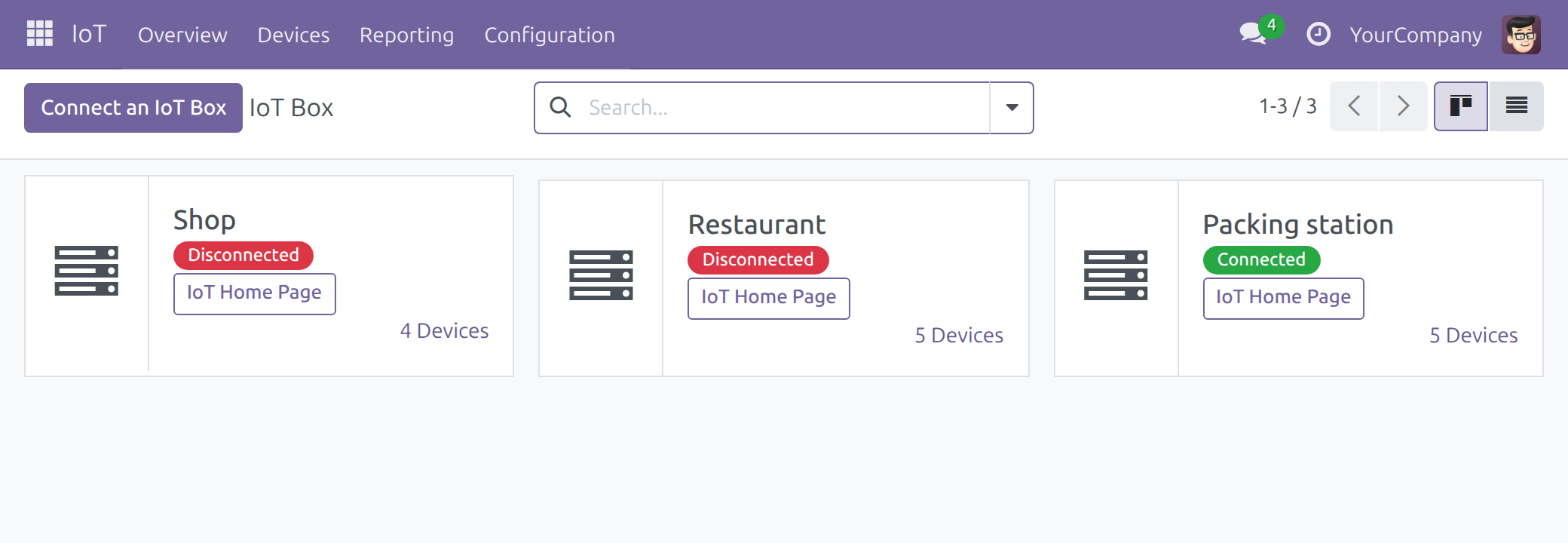
IoT > Overview shows each box as Connected or Disconnected. Viindoo checks every minute and shows a silent box Disconnected, with all its devices, two to three minutes after its last report. Device Logs gathers each box's warnings and errors in Viindoo.
→ Connect a box with a one-time code.
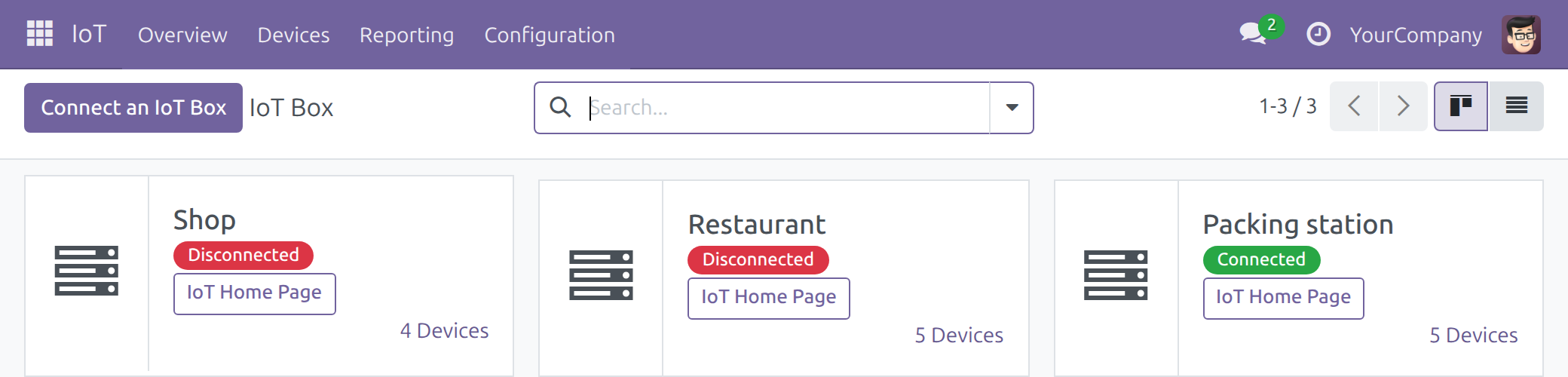
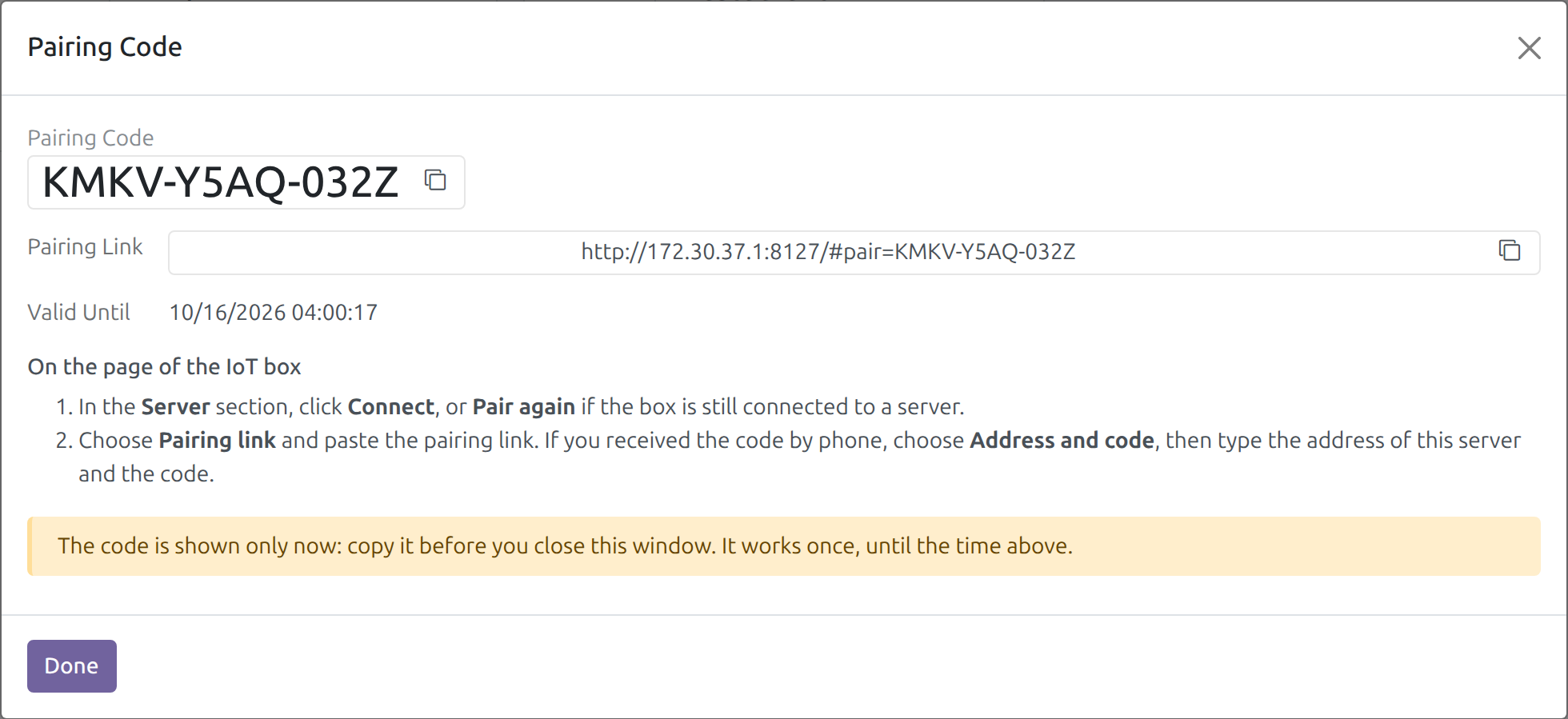
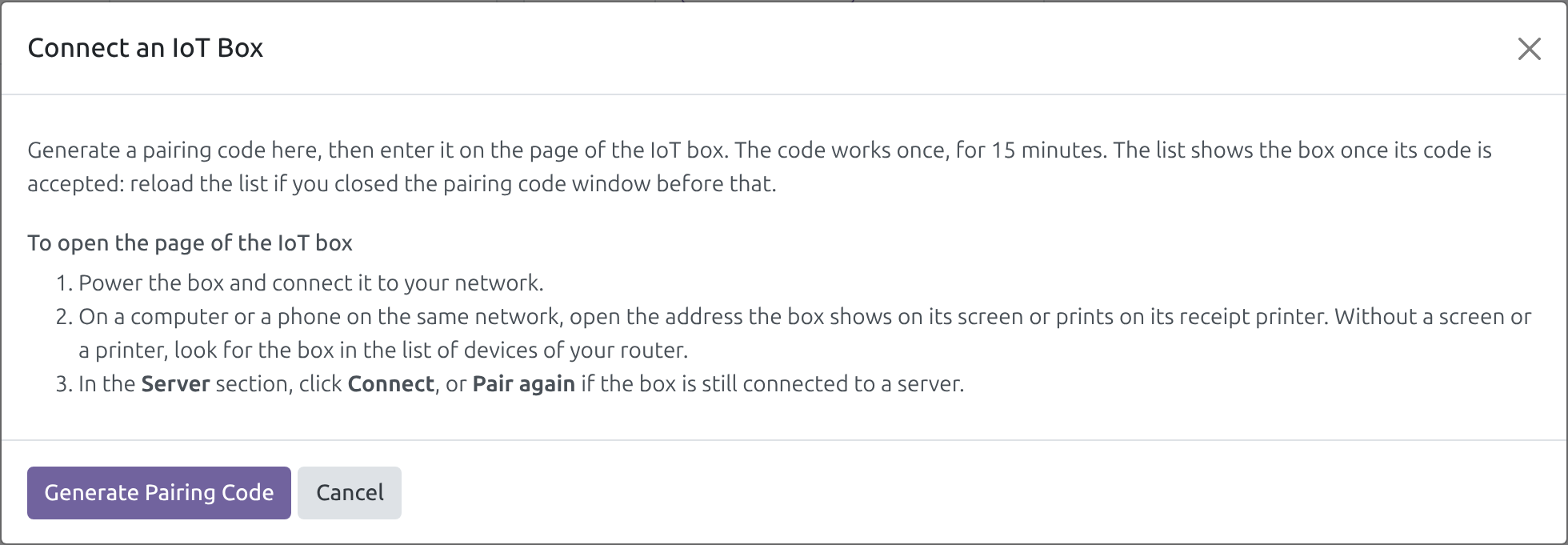
Click Connect an IoT Box, then Generate Pairing Code: Viindoo shows a pairing code and a pairing link that work once, for 15 minutes. On the box page, click Connect and paste the link, or type the address and the code. The box registers itself and its devices.
→ Replace a box without setting the site up again.
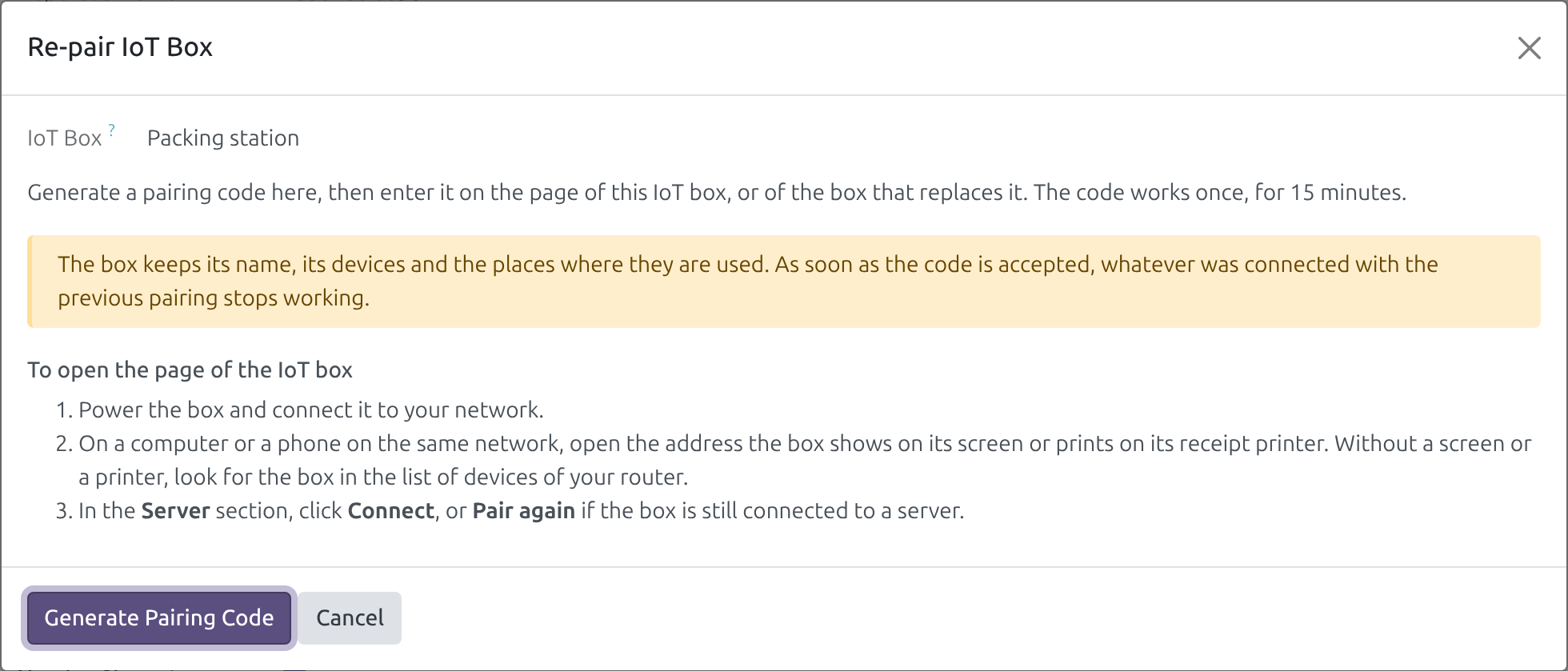
Re-pair on the old box's record and enter the code on the new box: it keeps its name, its devices and the places where they are used in your apps.
→ Prove it works from where it is used.
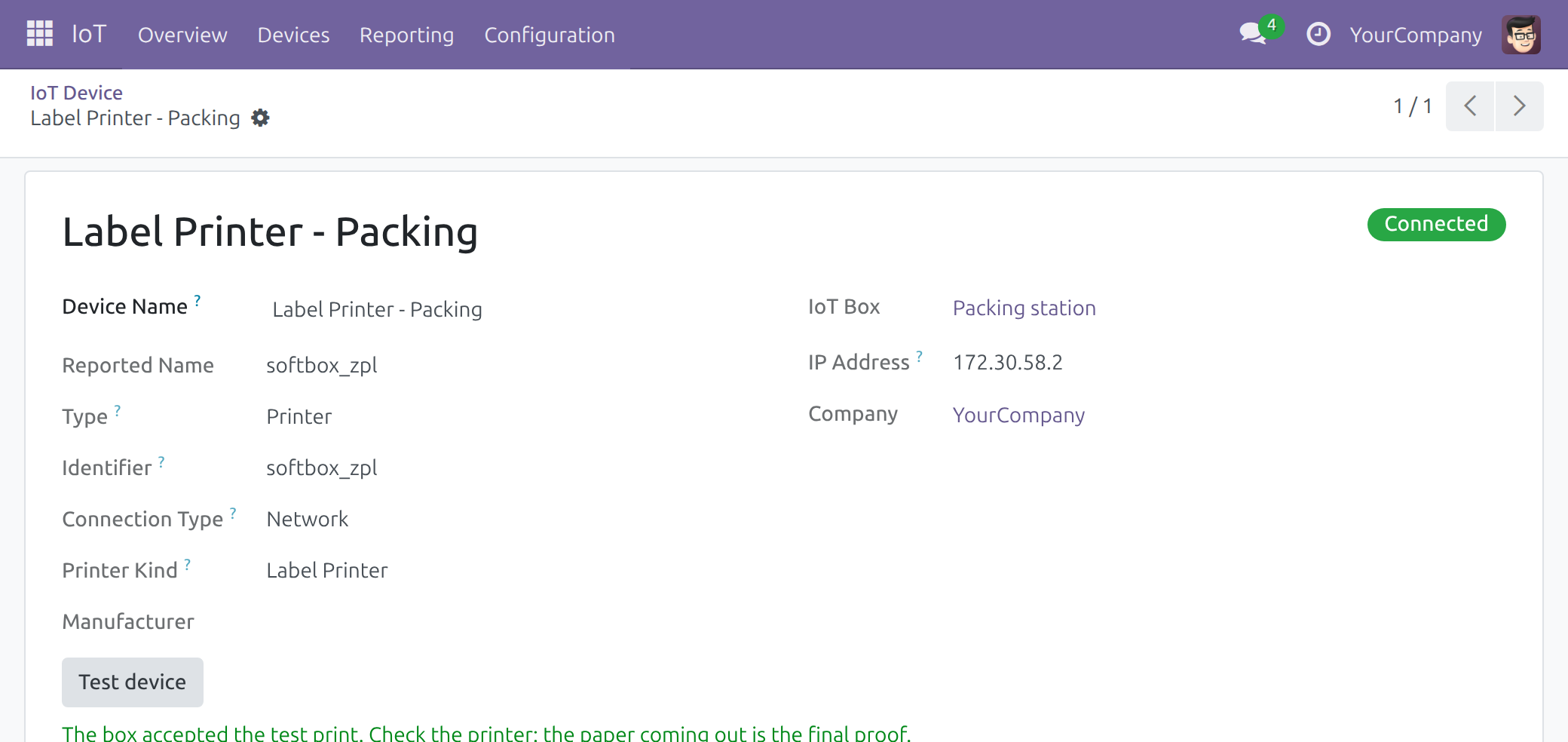
Test device sends one test print through the box, reads a scale once, or listens to a scanner or footswitch for 15 seconds. Check connection from this browser tells you whether this PC reaches the box. Every device action an app sends, such as a print, is tracked, and the operator is told when one is refused or never confirmed.
→ A box that is locked, and keeps itself current.
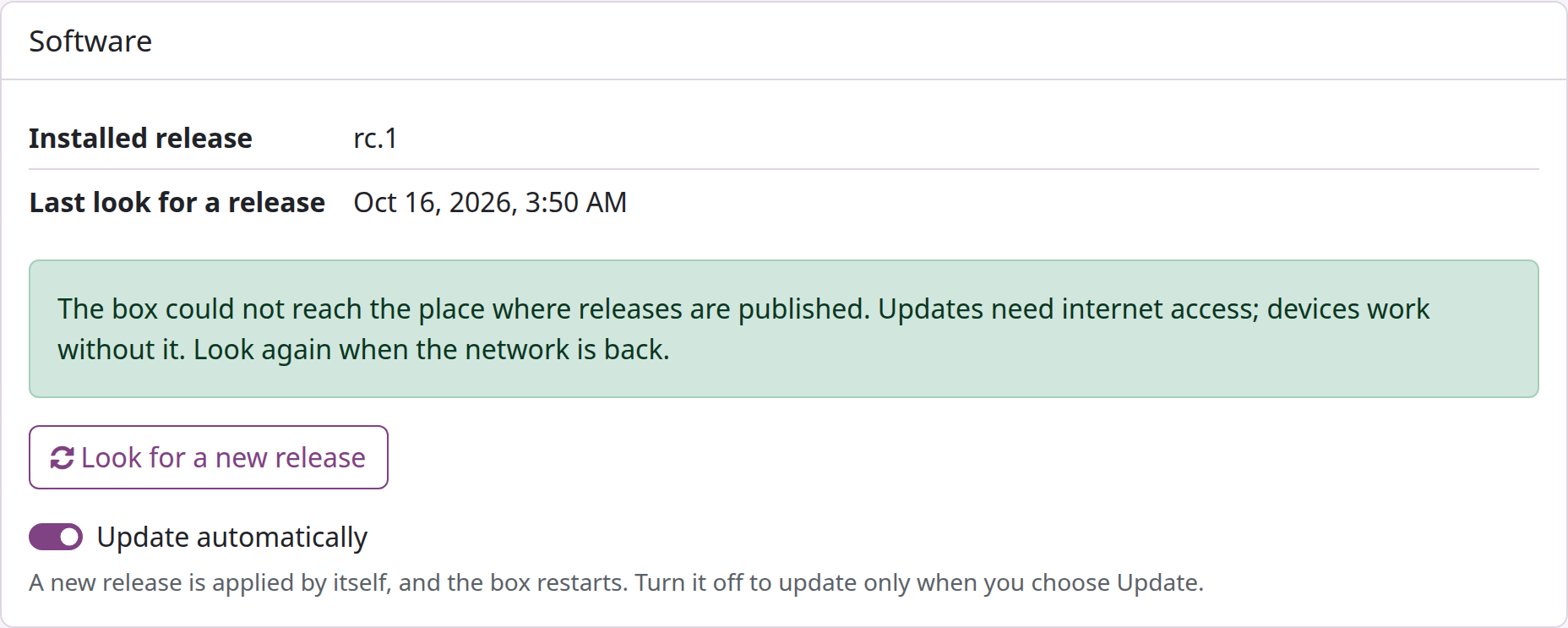
Once paired, every change on the box page asks for the Box Settings Code that only IoT Administrators read in Viindoo. The box follows the supported release of its series, applies a new release by itself and undoes one that does not start well.
How it works
Prepare the box
the installer writes the Viindoo IoT Box image to a microSD card, plugs the box into the network and opens its page from a computer or a phone on the same network.
Pair it
an IoT Box Creator clicks Connect an IoT Box in IoT > Overview and generates a pairing code; on the box page, Connect with the pairing link, or with the server address and the code. The box restarts, registers and locks its settings.
Name and test the devices
plug the printers, scales, scanners, footswitches and screens into the box; give the box a Box Name and each device a Device Name your team recognises; test each one on the box page or with Test device in Viindoo.
Reach the box from each PC
on every PC or tablet that uses a scale, scanner or footswitch, click Check connection from this browser and accept the box once.
Assign the devices in your apps
each till, work center or quality control point chooses its box and devices; cashiers and operators use them from their own app with no IoT access right.
Watch and maintain
the technician follows Connected / Disconnected, Device Logs and the box self-test; the box updates itself; an IoT Administrator holds the settings code.
Key features
Pair with a one-time code
Connect an IoT Box gives a pairing code and a pairing link that work once, for 15 minutes; the box is created in the company you choose.
Every box and device at a glance
Connected or Disconnected for each box and each device, grouped by box, with Device Logs from Debug to Critical read in Viindoo.
A box that tests itself
the box page runs a self-test of network, server, clock, certificate, software and devices; each line that needs you says what to do, and one diagnostic file goes to support.
Test devices from Viindoo
a test print, a scale reading or 15 seconds of listening from the device form, and a connection check from the browser that will use the device.
Locked once paired
every change on a paired box asks for its Box Settings Code, read only by IoT Administrators; the box's own credentials are made at pairing and shown on no screen.
Re-pair, replace or move
pair the same box again after rewriting its card, or replace a broken one, and keep its name, its devices and their assignments; move a box to another database with Disconnect and a new code.
Who it is for
Store, restaurant or plant manager
Your tills and lines depend on printers and scales. You get one screen that shows which boxes and devices are working, and a broken box replaced without re-setting the site.
IT or maintenance technician (IoT User right)
You look after the hardware. You get box and device status, logs and the box's own self-test without walking to the box.
IoT integrator (IoT Box Creator right)
You install the boxes. You pair a box with a one-time code, name boxes and devices, test them and re-pair or replace a box.
IoT administrator (Administrator right)
You own the setup. You read the settings code that unlocks a box, set log retention and the device action timeout, and switch on the IoT apps for Point of Sale, Manufacturing, Quality and the Shop Floor screen.
Cashiers and operators
You need no IoT right: you print, weigh and scan from your own app once the box is paired and its devices are assigned.
Best for: shops, restaurants and factories that print, weigh and scan from Viindoo apps and want the boxes behind those devices connected, watched, tested and replaced without a specialist visit.
Pair with a one-time code
Connect an IoT Box gives a pairing code and a pairing link that work once, for 15 minutes; the box is created in the company you choose.
Connect a new box
the pairing code and link, valid once for 15 minutes.
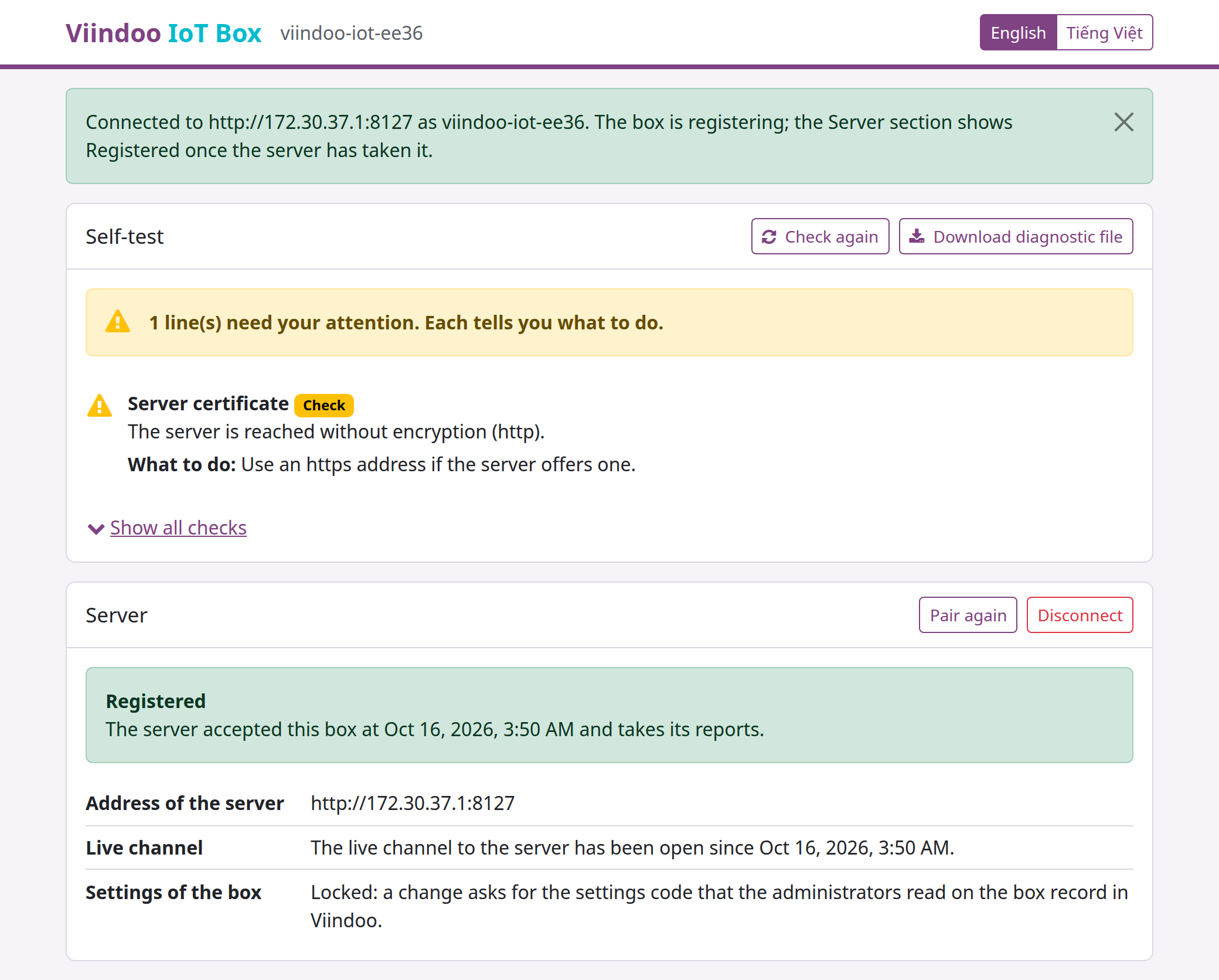
See the box registered and locked
the box page after pairing.
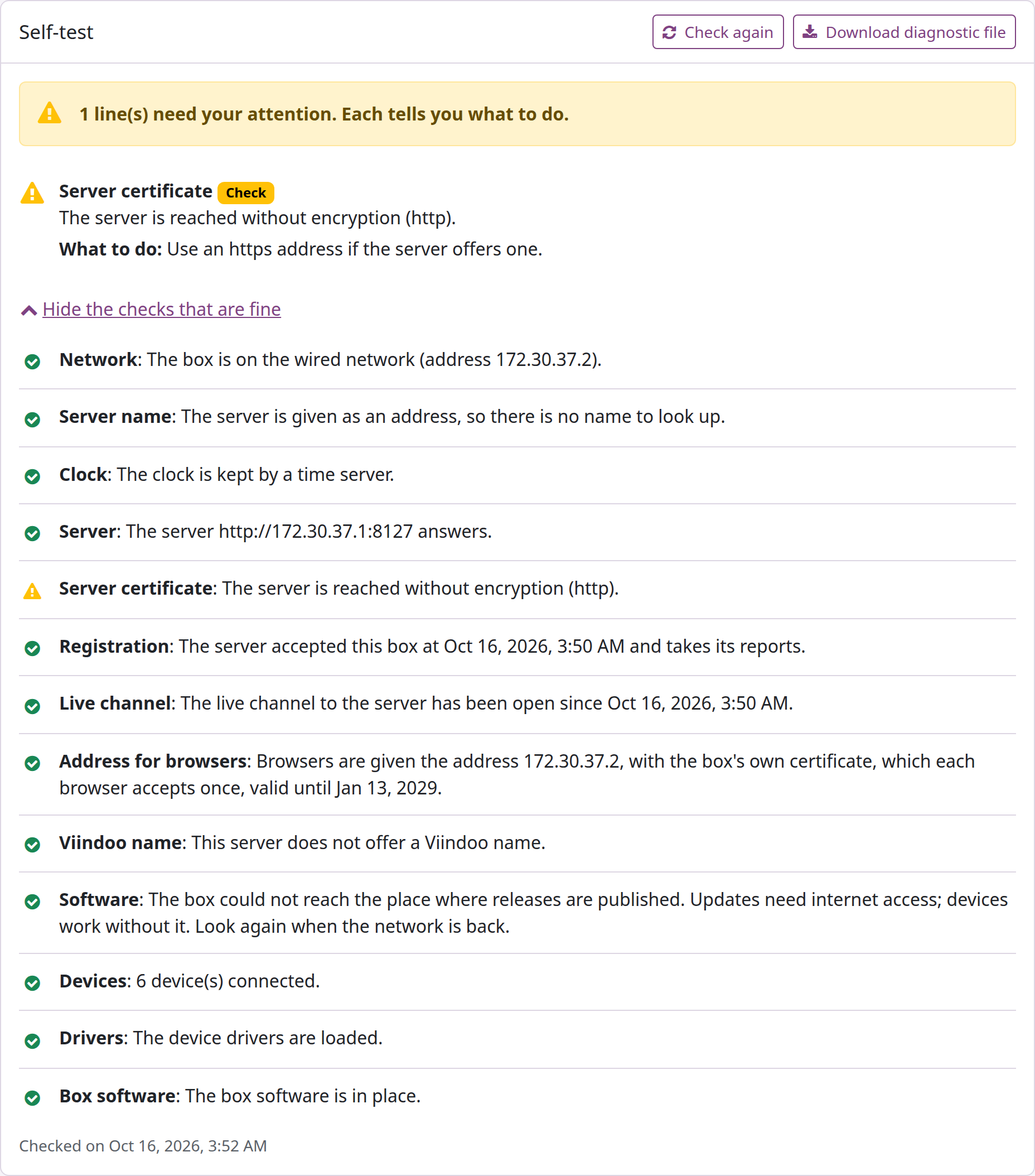
Let the box tell you what to fix
the self-test, one instruction per line.
Test a label printer from Viindoo
one test print, and what the person at the printer still checks.
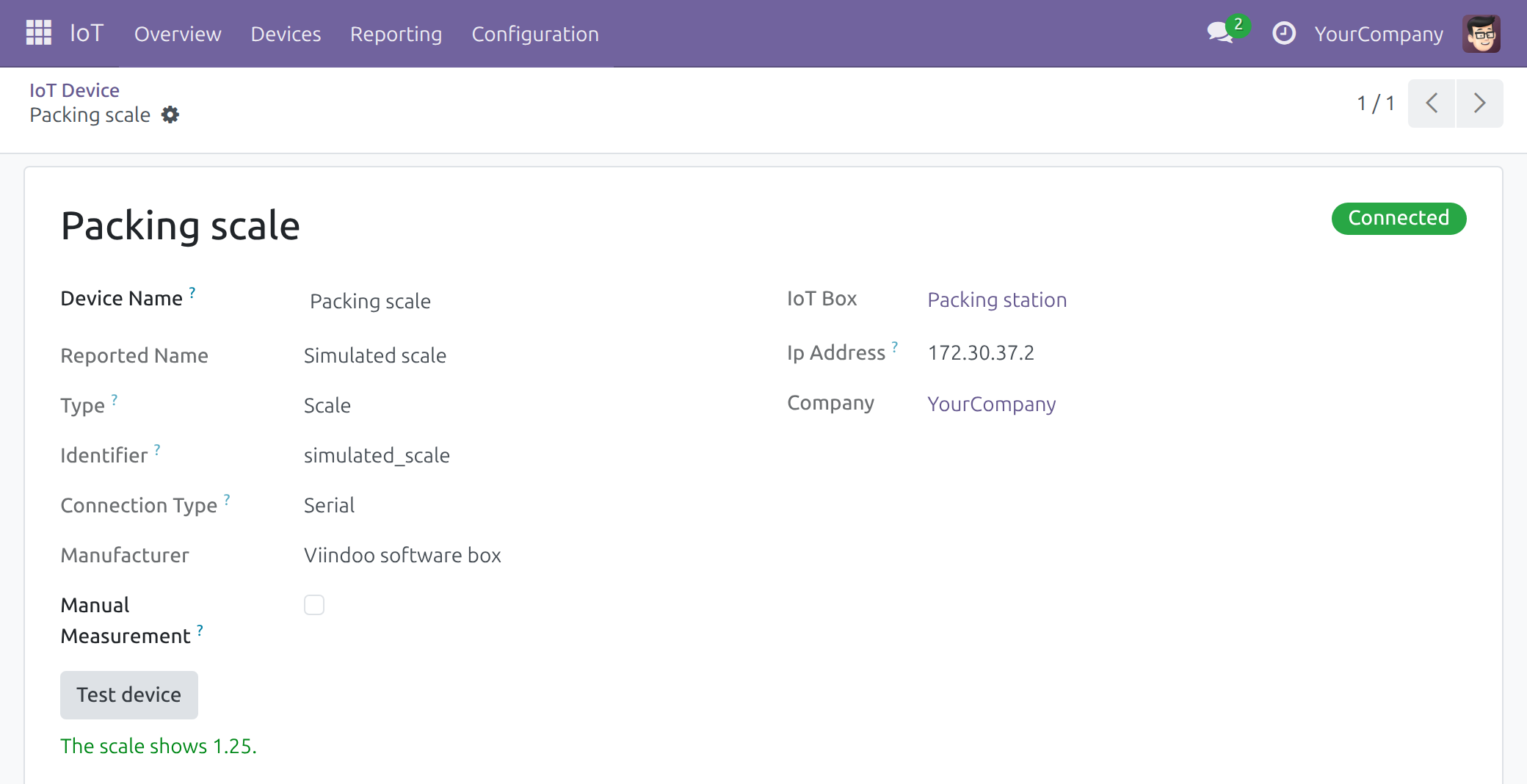
Read a scale from your browser
one reading, recorded nowhere.
Replace a broken box
re-pair and keep its devices and assignments.
Keep the box up to date
the installed release and the Update automatically switch.
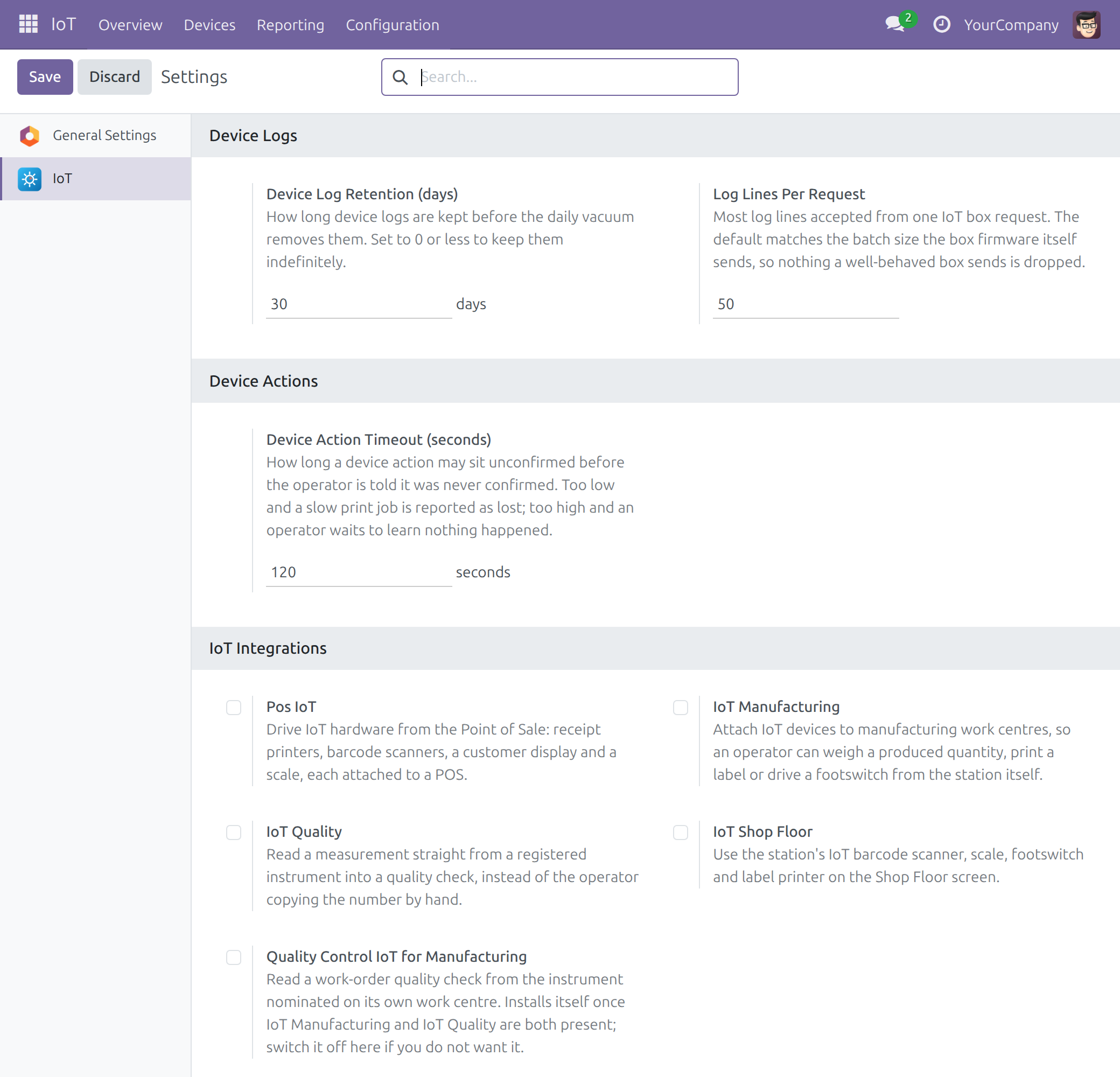
Choose the IoT apps to switch on
log retention, device action timeout and integrations.
Audit every paired box
the register of boxes, with the disconnected ones in red.
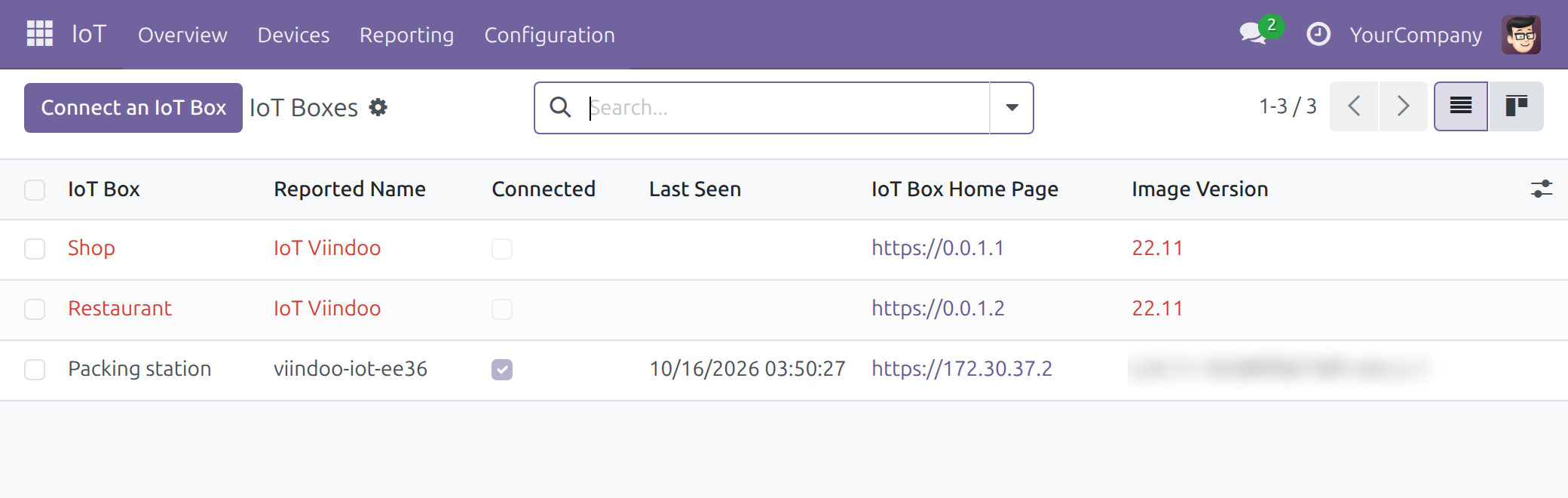
See Internet Of Things in action
Try it on the live demo instance, or read the user guide in the Documentation tab.
Open the live demoFrequently asked questions
How do I connect a new box?
An IoT Box Creator or an Administrator opens IoT > Overview, clicks Connect an IoT Box, then Generate Pairing Code. On the box page, click Connect and paste the pairing link, or type the address of the server and the code. The code works once, for 15 minutes.
What hardware do I need?
The Viindoo IoT Box image is built for a Raspberry Pi board. You also need a microSD card of 8 GB or more, the board's power supply and a network (a cable is simplest; Wi-Fi also works). The user guide explains every step from an empty card, and lists no board model.
Which devices can a box drive?
Receipt printers, label printers and office printers (USB or network), barcode scanners, keyboards and footswitches (USB), scales on a serial port, and customer screens (HDMI). The user guide lists the scale protocols the box reads.
Will I know when a box goes offline?
Yes. Viindoo checks every minute and shows a box Disconnected, with all its devices, once it has not reported for two minutes (by default): two to three minutes after its last report. When the box reports again, it and its devices return to Connected on their own.
What if a box breaks?
Click Re-pair on the old box's record and enter the code on the new box. Its devices are found again, and it keeps its name, its devices and the places where they are used.
How is the box software kept current?
The box follows the supported release of its series. With Update automatically on (the default) it applies a new release by itself and restarts; a release that does not start well is undone by the box and never tried again. Updates need internet access; the devices do not.
Who can change a box once it is paired?
Only someone with its Box Settings Code, which IoT Administrators read on the box in Viindoo. The code changes each time the box is paired again.
Do browsers need anything to reach the box?
Scales, scanners and footswitches work from each user's browser, so each PC or tablet reaches the box once: click Check connection from this browser and accept the box's own certificate if the browser asks. On your own server you can instead install your organization's certificate on the box once for all PCs.
Which servers are supported?
Viindoo Cloud, or your own Viindoo server.
Do cashiers and operators need an IoT access right?
No. They use the hardware from their own app once the box is paired and its devices are assigned.
Which apps use the devices?
Internet Of Things is the base of the Viindoo IoT apps: Pos IoT, IoT Manufacturing, IoT Shop Floor, IoT Quality, Quality Control IoT for Manufacturing, IoT Shop Floor Quality.
Need help with Internet Of Things?
Technical Support
apps.support@viindoo.comTechnical Requirement
- Editions: Odoo Community, Viindoo Cloud
- Required modules: mail, web, bus
- License: OPL-1
Overview
Internet Of Things (IoT) connects the devices plugged into a Viindoo IoT Box - receipt printers, label printers, office printers, barcode scanners, scales, footswitches and screens - to Viindoo, so that the apps that need this hardware (Point of Sale, Manufacturing, Quality and the Shop Floor screen) can use it.
This app is where people look after the hardware: they connect a box to the database with a one-time pairing code, see which boxes and devices are connected, name them, test them, read what each box reports about itself and decide which integrations are switched on. The people who use the hardware every day - a cashier, a manufacturing operator - use it from their own app and need no IoT access right.
The part Setting up an IoT box below takes you from a new, empty card to a device that answers in an app.
Who uses this module
| Role | What they do | Access right to assign |
|---|---|---|
| Maintenance / IT Technician | Checks that boxes and devices are connected, opens a box's page and reads its logs. | Internet of Things (IoT): User |
| IoT Integrator | Sets up and pairs boxes, names boxes and devices, tests devices and pairs a box again. | Internet of Things (IoT): IoT Box Creator |
| IoT Administrator | Configures the app (log retention, action timeout, integrations) and is the only role that reads a box's settings code. | Internet of Things (IoT): Administrator |
Each right includes the one above it in the table: an IoT Box Creator can do everything a User can, and an Administrator can do everything an IoT Box Creator can.
Setup (for the IoT Administrator)
Installation
- Open Apps.
- Search for Internet Of Things.
- Click Activate.
The integration apps (Point of Sale, Manufacturing, Quality, Shop Floor) are switched on separately, from the Settings page described below.
Assigning the access rights
- Open Settings ‣ Users & Companies ‣ Users and open the person.
- On the Access Rights tab, find Internet of Things (IoT) in the Other column.
- Choose one of the three levels the list offers: User, IoT Box Creator or Administrator.
- Save.
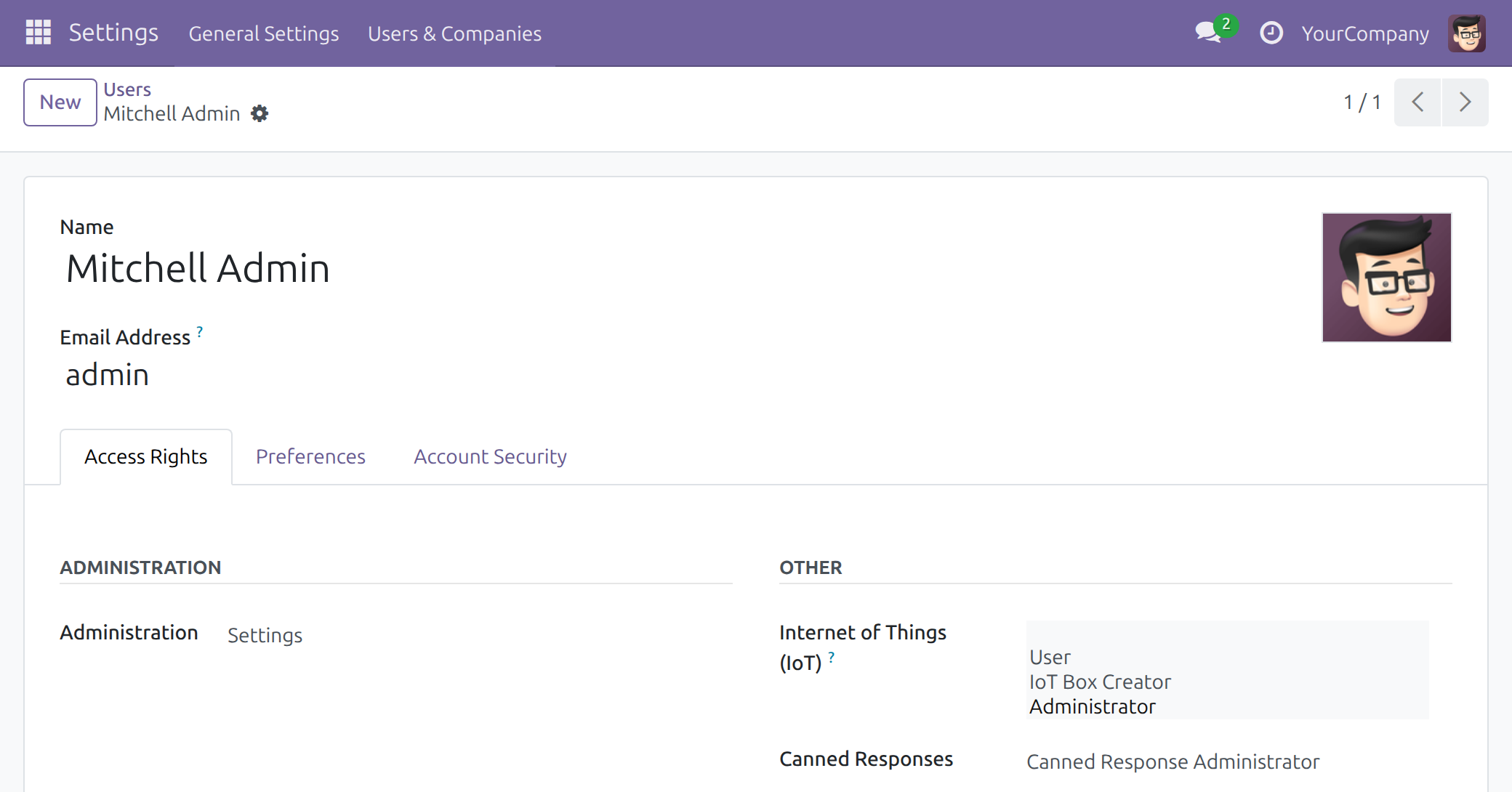
Give these rights to the people who look after the hardware. A cashier, a manufacturing operator or a quality inspector needs none of them: they use the hardware from their own app once a box is paired and its devices are assigned.
Settings
Open IoT ‣ Configuration ‣ Settings (Administrator only).
- Device Log Retention (days) - how long device logs are kept before the daily cleanup removes them. Set 0 or less to keep them indefinitely. The default is 30 days.
- Log Lines Per Request - the most log lines accepted from one request of an IoT box. The default is 50.
- Device Action Timeout (seconds) - how long a device action (a print job, for example) may stay unconfirmed before the operator is told it was never confirmed. Too low, and a slow job is reported as lost; too high, and the operator waits without an answer. The default is 120 seconds.
- IoT Integrations - switch on the integration apps: Pos IoT, IoT Manufacturing, IoT Quality, IoT Shop Floor and Quality Control IoT for Manufacturing. A row shows a checkbox when the app is available on this database, or a Purchase or Learn more link when it is not. Quality Control IoT for Manufacturing installs itself once IoT Manufacturing and IoT Quality are both present; untick it here if you do not want it.
Setting up an IoT box
This part is the installer's manual. Follow its chapters in order the first time; later, each chapter also stands on its own.
Before you buy
What the image is built for
The Viindoo IoT Box image is built on Raspberry Pi OS Lite (32-bit) and installs libraries that only a Raspberry Pi board has, so it is meant for a Raspberry Pi board. This guide does not list board models.
You also need:
- a microSD card larger than the written image (about 5 GB once written): a card of 8 GB or more;
- the power supply of the board;
- a network: an Ethernet port with an address handed out by your router (DHCP) is the simplest, Wi-Fi also works;
- for the first steps, optionally, an HDMI screen or a USB receipt printer: the box shows its address on the one and prints it on the other.
Devices the box can drive
| Kind (as the box page names it) | How it is connected | How the box knows the kind |
|---|---|---|
| Receipt printer | USB, or network | The printer announces the ESC/POS or Star command language, or its name marks it as a receipt printer. |
| Label printer | USB, or network | The printer announces the ZPL or ESC Label command language, or its print queue name contains zpl. |
| Office printer | USB, or network | Any other printer. |
| Network printer that does not announce itself (usually on port 9100) | Network, added by hand on the box page | You choose the kind when you add it. |
| Scale | A serial port (an RS-232 port or a USB-serial adapter) | The first protocol that answers on the port. The box reads the protocols Toledo 8217 (9600 baud, 7 data bits, even parity, 1 stop bit) and Adam Equipment (4800 baud, 8 data bits, no parity, 1 stop bit). Set your scale to one of them. |
| Barcode scanner | USB | The device name contains barcode, scanner or reader; otherwise you can switch it to a scanner on the box page. |
| Keyboard or footswitch | USB | Any USB keyboard device that is not taken for a scanner. A footswitch is a keyboard device. |
| Screen | HDMI | It shows the box's identification page until a till or a station uses it. |
The box page has no form for a fixed (static) IP address.
Prepare the network
What travels where
| Traffic | From - to | Port | Needed for |
|---|---|---|---|
| Pairing, registration, logs, readings | box - your Viindoo server | the port of the server address (443, 80, or the one in the address) | Everything. The box always calls the server; the server never calls the box. |
| Live channel (print and screen commands) | box - server, on the same address | same | Printing from Viindoo, customer screens, the Connected status |
| Device traffic | each user's browser - box | 443 from an https:// Viindoo page, 8069 from an http:// page | Scales, scanners, footswitches, and the tests run from Viindoo |
| Box page | installer's browser - box | 80 (http://), 443 (https://), 8069 | Setup |
| Printer administration (rare) | technician - box | 631 | Only when support asks |
| Software updates | box - github.com | 443 | Updates only |
| Time | box - time servers | UDP 123 | A correct clock (the board has no battery clock) |
| Name look-ups | box - name servers | 53 | Finding the server and github.com |
What this means for your site
- The box may sit behind NAT on any network that can reach the server: all its traffic to the server goes out from the box.
- Every PC or tablet that uses a scale, a scanner or a footswitch needs a route to the box, because that traffic goes from the browser to the box.
- A guest Wi-Fi, or any network with "client isolation", blocks scales, scanners, footswitches and the tests from Viindoo. Printing still works: print jobs reach the box through its own live channel.
- A Viindoo Cloud database needs internet access on the box.
- A site without internet works with a server on the same site: the devices work, the box gets no updates, and the clock needs a time server on the site. A paired box that no time server keeps sets its clock from its own server by itself during its first hour when the two differ by more than five minutes.
When the box's address changes
The box takes its address from your router (DHCP); the box page has no form for a fixed address. When the router gives the box a new address:
- Viindoo learns the new address by itself: the box reports it.
- Within seconds the box makes itself a new certificate for that address. Meanwhile the Address for browsers line of the self-test shows Checking with "The address of the box changed and the box is making a certificate for it, which takes a few seconds."
- Each browser that accepted the box before asks once more: accept the box again on each PC (see Accept the box on a PC). For a week the self-test reminds you: "Browsers that accepted an earlier certificate of this box ask once more: accept this one once in each of them."
To spare the PCs that extra step, the person who manages your router can reserve an address for the box (a DHCP reservation, by the box's hardware address).
What the box contacts
Paired or not, the box contacts only: its Viindoo server (once paired), github.com (to look for updates), time servers and name servers.
Get and write the image
Find the release for your series
- In Viindoo, open Settings ‣ General Settings and scroll to the About block. It shows the version of your database; its series is the first part of that version, up to the first digit after the dot.
- Open the releases page of the box software: Viindoo/iot-hw releases.
- Take a release that is not marked Pre-release and whose title (Viindoo IoT Box followed by the series) and image file name (viindoo-iot-box- followed by the series) carry your series. Do not simply take the most recent release: it may belong to another series.
- If no release for your series is listed, contact support (apps.support@viindoo.com) before you buy hardware for a new site.
Download and check the files
Download two files of the release into one folder: the image viindoo-iot-box-<series>-<release>.img.xz and SHA256SUMS, which holds the checksum of the image. manifest.txt, on the same page, lists what the image holds; the check does not need it.
Open a terminal in that folder and check the image:
- Linux: sha256sum --check SHA256SUMS
- macOS: shasum -a 256 --check SHA256SUMS
- Windows: certutil -hashfile viindoo-iot-box-<series>-<release>.img.xz SHA256, then compare the checksum it prints with the one beside the file name in SHA256SUMS (Windows has no option that compares them for you).
On Linux and macOS the answer must be <image file>: OK. If it says FAILED, download the image again.
Write the card
- Open Raspberry Pi Imager on your computer.
- For the operating system, choose the custom image option ("Use custom") and pick the .img.xz file.
- Choose the microSD card and write it.
- Do not apply any OS customisation: the box makes its own host name, passwords and certificate at its first start.
Boot and join the network
At its first start the box gives itself a host name viindoo-iot-<last 4 characters of the board's serial number> (for example viindoo-iot-1a2b), makes its own certificate and announces itself on the local network. The host name never changes afterwards.
With a network cable (preferred)
- Put the card in the board, plug in the network cable, then the power supply.
- Find the box's address (below) and open http://<address> from a computer or a phone on the same network.
While the box software starts, or undoes an update, every address of the box shows the page The box is not ready yet. It checks again by itself and opens the box page as soon as the box answers. If nothing changes after 15 minutes, unplug the power supply, wait ten seconds and plug it in again.
With Wi-Fi
When the box starts with no cable and no Wi-Fi network it can join, it opens its own open Wi-Fi network named Viindoo-IoT-<hardware address>: the hardware address of its Wi-Fi, without colons (for example Viindoo-IoT-b827eb1a2b3c).
- Join that network from a computer or a phone.
- Open http://10.11.12.1. The Network section shows Own Wi-Fi network of the box.
- Click Wi-Fi. In Name of the Wi-Fi network, choose your network from the list of networks the box found, or type its name. A hidden network is not in the list: type its name exactly.
- In Password (leave empty for a network without one), type the password of the network, or leave it empty for an open network.
- Keep Keep this network after a restart ticked, so that the box joins this network again by itself after every restart. Untick it to use the network only until the box restarts.
- Click Join the network. On a paired box the page first asks the settings code.
- The page says The box is joining <name>. and This page loses contact with the box. Connect your device to the same network the box joined and wait a minute. Do so, then open the box by the link under On a device on that network, open the box by its name: (http://<host name>.local), or, as the page says next, by the address it has on that network (see Find the box's address).
In these cases the box does not try to join, and the page says why:
- This network name cannot be used: a Wi-Fi network name has 1 to 32 characters (fewer when it holds accented letters or symbols) and holds no line break, tab or other control character. Check the name and try again.
- This password cannot be used: it holds a line break, a tab or another control character, which a Wi-Fi password does not have. Check the password and try again.
- The box is changing its Wi-Fi by itself at this moment: it is going back to the network it keeps, or starting its own network. Wait a minute, then try again.
A wrong password is not shown on the page, because the box joins after the page has answered. When the join fails, the box goes back to the network it had before. If it has no network left, it opens its own network Viindoo-IoT-<hardware address> again: join it and check the name and the password. A network that asks for a user name as well as a password (802.1X) cannot be joined.
Once the box keeps a network, it looks after it by itself:
- At every start, after a power cut too, the box joins the network it keeps before anything else.
- After a router restart or a weak signal, the box joins its network again: after one minute, then less and less often, at least every five minutes.
- The box opens its own network only after ten minutes without any address, or at start when it cannot join the network it keeps. A router that restarts is back long before.
- While its own network is open, the box keeps looking for its network and goes back to it when it hears it, for instance when the router came back after the box. It never does so while someone may be setting the box up through its own network: for ten minutes after a device connects to it, and for ten minutes after each use of the box page.
- Plugging in a network cable closes the box's own network, once nobody is setting the box up through it.
- Forget the saved network forgets it for good: the box stays on it until it restarts, then never joins it again. A join asked before you clicked Forget the saved network is not kept either.
Find the box's address
- HDMI screen: the identification page shows Viindoo IoT Box, the host name, each network connection with its address and the line "To set up this box, open http://<address> in a browser on the same network." Each text of this page is in English, with its Vietnamese below it.
- USB receipt printer: when the box finds a USB receipt printer, it prints a status ticket titled Viindoo IoT Box with the IP address and a Homepage: line. Open that address.
- Router: look for the host name in the router's list of devices (DHCP leases).
- By name: http://<host name>.local (for example http://viindoo-iot-1a2b.local).
A .local name only works on the same network segment. It does not work across VLANs or routers, on a guest network that isolates clients, through a VPN, or on networks that filter multicast. Use the address from the screen, the ticket or the router there.
The box page
The box page is where you connect the box to Viindoo, check that it is healthy and test its devices. Its language follows your browser; the English and Tiếng Việt buttons at the top switch it.
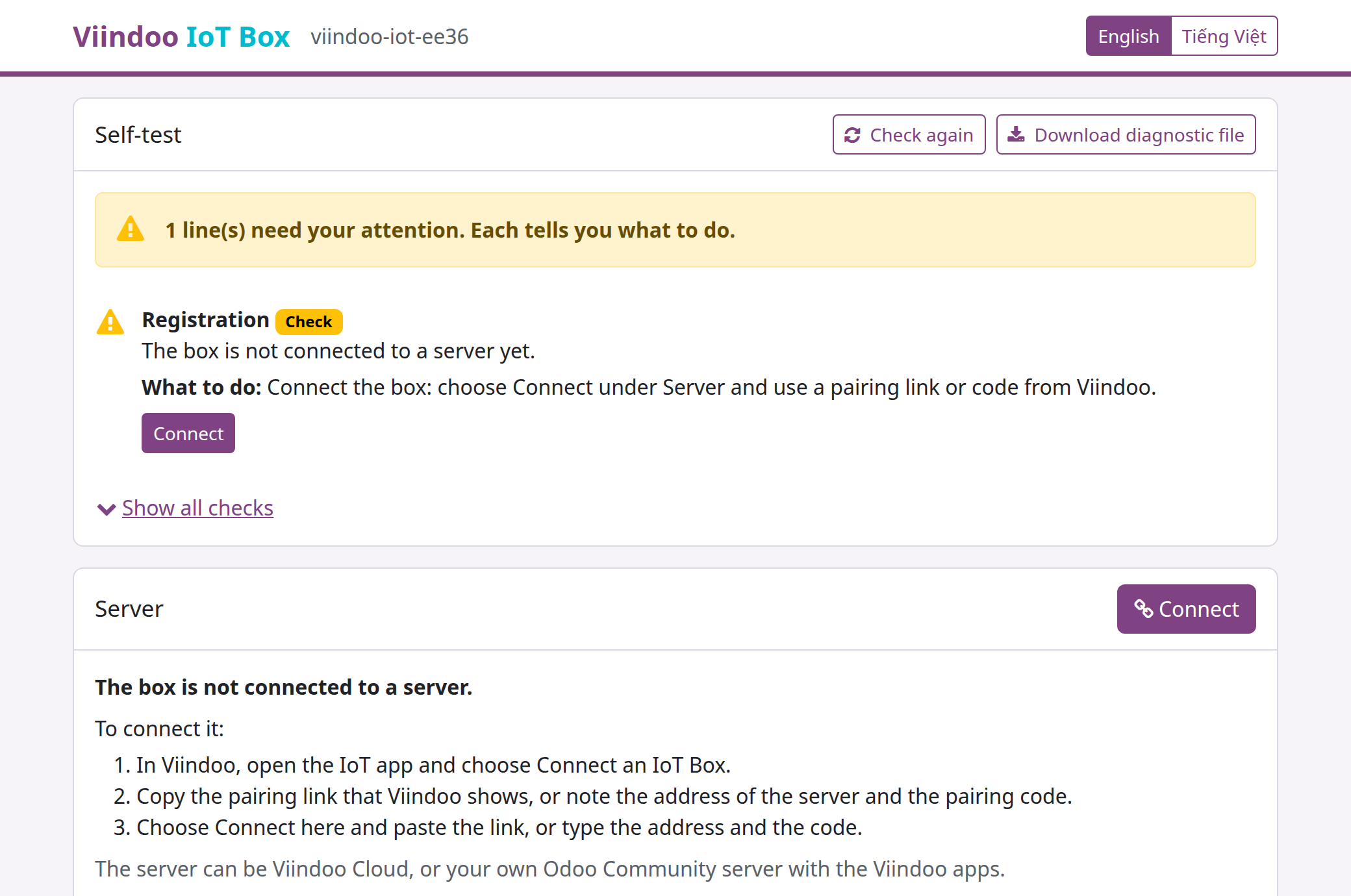
From top to bottom:
- Self-test - every check the box runs on itself. Lines that need you come first, each with What to do: and, often, a button that does it. Show all checks lists the lines that are fine; Download diagnostic file saves a file for support. The full list is in the chapter Self-test below.
- Server - whether the box is connected to Viindoo, with Connect (or Pair again and Disconnect once paired).
- Network - how the box is connected and its address, with the Wi-Fi button.
- Devices - every device the box found, with its test.
- Software - the installed release and its updates.
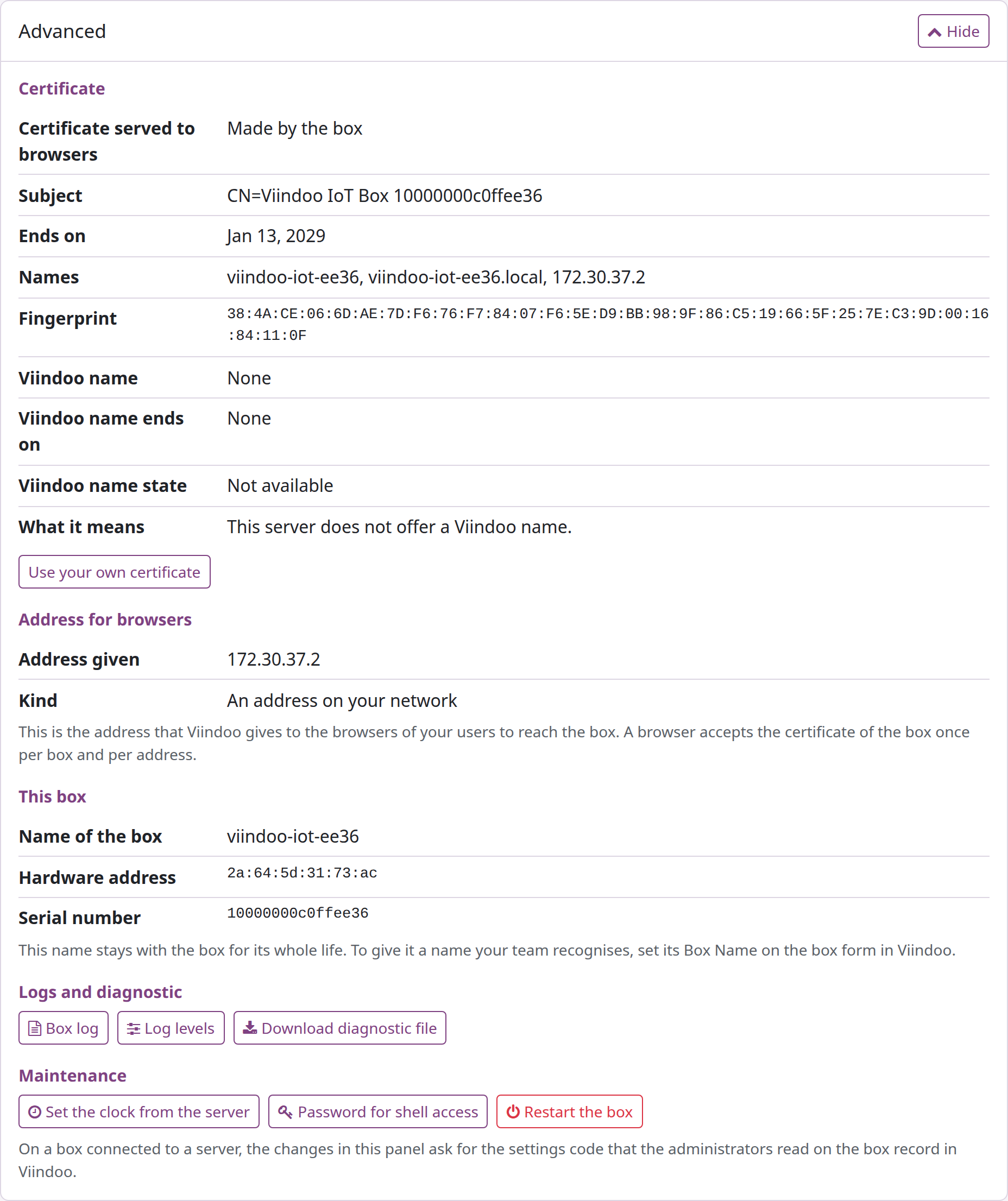
- Advanced (click Show) - certificate, address given to browsers, the box's own name and identifiers, logs, clock, shell password and restart.
- The footer links to this documentation and to support (apps.support@viindoo.com).
The settings code
Once a box is paired, every change of a setting on its page - pairing again, disconnecting, Wi-Fi, adding a printer, switching a scanner, the certificate, log levels, restart, the shell password and the update choices - asks for the box's Settings code. Reading the page, the tests, the logs and the diagnostic file never need it.
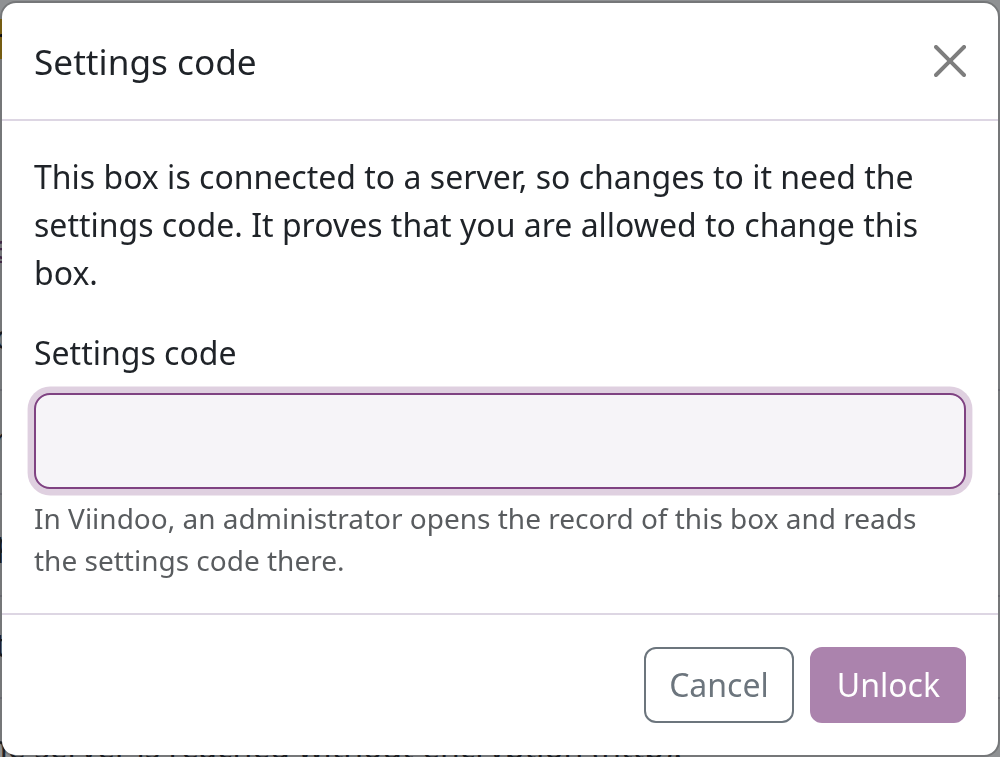
An IoT Administrator reads the code in Viindoo: open the box (IoT ‣ Overview, click its card) and look at Box Settings Code in the Advanced group; the copy button copies it. One right code unlocks that browser tab for 15 minutes. The code changes each time the box is paired again. The Settings code dialog also says what to do when nobody can read the code, or when the code on the box record is refused: reset the box, as below.
If nobody can unlock the box
If the box's server is gone, nobody can read its code, or the code on its record is refused, reset it:
- Switch the box off and take out the card.
- Put the card in a PC. Open the partition the PC shows (the boot partition).
- Create an empty file named viindoo-reset (or viindoo-reset.txt) at the top of that partition.
- Put the card back and start the box.
At that start the box forgets its server, its credential (and with it the lock), the certificates it trusted for the server and its Viindoo name, then deletes the file. It keeps the Update automatically choice and its Wi-Fi network, and it keeps the name you typed with your own certificate only while that certificate is installed and issued for that name. Then pair it with a new code: Re-pair on its record in Viindoo, or Connect an IoT Box if the record was deleted.
Pair the box with Viindoo
Pairing connects one box to one database. It takes a one-time code made in Viindoo and typed (or pasted) on the box page.
In Viindoo: make a pairing code
Who can: an IoT Box Creator or an Administrator.
Open Viindoo with an address the box can reach (the pairing link carries the address you are using).
Open IoT ‣ Overview and click Connect an IoT Box (an Administrator also finds it on IoT ‣ Configuration ‣ IoT Boxes).
Read the steps, then click Generate Pairing Code. In a multi-company database, first choose the Company the box belongs to.
The Pairing Code window shows the Pairing Code (12 characters), the Pairing Link and Valid Until. Copy the link (copy button) or note the code. The code is shown only now, works once and for 15 minutes.
Keep the window open until the box is paired, then click Done. If you closed it earlier, reload the list to see the new box.
On the box page: connect
In the Server section, click Connect (or Pair again if the box is still connected to a server; it first asks the settings code).
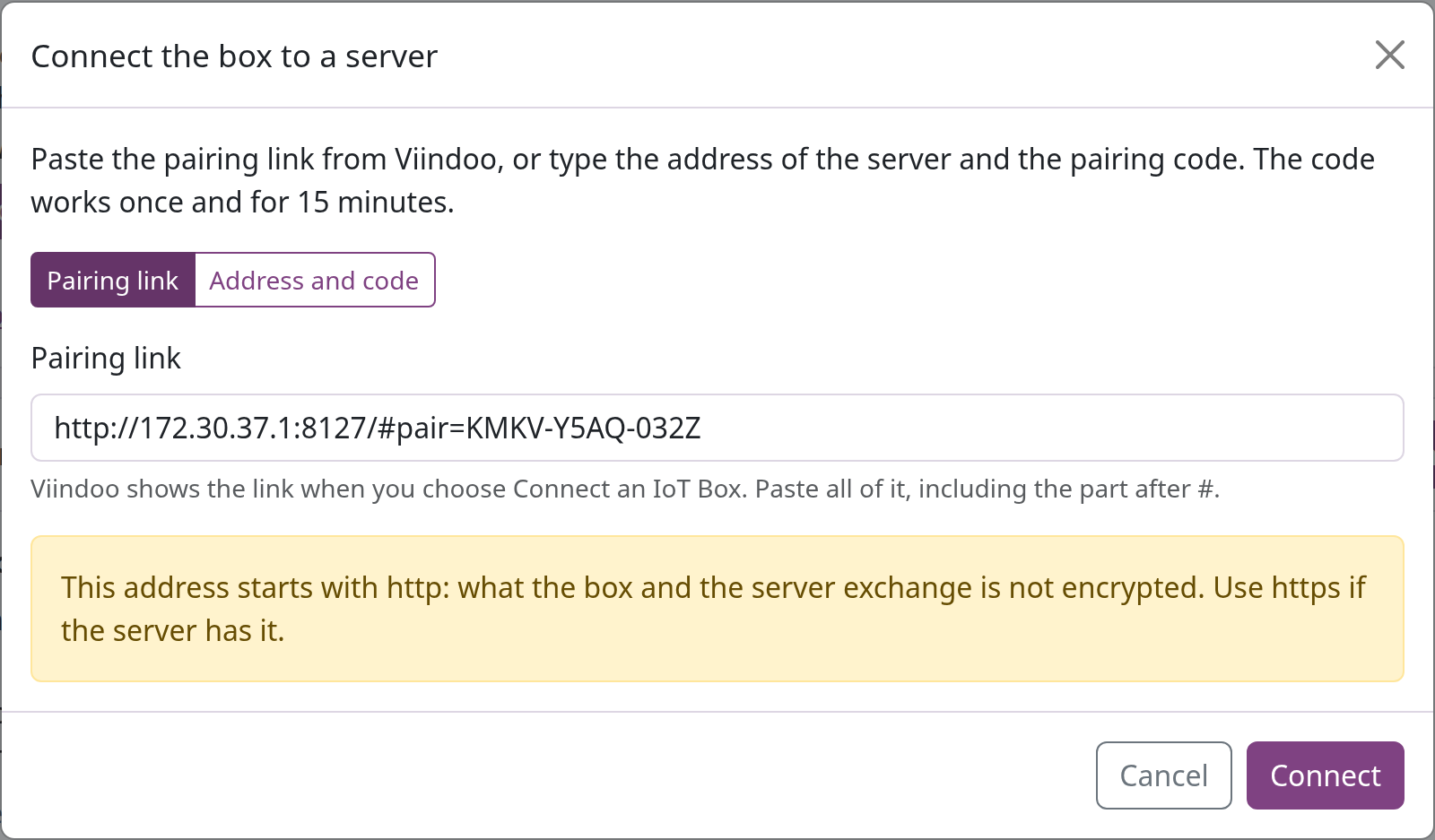
Choose Pairing link and paste the whole link, including the part after #.
Or, if you received the code by phone, choose Address and code, type the Address of the server (the address you open Viindoo with, nothing after the server name) and the Pairing code. An address typed without http:// or https:// is read as https://.
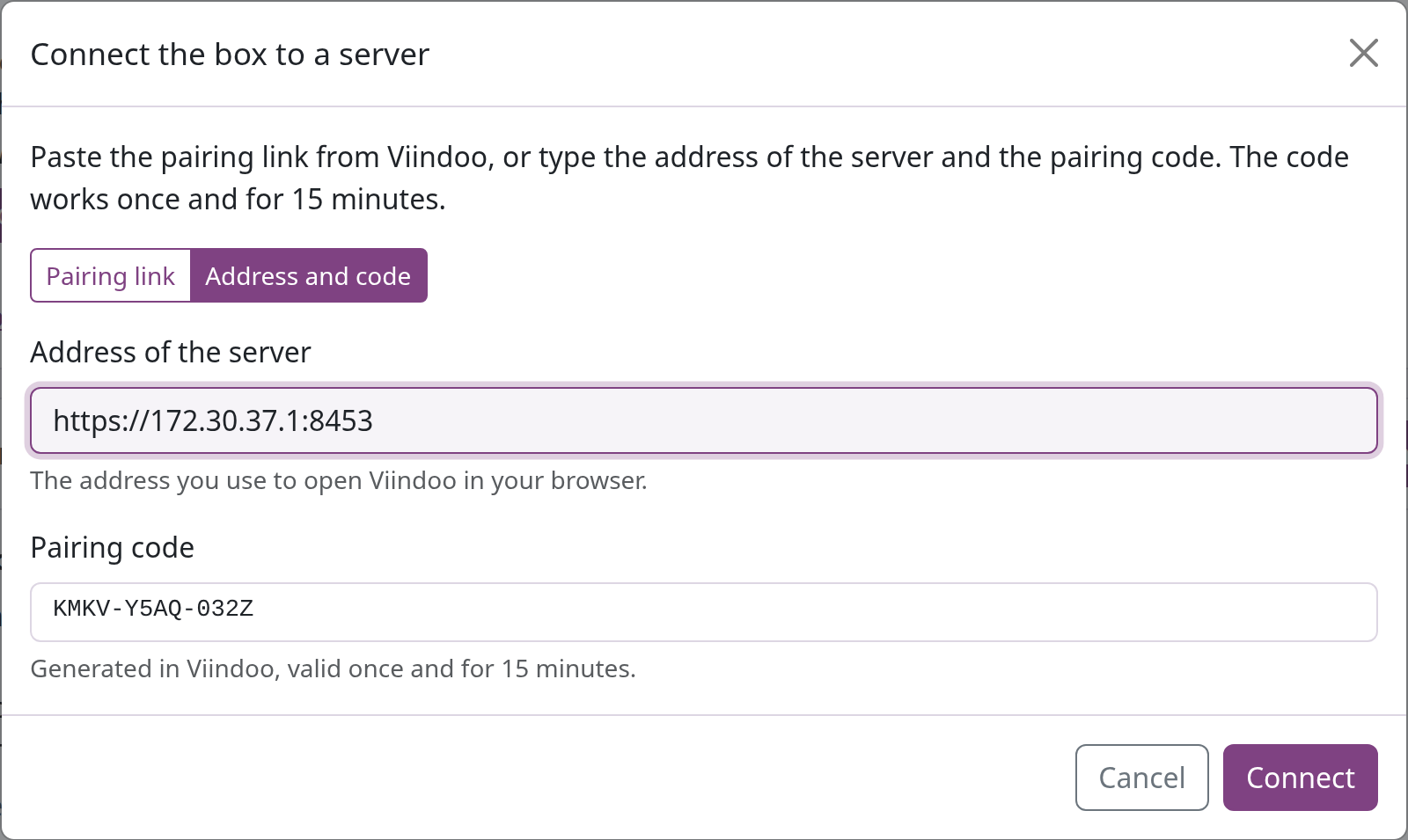
Click Connect. The box connects, restarts ("The box is connected and restarts to finish.") and the page comes back by itself. Do not switch the box off meanwhile.
When the address starts with http://, the dialog warns that what the box and the server exchange is not encrypted. Use https:// when your server has it.
After the restart the page says "Connected to <server> as <name>." and the Server section shows Registered, the Live channel open and Settings of the box Locked. In Viindoo, the box appears in IoT ‣ Overview as Connected, and its chatter notes who generated the code.
A server certificate the box cannot verify
The box checks an https:// server against the public certificate authorities. When that check fails, the dialog shows the server's certificate (Subject, Ends on, Names, Fingerprint) and one of three answers:
- The certificate of the server is not issued by a public authority. Ask the administrator of the server for the fingerprint of its certificate. Only if it is the same, click Trust this certificate and connect. The certificate is trusted for this server only.
- The certificate of the server was issued by an authority of your own organization. Paste the root certificate of your authority into Root certificate of your authority (as text, from -----BEGIN CERTIFICATE----- to -----END CERTIFICATE-----), click Use this authority, then confirm its fingerprint the same way.
- The certificate was issued for another name, has expired, is not valid yet, or is not valid: it cannot be trusted from the box. Ask the administrator of the server to fix the certificate, and check the address you typed.
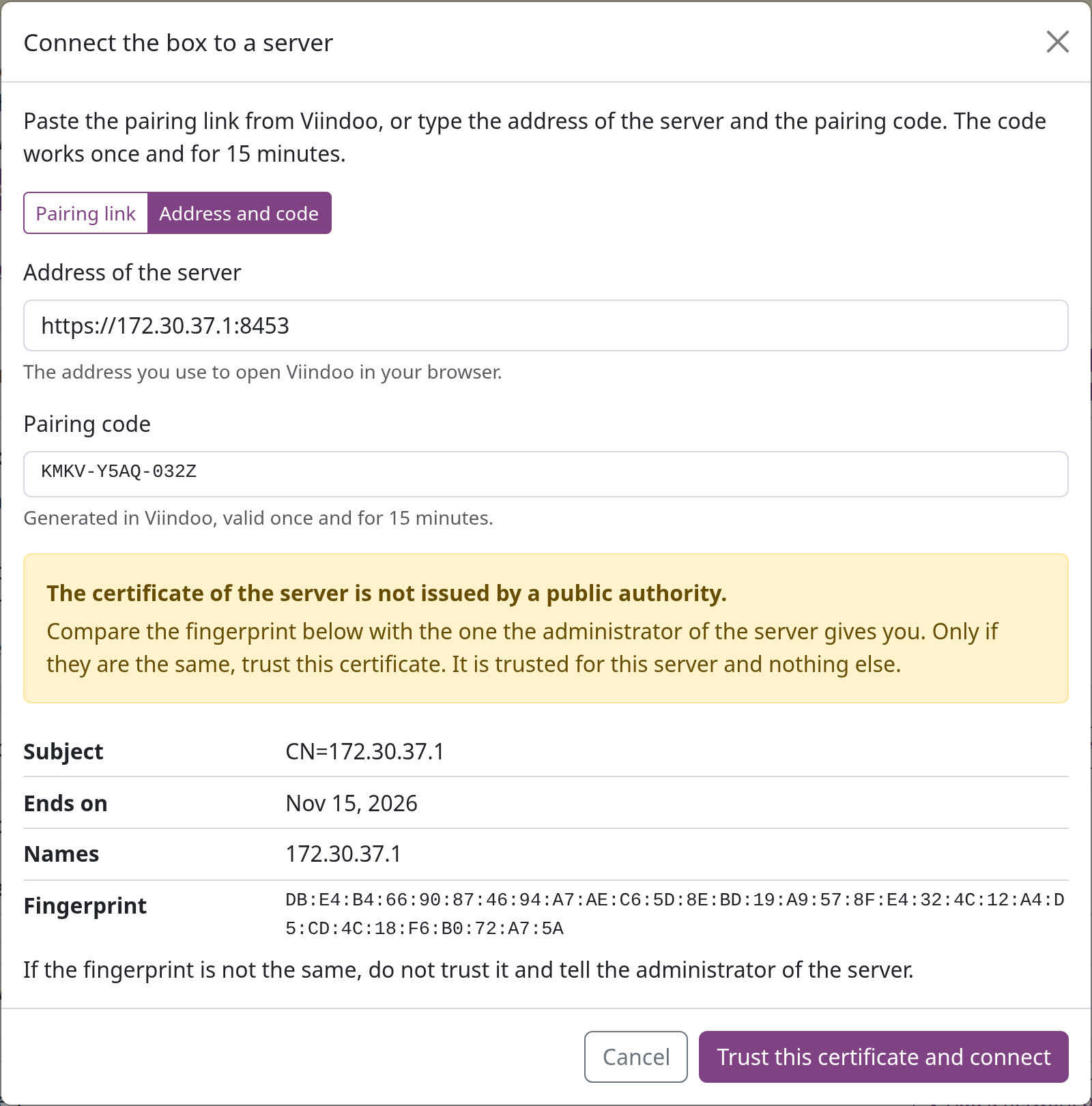
When the certificate looks out of date only because the box's clock is wrong, the dialog says so instead and offers Set the clock from the server, then Back to connecting.
Pair again, replace a box, move a box
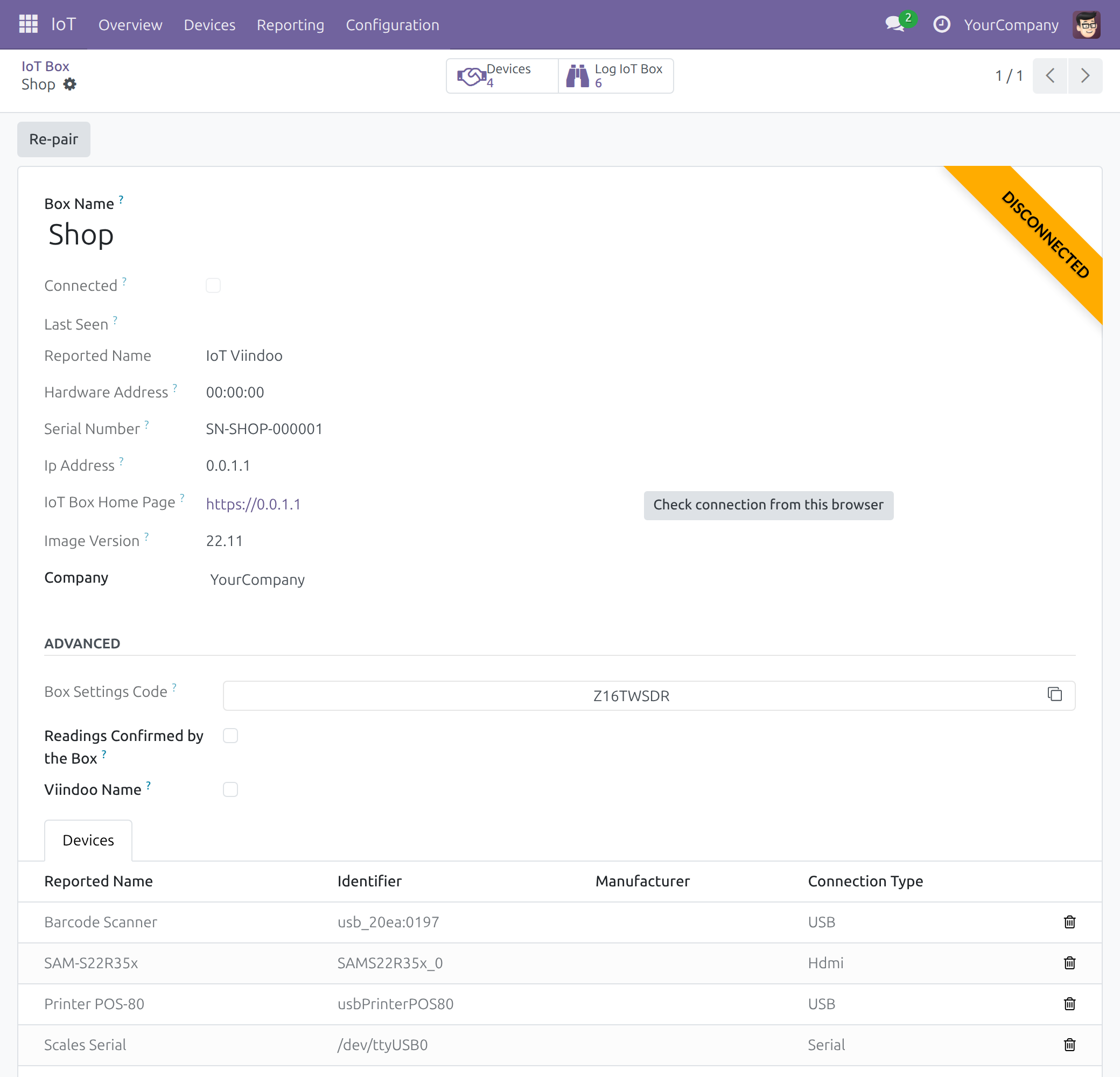
Pair the same box again (after rewriting its card, or after a Disconnect): open the box in Viindoo and click Re-pair. The Re-pair IoT Box window makes a code for that box; enter it on the box page. The box keeps its name, its devices and the places where they are used; whatever was connected with the previous pairing stops working, and the settings code changes.
Replace a broken box: click Re-pair on the record of the old box and enter the code on the new box. Its devices are found again by their own identifiers. Reported Name changes to the new box's host name; the Box Name you set stays.
Move a box to another database: on the box page, click Disconnect (it asks the settings code), then pair the box with a code from the other database. The box forgets its server and its credential (the settings code is then no longer asked), the certificates it trusted for that server and its Viindoo name. It keeps the Update automatically choice and its Wi-Fi network. A name you typed with your own certificate stays only while that certificate is installed; the Disconnect dialog says which applies to your box. In the old database the record stays, shown disconnected: archive it there.
Name the box
The name your team sees is set in Viindoo only:
- Open the box (IoT ‣ Overview, click its card).
- Type the name in Box Name, for example Packing station, and save.
Every app shows the new name at once. Nothing changes on the box itself: Reported Name is the host name the box shows on its page and screen, and the box page says under its name that this name stays with the box for its whole life.
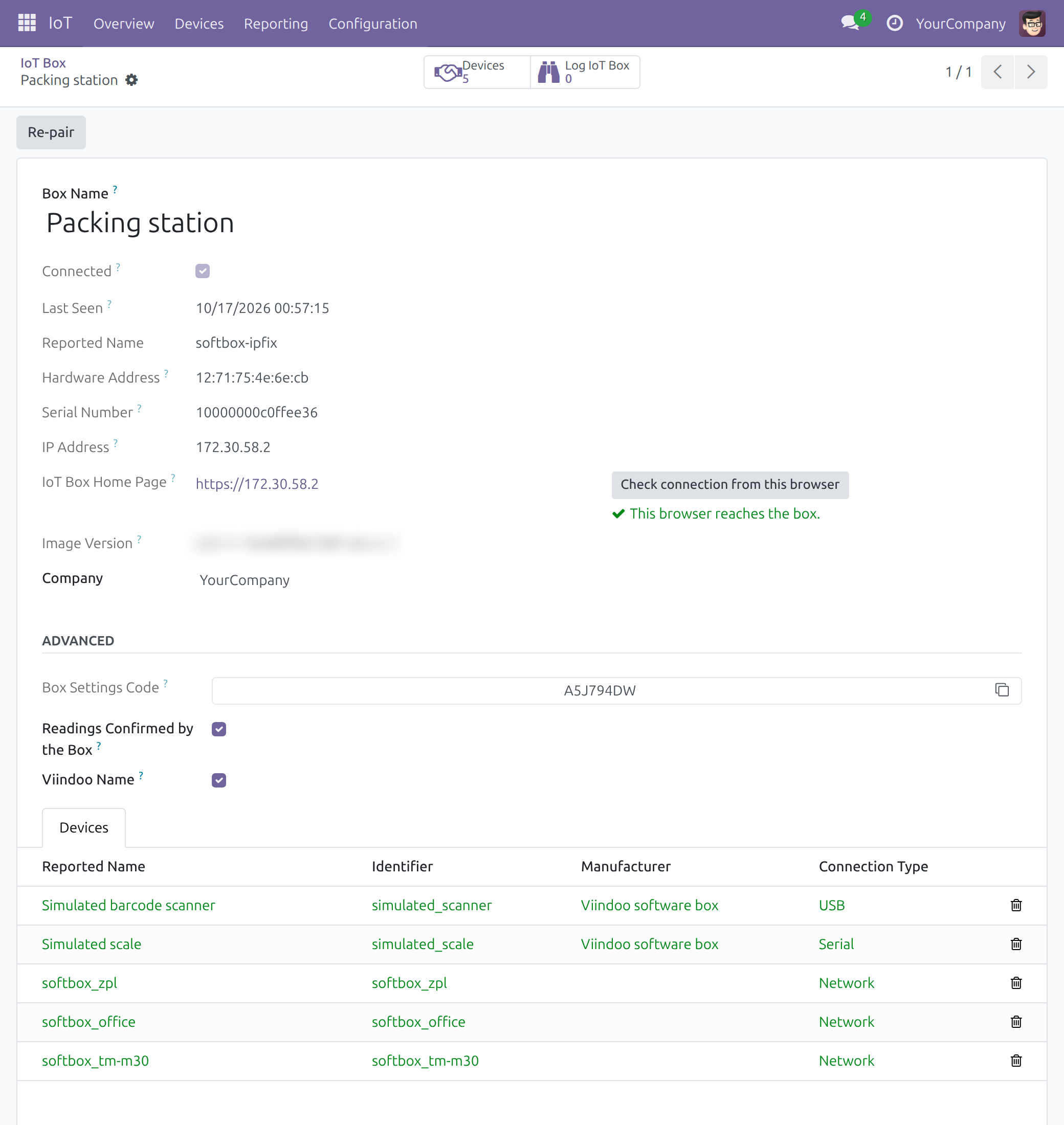
The box form also shows Hardware Address, Serial Number, IP Address, IoT Box Home Page (the box page), Check connection from this browser (see Make each browser reach the box) and Image Version. Administrators see the Advanced group:
- Box Settings Code - the code the box page asks for (see The box page).
- Readings Confirmed by the Box - ticked by Viindoo when the box confirms its readings; from then on a reading from its instruments is recorded only when the box confirmed that same value. Untick it only if the box is replaced by one that does not confirm its readings.
- Viindoo Name, and on some databases Viindoo Name State and Viindoo Name Reason - there is nothing to do with these fields. On a database that does not offer a Viindoo name they show Unavailable and Not offered by this server; the box keeps working with its own certificate.
Connect and test each device
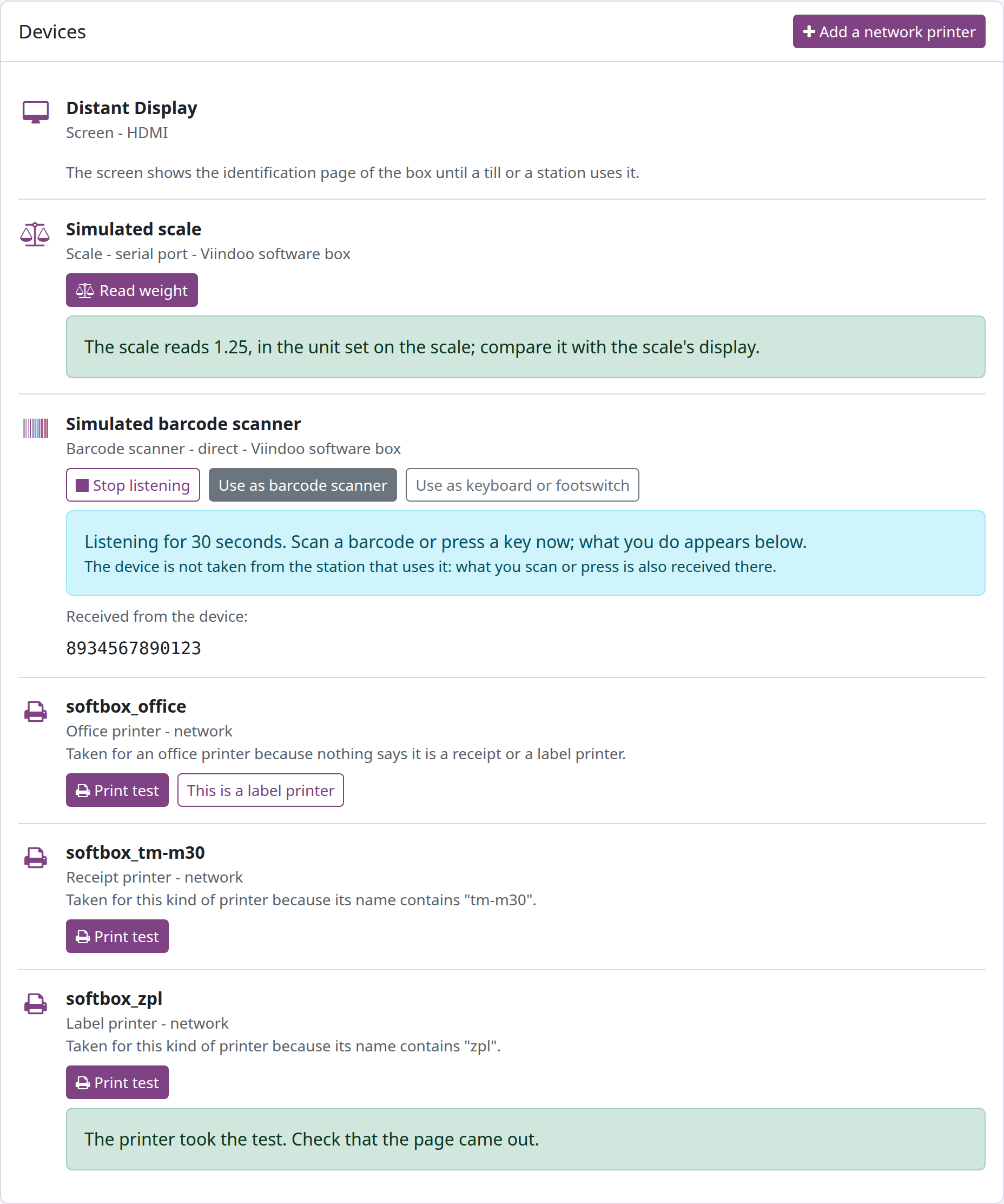
Plug a device into the box: it appears under Devices on the box page within seconds (printers within two minutes). Each device shows its kind, its connection and its test.
Printers
- Under each printer the page says why it was taken for that kind (the command language it announces, or its name).
- Click Print test. A receipt printer prints the box's status ticket, a label printer a small label, an office printer the print server's test page. The page waits up to 30 seconds. When the printer took the job it says "The printer took the test. Check that the page came out." - look at the printer: only the paper coming out proves the print. If the printer does not take the job in time, the test is cancelled and the page says what to check (power, paper, cable or network). When the box could send the test but not follow it, the page says "The test was sent to the printer, but the box could not follow it, so it cannot tell whether the printer took it." - look at the printer.
- A label printer that does not announce ZPL is taken for an office printer. Click This is a label printer: the box adds a second print queue for it, and within two minutes it also appears as a label printer.
- A network printer that does not announce itself: click Add a network printer, type the Address of the printer (with the port if it is not 9100), choose the Kind of printer (Receipt printer, Label printer (ZPL) or Office printer), optionally a Name, and click Add the printer. It appears under Devices within two minutes; then use Print test. If the router gives the printer a new address, add it again with the new address.
Scales
Put a load on the scale and click Read weight. The page shows "The scale reads <value>" with the unit when the scale sends one; otherwise "in the unit set on the scale" - compare it with the scale's own display. When the scale gives no weight, check its cable and serial settings, and choose on the scale a protocol the box reads (see Before you buy).
Barcode scanners, keyboards and footswitches
Click Listen: scan or press, then scan a barcode or press the pedal within 30 seconds. What the box receives appears under Received from the device. Listening does not take the device from its till or station: what you scan is also received there.
A scanner whose name does not say it is a scanner is taken for a keyboard and types into fields instead of scanning. Click Use as barcode scanner (or Use as keyboard or footswitch the other way round). The choice is kept across restarts and reported to Viindoo.
Screens
A screen has no test: it shows the box's identification page until a till or a station uses it.
Test a device from Viindoo
Open IoT ‣ Devices and open the device. The button below the fields depends on the device:
Printer (whose kind the box reported) - Test device sends one test print through the box's live channel. "The box accepted the test print. Check the printer: the paper coming out is the final proof." means the box queued the job; the person at the printer still checks that paper came out. The outcome is also noted on the device's chatter. Sending a test print needs the IoT Box Creator right.
Scale - Test device reads the scale once from this browser and shows "The scale shows <weight>." An empty pan shows 0. Nothing is recorded.
Barcode scanner, keyboard, footswitch - Listen for 15 seconds: scan or press, and the page shows what arrived. The station that uses the device receives it too. Nothing is recorded.
Screen - there is no test command; look at the screen.
Give each device a Device Name your team recognises (for example Label Printer - Packing); the apps show that name.
Make each browser reach the box
Scales, scanners and footswitches, and the tests from Viindoo, go from each user's browser to the box. Each PC or tablet therefore has to reach the box once. How depends on your kind of server.
| Your server | How browsers reach the box | What you do |
|---|---|---|
| Viindoo Cloud | https://<box address>, with the box's own certificate | Accept the box once on each PC (below), and again after the box gets a new address. |
| Your own server reachable from the internet | https://<box address> when users open Viindoo by https://; http://<box address>:8069 (no certificate) when they open it by http:// | Accept the box once on each PC, or install your own certificate and name on the box once for all PCs. |
| Your own server on a closed network | Same as the row above | Same as the row above; your internal authority can sign the box's certificate. |
Accept the box on a PC
- On that PC, open the box in Viindoo and click Check connection from this browser.
- "This browser reaches the box." - this browser is done.
- "This browser got no answer from the box and cannot tell why." - click Open the box page. If the browser warns about the box's certificate, accept it and come back: this browser is done. If nothing opens, this browser cannot reach the box: check the network.
- If the browser asks whether the page may reach devices on your local network, allow it.
A browser accepts the box's certificate once per box and per address. If the box gets a new address, Viindoo learns it by itself, and each PC accepts the box again.
Use your own certificate and name
On the box page, open Advanced, click Use your own certificate (settings code needed), type the Name the certificate was issued for (your DNS must point it to the box), paste the Certificate and its chain (PEM) and the Private key (PEM, not encrypted), then click Install the certificate. Open the box at https://<that name> to check that the browser shows no warning; Viindoo is told the new address within moments. Do this only on a network you trust.
Use the box's own certificate again makes the box serve its own certificate again: browsers warn until each accepts the box. Browsers are still given the name you typed, and the box asks for no Viindoo name while it keeps that name. The box forgets the name when it leaves its server with Disconnect or is reset with the reset file.
The Viindoo name
The box page (Viindoo name line of the self-test, rows of Advanced) and the box form show a Viindoo name. There is nothing to do with it: when the server does not offer one, the line says "This server does not offer a Viindoo name." and the box keeps working with its own certificate.
Assign devices in each app
A device does nothing until an app uses it. Each app's guide explains its screens:
- Pos IoT - in Point of Sale ‣ Configuration ‣ Point of Sales, the IoT Box block of each till chooses its box, receipt printer, scanners, customer screen and scale.
- IoT Manufacturing - in Manufacturing ‣ Configuration ‣ Work Centers, the IoT page of each work center lists its devices and chooses its label printer, scale and footswitch.
- IoT Shop Floor - uses the devices of the work center on the Shop Floor screen; the operator needs no IoT right.
- IoT Quality - a Measure control point names its Measuring Instrument.
- Quality Control IoT for Manufacturing - a quality check of a work order reads the scale of its own work center.
- IoT Shop Floor Quality - a Measure step on the Shop Floor screen reads its value from the instrument.
Operations
Updates
A box follows the supported release of its series and nothing else. It looks for a new release when it starts, every night at midnight on its clock, and when you click Look for a new release in the Software section. With Update automatically on (the default) it applies a new release by itself and restarts. A release that does not start well is undone by the box itself and never tried again. Updates need internet access; the devices do not.
The sentence in the Software section says where the box stands, for example "The box software is the latest release.", "A new release is on trial after a restart; the box keeps it once it runs well.", or, on a network without internet, "The box could not reach the place where releases are published." When a release is offered and Update automatically is off, click Update to <release>. If the box says the new release needs a newer image, write a newer image to its card (chapter Get and write the image), then pair it again with Re-pair: writing a card erases the pairing, but the box keeps its devices and their assignments in Viindoo.
Image Version on the box form shows which image and release the box reports.
To pair a box again, replace it or move it to another database, see Pair again, replace a box, move a box; to reset a box nobody can unlock, see If nobody can unlock the box.
Logs
- IoT ‣ Reporting ‣ Device Logs, or the Log IoT Box button of a box: the lines the box sends to Viindoo, grouped by box. The box sends its warnings and errors by default; a self-test line that fails is written there once ("Self-test: <line> failed ...") and again when it recovers.
- On the box page, Advanced ‣ Box log opens the live log of the box.
- Download diagnostic file (self-test or Advanced) saves one file with the self-test, the configuration and the last log lines, without any password, code or key. Send it to support.
When you contact support, give three answers: is the box Connected, Disconnected or missing in Viindoo; the self-test (a screenshot or the diagnostic file) from http://<box address>; and what Check connection from this browser says on the PC where a device fails.
Restart, clock and shell password
All in Advanced ‣ Maintenance:
- Restart the box restarts the box software (settings code needed). Devices and printing pause for about a minute; the page waits for the box.
- Set the clock from the server compares the box's clock with the server and sets it. It does not need the settings code, and it is refused when a time server already keeps the clock.
- Password for shell access generates a password for a technician, only when support asks. Note it at once: the box does not show it again, and a paired box replaces it at each restart.
Self-test
The box runs its self-test when it starts and every five minutes; Check again runs it at once. Each line is OK, Check, Failed or Checking, and each line that needs you says what to do.
| Line | What it checks | When it needs you, and what to do |
|---|---|---|
| Network | The box has an address and a gateway. | No address: plug in a cable or choose a Wi-Fi network. An address it gave itself: check that the router hands out addresses (DHCP), then restart the box. Own Wi-Fi network: join your Wi-Fi. No gateway: check that the router gives one. |
| Server name | The network knows the server's name. | Unknown name: check the address you typed. No answer: check internet access and the router's name service. |
| Clock | A time server keeps the clock, or it agrees with the server. | No time server: let the box reach one (UDP port 123) or set the clock from the server. Wrong clock: Set the clock from the server. Server clock differs: ask the server's administrator to correct it. |
| Server | The server answers. | Not resolved, timed out, refused, no route, secure connection failed: check the server address, the firewall and the proxy between the box and the server. |
| Server certificate | The server's certificate can be trusted. | Reached with http: use an https address if the server has one. Expired or not valid yet: ask for a renewed certificate. Another name: check the address. Changed or never confirmed: pair again and confirm the certificate - if you did not expect a change, do not connect and tell the server's administrator. Clock wrong: set the clock. |
| Registration | The server accepted the box and takes its reports. | Not connected yet: Connect. The server no longer knows this box (its record was archived or deleted, or a Re-pair code for it was used): if the record was archived, unarchive it and nothing else is needed; otherwise reset the box with the reset file (see If nobody can unlock the box), then pair it with a new code - Re-pair on its record, or Connect an IoT Box. Cannot send its reports: check the Server line. |
| Live channel | The channel for print and screen commands is open. | Lost: check the Server line. Waiting: see Registration. Off: restart the box. |
| Address for browsers | The box has an address and a valid certificate for browsers. | No usable address: connect the network. Just after an address change: Checking while the box makes a certificate for the new address (see When the box's address changes). Certificate ending or ended, or not issued for the current address: install a new certificate (your own) or restart the box (its own). A new certificate the box made but does not serve yet: restart the box. |
| Viindoo name | Whether the box has a Viindoo name. | Nothing to do (see The Viindoo name). |
| Software | Updates (see Updates). | A release is offered: Go to Software. A newer image is needed: write a newer image. The release cannot be read, could not be downloaded or failed to apply: look again later and contact support if it stays. |
| Devices | How many devices are connected. | Nothing - plug a device in. |
| Drivers, Box software | The device drivers and the box software are in place. | Download the diagnostic file and send it to support. |
Symptom, cause and fix
Pairing on the box page
| Message | Cause | What to do |
|---|---|---|
| This is not a pairing link. | The #pair= part is missing. | Copy the whole Pairing Link with its copy button, or use Address and code. |
| No pairing code was typed. | The code field is empty. | Type the code Viindoo shows. |
| The address of the server is not an address. | Something follows the server name (a path, a space). | Type only https:// and the server name, with a port if any. |
| The certificate you pasted cannot be read. / ... is not the root of an authority. | The pasted text is not a root certificate in PEM. | Paste the root certificate of the authority that issued the server's certificate. |
| The name of the server cannot be resolved. | Typing mistake, or no name service or internet for the box. | Check the address and the Network and Server name lines. |
| The server does not answer. | Firewall, proxy or a wrong address. | Check the path between the box and the server. |
| The server does not offer pairing for Viindoo IoT boxes. | Wrong address, the IoT app is not installed, or the server hosts several databases and none is selected. | Use the address that opens this database; install the IoT app. |
| The clock of the box is wrong, so secure connections fail. | The box's clock is more than five minutes off. | Set the clock from the server, then Back to connecting. |
| The server does not know this code. / This code is too old. / This code was already used. | Wrong, expired (15 minutes) or used code. | Generate a new code in Viindoo and copy it exactly. |
| This box is already registered as <name>. | A record of this box already exists in this database. | Open that box in Viindoo, click Re-pair and use its code. The first code stays usable. |
| This box is already registered in this database, under another company. | The record belongs to a company you cannot see. | Ask an administrator of the database. |
| The server could not complete the pairing. | An error on the server. | Try again with the same code; the server's administrator reads the server log. |
| The server refused the pairing (<word>). | The server answered a reason this box does not know. | Update the box, or give that word to support. |
| The box could not complete the pairing. | Another change was in progress on the box. | Try again in a moment; then send the diagnostic file to support. |
| Nothing was changed: the box needs its settings code. | The box is paired and the code prompt was cancelled. | Choose Connect again and type the settings code. |
| The box does not come back. | The box did not return within five minutes of its restart. | Wait, reload the page; check power and cable, then switch it off and on. |
Pairing in Viindoo
| Message | Cause | What to do |
|---|---|---|
| The IoT box <name> is archived, and an archived box cannot be paired. | Re-pair on an archived box. | Unarchive it first. |
| You cannot connect an IoT box for the company <company>. | That company is not among your allowed companies. | Choose one of your companies. |
| Only the user who started pairing an IoT box can change it or generate its pairing code. | Another user's pairing window. | Start a new pairing. |
| This pairing code has already been generated. | Generate Pairing Code clicked twice in one window. | Start again. |
Settings code and clock
| Message | Cause | What to do |
|---|---|---|
| This is not the settings code of this box. | Wrong code, or the box was paired again. | Read Box Settings Code again on the box record. |
| This page was opened from another web site, so the box refuses the change. | The page was opened through another site. | Open the box page at the box's own address. |
| Nothing was changed: this change needs the settings code of the box. | The code prompt was cancelled. | Try again and type the code. |
| This is not the server of the box. | Another server address was typed in the clock dialog. | Use the address of the box's server. |
| The certificate of the server cannot be checked, so its time is not read. | Unpaired box and an untrusted server certificate. | Pair the box first, or use a server with a public certificate. |
| The server did not tell the time. | That address did not return a time. | Try another address of the same server. |
| A time server already keeps the clock of the box. | A time server is reachable. | Nothing to set. |
Devices on the box page
| Message or symptom | Cause | What to do |
|---|---|---|
| A print test is cancelled after 30 seconds, or the print job stops. | The printer did not take the job: off, out of paper, cover open, cable or network. | Do what the page says under the test, then test again. |
| The test was sent to the printer, but the box could not follow it, so it cannot tell whether the printer took it. | The print service took the test without a job number the box can follow. | Look at the printer: check whether the page came out. |
| The print server of the box did not answer, so the test could not finish. | The box's print service stopped answering. | Restart the box, then try again. |
| This device is not connected any more. | The device was unplugged. | Plug it in again and wait a few seconds. |
| A test of this device is already running. | Two tests at once. | Wait and try again. |
| The device did not answer in time. / The device failed during the test. | Cable, power or the device. | Check them, unplug and plug the device again. |
| The print queue of this printer is missing. | The printer was unplugged meanwhile. | Unplug it, plug it in again and wait two minutes. |
| The scale gave no weight. | No load, cable, or serial settings. | Put a load on, check the cable and choose a protocol the box reads. |
| The box stopped answering while listening. | Network between this device and the box. | Check the network and reload the page. |
| This device is tested with Listen. / A screen is tested by looking at it ... / This device has no test. | That kind has no test of this sort. | Use Listen, or look at the screen. |
| Only an office printer can be made a label printer. / This printer already stands as a label printer ... | The printer is already a receipt or label printer. | Nothing to do. |
| The kind of printer was not understood. / This is not an address of a printer. / This name does not fit the kind of printer you chose. | A field of Add a network printer. | Correct the field. |
| The box already has a print queue for this address. | That printer was already added. | Look for it under Devices. |
| The print service of the box is not running. / The print service refused the printer. | The box's print service. | Restart the box; check the address; then send the diagnostic file to support. |
| A scanner types into fields instead of scanning. | It was taken for a keyboard. | Use as barcode scanner. |
| A label printer prints a full page or unreadable text. | A ZPL printer taken for an office printer. | This is a label printer. |
| A device is plugged in but not listed. | Printers take up to two minutes; a scale must answer a protocol the box reads. | Wait; check the scale's serial settings. |
Tests from Viindoo
| Message | Cause | What to do |
|---|---|---|
| You are not allowed to send a test print. | The user is not an IoT Box Creator. | Ask an IoT Box Creator or an administrator. |
| Nothing was printed: the printer is not connected to its box. | The box or the printer is disconnected. | Check the box and the printer. |
| The box did not confirm the test print. / The box has not confirmed the test print yet. | No confirmation within Device Action Timeout (seconds). | Look at the printer; check the box page. |
| The box refused the request or the device gave no value. / The box did not answer in time. / This browser cannot reach the box. | This browser cannot read the box: network, certificate not accepted, or the browser's local-network permission. | Use Check connection from this browser on the box. |
| This printer cannot be tested from Viindoo. / This device cannot be tested from here. | The box did not report the printer's kind, or the device has no test. | Use the test on the box page. |
Your own certificate
| Message | What to do |
|---|---|
| The certificate cannot be read. / The private key cannot be read. | Paste them as text, from -----BEGIN ...----- to -----END ...-----. |
| The certificate has no common name, which the box needs. | Ask for a certificate that has one. |
| The private key is protected by a password. | Remove the password from the key, then paste it again. |
| The key does not belong to this certificate. | Paste the key made with the certificate request. |
| The certificate is not valid yet. / The certificate has expired. | Check the box's clock and the certificate's dates; ask for a new one. |
| The name is not a host name. / The certificate was not issued for this name. | Type a name the certificate covers, such as box1.example.com. |
| The box could not install the certificate and keeps the one it had. | Try again; then send the diagnostic file to support. |
Other messages and symptoms
| Message or symptom | Cause | What to do |
|---|---|---|
| The certificate of the box was not issued for <address>, so browsers will warn. | Your own certificate does not cover that address, or the box could not make a new certificate of its own for it. | Your own certificate: install one that covers the address. The box's own: restart the box, as the line says; if it says to contact support, send the diagnostic file. |
| The box made itself a new certificate, but its web server still serves the earlier one. | The box's web server did not load the new certificate. | Restart the box. |
| The server no longer knows this box. | Its record in Viindoo was archived or deleted, or a Re-pair code for it was used. | Archived: unarchive the record. Otherwise: reset file, then a new code (Re-pair or Connect an IoT Box). The box's Pair again cannot help here: the settings code it asks is on no record. |
| This page cannot reach the box. | Your device is not on the box's network, or the box is off. | Check the network and the power; the page tries again by itself. |
| The box could not use this Wi-Fi network. | The box did not start to join the network. | Check the name and the password, then try again. |
| This network name cannot be used. / This password cannot be used. | The name is longer than 32 characters, or the name or the password holds a line break, a tab or another control character. | Check the name or the password and try again. |
| The box is changing its Wi-Fi by itself at this moment. | The box is going back to the network it keeps, or starting its own network. | Wait a minute, then try again. |
| The box could not disconnect. / The box could not restart. / The level was not changed. / The box could not set a new password. | The action failed on the box. | Try again; switch the box off and on, or send the diagnostic file to support. |
| This level is not offered for the whole box. | Debug was chosen for the whole box in Log levels. | Choose another level. |
| The box did not answer. | Network between your device and the box. | Check that you are on the same network and the box is on. |
| This box does not offer this function. | The box software is older than the page. | Update the box, or ask support. |
| The box answered "<word>", which this page does not know. | An answer this page has no text for. | Try again; then send the diagnostic file to support. |
| The box did not understand the request. / The choice was not understood. | The page is out of date. | Reload the page and try again. |
| The box is missing from IoT ‣ Overview after pairing. | The pairing code window was closed before the code was accepted. | Reload the list. |
| The box shows Disconnected in Viindoo. | The box stopped reporting (power, network, live channel). | Read the Server, Registration and Live channel lines on the box page. |
| The box page is unreachable after joining a Wi-Fi network. | Your device is still on the box's own network. Or the join failed (wrong password, network out of reach) and the box went back to the network it was on, or to its own network. | Join the same Wi-Fi and open http://<host name>.local or the box's address. If Viindoo-IoT-<hardware address> is back, join it and check the name and the password. |
| The box lost its Wi-Fi and its own network Viindoo-IoT-<hardware address> does not appear. | The box opens its own network only after ten minutes without any address; until then it tries to join its network again. | Wait, or plug in a network cable. |
| The box is not ready yet stays on. | The box software is starting or undoing an update. | Wait 15 minutes; then switch the box off and on; then contact your Viindoo administrator. |
| A device works on one PC and not on another. | That PC has not accepted the box, or cannot reach it. | Check connection from this browser on that PC. |
| The settings code is refused after pairing again. | The code changes with each pairing. | Read it again on the box record. |
| Nobody can unlock the box, or its server is gone. | Use the reset file (chapter The box page). |
Maintenance / IT Technician: monitoring boxes and devices
The technician needs the User access right. Everything in this chapter is read-only.
Check which boxes are connected
- Open IoT ‣ Overview. Each card is one IoT box.
- A green Connected label means the box is reporting; a red Disconnected label means it has stopped.
- Click the device count on a card (for example 5 Devices) to see that box's devices.
- Click IoT Home Page to open the box page in a new tab. This works once the box has reported its address.
Viindoo checks every minute and shows a box Disconnected, together with all its devices, once it has not reported for two minutes (by default). It judges nothing during the first two minutes after the Viindoo server starts, so that boxes can reconnect first.
Open a box
- In IoT ‣ Overview, click a card.
- Read Connected, Last Seen, Reported Name, Hardware Address, Serial Number, IP Address, IoT Box Home Page and Image Version.
- The Devices tab lists the box's devices, in green when connected and greyed out when not.
- Click the Devices or Log IoT Box button at the top to jump to that box's devices or logs.
- On the PC where a device fails, click Check connection from this browser.
Browse the devices
- Open IoT ‣ Devices. Devices are grouped by box.
- Each card shows the device name, its box and Connected or Disconnected.
- Use the search options to group by device type or connection type, or to show only connected or only disconnected devices.
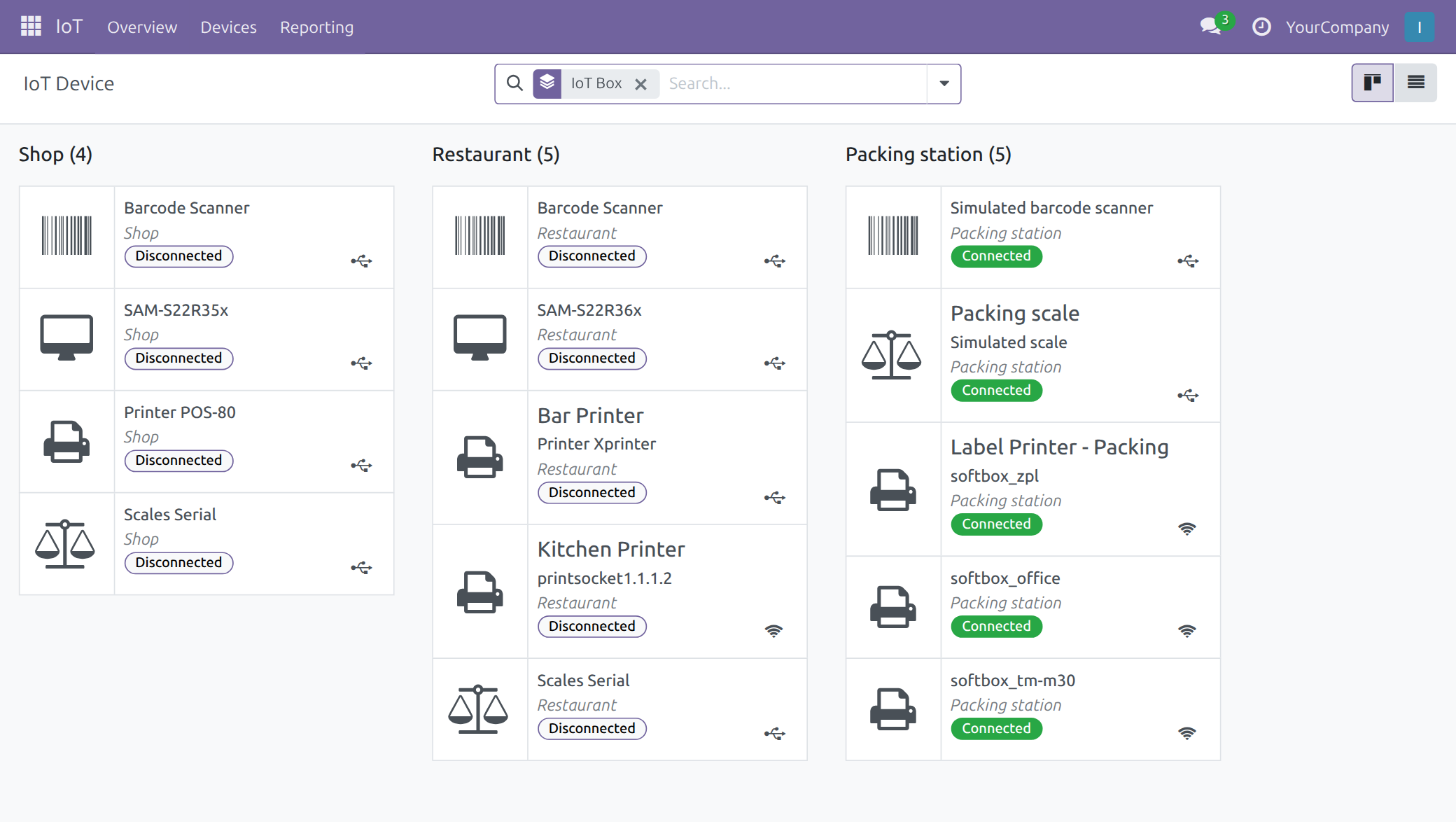
Open a device to see its Device Name, Reported Name, Type, Identifier, Connection Type, Manufacturer, IoT Box and Company. A printer also shows its Printer Kind (Receipt Printer, Label Printer or Office Printer). Apps that print labels look for a Label Printer, so check that a label printer is recognised as one.
Read the box logs
- Open IoT ‣ Reporting ‣ Device Logs (the screen is titled Data Log From IoT Box), or click Log IoT Box on a box.
- Logs are grouped by box. Expand a box to read each line's time, level, log type (Debug, Information, Warning, Error or Critical), module and description.
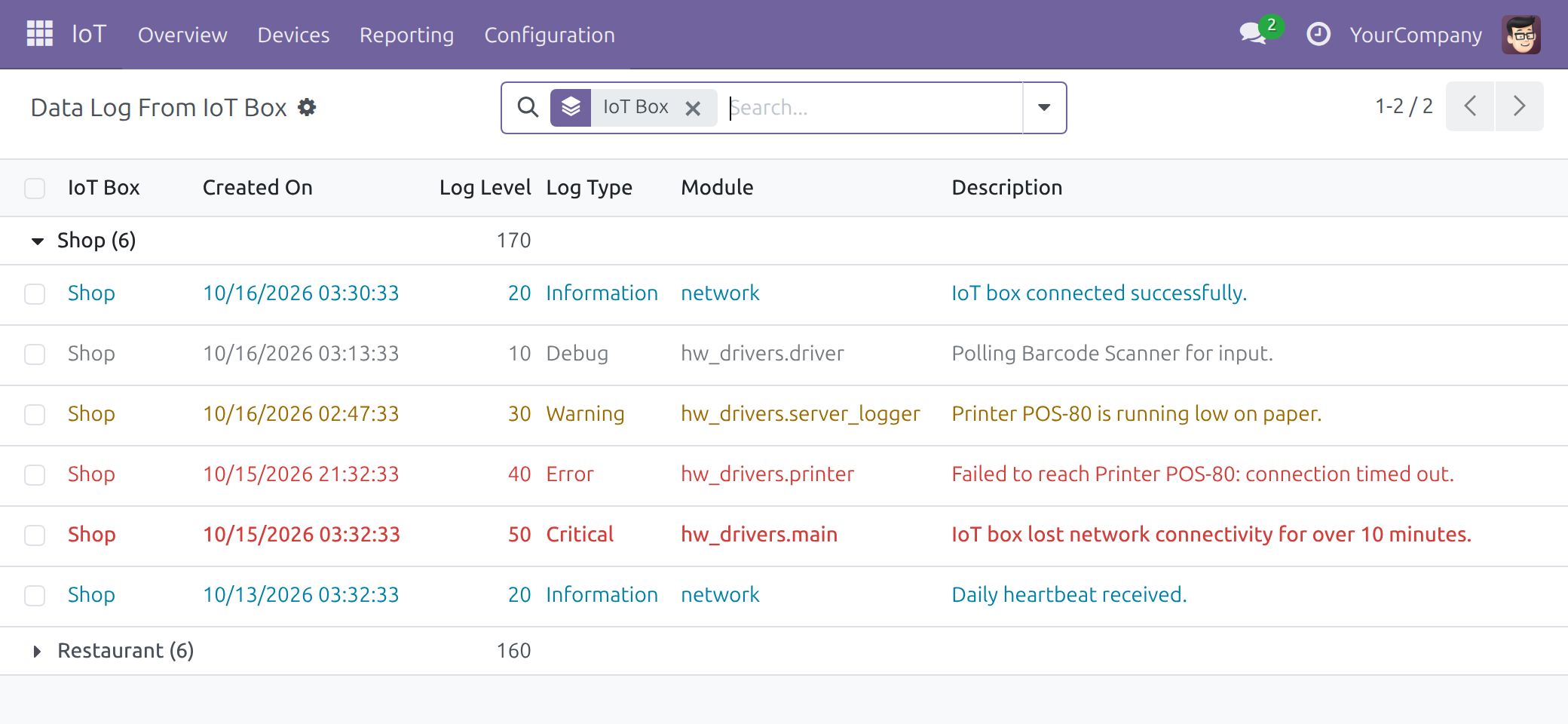
Use the logs to start a support conversation from evidence: for example an Error line saying a printer could not be reached. You read them from Viindoo, without going to the box.
IoT Integrator: setting up, naming and testing
The integrator needs the IoT Box Creator access right, which includes everything in the previous chapter. The integrator's tasks are in the part Setting up an IoT box:
- pair a new box: chapter Pair the box with Viindoo;
- pair a box again, replace it or move it: section Pair again, replace a box, move a box;
- name a box: chapter Name the box; name a device: its Device Name on the device form;
- test a device: chapters Connect and test each device and Test a device from Viindoo.
An integrator cannot read a box's settings code: ask an IoT Administrator for it when the box page asks.
IoT Administrator: the box register and credentials
The administrator needs the Administrator access right.
- Open IoT ‣ Configuration ‣ IoT Boxes for a list of every paired box: name, reported name, status, last seen, home page and image version. Disconnected boxes are shown in red. Use All in the search options to include archived boxes. Connect an IoT Box is also here.
- On each box, the Advanced group shows the Box Settings Code that the box page asks for, and the box's other administrator settings (see chapter Name the box). Give the code only to the person at the box, when the box asks for it.
- Each box also holds credentials for talking to the server, made at pairing and replaced at each pairing. No screen shows them; nobody types them.
Device actions and unconfirmed outcomes
When an app drives a device - printing a label, for example - Viindoo records the action and waits for the box to confirm it. Every action ends in one outcome:
- Dispatched - sent to the box and still inside its time window.
- Completed - the box confirmed it carried out the action.
- Refused - the command could not be sent.
- Never Confirmed - no confirmation arrived within Device Action Timeout (seconds).
- Replaced - a newer request for the same device took its place.
Never Confirmed does not mean the action failed; it means the box did not answer in time. There is no separate screen for these records: check Device Logs for the box and the device in question.
How apps read and use devices
These rules are the same in every app that uses the hardware:
- One tap or press gives one fresh reading, taken at that moment. A scale that shows 0 or is not stable is refused; wait until the weight settles and read again.
- A value typed by hand is recorded as manual. Who took a reading, with which device, when, and whether it was typed or read from the instrument cannot be edited afterwards.
- When the box confirms its readings (Readings Confirmed by the Box on the box), a reading is recorded only if the box confirmed that same value.
- One screen holds a scanner or a footswitch at a time. If a second screen opens the same station (another browser tab, a team leader's computer), it takes the device and the first screen shows that the device is in use by another screen. Touching the first screen takes the device back. Nothing is ever recorded twice.
- A screen opened while the box is still starting shows the device as unreachable and recovers by itself.
When the box or a device fails
- Open IoT ‣ Overview. A red Disconnected label means the box stopped reporting; its devices are shown Disconnected too.
- Open the box and read Last Seen, then open Log IoT Box and look at the latest Warning, Error and Critical lines.
- Open the box page (IoT Home Page) and read its self-test: each line that needs you says what to do. Check power and network at the box.
- When the box reports again, it and its devices return to Connected on their own.
- While it is down, the people at the till or on the shop floor see a chip or a warning in their own app. They can type the value by hand (a weight, for example); it is recorded as manual.
- A printer that is offline is reported to the operator at once. After a paper jam or an empty roll, the label can be printed again from the app (see the Manufacturing guides).
Known limits
- A reading travels from the box through the browser to the server. Unless the box confirms its readings, a person who is allowed to use a device could submit one invented value for a request they opened themselves. Typed values are always marked as manual.
- A till that types the box's address by hand, without choosing the box, is not protected from driving the box's default screen.
- If one screen loses its network at the very moment a second screen takes a device, and the box restarts before any event reaches the first screen, the first input after the restart can be acted on by both screens once.
- Devices unplugged while the box was offline can show as connected again until the box's next report.
Troubleshooting
A box shows no IoT Home Page link. The box has not reported an address yet. Check that it is powered and on the network, then read its self-test.
A device stays Disconnected. Open the device and its box, check Last Seen, and read the Warning, Error and Critical lines in the logs, then the self-test on the box page.
A device works on the box page but not in the app. The box page runs on the box; the app runs in each user's browser. Click Check connection from this browser on that PC (chapter Make each browser reach the box), and check that the device is assigned in the app.
An operator was told an action was Never Confirmed. No confirmation arrived within the timeout; it does not always mean failure. Check the logs for the box and the device. If confirmations regularly arrive late, raise Device Action Timeout (seconds).
A row on Settings shows Purchase or Learn more. That app is not available on this database yet, so there is nothing to switch on.
A label printer is not offered where a label is printed. Open the device and check that its Printer Kind is Label Printer. If not, click This is a label printer on the box page.
The box page asks for a code nobody has. An IoT Administrator reads it on the box record (Box Settings Code). If the database is gone, or the code on the record is refused, use the reset file.
FAQ
Who can pair a new IoT box? An IoT Box Creator or an Administrator.
Who can read a box's settings code? Only an Administrator, on the box record. The box's own credentials are shown on no screen.
Does a cashier or a manufacturing operator need an IoT access right? No. They use the hardware from their own app once the box is paired and its devices are assigned.
Can I rename the box itself? No. Its host name stays for its whole life. Set the name your team sees in Box Name.
Can the box have a fixed IP address? Not from the box page. Your router can reserve an address for it; without one, the box follows a new address by itself (see When the box's address changes).
How long does Viindoo take to show that a box is down? Viindoo checks every minute and shows a box disconnected once it has not reported for two minutes, so two to three minutes after its last report. An administrator can change the waiting time with the system parameter viin_iot.box_presence_grace_seconds (in seconds; a value below 90 is raised to 90).
What happens to old device logs? They are kept for the number of days set in Device Log Retention (days), then removed by a daily cleanup.
This software and associated files (the "Software") may only be used (executed, modified, executed after modifications) if you have purchased a valid license from the authors, typically via Odoo Apps, or if you have received a written agreement from the authors of the Software (see the COPYRIGHT file).
You may develop Odoo modules that use the Software as a library (typically by depending on it, importing it and using its resources), but without copying any source code or material from the Software. You may distribute those modules under the license of your choice, provided that this license is compatible with the terms of the Odoo Proprietary License (For example: LGPL, MIT, or proprietary licenses similar to this one).
It is forbidden to publish, distribute, sublicense, or sell copies of the Software or modified copies of the Software.
The above copyright notice and this permission notice must be included in all copies or substantial portions of the Software.
THE SOFTWARE IS PROVIDED "AS IS", WITHOUT WARRANTY OF ANY KIND, EXPRESS OR IMPLIED, INCLUDING BUT NOT LIMITED TO THE WARRANTIES OF MERCHANTABILITY, FITNESS FOR A PARTICULAR PURPOSE AND NONINFRINGEMENT. IN NO EVENT SHALL THE AUTHORS OR COPYRIGHT HOLDERS BE LIABLE FOR ANY CLAIM, DAMAGES OR OTHER LIABILITY, WHETHER IN AN ACTION OF CONTRACT, TORT OR OTHERWISE, ARISING FROM, OUT OF OR IN CONNECTION WITH THE SOFTWARE OR THE USE OR OTHER DEALINGS IN THE SOFTWARE.