
Shop Floor Control - Quality
| Lines of Code | 1967 |
| Technical name | viin_mrp_workorder_quality |
| License | OPL-1 |
| Website | https://viindoo.com/apps/modules/18.0/viin_mrp_workorder_quality |
| Read description for | |
| Required Apps | Manufacturing (mrp) Invoicing (account) Discuss (mail) Employees (hr) Inventory (stock) |
| Included Dependencies | Advanced MRP Accounting Manufacturing Quality Control Shop Floor Control Viindoo Manufacturing Viindoo Base Stock Quality Control Viin Warehouse Web Gantt Quality Viin Warehouse Accounting |
Quality checked at the machine - before the job starts and before the order closes.
Viindoo Shop Floor Control - Quality joins Viindoo Shop Floor Control and Viindoo Manufacturing Quality Control. Operators record Pass, Fail, measurements and photo evidence on the same tablet they run the job on, so results come from the person who did the check, at the moment they did it.
Extends viin_mrp_workorder - see its documentation.
Extends to_quality_mrp - see its documentation.
Why plants choose it
Checks recorded by touch, at the machine
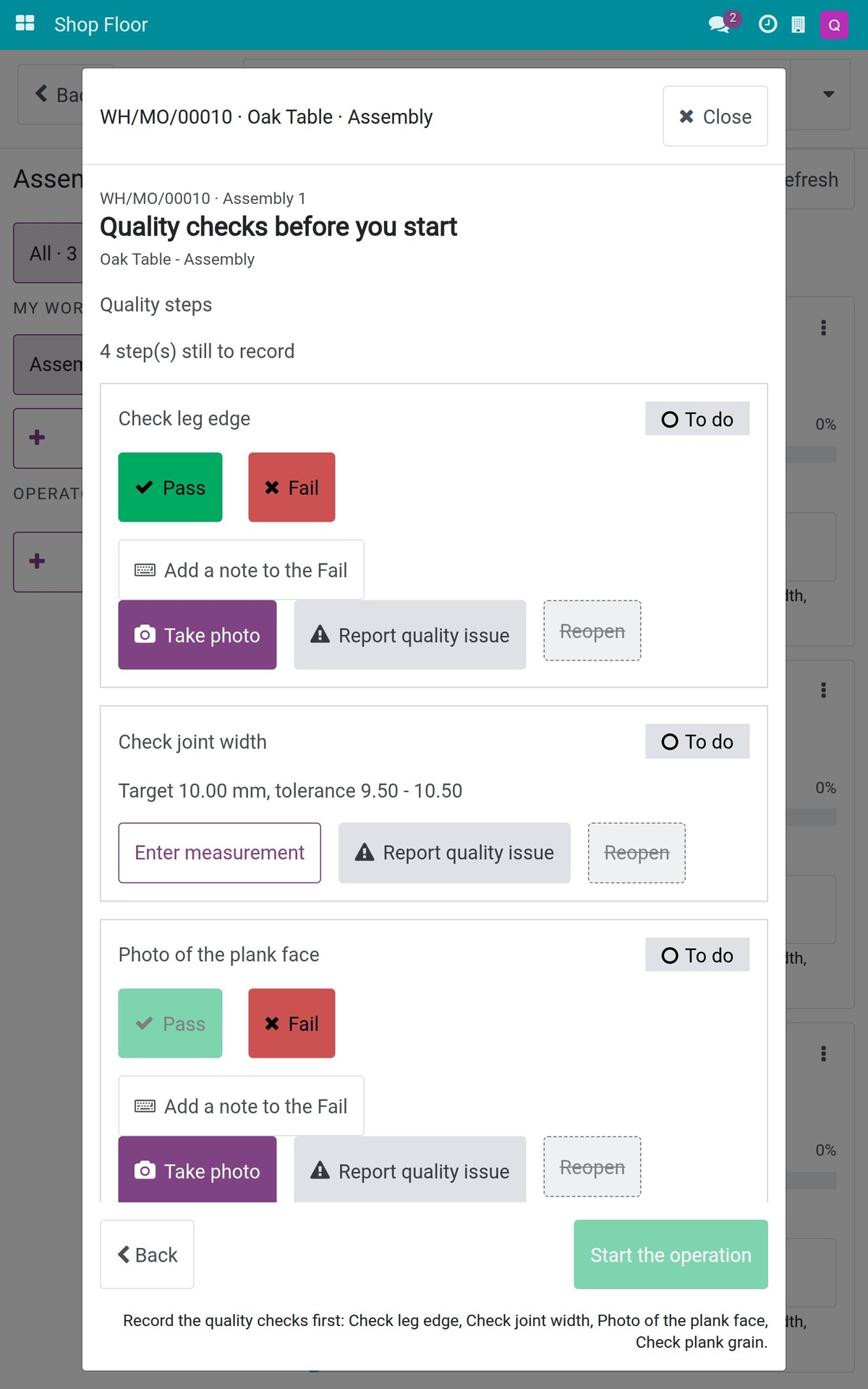
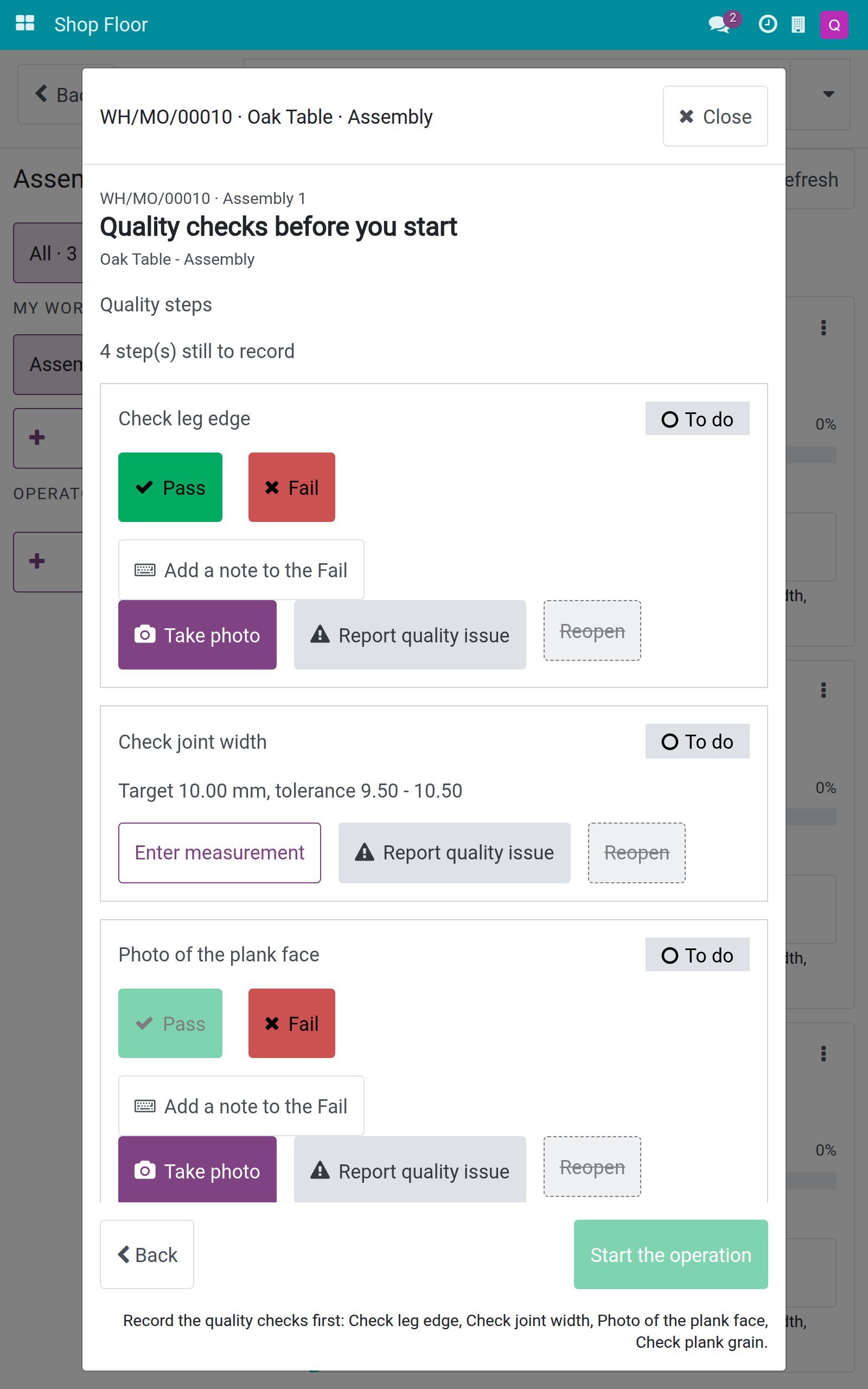
Every quality step of the operation sits on the work order's own screen: Pass and Fail are large buttons, a measurement goes in on the number pad with the target and tolerance in view, and a photo comes straight from the tablet camera. The same reading gets the same verdict at the machine as at the desk.
Nothing starts or closes with checks outstanding
A job held by quality opens a "Quality checks before you start" screen listing what is left, and Start comes on once nothing holds it. Finished product checks are recorded on the closing screen, and the order cannot close while a check is still to do or a blocking check has failed - recording output itself is never blocked.
The right person signs off, anyone can raise the alarm
A Pass or a measurement follows the check's Responsible; others see who the step is waiting for. A Fail works like an andon cord - anyone allowed to work on the check can record it with a note and photos, or report a quality issue without leaving the job.
What your operators and shift leads get
See where quality stands before you open the job
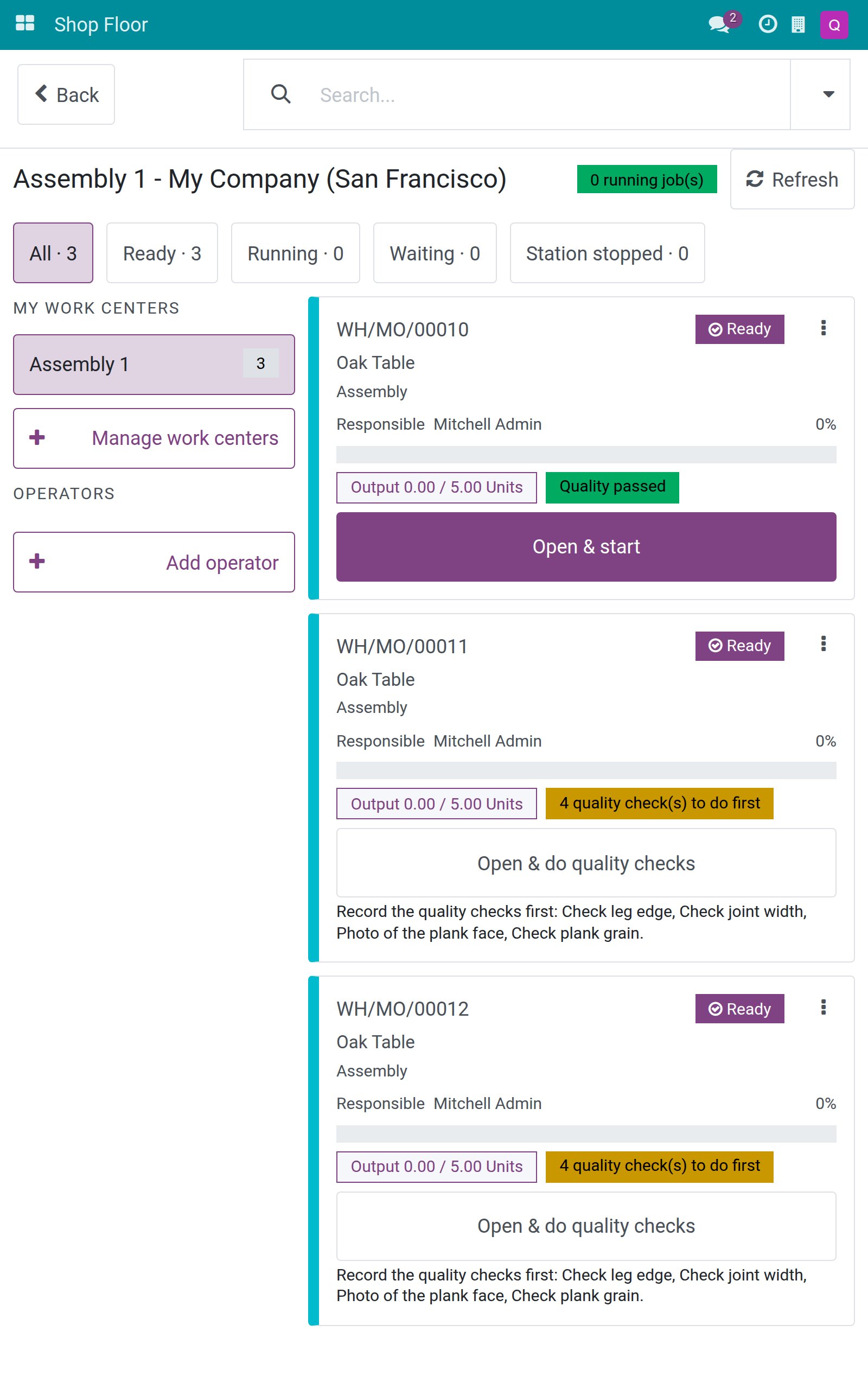
Each job board card shows its quality status - checks to do first, quality alerts, a failed check, or passed - so the shift lead knows before opening the job. A job held by quality opens straight on its outstanding steps instead of a dead Start button.
A failed step stops the job and says who must act
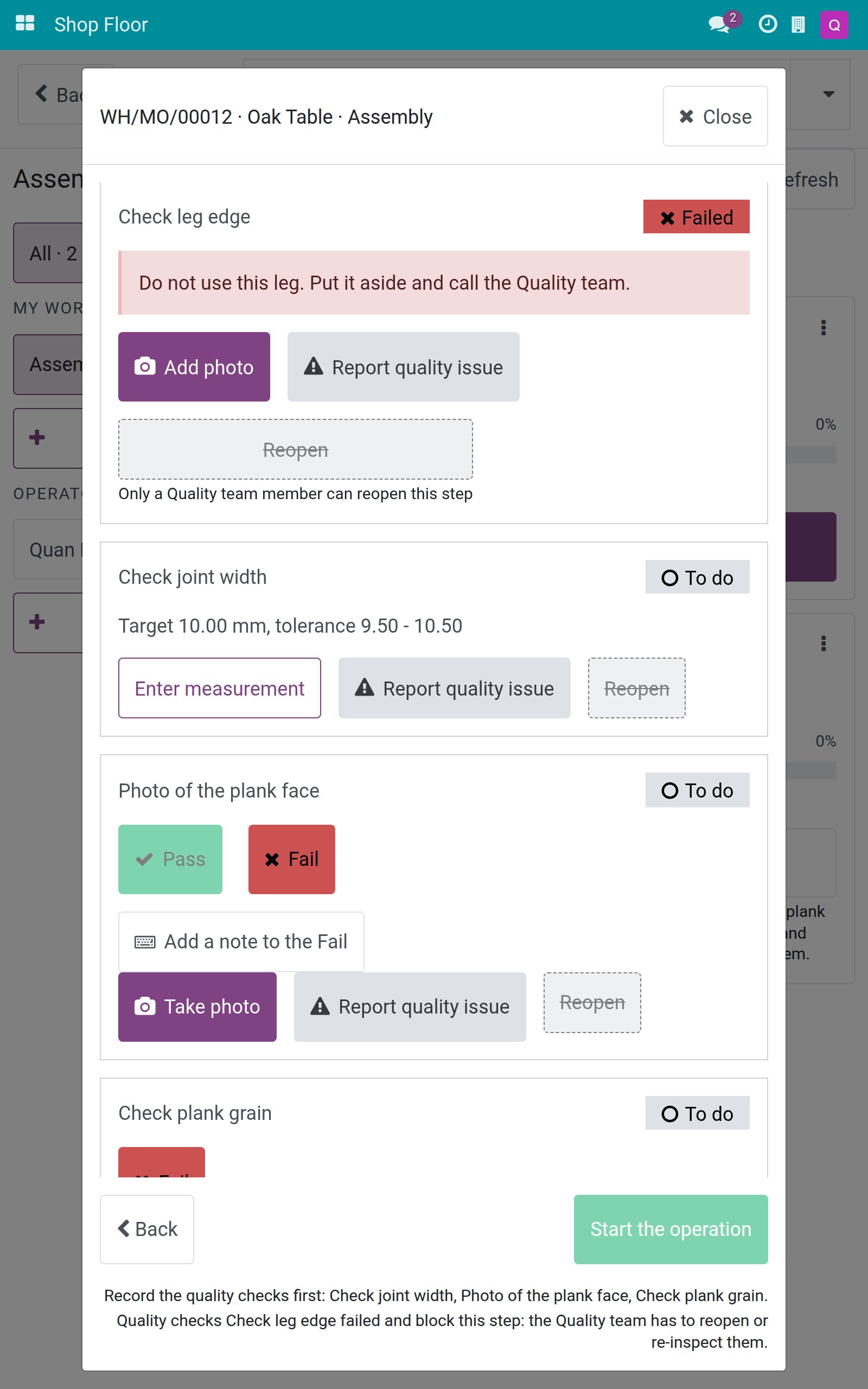
A failed blocking check keeps the operation from starting, and the screen names the check and says the Quality team has to reopen or re-inspect it. A step recorded by mistake is reopened with one touch where the user may; a Failed step goes back only through the Quality team, and the screen says so.
Raise the alarm without leaving the job
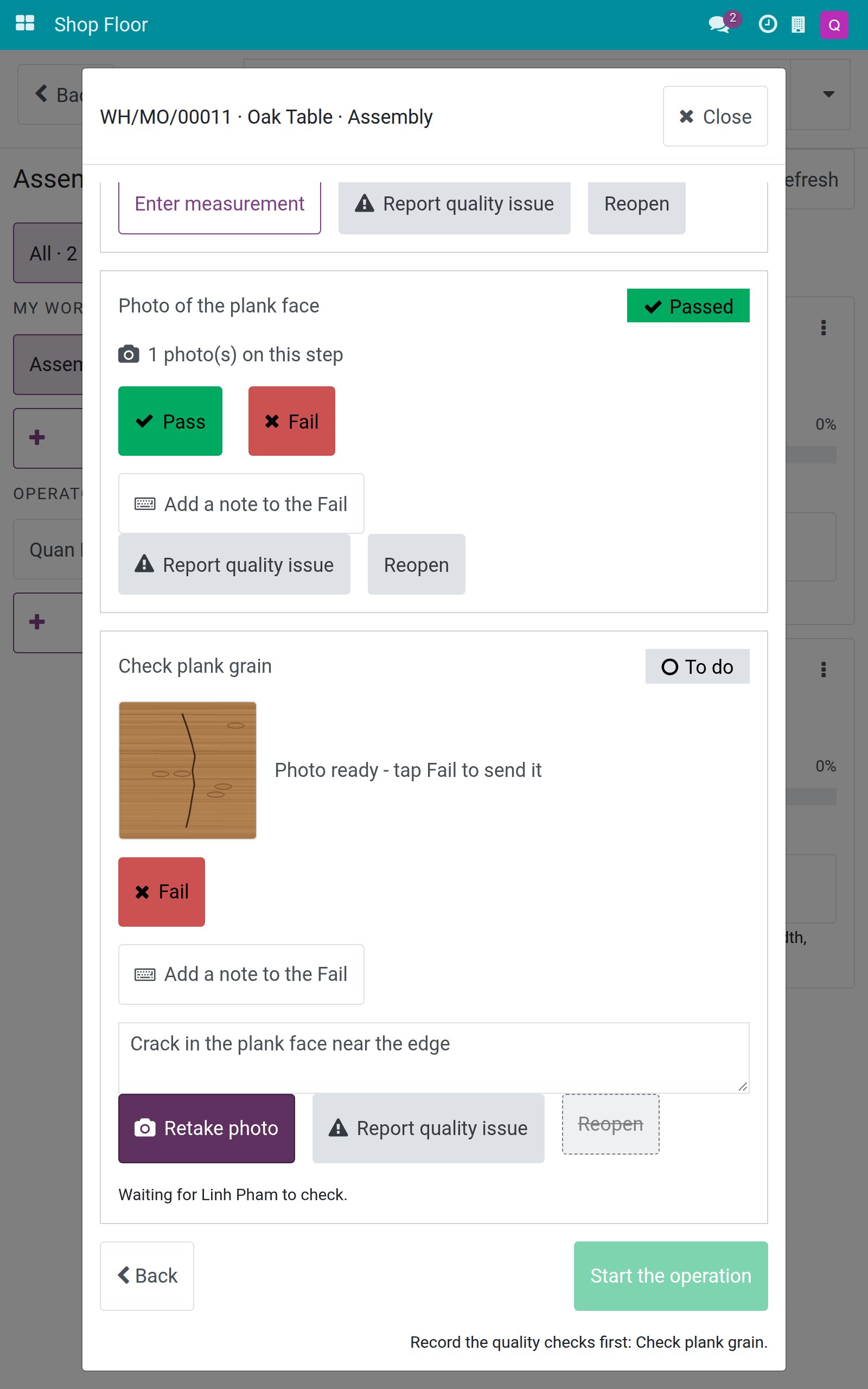
A Fail takes a note and photo evidence in a few touches, and a quality issue can be reported from the step itself. The photo is shown on the step before it is sent, and a retried tap never creates a second alert.
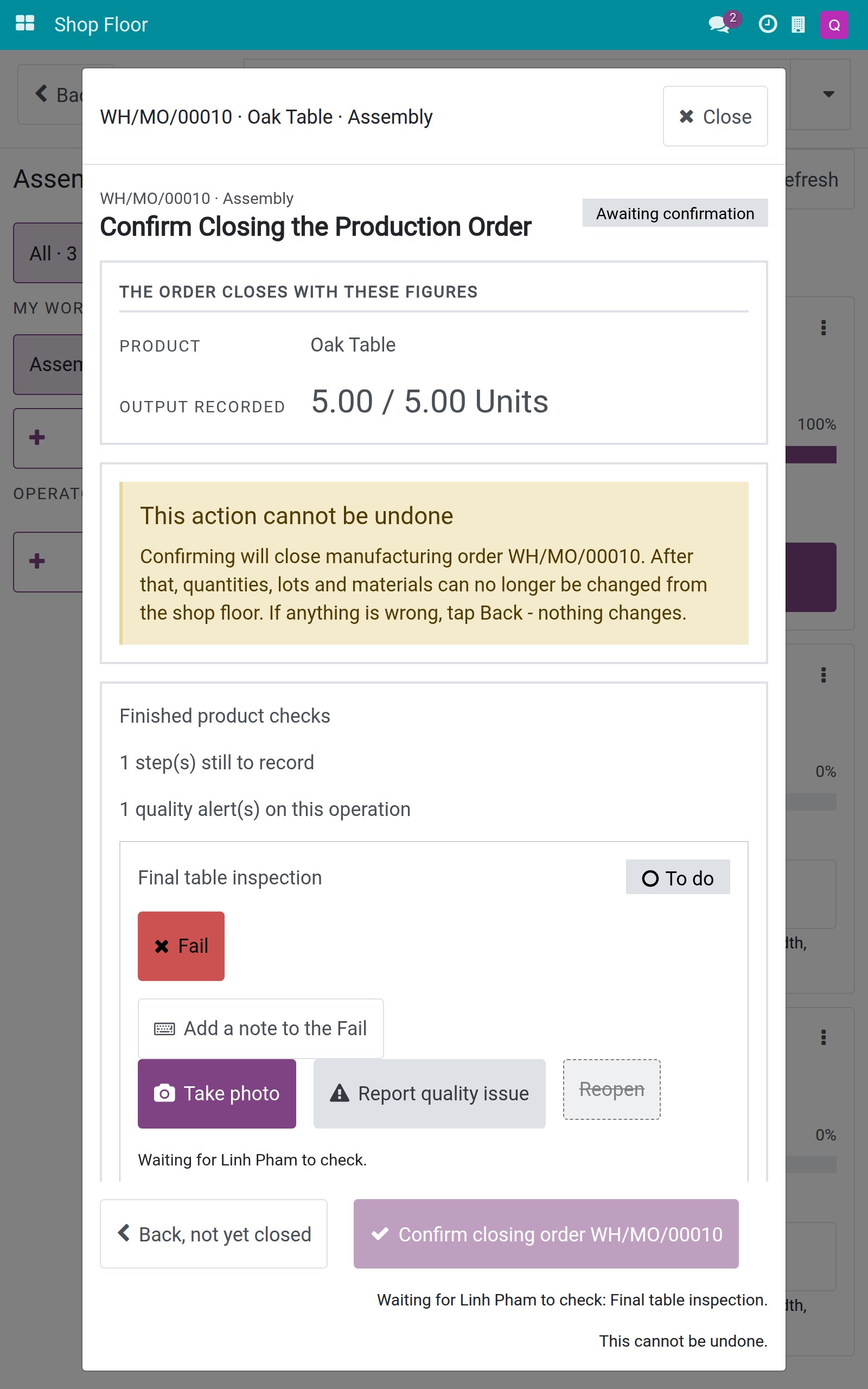
Finished product checks on the closing screen
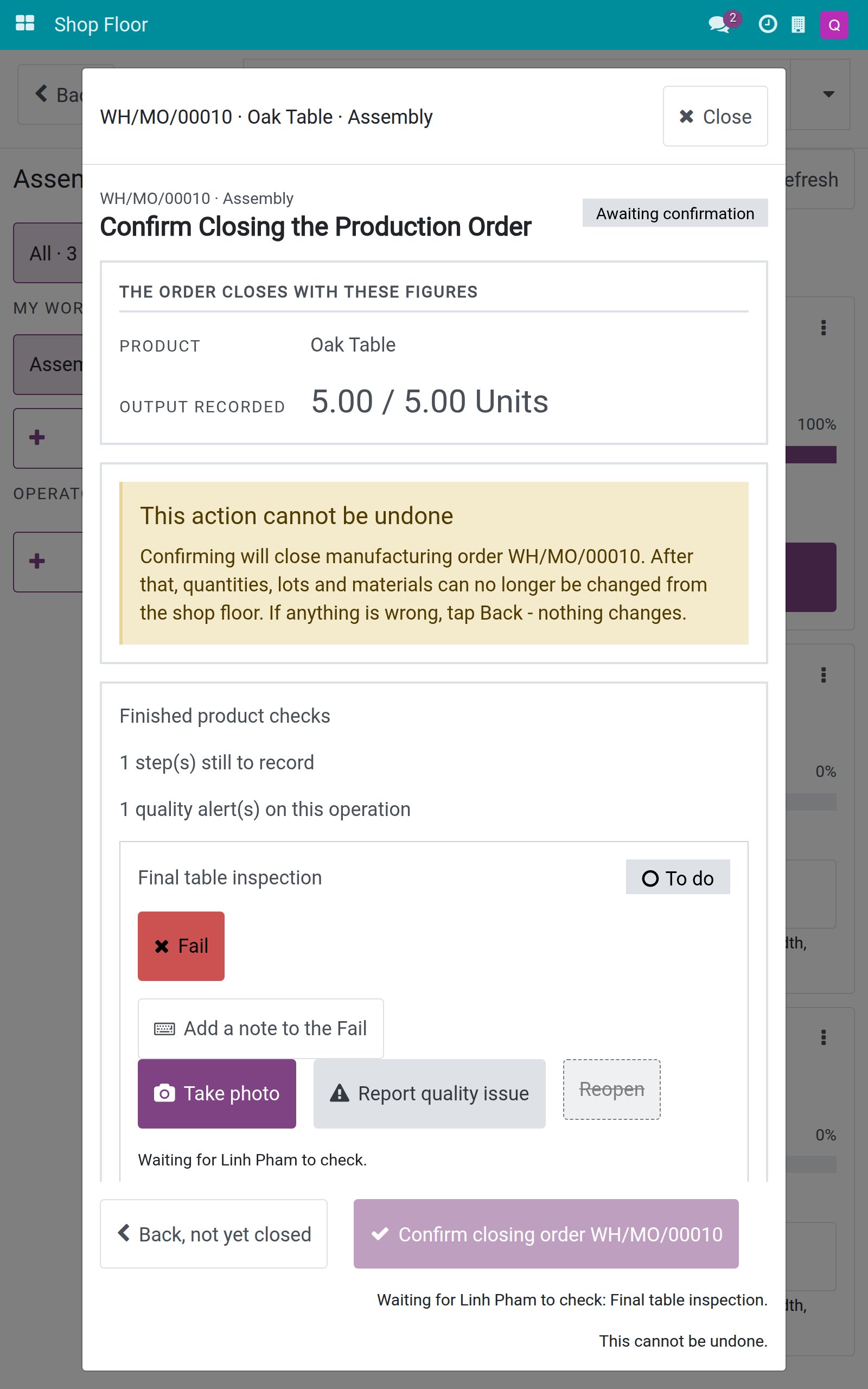
The order's finished product checks are recorded where the order is closed. The closing controls stay off, with a sentence naming the check still to do and who it waits for. Output itself is never blocked - only the closing waits.
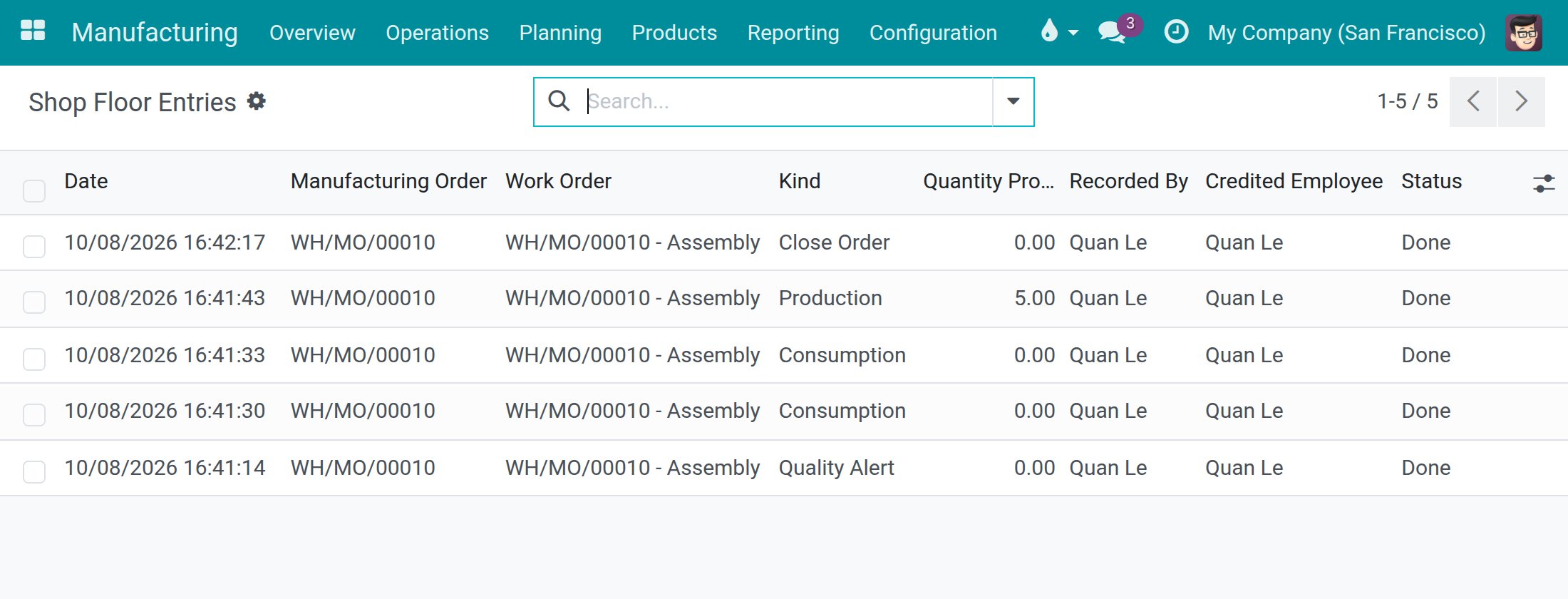
Every quality alert on the record
Manufacturing > Reporting > Shop Floor Entries lists quality alerts raised on the tablet next to output, consumption and order closing: who recorded it, for whom, and when.
Everything else in the box
Measurements on the number pad
Enter a reading with the target and tolerance in view; the same value gets the same verdict at the machine and at the desk.
Photo evidence from the device camera
A Pass on a photo step needs a photo, a Fail may carry photos, under the same rules as the quality app.
Controls follow the test type
Each step offers what its test type can do - Pass, Fail, measure or photo - and a step with none offers Mark as done.
The right person records the Pass
A Pass or a measurement follows the check's Responsible, and others see who the step is waiting for.
Reopen a step with one touch
Take back a step recorded by mistake where the user may; a Failed step goes back through the Quality team.
A note on every Fail
Explain what is wrong in a note kept on the check, next to the failure message set on the control point.
Questions buyers ask
Do I need to install this module myself?
No. It installs automatically when both Viindoo Shop Floor Control and Viindoo Manufacturing Quality Control are installed.
Can an operator pass a check they are not responsible for?
No. When a check has a Responsible, only that person or a Quality User records a Pass or a measurement; the step shows who it is waiting for. A Fail stays open to anyone allowed to work on the check.
Can we use our own test types?
Yes. Each step offers exactly the controls its test type is configured for - Pass, Fail, measurement or photo - and a type with none of them shows its own description and a single "Mark as done".
Does a photo step need a photo?
A Pass on a photo step needs at least one; a Fail may carry photos as evidence. Anyone working on a Failed step can still add photos; only the Quality team removes or replaces them.
Will quality checks stop operators from recording output?
No. Output is always recorded; finished product checks are done on the closing screen once output exists, and only the order closing waits for them.
Compatibility
Works with Odoo 18.0 Community Edition.
Requires Viindoo Shop Floor Control and Viindoo Manufacturing Quality Control; installs automatically when both are installed.
Not supported on Odoo Enterprise.
Move quality checks to where the work is done.
See an operator record a measurement, a Fail with a photo and the finished product checks on a tablet.
Shop Floor Control - Quality
Note
Extends viin_mrp_workorder - see its documentation.
Note
Extends to_quality_mrp - see its documentation.
Shop Floor Control - Quality brings the quality checks of a work order onto the same touch screen the operator already uses to run the job. The operator records Pass, Fail, a measurement or a photo at the machine, at the moment of the check, so the result comes from the person who really did it. A job cannot start while its quality checks are still to do or a blocking check has failed, and a manufacturing order cannot close while a finished product check is still to do. Recording the output is never blocked.
The module installs by itself when both Shop Floor Control and Manufacturing Quality Control are installed. You do not need a new menu: the quality steps appear inside the Shop Floor app. This guide is organized by the person who uses it:
- Machine operators record the quality steps they are responsible for on a tablet. See "Tasks for machine operators".
- Operators who are not responsible for a step can still stop the line by recording a Fail with photos. See "Raise the alarm on a step that is not yours".
- Quality inspectors (Quality / User) release a failed step and record the finished product checks. See "Tasks for the quality inspector".
The screenshots show a sample plant: Quan Le is the machine operator, Linh Pham is the quality inspector, and the product is an Oak Table made of Oak Legs and Oak Planks.
Installation
- Open Apps.
- Search for Shop Floor Control - Quality.
- Click Install.
You normally do not need to do this. The module is installed automatically as soon as Shop Floor Control and Manufacturing Quality Control are both installed. If one of them is missing, install it first, then check that the module is in the list of installed apps.
Configuration
Access rights
- Give each machine operator the access right Manufacturing / User. Operators see the Shop Floor app and the quality steps of their jobs.
- Give each quality inspector the access right Quality / User. Only the Quality team can reopen a step that was recorded as Failed.
- Link the user of each operator and inspector to an employee (field Related User of the employee), so that the work is credited to the right person.
Control points
The quality steps on the tablet come from the control points you already define in the Quality app. Nothing is configured in this module itself.
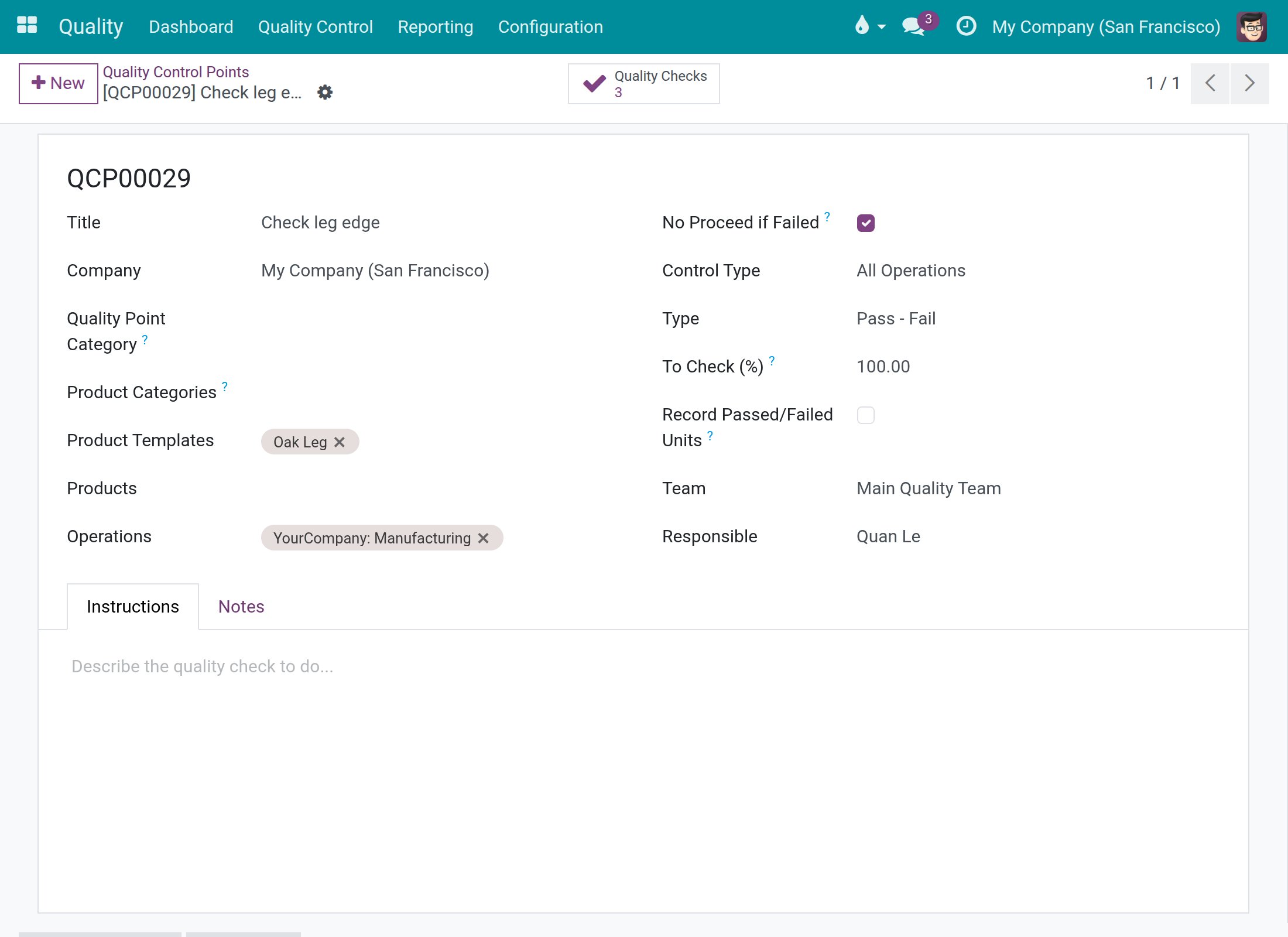
Open Quality ‣ Quality Control ‣ Quality Controls ‣ Control Points and click New.
Enter a Title. This is the name the operator reads on the tablet.
Choose the Type: Pass - Fail, Measure or Take a Picture. Each step shows exactly the controls its type allows.
In Product Templates (or Products), choose the product to check. For a check done during the operation, choose a component of the bill of materials. For a check of the finished table, choose the finished product.
In Operations, choose the operation type that applies, for example Manufacturing.
In Responsible, choose the person who has the duty to check. Leave it empty if anyone may do it.
Tick No Proceed if Failed if a failed result must stop the work until the Quality team releases it.
For a Measure control point, also enter the norm, its unit and the tolerance range. The tablet shows them next to the numpad, and the verdict is the same as at the desk. On the Message If Failure tab of any control point you can write a short instruction that the tablet shows on the step when the result is Failed.
The checks are created when the manufacturing order is confirmed:
- A control point on a component gives a step on the work order of the operation where that component is used in the bill of materials.
- A control point on the finished product gives a finished product check on the manufacturing order. It appears on the closing screen.
Tasks for machine operators
Record the quality steps before you start
When a job has quality steps to do, its card on the job board says so and the card does not start the job. Open the card, record every step, then start.
Open the Shop Floor app, choose your work center and click Open job board.
Look at the card of the job. A yellow tag such as 4 quality check(s) to do first and the line Record the quality checks first: ... mean that the job is held by quality. A job with nothing to do shows Quality passed and the button Open & start.
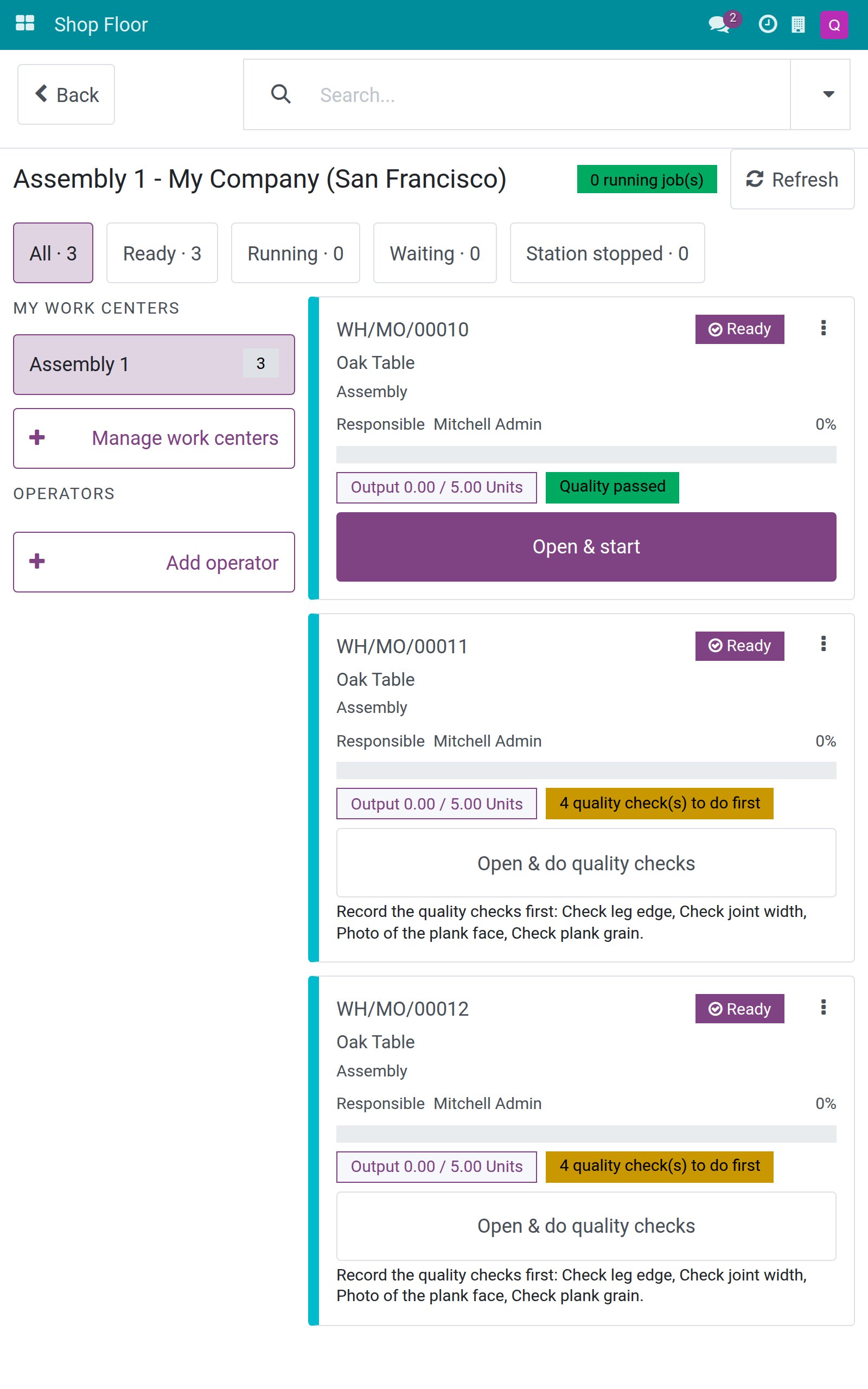
Tap Open & do quality checks. The screen Quality checks before you start lists every step with its status (To do, Passed or Failed) and a count such as 4 step(s) still to record. Start the operation stays grey, and the reason is written under it.
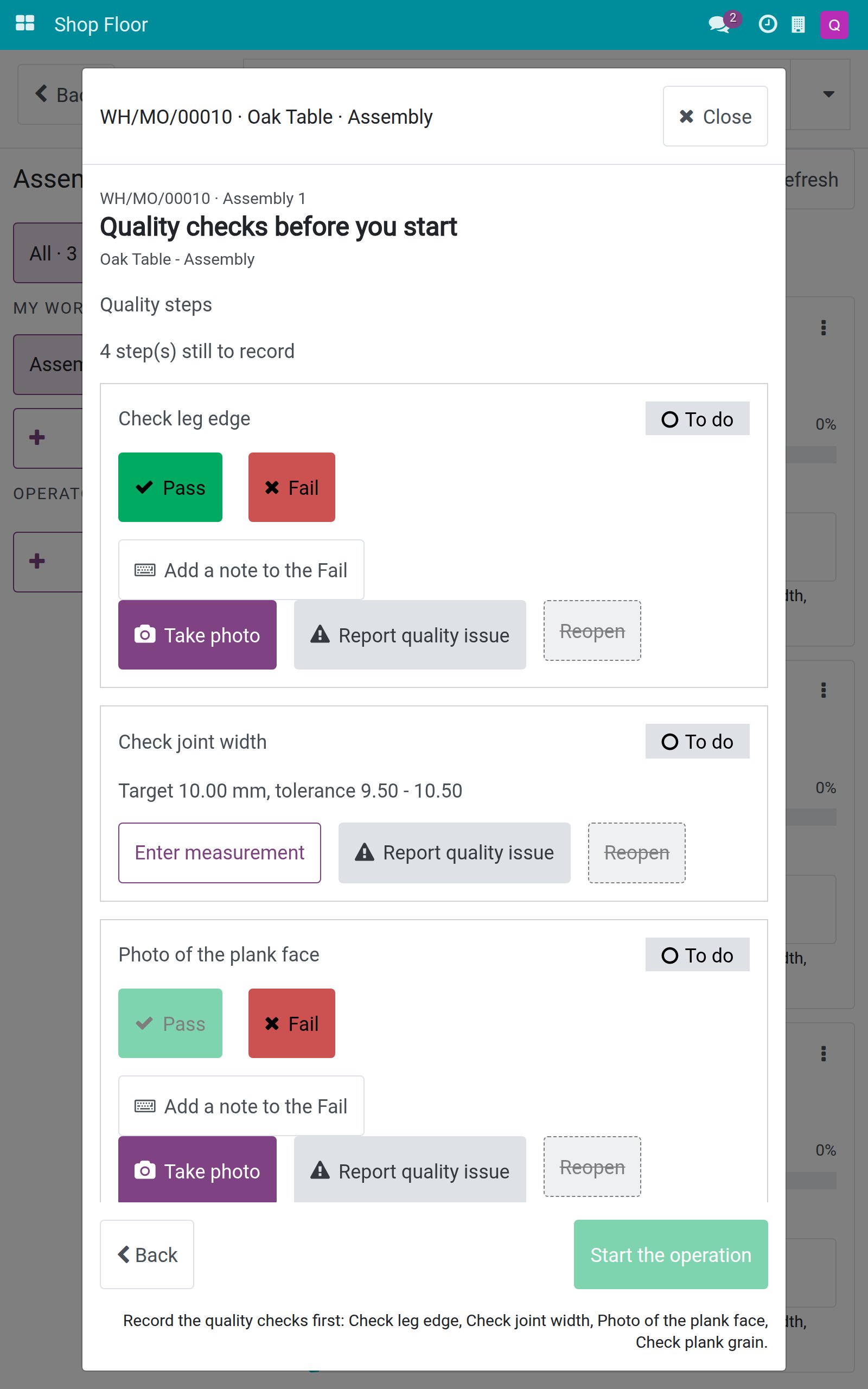
On a Pass - Fail step, tap Pass if the result is good. The status changes to Passed and the count goes down.
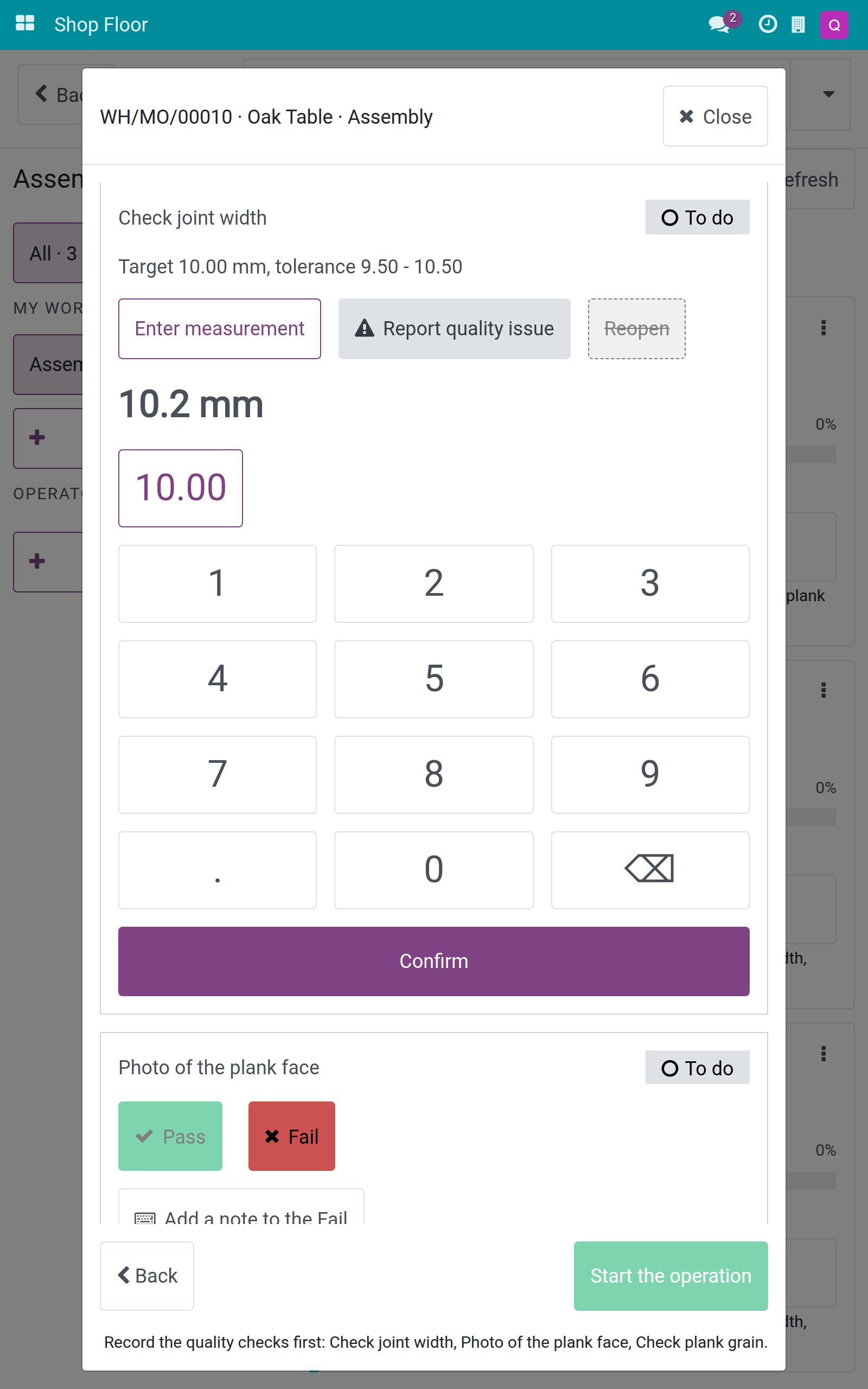
On a Measure step, read the target and tolerance (for example Target 10.00 mm, tolerance 9.50 - 10.50), tap Enter measurement, type the reading on the numpad and tap Confirm. The step shows the value with its unit and the verdict (Passed or Failed) that the tolerance gives.
On a Take a Picture step, Pass stays greyed out until a photo exists. Tap Take photo, take the picture with the tablet camera, check the thumbnail and the message Photo ready - tap Pass or Fail, then tap Pass. The step then shows 1 photo(s) on this step. If the picture is not good, tap Retake photo.
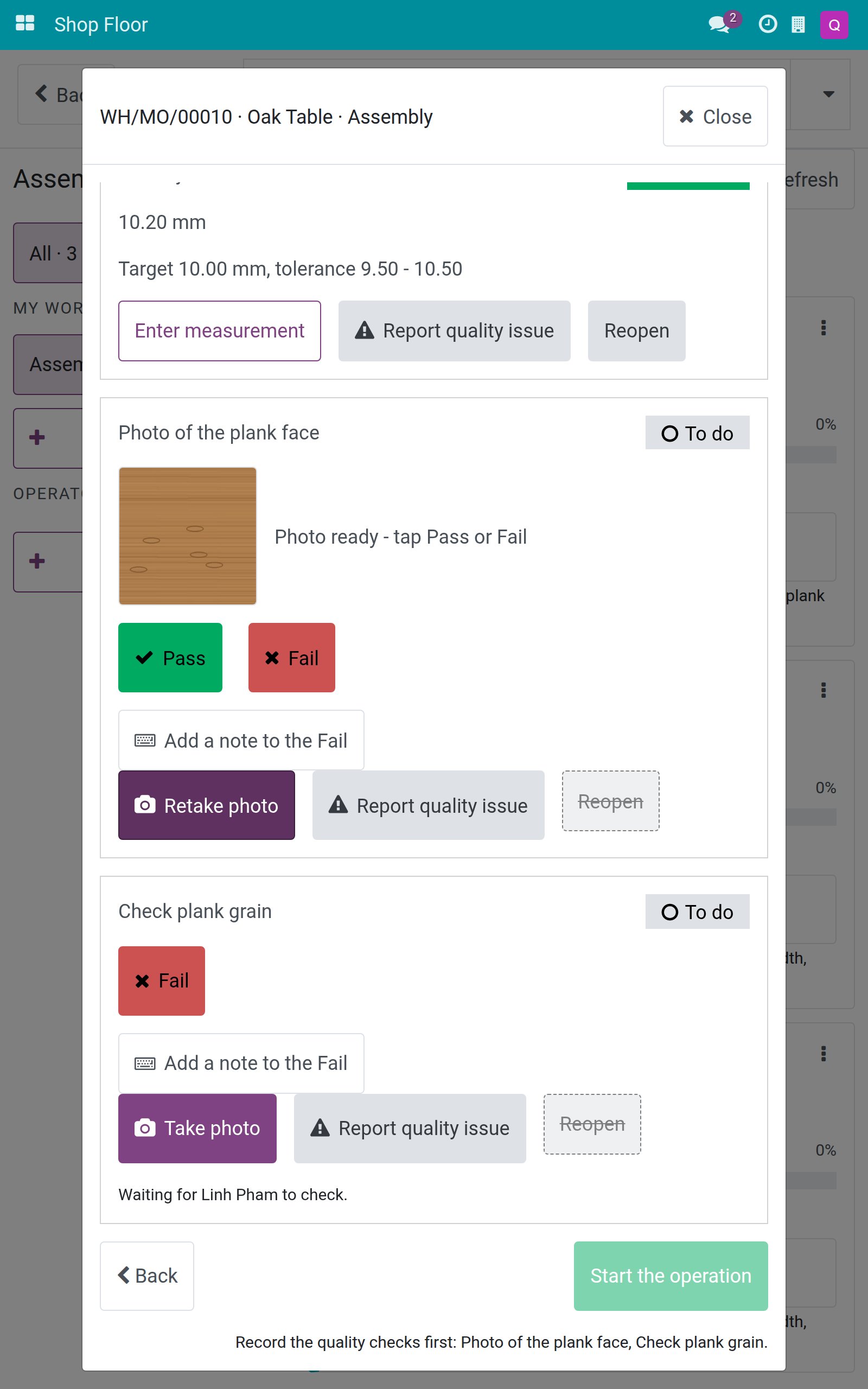
When no step is left to do, Start the operation becomes active. Tap it. The job moves to Running and its screen lists the same steps under Quality steps.
Note
On the job board, tapping the card only opens the job. The job starts only when you tap Open & start or Start the operation.
Raise the alarm on a step that is not yours
Some steps name another person in the Responsible field of the control point. If you are not that person, you do not see Pass or Enter measurement on the step. Under the step you read Waiting for Linh Pham to check. and the reason under Start the operation names the step that is still waiting.
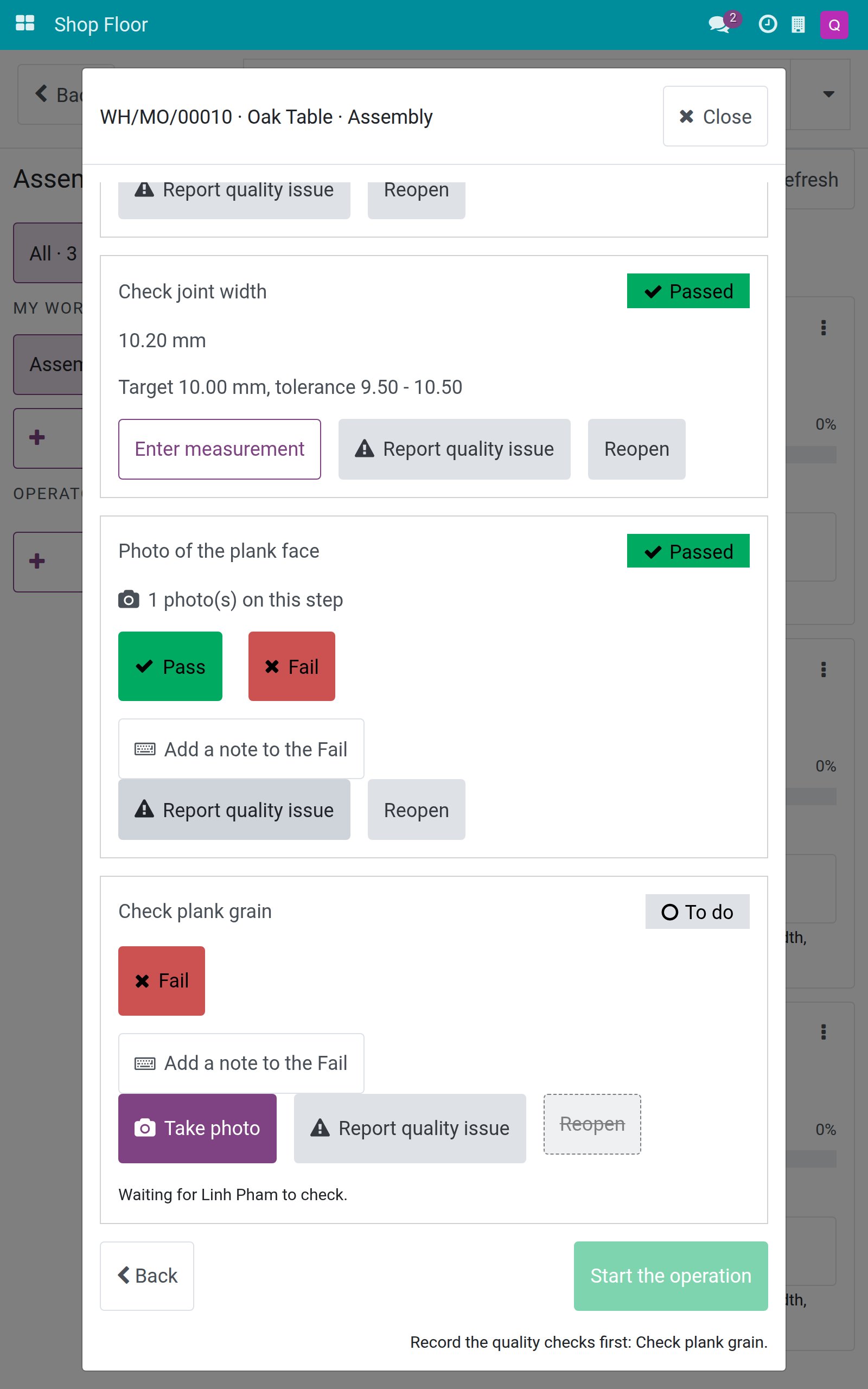
You can still report a defect that you see, like pulling an andon cord. The Fail button stays available to every operator.
Tap Take photo and photograph the defect. The message Photo ready - tap Fail to send it appears.
Tap Add a note to the Fail and describe the problem in What is wrong? (optional). The note is optional, and the keyboard opens only when you ask for it.
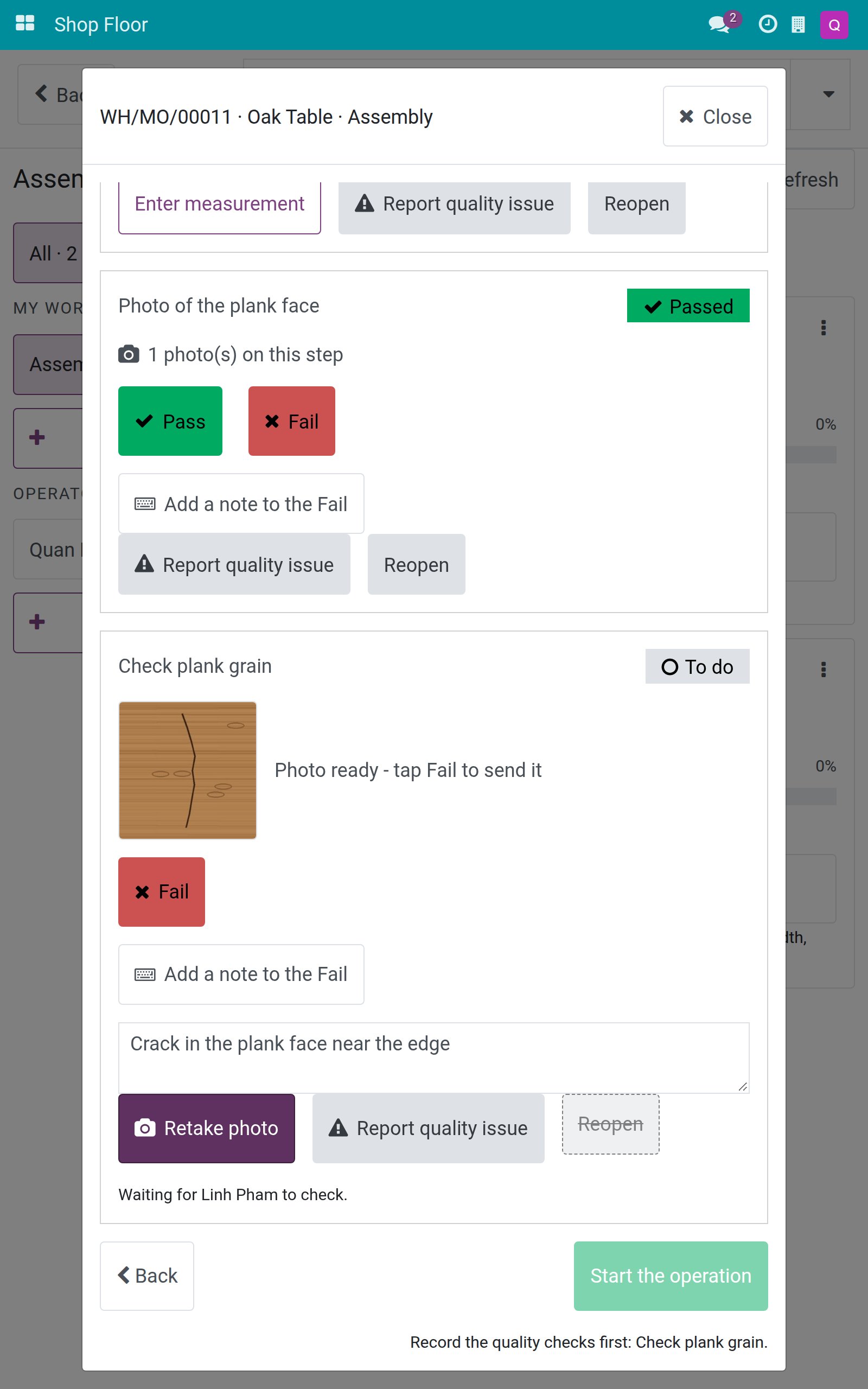
Tap Fail. The step shows Failed and 1 photo(s) on this step. The Responsible of the step does not change, and your name is kept as the person who recorded the result.
To add more evidence, tap Add photo on the Failed step. The photo is added at once and the count grows, for example 2 photo(s) on this step. You can add photos to a Failed step, but you cannot remove or replace them.
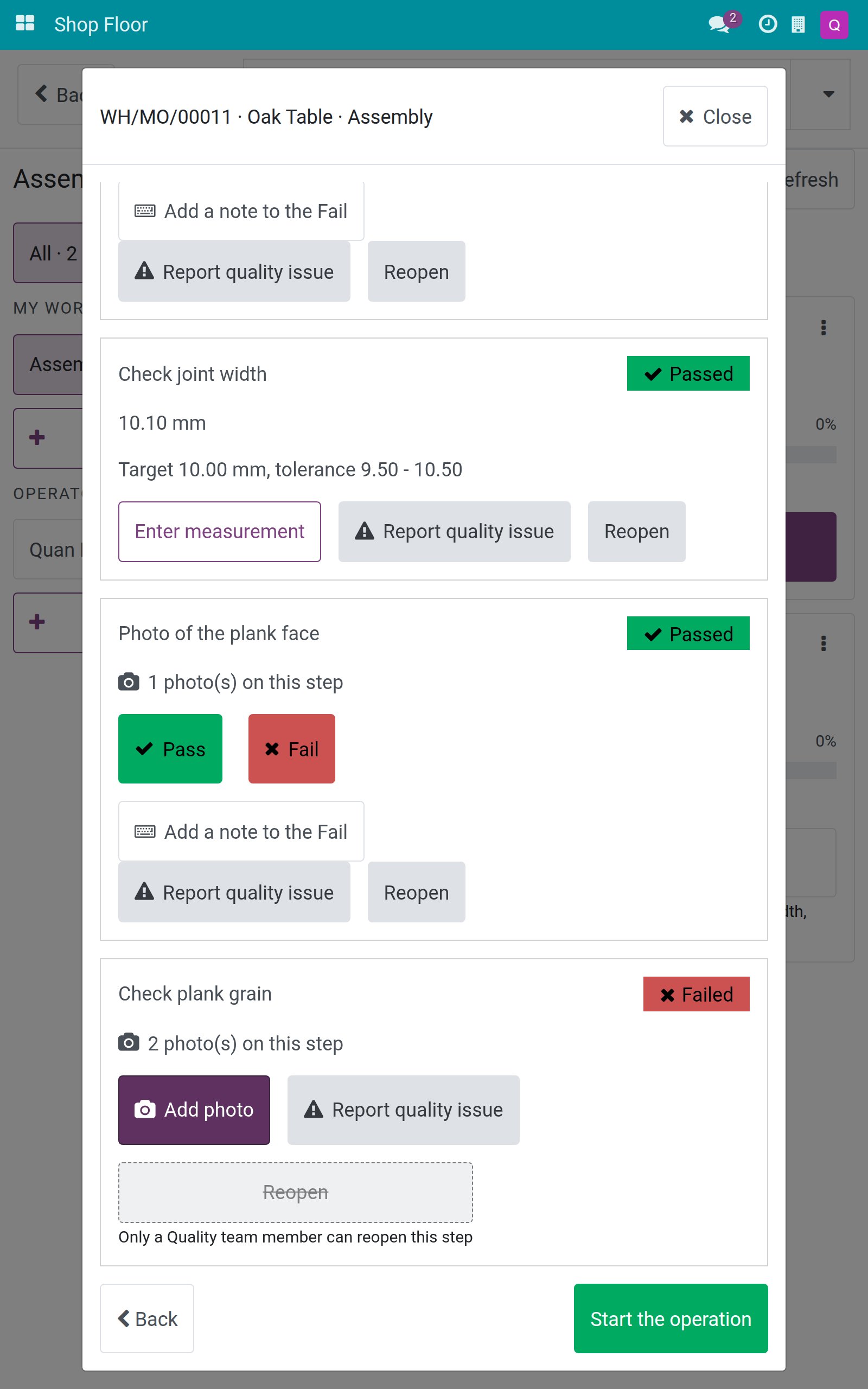
A Fail on a control point that does not have No Proceed if Failed does not hold the job: when nothing else is left to do, Start the operation is active, as in the screenshot above. The Quality team still sees the Failed step.
A failed blocking step stops the job
When the control point has No Proceed if Failed, a Fail needs your confirmation, because it stops the work on the operation.
On the step, optionally tap Add a note to the Fail and describe the problem.
Tap Fail. The question Record Fail on <step>? opens, with the warning that a failed result stops the work on the operation until it is resolved.
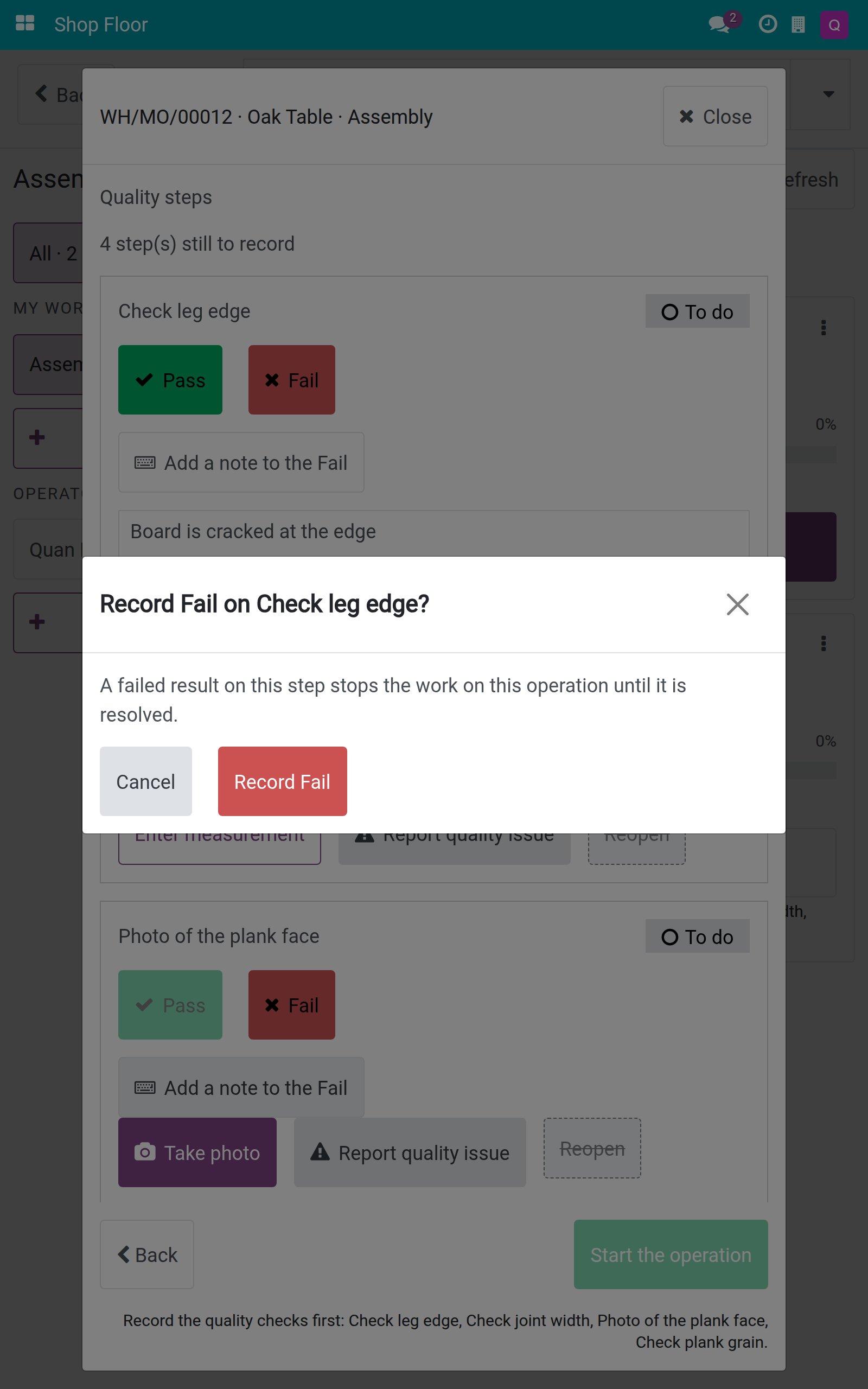
Tap Record Fail to confirm, or Cancel if you tapped by mistake.
The step shows Failed with the failure message of the control point. Start the operation is disabled, and the reason names the failed check and says that the Quality team has to reopen or re-inspect it. Your Reopen button is greyed out with the sentence Only a Quality team member can reopen this step.
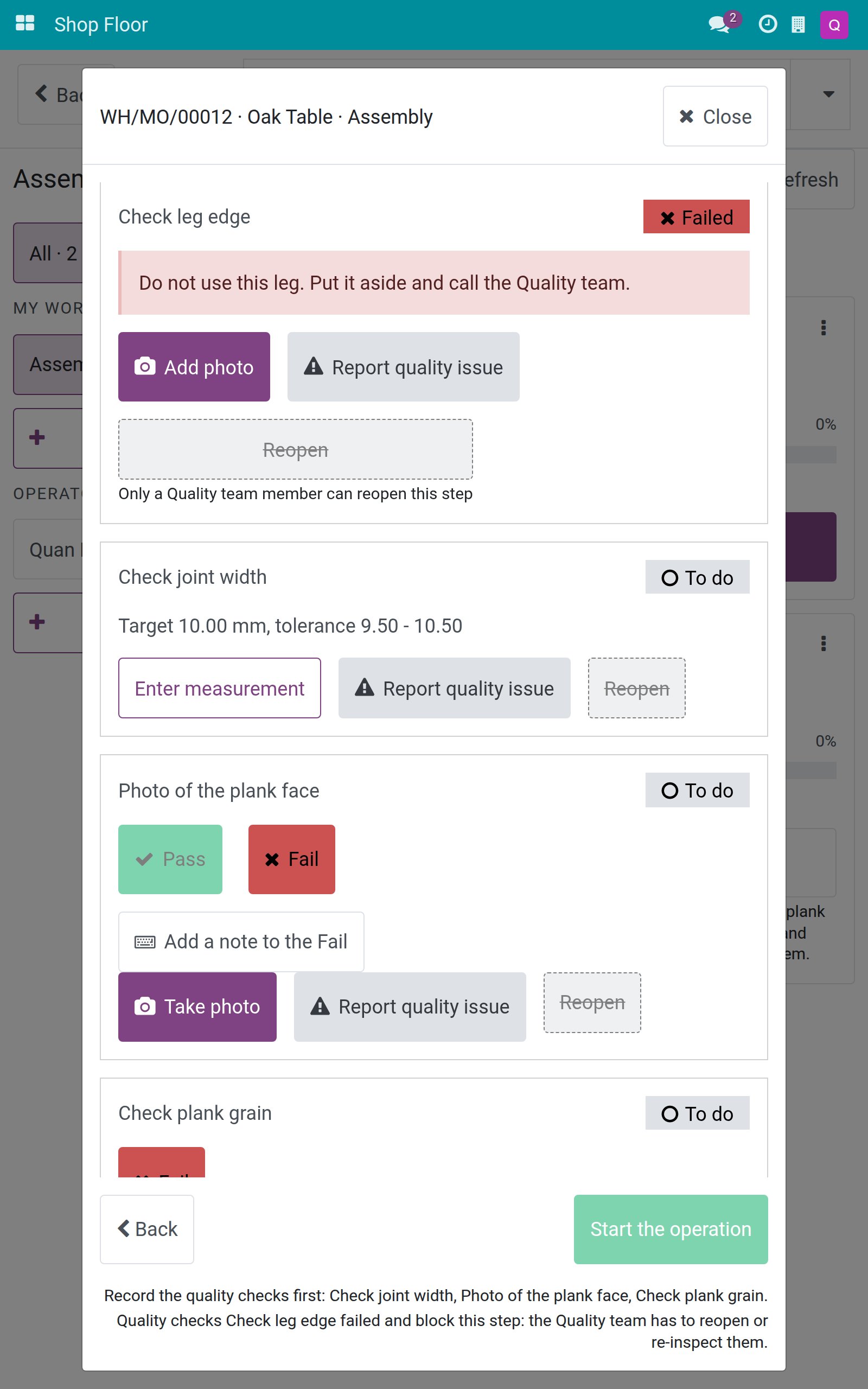
The job still opens. You can tap its card again to read why Start the operation is off, instead of meeting a dead end. Call the Quality inspector.
Reopen a step you recorded by mistake
If you tapped Pass on the wrong step, you can take it back, as long as the step is Passed and you may record it.
Open the Quality steps of the job and find the step.
Tap Reopen. The step goes back to To do and the line 1 step(s) still to record returns. Nobody is kept as having checked it.
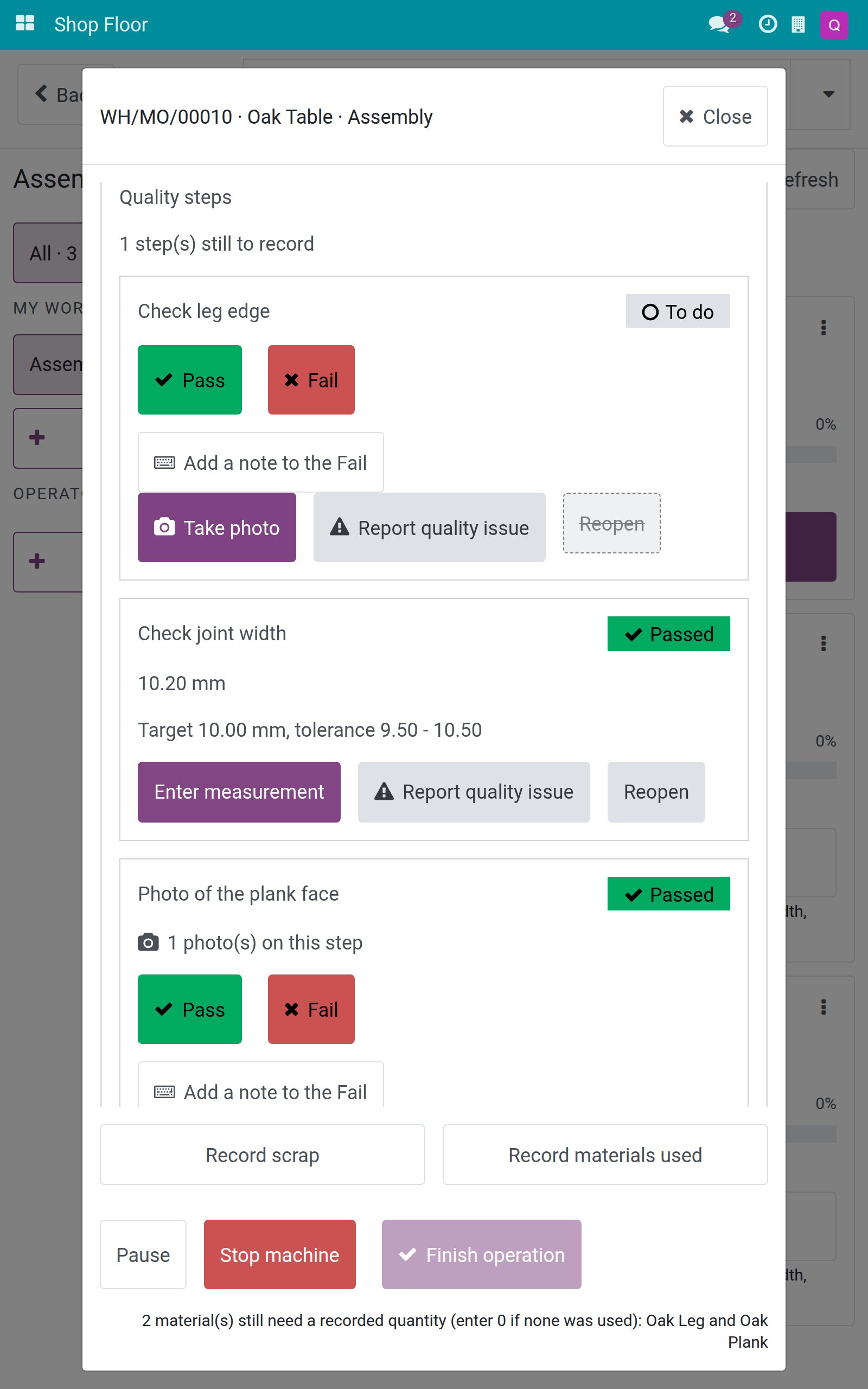
Record the right result.
A Failed step is different: only a Quality team member can reopen it. For you the button is greyed out and the screen says so.
Report a quality issue
When something is wrong but it is not a result for one step, raise a quality alert without leaving the job.
On the step, tap Report quality issue.
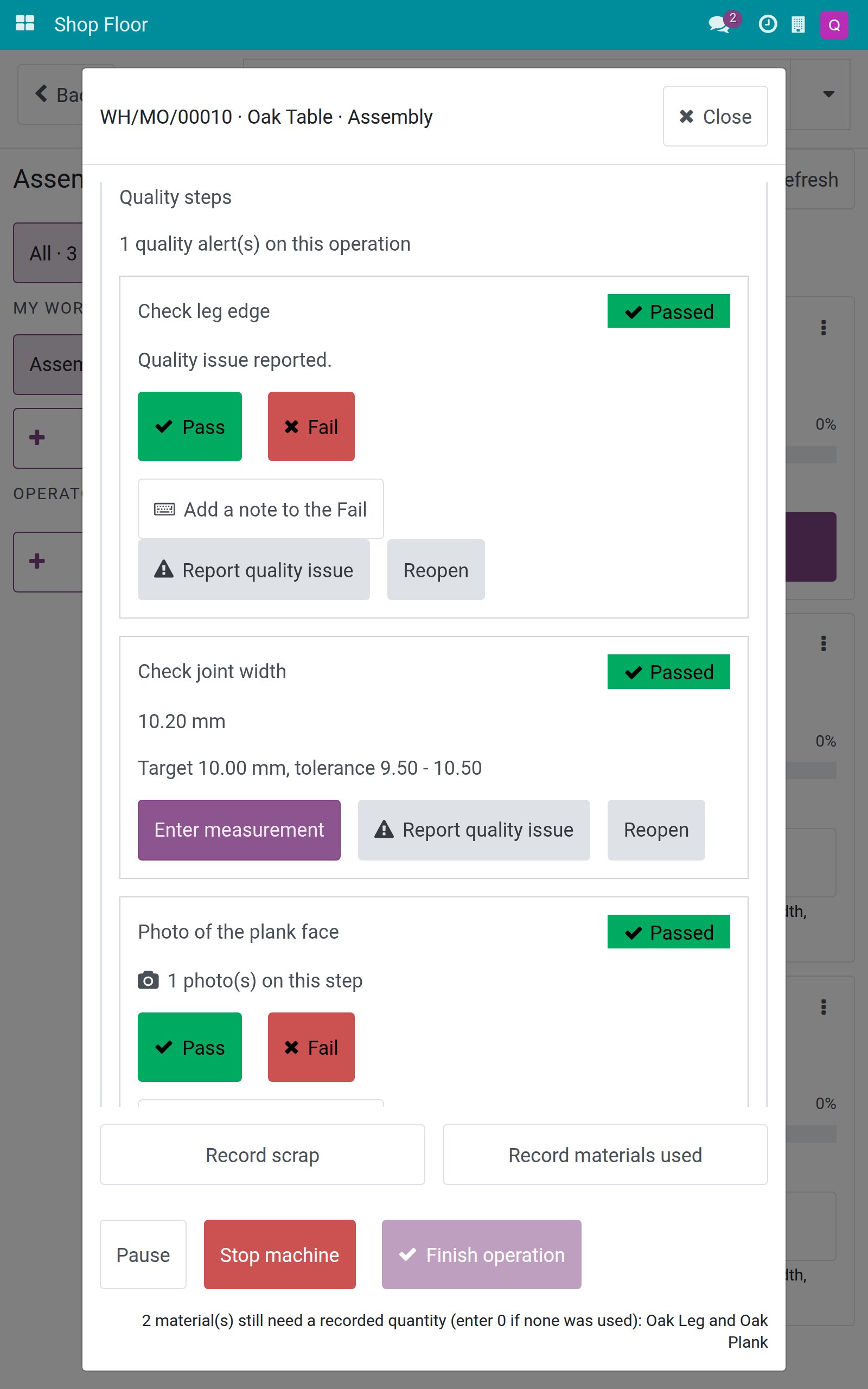
The step shows Quality issue reported. and the head of the Quality steps shows 1 quality alert(s) on this operation. If you tap twice on a slow connection, only one alert is created.
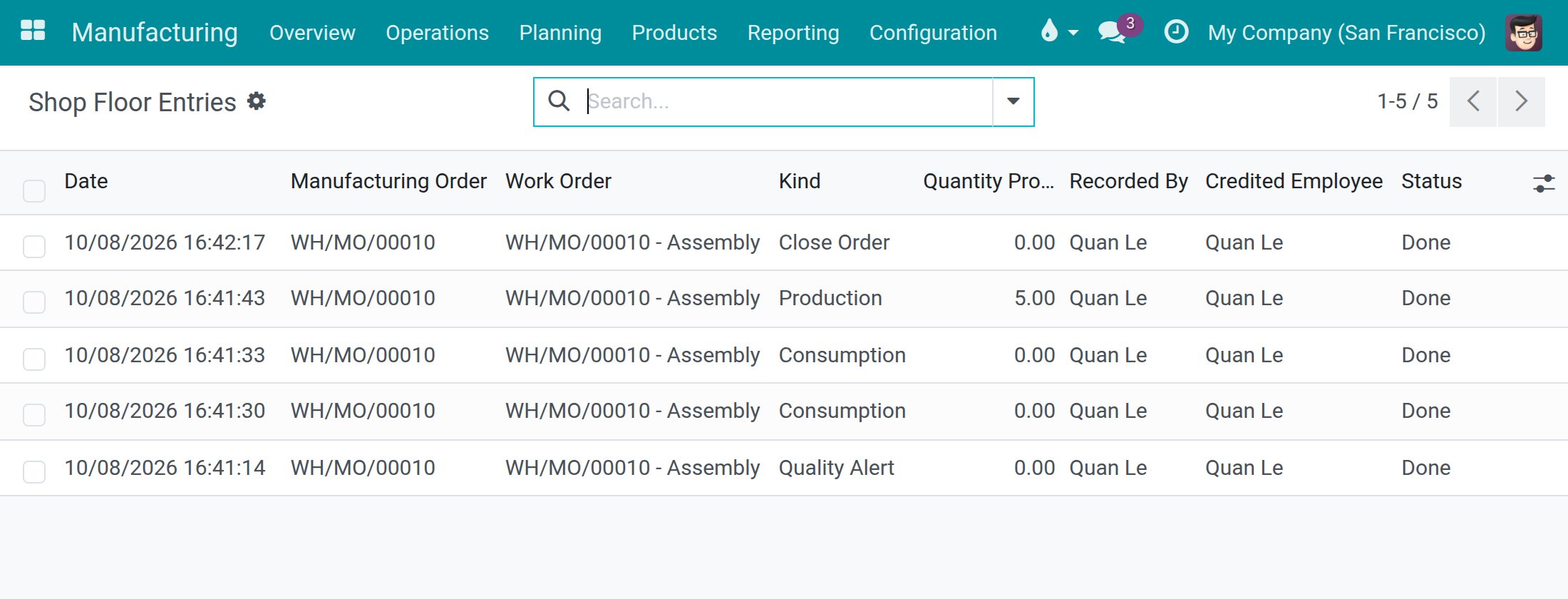
The alert is also listed in Manufacturing ‣ Reporting ‣ Shop Floor Entries. Open it and look at the column Kind: the line reads Quality Alert, next to the production, consumption and close order lines. The quality team handles the alert in the Quality app.
If the job has no failed check and nothing to do, its card on the job board can show a chip such as 1 quality alert(s).
Check the finished product and close the order
The finished product checks of the order are recorded on the closing screen. Recording the output is never blocked by quality.
On the job, record the materials used and tap Record output as usual. Enter the quantity just made.
Tap Finish operation. The screen Confirm Closing the Production Order opens (on the job board the card of a finished last operation offers Close the order).
Under Finished product checks, each check shows its status. While a check is to do, the button Confirm closing order <order> is disabled and the sentence under it says who the order waits for, for example Waiting for Linh Pham to check: Final table inspection. If the check has no Responsible, the sentence reads Please do the quality checks first: ....
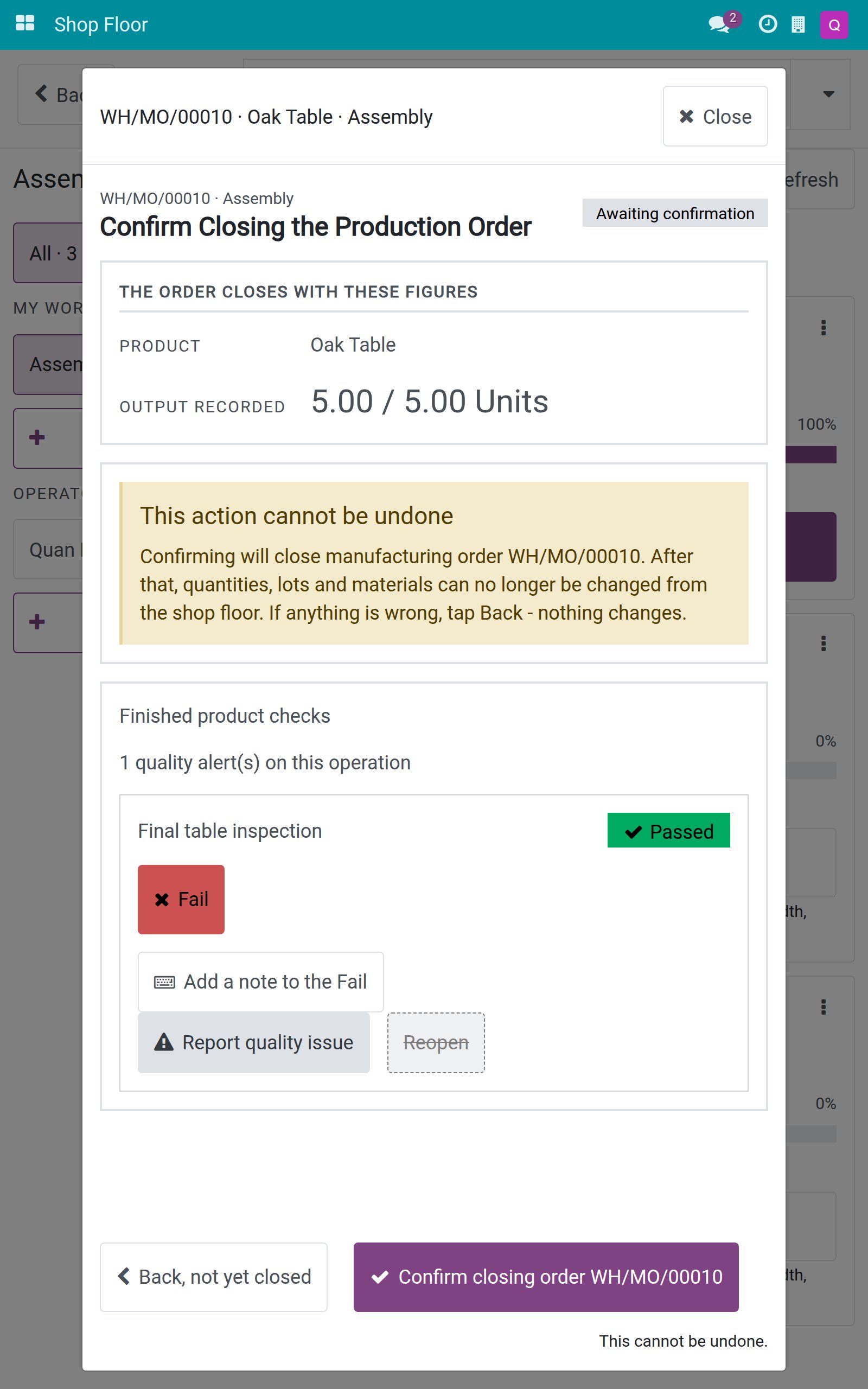
When the check is Passed, refresh the board and open Close the order again. The hold sentence has gone and the button is active. Tap Confirm closing order <order>.
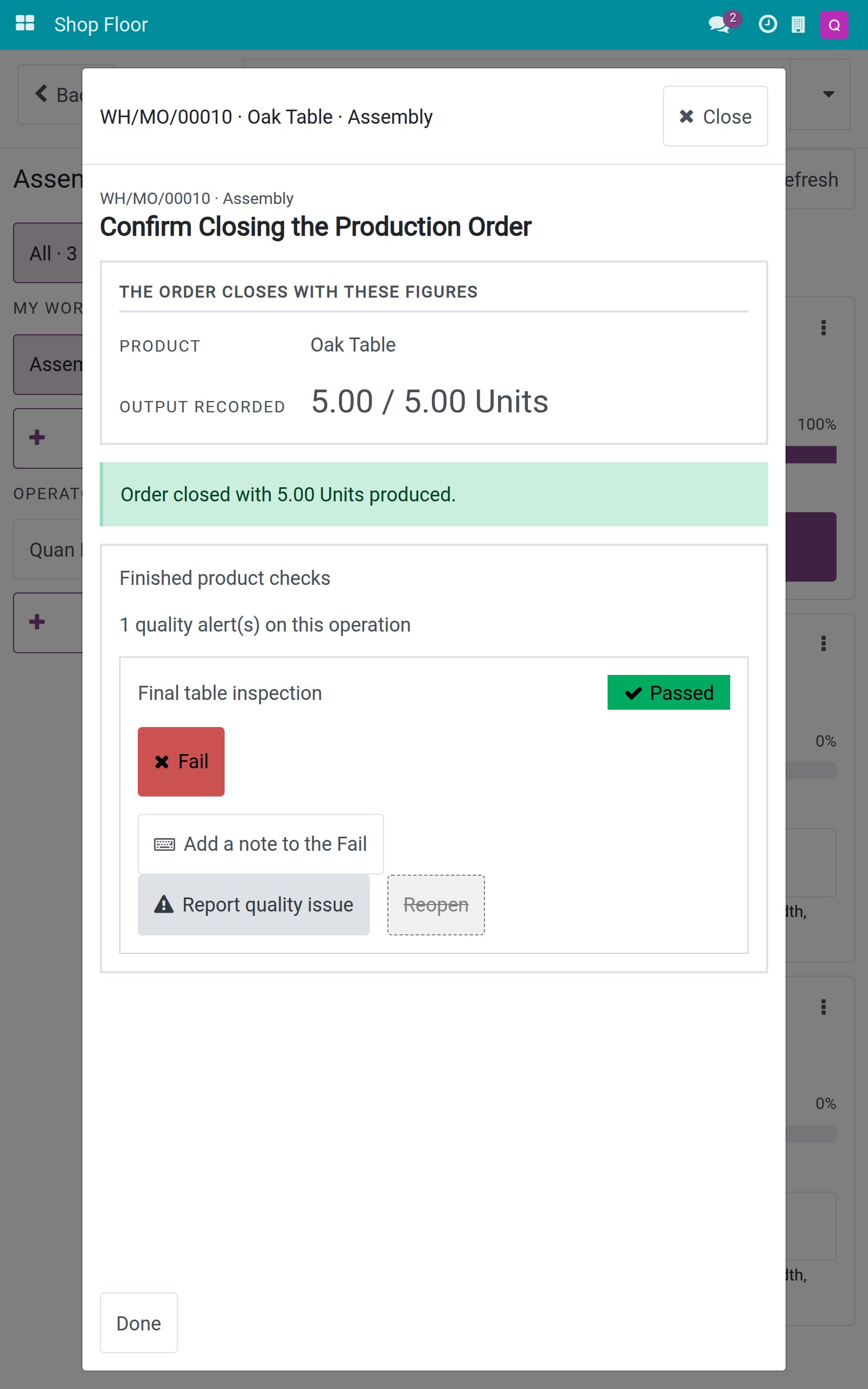
The banner Order closed with 5.00 Units produced. confirms the closure. Tap Done.
If a finished product check with No Proceed if Failed has been recorded as Failed, the closing controls stay off and the sentence says that the Quality team has to reopen or re-inspect the check before the order can close.
When the connection drops
If the Wi-Fi is lost when you tap Pass or Fail, the tablet cannot be sure that the result was saved. Nothing is lost and nothing is recorded twice.
A band appears on that step: Not sure it was recorded - the network connection was lost. What you entered is still here; check the Wi-Fi, then tap Retry - nothing will be recorded twice. The step is still To do.
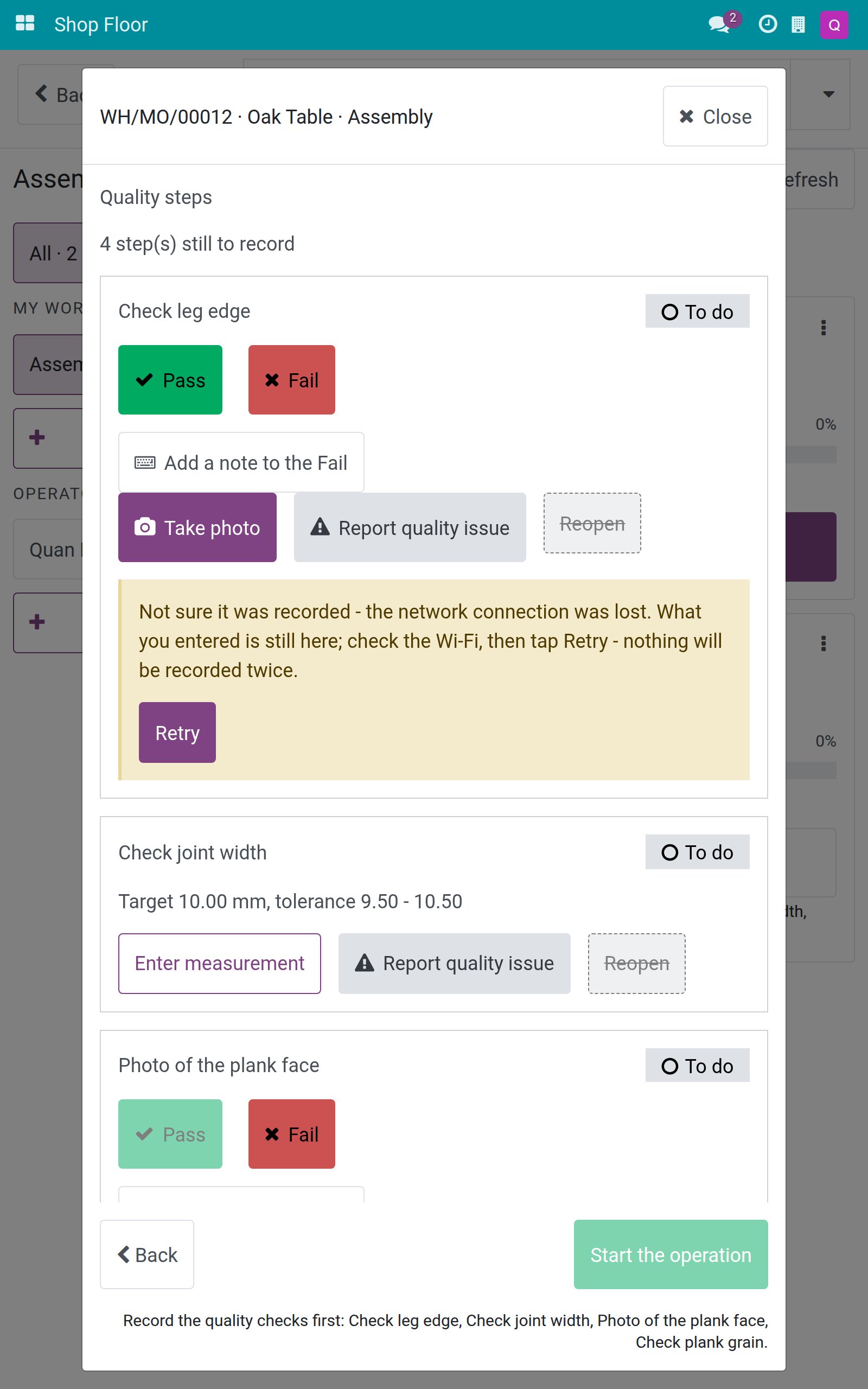
Check the Wi-Fi, then tap Retry. The same result is sent once and the step shows Passed (or Failed).
Tasks for the quality inspector
Release a failed step
An inspector with the access right Quality / User can reopen a step that the operator recorded as Failed.
Open the Shop Floor app on your tablet, choose the work center and open the job board. A card with a failed check shows the tag Quality check failed.
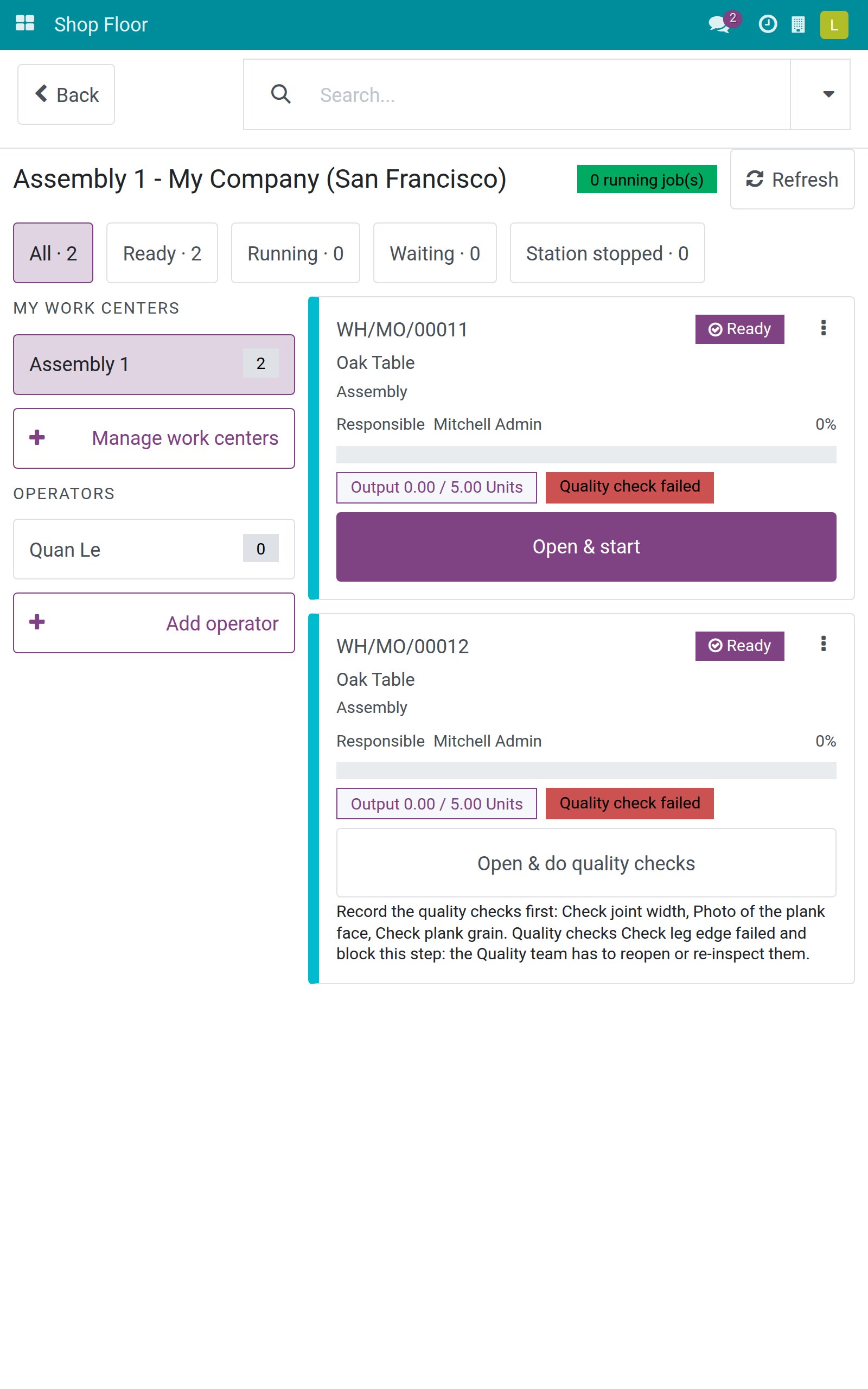
Open the card. On the Failed step you see the failure message, and Reopen is active for you.
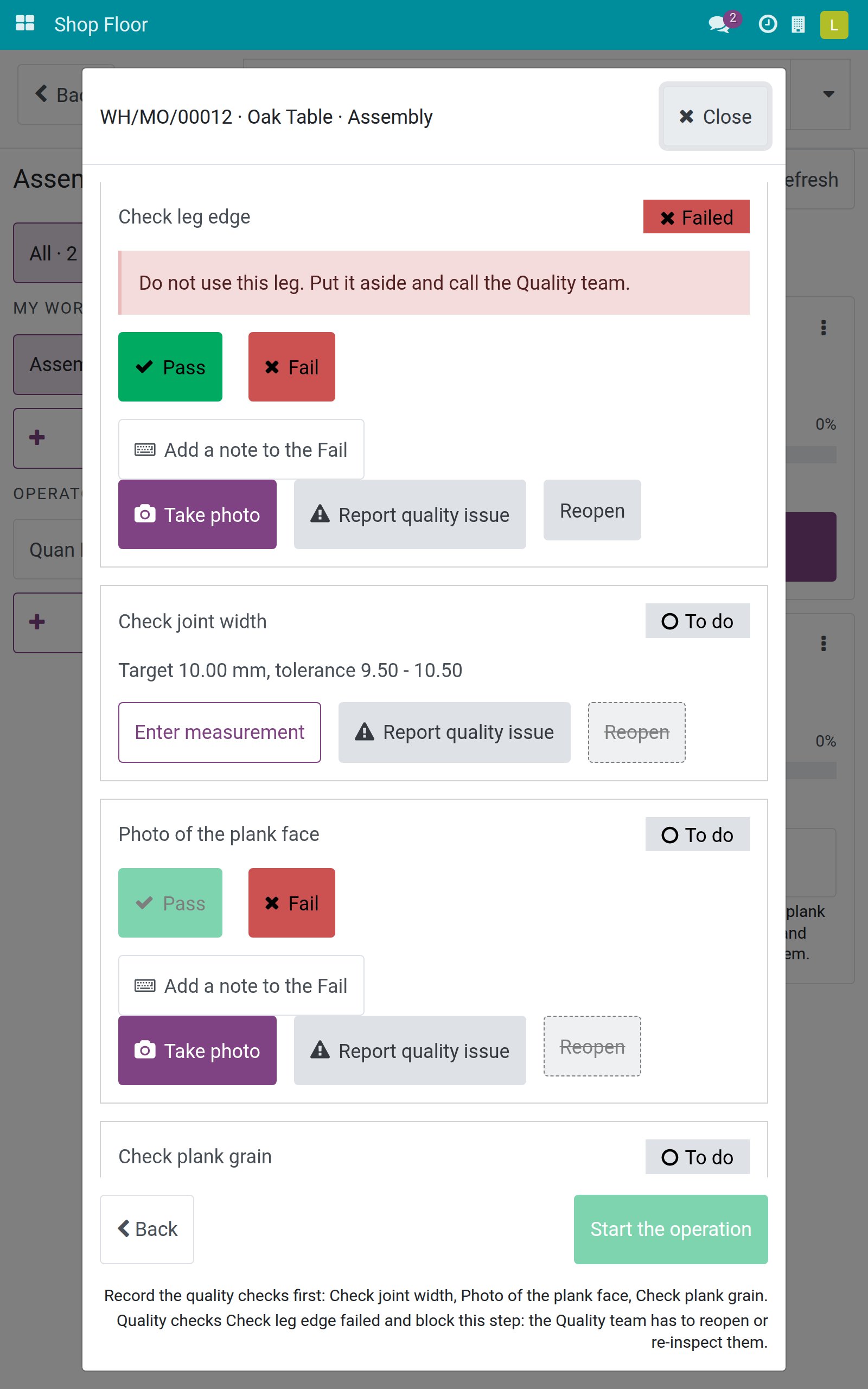
Tap Reopen. The step goes back to To do and nobody is kept as having checked it.
Inspect the product, then tap Pass (or Fail) to record the verdict. When nothing else holds the job, the operator can tap Start the operation.
You can also record the finished product checks on the closing screen with the same buttons. The order closes once they are Passed.
Troubleshooting
- Start the operation is greyed out. Read the sentence under the button. It lists the checks to do, or the failed checks that block the step. Record the checks, or call the Quality team to reopen a failed one.
- A step shows "Waiting for ... to check" and I do not see Pass. The control point names another person in Responsible. Ask that person to record it, or ask the manager to change the Responsible of the control point. You can still tap Fail if you see a defect.
- Pass is greyed out on a photo step. A photo step needs a photo for a Pass. Tap Take photo first.
- Reopen is greyed out. A Failed step can be reopened only by a Quality team member. The sentence Only a Quality team member can reopen this step is shown beside the button.
- I tapped the card and the job did not start. This is intended. Tap Open & start or Start the operation.
- The quality steps do not appear on the job. Check that the control point has the right product (a component of the bill of materials used in this operation), the right operation type and that it was created before the order was confirmed. The steps are created when the order is confirmed.
- The Retry band appears. The connection was lost. Check the Wi-Fi and tap Retry.
FAQ
- Can an operator record a Pass for a step that names someone else as Responsible?
- No. Pass and the measurement follow the Responsible of the control point. Anyone who may work on the job can record a Fail.
- What happens when a Fail is recorded on a control point without No Proceed if Failed?
- The step shows Failed and the Quality team sees it, but it does not hold the job or the closing of the order.
- Can I remove a photo from a Failed step?
- No. You can add photos to a Failed step, but not remove or replace them.
- Does quality block the recording of the output?
- No. Only the start of the operation and the closing of the order are held.
- Where can I see the quality alerts raised from the tablet?
- In Manufacturing ‣ Reporting ‣ Shop Floor Entries (kind Quality Alert) and in the Quality app.
This software and associated files (the "Software") may only be used (executed, modified, executed after modifications) if you have purchased a valid license from the authors, typically via Odoo Apps, or if you have received a written agreement from the authors of the Software (see the COPYRIGHT file).
You may develop Odoo modules that use the Software as a library (typically by depending on it, importing it and using its resources), but without copying any source code or material from the Software. You may distribute those modules under the license of your choice, provided that this license is compatible with the terms of the Odoo Proprietary License (For example: LGPL, MIT, or proprietary licenses similar to this one).
It is forbidden to publish, distribute, sublicense, or sell copies of the Software or modified copies of the Software.
The above copyright notice and this permission notice must be included in all copies or substantial portions of the Software.
THE SOFTWARE IS PROVIDED "AS IS", WITHOUT WARRANTY OF ANY KIND, EXPRESS OR IMPLIED, INCLUDING BUT NOT LIMITED TO THE WARRANTIES OF MERCHANTABILITY, FITNESS FOR A PARTICULAR PURPOSE AND NONINFRINGEMENT. IN NO EVENT SHALL THE AUTHORS OR COPYRIGHT HOLDERS BE LIABLE FOR ANY CLAIM, DAMAGES OR OTHER LIABILITY, WHETHER IN AN ACTION OF CONTRACT, TORT OR OTHERWISE, ARISING FROM, OUT OF OR IN CONNECTION WITH THE SOFTWARE OR THE USE OR OTHER DEALINGS IN THE SOFTWARE.