
Viindoo AI - Brain Bridge
| Lines of Code | 4869 |
| Technical name | viin_ai_brain |
| License | OPL-1 |
| Website | https://viindoo.com/apps/app/17.0/viin_ai_brain |
| Read description for | |
| Required Apps | Discuss (mail) |
| Included Dependencies | Viindoo Brain Viindoo AI Viindoo AI - Editor Viindoo Web Editor Viindoo Base API Request Logger |
| Extensions | Viindoo AI - Test/Demo Module (mock provider) Viindoo AI Suite Viindoo Brain - Knowledge Suite |

Let your AI assistant read and write your company wiki, with a person always in charge
For Odoo companies that keep their know-how in Viindoo Brain
Find answers by meaning, draft pages with the assistant, and review every change it makes.
Is this you?
Your wiki holds the answer, but people only find it by guessing the exact words on the page.
A good answer from the AI assistant gets lost in the chat history.
Starting a page from a blank screen costs more time than the page is worth.
You want AI to help write the wiki, but you need to know what it changed and who checked it.
Handing company text to an AI provider is a decision your administrator wants to make on purpose.
What changes
Your wiki holds the answer, but people only find it by guessing the exact words on the page.
→ Find the page by what you mean. Pages whose meaning matches your question appear in their own group, even when the question is in another language, among the pages you may read.
A good answer from the AI assistant gets lost in the chat history.
→ Keep the answer in one click as a private page with the question and the answer. It saves only when you ask, and never twice.
Starting a page from a blank screen costs more time than the page is worth.
→ Describe the page to the assistant and get text in the language you write in, placed where you want it: at the cursor, over a selection, as a block to review, or as the whole page.
You want AI to help write the wiki, but you need to know what it changed and who checked it.
→ See which assistant wrote or changed each page. The owner verifies it, undoes the change, or asks the assistant to check the page against the records it links to.
Handing company text to an AI provider is a decision your administrator wants to make on purpose.
→ A wiki already in use is indexed only after a wiki admin accepts a notice that names the provider receiving the text.
How it works
Set up
System Administrator and Wiki Admin
The administrator connects the AI provider and checks the model of the Knowledge Base Assistant. A wiki admin allows the wiki to be searched by the assistant.
Find and ask
Employee
Employees search by meaning, hand a question to the assistant with Ask AI and keep the answers worth keeping.
Write
Writer
Writers draft pages and passages with the assistant. The page shows which assistant wrote the text and goes to its owner.
Review
Page owner or Space admin
The owner marks the page as verified, undoes the assistant's changes or asks the assistant to check the page. Wiki admins follow every change in AI Contributions.
Key Features
Related by meaning
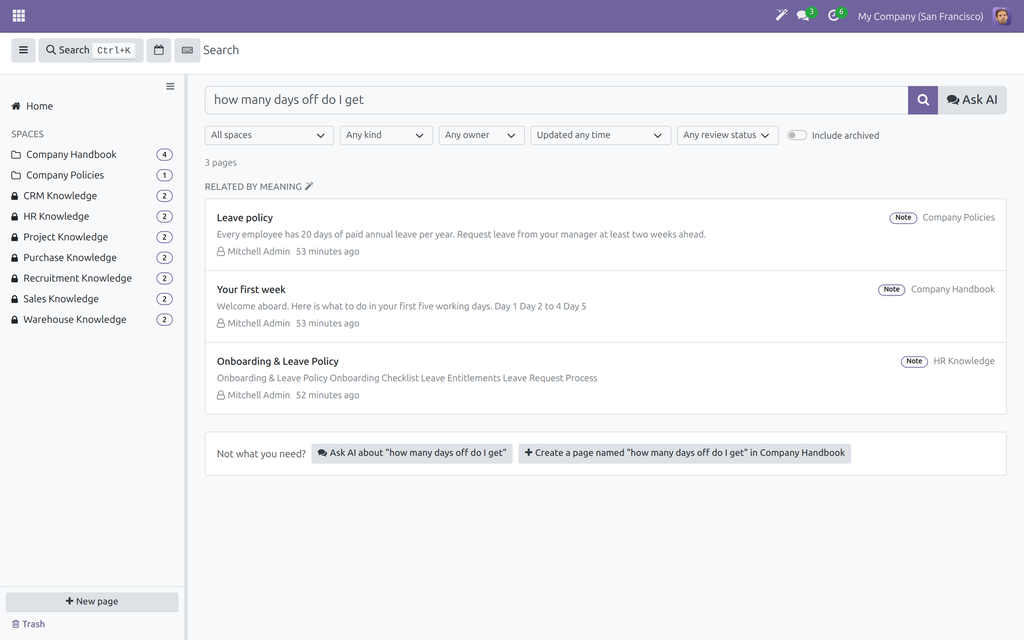
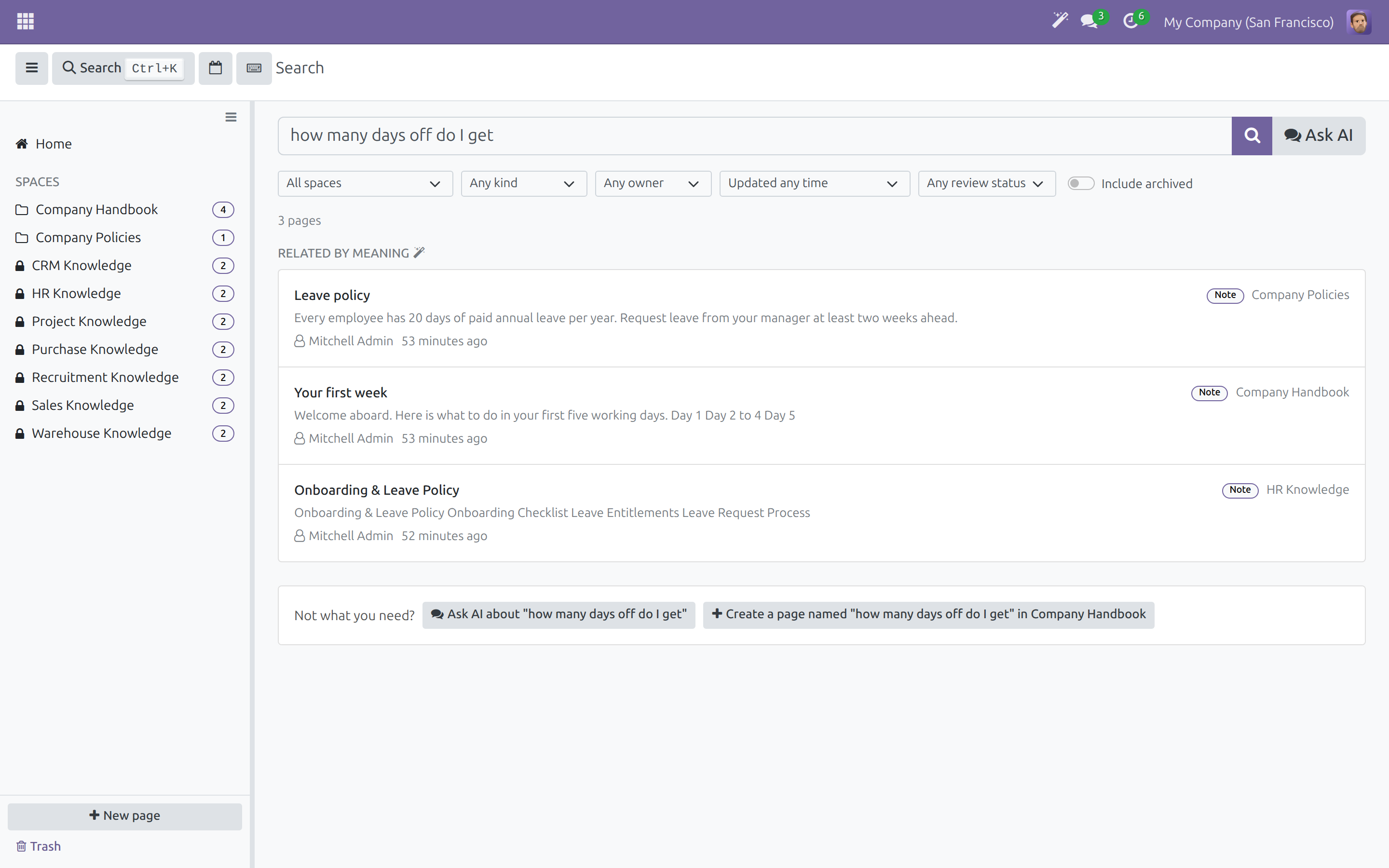
Search results gain a group of pages that answer your question in different words, limited to pages you may read.
Ask AI
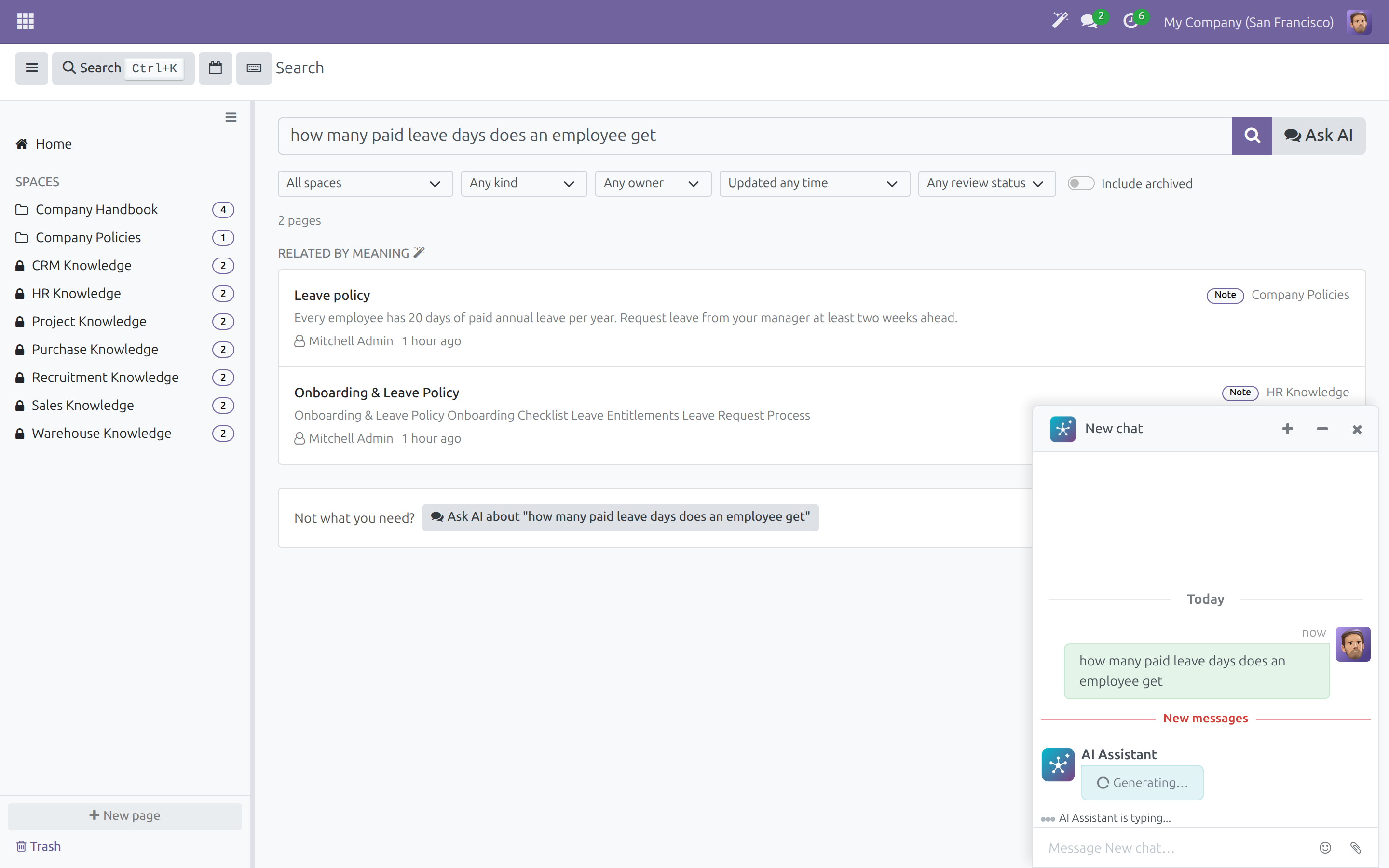
A button beside the search box hands your question to the AI assistant as your own message, from Home or from the results.
Write with AI
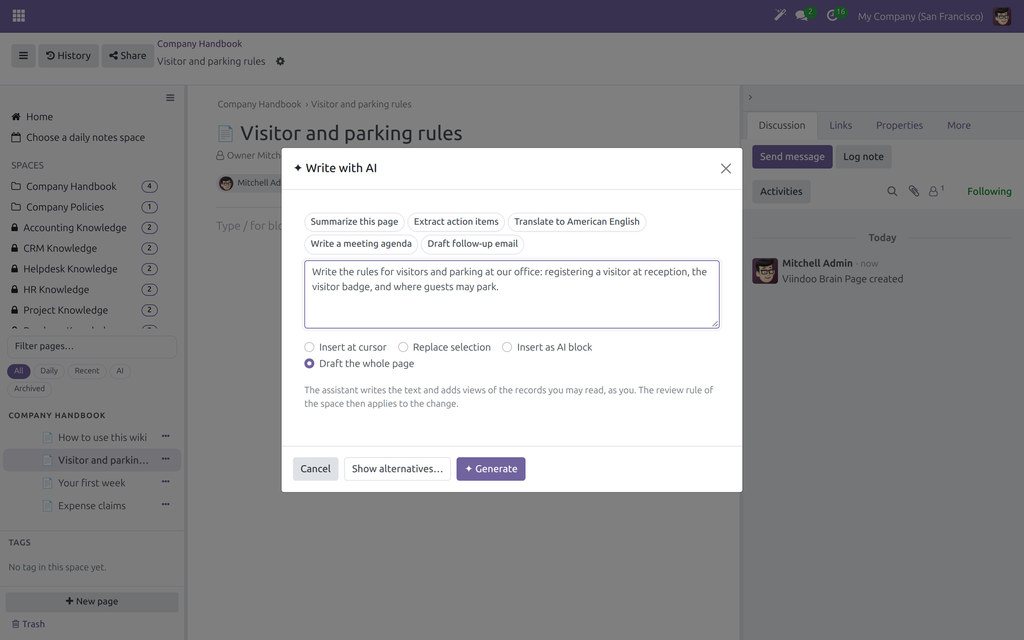
Start a page from the New page dialog, or type a slash in a page for AI block, AI: Write and AI: Chat. Insert at the cursor, replace a selection, add a block to review or draft the whole page.
Save to Brain
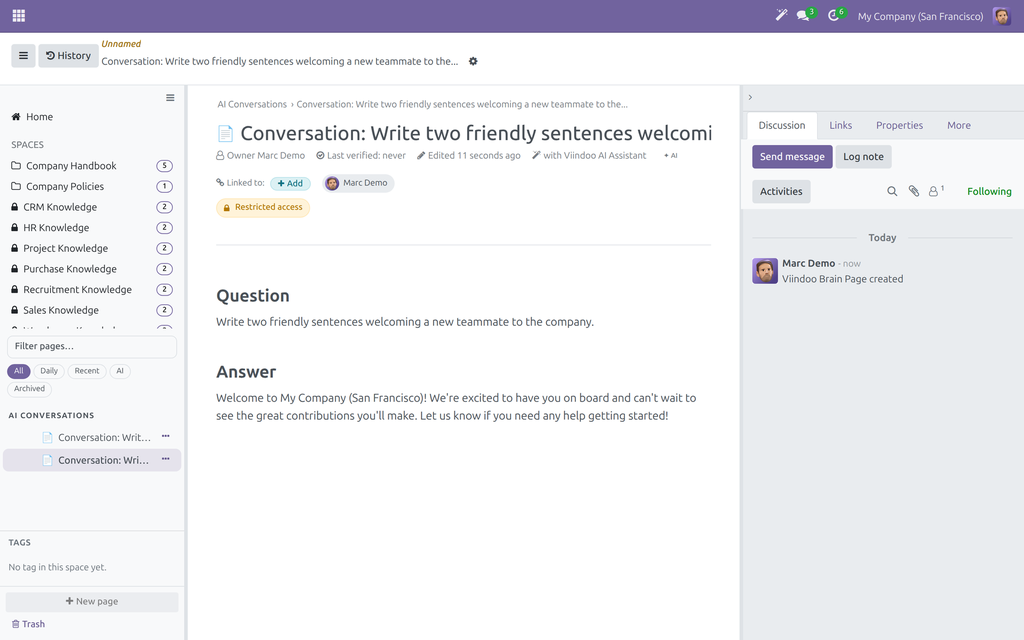
Keep a finished assistant answer from Discuss as a private page in your AI Conversations Space, once, only when you click.
Review what the assistant changed
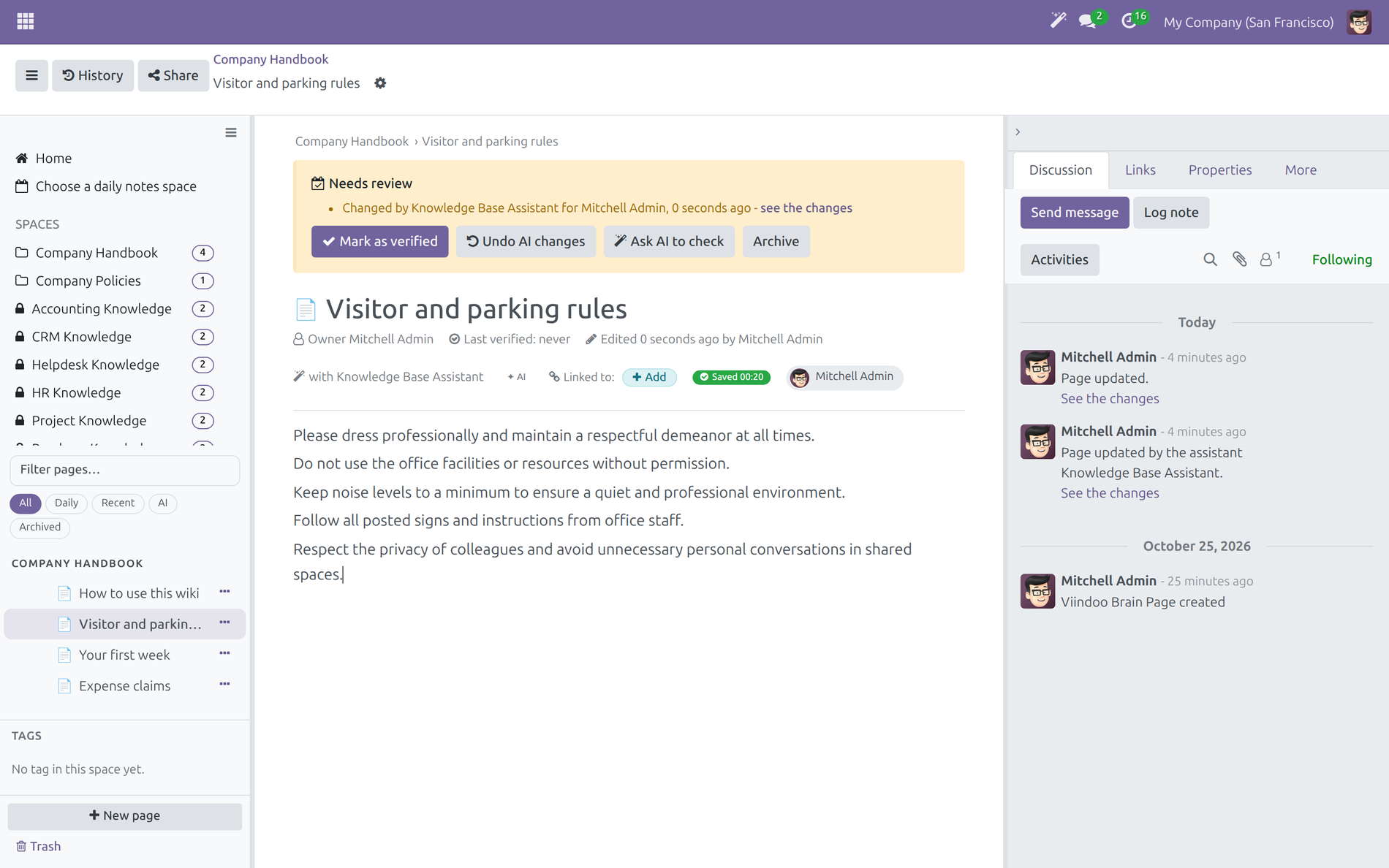
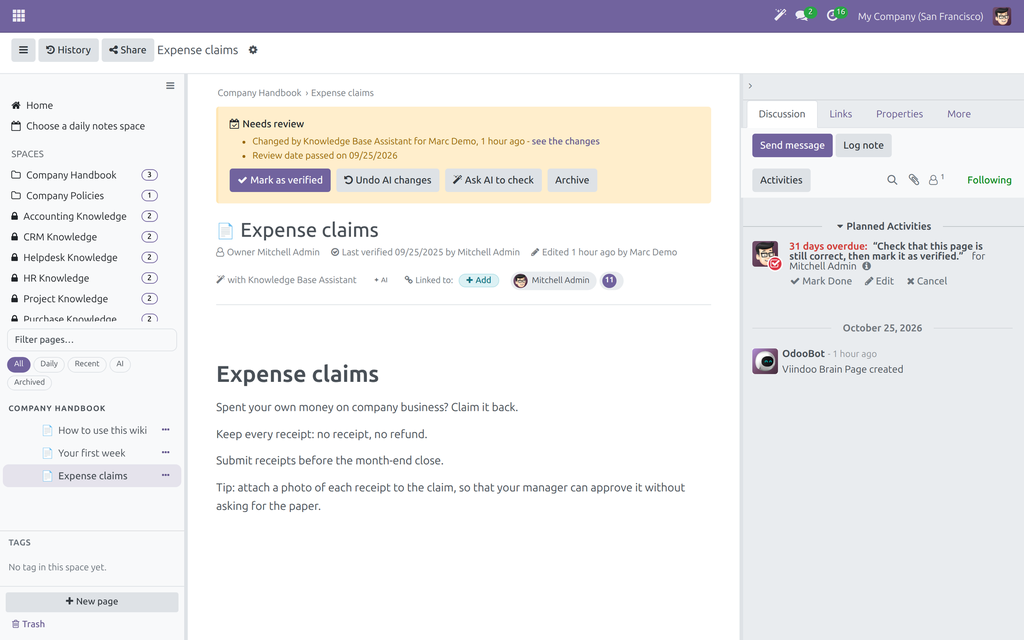
A page shows the assistant's name and an AI badge. Mark as verified, Undo AI changes or Ask AI to check, and list every changed page in AI Contributions.
Controls for administrators
Allow indexing with one click after seeing the provider, change the assistant's model, and set the Minimum Relevance of the search by meaning.
Who it is for
Employees
Find the policy without knowing its title and keep the answers that helped.
Writers
Get a first draft in seconds and spend the time on the facts that matter.
Page owners and Space admins
Know which pages an assistant touched and decide what stays.
Wiki admins and administrators
Decide what is indexed and which model the assistant uses.
Best for: companies that keep policies, procedures and know-how in Viindoo Brain and want an AI assistant to help read and write them under the same access rules, with a person reviewing the result.
Find a page by its meaning
Hand a question to the assistant
Start a page with the assistant
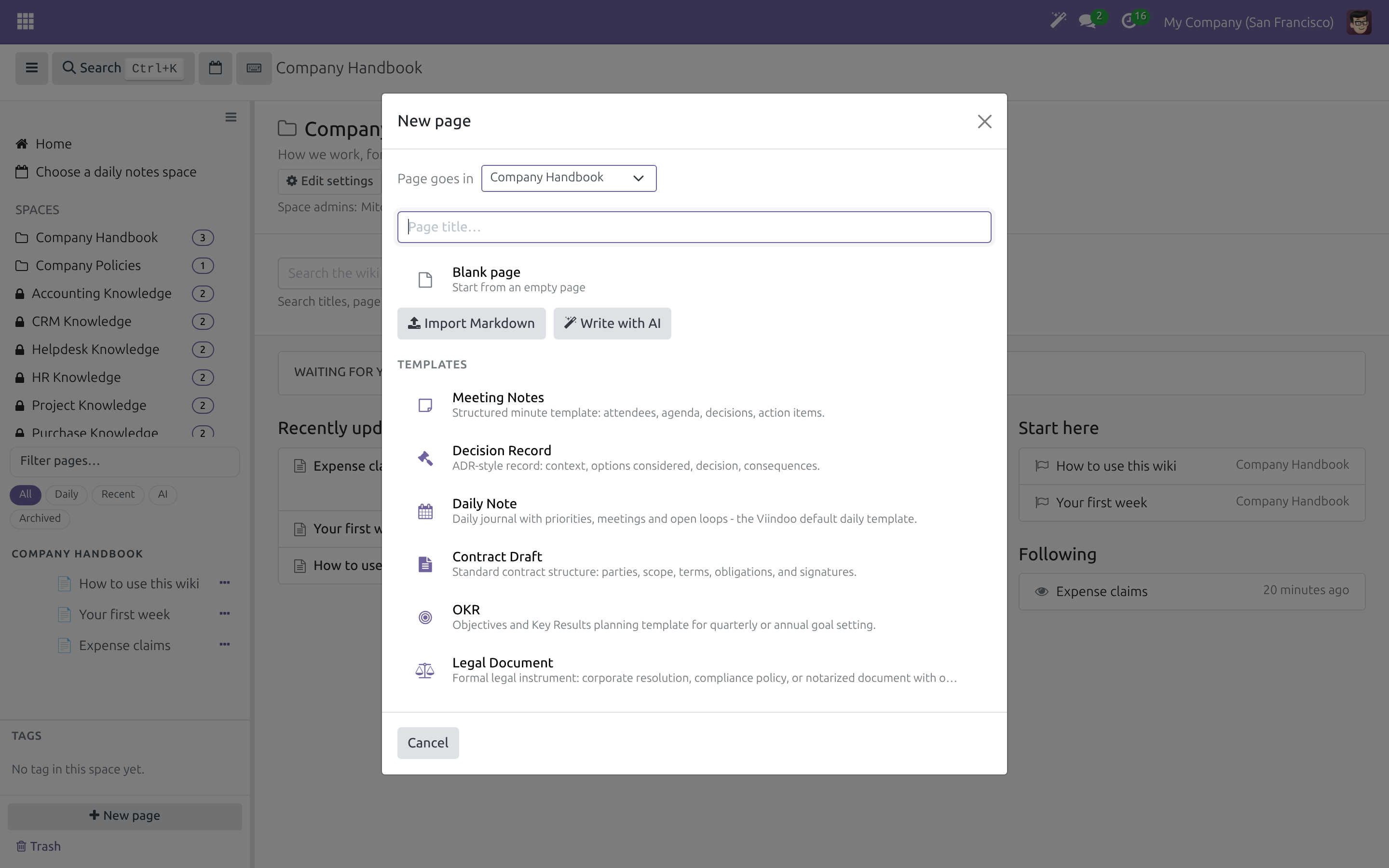
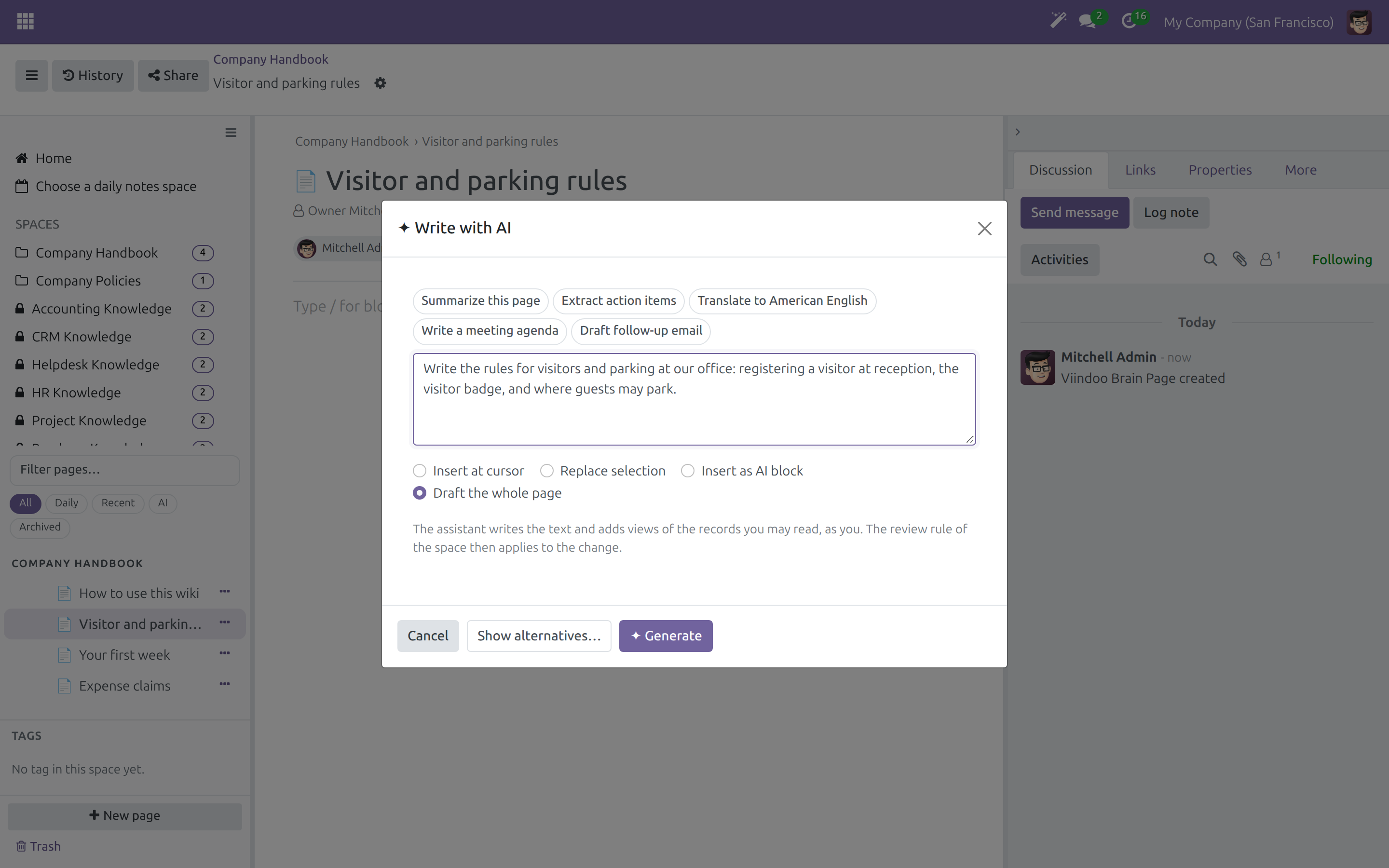
Tell the assistant what to write
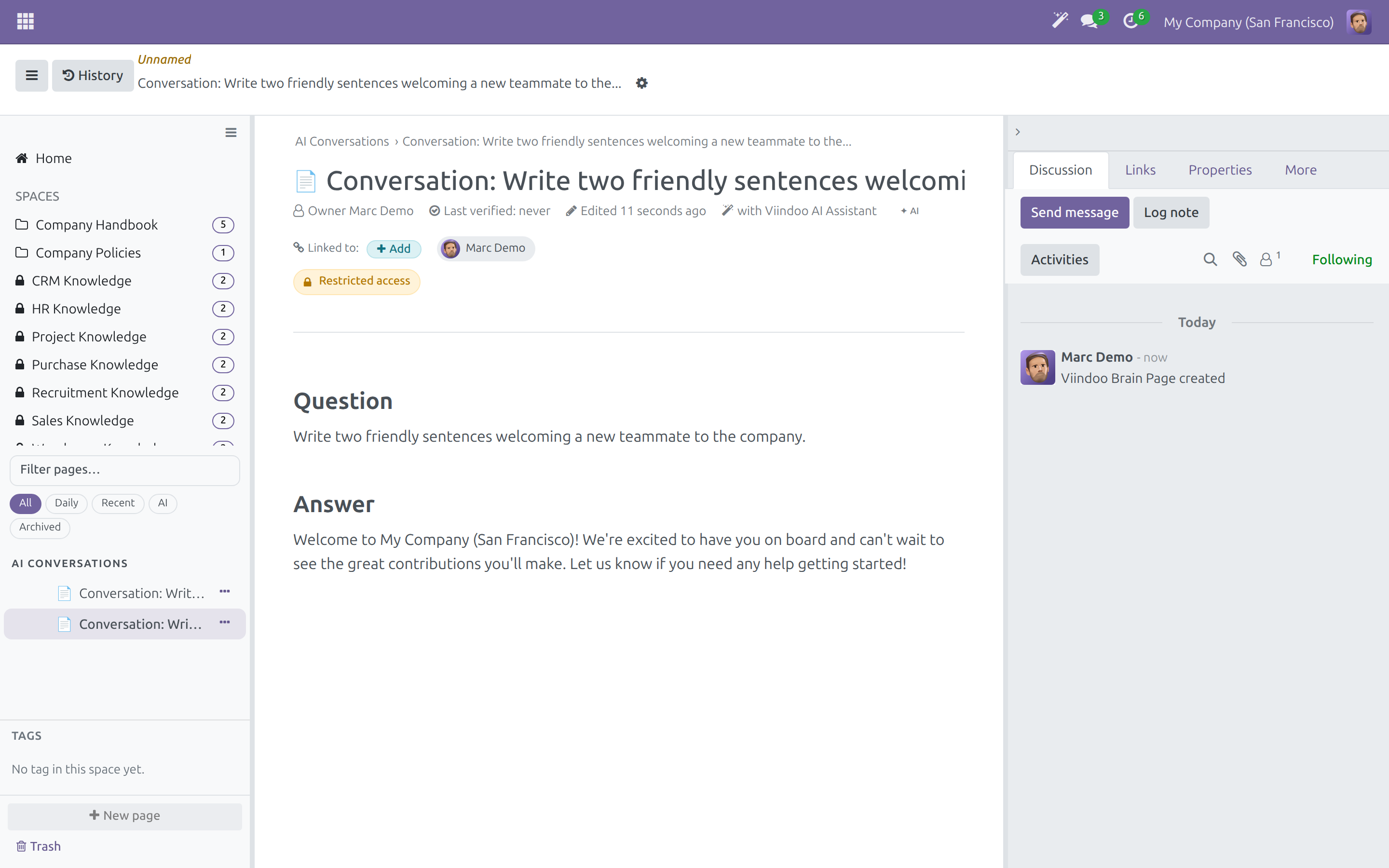
Keep a good answer as a page
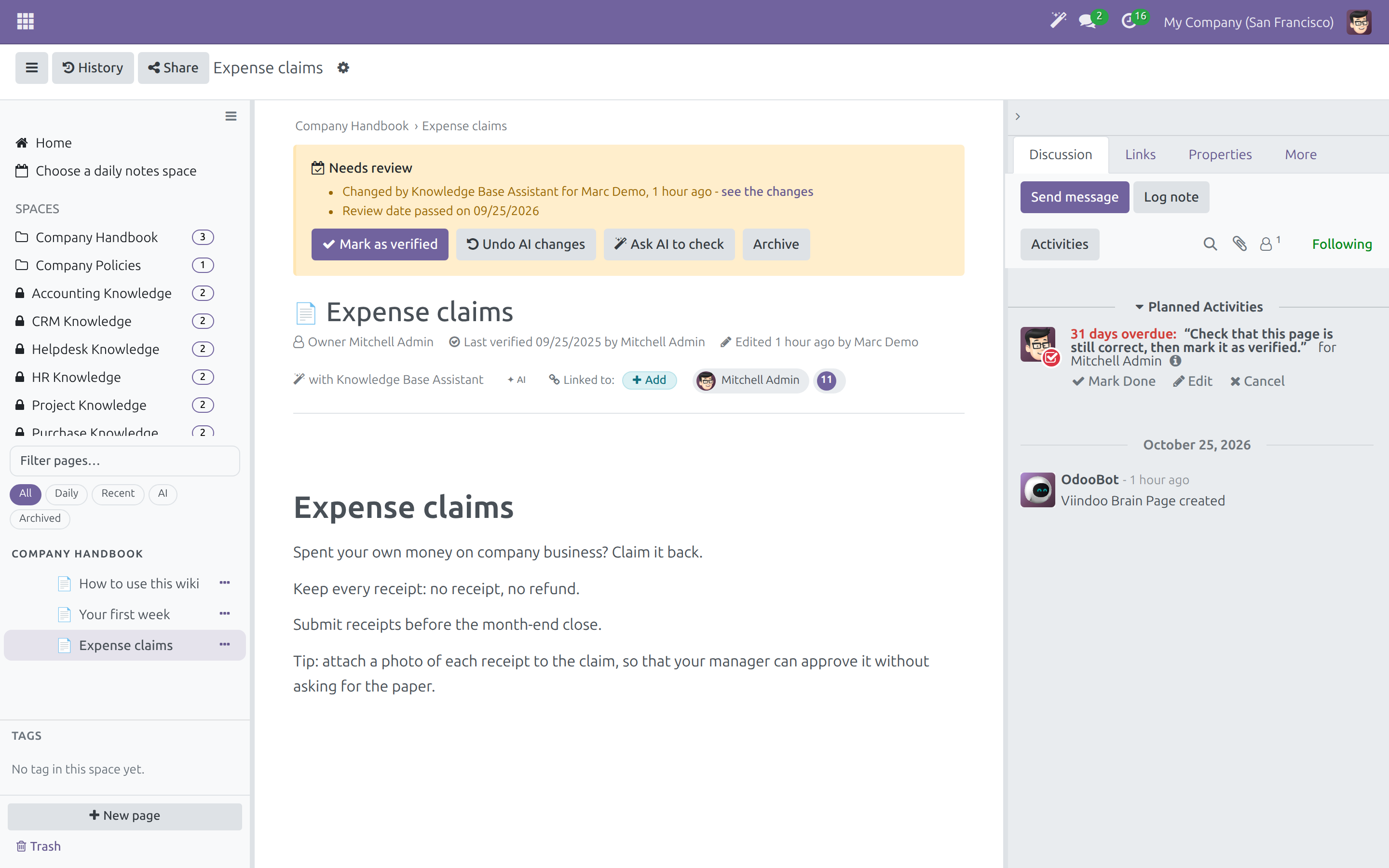
See what the assistant changed, then verify or undo it
Follow every page an assistant changed
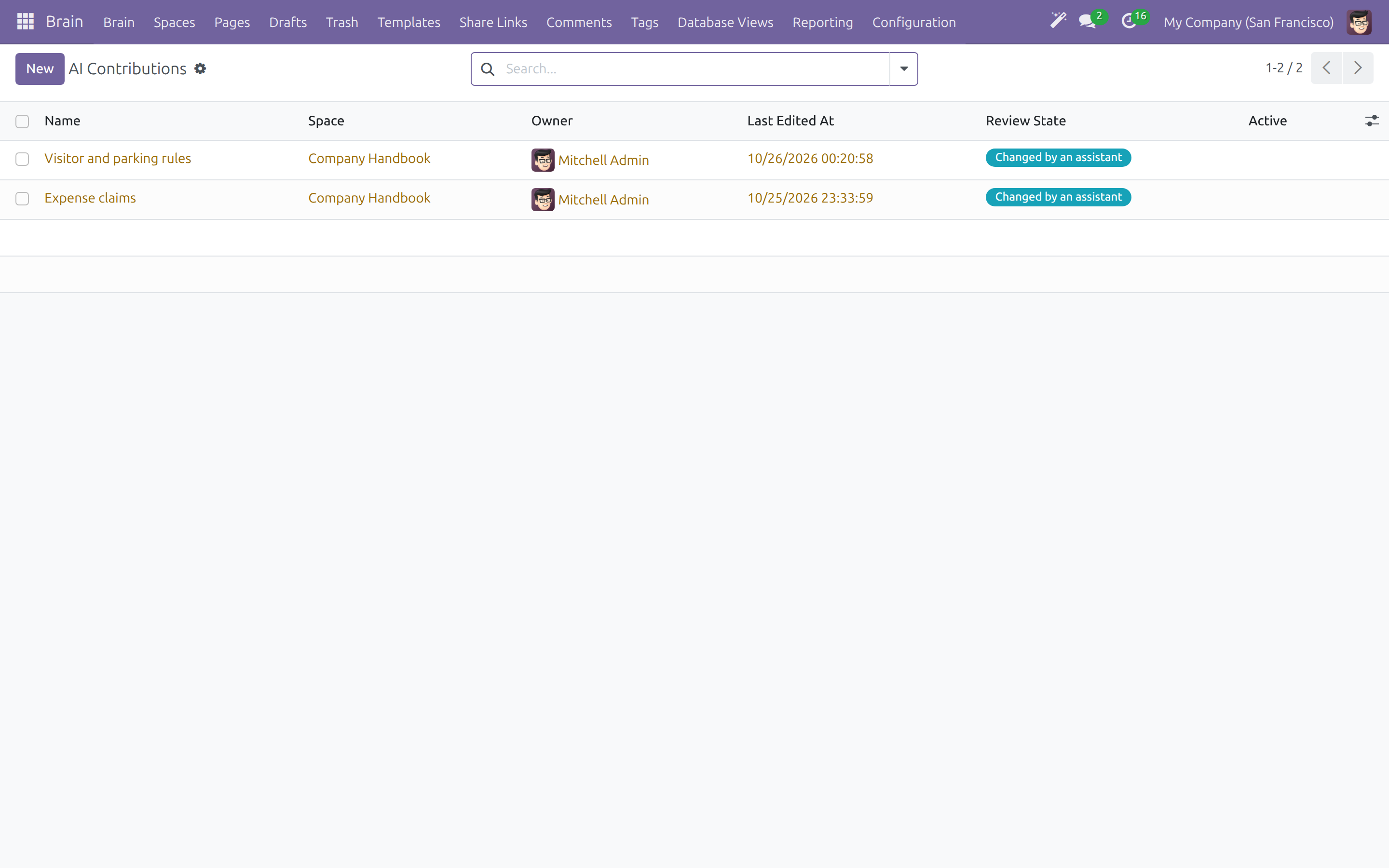
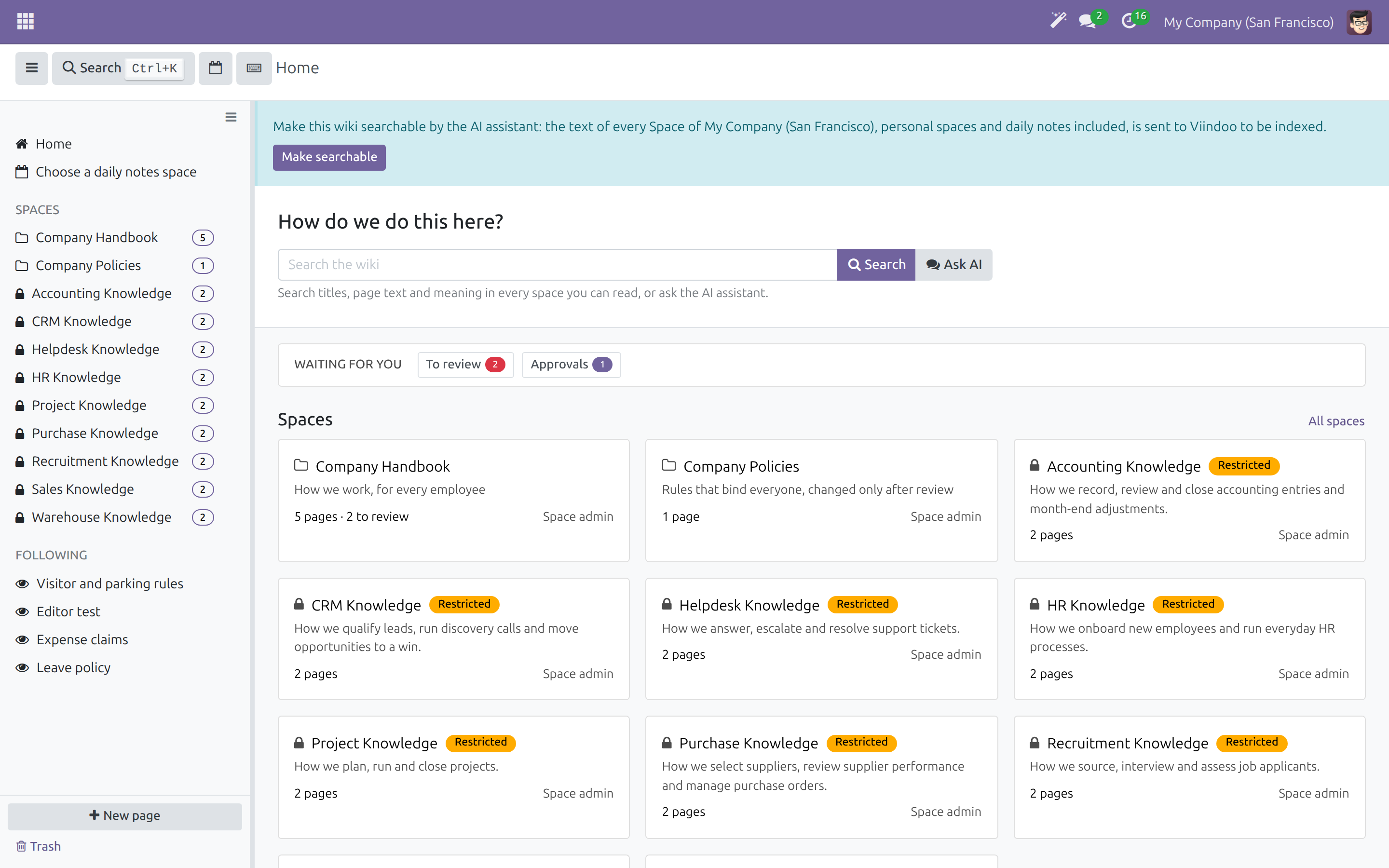
Allow the wiki to be searched
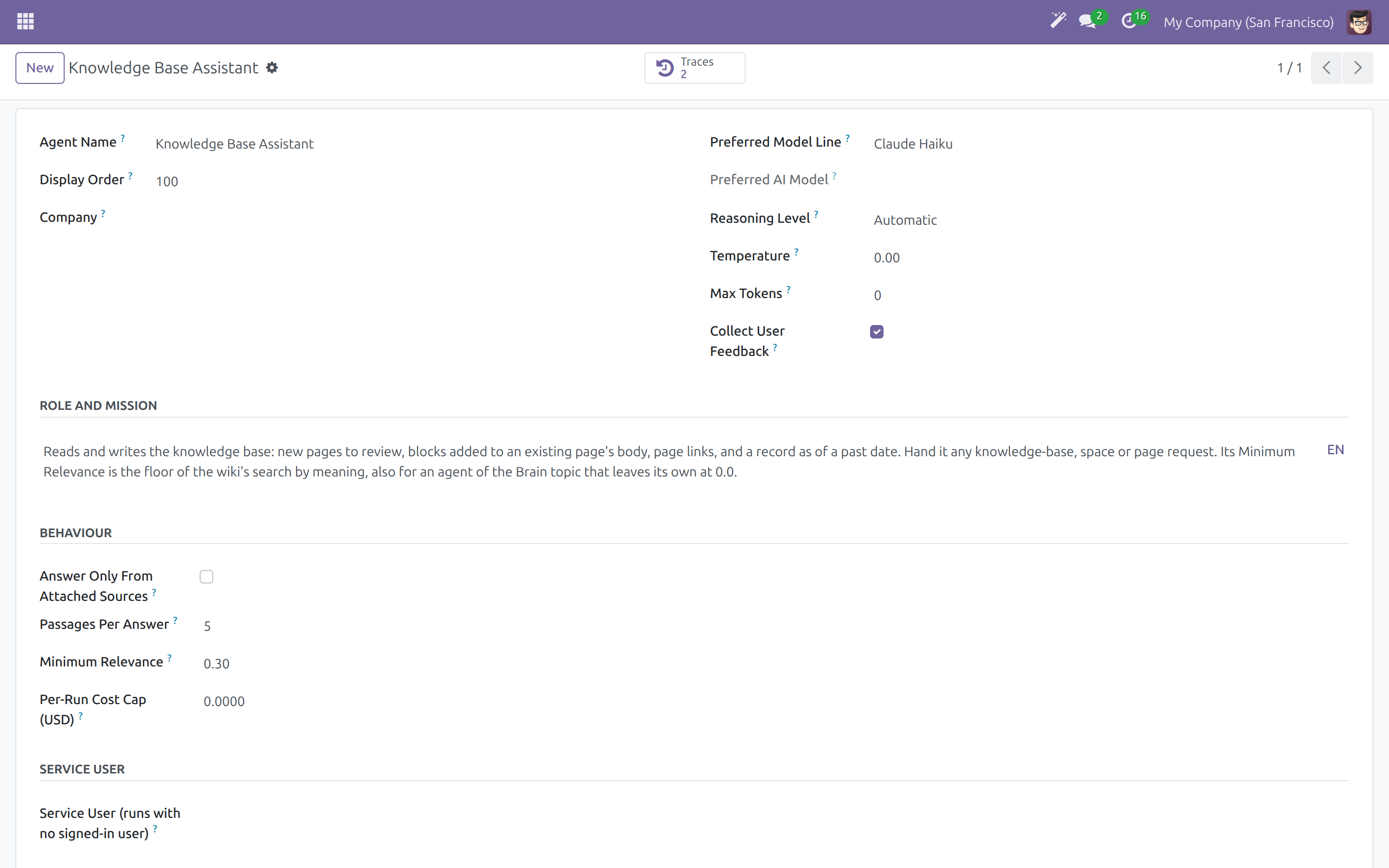
Choose the model and the relevance
Frequently Asked Questions
Does the assistant read pages I am not allowed to read?
No. Every search and every tool of the assistant runs with the access of the person who asks.
Is the text of my wiki sent to an AI provider?
Only to build the search by meaning, and only once indexing is on for your company. On a wiki already in use, a wiki admin decides after seeing which provider receives the text. A company using its own AI provider is indexed without that step.
Which model does the assistant use?
The Knowledge Base Assistant ships with a default model line. An administrator changes it to any model line the company has, and sets the Minimum Relevance of the search by meaning. The quality of the answers depends on the model you choose.
Can the assistant change my wiki on its own?
It acts with the access of the person who asks, and creating a page or a block, linking a record or setting a property first asks that person to confirm. Whatever it changes carries its name and waits for review according to the review choice of the Space.
Can I tell which assistant wrote a page?
Yes. Its name is under the title, the AI badge opens the history at its revision, and the discussion of the page records the change.
Will the assistant save a conversation by itself?
No. Only your click on Save to Brain writes a page, and a second click never makes a second copy.
Which language does the assistant write in?
The language of your request. When it cannot be told, your own language.
What do I need before it works?
An AI provider connection and the Knowledge Base Assistant, which the module ships. The search by meaning also needs PostgreSQL with pgvector and an active embedding model.
Need help with Viindoo AI - Brain Bridge?
Pre-Sales & Partnership
viindoo.com/contactusTechnical Support
viindoo.com/ticketTechnical Requirement
- Odoo version: 17.0
- Editions: Odoo Community, Viindoo Cloud
- Required modules: Viindoo AI, Viindoo AI - Editor, Viindoo Brain, Viindoo Web Editor
- Installation: Installs by itself once Viindoo AI and Viindoo Brain are installed.
- Search by meaning: PostgreSQL with pgvector and an active embedding model.
- License: OPL-1
Extend it further
Install the whole family at once.
Viindoo AI Suite
Every Viindoo AI module in one install: the platform, chat and voice assistant, editor AI block, Brain bridge, live chat, operations cockpit and website authoring.
Viindoo Brain - Knowledge Suite
The knowledge base with every app bridge and the AI co-author, in one install.
Viindoo AI - Brain Bridge
Note
Who this guide is for. Employees who read the company wiki (the Employee), people who write pages in a Space (the Writer), page owners, Space admins and wiki admins who keep pages current (the Reviewer), and the person who connects the AI and looks after the wiki (the Administrator).
Note
Extends Viindoo AI and Viindoo Brain - see their documentation.
Overview
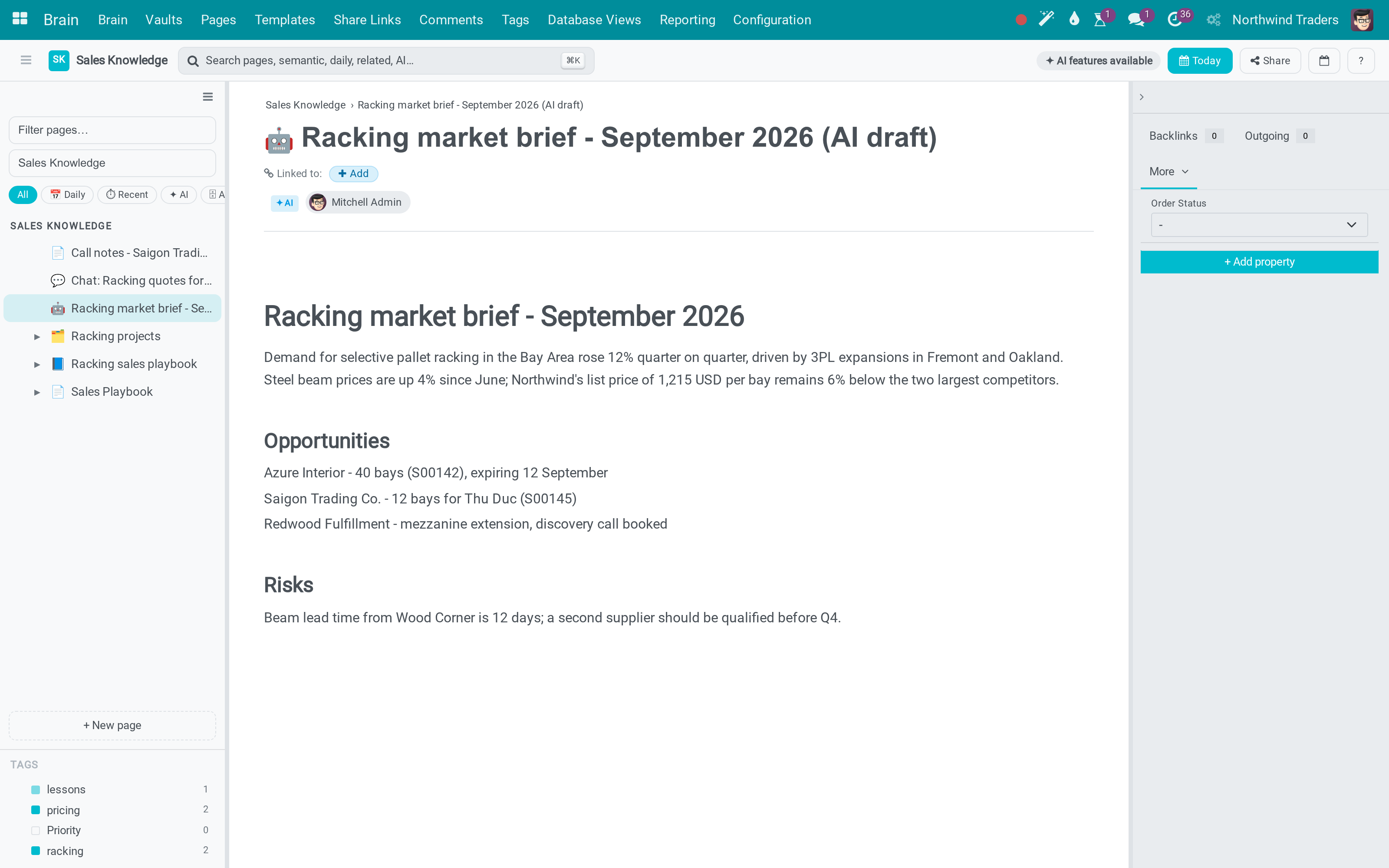
Viindoo AI - Brain Bridge connects the AI assistant to your company wiki in both directions. The assistant reads the pages you may read, so it can help you find and answer; and it writes into the wiki, but never anonymously: every page it writes or changes names the assistant, and a page it changed asks a person to verify it when the review choice of its Space says so.
With it you can:
- find the page that answers a question even when its words differ from yours, in the group Related by meaning of the search results;
- hand a question to the assistant with Ask AI, from the search box;
- start a page, or write inside one, with Write with AI;
- see which assistant wrote or changed a page, then verify it, undo it or ask the assistant to check it;
- keep a good answer of the assistant as a page with Save to Brain;
- see how a record linked to a page looked on a past date.
The process, stage by stage:
- Writer - writes a page, or part of it, with the help of the assistant. The page then names the assistant.
- Page owner, Space admin or wiki admin - opens a page that needs review, sees what the assistant changed and verifies the page, or undoes the assistant's changes. The page is up to date again.
Employees search, ask and keep answers at any time, before and after.
| Role | What they do | Access right to assign |
|---|---|---|
| Administrator | Connects the AI provider, chooses the model and the relevance of the wiki assistant, and gives each person their access. | Administration / Settings |
| Wiki admin | Lets the wiki be indexed for the assistant and reviews what assistants changed across all Spaces. | Brain / Brain Admin |
| Employee | Searches the wiki by meaning, asks the assistant and keeps its good answers. | User types / Internal User |
| Writer | Writes pages with the assistant, links records to pages. | Editor role in the Space |
| Page owner or Space admin | Verifies, undoes or questions what an assistant changed on a page. | Owner of the page, or Space admin role in its Space |
Setup (for the Administrator)
Installation
- Go to Apps.
- Search for Brain Bridge.
- Click Activate.
The module installs itself once Viindoo AI and Viindoo Brain are installed: nothing else has to be installed for the assistant conversations in Discuss.
Before anything works
- An AI provider. Connect your own provider and key under AI ‣ Configuration ‣ Providers. The connection provided for evaluation can be used within its allowance. Viindoo does not proxy your prompts: the provider record carries your key and talks to your provider.
- A Knowledge Base Assistant. Viindoo AI - Brain Bridge ships one, ready to use, under AI ‣ Agents. If your company removed it, create an agent and give it the topic Knowledge Base Assistant; without such an agent every AI entry point of the wiki answers with a message telling you so.
For the search by meaning, in addition:
- PostgreSQL with the pgvector extension.
- An active embedding model under AI ‣ Configuration ‣ Models.
Making the wiki searchable by the assistant
Nothing has to be indexed by hand. How the wiki becomes searchable by meaning depends on what it holds:
- On a new wiki that holds only the pages shipped with the product, every Space is indexed as soon as the module is installed.
- On a wiki that already holds pages somebody wrote, nothing is sent anywhere until a wiki admin agrees. Wiki admins see a notice on Brain Home that names the provider receiving the text. One click on Make searchable turns indexing on for the company and notes it on the chatter of every Space.
- A company whose embedding model belongs to its own AI provider is indexed without this step.
Only a wiki admin can click Make searchable. The company's choice is never changed by an upgrade. A Space created later is indexed as soon as indexing is on for its company, and an hourly job completes the index of every company that turned it on.
Pages are indexed block by block, so a result points at the paragraph that answers rather than at a whole document. Saving a page refreshes that page alone. A page moved to the Trash stops being found at once and is found again when it is restored. An archived page is still found, and the assistant is told that it is archived.
Choosing the model and the relevance
Open AI ‣ Agents and then Knowledge Base Assistant.
- Preferred Model Line is the model the assistant starts with: a default you can change to any model line your company has.
- Minimum Relevance (0.30 on the shipped assistant) is the floor of the search by meaning. A page whose best passage scores lower is not listed, so a question that means nothing to your wiki lists nothing. Raise the value to list fewer, closer pages; lower it to list more. An agent of the topic Knowledge Base Assistant that leaves it at 0.00 uses the value of the shipped assistant.
Reviewing what an assistant writes
Each Space has a Changes Needing Review choice (open the Space and click Edit settings):
- No review - nothing waits for anybody.
- AI changes (default) - a page an assistant changed stays published and its owner is asked to verify it.
- All changes - every text change and every new page waits as a draft until the page owner or a Space admin approves it.
The space for saved answers
Every company has an AI Conversations Space, including a company created later. Answers kept with Save to Brain go into the Space of the company the person works in. Check that it is listed under Brain, then Spaces.
Giving people access
Every employee who may use the AI assistant can search by meaning, ask and save answers: no extra access right is needed. In Settings ‣ Users & Companies ‣ Users give each person the Internal User type. Give a person the Editor role in a Space for writing there, and the Brain Admin access right to make them a wiki admin.
Employee: find, ask and keep
Find a page by its meaning
- Open Brain. On Home, type your question in Search the wiki.
- Click Search.
The results list pages whose title matches, pages whose text matches and, under Related by meaning, pages that answer the same thing in other words. Filters narrow the list by Space, kind, owner, last update and review status.
You only ever see pages you may read. A page appears under Related by meaning only when it is close enough to your question, so a vague or unrelated question lists none. When the search by meaning cannot run, the page says so and still shows the title and text matches.
When nothing matches, the page offers two next steps: ask the assistant, or create a page named like your search in your Space.
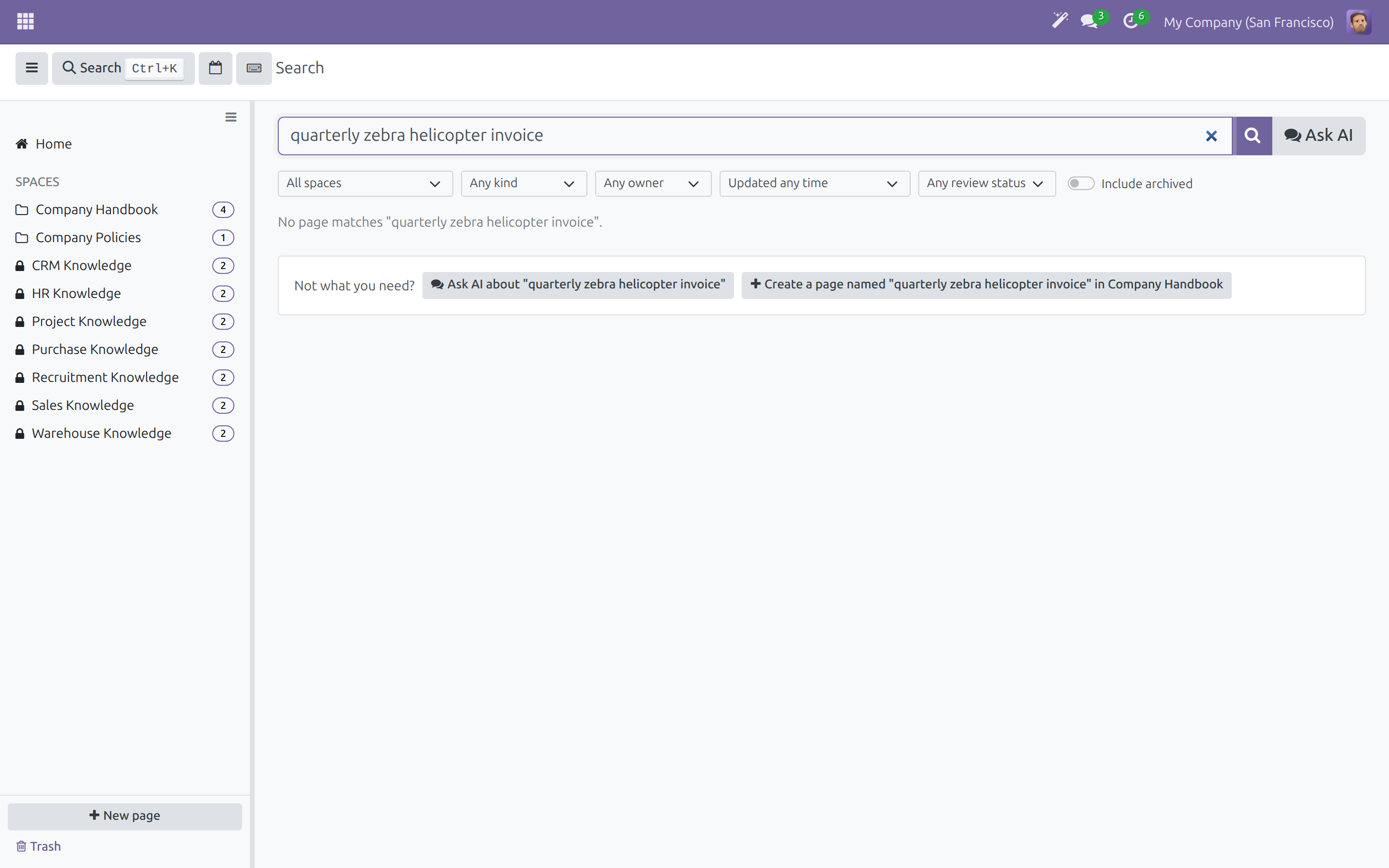
A search that finds nothing in title, text or meaning is listed for wiki admins under Brain ‣ Reporting ‣ Searches with No Result, so they can write the missing page. A search narrowed by a filter is never listed.
Ask the assistant
- Type your question in Search the wiki on Home or on the results page.
- Click Ask AI, or the button Ask AI about "your question" below an empty result.
The conversation with the assistant opens in a chat window and your text is posted as your own message. With an empty box, Ask AI only opens the conversation.
The assistant searches the wiki and answers with your own access: a page you cannot open is never read for you. It answers in the language you write in. When it is about to create a page or a block, link a record or set a property, it asks you to confirm first.
Keep an answer as a page
A good answer is lost when the conversation scrolls away. Save to Brain turns exactly that answer into a page of your company's wiki, with the question that led to it.
- Open Discuss and choose your conversation in the AI Assistant section.
- Wait for the answer to finish, then move the pointer over it.
- Click the book icon Save to Brain among the quick actions of the message.
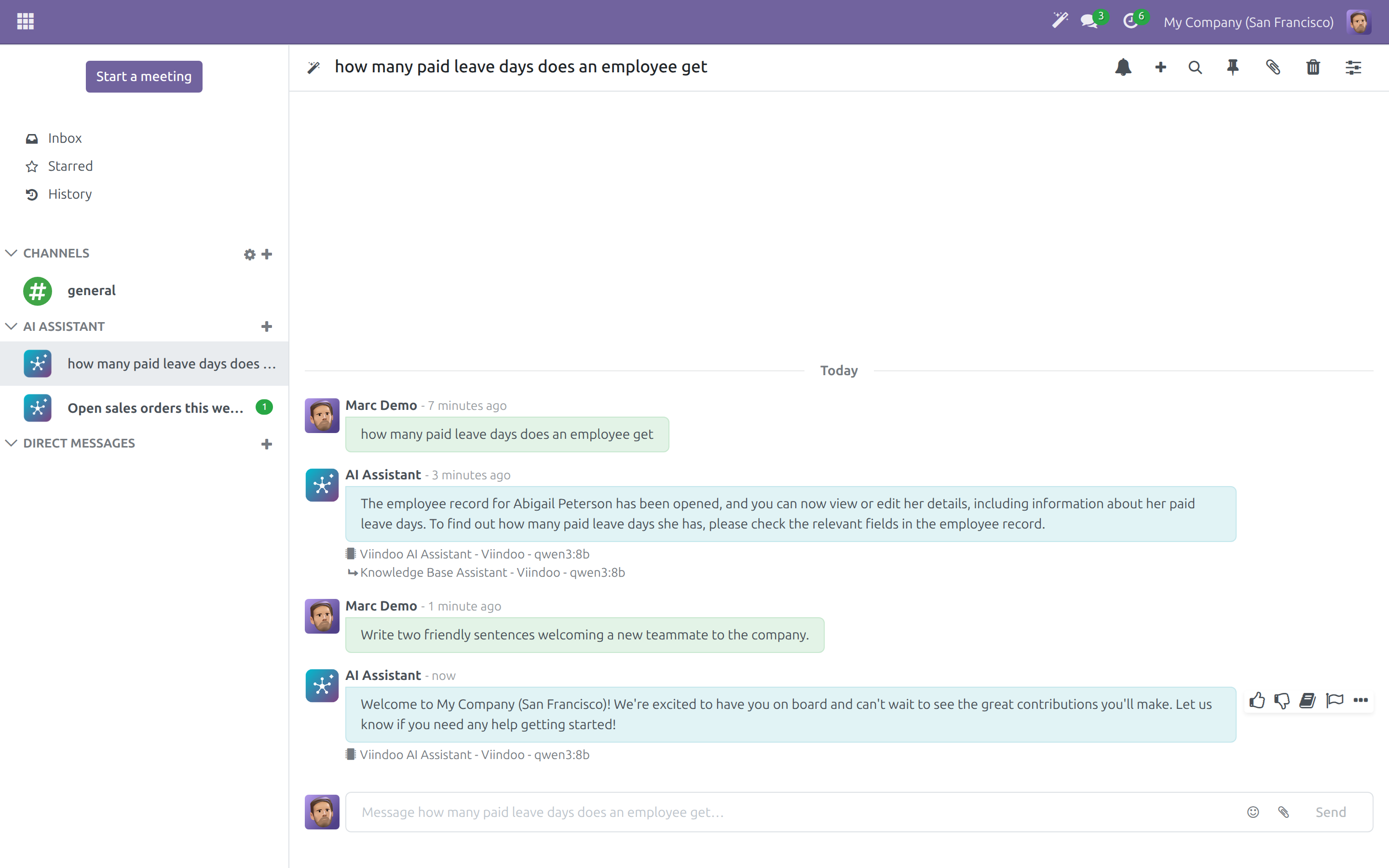
A notification names the page, with an Open button.
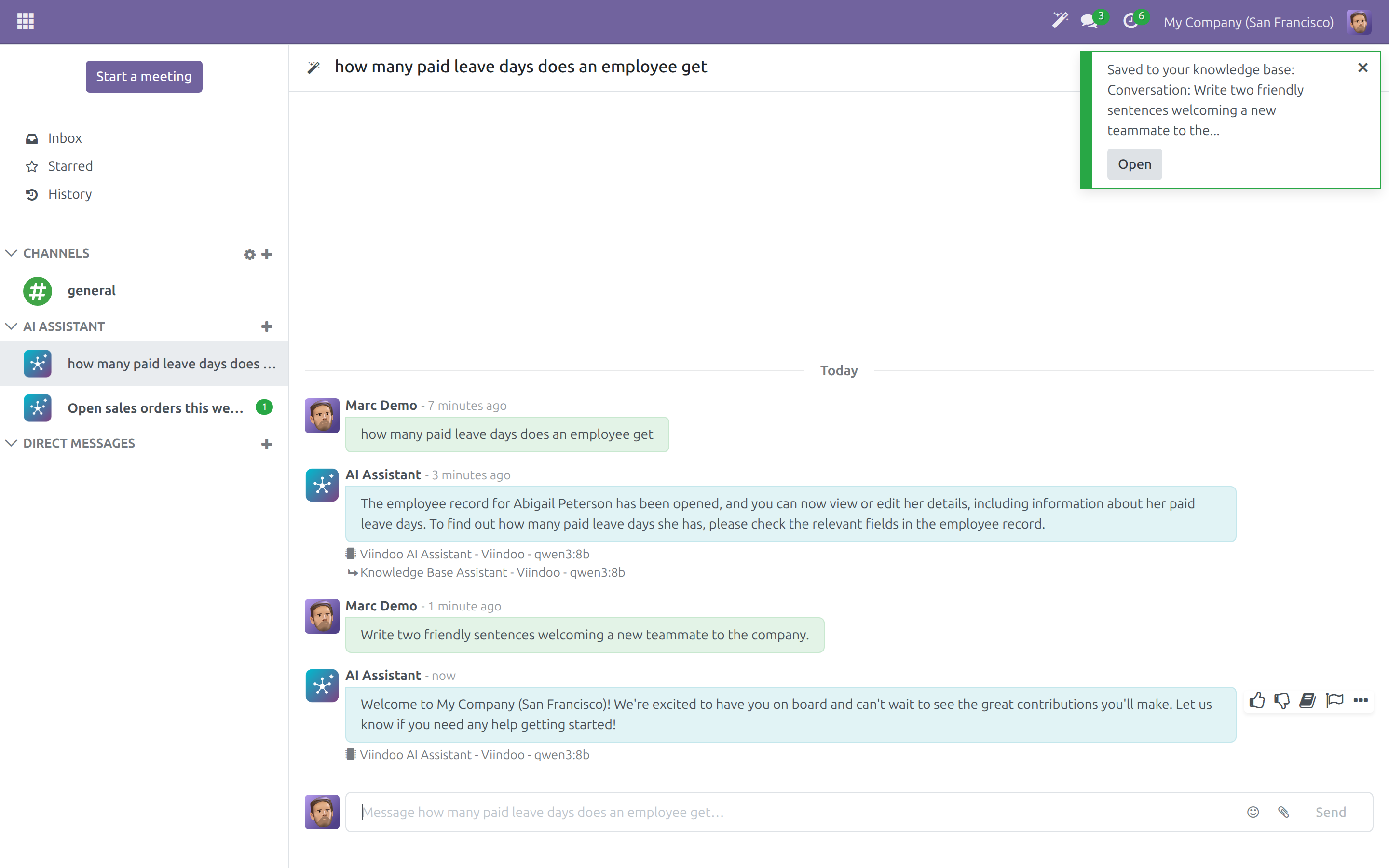
The action is offered only on a finished answer of the assistant. It never appears on your own questions, and an answer that failed cannot be saved: ask again and save the answer that succeeds. Nothing is ever saved by itself; only your click writes a page.
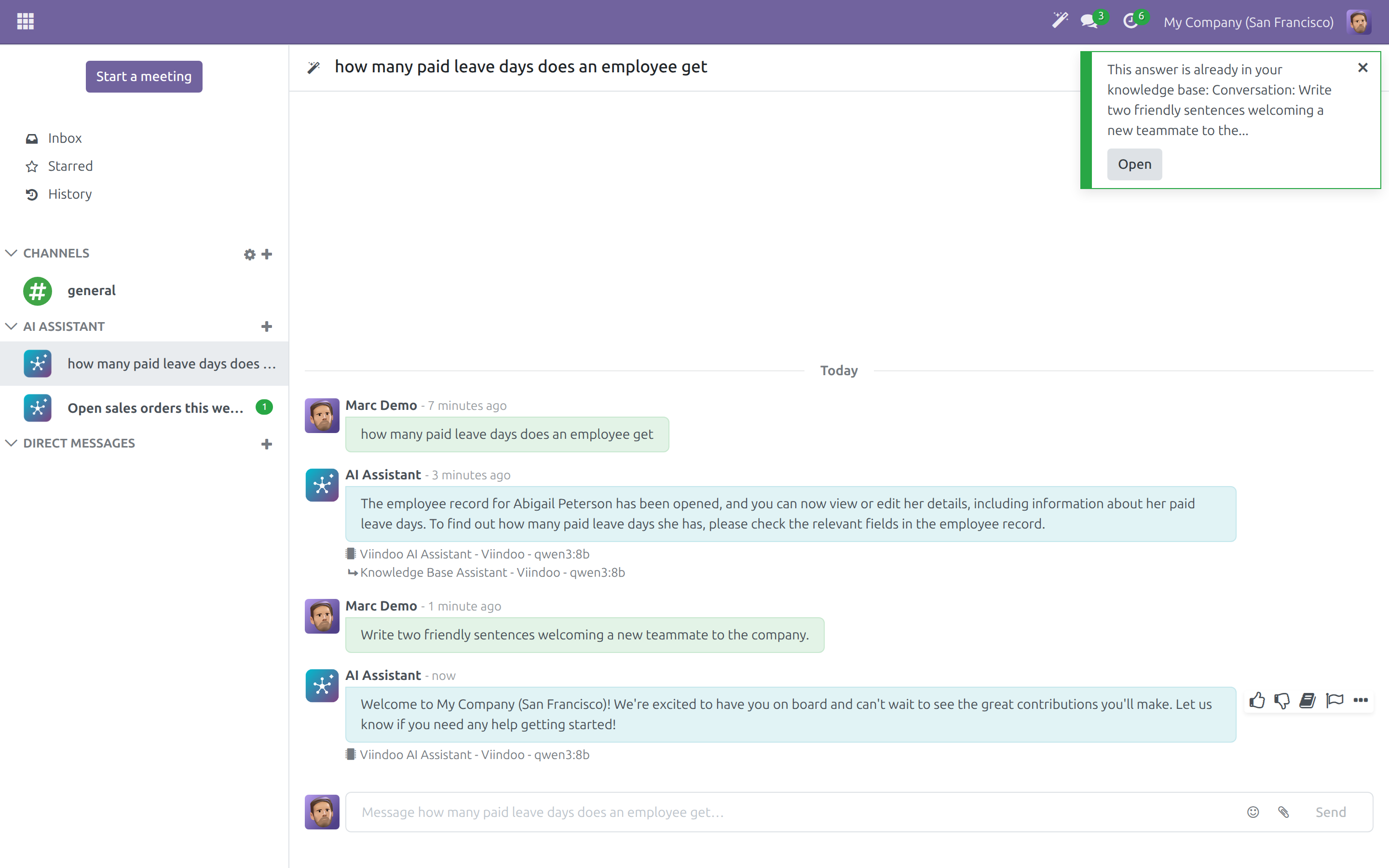
Choosing Save to Brain again on the same answer saves no second copy: the notification says that the answer is already in your wiki and names the same page.
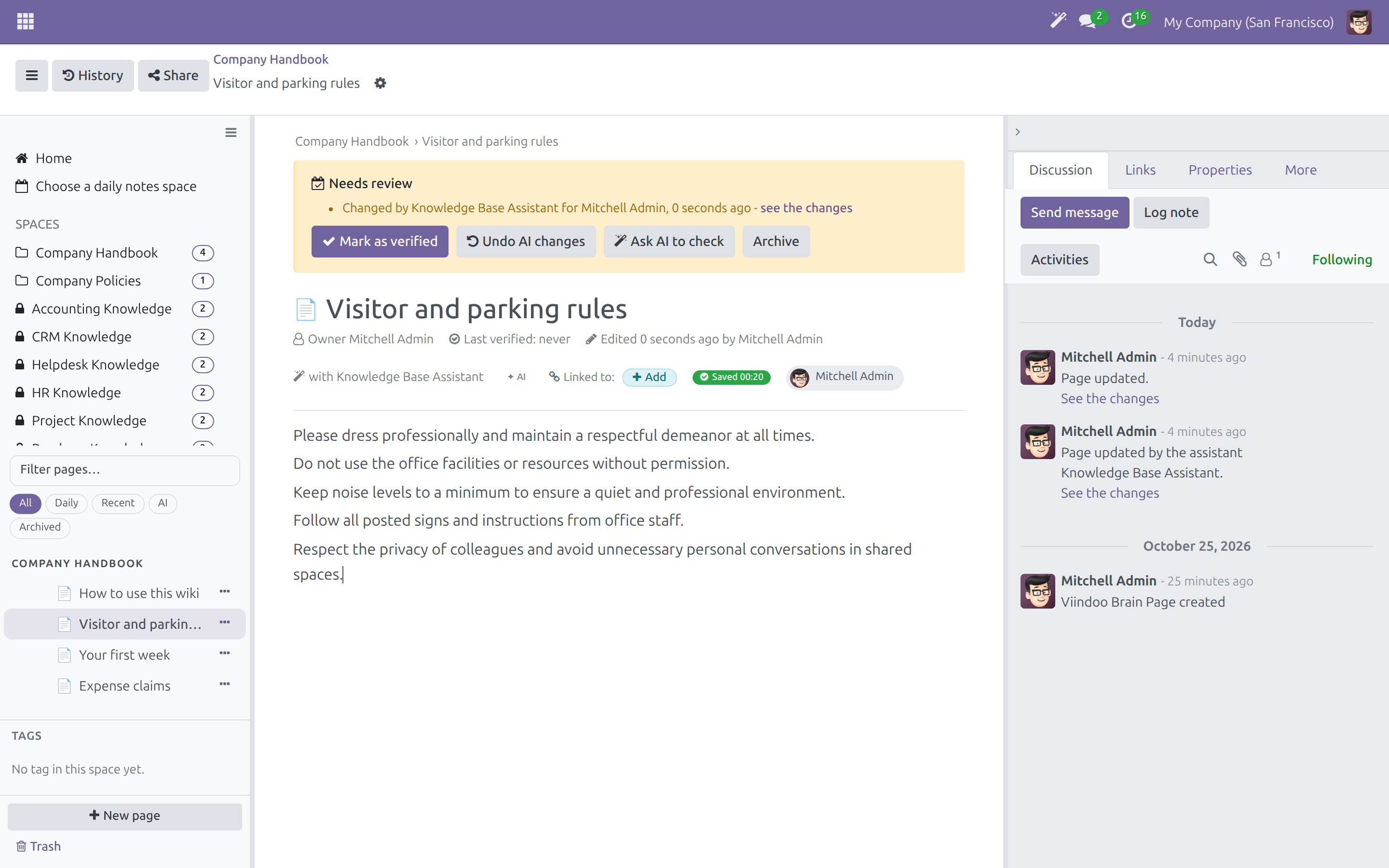
The saved page sits in the AI Conversations Space and is Restricted access: only you read it until you share it. It carries a title taken from your question, your question under Question, the assistant's answer under Answer, the name and the name of the assistant.
Writer: write with the assistant
Start a page with Write with AI
- Click New page. In the dialog, check Page goes in and type the page title.
- Click Write with AI.
The page is created in that Space and opens with the Write with AI dialog. In an open page the same dialog opens from the slash menu: type / and choose AI: Write.
Describe what you want
- Write a prompt, or click a suggestion: Summarize this page, Extract action items, Translate to your language, Write a meeting agenda, Draft follow-up email.
- Choose where the text goes:
- Insert at cursor;
- Replace selection;
- Insert as AI block - the text goes into an AI block that you approve, edit or reject;
- Draft the whole page - the assistant writes the text and adds live views of records you may read, as you. The review choice of the Space then applies to the change. A view that cannot be added is listed in a notice.
- Click Generate.
While it works the button reads Writing.... The text arrives in your language, as headings, lists and paragraphs. A message confirms Text added - press Ctrl+Z to undo it., and you edit the text like any other.
Show alternatives... asks the assistant to rephrase your prompt several ways and lets you pick one before generating. If the text cannot be placed - usually because the cursor is not inside the page body - the dialog stays open, keeps the text and offers Copy text; generated text is never discarded silently.
Whichever mode you choose, the page records the assistant that wrote the text: its name appears under the title, and the revision that holds the text names the assistant in the history. The text stays yours to edit; your own edit takes the assistant's mark off the page.
Note
The assistant's quality follows the model you run it on. A small model may answer a whole-page request with text that does not fit the page; undo it with Undo AI changes (see below) or ask the Administrator for a stronger model.
The AI block and the chat inside a page
Type / in a Brain page and choose AI block. Write a prompt, or click a start: Summarize, Extract action items, Draft follow-up email, then Generate. The result waits for review: Approve, Edit (plain text box) or Reject (removes the block); after approving, Re-open review goes back. A failed generation offers Retry. AI: Chat in the same menu opens the chat with the assistant beside the page.
These entries exist only inside a Brain page; in another editor they are not offered.
See a linked record as it was
When a page links a record - a document of another app - an extra panel appears. In the context panel of the page, open Explore, then Linked record at a date.
- Pick a date.
- Click View.
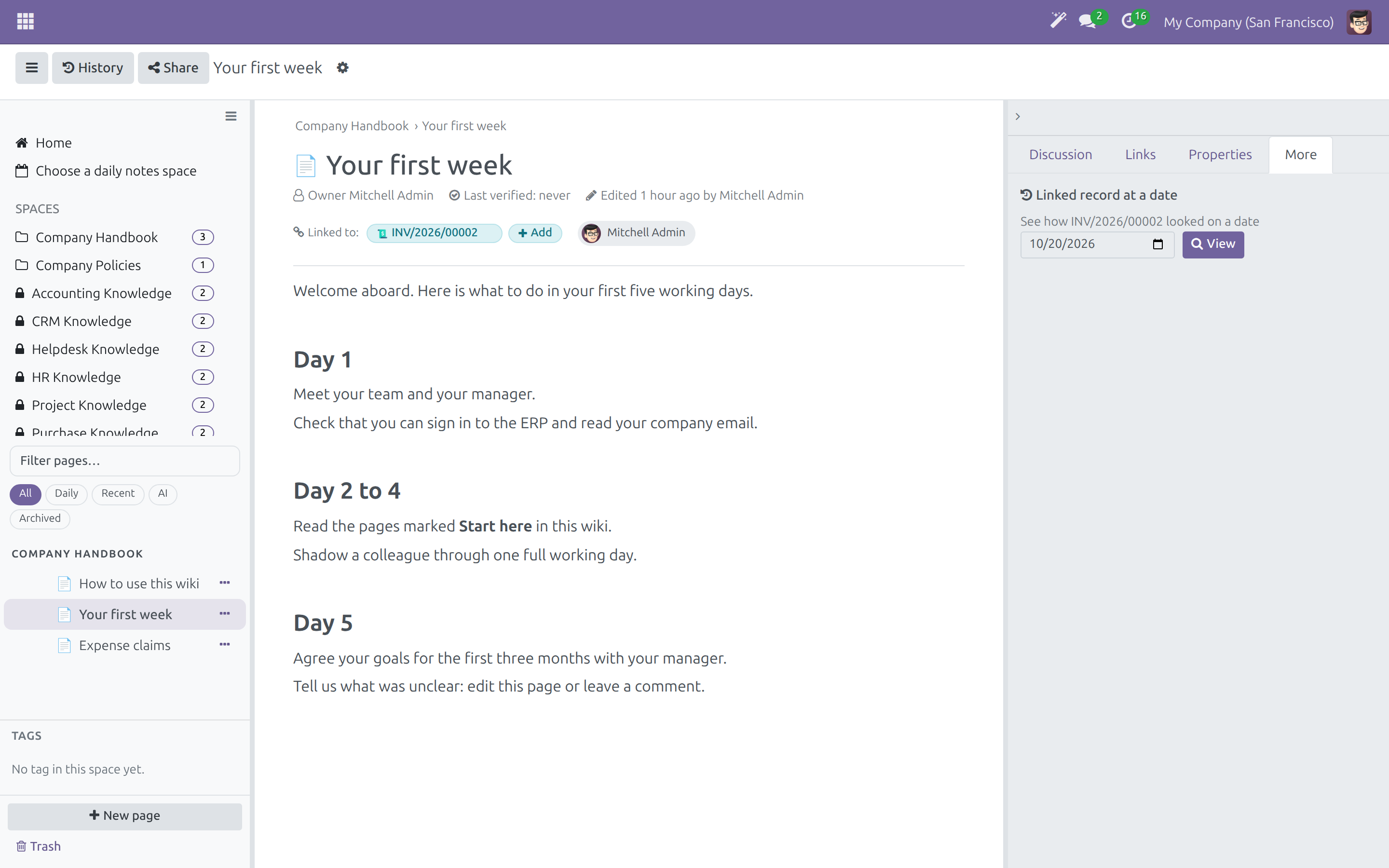
For the tracked fields that changed after that date, the panel shows the value they had on the date. A record that did not exist yet answers No tracked history before the date. Only fields with change tracking can be reconstructed; a field the panel cannot reconstruct reads (not tracked).
Reviewer: keep pages current
Recognise a page an assistant changed
A page an assistant wrote or changed shows the assistant's name, with a magic-wand icon, in the line of details under the title. Click the name, or see the changes in the banner, to open the history at the newest revision an assistant made: the revision names the person and the assistant.
Verify, undo or question the change
The banner is the same for a change by an assistant and for any other reason a page needs review. Its actions (all but the first are in the More menu of the banner):
- Mark as verified - the page no longer needs review.
- Undo AI changes - the page gets back the text it had before the assistant changed it, as a new revision. When people edited after the assistant, the confirmation names them and their changes stay in the history.
- Ask AI to check - asks the assistant to check the page against the records it links to and to tell you what no longer matches.
- Archive - keeps the page readable but out of lists.
Only the owner of the page, an admin of its Space or a wiki admin can verify or undo. A person's own edit, restore or verification takes the assistant's mark off the page.
See every page an assistant changed
Open Brain ‣ Reporting ‣ AI Contributions to see the pages an assistant changed, with their Space, owner, last edit and review state.
What the assistant can do in your wiki
The Knowledge Base Assistant is given tools to search by meaning, walk the links between pages, list pages by edit time, read a page, create a page, add a block, show a live view of your data, set a property, link two pages, attach a record to a page, compare the links between two moments and rebuild a record as it was on a past date. Every tool runs with your own access: a page you could not open by hand is not readable or writable through the assistant either. Every change carries the assistant's name, so nothing it writes is anonymous. Creating a page or a block, linking a record and setting a property ask for your confirmation first.
Troubleshooting
| What you see | What to do |
|---|---|
| Related by meaning is missing from the results | The question is not close to any page you may read, or the wiki is not indexed yet. Ask a wiki admin to check for the Make searchable notice on Home, and the Administrator to check that an embedding model is active. |
| The search by meaning is unavailable right now; title and text matches are shown. | The index or the AI connection is not reachable. Title and text matches still work. Try again later or tell the Administrator. |
| Ask AI answers with something unrelated to the wiki | The model of the Knowledge Base Assistant may be too small to use the wiki tools reliably. The Administrator can choose a stronger model line under AI ‣ Agents. |
| Write with AI returns text that does not fit | Click Undo AI changes in the More menu of the banner, then try again with a shorter, more precise prompt, or in a smaller mode such as Insert at cursor. |
| Save to Brain is not among the quick actions | Only a finished answer of the assistant offers it. Point at the answer, not at your own question, and ask again if the answer failed. |
| This answer did not complete, so there is no result worth keeping... | Ask again and save the answer that succeeds. |
| The AI Conversations knowledge space is missing... | The Space of your company is not there. Ask the Administrator to reinstall or upgrade the module, as the message says. |
| AI block and AI: Write are missing from the slash menu | They appear only inside a Brain page. |
| Linked record at a date is not under Explore | The tab appears only on a page that links a record. |
| Undo AI changes or Mark as verified is missing | Only the owner of the page, a Space admin or a wiki admin can use them. |
FAQ
Does the assistant read pages I am not allowed to read? No. Every search and every tool of the assistant runs with the access of the person who asks.
Is the text of my wiki sent to an AI provider? Only to build the search by meaning and only once indexing is on for your company. On a wiki already in use, a wiki admin decides after seeing which provider receives the text. A company using its own AI provider is indexed without that step.
Can I tell which assistant wrote a page? Yes: its name is in the line under the title, a click on it opens the history at its revision, and the chatter of the page records the change.
Will the assistant save a conversation by itself? No. Only your click on Save to Brain writes a page, and a second click never makes a second copy.
Which language does the assistant write in? The language of your request. When it cannot be told, your own language.
This software and associated files (the "Software") may only be used (executed, modified, executed after modifications) if you have purchased a valid license from the authors, typically via Odoo Apps, or if you have received a written agreement from the authors of the Software (see the COPYRIGHT file).
You may develop Odoo modules that use the Software as a library (typically by depending on it, importing it and using its resources), but without copying any source code or material from the Software. You may distribute those modules under the license of your choice, provided that this license is compatible with the terms of the Odoo Proprietary License (For example: LGPL, MIT, or proprietary licenses similar to this one).
It is forbidden to publish, distribute, sublicense, or sell copies of the Software or modified copies of the Software.
The above copyright notice and this permission notice must be included in all copies or substantial portions of the Software.
THE SOFTWARE IS PROVIDED "AS IS", WITHOUT WARRANTY OF ANY KIND, EXPRESS OR IMPLIED, INCLUDING BUT NOT LIMITED TO THE WARRANTIES OF MERCHANTABILITY, FITNESS FOR A PARTICULAR PURPOSE AND NONINFRINGEMENT. IN NO EVENT SHALL THE AUTHORS OR COPYRIGHT HOLDERS BE LIABLE FOR ANY CLAIM, DAMAGES OR OTHER LIABILITY, WHETHER IN AN ACTION OF CONTRACT, TORT OR OTHERWISE, ARISING FROM, OUT OF OR IN CONNECTION WITH THE SOFTWARE OR THE USE OR OTHER DEALINGS IN THE SOFTWARE.