
Viindoo Brain
| Lines of Code | 34745 |
| Technical name | viin_brain |
| License | OPL-1 |
| Website | https://viindoo.com/apps/app/17.0/viin_brain |
| Read description for | |
| Required Apps | Discuss (mail) |
| Included Dependencies | Viindoo Web Editor |
| Extensions | Viindoo AI - Brain Bridge Viindoo Brain - Recruitment Viindoo Brain - HR Viindoo Brain - CRM Viindoo Brain - Warehouse Viindoo Brain - Project Viindoo Brain - Helpdesk Viindoo Brain - Accounting Viindoo Brain - Purchase Viindoo Brain - Sales Viindoo Brain - Account Reports Bridge Viindoo Brain - Digest Viindoo Brain - Knowledge Suite Viindoo Brain - Website test_viin_brain |

Your company's know-how, written once, kept true and found in seconds
For companies of any size that keep procedures, policies and know-how in Odoo
A knowledge base that lives inside your ERP: write pages, link them to any document you may read, and share them safely
Is this you?
Procedures live in inboxes, shared drives and old chats, so new colleagues ask the same questions again and again.
Nobody can tell whether the leave policy or the expense rules on the page are still the current ones.
A policy change should be approved before everyone reads it, but whatever is saved goes live at once.
Notes about a customer, an order or an invoice sit apart from the record, so the person who opens it never sees them.
Sharing a page with someone outside means pasting text into an e-mail or opening up the whole system.
What changes
Procedures live in inboxes, shared drives and old chats.
→ Everyone searches one place: titles and page text across every Space they may read, and Ctrl+K from any screen.
Nobody can tell whether a page is still current.
→ Every page names an owner and shows when it was last verified. When the review date passes, a Needs review banner asks the owner to confirm the page or correct it.
A policy change goes live before anyone approves it.
→ Set a Space to review all changes: writers submit a draft, readers keep seeing the published page, and the owner or a Space admin approves it or sends it back with a reason.
Notes sit apart from the records they are about.
→ Link pages to the invoices, orders, employees and tickets they concern. A record shows how many pages mention it and opens a note already linked to it.
Sharing outside means e-mailing pasted text.
→ Copy a link for signed-in colleagues, send a page to named people, or publish a read-only link with an optional password and expiry date, and take it back later.
How it works
Write
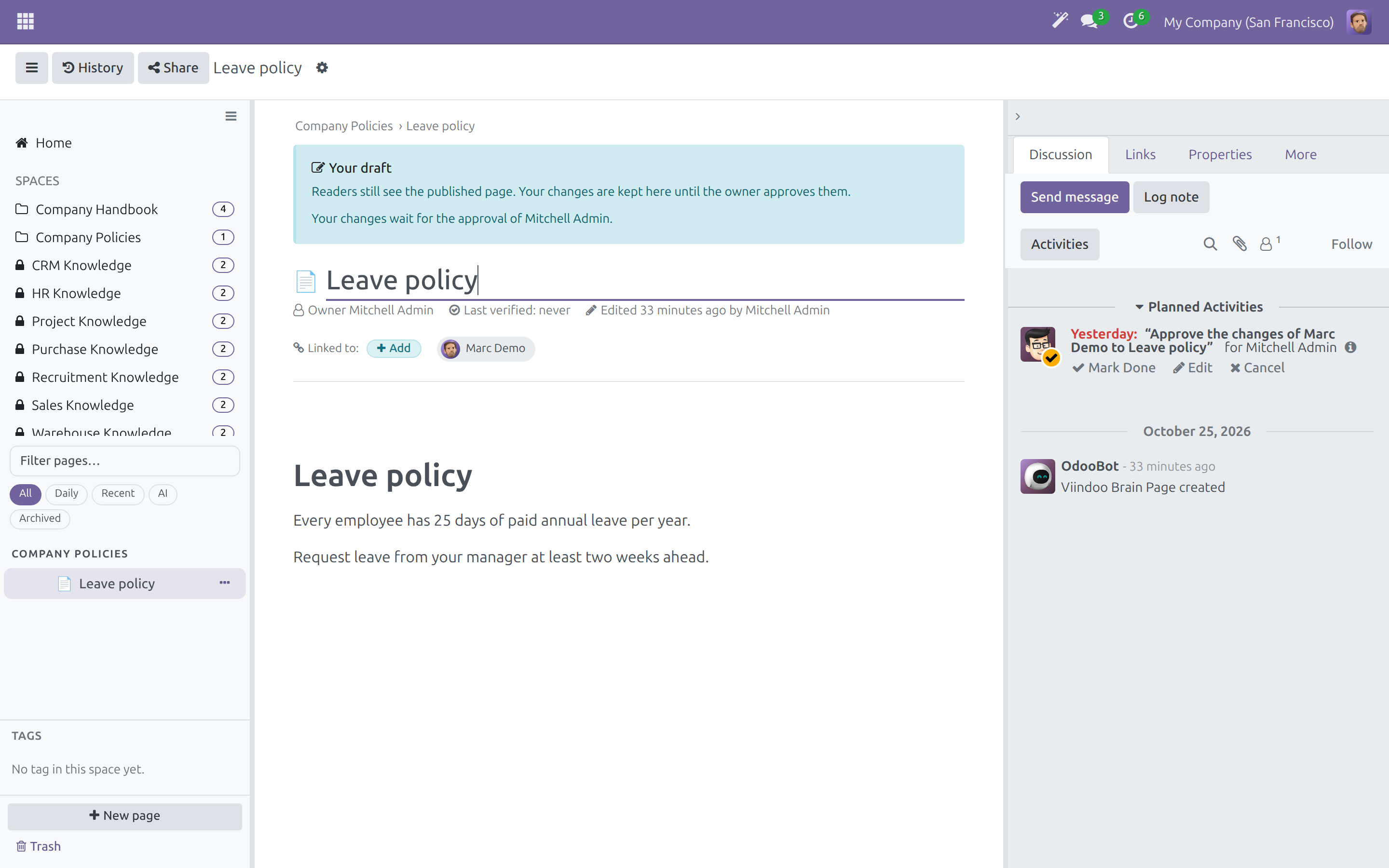
A writer writes the page in the editor, or submits a draft where changes need review.
Approve
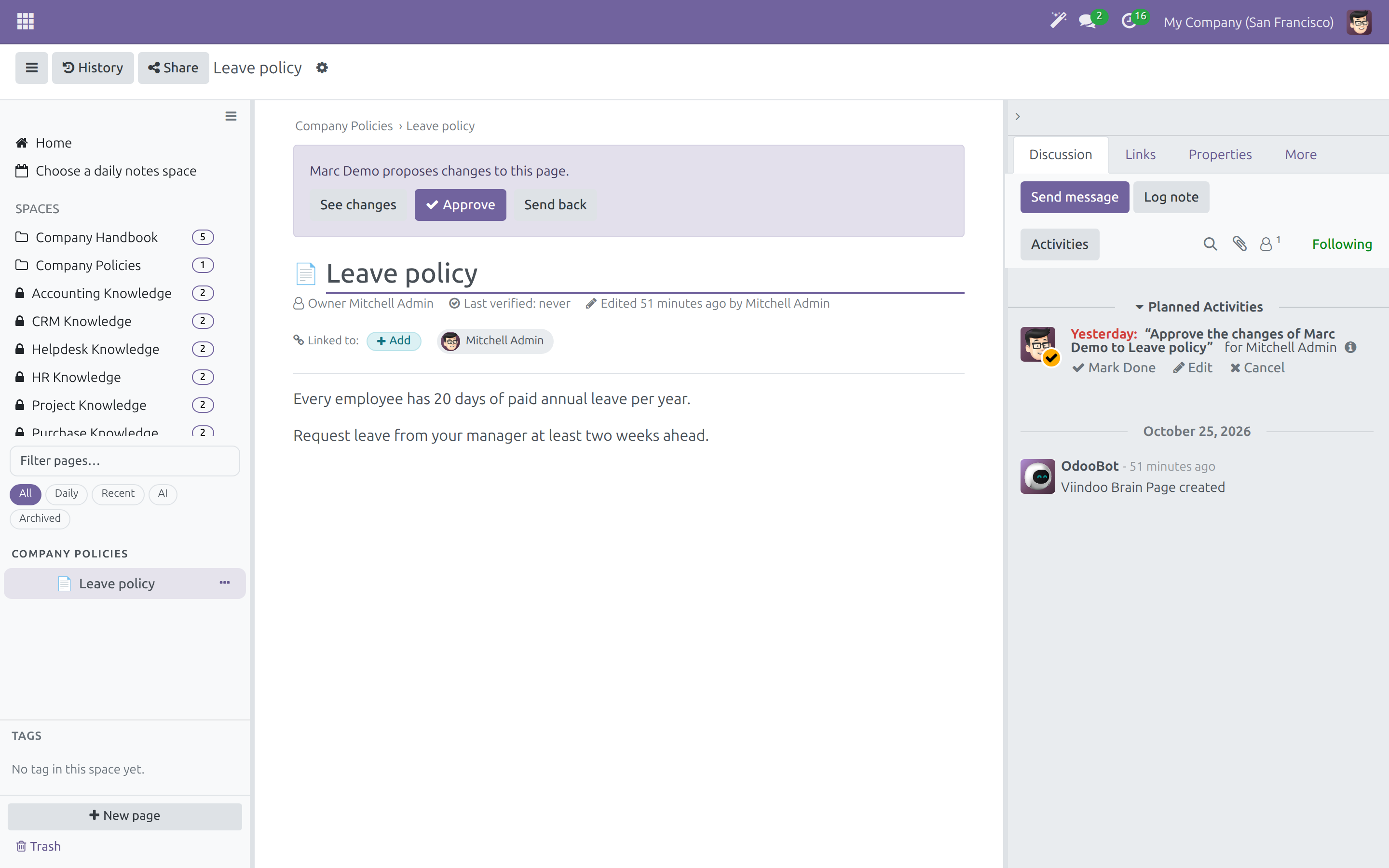
The page owner or a Space admin sees exactly what changed, then approves it or sends it back with a reason.
Read and use
Employees search, read, talk about the page in Activity and follow the pages they care about.
Keep current
When the review date passes, the owner checks the page and marks it as verified.
Retire
An outdated page is archived and stays readable, or moved to Trash where it can be restored for a while.
Key Features
Spaces with a role for every person
Every company starts with a Company Handbook and Company Policies Space to adapt, written in its own language; a language added later translates the Space names and templates and leaves the pages as the company wrote them. Give each team its own Space and choose who may view, comment, edit or administer it, person by person or for a whole user group.
An editor made for writing
Type / for blocks, [[ to link a page or any document you may read, @@ to mention someone. Start blank, from a template or from a Markdown file.
Links that stay true
A mention always shows the record's current name. Records in your apps show the pages that mention them and a Brain Note button.
Review and approval built in
A named owner, a last-verified date, a review interval per Space and drafts that wait for approval keep every page trustworthy.
Sharing you can take back
Internal link, named recipients or a read-only public link; restricting a page cancels the links that were sent outside.
See the health of the whole wiki
Wiki admins see pages by Space, review state and owner, and what people searched for and did not find.
Who it is for
Department heads and process owners
Procedures sit in heads and inboxes. Write them once in your own Space, decide who reads and who edits, and see which pages are due for review.
HR, quality and compliance managers
Policies must be approved and traceable. Review every change before it is published, compare it with the published text and keep a history to restore from.
Employees and new hires
The answer exists but cannot be found. Search once, start from the Start here pages and ask in the page's Activity panel.
Sales, support and operations teams
Context lives away from the order, ticket or invoice. Open the pages that mention a record and add a note linked to it, without leaving the app.
Administrators and wiki admins
Another tool means another login and another set of permissions. Brain uses your database, your users and your access rules, and reports on its own health.
Best for: companies of any size that keep procedures, policies and know-how in Odoo, from a small team writing its first handbook to several departments that need approval rules.
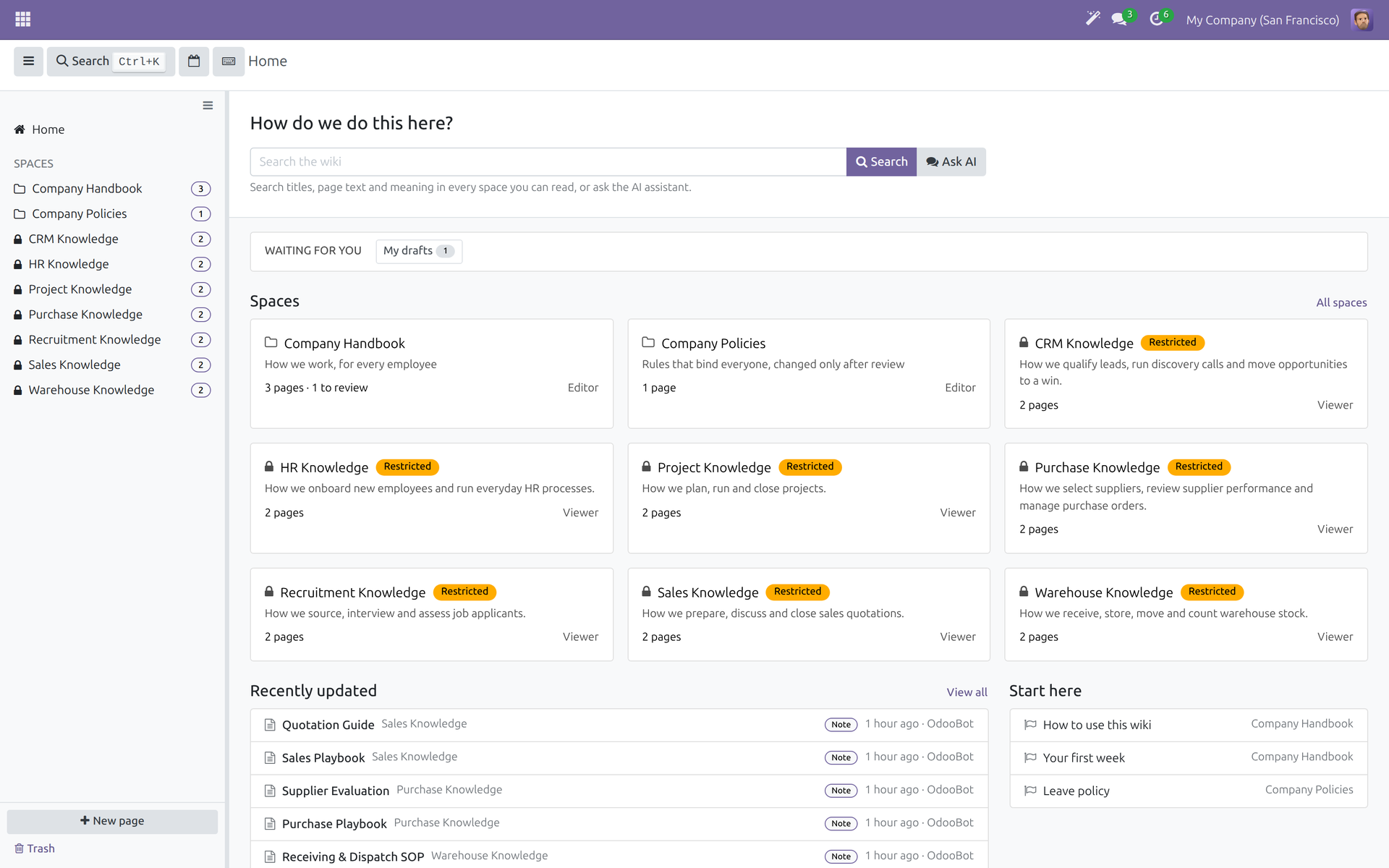
Start from one Home
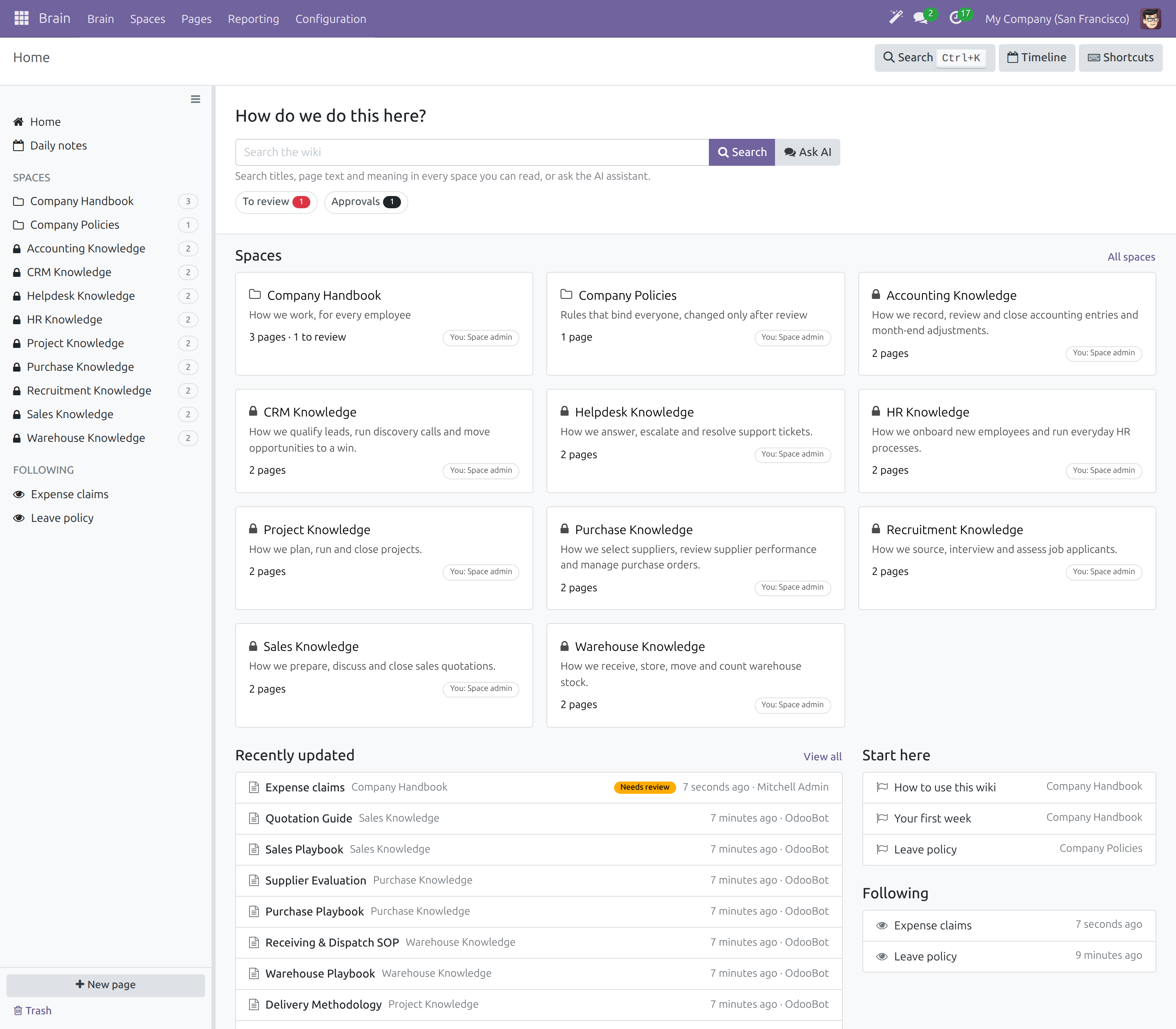
Give every team its own Space
Write with simple commands
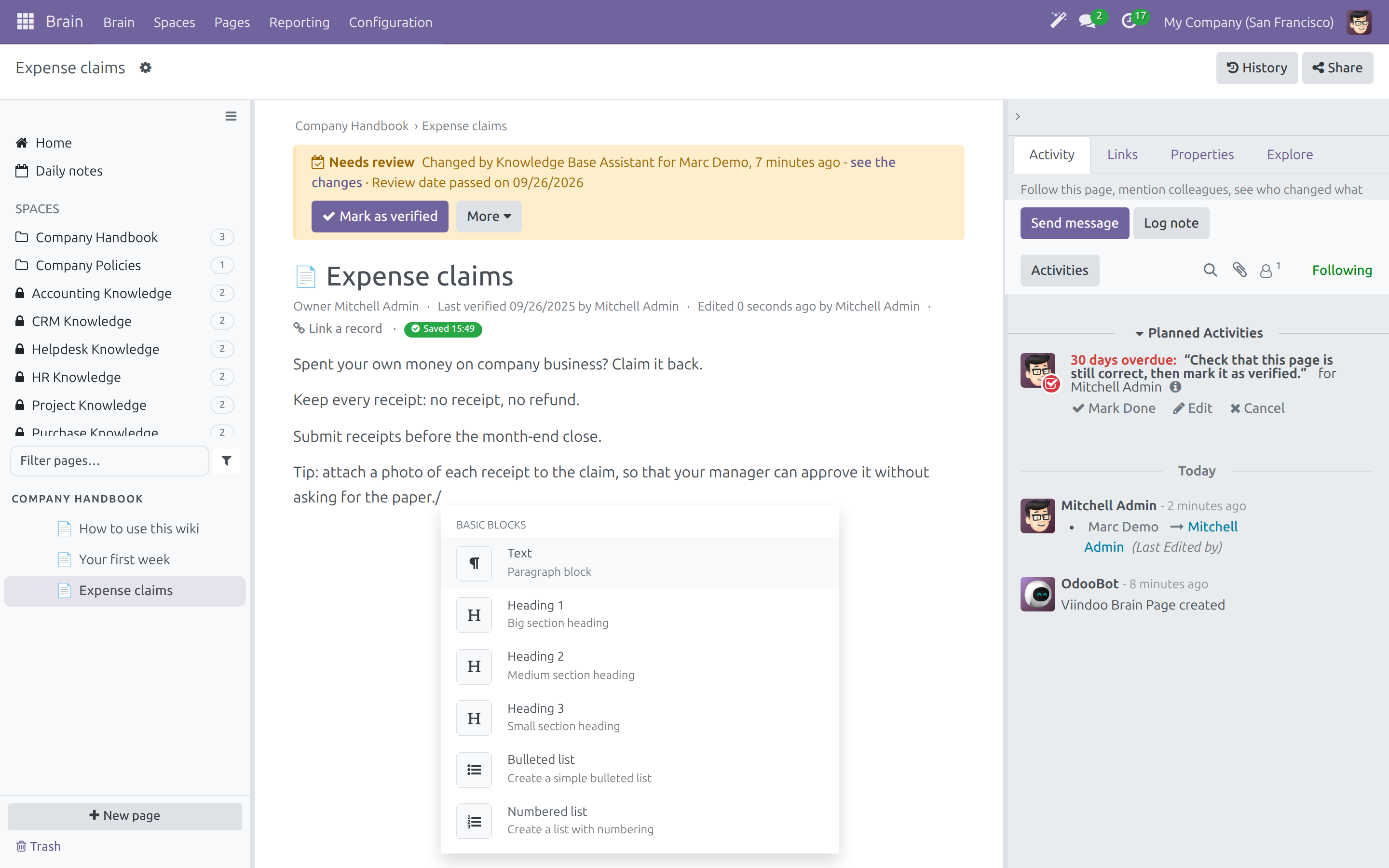
Start blank, from a template or from Markdown
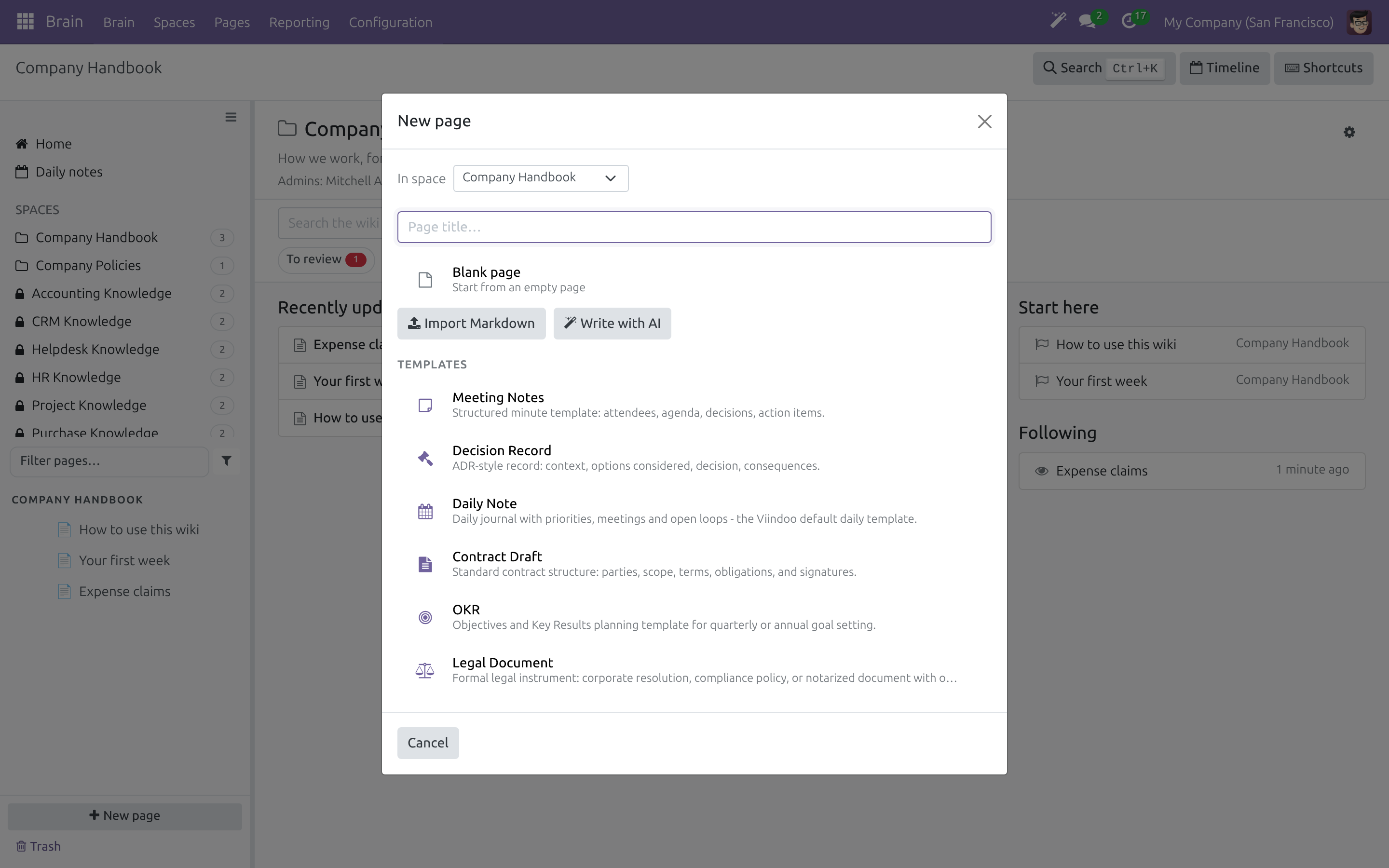
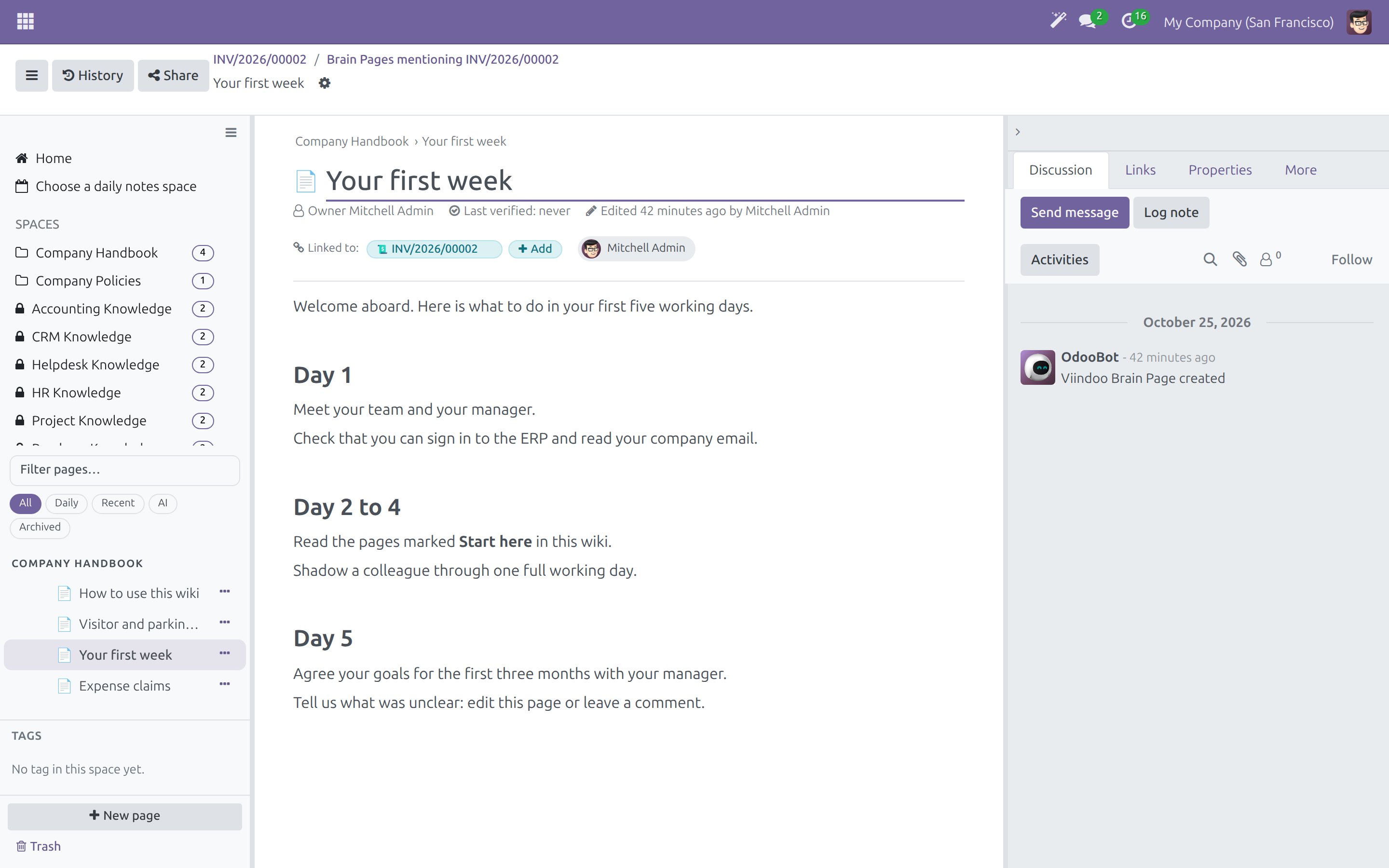
Open the wiki from a business record
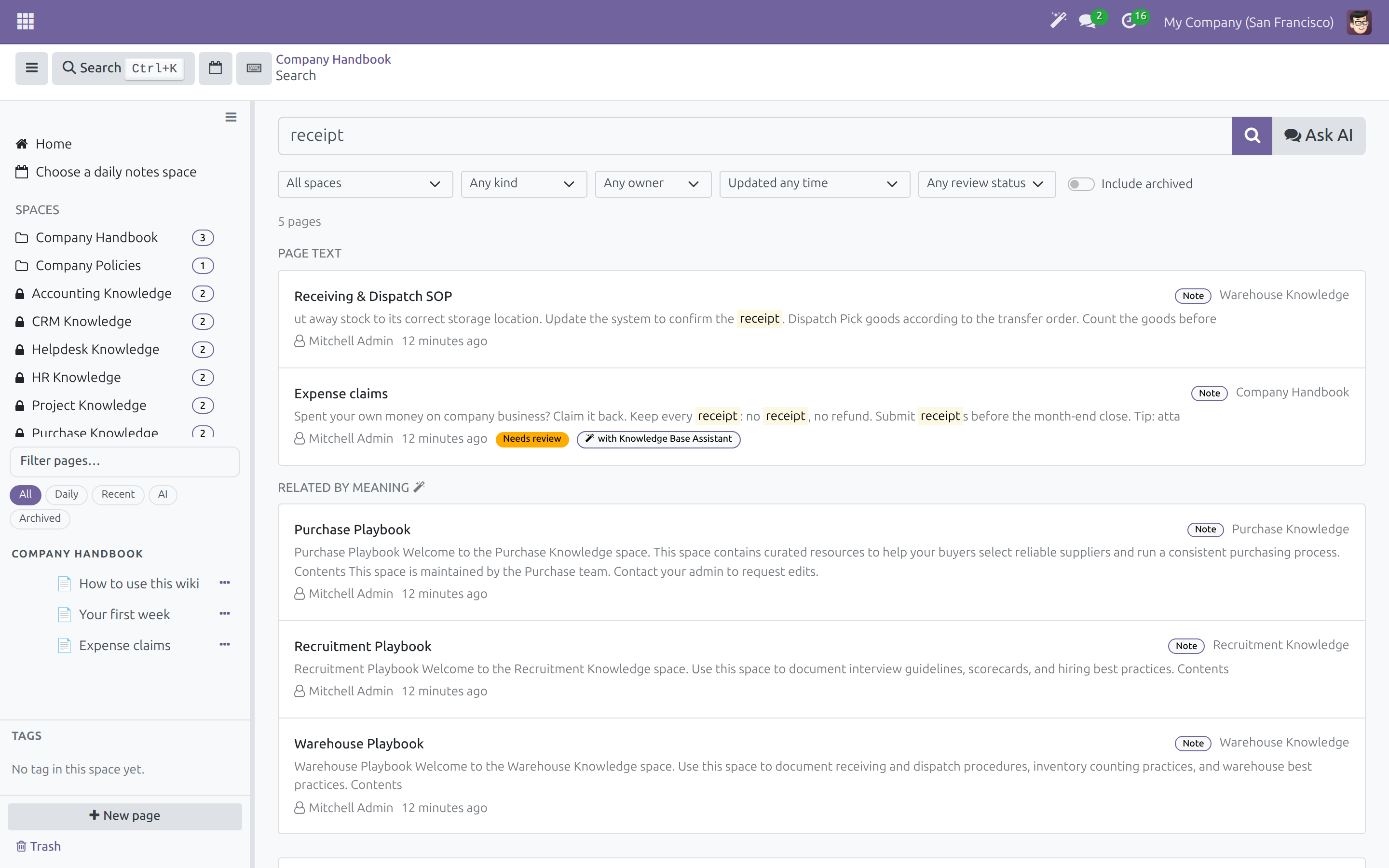
Find the answer
Jump anywhere with Ctrl+K
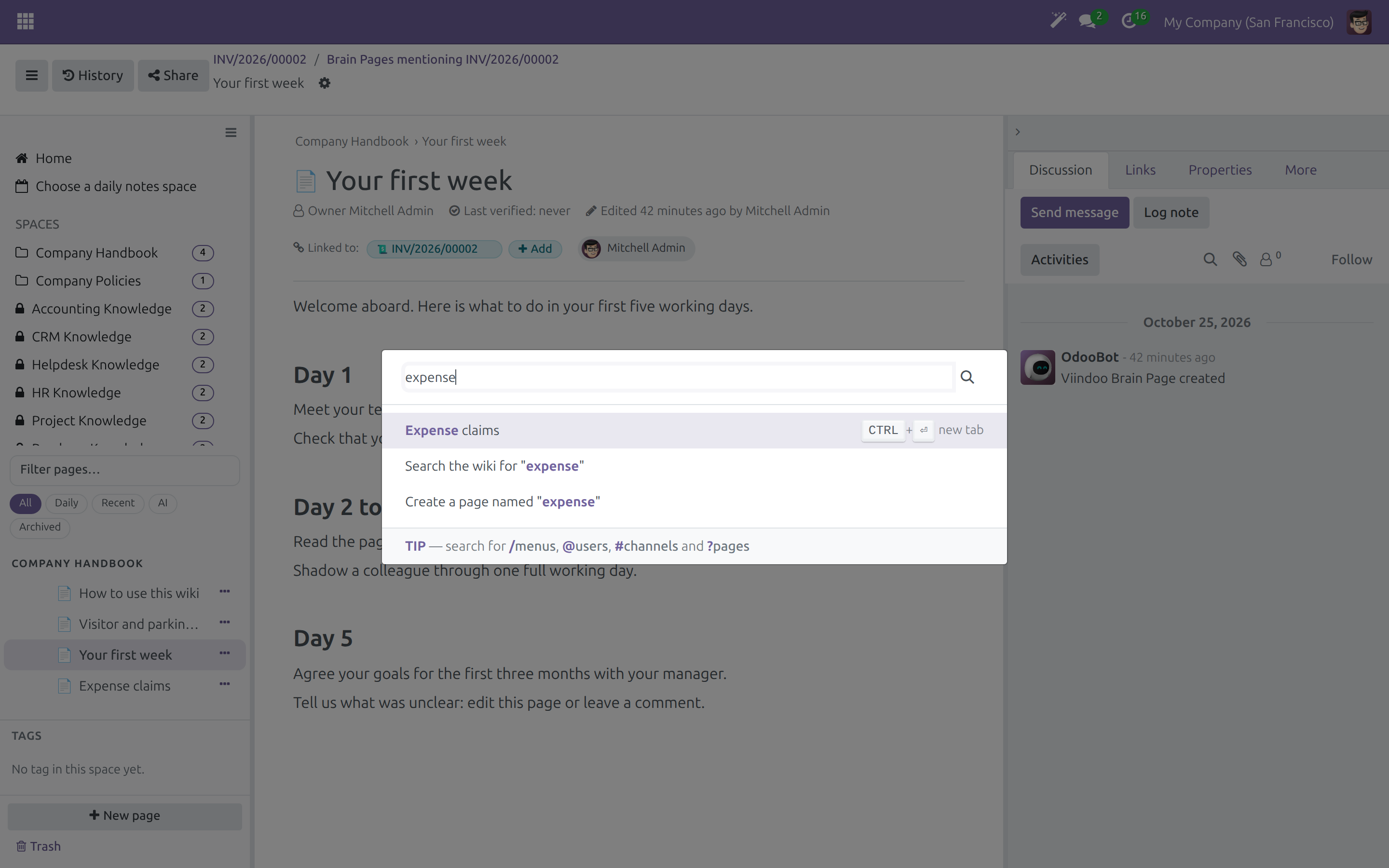
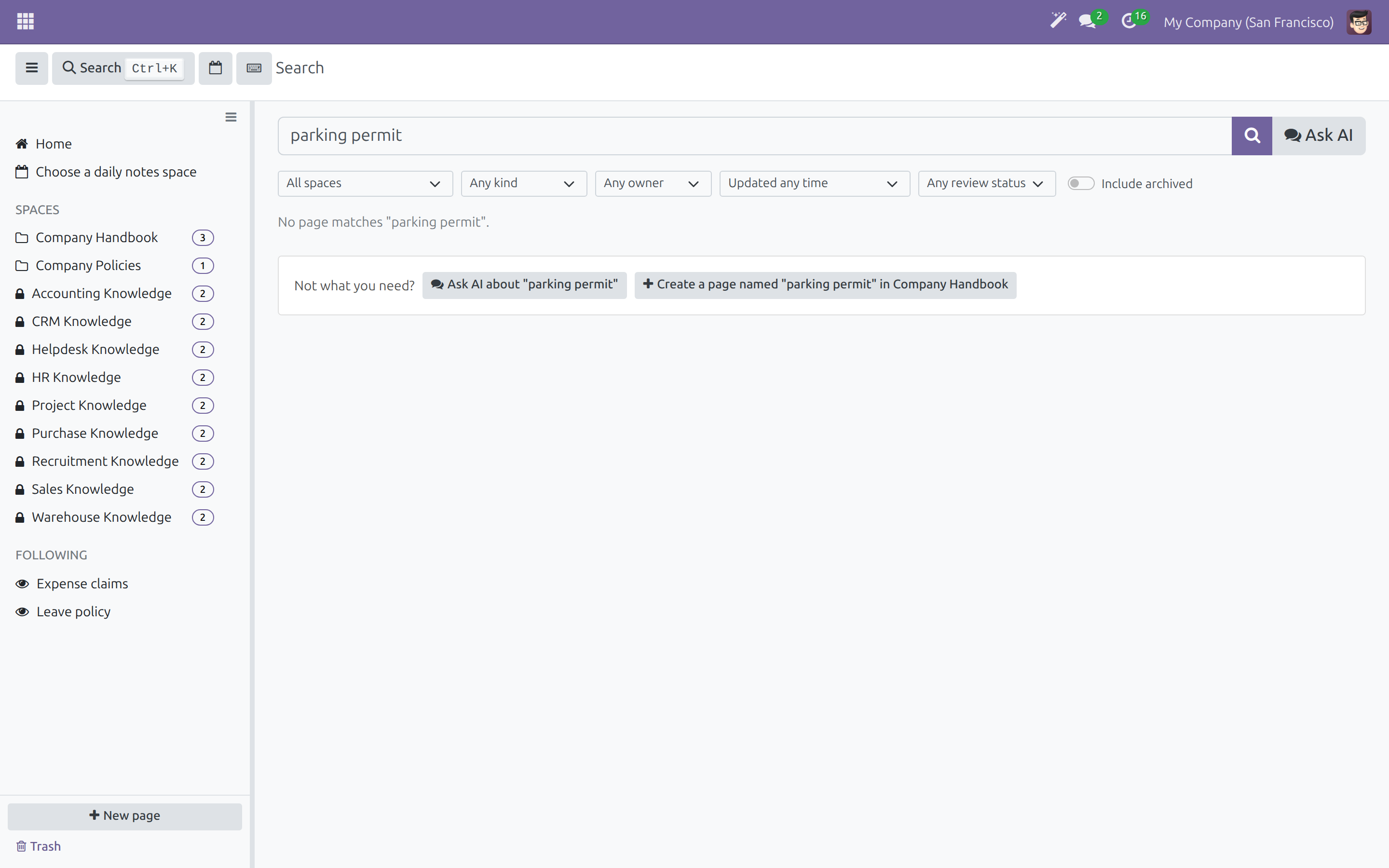
Turn a missed search into a new page
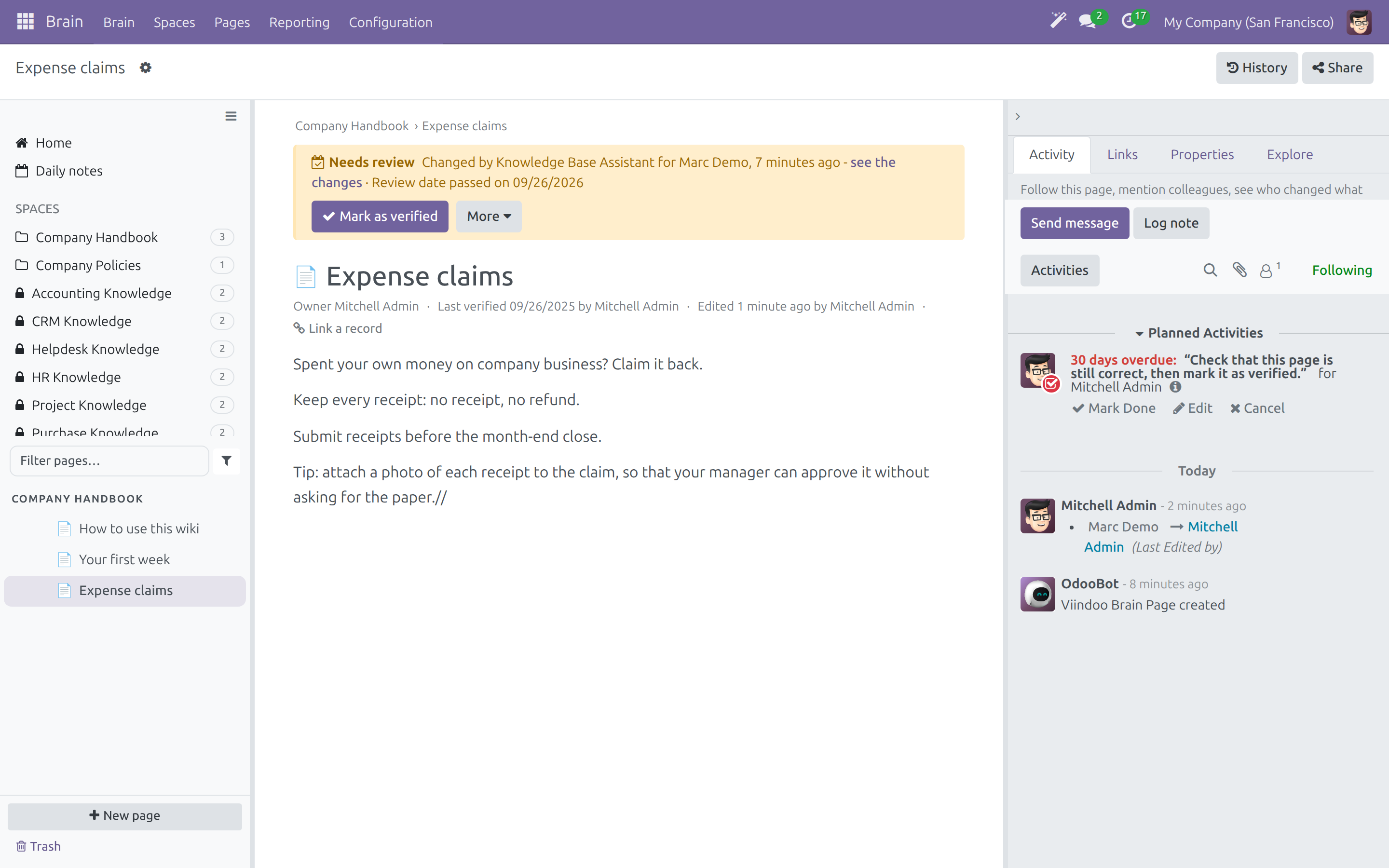
Keep every page current
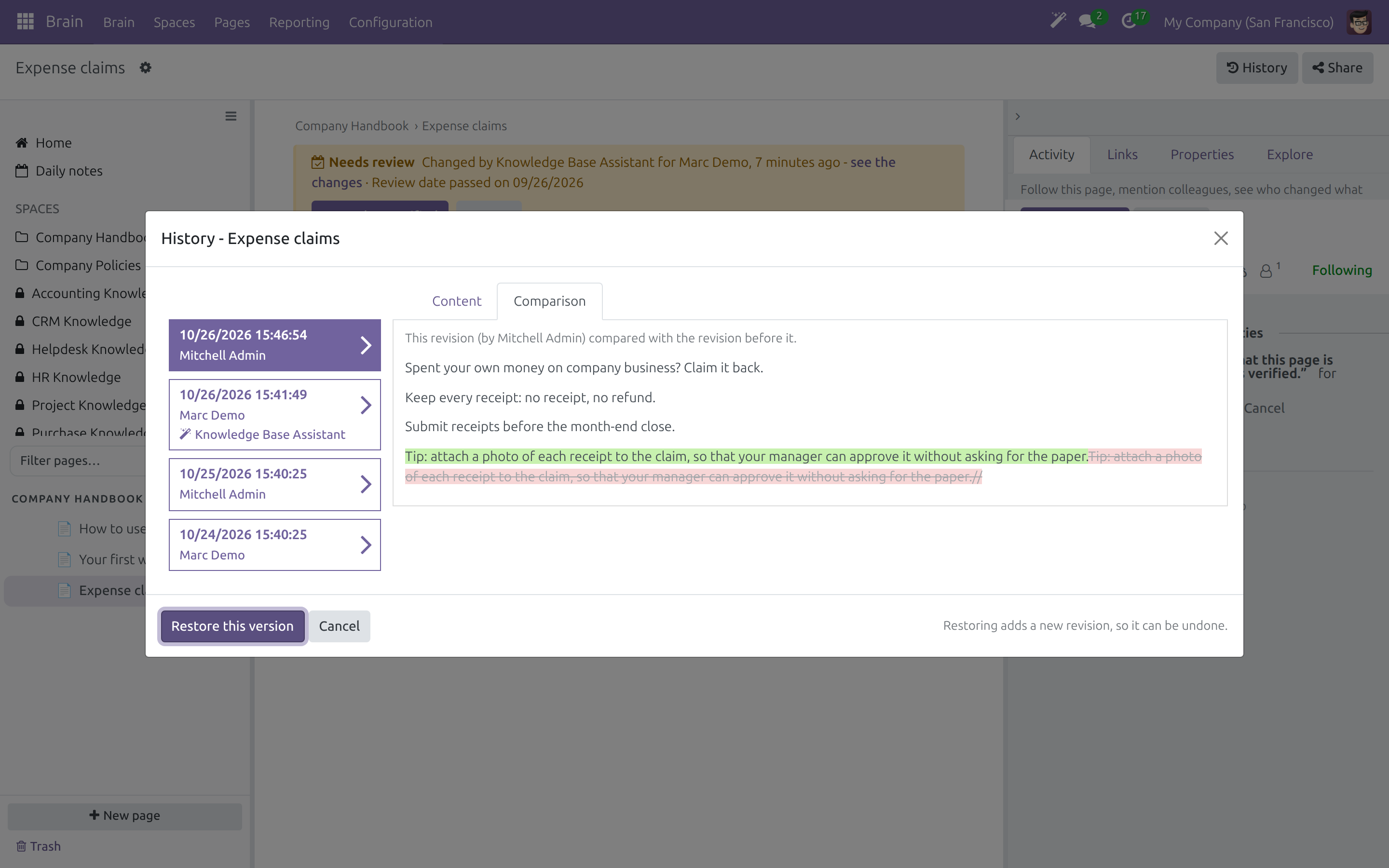
Compare and restore earlier versions
Submit a change for approval
Approve or send back
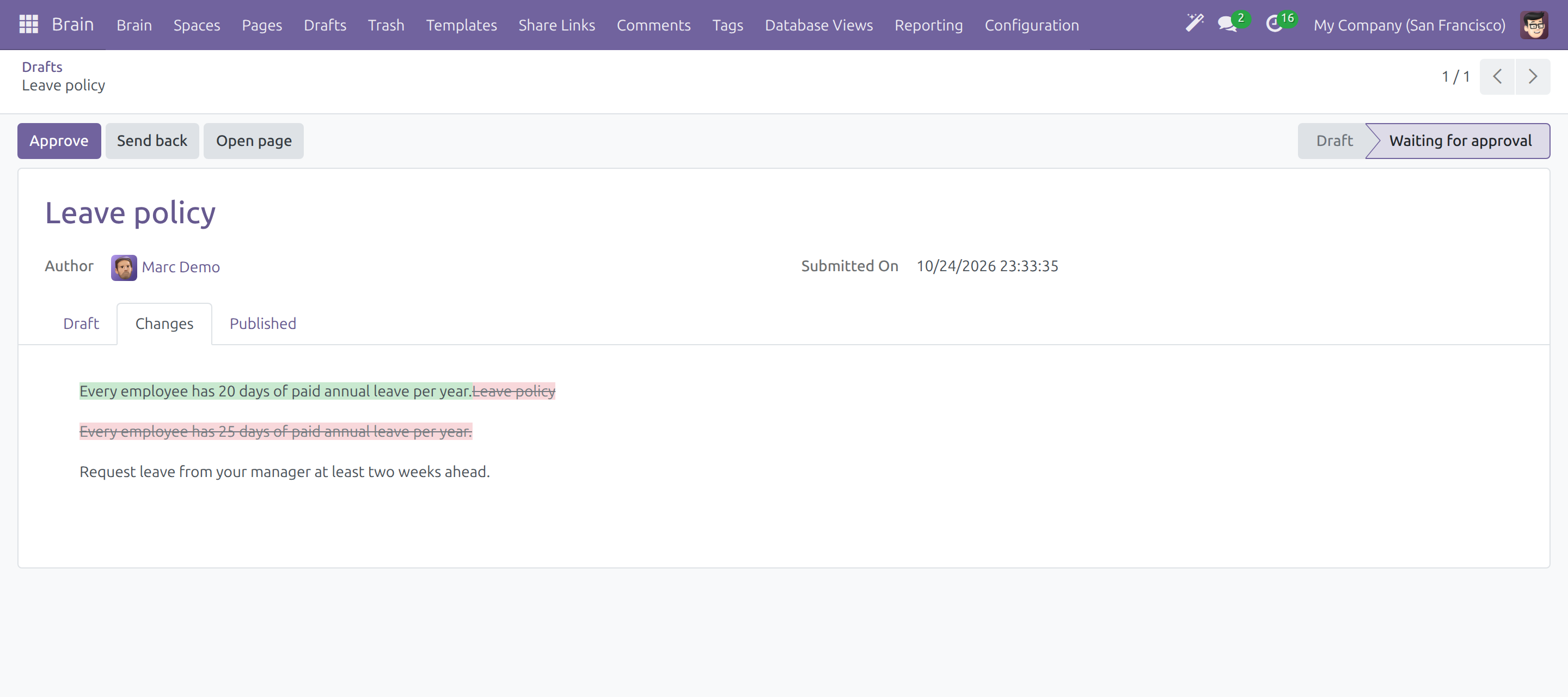
See exactly what changed before approving
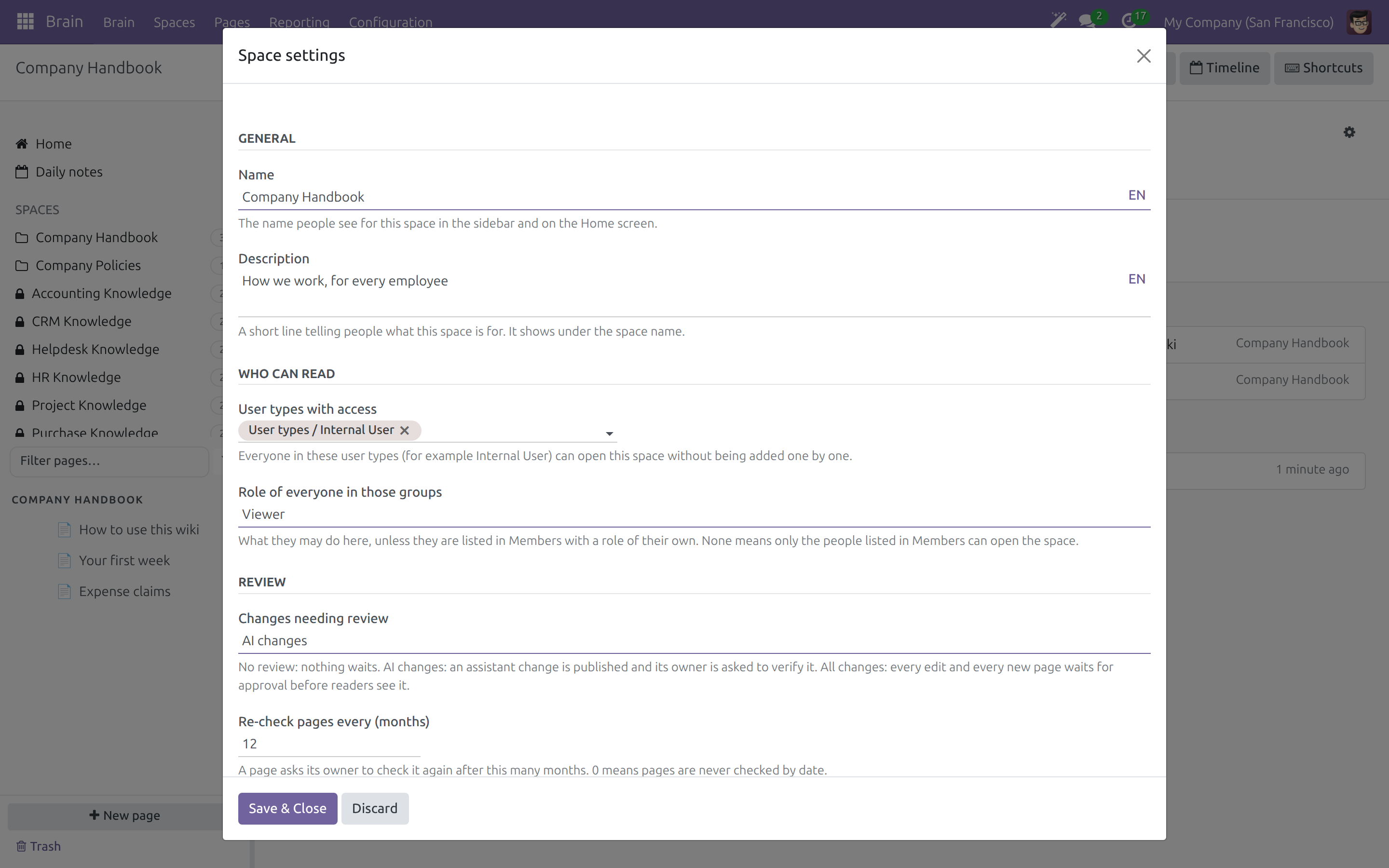
Set the rules of each Space
Share with control
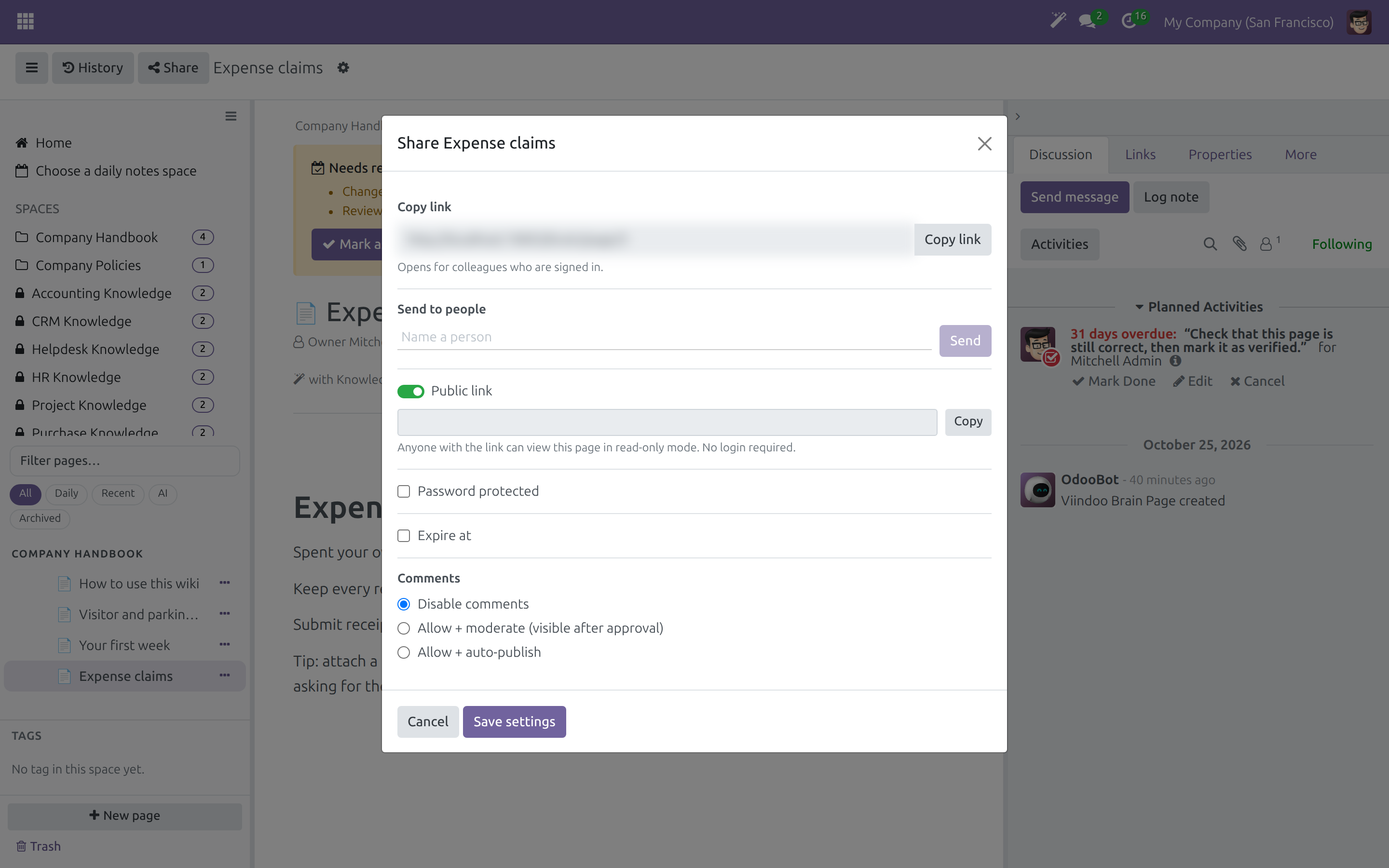
Send a page to named people
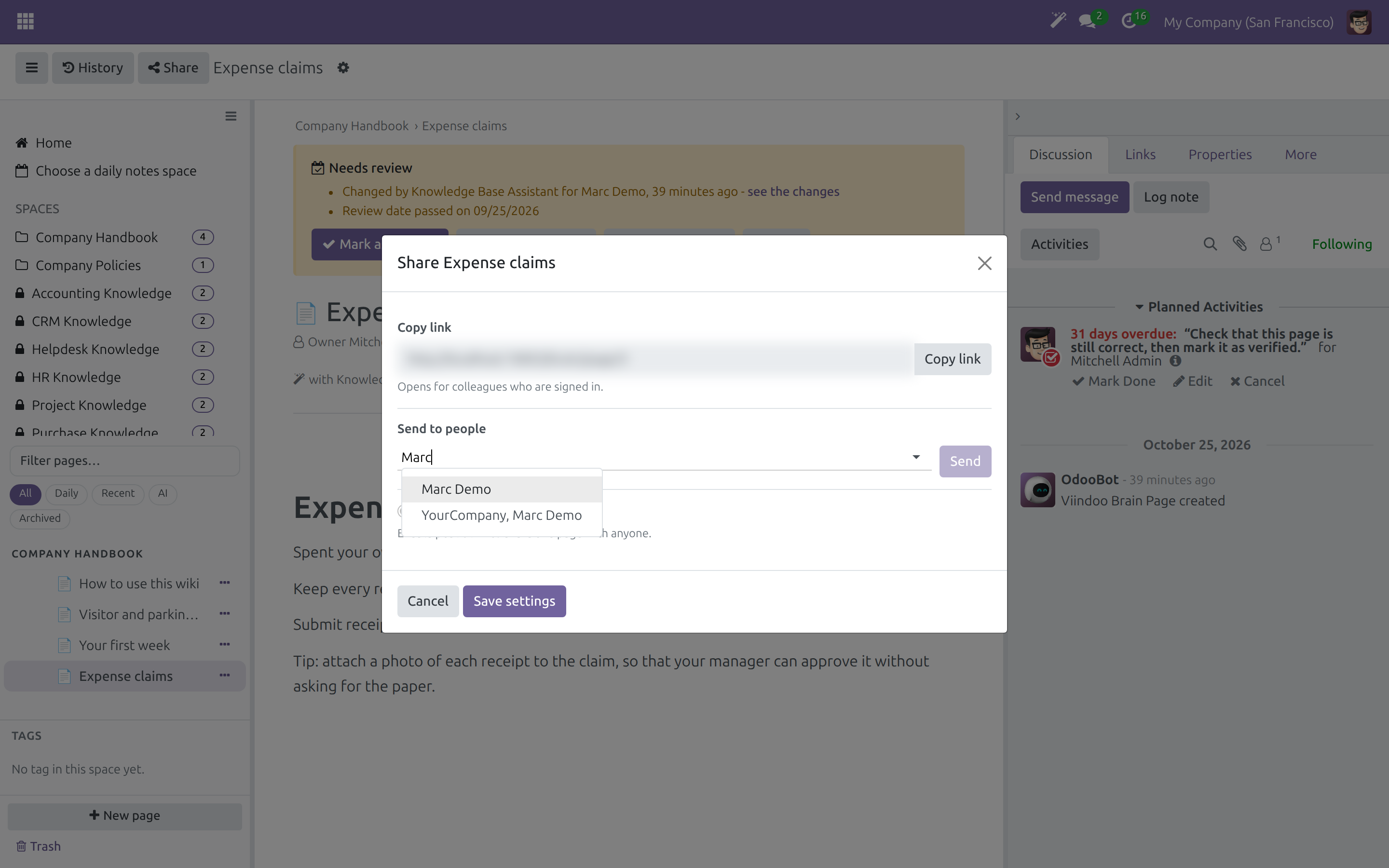
Everything about a page in one menu
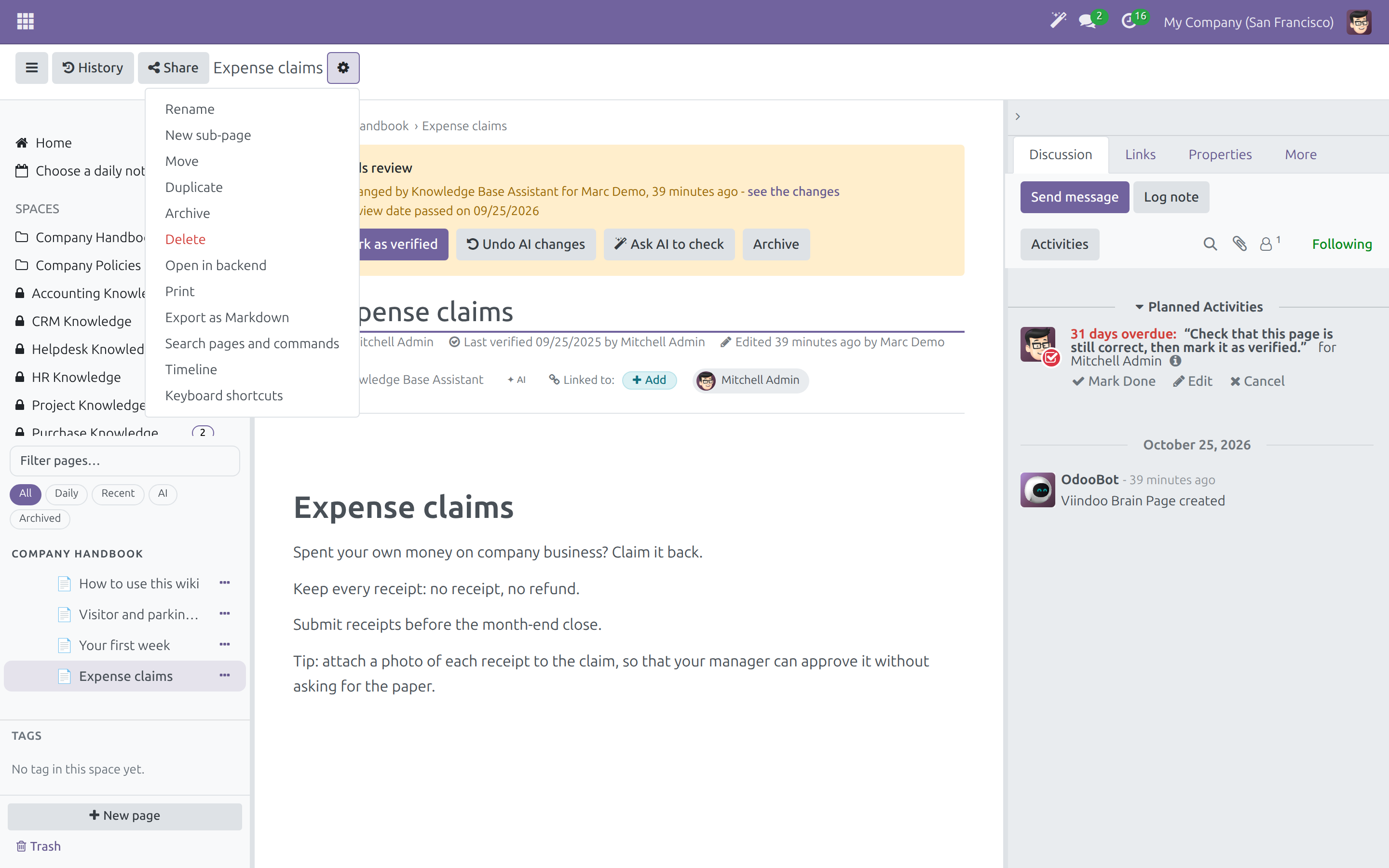
Bring a deleted page back
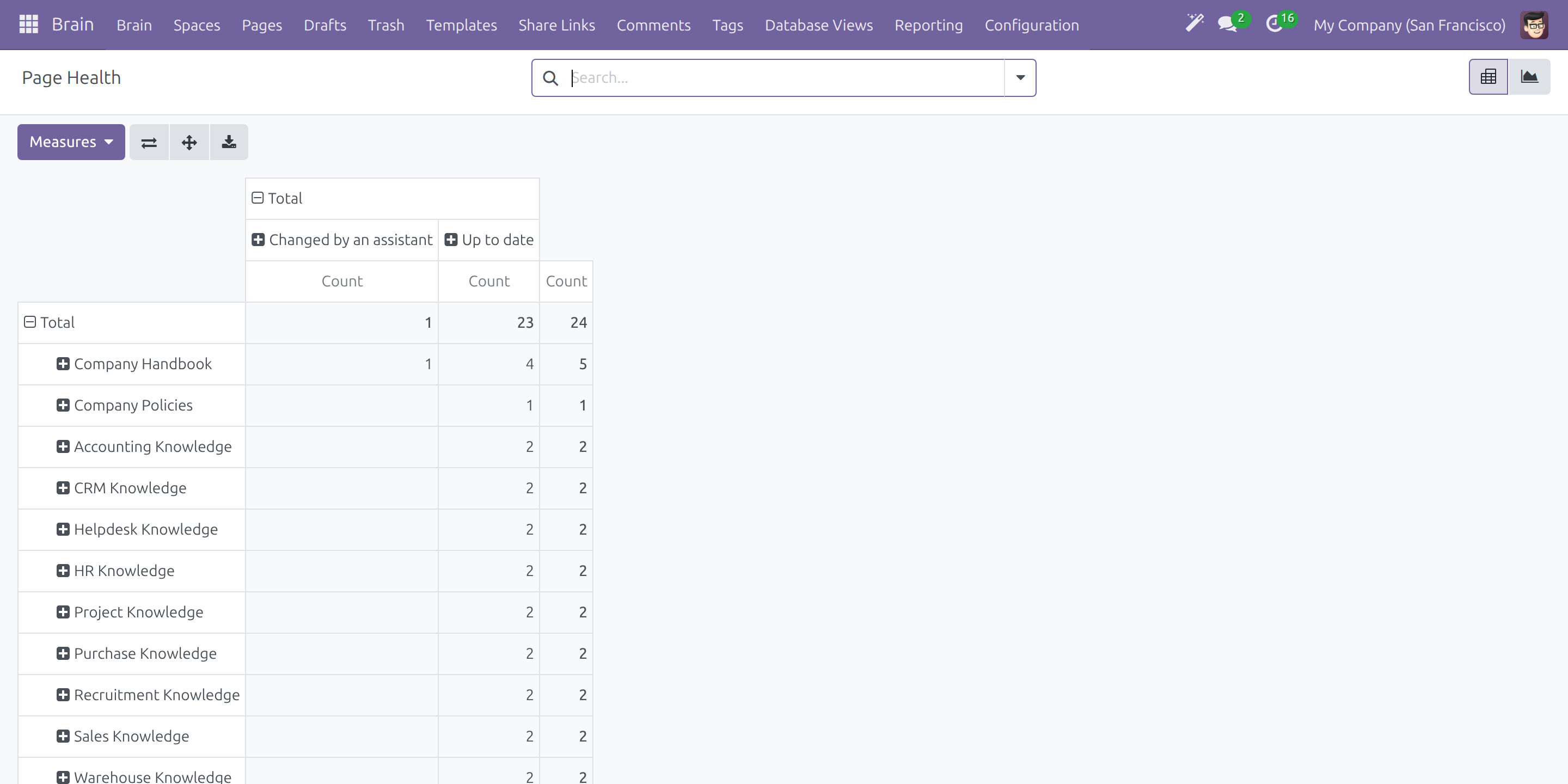
See which pages need attention
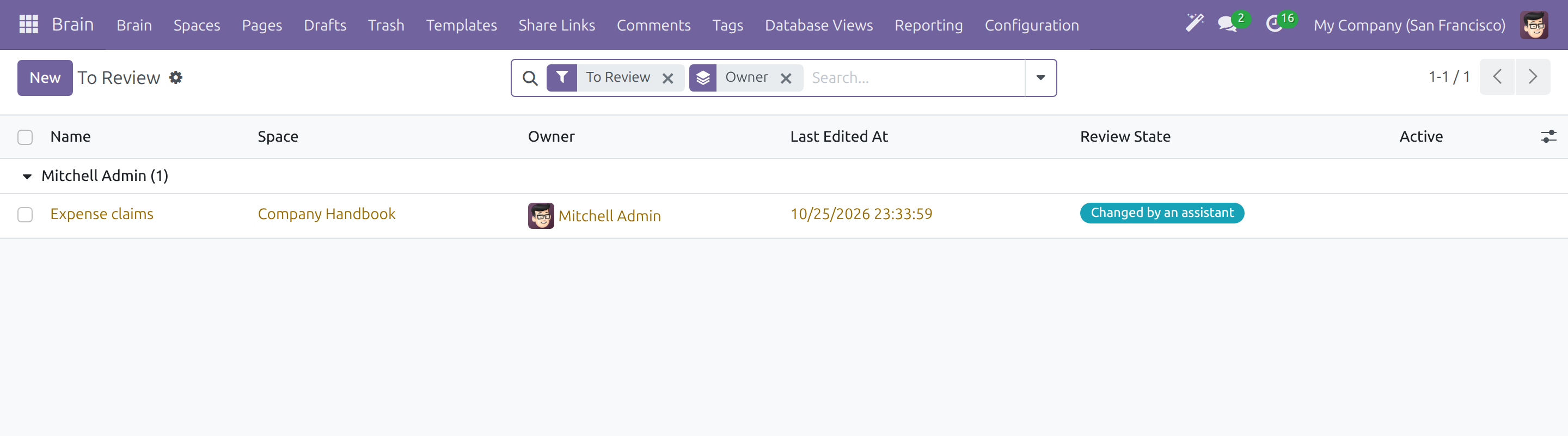
List what is due for review
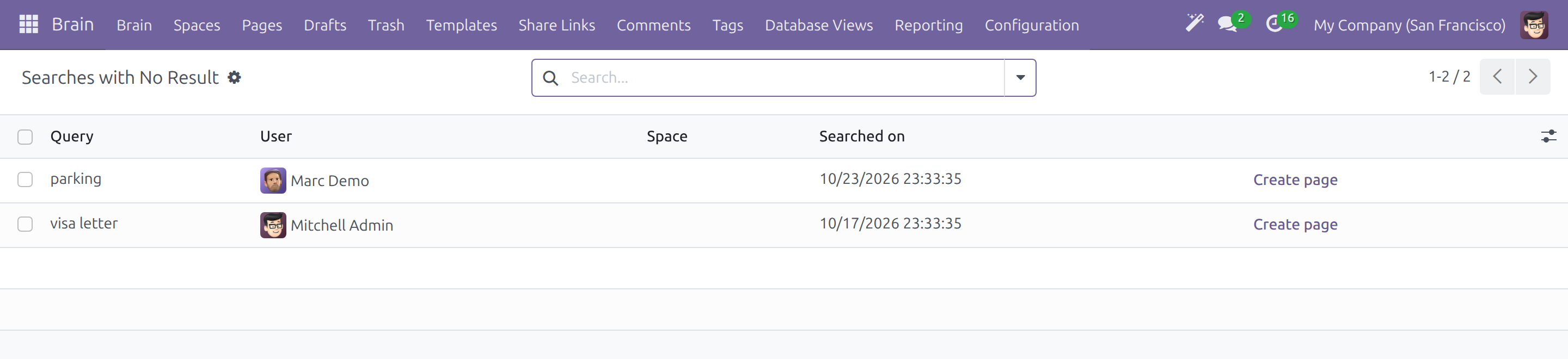
Learn what people could not find
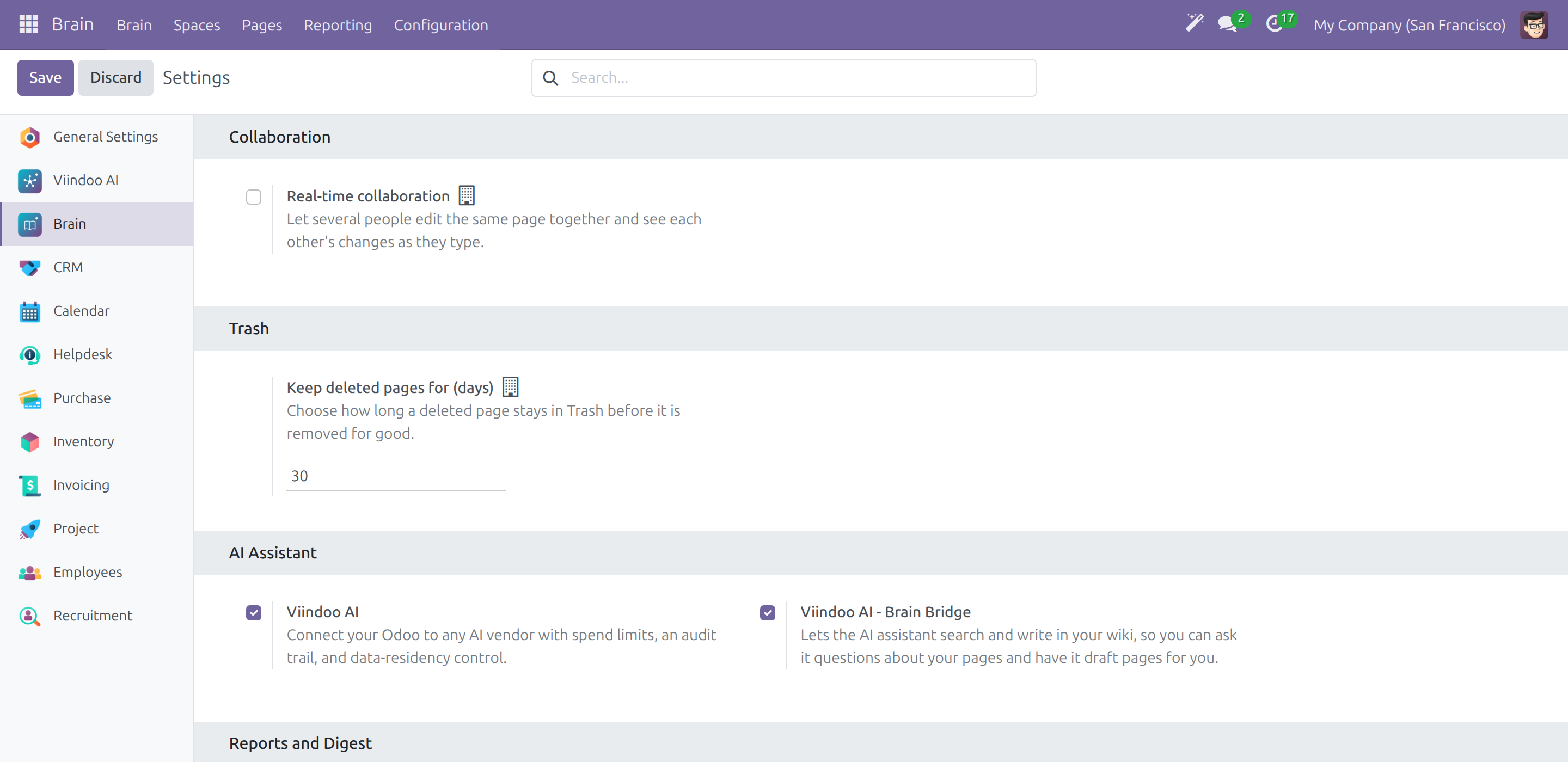
A few settings, set once
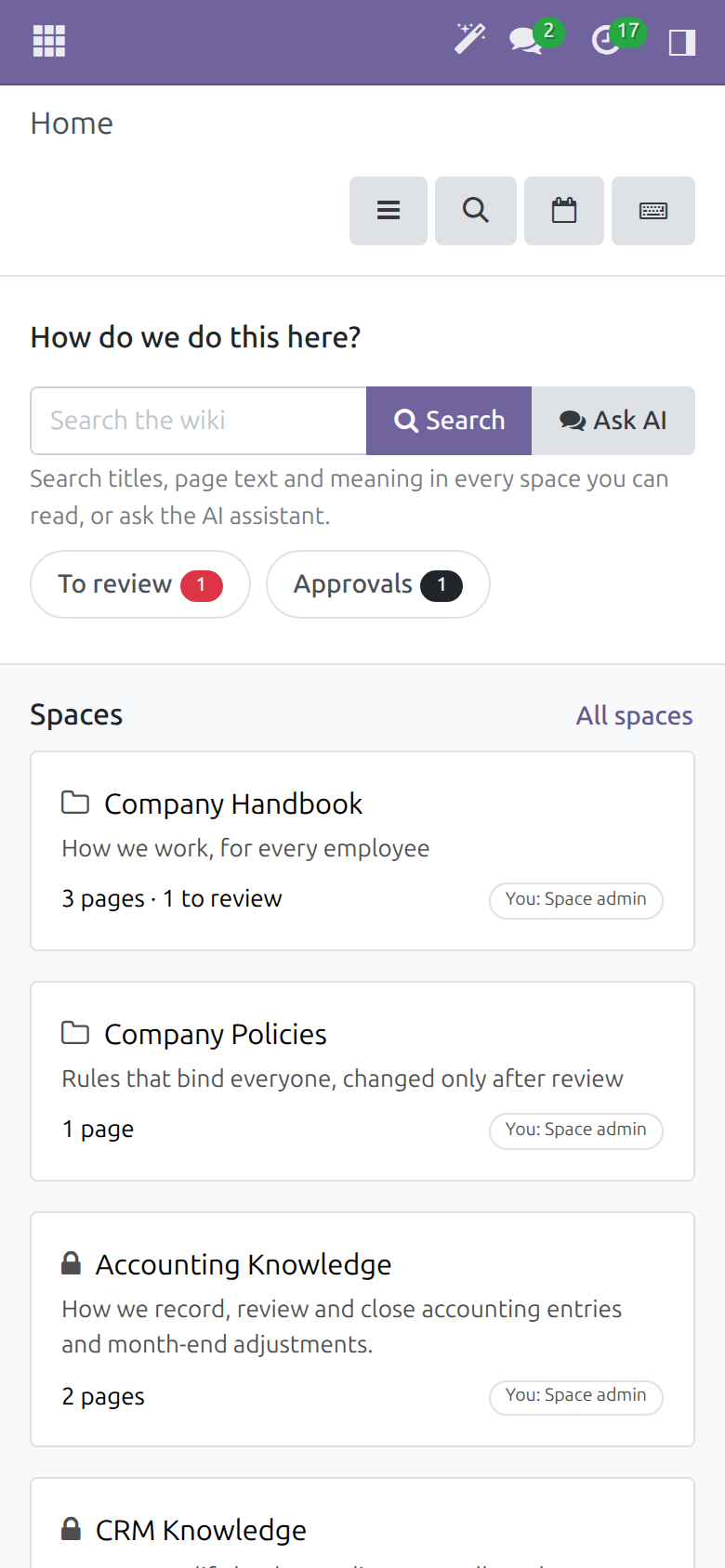
Read it on a phone
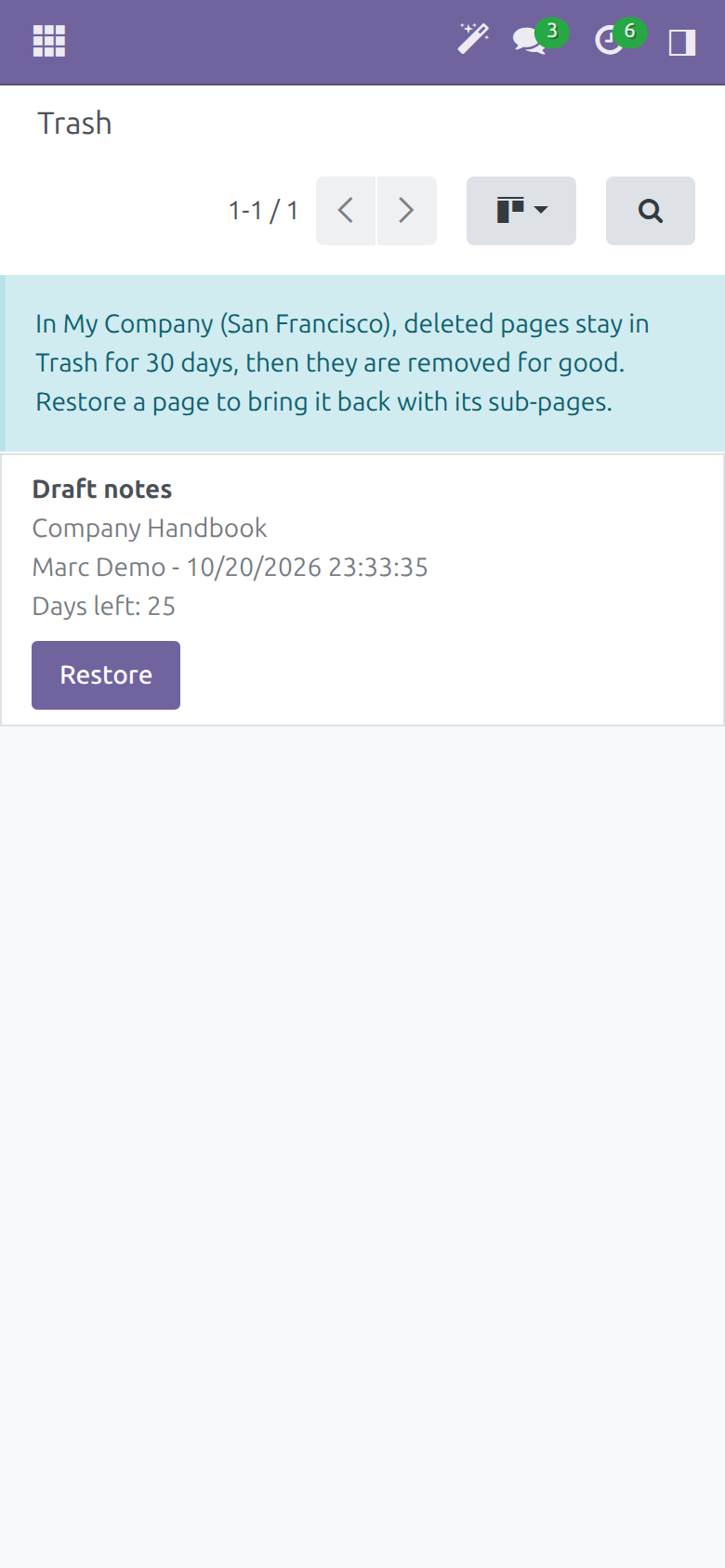
Restore a page from your phone
Frequently Asked Questions
Is it a separate system with its own users and permissions?
No. Pages live in your Odoo database and are read by your Odoo users. Each Space gives people a role: Viewer, Commenter, Editor or Space admin, per person or for a whole user group.
Can people read pages they should not?
A Space can be restricted to chosen people, and a page obeys the same access rules as the rest of your database. A personal daily note is private to its owner, administrators included.
How do we know the pages are still correct?
Each page has an owner and a last-verified date. Each Space has a review interval, 12 months by default, and a page past its date shows a Needs review banner.
Can a change be approved before readers see it?
Yes. In a Space set to review all changes, edits and new pages wait as drafts until the page owner or a Space admin approves them. Readers keep seeing the published page meanwhile.
What if someone deletes a page by mistake?
A deleted page waits in Trash with its sub-pages and can be restored. Your administrator chooses how many days Trash keeps pages, and an earlier version of a page can be restored from its history.
Can someone outside the company read a page?
Yes, if you choose. Publish a read-only public link, with an optional password and expiry date, or send the page to named contacts. Restricting the page cancels the links that were sent outside.
Can we bring in or take out our existing content?
Yes. Import a Markdown file when you create a page, and export any page as Markdown or print it.
Do we need the AI add-on?
No. Writing, review, approval, search by title and text, sharing and reports work without it. Search by meaning, drafting with an assistant and asking an assistant to check a page come from the Viindoo AI add-on listed below.
Does it work on a phone?
Yes. Home and Trash fit a phone screen without sideways scrolling.
Need help with Viindoo Brain?
Pre-Sales & Partnership
viindoo.com/contactusTechnical Support
viindoo.com/ticketTechnical Requirement
- Odoo version: 17.0
- Editions: Odoo Community
- Required modules: Viindoo Web Editor, plus Odoo's Discuss, Portal, Web and Bus apps, which come with every Odoo
- License: OPL-1
Extend it further
Add the assistant to your wiki and let it search by meaning and help write pages, with every change it makes marked and reviewable.
Viindoo AI - Brain Bridge
Gives the AI assistant read and write access to your knowledge base: search by meaning, an AI block inside a page, Save to Brain from Discuss, and a reviewable trail of what it changed.
Viindoo Brain
Who this guide is for. People who use the company wiki - employees who read it, writers, page owners, Space admins and wiki admins - and the administrator who sets it up. It describes what you see on screen and what to click.
Overview
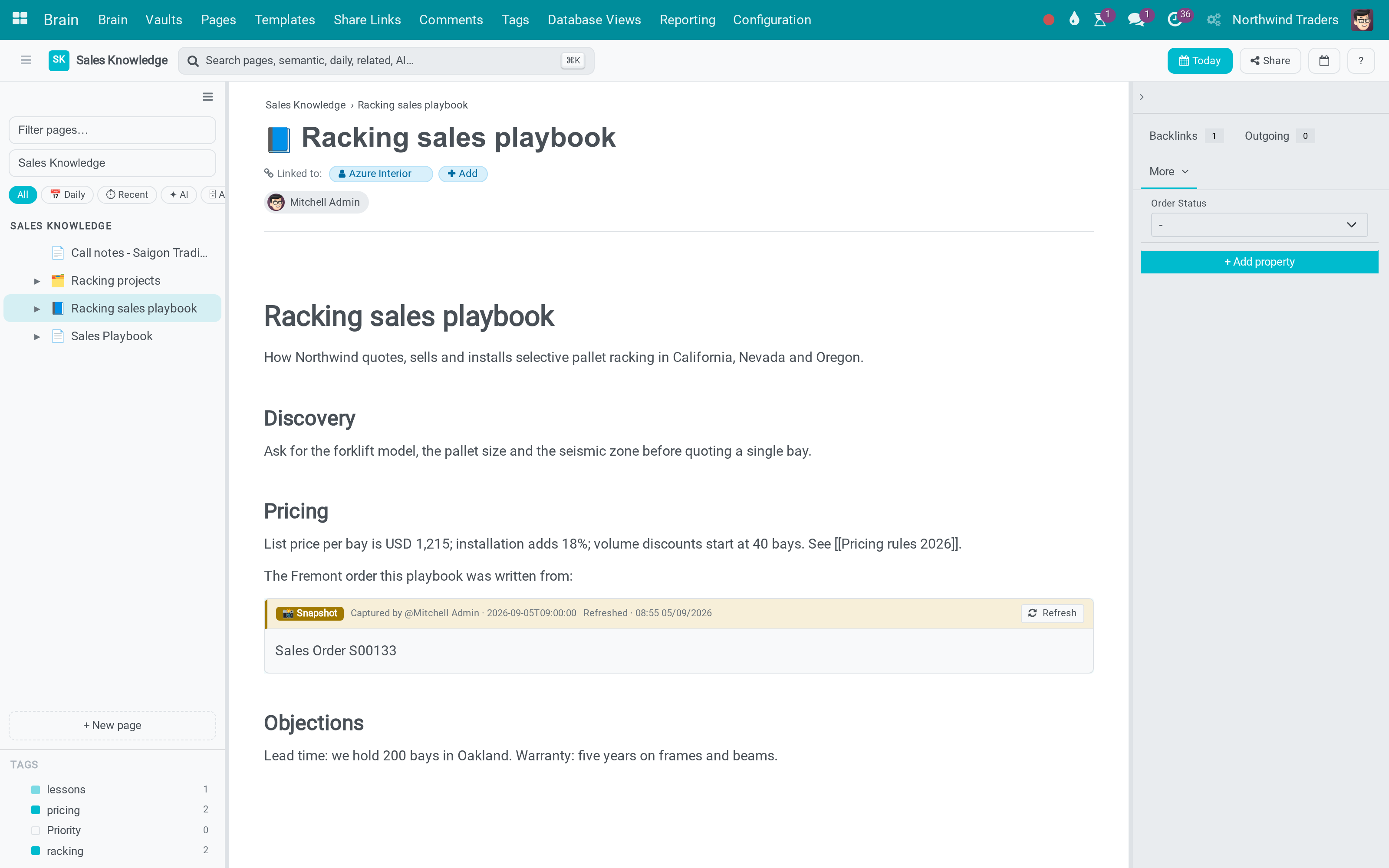
Viindoo Brain is the company wiki inside your ERP. Procedures, policies and know-how are written as pages, kept in Spaces (for example "Company Handbook"), and linked to the invoices, employees and other documents they are about. A page follows the same access rules as the rest of the system, so nobody keeps a second set of permissions in their head.
Every page has an owner, by default the person who created it. The owner is the person who confirms that the page is still correct. Readers see who owns a page and when it was last verified, so they know whether to trust it.
How a page lives:
- A writer creates or edits the page. In a Space where changes need review, the change is held as a draft and the page owner or a Space admin approves it.
- Everyone who may read the Space finds the page from Home, by searching or with Ctrl+K, and talks about it in the Activity panel.
- When the review date of the page passes, its owner is asked to check it and clicks Mark as verified.
- A page that is no longer useful is archived, or moved to Trash, which keeps it for a number of days so it can be restored.
| Role | What they do | Access right to assign |
|---|---|---|
| Employee (reader) | Finds and reads pages, discusses them, follows the ones they care about. | Role Viewer or Commenter in the Space, given person by person or to a whole user type. |
| Writer | Writes and edits pages, shares them, submits drafts, moves pages to Trash. | Role Editor in the Space. |
| Page owner | Keeps the page current: verifies it, archives it, approves drafts of it. | None: the owner is named on the page. It is the creator unless changed. |
| Space admin | Runs one Space: members and roles, review rule, Start here pages; restores and permanently deletes its trashed pages. | Role Space admin in the Space. |
| Wiki admin | Watches the health of the whole wiki and looks after templates, public links and comments. | Brain / Brain Admin on the user. |
| Administrator | Installs the app and sets the company options. | Administration / Settings on the user. |
Note
When the Viindoo AI assistant is installed, Home and the search page also offer Ask AI, and the search results gain a Related by meaning group. They are described in the guide of Brain for the Viindoo AI assistant.
Setup (for the Administrator)
Installation
- Go to Apps.
- Search for Viindoo Brain.
- Click Activate.
Note
Every company starts with two Spaces: Company Handbook, with the pages "How to use this wiki", "Your first week", "Expense claims", "About us", "Who does what", "Tools and accounts" and "How we communicate", and Company Policies, with the pages "Leave policy", "Code of conduct", "Working hours and remote work", "Information security" and "Spending and approval limits". They are an outline to adapt: rewrite the pages, rename or restrict a Space, or delete what your company does not need. Each company has its own copy, so a change in one company does not reach another. A company you create starts with the outlines in the language you are working in; to choose another language, create the company's contact first, set its language, and create the company from that contact. The outline pages are written once, in the language of the database or of the person creating the company, and are then the company's own pages: a language you activate later translates the names and descriptions of the Spaces and the templates, the copies in other companies and the personal Spaces included, but leaves the pages as they are. To start a company with Vietnamese outlines, create the database in Vietnamese, or create the company while you work in Vietnamese.
Brain works on its own. When your database also uses an application such as Sales, CRM, Helpdesk, Employees, Recruitment, Purchase, Inventory, Project or Invoicing, a small connector for that application installs itself. It adds a starter Space for that team (for example "Sales Knowledge") and the Brain Pages and Brain Note buttons on the application's forms.
Company options
Open Brain ‣ Configuration ‣ Settings. Every setting carries a one-line explanation under its name. The Collaboration and Trash sections are saved per company:
- Collaboration - Real-time collaboration. Off by default. When it is on, several people edit the same page at the same time and see each other's changes as they type; when two people change the same text, the last save wins. Ask everyone to reload the pages they have open after you switch it, and switch it on only for Spaces whose editors you trust.
- Trash - Keep deleted pages for (days). How long a deleted page stays in Trash before it is removed for good. The default is 30 and the minimum is 1.
Below them, the AI Assistant, Reports and Digest and Integration sections list the add-ons of Brain, one switch each, named after the add-on: the AI assistant in the wiki, financial reports in pages, Brain figures in the e-mail digest, and a connector for each application (Project, CRM, Helpdesk, Employees, Recruitment, Sales, Purchase, Inventory, Accounting and Website). Tick a switch and click Save to install the add-on with the applications it needs; untick it and click Save to remove it. An add-on that your database does not include shows Purchase or Learn more in place of the switch.
Giving people access
Access to the wiki has two layers.
- On the user. Every internal user can open the Brain app. On the user form, the Brain field of the access rights gives the group Editor (the person may create Spaces) or Brain Admin (the person is a wiki admin: full control of every Space of the companies they may see, and the extra menus under Reporting and Configuration).
- In each Space. What a person may do inside a Space follows their role there: Viewer, Commenter, Editor or Space admin. The Space admin sets the roles in Space settings (see the Space admin chapter).
Note
A Space admin is a role inside one Space. It is not the same as the Brain Admin access right, which covers every Space.
Employee: find and read what the company wrote down
Start from Home
Open Brain ‣ Brain. Home answers three questions.
- Where do I look? The search box at the top and the Spaces cards. Each card shows the Space name, its description in your language, the number of pages, how many need review, and your role in it. A lock (hover it to read "Restricted to members") marks a Space that is not open to every internal user, and You: Space admin (or Editor, Commenter, Viewer) tells your own role in it.
- What changed? Recently updated lists the latest edited pages on one line each: the title, the Space, when and by whom the page was edited, a Needs review mark when it is due, a small magic-wand icon when an assistant edited it, and the kind of page when it is not a plain note. Following lists the pages you follow.
- Where do I start? Start here lists the pages a Space admin pinned for newcomers.
When something needs you, count pills appear under the search box: To review (pages you own that are due for review), Approvals (drafts waiting for your approval), My drafts and Comments to moderate. Each pill opens its list; nothing shows when nothing waits.
Home and Trash fit a phone screen: the sidebar folds away and the Space cards stack in one column.
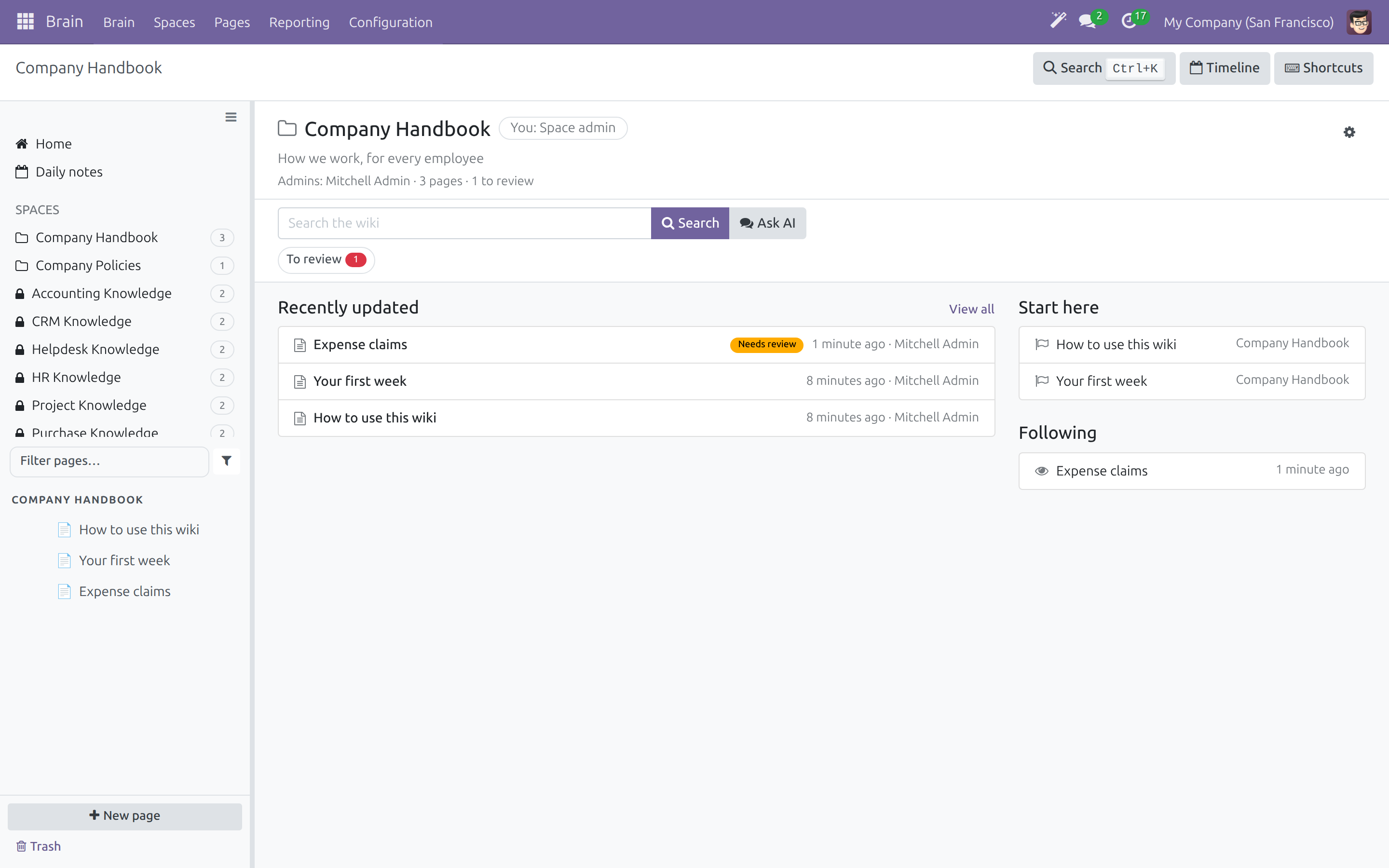
Open a Space
Click a Space card, or the Space name in the sidebar. The Space screen has one header: the Space name with your role, its description, and one line with the Admins, the number of pages and the number to review; the gear button opens the Space settings. Under it come a compact search box limited to this Space (with Ask AI when the AI add-on is installed), the count pills, the latest pages and the Start here pages. The sidebar lists the pages of the Space as a tree; type in Filter pages... to narrow it, and use the funnel button beside it to show only Daily, Recent, AI or Archived pages. The page menu ... of a row shows when you hover the row. The Tags section appears only when the Space has tags.
Search
Type a word in the search box and click Search. Results are grouped:
- Title - pages whose title contains the words.
- Page text - pages whose body contains the words, with a snippet and the matching text highlighted.
Narrow the results with the filters under the search box: All spaces, Any kind (Note, Success, Failure, Lesson Learned, Post-mortem, Reference), Any owner or Owned by me, Updated any time or within the last 7 days, 30 days or year, Any review status or Needs review, and Include archived. You only ever see pages you are allowed to read.
When nothing matches, the page says so and offers Ask AI about "..." and Create a page named "..." in <Space>, so a missing answer becomes a new page in one click. Wiki admins see these searches in Brain ‣ Reporting ‣ Searches with No Result.
Jump anywhere with Ctrl+K
Press Ctrl+K (Cmd+K on macOS) and start typing. Inside Brain the list shows the pages that match first, then Search the wiki for "..." and Create a page named "...". From any other screen of the system, type ? first to search pages.
Other shortcuts: g then d opens today's daily note, g then t opens the timeline, the backslash key shows or hides the sidebar, and the keyboard button in the top bar lists them all.
Read a page
Under the title, one line of details tells you the Owner, Last verified (the date and the person, or "never"), Edited (when and by whom) and, when an assistant wrote the page, the name of the assistant with a magic-wand icon; click it to see in History what the assistant changed. A Link a record button at the end of the line links the page to an invoice, an employee or another record; once a page has links, Linked to lists them and you click one to open it. Banners above the title tell you when the page needs review or is held as a draft (see the next chapters).
The panel on the right has four tabs, each with a one-line explanation at its top: Activity (follow the page, mention colleagues, see who changed what: messages, notes, activities, attachments and followers), Links (pages and documents that link to this page and that it links to), Properties (extra fields the Space admin defined for the pages of the Space) and Explore (embedded records, the graph and related pages). The panel opens by itself only on a page that has an open activity or a message waiting for you; use the arrow at its top to open or close it, and Brain remembers your choice. On a phone it sits under the page and starts closed.
Talk about a page and follow it
In Activity, click Send message to write to the followers or Log note for an internal note. Type @ to mention a colleague. Click Follow to be told when the page changes; the pages you follow appear in Following on Home and in the sidebar.
Note
You can also follow a whole Space: open Brain ‣ Spaces, open the Space and click Follow in its chatter. You are then told about every page of the Space, including pages created later.
See earlier versions
Click History. The list shows each revision with its date and author; Content shows the text of the selected revision and Comparison shows what that revision changed compared with the one before. Restore this version puts the old text back as a new revision, so nothing is lost and the restore can itself be undone.
Come from a business record and go back
Open a record that has the Brain buttons - an invoice, a sales order, an employee, a helpdesk ticket. Brain Pages shows how many pages mention the record; click it to list them and open one. Brain Note opens a new note already linked to the record. The breadcrumb at the top keeps the way back: for example INV/2026/00002 / Brain Pages mentioning INV/2026/00002 / Your first week.
Daily notes
A daily note is a page of your own for today. Press g then d. If nobody has chosen the Space that keeps daily notes yet, the sidebar shows a Daily notes row; click it to pick the Space.
Note
A daily note is private. The rule is global: no Space admin and no wiki admin can read someone else's daily note, and there is no override.
Writer: create and maintain pages
Create a page
- Click New page in the sidebar (or on Home).
- In Page goes in, pick the Space. The list shows the Spaces where you may write.
- Type the Page title.
- Choose how to start: Blank page, one of the Templates (Meeting Notes, Decision Record, Daily Note, Contract Draft, OKR, Legal Document, Policy, Standard Operating Procedure, How-to guide, Weekly team update, Incident report, Retrospective), Import Markdown (see below), or Write with AI when the AI add-on is installed.
In a Space where all changes need review, a new page is a draft: readers do not see it until it is approved.
Write
Type in the page. The editor saves as you type and shows Saved with the time. Three things do most of the work:
- / opens the block menu: Basic blocks (text, headings, bulleted and numbered lists, checklist), Structure (table, separator, quote, code, columns), Banners, Media, and the Brain blocks below.
- [[ links to something. One list offers the Pages of the Space (with a Create row that makes the page and links it in one step) and the Documents you may open: pick a document type, then the record. If you may read a document, you may link it.
- @@ mentions a colleague.
A linked document shows its current name: rename a customer and every page that mentions them reads correctly the next time it is opened. A document you may not open still shows its name, marked as not accessible, instead of becoming a dead link.
The Brain blocks of the / menu are Link to a page, Mention a record, Web link, Embed a record (one record as a card), Embed a list of records, Embed a page (another page inside this one) and Insert a table of pages. A snapshot embed shows what it captured when someone who may edit the page took or refreshed it; a live page embed shows each reader only what that reader may read.
Page actions
The gear button next to the title opens Page actions:
- Rename, New sub-page and Move (under another page of the same Space).
- Duplicate copies the page.
- Archive keeps the page readable but out of lists and search.
- Delete moves the page and its sub-pages to Trash after a confirmation. A message offers Undo.
- Open in backend opens the page as a standard form.
- Print downloads a PDF with the title, Space, owner, last edit, last verification and the text as readers see it.
- Export as Markdown downloads the text as a file named after the page, with headings, lists, checklists, quotes, code, tables and links.
To start a page from a Markdown file, click New page, then Import Markdown and choose the file. The page is titled by the first heading of the text, else by the file name.
Changes that need approval
Some Spaces ask for review: the Space admin set Changes Needing Review to All changes. There, when you are not the page owner or a Space admin, your edits are held as a draft:
- Edit the page as usual. A banner says Your draft and reminds you that readers still see the published page.
- Click Submit for approval. The banner names who has to approve.
- The approver either approves, and your text is published, or sends the draft back with a note. The note appears in your banner as "Sent back by ...". Change the page and submit again.
A draft page cannot be shared until it is approved, and a page that only exists as a draft can be deleted but not archived.
Share a page
Click Share. The dialog has three parts.
- Copy link - the address of the page inside the wiki. It opens for colleagues who are signed in.
- Send to people - type a name, pick the person and click Send. Colleagues are notified with the link. A contact outside the company receives a signed link to a page that shows this page only. People who cannot read the page yet are listed ("These people cannot read this page yet:") with Add as viewer and Add as editor for a Space admin and Request access for an editor. Cancel the links sent outside the space stops every signed link already sent; it asks you to confirm and cannot be undone.
- Public link - switch it on to let anyone read the page without signing in. Optionally tick Password protected and Expire at, then choose what visitors may do with comments: Disable comments, Allow + moderate (visible after approval) or Allow + auto-publish. Click Save settings. To end the link, click Revoke link... and then Confirm revoke.
Warning
Two ordinary edits end every public link of a page for good: marking the page as Restricted, and turning it into a daily note. The links already sent outside stop working too. Issue a new link if the page may be shared again.
Trash
Deleted pages are not gone. Trash, at the foot of the sidebar (and Brain ‣ Pages ‣ Trash for people with the Editor access right), lists the deleted pages of the Spaces where you are an editor or Space admin, with who deleted them, when, and how many days are left. Click Restore on a row, or select rows and click Restore selected: the pages come back with their sub-pages, under their former parent when it still exists. After the retention period set in Settings the pages are removed for good.
Page owner: keep a page current
Verify a page
When the review date of a page passes - the Space's Check Pages Every (Months) after the last verification, or after the creation of a page nobody verified - the owner gets a Review page activity ("Check that this page is still correct, then mark it as verified.") and the page shows a Needs review banner to its owner, to Space admins and to wiki admins. The banner states the reasons on one line and offers a Mark as verified button and a More menu:
- Mark as verified - stamps today's date and your name as the last verification, closes the activity and removes the banner.
- More ‣ Archive - keeps the page readable but out of lists and search.
- When the AI add-on is installed, a page an assistant changed also shows Changed by <assistant> ... with see the changes, and More offers Undo AI changes and Ask AI to check.
A page that needs review is never hidden or locked: readers can still read and edit it. The Owner can be changed on the page's backend form.
Approve a draft
In a Space where all changes need review, the owner of the page (and every Space admin) can approve. Home shows Approvals and Brain ‣ Pages ‣ Drafts lists the drafts waiting for you.
- Open the page. A banner says "<author> proposes changes to this page." Click See changes, or open Brain ‣ Pages ‣ Drafts and the draft.
- In the draft form, Draft shows the proposed text, Changes shows what differs and Published shows the current text.
- Click Approve to publish the text and verify the page, or Send back and write why. A note is required.
The author of a new page cannot approve it themselves: someone else has to.
Space admin: run a Space
Space settings
Open the Space and click the gear button of its header.
The dialog groups the settings under five headings, each field with a short line of help under it:
- General - Name and Description; translatable, each person sees them in their own language.
- Who can read - User types with access and Role of everyone in those groups give a whole user type (for example Internal User) a default role, so a department reads its Space without a member list to maintain.
- Review - Changes needing review: No review (nothing waits), AI changes (a page an assistant changed stays published and its owner is asked to verify it) or All changes (the text a writer edits and every new page wait as a draft until the owner or a Space admin approves them; renames, moves, Trash and properties never wait). Re-check pages every (months) is the review interval; 0 means pages are never checked by date.
- Start here pages - the pages pinned under Start here on Home.
- Members - add a person with Add a line and choose Viewer, Commenter, Editor or Space admin.
Click Save & Close. The change applies at once.
More on the Space form
Brain ‣ Spaces lists the Spaces with your role and the Space admins; open one for the full form. It also holds Show on Home (whether the Space appears as a card on Home), Enable Daily Notes (every member gets a daily note of their own each morning) and the sharing options of the Space. The Pages tab lists its pages.
Restore and delete from Trash
In Trash a Space admin can restore a page, and can also click Delete permanently. After a confirmation - "This removes the page and its sub-pages for good." - the page cannot be recovered.
Wiki admin: look after the whole wiki
A wiki admin has the Brain / Brain Admin access right. The extra menus are:
- Brain ‣ Reporting ‣ Page Health - pages by Space, review state and owner as a pivot and a graph. Click the headers to group by another measure.
- Brain ‣ Reporting ‣ To Review - the pages that need review, grouped by owner.
- Brain ‣ Reporting ‣ Searches with No Result - what people looked for and did not find, from the last 30 days, one line per person, query and day. The log itself is kept for 90 days. Create page on a row opens a page titled with the search.
- Brain ‣ Configuration ‣ Templates - create and change the templates writers pick in the New page dialog. Only wiki admins can; editors can read them.
- Brain ‣ Configuration ‣ Share Links and Brain ‣ Configuration ‣ Comments - the public links of pages, and the visitor comments waiting for moderation.
- Brain ‣ Configuration ‣ Tags, Brain ‣ Configuration ‣ Properties and Brain ‣ Configuration ‣ Database Views - tags that group pages across Spaces, typed properties (such as text, number, date or selection) and views that show database pages as a list, kanban, board, calendar, gallery, timeline or graph.
Every user can open Brain ‣ Reporting ‣ Pages by Space and AI Contributions, and Brain ‣ Pages ‣ Pages lists every page the person may read with filters named in business words, such as To Review, Owned by Me and Not Edited for 90 Days.
Things to know before you roll this out
Reading a page shows the names of the records it mentions
Anyone who can read a page sees the names of the records the page mentions, whether or not they may open those records. That is what makes a page readable instead of a wall of "no access" labels, and clicking through still enforces the real permission. But if a page mentions an acquisition target or a disciplinary case, its name is visible to every reader of that page. Decide who may read a Space with that in mind, and use Restricted on the individual pages that must stay narrower.
Mentioned names are always current
A page stores which record it mentions, not a copy of its name. The name is resolved each time the page is shown, including on a public link, so renaming a record updates every page that mentions it with nothing to re-save.
Troubleshooting
- I changed a page but readers still see the old text.
- The Space asks for review of all changes. Your edit is a draft: the banner Your draft says so. Click Submit for approval.
- Share or Archive says the page is a draft.
- A draft page cannot be shared until its owner approves it, and it cannot be archived: submit it for approval or delete it.
- I cannot approve my own new page.
- The author of a new page cannot approve it. Ask the page owner or another Space admin.
- Send back asks for a reason.
- Write why the changes are sent back; the author reads it in the draft banner.
- A Space is missing on Home.
- You see the Spaces where you are a member or where a user type you belong to has access. A Space admin can check Show on Home on the Space form.
- Trash is empty, but I deleted a page.
- Trash lists the pages of the Spaces where you are an editor or Space admin. Pages older than the retention period are removed for good.
- A search finds nothing, but the page exists.
- Tick Include archived if the page was archived, and check that you may read its Space.
FAQ
- Who gets a review reminder?
- The owner of each page that needs review gets one Review page activity. A page of a personal Space, a daily note or a page restricted to one person is never asked for review.
- What is the difference between a Space admin and a Brain Admin?
- A Space admin has a role inside one Space. A Brain Admin has full control of every Space and the wiki-wide reports.
- Does restoring an old version lose the current text?
- No. Restoring adds a new revision, so the current text stays in the history.
- Can an administrator read my daily note?
- No. Daily notes are private to their owner, without exception.
- How long does Trash keep a page?
- As many days as Keep deleted pages for (days) says in Brain ‣ Configuration ‣ Settings. The notice at the top of Trash names the company and the number of days.
This software and associated files (the "Software") may only be used (executed, modified, executed after modifications) if you have purchased a valid license from the authors, typically via Odoo Apps, or if you have received a written agreement from the authors of the Software (see the COPYRIGHT file).
You may develop Odoo modules that use the Software as a library (typically by depending on it, importing it and using its resources), but without copying any source code or material from the Software. You may distribute those modules under the license of your choice, provided that this license is compatible with the terms of the Odoo Proprietary License (For example: LGPL, MIT, or proprietary licenses similar to this one).
It is forbidden to publish, distribute, sublicense, or sell copies of the Software or modified copies of the Software.
The above copyright notice and this permission notice must be included in all copies or substantial portions of the Software.
THE SOFTWARE IS PROVIDED "AS IS", WITHOUT WARRANTY OF ANY KIND, EXPRESS OR IMPLIED, INCLUDING BUT NOT LIMITED TO THE WARRANTIES OF MERCHANTABILITY, FITNESS FOR A PARTICULAR PURPOSE AND NONINFRINGEMENT. IN NO EVENT SHALL THE AUTHORS OR COPYRIGHT HOLDERS BE LIABLE FOR ANY CLAIM, DAMAGES OR OTHER LIABILITY, WHETHER IN AN ACTION OF CONTRACT, TORT OR OTHERWISE, ARISING FROM, OUT OF OR IN CONNECTION WITH THE SOFTWARE OR THE USE OR OTHER DEALINGS IN THE SOFTWARE.