
Backdate Operations
| Lines of Code | 543 |
| Technical name | to_backdate |
| License | OPL-1 |
| Website | https://viindoo.com/apps/modules/19.0/to_backdate?force_show=1 |
| Read description for | v 11.0 v 12.0 v 13.0 v 14.0 v 15.0 v 16.0 v 17.0 v 18.0 |
| Extensions | Inventory Backdate Purchase Confirmation Backdate Sales Confirmation Backdate |

Late paperwork, recorded on the day it happened
For companies whose receipts, orders and production reach the office after the fact
Switch on the modules that record operations at a past date
Odoo 19.0 · Odoo Community · Odoo Enterprise · OPL-1
What changes for your team
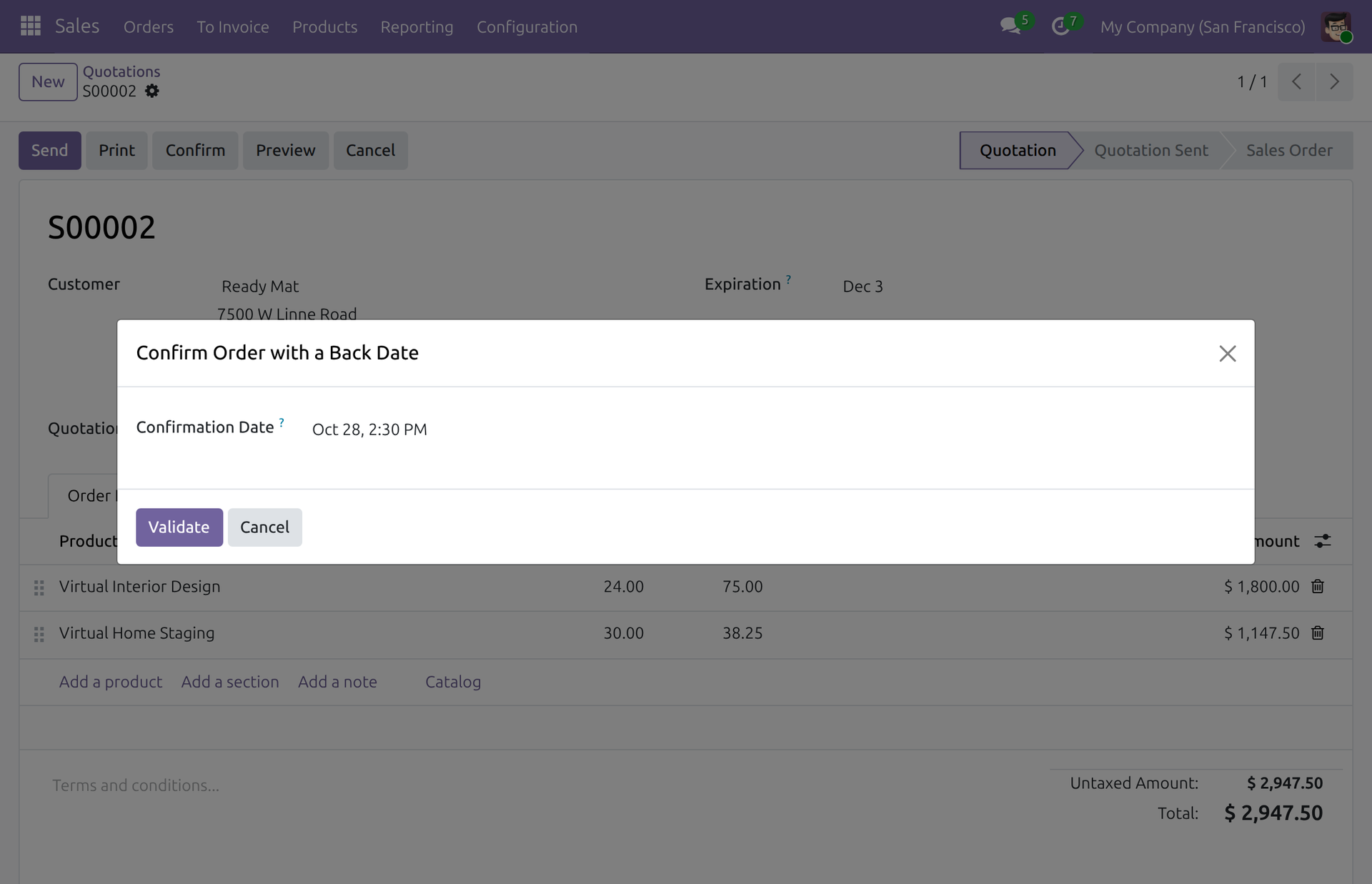
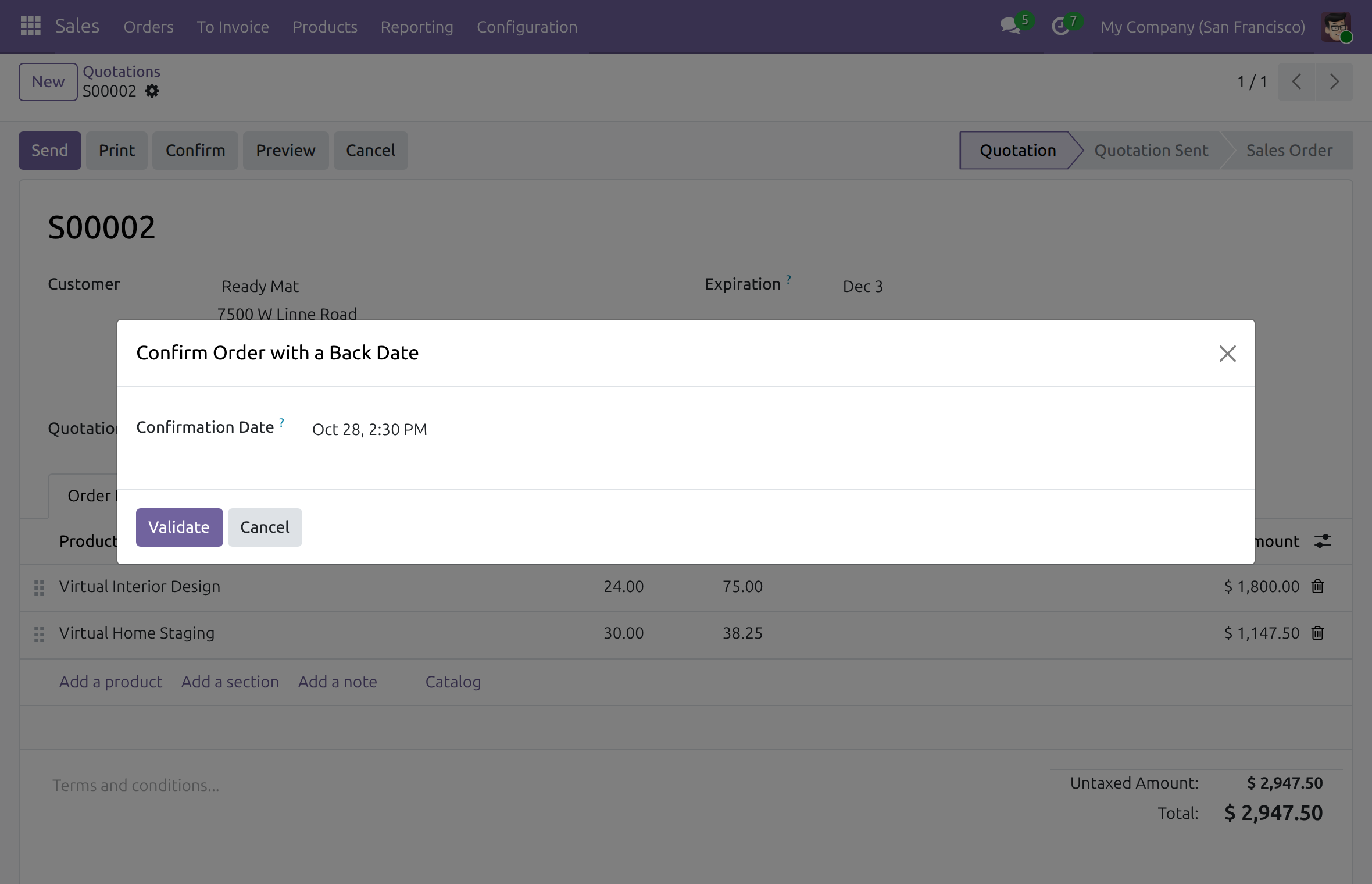
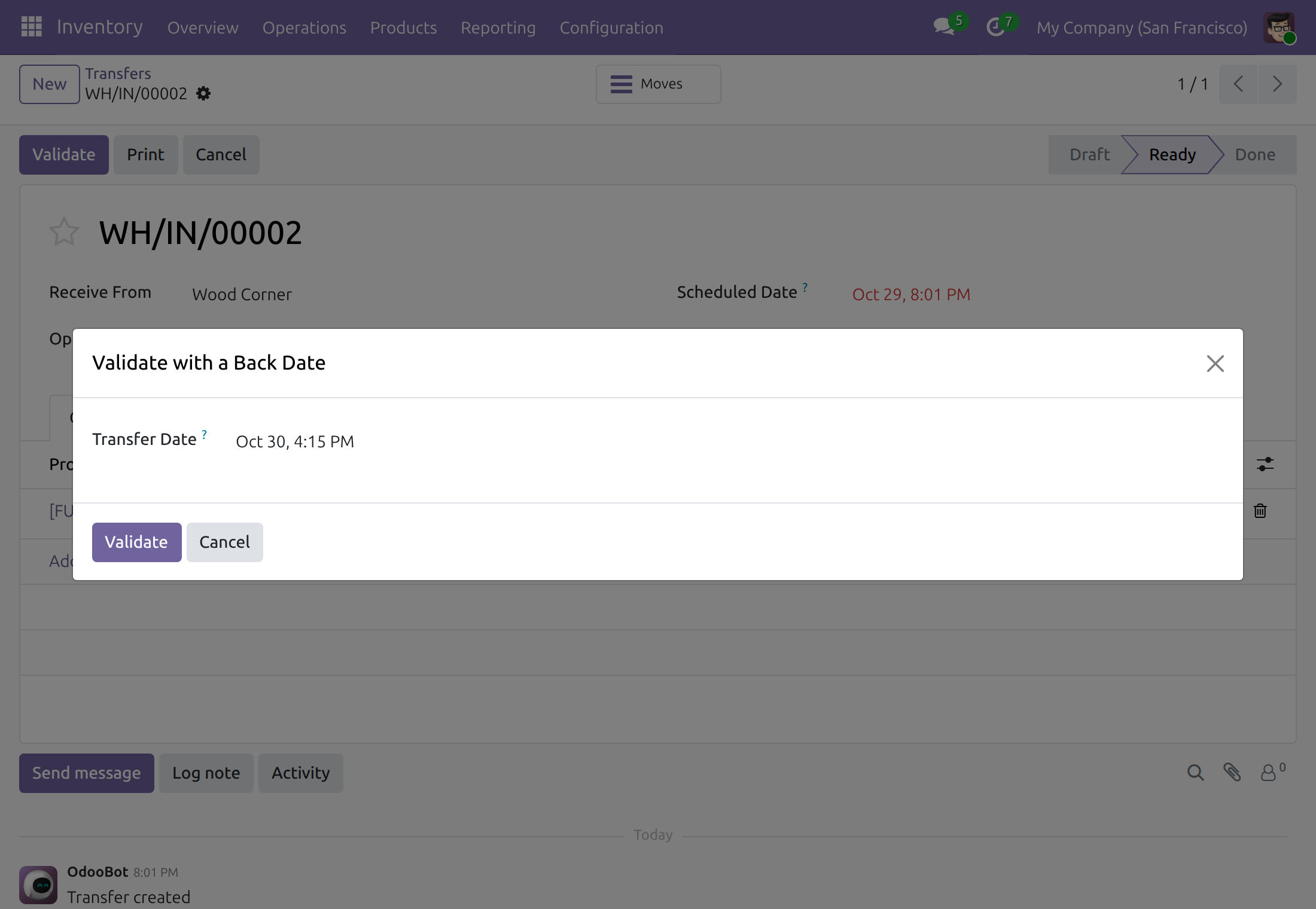
Each late entry keeps its real date
Today: a receipt, a signed order or a finished job is entered days later and takes the day it was typed.
→ The person entering it gives the date and time it really happened, in the same dialog in each app. A date after the current time is refused, so a record never runs ahead of reality.
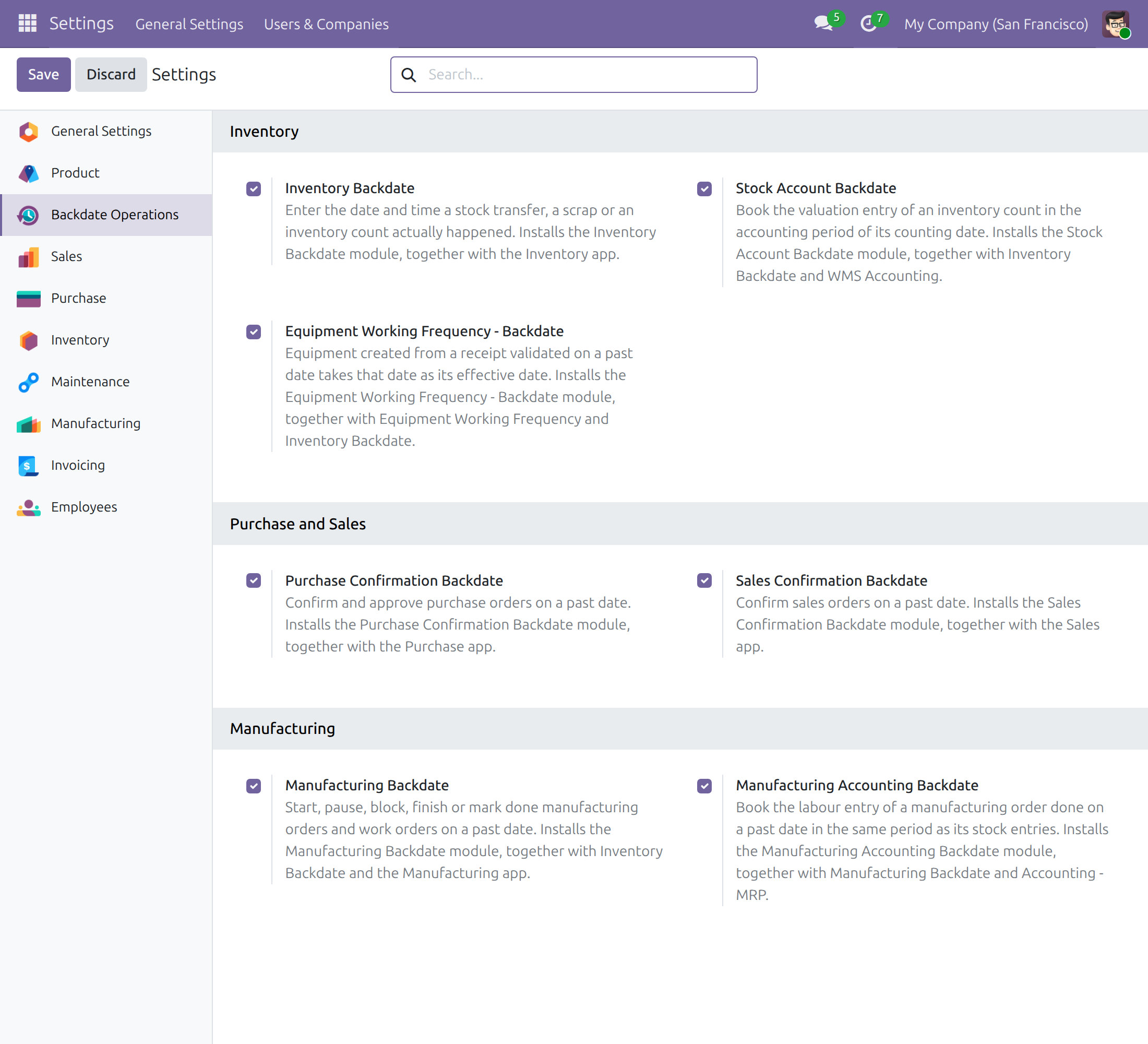
Every back-date module in one place
Today: each back-date module is looked up, installed and removed on its own from the Apps list.
→ Settings shows them in three blocks: Inventory, Purchase and Sales, Manufacturing. Tick a box and save, and Odoo installs the module with the app it needs. A module missing from your database shows a link to its page instead of a checkbox.
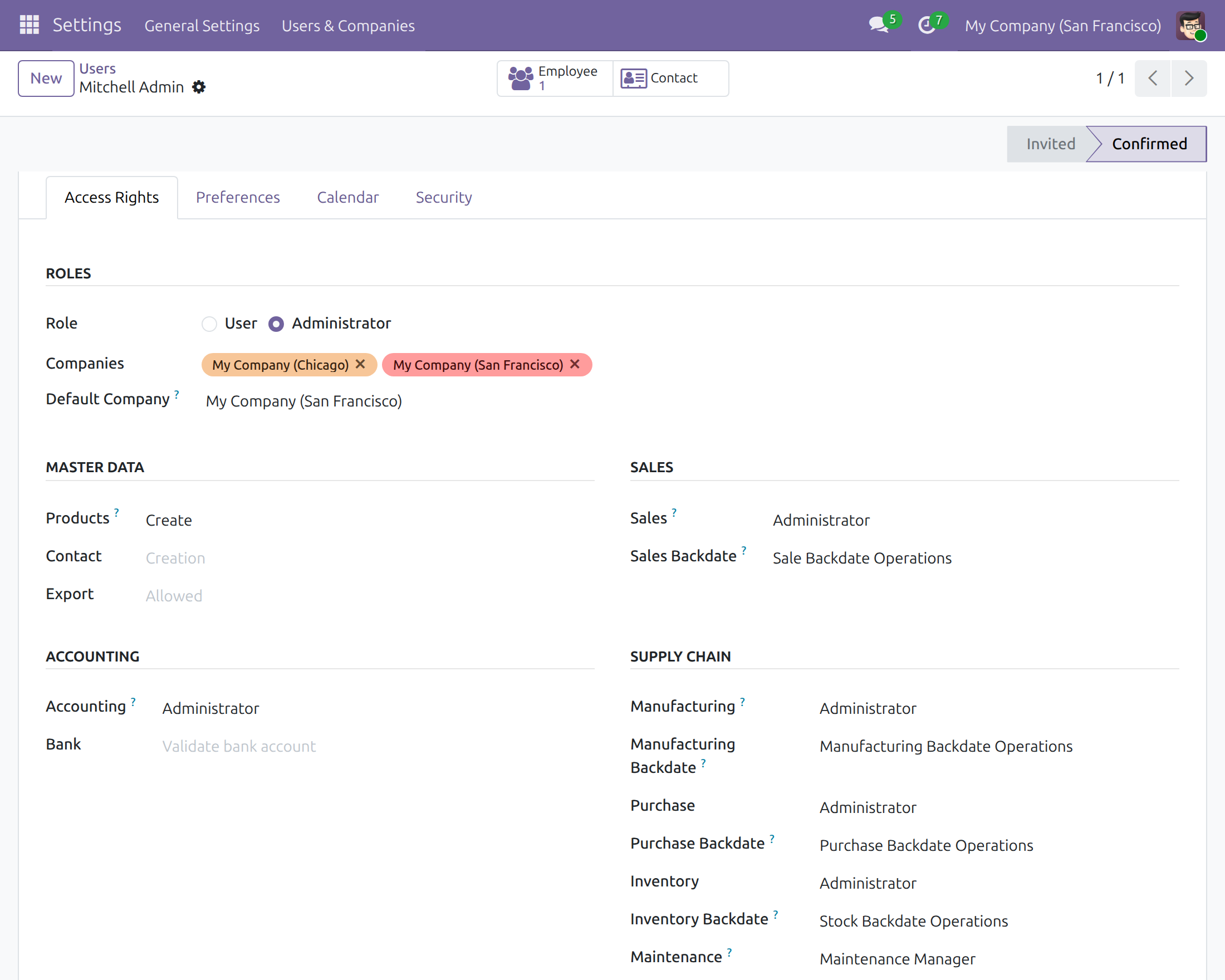
You decide who may enter a past date, app by app
Today: who may record a past date is settled outside the system, if at all.
→ Each right sits next to its app on the user form and is granted like any other access right. Only its holders are offered the date dialog; everyone else works as before.
What is included
On its own, the module adds the Backdate Operations section and the date dialog the back-date modules share. The operations come with the modules below. Manufacturing Backdate is switched on from the same section, and Odoo adds the accounting, equipment, subcontracting and purchase agreement links by itself once the apps they connect are installed.
Optional extensions
Inventory Backdate
Enter the date and time a stock transfer, a scrap or an inventory count actually happened.
Purchase Confirmation Backdate
Confirm and approve purchase orders on the date they were agreed with the vendor.
Sales Confirmation Backdate
Confirm the order on the date it was actually agreed with the customer.
Before you decide
Can anyone back-date anything?
No. Only holders of an app's back-date right are offered the date dialog in that app, and a date after the current time is always refused.
Does it get around a locked accounting period?
No. Odoo refuses a transfer dated in a locked period. For counts, scraps and manufacturing orders the movement keeps its date, and Odoo moves the journal entry to today or to the last day of the first open month.
Who can switch modules on or off?
Only users with the Role: Administrator right see the section. A switch applies to the whole database, not to one company, and removing a module goes through Odoo's own uninstall confirmation, where Discard changes nothing.
Which languages and time zones does it handle?
It ships in English and Vietnamese. Each person enters dates in their own time zone, and the accounting day is that date's day in their time zone.
What does it take to run or extend it?
It needs only Odoo's Initial Setup Tools and adds no menu of its own. A developer can give another operation the same date dialog by reusing the shared one.
Try it, then ask us
The Documentation tab walks through switching modules on, granting rights and recording an operation on a past date.
Pre-sales & partnership
viindoo.com/contactusTechnical support
viindoo.com/ticketTechnical requirements
- Odoo version: 19.0
- Editions: Odoo Community, Odoo Enterprise
- Required modules: Initial Setup Tools
- License: OPL-1
- Languages: English, Vietnamese
Backdate Operations
Note
This guide is for administrators, who switch the back-date modules on and off and give people their rights, and for the people who record operations on a past date.
Backdate Operations gives the administrator one place in Settings to install, uninstall and discover every module that records an operation on the date it really happened: a goods receipt that arrived last week, a purchase order agreed with a vendor on Monday, a manufacturing order finished yesterday. It also carries the rule every back-date dialog shares: a back-date is never in the future.
Overview
Recording something late is a normal part of running a business, and the books should still show the day it really happened. The back-date modules add a dialog to the action that records the operation (confirming an order, validating a transfer, marking an order done). The dialog asks for the date and time the operation really happened and the operation takes that date.
The back-date modules cover these operations. Each one has a box in Settings ‣ Backdate Operations.
| Module | What it lets people do | Installed together with |
|---|---|---|
| Inventory Backdate | Enter the date and time a stock transfer, a scrap or an inventory count actually happened. | The Inventory app |
| Stock Account Backdate | Book the valuation entry of an inventory count in the accounting period of its counting date. | Inventory Backdate and WMS Accounting |
| Equipment Working Frequency - Backdate | Give equipment created from a receipt validated on a past date that date as its effective date. | Equipment Working Frequency and Inventory Backdate |
| Purchase Confirmation Backdate | Confirm and approve purchase orders on a past date. | The Purchase app |
| Sales Confirmation Backdate | Confirm sales orders on a past date. | The Sales app |
| Manufacturing Backdate | Start, pause, block, finish or mark done manufacturing orders and work orders on a past date. | Inventory Backdate and the Manufacturing app |
| Manufacturing Accounting Backdate | Book the labour entry of a manufacturing order done on a past date in the same period as its stock entries. | Manufacturing Backdate and Accounting - MRP |
Two further modules have no box because Odoo installs them by itself when the apps they connect are present: Purchase Agreements Backdate (Purchase Confirmation Backdate with Purchase Agreements) and Subcontracting Backdate (Manufacturing Backdate with Subcontracting).
Who does what:
| Role | What they do | Access right to assign |
|---|---|---|
| Administrator | Switches the back-date modules on and off in Settings and gives each person the back-date right of their app. | Role: Administrator |
| Person who records an operation after it happened | Enters the date and time the operation really happened in the dialog the app offers. | The back-date right of the app: Sales Backdate, Purchase Backdate, Manufacturing Backdate or Inventory Backdate |
Setup (for the Administrator)
Installation
The section Backdate Operations appears in Settings as soon as the Backdate Operations module is installed. It is installed with any back-date module; to install it on its own, open Apps, search for Backdate Operations and click Install.
Only users with the Role: Administrator access right see the section. Everyone else does not see it and cannot open Settings.
Switch a back-date module on
- Open Settings ‣ Backdate Operations.
- Tick the box of the module you want. The help text under the box names what is installed with it.
- Click Save.
Odoo installs the module together with the apps it needs. Some modules then install themselves because everything they connect is present: Stock Account Backdate appears as ticked once Inventory Backdate and WMS Accounting are both installed, and the same holds for Manufacturing Accounting Backdate and Equipment Working Frequency - Backdate.
The Inventory Backdate box also appears in the Inventory settings, and the Purchase Confirmation Backdate box in the Purchase settings. They are the same switch: both places always show the same state, and ticking either one installs the same module.
Switch a back-date module off
- Open Settings ‣ Backdate Operations and untick the box.
- Click Save. Odoo shows the confirmation Uninstall module with the modules that go with it. They are listed when you tick Show All; the modules that depend on the one you are removing are part of the list.
- Click Uninstall to confirm, or Discard to change nothing.
The modules that were installed together with it, such as the Inventory app, stay installed. A module that installed itself, such as Stock Account Backdate, stays uninstalled after you switch the module it depends on off, until you tick its box again.
When a module is not available
A module that is not available in your database shows no checkbox. Its box carries the link Purchase or Learn more instead. The link opens the module's page in a new browser tab and leaves Settings where it is. Once the module is added to your database, the checkbox replaces the link.
Give people their back-date rights
Each right sits in the section of the app it belongs to on the user form.
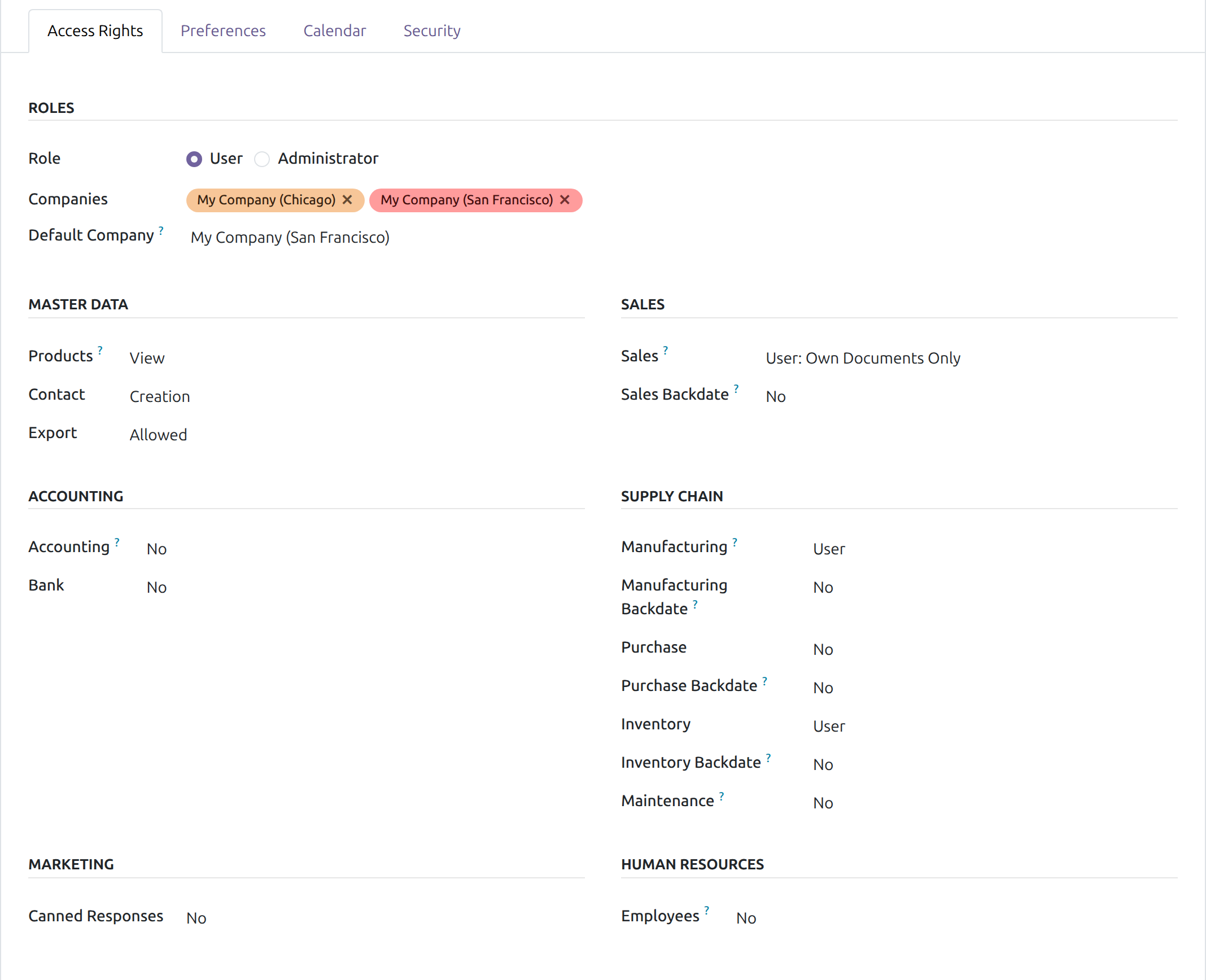
- Open Settings ‣ Users & Companies ‣ Users and open the user.
- In the tab Access Rights, find the row of the right in the section of its app, as the table below shows.
- Choose the right in the drop-down list and click Save.
| Section | Row | Choice that grants the right |
|---|---|---|
| Sales | Sales Backdate | Sale Backdate Operations |
| Supply Chain | Purchase Backdate | Purchase Backdate Operations |
| Supply Chain | Manufacturing Backdate | Manufacturing Backdate Operations |
| Supply Chain | Inventory Backdate | Stock Backdate Operations |
A row appears only when its module is installed. Choosing No takes the right away: from then on the action runs at the current time for that user, without a dialog.
A back-date right includes the user right of its app, so granting the right is enough to let the person work in the app. Having the right means the dialog is offered to that person; it never stops anyone else from working. Back-dating an inventory count needs no right: counts are back-dated through the Counting Date of Odoo's own Apply dialog, which any inventory user can set.
Recording an operation on a past date
For the person who holds a back-date right.
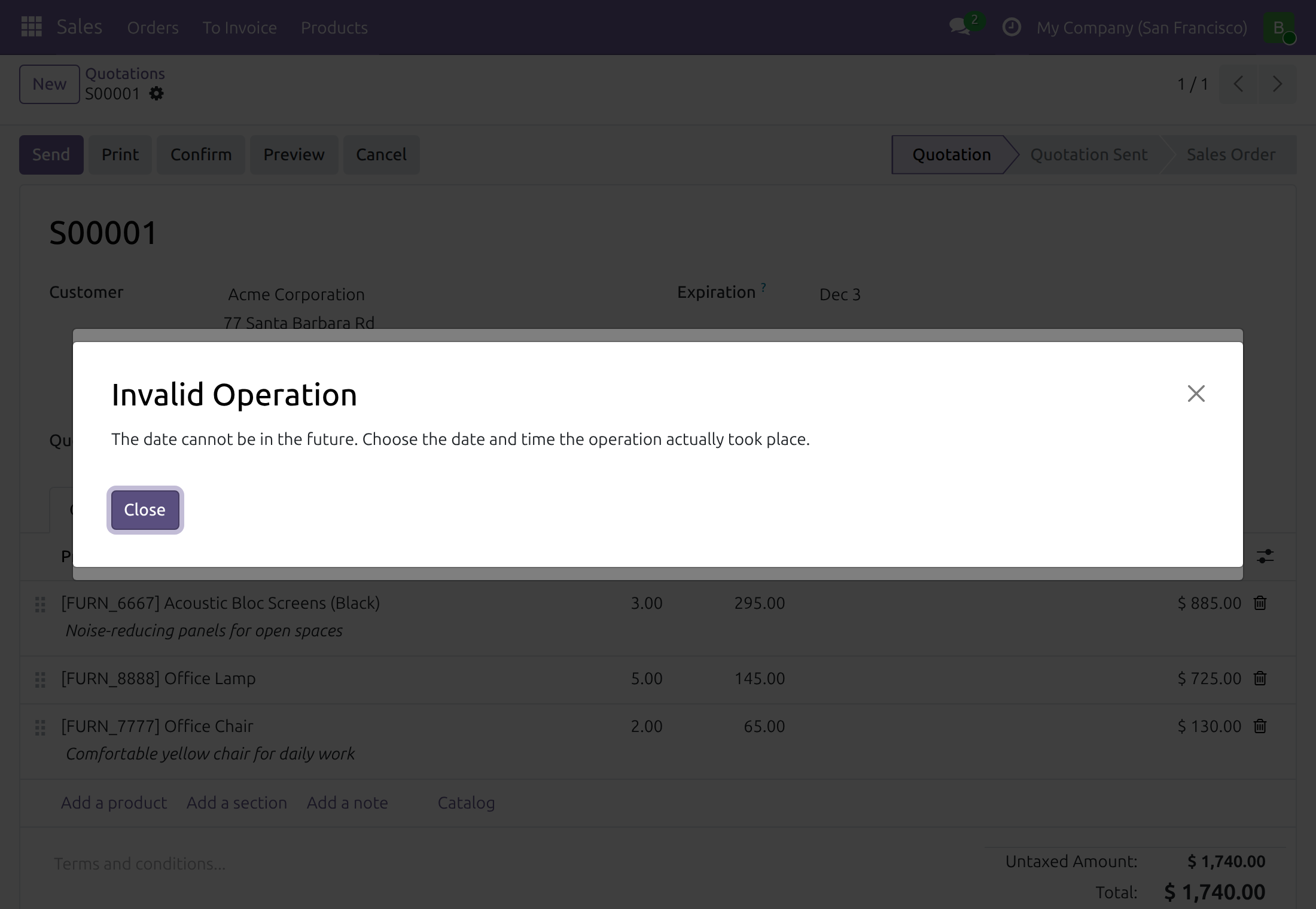
When you press the action of a document that has a back-date module (for example Confirm on a quotation), a dialog titled "... with a Back Date" opens, such as Confirm Order with a Back Date. Its date field proposes the current time.
- Enter the date and time the operation really happened, in your own time zone.
- Click Validate to record the operation at that date, or Cancel to leave the document as it was.
Rules every back-date dialog shares:
- A back-date is never in the future. A date after the current time is refused with "The date cannot be in the future. Choose the date and time the operation actually took place.". The document stays as it was and the dialog is still open: correct the date, or cancel.
- Dates are entered in your time zone. The accounting day of the operation is the day of the date you chose in your time zone.
- Document numbers follow the numbering range of the chosen date.
- A locked accounting period. Odoo refuses a transfer dated in a locked period. For counts, scraps and manufacturing orders the movement keeps its date, and Odoo moves the journal entry to today, or to the last day of the first open month (31 December for journals numbered per year).
- A back-dated count is valued at the cost in force when it is recorded. Inventory value at a past date follows the movement dates.
The guide of each back-date module describes its own dialogs and what takes the date: Inventory Backdate, Stock Account Backdate, Equipment Working Frequency - Backdate, Purchase Confirmation Backdate, Purchase Agreements Backdate, Sales Confirmation Backdate, Manufacturing Backdate, Manufacturing Accounting Backdate and Subcontracting Backdate.
Troubleshooting
- I do not see Backdate Operations in Settings.
- The section is shown to users with the Role: Administrator access right only, and only when the Backdate Operations module is installed.
- A box has no checkbox, only "Purchase or Learn more".
- The module is not available in your database. Open the link to read about it; the checkbox appears once the module is added.
- A user confirms or validates without any dialog.
- The user does not hold the back-date right of that app. Grant it in the Access Rights tab of the user, as described above.
- The date is refused as being in the future.
- Choose a date and time up to the current time. A back-date can never be later than the current time.
- The uninstall confirmation shows no module.
- Tick Show All to list the modules that go with the one you are removing.
FAQ
- Do the switches apply to one company or to the whole database?
- To the whole database: installing and uninstalling a module is not per company.
- Does a person need the back-date right to see the document afterwards?
- No. The right only decides who is offered the dialog; everyone with access to the document sees it with its date.
- Can a back-date be in the future, for example to plan an operation?
- No. Every back-date dialog refuses a date after the current time.
This software and associated files (the "Software") may only be used (executed, modified, executed after modifications) if you have purchased a valid license from the authors, typically via Odoo Apps, or if you have received a written agreement from the authors of the Software (see the COPYRIGHT file).
You may develop Odoo modules that use the Software as a library (typically by depending on it, importing it and using its resources), but without copying any source code or material from the Software. You may distribute those modules under the license of your choice, provided that this license is compatible with the terms of the Odoo Proprietary License (For example: LGPL, MIT, or proprietary licenses similar to this one).
It is forbidden to publish, distribute, sublicense, or sell copies of the Software or modified copies of the Software.
The above copyright notice and this permission notice must be included in all copies or substantial portions of the Software.
THE SOFTWARE IS PROVIDED "AS IS", WITHOUT WARRANTY OF ANY KIND, EXPRESS OR IMPLIED, INCLUDING BUT NOT LIMITED TO THE WARRANTIES OF MERCHANTABILITY, FITNESS FOR A PARTICULAR PURPOSE AND NONINFRINGEMENT. IN NO EVENT SHALL THE AUTHORS OR COPYRIGHT HOLDERS BE LIABLE FOR ANY CLAIM, DAMAGES OR OTHER LIABILITY, WHETHER IN AN ACTION OF CONTRACT, TORT OR OTHERWISE, ARISING FROM, OUT OF OR IN CONNECTION WITH THE SOFTWARE OR THE USE OR OTHER DEALINGS IN THE SOFTWARE.